How to Use AI in Houzz Pro
Using Houzz AI is one easy way to improve the productivity and efficiency of your business. It allows you to streamline tedious and time-consuming tasks so you can prioritize other things that move your business forward.
Our Houzz AI features are incorporated in several different areas throughout the desktop experience, including:
- Financial Documents
- Estimate to Schedule
- Daily Logs and Notes
- Takeoffs
- 3D Floor Plans
- Clipper
- Selection Boards
- Mood Boards
- Expenses
- Messages
Please Note: The desktop AI experience does differ from the mobile app AI experience — to learn more about mobile, read How to Use AI in the Houzz Pro Mobile App.
Let's go over how AI is used to improve each feature.
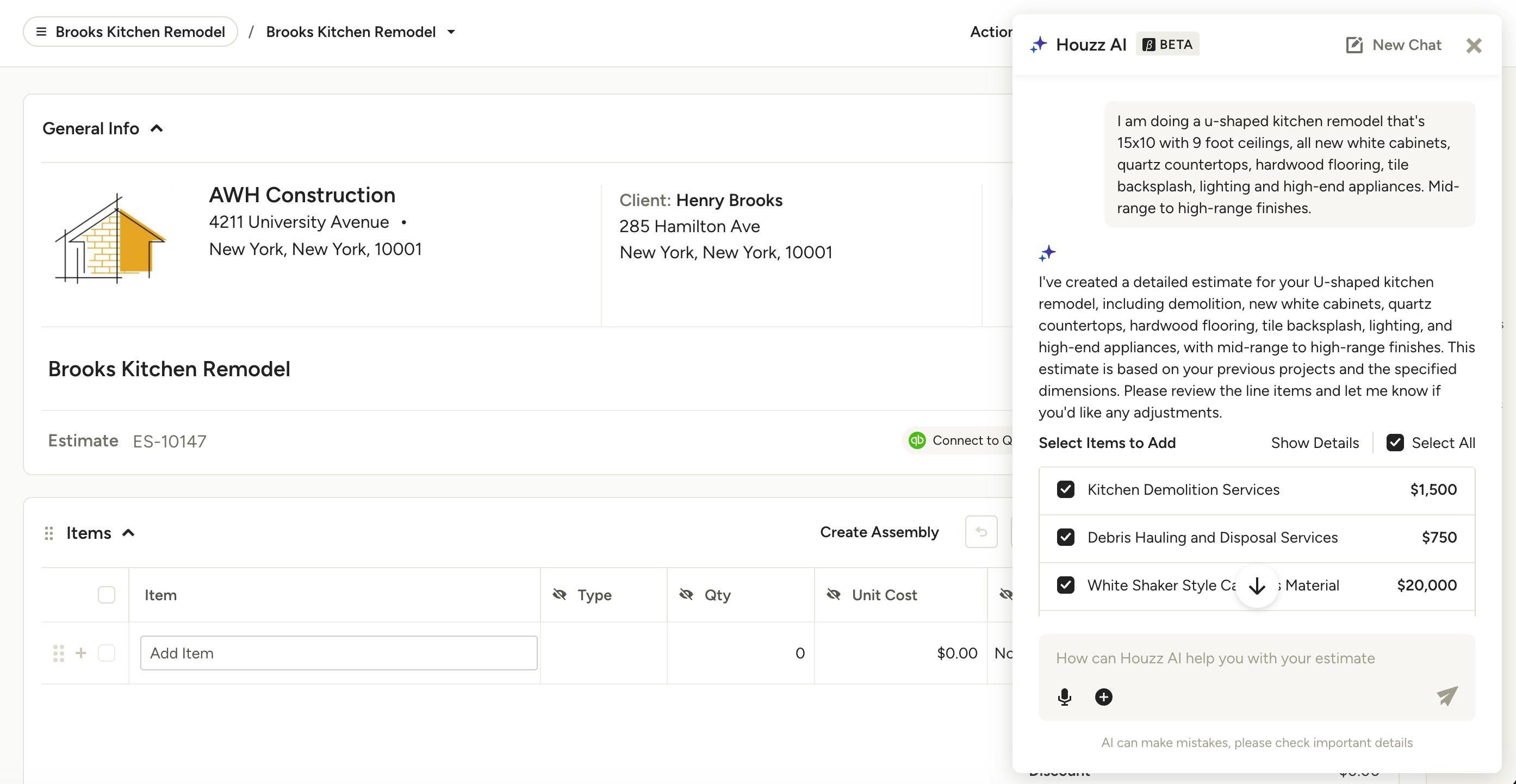
AI Financial Documents
In Financial Documents — including Estimates, Proposals, Invoices and Change Orders — you can use Houzz AI to quickly create a new document from scratch or edit an existing document to include more details.
With this feature, you type in an in-depth project description into the Houzz AI chat box, or use voice commands to explain the details of your project. AI will then create document line items and categories based on your description. You can edit and further customize your financial document as needed.
You can create an AI-generated document from both a desktop computer or the Houzz Pro mobile app.
Read How to Use AI to Create Financial Documents or How to Use the Houzz AI Assistant for a step-by-step guide on using this feature.
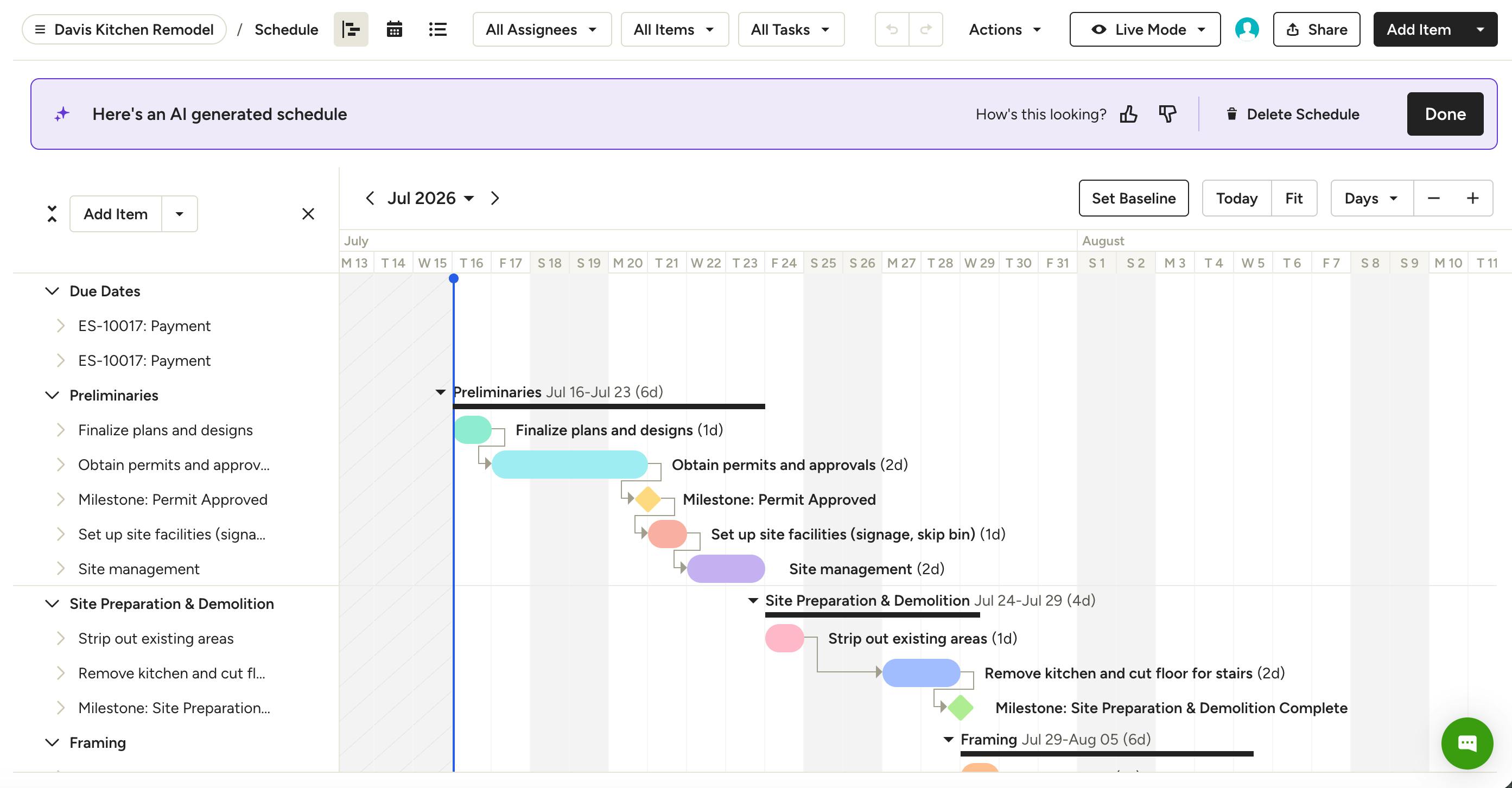
AI Estimate to Schedule
In Estimates, you can use Houzz AI to transform your detailed estimate into a schedule that keeps your project on track.
With this feature, our AI will analyze the line items and categories in an estimate and turn it into a schedule, complete with detailed items and phases. Once created, you can review and further customize the schedule, including adding milestones, due dates and tasks.
You can only use AI on Schedule from a desktop computer.
Read How to Use AI to Convert an Estimate to a Schedule for a step-by-step guide on using this feature.
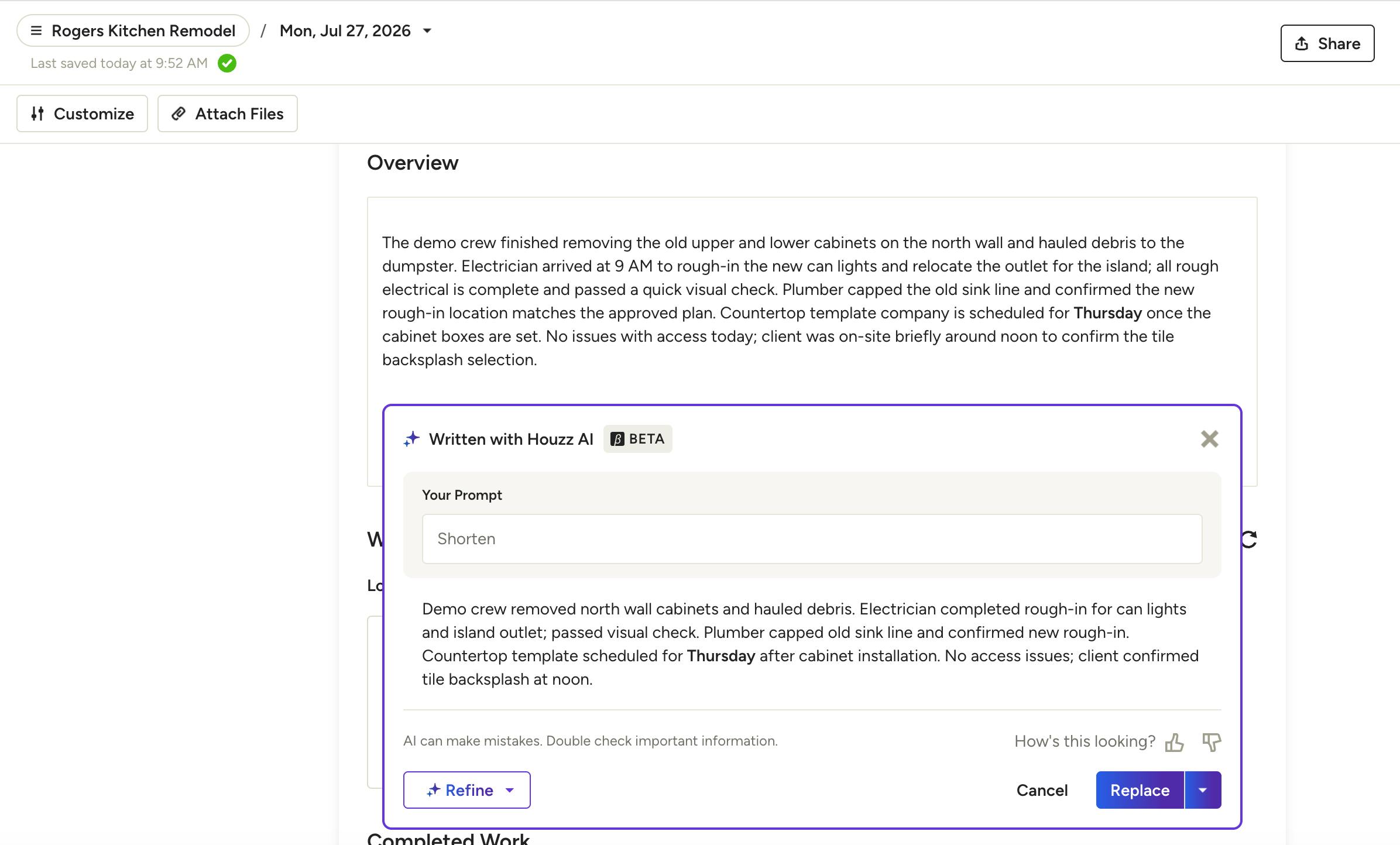
AI Daily Logs and Notes
In Daily Logs and Notes, you can use Houzz AI to clean up and improve the quality of existing content. It ensures your company communication is always polished and professional.
With this feature, our AI will review your Daily Log and/or Note, analyze the text, and provide suggestions to improve clarity, formatting and even fix spelling errors. It will also review the text and suggest potential tasks for you and your team to complete, which ensures you never miss anything on your to-do list.
You can only use AI on a Daily Log or Note from a desktop computer.
Read How to Create and Share Daily Logs and How to Create Notes for step-by-step guides on using these features.
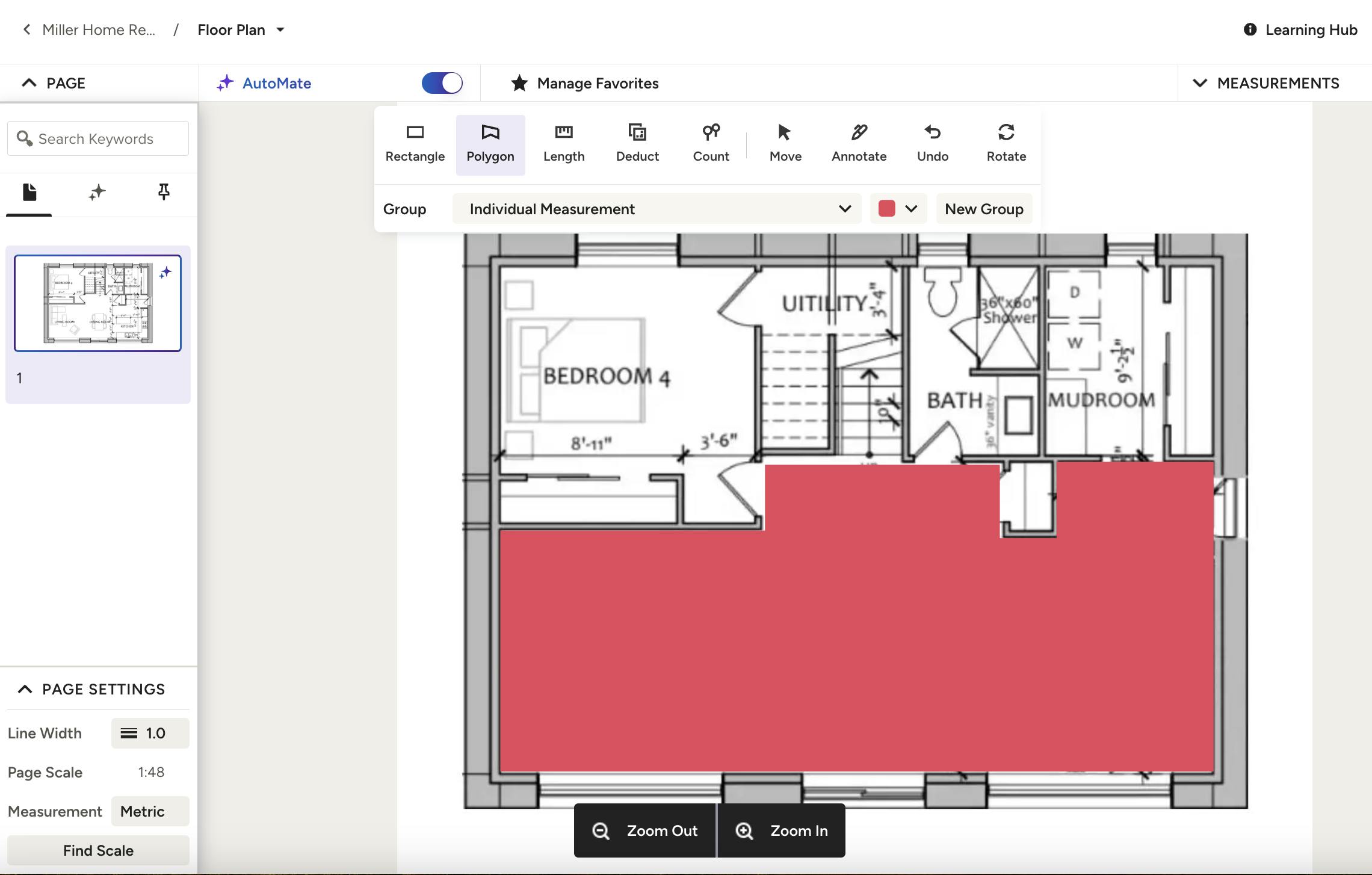
AI Takeoffs
In Takeoffs, you can use Houzz AI to automate your measurements for a faster Takeoff creation process.
With this feature, our AI will scan the pages you upload and, when eligible, will automatically detect the space to measure area and length. It will even automatically detect icons so you can create accurate item counts instantly.
You can only use AI on Takeoffs from a desktop computer. Not all plans quality for AI (simplified floor plans only at this time).
Read AI for Takeoffs for a step-by-step guide on using this feature.
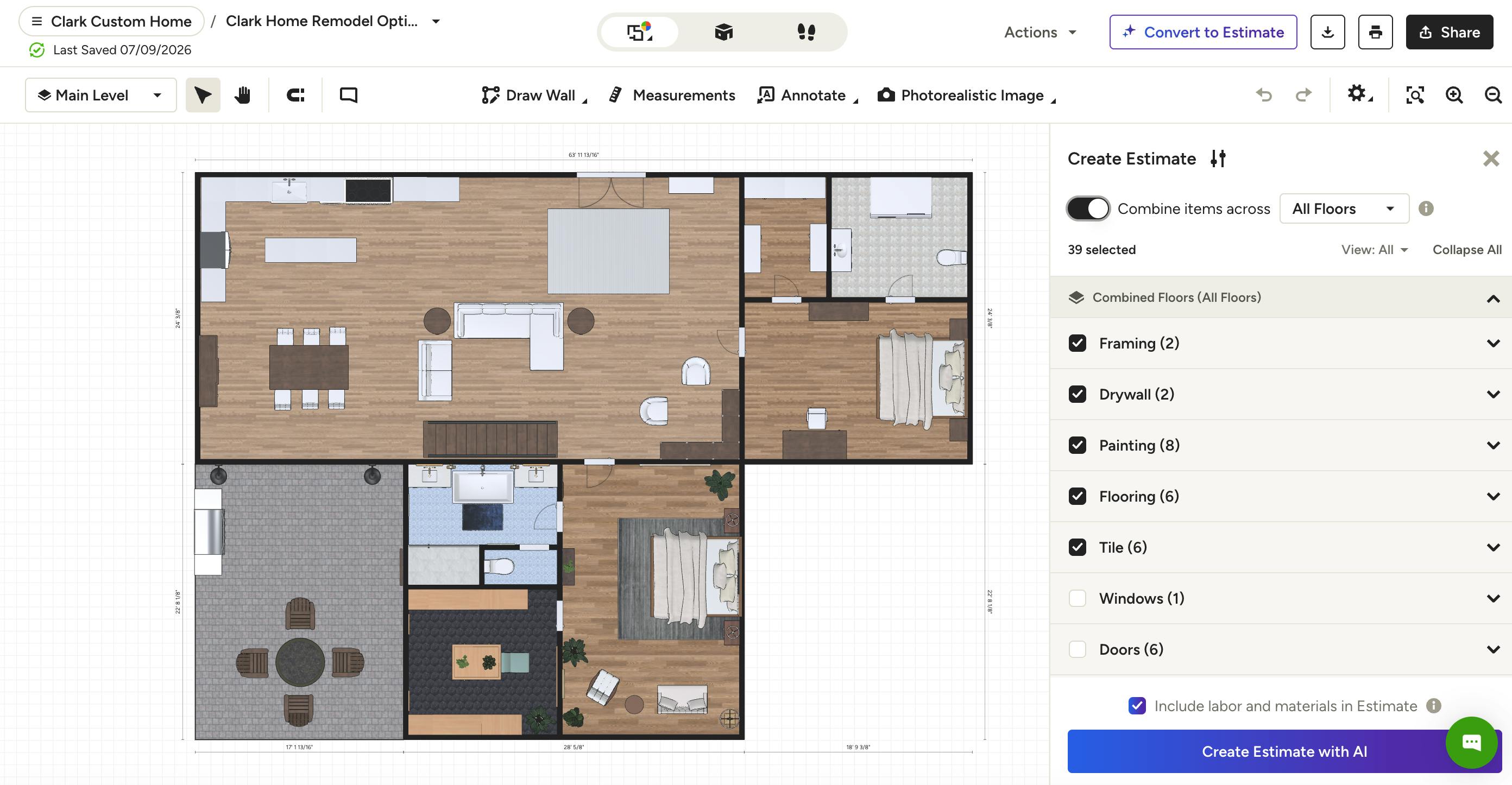
AI 3D Floor Plans
In 3D Floor Plans, you can use Houzz AI in several different ways. You can:
- Create a new floor plan using a 2D plan. Upload a 2D plan, and our AI will scan it an build an accurate, detailed 3D floor plan based on that design. Read How to Create a 3D Floor Plan to learn more.
- Create a new 3D product from a 2D image. Select a 2D product from your Houzz Pro product library (you can use the Clipper here to help). Our AI will scan that 2D image and create a detailed 3D version to add directly to your designs. Read How to Add a 2D Product to Your 3D Floor Plan to learn more.
- Create an estimate/proposal from a 3D floor plan. Convert your 3D floor plan into a detailed estimate. Our AI will create line items and categories based on your design and even add suggested labor and material costs. You can customize the details before creating the document. Read How to Create an Estimate Using Your 3D Floor Plan to learn more.
You can only use AI on 3D Floor Plans from a desktop computer.
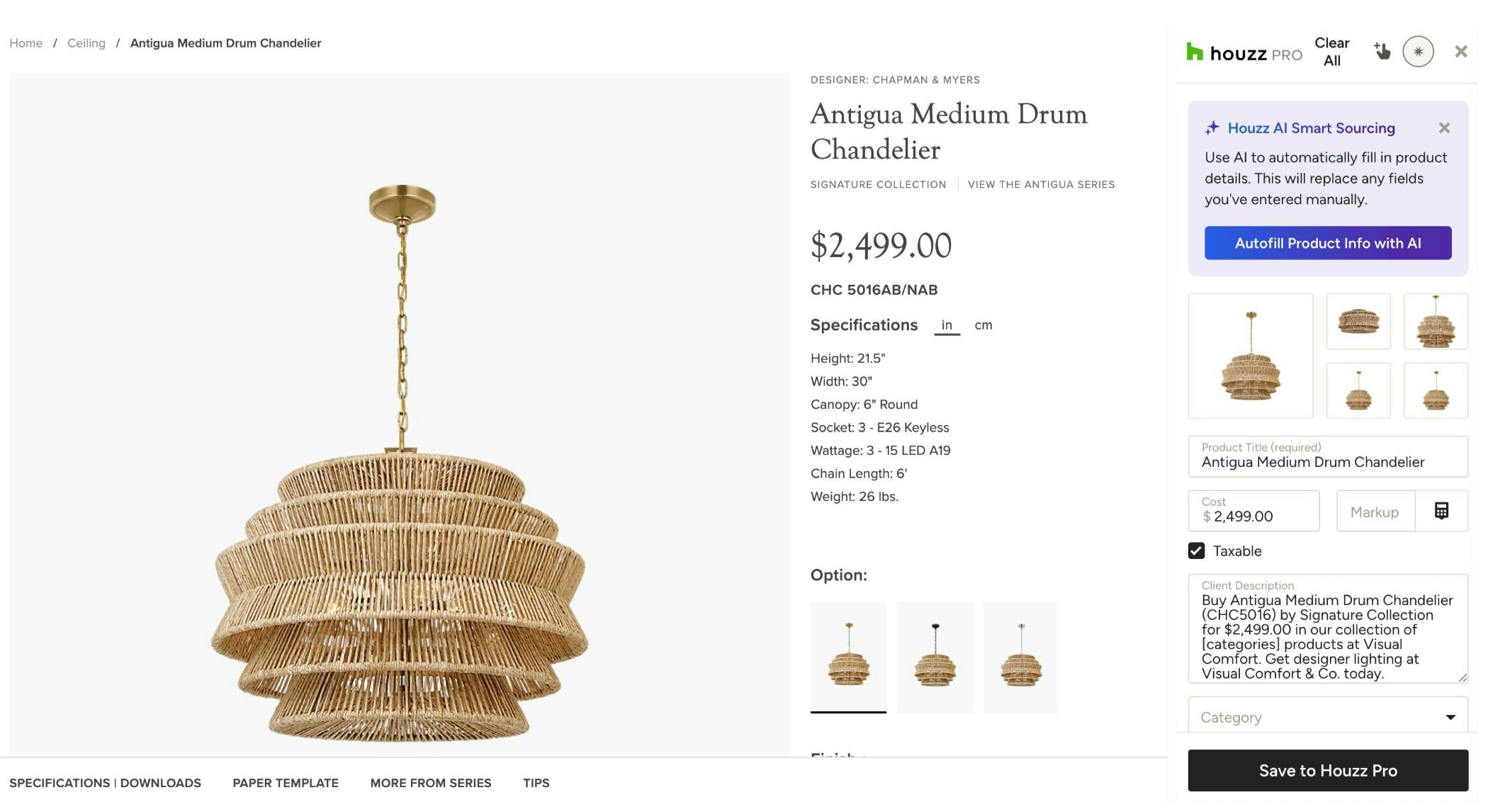
AI Clipper
In Clipper, you can use Houzz AI to automatically fill out product details so you don't have to manually input field-by-field. It makes adding products to your Houzz Pro product library faster and more accurate.
With this feature, our AI extracts product information from any vendor website and automatically maps it to the correct Clipper fields. It will even pull product images — you can select up to 5 relevant images to include with your product.
You can use AI on Clipper from both a desktop computer or the Houzz Pro mobile app.
Read How to Use the Clipper Tool for a step-by-step guide on using this feature.
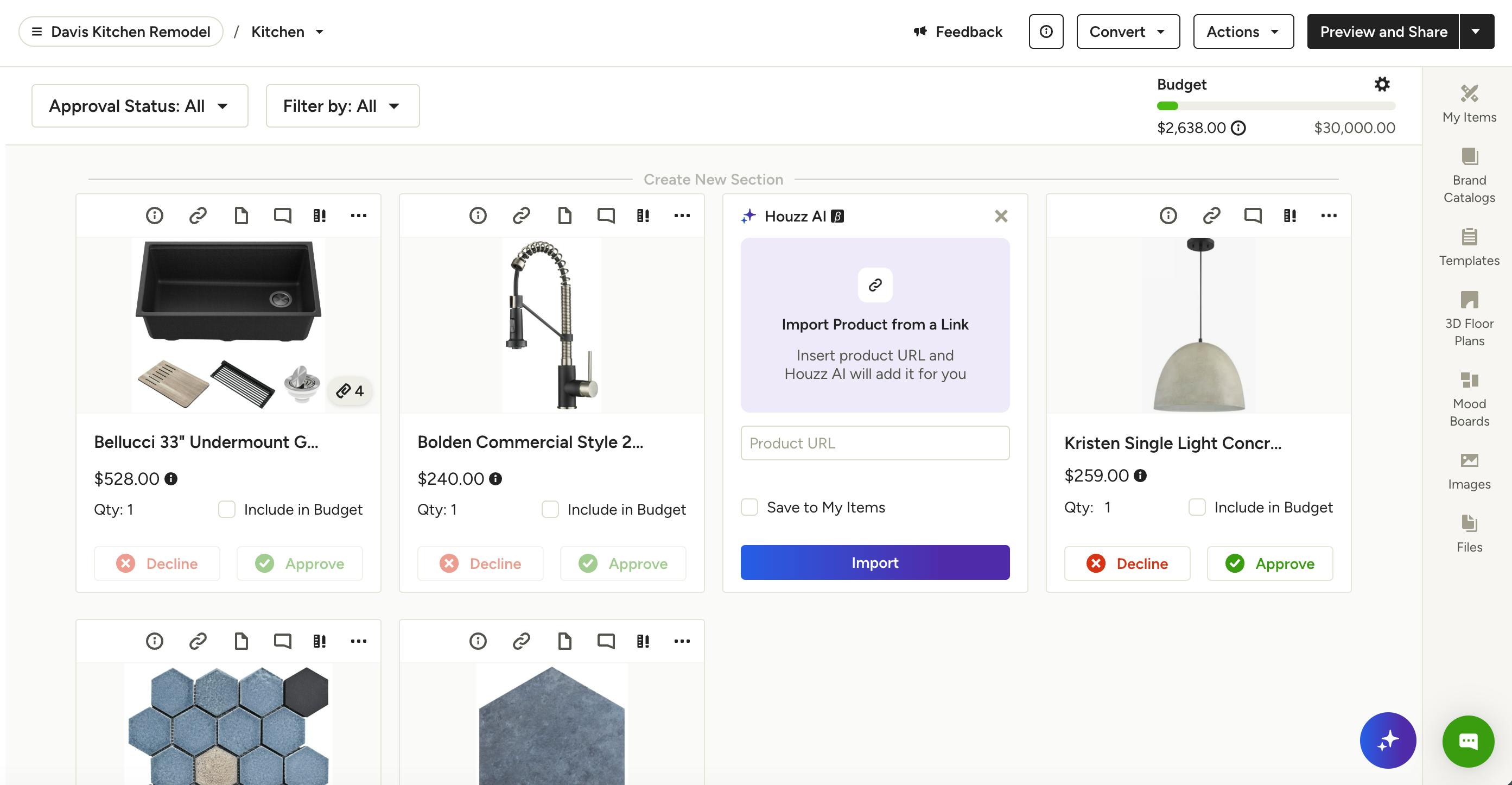
AI Selection Boards
In Selection Boards, you can use Houzz AI to instantly add products to your board just by pasting a link — no manual entry required.
With this feature, our AI fetches product details and images from any vendor URL and automatically creates a new item card on your board. You can also choose to save the product to your My Items library for future use across other projects.
Read How to Use Selections in Houzz Pro for a step-by-step guide on using this feature.
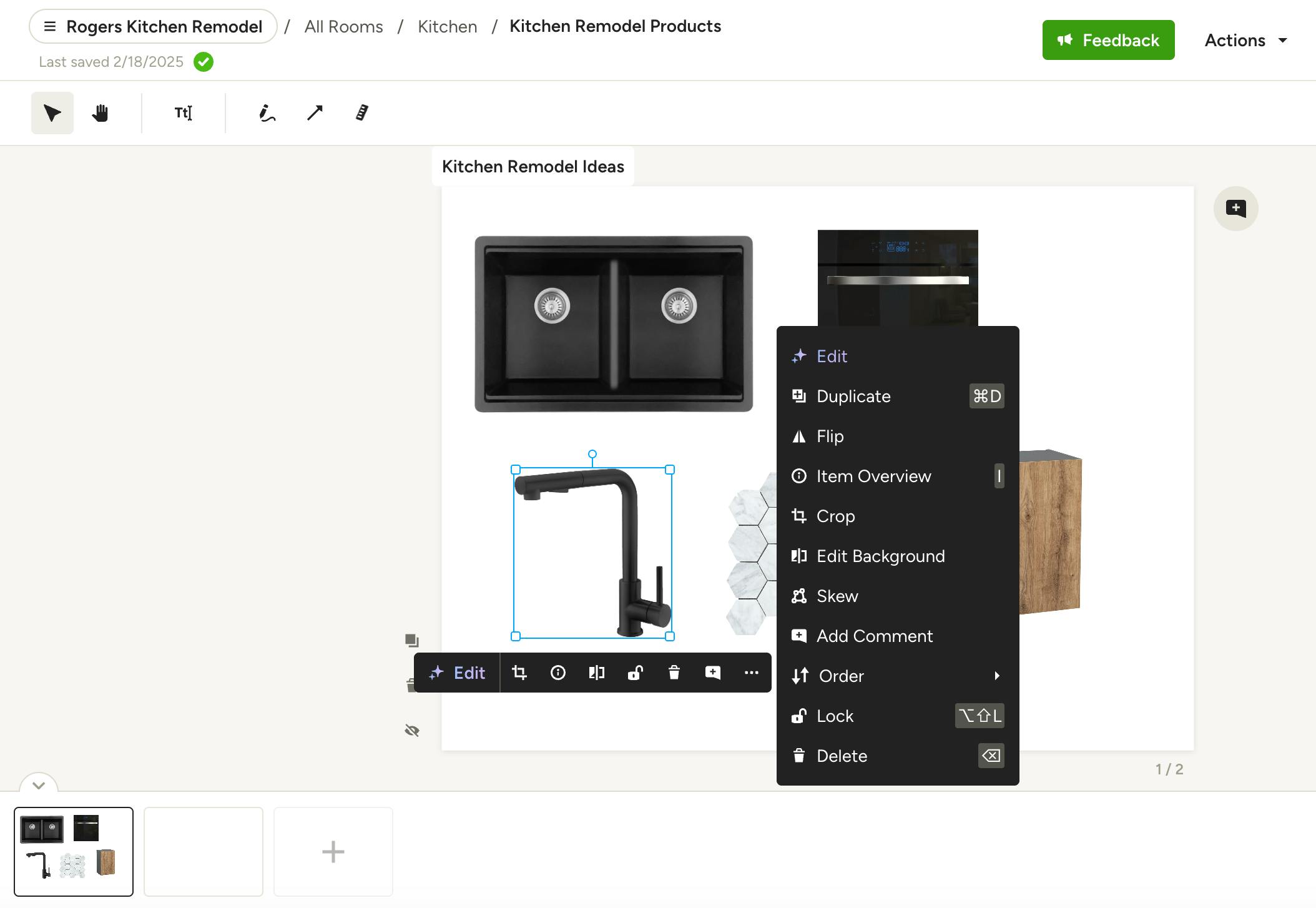
AI Mood Boards
In Mood Boards, you can use Houzz AI to edit images and products right on your board, so you don't have to source new photos to show your design vision.
With this feature, our AI takes a combination of inputs — like a text prompt, a reference image, an item from your library, or a specific color — and applies the edit directly to the image on your board. Example: "Change the finish to matte black."
Read How to Create a Mood Board for a step-by-step guide on using this feature.
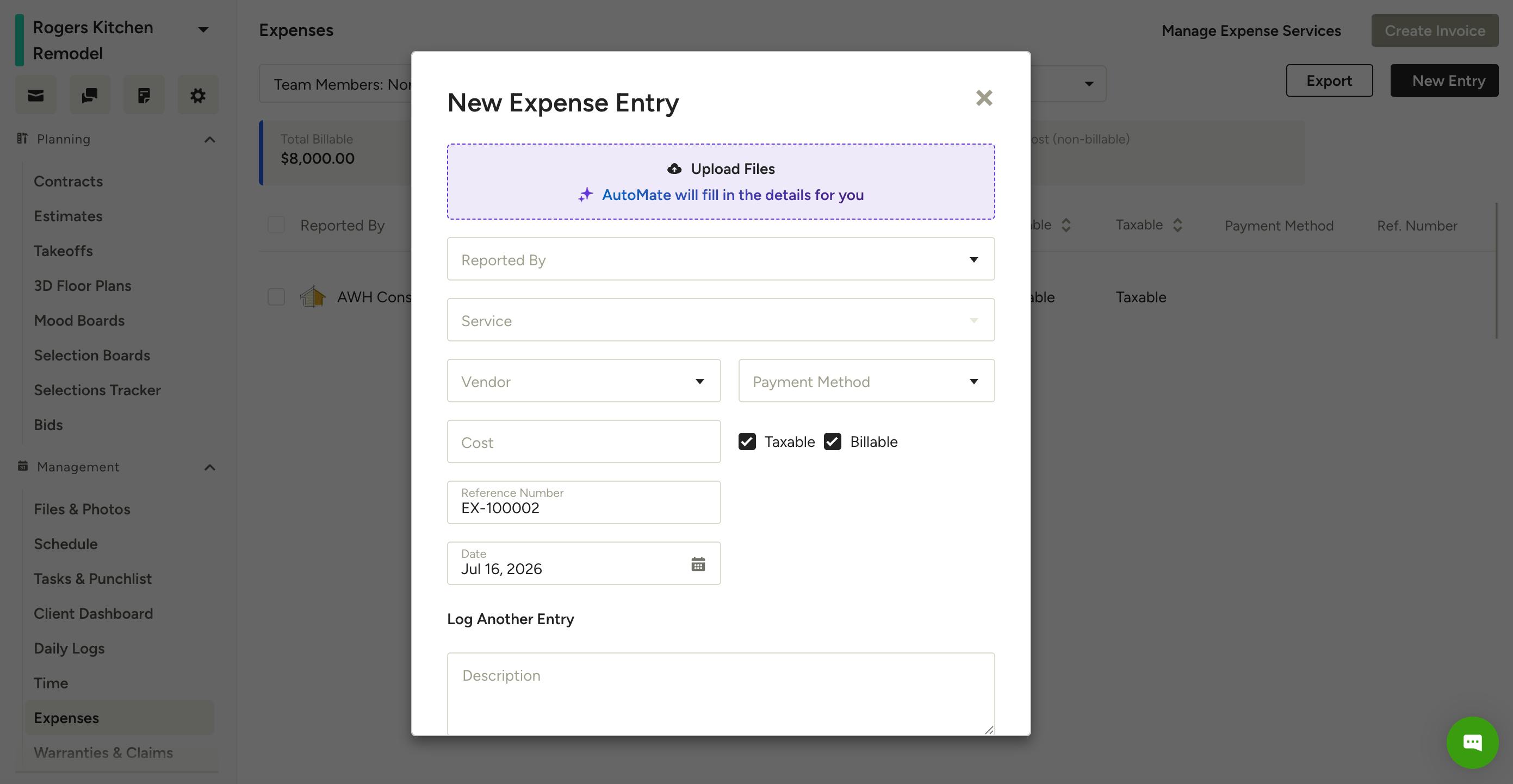
AI Expenses
In Expenses, you can use Houzz AI to scan uploaded receipts and files so you don't have to manually enter expense details.
With this feature, our AI reads uploaded files, photos, or receipts and automatically fills in fields like date, expense amount, and company. You can scan files directly from the Expenses page or from Files & Photos, and process multiple files at once as separate expenses or a single expense with multiple attachments.
You can use AI Expenses from both a desktop computer or the Houzz Pro mobile app.
Read How to Manage Expenses in Houzz Pro for a step-by-step guide on using this feature.
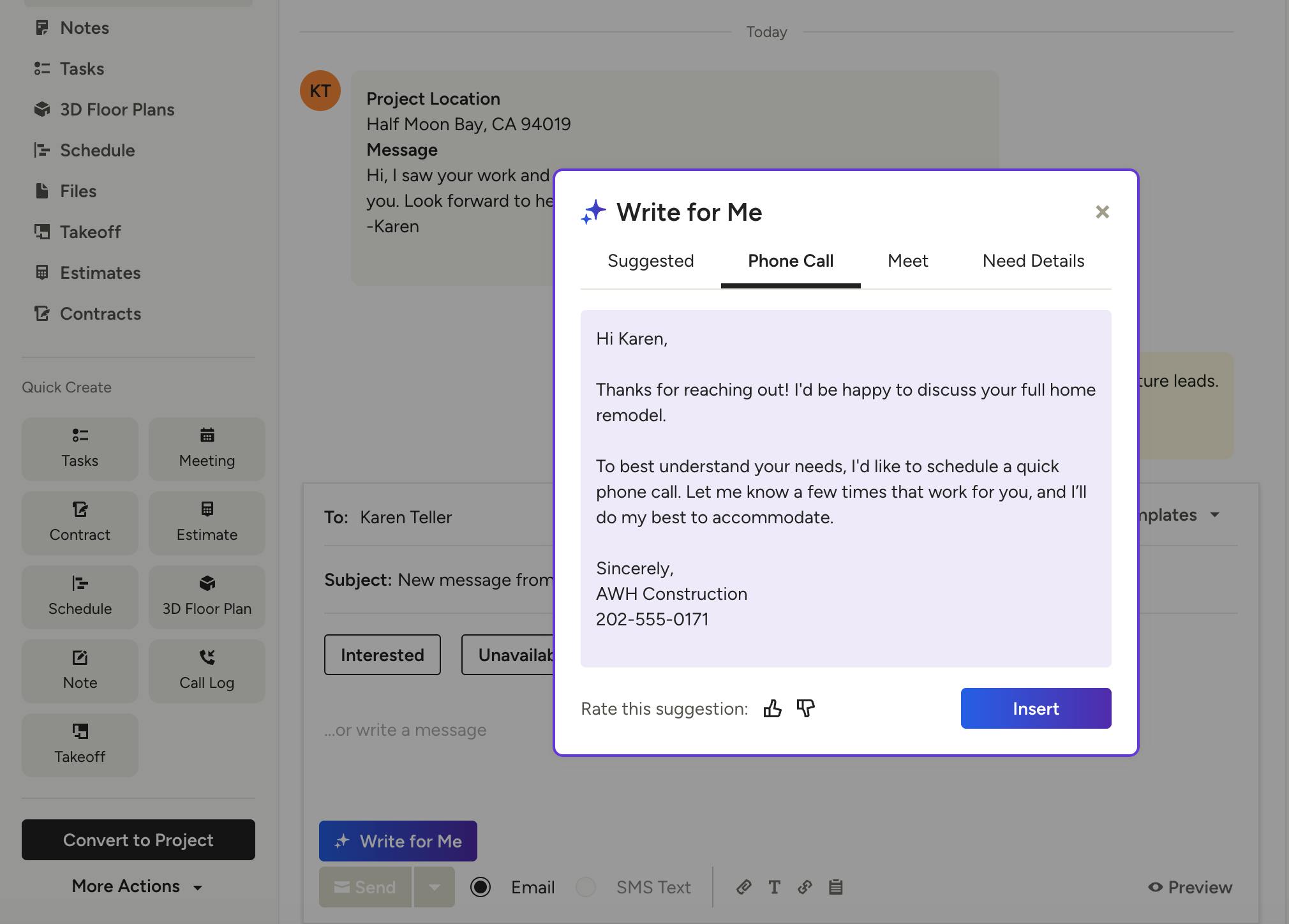
AI Messages
In Messages, you can use Houzz AI to draft and refine responses to clients and leads instead of writing every message from scratch.
With this feature, our AI can generate ready-to-send response options based on your typical communication style, write a polished message from a short prompt, or refine your own rough draft by adjusting tone, length, or grammar.
You can use AI Messages from both a desktop computer or the Houzz Pro mobile app. On the mobile app, it is only available for leads who reach out on Houzz via Direct Message or Project Match.
Read How to Use AI to Send Messages for a step-by-step guide on using this feature.