How to Use AI to Create an Estimate or Proposal
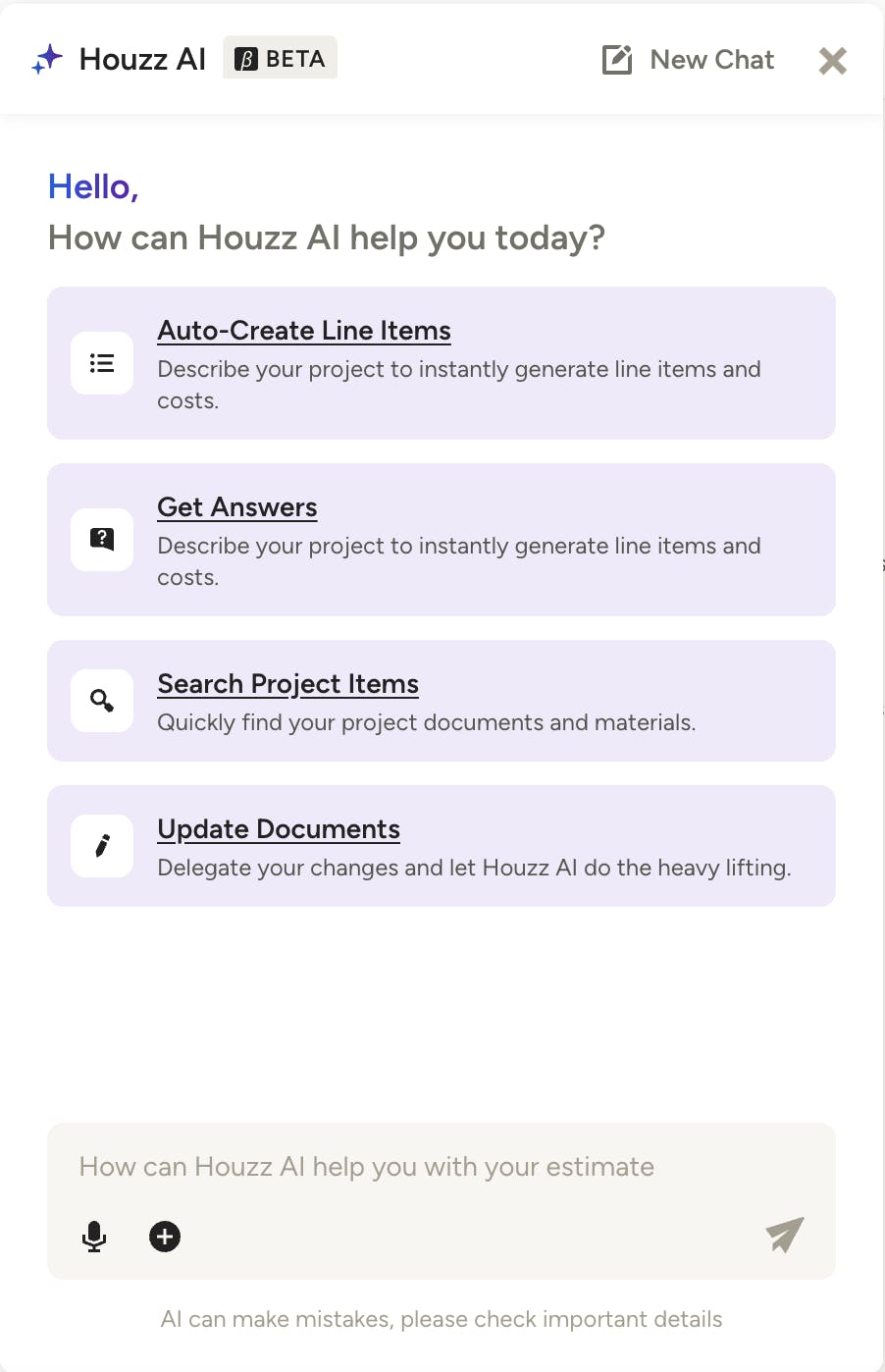
When you start to create a financial document for a project, save time and increase efficiency by using the Houzz AI assistant for estimates, proposals, invoices or change orders.
With this feature, you can quickly type in an in-depth project description, or you can use voice commands to explain your project. The AI assistant will create document line items and categories based on your description, which you can further edit and adjust if needed. It will even add pricing for a more comprehensive document. The included pricing is based on AI data from Gemini, and also considers the project zip code and location for improved accuracy.
You can create an AI-generated document from both a desktop computer or the Houzz Pro mobile app.
Create AI Financial Documents on Desktop
If you are in the office or at home and want to save time, you can quickly create an estimate, proposal, invoice or change order using Houzz AI.
There are several ways to start an AI document from your desktop computer.
From Homepage
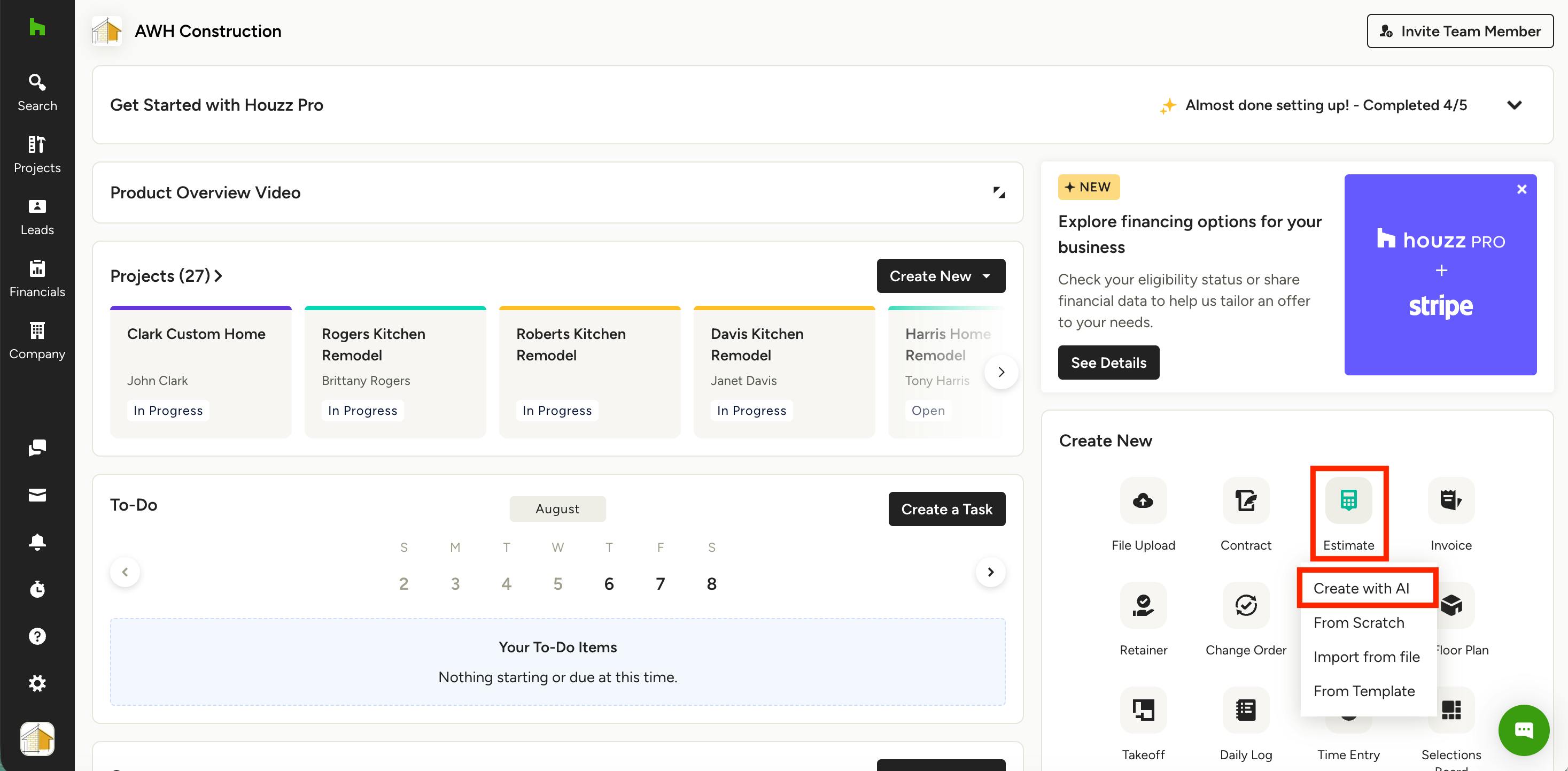
Go to your Houzz Pro homepage and select Estimate/Proposal/Invoice/Change Order from either the Create New menu (as shown below) or the Financial Documents menu. Select Create with AI from the dropdown.
Please Note: If you come from the homepage, you will need to enter a project name to continue.
From Project
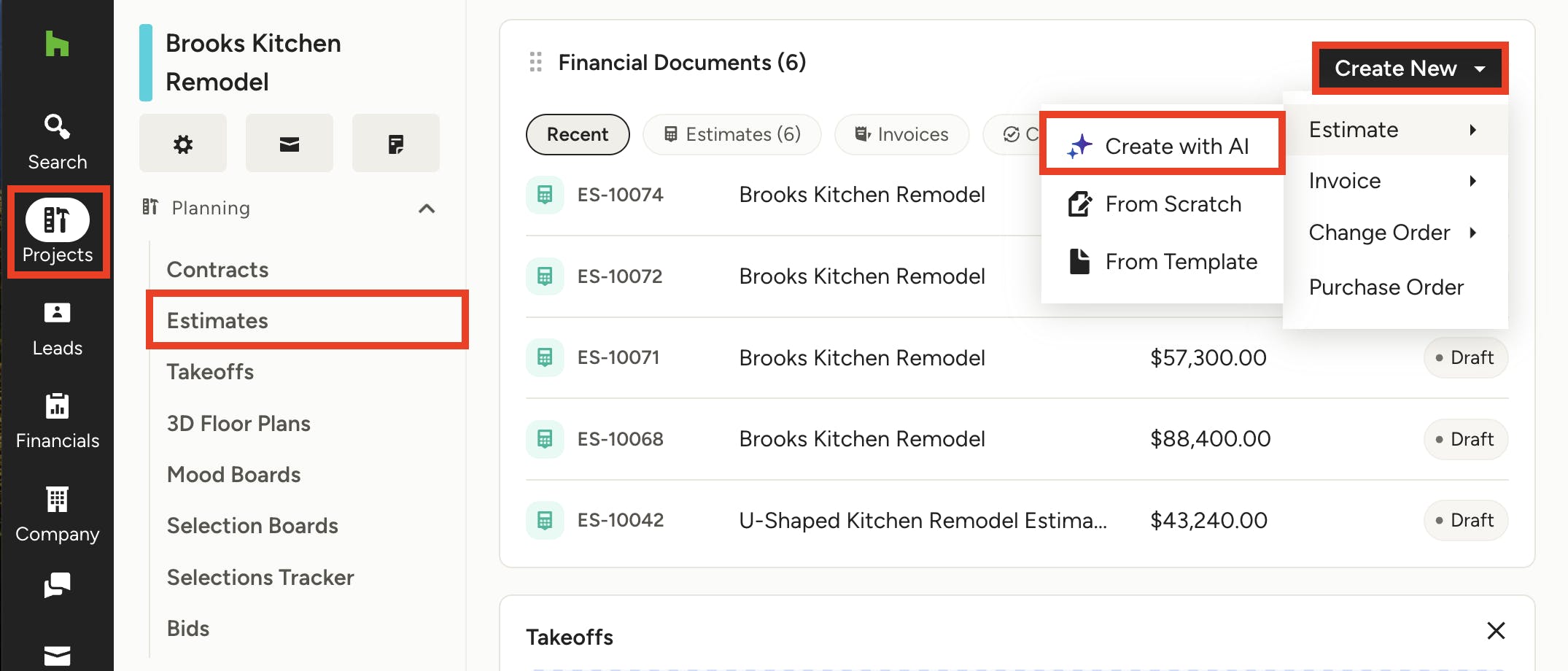
Find the Projects icon in your left navigation, then select the relevant project. Once on the project overview page, select the Create New button within Financial Documents (as shown below), or select Estimates/Proposals/Invoices/Change Orders from the left menu, then select Create New at the top of the page. Select Create with AI from the dropdown menu.
From Financial Document
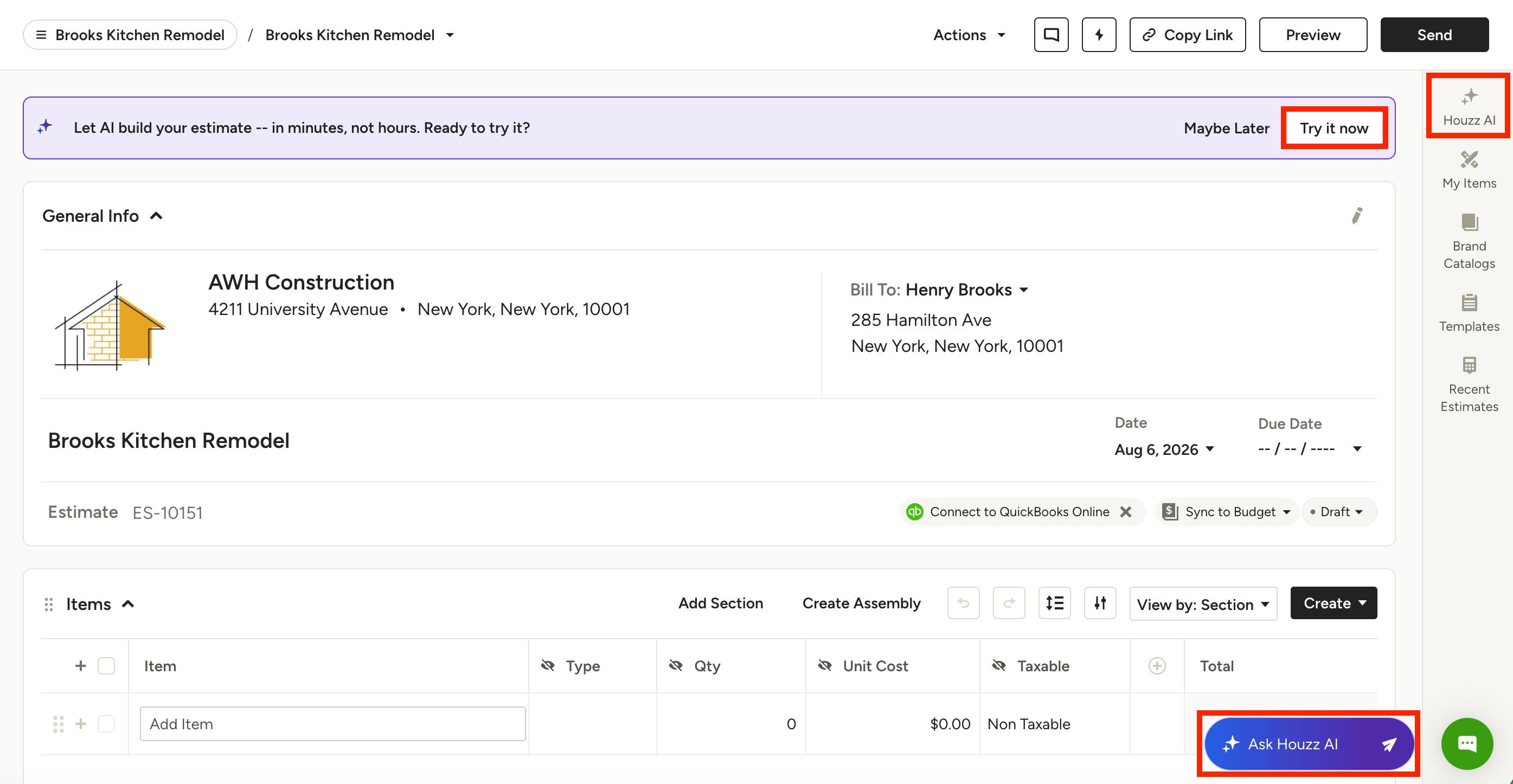
If you decide to create an estimate, proposal, invoice or change order from scratch, a prompt will appear at the top of the empty document to encourage you to use AI. Click Try it Now to create an AI-generated document.
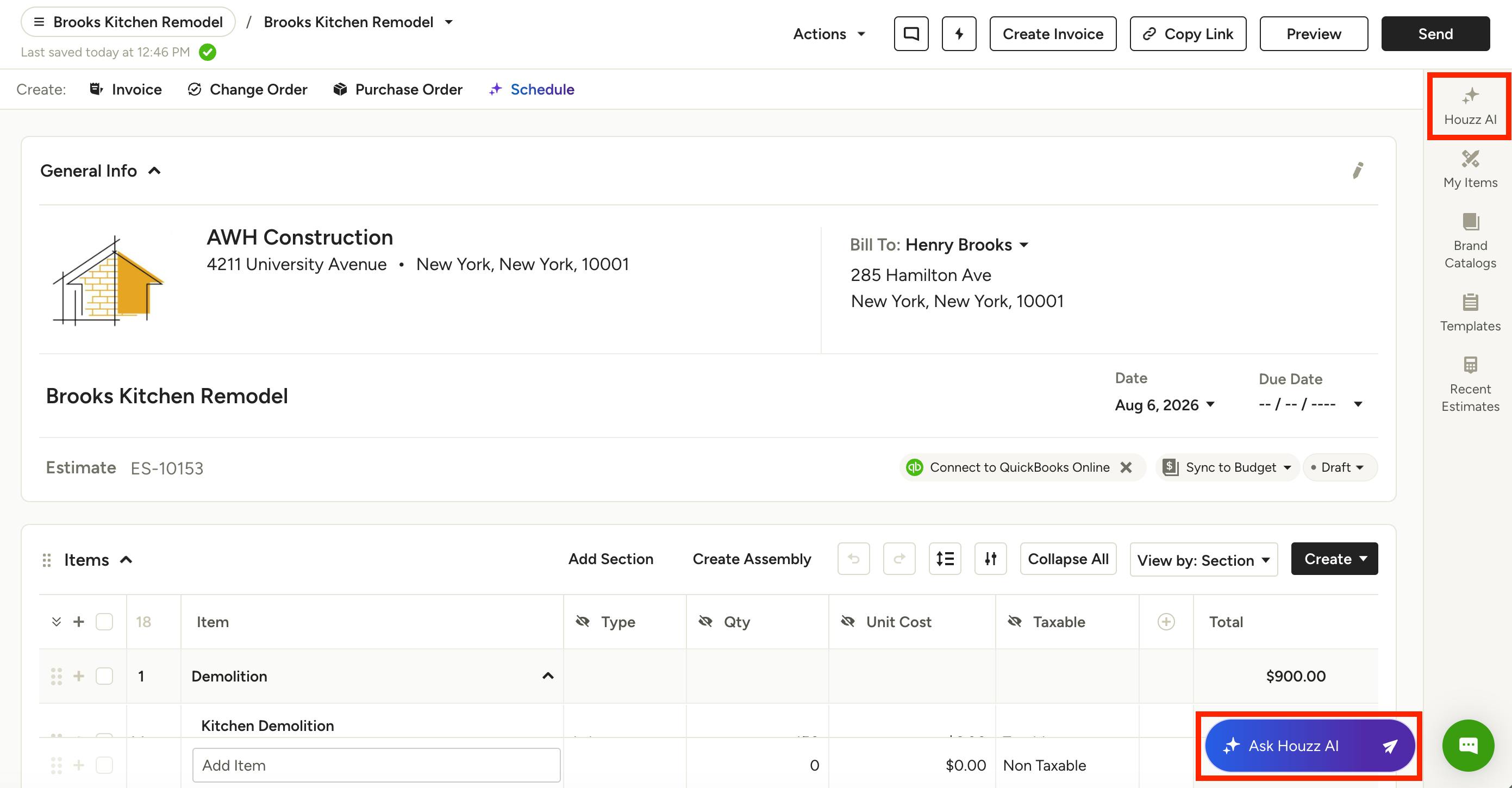
You can also select Ask Houzz AI to open the AI assistant, or select Houzz AI from the right menu of your document, at any time during the creation process.
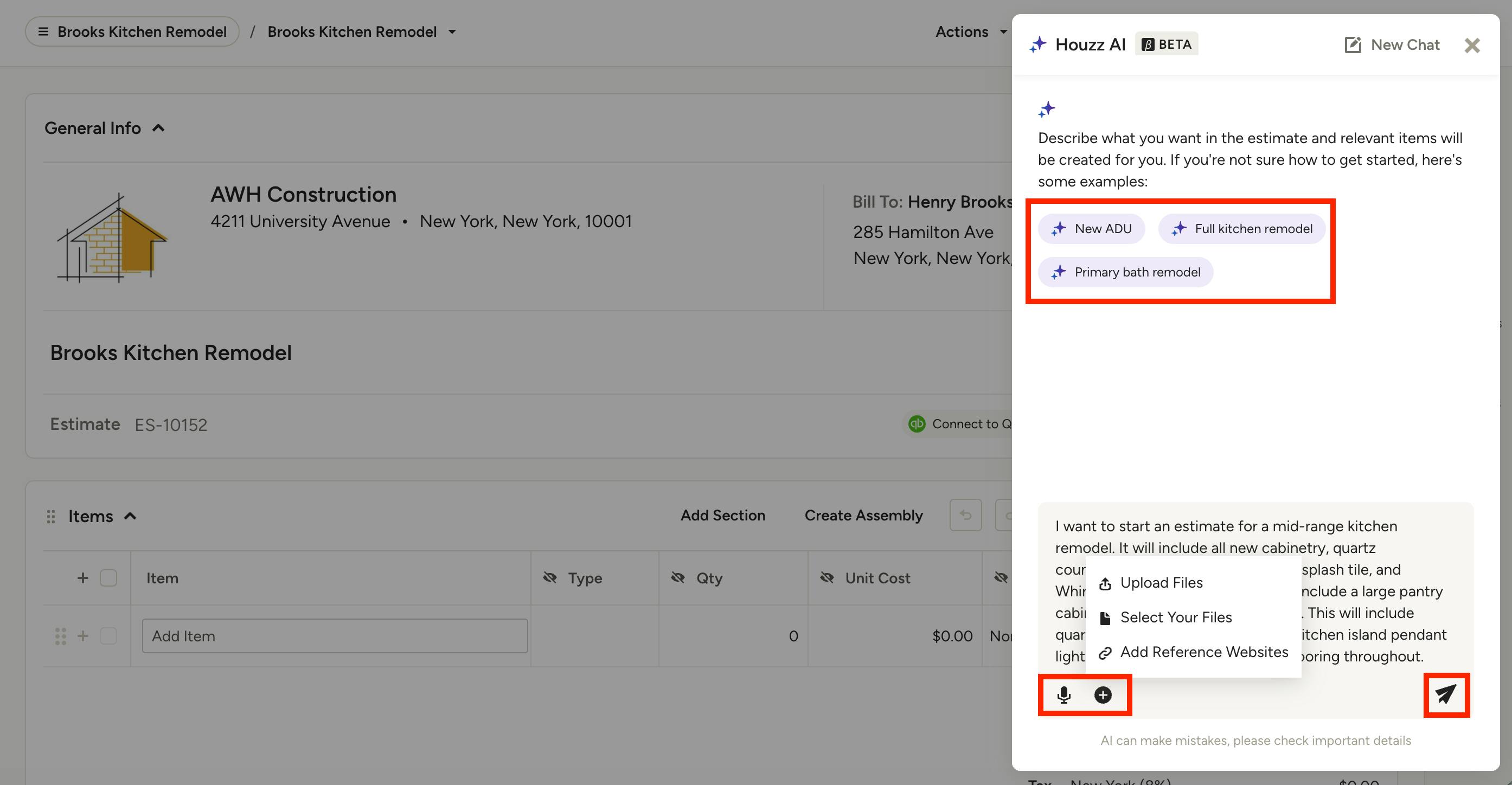
The AI assistant screen will appear. Here, you can either select a suggested example to get started, or you can directly type the description into the bottom text box. You can also click the Microphone icon if you would prefer to speak the description instead.
When you click the + icon, you can:
- Upload Files: Import estimates and automatically extract line items to streamline the document creation process. Supports .jpg, .jpeg, .png, .webp, .heic, .heif, .pdf, .txt, .csv, .xls, and .xlsx.
- Select Your Files: Add files from your computer or Google Drive, or select existing files already added to your project or company files.
- Add Reference Websites: Add a website URL and automatically extract product details to streamline line item additions.
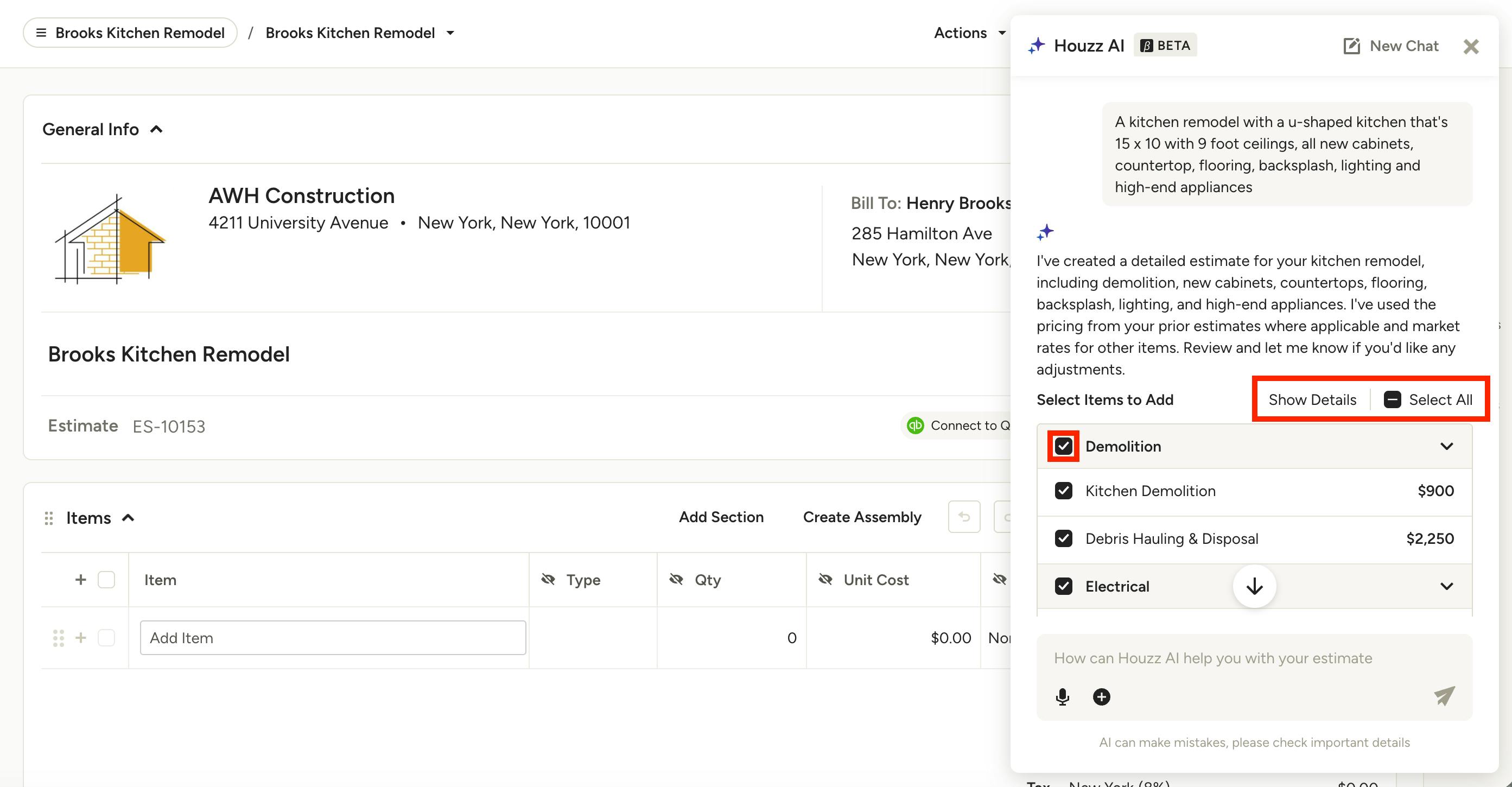
As you input information, the more details you provide, the more accurate and detailed your estimate, proposal, invoice or change order will be. Try to include specifics like:
- Type of project
- Location of the project
- Size of the project
- Level of project finishes
Be sure to click the Send icon once complete.
Line items and categories for your suggested new AI estimate, proposal, invoice or change order will appear in the right menu (as shown below).
You can choose to Select All, or you can de-select certain line items or categories by clicking the checkbox next to the line item. Show Details will expand the line item for more information.
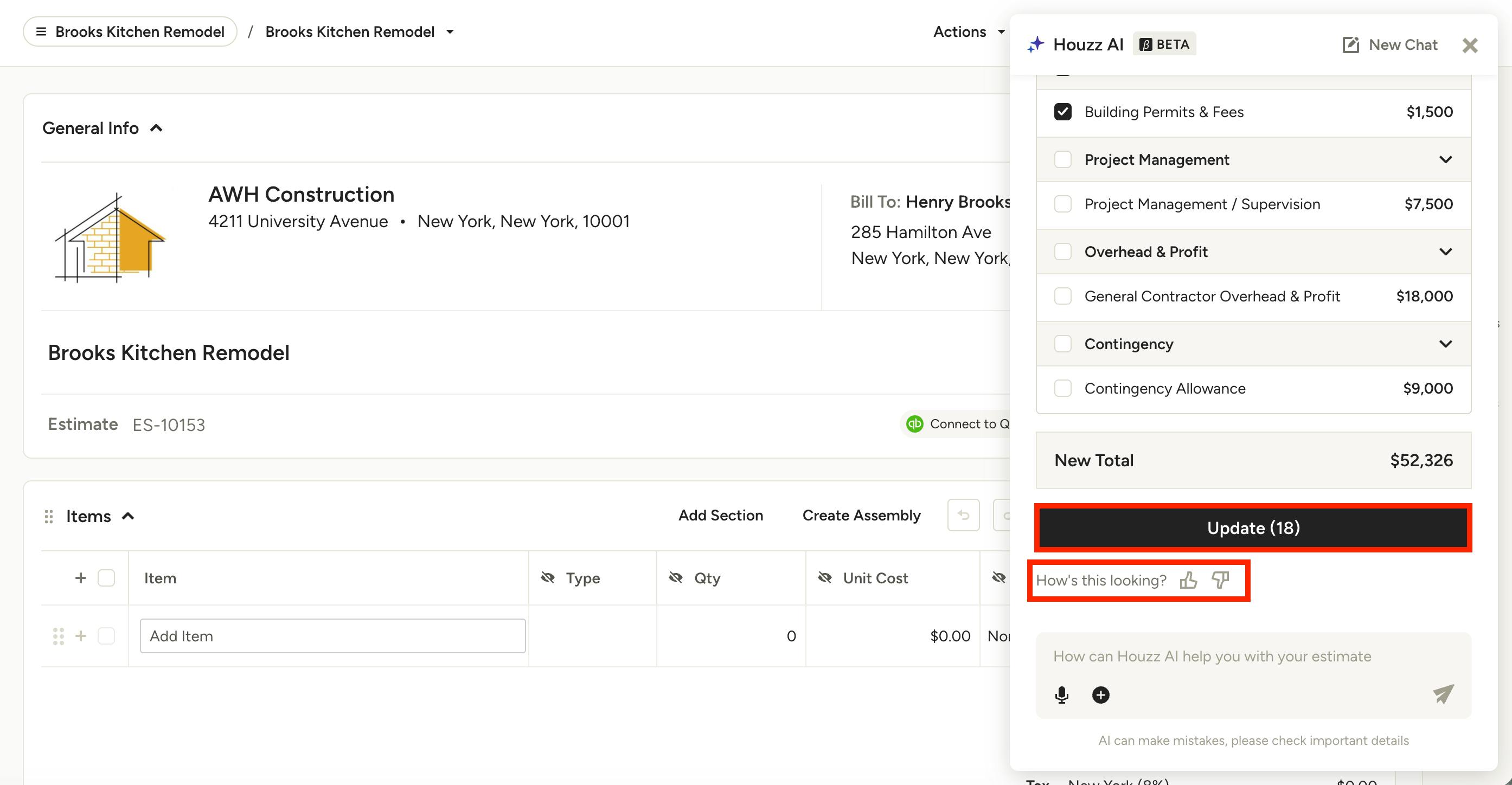
At the bottom of the screen, it will show the updated total of your entire document, as well as the total number of new line items added. Once ready, select Update.
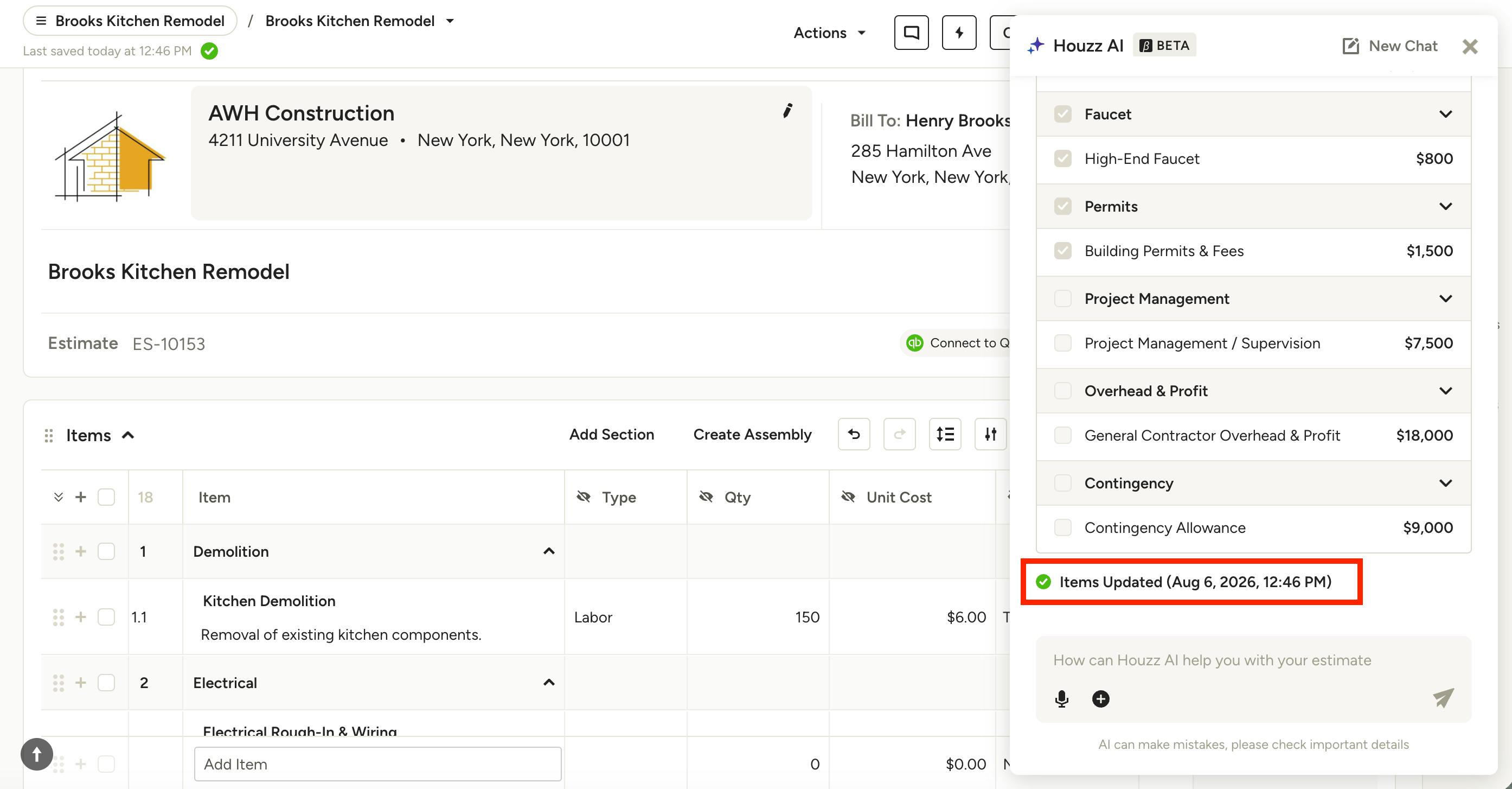
Your line items will now appear in your document, and the AI assistant will show the date and time of the update. You can then make manual changes to document as usual, such as adjusting the document title, adding or editing line items, adding a payment schedule, and more. Or, you can continue to use AI to further build it out.
Edit Financial Documents Using AI
After you create an estimate, proposal, invoice or change order, you can also use AI to quickly make edits to that document (desktop only). This includes all unapproved documents, even those originally created from scratch or from a template.
While you can use this feature in many different ways, editing a document using AI is especially helpful if you have bulk changes to make to several line items or categories at one time. Examples of useful prompts include:
- Adding a markup percentage to all line items
- Adding descriptions to all line items
- Changing all unit types to “Pieces”
- Doubling the quantity for all line items
- Improving the names of all line items
- Removing line items or categories
- Adding missing elements, such as flooring, appliances, permits, demolition, etc.
To Get Started:
Open up the relevant document, then select the Houzz AI button at the bottom of your screen or from the right menu.
The AI assistant screen will appear. Here, you can either select a suggested prompt to get started, or you can directly type the requested edit into the bottom text box. You can also click the Microphone icon if you would prefer to speak the description instead.
Click the Send icon once complete.
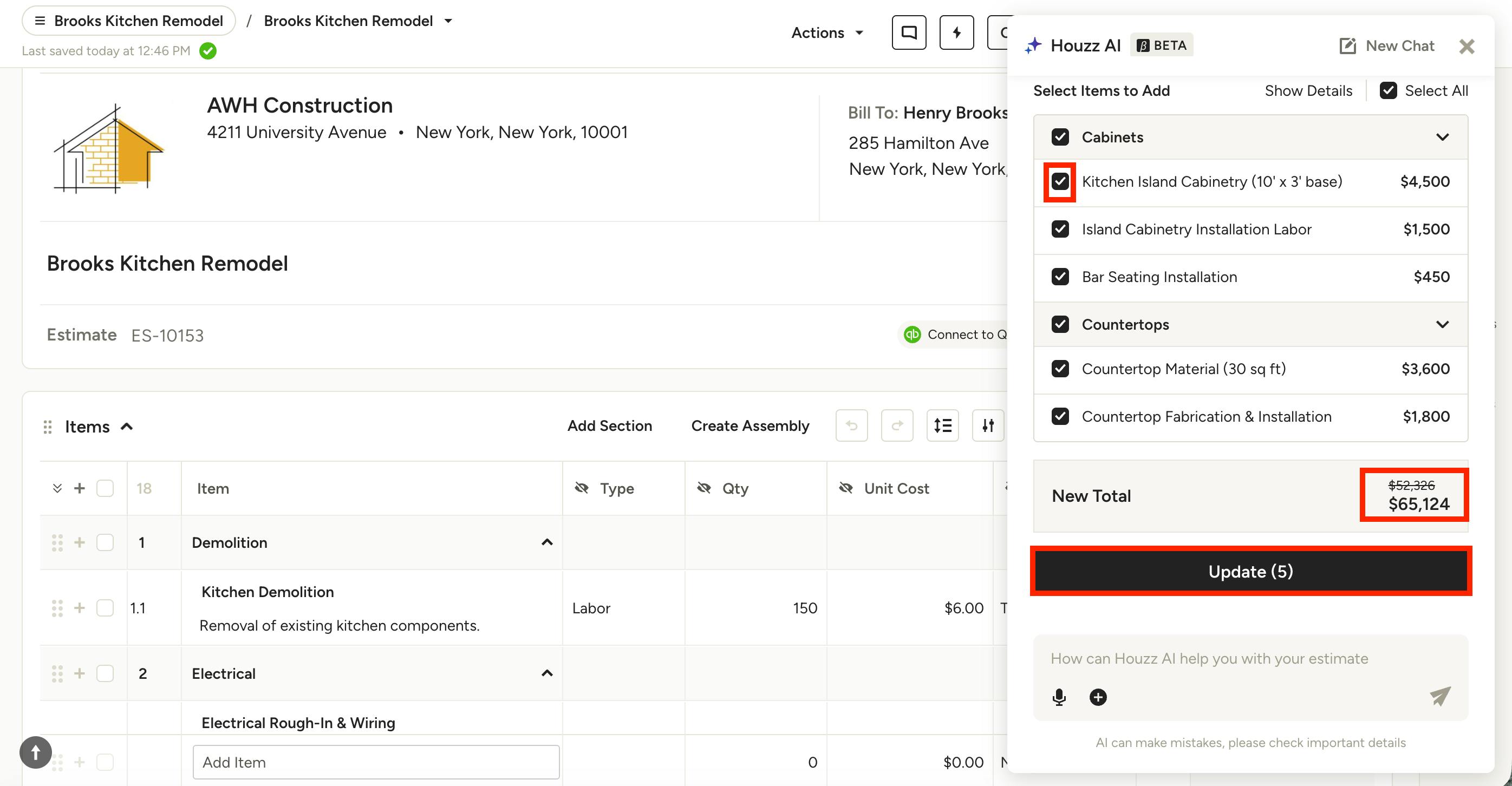
On the next screen, you can review all the existing line items/categories impacted by this change (as shown below). You can remove irrelevant ones by unchecking the box next to the item/category, or you can keep them all selected.
At the bottom of the screen, the New Total will reflect the cost change based on the edits you made. To complete the change, click Update.
The change will then reflect directly on the selected line items/categories within your document.
Create and Edit AI Templates
You also have the option to use AI to create a new document template from scratch, as well as edit an existing template.
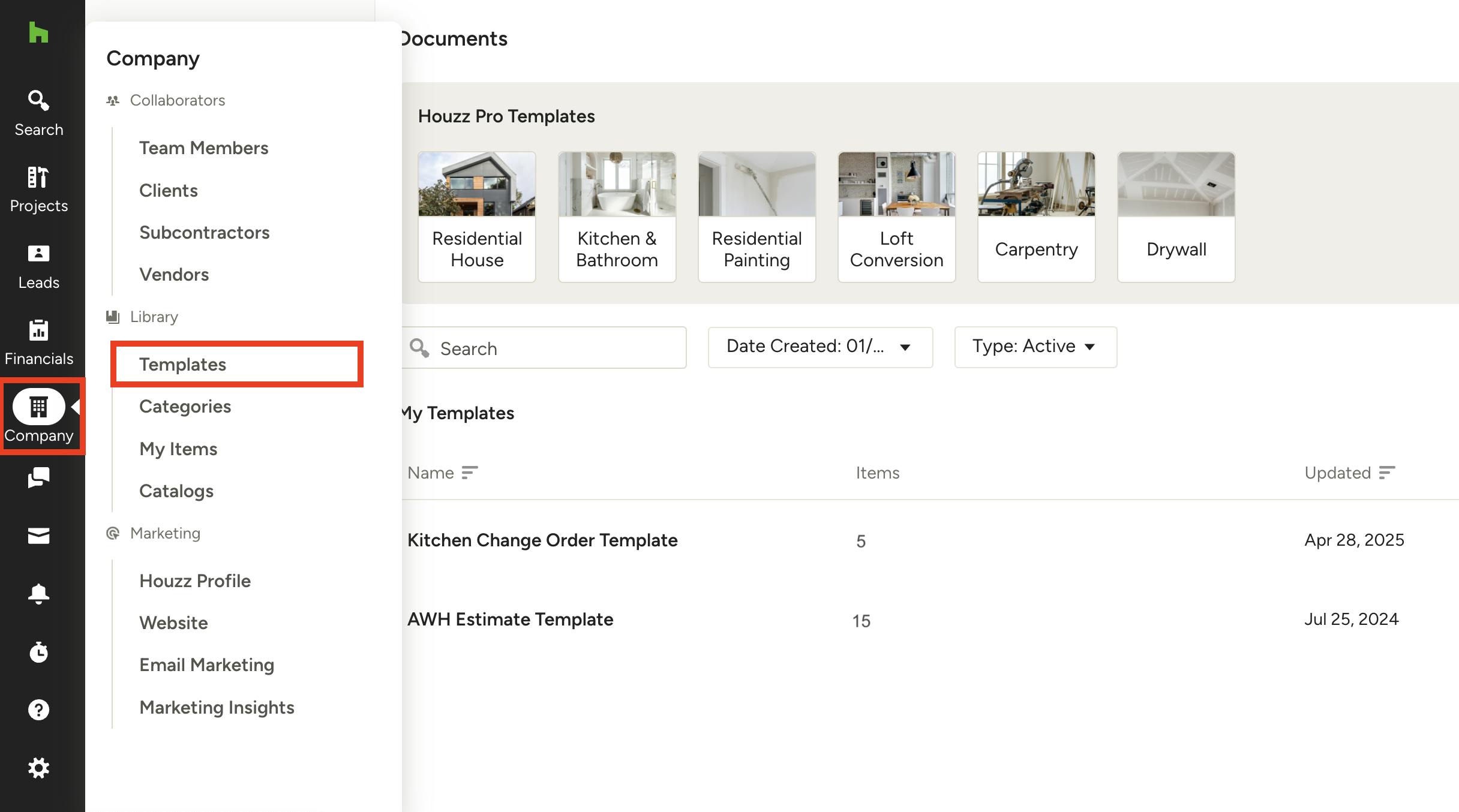
To get started, you will need to access your Templates page. Find the Company icon in your left navigation, then select Templates from the left menu.
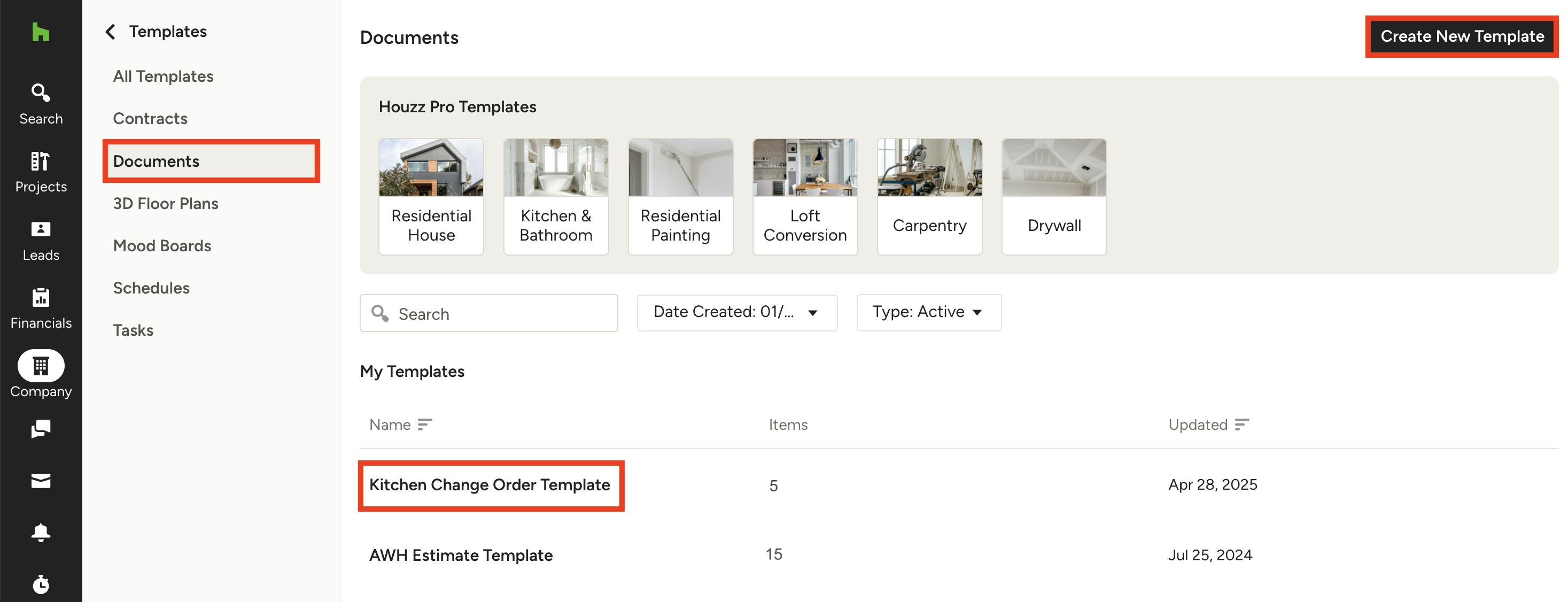
Once you're on the Templates page, select Documents from the left menu to see all your current document templates. Here, you can click the Create New Template button to create a new AI template, or you can click an existing template to edit it using AI.
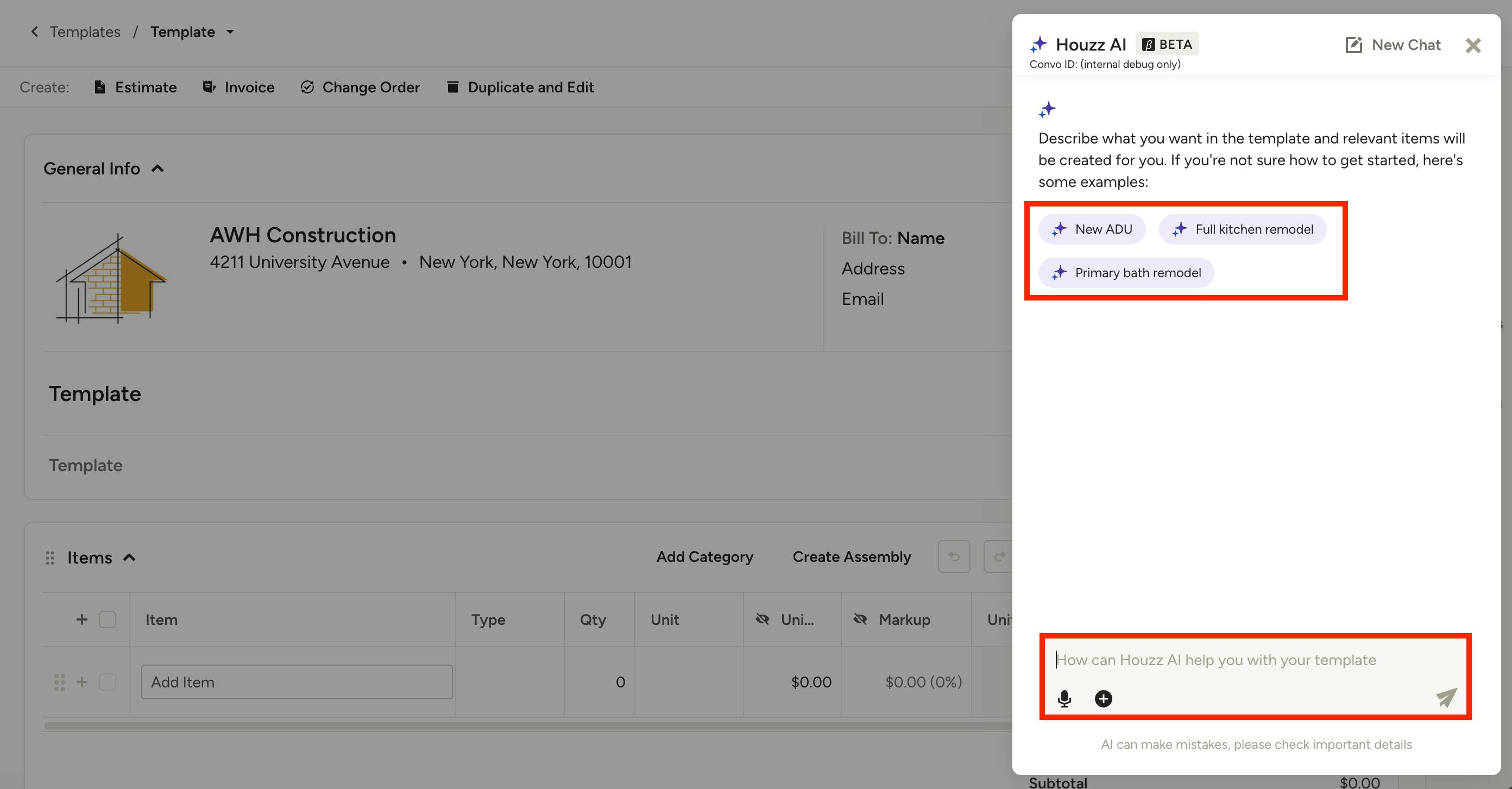
Create New AI Template
If you select to create a new template, a new document will open, and the AI assistant screen will appear. Here, you can either select a suggested prompt to get started, or you can directly type the requested edit into the bottom text box. You can also click the Microphone icon if you would prefer to speak the description instead.
The more details you provide, the more accurate and detailed your estimate, proposal, invoice or change order template will be. Once ready, click the Send icon.
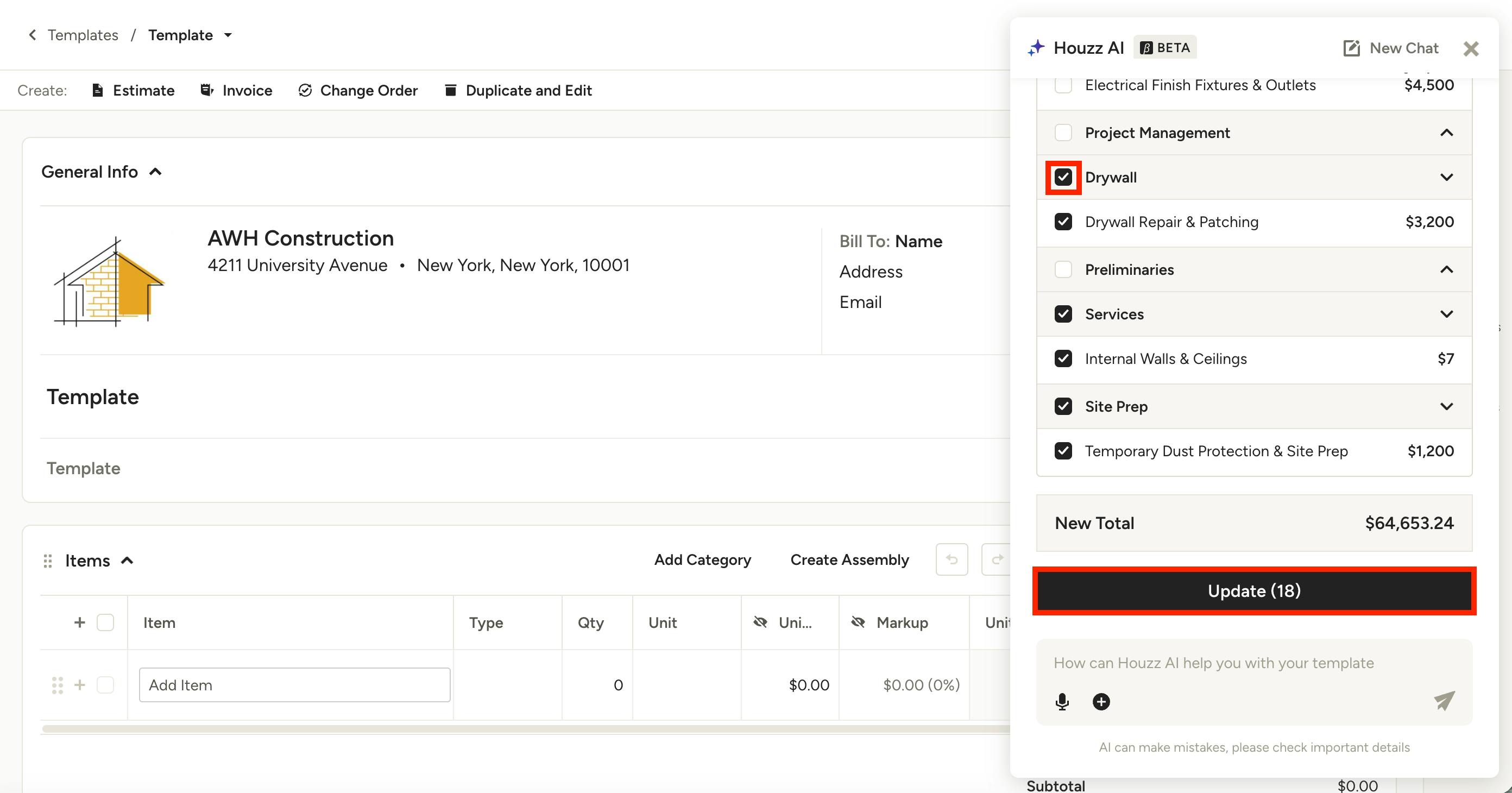
On the next screen, you can review all the suggested line items/categories for your template (as shown below). You can remove irrelevant ones by unchecking the box next to the item/category, or you can keep them all selected.
Click Update to create the template. It will now appear as an option on your Templates page.
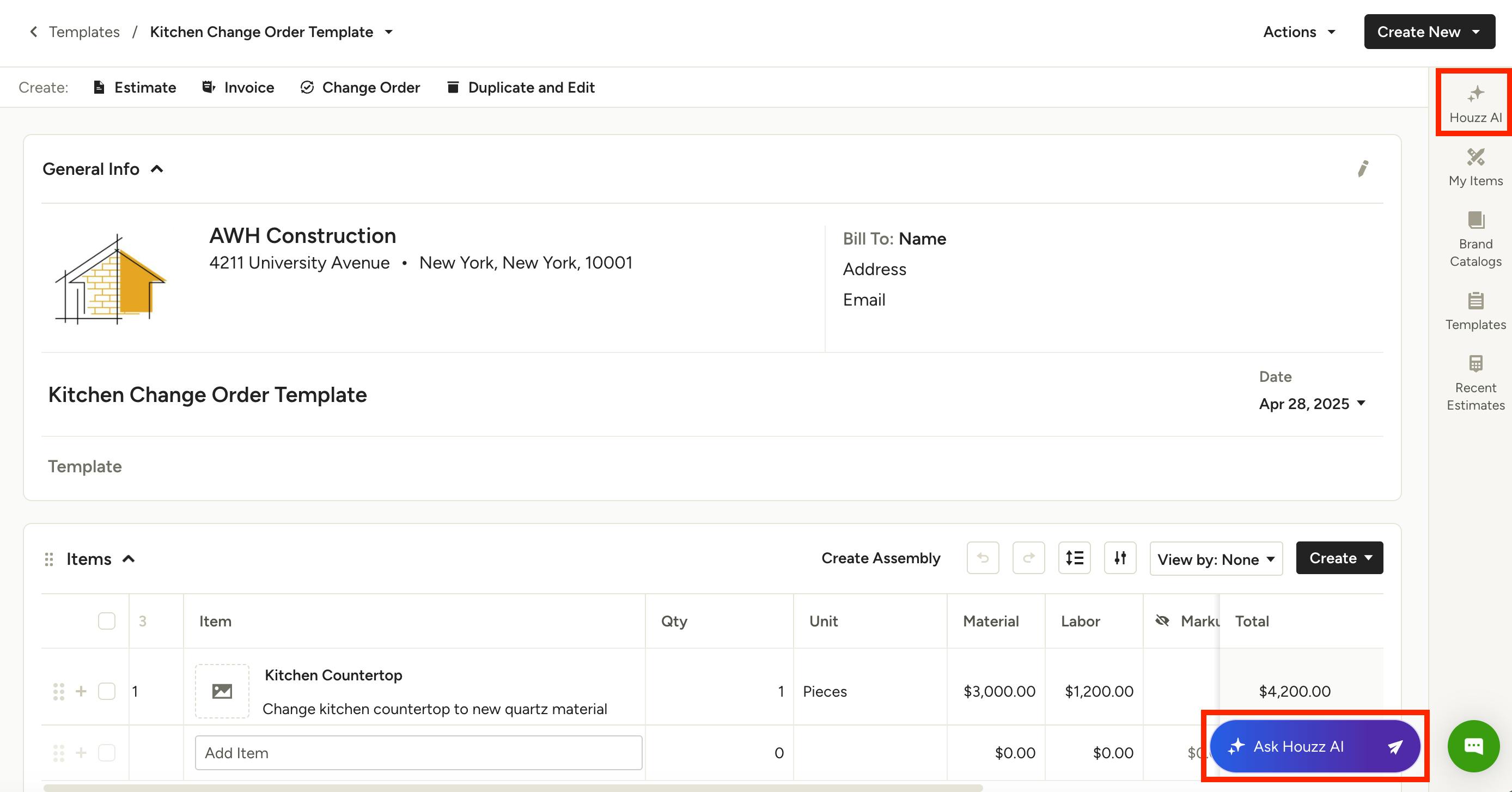
Edit Existing Templates Using AI
Instead of creating a new template, you can also edit an existing template using AI — this includes templates that were originally created without the use of AI.
Go to the Templates page, then click on an existing template to open. Once you are on the template, click the Houzz AI button at the bottom of your screen or from the right menu.
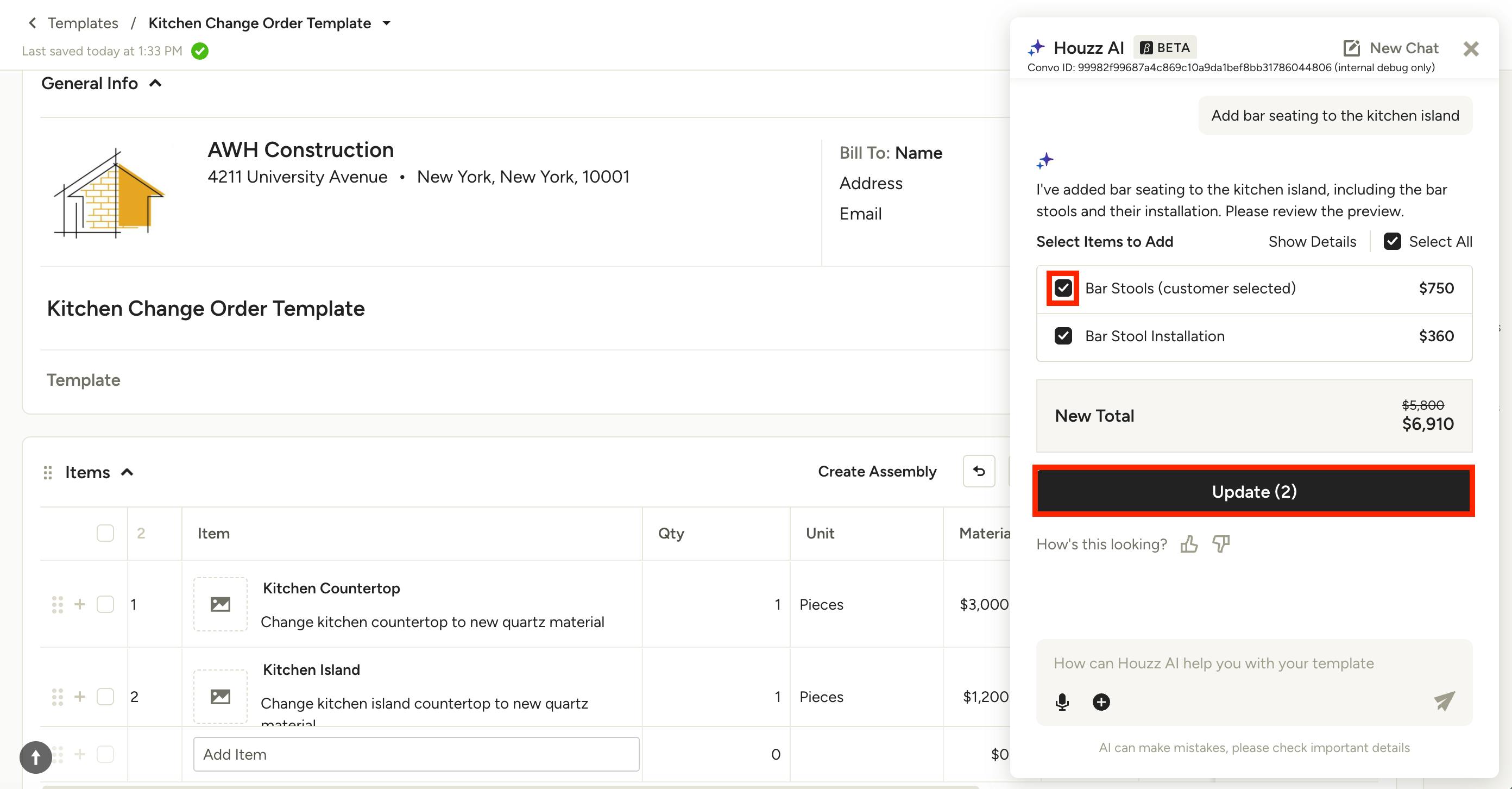
The AI assistant screen will appear. Here, you can either select a suggested prompt to get started, or you can directly type the requested edit into the bottom text box. You can also click the Microphone icon if you would prefer to speak the description instead. Click Send once complete.
You will then see a preview of the new line items added to your template based on your prompt.
You can remove irrelevant additions by unchecking the box next to the item/category, or you can keep them all selected. Click Update to make the change.
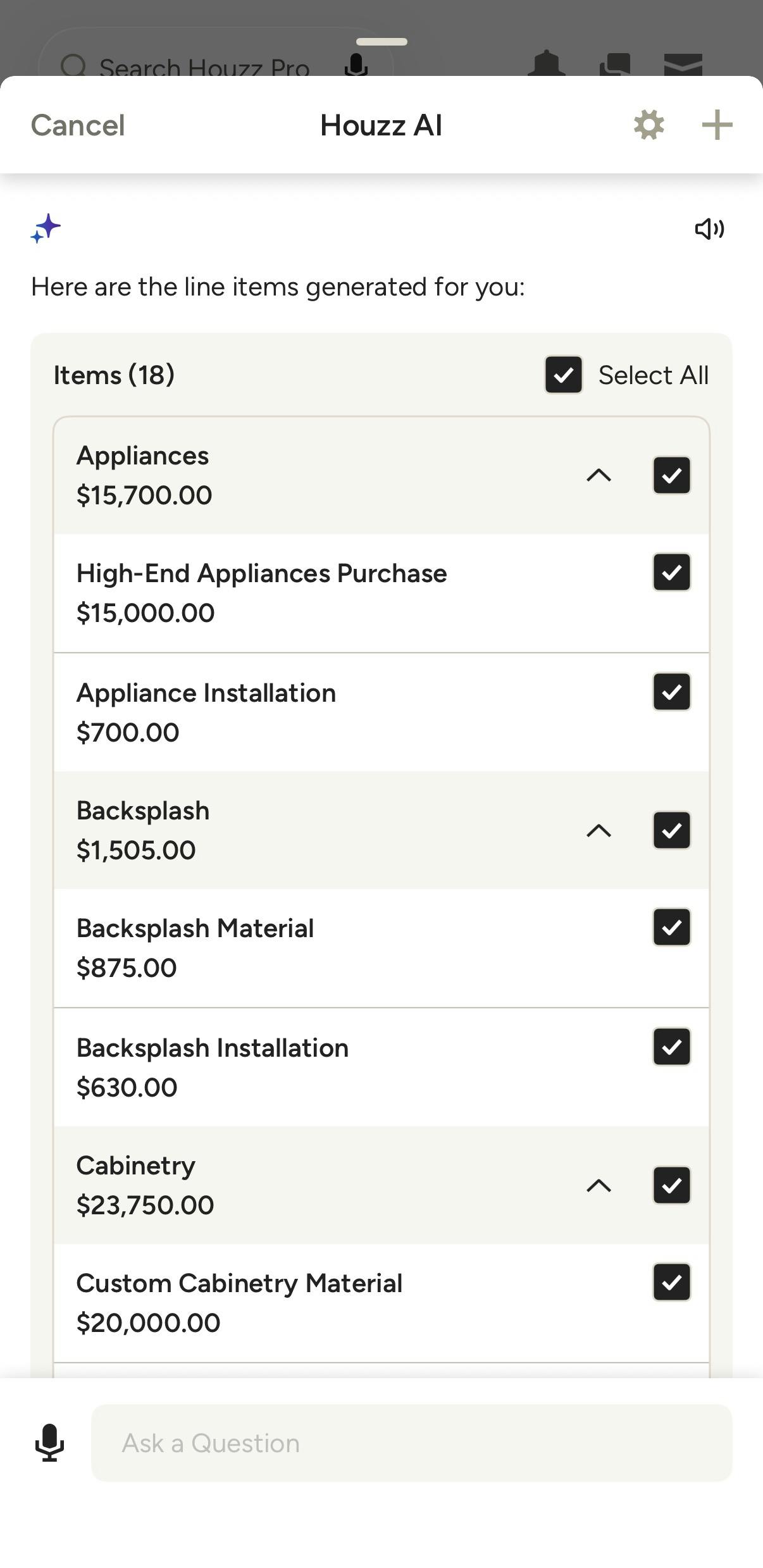
Create AI Financial Documents on Mobile
If you are on the move, you can quickly create a new estimate, proposal, invoice or change order using Houzz AI on the mobile app. With the AI assistant, you can use text prompts or voice commands to record project details, then adjust the document details once you are back in the office. To learn more, read How to Use the AI Assistant on Financial Documents.
More Resources
Estimates: How to Create an Estimate; How to Create Scheduled Payments on Estimates; How to Add Custom Columns, Line Items, Descriptions and Images
Proposals: How to Create a Proposal; How to Create Scheduled Payments on Proposals; How to Add Custom Columns, Line Item Descriptions and Images
Invoices: How to Create an Invoice; How to Create Scheduled Payments on Invoices; How to Issue an Invoice
Change Orders: How to Create and Send Change Orders
Mobile App: How to Create Estimates on the Mobile App; How to Create Proposals on the Mobile App; How to Create Invoices on the Mobile App