How to Use the Houzz AI Assistant in Financial Documents
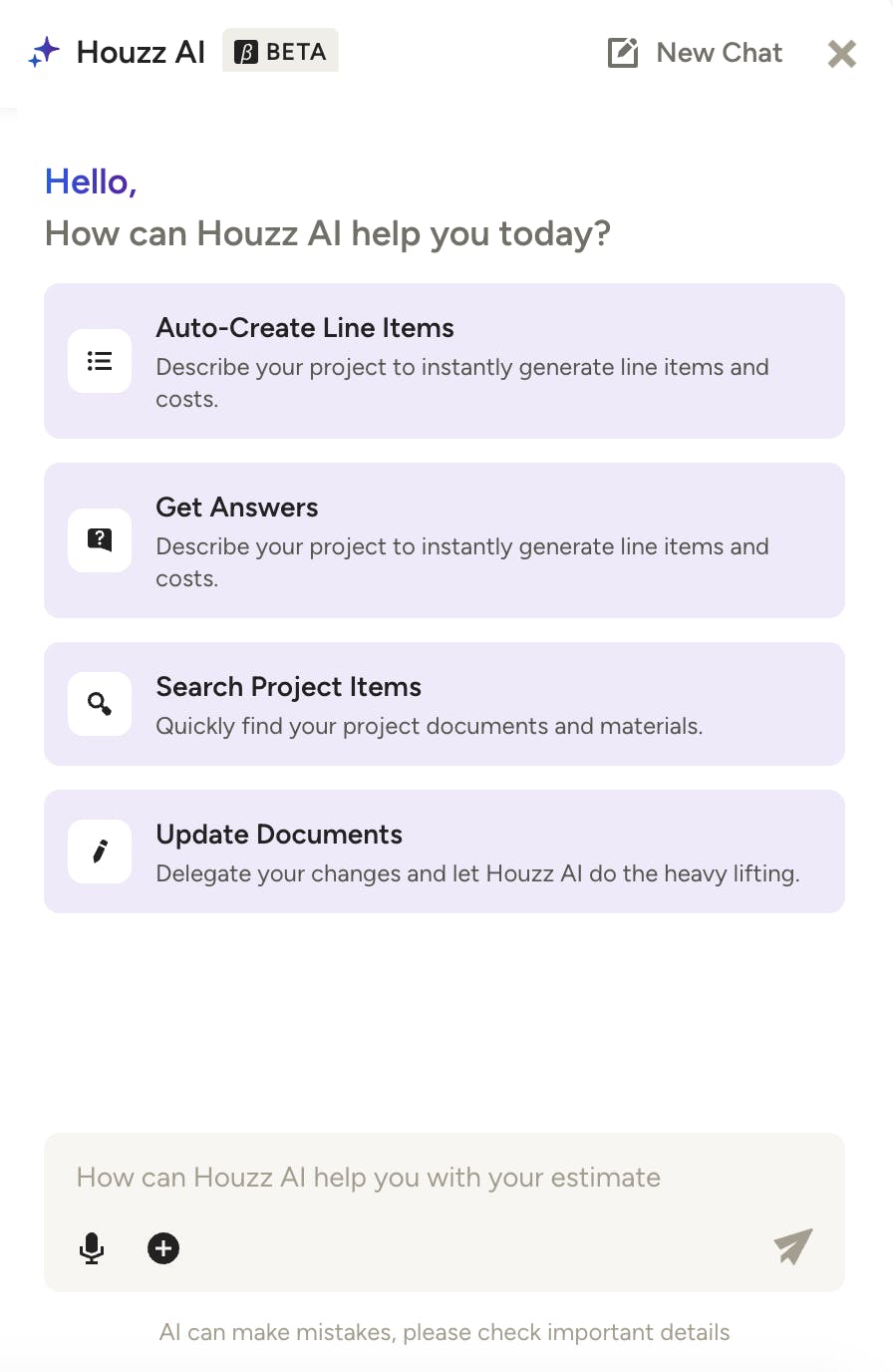
The Houzz AI assistant helps you work faster and smarter within Houzz Pro. Through a simple conversational interface, you can ask questions, find project details, and create or update documents — all without searching, switching screens, or piecing together information.
AI Assistant Overview
The AI assistant is available throughout Houzz Pro on all financial documents, including Estimates/Proposals, Invoices and Change Orders.
You can use the assistant in different ways, depending on what you are viewing. You can:
- Ask Questions — Questions can include company-wide project information, documents, payments, team/vendor/subcontractor details, and industry trends.
- Create and Edit Documents — Quickly create new documents, or update and add content to existing documents.
- Search — Search through Houzz Pro to find specific answers that span across multiple projects or your entire account.
- Get Support — Get answers directly sourced from our help articles. Get connected with support via Intercom to speak with an agent.
Within the AI assistant, you can type your prompt/question, or you can select the microphone button for real-time speech-to-text voice input. You can even add in a URL for reference or upload a document if needed.
Once submitted, the AI assistant will answer your question or act on your prompt — it could even ask follow up questions for further clarification.
Let's go over how to use the AI assistant within financial documents.
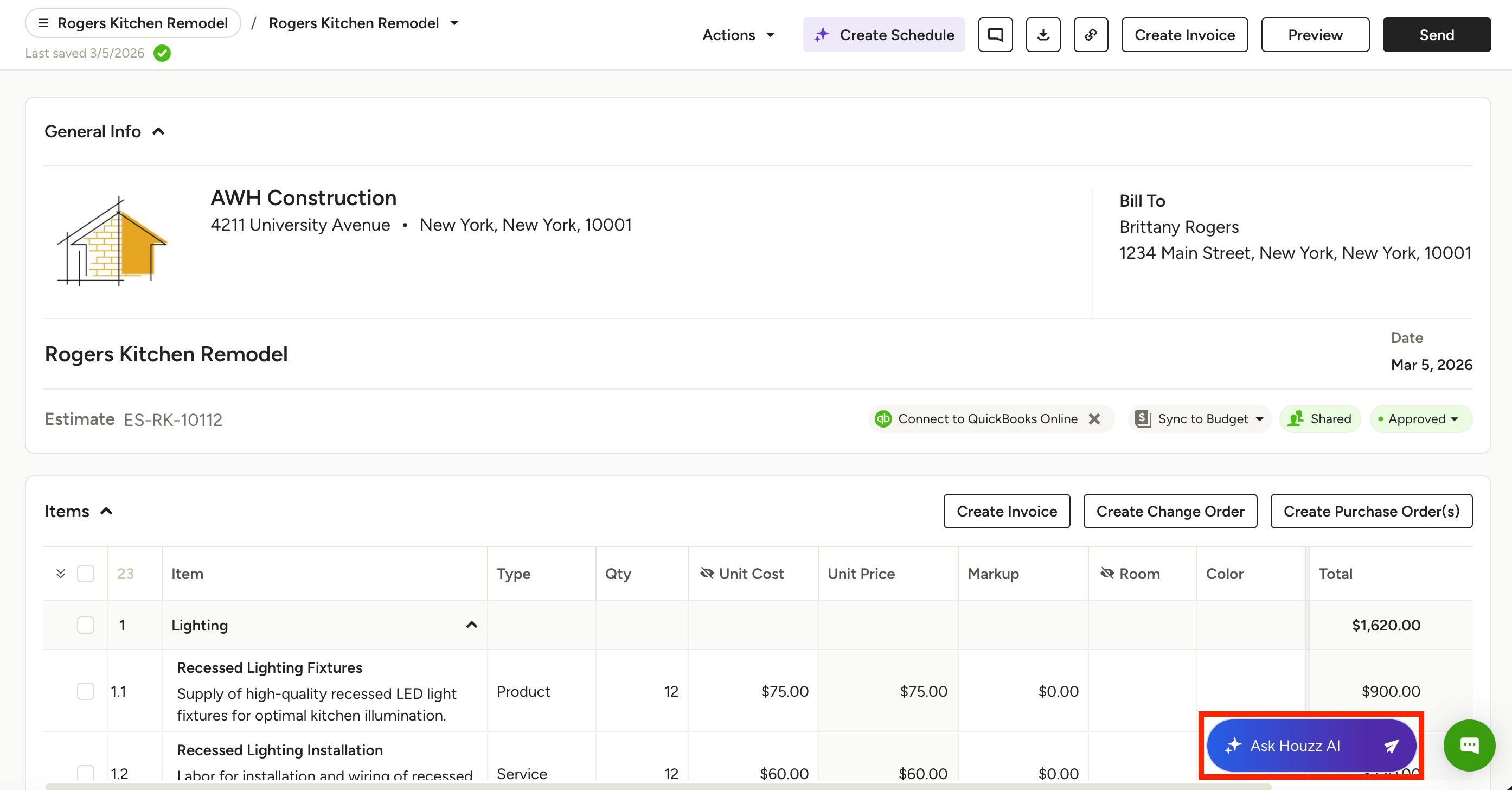
AI Assistant in Documents
To use the AI assistant within a document, open up the relevant document (as shown in an estimate below), and select the Ask Houzz AI button at the bottom of your screen.
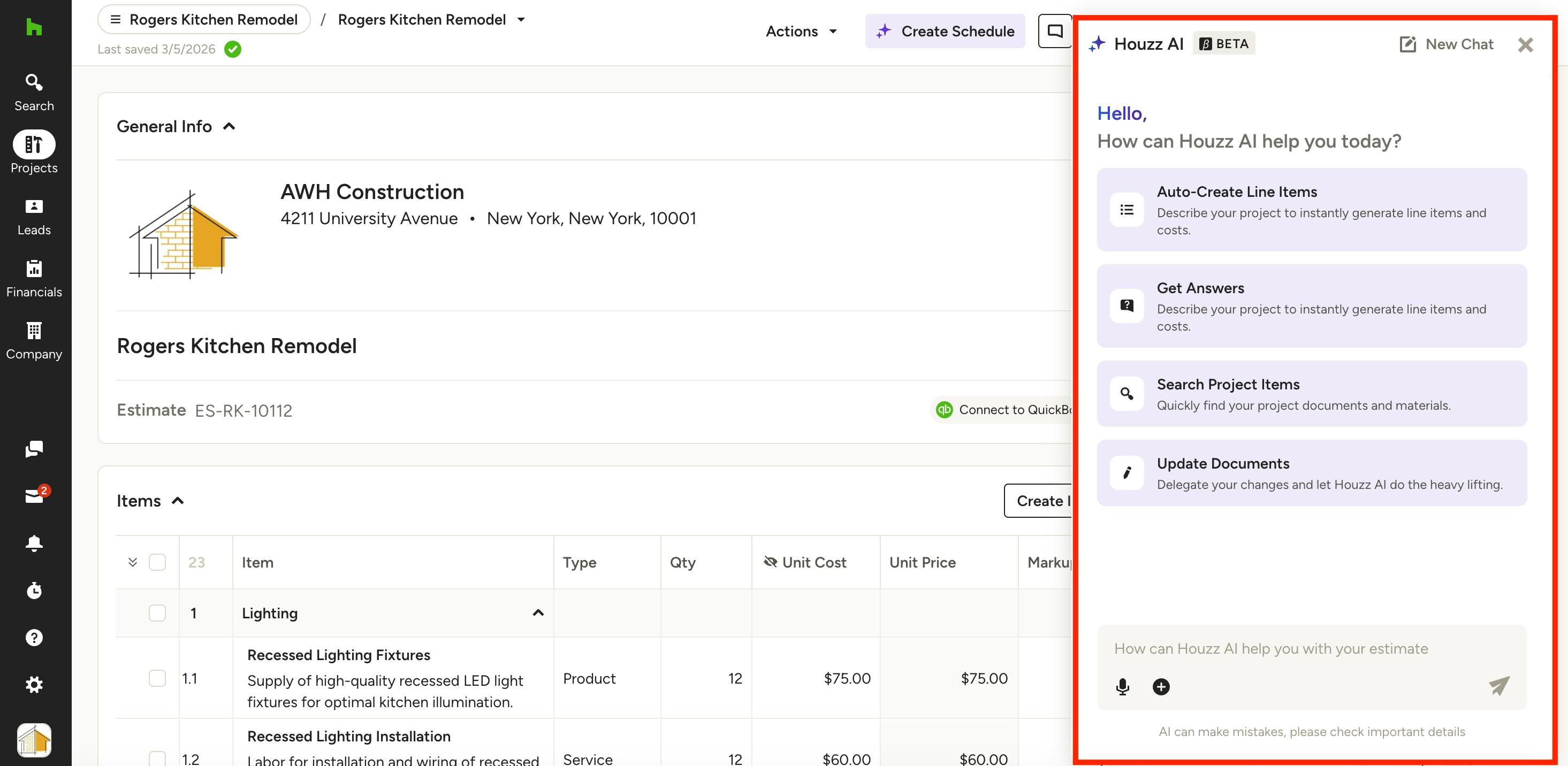
A new screen will appear on the right with prompts on how you can use the AI assistant. Within documents, you can:
- Auto-Create Line Items: "Add high-end appliances"; "Include bathroom remodel"; "Review and suggest anything missing that’s typically included in a high-end kitchen remodel"
- Get Answers: "How do I add a 20% markup to my document?"; "What's the profit margin on this project?"
- Search Project Items: "Show me all invoices that are currently overdue"; "How much did we charge for demolition in past projects?"
- Update Documents: "Update items based on a 500 square ft kitchen"; "Review and identify duplicate items"
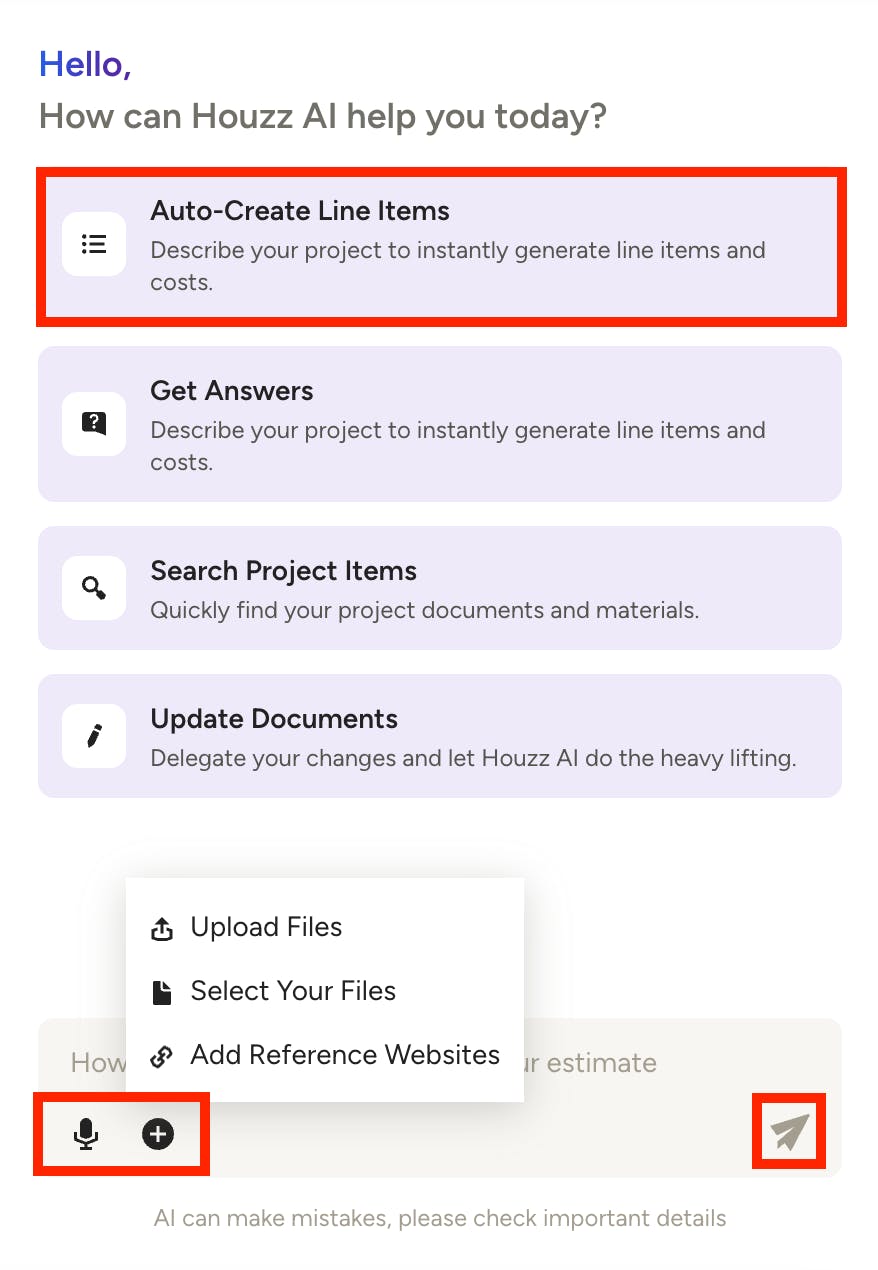
You can either select a prompt box to get started, or you can directly type the prompt or question into the bottom text box.
When you click the + icon, you can:
- Upload Files: Import estimates and automatically extract line items to streamline the document creation process. Supports .jpg, .jpeg, .png, .webp, .heic, .heif, .pdf, .txt, .csv, .xls, and .xlsx.
- Select Your Files: Add files from your computer or Google Drive, or select existing files already added to your project or company files.
- Add Reference Websites: Add a website URL and automatically extract product details to streamline line item additions.
You can also click the Microphone icon if you would prefer to speak the prompt or question instead.
Be sure to click the Send icon once complete.
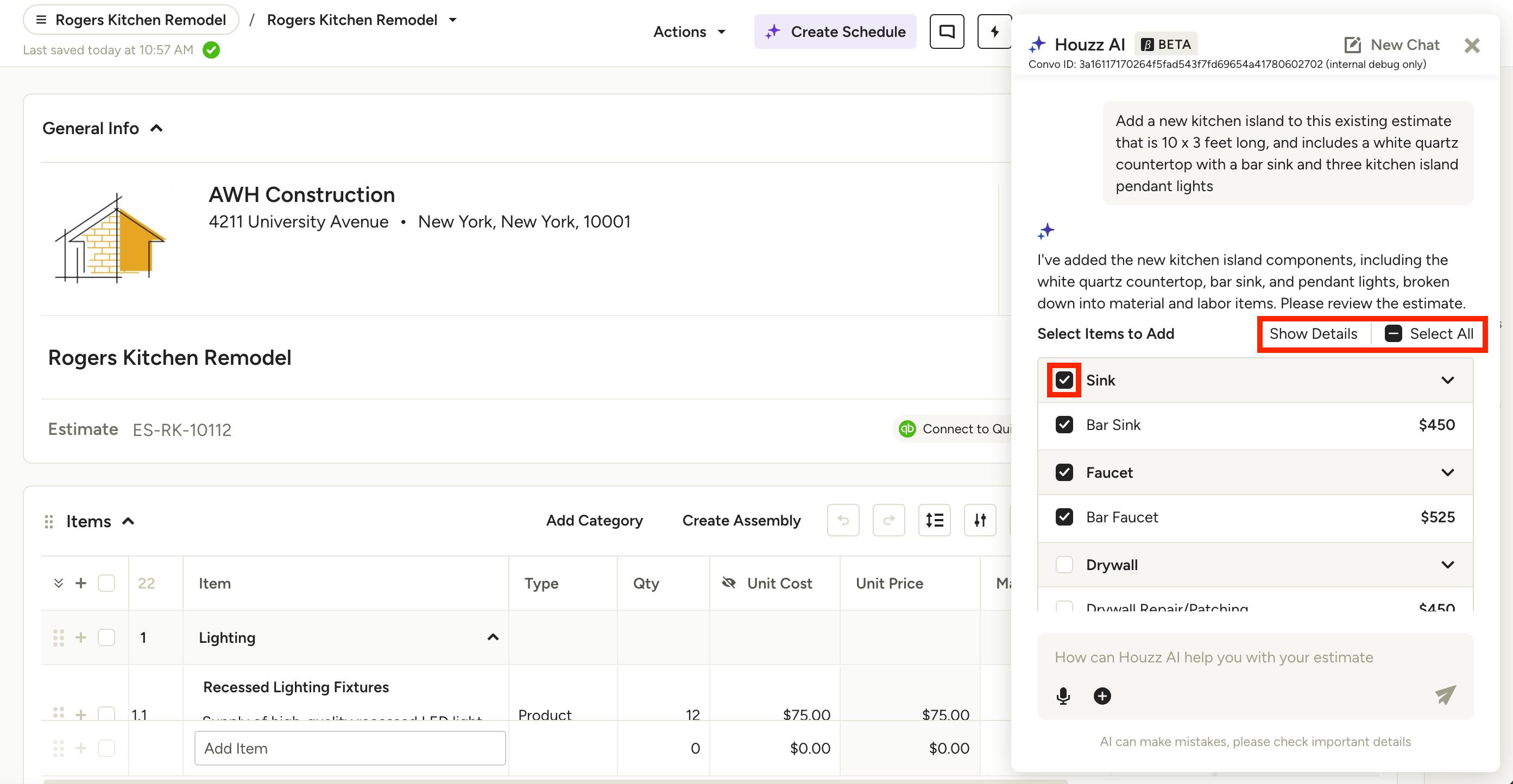
Once submitted, the AI assistant will process the request and either answer your question or preview your requested changes.
If you are adding or updating line items, you can choose to Select All the suggestions, or you can de-select certain line items by clicking the checkbox next to the line item. Show Details will expand the line item for more information.
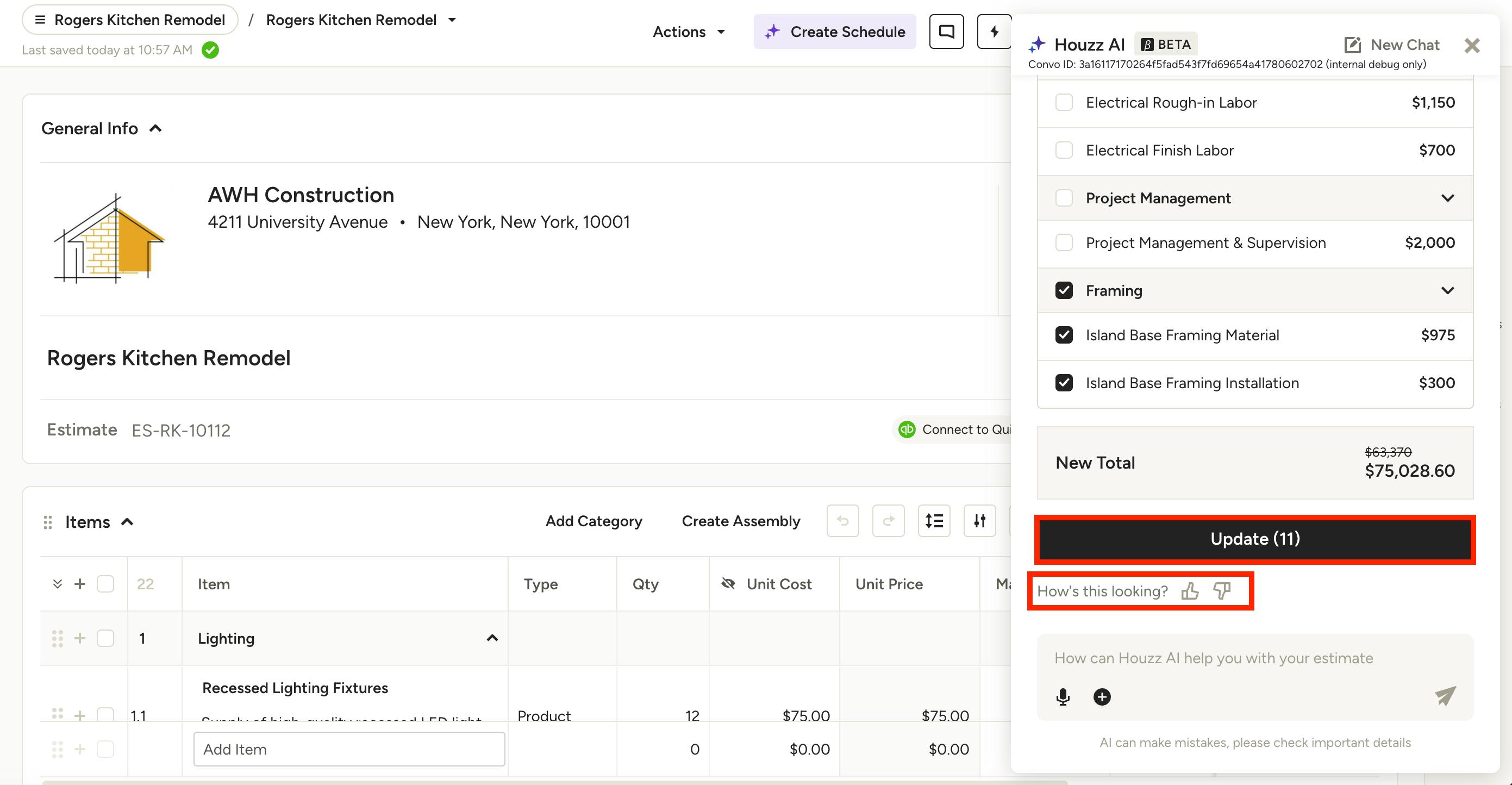
At the bottom of the screen, it will show the updated total of your entire document, as well as the total number of new line items added. Once ready, select Update.
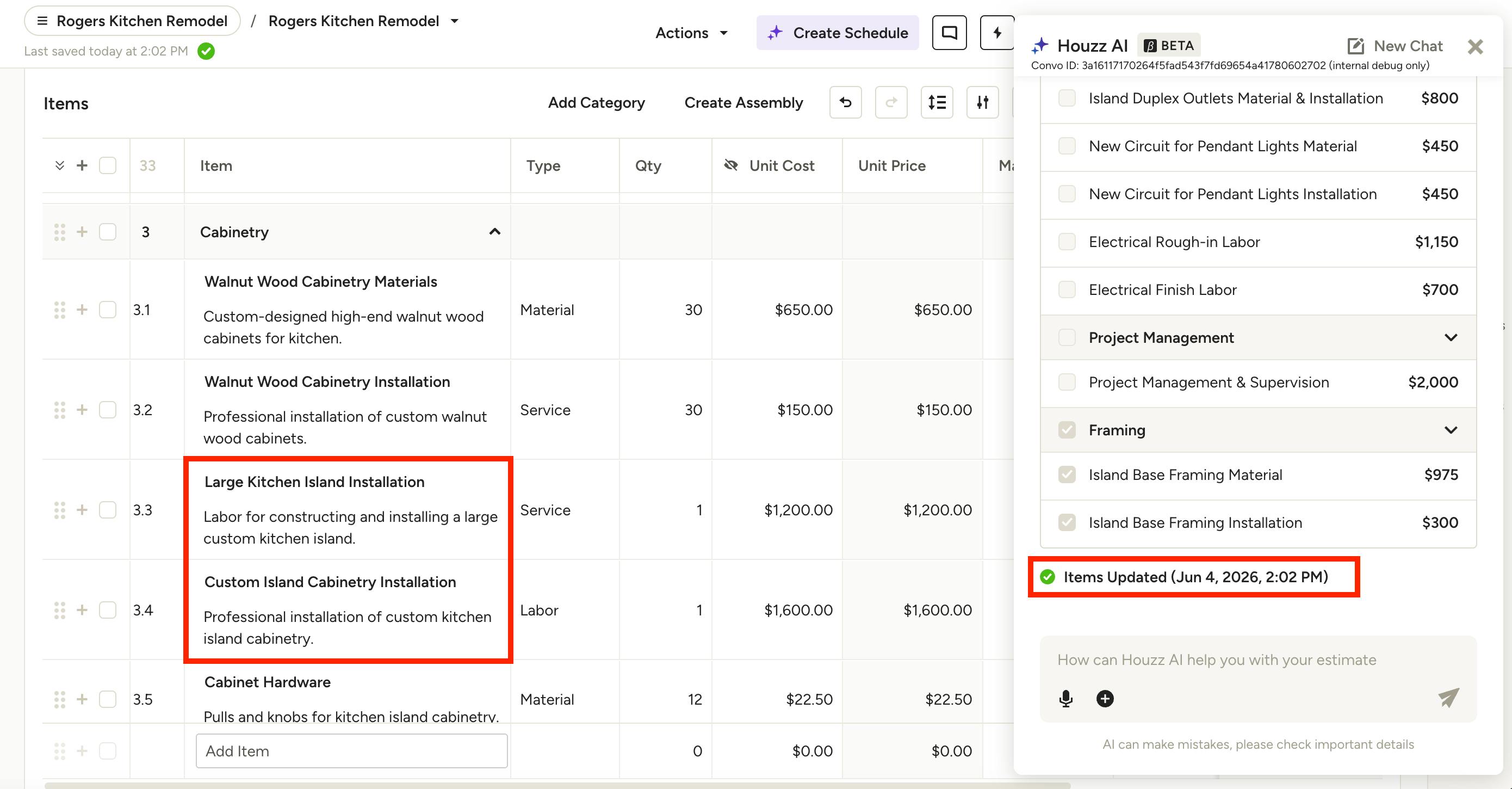
Your requested changes will now appear in your document, and the AI assistant will show the date and time of the update. You can then make changes to your document as usual or continue to use AI to further build it out.
Create Assemblies with AI Assistant
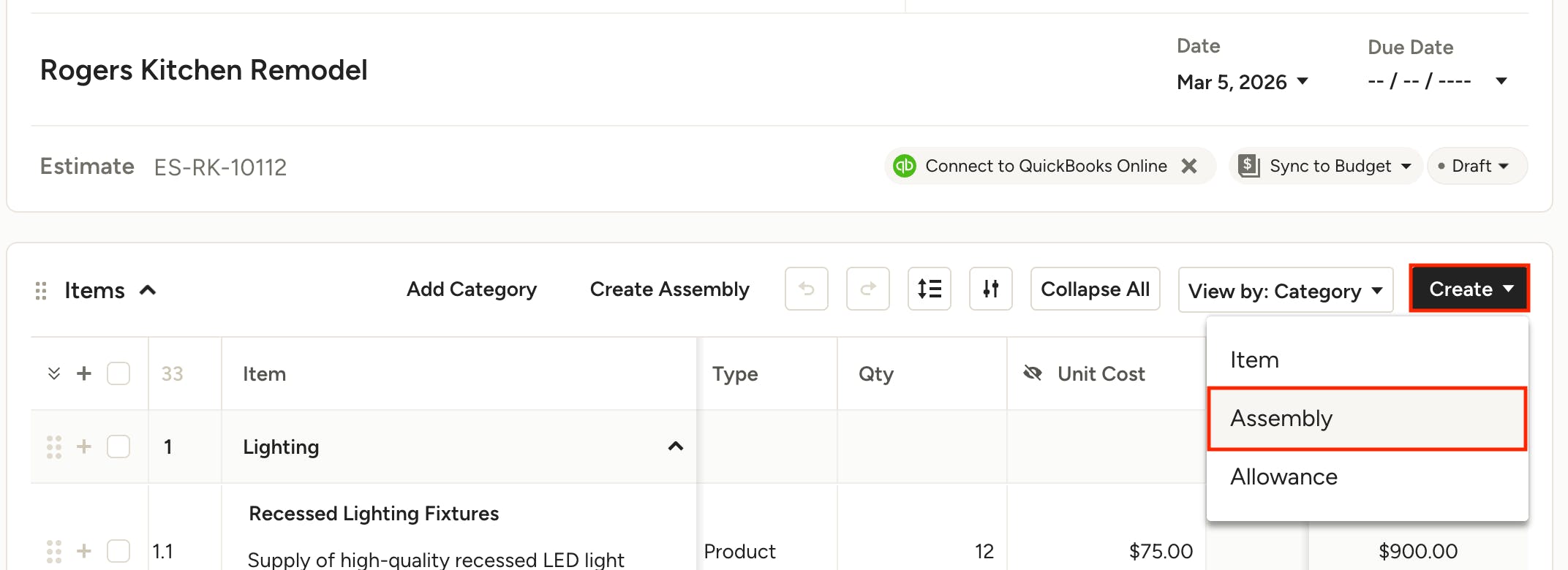
AI assistant is available when creating assemblies from scratch within a document. To use this feature, first open a new assembly by clicking Create at the top of your line items, then selecting Assembly.
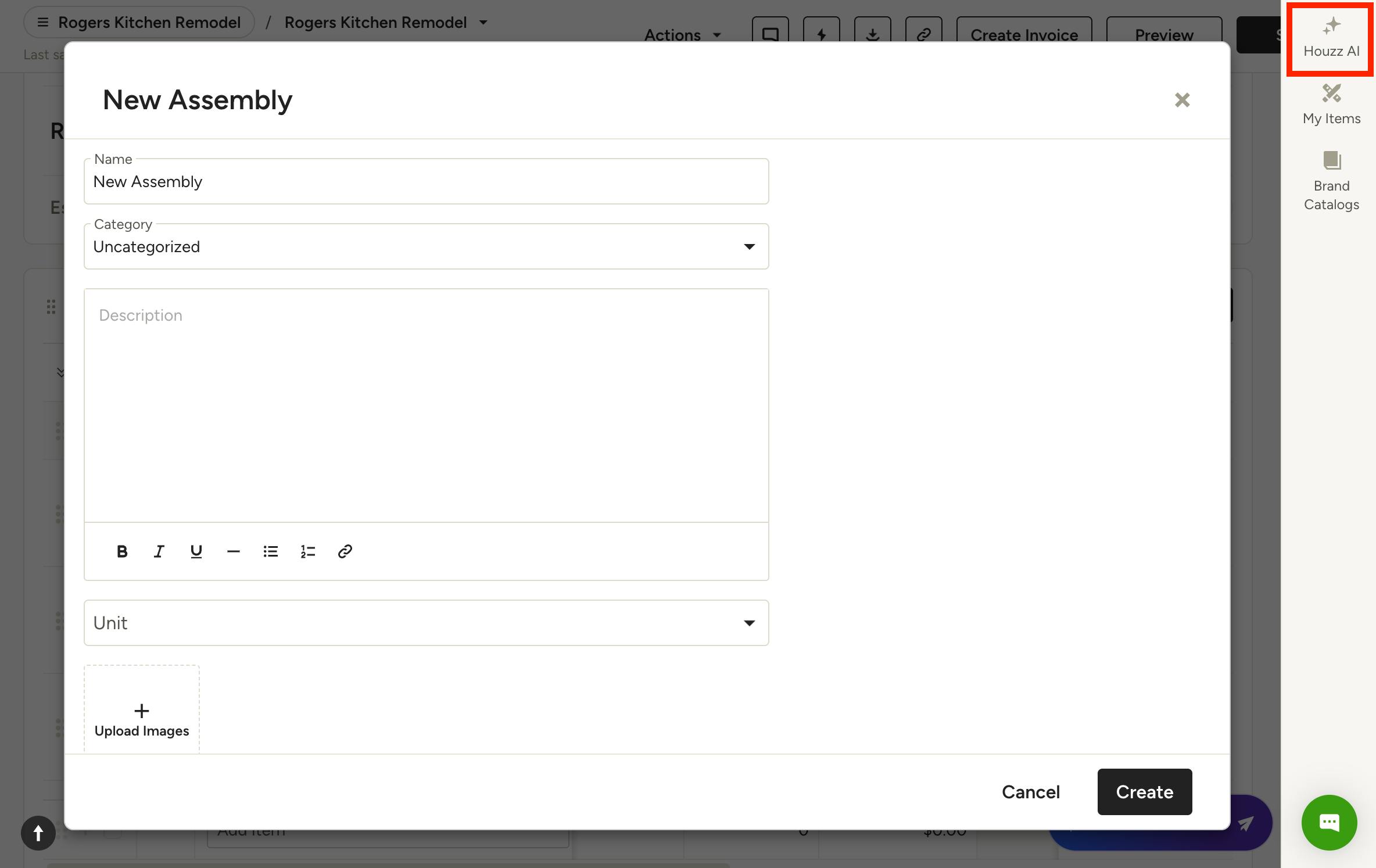
In the New Assembly modal, click Houzz AI in the right panel to open the AI assistant. Give the AI assistant a clear prompt for the assembly you want to create, submit your request, then update the assembly with your desired line items, as outlined above.