How to Create and Share Daily Logs
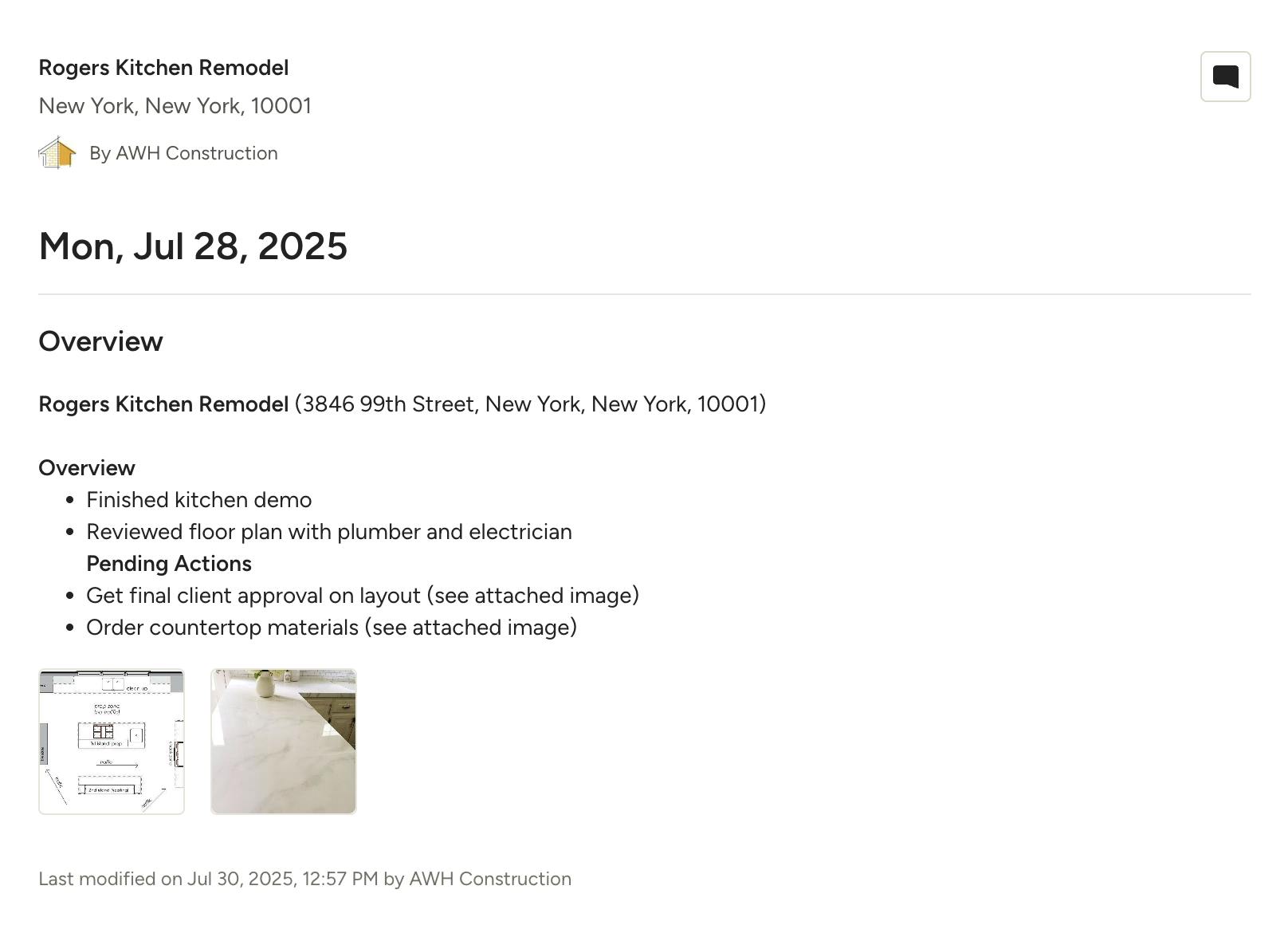
With daily logs, you can record what's happening each day on your job site, and easily share that information with your client and subcontractors. You can also have your team add daily logs to summarize their progress so you're kept up-to-date, even if you're not on-site.
How to Create a Daily Log
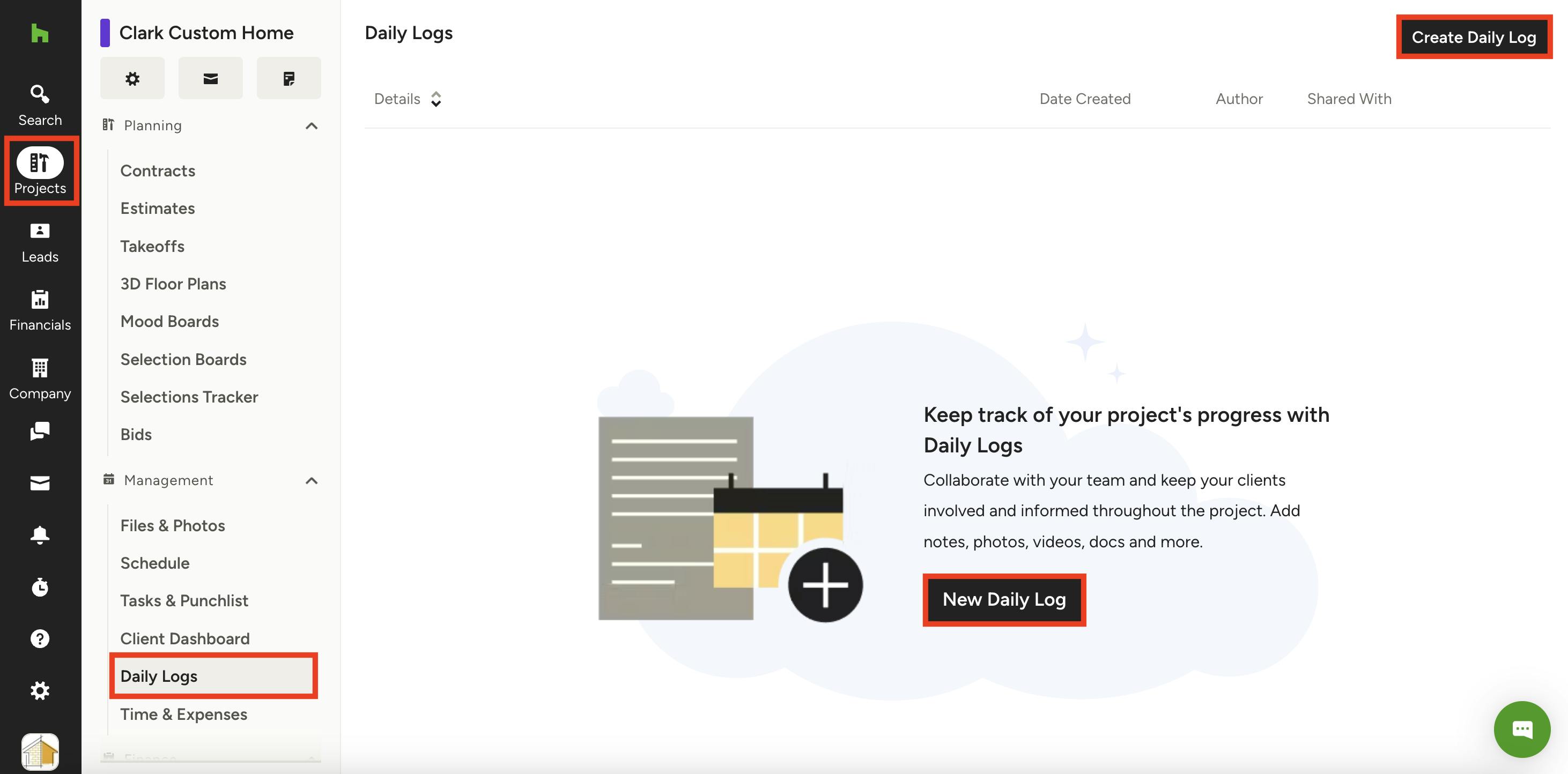
To access daily logs, find the Projects icon in the left navigation, then open up the relevant project. Select Daily Logs from the menu.
If this is your first daily log, you can either select the New Daily Log button on the center of your screen, or the Create Daily Log button on the top right of your screen.
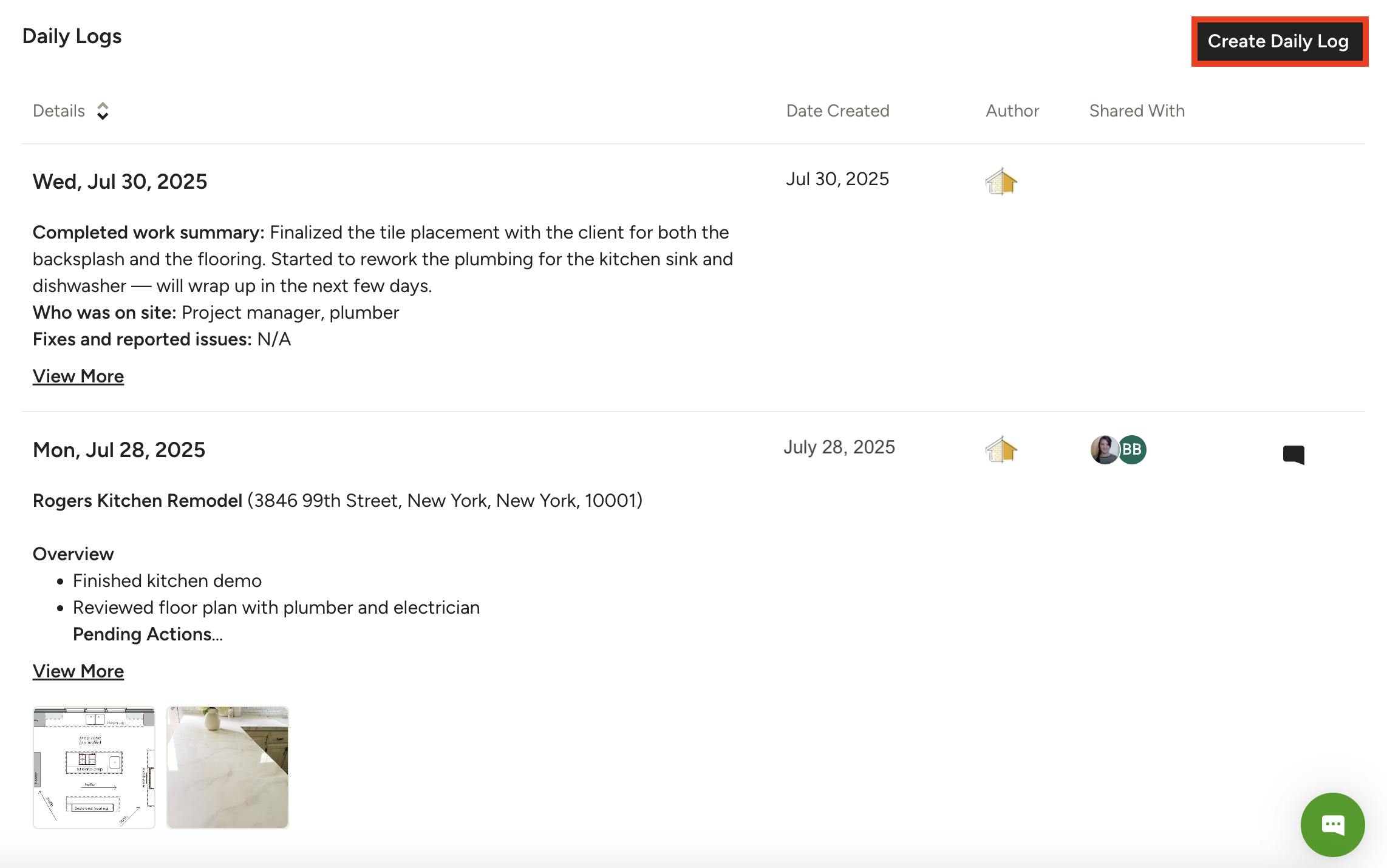
If you have created daily logs before, all your daily logs will be listed here. To create a new daily log, select the Create Daily Log button on the top right of your screen.
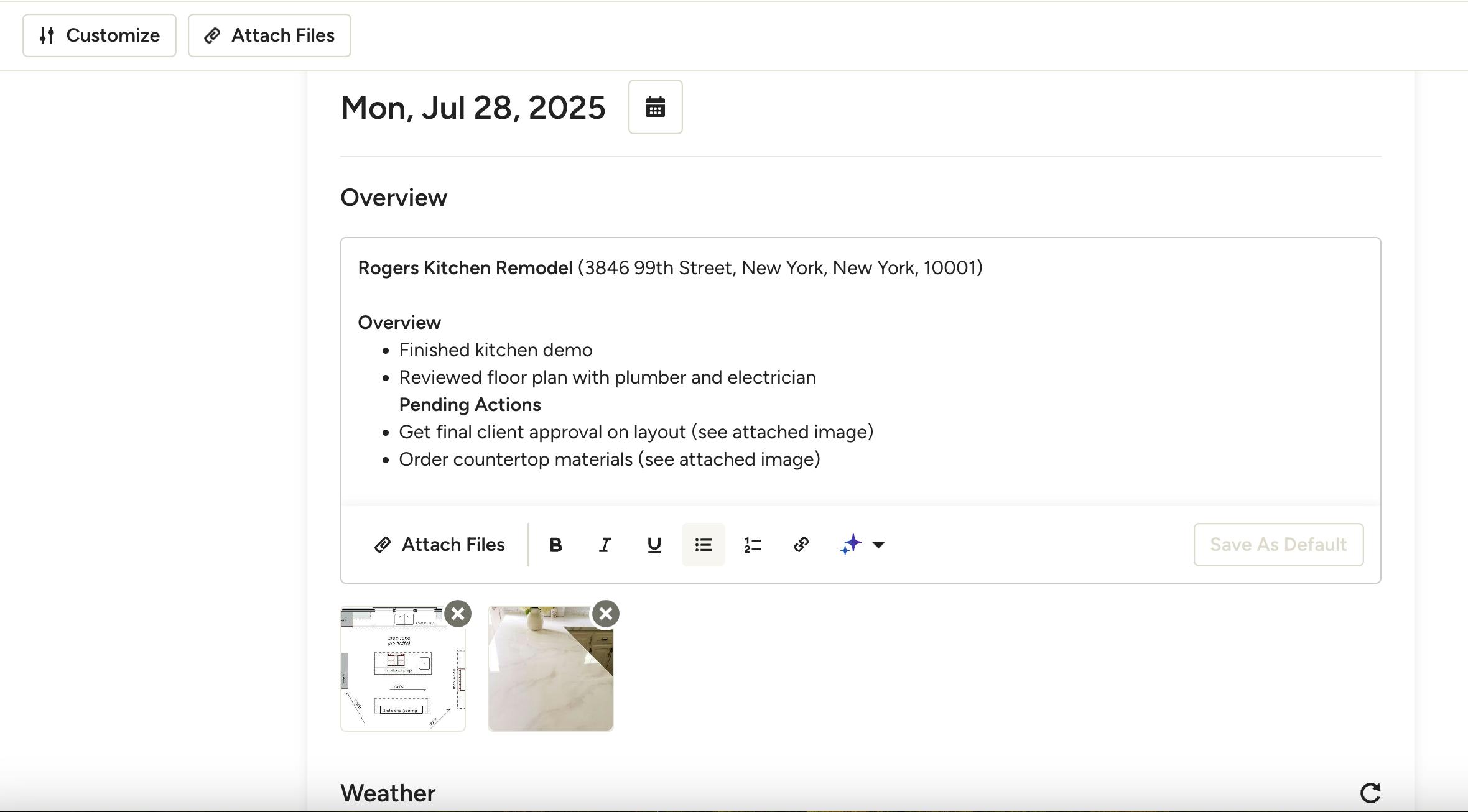
Once you create a new daily log, you can type your notes into the Overview text box. Add any relevant information like what progress was made, questions or concerns that came up, any subcontractors who stopped by, etc. You can add text formatting and attach links, photos or files if needed. You can even use AI to help write and refine your text (see Use AI in Daily Logs below for more details).
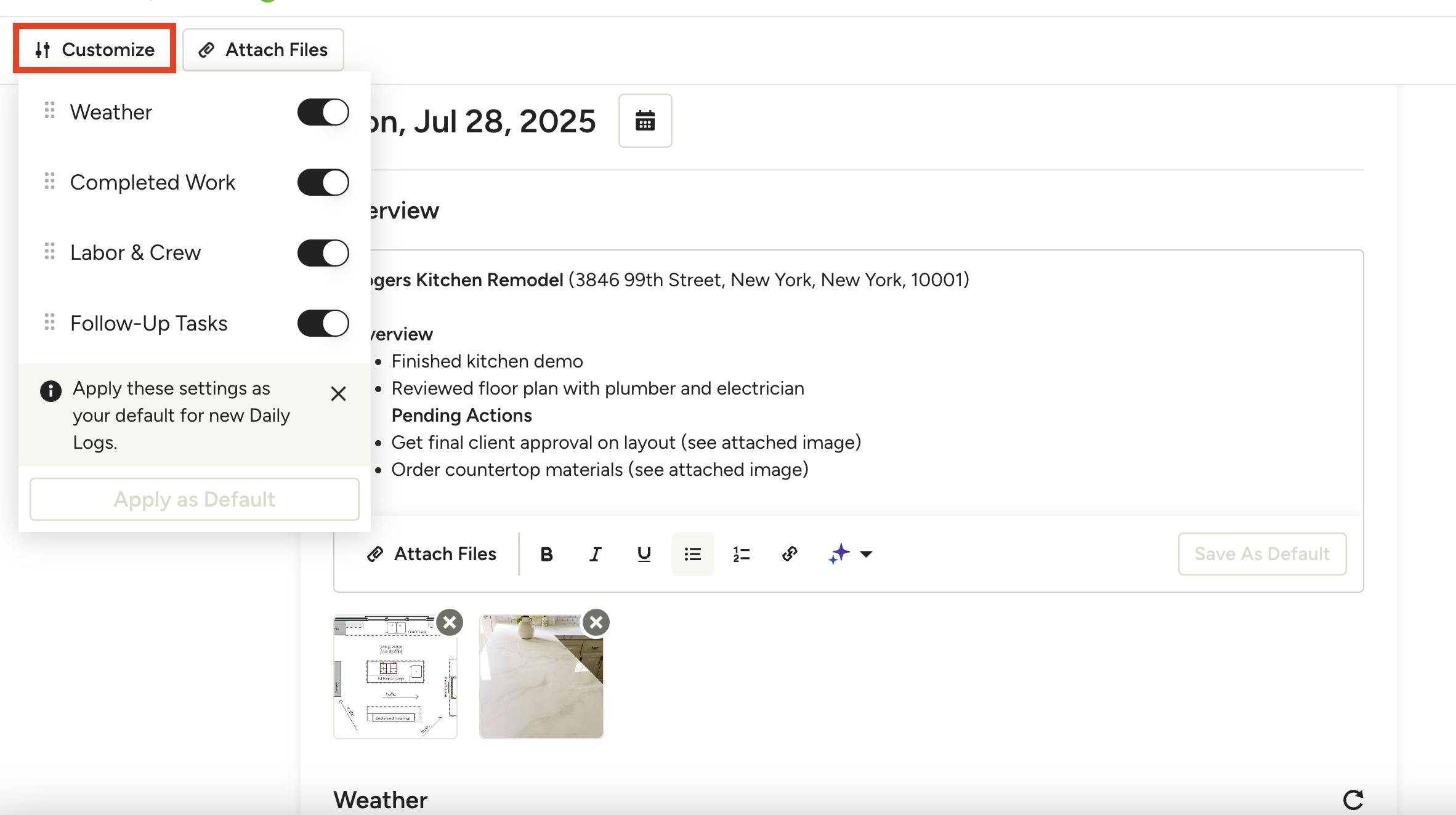
Underneath the Overview section, you can see more sections including weather details, your project schedule, team member time entries, and a to-do list of tasks or issues to address. Use the Customize button at the top of the log to toggle on/off certain sections if needed.
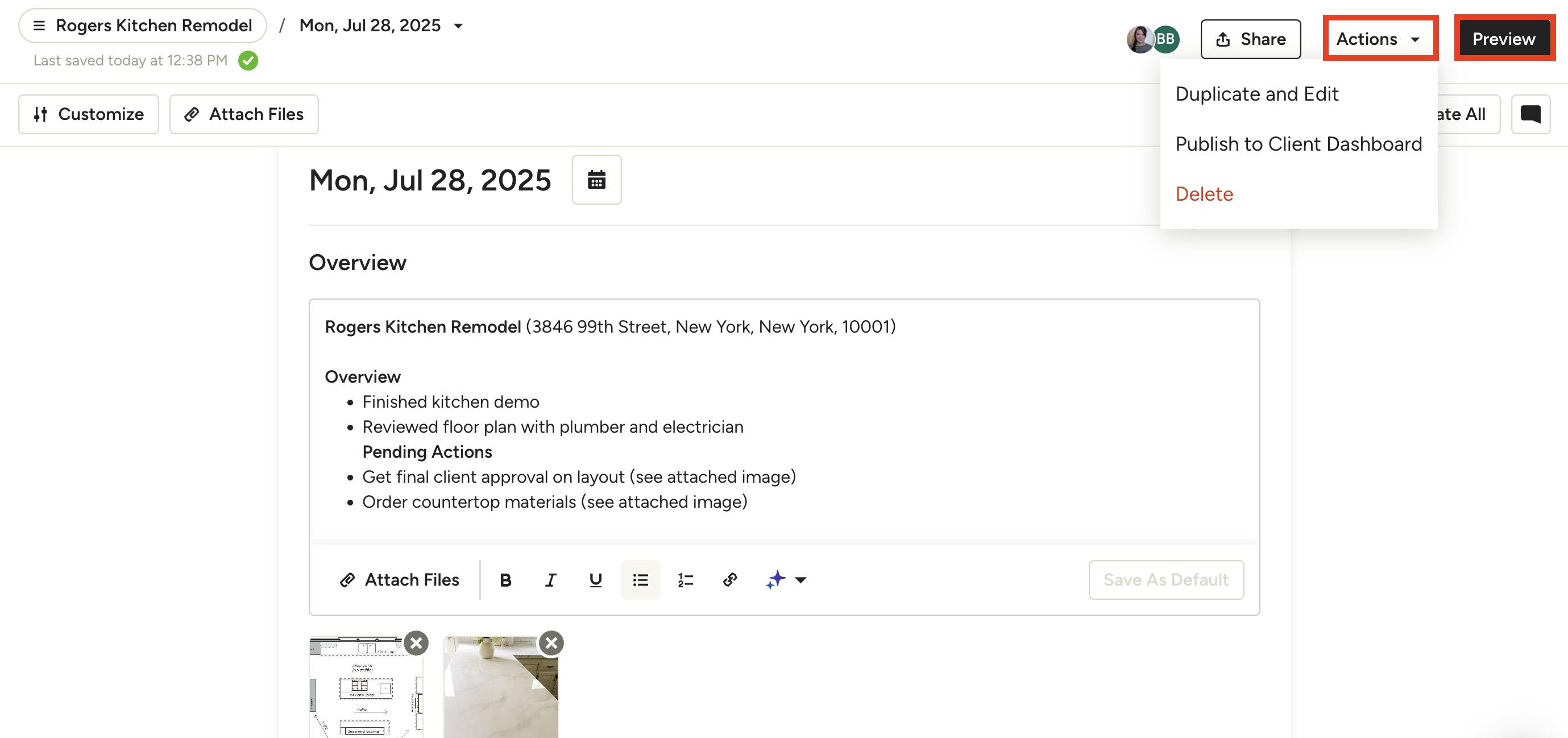
Under the Actions dropdown, you can select Duplicate and Edit if you would like to reuse this format for another daily log. You can also Publish to Client Dashboard if you want to share with your client, or Delete the daily log as well.
Select the Preview button if you would like to view your daily log as a client would view it.
Use AI in Daily Logs
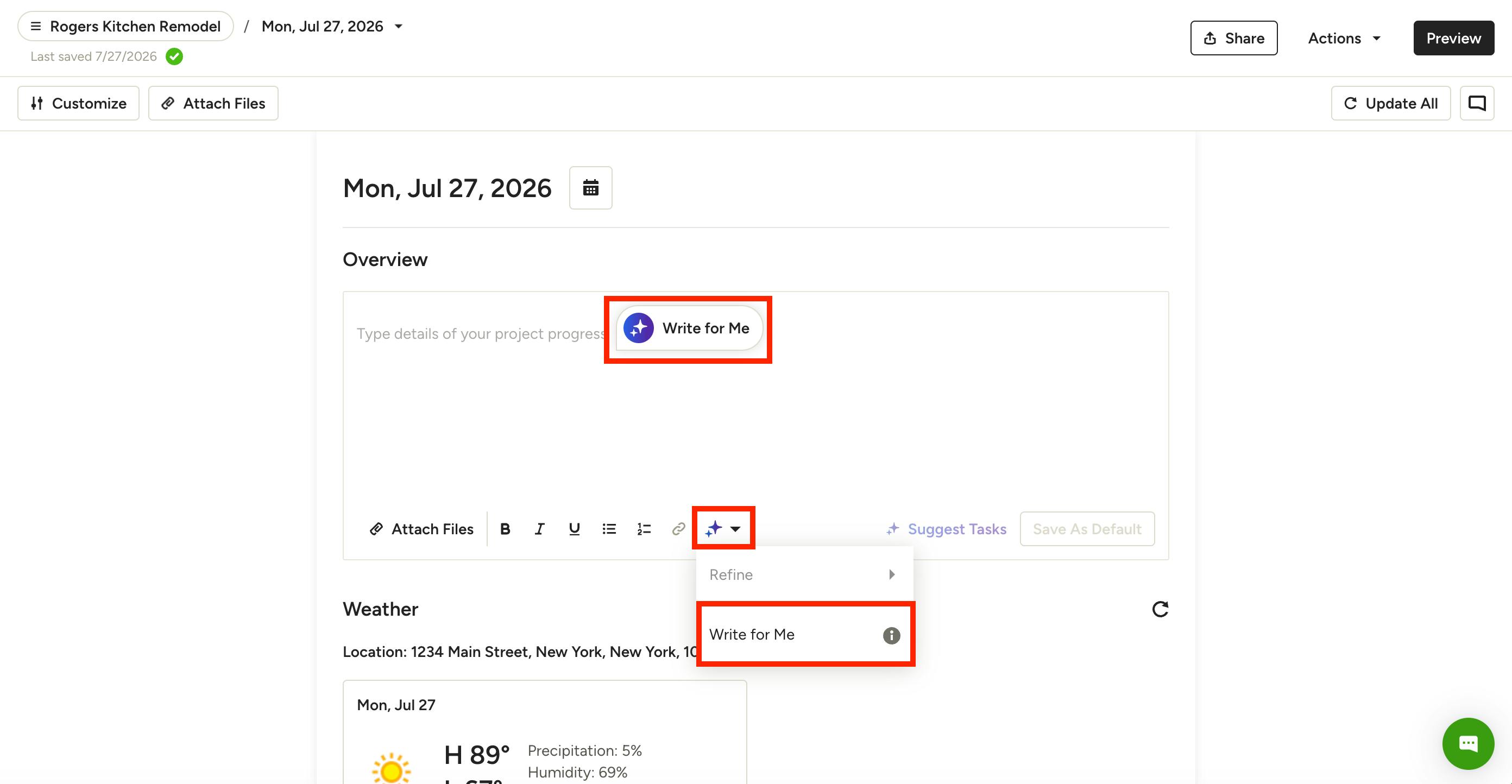
To help speed up the daily log creation process, you can either use Houzz AI Write for Me or Refine.
Use Write for Me when you want AI to do the heavy lifting — enter a short summary describing what you want to say, and AI will generate a polished, professional daily log for you.
Use Refine when you've already written a daily log summary but want to improve it. Our AI will take your written daily log summary, analyze the text, and provide suggestions to improve clarity and formatting. It will even fix spelling, grammar and punctuation issues so all your company communication is polished and professional.
To use this feature, open up the relevant daily log, or create a new one. Select the purple Houzz AI icon. If you have no existing text in the message box, Write for Me will be the only available option.
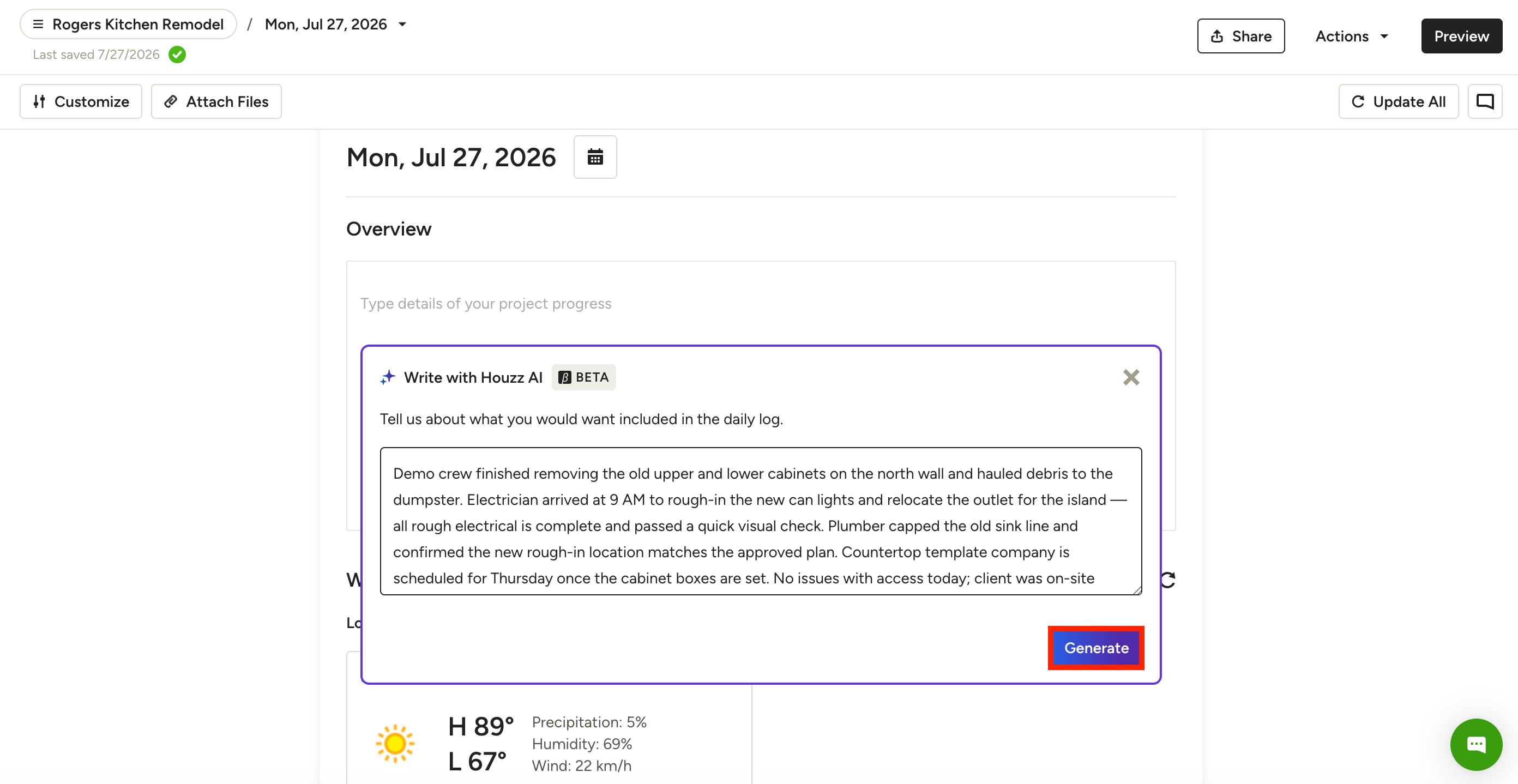
In the next screen, enter a short prompt describing what you want to communicate. Click Generate.
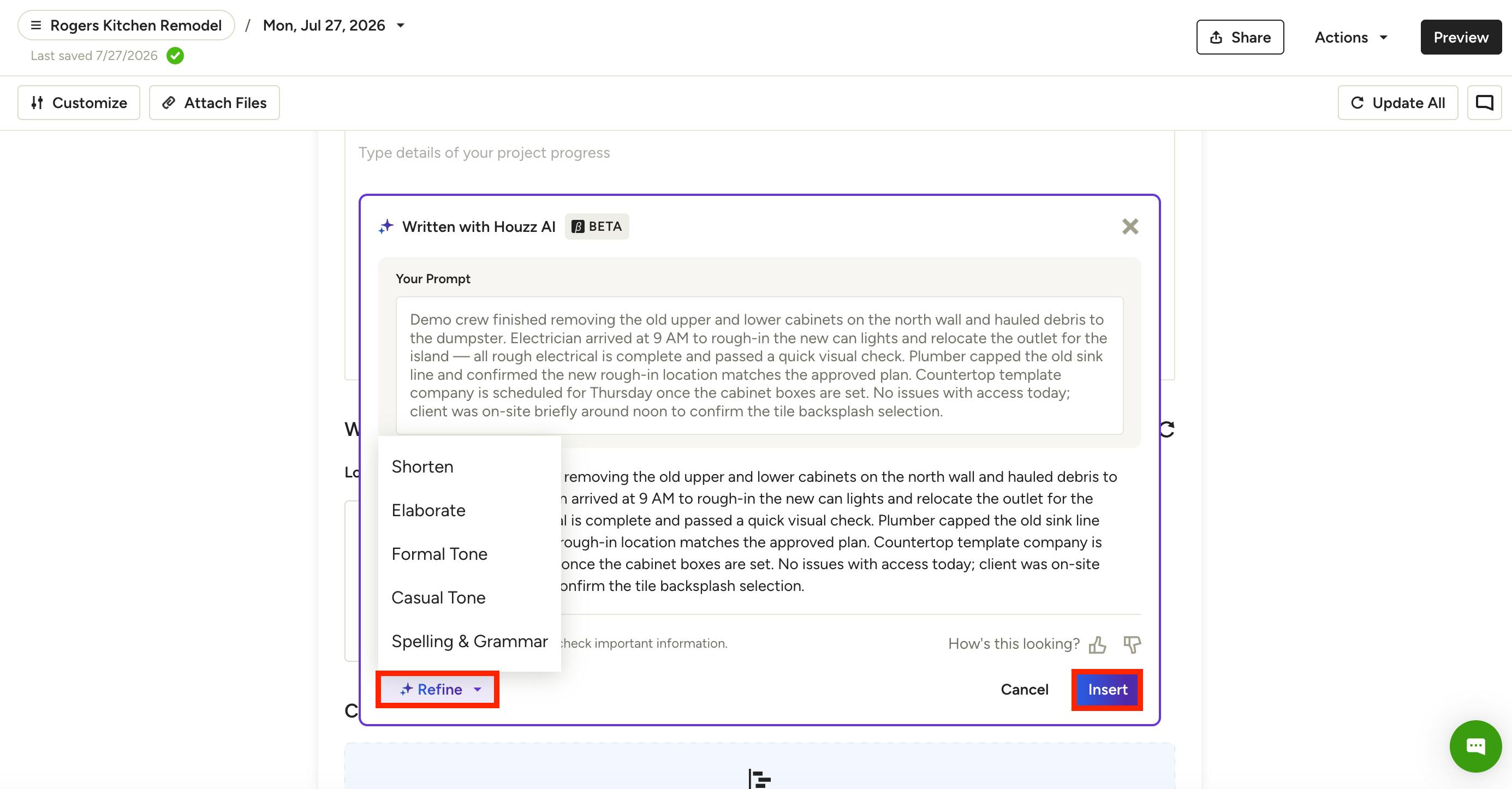
AI will generate a suggested daily log summary. Review the text in the preview. Click Refine to make adjustments — you can shorten, elaborate, or adjust to a more casual or formal tone. You can also check and adjust spelling and grammar.
Once you're happy with the response, click Insert to paste it directly into your daily log text box. You can then make any final edits before sharing the daily log with clients or your team.
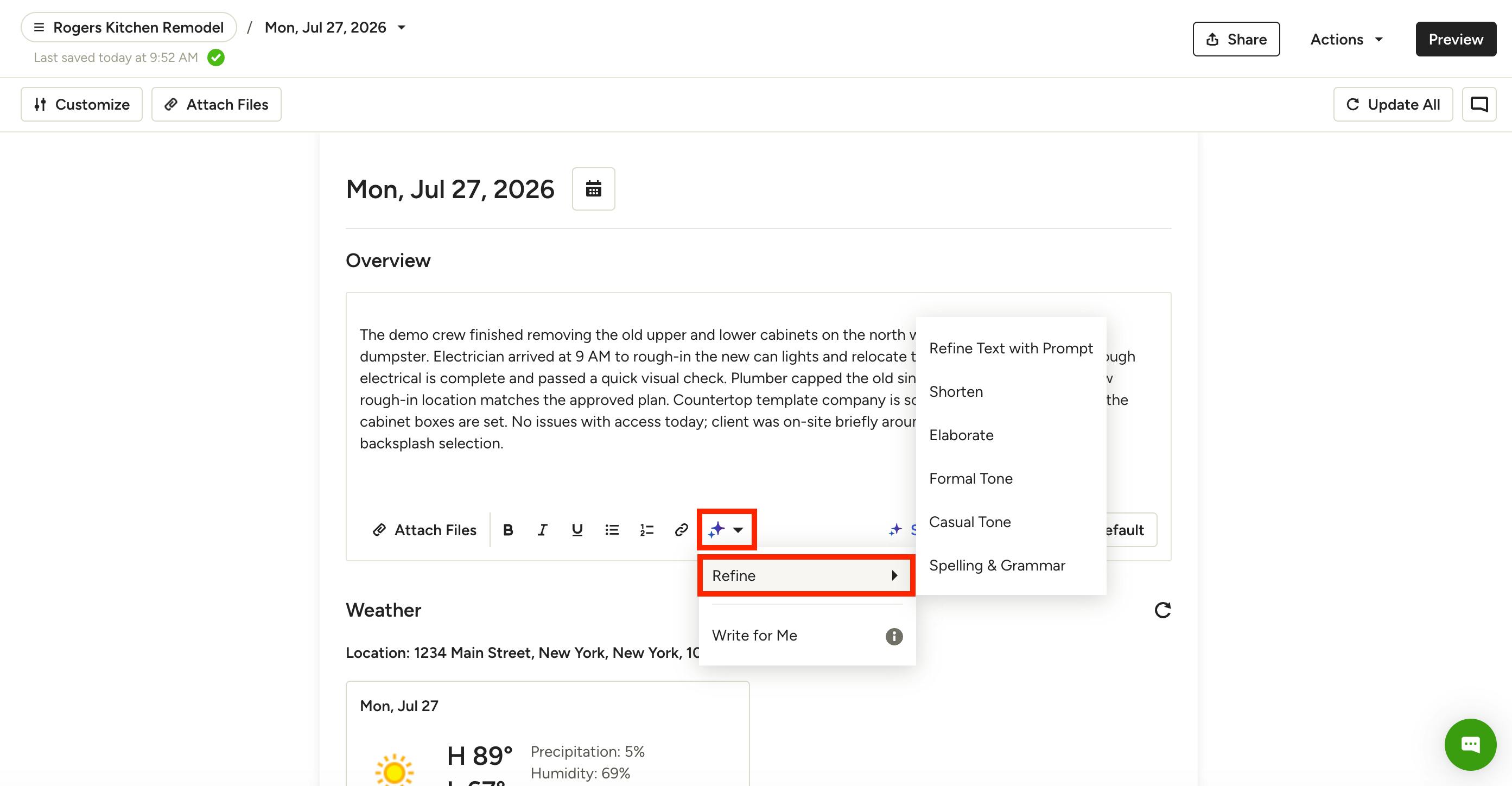
If you have already written a daily log, Refine will also be an option. Here, you can improve the text with a specific prompt. You can shorten, elaborate, or adjust to a more casual or formal tone. You can also check and adjust spelling and grammar.
Click the relevant Refine option, and the text will adjust. You can then make any final edits before sharing the daily log with clients or your team.
AI Tasks in Daily Logs
In addition to improving your written text, Houzz AI can also analyze the content of your daily log and suggest tasks for you and your team to complete.
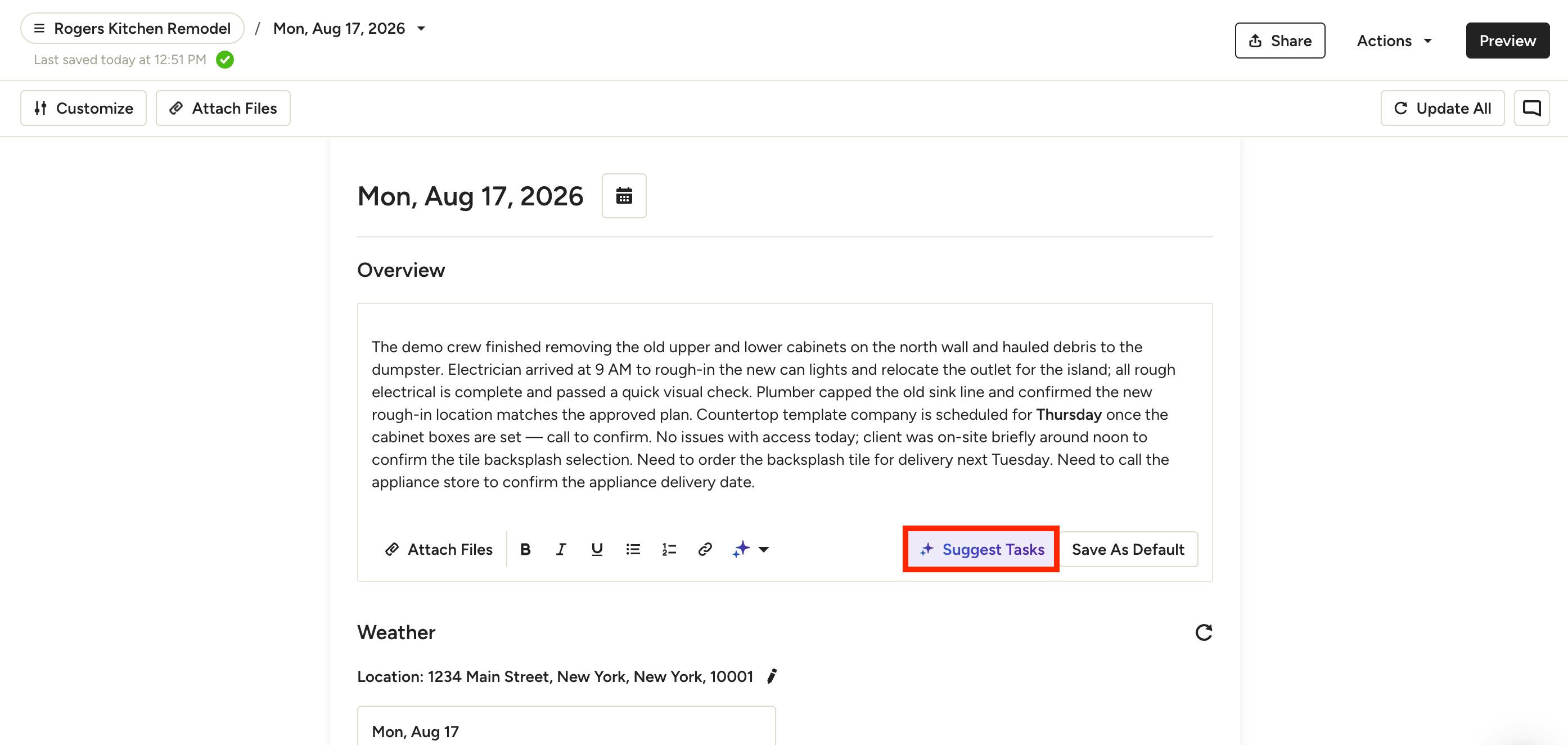
To use this feature, type your text into the Overview section of the relevant daily log, then click the purple Suggest Tasks button.
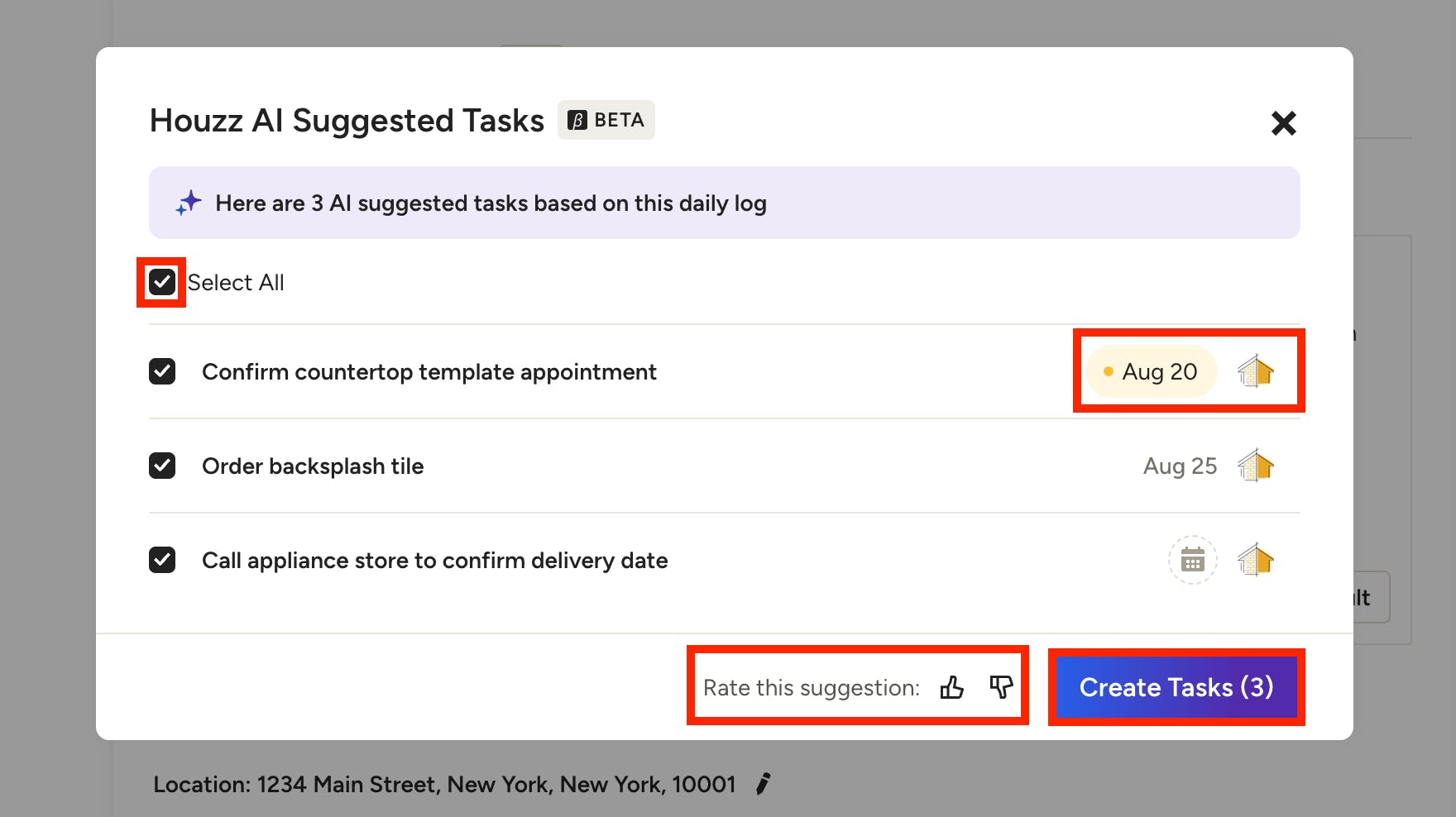
A new screen will appear with some suggested tasks. Review the tasks to see if you would like to include them. If you decide not to add them, click the X at the top of the box. If you would like to add them, click the checkbox next to the relevant task.
For each task, you can adjust the due date and the assignee before you create it. Once you are ready, click Create Tasks.
Pro Tip: At the bottom of the text box, you can select the thumbs up or thumbs down button to give feedback on the quality of the AI task suggestion.
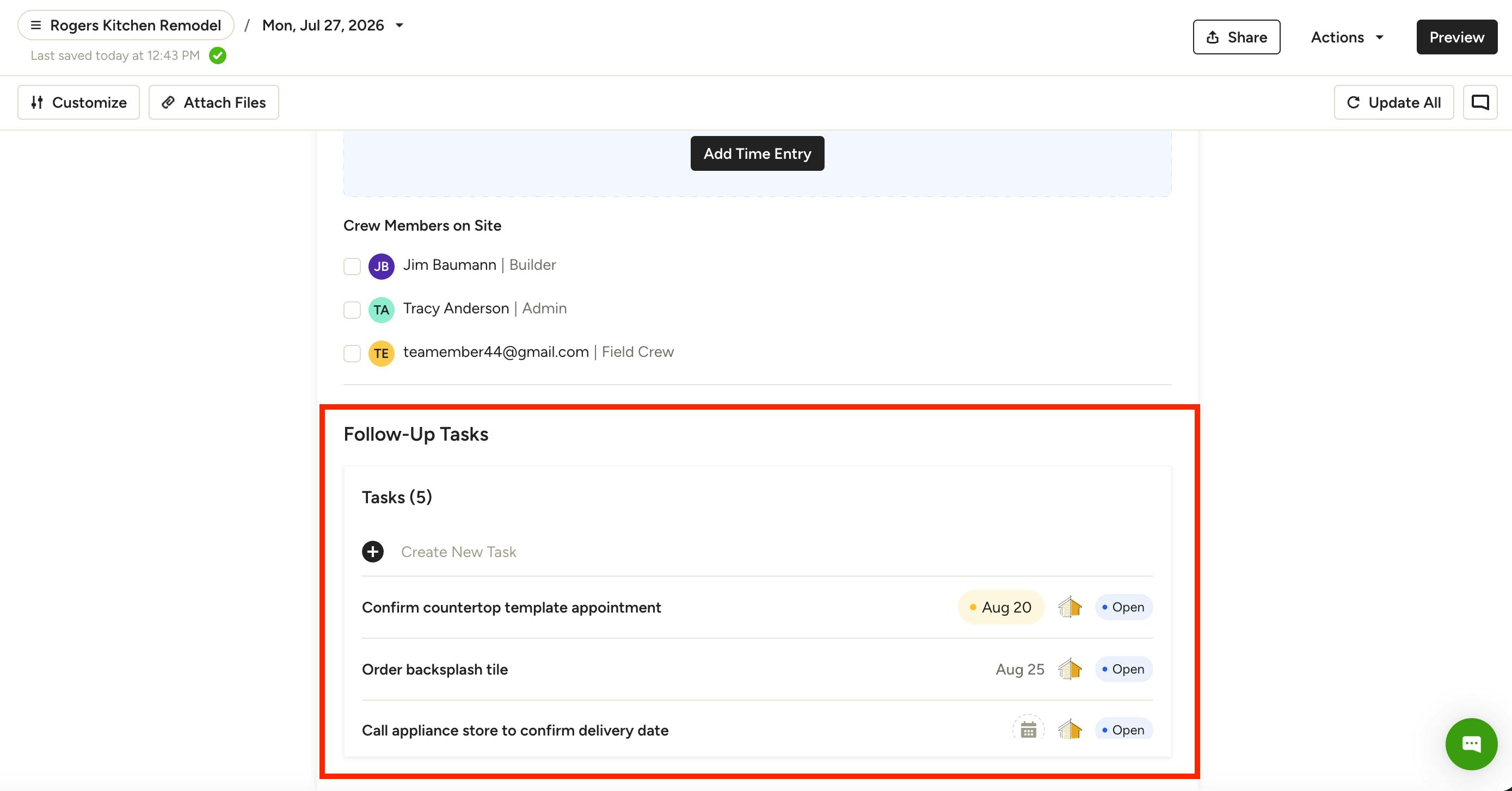
The task(s) will now be listed at the bottom of your daily log under Follow-Up Tasks, as shown below. It will also be included in the Tasks & Punchlist section within your project.
Set Daily Log Defaults
Easily set the default settings for daily logs so you and your crew never miss an important detail, including which sections to include and the text within the Overview section.
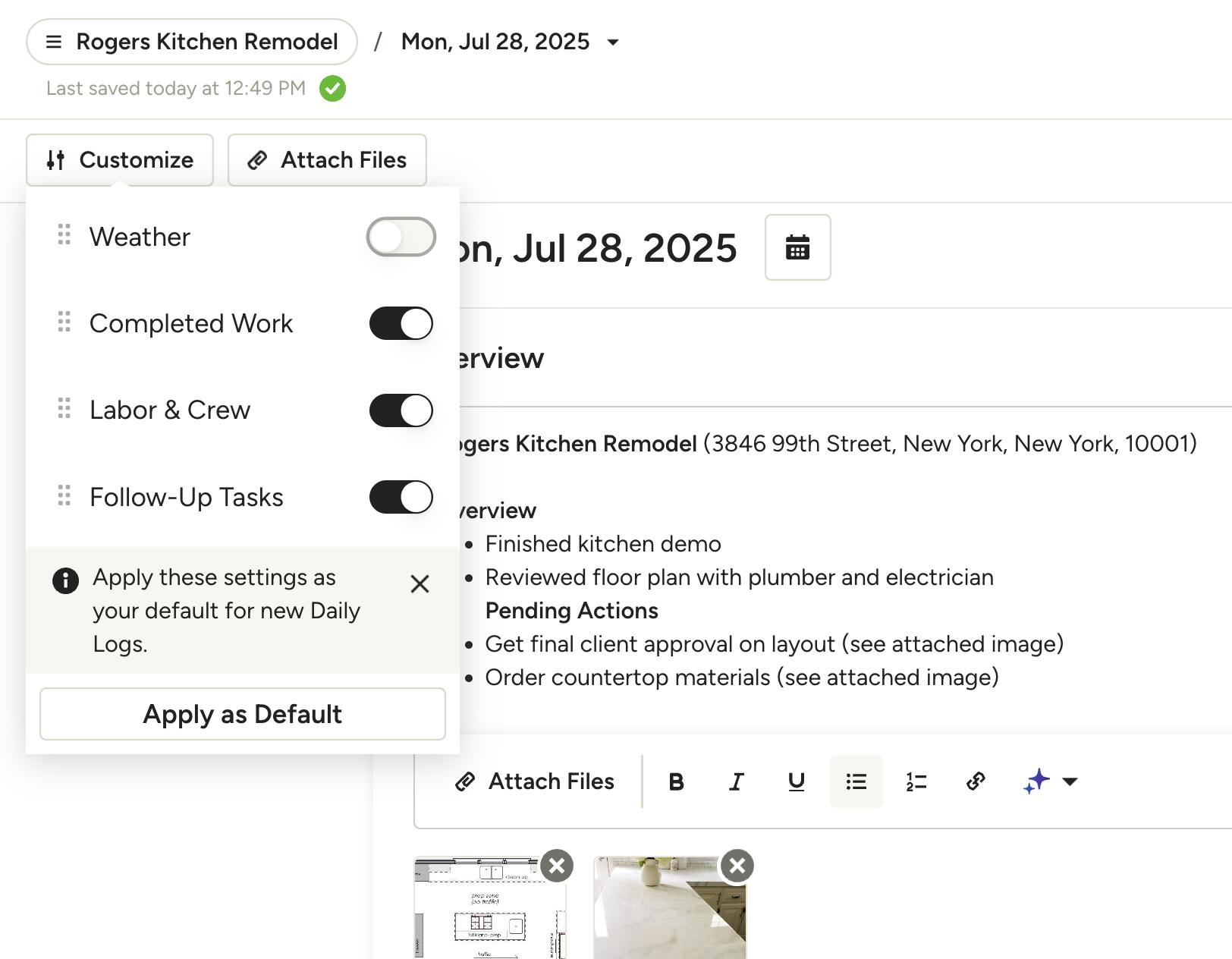
Default Sections: Select the Customize button at the top of any log to turn on/off the relevant sections, then click Apply as Default to keep these settings for all your future daily logs.
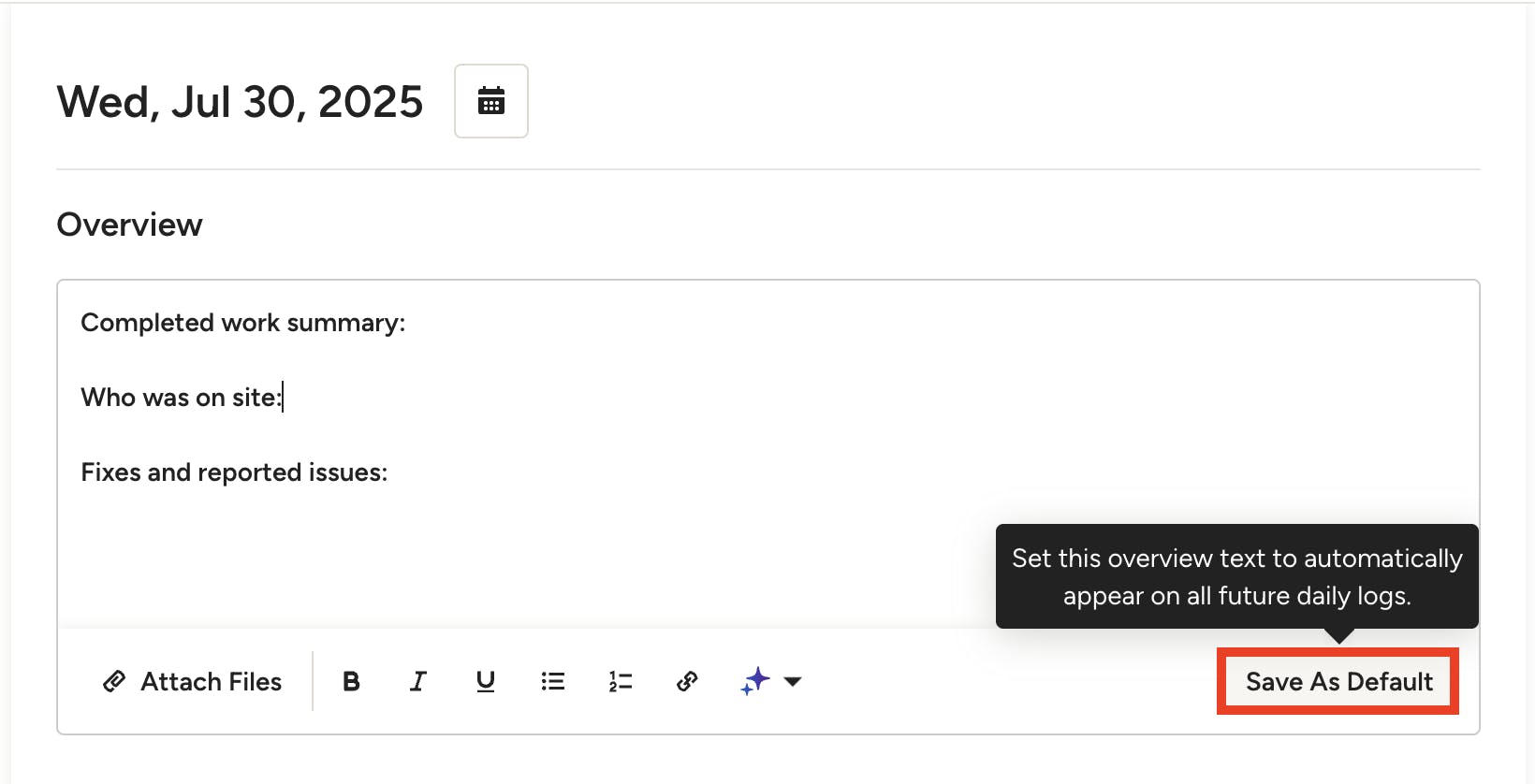
Default Overview Text: To set the default Overview section text, all you have to do is type out your desired text and click Save as Default at the bottom of the section. The overview text you set will now automatically appear on all future daily logs, like a template for your team to quickly fill out the details you need updates on.
How to Share a Daily Log
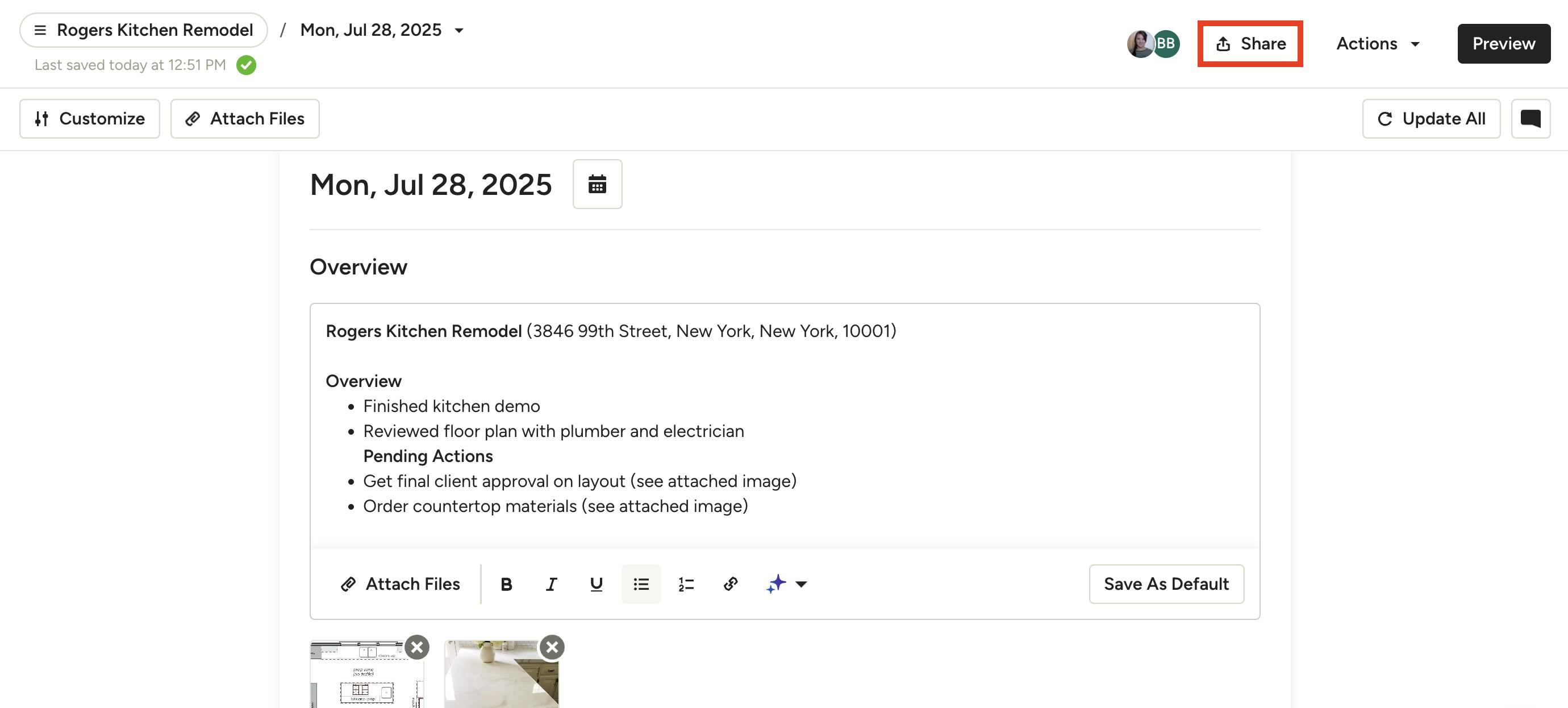
To share a daily log, click on the Share icon at the top of your daily log.
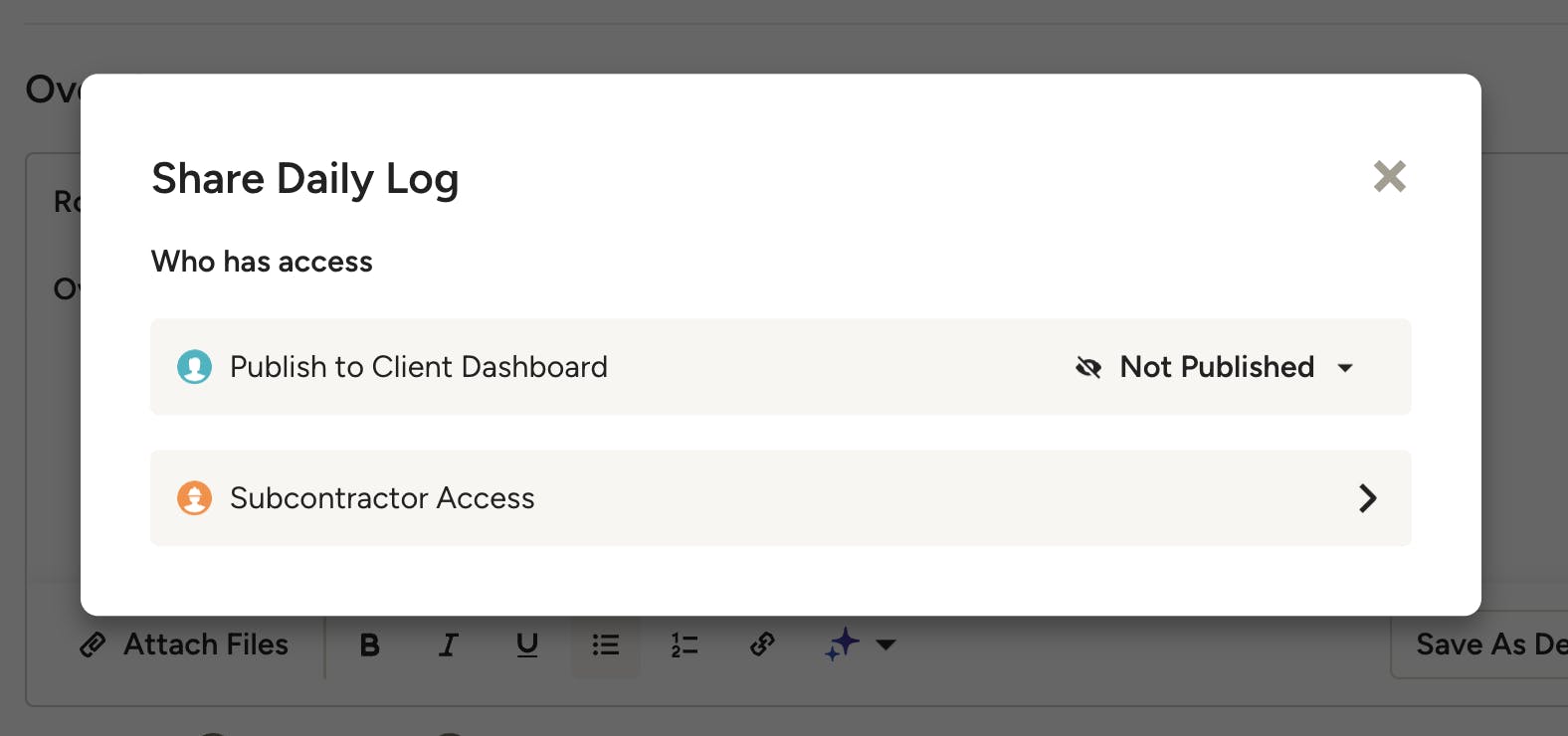
When you select Share, you can adjust the accessibility for both clients and subcontractors. Team members assigned to the project will have access by default.
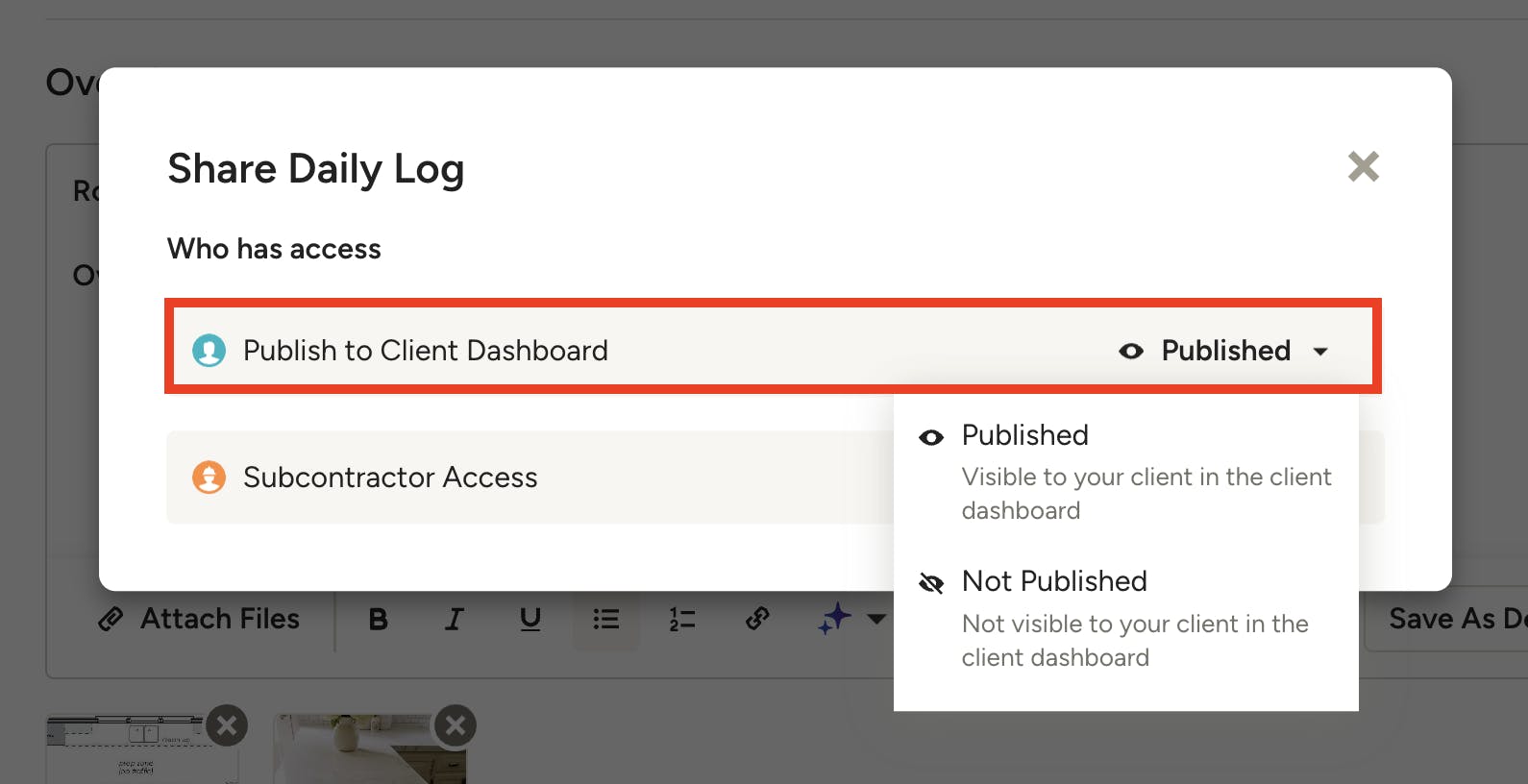
Client Access
If you give your client access to a daily log, they will be able to view the documentation within the client dashboard. You can also adjust client dashboard access under the Actions dropdown at the top of your daily log.
Clients will receive an email when a daily log is shared (you must share the client dashboard first). Read Preview and Share the Client Dashboard to learn more about the client dashboard.
Subcontractor Access
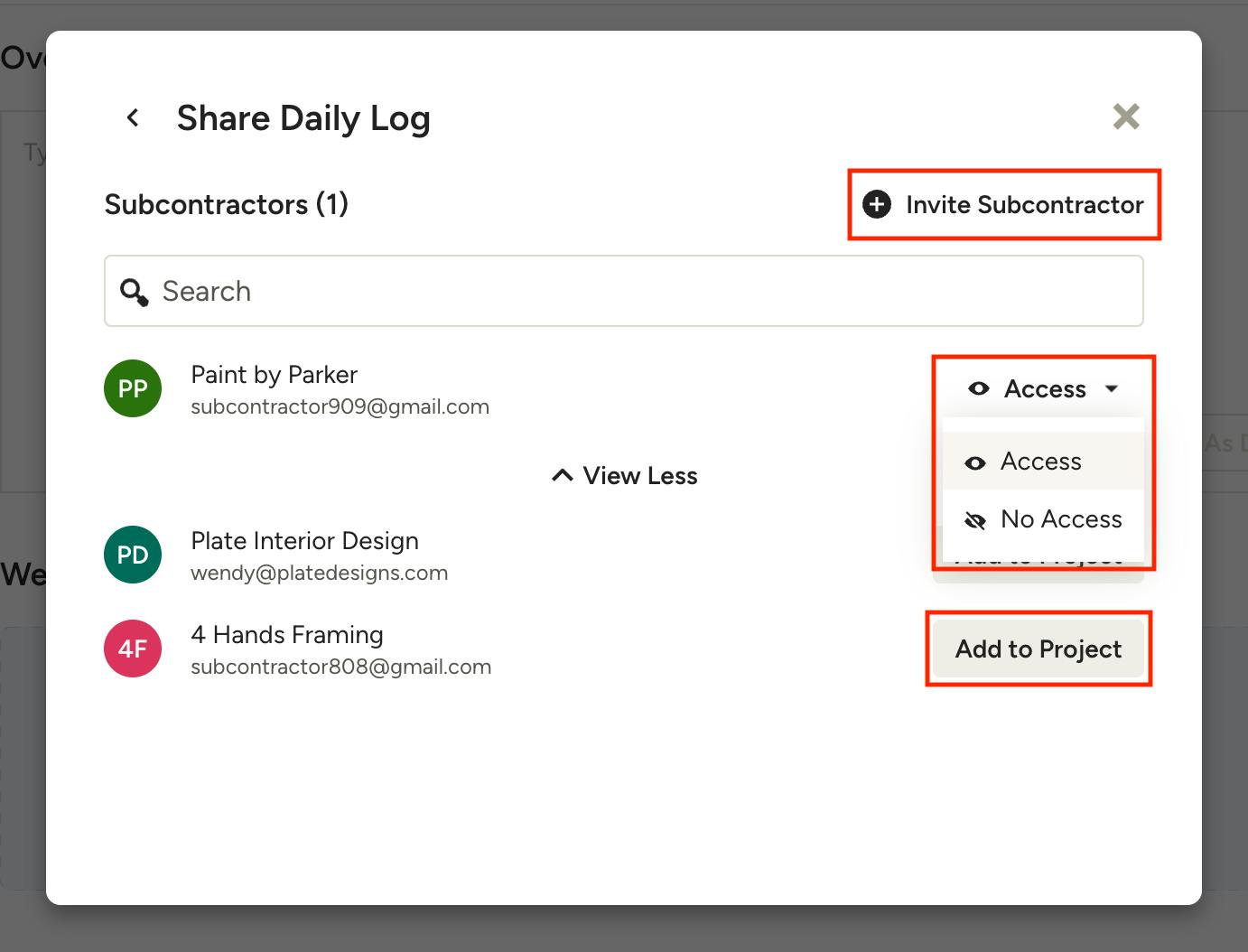
For subcontractors, you can grant access to view a daily log on an individual basis. To set individual access, select Subcontractor Access in the Share modal. You will see the subs currently invited to the project listed, and can set Access/No Access on each one individually.
Click View More to see your subcontractors who are not invited to the project — you can add them with one click and set their access. You can also invite a new subcontractor to your team by clicking Invite Subcontractor in the top right.
Subcontractors will receive an email when a daily log is shared. Read more about subcontractor access in this article: How to Invite and Collaborate with Subcontractors
How to Add Comments on Daily Logs
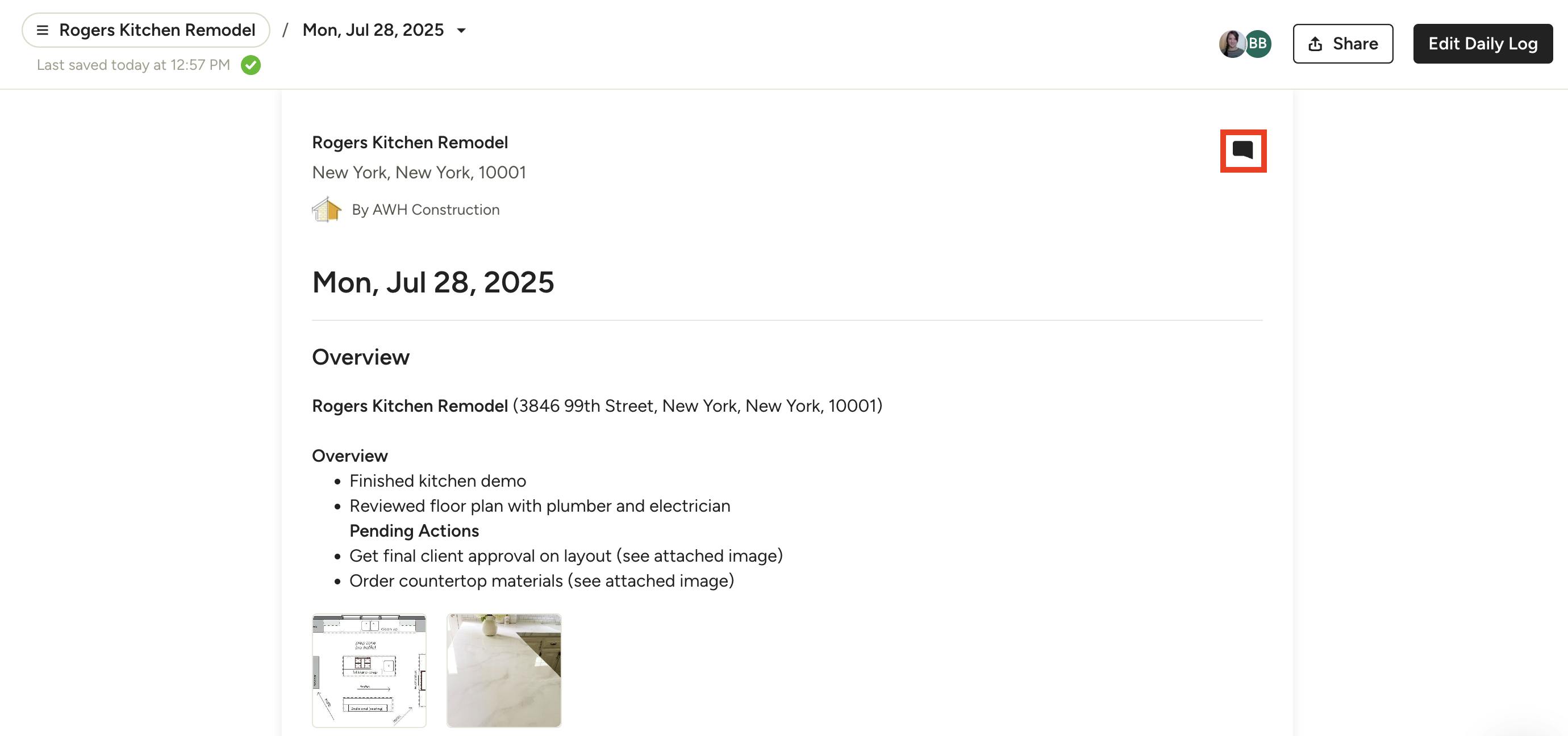
With the commenting feature on daily logs, you can communicate with the client, team members and subcontractors about any details specific to the log. To add a comment to a daily log, click the Comment icon at the top right of the log.
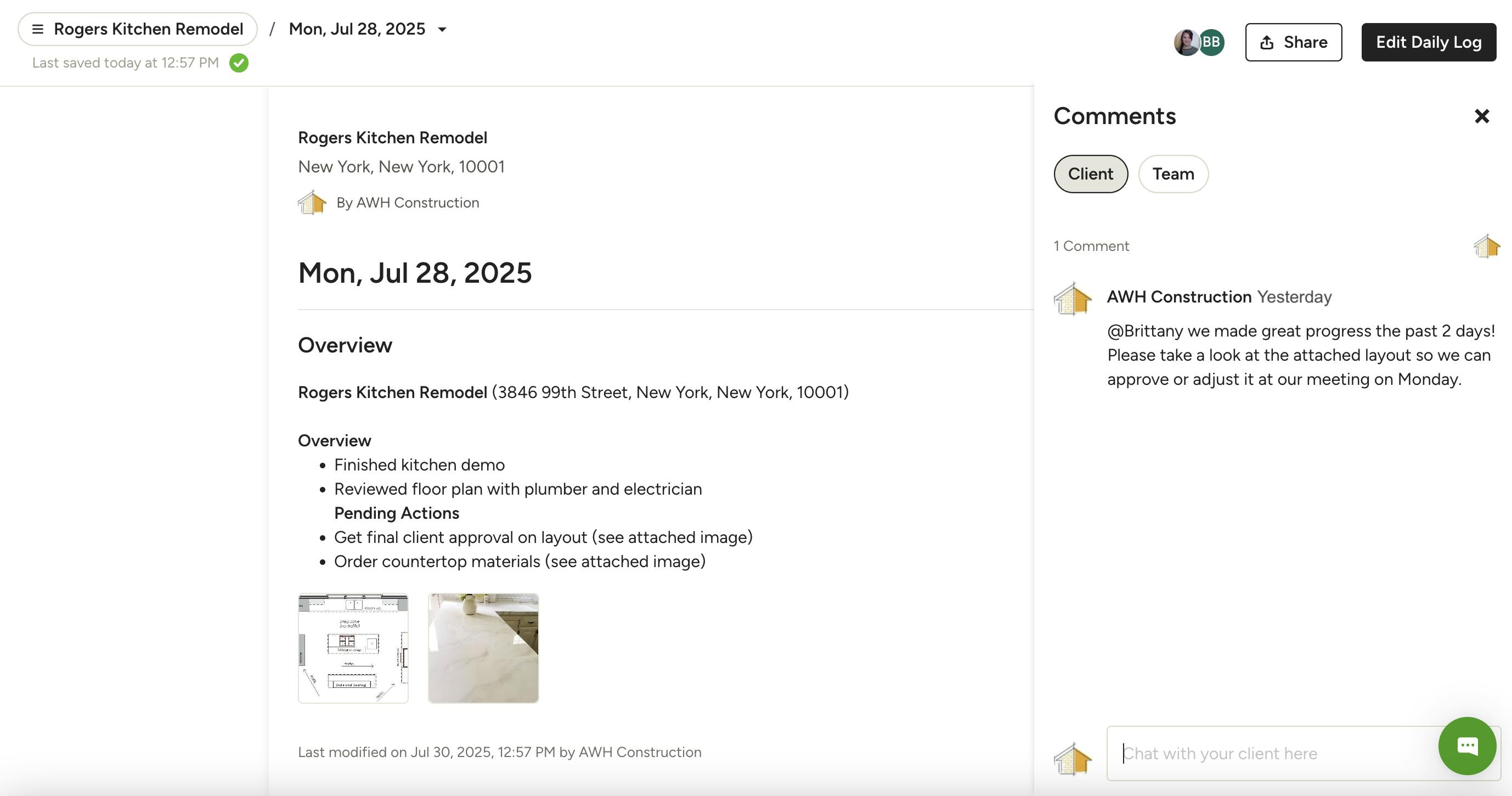
The comment panel will open, and you can select if you want to communicate with the client or your team members with the tabs at the top. Type your message in the text field and hit enter. Note that the daily log must be shared to the client dashboard in order for the client to be able to view it.
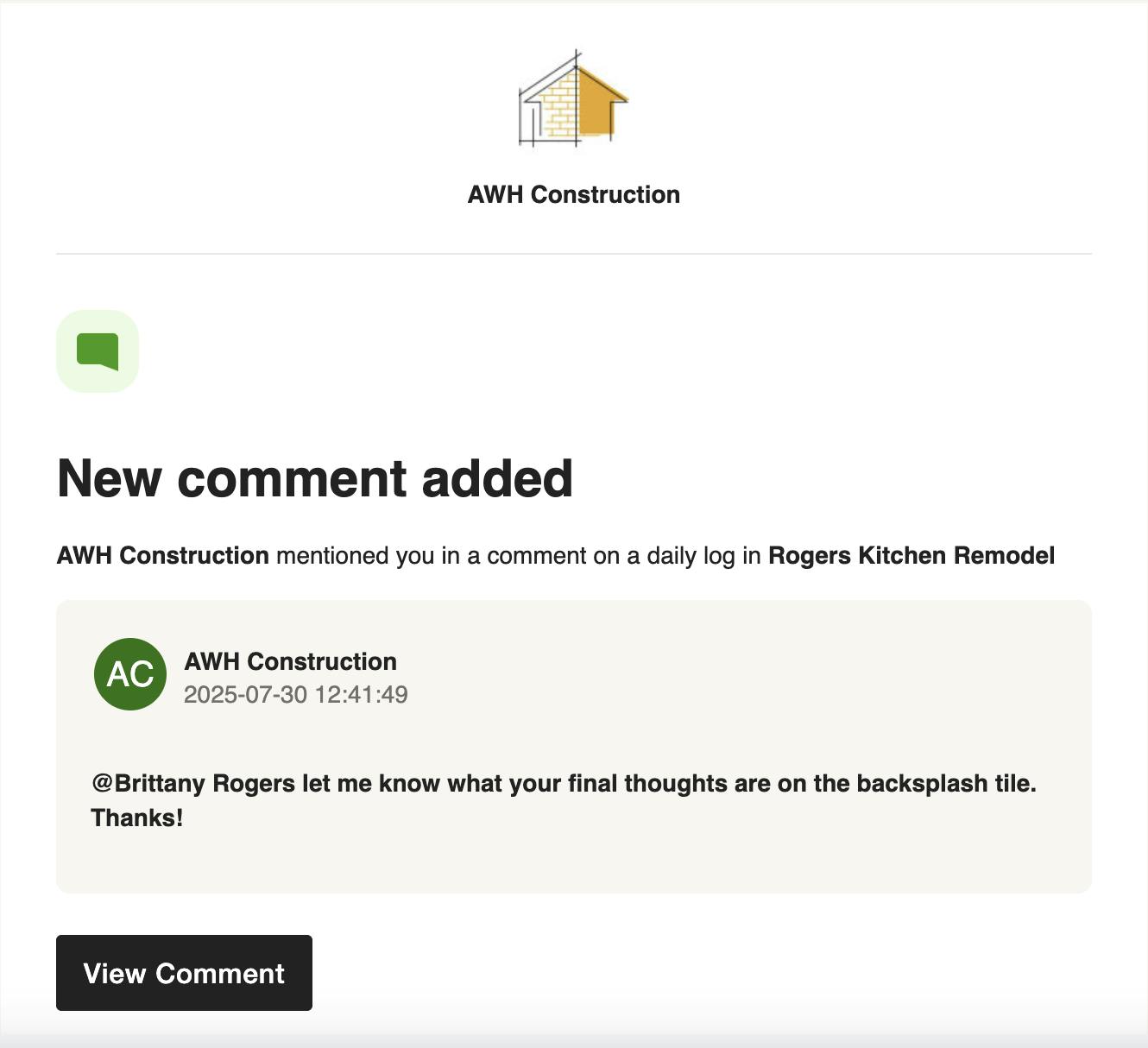
Once submitted, the intended recipient will be notified of the comment with the ability to view and respond. If sent to a client, they will be able to see the comment on their client dashboard in the daily log section.
How to View All Daily Logs
When viewing daily logs, you have the option to view a list of all your daily logs within a project, or you can view a list of all your daily logs across all projects.
Daily Logs by Project
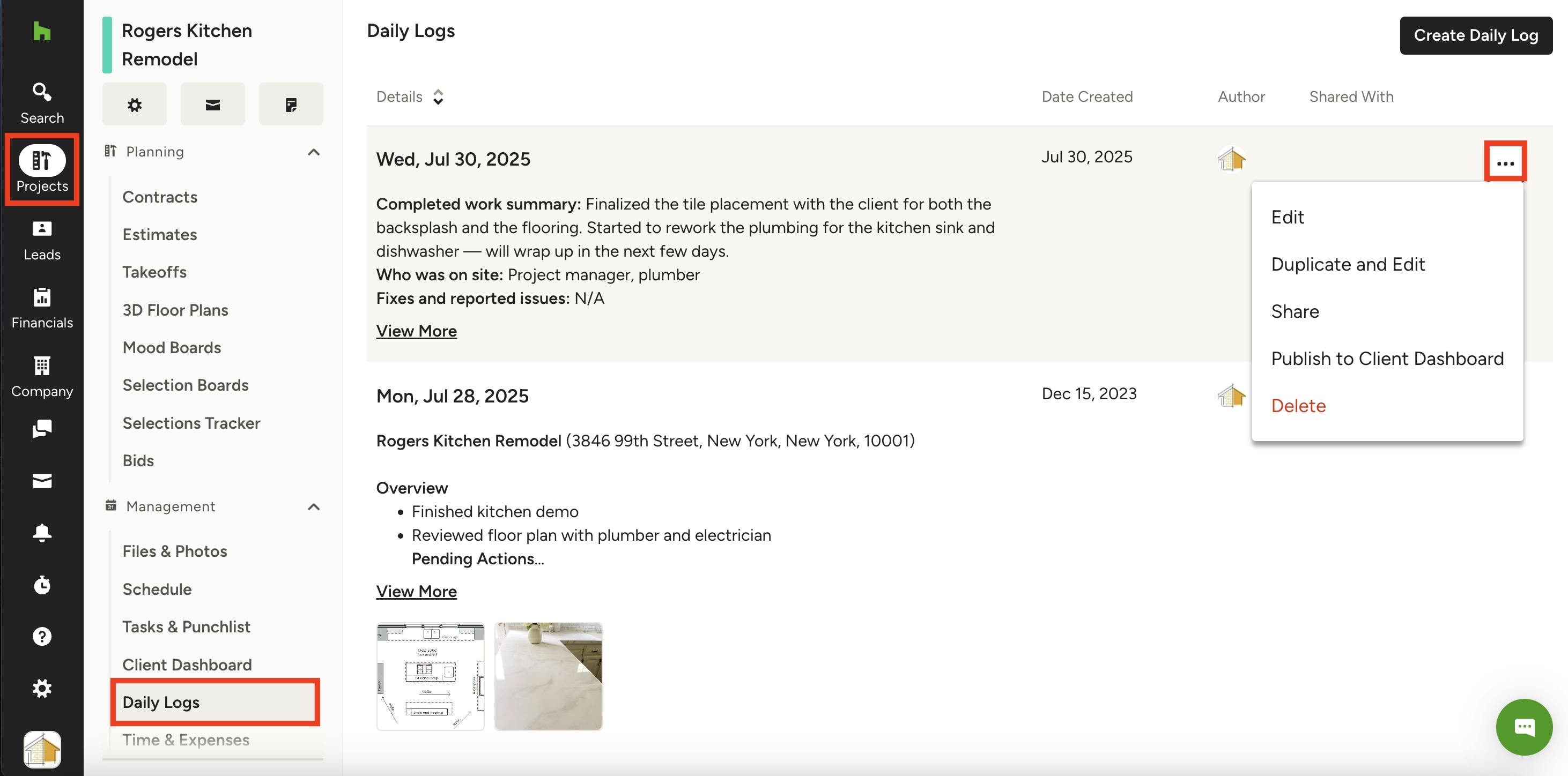
To view a list of all the daily logs for a specific project, find the Projects icon in the left navigation, then open up the relevant project. Select Daily Logs from the menu.
On this page, you can make changes to a daily log by selecting the three dots on the right side. From here, you can Edit, Duplicate and Edit, Share, Publish to Client Dashboard, or Delete.
Daily Logs for All Projects
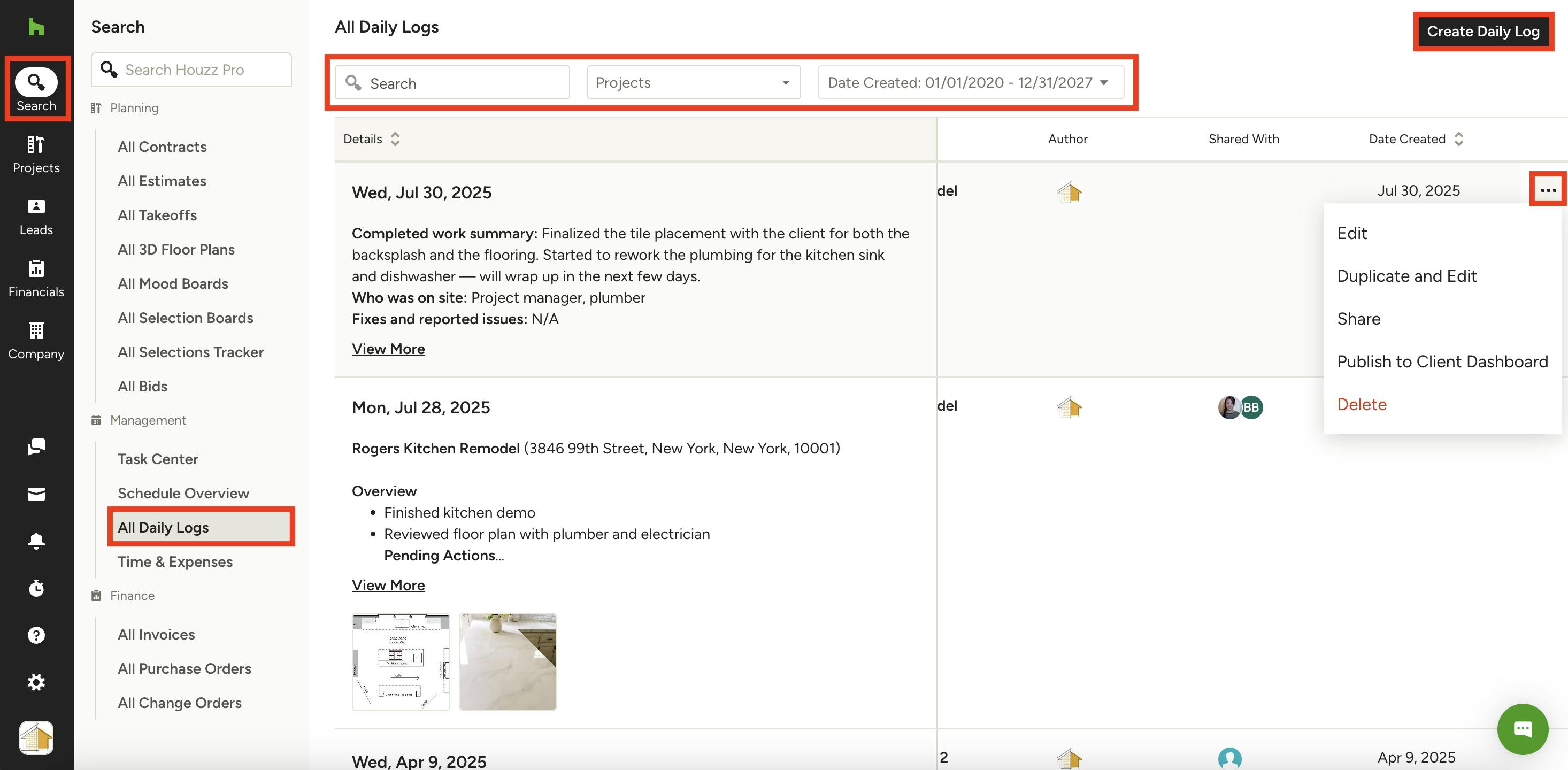
To view a list of all the daily logs across all your projects, find the Search icon in the left navigation, then select Daily Logs from the menu.
At the top of this page, you can use the search bar to find a relevant daily log by keyword, or you can use the Projects or Date Created filters to narrow down your options. To create a new daily log, select Create Daily Log at the top right.
For individual daily logs, you can make changes by selecting the three dots on the right side. From here, you can Edit, Duplicate and Edit, Share, Publish to Client Dashboard, or Delete.