Houzz AI for Takeoffs
With Houzz Pro Takeoffs, you can now use Houzz AI to quickly rename pages, set your page scale, measure area, lengths, counts and more. By automating the takeoff creation process, you can eliminate manual errors, save time, and keep projects moving forward.
How it Works
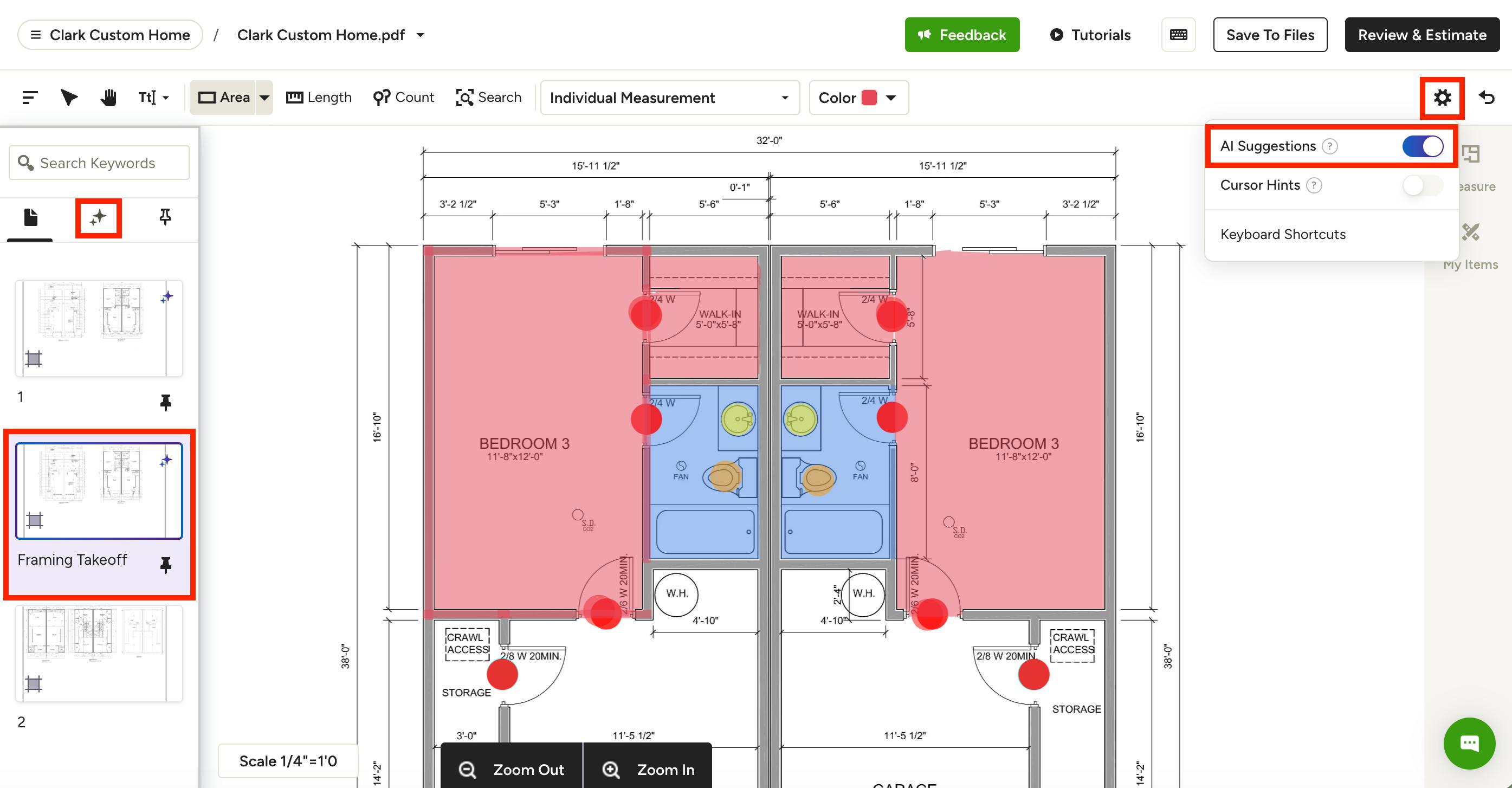
When you upload a set of plans to Houzz Pro, our system will scan the pages and, when possible, offer you the ability to speed up the takeoff process. While not all plans qualify for AI (simplified floor plans and elevations only at this time), eligible pages will be highlighted with a purple outline and icon in the left menu, as shown below. To see all AI-eligible pages at once, click on the Houzz AI filter icon under the search bar in the left menu.
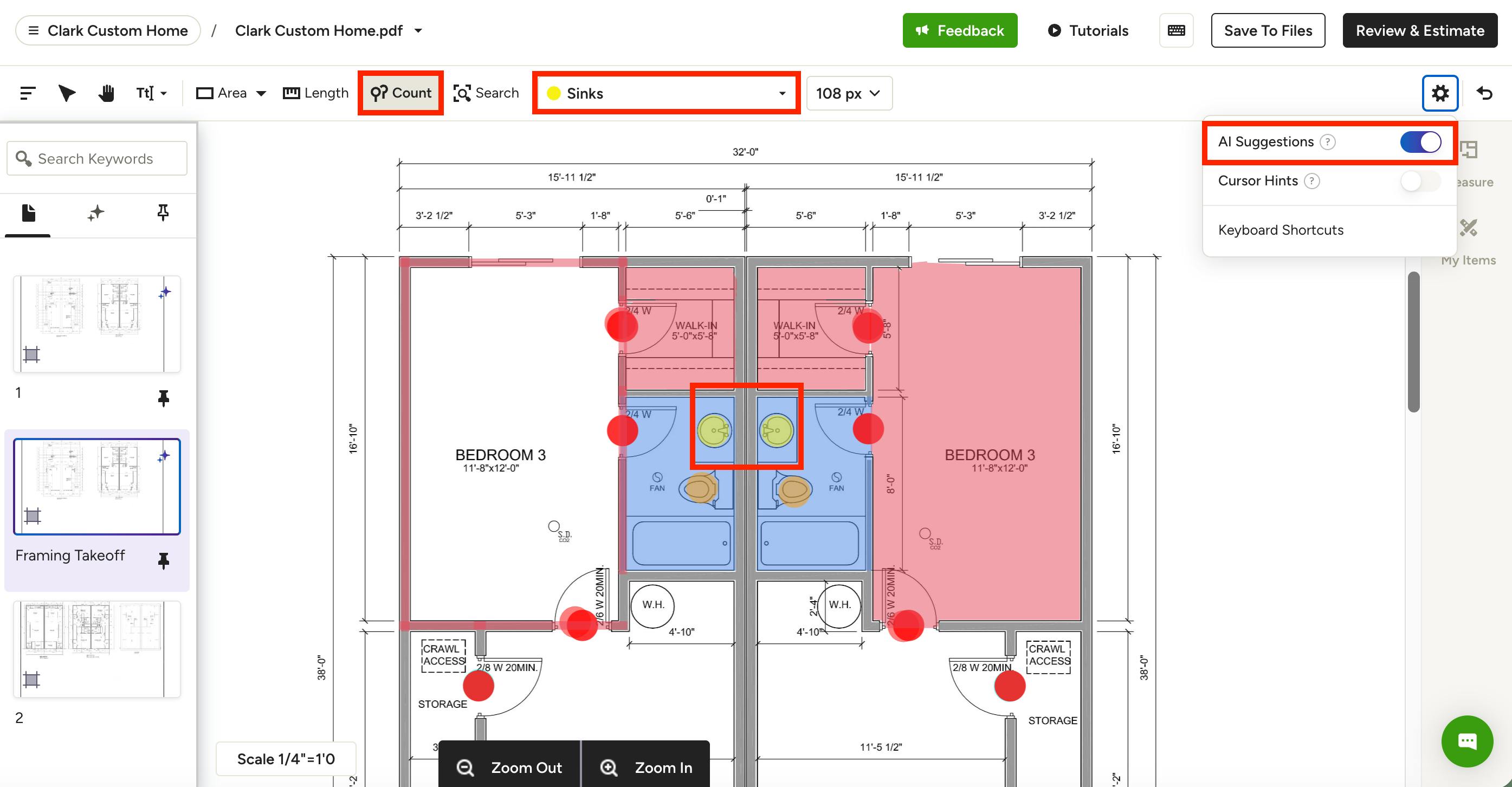
Houzz AI Suggestions will be on by default — to turn it off, toggle off AI Suggestions in the Settings Gear dropdown menu.
When enabled, you can use it to detect area and length measurements on your plans. You can also use it to count windows, doors, fixtures and more on architectural floor plans. Or, you can use symbol recognition to count outlets, switches and light fixtures on electrical or MEP plans.
Let's go over each option.
Use Houzz AI for Page Renames
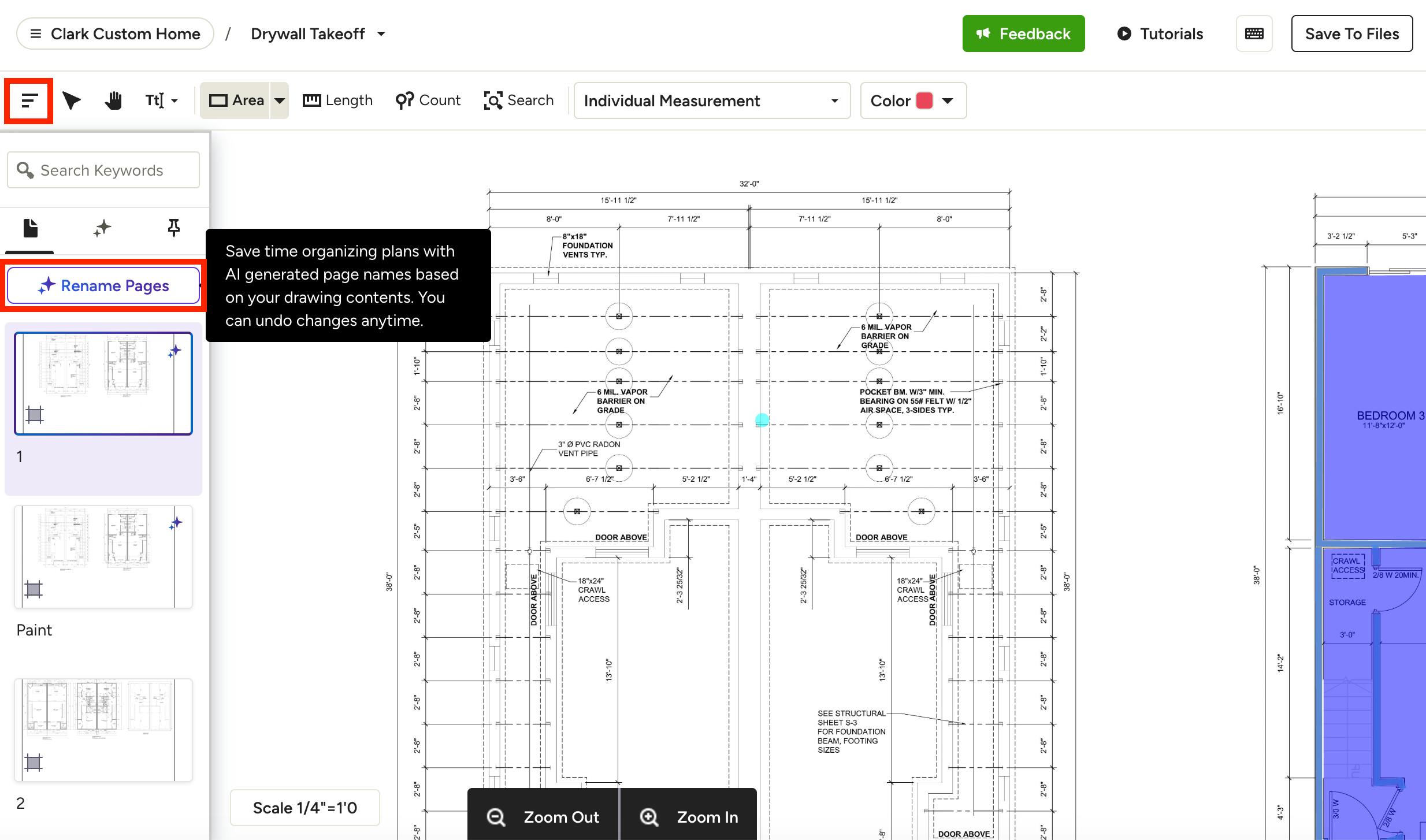
Before measuring, you can use Houzz AI to automatically detect and label your page names and numbers — no manual naming required.
If you upload a new plan, this process is automatic. If you're working in an already uploaded plan, AI won't rename pages automatically, since you may have already invested time naming pages manually. Instead, you can trigger a rename yourself.
Unlike the measurement tools below, this feature isn't controlled by the AI Suggestions toggle — instead, you'll find a dedicated Rename Pages button in the left menu. Read Page Settings in Takeoffs to learn more.
Use Houzz AI for Page Scale
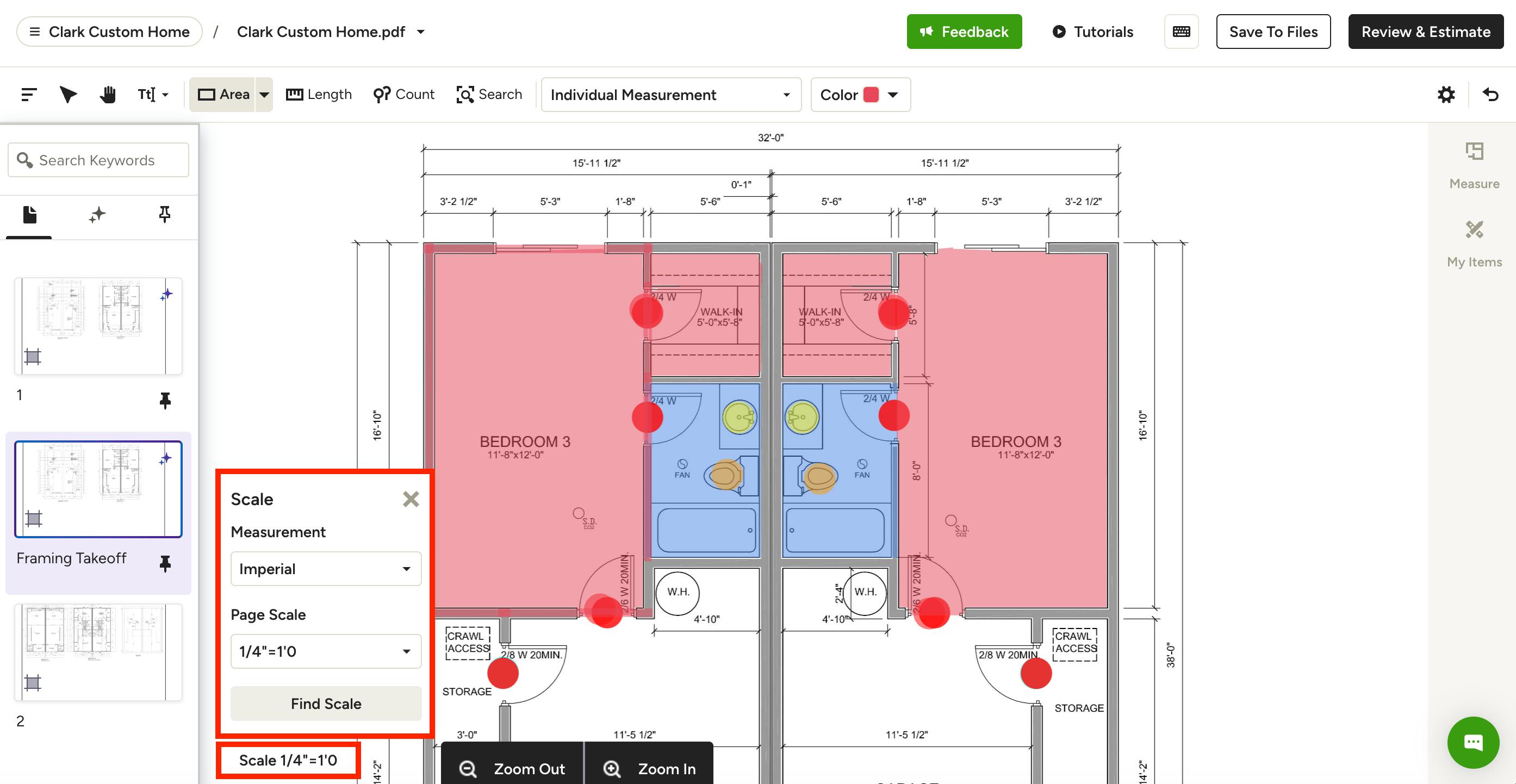
If your plan includes a pre-defined scale, Houzz Pro will use AI to locate the scale written on the drawings and automatically apply it. You don't need the AI Suggestions toggle turned on to use this feature.
While the scale will be automatically adjusted, please ensure it's accurate before proceeding with your takeoff. You can always make adjustments if needed. Read How to Set the Correct Scale on Takeoffs to learn more.
Use Houzz AI for Area
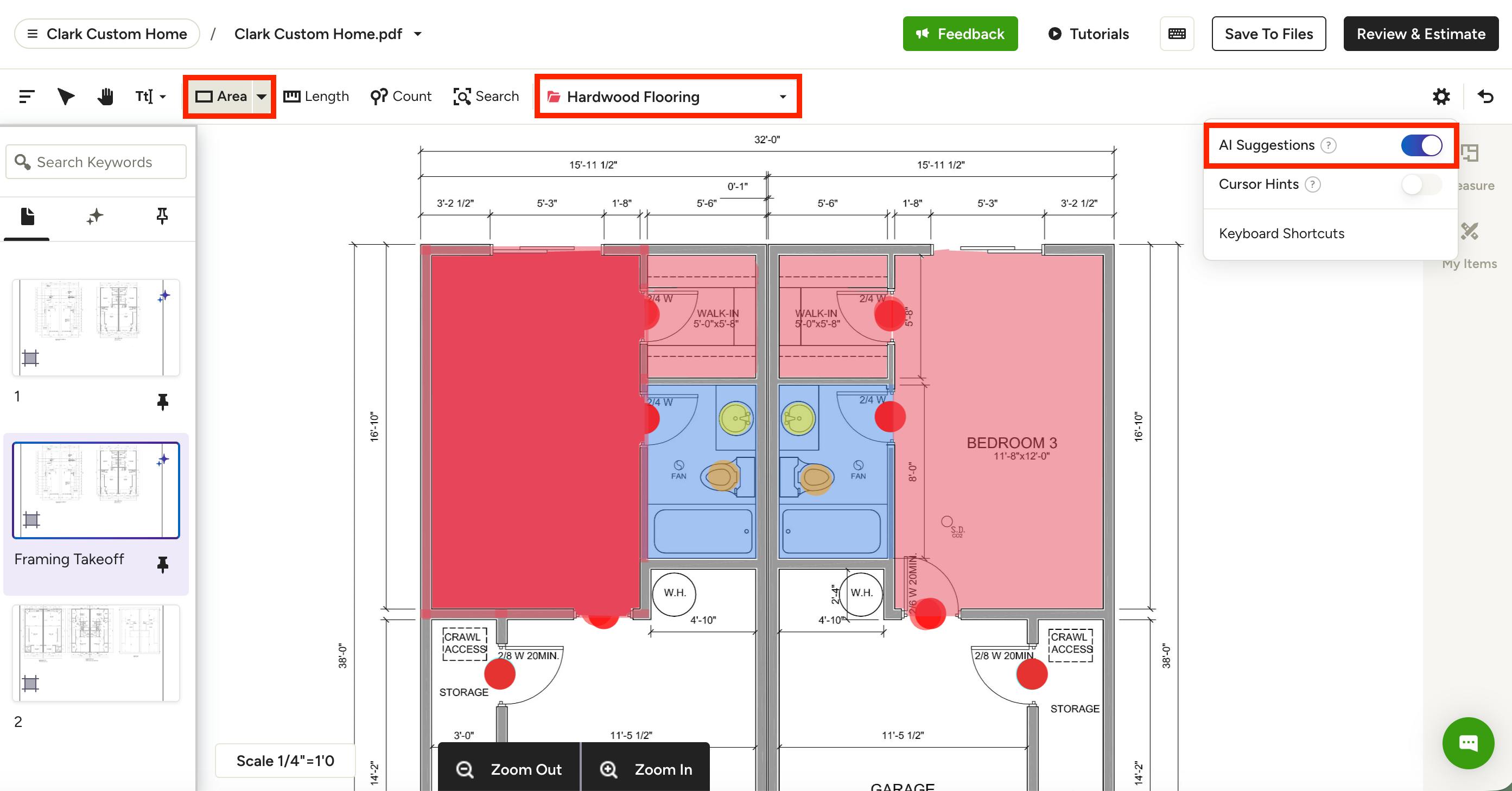
The Area icon is how you create all your new measurements in Takeoffs. Houzz AI for Area can be used for both floor plans and elevations. It will be on by default — to turn it off, toggle off AI Suggestions in the Settings Gear dropdown menu.
For Floor Plans: Click on the Area icon in your top toolbar, then select which group you want to add the measurements to (optional). Hover over the area you want to measure on your plan — AI will automatically detect the space. Double click to confirm and add it to the Measurements Drawer.
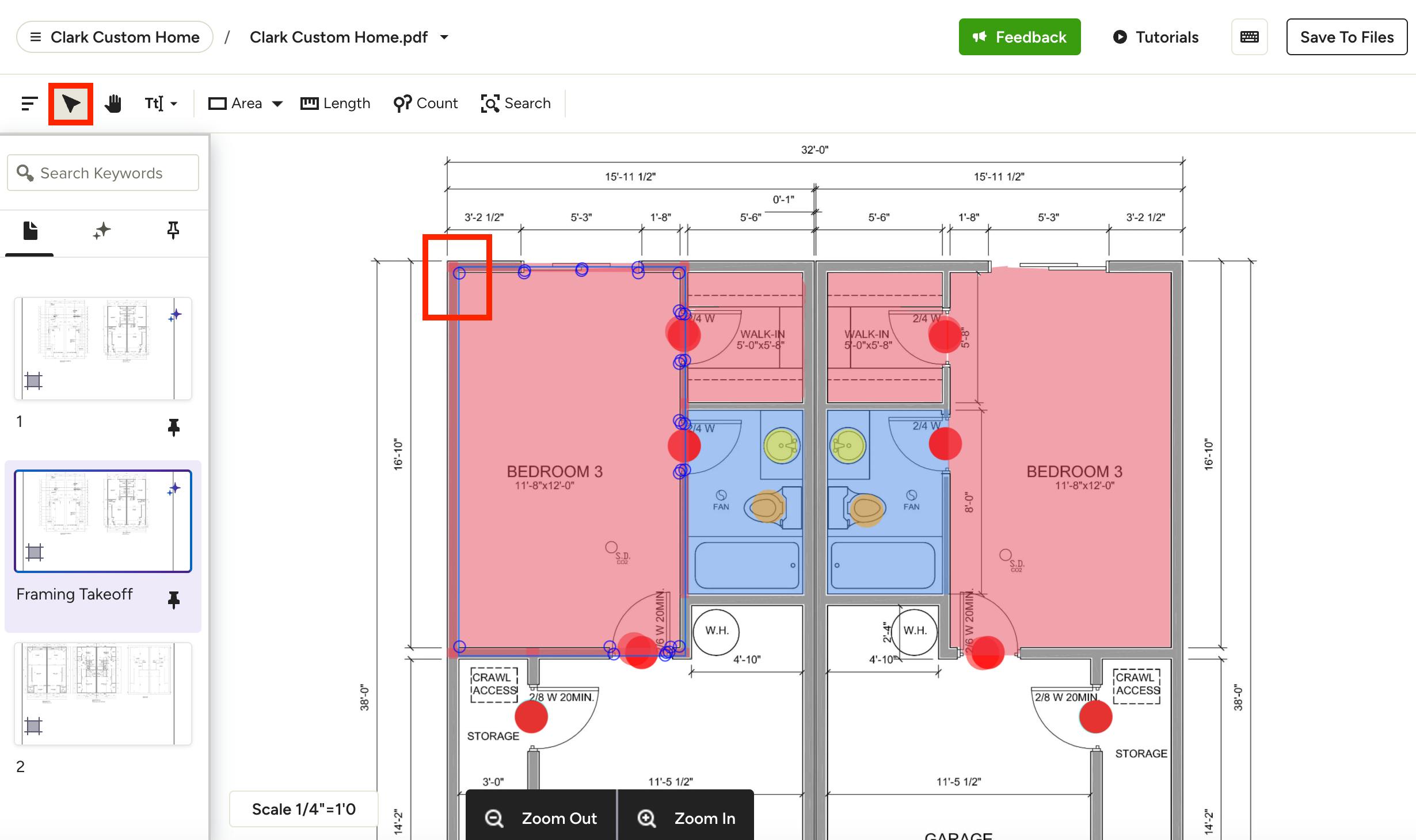
If you want to make changes to the automated area measurement, select the Pointer Tool in the toolbar, then click on the area you wish to manually adjust. This will show you all of the points used to plot the measurement, which you can click on and move.
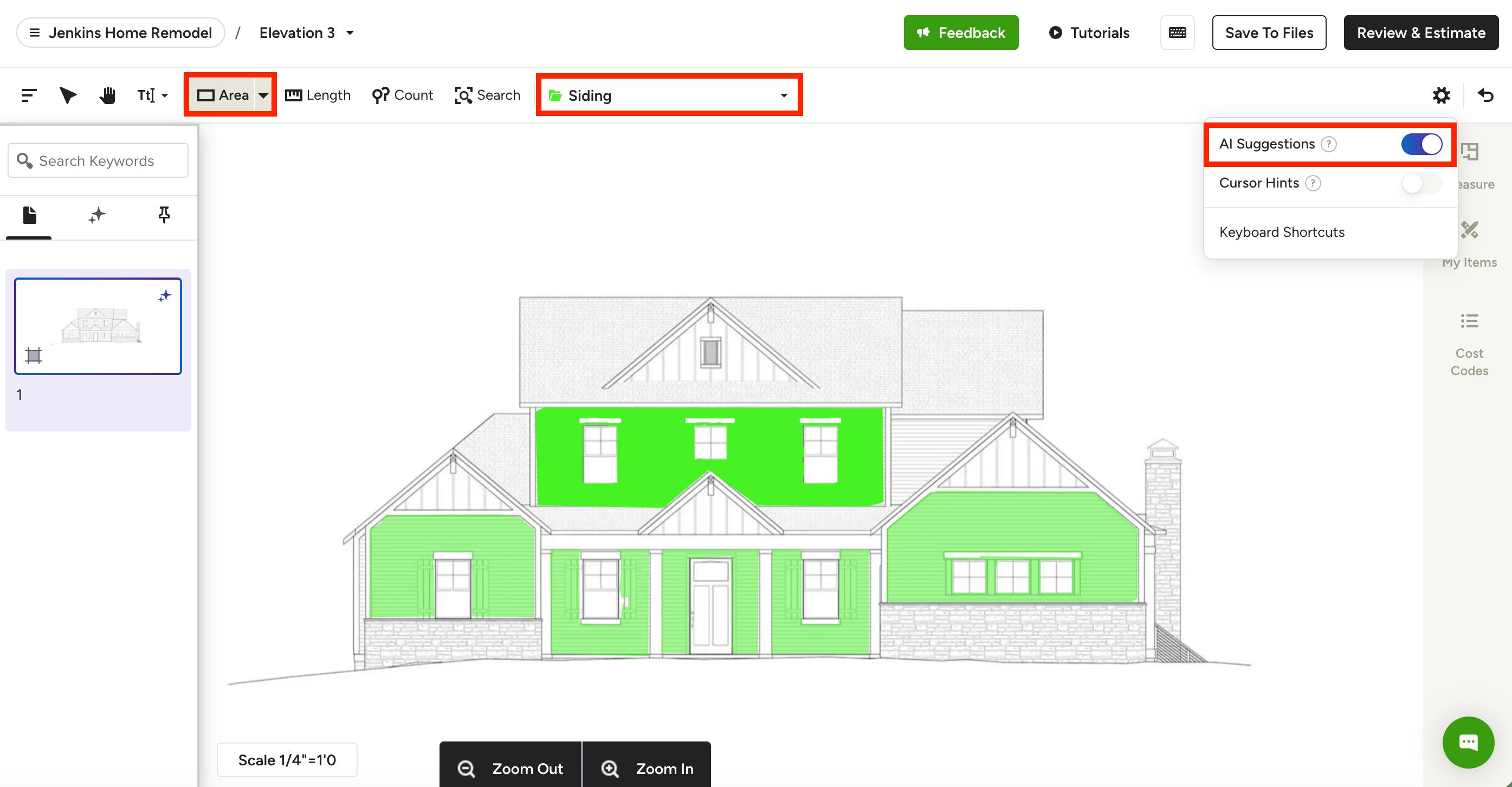
For Elevations: If you would like to use Houzz AI for an elevation, the process is the same. Click on the Area icon in your toolbar, then select which group you want to add the measurements to (optional). Hover over the area you want to measure on your plan — AI will automatically detect the space. Double click to confirm and add it to the Measurements Drawer.
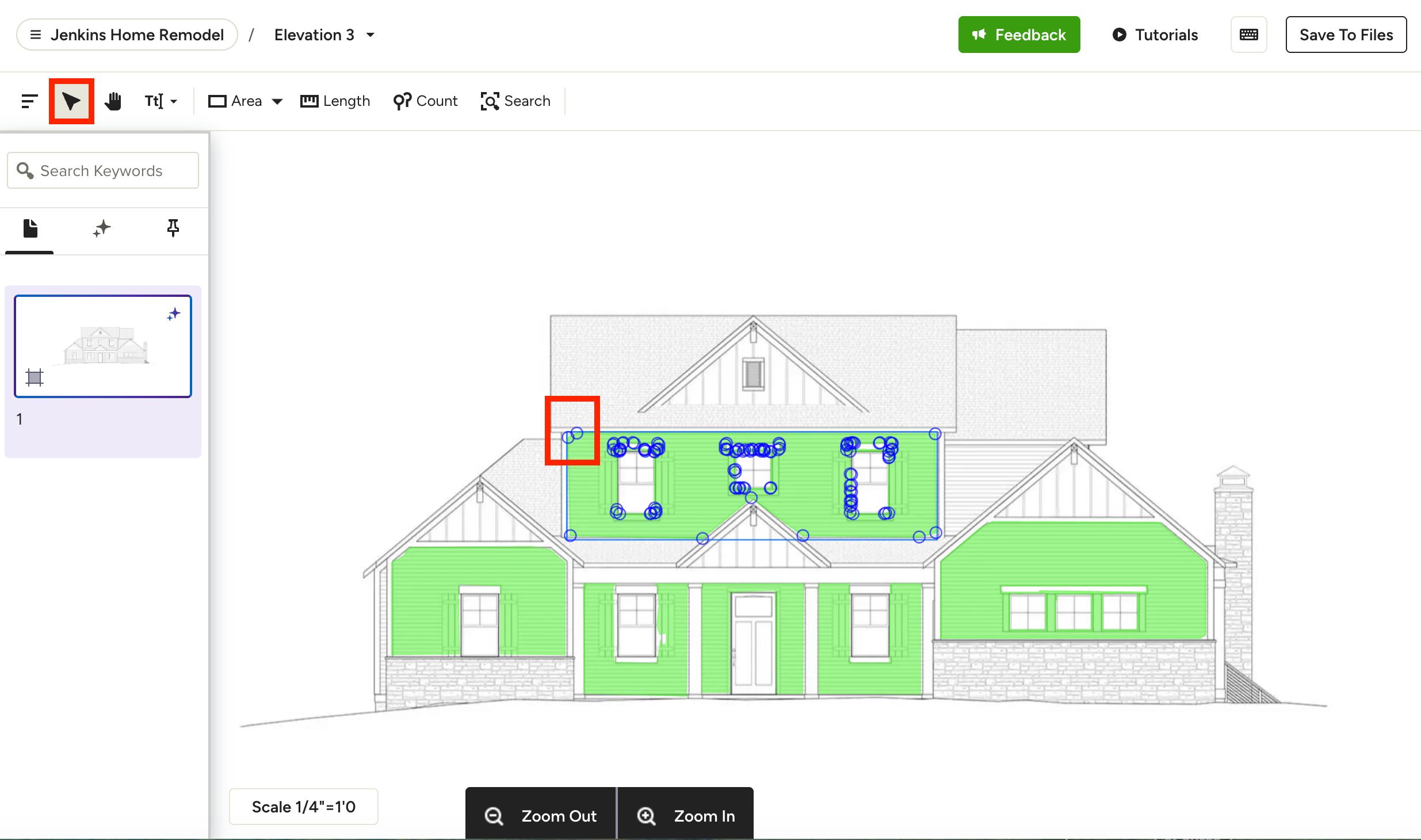
If you want to make changes to the automated area measurement, select the Pointer Tool in the toolbar, then click on the area you wish to manually adjust. This will show you all of the points used to plot the measurement, which you can click on and move.
Use Houzz AI for Length
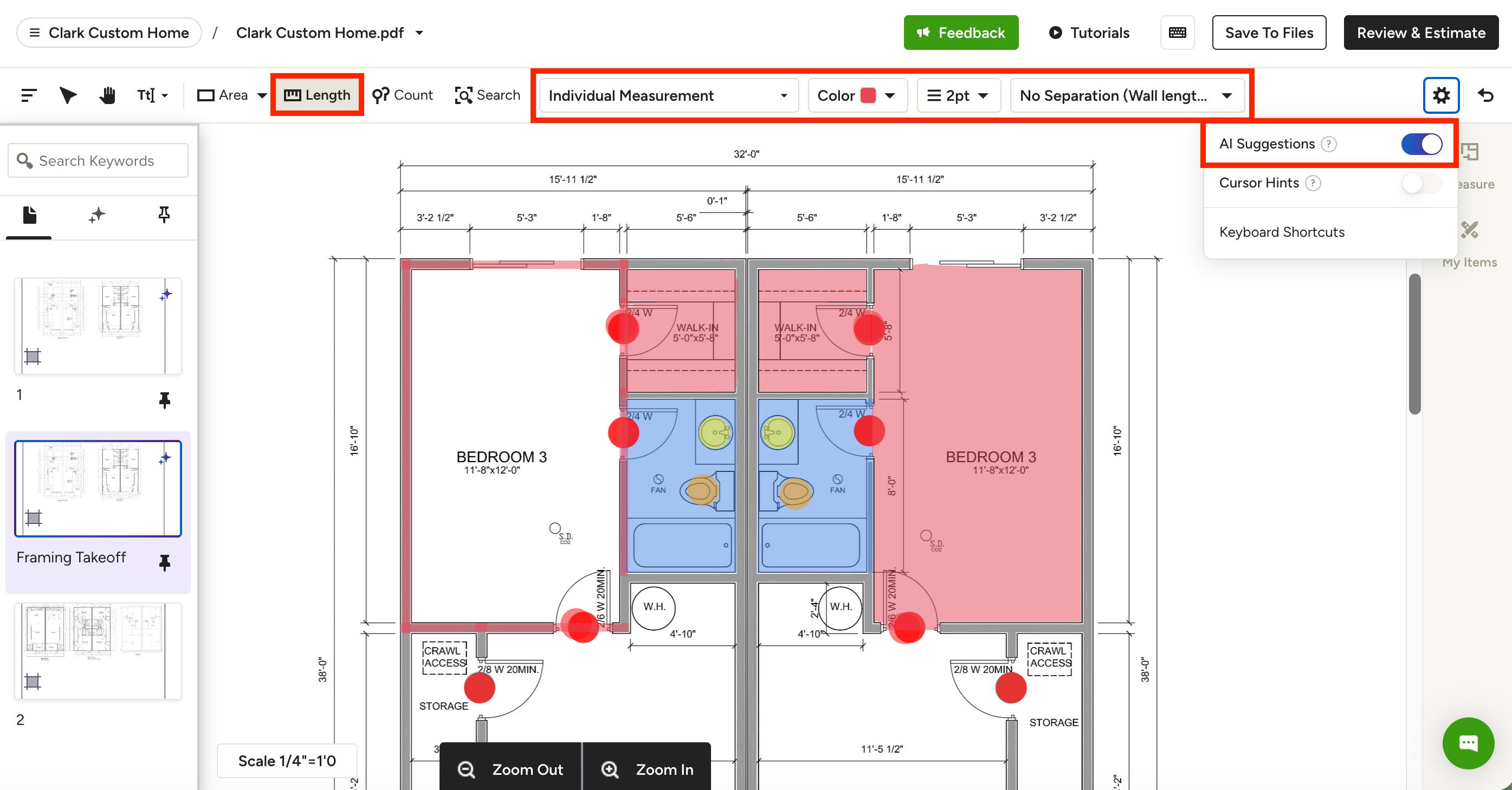
The Length icon allows you to customize measurements for perimeters, but it can also be used for a simple linear measurement from one point to another.
Click on the Length icon in your toolbar, then select which group you want to add the measurements to. In the Separation Type dropdown, you can define how you want to handle window, door, or junction (wall) separations. Options include:
- No Separation: Measure the entire wall length without any separations
- Door Centerline: Measure door openings
- Window Centerline: Measure window openings
- Door & Window Separation: Measure the entire wall length with door and window separations
- Door & Junction Separation: Measure the entire wall length with door and junction separations
- Door, Window & Junction Separation: Measure the entire wall length with door, window and junction separations
Click the checkbox next to Plot All Automatically if you would like to measure everything in a single click instead of plotting each line individually. Please Note: To use Plot Automatically, you will need to select a separation type from the dropdown.
Once you are ready to measure, hover over the length you want to measure, and double click to create the length and add it to the Measurements Drawer.
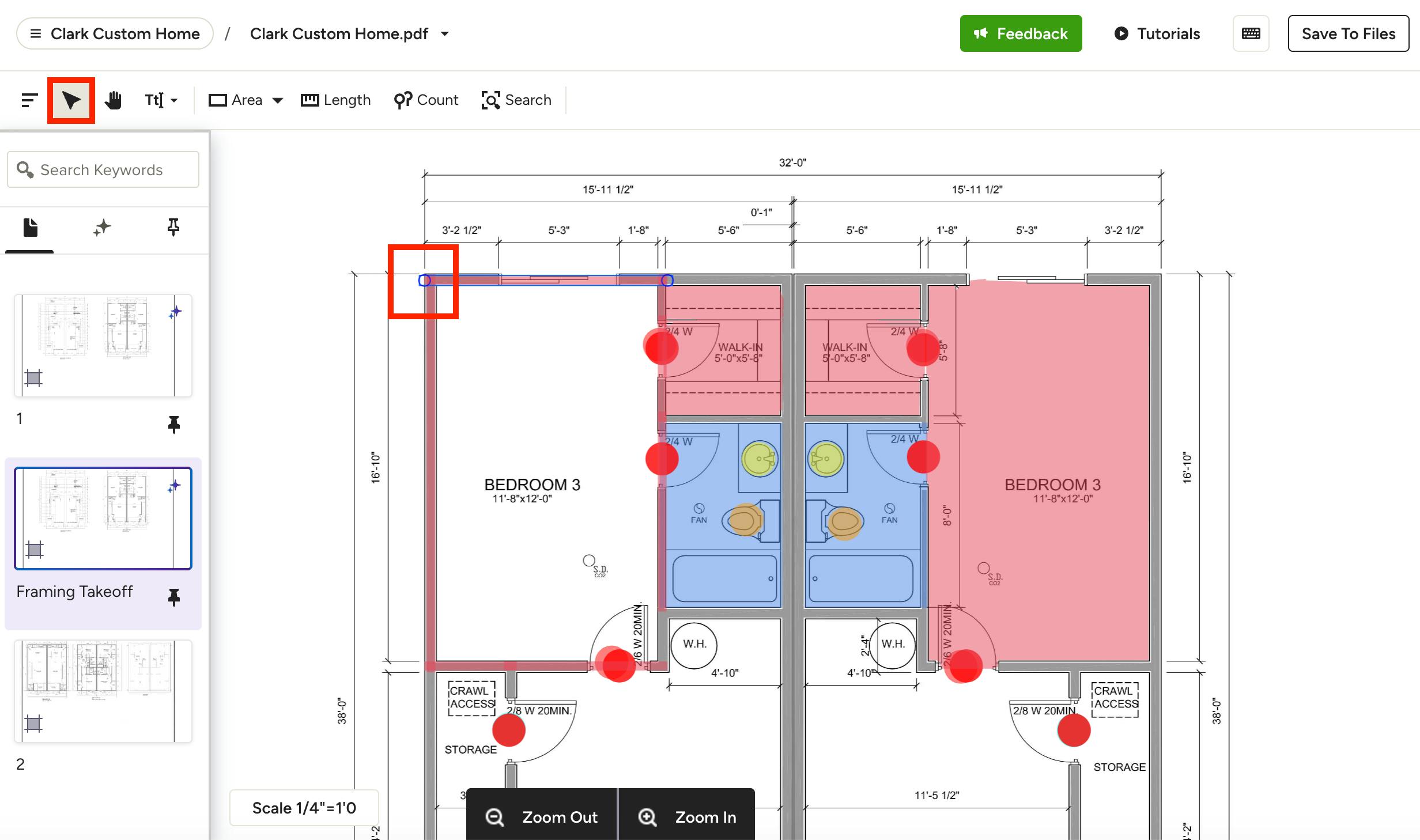
If you want to make changes to an automated length measurement, select the Pointer Tool in the toolbar, then click on the measurement you wish to manually adjust. This will show you all of the points used to plot the measurement, which you can click on and move.
Use Houzz AI for Count
Houzz AI Count lets you quickly count specific objects on architectural floor plans, including windows, doors, closets, toilets, sinks and bathtubs. It is only available on pages where AI is available.
To start, click on the Count icon in your toolbar. You can select a specific group for your count, or you can plot the count under Individual Measurements — an uncategorized option — and organize into a group later.
To measure with AI, hover over the item (for example, a sink) on the floor plan. If AI detects it, all matching items will be highlighted. Click the item, and AI will tally all of them at once.
With all measurement types, you will always have the ability to measure anything on the canvas with the manual tools. If you need to add a specific measurement, you can turn off the AI Suggestions toggle and use the tools as normal.
Use Houzz AI for Symbol Recognition
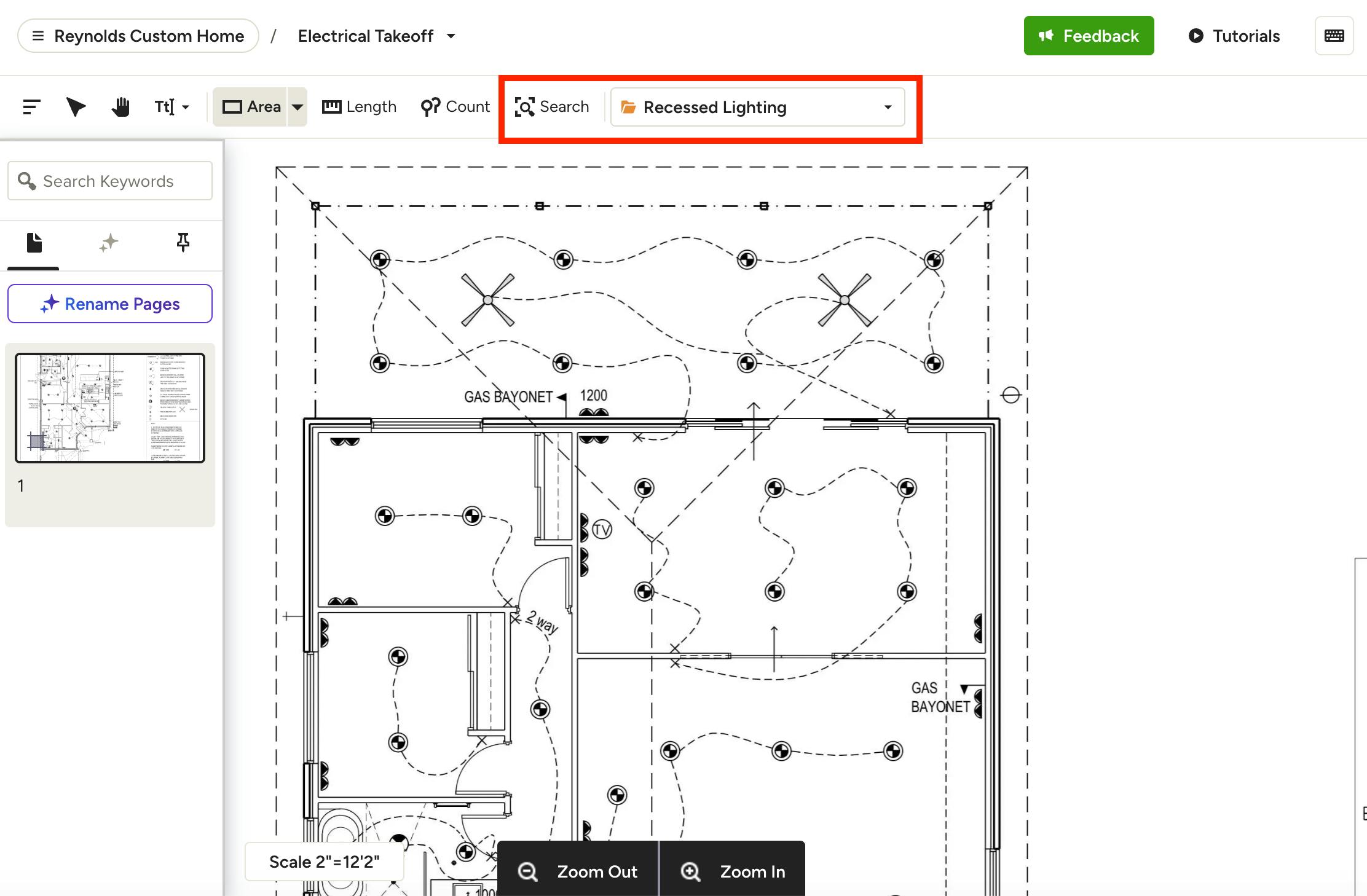
AI Symbol Recognition lets you quickly count a wide variety of icons on electrical or MEP plans, including outlets, switches, light fixtures, and other technical symbols. It is available on all pages, even those where AI is unavailable.
With this feature, you can circle an icon directly on your plan, and our system will automatically detect all similar symbols across the drawing. You can then review the matches, confirm they are correct, and AI will identify and count them on your drawing automatically.
To start, select the Search icon in the top toolbar. You can select a specific group for your count, or you can plot the count under Individual Measurements — an uncategorized option — and organize into a group later.
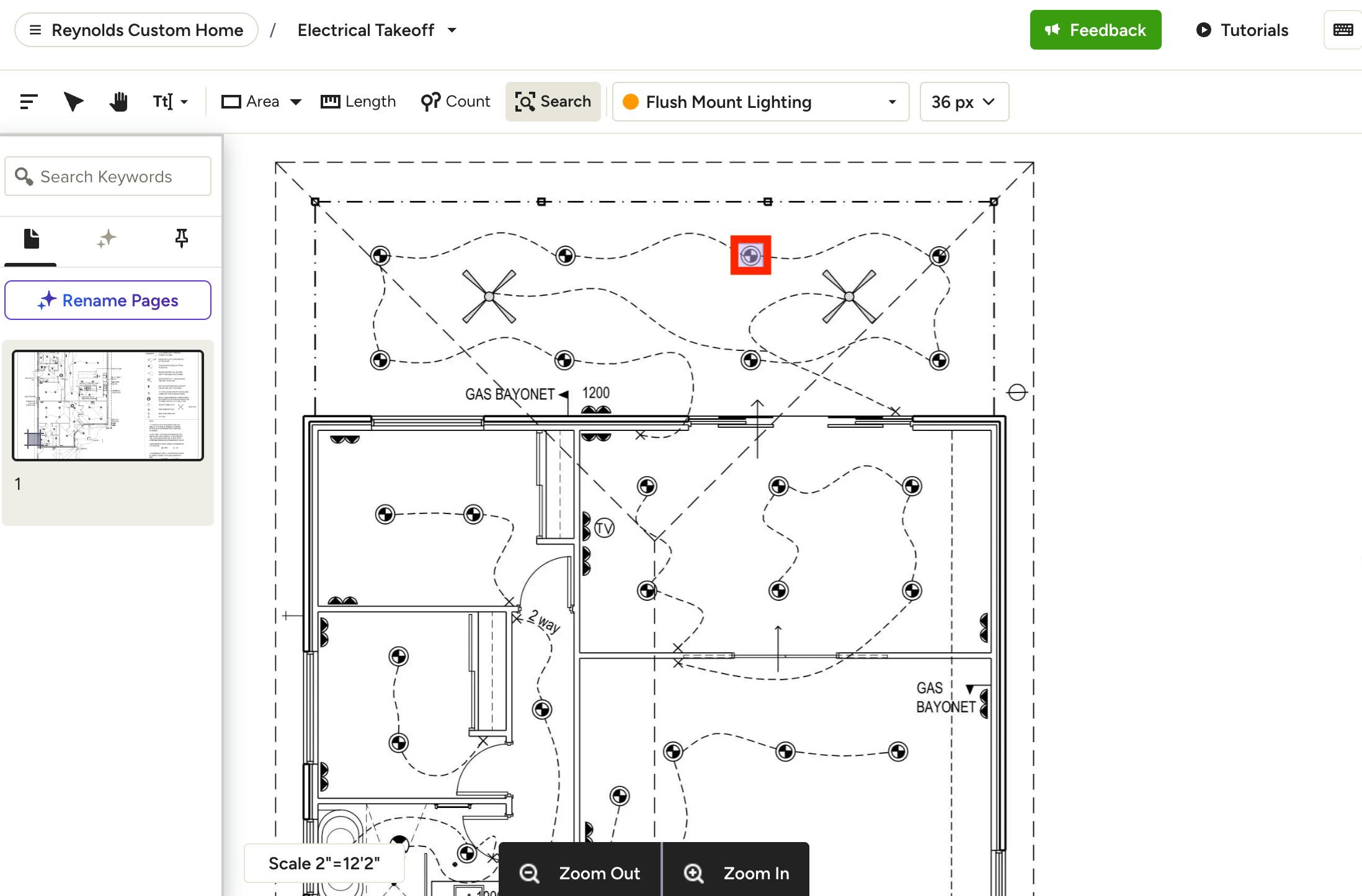
Next, draw a close-fitting box directly on the canvas around the symbol you would like to count. For best results, be sure to:
- Circle the symbol as tightly as possible
- Avoid including surrounding text, dimensions or annotations
- Avoid circling multiple symbols at once
- Select a clean, isolated example
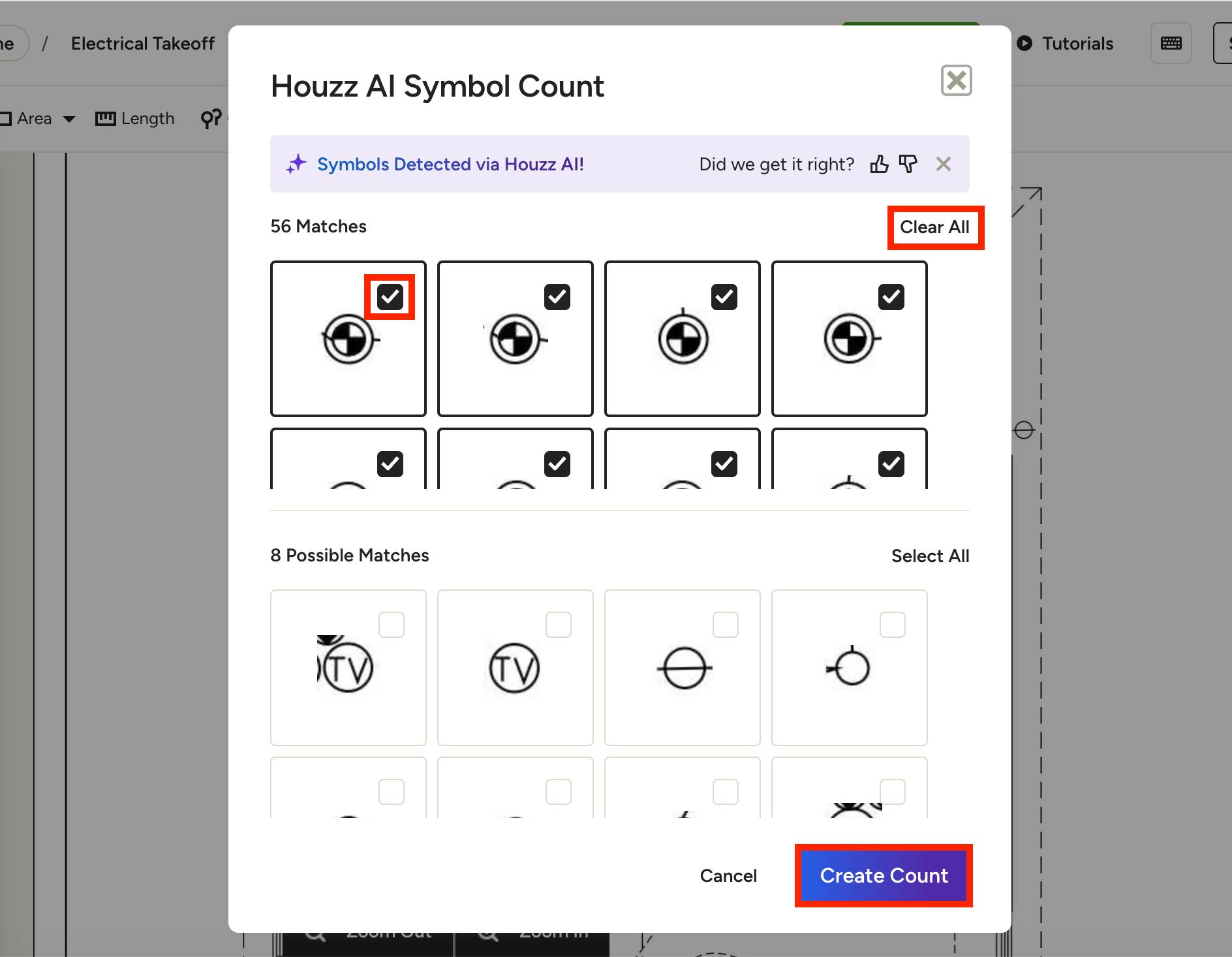
A new screen will appear that shows the symbol matches, which will include direct matches and possible matches. If the matches are not accurate, try to select a cleaner symbol example, use a tighter selection, or zoom in before selecting.
By default, all direct matches will be selected. Click Clear All to de-select all the symbols in the group. Select the checkbox next to the symbol(s) you would like to include, or de-select the checkbox if you like to exclude.
Select Create Count to save.
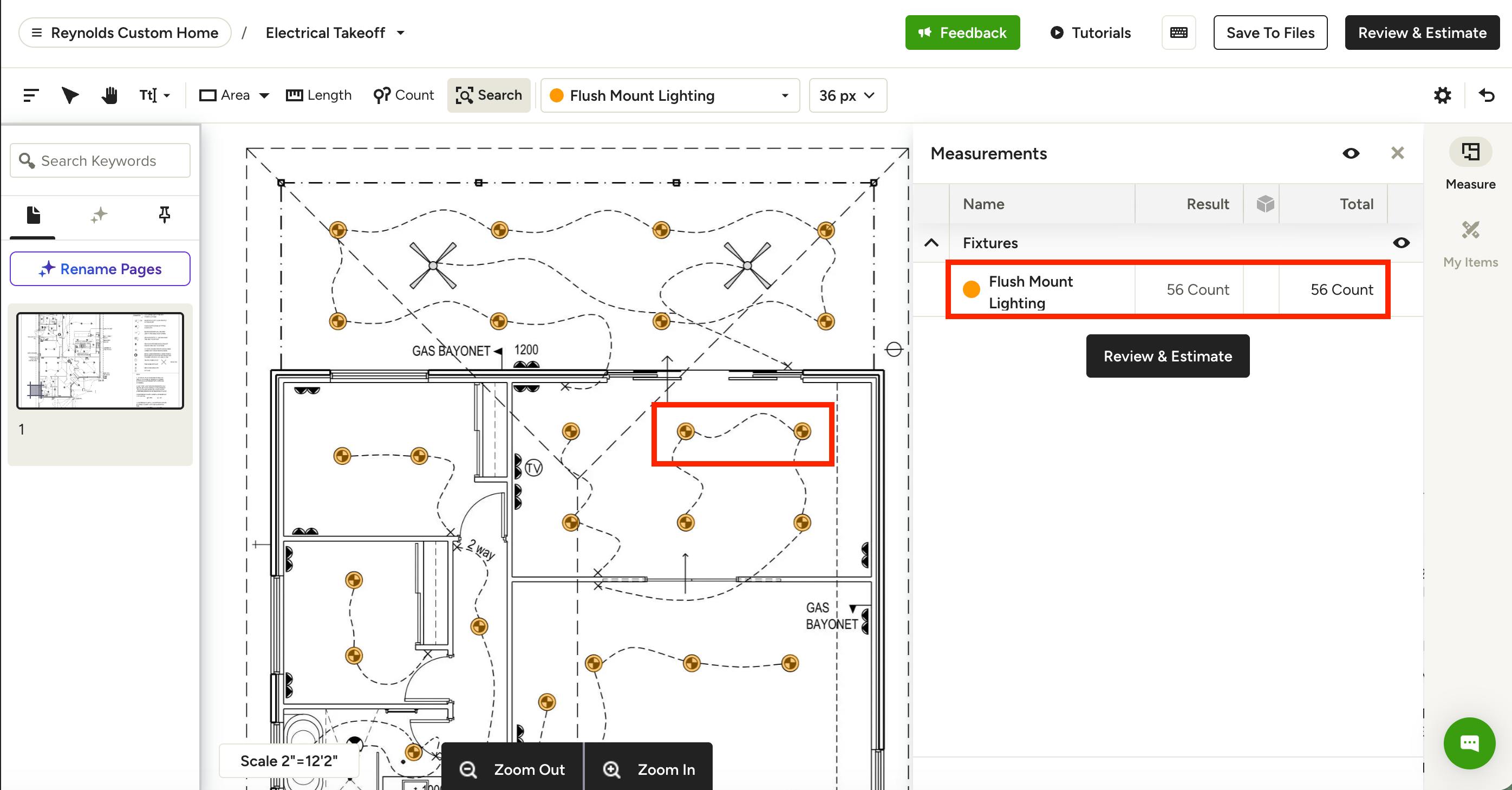
You will now be able to see the icons identified on your canvas, and the group count for that specific symbol will appear in your Measurements Drawer.
As always, it is important to check your work and make sure you have accounted for all of the materials you need. AI is intended only to assist you and is not a substitute for your professional judgment, independent design, analysis, simulation, or estimation.