Sending Messages To Clients and Leads
Communication is a key part of winning new clients and creating a positive experience for existing clients. Houzz Pro makes it easy to communicate and collaborate with leads or clients through our messaging feature.
Within messages, you can send an email or a text message and include attachments, links, text formatting and more. You can send leads a questionnaire to better understand the details of their project. You can even create custom message templates or use Houzz Pro AI to write messages for you.
Message a Lead
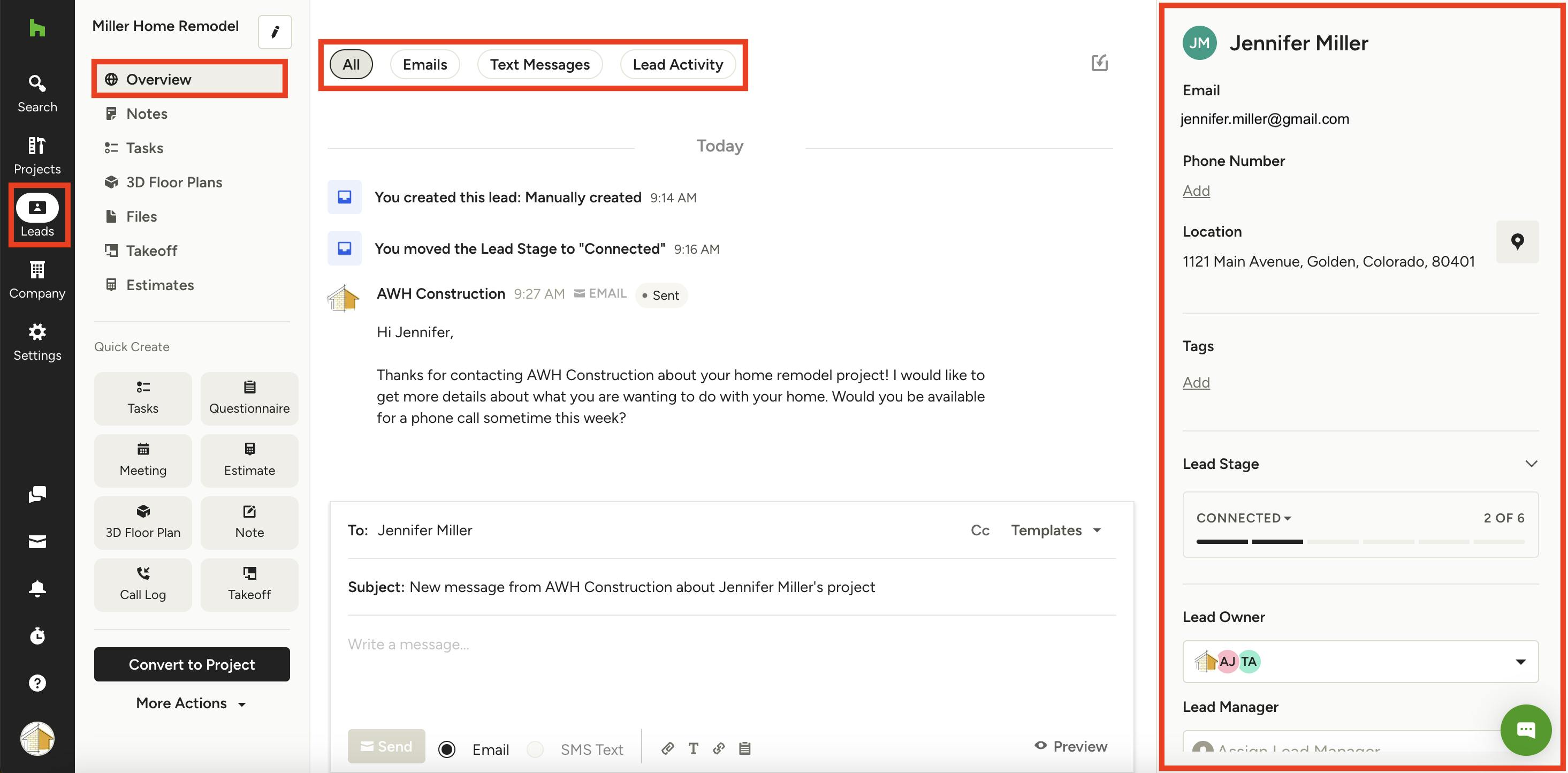
To send a message to a lead, select the relevant lead from the Leads icon in your left menu.
Your lead will open to the Overview section, where you can see all lead activity, including email and text messages. The default will show all lead activity in one place. If you would prefer to view only email messages, text messages, or lead activity, select the relevant button at the top of your screen to filter.
On the right of the Overview section, you can view all the lead details, including client information, lead stage, lead owner and lead manager.
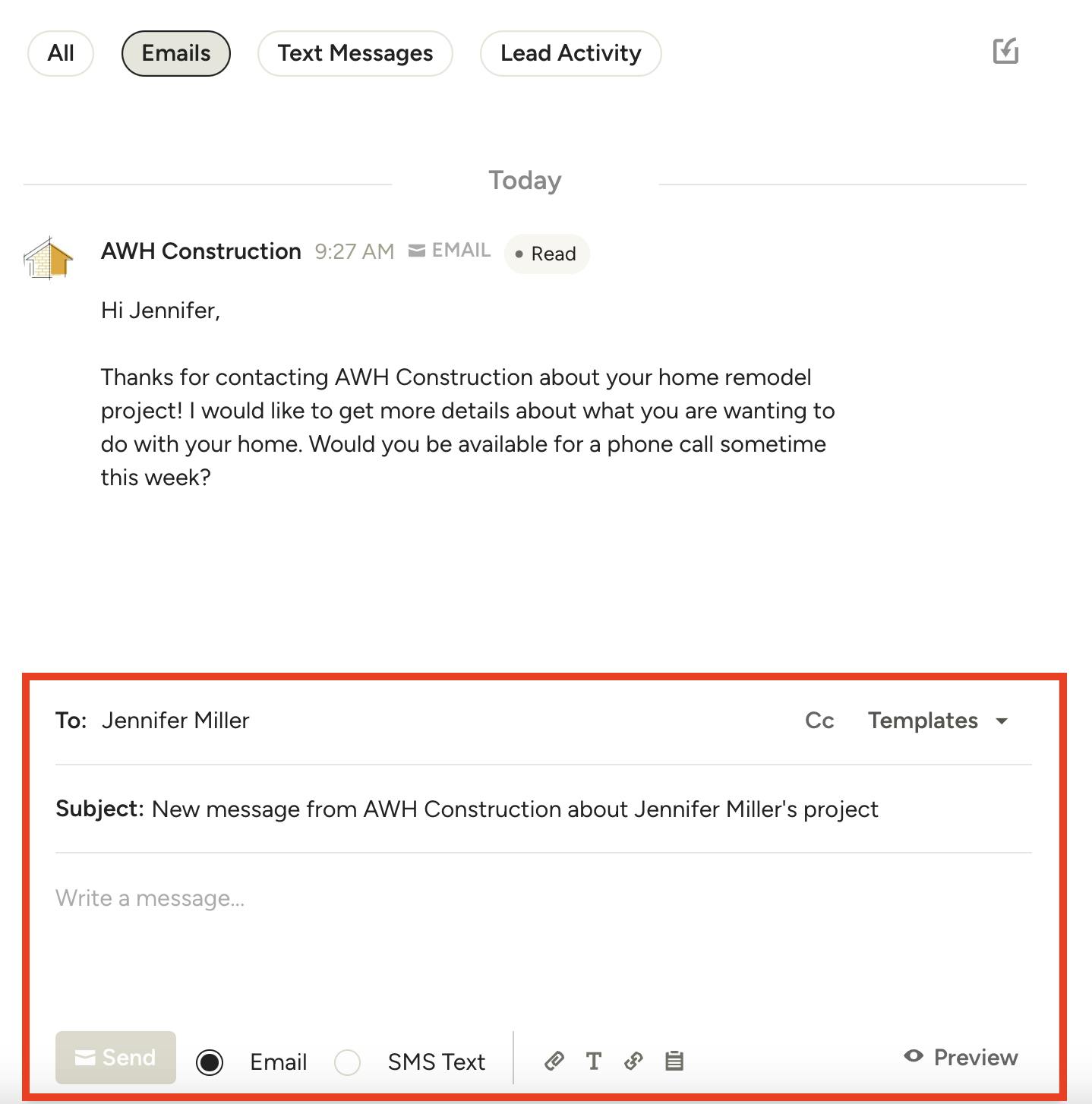
If you would like to send a new message, scroll down to the open text box and type in your message directly. You can choose to send either an email or a text message — text message is only available if you have added the lead's phone number to Houzz Pro.
For either option, you can customize your text formatting, attach any relevant documents, or add any important links. For an email, you can also send along a lead questionnaire to better understand the scope of the project.
To save time when messaging potential clients, you have the option to create custom message templates (see details below), or you can use our AI assistant to quickly craft a response (see details below).
If you want to create your own branded email format, you can do this by clicking Preview — learn more about branded email formats here.
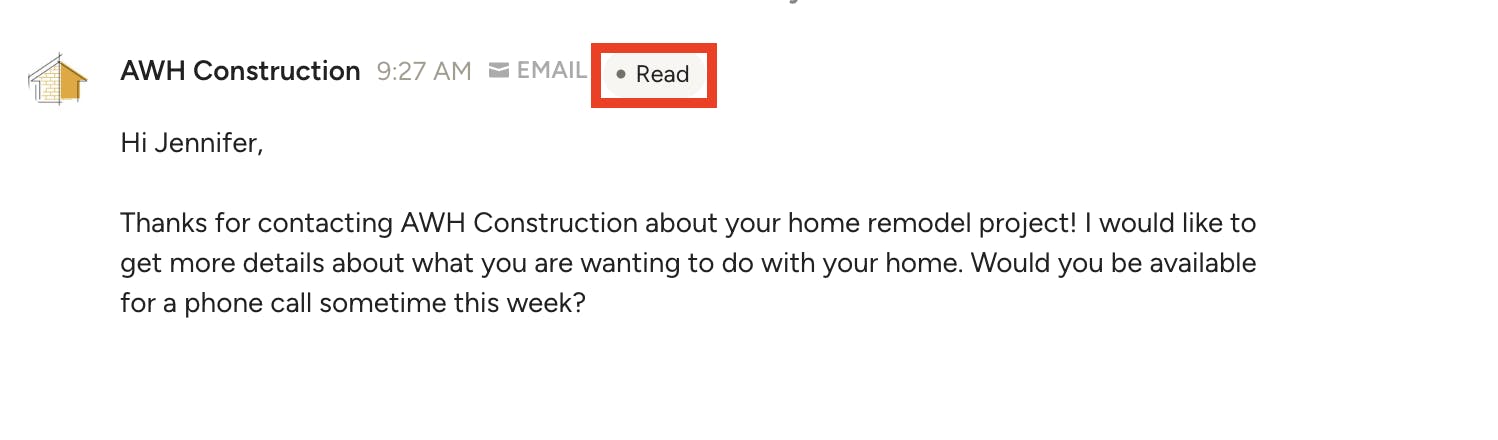
Once you send your email or text message, your lead will receive the message and can reply directly from their email account or phone number. Their reply will arrive to you both in the messages section and as an email notification. In the messages section, you can also see the status of a message — whether it has been delivered or has been read by the potential client.
Message a Client
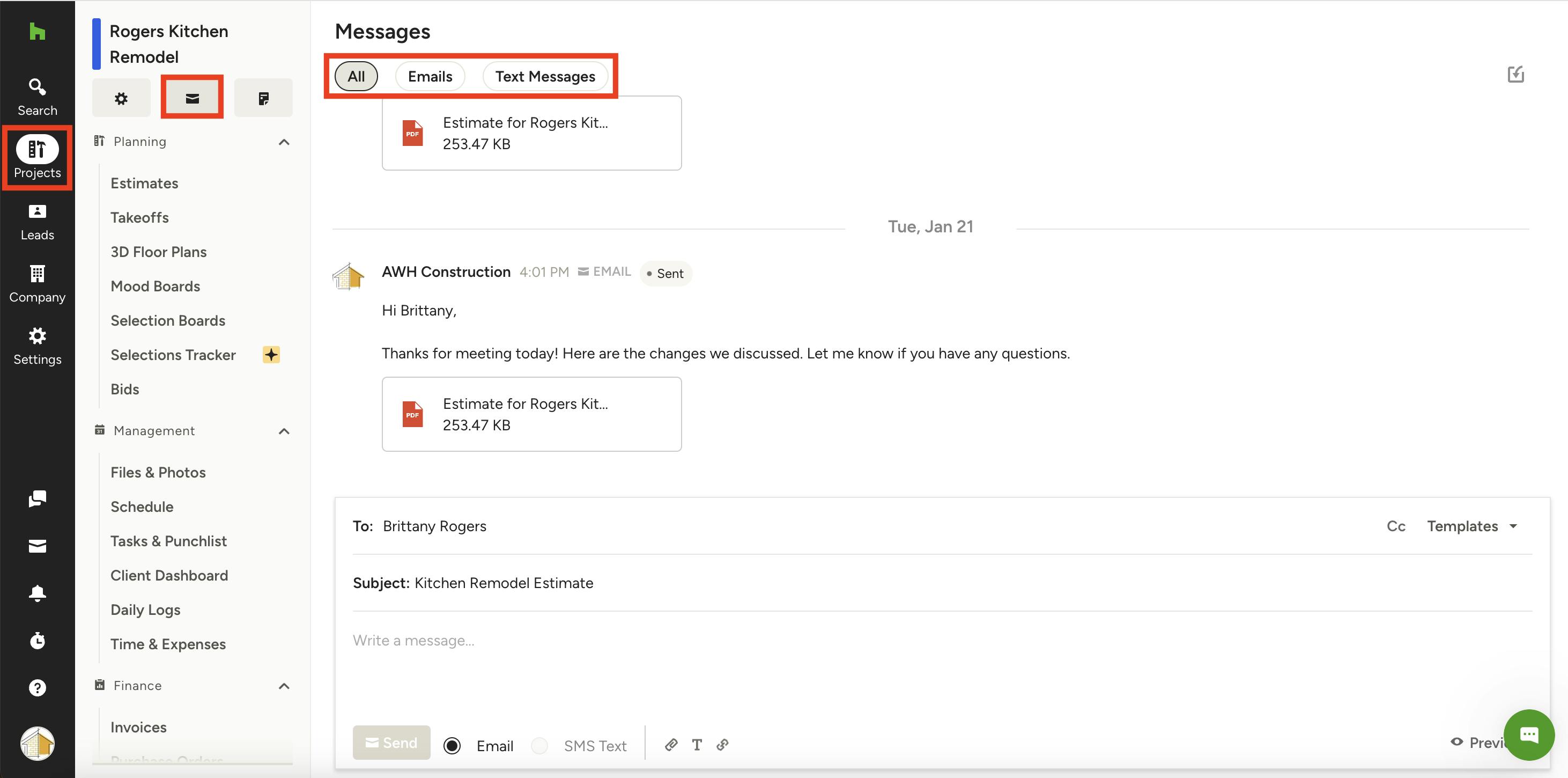
To send a message to a client, select the relevant project from the Projects icon in your left menu. From here, click on the Messages icon underneath the project name.
Your client messages will appear — the default will show all communication in one place. If you would prefer to view only email messages or text messages, select the relevant button at the top of your screen to filter.
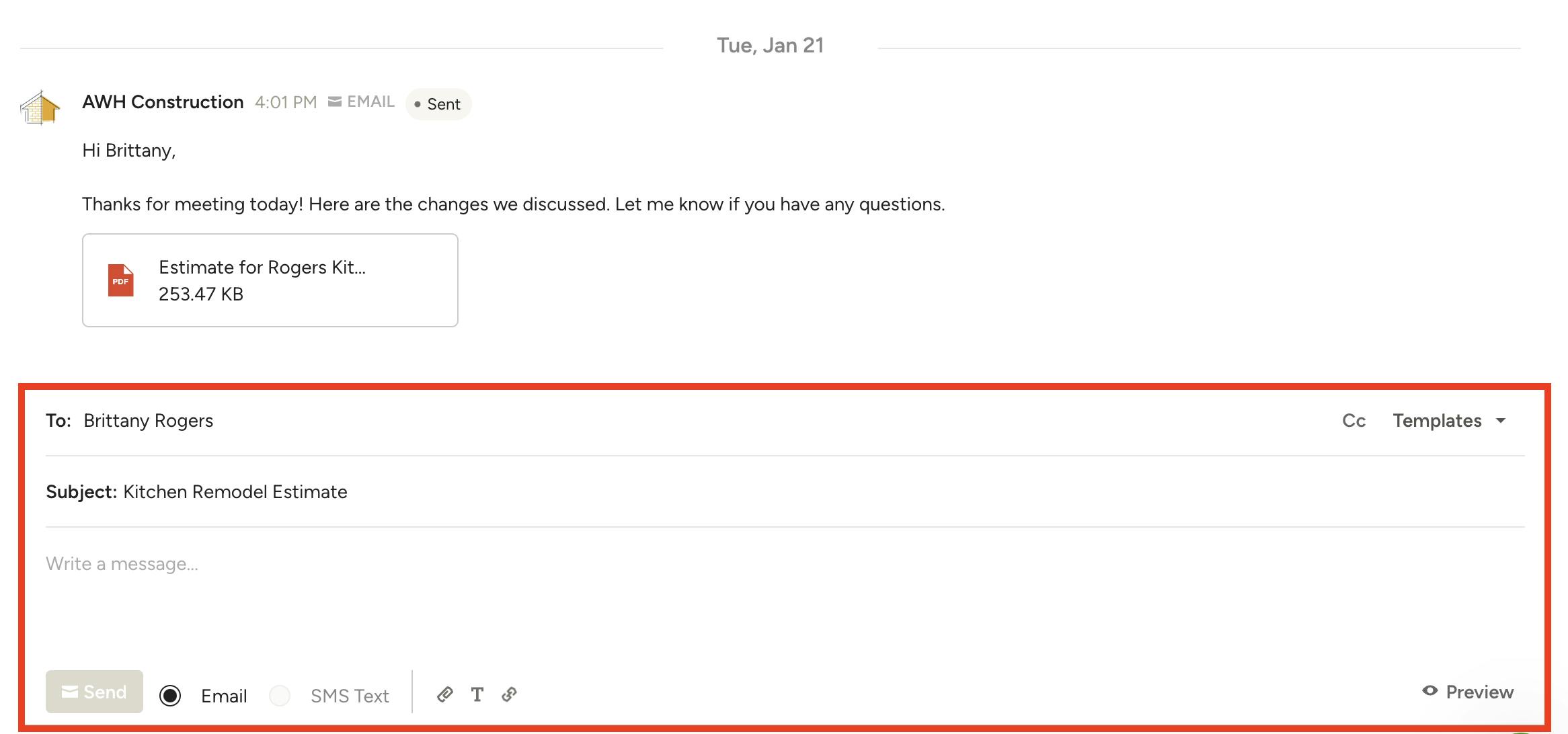
If you would like to send a new message, scroll down to the open text box and type in your message directly.
You can choose to send either an email or a text message — text message is only available if you have added your client's phone number to Houzz Pro.
For either option, you can customize your text formatting, attach any relevant documents, or add any important links.
To save time when messaging clients, you have the option to create custom message templates (see details below).
If you want to create your own branded email format, you can do this by clicking Preview — learn more about branded email formats here.
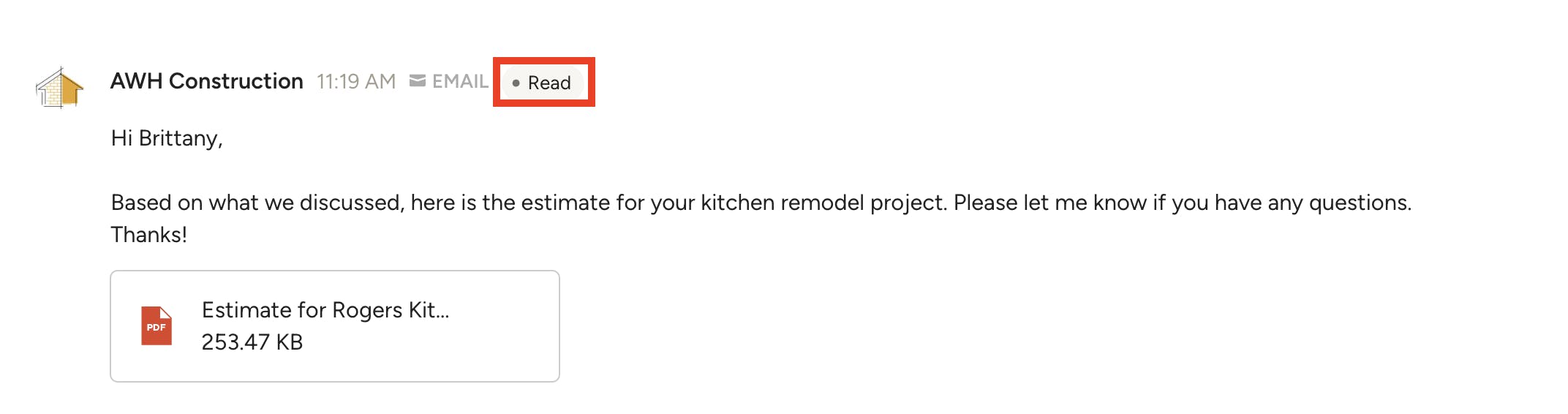
Once you send your email or text message, your client will receive the message and can reply directly from their email account or phone number. Their reply will arrive to you both in the messages section and as an email notification. In the messages section, you can also see the status of a message — whether it has been delivered or has been read by the client.
Create Custom Message Templates
If you'd like to save time, you can easily create custom message templates that will apply to both leads and clients.
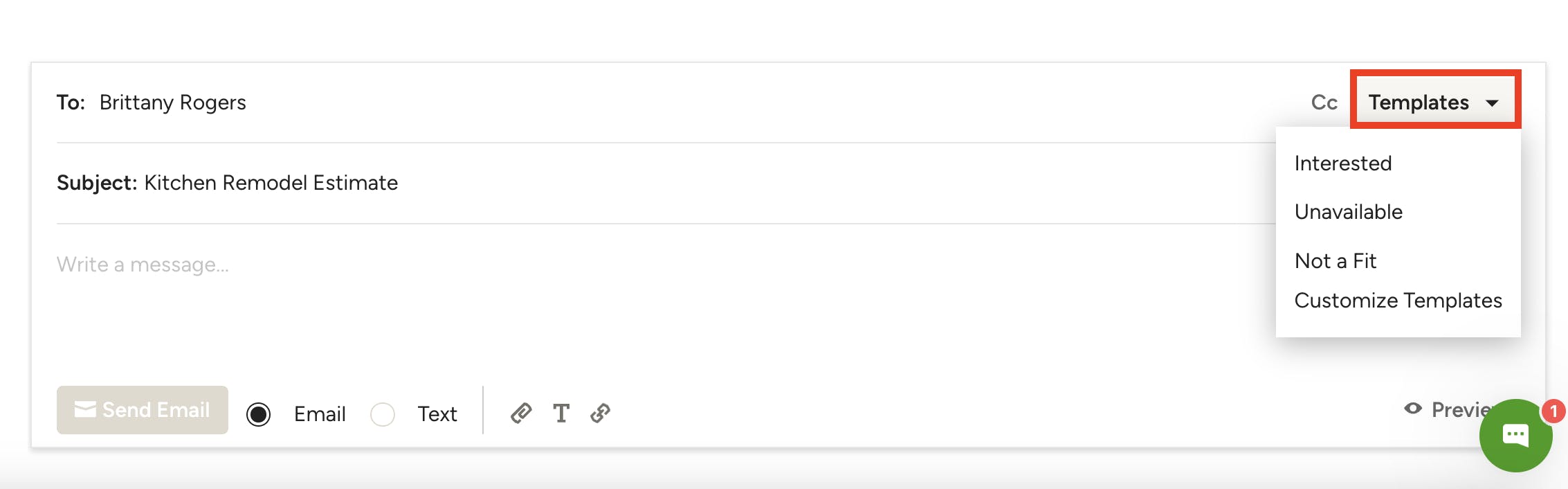
Within the message section, go down to the open text box and select Templates on the right side.
From here, you can select and edit one of our short pre-populated templates — Interested, Unavailable, Not a Fit — or you can select Customize Templates to create your own.
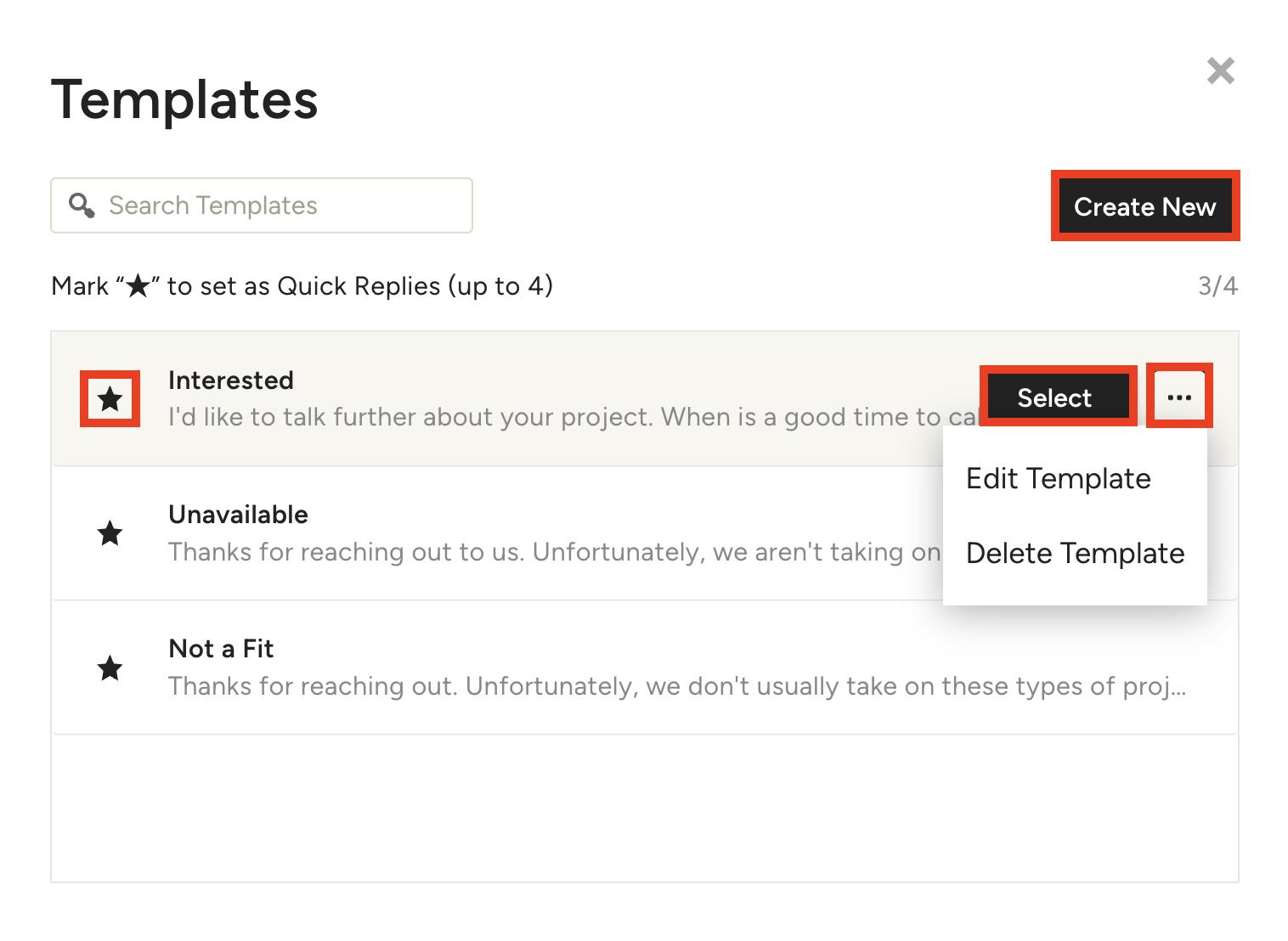
If you select Customize Templates, you can edit existing templates by clicking the three dots icon and selecting Edit Template. From here, you can also Delete Template.
You can select Create New to start a new message template from scratch. If you would like to use a message template as a quick reply option, click on the star to the left of the template (you can select up to four default templates).
And finally, click Select to use a template in a message.
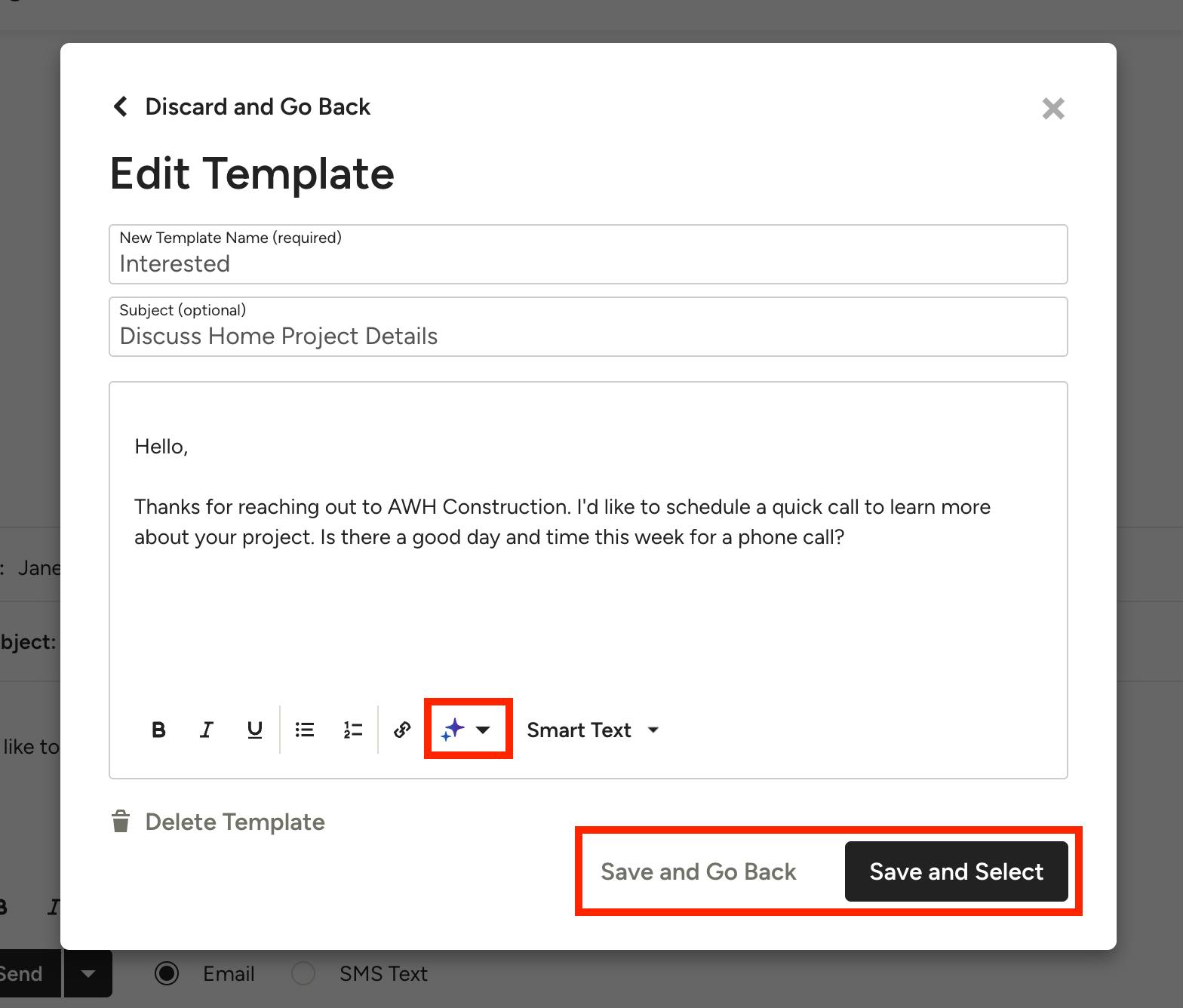
If you select Edit Template or Create Template, a new screen will appear where you can add the template name, subject line and message. To save time writing, select the purple AI icon — Write for Me will draft a message from scratch, while AI Refine will polish and improve text you've already written.
You can then decide whether to Save and Go Back to use later, or Save and Select to use for this message.

Schedule Messages to Send Later
With the ability to schedule messages to be sent at a specified date and time, you have the flexibility to draft and save messages when it's most convenient for you, then pick the best time to send to your client or lead. Scheduled send works with templates, emails and SMS text messages, allowing you to efficiently and effectively manage pipelines and workflows.
To schedule a message to be sent at a later time, first draft your message to a lead or client as described above (this can be edited at any point prior to the scheduled date and time). Next, click the arrow to the right of the Send button and select Schedule Send.
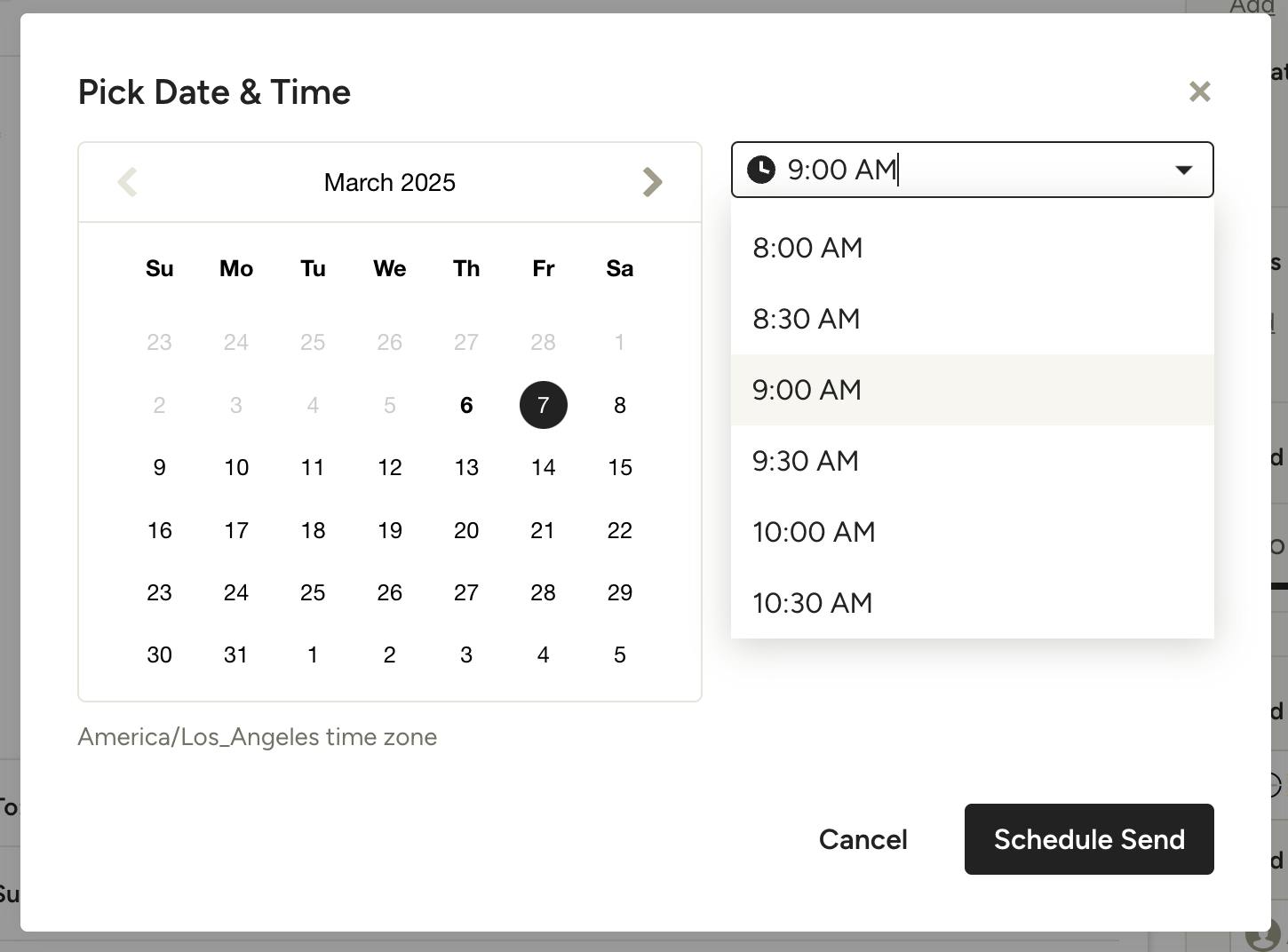
Pick the date and time that you would like the message to be sent, then click Schedule Send.
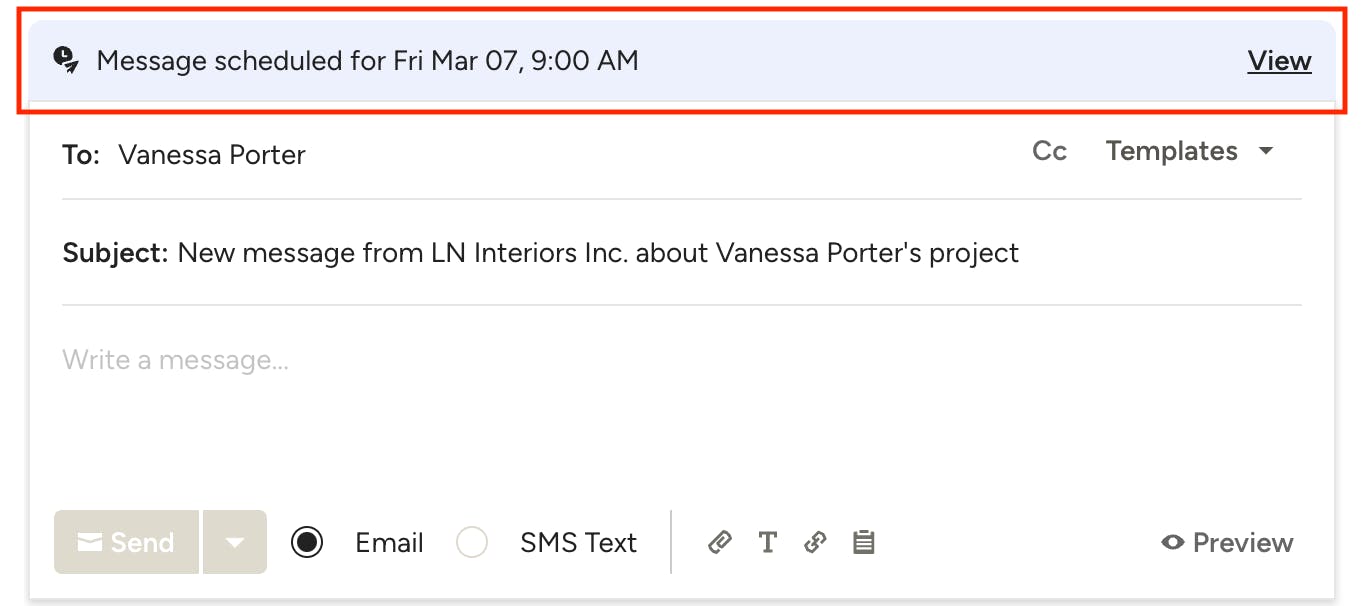
Your scheduled send details will appear at the top of the message composer. You can click View to the right to view all scheduled messages for the lead/client, as well as make any edits or adjustments to the timing.
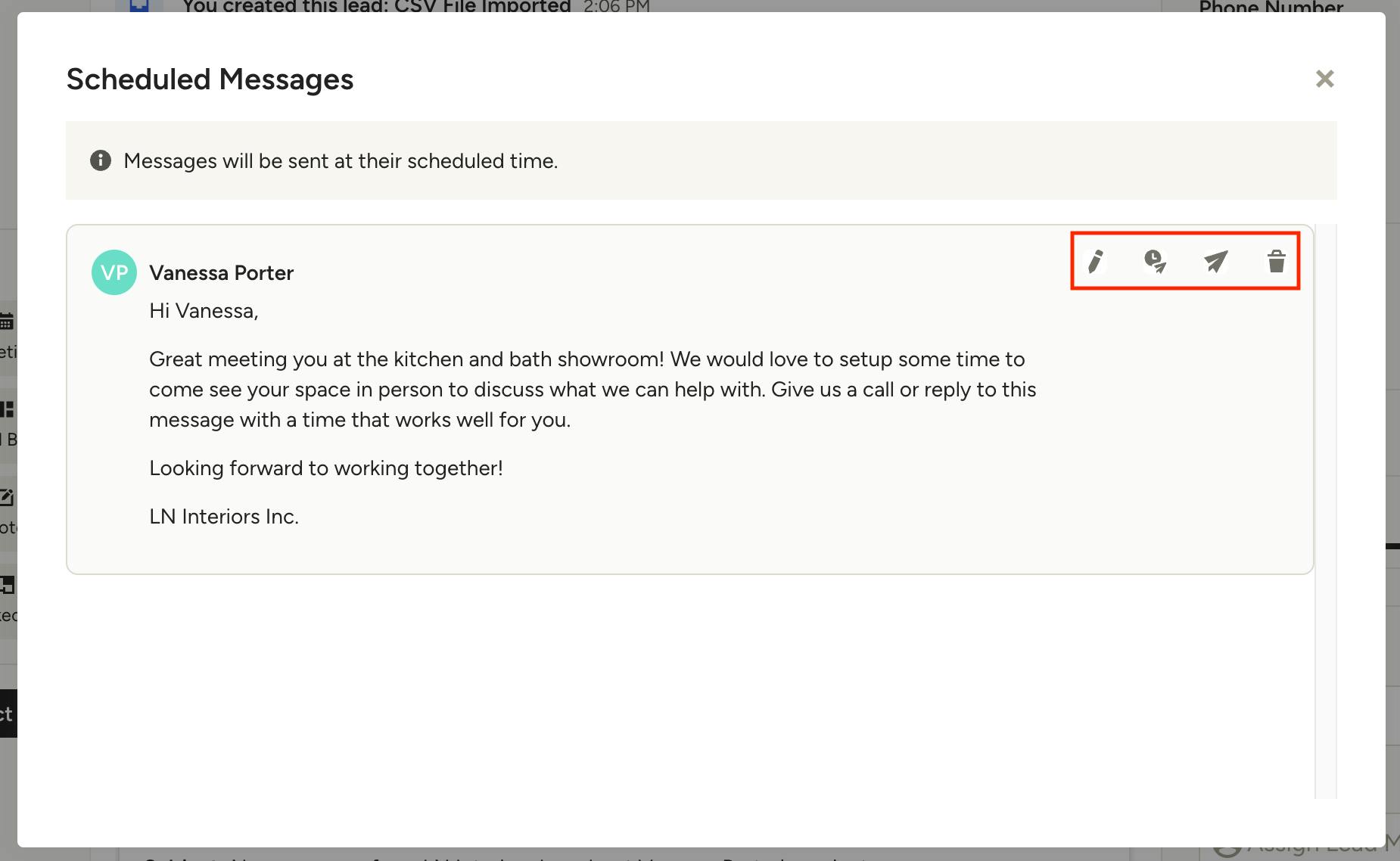
In your scheduled messages modal, hover over any message to reveal the options to Edit Message, Reschedule Send, Send Now, and Delete Message.
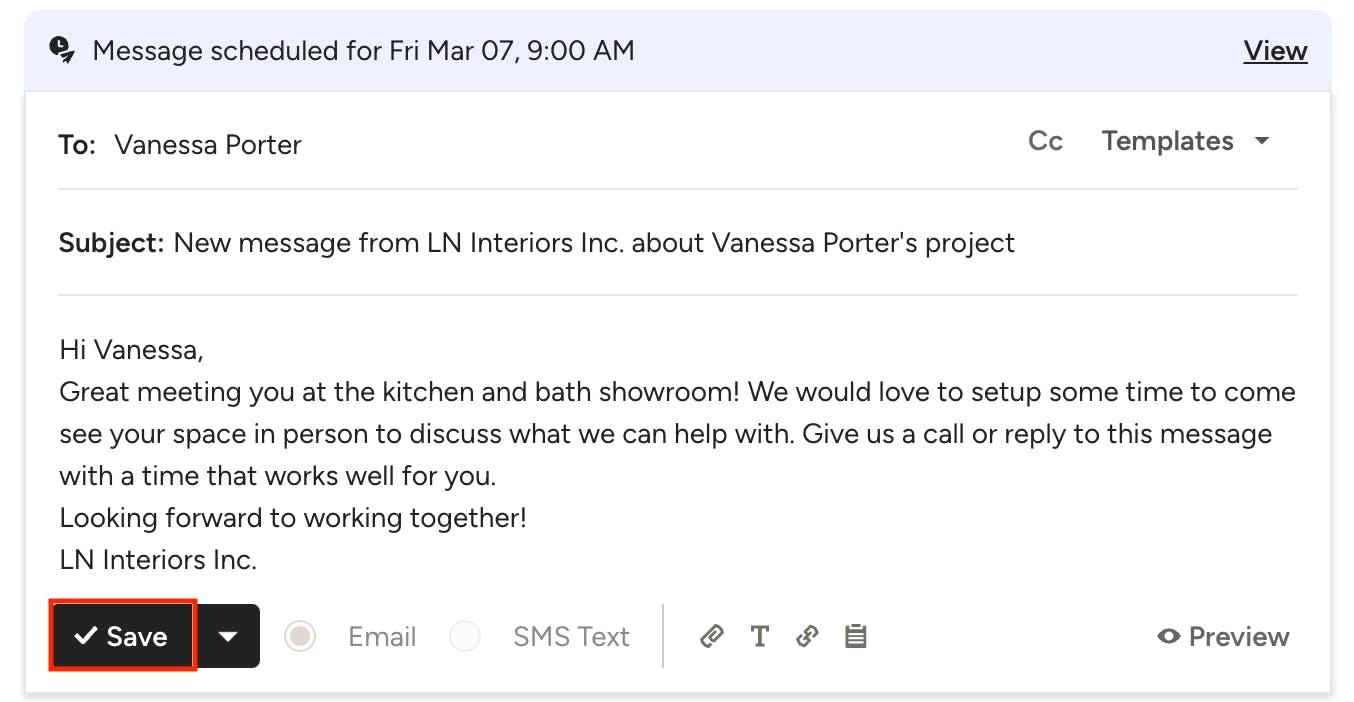
If you choose to edit your message, you will be taken back to the message composer where you can make any edits necessary, then click Save when you're done. The updated message will remain scheduled to send at the set time.
Use AI to Send Messages
In addition to templates, you have the option to use Houzz AI to quickly respond to messages from both clients and leads — including brand-new leads the moment they come in. Using AI to write and refine responses helps you craft professional, on-brand messages in seconds, so you can save time and make a great impression from the start.
Responding to a New Lead
When you receive a new lead, AI works a little differently for that first reply only. Rather than asking for a prompt, AI automatically evaluates the lead request — and reviews your historical replies to past leads — to generate several ready-to-send response options based on your typical communication style.
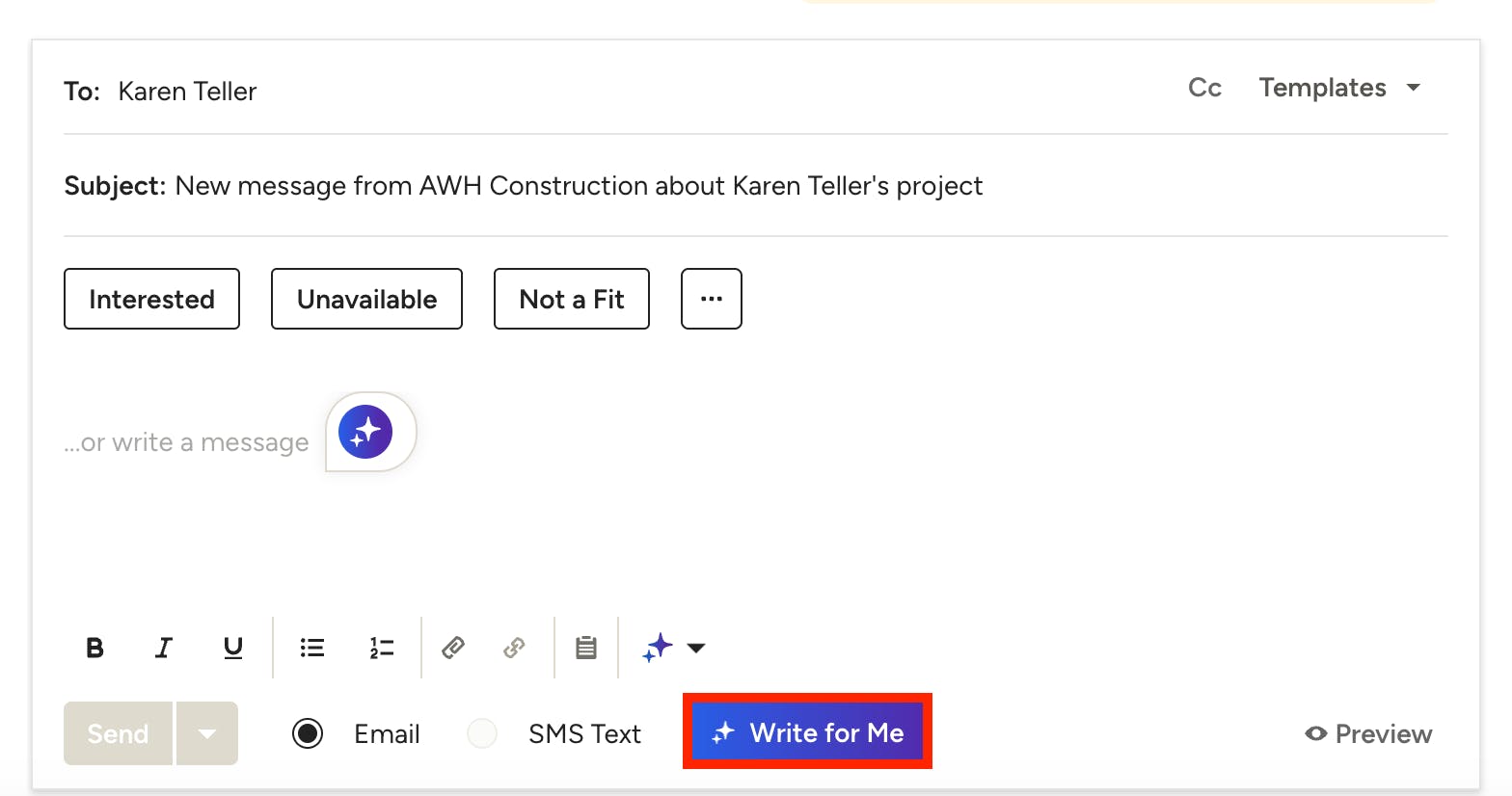
To get started, select the Leads icon, then select the relevant lead from the list. Scroll down to the open text box for messages, then select the Write for Me button in the bottom menu.
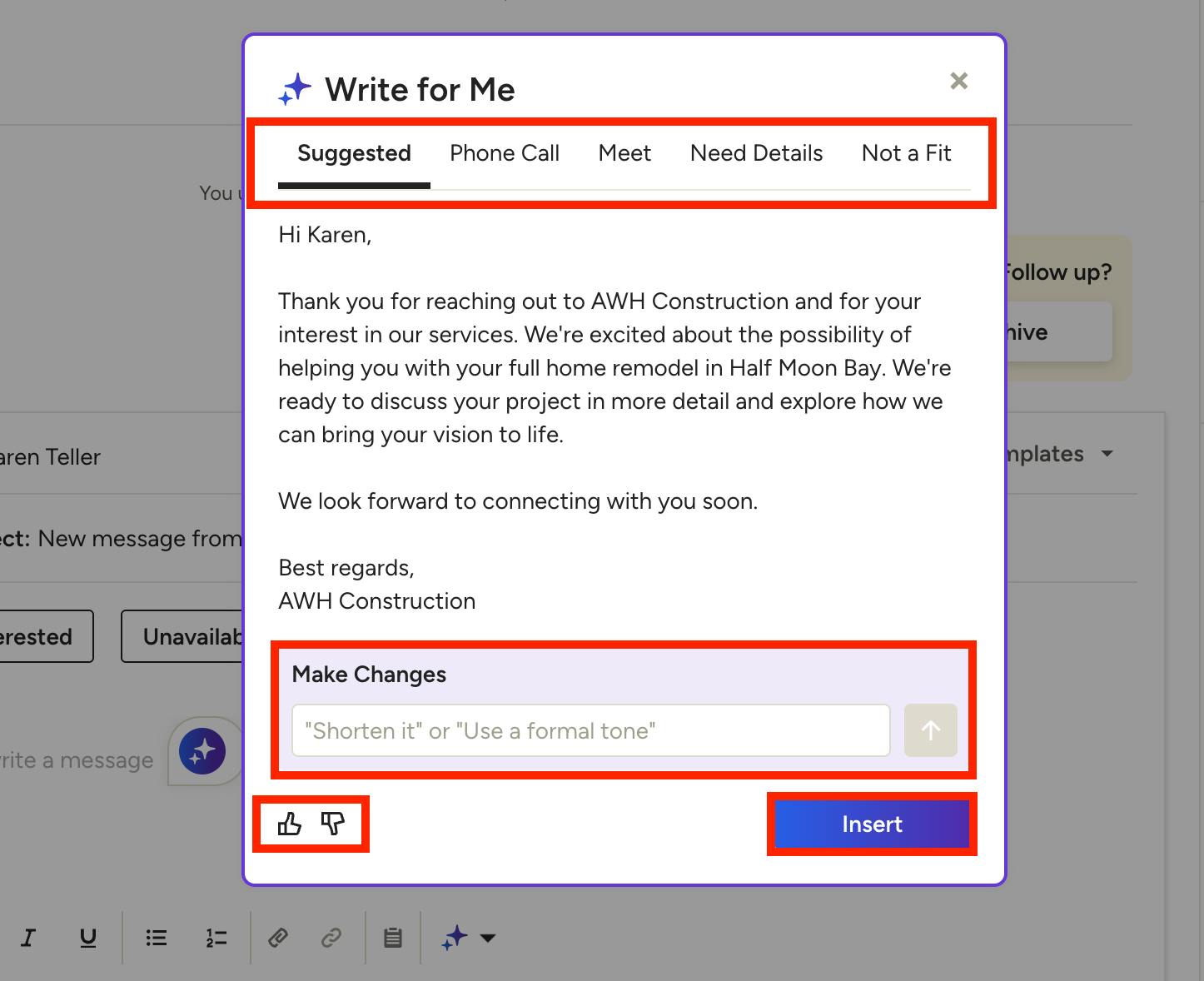
The Write for Me screen will appear to show the generated responses. There will be several options, which are based on the most common response scenarios — Phone Call, Meet, Need Details and Not a Fit. The default option is Suggested. This is the response that AI believes is most appropriate, based on the information available.
Select the relevant tab at the top to review each generated response. You can add changes in the prompt box at the bottom if you would like to make any edits.
Once you've found the best option, click Insert to paste directly into your message text box. You will still be able to edit the message as needed before sending to your lead.
If you would like to give feedback on the quality of a specific AI-generated message, select the thumbs up or thumbs down at the bottom.
A new screen will appear where you can specify what the issue was with that specific message. We will use your feedback to figure out how to improve future responses.
Writing Messages to Clients and Leads
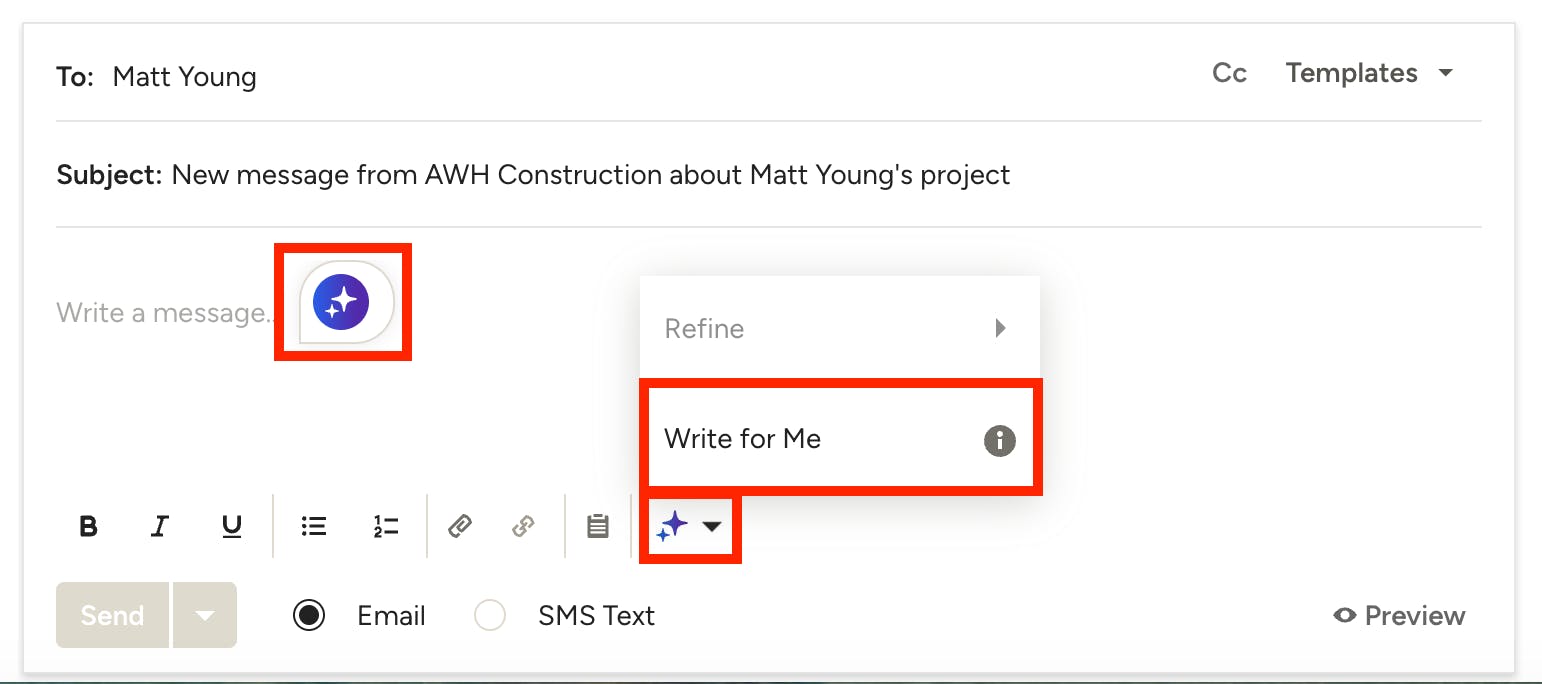
For any message to a client, or any follow-up message to a lead after your first reply, you have two AI options directly in the message composer — Write for Me and Refine.
Use Write for Me when you want AI to do the heavy lifting — enter a short prompt describing what you want to say, and AI will generate a polished, professional response for you.
Use Refine when you've already written something but want to polish it before sending. Type out a quick, rough message in your own words, and AI will clean it up, improve the tone, and make it client-ready.
To get started, select the Leads or Projects icon, then select the relevant lead or project from the list. Scroll down to the open text box for messages.
If you have no existing text in the message box, Write for Me will be the only available option.
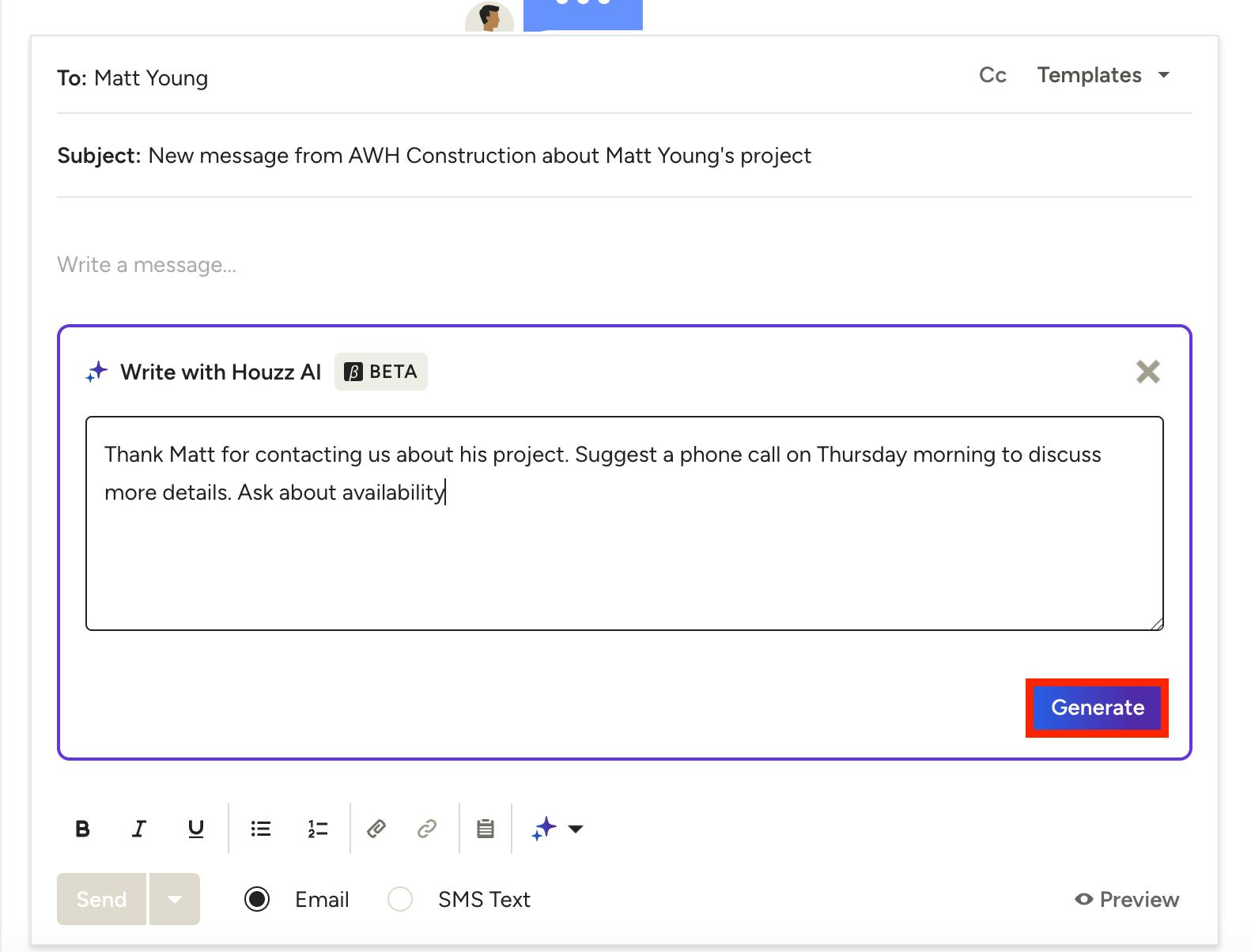
In the next screen, enter a short prompt describing what you want to communicate. Click Generate.
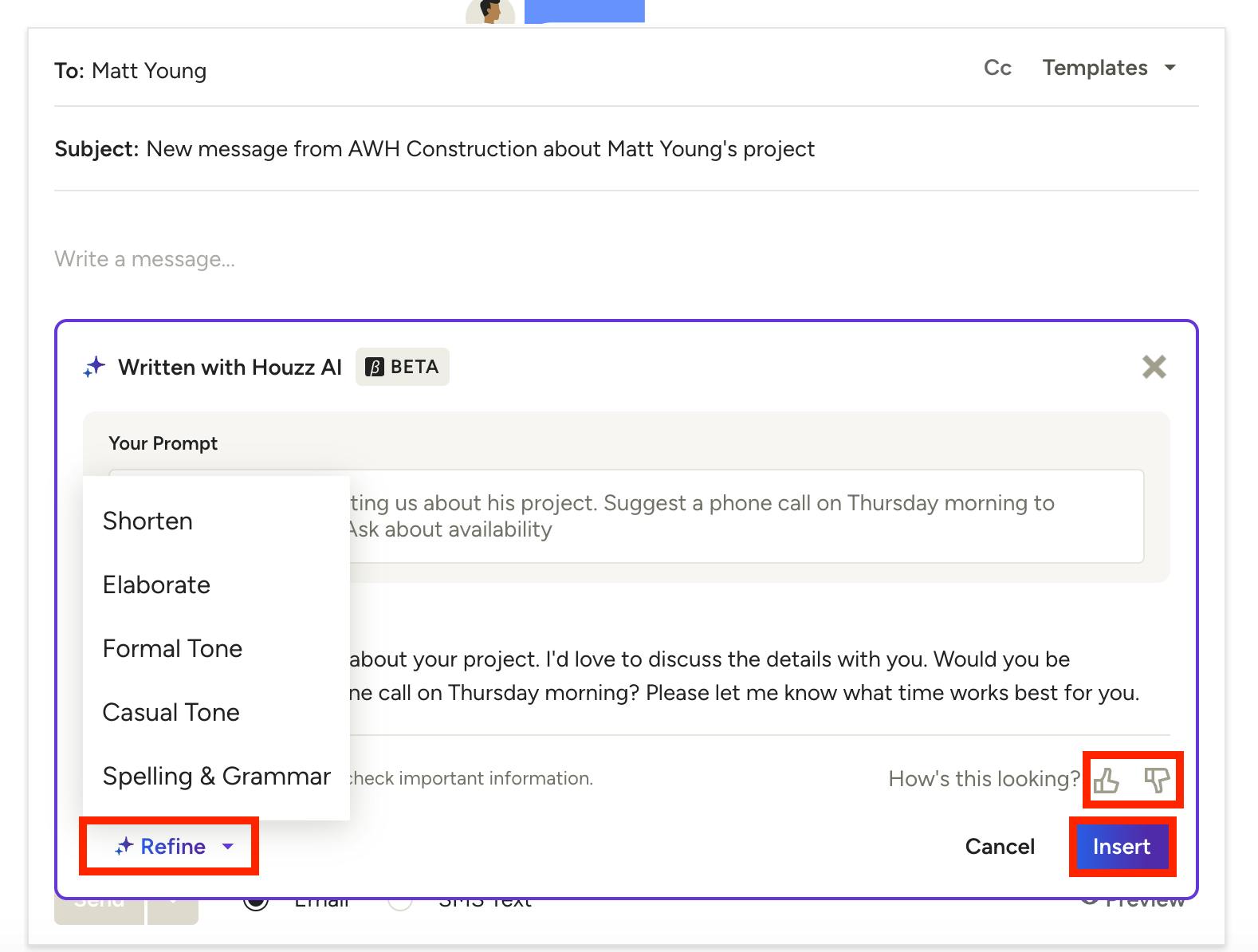
AI will generate a suggested response. Review the text in the preview. Click Refine to make adjustments — you can shorten, elaborate, or adjust to a more casual or formal tone. You can also check and adjust spelling and grammar.
Once you're happy with the response, click Insert to paste it directly into your message text box. You can then make any final edits before sending your message.
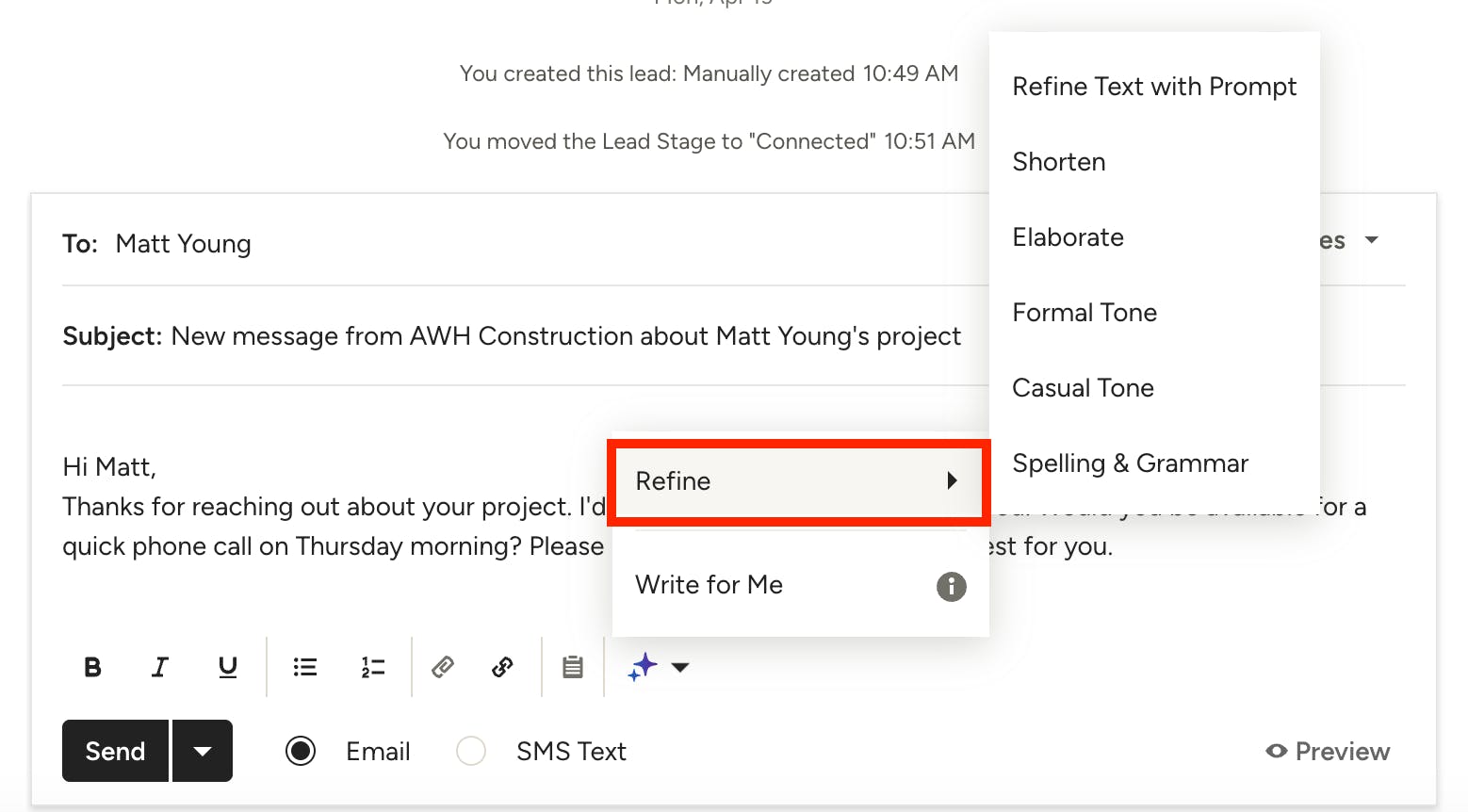
If you have existing text in the message box, Refine will also be an option. Here, you can refine the text with a specific prompt. You can shorten, elaborate, or adjust to a more casual or formal tone. You can also check and adjust spelling and grammar.
Click the relevant Refine option, and the text will adjust. You can then make any final edits before sending your message.