How to Create a Mood Board
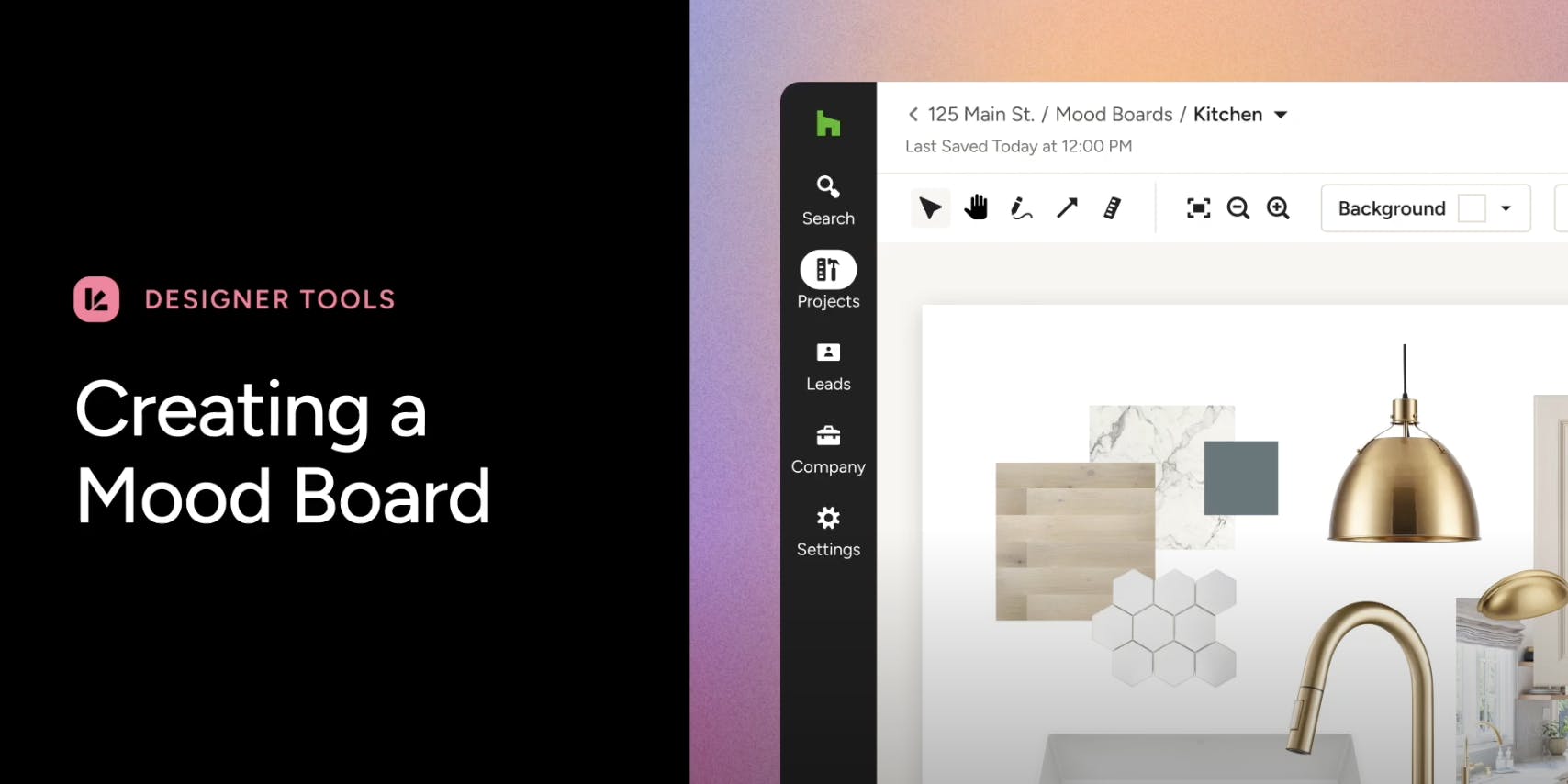
Use Mood Boards to showcase your concept and plans for a project, and easily share them with your client. You can add your Mood Boards to Selection Boards to present your vision all in one place.
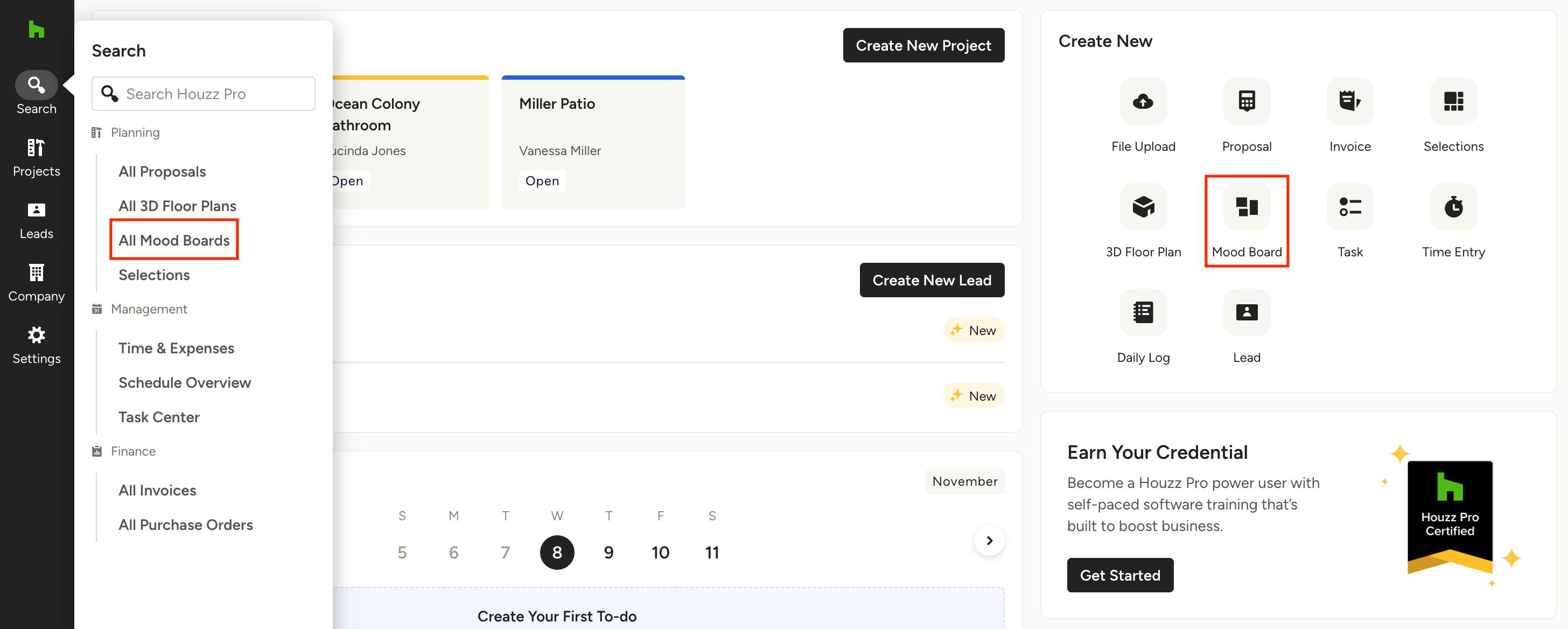
Create a New Mood Board
There are a few ways to create a new Mood Board. One is to click on All Mood Boards under the Planning section in Search menu in the left navigation. From there you can choose Create From Scratch, assign it to the correct project and start designing!
You can also access this page by clicking on the Mood Board icon in the Create New section of your Houzz Pro homepage.
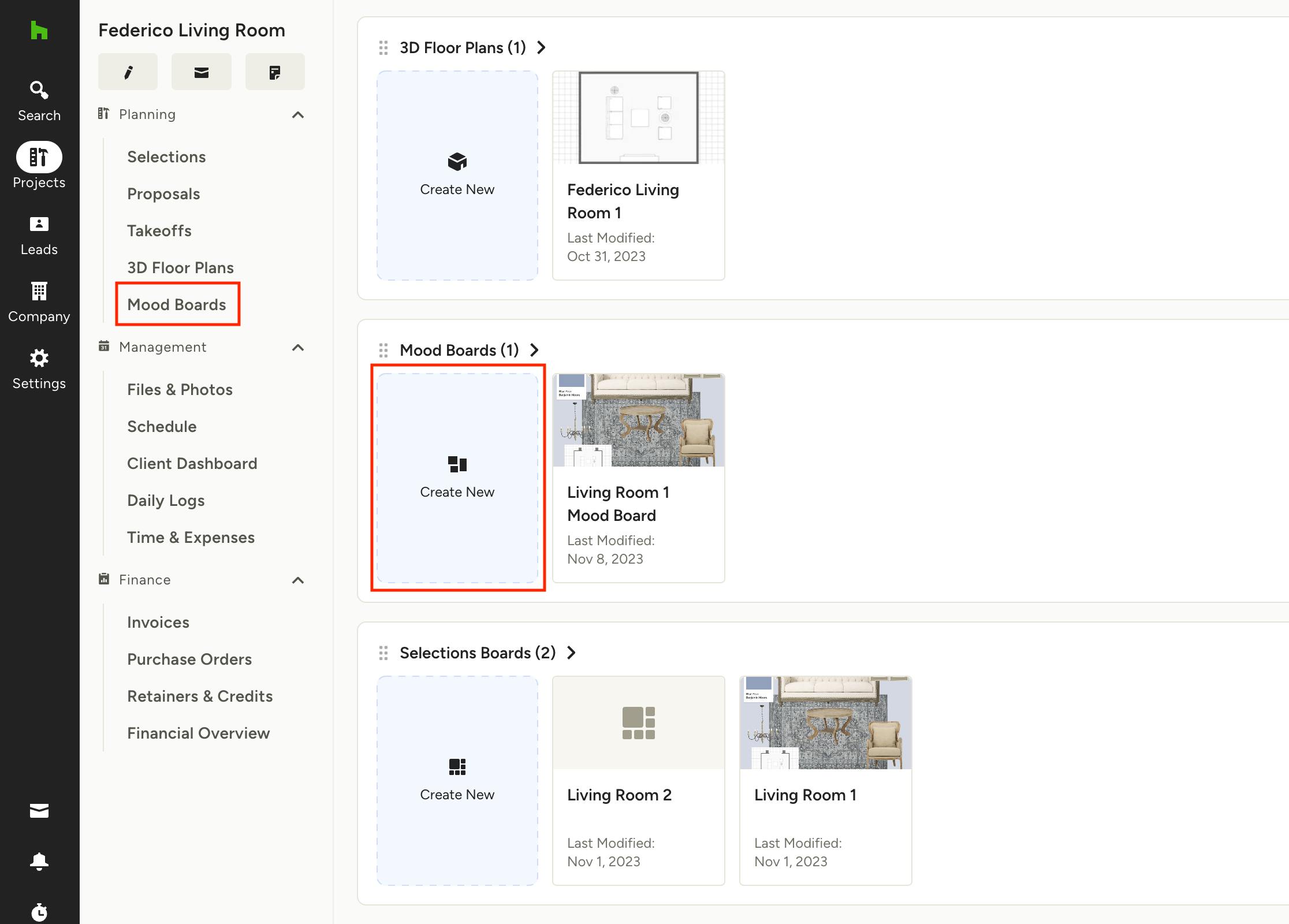
To create a new Mood Board directly from any project overview page, either select Mood Boards under the Planning section on the left, or click Create New from the Mood Boards tile on your project page.
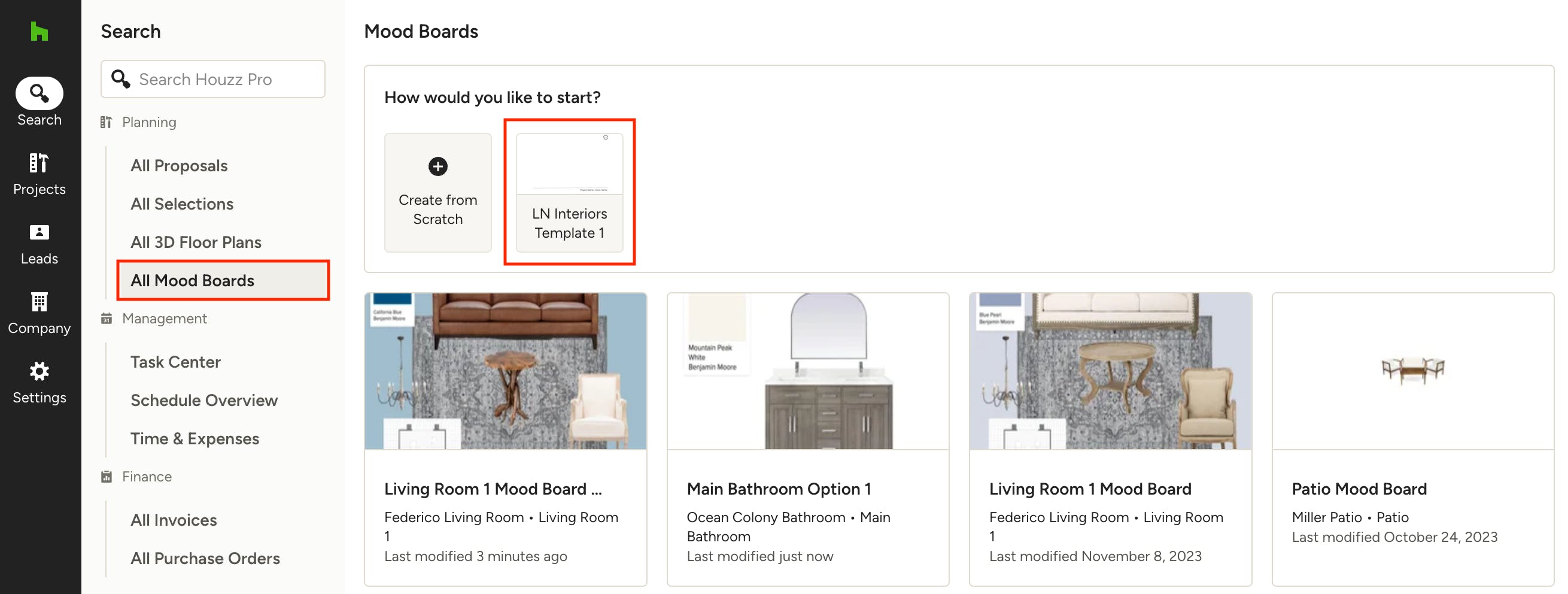
Creating Mood Boards from a Template
Once you have created one or more templates, you can use them as a starting point for creating a new Mood Board. All your templates are accessible in your All Mood Boards section.
Next to the + Create from Scratch tile you will see all your templates listed. Just pick the one you want to use and everything saved in the template will be loaded. From there you can make any desired edits and proceed with your design.
For more information about creating and using templates, see Creating, Editing and Using Templates in Your Houzz Pro Mood Boards.
Adding Items to a Mood Board
Once you've created your new Mood Board, adding items is a breeze. There are multiple methods for adding items to your Mood Board:
Drag and Drop from Computer
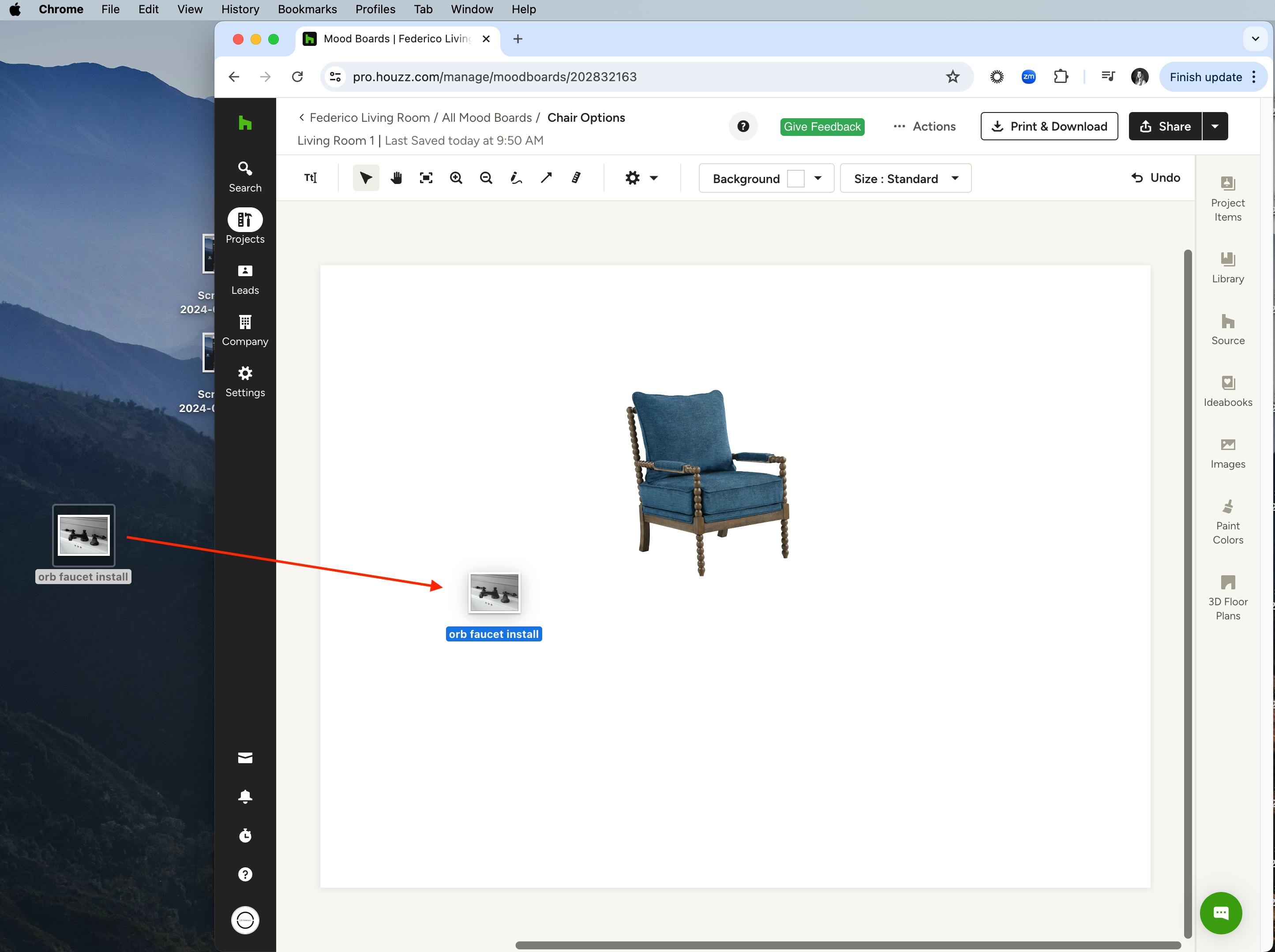
You can quickly add images directly from your computer by dragging one or more items from your desktop or file explorer and dropping them directly into your mood board.
Copy and Paste
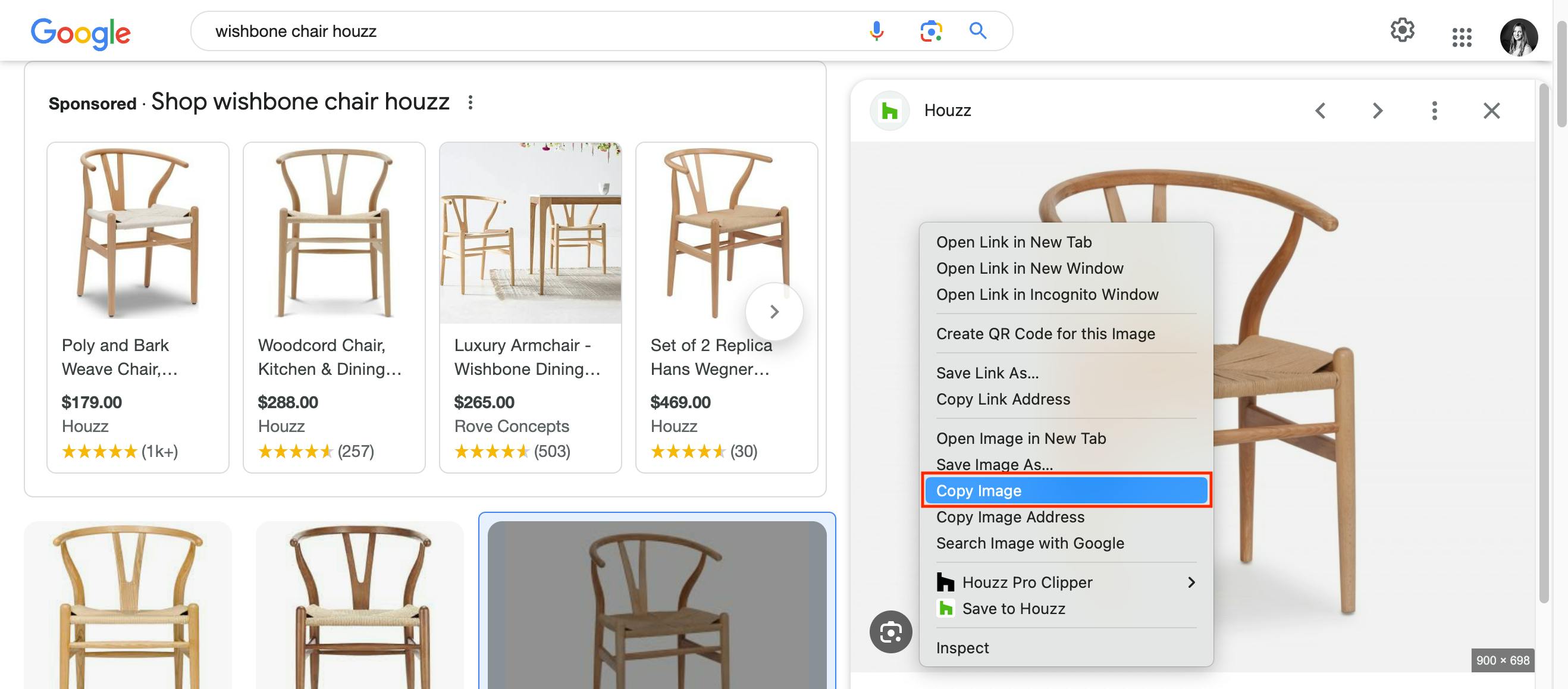
There are two ways to copy/paste images from your desktop or web browser directly into a mood board:
- Right-click in Google (or any other webpage) and select ‘Copy Image’, then use Cmd/Ctrl + V in a mood board to paste the image
- Copy an image from your desktop or within a file/doc using Ctrl/Cmd + C, then use Cmd/Ctrl + V in a mood board to paste the image
Paste Image by URL
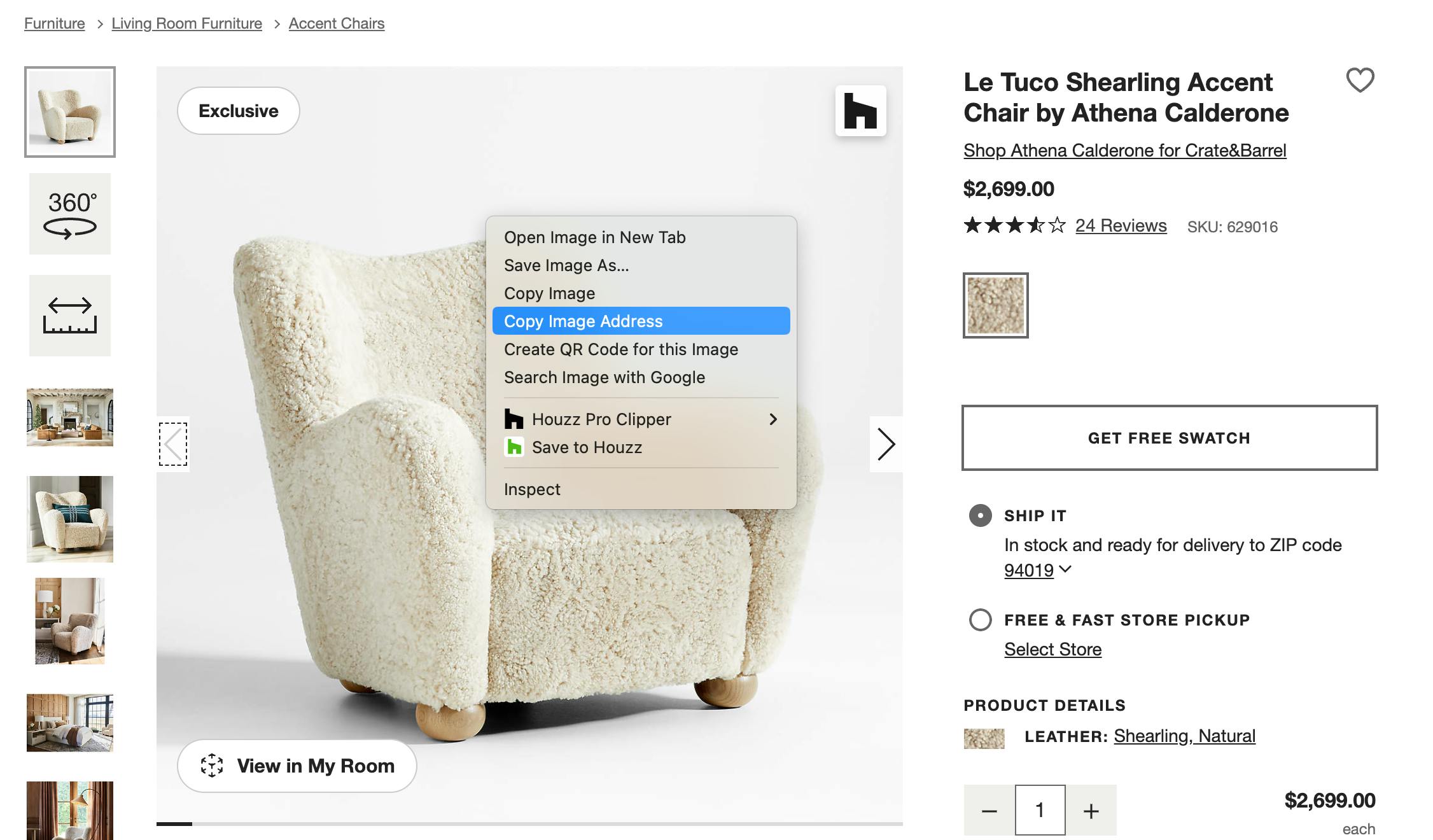
You can insert images into a mood board using the image URL. To do so, right-click an image on a website and select 'Copy Image Address' from the menu.
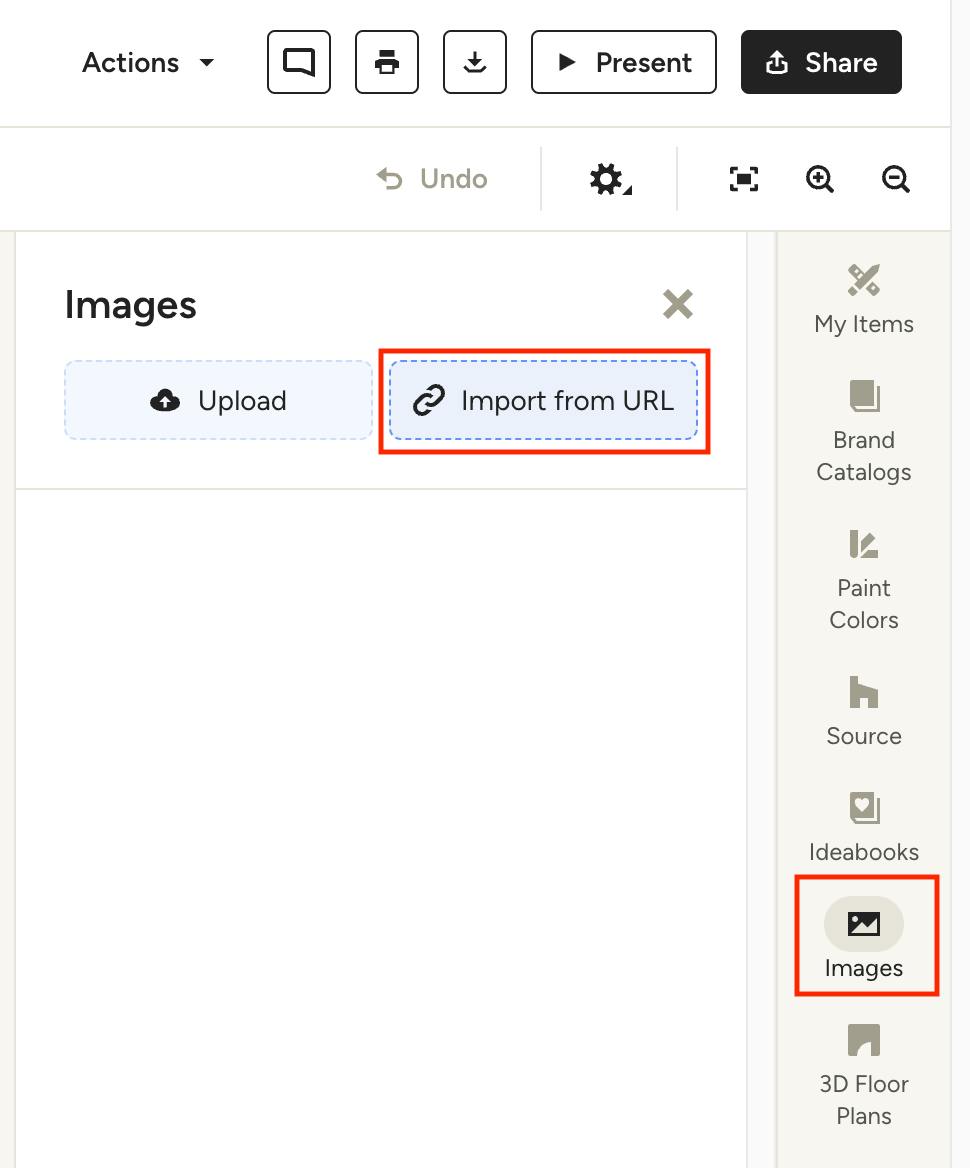
Next, click Images from the mood board's right panel and select Import from URL.
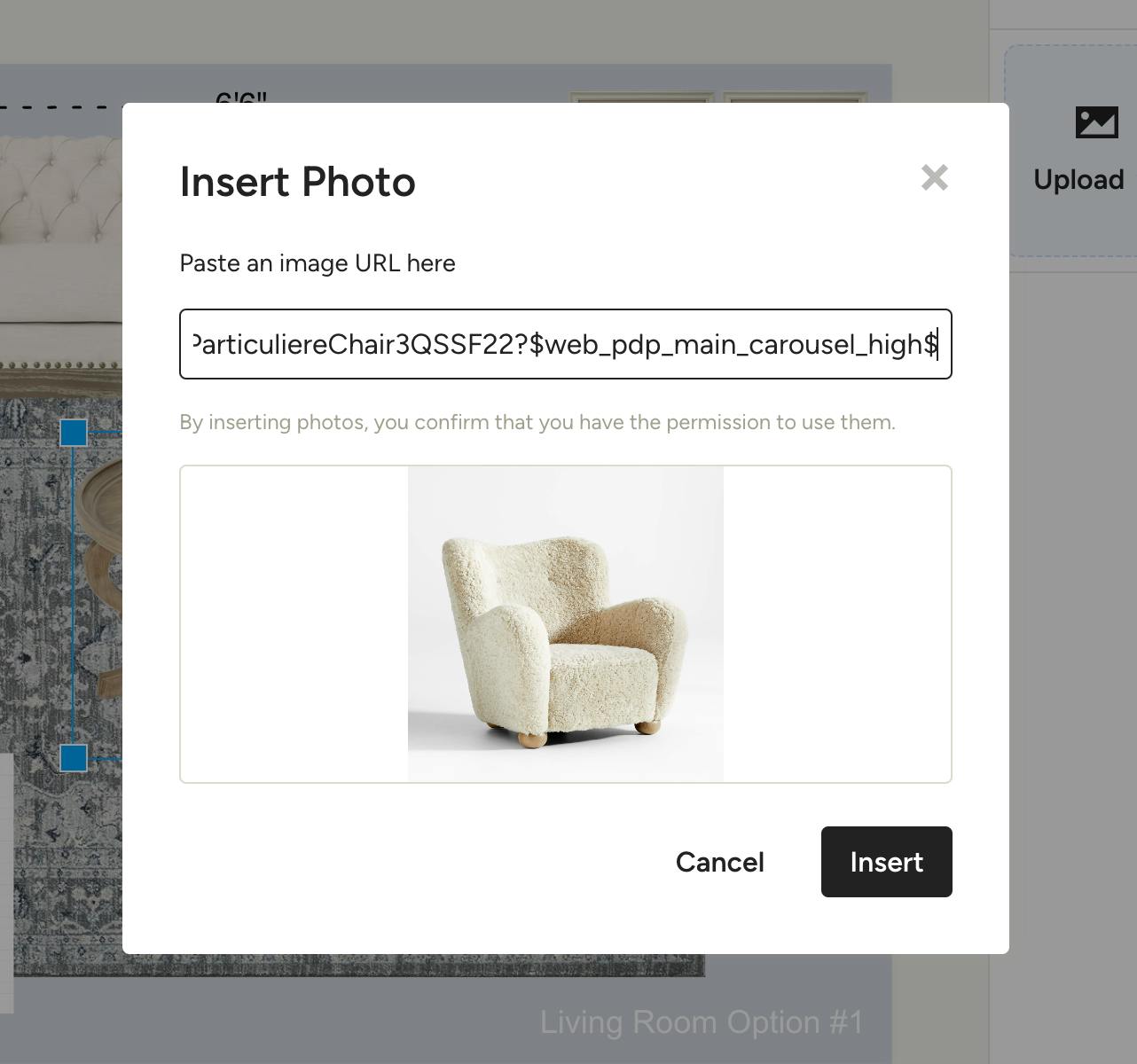
Now paste the URL into the new modal. If the URL is valid you will see a preview of the image. Click Insert to add it to the mood board.
Note: Some websites block accessibility across different domains, so this feature may not work reliably with any and all images.
From the Side Panel
- Click: Click on an item in the side panel for it to be added to the center of your Mood Board.
- Click, drag, and drop: Take control by clicking and dragging an item from the side panel to a specific position on your Mood Board. Drop it where you want it to be for precise placement.
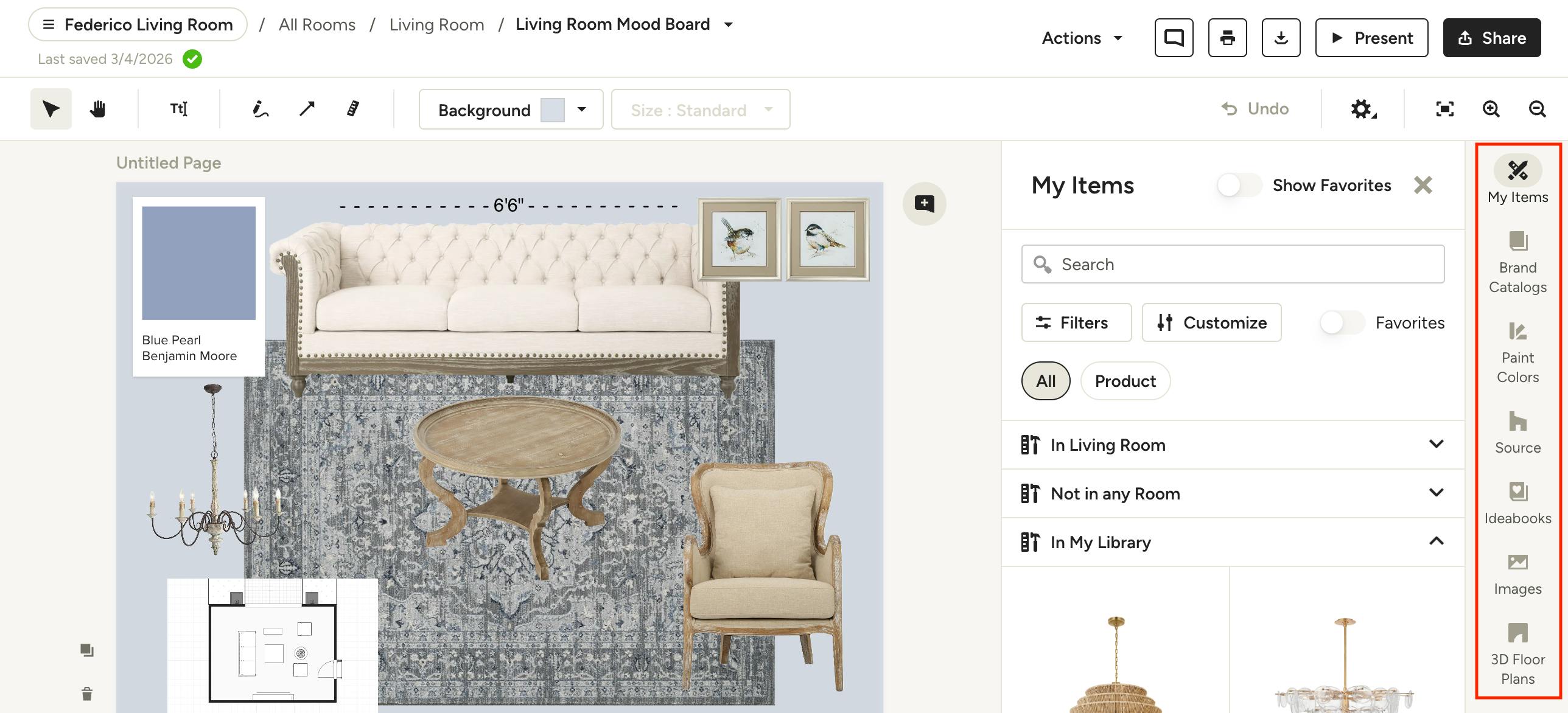
You can add items from your My Items library, source them from our catalog, use ideas saved to your Ideabooks, add images, insert 3D Floor Plans, or find paint color swatches from our partnerships with Benjamin Moore or Sherwin-Williams. Here's a breakdown of all the possibilities you'll find in right side panel:
My Items: You can access your entire library of products in the My Items section, including any items you've saved via the Clipper or added manually. My Items is broken down into multiple sections, including "In this Project" and "In your Library". Any items under "In this Project" are associated with the specific project you're in, whether assigned directly from My Items page or added to the project when clipped. You may see these organized by room instead, like "In Living Room" or "Not in any Room" — both sections are project items. Items under "In My Library" include all items across all projects, including those not assigned to any project.
Brand Catalogs: Here you'll have access to items within your brand catalogs, including products from The Home Depot catalog.
Paint Colors: Color swatches are a great way to visualize how different colors in a space will fit together. You can add paint colors from Sherwin Williams & Benjamin Moore — search by color name or code to quickly find a color. If you already used a color on a board, be sure to pick the paint color from the "In this Project" or "In [Room]" sections to avoid creating duplicates in the Selections Tracker. You can show/hide the paint swatch details by clicking the eye icon in the item menu when the swatch is selected.
Source: Make use of our catalog of professional furnishings to easily find the right products for your clients. You have a wide selection of furniture, lighting, and much more at your disposal.
Ideabooks: Your Ideabooks are your vision, thoughts, reflection and inspiring home designs that you saved in order to share with your clients. Add any image that you have saved to your Houzz Ideabooks to your Mood Board through the Ideabooks tab.
Images: Easily upload image files from your computer or choose from the project’s Files & Photos, Company Files, or Google Drive. You can save time by selecting multiple images to add at once. Uploaded images from Local Files are also saved to the project’s Files & Photos for reference.
3D Floor Plans: Find all the floor plans you have created for your clients and add them to your Mood Board.
Using Your Mood Boards Toolbar
Once you've mastered adding items to your mood board, it's time to really make things professional by utilizing the toolbar at the top to customize the board. Here is a deep dive into everything you can do with the toolbar:
Adding and Editing Text, Changing Text Color and Size
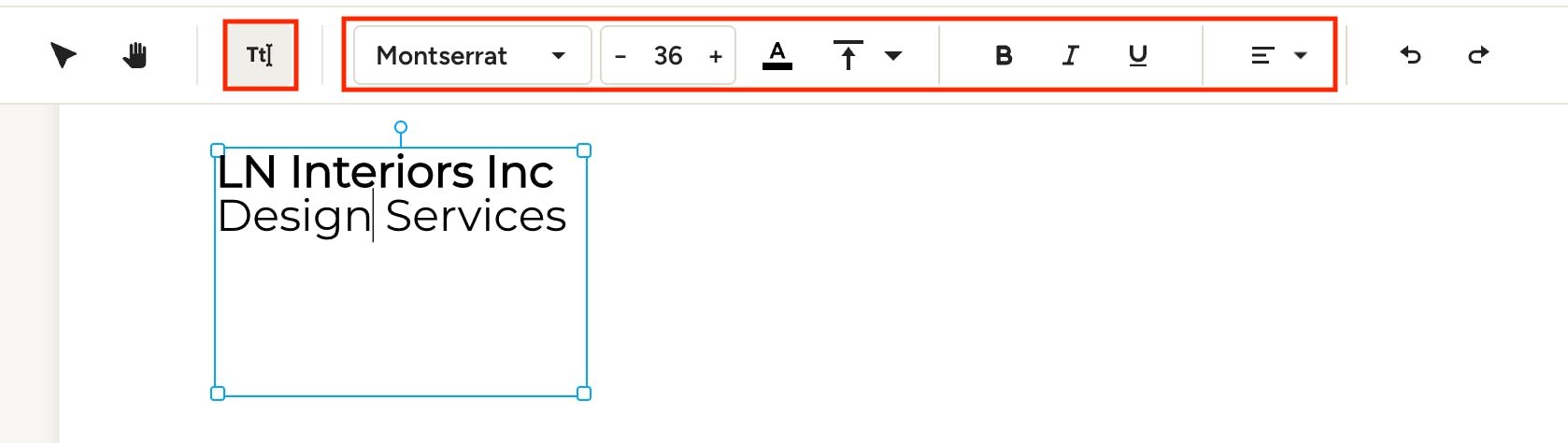
To add text to your mood board, click the text icon then click in your board. You can click and drag the corners of the text box to adjust to the size you'd like — the text will wrap accordingly. Format the text using the options in the toolbar, including font, color, alignment, size and more.
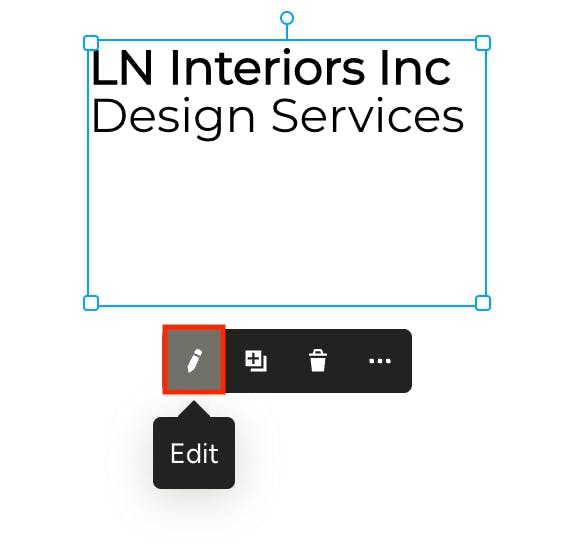
To edit an existing text box, click on the text then click the Edit icon in the menu below the box. You can now add or remove text and use the formatting options in the toolbar.

Moving Things on Your Mood Board
To easily move around the different elements on your Mood Board you’ll need to use the Selector tool.
Pro tip: Using the selector tool, click and drag your cursor on the mood board to select multiple items at once.
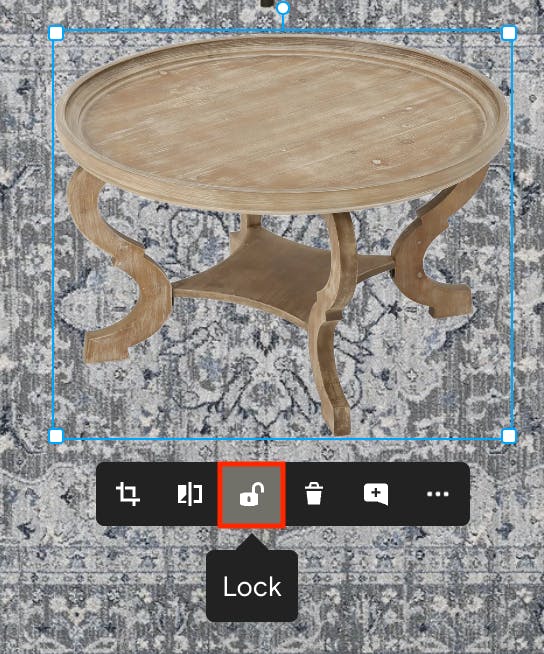
To prevent items from being moved accidentally, you can lock them in place by selecting the item and clicking the lock icon in the menu. This will stop the item from being moved, resized or edited in any way until you unlock it. You can select multiple items and lock them all at once.
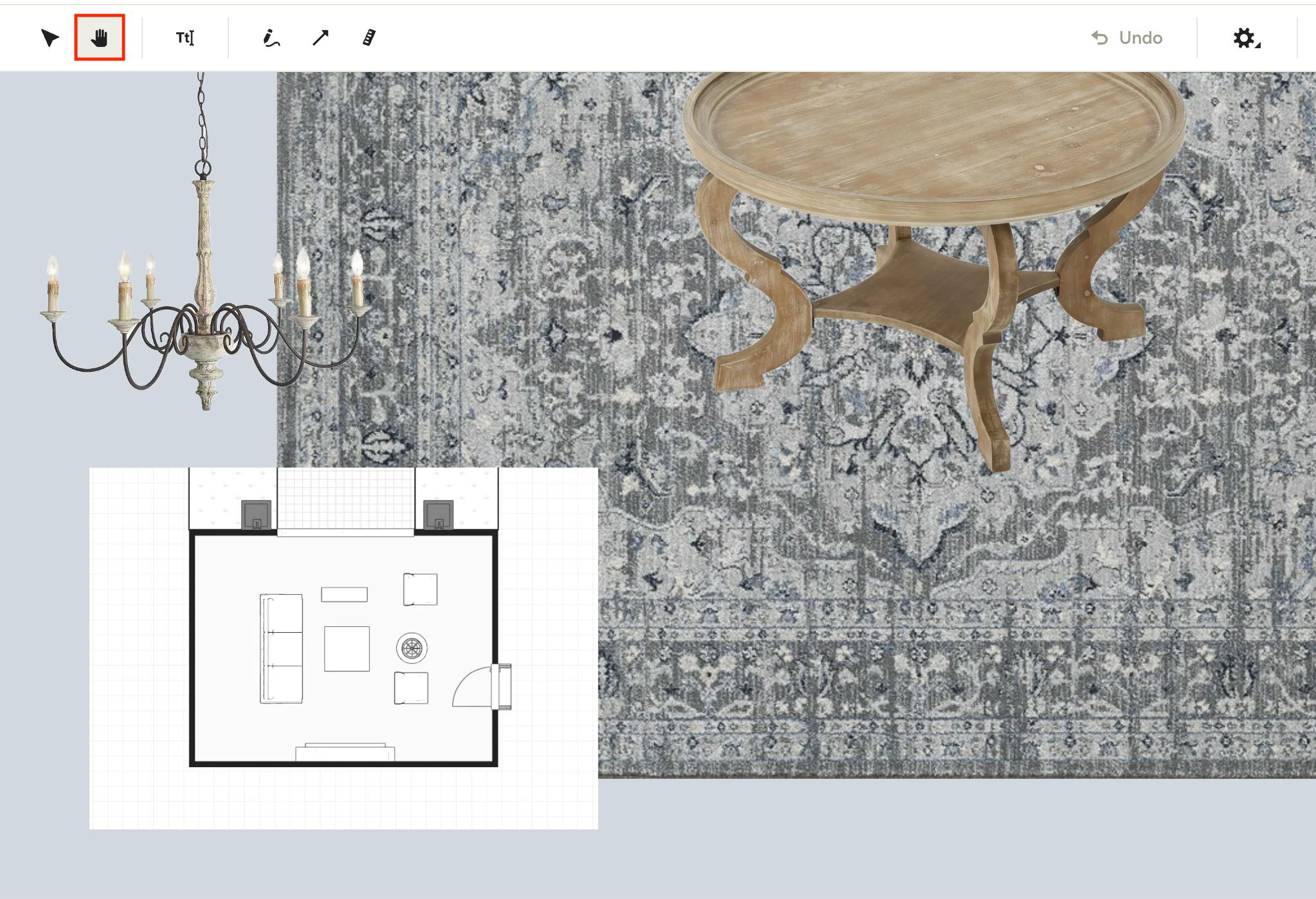
Using the Pan Tool
By selecting the hand icon, you can pan to specific areas of your Mood Board without selecting or moving any elements. This is particularly handy when you are viewing the Mood Board zoomed in.
Pan shortcuts (Mac and Windows):
Pan Mode: Space (keep pushed)
Pan vertically: Scroll
Pan horizontally: Shift-scroll

Zooming In and Out
Want to take a closer look at a certain element? Use the magnifying glass icons to zoom in or out as needed. When you want to reset to the default view, simply click the Zoom to Center icon.
Zooming Shortcuts (Mac):
Zoom in / out: Control-Command-scroll
Zoom in: Command-+
Zoom out: Command--
Zoom to fit: Command-0
Zooming Shortcuts (Windows):
Zoom in / out: Ctrl-Alt-scroll
Zoom in: Ctrl-+
Zoom out: Ctrl--
Zoom to fit: Ctrl-0

Drawing on the Mood Board
If you want to draw on your Mood Board all you have to do is press the Pencil Icon. Once you do, you’ll be able to draw anything you want. You’ll also be able to change the color and size of your drawing.

Adding Lines and Shapes
If you want to add any lines and shapes to your Mood Board click in the arrow icon. You’ll be able to easily draw straight lines and arrows. Simply click and drag to create your line, and once you're done you'll see color options up in the toolbar to adjust accordingly.
Pro tip: Hold the SHIFT key while drawing for a perfectly straight line or arrow. You can also rotate the line in 45-degree intervals by holding the SHIFT key.

Adding Product Measurements
You can show measurements on an item or space by clicking on the ruler icon. Once you click and drag to add the measurement, you'll be able to add the exact dimensions in the screen that pops up. You’ll then be able to customize the color in the top toolbar.

Background Removal Settings
By default, any image added to your mood board will automatically have the background removed. You can chose to turn off the automatic background removal default by deselecting the checkbox next to Automatically Remove Background Image, found under the Settings icon.
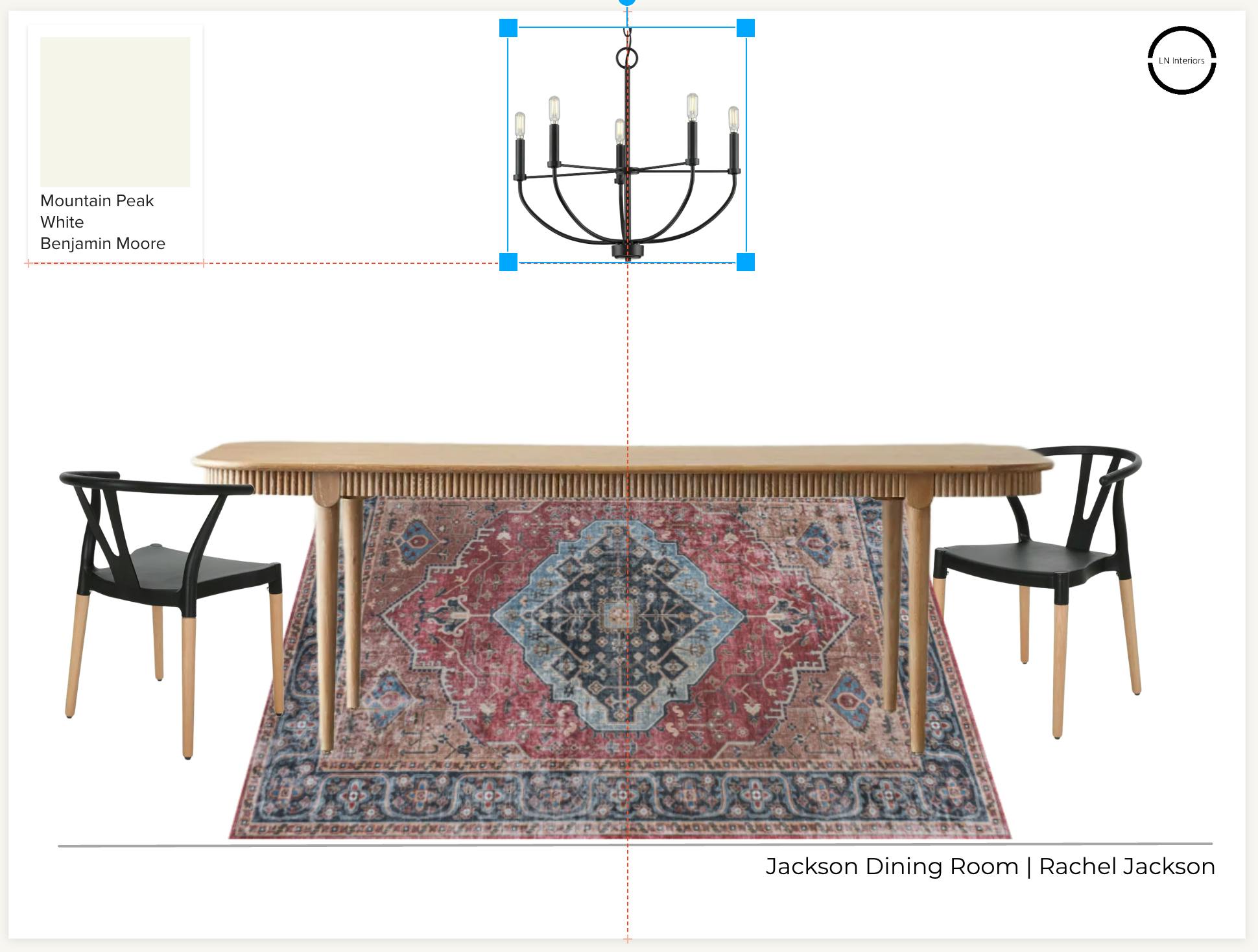
Snap to Guides Settings
By default, snapping guides are turned on to help you easily align items with one another when moving and/or resizing. You will notice thin, dashed red lines appear when moving or resizing an object — these help you to properly position items in alignment with the edges or centerpoint of another object, or with the center of the mood board canvas.

You can chose to turn off the snapping guides by deselecting the checkbox next to Snap to Guides, found under the Settings icon.

Set Background Color and Board Size
Control the look and size of your mood board with the Background and Size settings. You can set custom colors, use a color picker to match an item in the board, and adjust transparency. Set the size to match your preferences for digital or print presentations.
Pro Tip: Use these keyboard shortcuts to quickly activate certain tools in the toolbar!
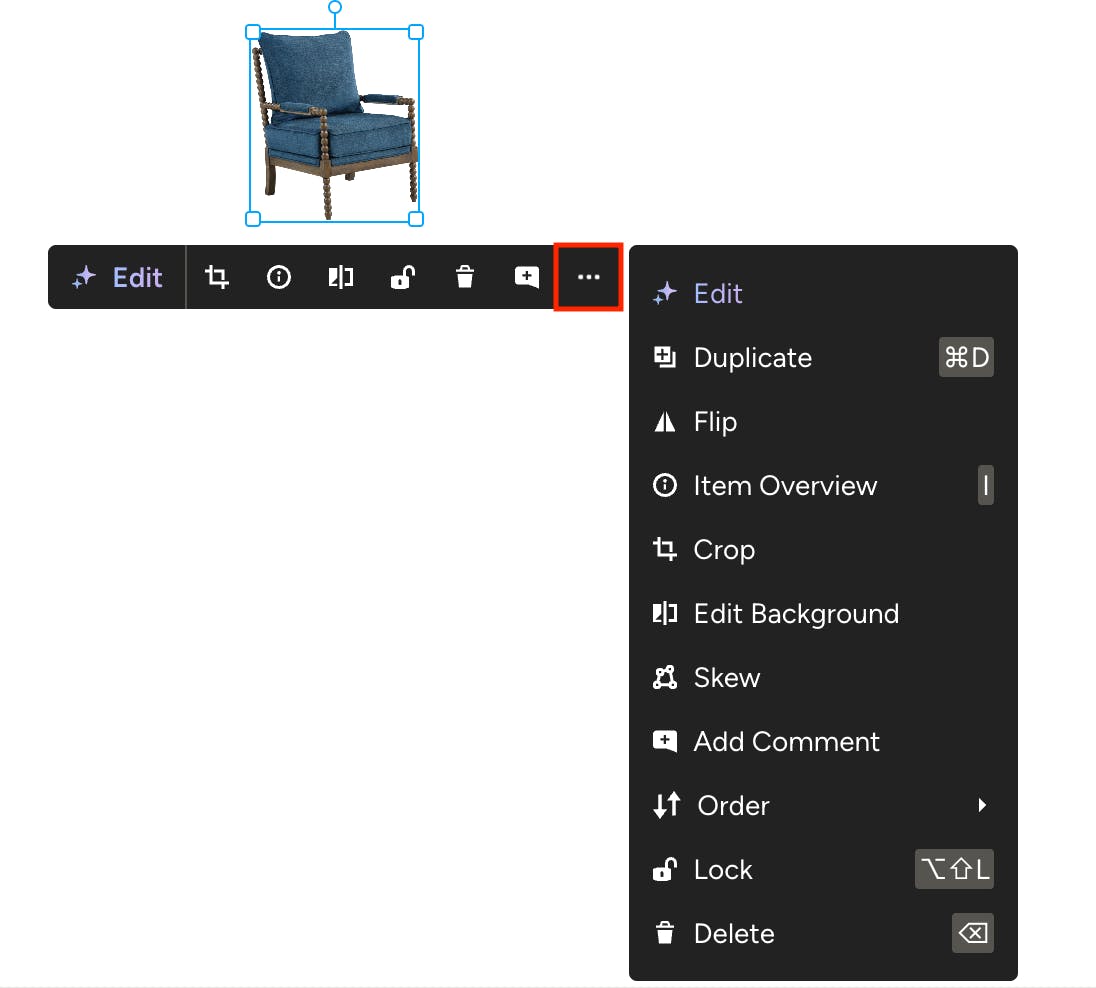
Editing Images in a Mood Board
When you click on an item in the Mood Board, a black menu appears beneath the image with quick-access options — AI edit, crop, item overview, edit background, lock, delete, and comment. Click the More icon to see the full list of available actions for editing.
Check out the breakdown below to learn about all the different tools you can use to perfect your Mood Board images, from advanced AI edits to simple actions like duplicate, flip, crop, edit the background, skew, change item order, and delete.
Pro Tip: Right-click an item to quickly open the expanded menu.
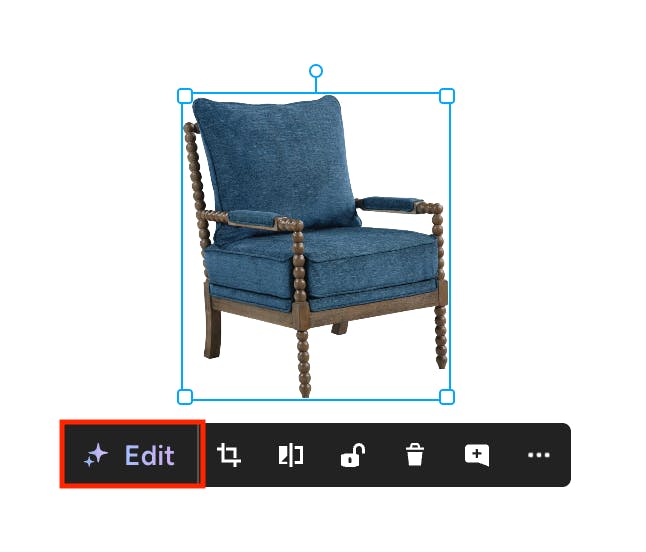
AI Edit
AI Edit supports a combination of inputs to quickly update images and products, allowing you to showcase your exact vision to the client. To manipulate a mood board image using AI, click the purple Edit option from the item menu.
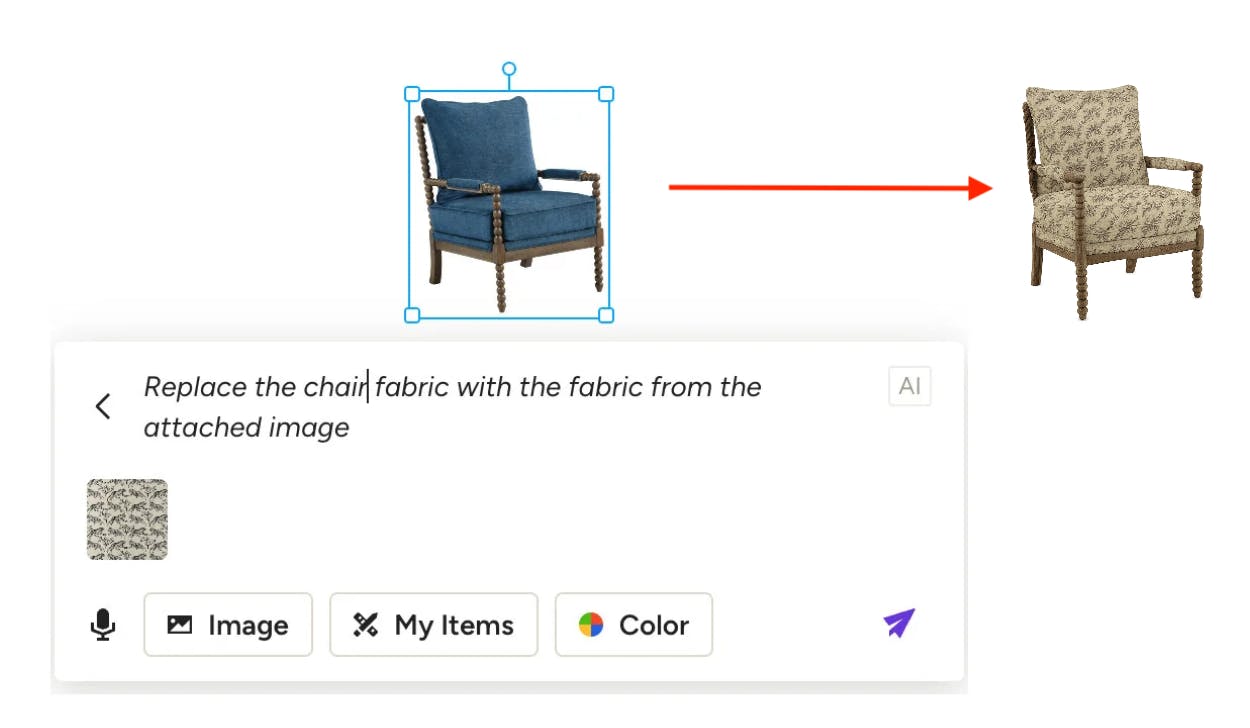
The AI Edit tool will open where you can use a combination of prompt plus the following inputs to achieve your desired result.
- Prompt: Describe the changes you want to make in text. Ex: “Change the finish to matte black”
- Image: Reference an uploaded image for visual guidance. Ex: “Replace the bed fabric with the fabric from the attached image”
- My Items: Incorporate products from your library. Ex: “Add this chair into the image”
- Color Picker: Apply a specific color to your edit. Ex: “Change the wall color to this shade of green”
Note: Actions like drop shadow, brightness, contrast or transparency are not supported at this time.
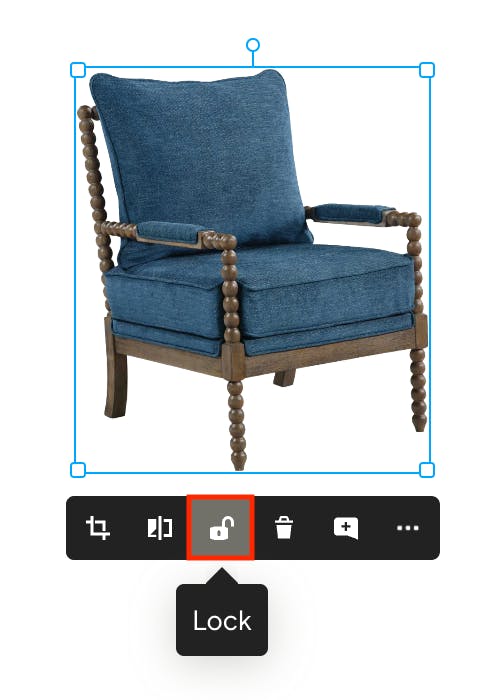
Locking an Item
To prevent an item from being edited accidentally, you can lock it in place by selecting the item and clicking the lock icon in the menu. This will stop it from being moved, resized or edited in any way until unlocked, allowing you to focus on other edits. You can even select multiple items and lock them all at once.
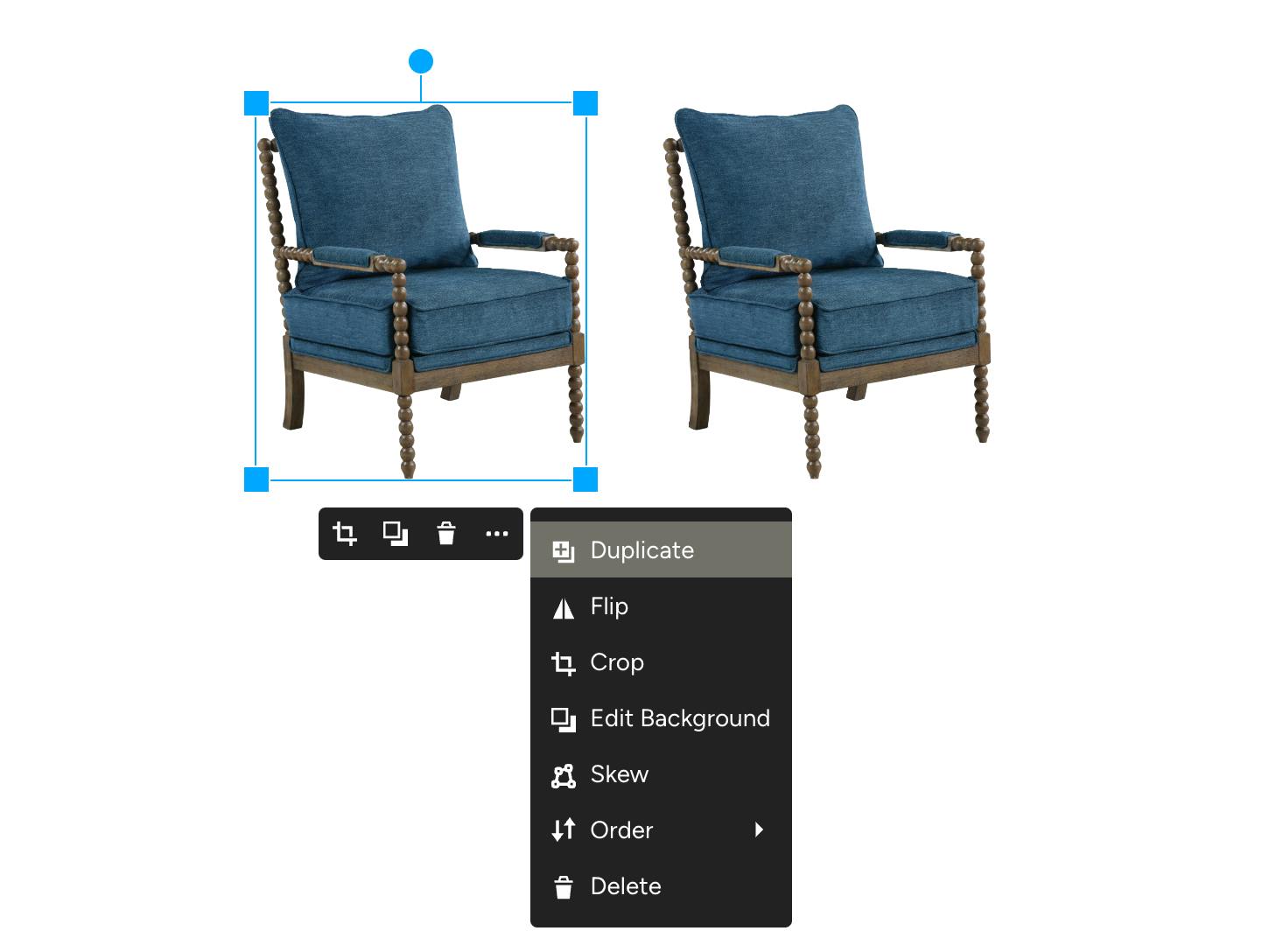
Duplicating an Image
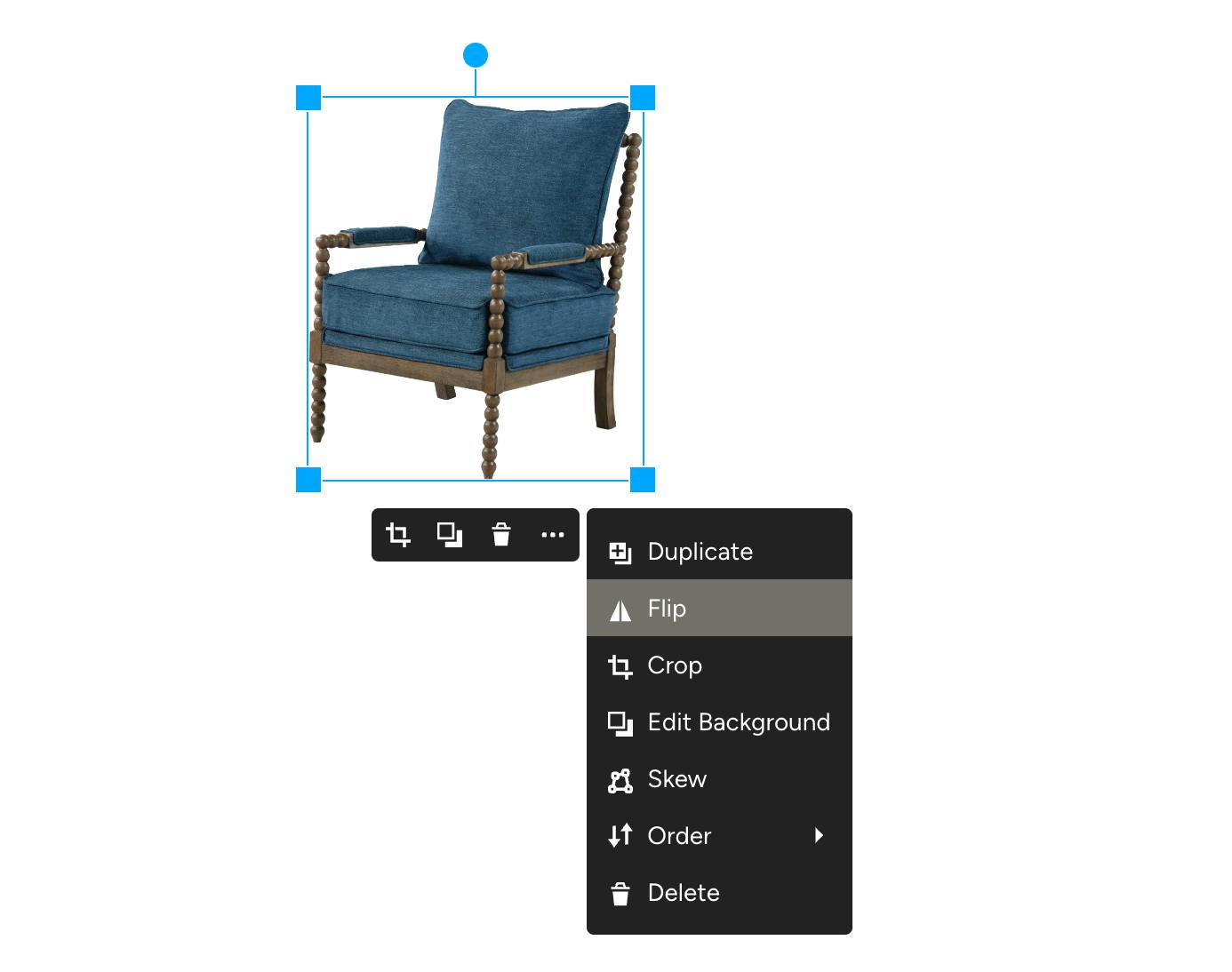
The first option you have in the expanded menu is to duplicate the image. Let’s say you want to showcase 2 matching chairs, you can simply click Duplicate to add the exact same image to your Mood Board.
Flipping an Image
Click on the Flip option in the expanded menu to flip the product if you need to position it so that it's facing the opposite direction.
Viewing Item Overview
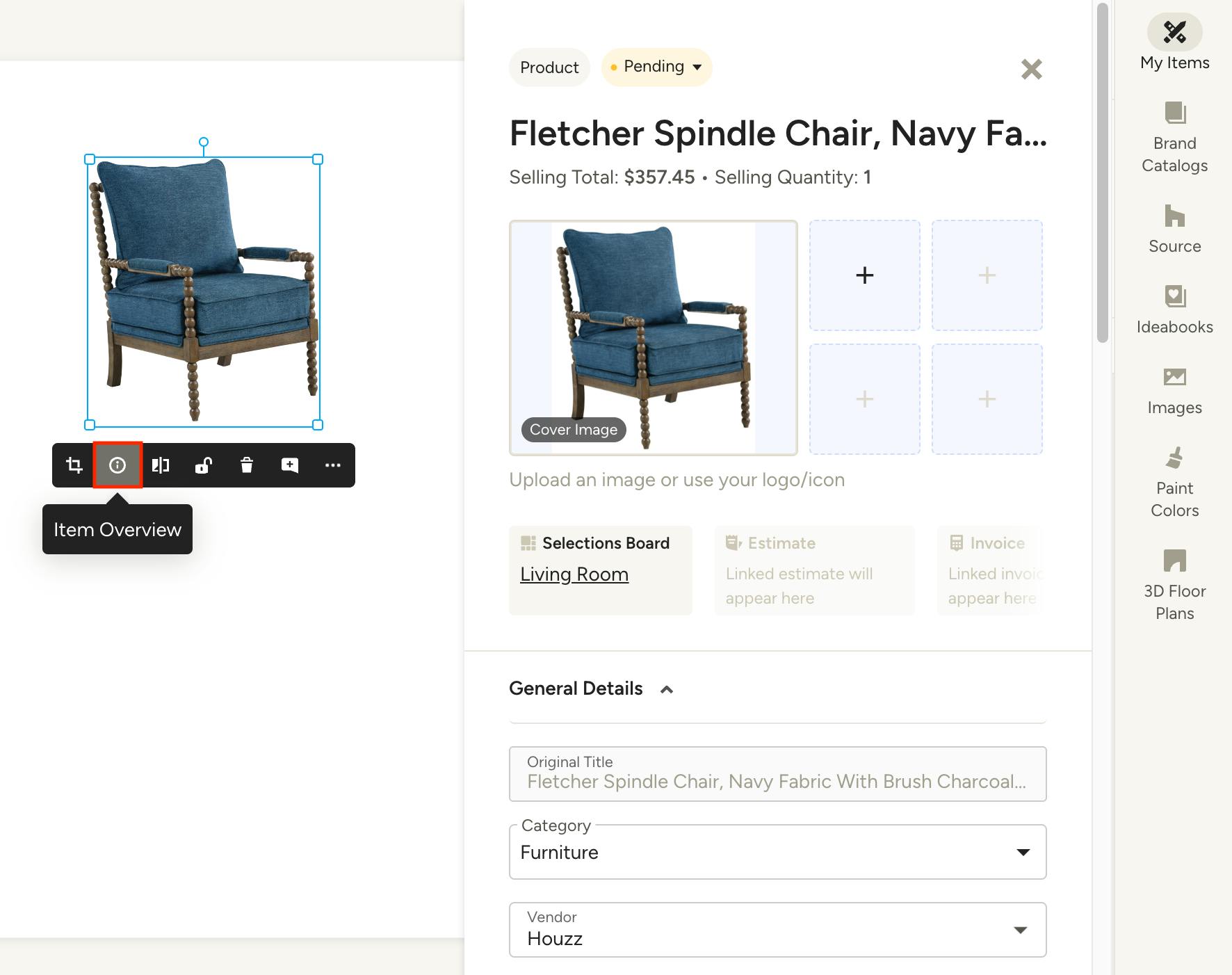
When you add an item to a mood board from your My Items library, you can use the i icon in the menu to pull up the Item Overview. This will show you all existing details about the item, with the option to add or update information directly from the mood board.
Note the item overview will only be available for library items added to a mood board after April 6, 2026.
Cropping an Image
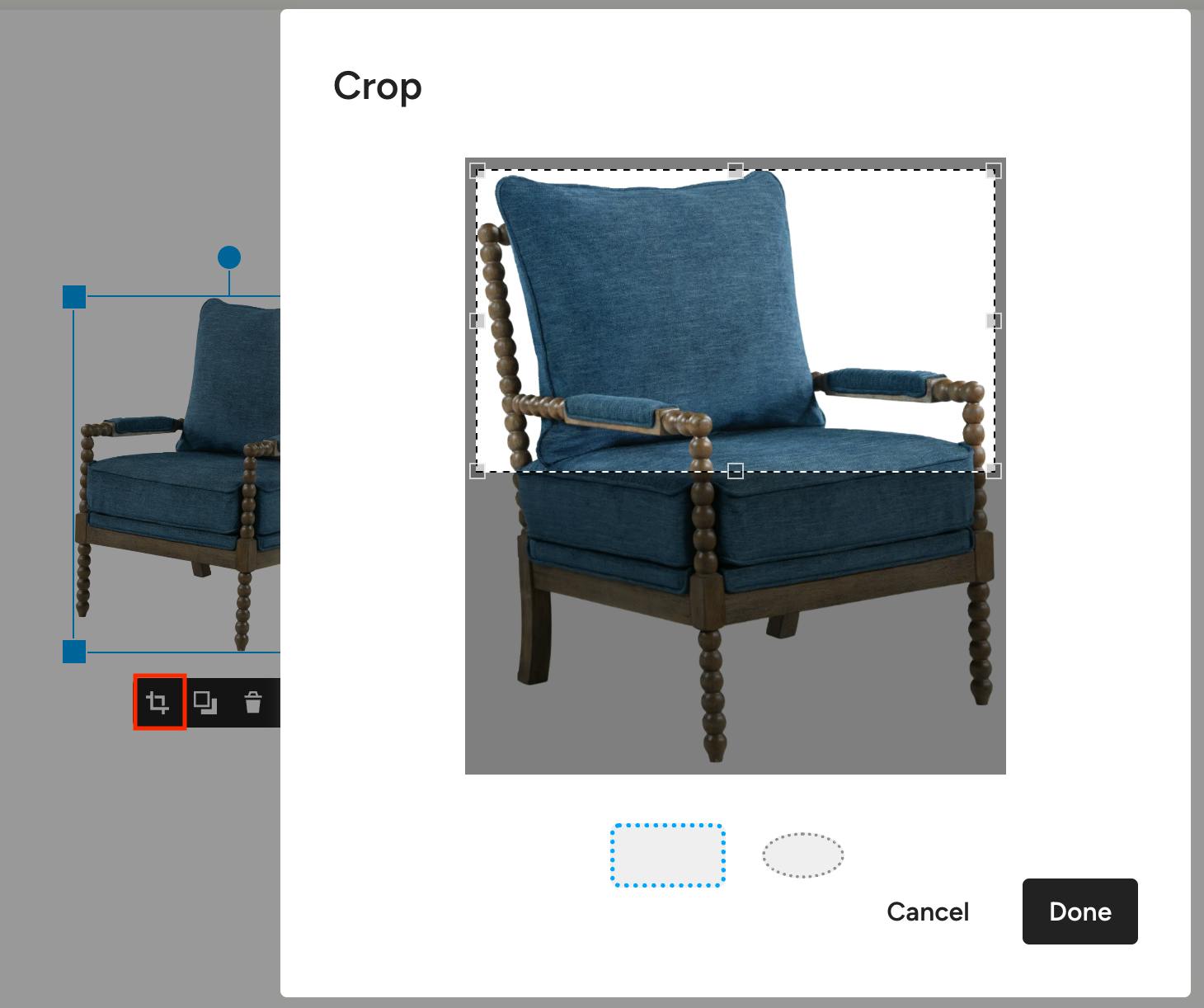
Select the image you want to crop and click on the Crop icon from the quick-access icons or the expanded menu. A pop-up will open with two different cropping options — circular or square. Once you achieve your desired crop, press Done to see the result. Want to adjust the crop? Click Crop again to make changes; the original product is still available in this view.
Editing the Background
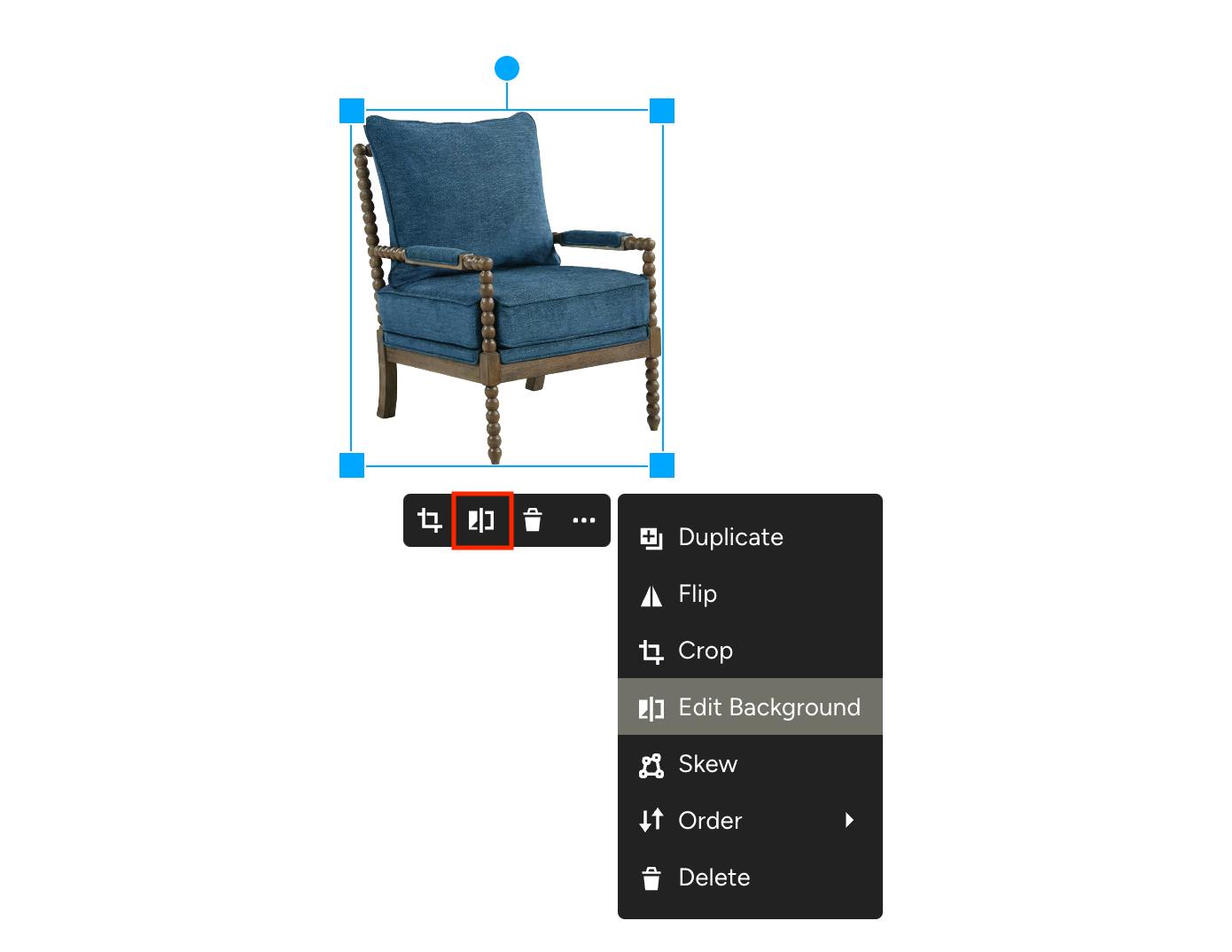
When adding an image that has a background, you have the option to remove that background. To do so, simply click on Edit Background from the quick-access options or the expanded menu.
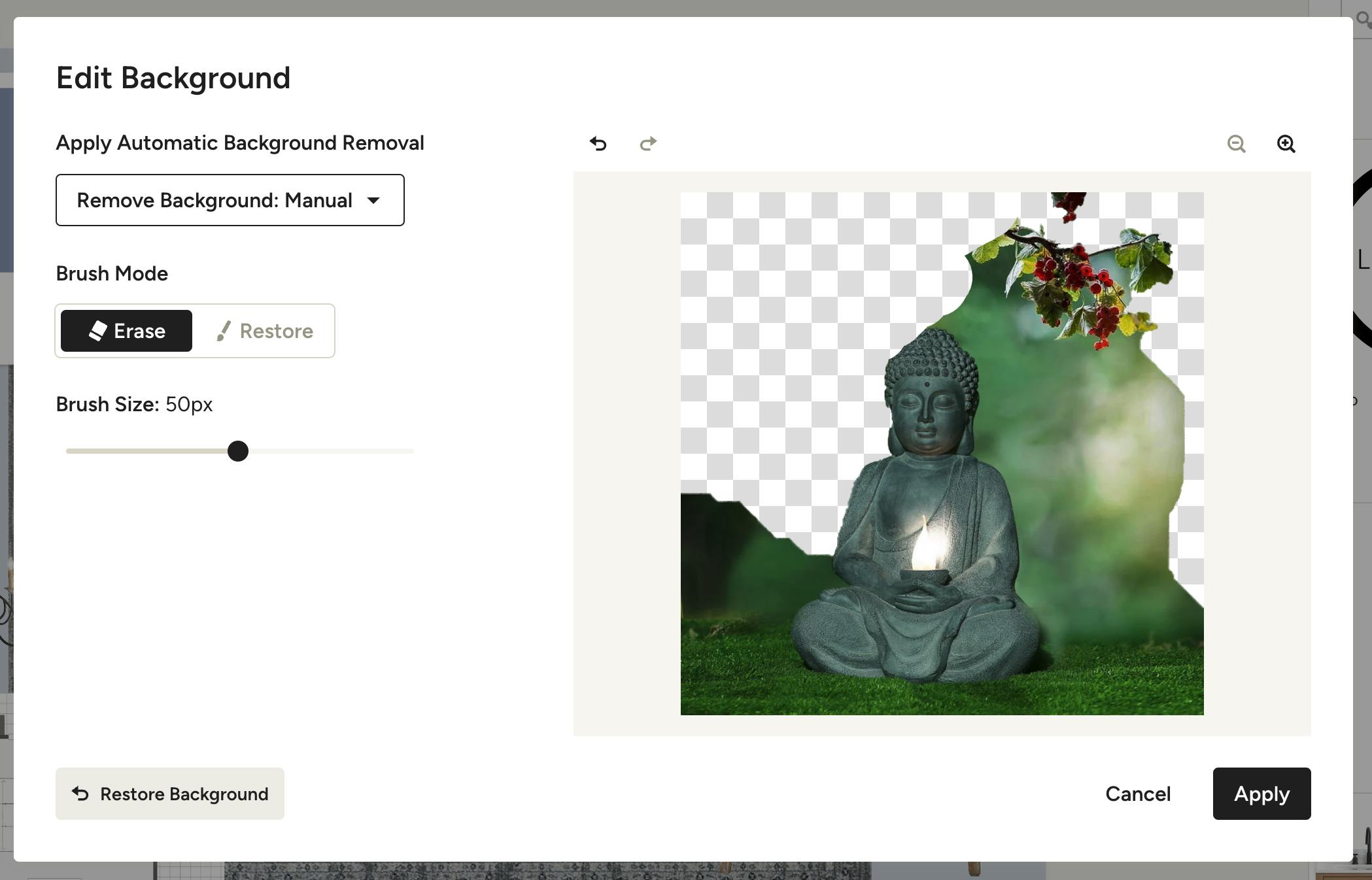
You can choose from three different background removal methods, including AI Powered, Basic and Manual. For more details on this tool, see How to Remove the Background on Mood Board Items.
Skewing an Image
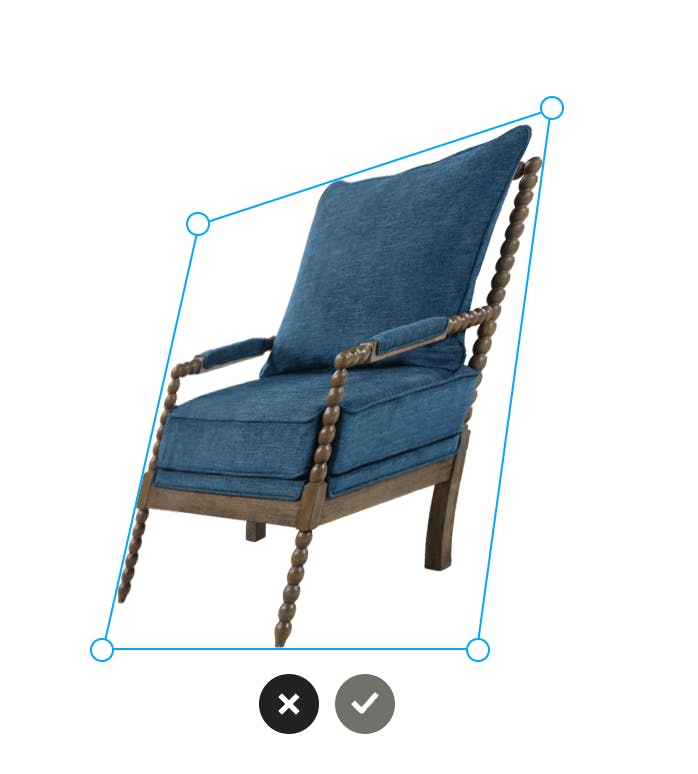
Want to show some perspective in your Mood Board or fix a distorted image? Use the Skew option from the expanded menu to adjust the composition of any item. Once you select Skew, you can adjust the product but clicking and dragging the blue dots until you achieve your desired result. Click the checkmark to save the result or the X to restore the original.
Ordering Images
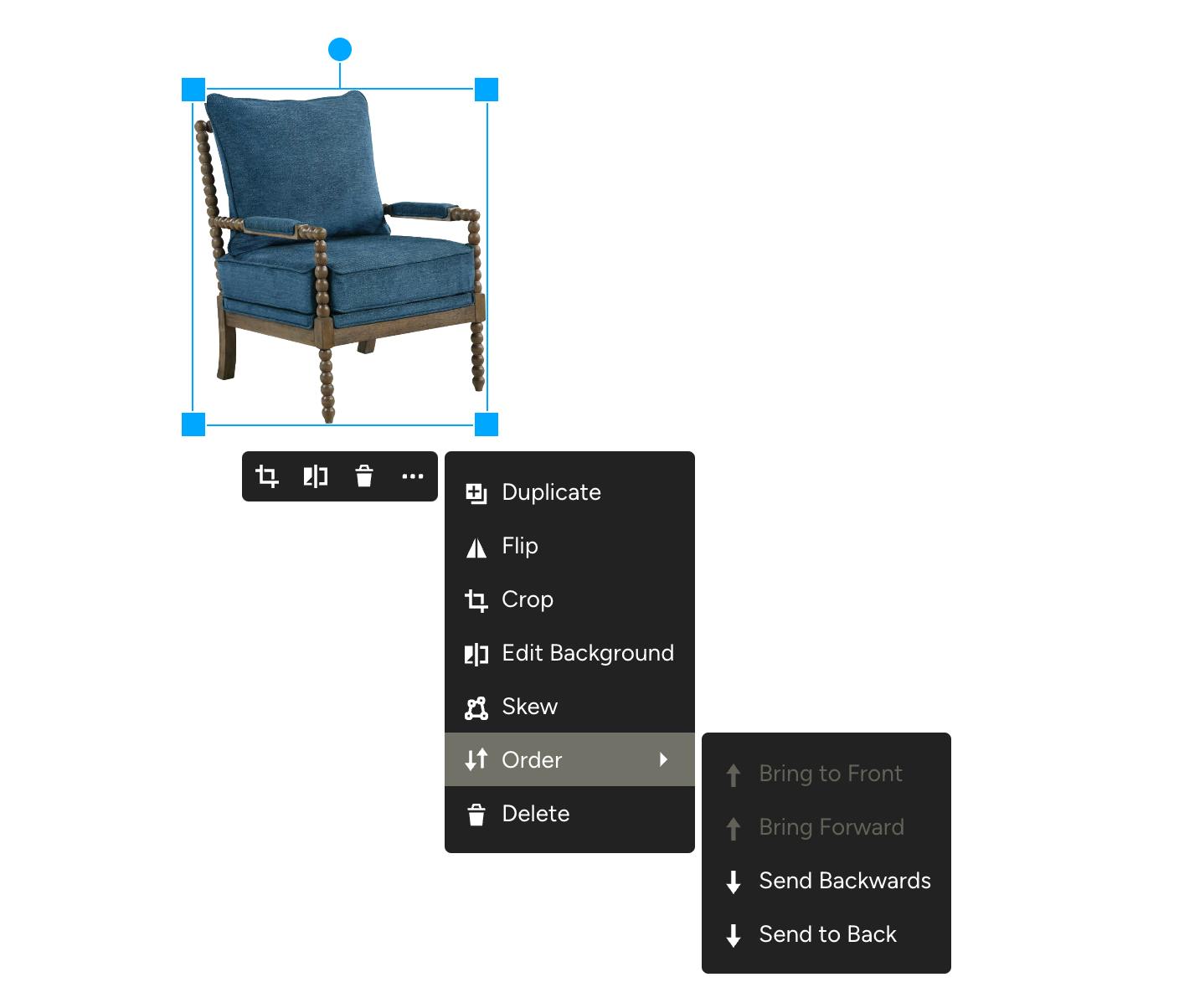
You can order/layer your product images in front of or behind one another by using the Order option. If you want your product to be brought to the front of all other images, click “Bring to Front”; if you want it to be moved behind all other items, press “Send to Back”. You can use "Bring Forward" or "Send Backwards" to move an item forward or backwards one layer at a time to precisely position things for an accurate representation of the space.
Resizing an Image
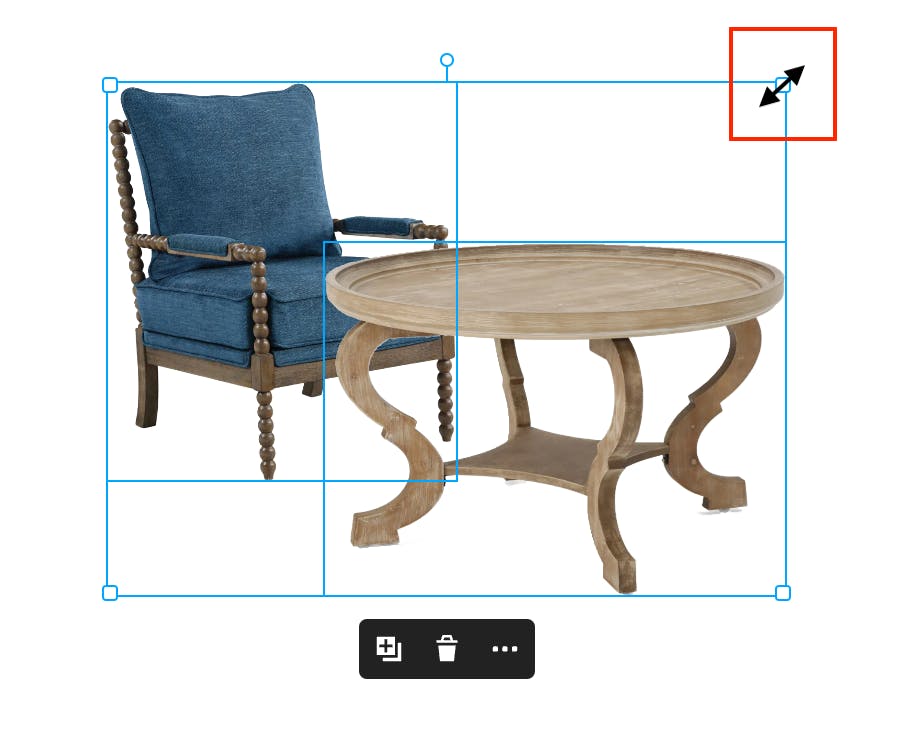
To resize an image on your mood board, select the desired image and place your cursor over any corner of the blue selection box. When you see the double sided arrow, click and drag the image to the size you want. You can resize multiple images at the same time by holding Shift [⇧] while clicking the images, then resizing using the method mentioned.
Rotating an Image
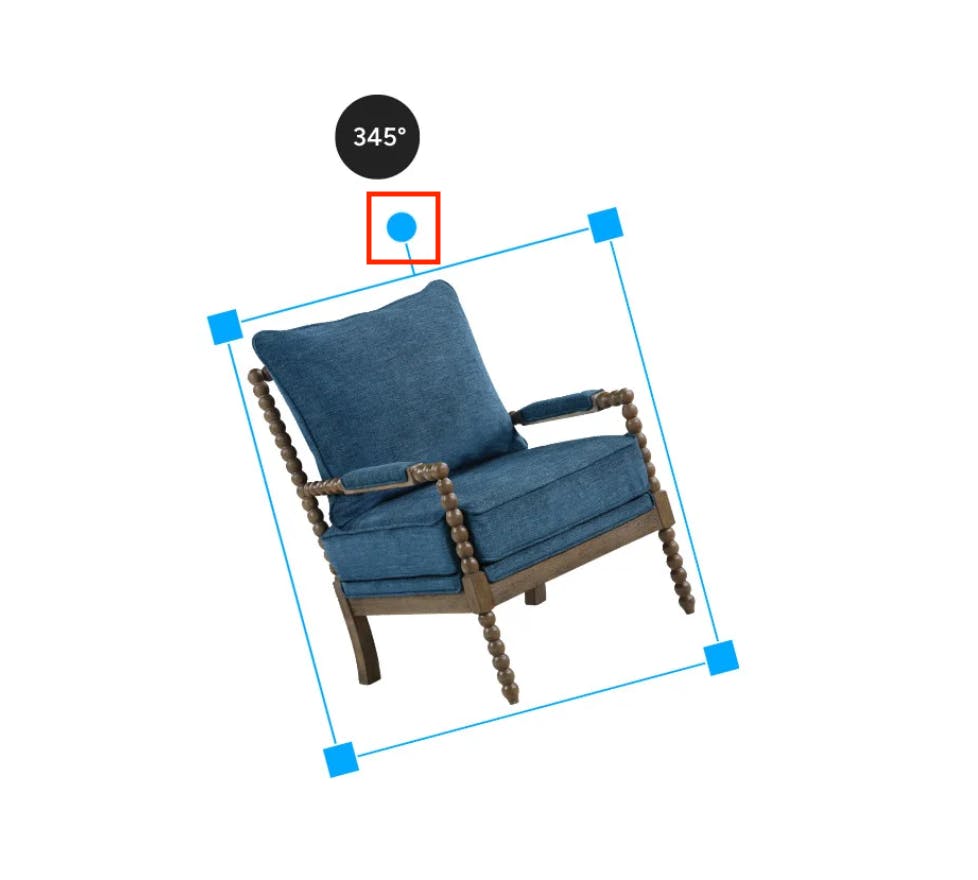
You can also rotate your images so that they are positioned to your liking. Do this by clicking on the blue dot at the top of the image and moving the image until you’ve reached your desired position. You'll notice the percentage of rotation displayed so you can be precise in your positioning and match other elements if needed. Hold down the SHIFT key while rotating to snap the element to 15 degree increments.

Adding Multiple Pages to a Mood Board
Make the most of your mood boards by adding multiple pages to create one cohesive presentation. You'll find the page management section at the bottom of each board, where you can add, edit, duplicate and customize your multi-page mood board to your exact needs.
For a more in-depth tutorial, check out How to Use Multi-Page Mood Boards.
Sharing a Mood Board with Clients
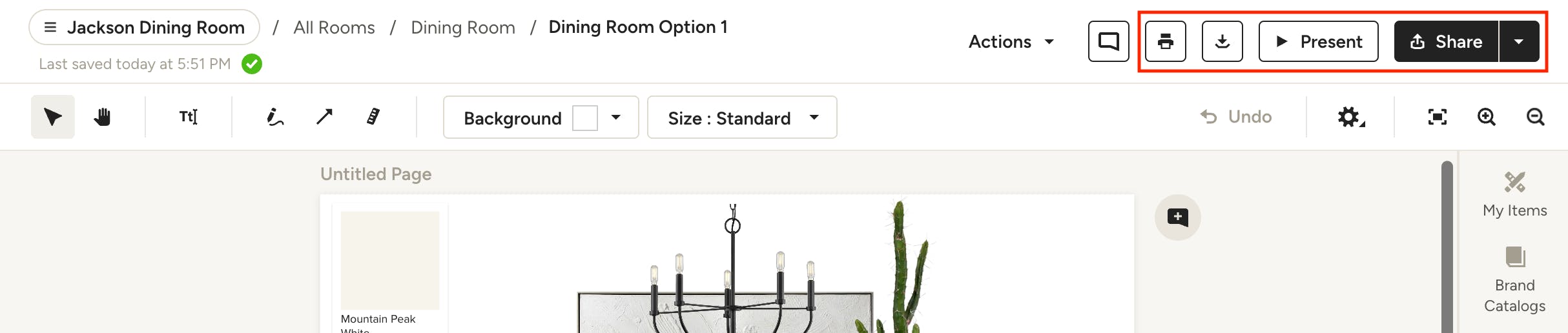
Once you're ready to share a mood board with your client, you have multiple options to do so. You can print a physical copy, download a PDF or JPEG file, present directly in Houzz Pro, publish to the client dashboard, or send a link. Learn about all of the options in How to Share Mood Boards.
Commenting on Mood Boards
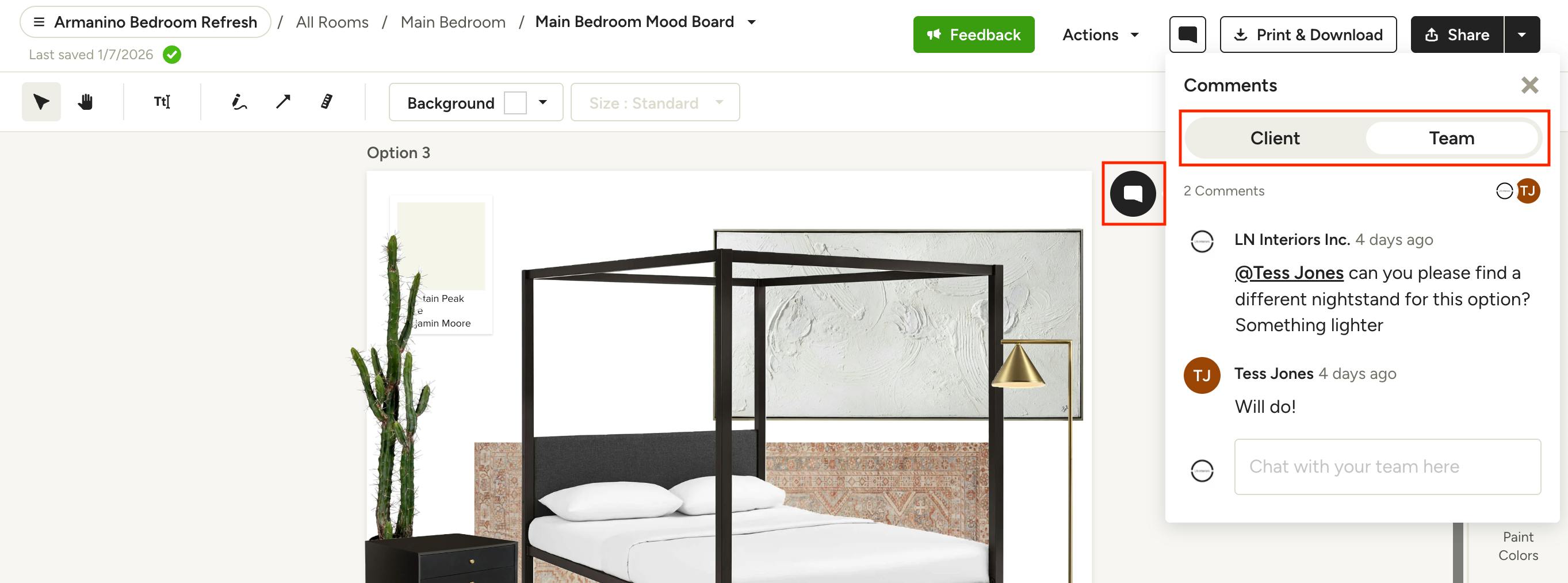
For quick collaboration between your team and/or your clients, you can use the comment feature on mood boards. This allows for in-context feedback that you can tie directly to individual items or an entire page, so you can spend less time going back and forth and more time perfecting the project. Learn more in How to Comment on Mood Boards.