How to Use Selection Boards in Houzz Pro

The Houzz Pro Selection Boards Tool is a workspace and presentation tool to help you manage your projects’ design processes from initial ideation to final product selection.
With each selections board, you can manage all your product and material selections, track the project budget, create full room views to present your vision to clients, and stay updated with changes.
Your selection boards can pull in your clipped products, materials, finishes, fixtures, appliances, mood boards, 3D floor plans, and files in an organized way to present to your client.
Your Selections Tracker can also be found in the Selections Tool area of your projects. Just click on the Tracker tab at the top of page to access this one-stop-shop for all the details and status of every product and service in your project, including which documents they’re connected to, such as boards, invoices or purchase orders.

Creating Selection Boards
From your Houzz Pro homepage, click the Selections icon in the Create New section. Fill in the relevant information and you're ready to start making selections! You can also click here to access all your selection boards across all projects.
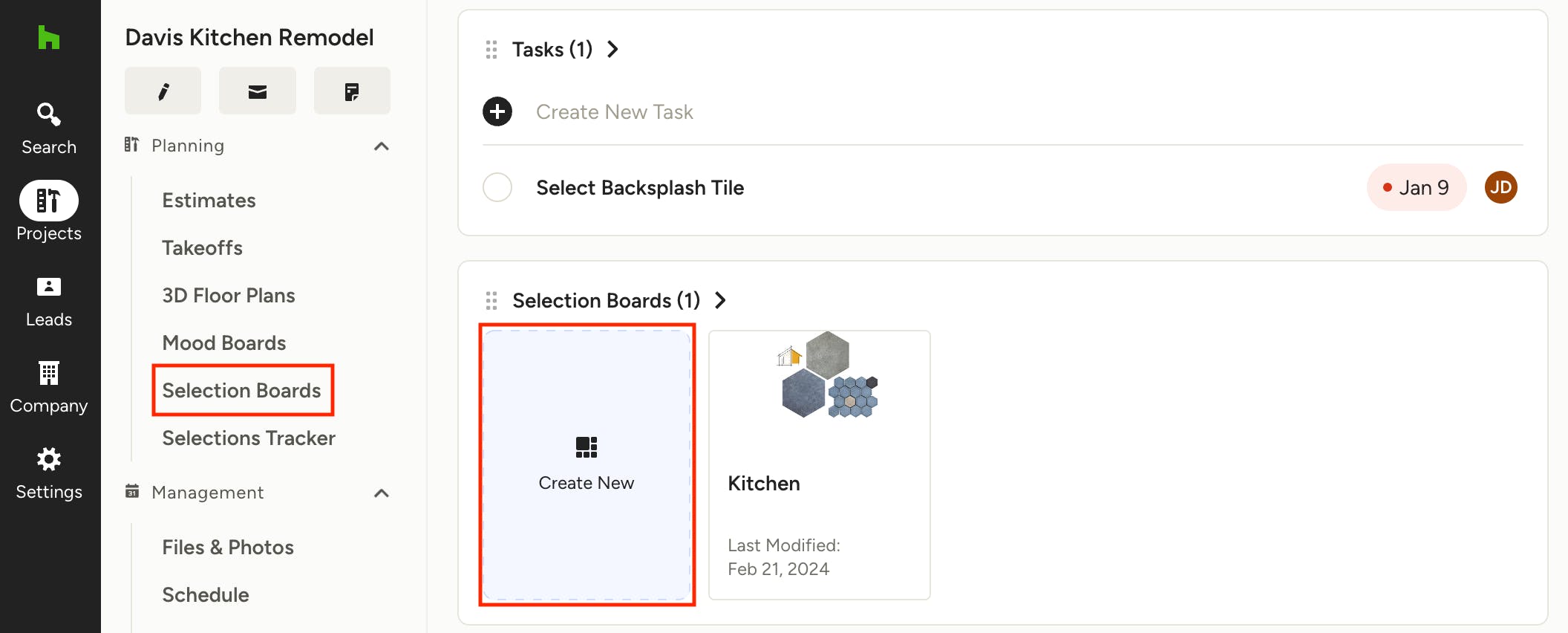
To create a selections board in a specific project, open the desired project and click Selection Boards from the left menu or click Create New from the Selections Boards tile. Fill in the relevant information and start making those selections!
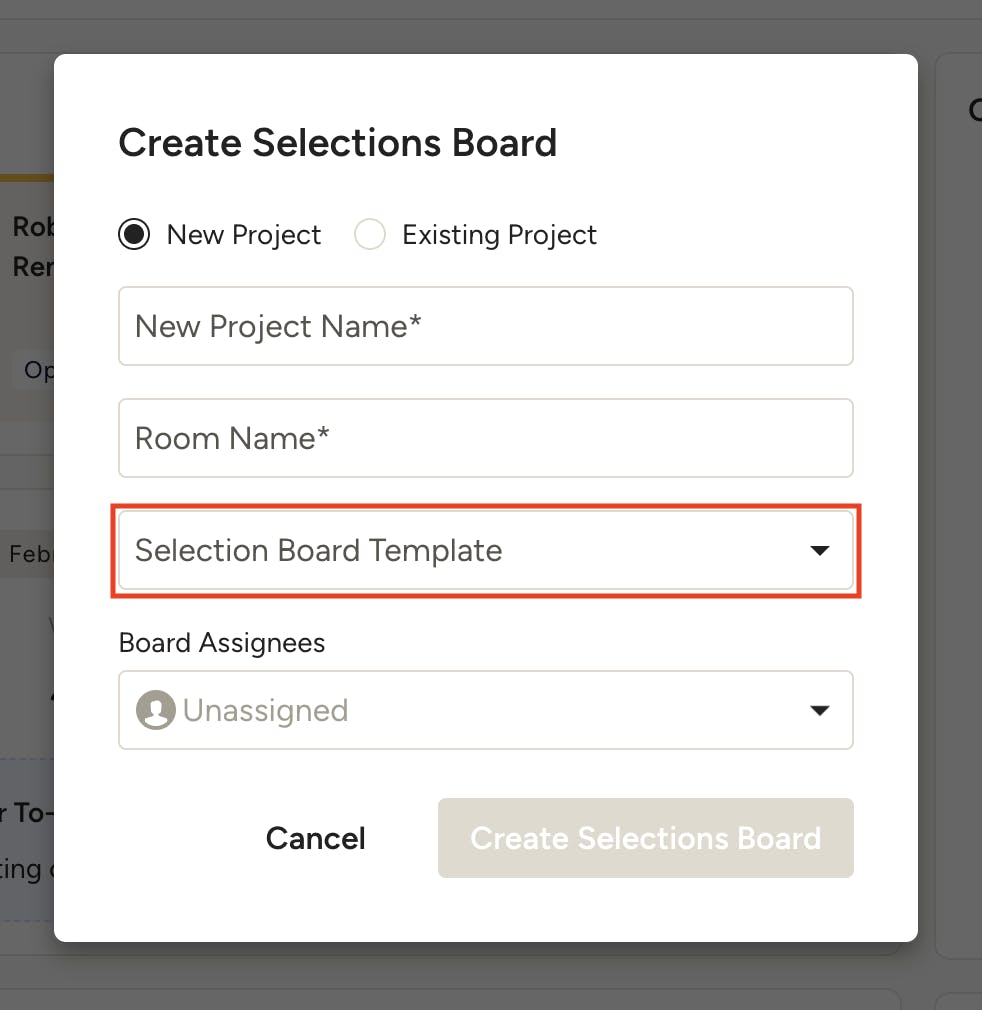
Create Selections Board From Template
If you have any selections board templates saved, you can easily apply one when creating a new board. Simply select the relevant template from the dropdown during the board setup process. Learn more about creating and using templates in How to Create Selections Board Templates.
Adding Items
To build out your selections you can pull in your sourced and clipped products, like materials, finishes and fixtures, from your library, as well as 3D floor plans, mood boards, images and files to create a professionally organized board to present to your client. You can also use Placeholders to ensure all project elements are accounted for, even if the products aren't yet sourced. You can either add items directly from Clipper, import from a link with Houzz AI, or from various sources within the side panel on the right.
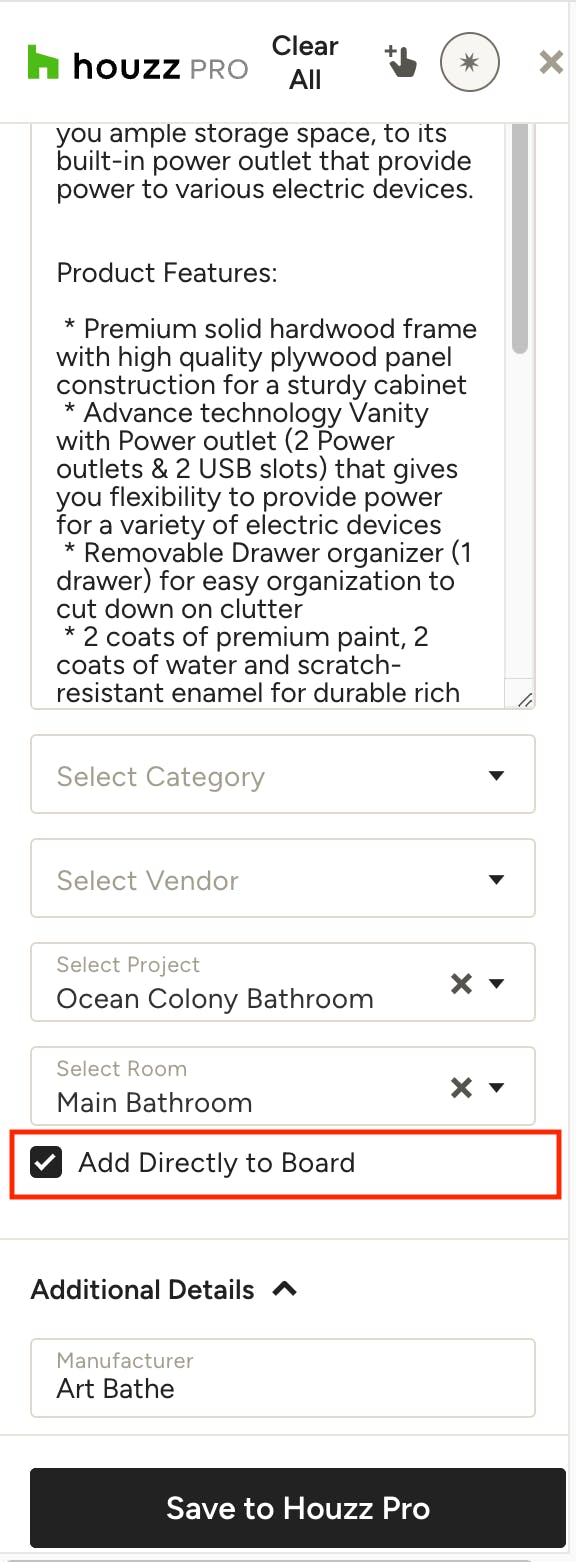
Directly from Clipper
When you clip an item via our Clipper Tool and select the room you want it added to, a checkbox will appear that says "Add Directly to Board". Check this off before saving and the item will automatically appear in the board the next time you open it.
Note: this checkbox is only applicable to new experience projects and will appear only if the selected project is a new experience project.
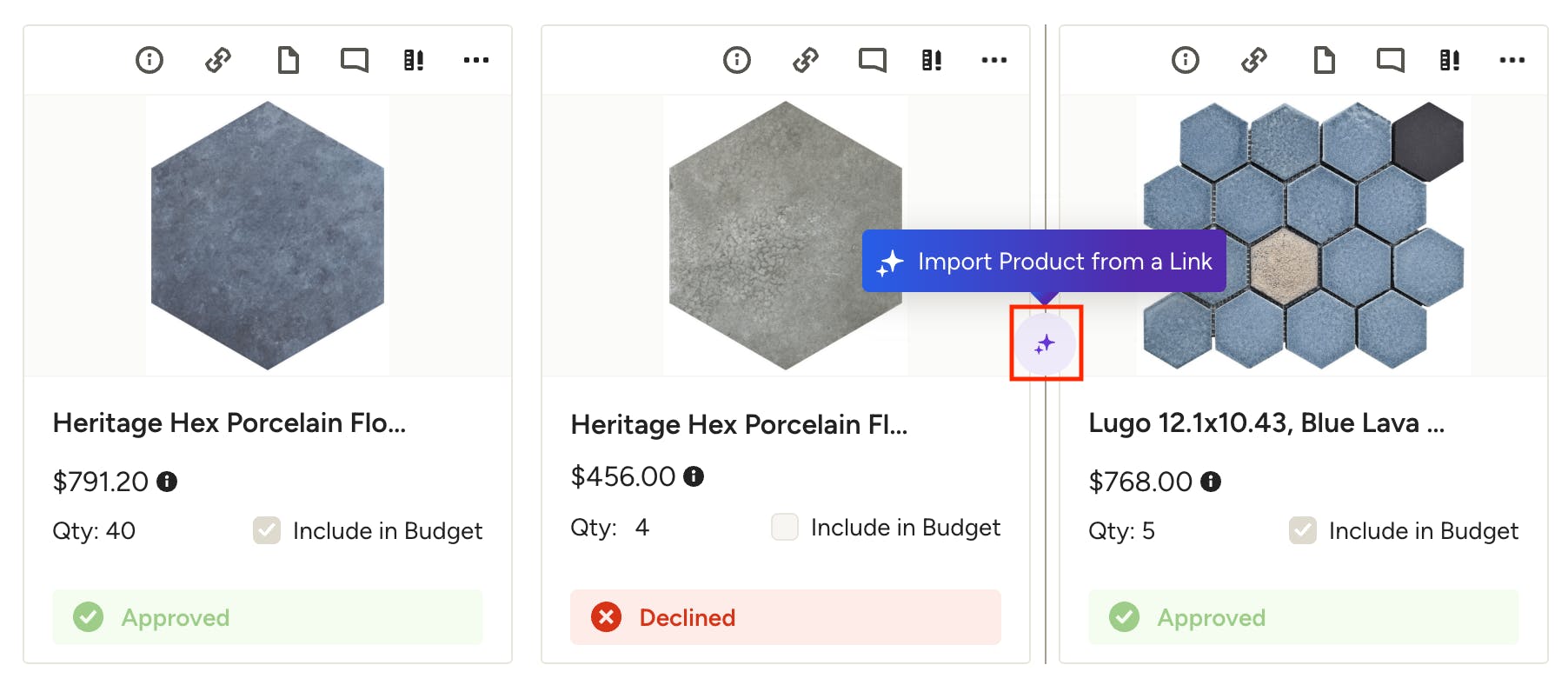
Import Product from a Link
With Houzz AI, you can copy/paste a product URL, let AI fetch all details and images instantly, and insert the product directly into your board — you even have the option to save the product to your My Items library for future use. Let's see how:
Place your cursor next to the item card where you want to add the new product and click on the Houzz AI icon that appears.
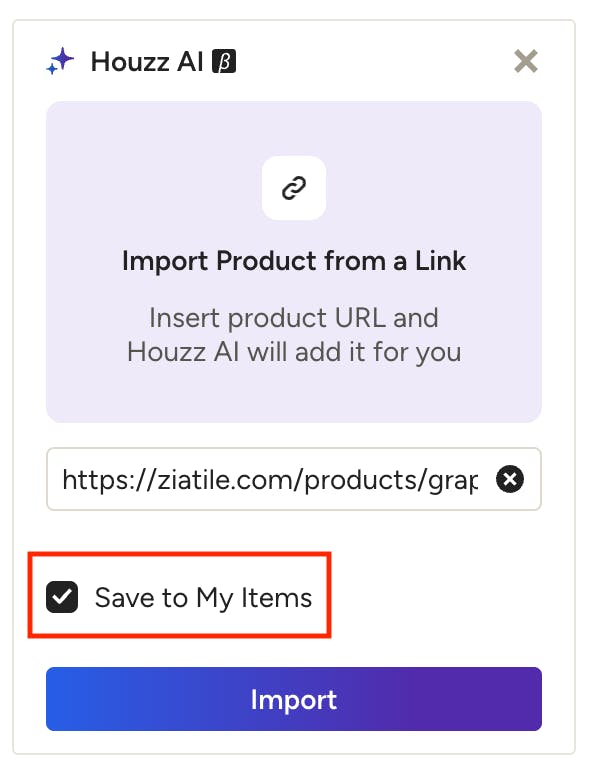
Next, paste the URL for the product you want to add. Check the box next to Save to My Items if you want to add it to your library for future use — if you leave this unchecked, the item will only be included in the project you are currently in. Click Import.
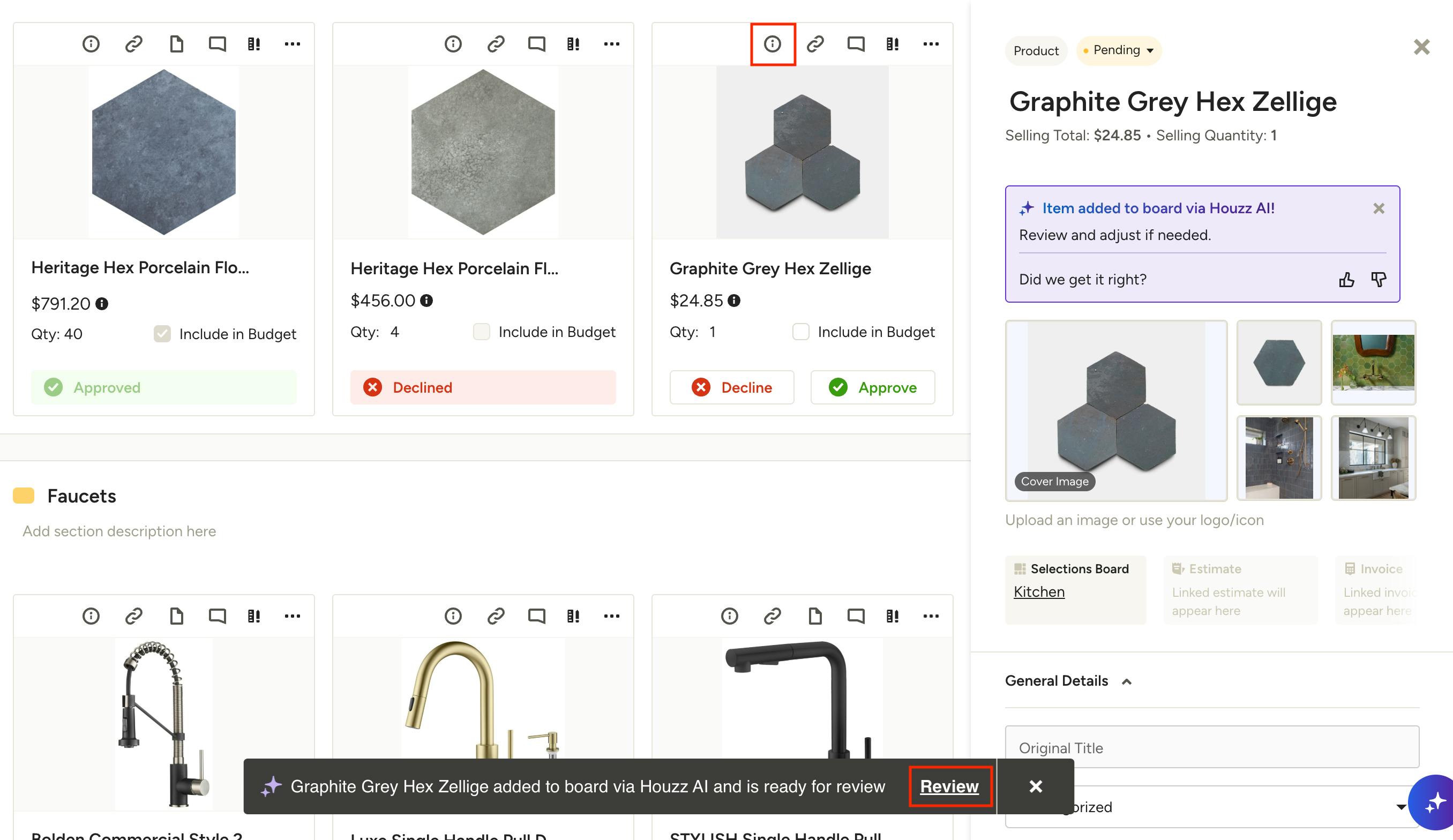
If you chose not to save to My Items, Houzz AI will fetch the item details and create a new item card. You can view and edit the details by clicking Review in the banner that appears on the bottom of your screen, or by clicking the i icon on the new item card.
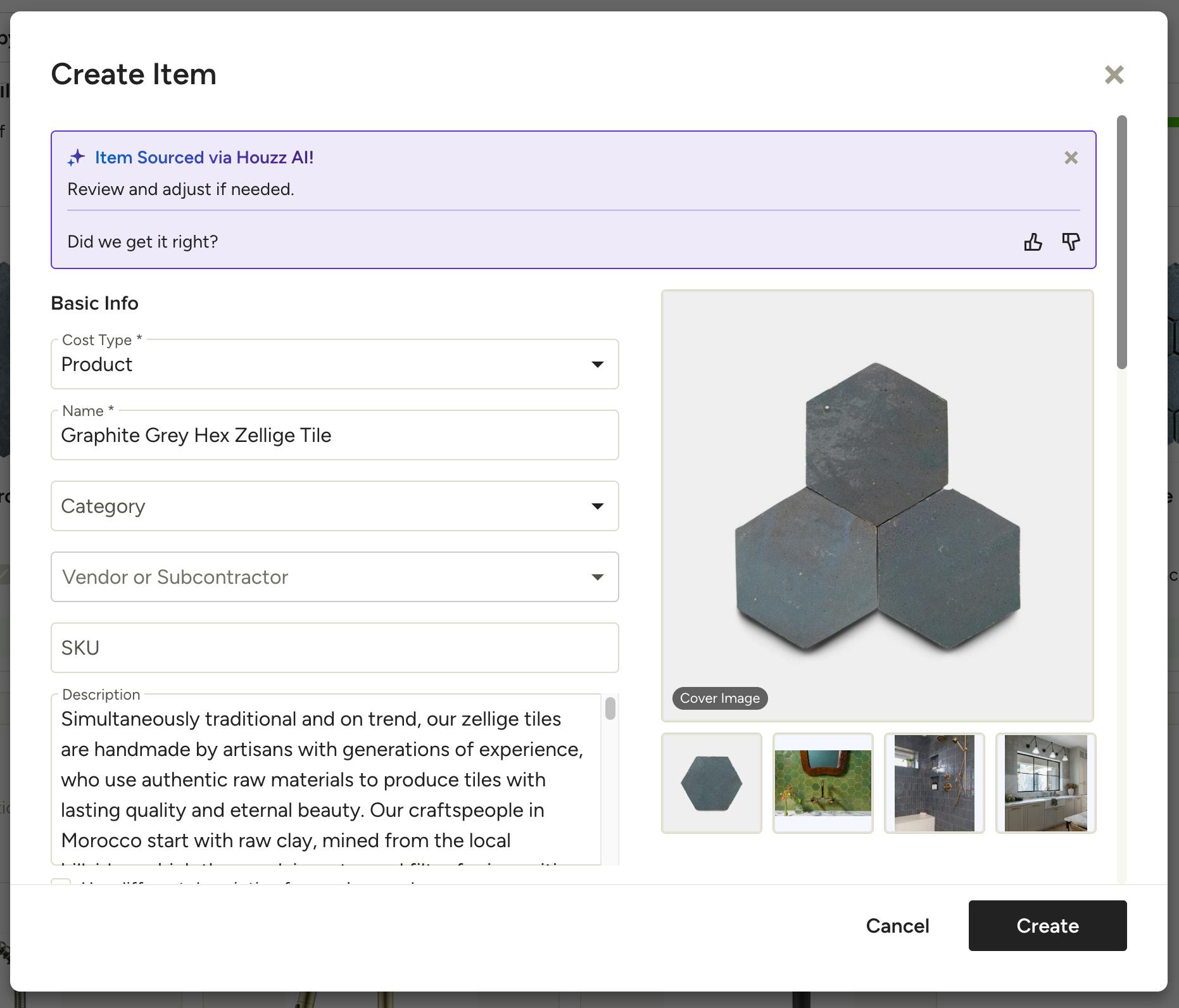
If you chose Save to My Items, a new screen will appear with the details Houzz AI fetched. You will need to fill in any other relevant information, including category and vendor, then click Create. The item card will be added and the item will be available in your library for future use.
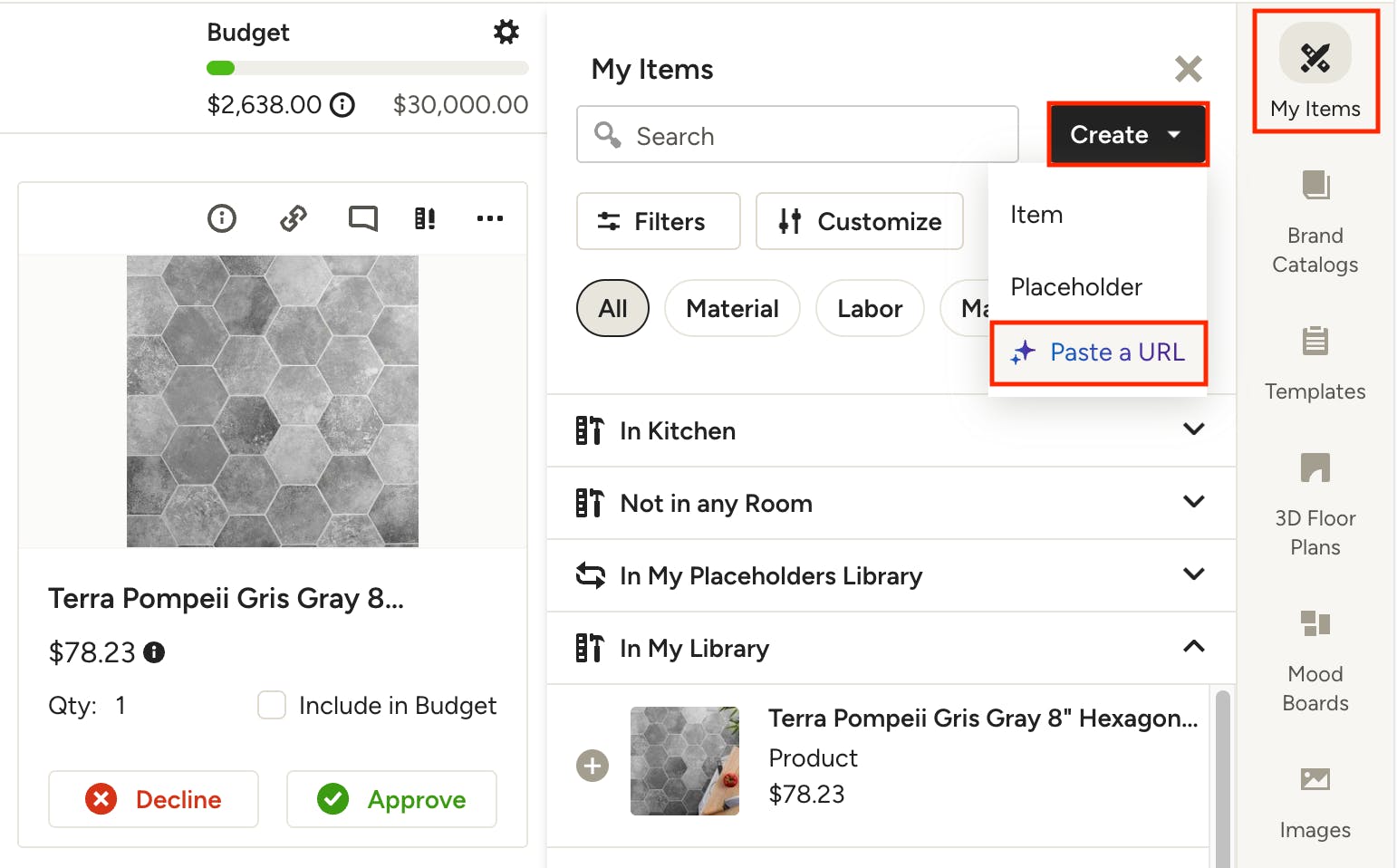
You can also access this method by opening My Items in the right panel and selecting Paste a URL from the Create menu. This will add the new item to your library for future use. If you want to add the new item to your board, simply click and drag to the desired position.
From the Side Panel
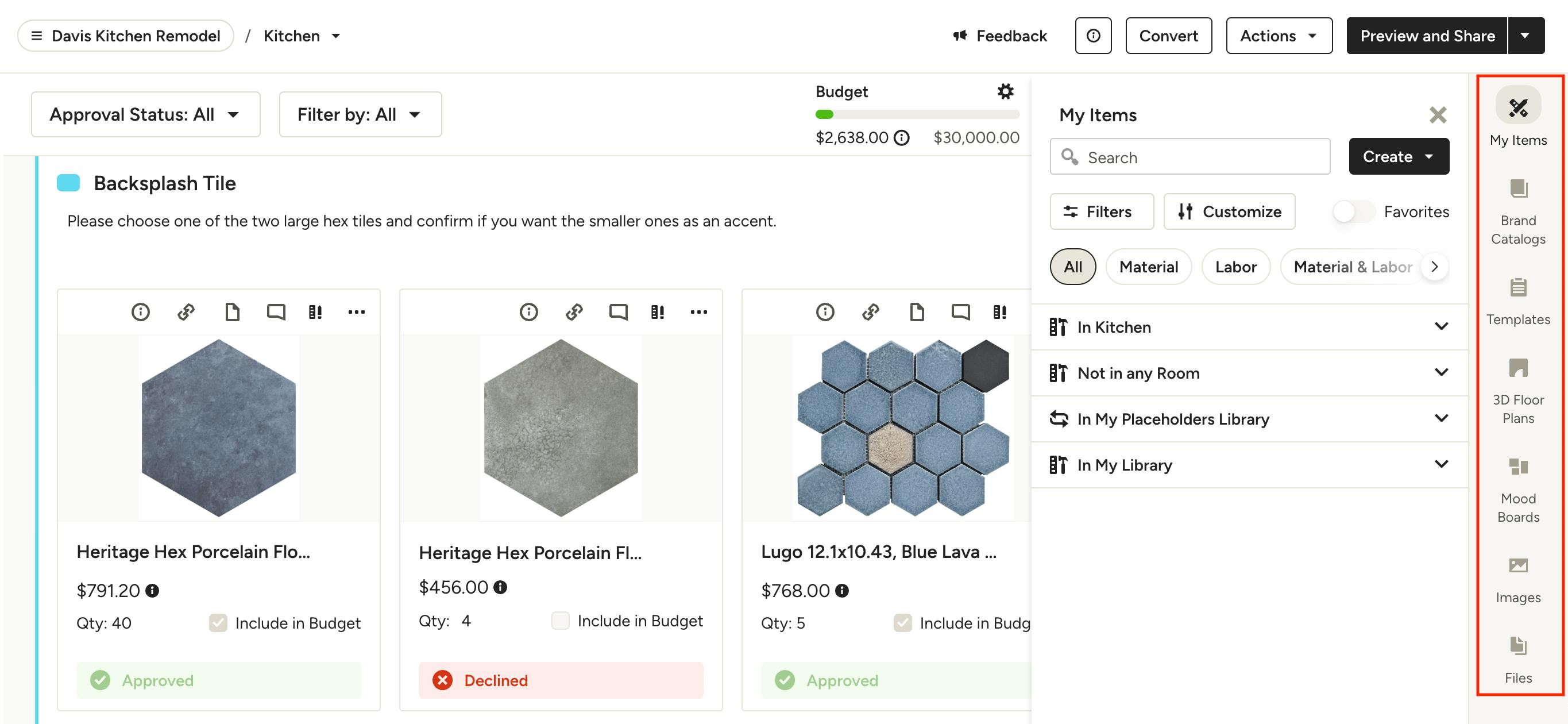
1. Click: By clicking on an item in the side panel, it will be added to the beginning of your board.
2. Click, drag, and drop: If you click and drag an item from the side panel, you can place it at a specific position on your board by dropping it where you desire.
Here is a breakdown of all the different types of items that can be added to your selection boards from the right panel:
My Items: You can access your entire library of products in the My Items section, including any items you've saved via the Clipper or added manually, as well as Placeholders. My Items is broken down into multiple sections, including "In this Project", "In My Library" and "In My Placeholders Library". Any items under "In this Project" are associated with the specific project you're in, whether assigned directly from My Items page or added to the project when clipped. You may see these organized by room instead, like "In Kitchen" or "Not in any Room" — both sections are project items. Items under "In My Library" include all items across all projects, including those not assigned to any project.
Brand Catalogs: Here you'll have access to items within your brand catalogs, including products from The Home Depot catalog.
Templates: Any selections board templates you have saved will appear here, where you can apply all or part of a template to your current board.
3D Floor Plans: All project-related floor plans that you’ve created for your client can be found in this tab, under “Assigned to…”. You can also add floor plans that are not specifically assigned to this project, under the tab “Unassigned”.
Mood Boards: Under the Mood Boards tab, within "Assigned to...", you can find all the project-related mood boards that you have created for your client. Additionally, you can also add mood boards that are not specifically assigned to a project under the "Unassigned" tab.
Images: From the Images tab you can easily upload images from your computer or your Google Drive, or pick from your existing project Files & Photos.
Files: If you want to add new or existing project files to your selections board, such as product specs or install guides, use the Files tab. You can choose to upload files from your computer or your Google Drive, or pick from your existing project Files & Photos.
Editing Item Details
You can view and edit item details from multiple locations in your selection board. Let's look at all the options:
Edit Directly on Item Card
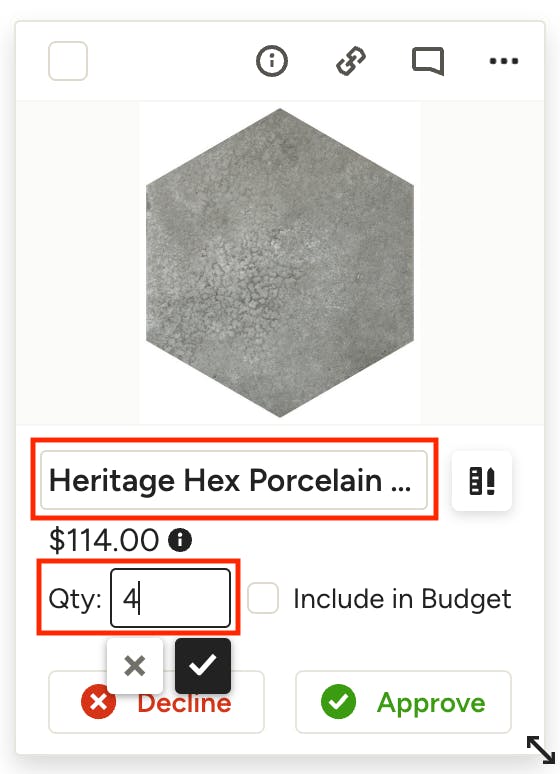
On each item card you can edit multiple fields by clicking directly on the aspect you wish to change, including the title and quantity. Once you type in the desired change, click the checkmark or hit enter on your keyboard to save the edit.
View/Edit Item Specifications
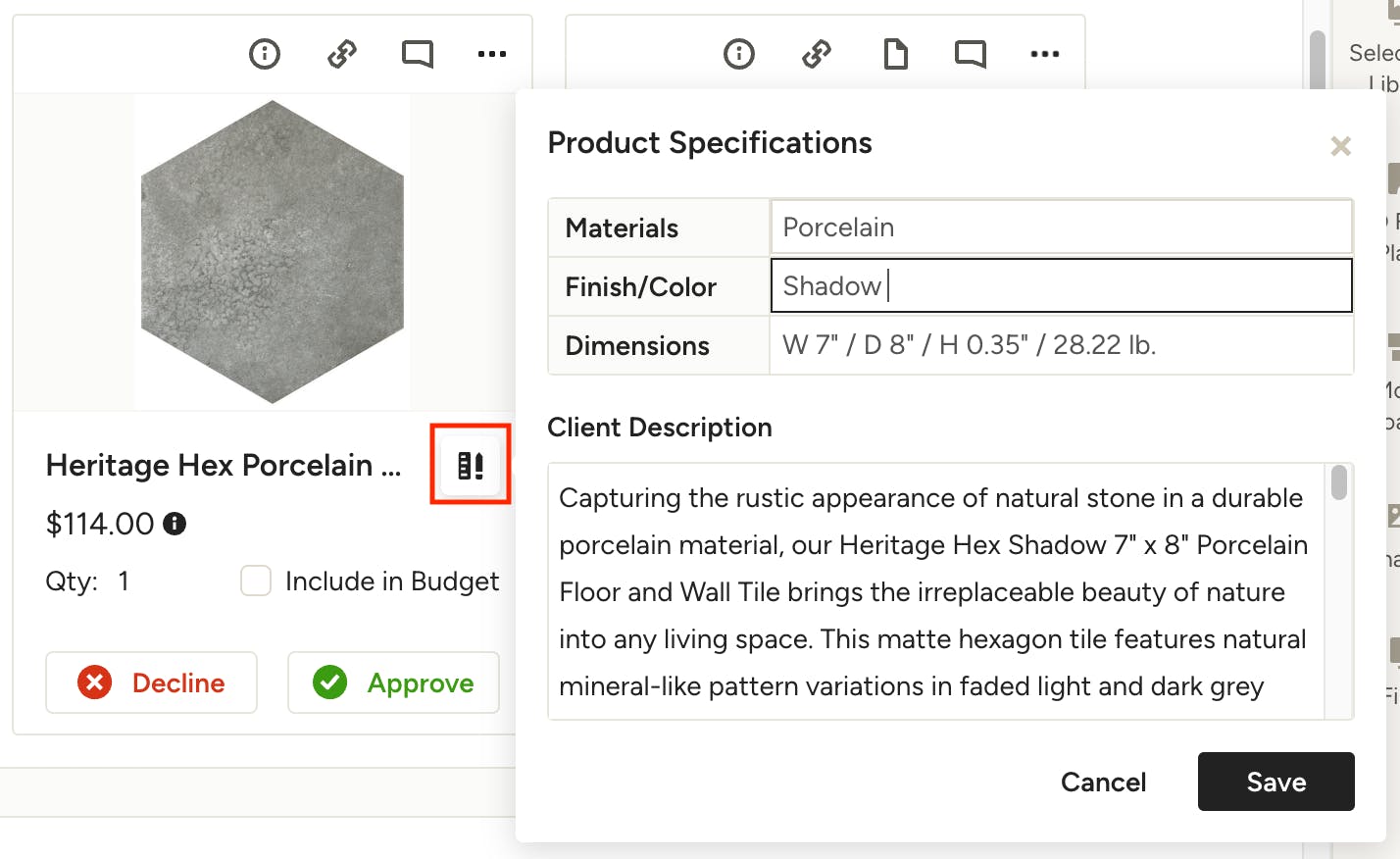
To quickly view the basic product specifications, including materials, finish/color, dimensions and description, click on the Specifications icon to the right of the title on an item. In the modal that opens you can click into any field to make changes, then click Save.
View/Edit Complete Item Overview
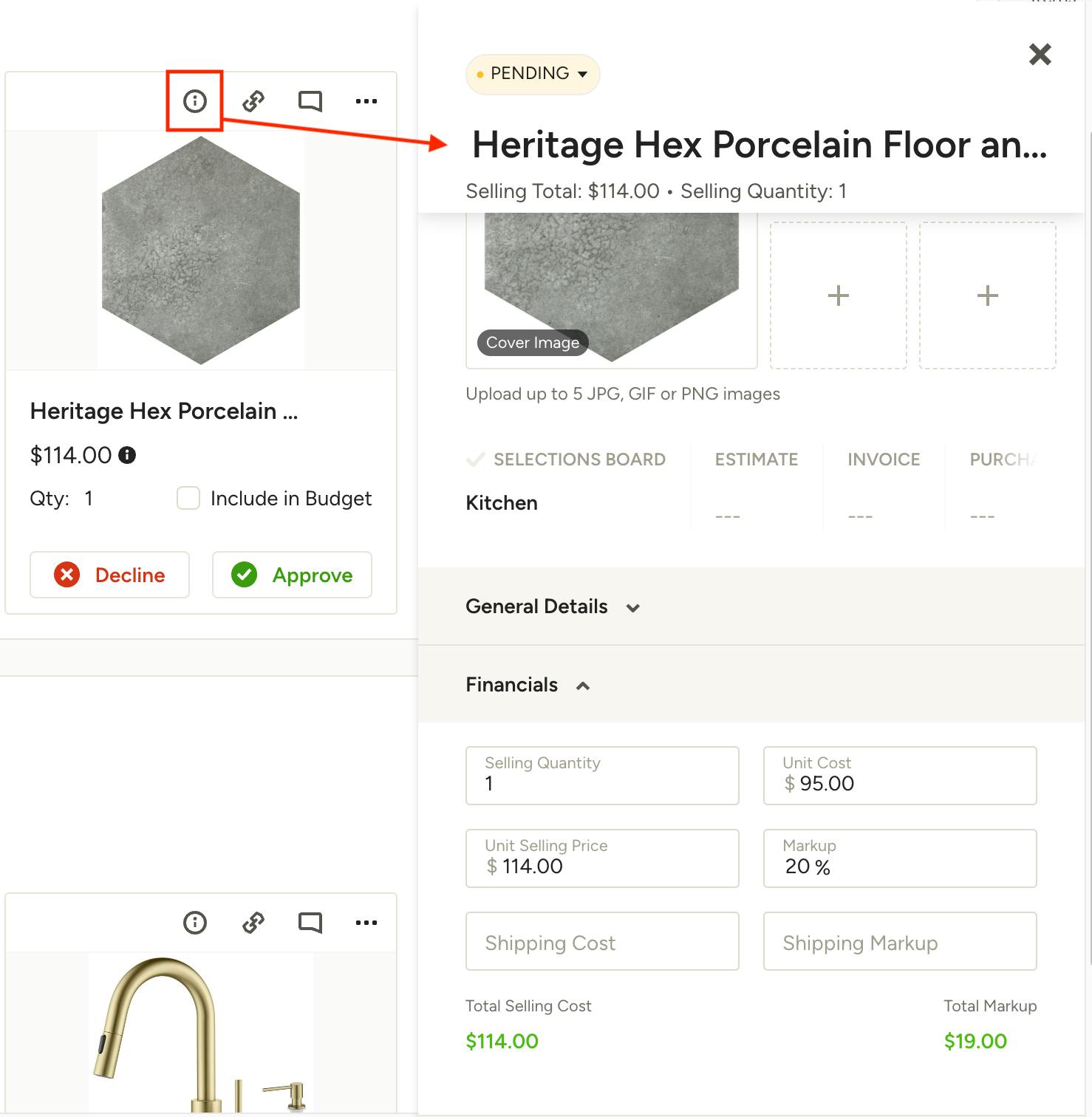
To view the full item overview, including photos, details, attachments, financials, order tracking, addresses and more, click the info icon at the top of the item. This will open your Item Overview panel where you can view and edit most aspects of the product. Your changes will be automatically saved.
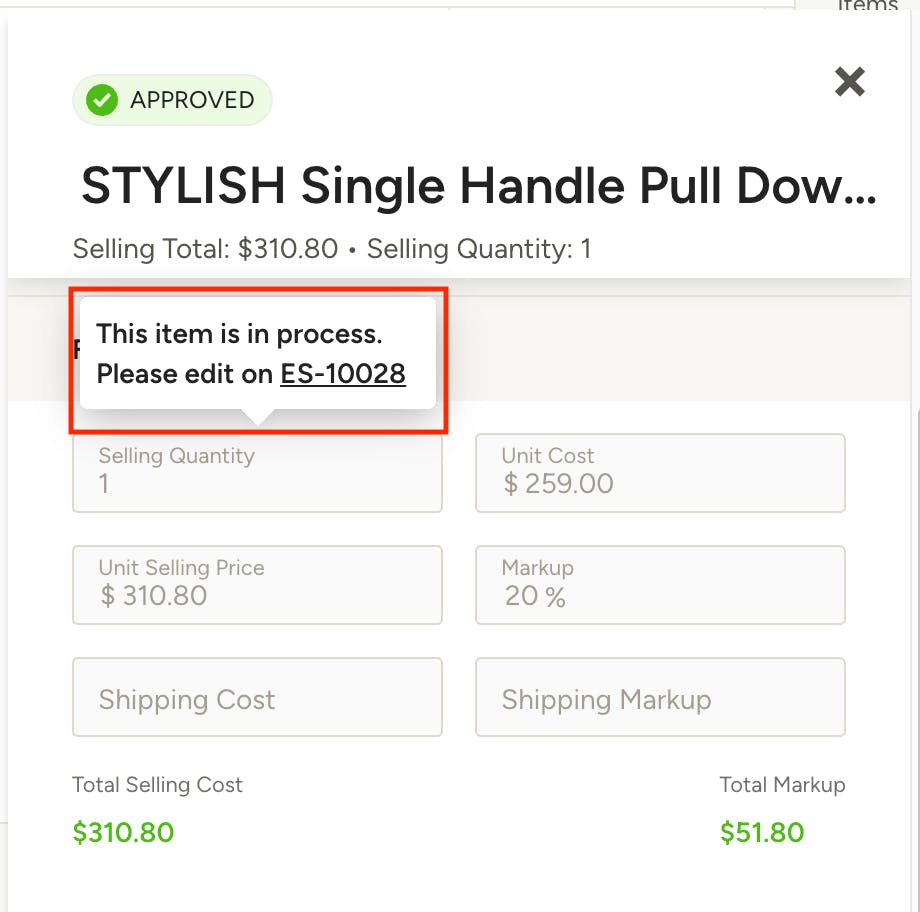
Note: Items that are "in process" will not allow editing of certain details, including financial data. The items must be edited on the document that they are linked to, which can be accessed by clicking the document name in the pop-up.
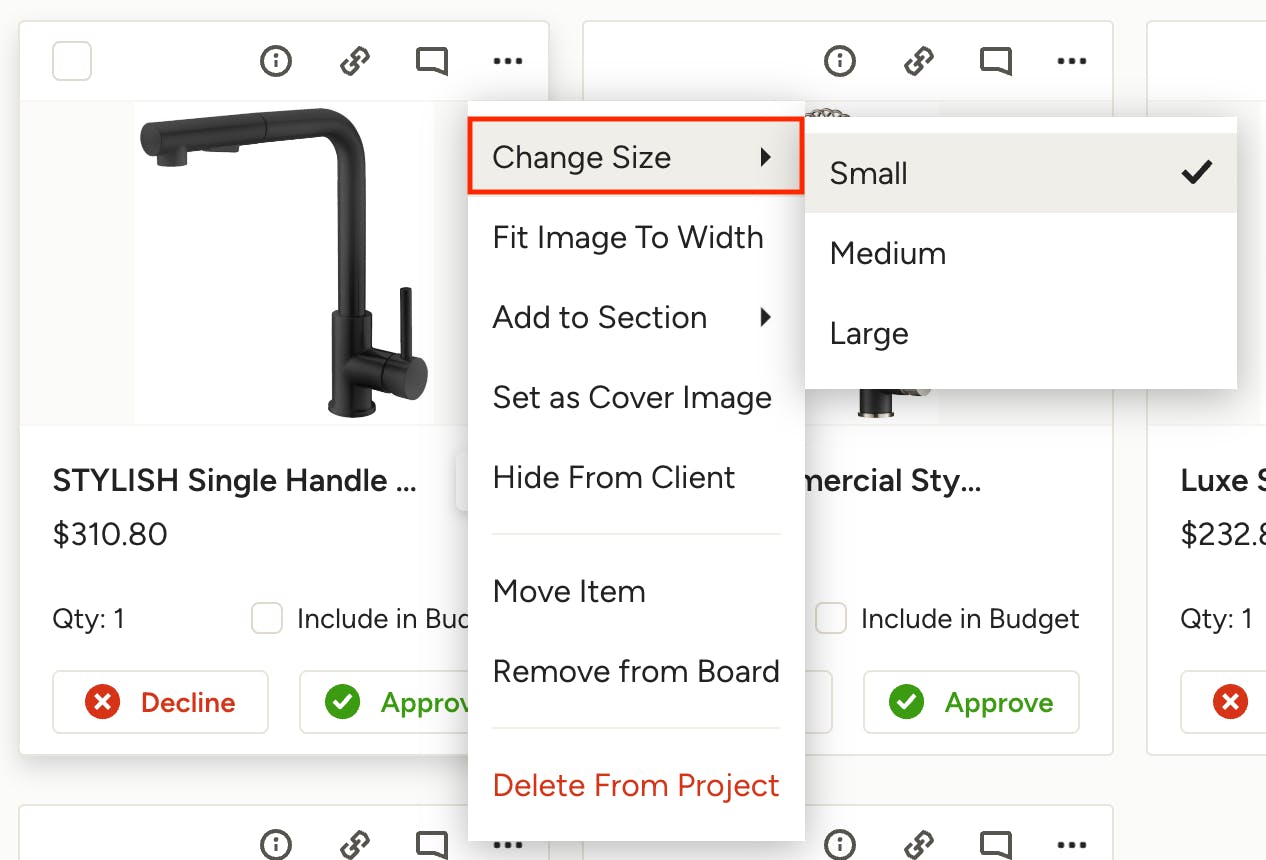
Rearrange and Resize Items
You can rearrange and resize items to spotlight your suggestions and visually organize it the way you want. To rearrange items on your board, click on the top part of the item and drag it to the desired spot on.
To resize an item, click on the three dots in the right corner, mouse over Change Size in the menu and select the new size you want. You can set items to be small, medium or large.
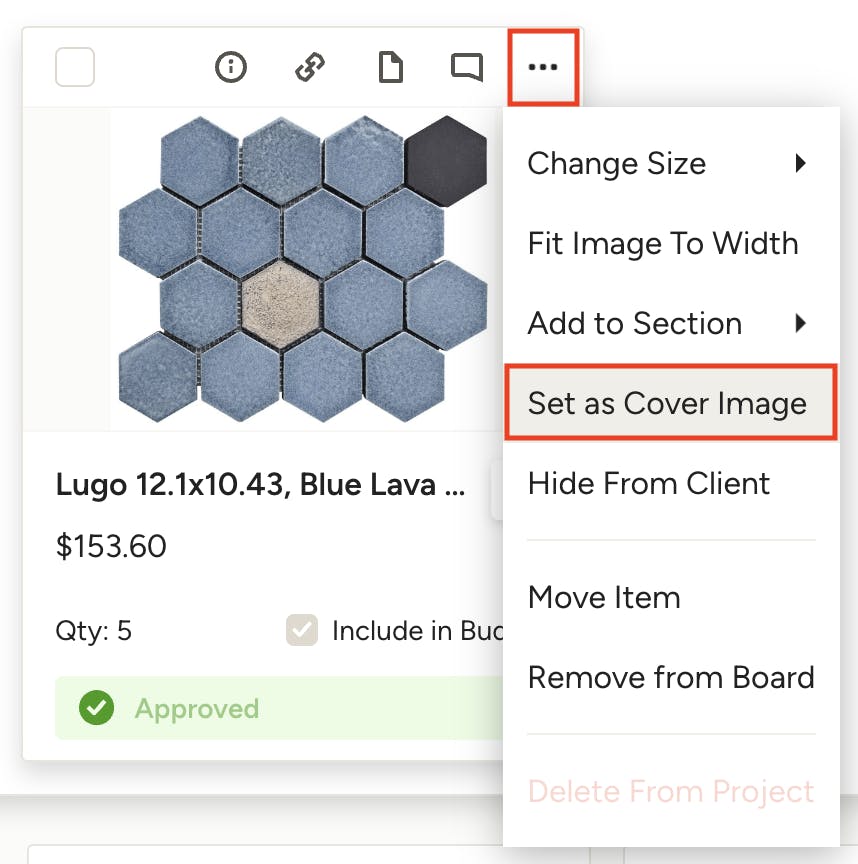
Set a Cover Image
The cover image is what appears as the preview thumbnail for a selection board across the Houzz Pro platform — on the project overview, client dashboard and more. Help your team quickly identify boards and present your work professionally to clients by setting cover images on your selection boards. There are two options to set a cover image:
Option 1. Use any item on the board as the cover image by clicking the three dots to the top right of the item and selecting Set as Cover image.
Pro tip: Mood boards make great cover images.
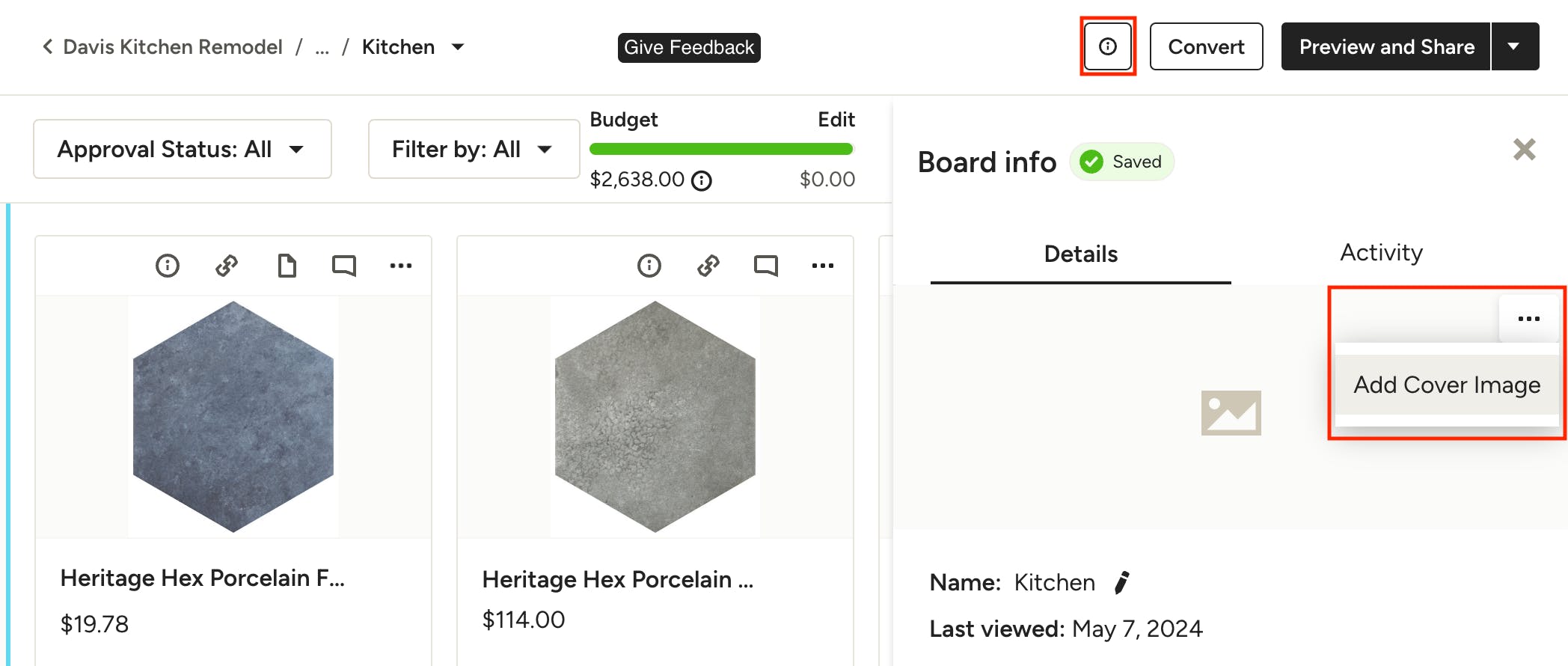
Option 2. Click the Board Info icon in the top, then the three dots under the Details tab and select Add Cover Image. This will allow you to upload an image from your computer to use as the cover image.
Organize Items by Sections
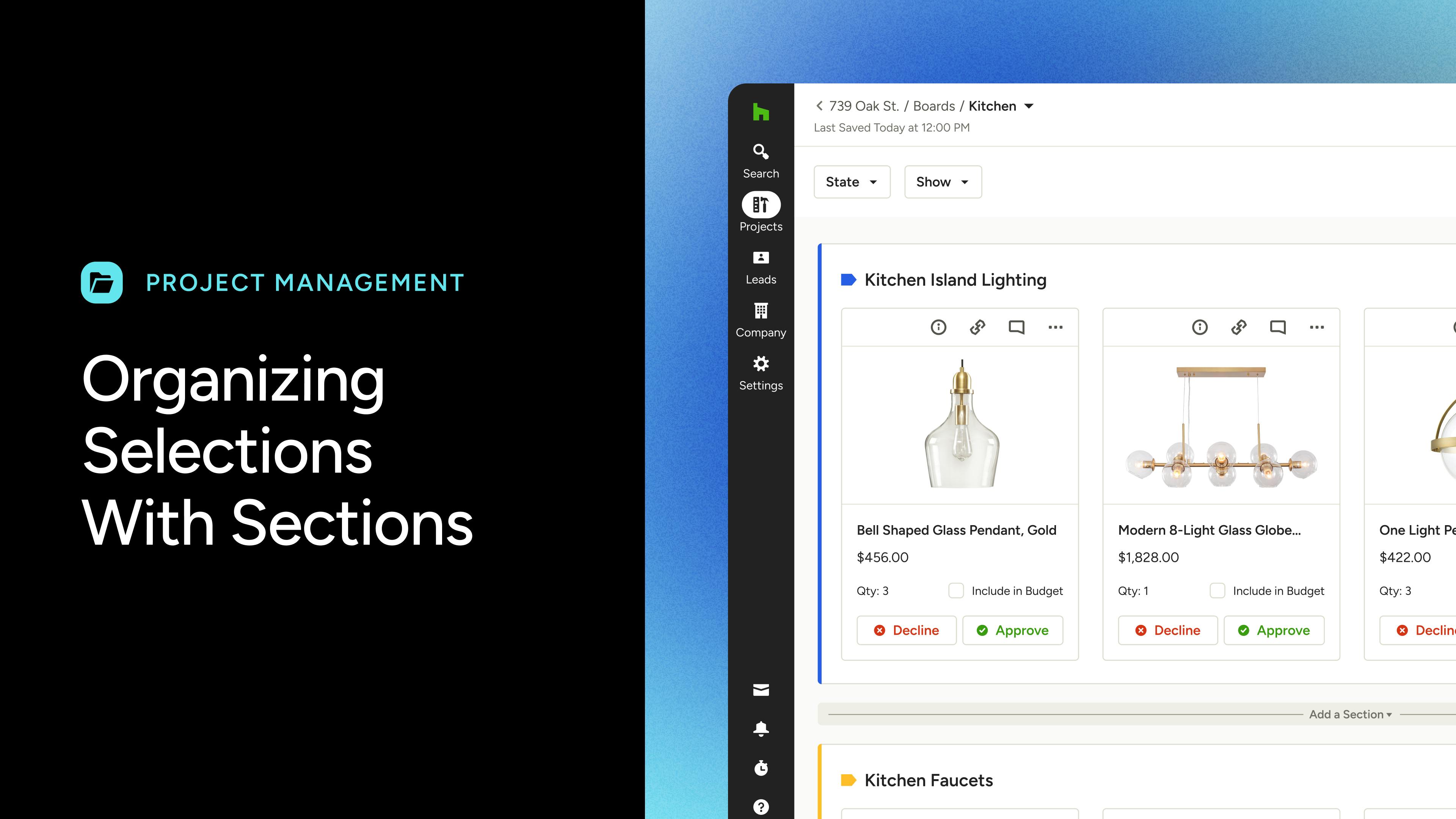
Quickly organize your selections board by creating sections. This feature helps you to group items together however you see fit, whether by fixture type, material options or any other method you may have. You can use these sections to help present the board to your client in a way that helps them easily visualize which selections need to be made. Watch this video or read the step-by-step instructions below to learn how to create sections on your boards.
Create Section
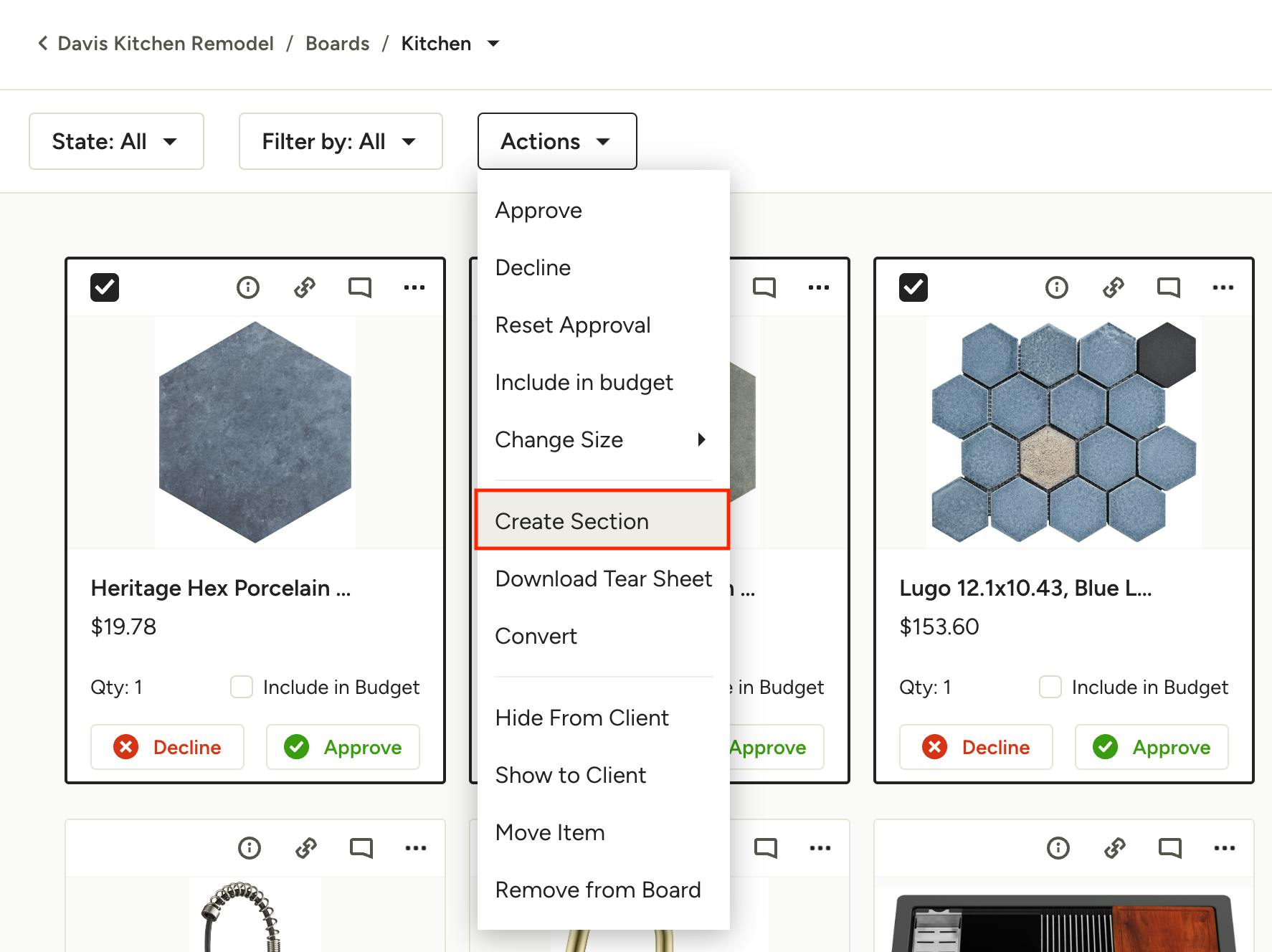
To create a section, select the items you want grouped into the section by clicking the checkbox in the upper left of each one, then click Create Section from the Actions dropdown.
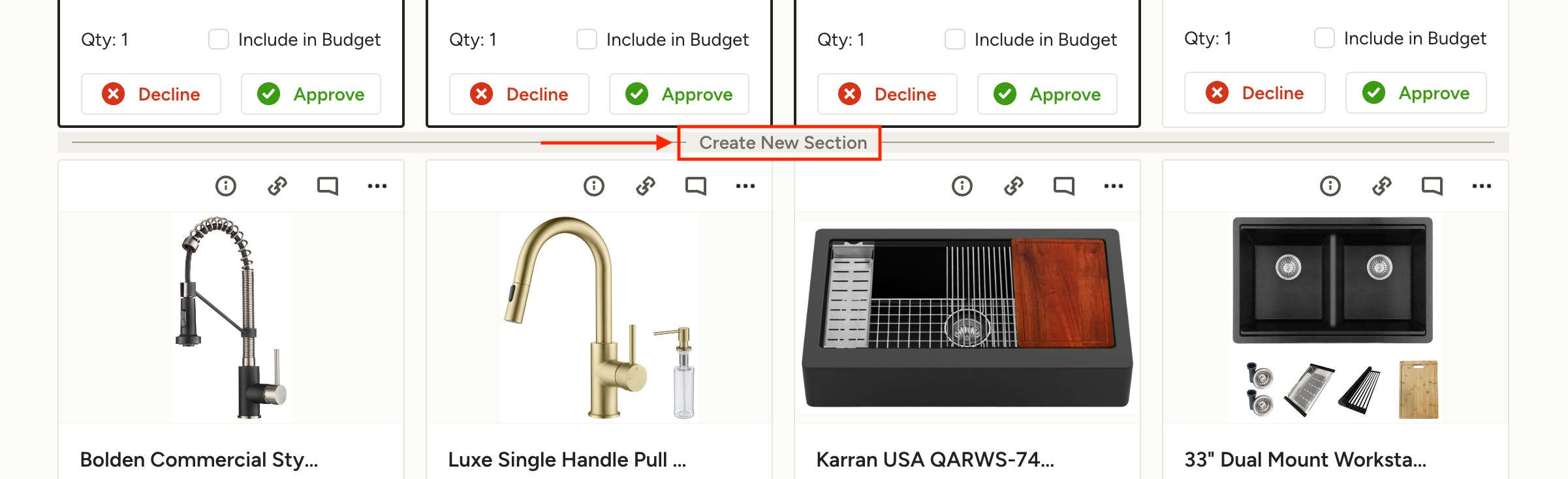
You can also quick-create a new section by placing your cursor between any row of items and clicking on the Create New Section option that appears. From here you can drag and drop items into the new section.
Add Section Name
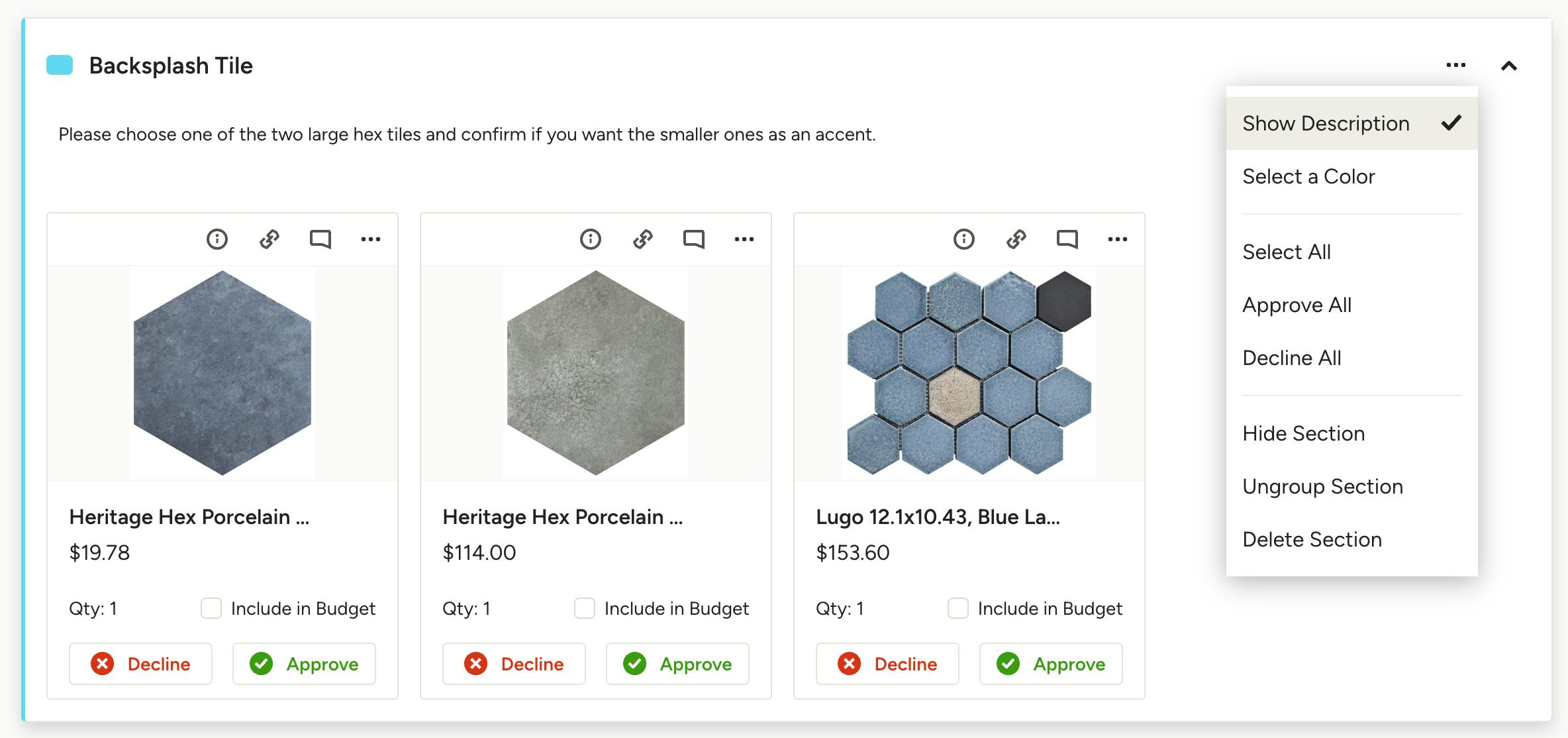
Name your section in the text field at the top and click the checkmark to confirm. You can also add a description or question for the client in the field below.
Set Section Color
Select a color for the section to help it stand out. Click the three dots in the top right of the section to pick a color. You can also show/hide the description and choose from other actions within this menu.
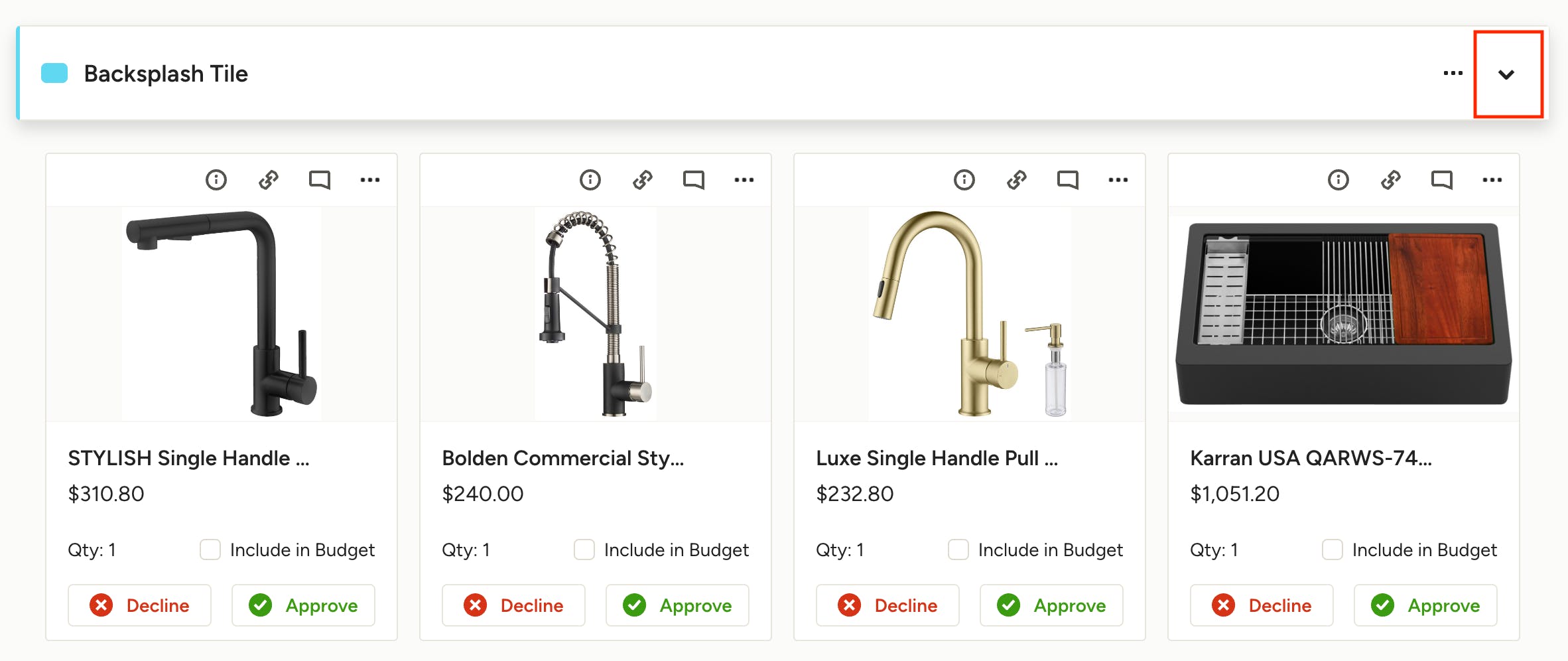
Pro tip: Collapse one or more sections to help you or the client focus on certain selections without having to hide or remove items. Use the arrow in the top right to expand or collapse the section.
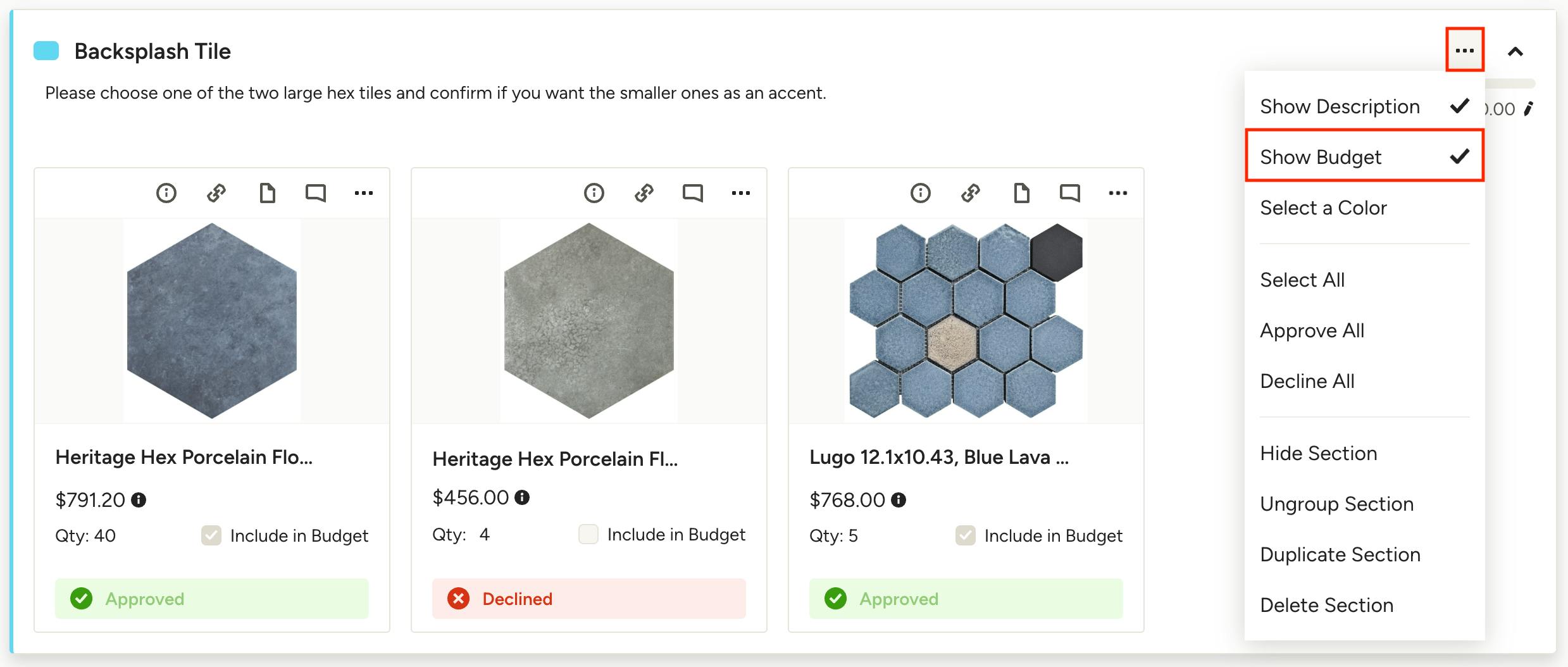
Section Budgets
You can set budgets for each section within your board, allowing you and your client a clearer view of how the overall budget is allocated across different product categories. To set a section budget, you first need to use the three dots menu on a section to make sure Show Budget is enabled.
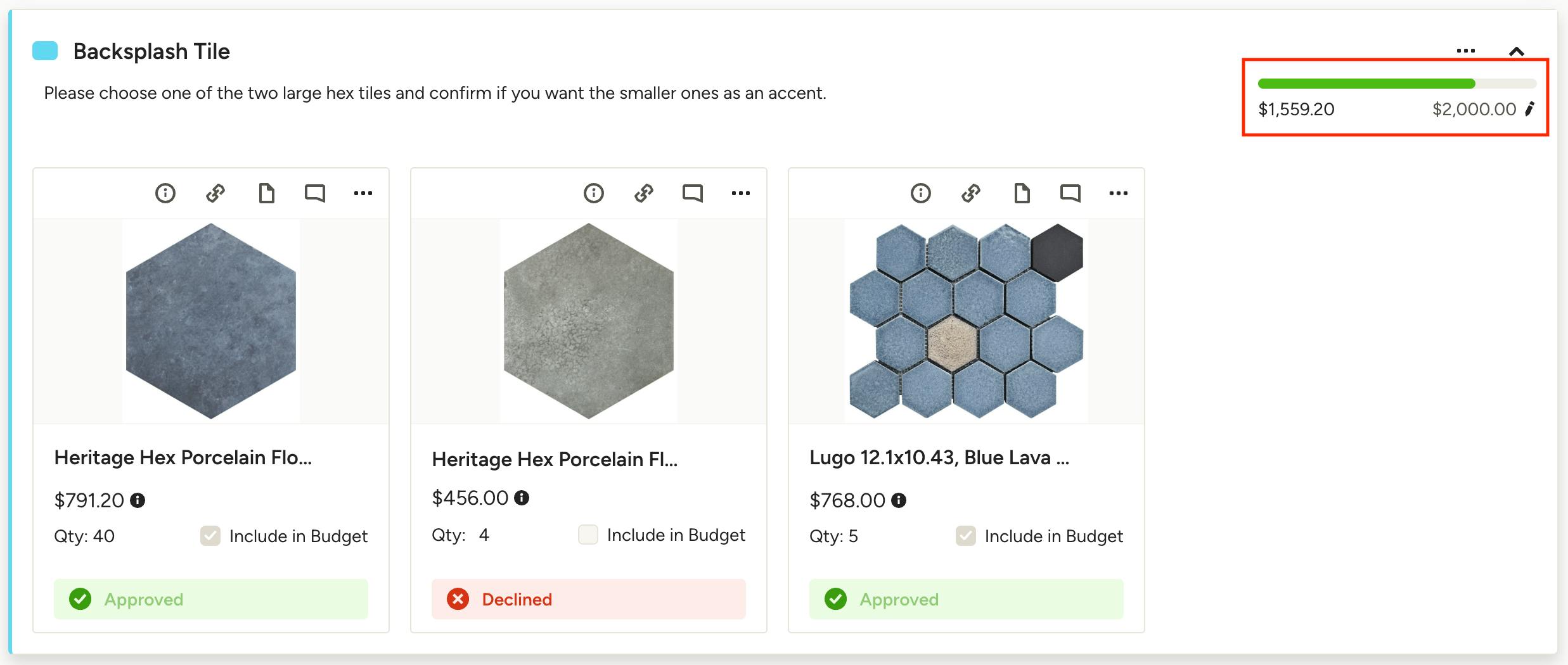
Once the budget is enabled, you can click on it to set or edit the section budget. Any approved items, and pending items marked "Include in Budget", in the section will be included in the section budget and overall board budget. If a section is hidden, the section budget will neither be displayed nor counted toward the overall budget.
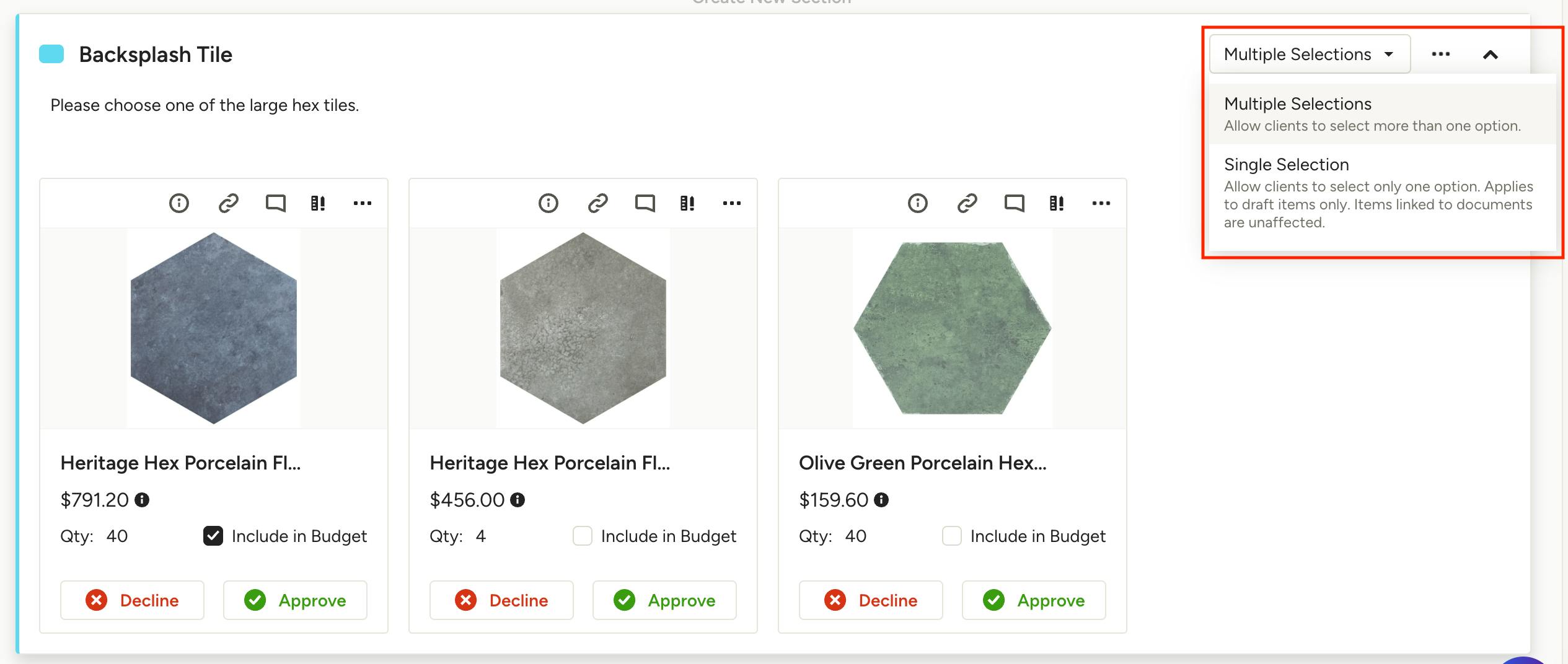
Section Approval Modes
Each individual section can be set to one of two approval modes, giving you control over how you want your client to make their selections. To adjust the approval mode, click the dropdown at the top right of the section and choose from the two options:
- Single Selection — Allow clients to select (approve) only one option. Once a single item is approved, any remaining items in the section are automatically declined.
- Multiple Selections — Allow clients to select (approve) multiple options. They will need to manually decline any options that they don't approve.
Note: You can switch between section approval modes at any time, even after clients have started approving items.
How to Remove or Hide Items
Whenever you're not fully satisfied with an item, or sense that your clients feel the same, we recommend getting rid of that item. You can do so by removing or hiding an item.
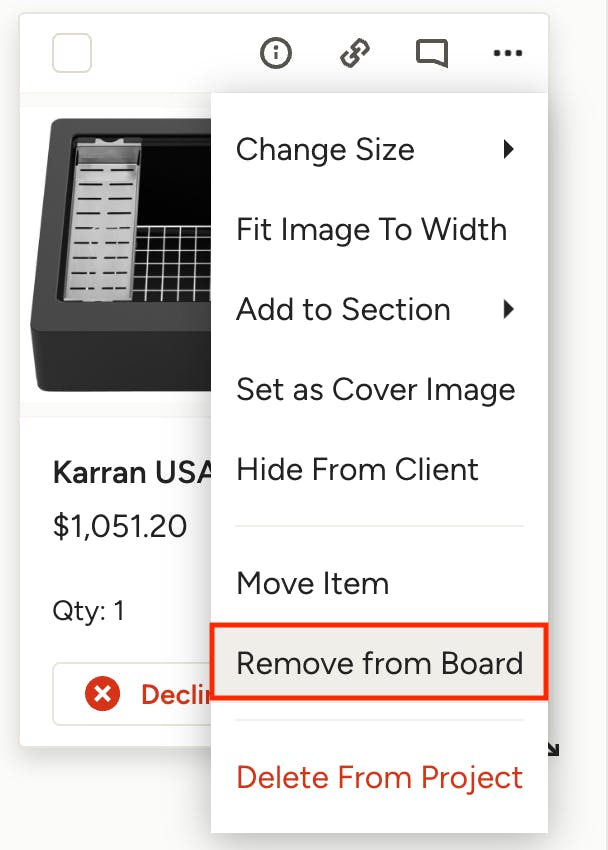
Removing Items
To completely remove an item from your board click the three dots above the item and then select Remove From Board. Once removed, it will no longer appear on the board, allowing you to focus on what's left. If you want to bring it back later on, simply go to your Selections Library on the right panel where the item is stored for you.
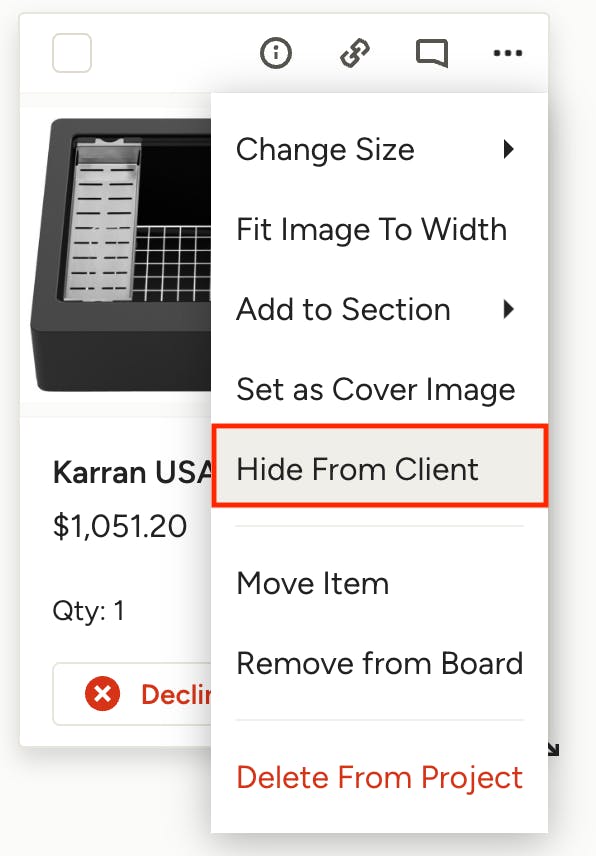
Hiding Items
Sometimes removing an item can feel a bit too permanent. If that's the case, trying hiding it instead — this will place the item in a separate section called "Hidden Items" at the very bottom of your selections board and will only be visible to you, the pro. To hide an item, click the three dots next to it and select the Hide From Client option.
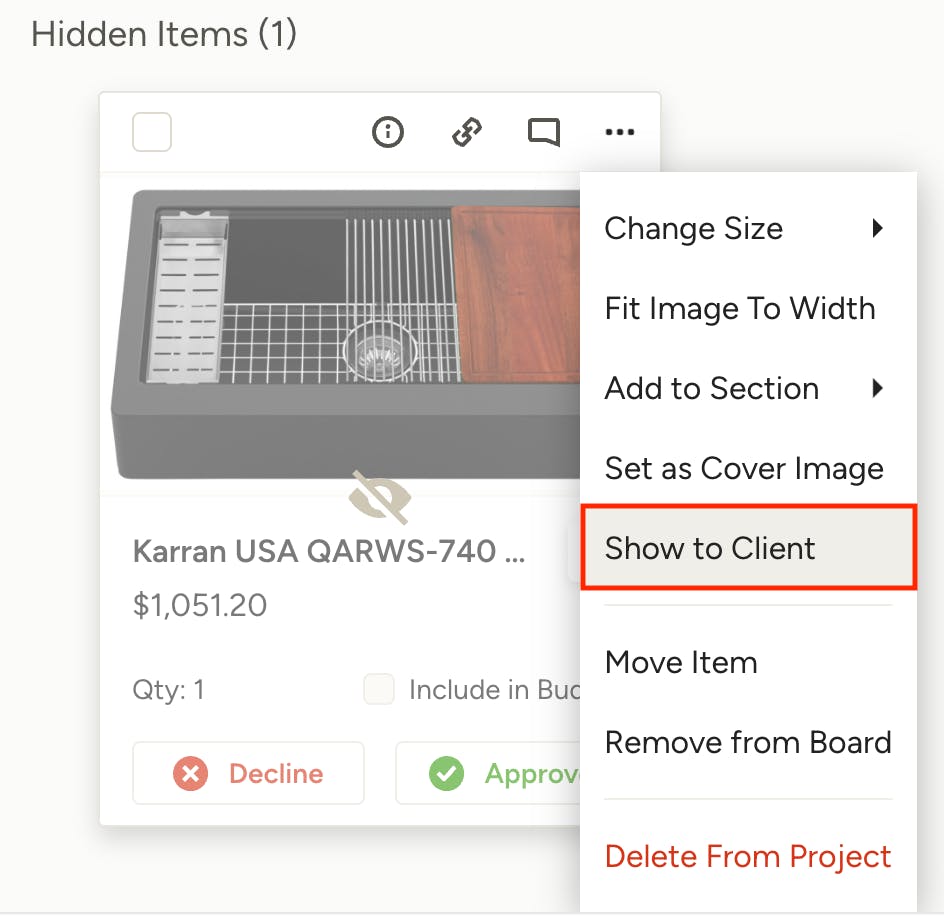
Bringing Back Hidden Items
Your client can't stop thinking about that sofa she initially voted against weeks ago and wants to see it again? Simply bring it back from the Hidden Items section by clicking Show to Client through the three dots. When you restore items from the hidden list, not only does the picture come back, but all item details and comments ever made on the item do too – no work is lost!
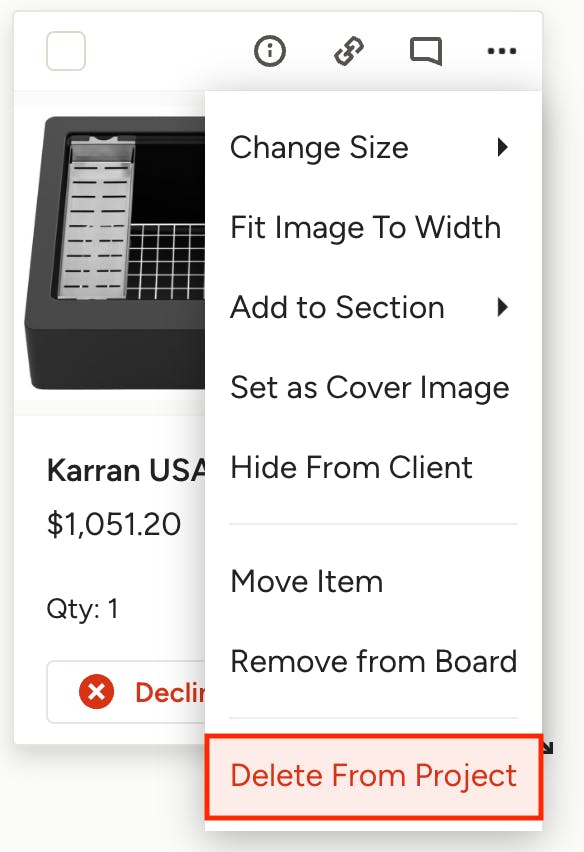
Deleting Items from Project
No longer want an item on the board and don't want to continue to see it in your project? To delete an item from the project altogether, click the three dots next to it and select the Delete From Project option. You will be asked to confirm that you want to delete this item. This action will permanently remove the item from your Selections Board. You can still access the item from your main Selections Library if you decide you want it later on.
Track the Project Budget
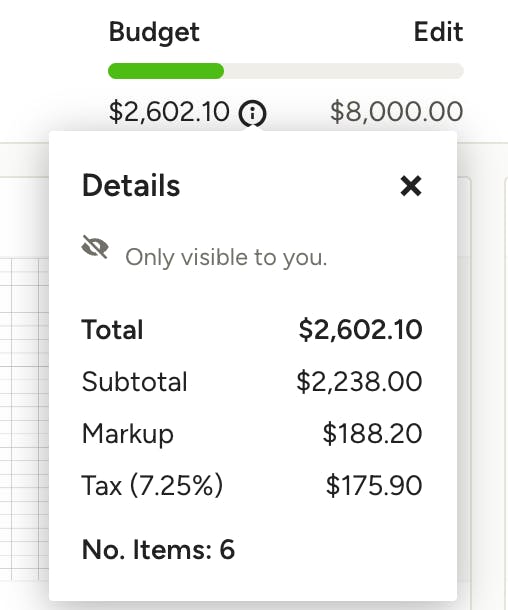
Manage budget expectations with ease. In the upper right corner of each selections board, you’ll see a budget bar. Just click Edit to add in the room’s budget and select whether taxes and shipping costs are included in the total. As items are approved, the budget bar fills in accordingly. Clicking on the Information icon will show you the detailed breakdown of your budget; this detail is only visible to you, not the client.
The budget total is only viewable to your clients if you give them permission in the Preview and Share screen.
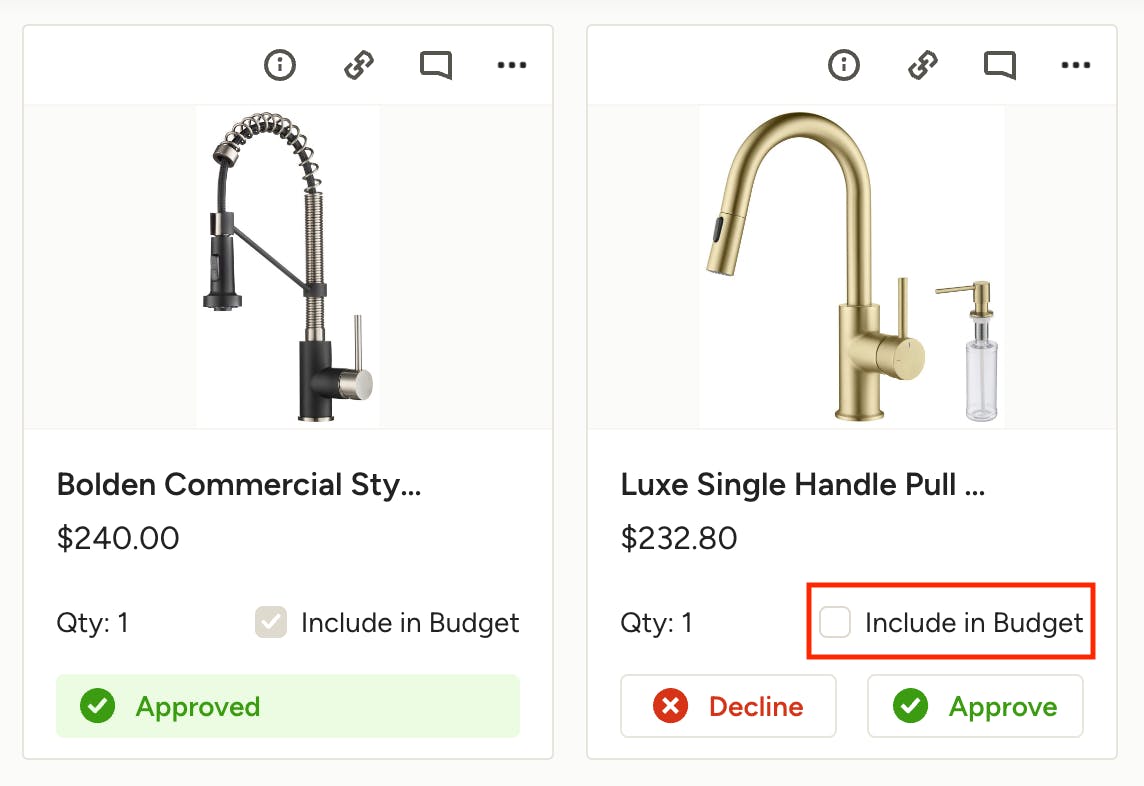
You can add items to the budget by checking the Include in Budget box. Items that have been approved will automatically be included in the budget.

Sharing Your Selections Board with the Client
You can send the selections board to your client so they can easily approve and decline items and/or leave feedback online. You’ll be automatically notified when your client approves or declines something, so you always stay updated. There are multiple ways to send your board, including share it to the Client Dashboard, send via email, export it as a PDF, or download it as a tear sheet.
Set Client View
Before sharing a selections board with your client(s), click the Preview and Share button in upper right-hand corner — from here you can preview and set the exact view that your client will see, including Pricing, Item Details, Attachments and Approvals. Learn more about client views in How to Customize What Your Client Can See On Their Selections Board.
Email Link from Houzz Pro
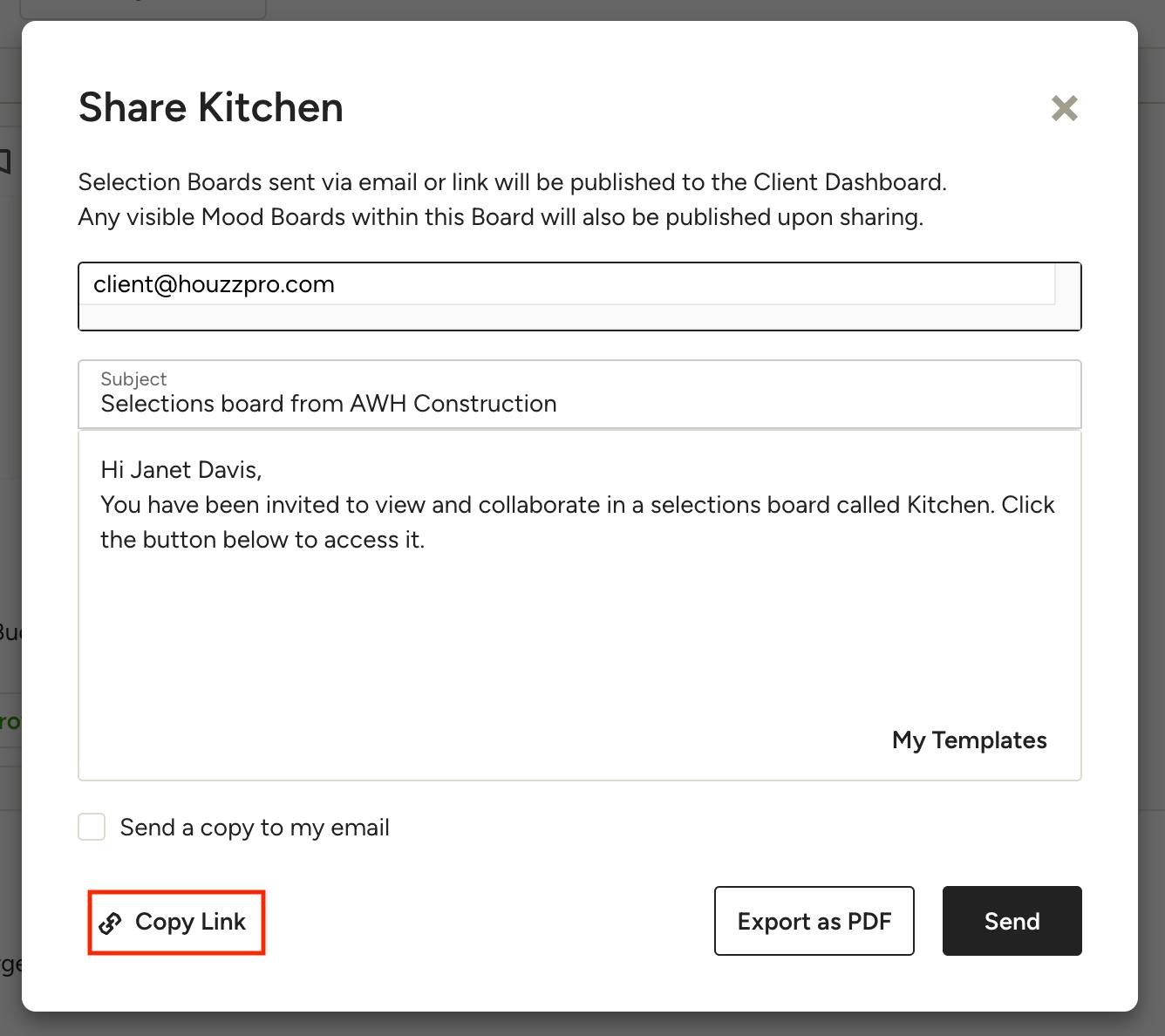
To share a link to your selections board, click Share in the top right of the preview page, or select Share from the Preview and Share menu on the edit view. From here you can send an email via Houzz Pro with a link to the board, or you can copy the board link to send separately. If you choose to send through Houzz Pro, you can add additional email addresses and customize the messaging. To learn more about setting email templates for your boards, check out How to Use Email Templates When Sending Selection Boards.
Note: Selection Boards sent via email or link will be published to the Client Dashboard. Any visible Mood Boards within the Board(s) will also be published upon sharing.
Publish to Client Dashboard
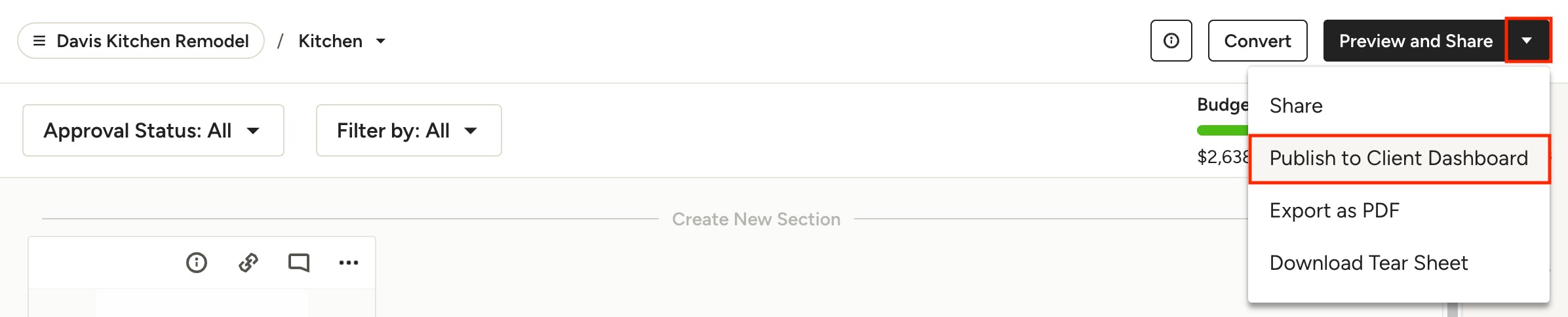
To make your selection boards visible on the client's dashboard without sending a link to the board, click the arrow next to the Preview and Share button in the top right and select Publish to Client Dashboard. You can also unpublish selection boards from the client dashboard here too.
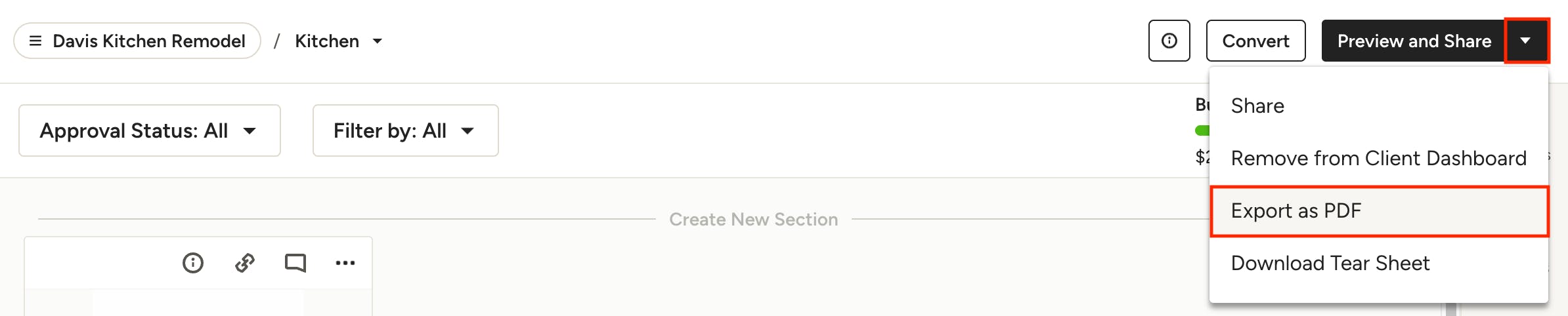
Export as PDF
You can download your selections board as a PDF to print or share with your client. To download an individual selections board, click the arrow next to the Preview and Share button in the top right of the board and select Export as PDF.
To bulk download multiple selections boards, see the Share Multiple Selection Boards at Once section below.
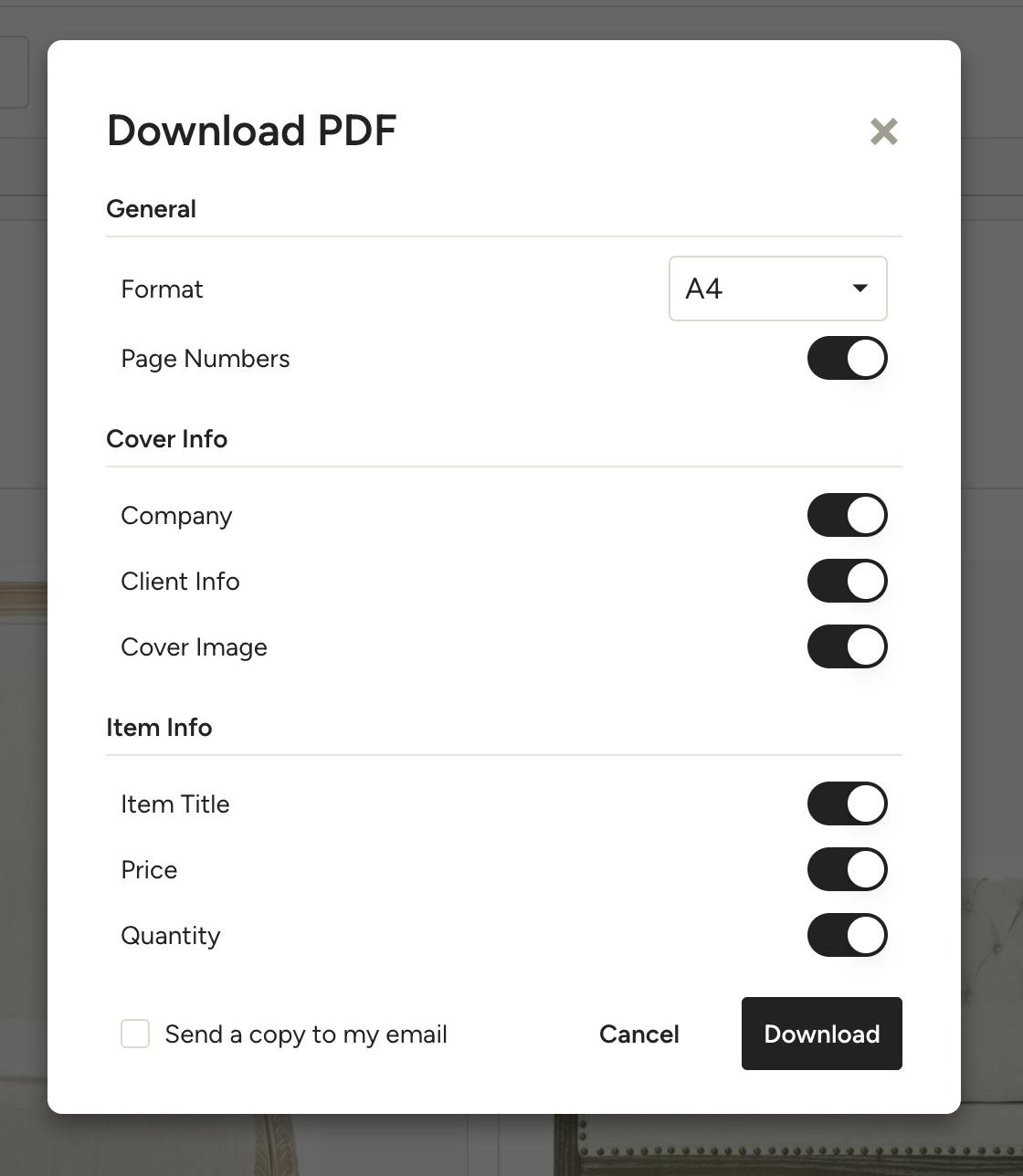
In the next screen, select the page size for the PDF and choose which info you want to appear in the download, then click Download. While your PDF is generating, feel free to work on other items — you will receive a notification in Houzz Pro when it's ready to download.
Note that your PDF download will reflect the same layout as you see on your board, including item card sizes.
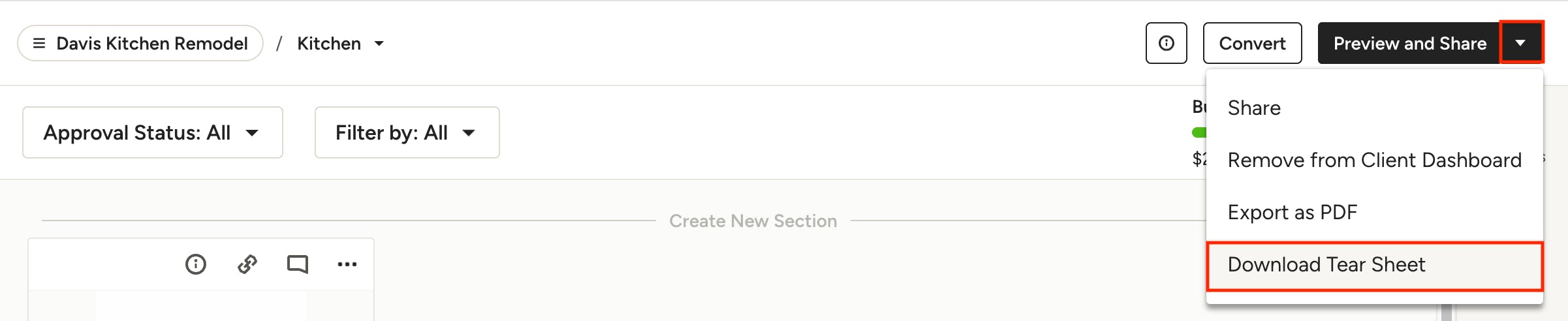
Download Tear Sheet
To download a tear sheet from your selections board, click the arrow next to the Preview and Share button in the top right and select Download Tear Sheet. You will be able to choose which details you want to appear on the sheet. Read How to Download Tear Sheets for more information.
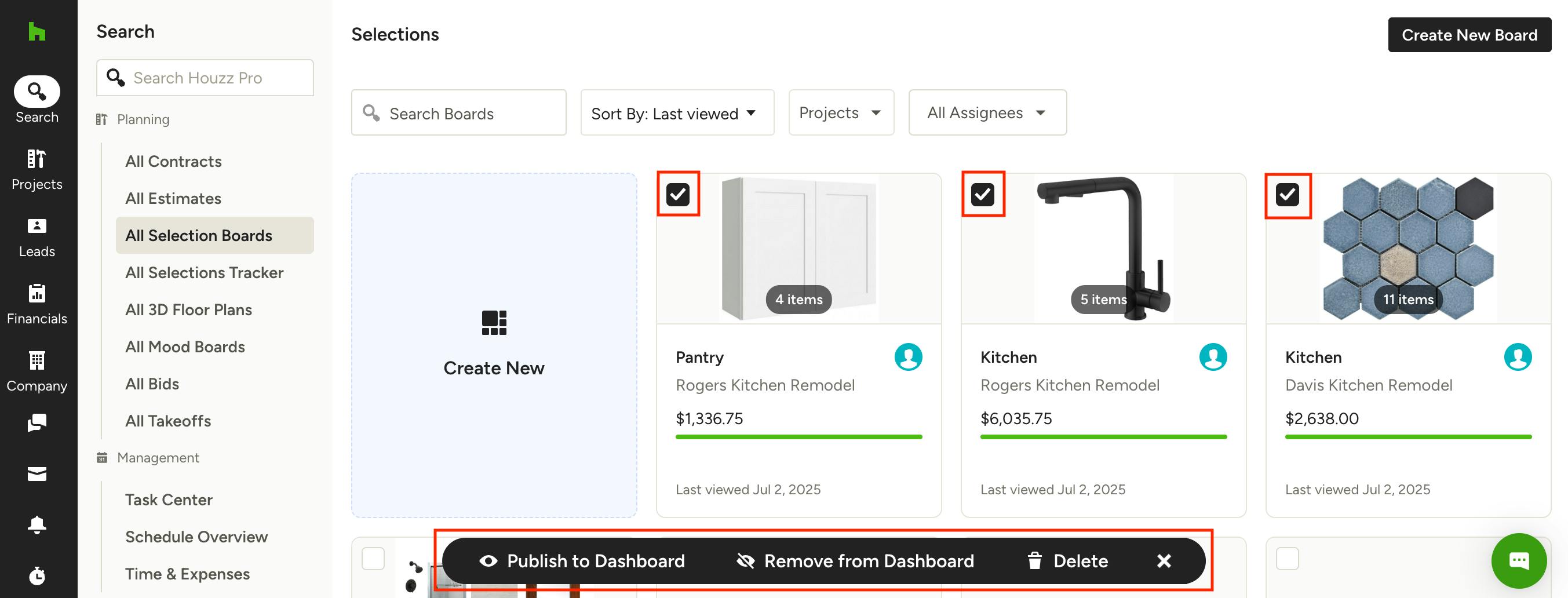
Share Multiple Selection Boards at Once
You can bulk share multiple selection boards at once from the All Selection Boards page or the selection board overview page within any project. Simply select the checkboxes on the top left of each board you wish to include in the action, then select from the following bulk actions at the bottom of the page:
- Publish to Dashboard
- Remove from Dashboard
- Delete
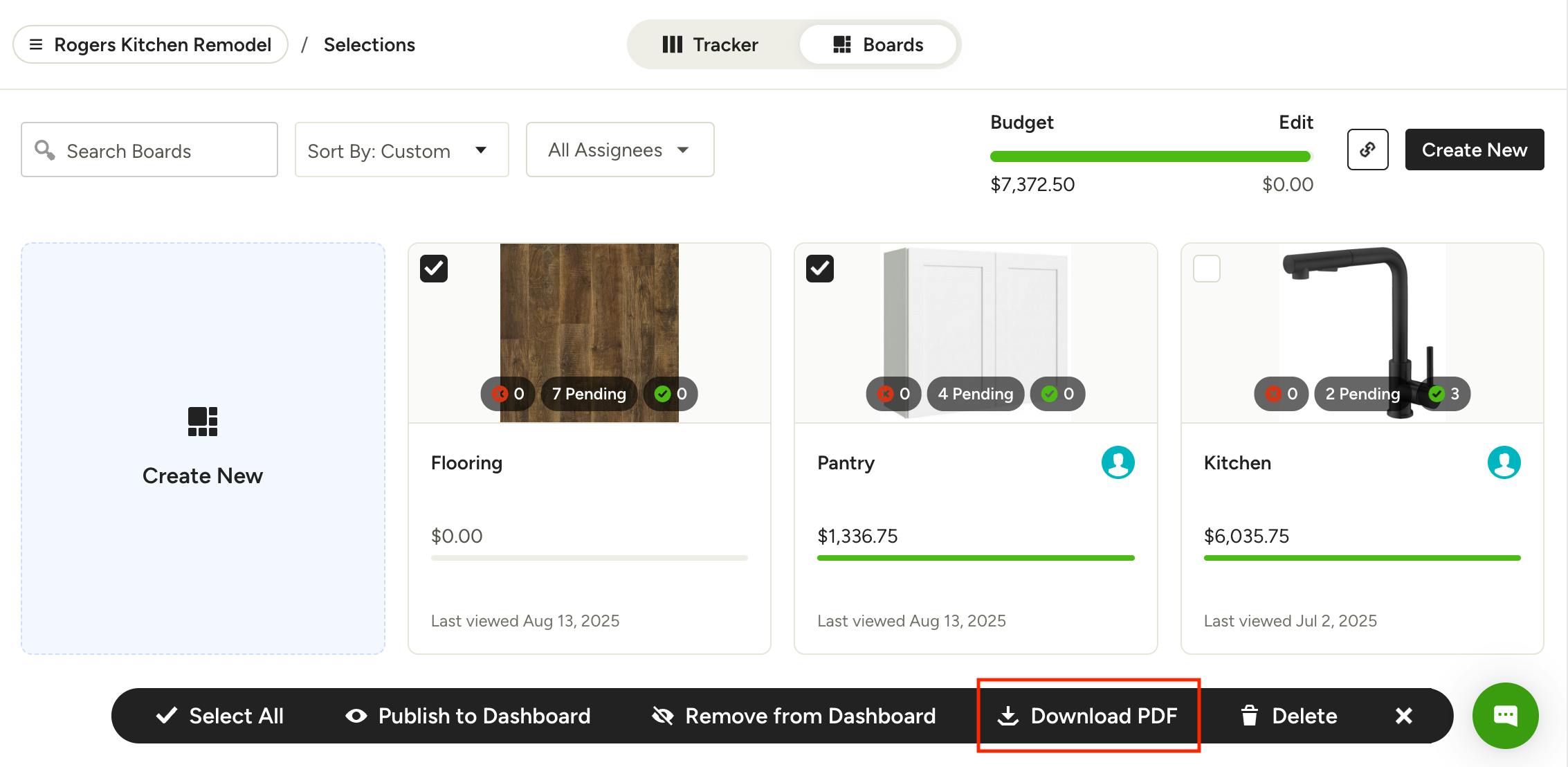
From a project-specific selection boards overview page, you will have the additional bulk action option to Download PDF.

Converting Selections to an Estimate, Invoice or Purchase Order
When you're ready to move forward with the client's selections, you can convert the selections board into a professional estimate, invoice or purchase order. You'll be able to choose exactly which items to include on the document and see the total for the items selected. You can convert selections to a new document or an existing document. Let's look at both options:
Convert to New Document
Click the Convert button at the top right of the selections board, then click To New Document.
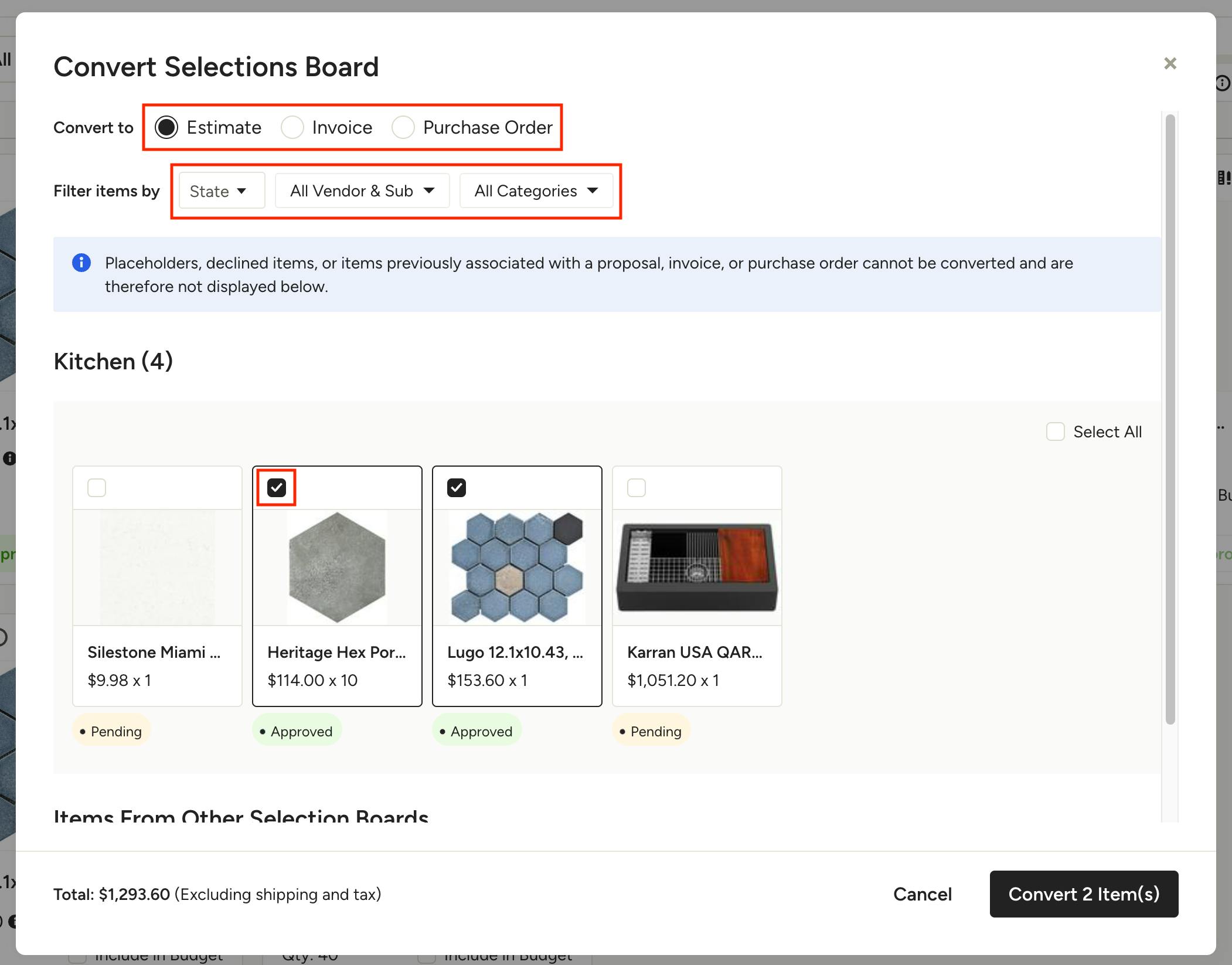
Select the document type you want to convert to, then use the checkboxes on the items to choose which ones to convert. You can use the filters at the top to narrow down the items by State (pending or approved), Vendor/Sub, and Category.
Note: Placeholders, declined items, or items previously associated with an estimate, invoice, or purchase order cannot be converted and are therefore not displayed.
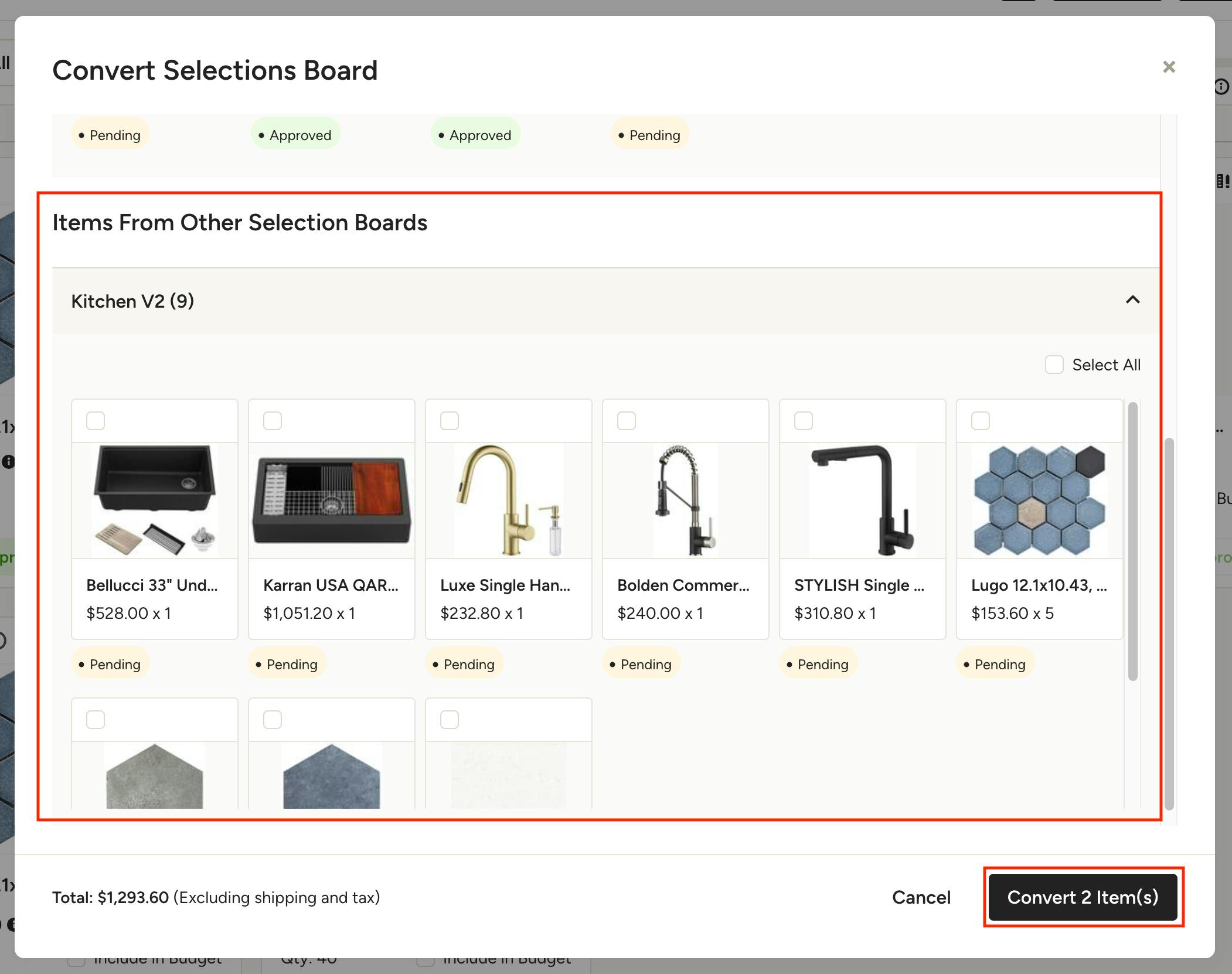
If you have more than one selections board in the current project, you can scroll down to add items from those boards to the document as well.
Click Convert Item(s) to create the new document.

Convert to Existing Document
Click the Convert button at the top right of the selections board, then click To Existing Document.
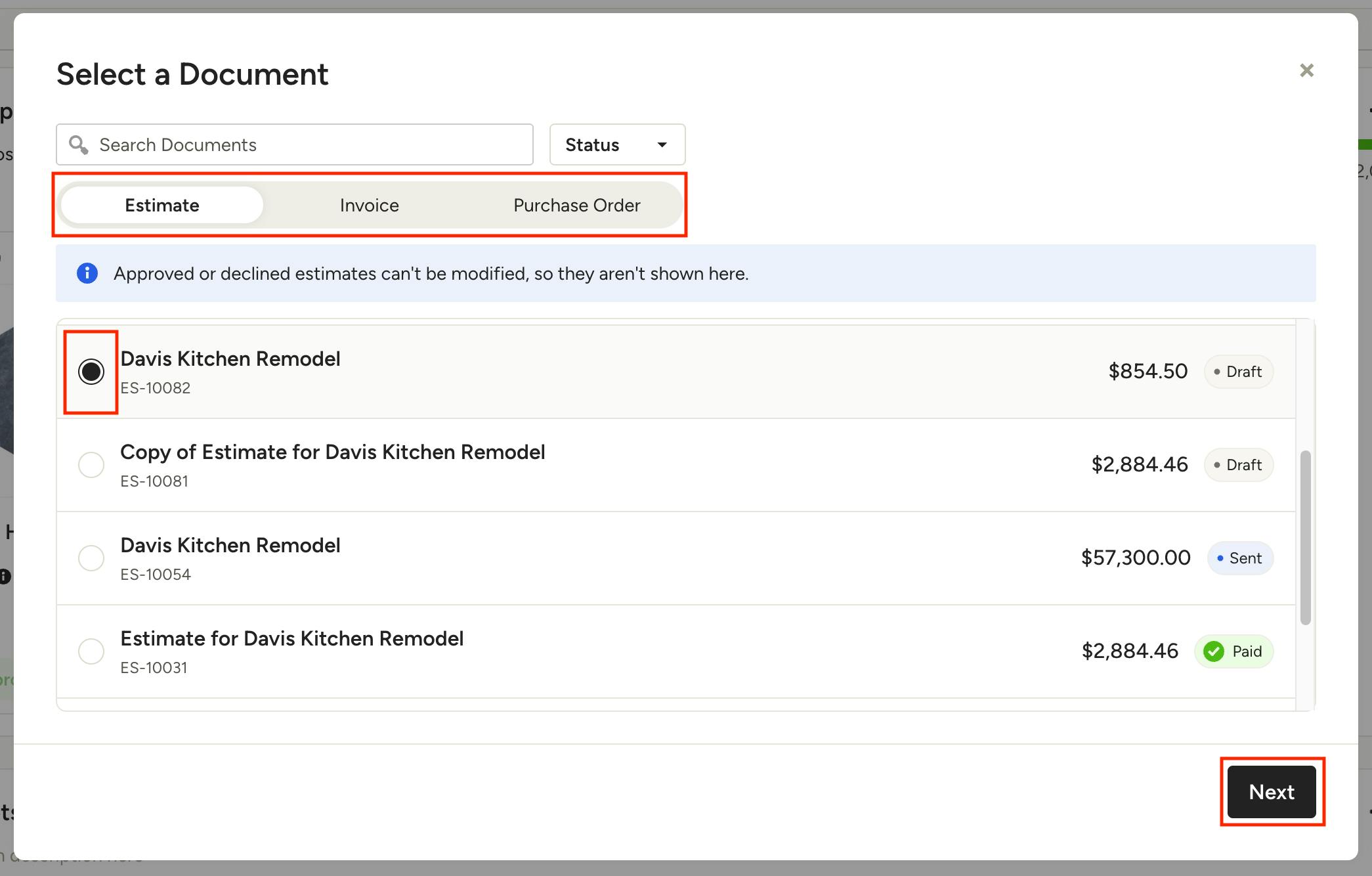
Select the document type from the tabs at the top, then choose the specific document you want to add the selections to. Click Next.
Note: Documents that are approved, declined or issued can't be modified, so they aren't available to add items to.
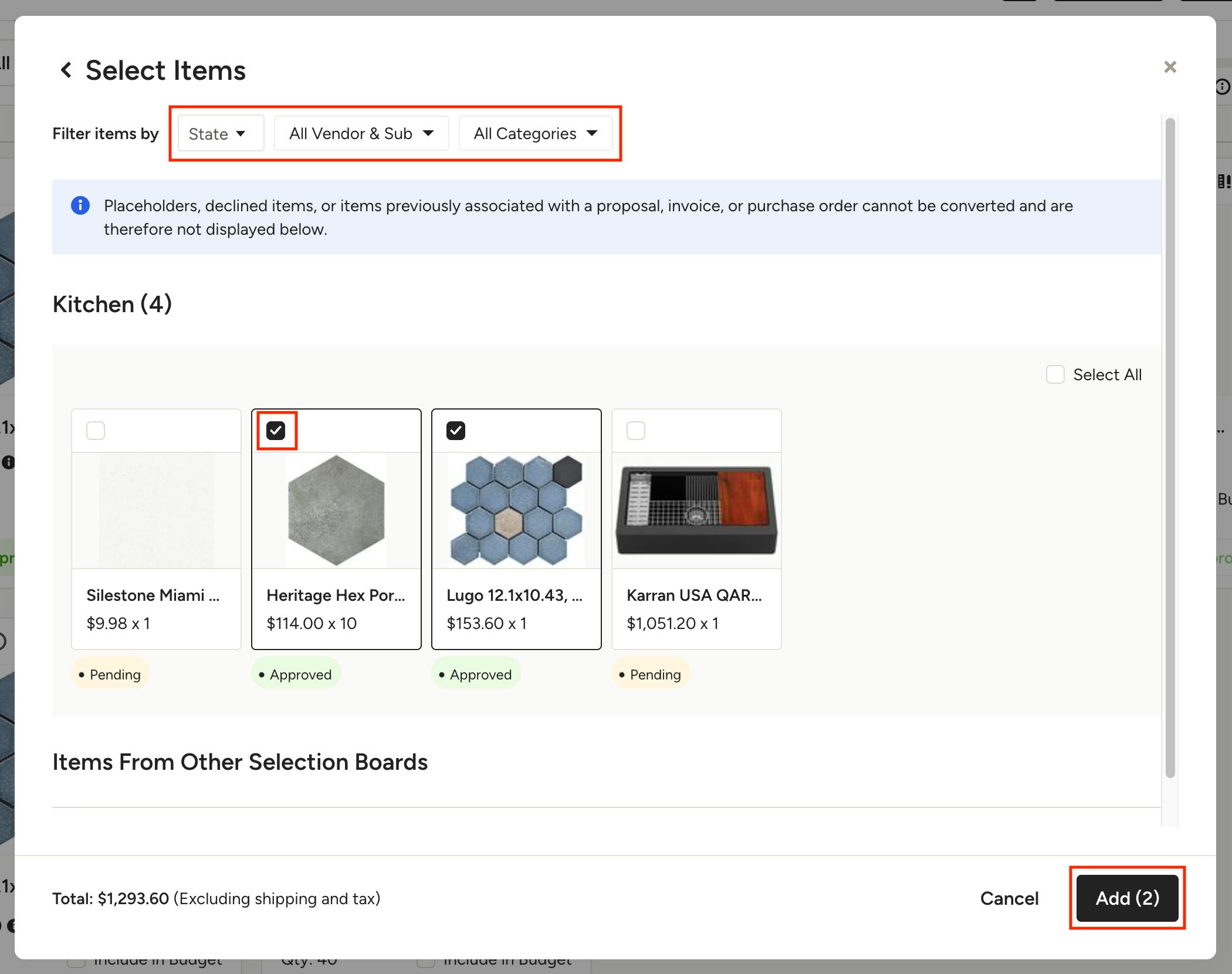
Use the checkboxes on the items to choose which ones to convert. You can use the filters at the top to narrow down the items by State (pending or approved), Vendor/Sub, and Category.
Note: Placeholders, declined items, or items previously associated with an estimate, invoice, or purchase order cannot be converted and are therefore not displayed.
If you have more than one selections board in the current project, you can scroll down to add items from those boards to the document as well.
Click Add to convert the items to the chosen document.
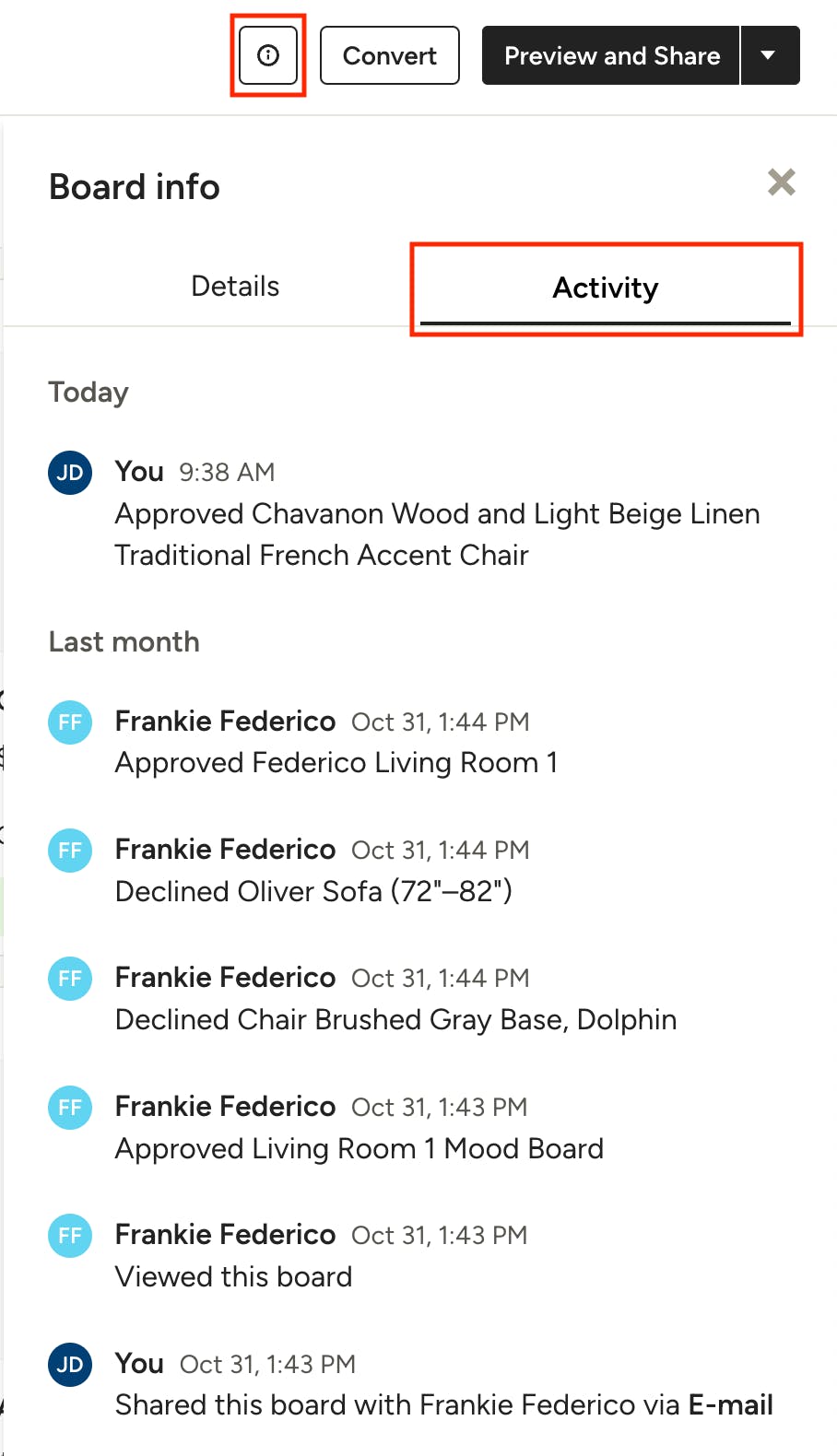
Keep Track of Changes
The Selections tool has an interactive record of all your communications on it with team members and clients, providing you with an activity stream of what’s been changed, approved, commented on, when your client viewed it, and so on. Access the activity stream by clicking the information (i) icon on the top and opening the Activity tab.