How to Use the Website Editor Menu For Your Houzz Website
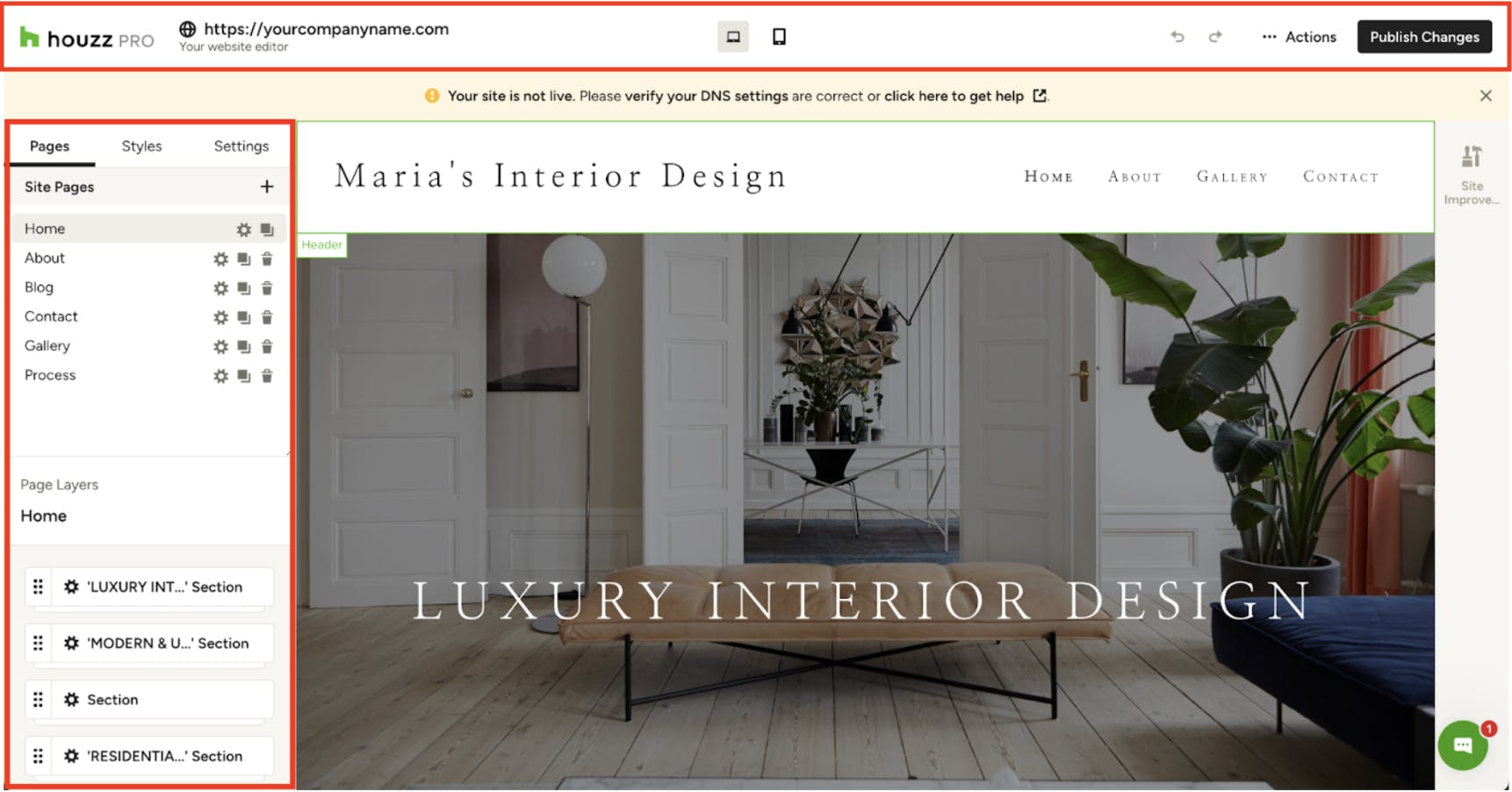
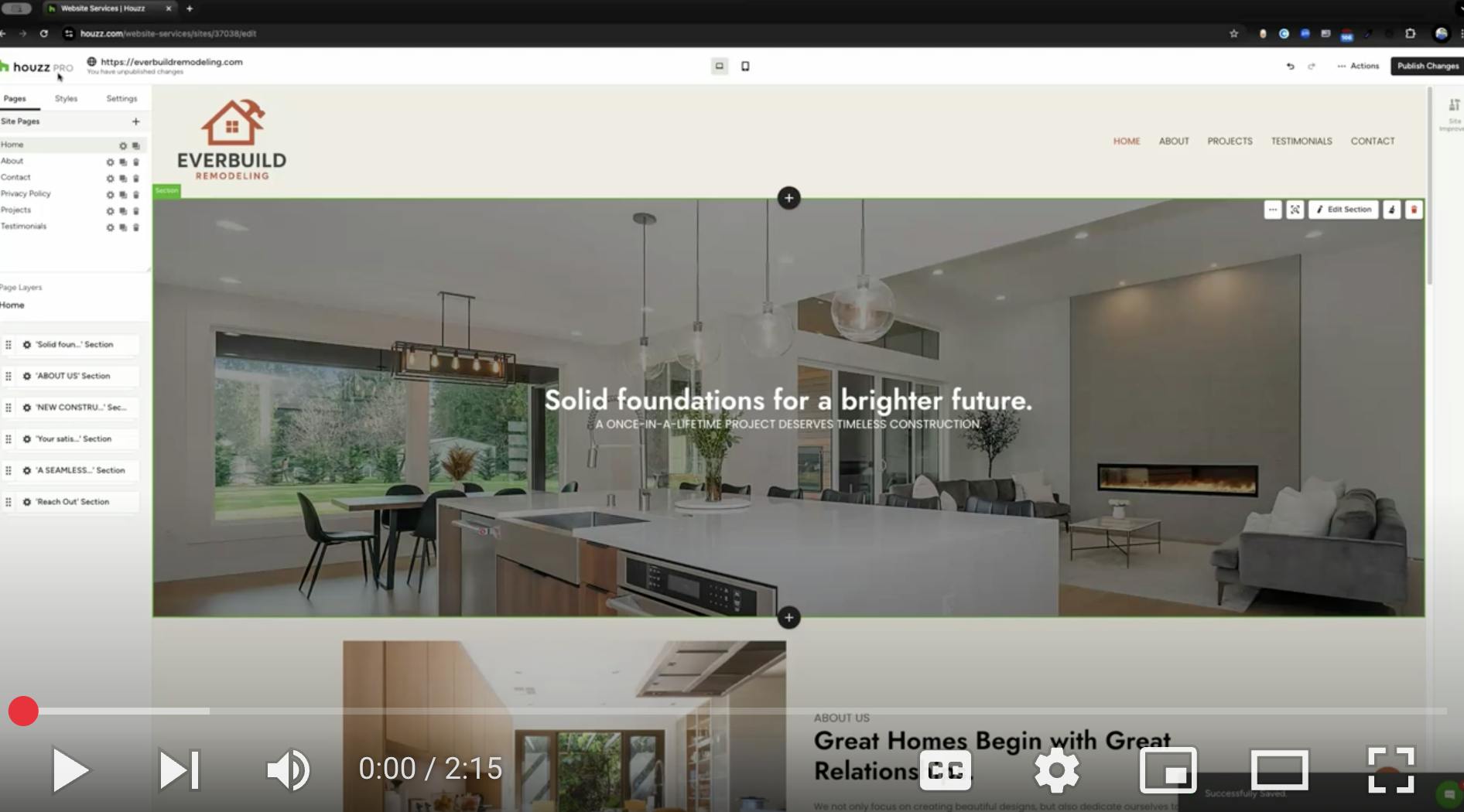
As you work on your Houzz website, there are many important toolbar features to understand.
The Action Bar is at the top of your website editor and allows you to view your site domain name, preview your website, publish changes and more.
On the left side of your website editor, you will find the Pages, Styles and Settings tabs. Here, you can create new pages, edit existing pages, adjust your website's fonts and colors, and adjust more detailed website settings. Let's go over each of these in-depth.
Action Bar
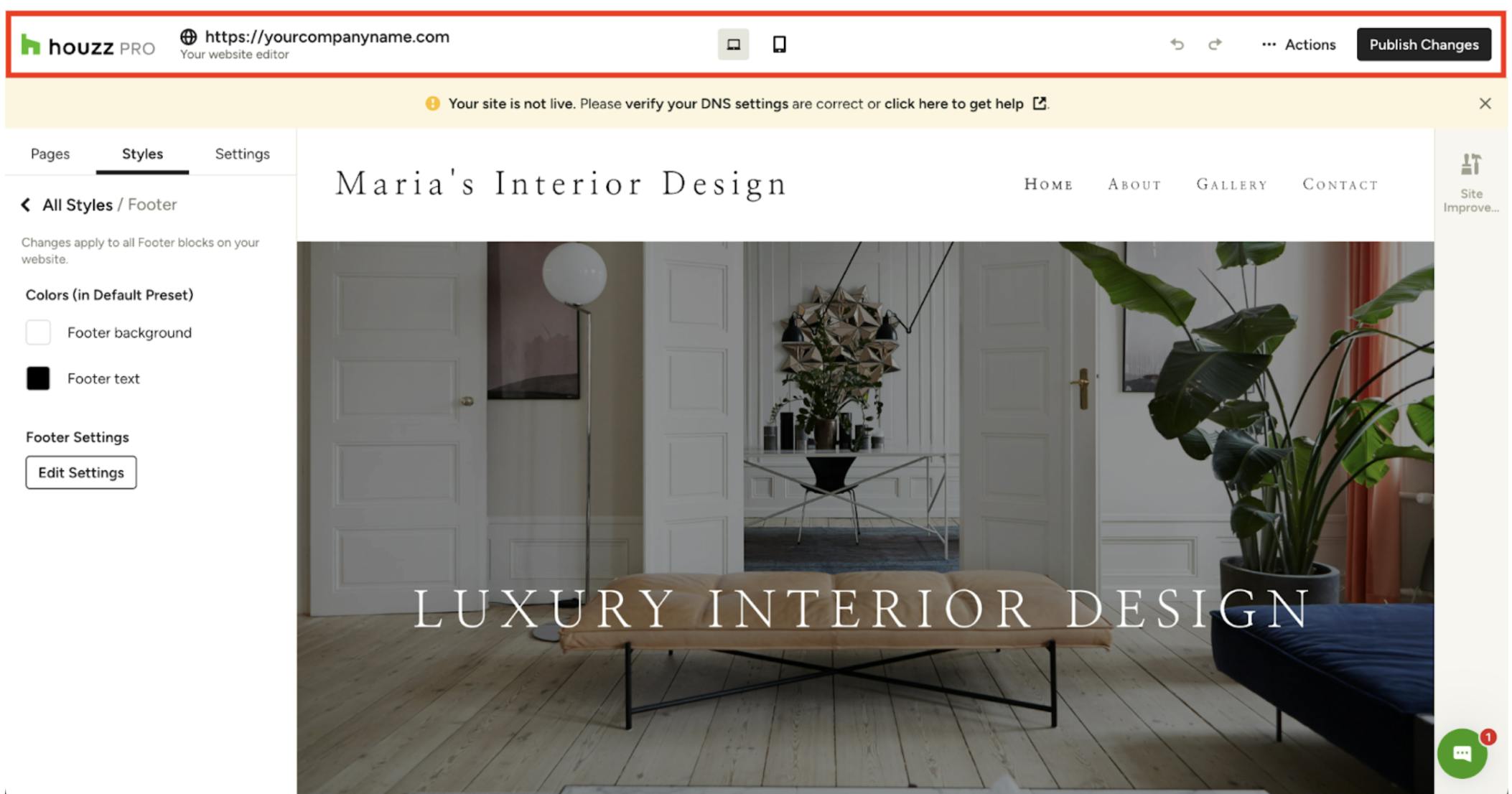
At the top of your website editor, the Action Bar includes several different tools that help you manage and publish your site.
- Houzz Pro Account Navigation: In the top-left corner, you can easily navigate back to your Houzz Pro account.
- Domain Name Display: If you've connected a domain name to your site, it will be displayed here.
- Desktop and Mobile View: These two buttons in the middle allow you to switch between desktop and mobile previews of your website. This ensures your design looks great on all devices.
- Undo/Redo Buttons: On the right-hand side, you'll find undo and redo buttons. Use them to reverse or re-apply changes you've made. Please Note: Your change history resets if you leave the current page. Make sure you're happy with the page's state before navigating away.
Actions Dropdown Menu
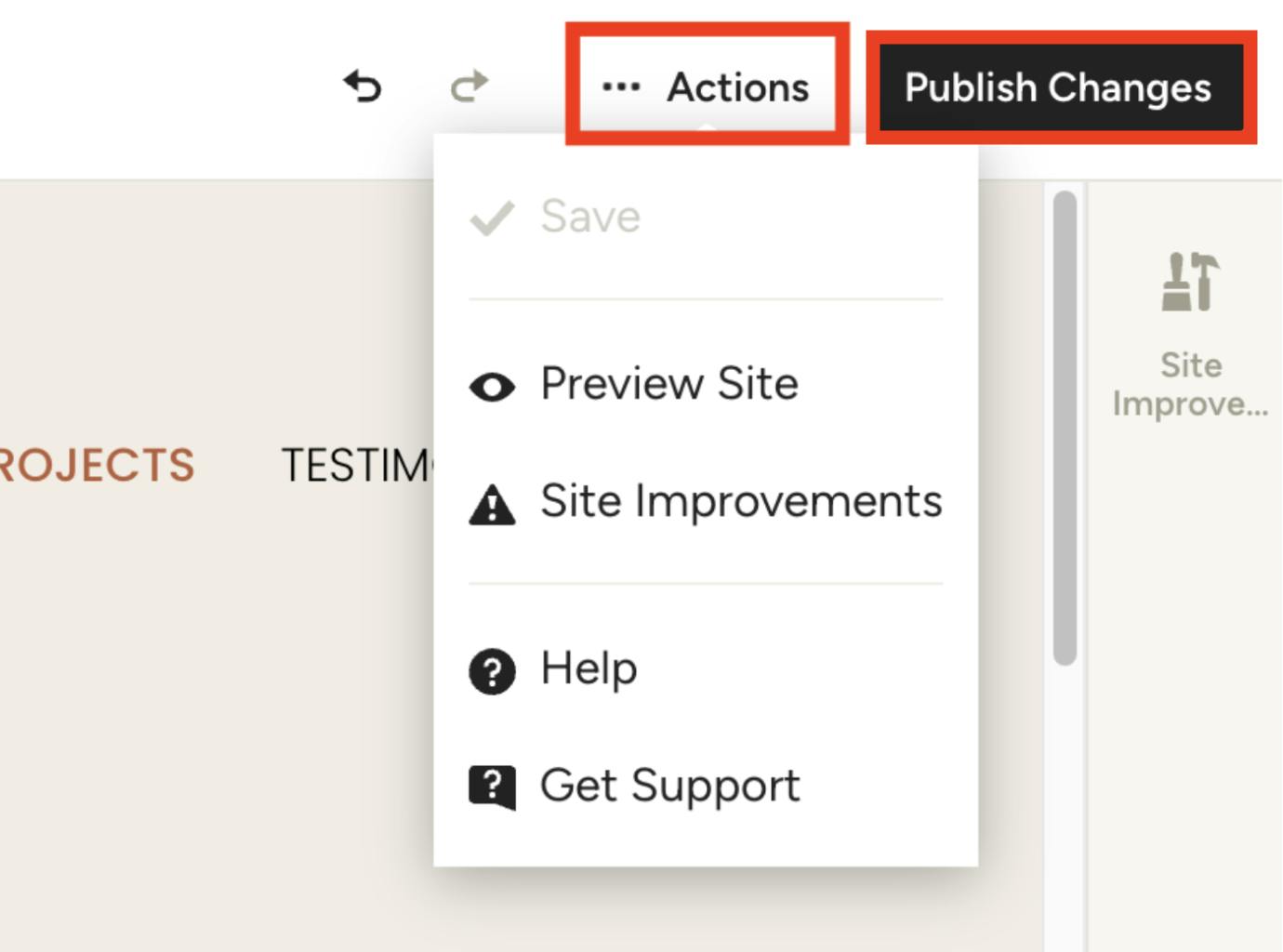
Within your Action Bar, there is also an Actions dropdown menu. Here, you can:
- Save: While the website builder typically auto-saves every 5 seconds, you can use the Save button to manually save your work.
- Preview Site: The Preview button opens a new tab, showing you what your website will look like once published. This includes animations, the cookie notification banner, and other features not always visible in the editor.
- Site Improvements: This panel offers suggestions for changes or fixes to improve your site's readability. These are merely suggestions, and you're not required to implement them. Read How to Use the Site Improvement Panel For Your Houzz Website to learn more.
- Help and Get Support: From the Actions menu, you can also access Help Center articles or contact the product support team. Please Note: Only accounts eligible for ongoing website services support can submit tickets to the website services design team.
Publish Changes
This is the most important button! Once you have a domain name connected, clicking Publish Changes will make all saved changes in the website builder go live on your domain within one to two hours.
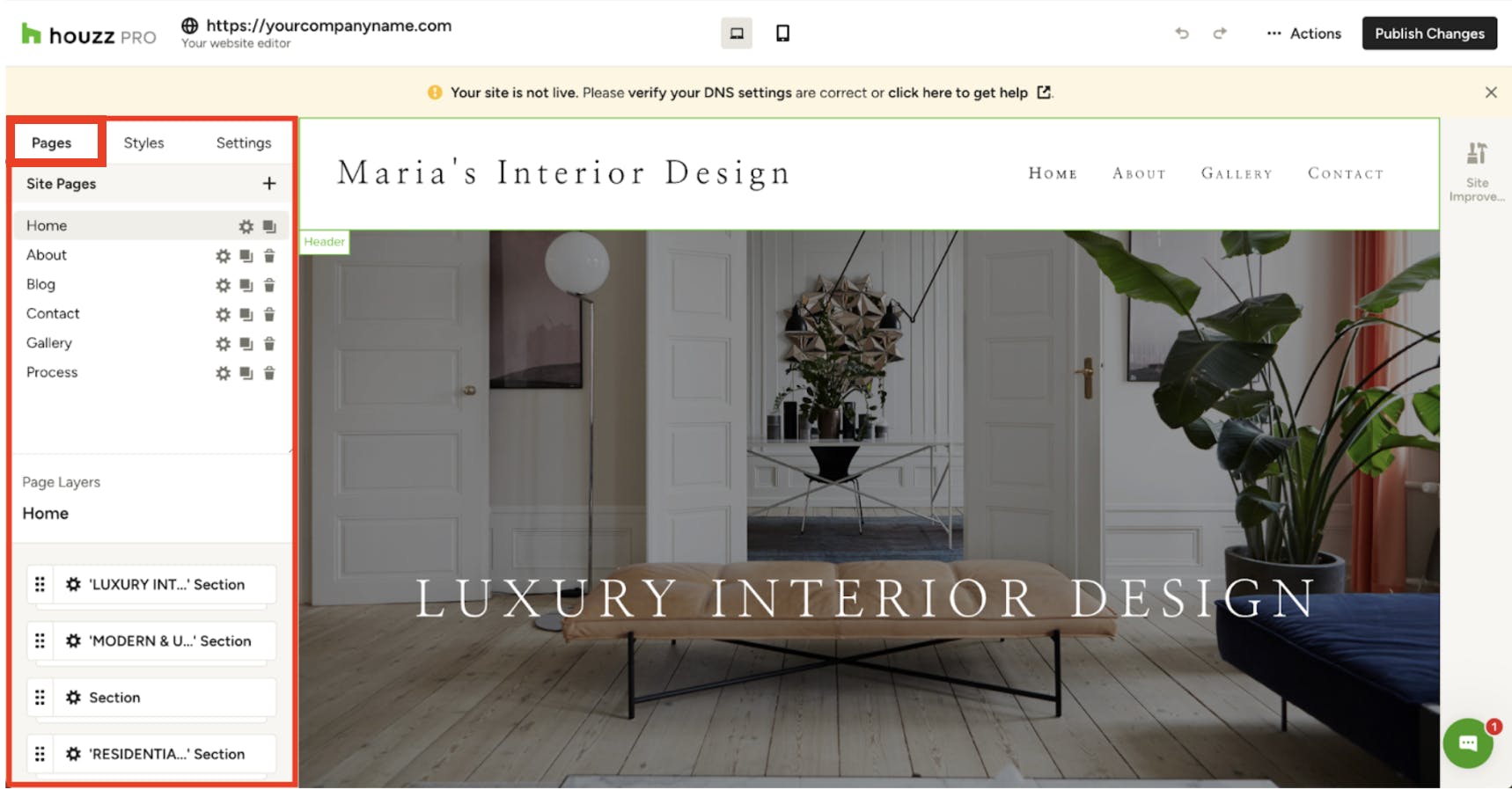
Pages Tab
In the left menu, the Pages tab allows you to create, copy, delete, and modify some basic page settings. Inside the Pages tab you will also find the Layers Panel, which controls the order of page elements.
To learn more about the features in this section, read How to Use the Pages Tab For Your Houzz Website.
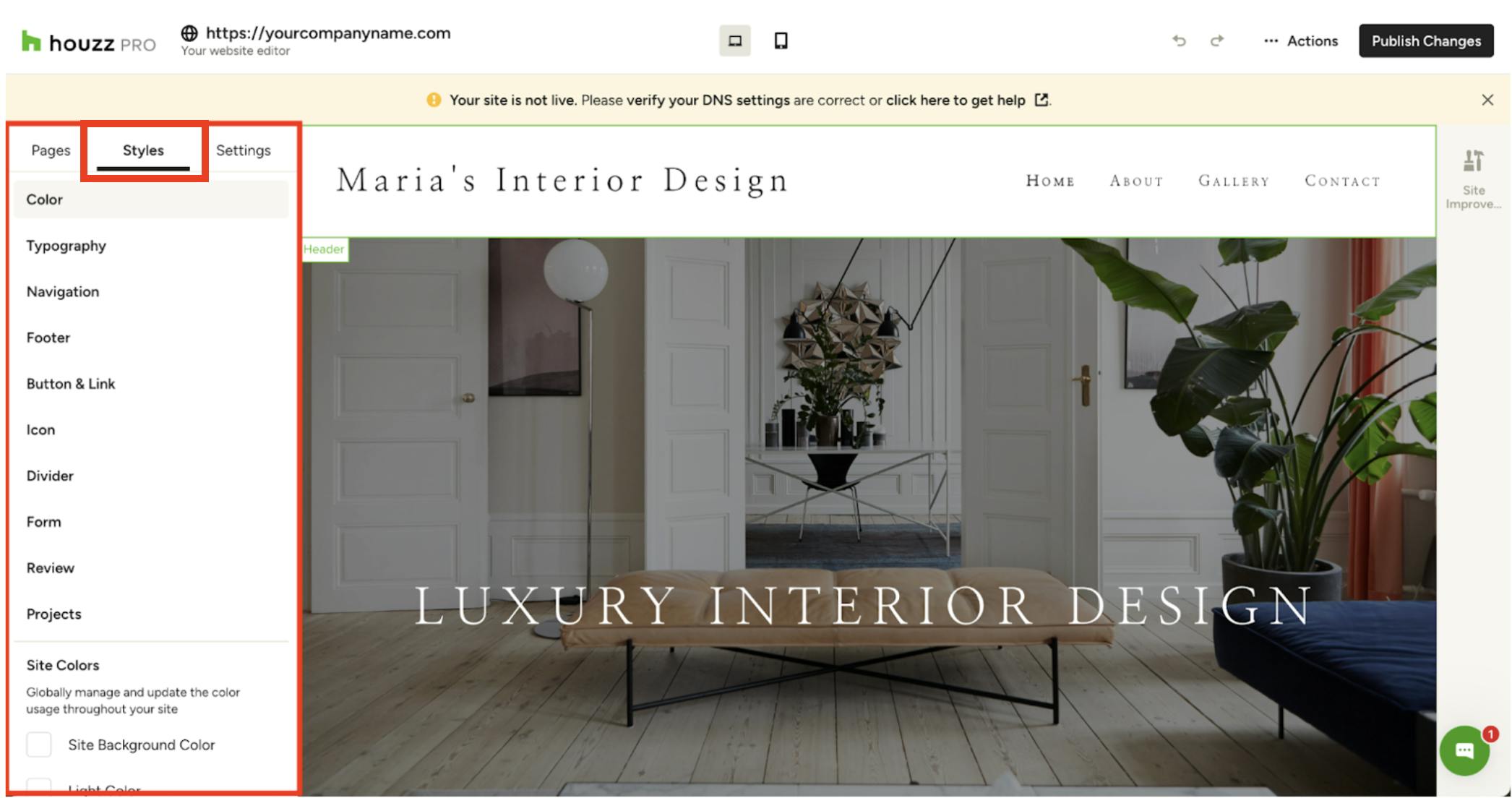
Styles Tab
The Styles tab is your central hub for controlling the visual appearance of various elements on your site, including colors and typography. Changes made here are universal across the whole website.
To learn more about the features in this section, read How to Use the Styles Tab For Your Houzz Website.
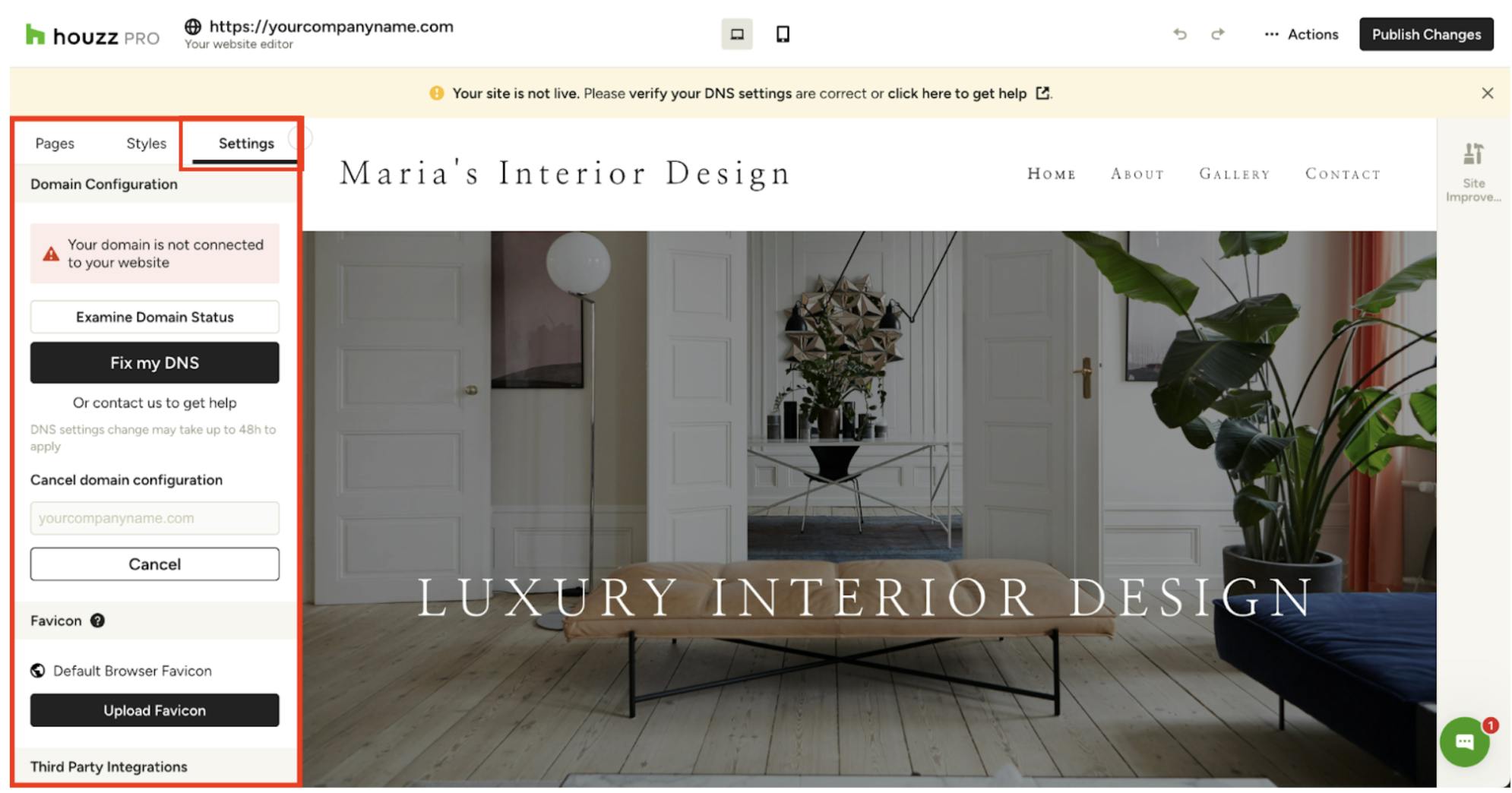
Settings Tab
The Settings Tab is where you can connect your domain to get your site live, upload a favicon, connect to third party integrations, and a few other advanced settings.
To learn more about the features in this section, read How to Use the Settings Tab For Your Houzz Website.
More Website Services Resources
How to Add Content to Your Houzz Website
How to Use the Settings Tab For Your Houzz Website
How to Use the Styles Tab For Your Houzz Website
How to Use the Pages Tab For Your Houzz Website
How to Edit the Projects Page on Your Houzz Website
How to Set Up a Domain and Publish Your Houzz Website