How to Use the Styles Tab For Your Houzz Website
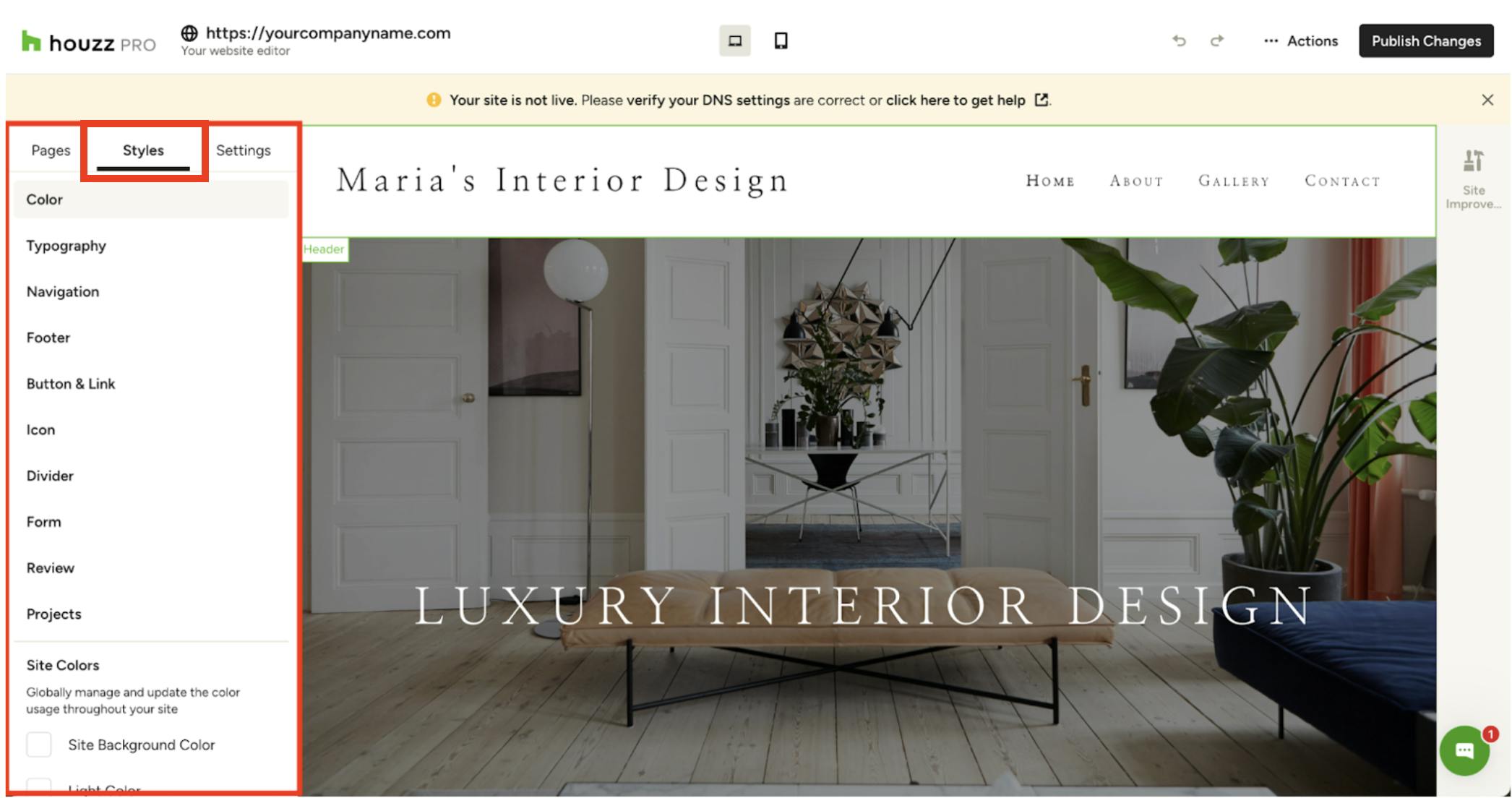
As you work on your Houzz website, there are many important toolbar features to understand. This article will go over the Styles tab, which is found in your left toolbar. For a more general overview of the website editor toolbars, read How to Use the Website Editor Menu For Your Houzz Website.
The Styles Tab is your central hub for controlling the visual appearance of various elements on your site. Changes made here are universal across the whole website.
To access, find and click the Styles tab on the left side of your screen.
Color Panel
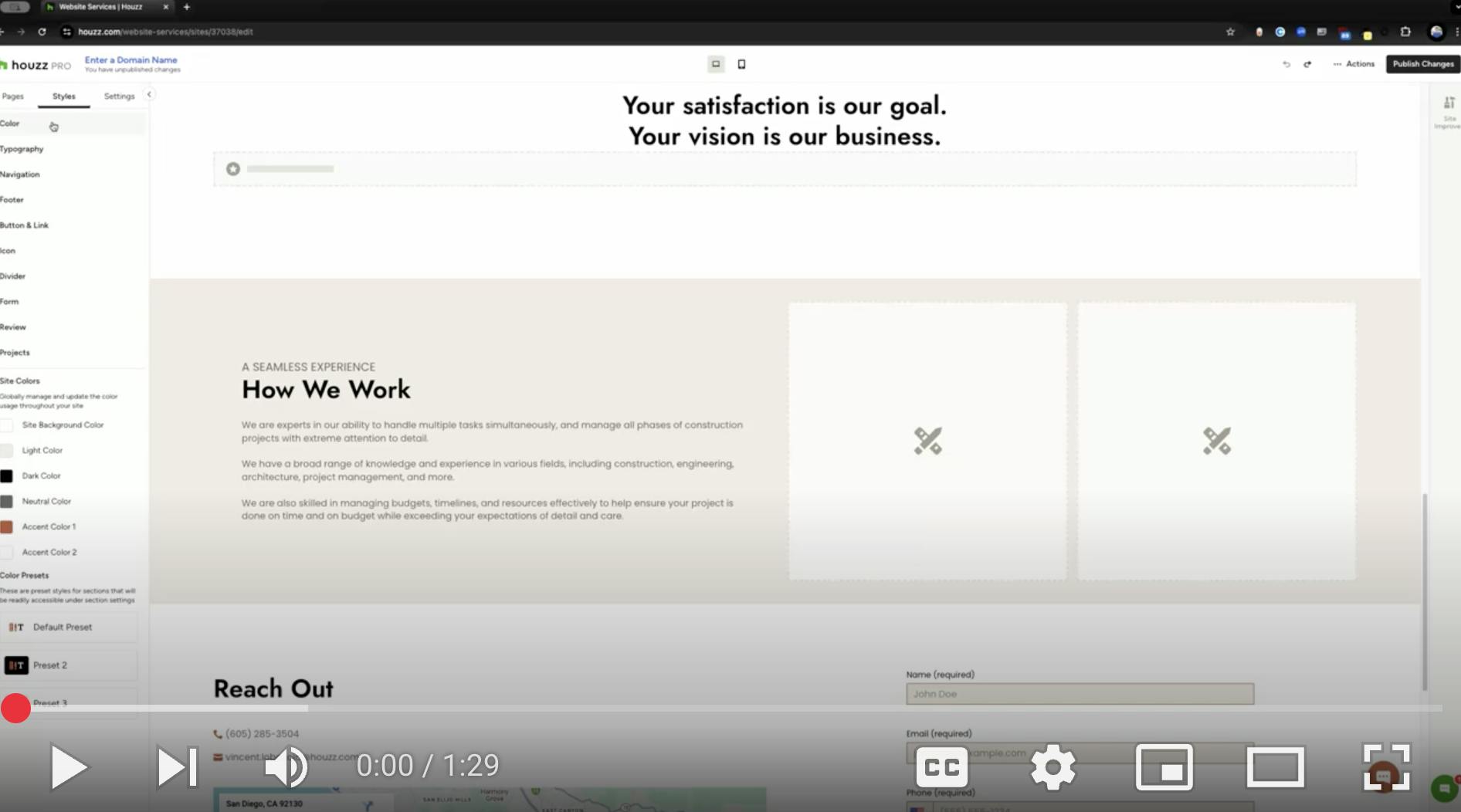
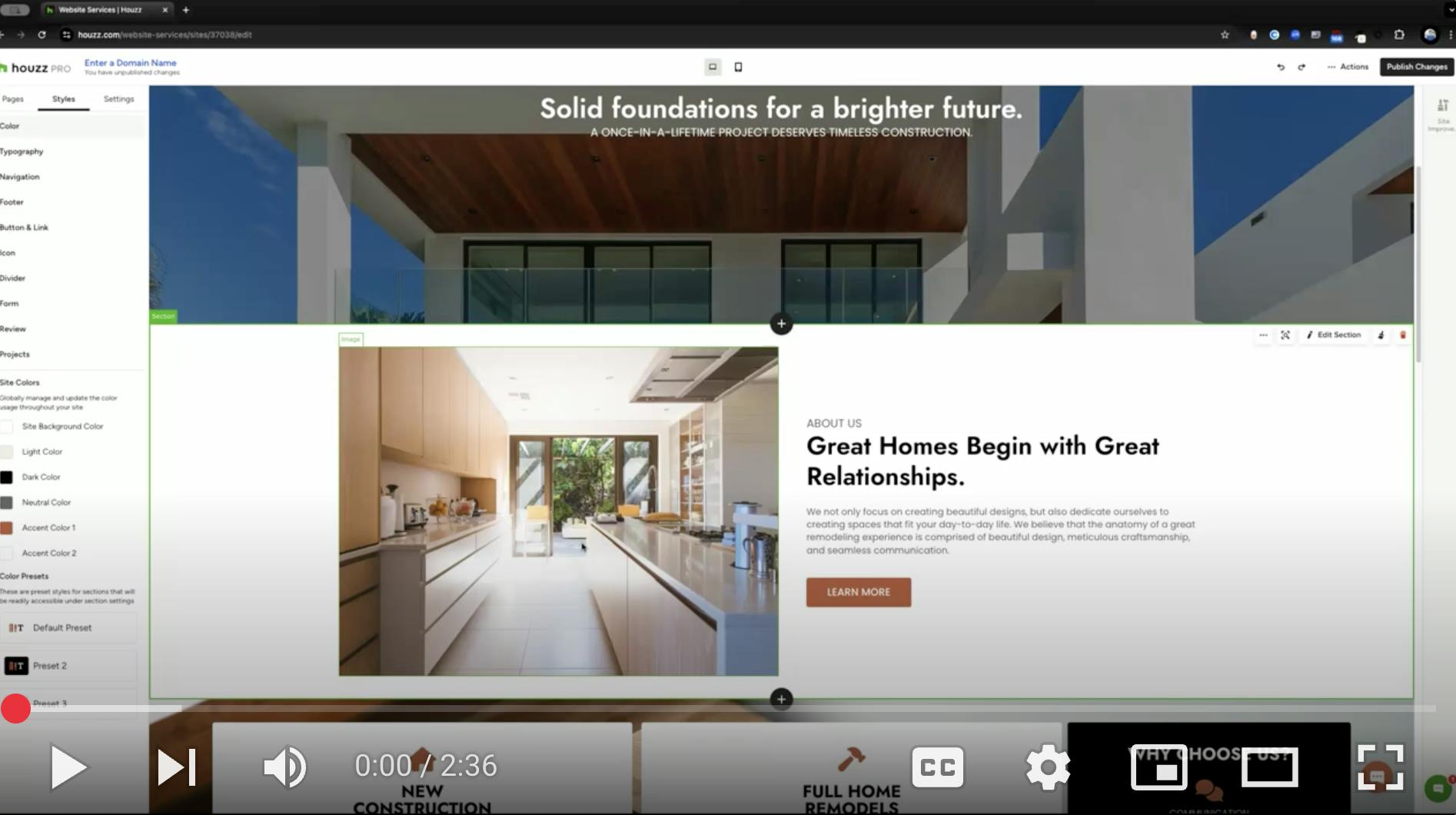
The Color panel is where you define and control your website's brand colors. Like other settings in the Styles panel, changes made here are universal. This means updating a color will automatically update all elements on your site that use that specific color.
Watch the video below or read step-by-step instructions to learn more.
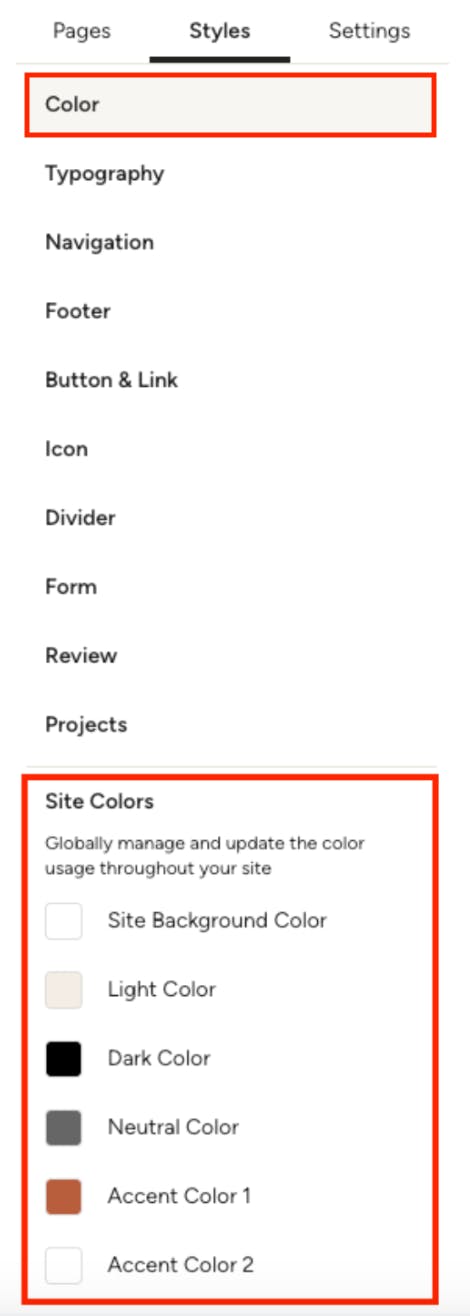
To adjust your global site colors, click Color under the Styles tab. In the color panel, you will see Site Colors.
Here you'll find six color swatches that establish the color identity of your website.
Change Color Swatch
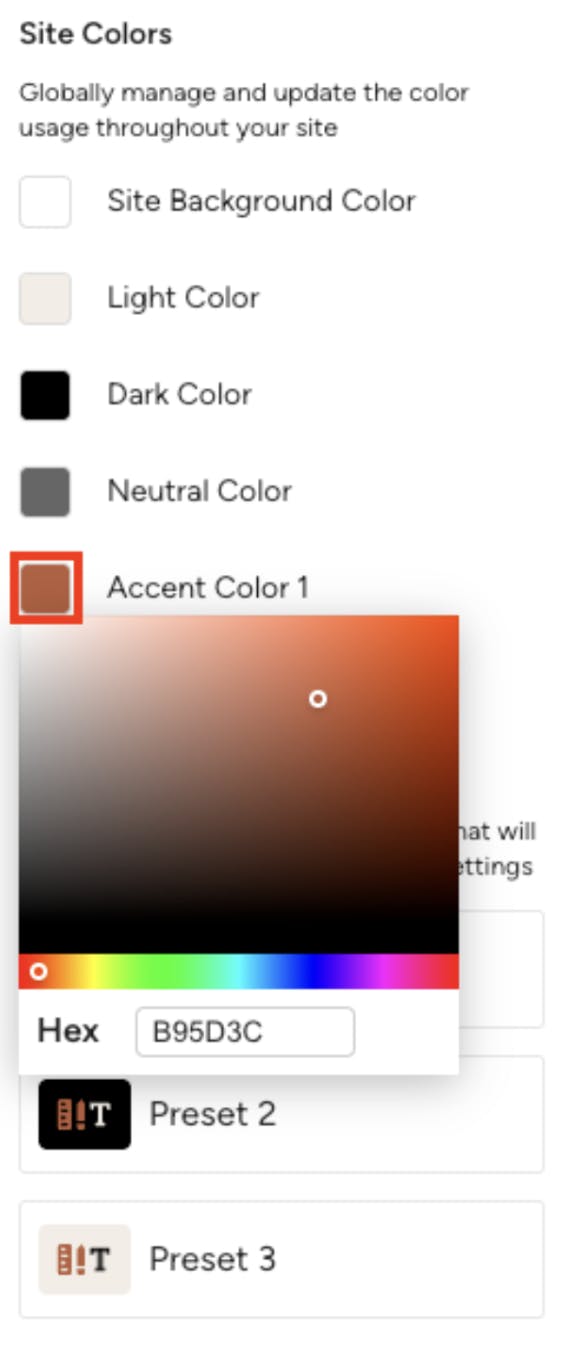
To change any of the color swatches, click on a swatch to open the color picker.
Here, you can:
- Adjust the Hue: Move the bottom slider to change the actual color.
- Adjust Saturation: Drag the color selector left or right to control the vibrancy of the color.
- Adjust Brightness: Drag the selector up or down within the main color panel to make the color lighter or darker.
- Use a Hex Code: If you have a specific brand color, you can paste its hex code directly into the provided box.
Once you are done making changes, simply click outside the color picker to save. You'll immediately see that any section or block on your website that was using the updated color will reflect the new choice.
Using Color Presets
Color presets are pre-defined bundles of color choices that apply to various elements across your website, including text, buttons, backgrounds and more. They help maintain design consistency and allow for quick global style changes. These presets can be quickly applied to sections, cards, header and footer.
Watch the video below or read step-by-step instructions to learn more.
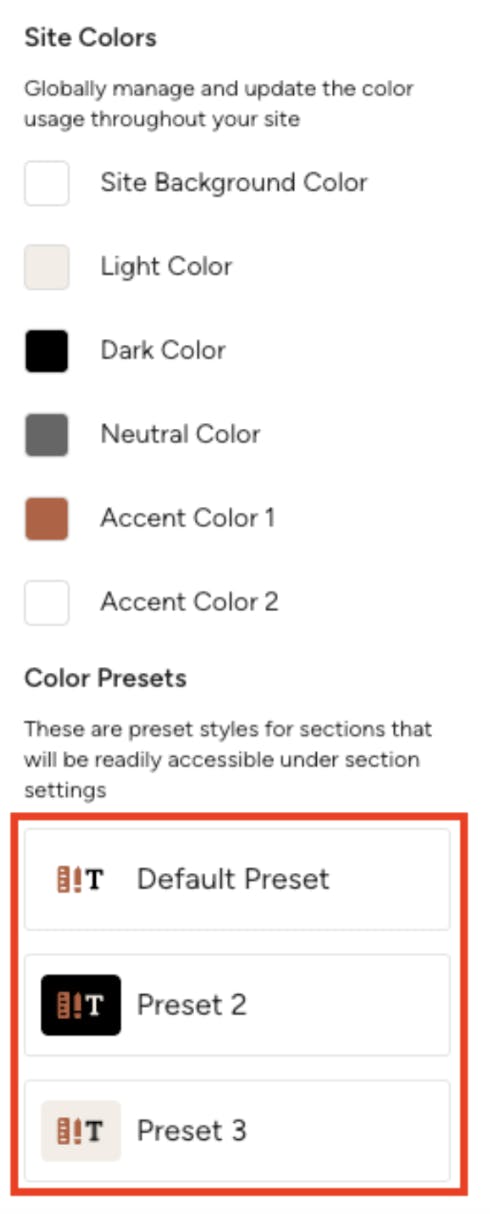
Your website comes with three color presets. All of these presets are fully customizable.
Edit Color Preset
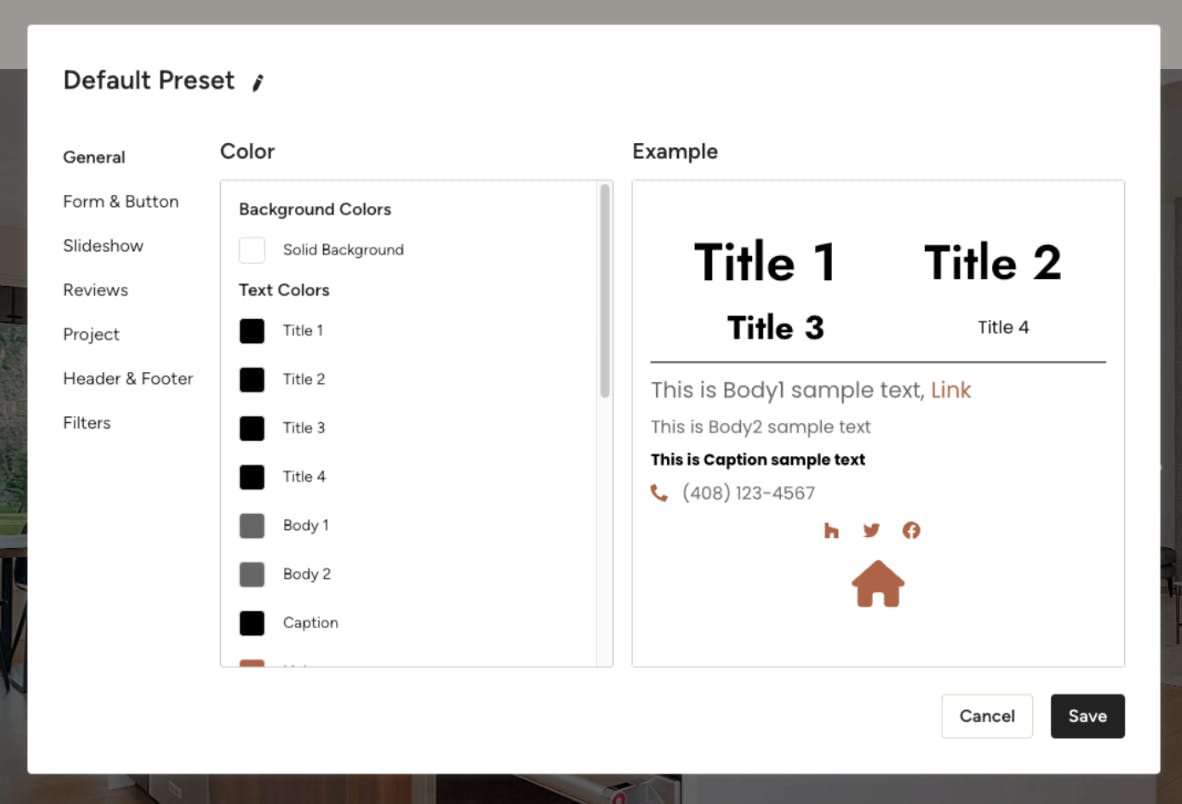
To modify an existing color preset, click on the preset you wish to edit to open the Color Preset Window. A new screen will appear.
In the left column, you'll see various categories of elements. In the central column, you'll find the color swatches assigned to each element within that category. In the right column, a preview will show you how those color choices look together.
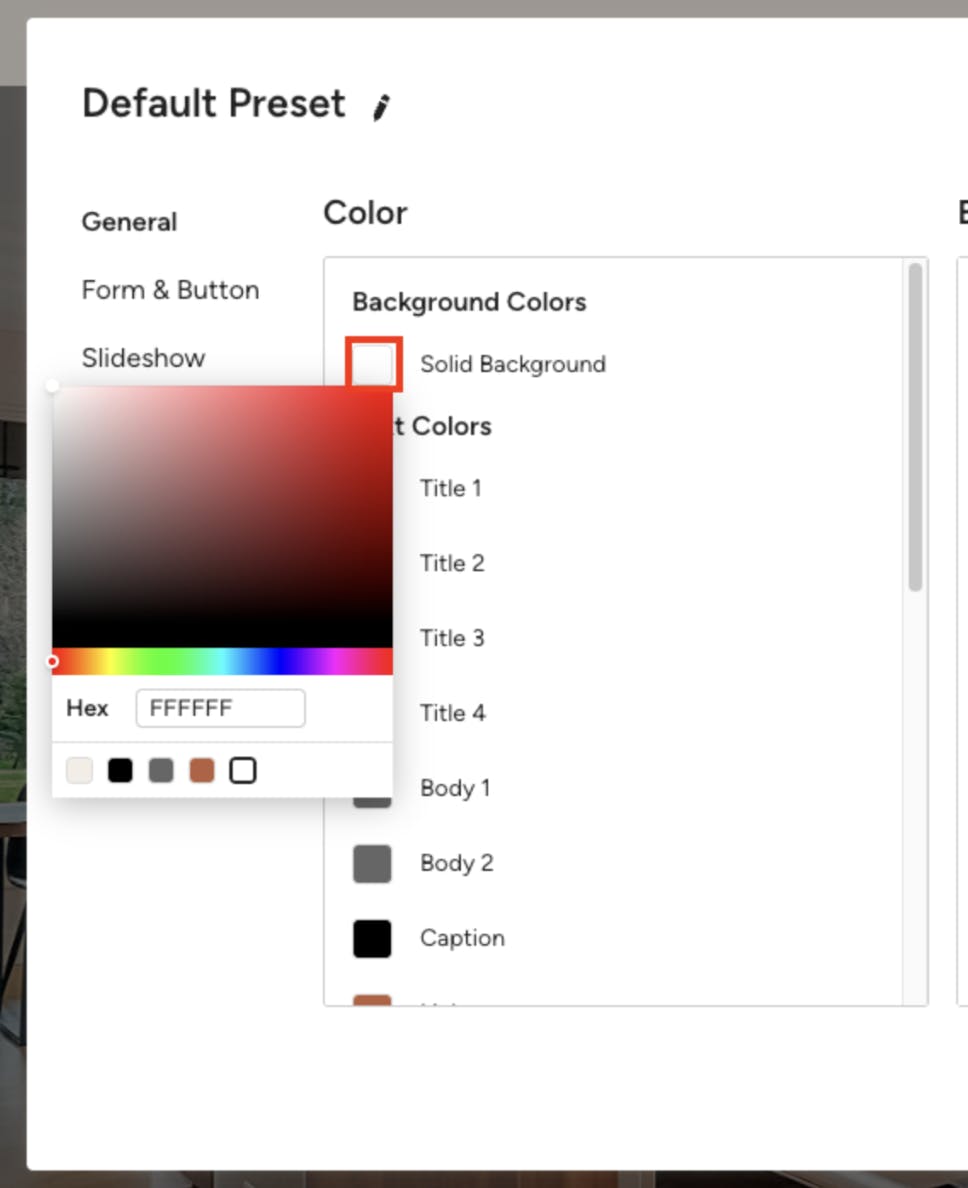
Click on a swatch to open the color picker.
At the bottom of the color picker, you'll see your site's main color swatches. If one is highlighted in black, it means the color for this element is linked to that global site color. Changes to the main site color swatch will automatically update this element's color in the preset.
From the color picker, you also manually select a color. This makes the color choice independent and no longer connected to your global site colors.
Apply Color Presets
Color presets can be applied to your website's sections, cards, header and footer.
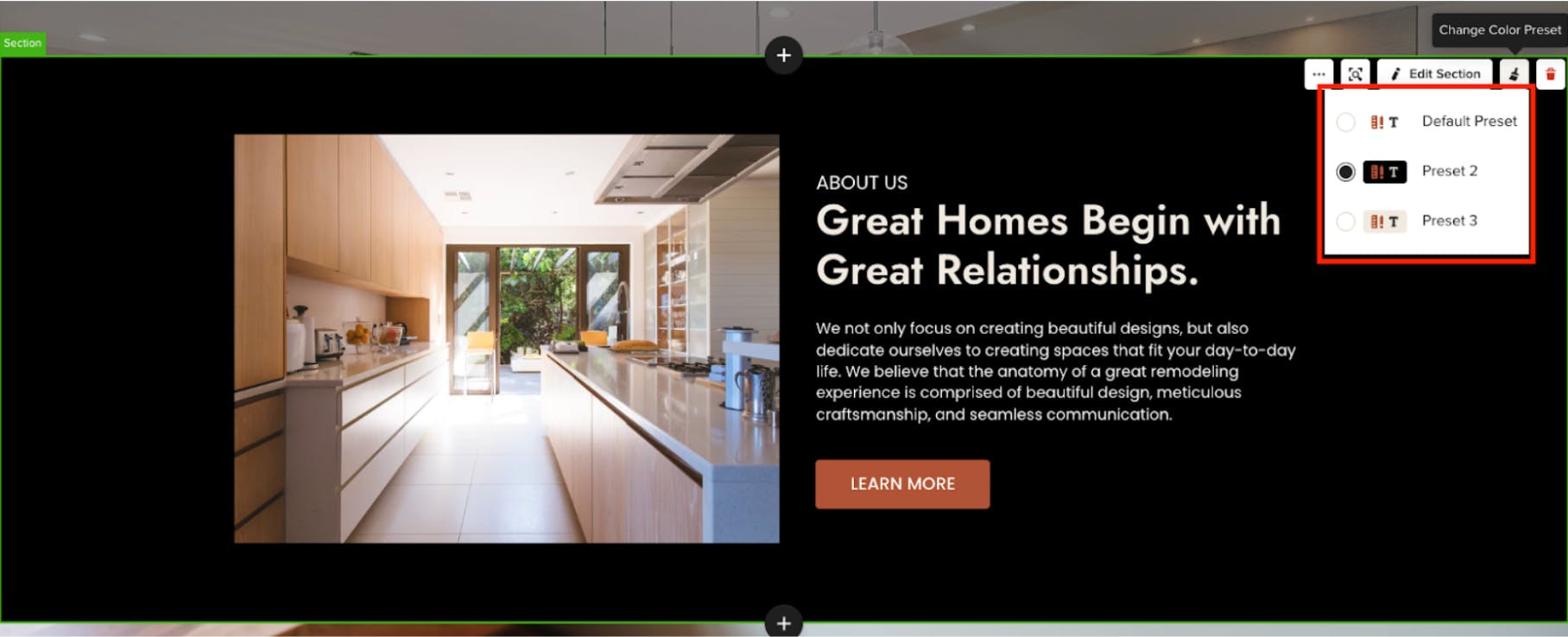
Section
To do this for a section, click the desired section in the website builder preview. On the right side next to the Edit Section button, you'll see a small Paintbrush icon.
Click the Paintbrush icon and select one of your color presets. The section's colors will update instantly in the preview.
Card
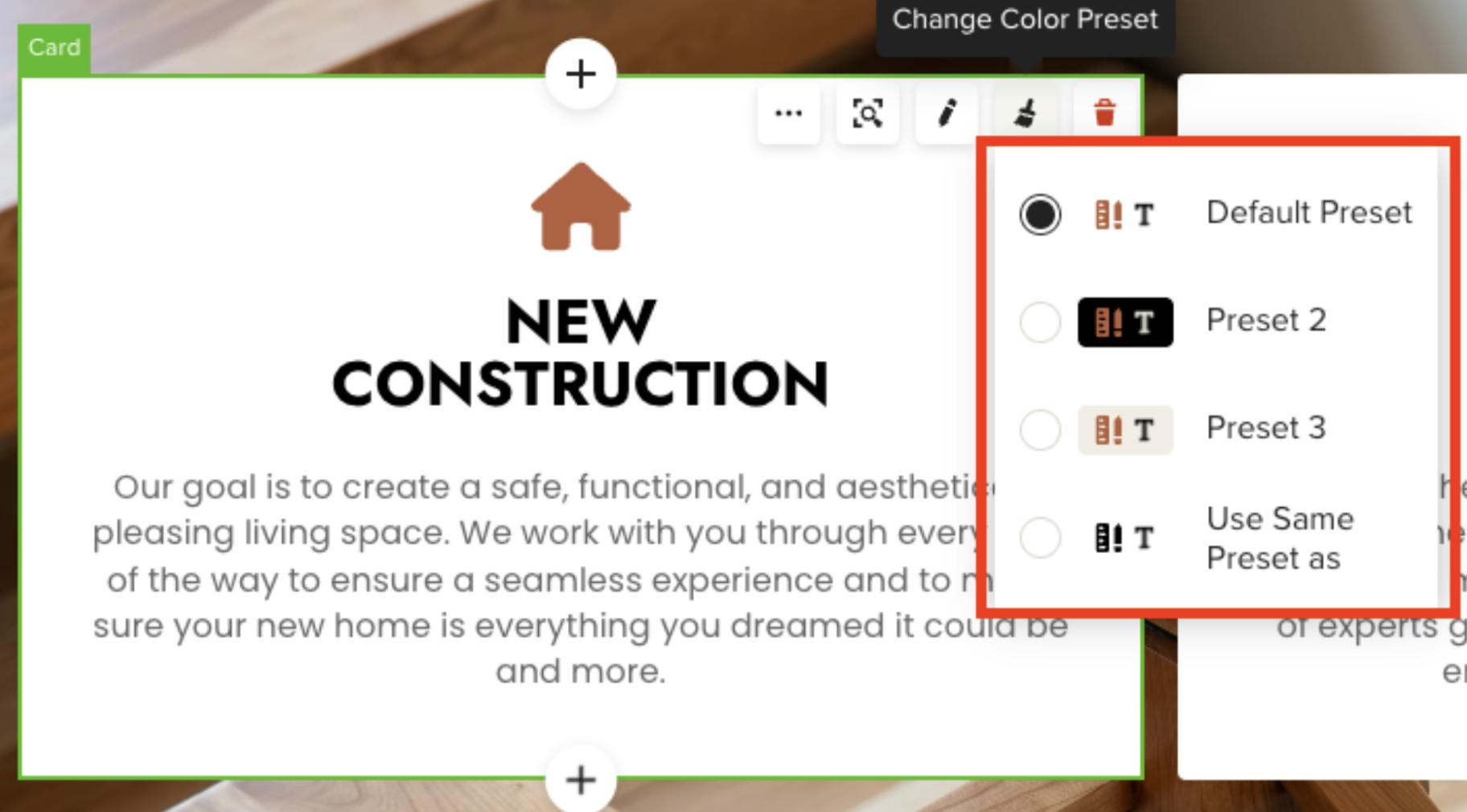
You may notice that a card within a section doesn't always change color when you apply a preset to the section. This is because cards can have their own independent color presets.
If you want to adjust the color preset for a card, select the card you wish to modify, then click the Paintbrush icon next to the pencil icon.
Choose a color preset to apply it.
Please Note: Cards also have a fourth option, which allows them to inherit the color preset applied to the section they are in. This ensures visual consistency if desired.
Header and Footer
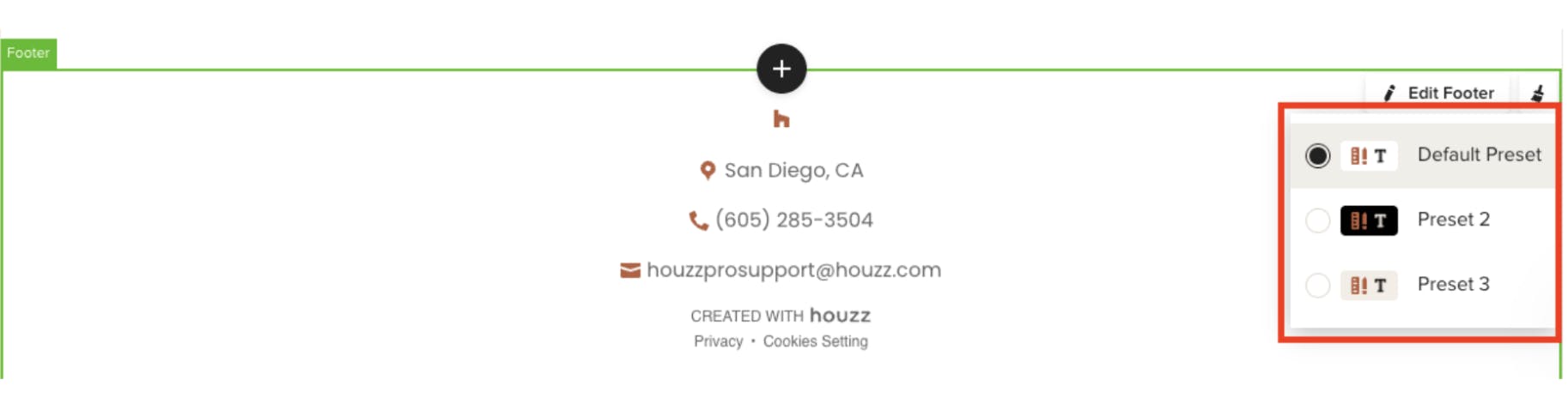
The header and footer can also take color presets, just like any other section.
To update, click the header or footer, then click the Paintbrush icon next to the edit button. Choose a color preset to apply it.
Typography Panel
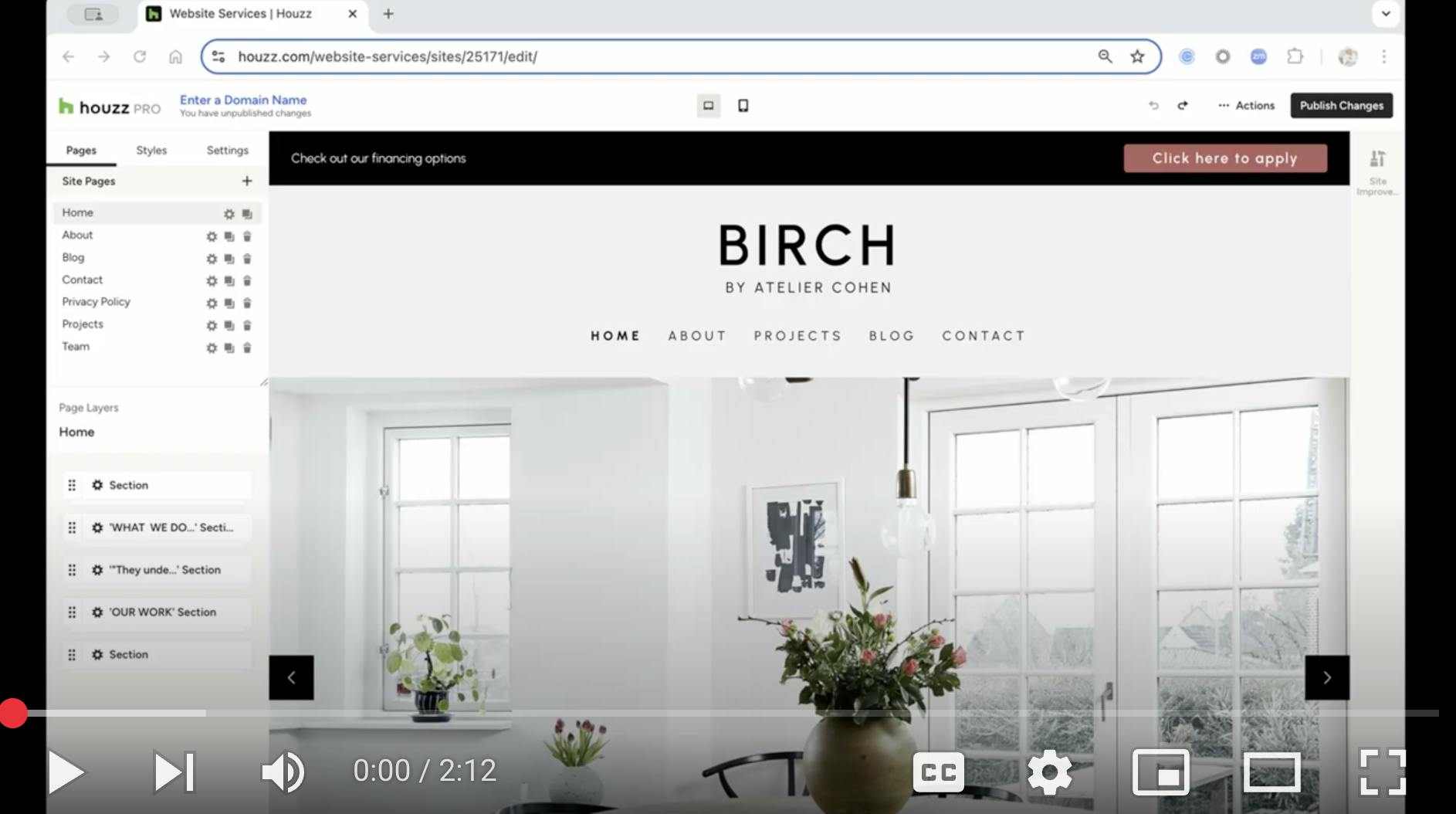
The Typography Panel is where you define and control all of the fonts for your website. Watch the video below or read step-by-step instructions to learn more.
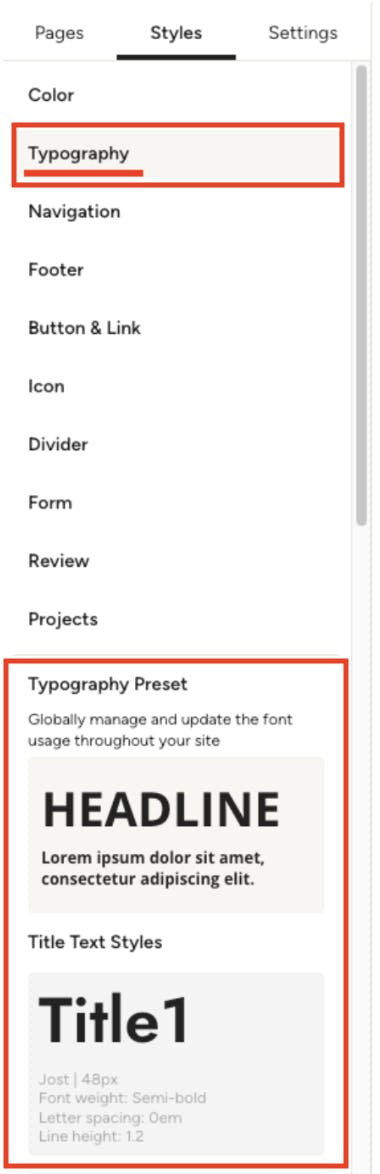
To adjust your fonts, click Typography under the Styles tab. You will see a list of all of your font settings. You can scroll down to see the full list.
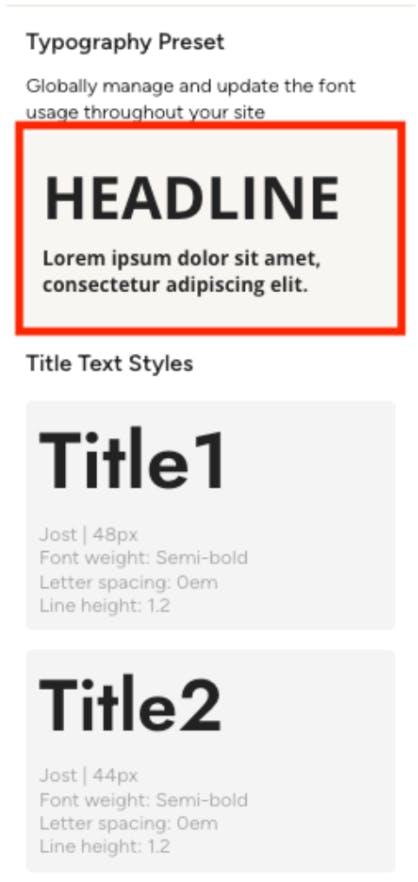
Select Typography Presets
If you want to quickly select a new set of typography choices for your site, you can do that via the Typography Preset button.
Please Note: Choosing a typography preset will override any existing font choices you have made.
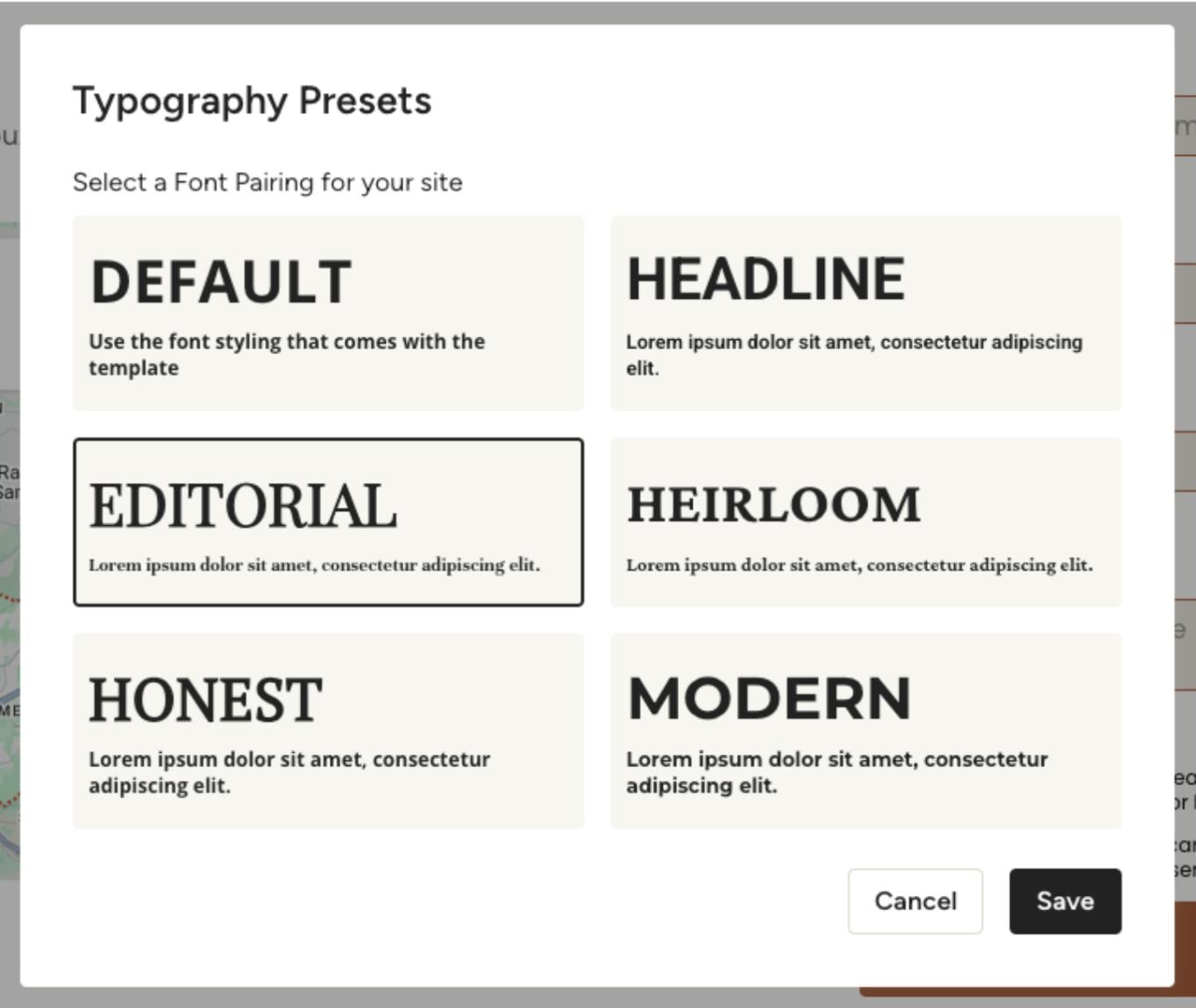
Select a different preset to apply it to the whole site. Be sure to click Save. All of the font choices will be updated to reflect the new preset.
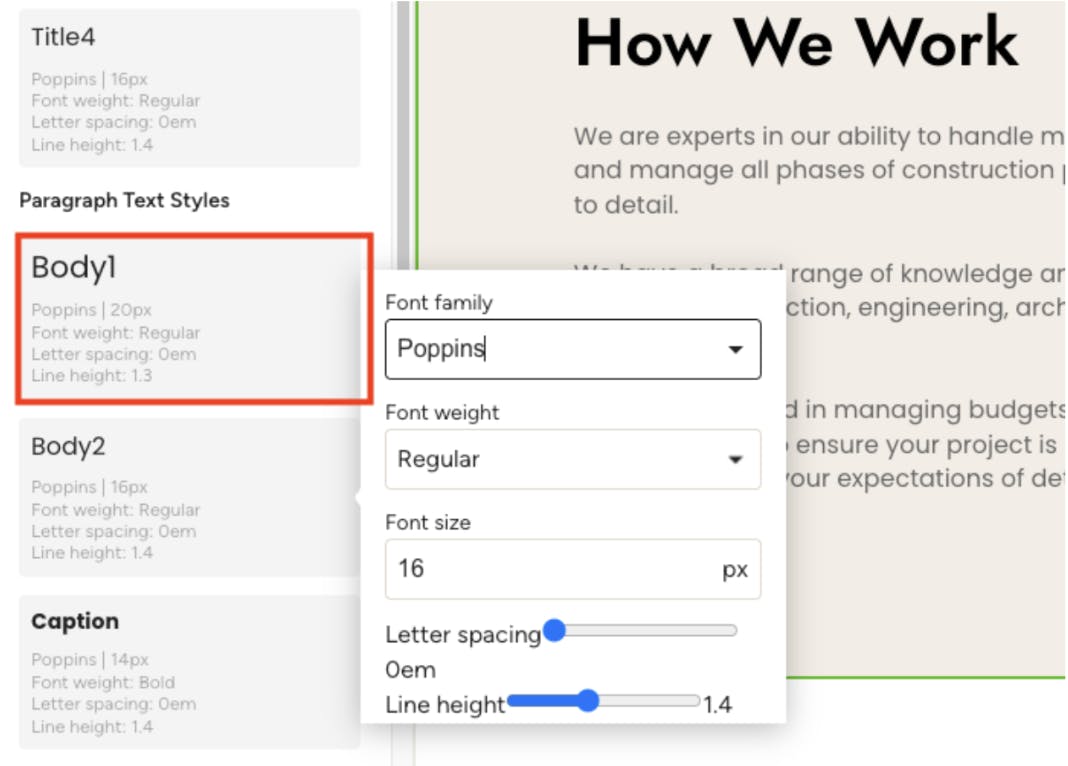
Adjusting Text Styles
You can adjust typography for site-wide text elements such as headings, paragraphs and buttons.
To change a font, click on the font you want to change. Click the Font family dropdown to choose a new font.
Our website builder uses the full Google font library, which contains over a thousand unique fonts. Scroll down the list of popular fonts, or click more fonts to search the full library.
You can also adjust the size, weight, letter spacing and line height for each font setting. For example, increasing your heading size makes it stand out, and adjusting paragraph spacing can improve readability.
Additional Style Settings
Beyond Colors and Typography, the Styles panel offers other settings to help you further customize your website's look. These include options for your Navigation, Footer, Buttons & Links, Icons, Dividers, Forms, Reviews and Projects. While we won't detail every setting here, read How to Edit the Projects Page to learn more about your project display settings.
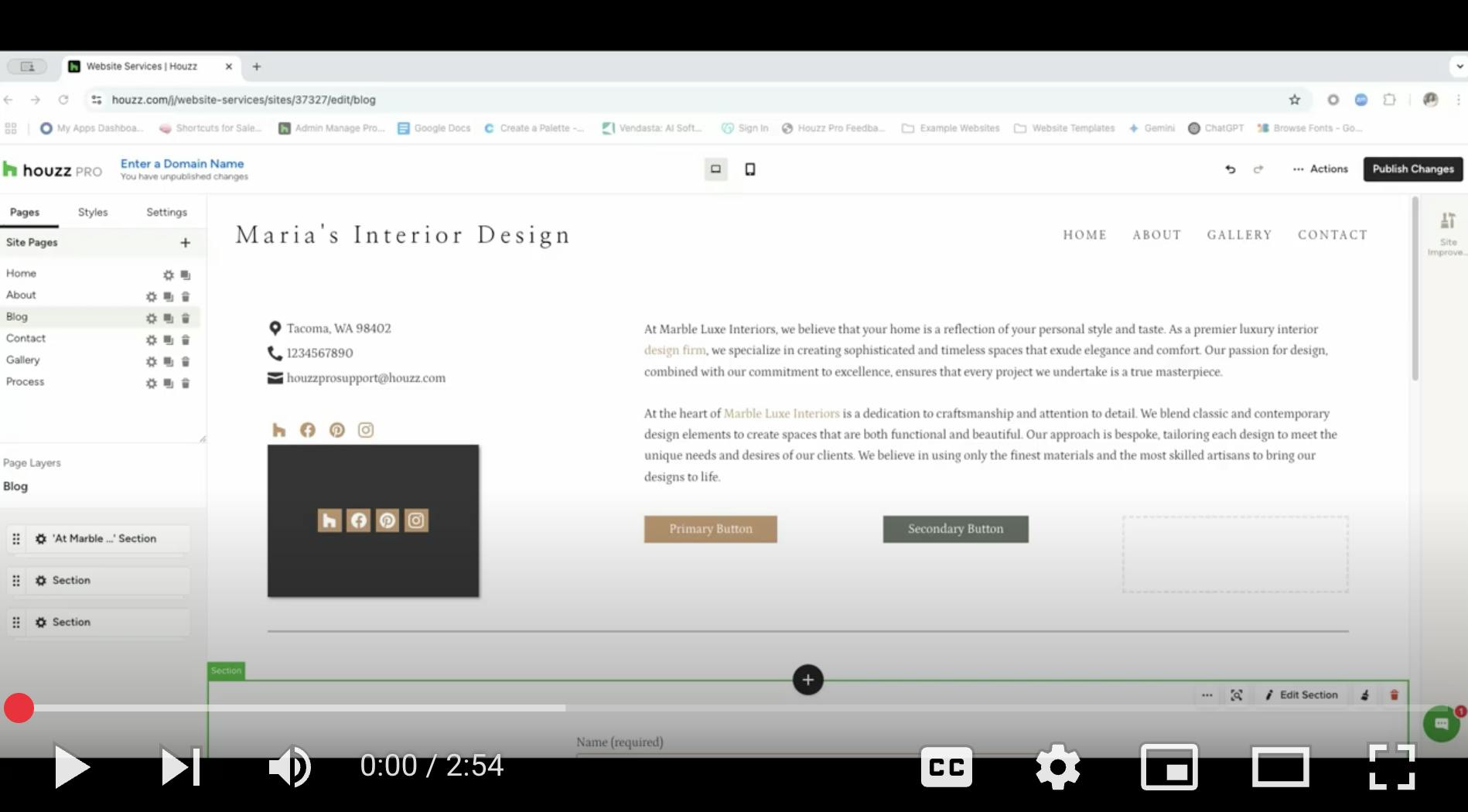
Watch the video below for more details on the Styles tab settings.
More Website Services Resources
How to Add Content to Your Houzz Website
How to Use the Website Editor Menu For Your Houzz Website
How to Use the Settings Tab For Your Houzz Website
How to Use the Pages Tab For Your Houzz Website
How to Edit the Projects Page on Your Houzz Website
How to Set Up a Domain and Publish Your Houzz Website