How to Use the Pages Tab For Your Houzz Website
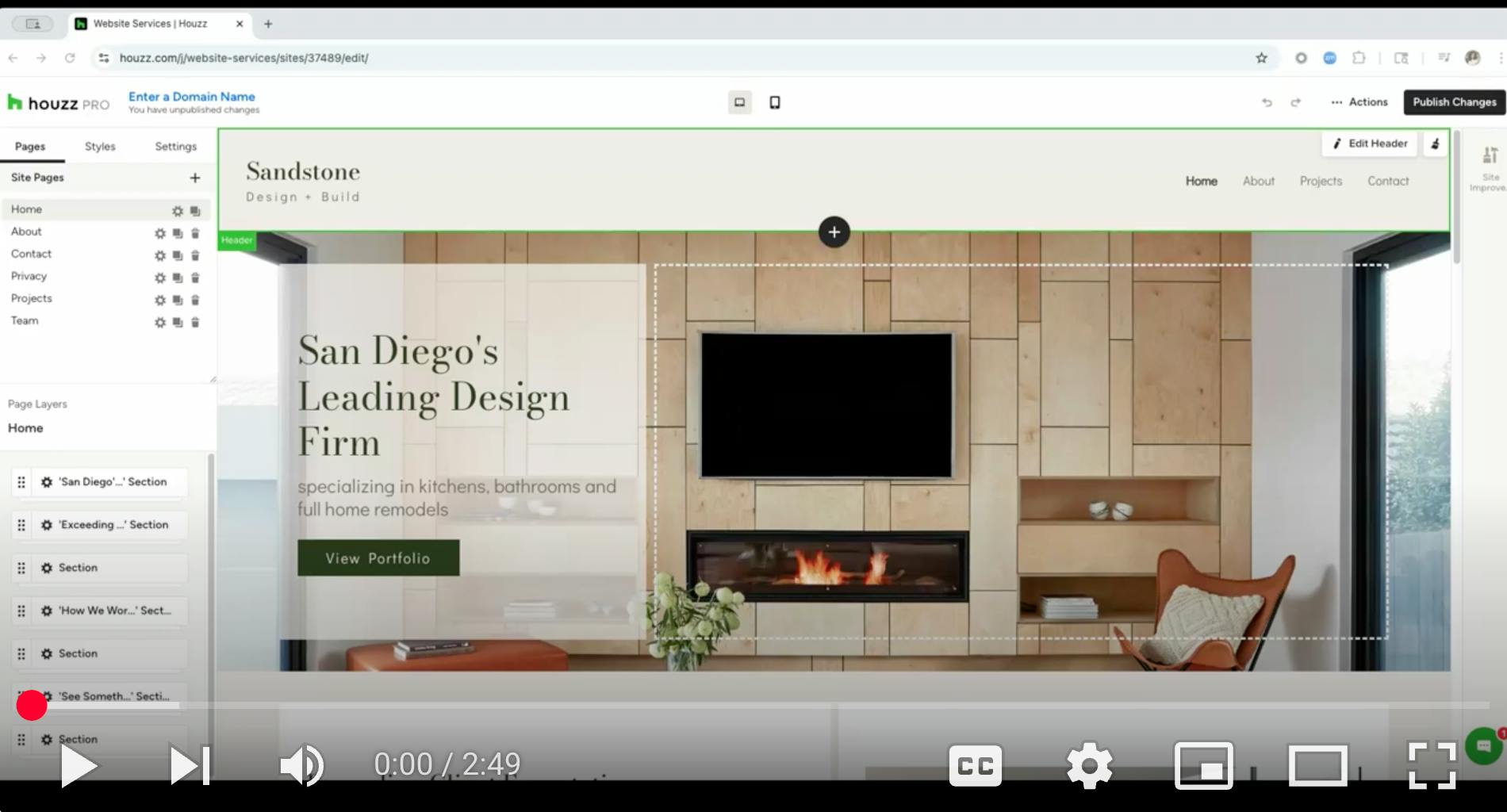
As you work on your Houzz website, there are many important toolbar features to understand. This article will go over the Pages tab, which is found in your left toolbar. For a more general overview of the website editor toolbars, read How to Use the Website Editor Menu For Your Houzz Website.
The Pages Tab of the website editor allows you to create, copy, delete, and modify some basic page settings. Inside the Pages tab, you will also find the Layers Panel, which controls the order of page elements and edit sections or content blocks.
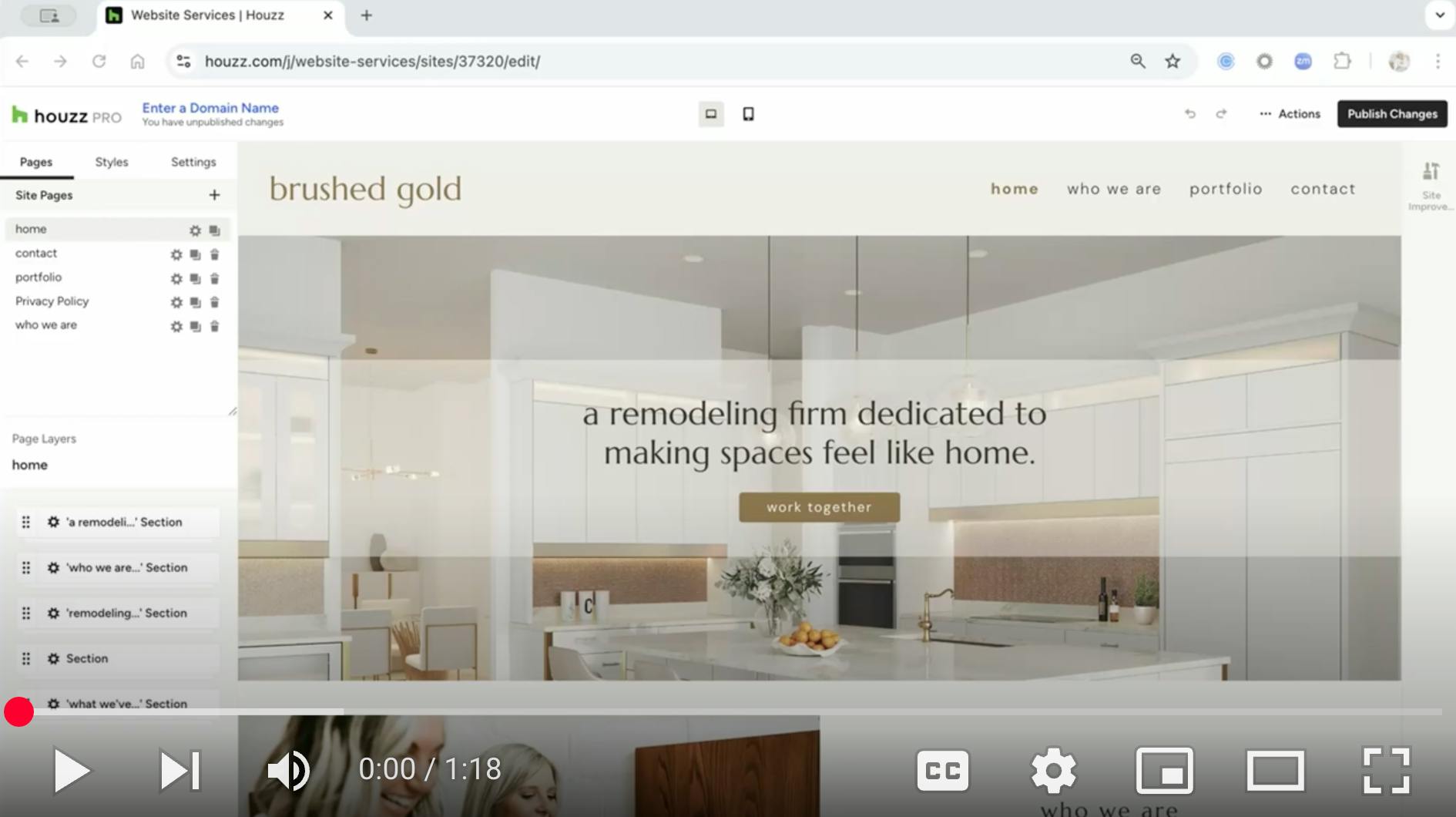
Watch the video below or read step-by-step instructions to learn more about using the Pages tab.
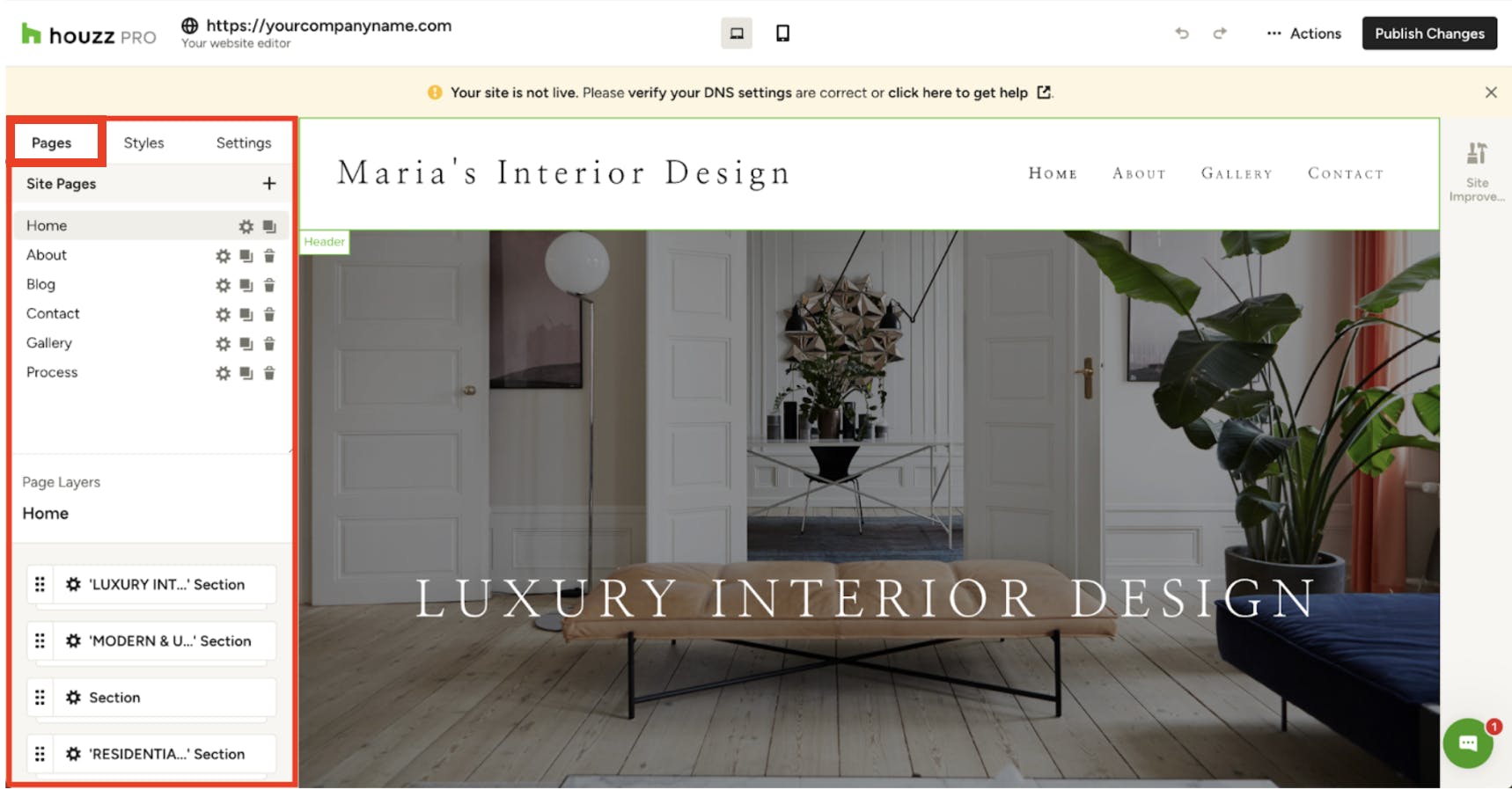
To access all the pages built on your website, find and click the Pages tab on the left side of your screen.
Page Settings
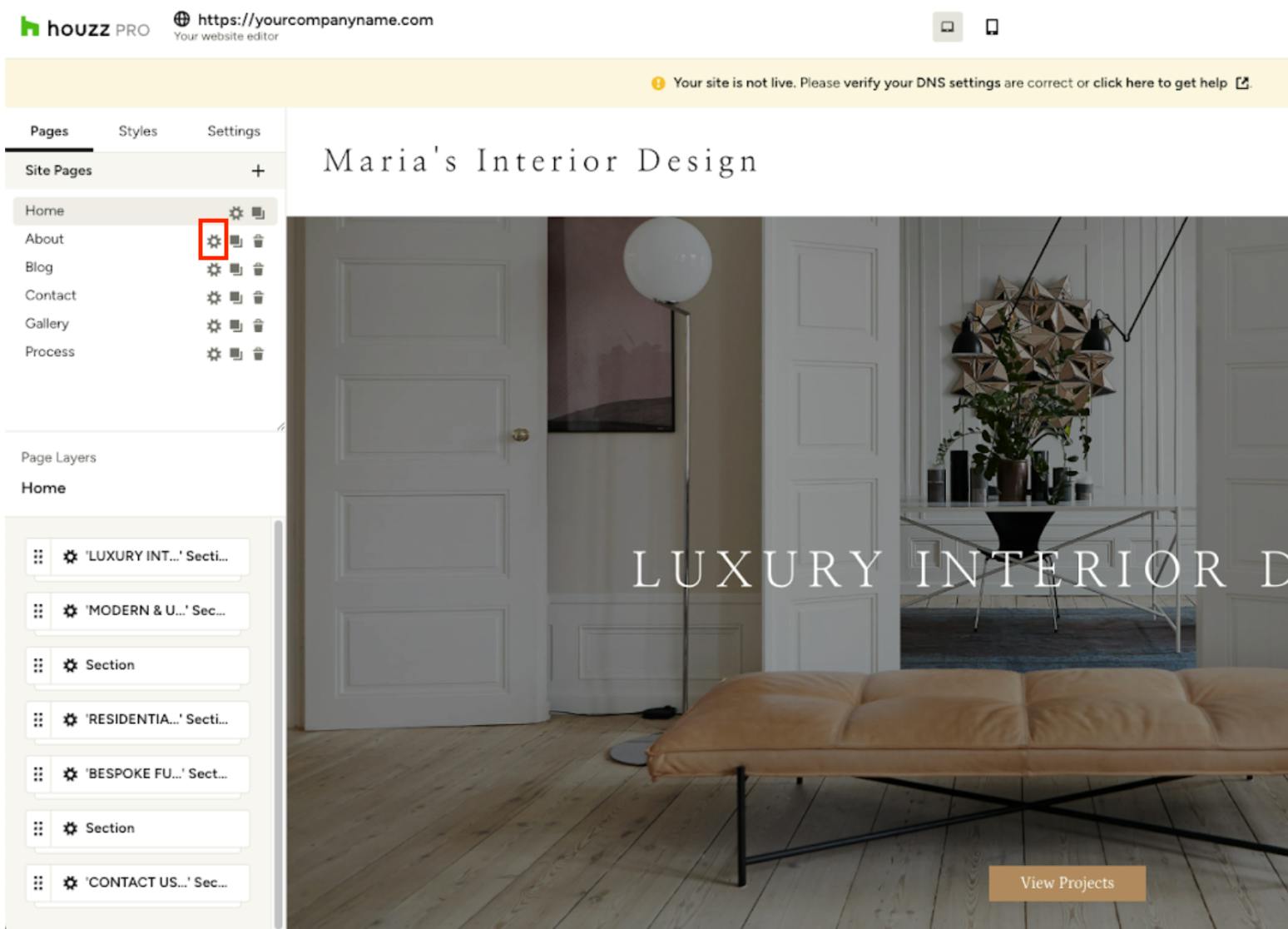
Each page has a Gear icon next to it, which represents its page settings.
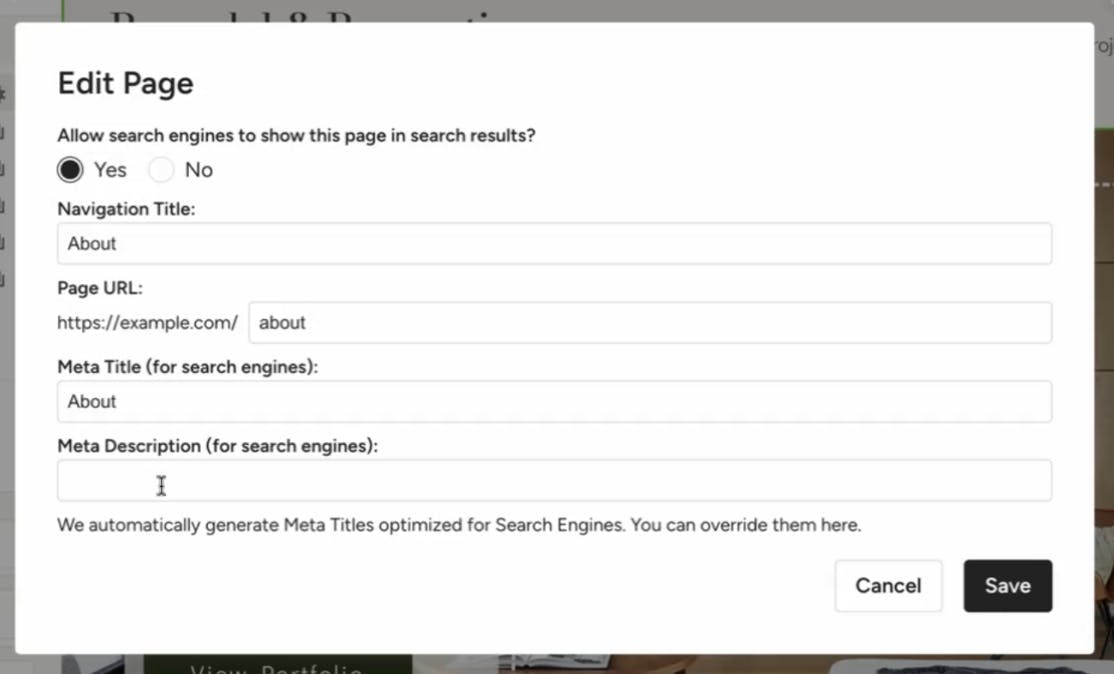
When you click on the gear, a new screen appears where you can:
- View and edit the page title.
- See and modify the URL link.
- Add meta titles and meta descriptions for search engines.
Create New Page
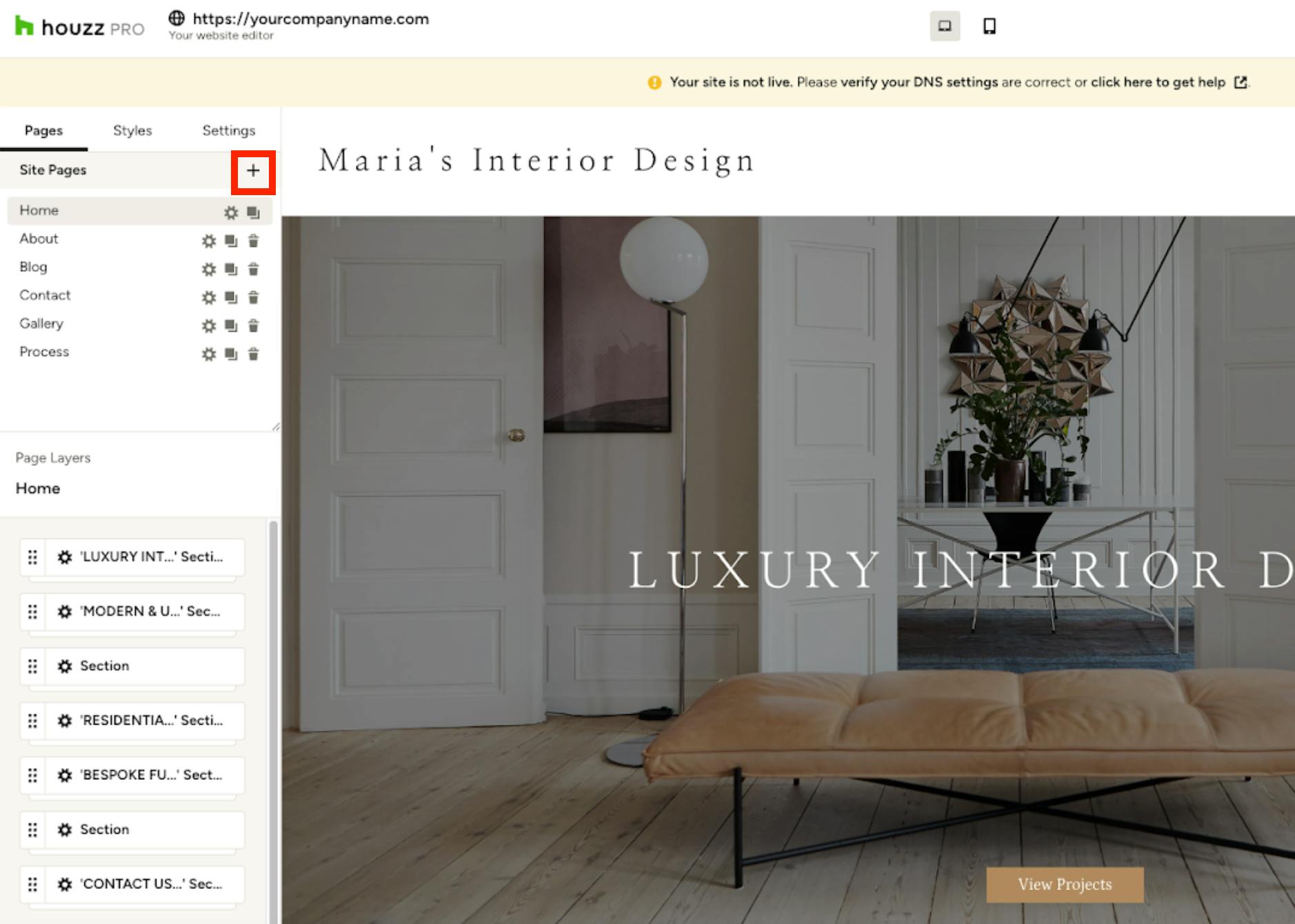
To add a new page, click the + Icon next to the title Site Pages.
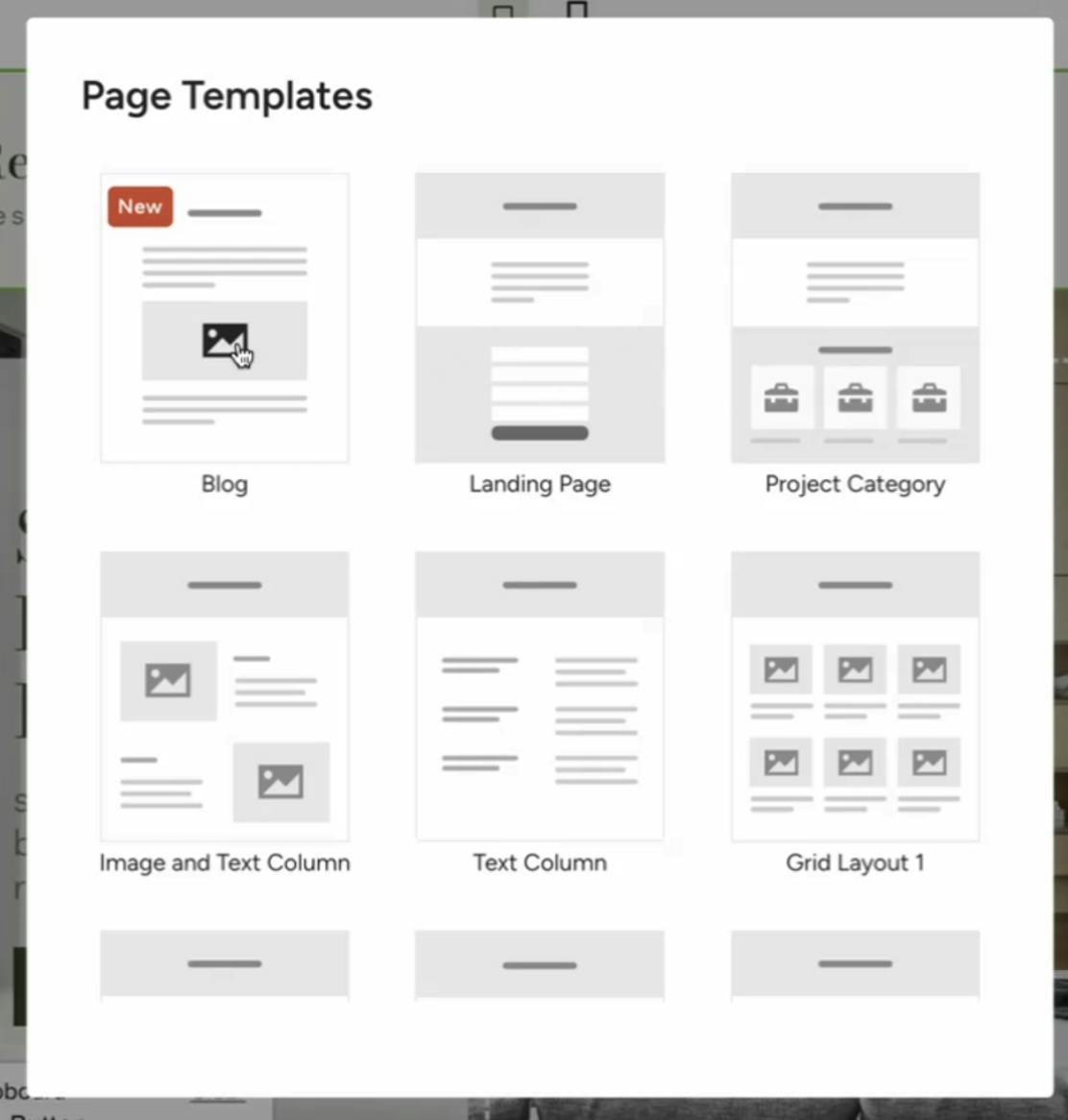
A new screen will appear where you can choose from the available templates.
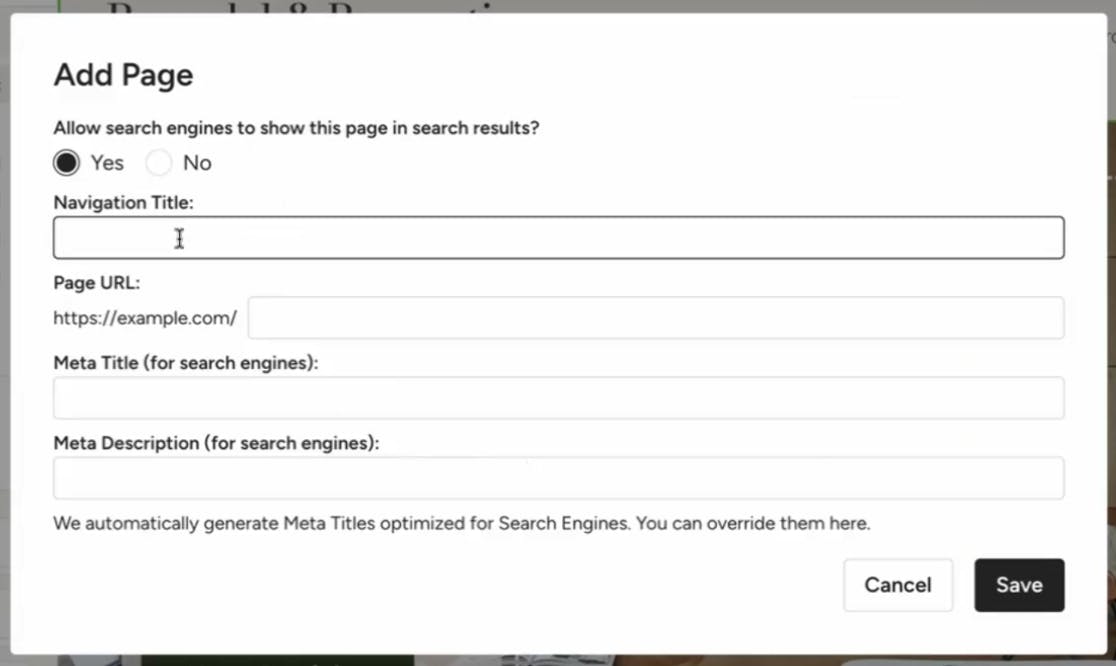
Enter a title for your new page. This will automatically set your Page URL. Be sure to click Save once complete.
Your new page will appear and be ready for you to edit.
Please Note: If you have created a new page and want it to appear in the navigation bar for visitors to see, read How to Edit the Header on Your Houzz Website.
Copy Existing Page
The Copy Page feature is handy for duplicating layouts. It will duplicate the design and layout of an existing page, which will give your website a streamlined look and ensure that several pages share the same design.
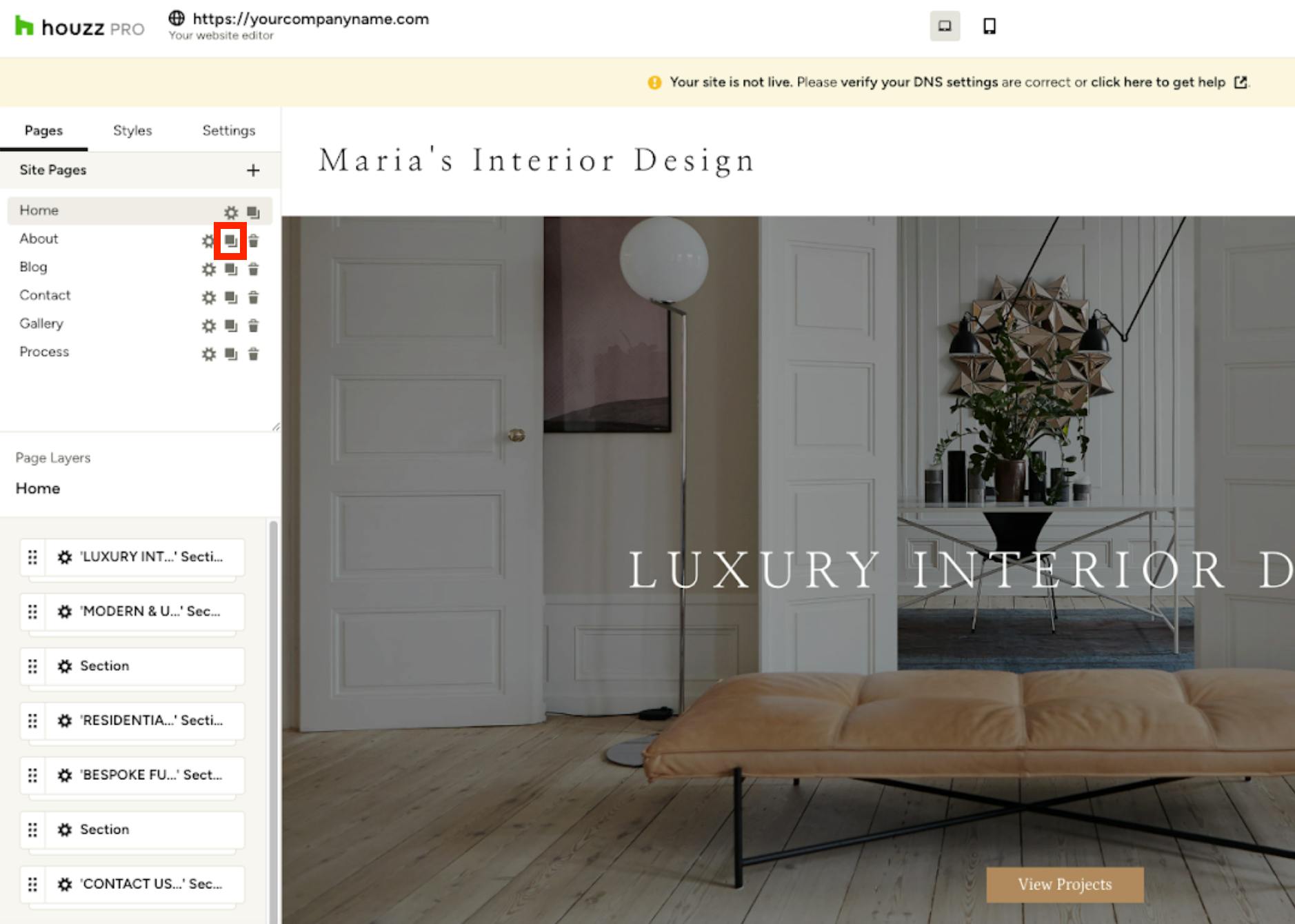
Click the copy page icon (two overlapping squares) next to the page you want to duplicate.
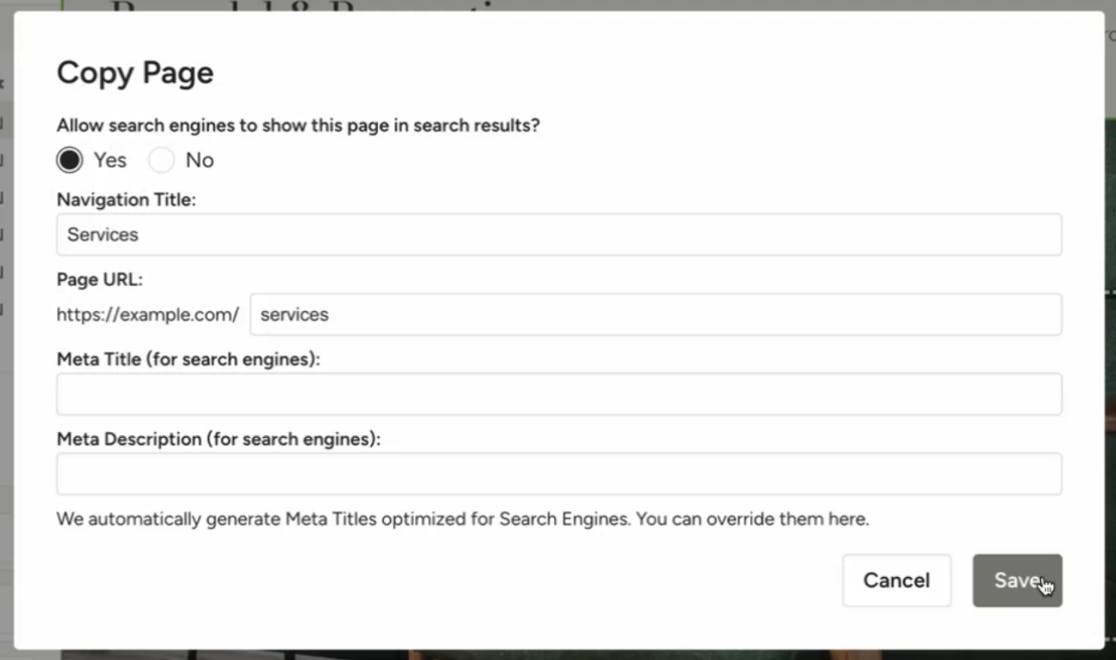
Enter a new page title. You will need to change the URL to match the new title, then click Save once complete.
The new page will open in the editor, where you can start making changes.
Delete Page
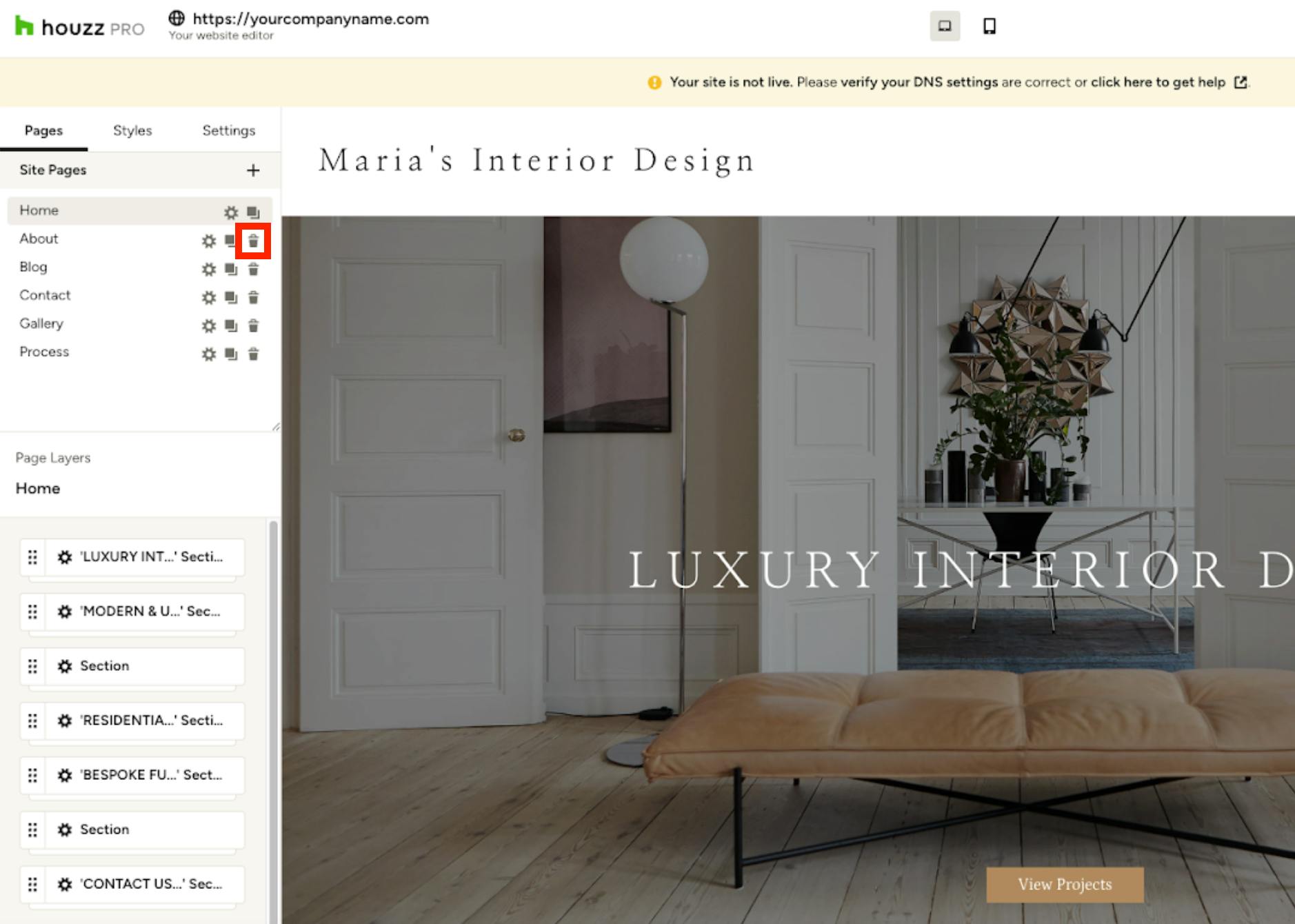
If you no longer need a page, click the Trash Can icon next to the page you want to remove. You will need to confirm the deletion. Please Note: Deleted pages cannot be recovered.
Page Layers
Page layers are like transparent sheets stacked on top of each other, with each website element (text, images, buttons) residing on its own layer. Understanding and utilizing page layers gives you precise control over your website's design and layout.
Watch the video below or read step-by-step instructions to learn more.
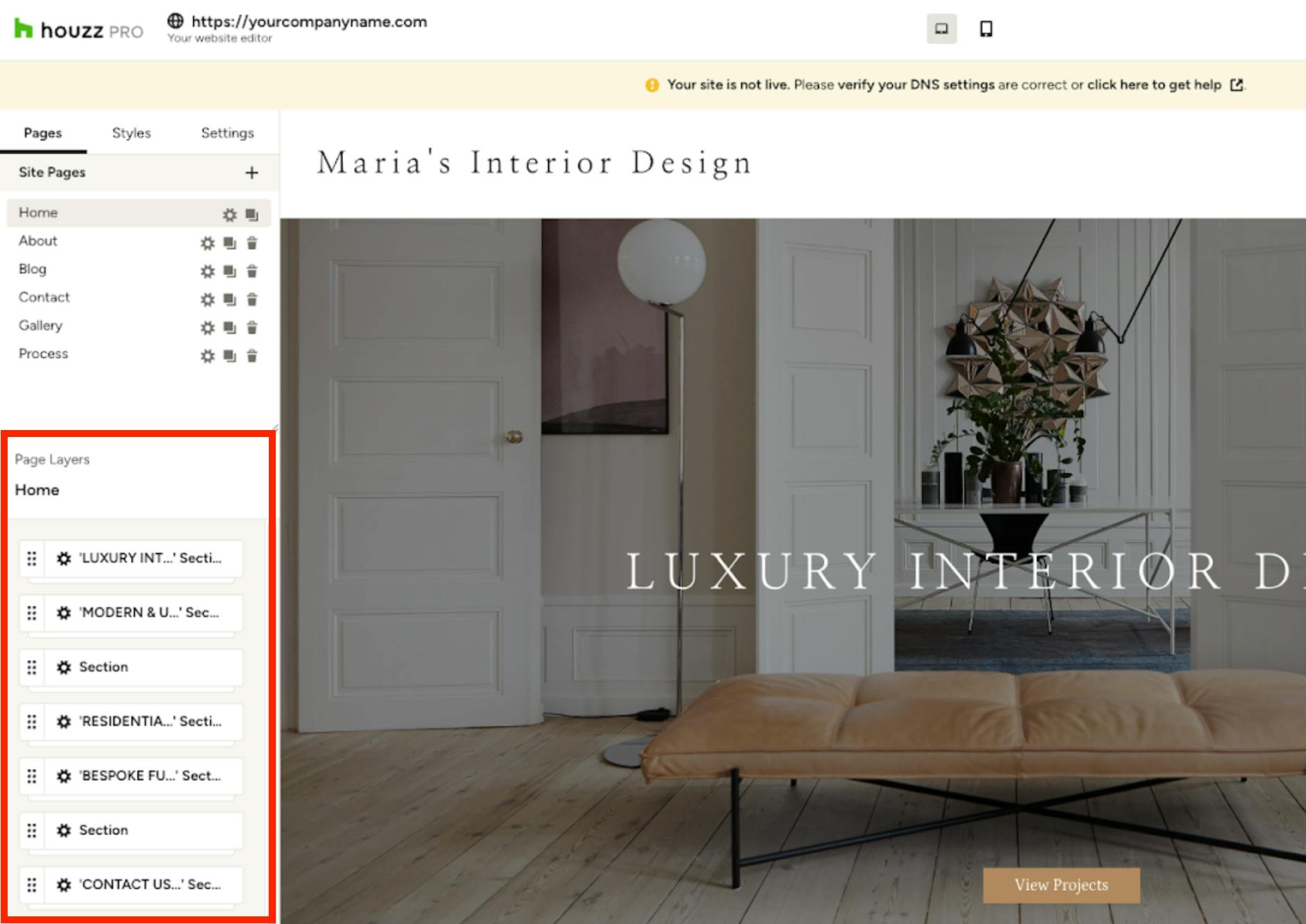
You'll find the Page Layers panel underneath your list of pages in the Pages tab. This panel displays all your page sections and blocks in their hierarchical order, from top to bottom.
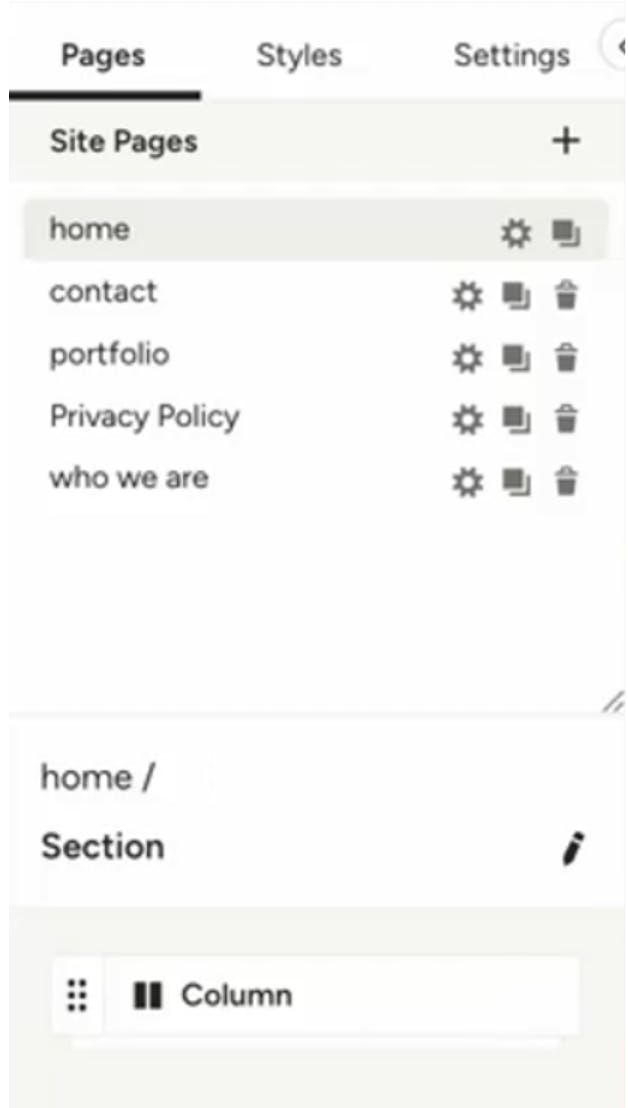
Element Hierarchy
All of the content on each page is broken down into sections, and within sections are levels of nested content blocks.
Clicking on the section reveals any content blocks inside. For example, this section contains a column layout.
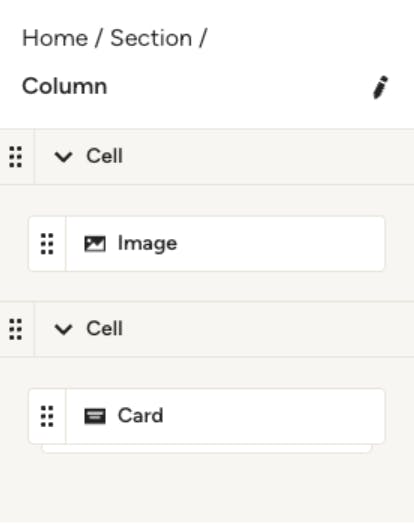
Certain content blocks can also contain elements within. Grids, columns, image & text blocks, and cards can all hold more content blocks inside of them. Clicking on any of these in the page layers will reveal their contents.
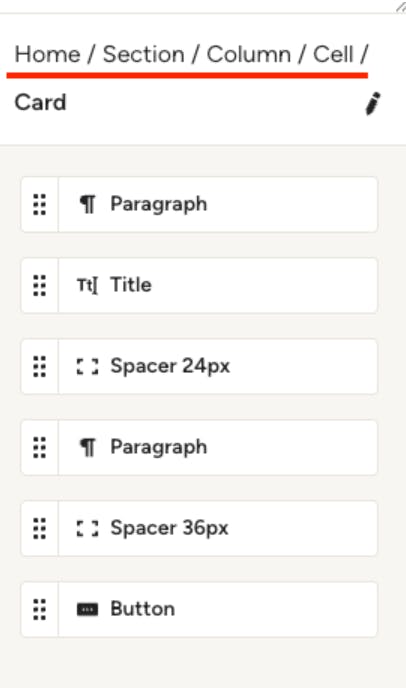
As you navigate deeper into your layers, you can return to a previous layer by clicking on its name via the layer navigation at the top of the layers panel.
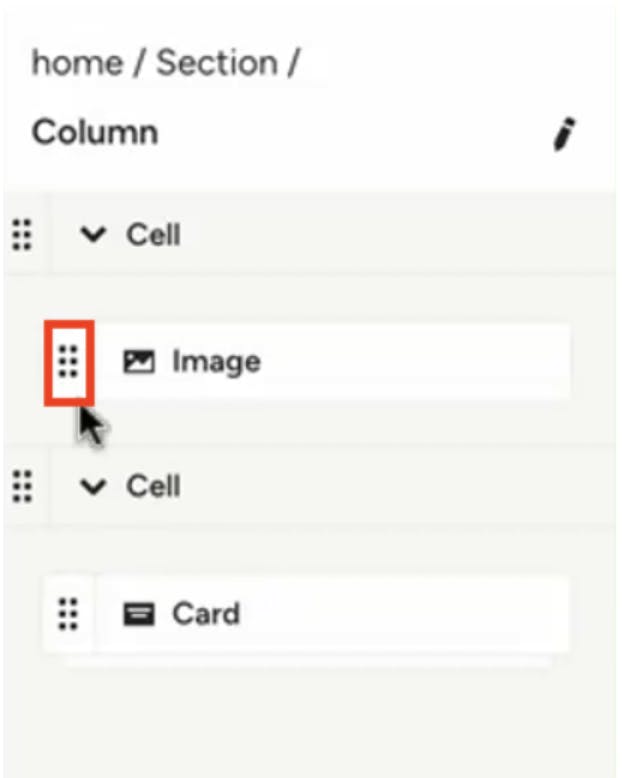
Rearranging Elements with Drag and Drop
Page layers make it simple to re-order sections and content blocks. Click and hold the gripper tool (the six dots) to the left of the element. Drag and drop it to the desired position.
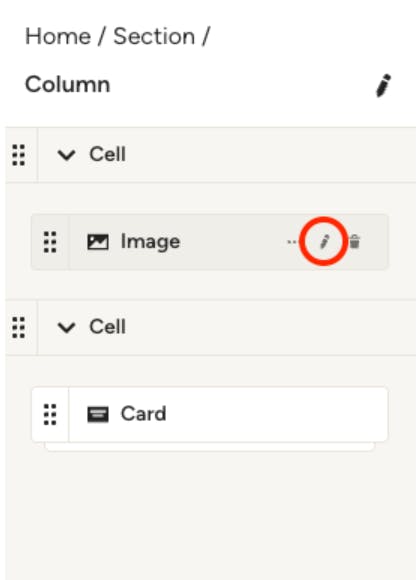
Editing Elements in the Layers Panel
When you hover your mouse over an element in the layers panel, you'll see a small Pencil icon appear on the right side. Clicking on the pencil will allow you to edit that element.
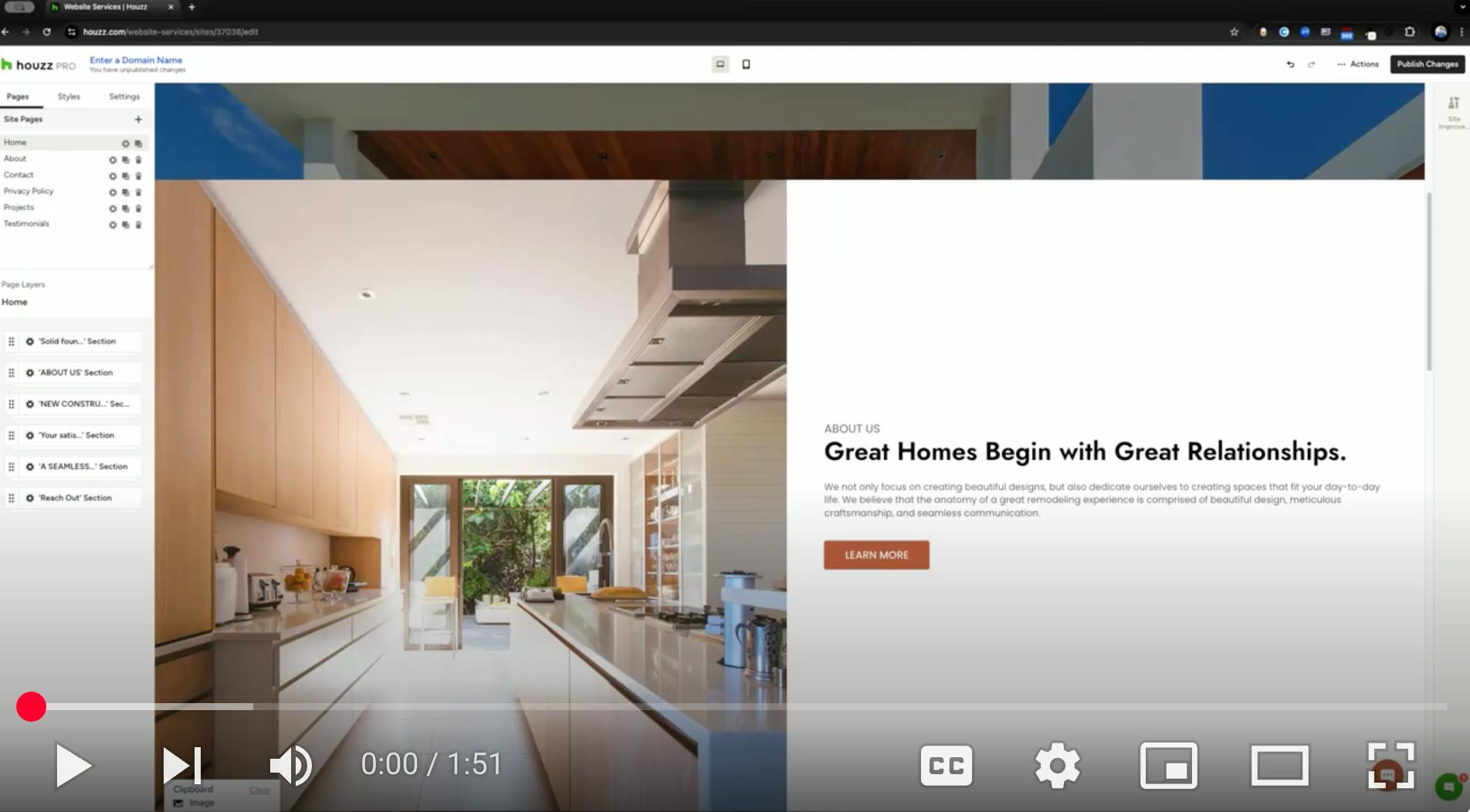
Watch the video below to learn more.
More Website Services Resources
How to Add Content to Your Houzz Website
How to Use the Website Editor Menu For Your Houzz Website
How to Use the Settings Tab For Your Houzz Website
How to Use the Styles Tab For Your Houzz Website
How to Edit the Projects Page on Your Houzz Website
How to Set Up a Domain and Publish Your Houzz Website