How to Use Third Party Integrations with Your Houzz Website
If you would like to gain deeper insight into how your search rankings and website traffic is performing, you can connect to third party integrations. The website editor offers integration with Google Analytics, Google Search Console, Google Tag Manager, and Facebook Domain Verification.
Please Note: While Houzz provides the ability to connect to third party integrations, we do not offer support for using or troubleshooting third party services. If you are experiencing issues with your integrations, please contact Google or Facebook support.
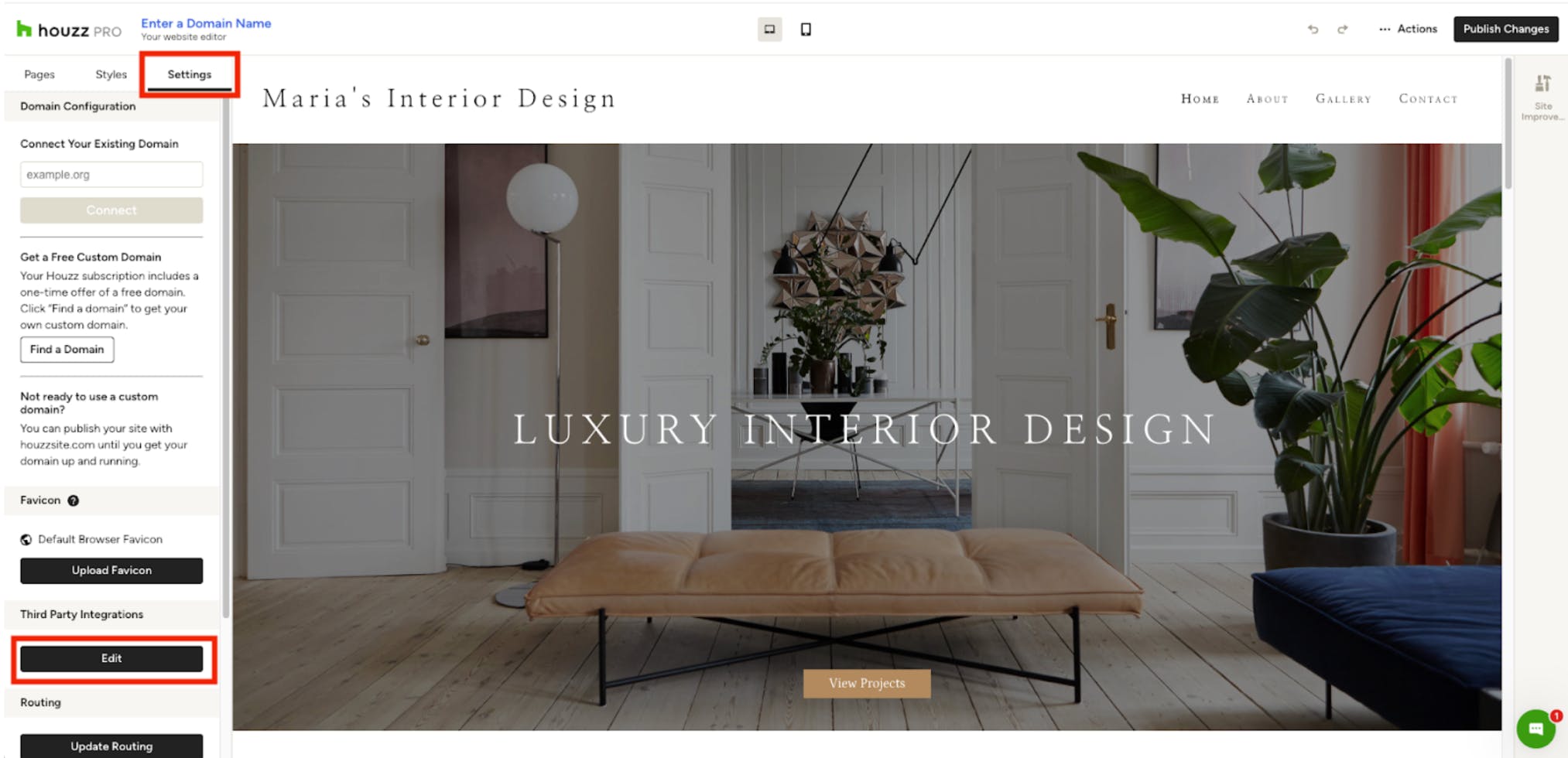
Add Third Party Integrations
It's easy to set up website integrations with popular platforms like Facebook and Google. To get started, click the Edit button under Third Party Integrations within your Settings.
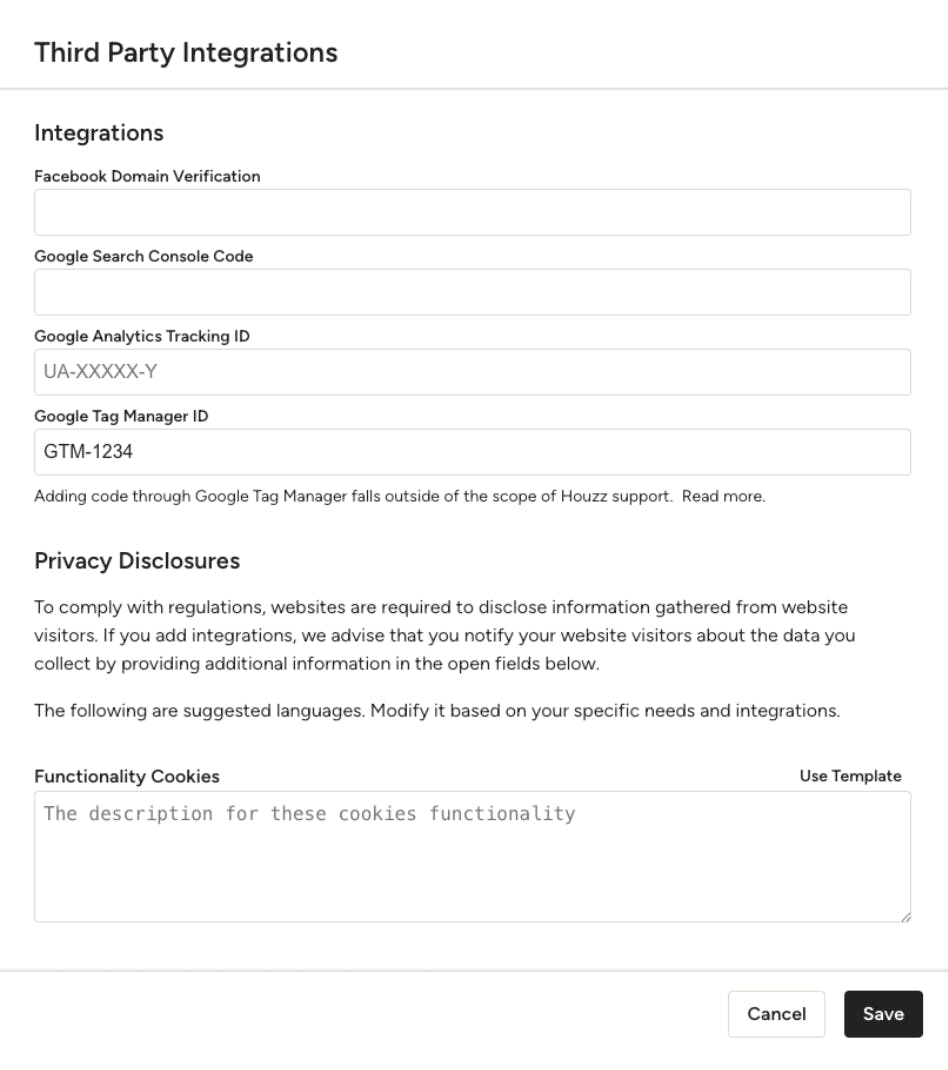
A new screen will appear where you will see several integration options, including:
- Facebook Domain Verification: Important for certain Facebook features, such as running ads.
- Google Search Console Code: Helps you monitor your site's performance in Google search results.
- Google Analytics Tracking ID: Provides insights into your website traffic.
- Google Tag Manager ID: For more advanced tracking and tag management.
To complete the integration, paste your codes in the relevant boxes, then click Save and Publish Site.
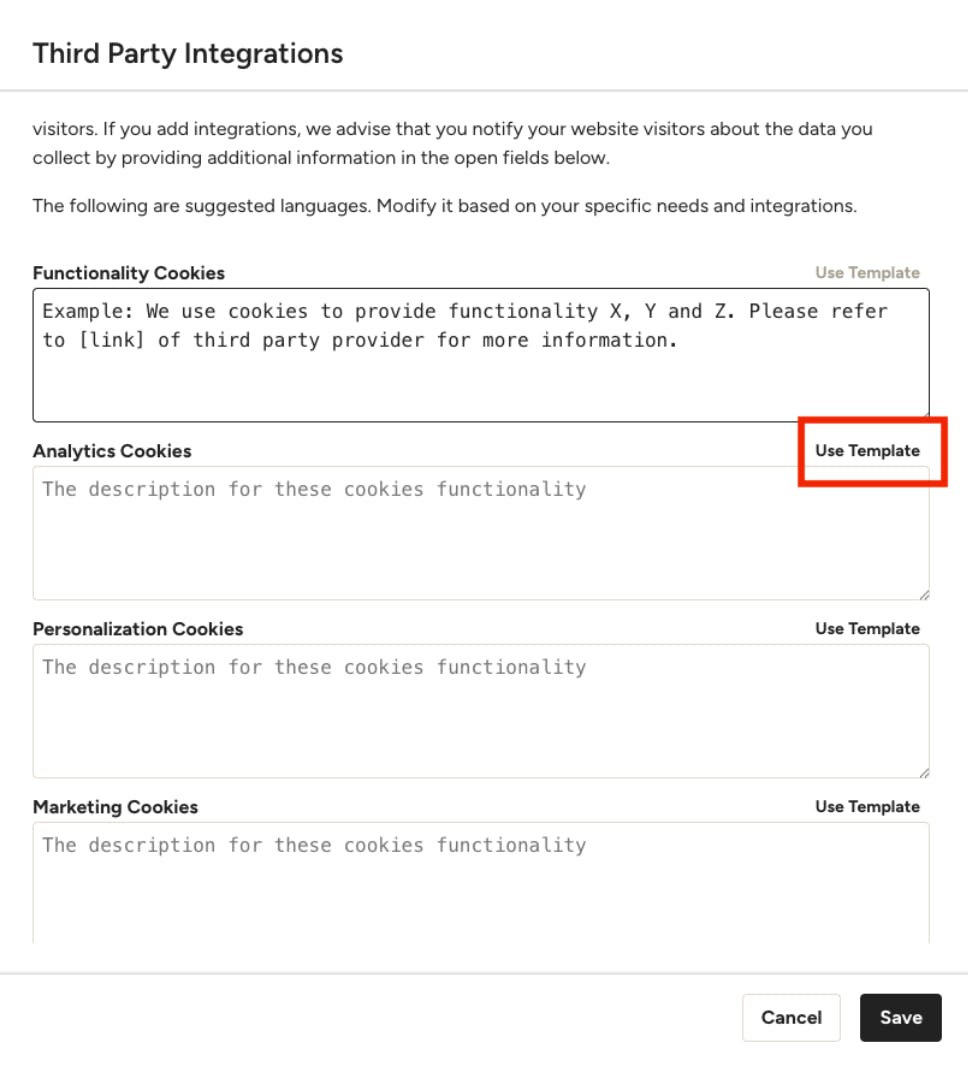
Privacy Disclosures
Privacy Disclosures are located below the third party integrations area. If you integrate third party services, it is recommended that you inform your website visitors about the data you collect by providing details in the fields provided.
This disclosure should explain what data you're collecting and how it's being used to comply with local and international privacy regulations. Google or Facebook can provide details on what to include based on the integration you're using.
Once you have entered your codes or tracking ID, you will be able to edit the Privacy Disclosures. Click in the field to add your own text or Use Template to view the template provided by Houzz.
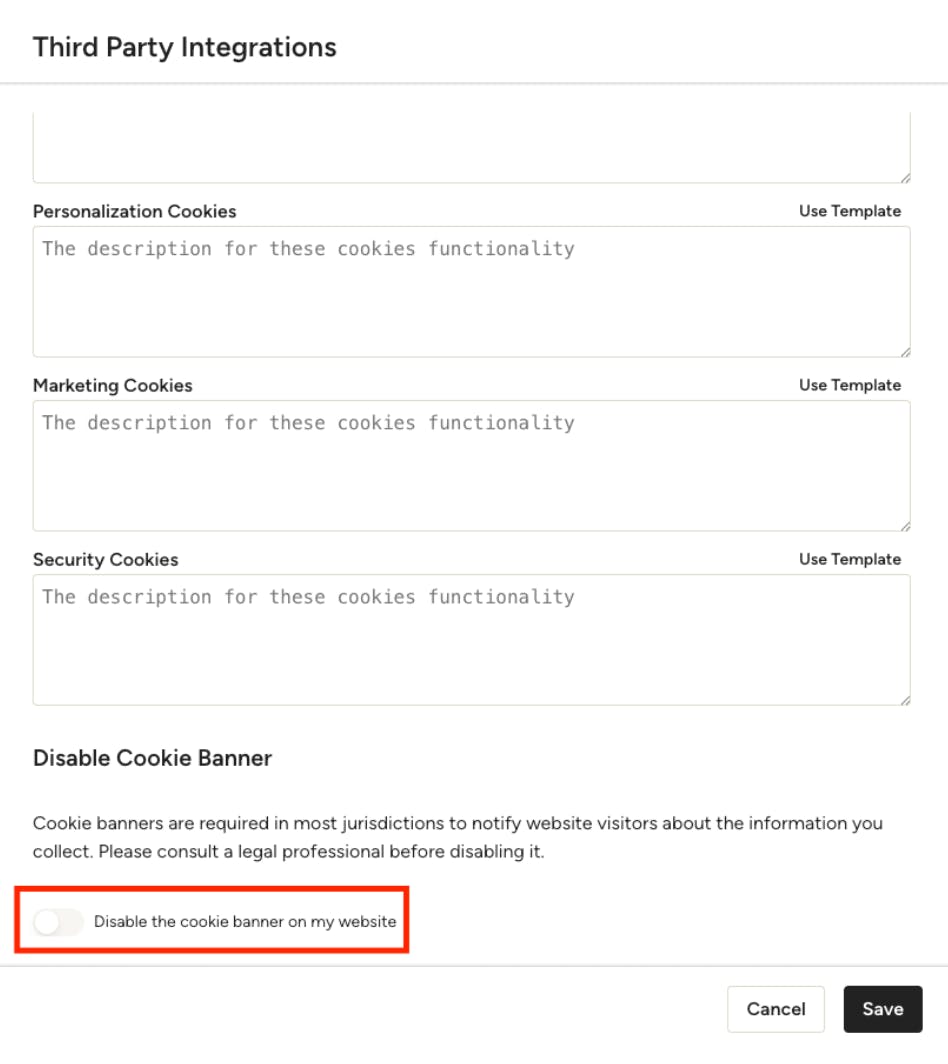
Disable Cookie Banner
At the bottom of this screen, you'll also see an option to disable the Cookie Notification banner. Be aware that in most jurisdictions, this banner is legally required. Always consult with a legal professional before turning it off.
Connect Facebook Tracking Pixel with Google Tag Manager
While Website Services does not have a direct integration with the Facebook Tracking Pixel, it is extensible through Google Tag Manager. In turn, Google Tag Manager can install the Facebook Tracking Pixel on your website.
Please Note: The Facebook tracking pixel is not compliant with most privacy protection legislations, such as GDPR (Europe) or CCPA (State of California). If your business and customers are targeting these regions, you will need to take necessary measures to ensure compliance. We also recommend you read and understand Facebook's privacy policy before getting started.
Step 1. Integrating Google Tag Manager
You will first need to create an account on Google Tag Manager, and link it to your website.
1. To create a Google Tag Manager account, open https://tagmanager.google.com/
2. Create a new account and container matching your website domain. You can refer to Google’s documentation for more information.
3. In the Website Services site editor, open the Settings panel on the left-hand side. Fill in the Container Id that matches the container you created in Google Tag Manager. The Container Id is of the form GTM-xxxxxx.
Step 2. Adding Facebook Pixel to Google Tag Manager
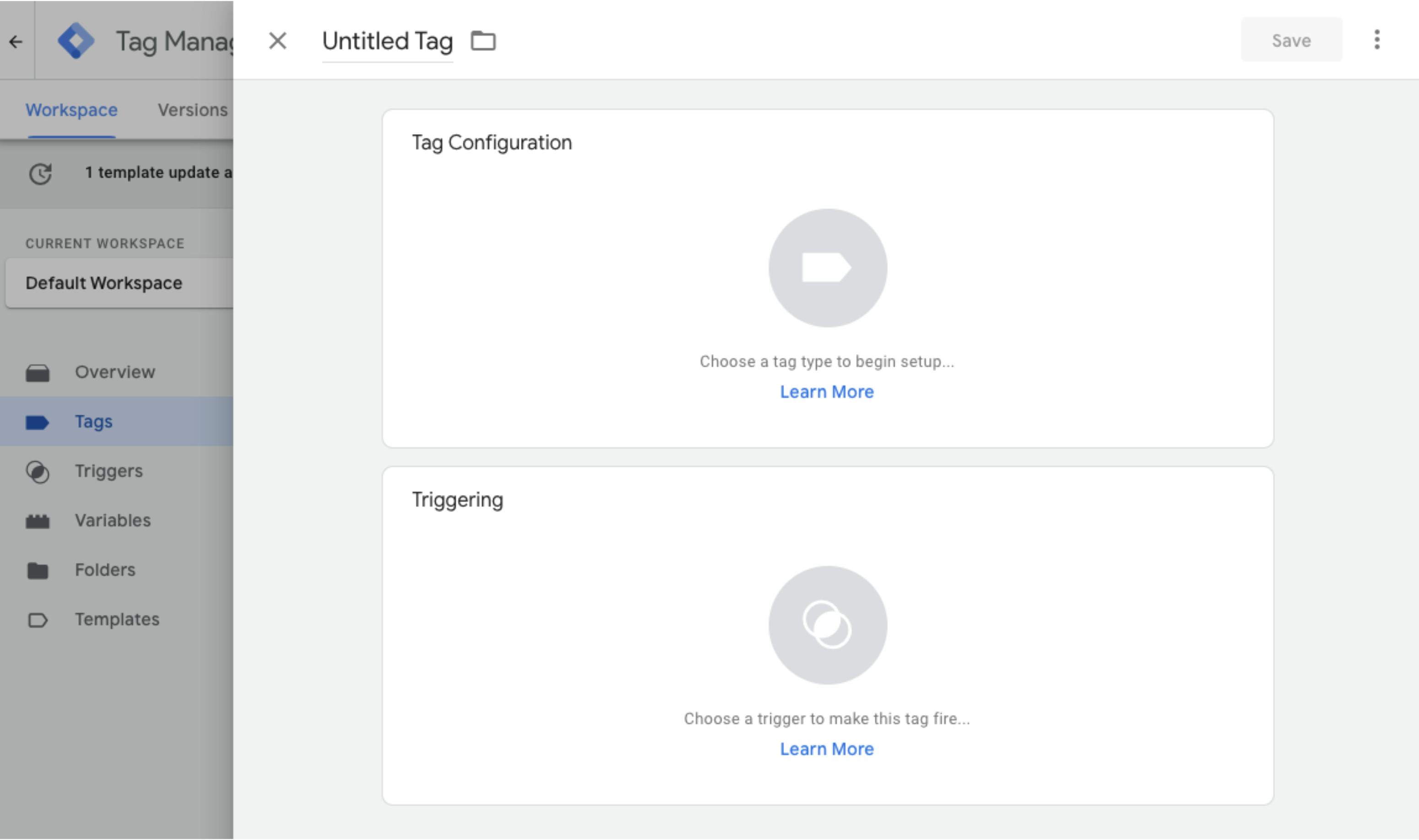
1. In Google Tag Manager, under Tags, click add a new tag.
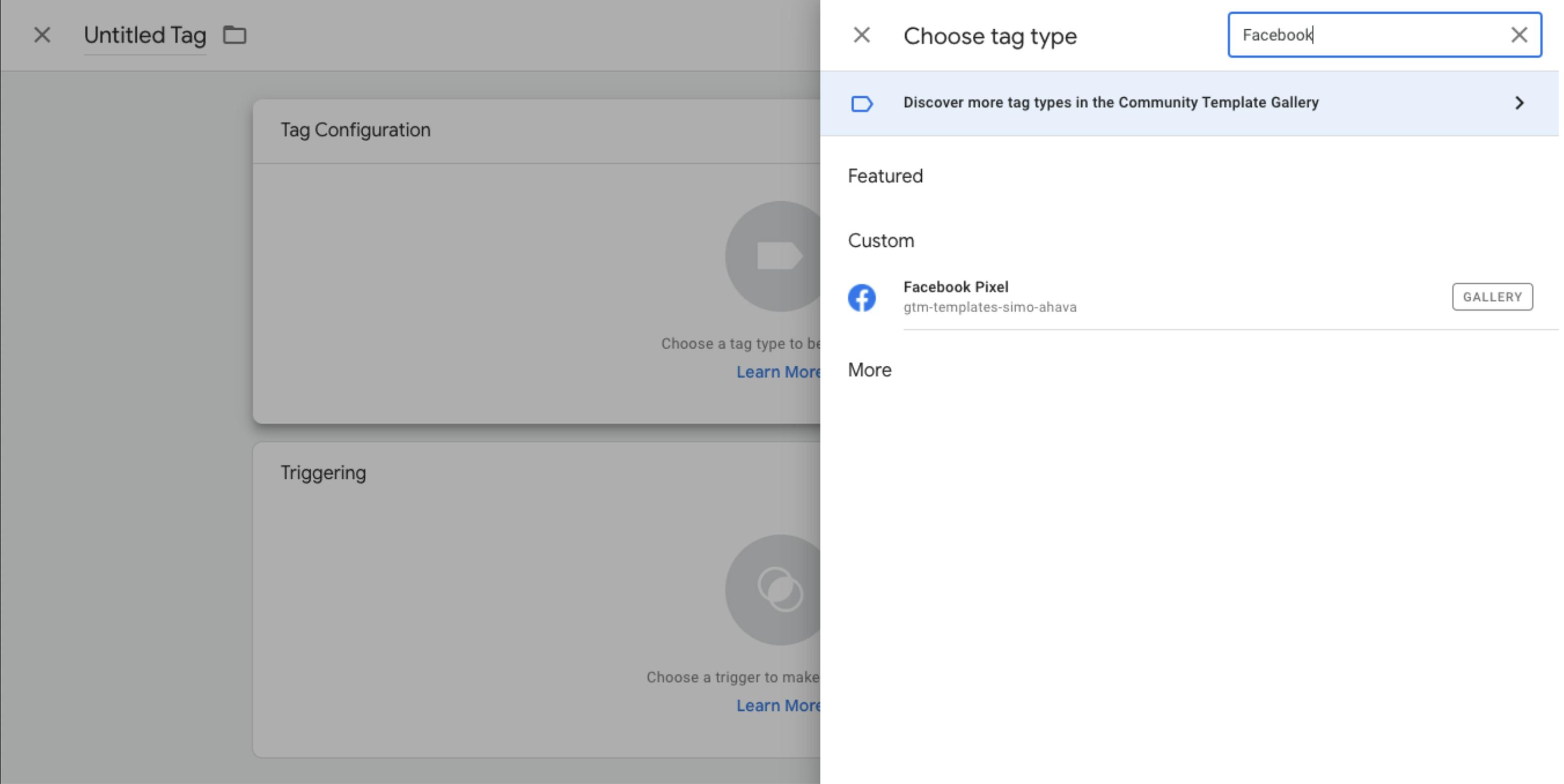
2. Click Tag configuration, and select Facebook Pixel as the tag type.
3. Configure the Facebook Pixel as needed in the Tag Configuration panel.
4. Below the tag configuration, click on Triggering to select when the pixel will be installed. Select All Pages as the trigger.
5. Finally, click Save for the newly added tag.
The changes can take a few minutes to take effect. You can confirm that the tracking pixel is correctly installed using the Facebook testing tool.
More Website Services Resources
How to Improve SEO and Accessibility For Your Houzz Website
How to Set Up a Domain and Publish Your Houzz Website
How to Use the Site Improvement Panel For Your Houzz Website
How to Add Content to Your Houzz Website
How to Use the Settings Tab For Your Houzz Website
How to Use the Styles Tab For Your Houzz Website