How to Add a Blog to Your Houzz Website
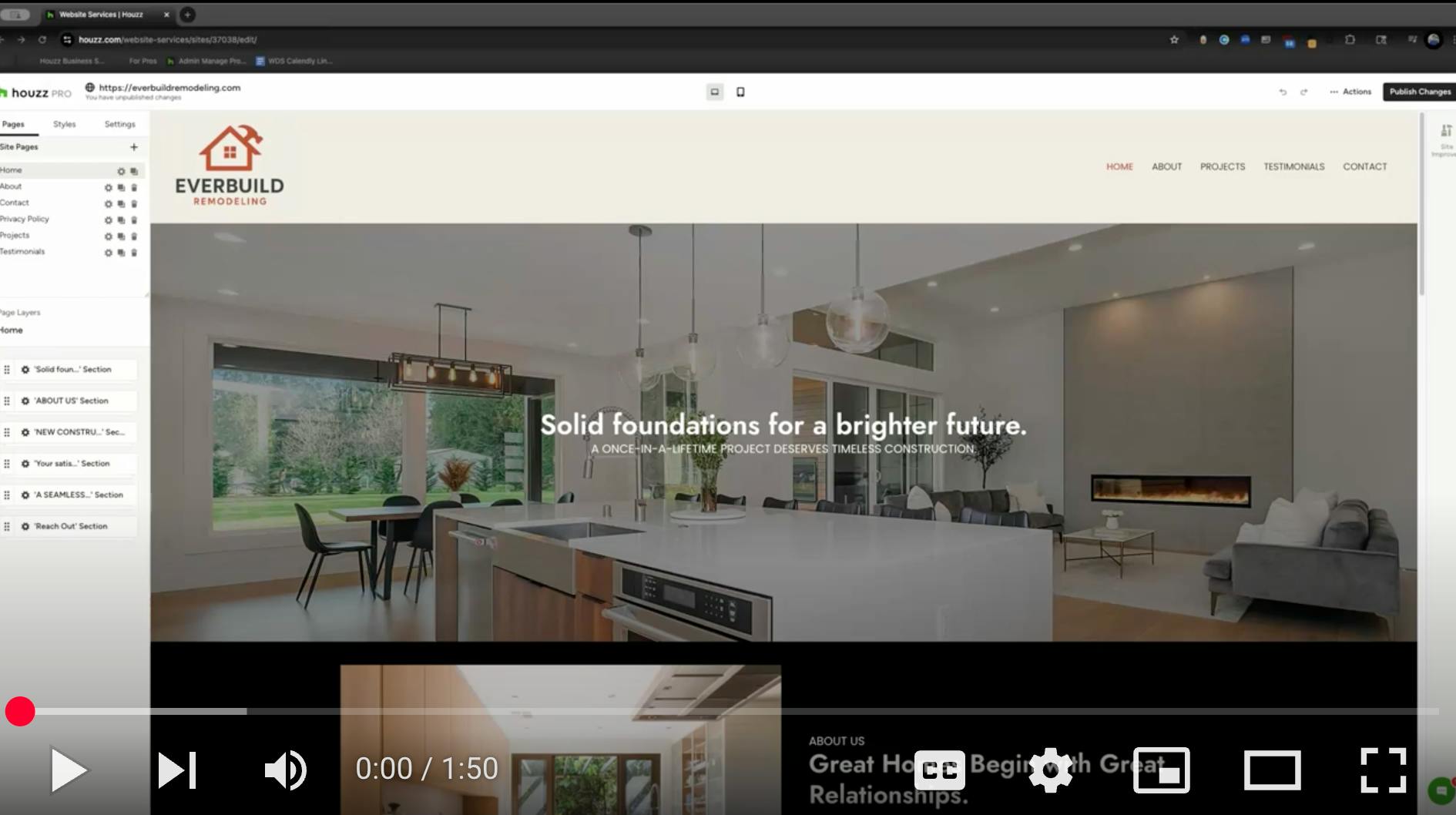
With Houzz Website Services, you can write a blog to share the latest news and updates on your business with your potential customers. Sharing those updates not only makes your work more relatable to homeowners, but it can also have a positive impact on your site SEO.
Watch the video below or read step-by-step instructions to learn more about creating an entire blog page.

Create a Blog Page
Before you begin blogging, you will need to designate a location for your posts. While a dedicated blog page is common, you can also integrate a blog section into any existing page.
To start, go to the left side of the editor under Pages, then click the + icon to add a new page.

A new popup screen with page templates will appear. Click on Blog.
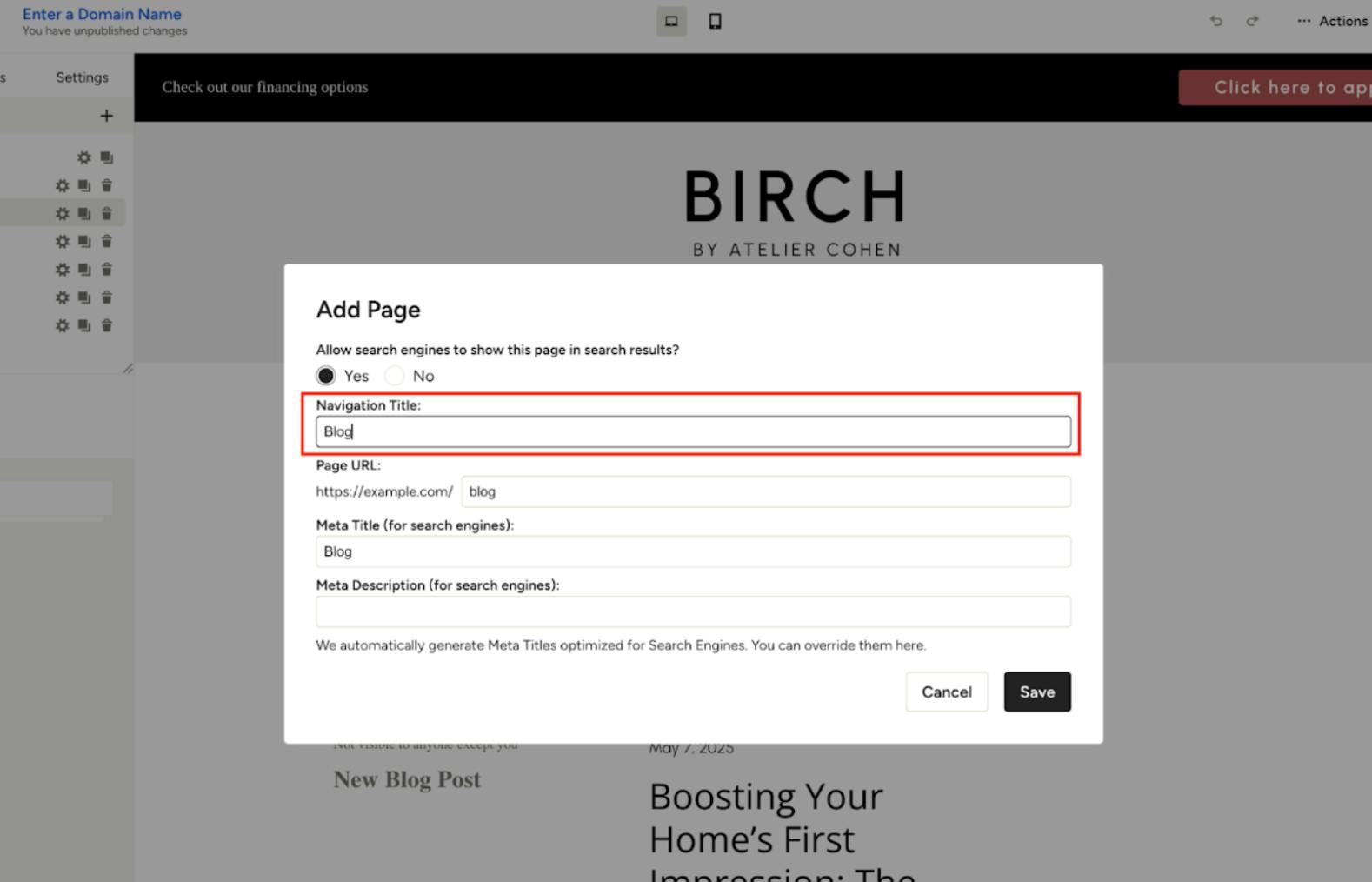
You can then name your blog page. This title will appear in your website's navigation. Click Save to create your blog.
As you create your blog, consider adding the following:
- Add your blog page to your navigation. You can learn to do that here.
- Add a title and paragraph to describe what your blog is about. This will help your readers know what to expect from this page.
- Add a button to navigate the homeowner to your Contact page or any other page on your website.
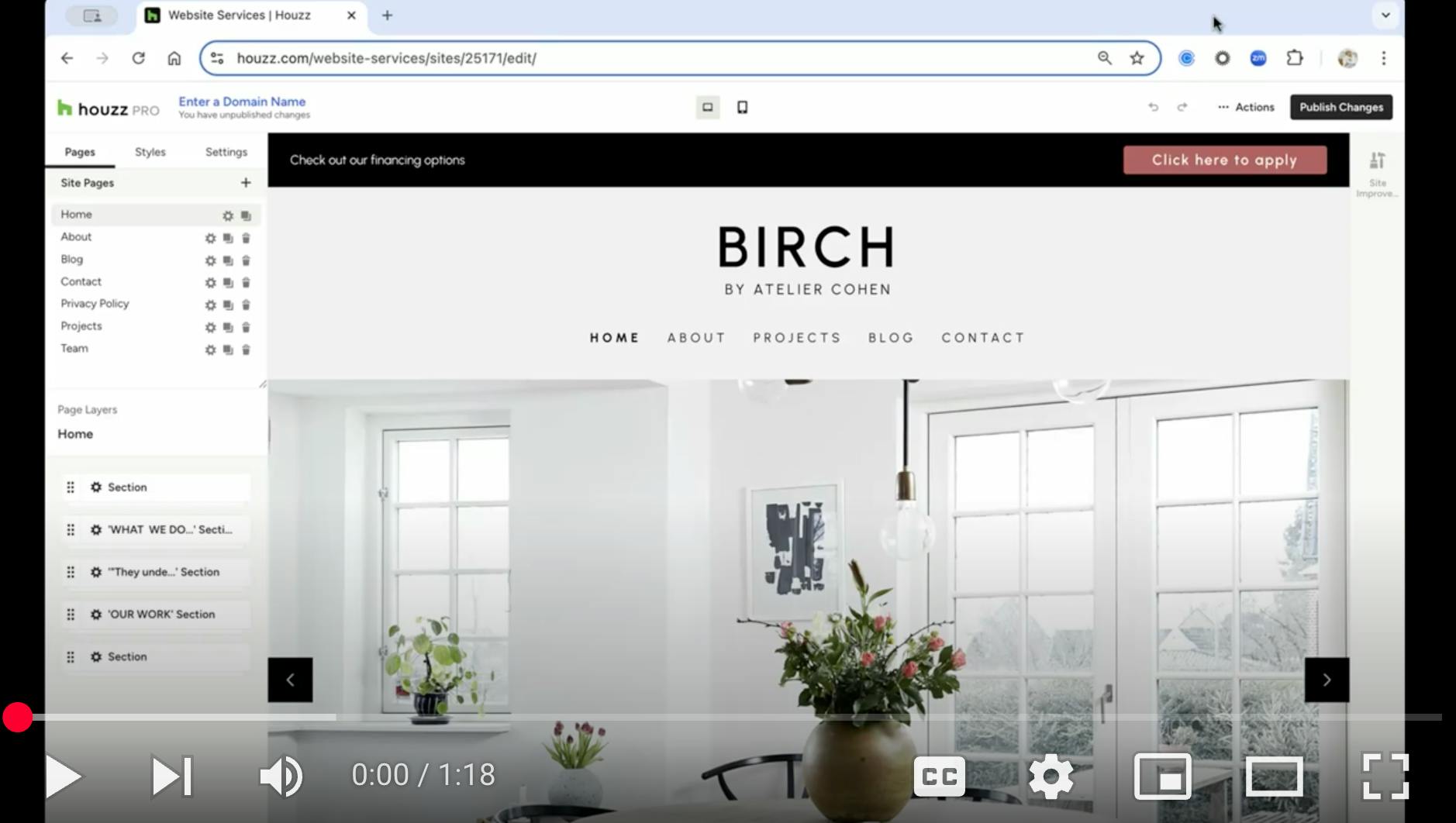
Create a Blog Post
You can easily add a new blog post to your existing blog whenever you have an update to share. Watch the video below or read step-by-step instructions to learn more.
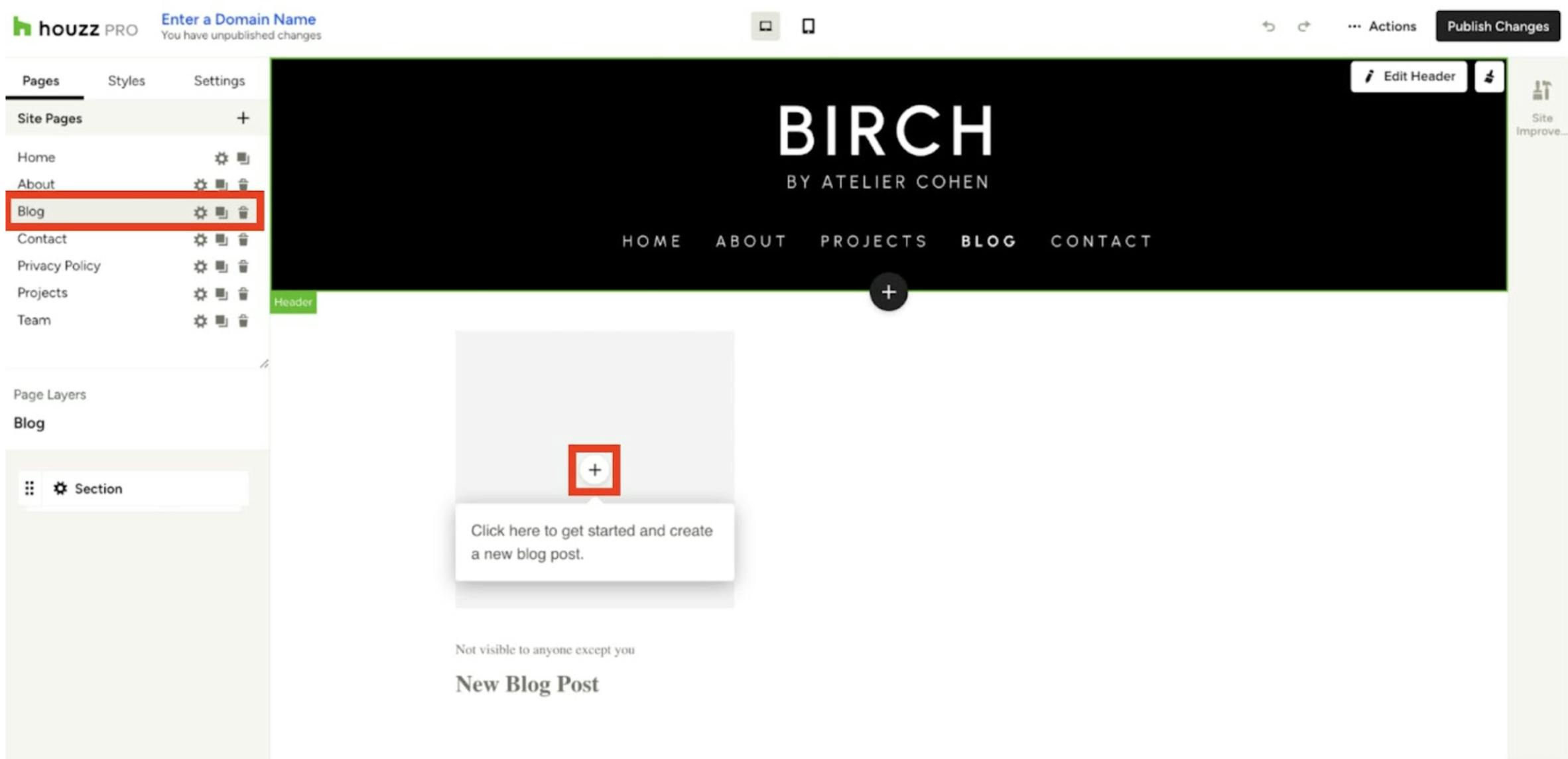
To start, navigate to your blog page and click the + icon to create a new blog post.
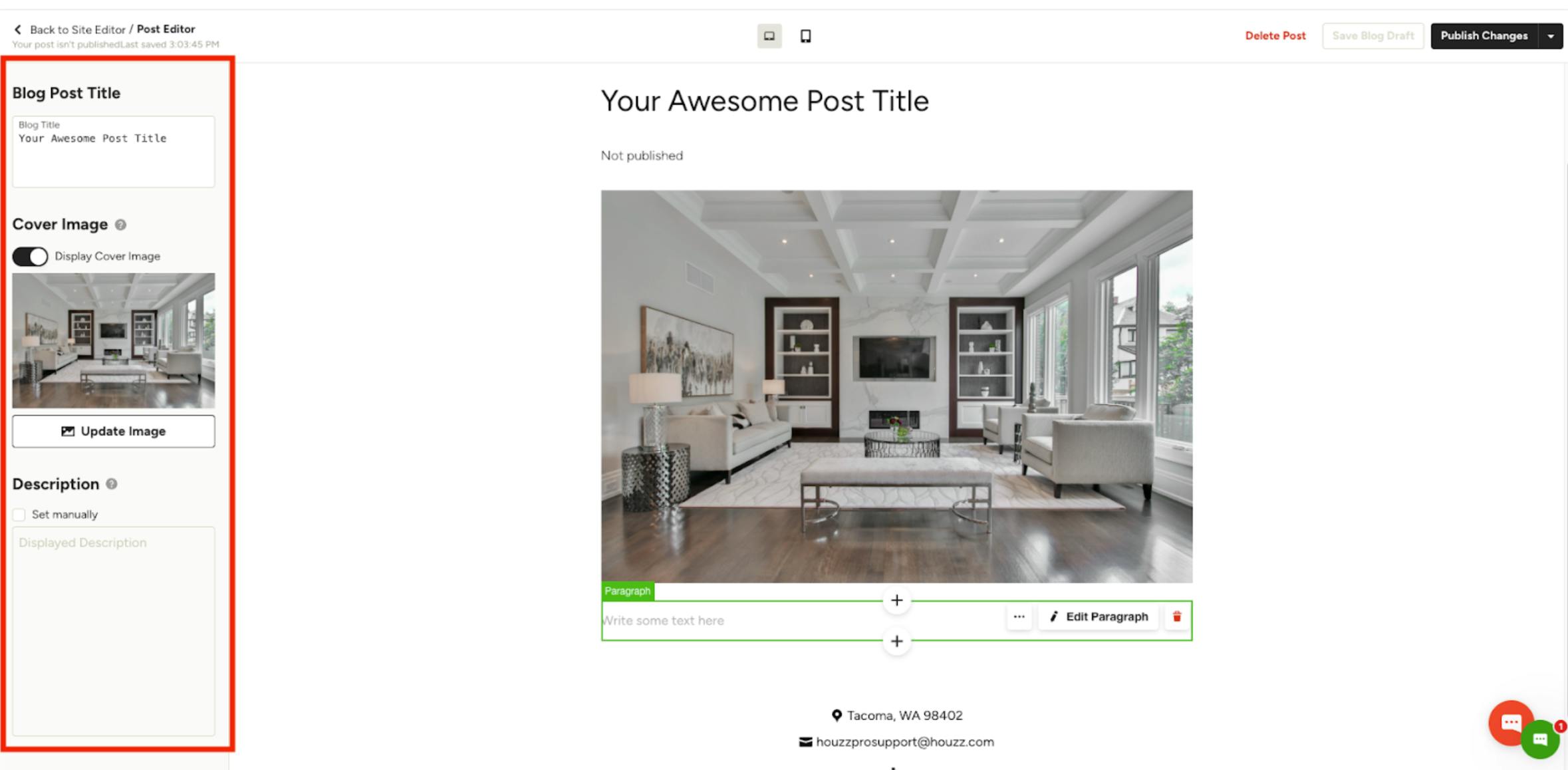
On the left-hand side of the editor, set the title of your blog post, and select a cover image.
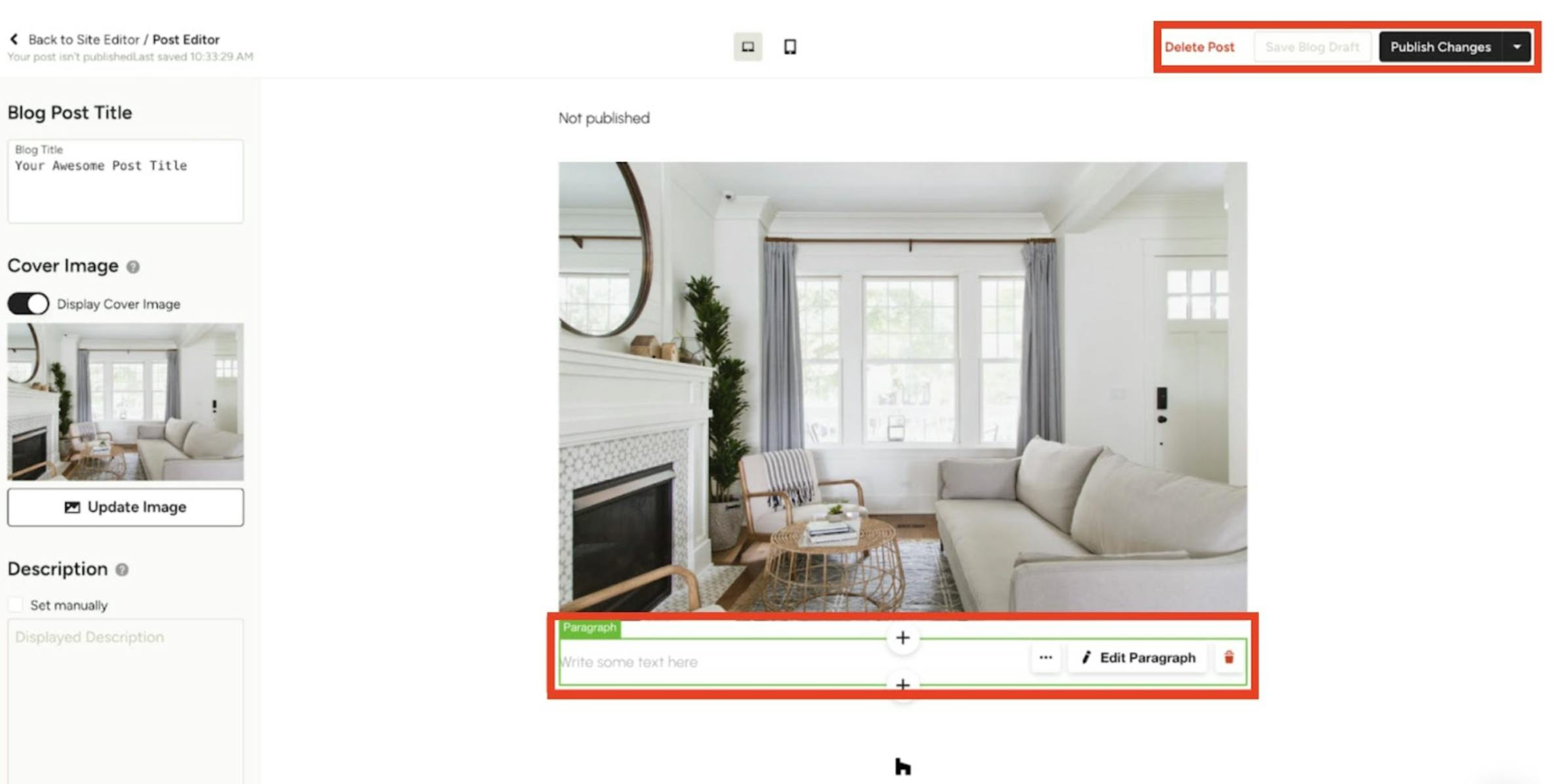
Start writing your content under the cover image of your blog post. You can add paragraphs, titles, images and videos.
Once you are happy with your content, click Publish Changes at the top right of the editor, and your post will appear on your site.
If your post is not quite ready yet, you can click Save Blog Draft. Your blog post will be saved as a draft, and you’ll be able to resume editing from your blog page at any time.
If you want to fully delete your post, you can click Delete Post.
Schedule a Blog Post
Scheduling a blog post allows you to set a future or past date and time for your content to go live. This feature is especially useful for planning content ahead of time, maintaining a consistent publishing schedule, and managing time-sensitive posts.
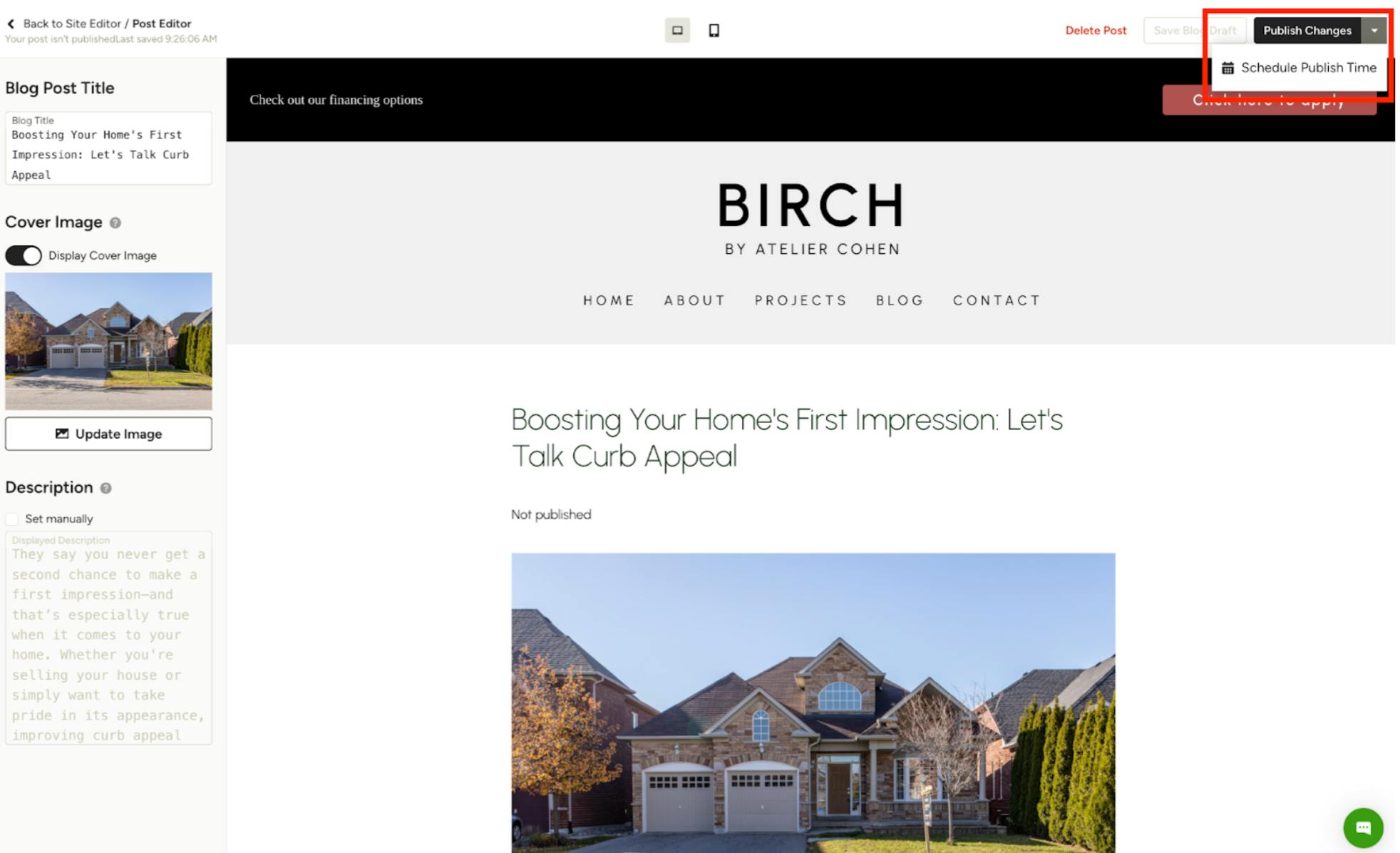
To start, create a new post or open an existing draft in your blog editor. Click on the dropdown arrow next to the Publish Changes button and click Schedule Publish Time.
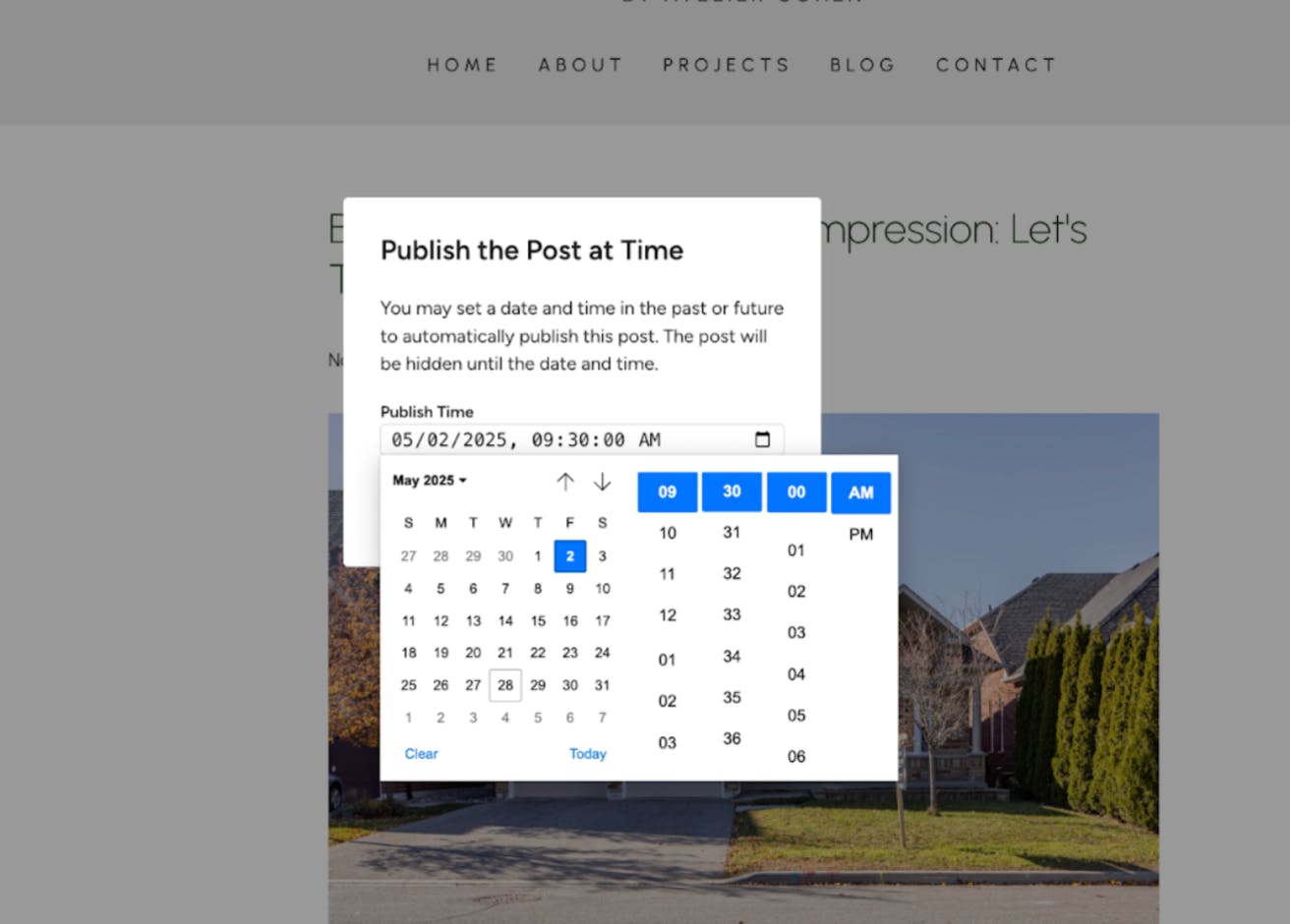
Set the Date and Time, or click the calendar icon to choose the exact date and time you want the post to be published.
Once you've selected the desired time, click the Publish at Time button. Your post will automatically go live at the specified time.
More Website Services Resources
How to Add Content to Your Houzz Website
How to Use the Settings Tab For Your Houzz Website
How to Use the Styles Tab For Your Houzz Website
How to Use the Pages Tab For Your Houzz Website
How to Edit the Projects Page on Your Houzz Website
How to Set Up a Domain and Publish Your Houzz Website