How to Use the Settings Tab For Your Houzz Website
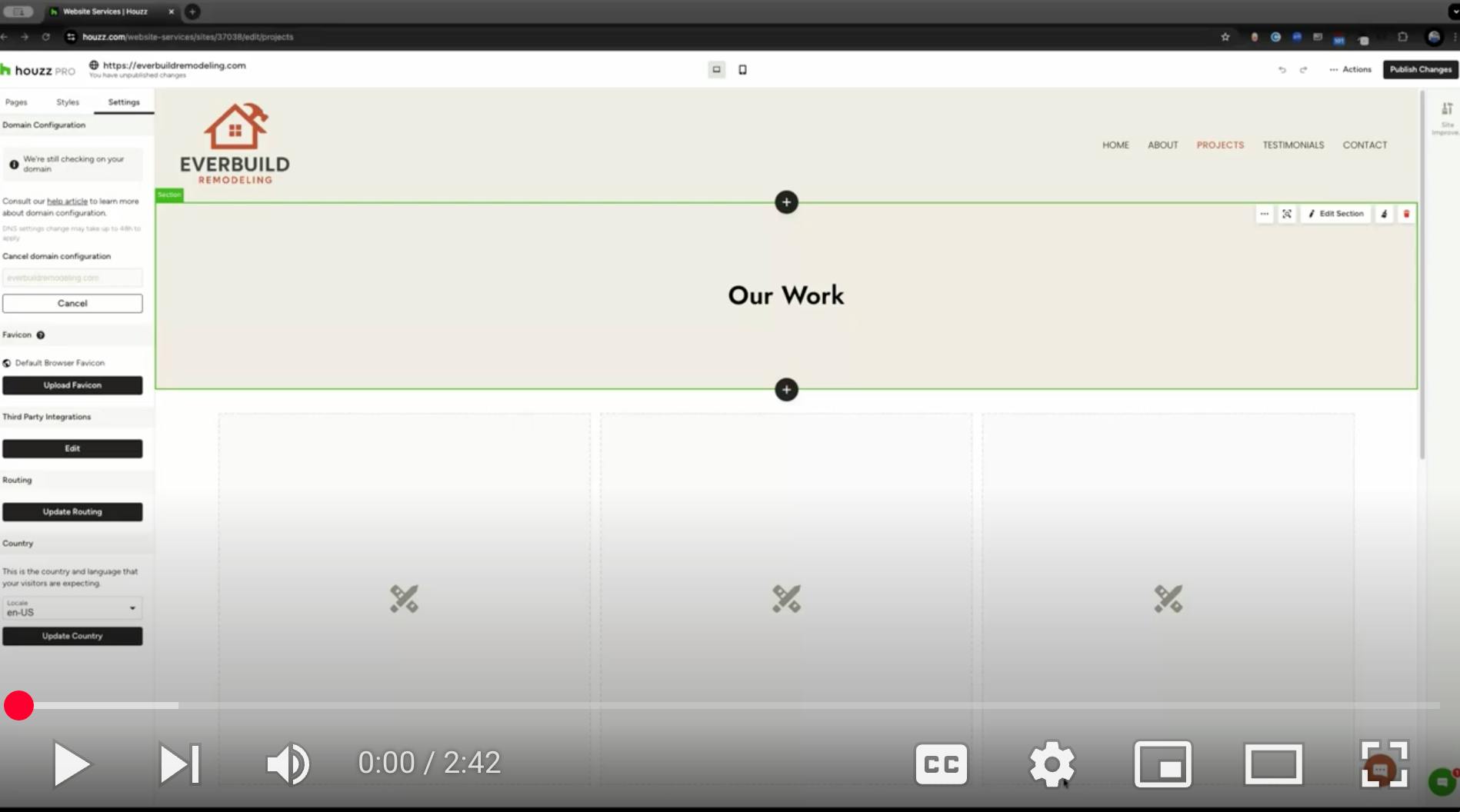
As you work on your Houzz website, there are many important toolbar features to understand. This article will go over the Settings tab, which is found in your left toolbar. For a more general overview of the website editor toolbars, read How to Use the Website Editor Menu For Your Houzz Website.
The Settings Tab is where you can connect your domain to get your site live, upload a favicon, connect to third party integrations, and a few other advanced settings.
Watch the video below or read step-by-step instructions to learn more.
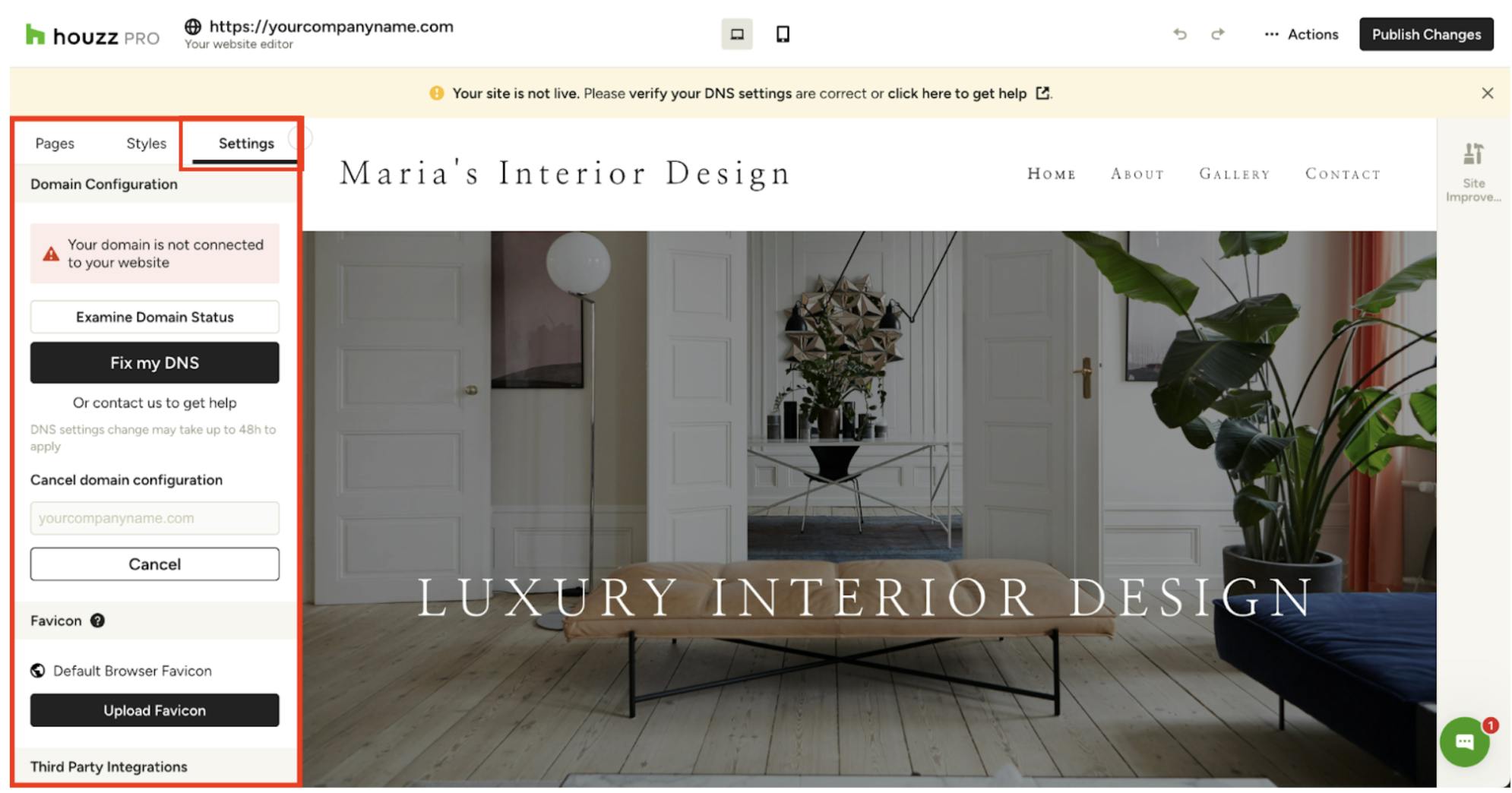
To access, find and click the Settings tab on the left side of your screen.

Favicon
Your favicon is that small, unique icon that appears in your web browser tab next to your website's title.
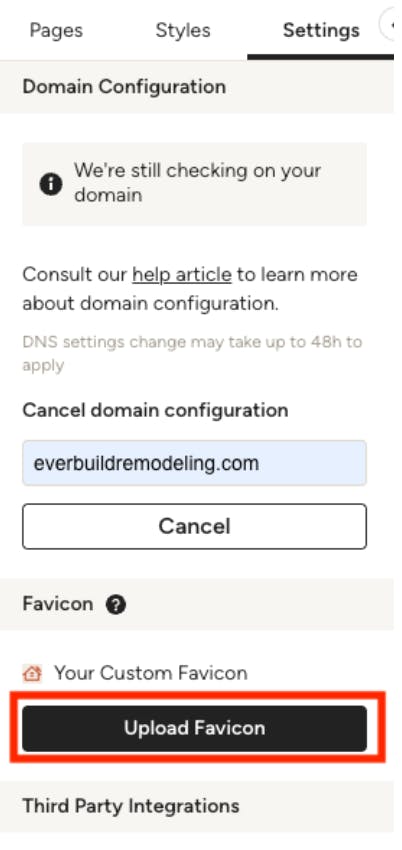
To personalize it, click Upload Favicon under the Settings tab.
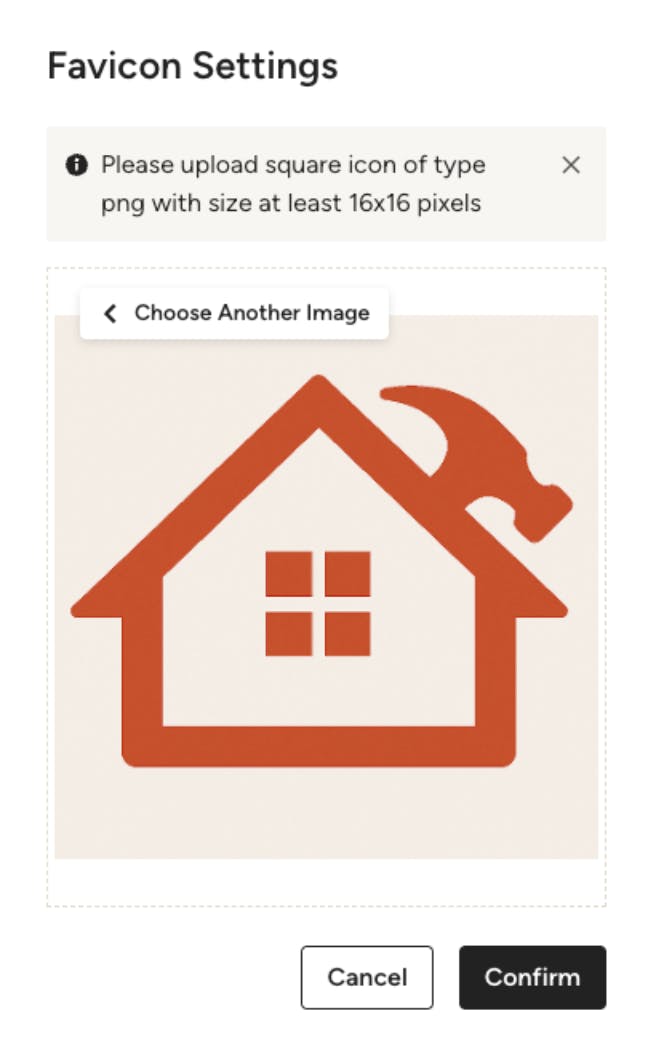
Ensure your image is a square PNG file with a minimum size of 16x16 pixels. Once selected, click Confirm to save the change.
Third Party Integrations
You can integrate your website with popular platforms like Facebook and Google.
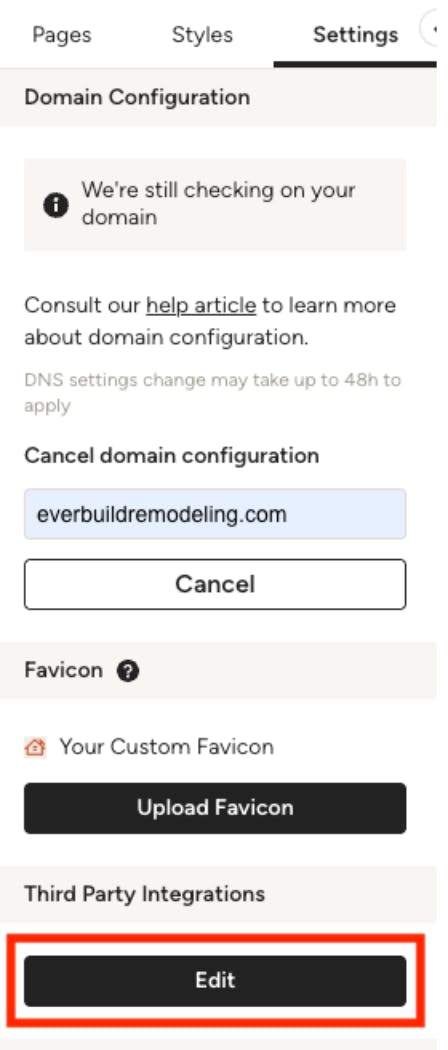
To do this, click the Edit button under Third Party Integrations to access fields where you can paste specific codes. Read How to Use Third Party Integrations with Your Houzz Website to learn more about the integration process.
Update Routing
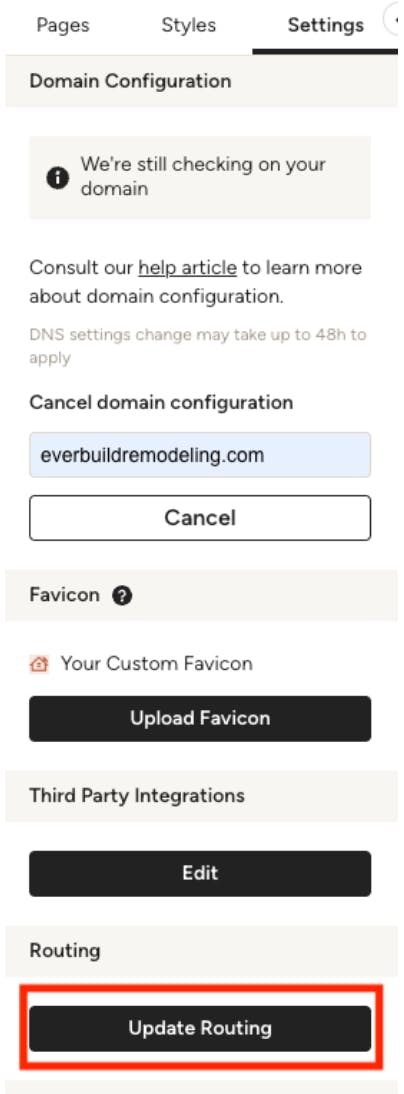
The Update Routing button allows you to customize the beginning part of your website's address (URL prefix) for your project pages and blog posts. If you have specific preferences for your URL structure, you can adjust them here.
Region and Language Settings
If your website editor is set to an unexpected region or language, you can easily change it.
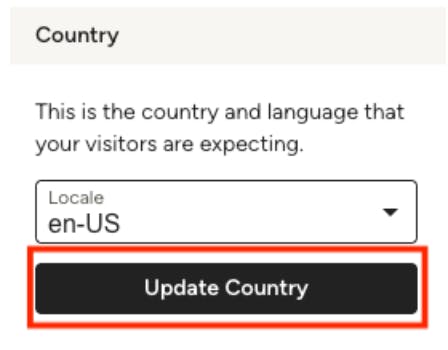
To do this, find the Country section under the Settings tab. Use the dropdown menu to select the correct region, then click Update Country to apply the change. This ensures any region-specific features or settings are correctly applied.
More Website Services Resources
How to Add Content to Your Houzz Website
How to Use the Website Editor Menu For Your Houzz Website
How to Use the Styles Tab For Your Houzz Website
How to Use the Pages Tab For Your Houzz Website
How to Edit the Projects Page on Your Houzz Website
How to Set Up a Domain and Publish Your Houzz Website