How to Edit the Projects Page on Your Houzz Website
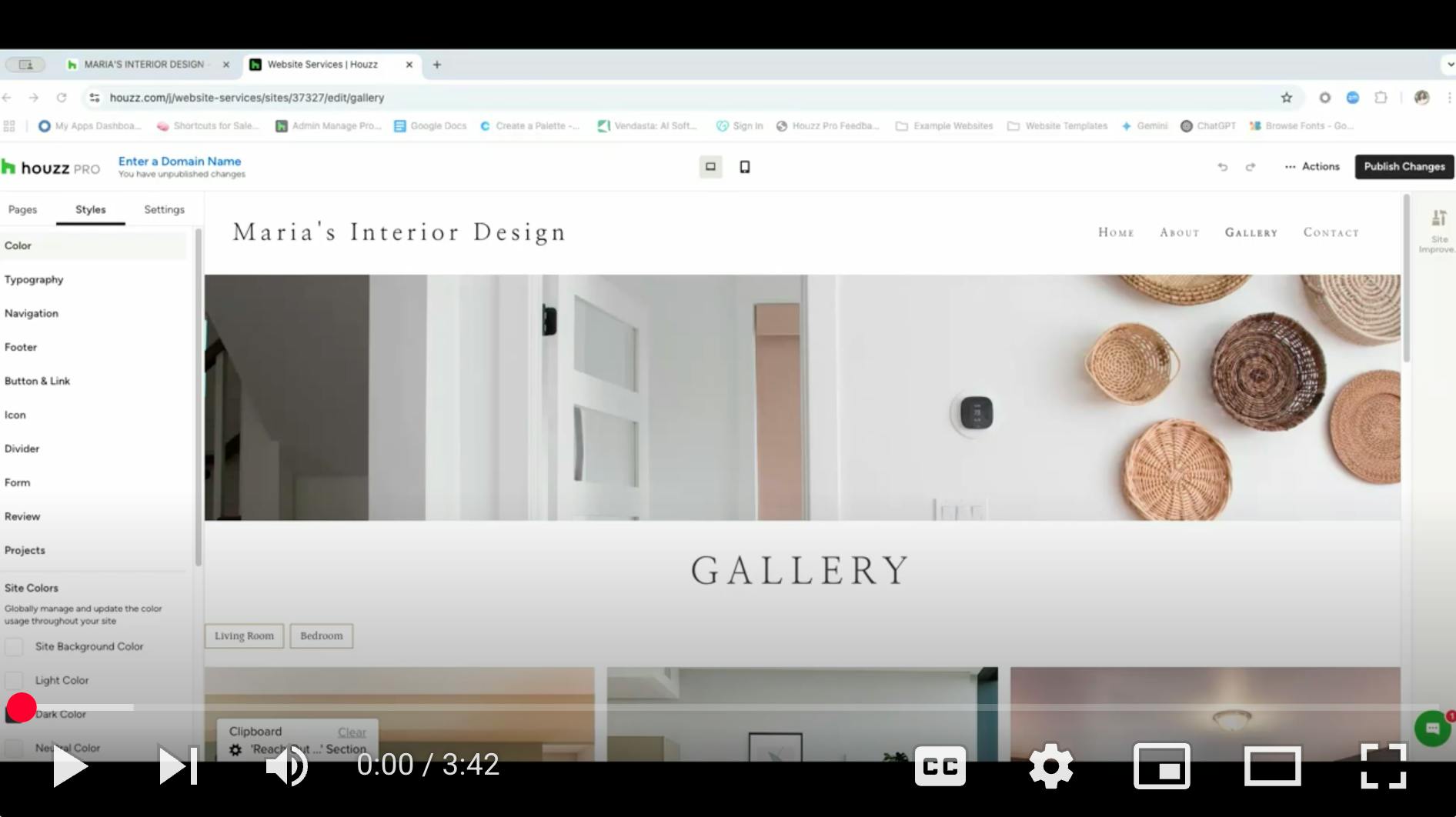
On your Houzz website, you can easily showcase your Houzz profile projects so potential clients can see your previous work. The projects page on your website is fully customizable — you can adjust the gallery layout, and you can decide to showcase certain projects or all of your projects.
Watch the video below or read step-by-step instructions to learn more about managing your main projects page, as well as how to adjust individual project detail pages.
Edit Your Projects Page
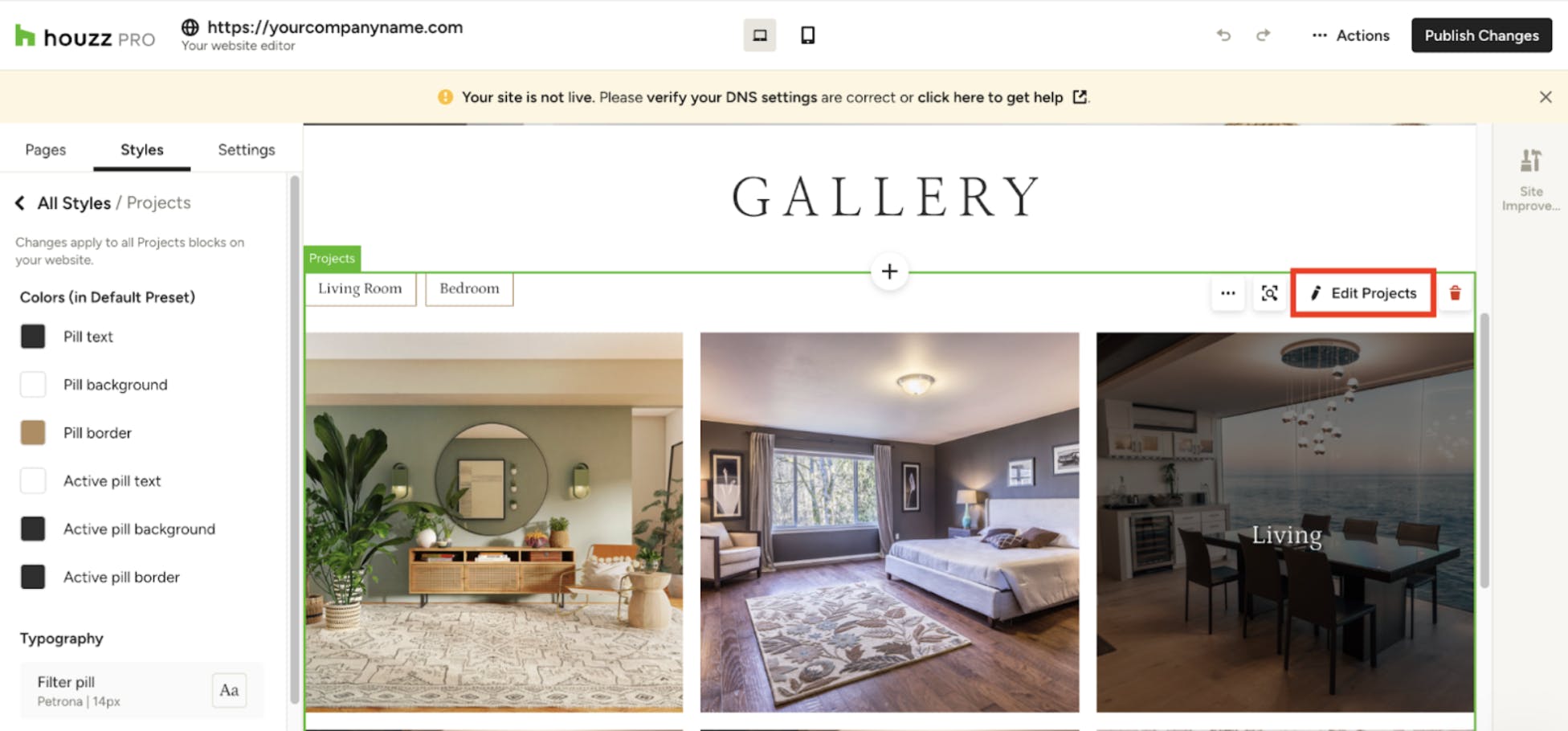
Your projects page displays an overview of all your Houzz profile projects. To edit, navigate to your projects page on your website editor, click on the Projects block, then click the pencil icon.
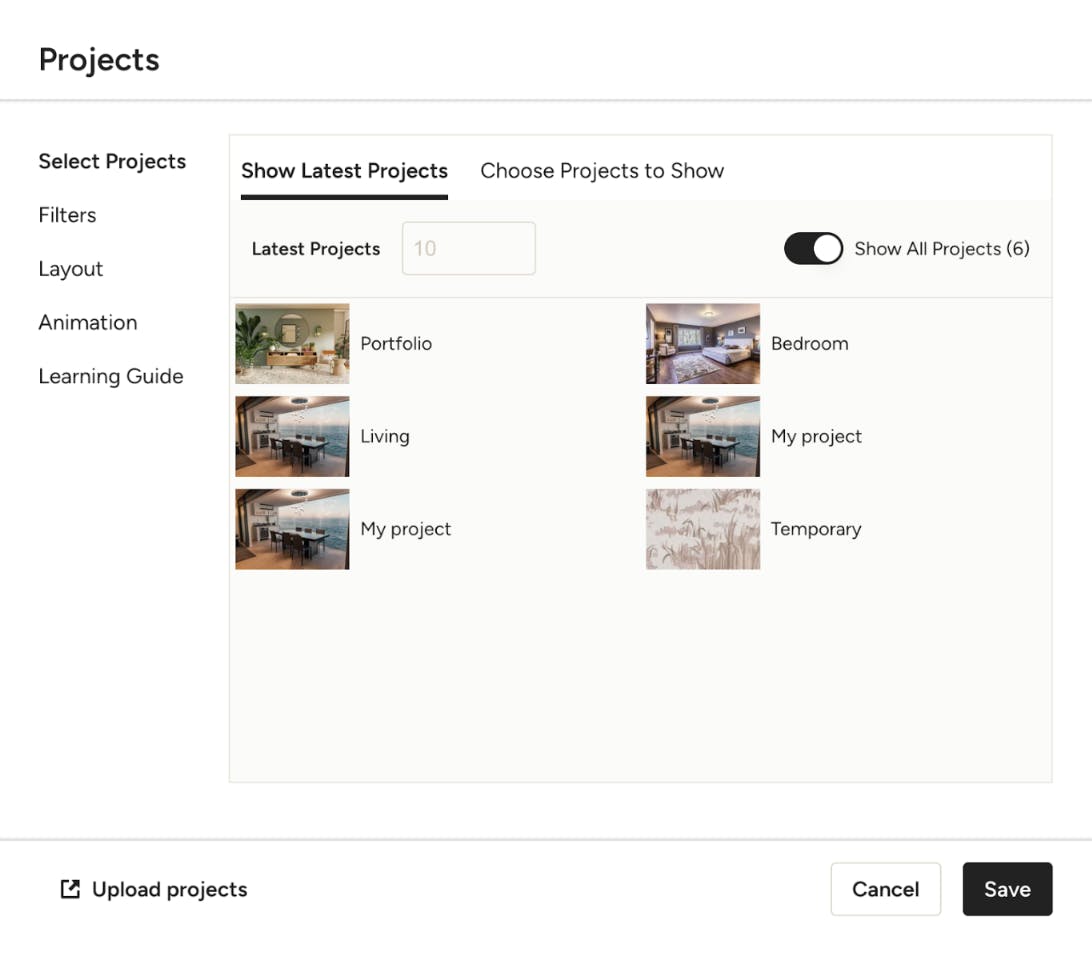
From here, you can customize:
- Select Projects: Select which specific projects to show, or you can show them all.
- Filters: Show filters from your Houzz profile. (The filters are based on the photo categories you’ve selected for each image in that project on the profile.)
- Layout: Choose a visual arrangement for your projects.
- Animation: Add motion effects for when the projects first load on screen.
Pro Tip: Turn on the Show All Projects toggle to automatically display all new projects uploaded to your Houzz profile. The order of projects on your website mirrors the order set in your Houzz profile.

Edit Project Detail Pages
The project detail page is what visitors see when they click on an individual project. These pages are styled differently from regular website pages. To edit, navigate to Styles in the left menu, then click on Projects.
Under Project Page Settings, click Edit Settings.
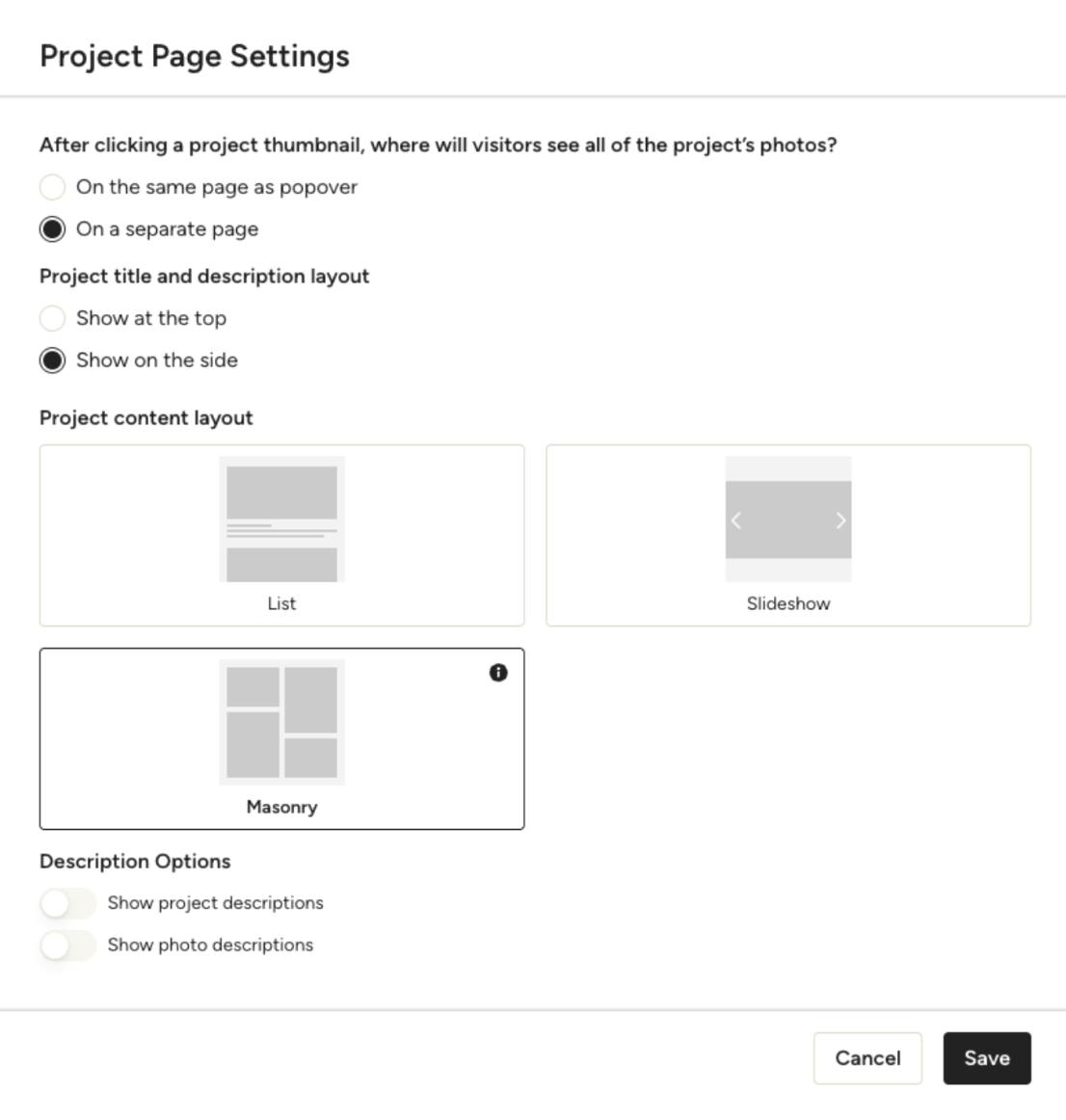
Here, you can adjust the appearance and functionality of your project detail pages. You can change:
- Page Display: Choose whether the project opens on a separate page or as a pop-over.
- Title & Description Placement: Decide if the project title and description appear at the top or on the side of the page.
- Layout Options: Select from three display styles for your project content. List will show photos in a vertical list format. Slideshow will show photos through a slideshow. Masonry will arrange photos in a dynamic, mosaic-like grid. Please Note: Photo order may be rearranged to accommodate different image sizes
- Content Visibility: Toggle on or off the display of the project description and individual photo descriptions.
Please Note: To make any changes to the photos themselves on a project detail page (e.g., adding, removing, or reordering photos), you must edit the project directly within your Houzz Profile.
Troubleshooting: Projects Not Showing on Website
If your Houzz projects aren't appearing on your website, follow these troubleshooting steps:
- Confirm Project Upload Location: Ensure your projects are uploaded to the correct area — your Houzz Profile.
- Check for a Cover Photo: Verify that each project in your Houzz Profile has a cover photo. If you see a gray square, go into that project and select a cover photo.
- Verify "Show All Projects" Setting: In your website's project area, confirm that the Show All Projects toggle is turned on. Refer to the Edit Your Projects Page section above for more details.
More Website Services Resources
How to Add Content to Your Houzz Website
How to Use the Settings Tab For Your Houzz Website
How to Use the Styles Tab For Your Houzz Website
How to Use the Pages Tab For Your Houzz Website
How to Set Up a Domain and Publish Your Houzz Website