How to Message Clients and Leads on the Mobile App
Stay connected with leads and clients no matter where the job takes you. The Houzz Pro mobile app puts your conversations right at your fingertips, so you can respond quickly, keep projects moving, and make a great impression — all from your phone.
Within messages, you can send emails or text messages, attach files, add links, apply text formatting, schedule send, and more.
Send Message on Mobile App
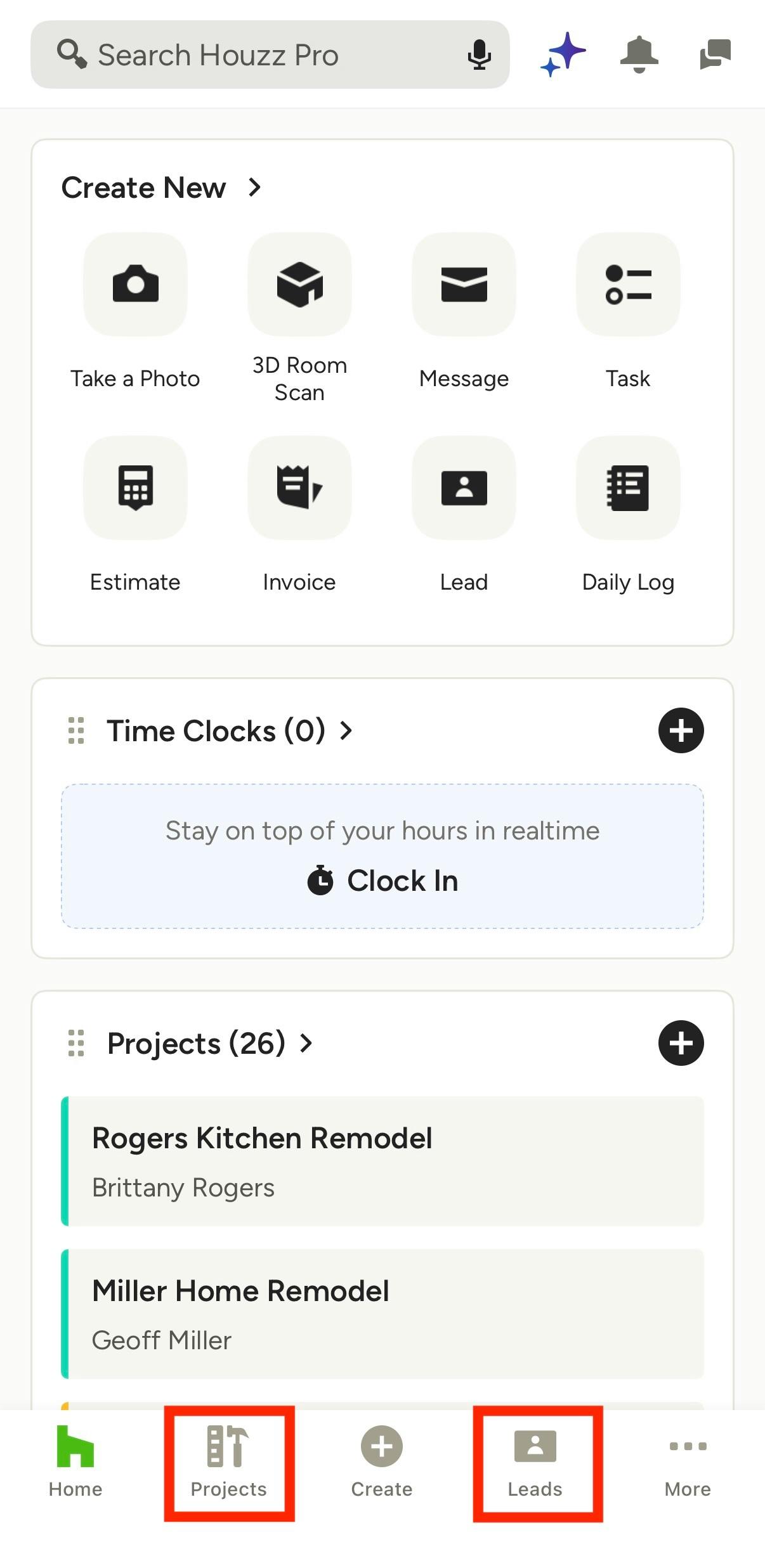
To send a message to a lead or client on the Houzz Pro app, select either the Projects icon or Leads icon from the bottom menu, then select the relevant lead/project.

On the mobile app, you communicate with leads through messages, but you communicate with clients through chat.
All client messages will appear under the Chat icon (as shown below). Read How to Use Team Chat on the Mobile App to learn more.
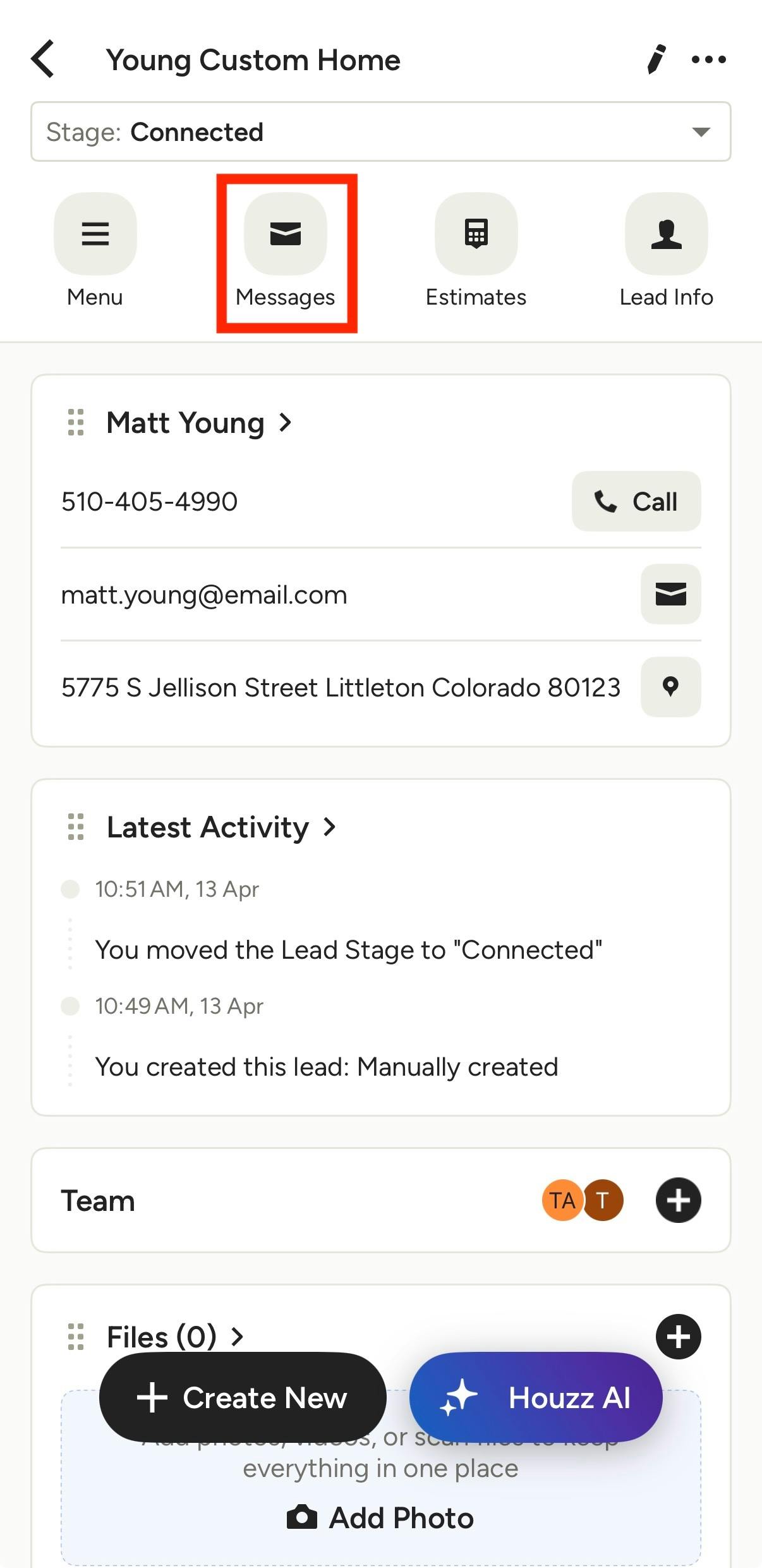
All lead messages will appear under the Messages icon (as shown below).
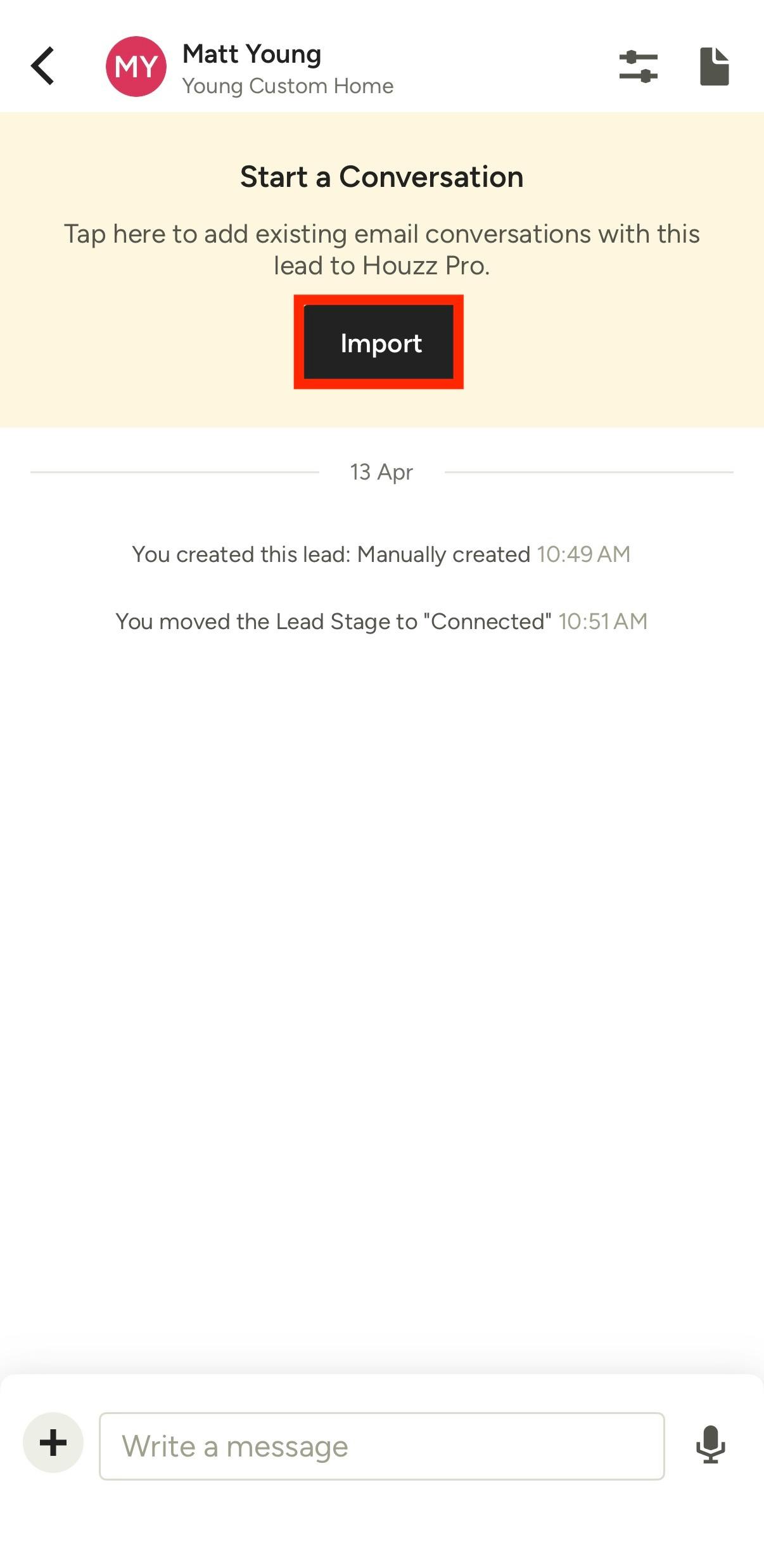
Within the Messages section, you can view all your existing messages with this lead.
If you don't have any existing messages, you can either start a new message (more details below), or if relevant, you can import an existing email thread with that specific lead. Read How to Import Emails from Clients and Leads to learn more.
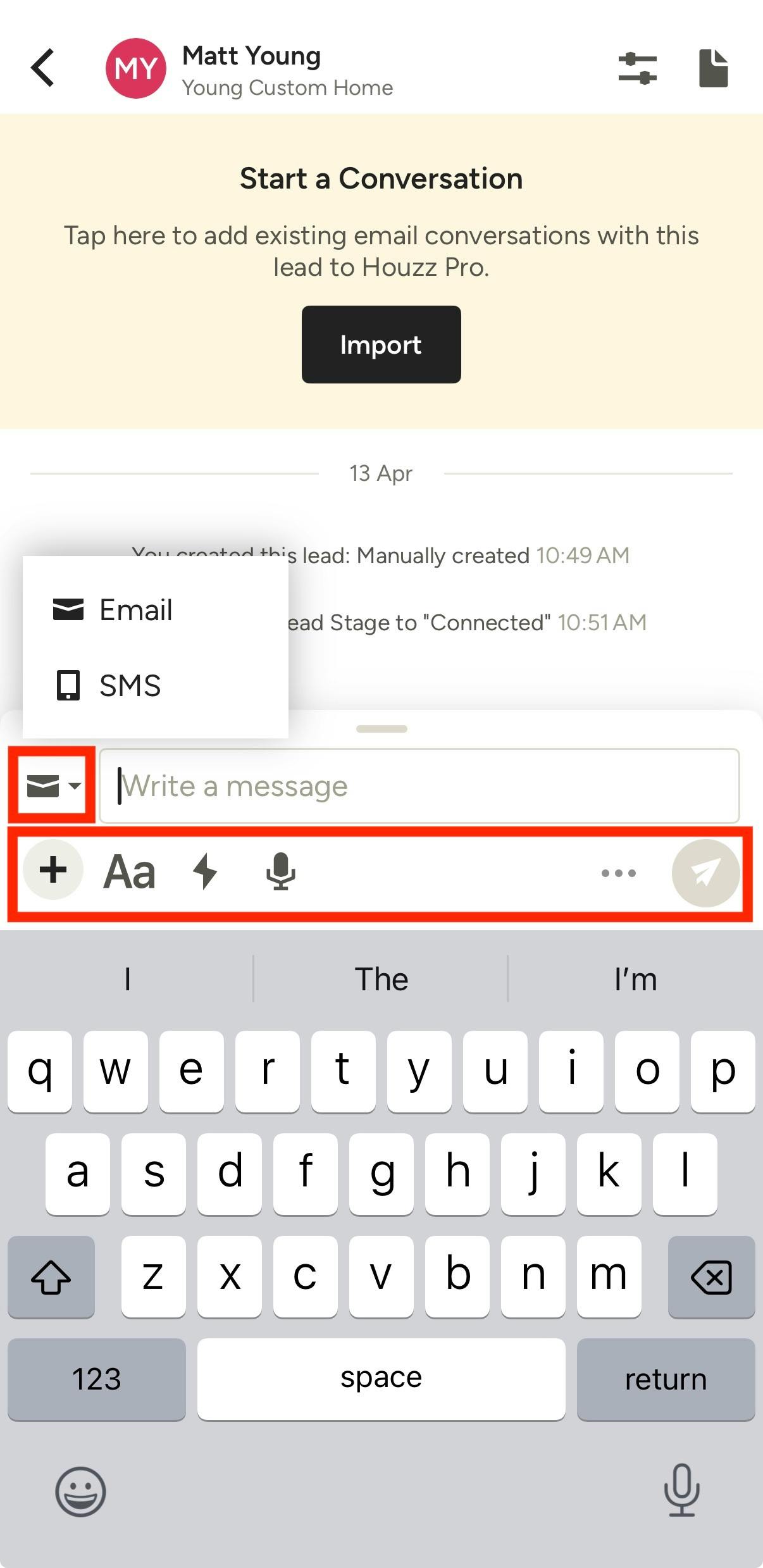
To send a new message, click on the open text box at the bottom of your screen, and type in your message directly. You can choose to send either an email or a text message — text message is only available if your lead's phone number is added to Houzz Pro.
For an email, you can take photos to attach, attach documents/photos, schedule a meeting, customize your text formatting, use message templates, or use speech recognition to craft a message.
For a text, you can take photos to attach, attach documents/photos, schedule a meeting, use message templates, or use speech recognition to craft a message.
Once your message is ready, you can tap the Send icon to send immediately. You can also select the three dots icon to schedule the message to send at a future time.
Use the iMessage Text Extension
When you are texting a new lead or an existing client, you can save time by using our iMessage extension directly in your text message thread (iOS devices only). This extension allows you to:
- Send quick, professional replies
- Capture new inquiries via a built-in contact form
- Request client reviews
All activity syncs back to Houzz Pro — it helps you stay organized, reduce manual data entry, and provides a fast, polished communication experience.
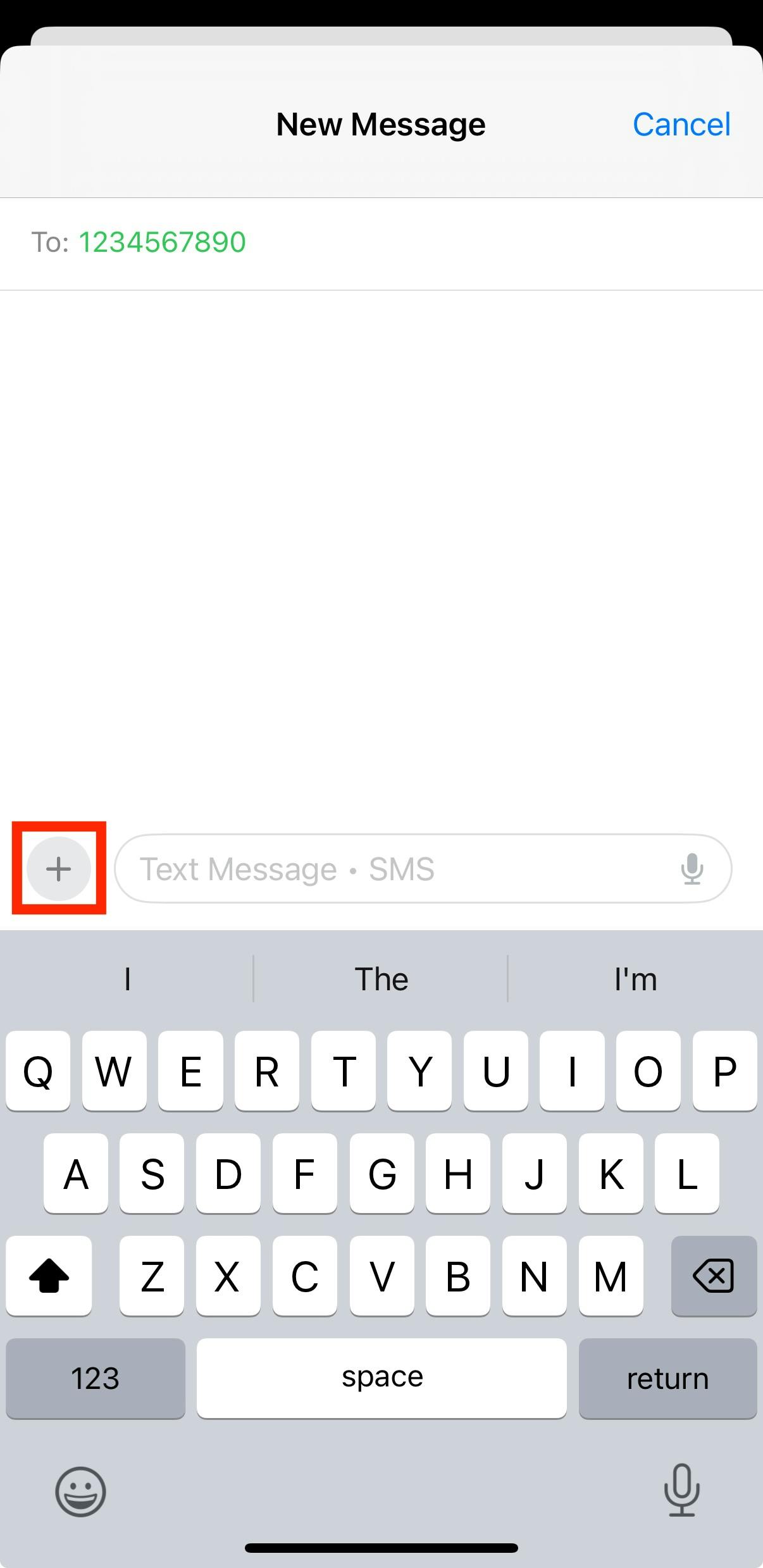
To access, go to the Messages section on your iOS device, then open up the relevant text thread. Click the + sign next to the text box.
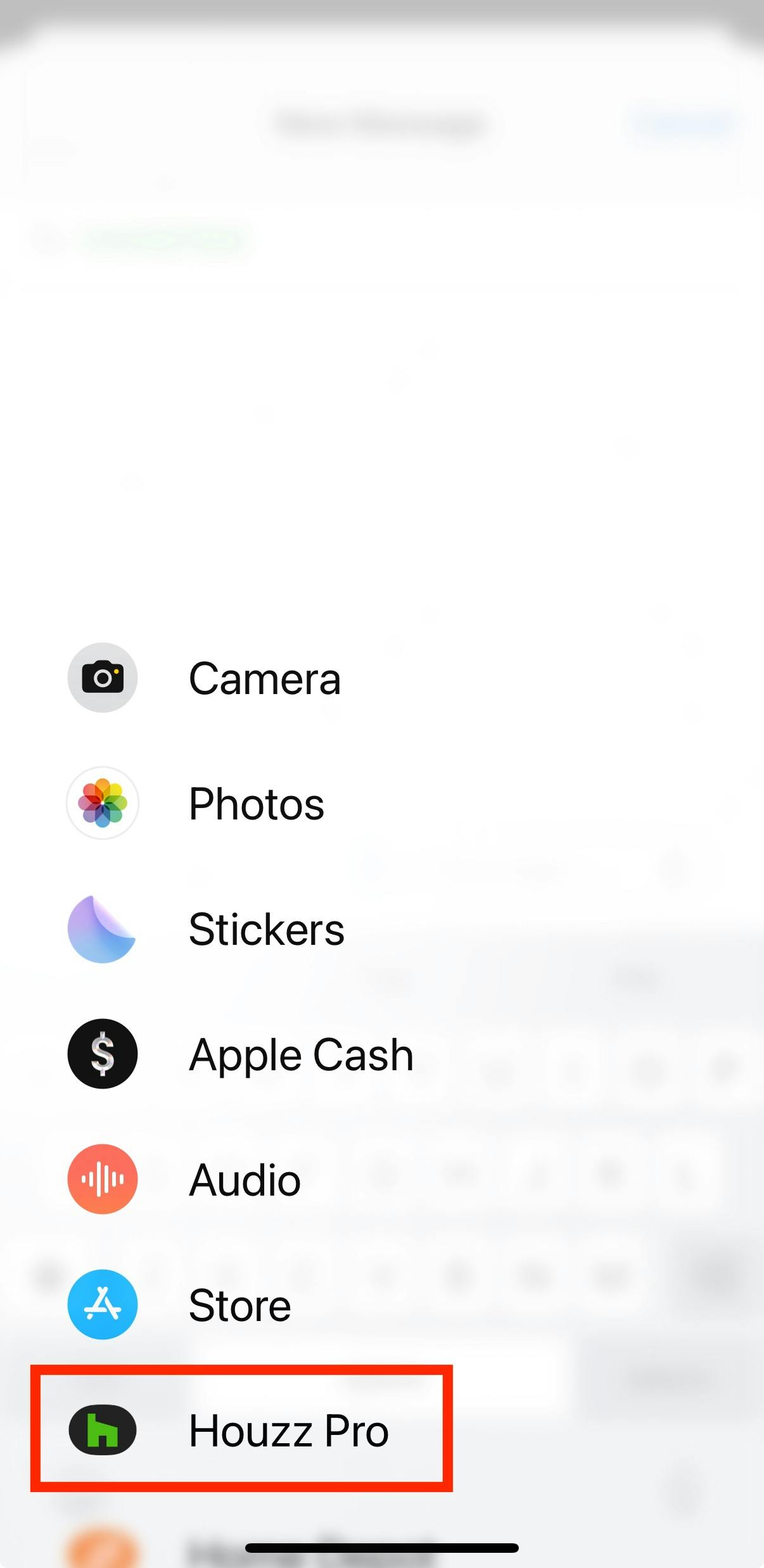
Select Houzz Pro from the menu.
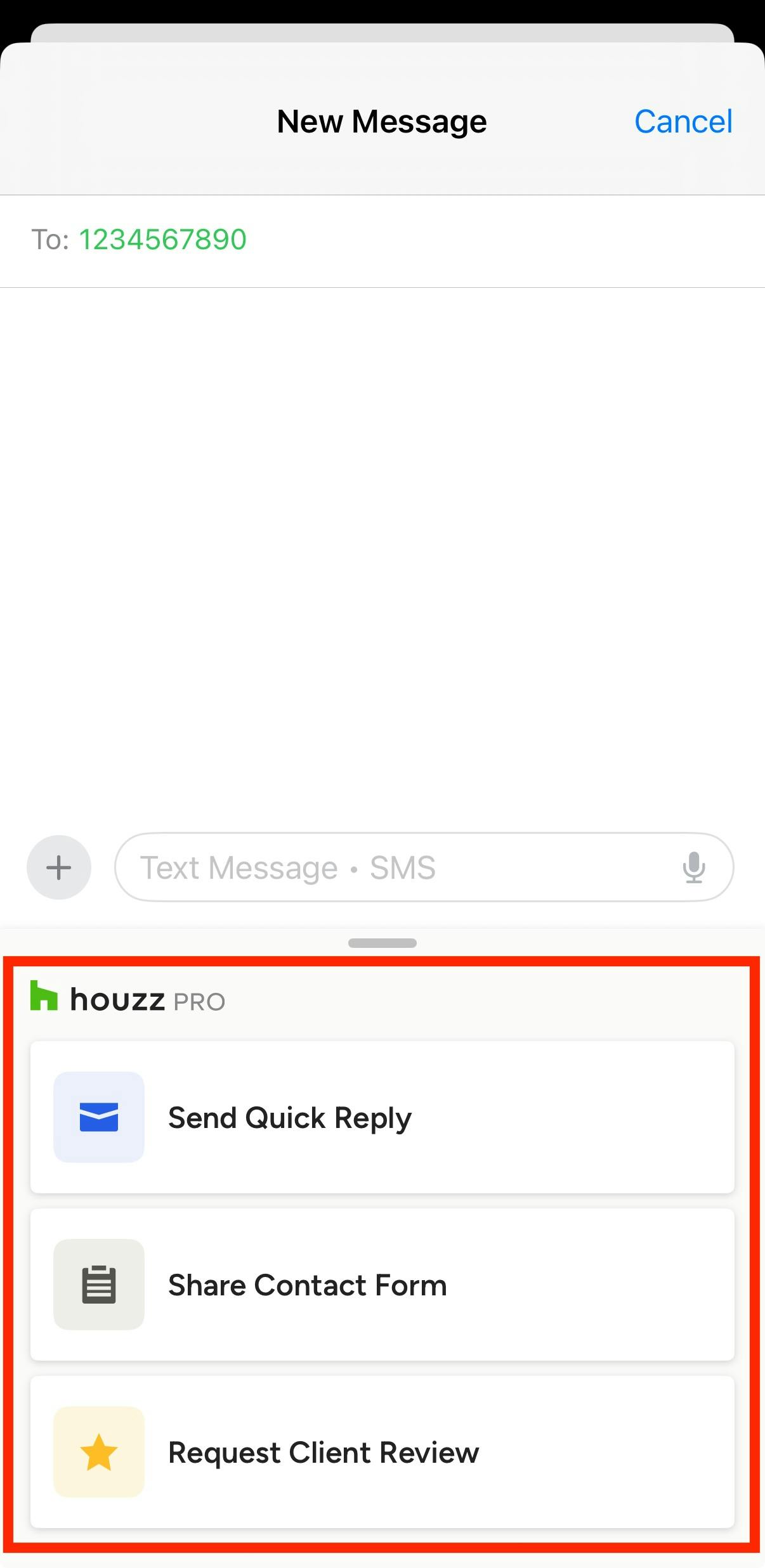
From the Houzz Pro extension, select the relevant option.
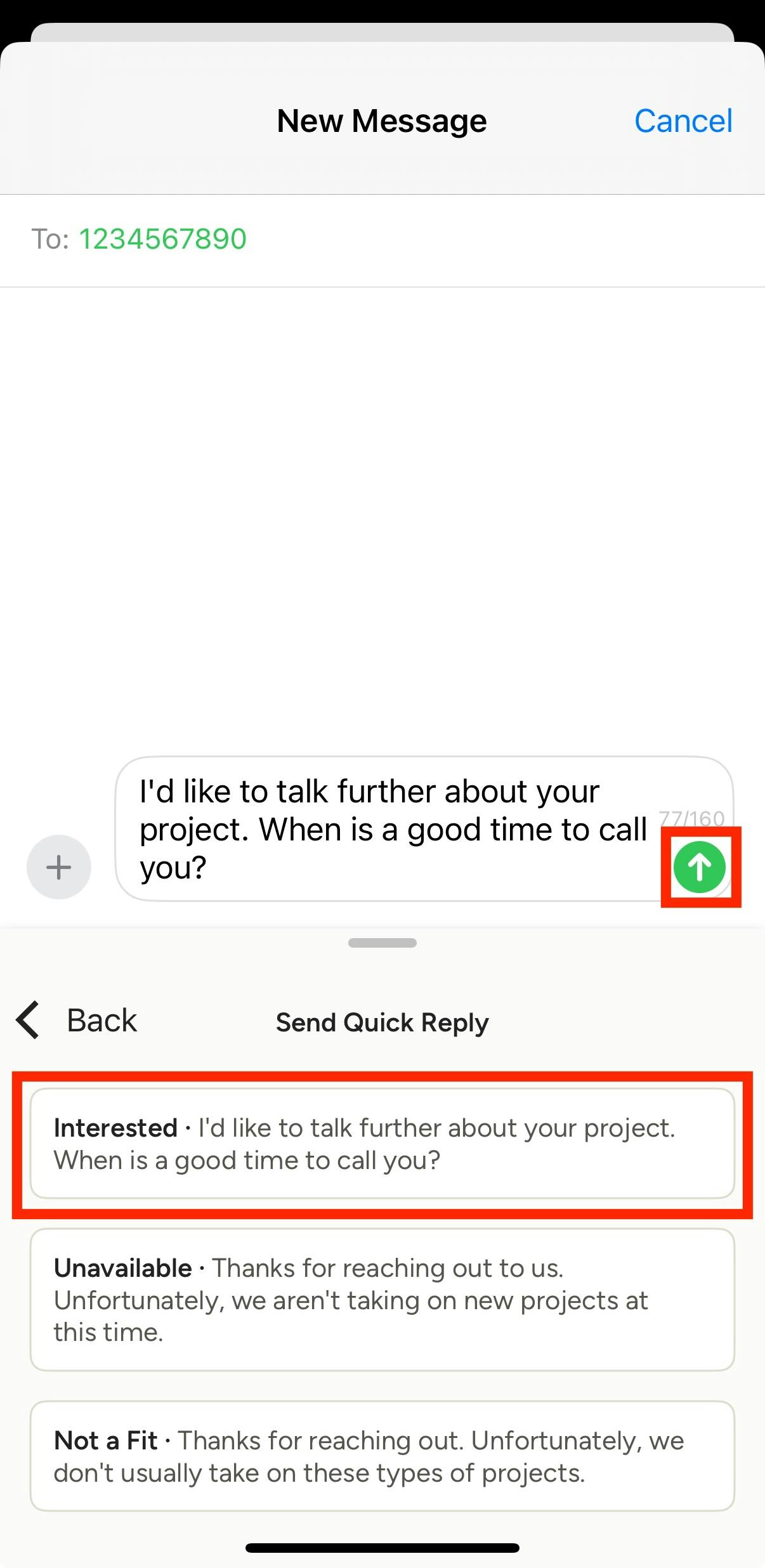
If you select Send Quick Reply, several templated responses will appear so you can respond to a lead. When you select the response, the message will auto-populate in the text box. Here, you can make custom changes to the message if needed, then click the Send button once complete.
Read How to Create Custom Message Templates to learn more about creating templated responses.
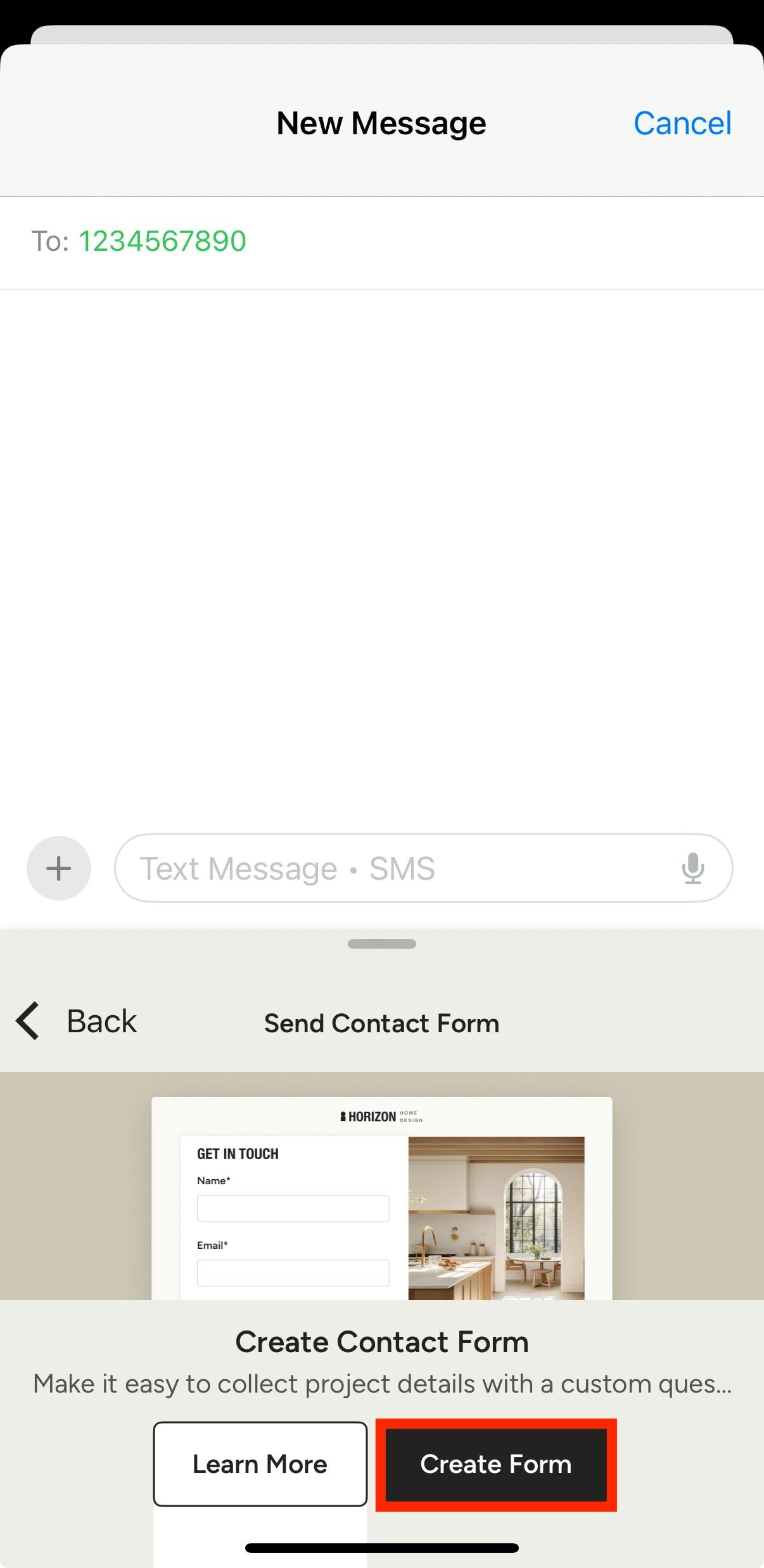
If you select Share Contact Form, you can attach an already created contact form to receive more information about a potential project. If you haven't created a contact form, you will be prompted to create one (as shown below).
Read How to Use the Lead Contact Form to learn about creating a new form.
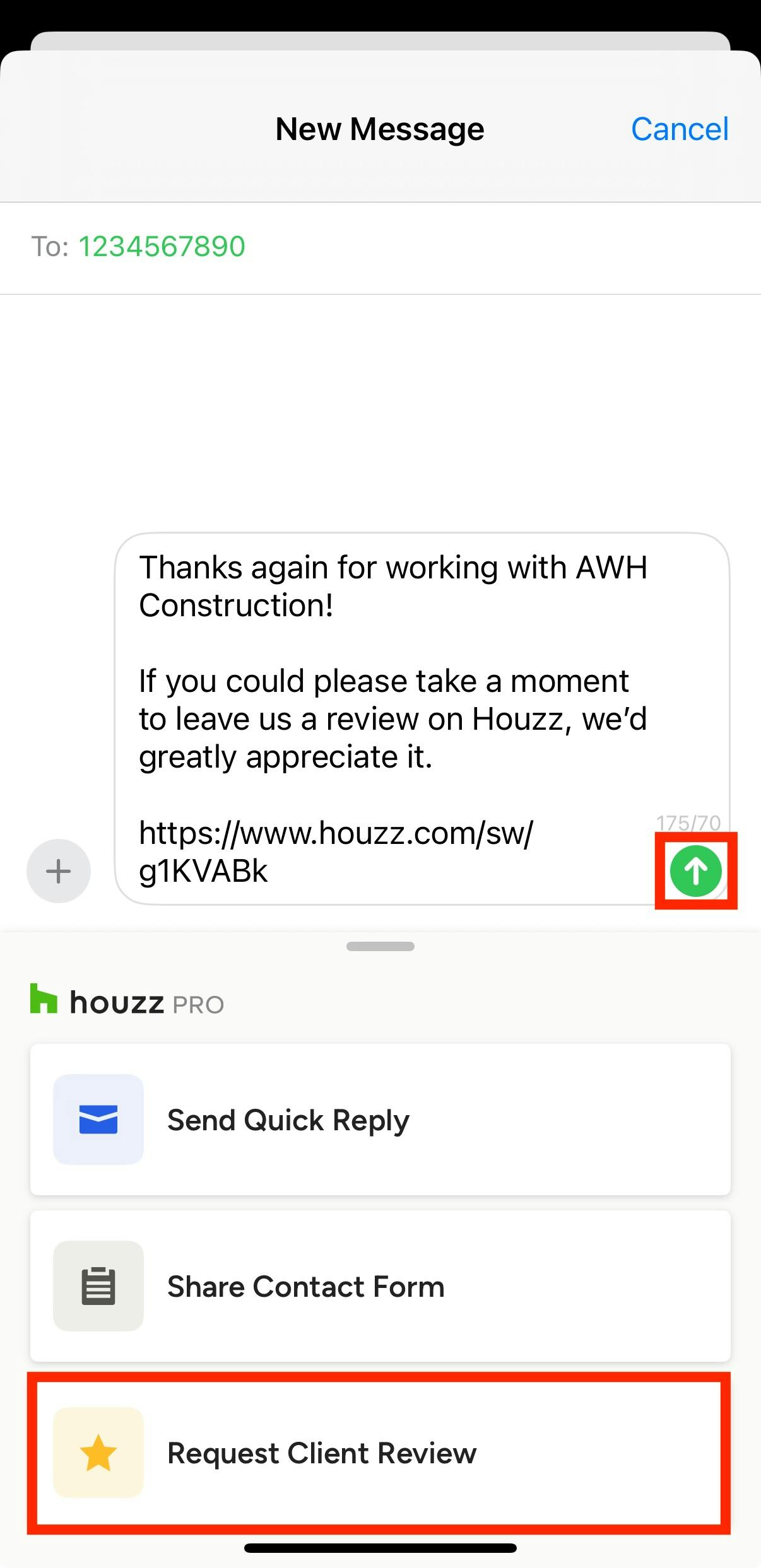
If you select Request Client Review, the review request message will auto-populate in the text box. Here, you can make custom changes to the message if needed, then click the Send button once complete.
Read How to Get Reviews on Your Houzz Profile to learn about the review process.