How to Use the Houzz AI Assistant on the Mobile App
Save time, improve efficiency and simplify tasks by using our AI assistant on the Houzz Pro mobile app.
This feature allows you to type or say simple voice commands to quickly navigate to what you need within the app. It is a great time-saving feature for professionals who are on-the-go and need to get tasks done quickly with minimal effort.
We currently support these specific prompts and voice commands:
- Create lead / project / daily log / note / task / estimate / proposal / invoice / change order: "Create a new lead for Joshua Martin who wants to remodel his bathroom"; "Create a new project for Joshua Martin at 3444 Sanborn Drive"; "Create an estimate for Joshua. Charge 1,000 dollars for the wall painting"
- Ask questions (Houzz Pro help, calculations, industry- and material-related): "How do I create a floor plan on mobile?"; How much paint do I need for 3,000 square feet?"; "How does temperature affect the curing process of epoxy resin?"
- Call / text / email client: "Call client Joshua Martin"
- Navigate to job site: "Get directions to Joshua Martin’s project"
- Clock in / out: "Clock in for Joshua Martin project"; "Clock out / Stop clock for Joshua Martin project"
- Search: "Search for Joshua Martin"
- 3D scan: "Do a 3D Scan"
- Open camera: "Take a photo"
- Upload files: "Upload document"
- Read Help Center support content: "Learn more about leads"
We are constantly updating our AI features, so keep checking back for new additions.
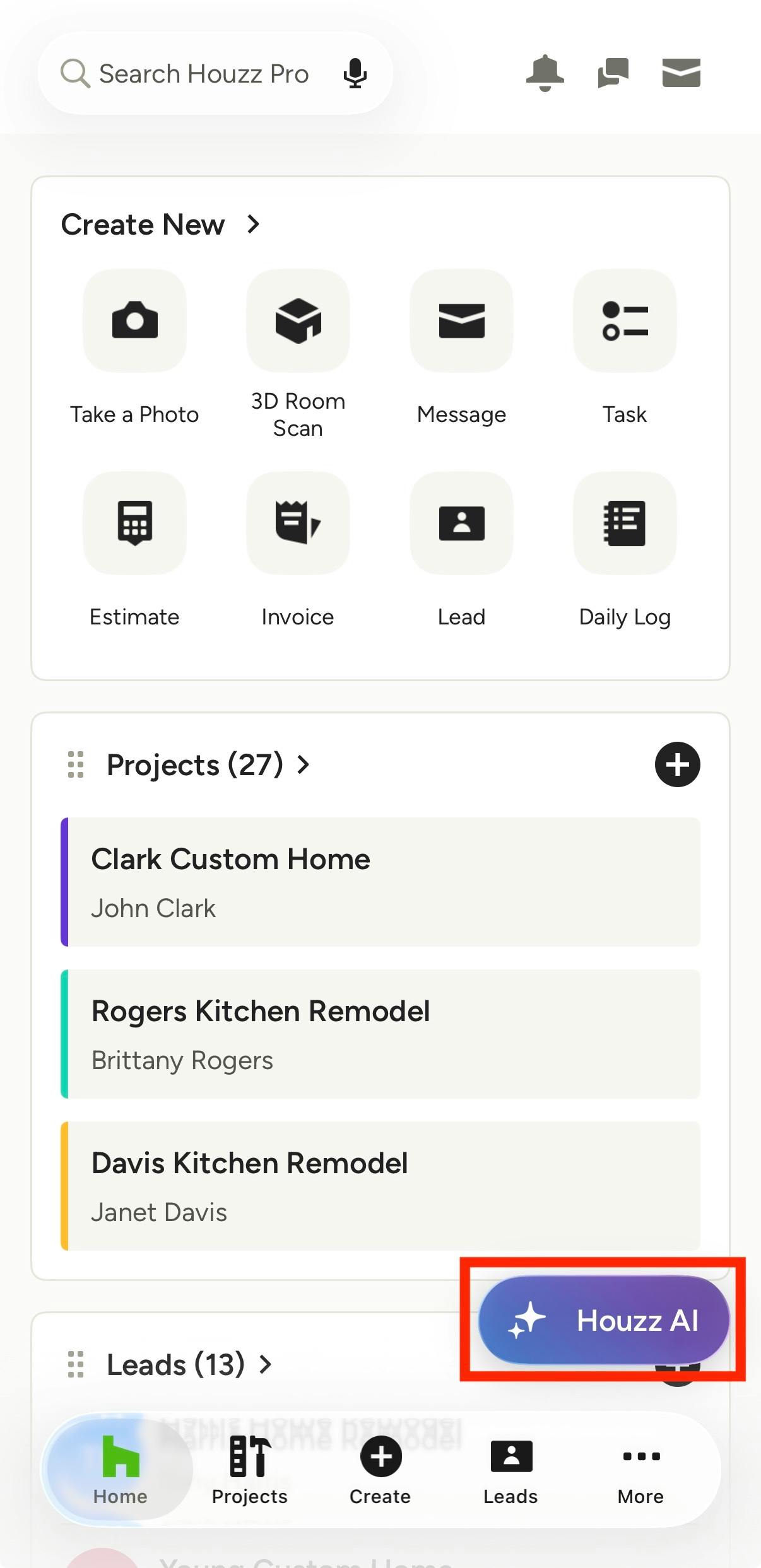
Access AI Assistant
To start using the AI assistant, open up your Houzz Pro app. You will notice a Houzz AI icon on the bottom right of your homepage screen, or any other screen you are viewing. Click on the icon to start.
Pro Tip: If you're on a project page, most things you type or say will be created for that specific project. If you're on the homepage, you will have to select a project when giving your prompt.
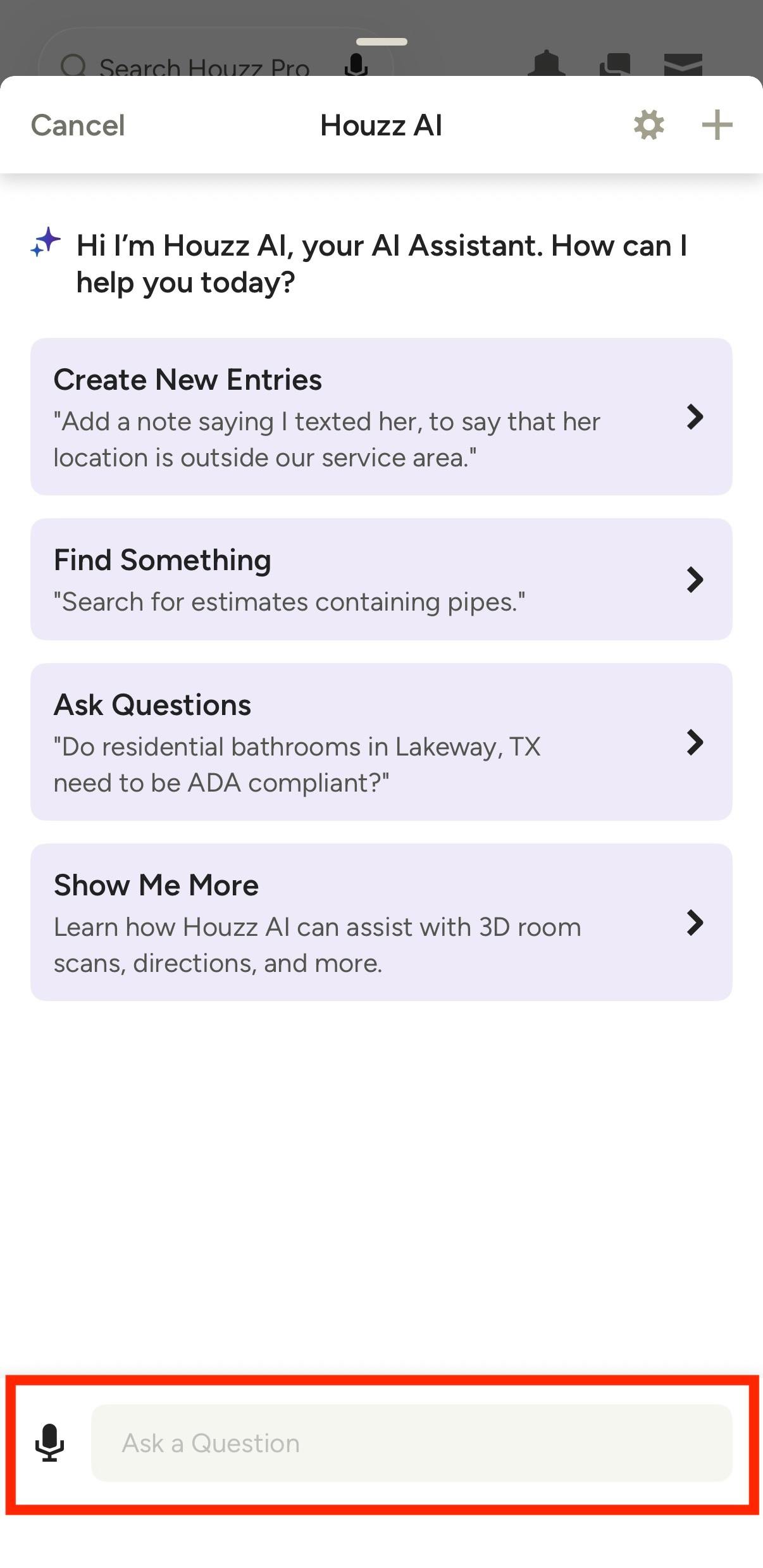
A screen will appear with suggestions on prompts to try. You can either tap a prompt box to get started, or you can directly type the prompt or question into the bottom text box. Tap the Microphone icon to speak a voice command prompt instead.
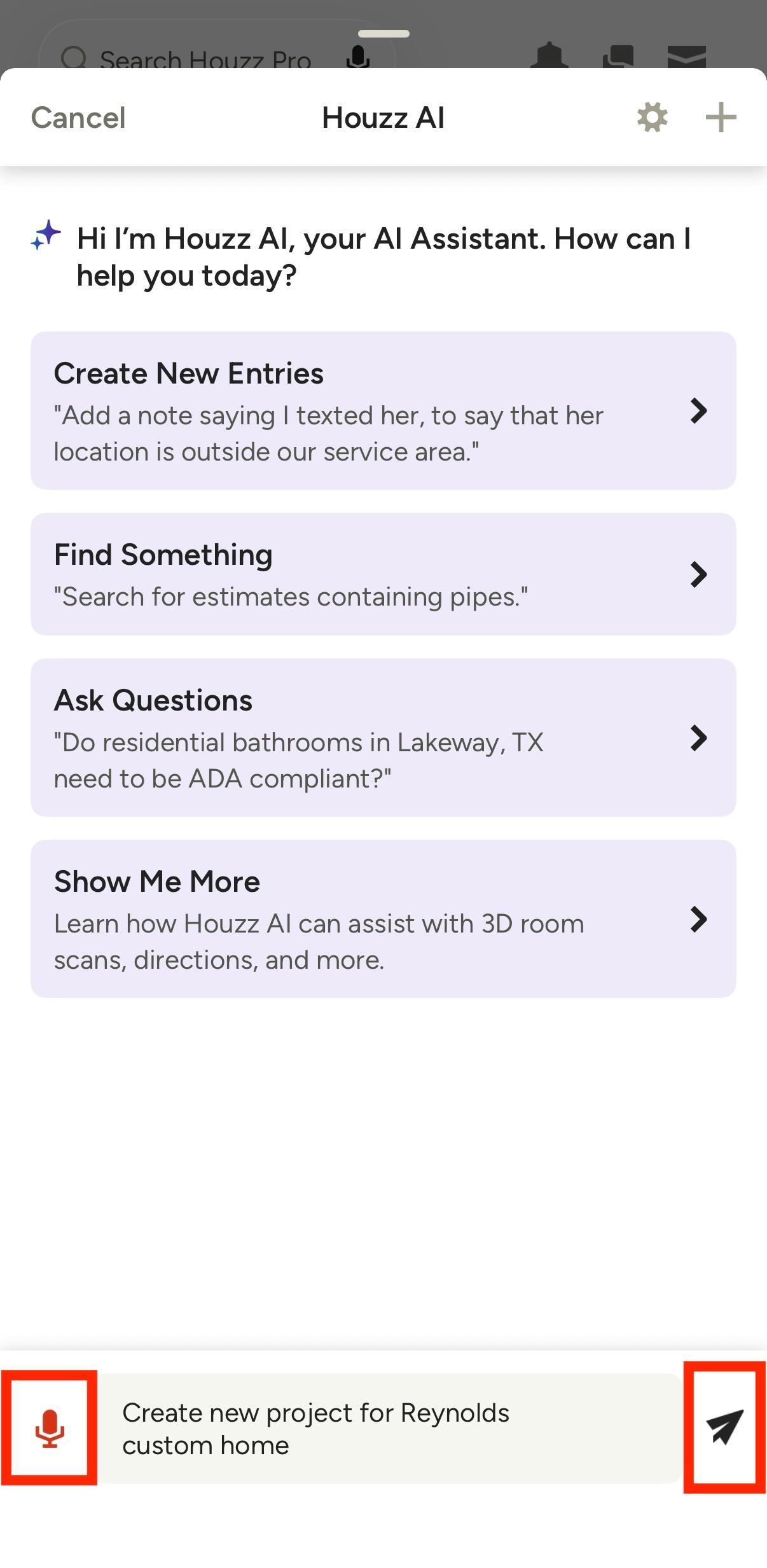
If you select a voice command, make sure you give Houzz Pro permission to access your microphone. A pop-up might appear on your phone as you start to use voice commands, or you can adjust your permissions in settings.
As you start, the Microphone icon will turn red to show it is listening. Speak your command clearly into your phone. Text will appear in the bottom text box to show the command you've given.
If you made a mistake and would like to edit the command, tap directly on the text to edit it. If you are happy with the command, tap the Send icon.
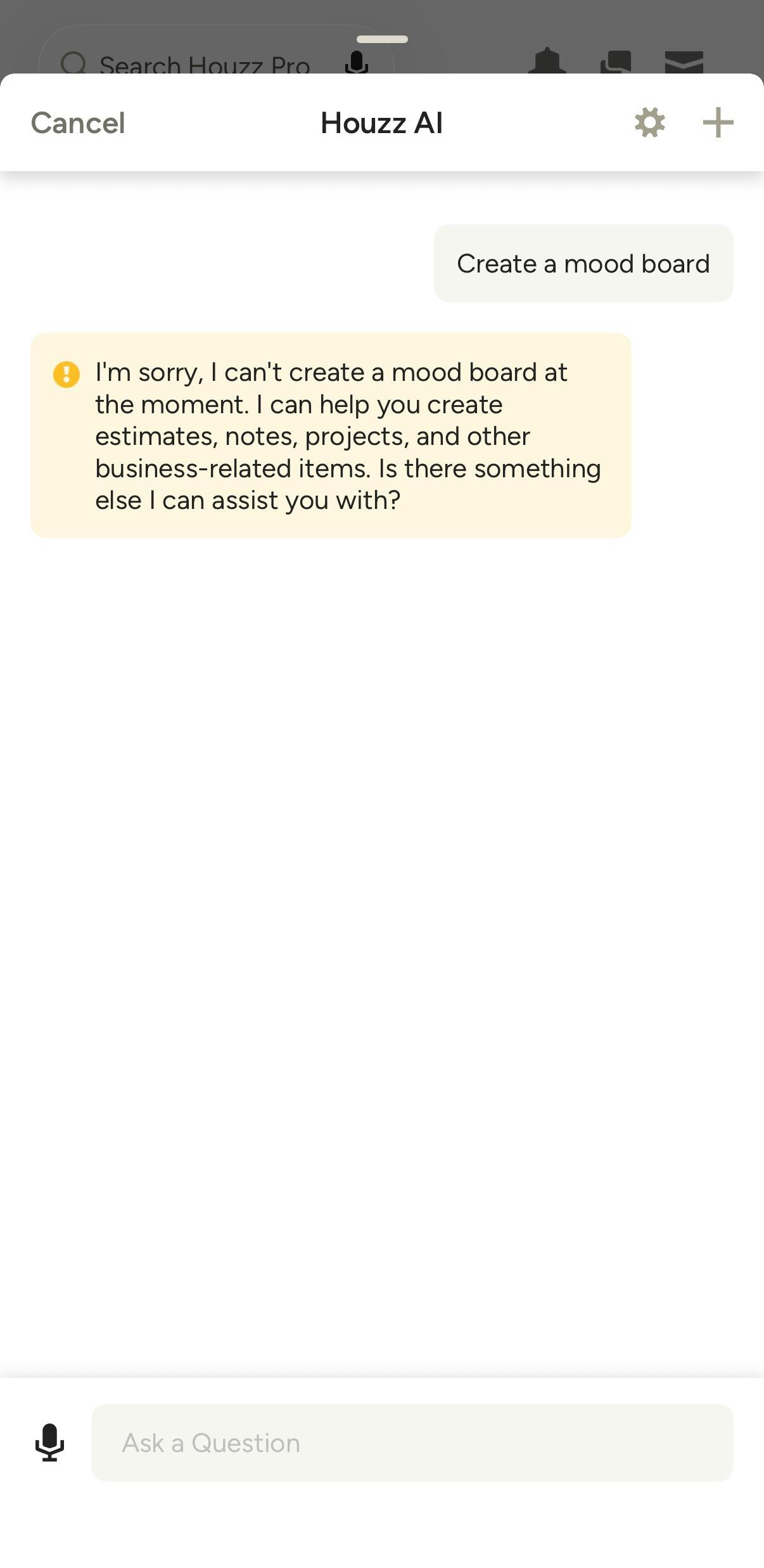
Once you click Send, the action should be complete.
If AI is unable to recognize the command, or the command is not yet supported, you will receive an error message.
Use AI Assistant in Documents
If you are onsite or on-the-go, you can quickly create a ballpark estimate, proposal, invoice or change order using the AI assistant. By typing your prompt or using voice commands to create your document, you can record project details in real-time, then return to the office to clean up the document before sending to your client.
Here's how it works:
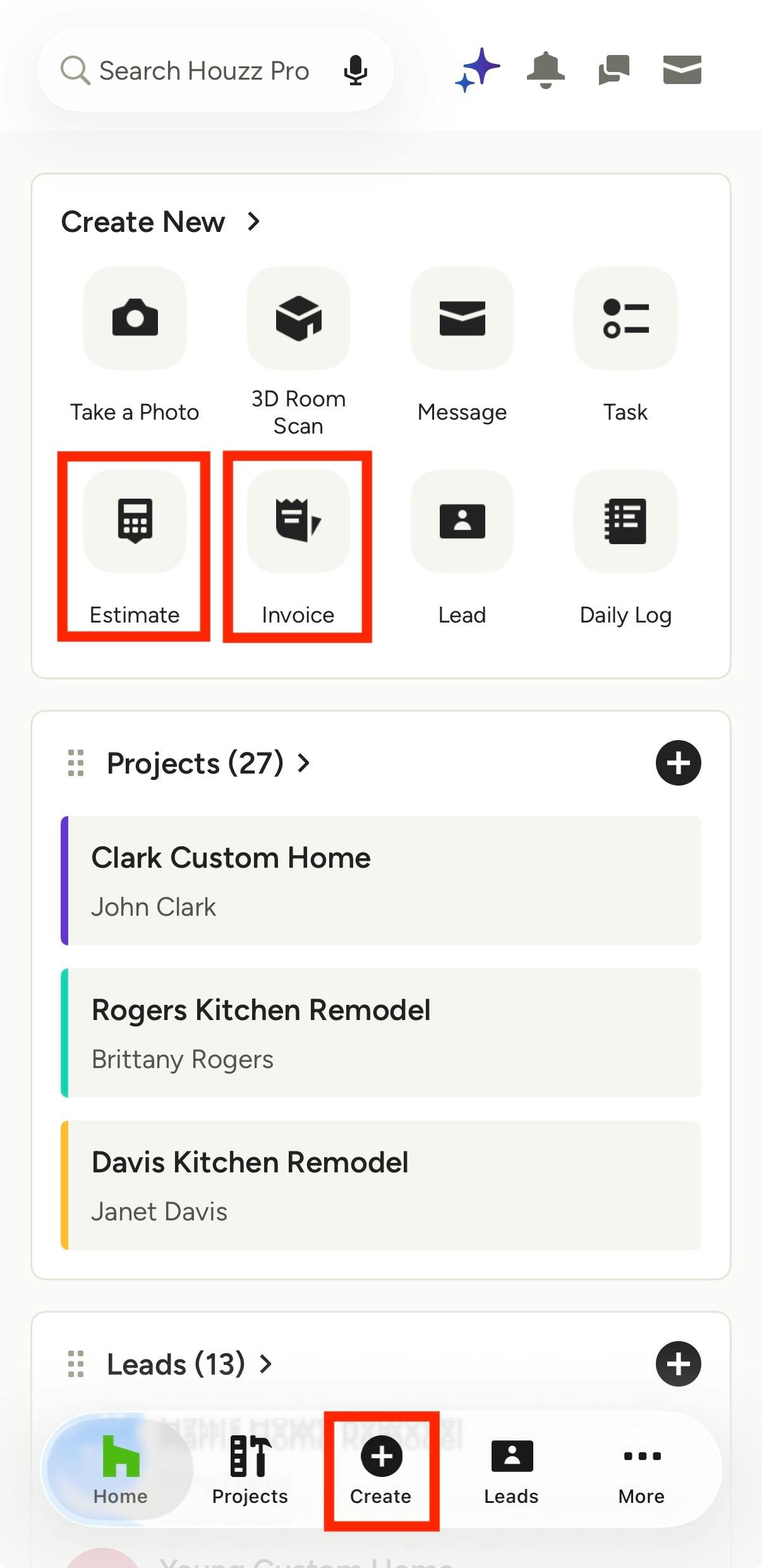
To create a new financial document, click the Estimate/Proposal, Invoice or Change Order icon in the Create New section of your app homepage. You can also click the Create button in the bottom menu, then tap Estimate/Proposal, Invoice or Change Order.
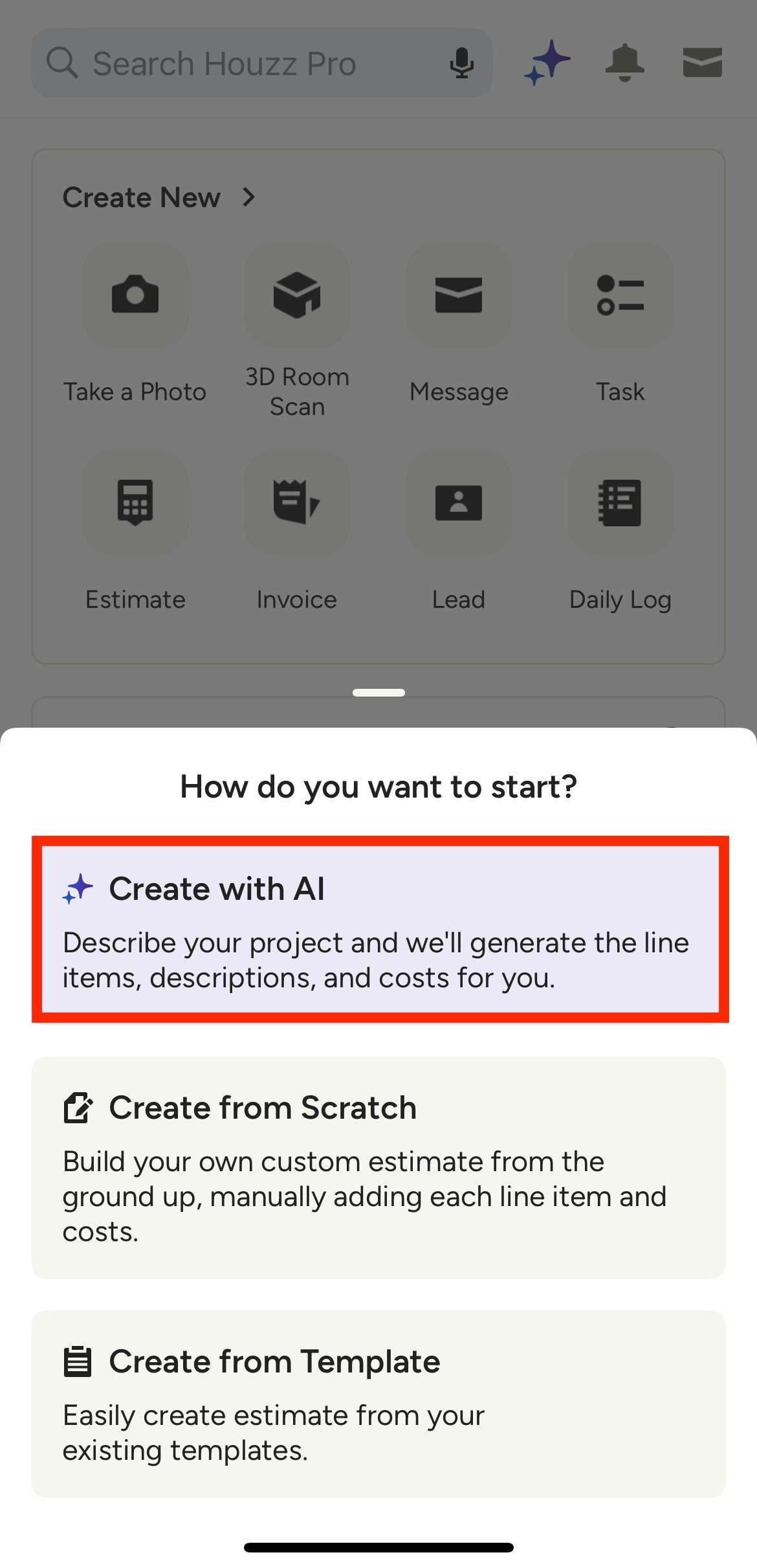
A new screen will appear that asks if you would like to Create with AI, Create from Scratch, or Create from Template. Tap Create with AI, then select the relevant project — or create a new project.
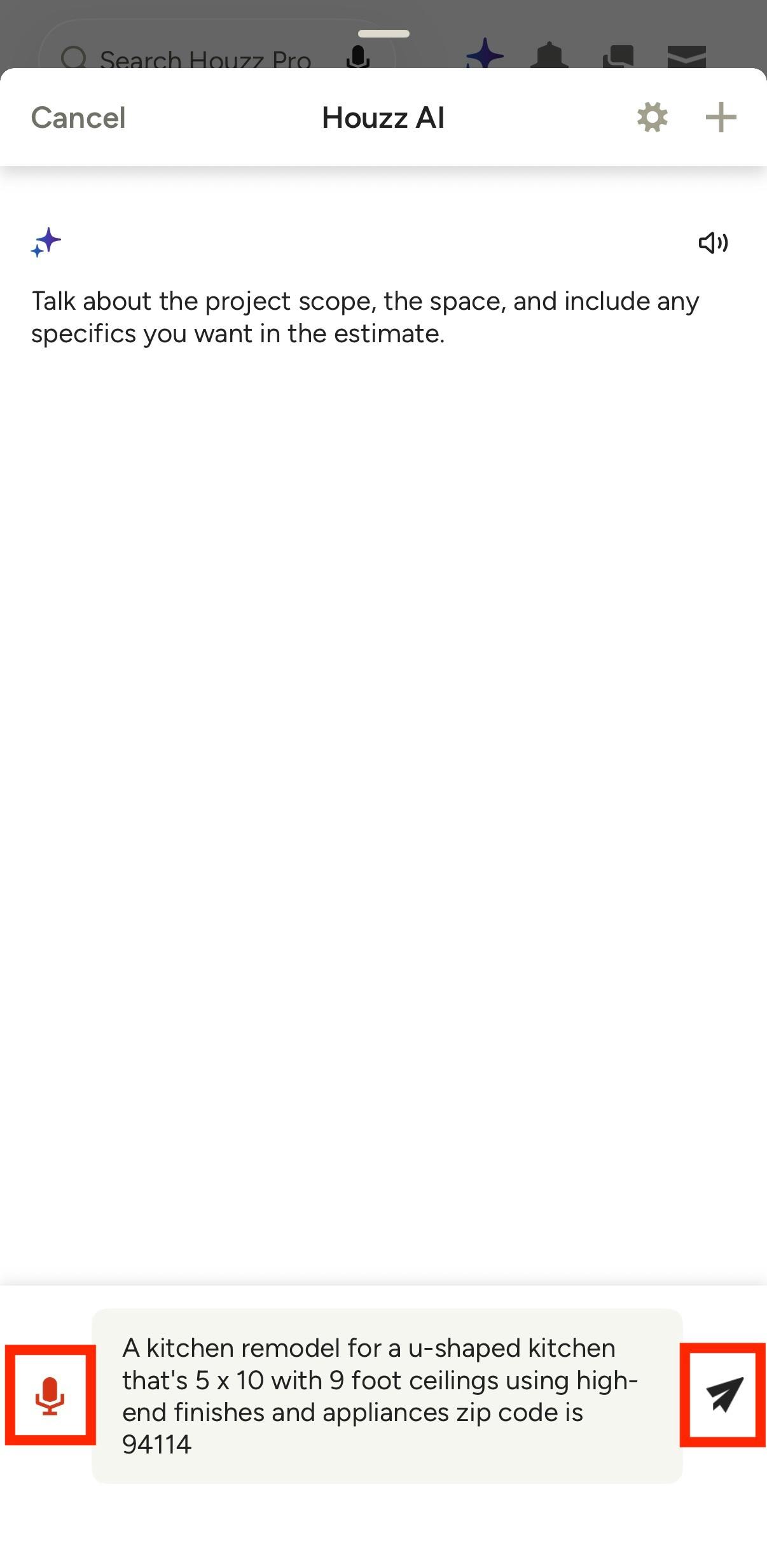
Directly type the project details into the bottom text box, or tap the Microphone icon to speak a voice command prompt instead.
The more details you provide, the more accurate and detailed your document will be. Try to include specifics like:
- Type of project
- Location of the project
- Size of the project
- Level of project finishes
Once you type or say your prompt, you can edit the prompt in the text box if there are necessary changes. Tap the Send icon once complete.
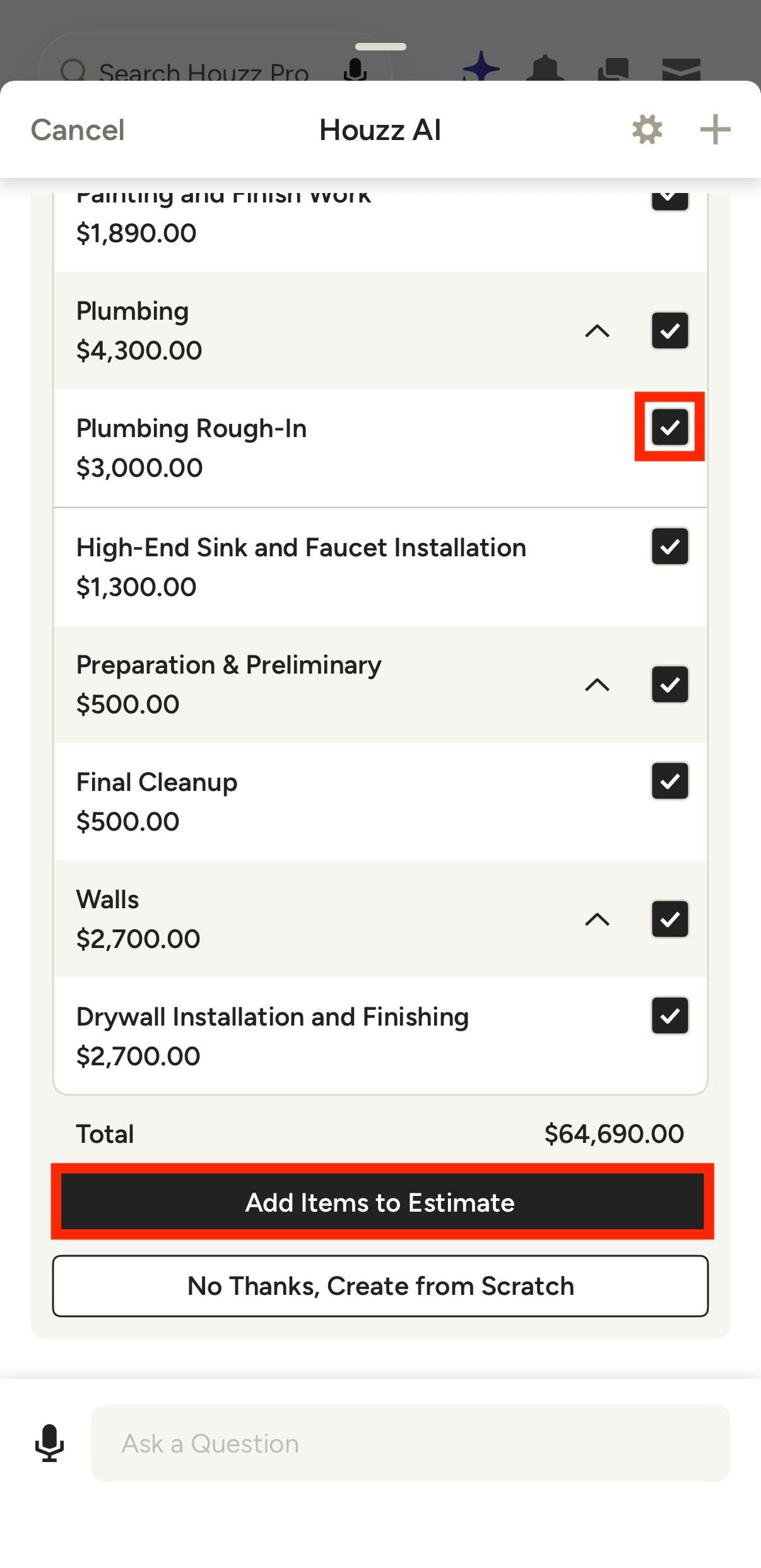
A new screen will appear where you can review all the items in your AI document. You can remove specific line items by unchecking the box next to the item, or you can keep the document as-is.
Click Add Items to Estimate/Proposal/Invoice/Change Order if you would like to create the document. Click No Thanks, Create from Scratch if you prefer to create the document manually instead.
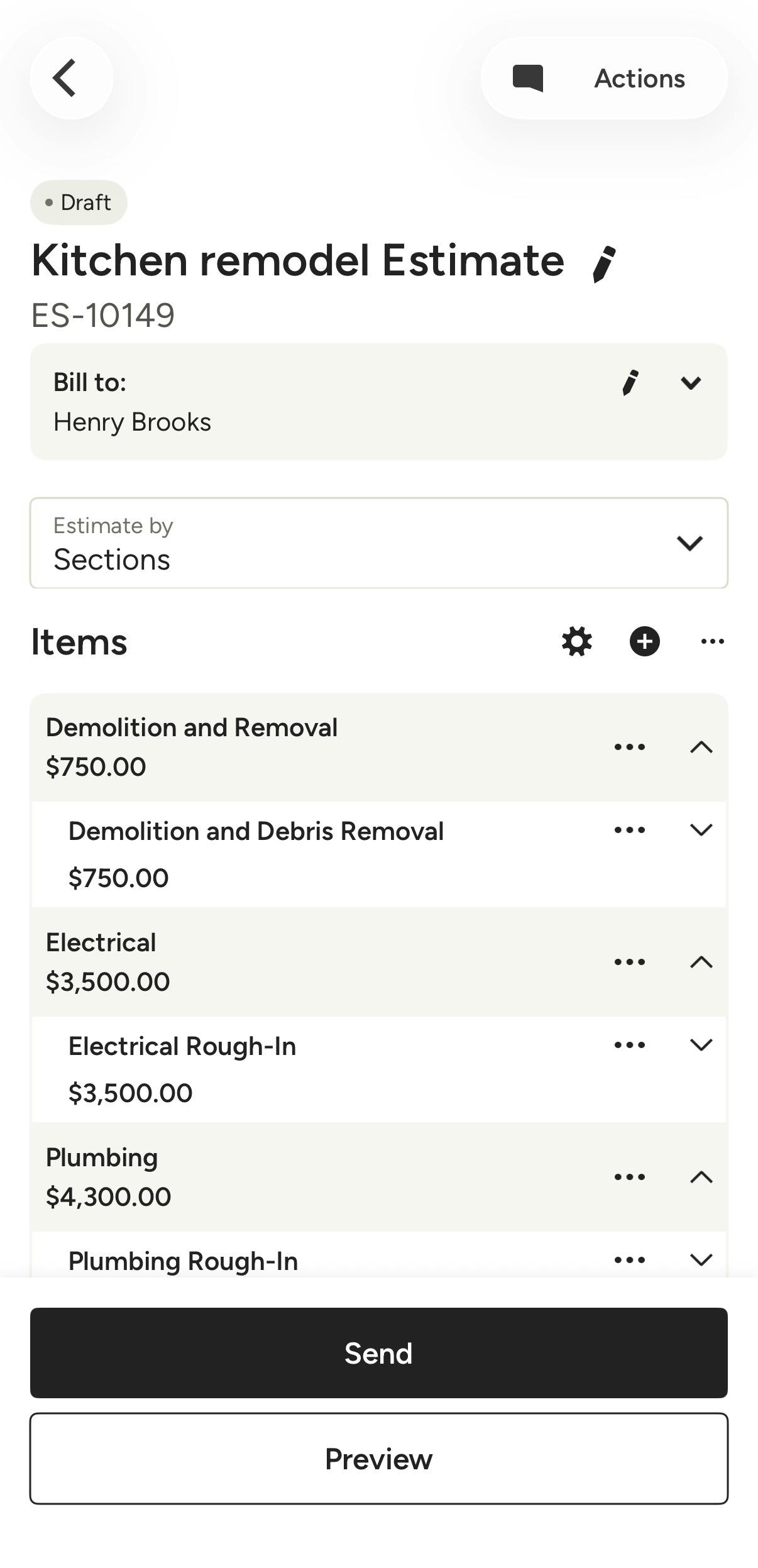
Once created, you can easily make changes to the document title, add or edit line items, add a payment schedule, and more.
Read How to Create Estimates on the Mobile App, How to Create Proposals on the Mobile App or How to Create Invoices on the Mobile App for more details.
How to Hide the AI Assistant
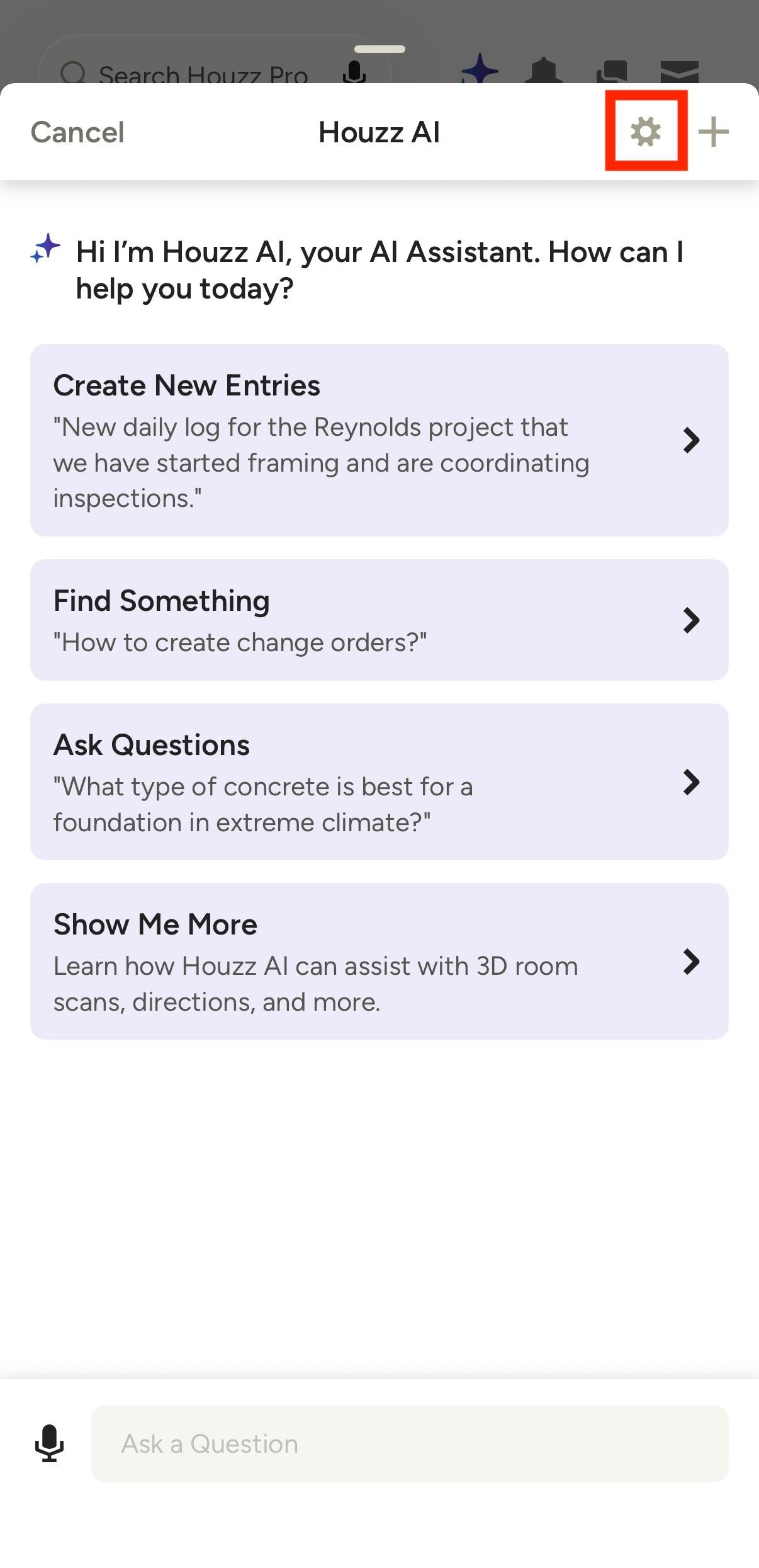
If you want to adjust how the AI assistant appears on your app, you can easily hide the button from view. To do this, click on the Houzz AI icon, then tap the gear icon at the top right of your screen.
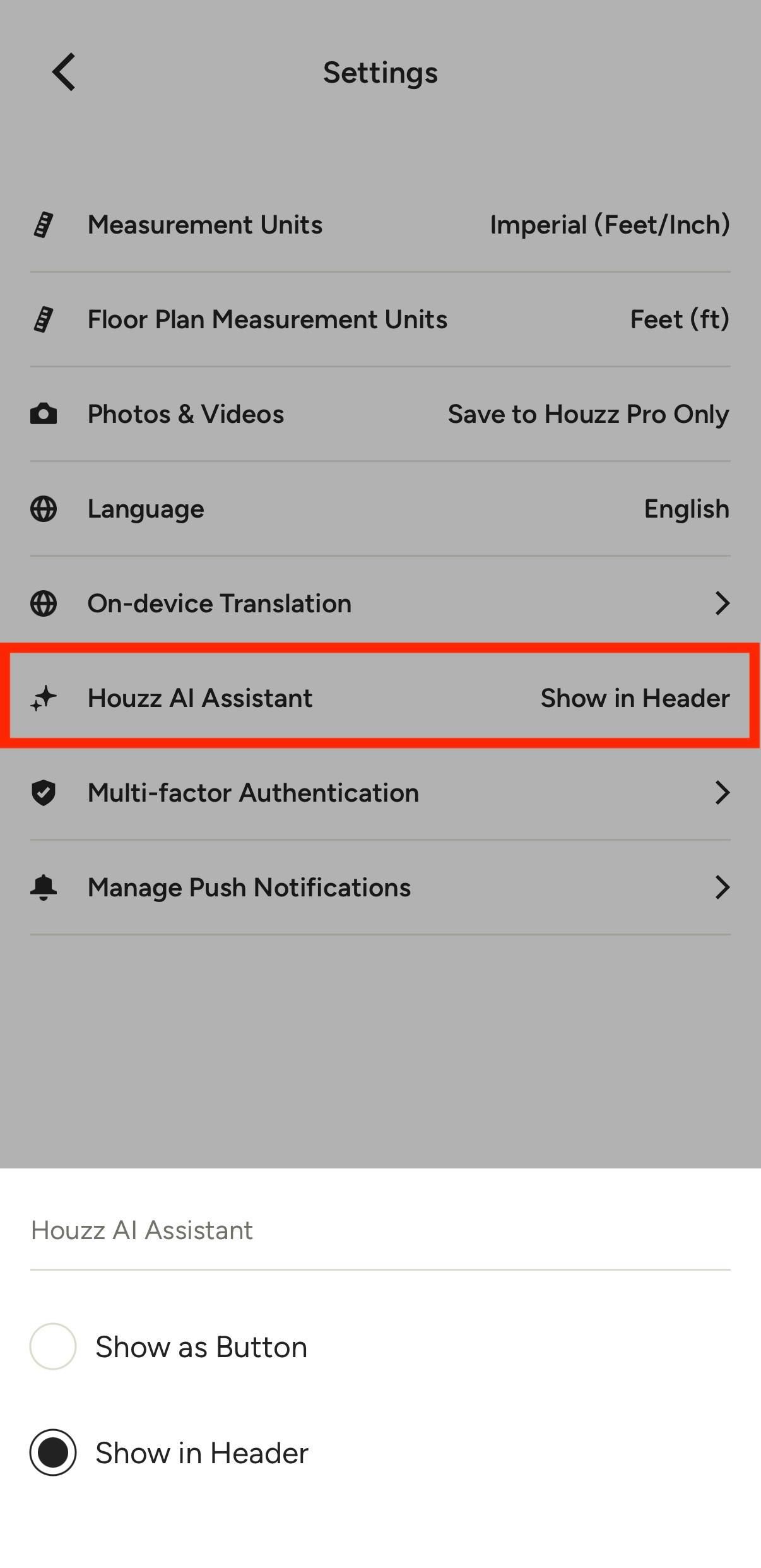
Your profile settings page will appear. Click the Houzz AI Assistant section. Here, you can adjust whether to Show as Button, or Show in Header.
If you tap Show as Button, it will continue to work as shown above.
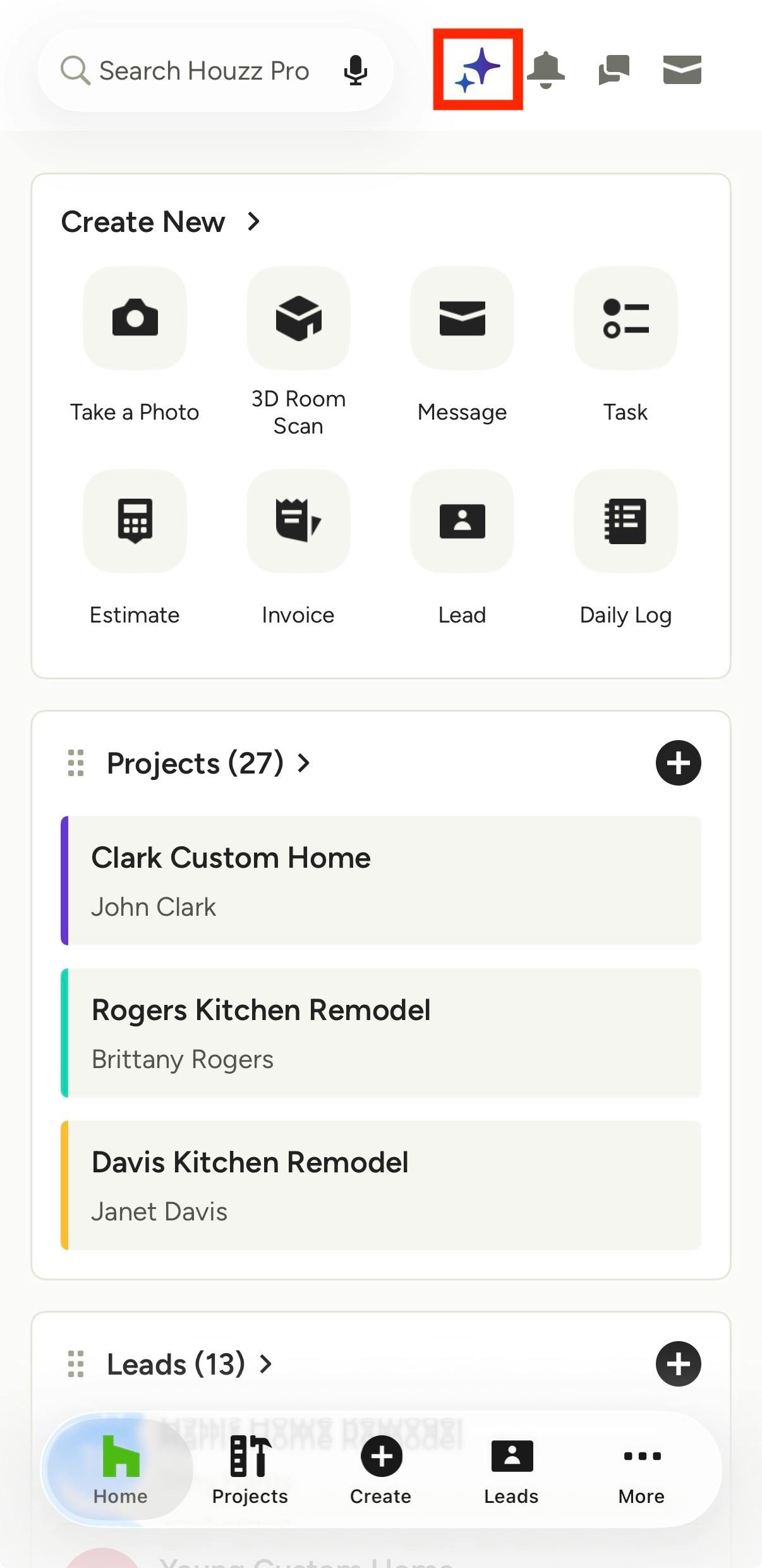
If you tap Show in Header, you can still access the AI assistant if needed, but it will be in the top right of your screen where it is out of the way.