How to Schedule Meetings with Clients and Leads
Scheduling meetings directly in Houzz Pro allows you to view and manage every client or lead meeting in one place, so you'll never have to track them down somewhere else. Whether you're connecting with a potential client for the first time or checking in mid-project, our meetings feature makes the process seamless for everyone.
To get started with meetings through Houzz Pro, you will first need to set up your meeting settings. Read How to Set Up Meetings to learn more about connecting your calendar, finding your personalized booking link, and editing your meeting types.
Once finalized, you will be able to book and manage meetings for both clients and leads.
Schedule Meetings With Leads
If you want to create a meeting for a specific lead, you can easily do this in the lead section of Houzz Pro.
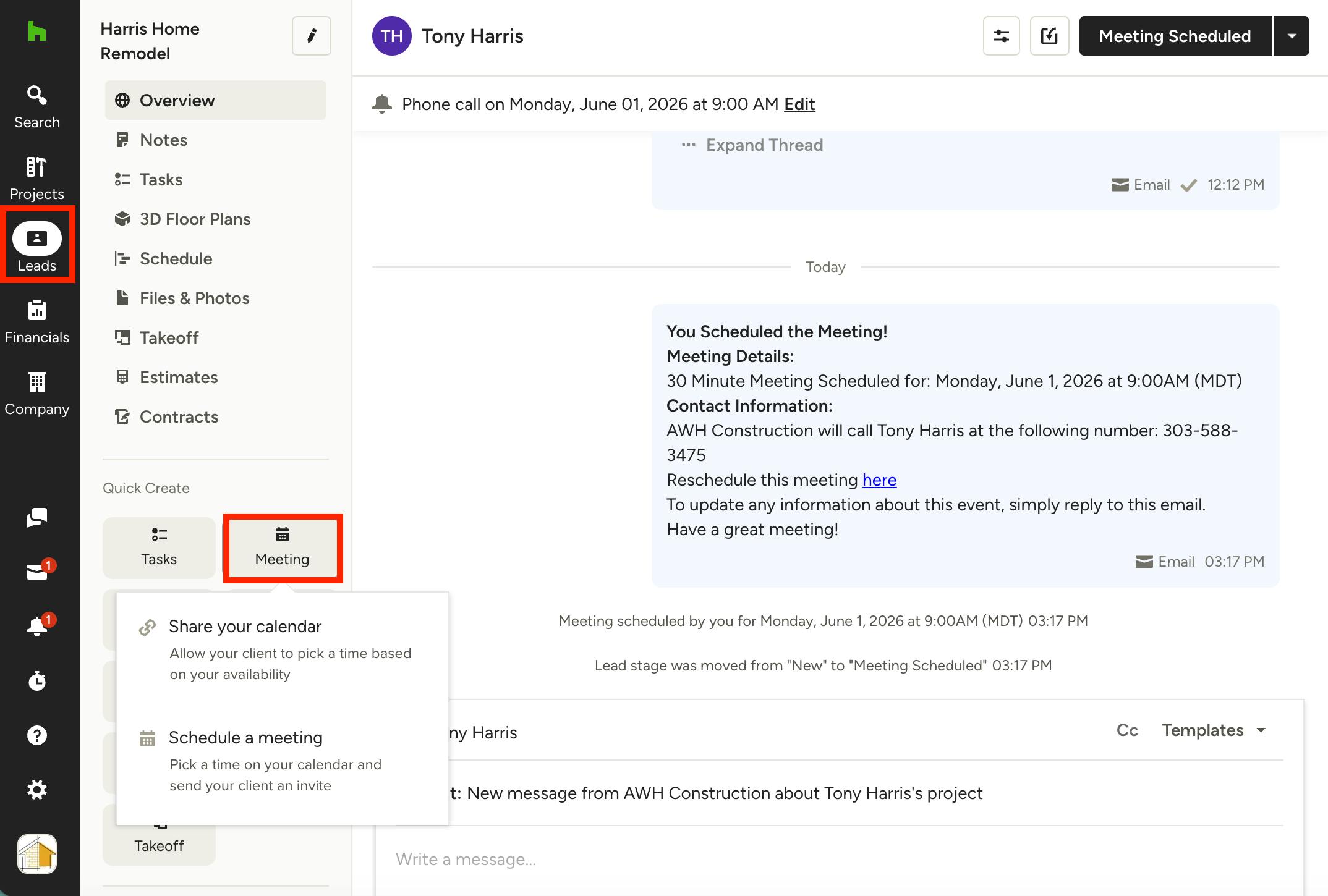
To start, click the Leads icon in your left navigation, then select the relevant lead from the list. Once on the lead overview page, click the Meeting icon to schedule. Please Note: The Meeting icon will only appear if you have an email address listed for the lead.
In the Meeting dropdown, you can either schedule a meeting yourself, or you can share your calendar and allow your lead to schedule the meeting instead.
Schedule Meeting Yourself
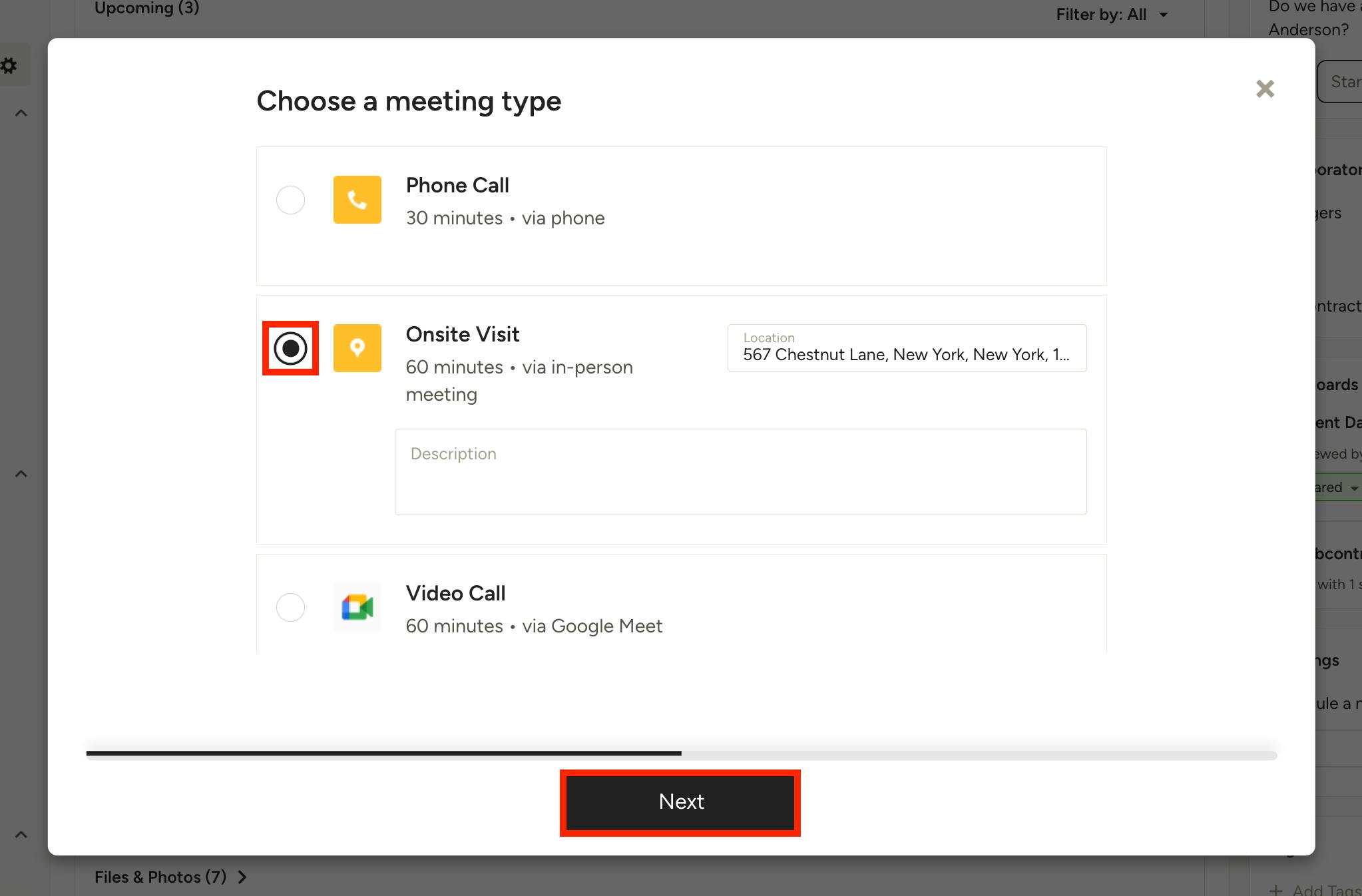
If you want to schedule the meeting yourself, click Schedule a Meeting in the Meeting dropdown menu.
A new screen will appear where you can select the meeting type. (Click Edit Meeting Types at the bottom of this screen to adjust meeting types and duration. Read more here.)
Depending on the meeting type, you can confirm or adjust phone number, project address, and/or video conferencing app. You can also add a description for the meeting, if needed. Click Next.
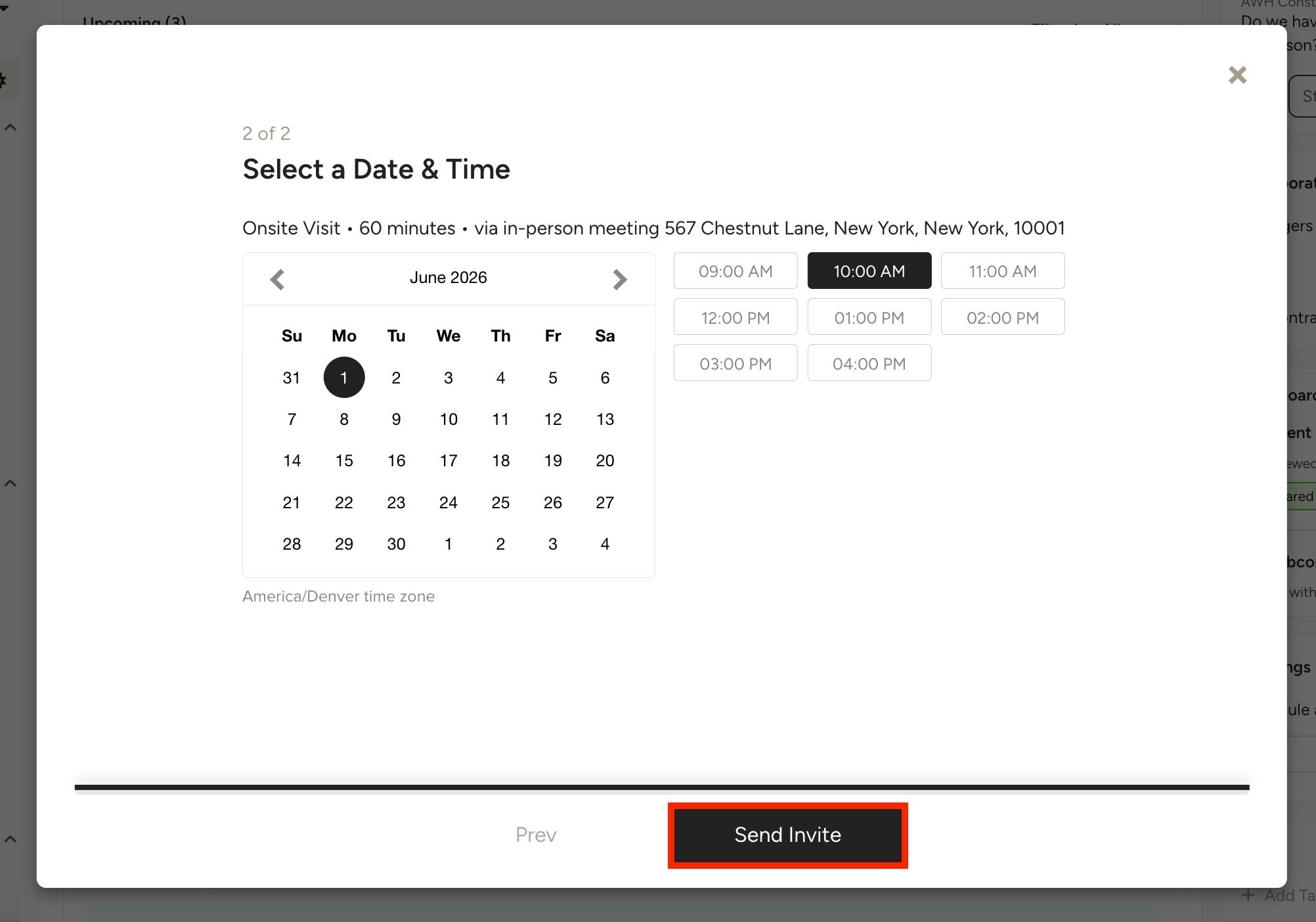
In the next screen, you can select the date and time for the meeting. Click Send Invite.
You will receive a meeting confirmation within Houzz Pro, a mobile app notification, as well as a calendar invitation. Your client will also receive an email notification and a calendar invitation for the meeting.
Share Your Calendar
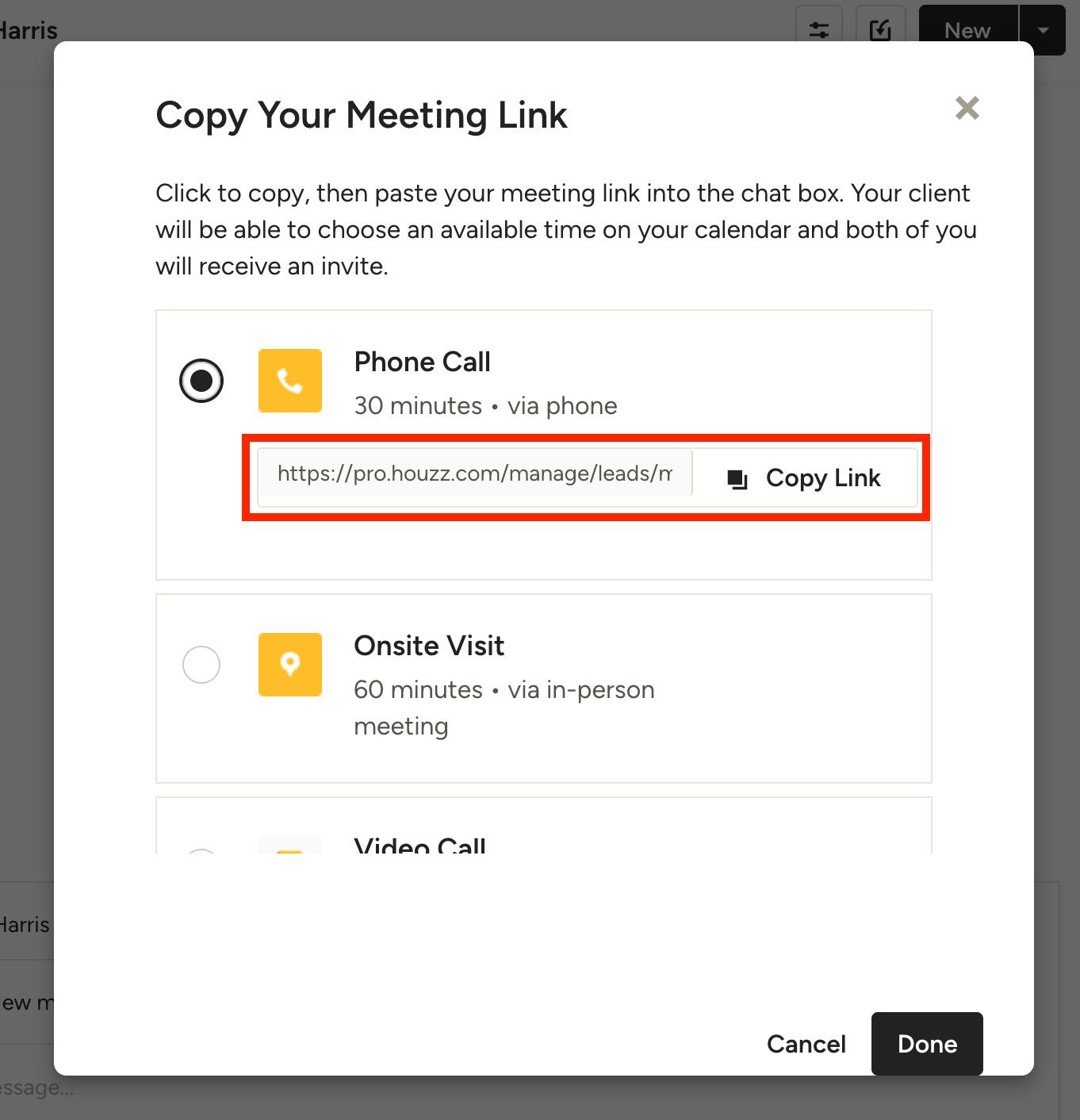
If you want your lead to schedule the meeting, select Share Your Calendar in the Meeting dropdown menu.
A new screen will appear where you can select the meeting type, then copy the relevant link. (Click Edit Meeting Types at the bottom of this screen to adjust meeting types and duration. Read more here.)
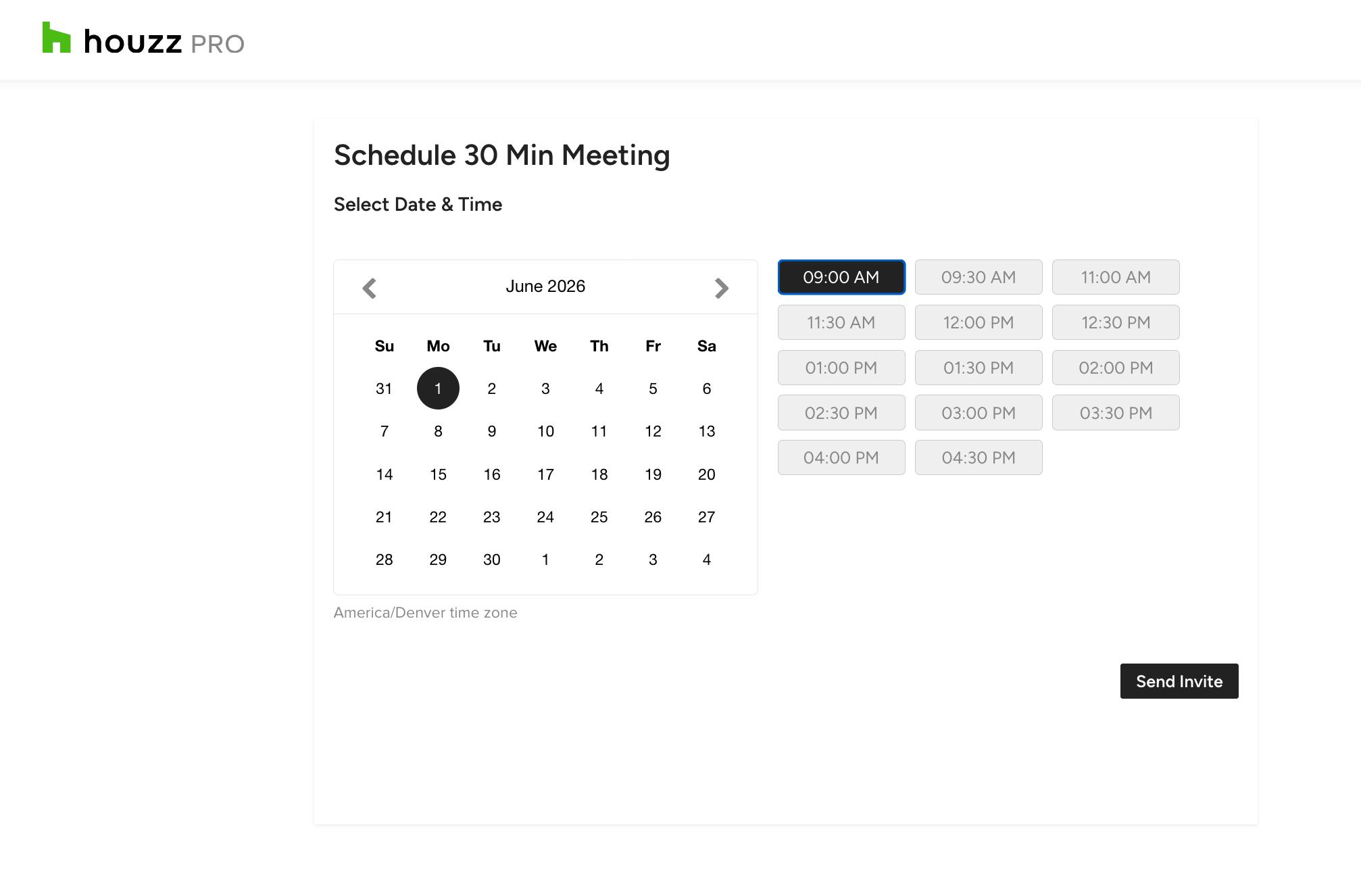
Once copied, you can share the link with your lead through a Houzz Pro message, text message or email. Your lead can then select a date and time on your calendar, and click Send Invite to complete (lead view shown below).
Your lead will receive a meeting confirmation, as well as an email notification and a calendar invitation. You will receive a mobile app notification, email notification and a calendar invitation.
Manage Lead Meetings
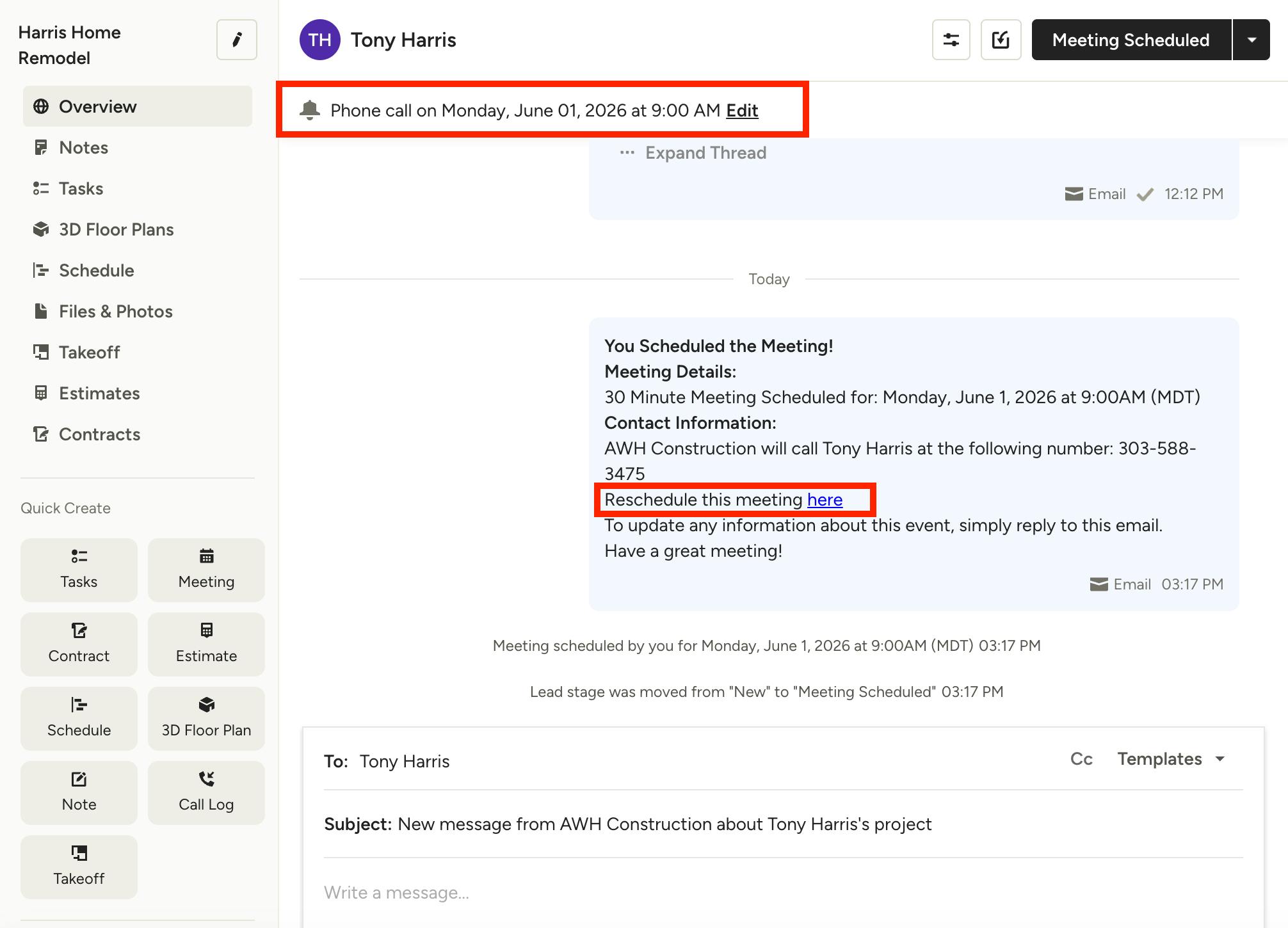
All of your scheduled meetings will appear at the top of your lead overview page, as well as in the Messages section. The lead stage will automatically transition to Meeting Scheduled.
If you need to reschedule or cancel the meeting, you can either click Edit in the top notification, or click the meeting details in the Messages section. Your lead will also be able to reschedule or cancel on their end as well.
Schedule Meetings With Clients
Once a lead becomes an active client, you can continue to schedule meetings using a slightly different process.
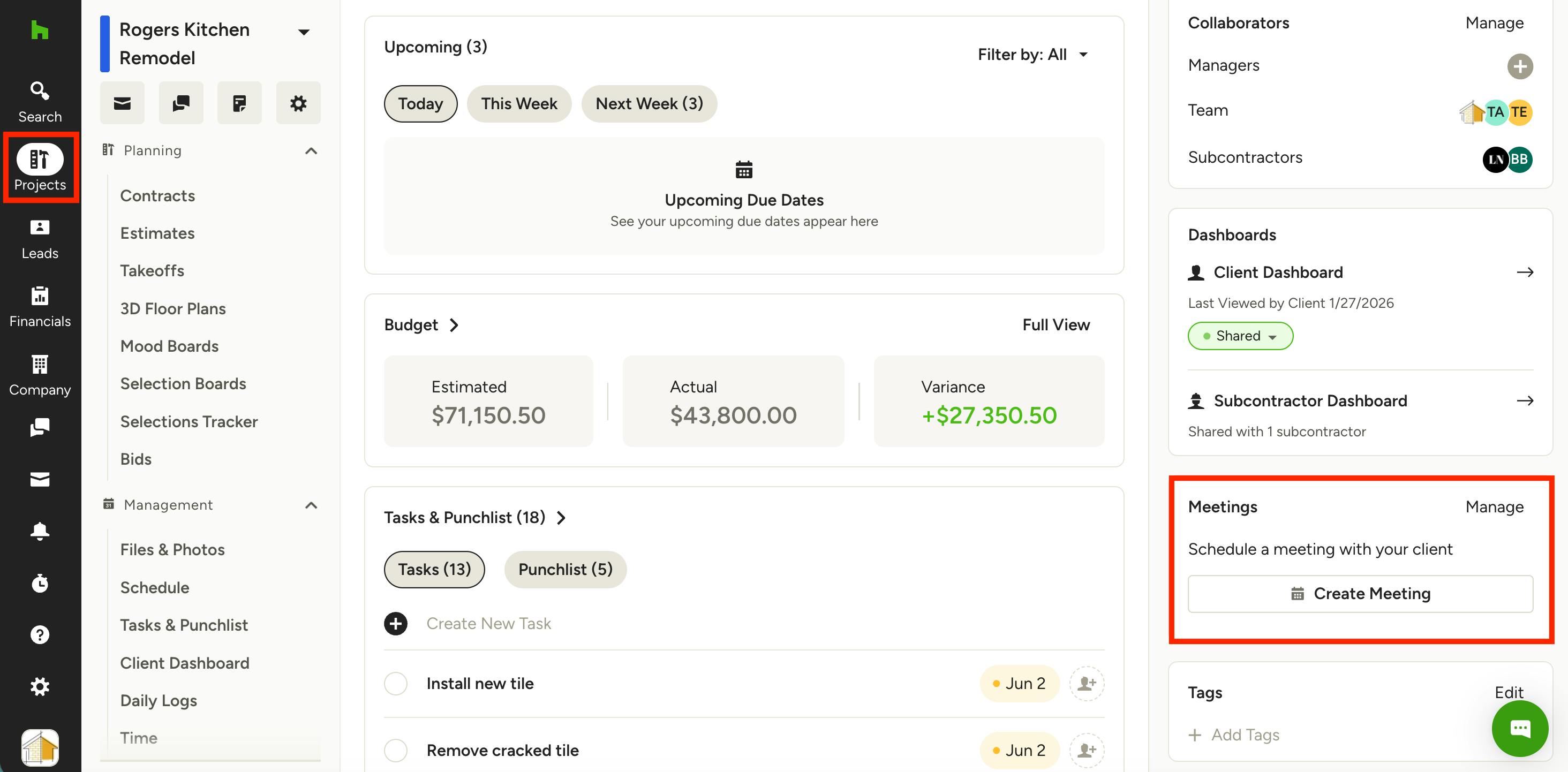
To start, click the Projects icon in your left navigation, then select the relevant project from the list. Once on the project overview page, click Create Meeting in the right rail menu to schedule.
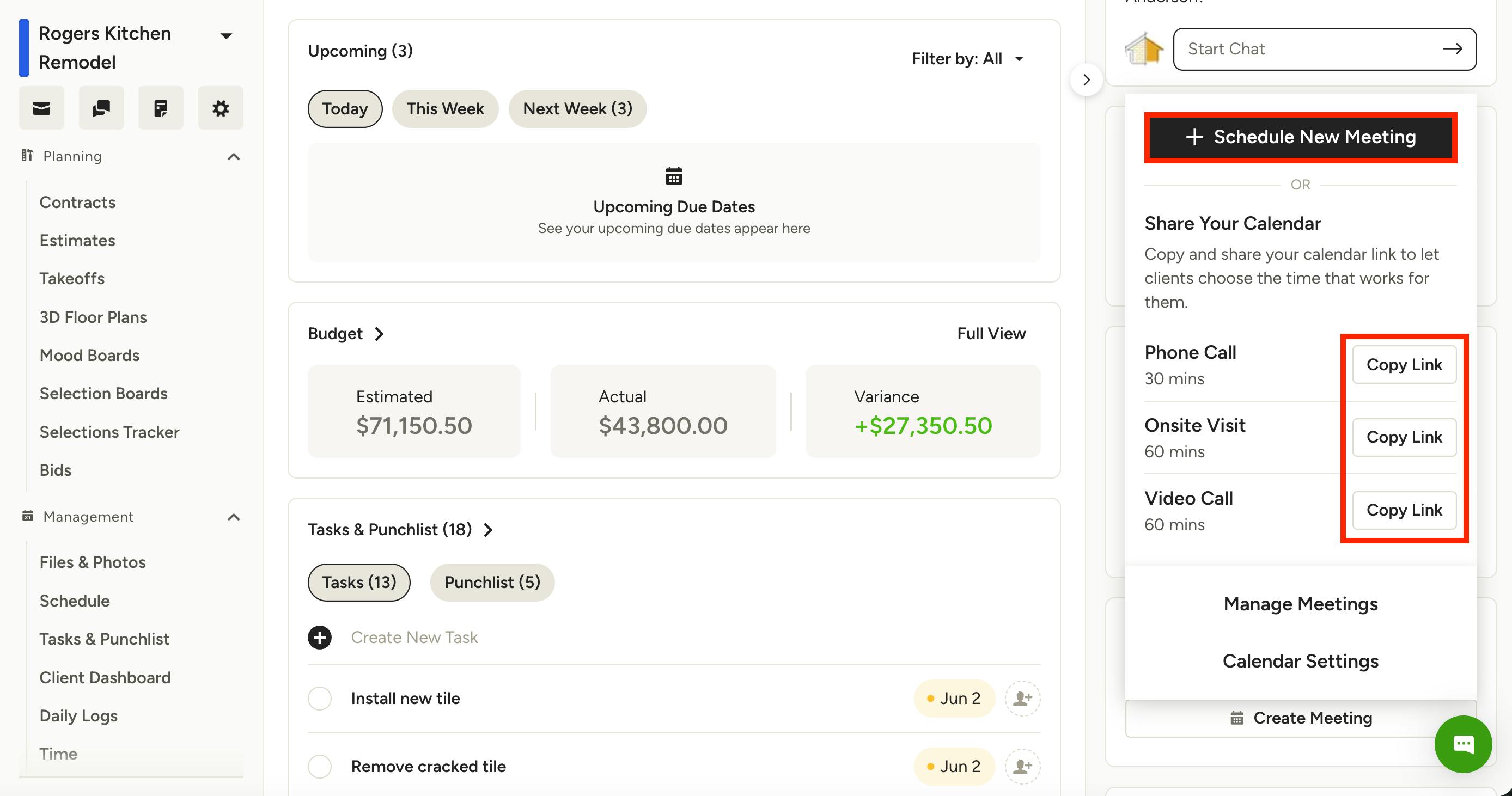
A new screen will appear. Here, you can select Schedule New Meeting if you would like to directly schedule the meeting yourself.
Or, you can select Copy Link to share your calendar. This will copy your calendar link for your preferred meeting type, which you can then send to your client so they can schedule a meeting themselves.
Schedule Meeting Yourself
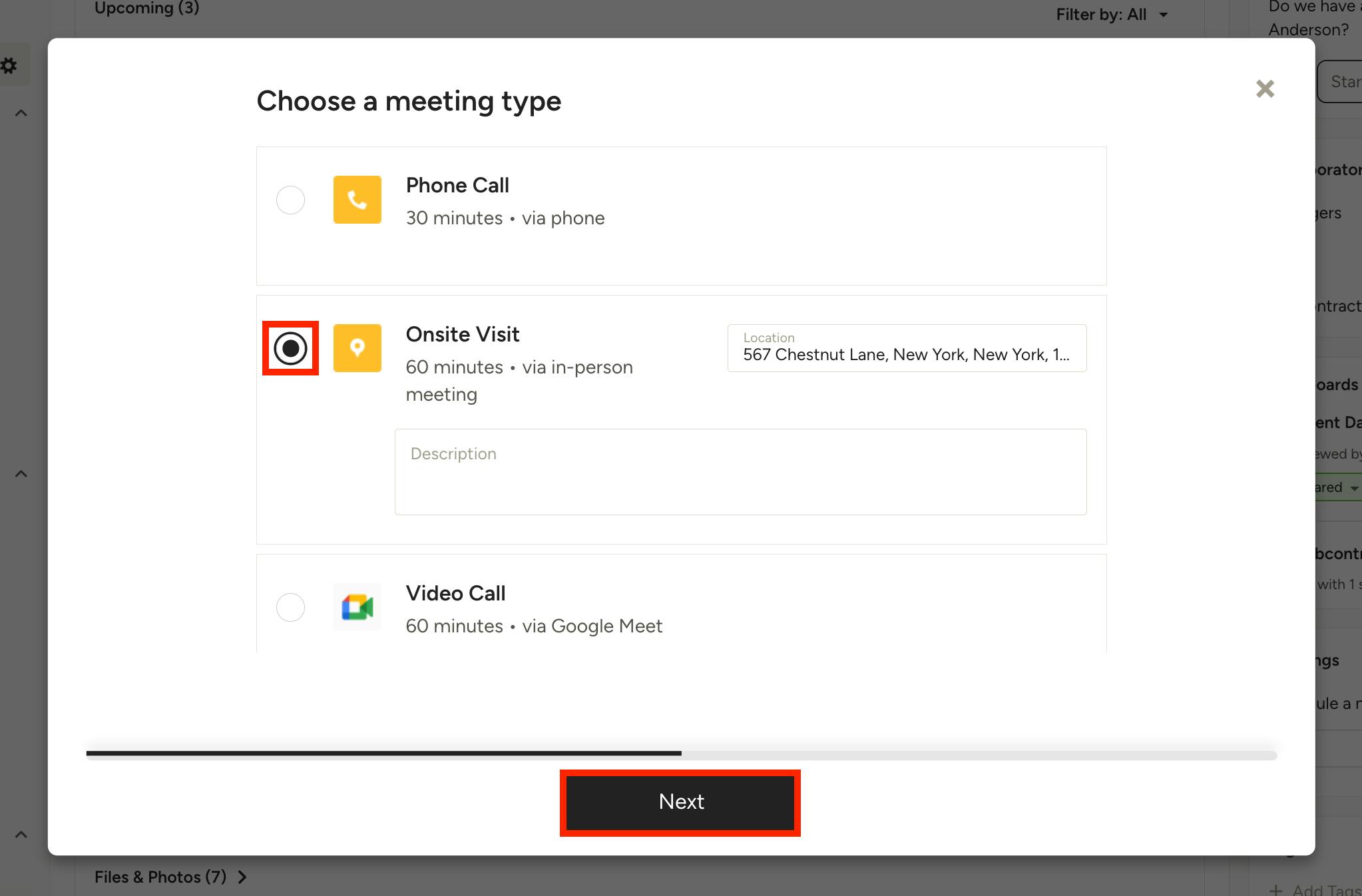
If you want to schedule the meeting yourself, a new screen will appear where you can select the meeting type. (Click Edit Meeting Types at the bottom of this screen to adjust meeting types and duration. Read more here.)
Depending on the meeting type, you can confirm or adjust phone number, project address, and/or video conferencing app. You can also add a description for the meeting, if needed. Click Next.
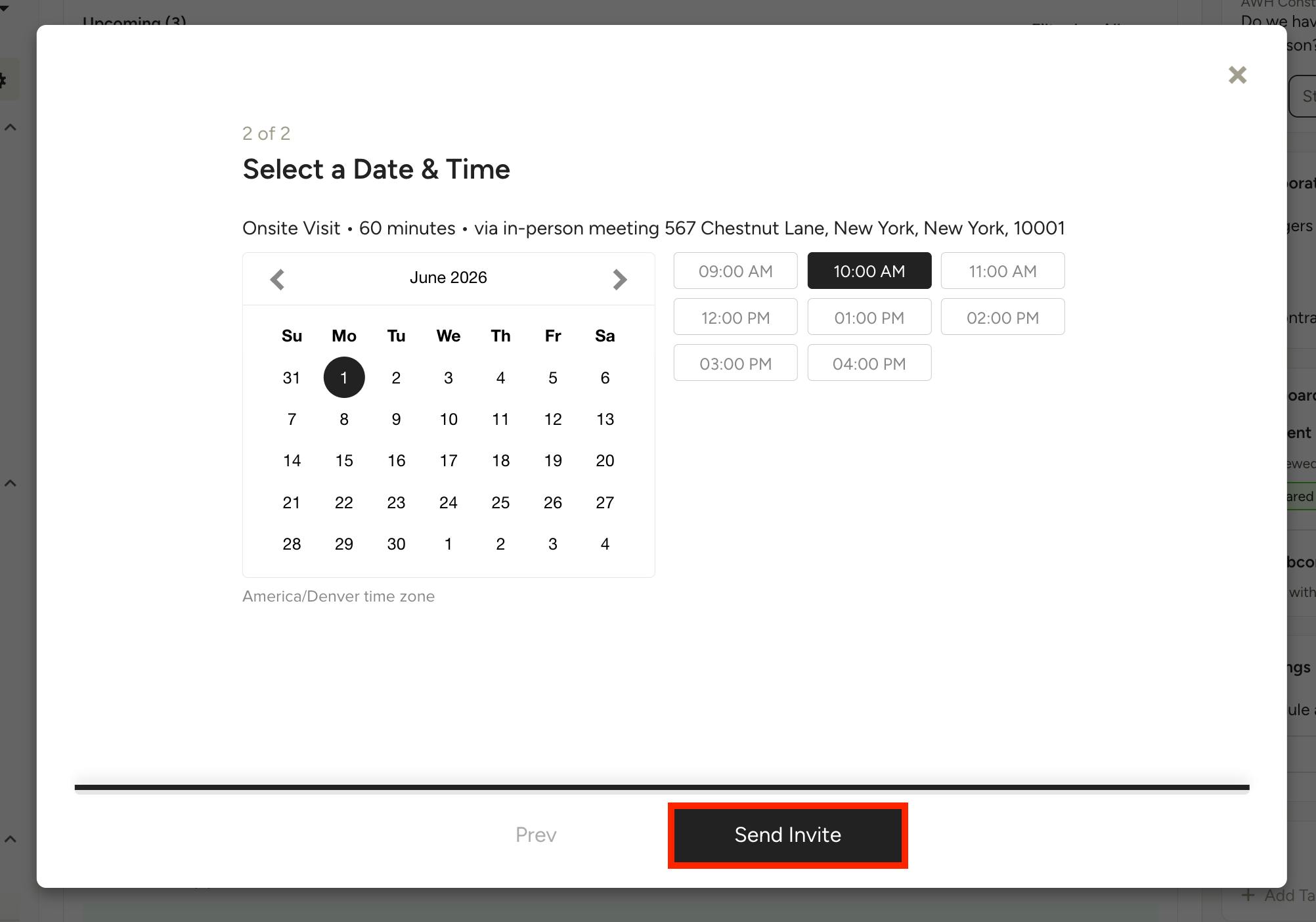
In the next screen, you can select the date and time for the meeting. Click Send Invite.
You will receive a meeting confirmation within Houzz Pro, a mobile app notification, as well as a calendar invitation. Your client will also receive an email notification and a calendar invitation for the meeting.
Share Your Calendar
If you want your client to schedule the meeting, select Copy Link next to the relevant meeting type to share your calendar. (Click Edit Meeting Types at the bottom of this screen to adjust meeting types and duration. Read more here.)
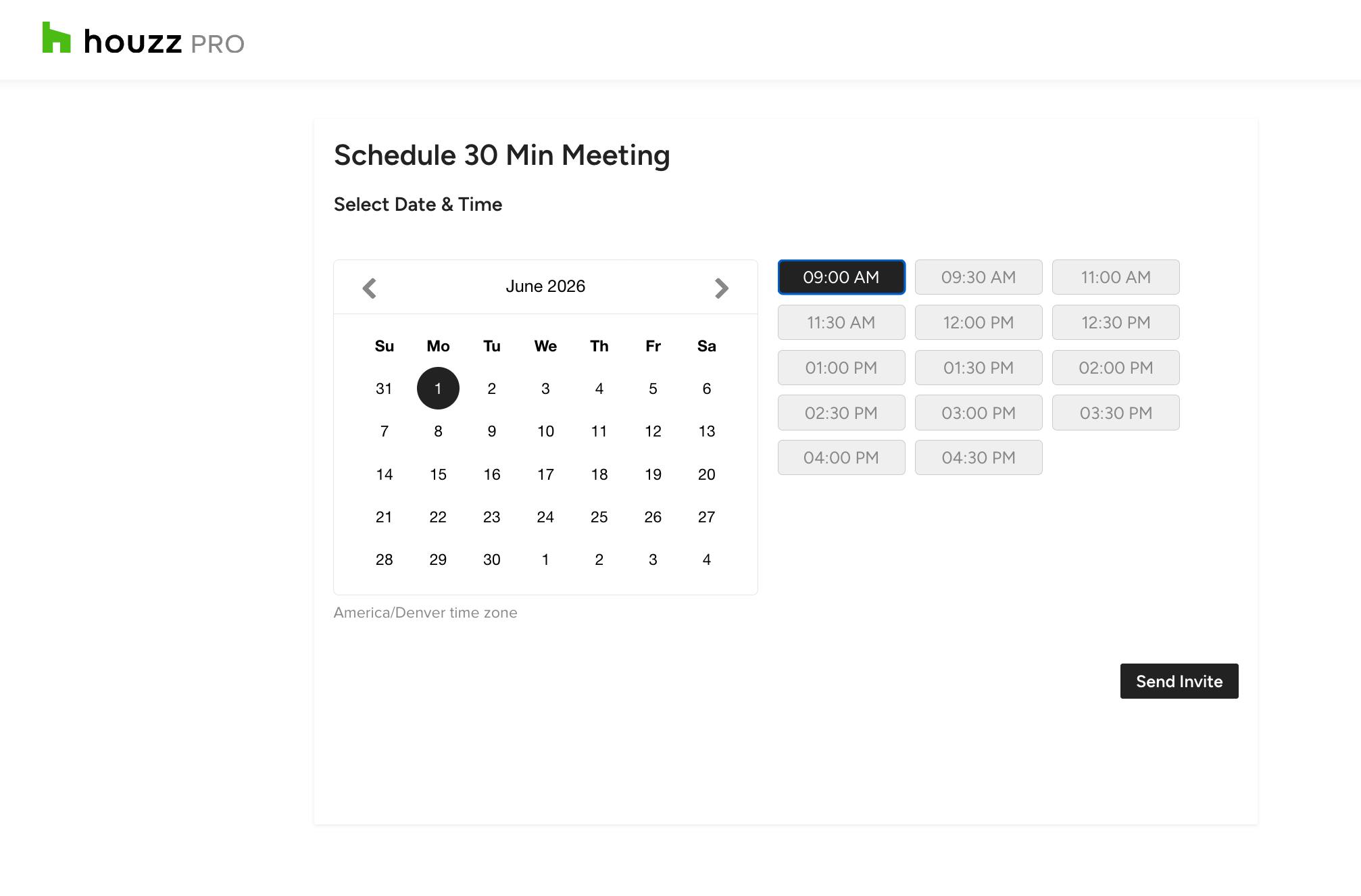
Once copied, you can share the link with your client through a Houzz Pro message, text message or email. Your client can then select a date and time on your calendar, and click Send Invite to complete (client view shown below).
Your client will receive a meeting confirmation, as well as an email notification and a calendar invitation. You will receive a mobile app notification, email notification and a calendar invitation.
Manage Client Meetings
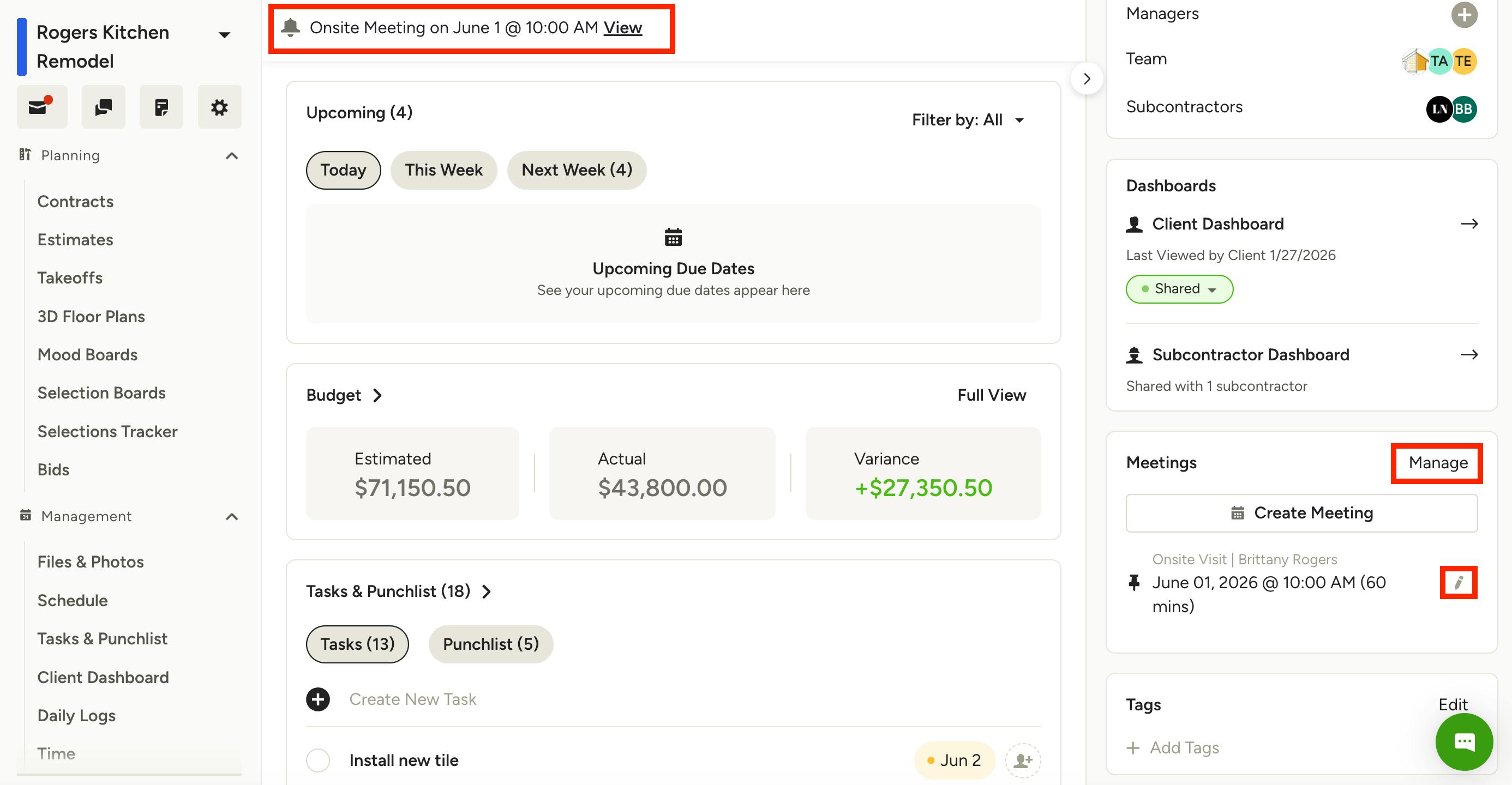
All of your scheduled meetings will appear at the top of your project overview page, as well as in the right rail menu.
If you need to make changes to an existing meeting, you can either click View in the top notification, or click the pencil icon next to the scheduled meeting in the right rail menu.
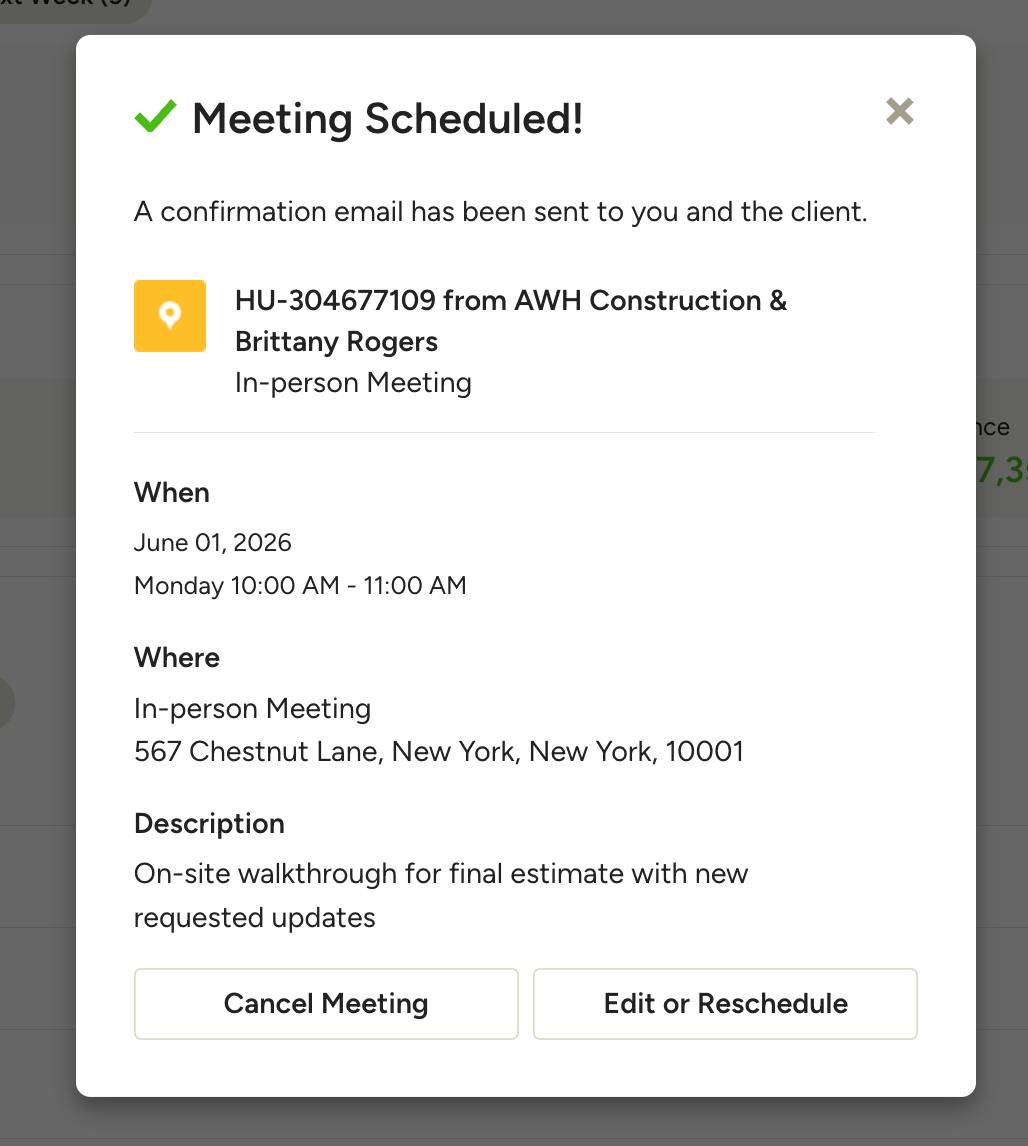
Your meeting details will appear, where you can then cancel or reschedule the meeting (as shown below).
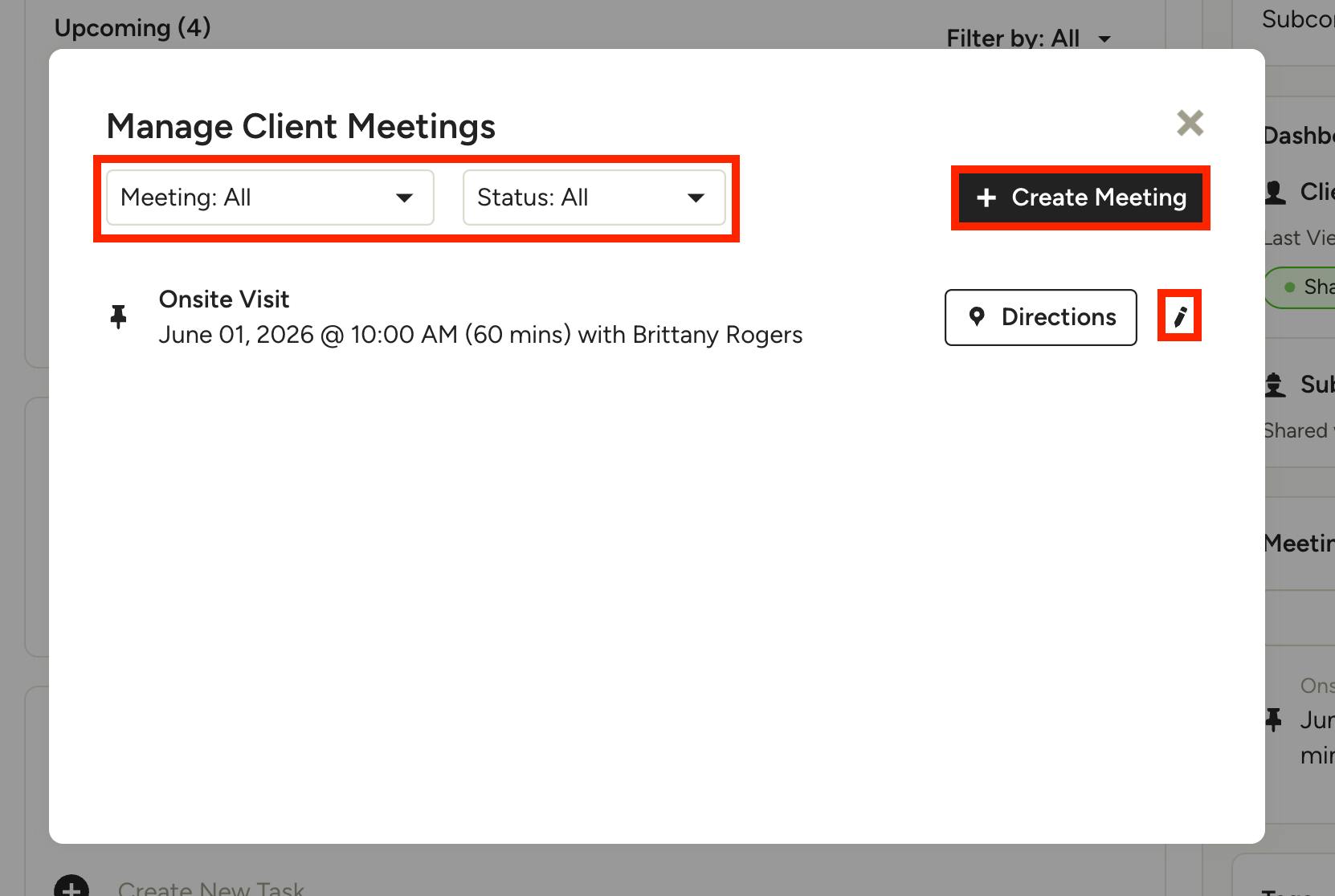
If you select Manage within the meetings section of the right rail menu, you will see a list of all your meetings with this client.
At the top, you can filter by meeting type, and view upcoming or previous meetings. Select the pencil icon to edit an existing meeting, or select Create Meeting to schedule a new meeting.