How to Use the Lead Contact Form
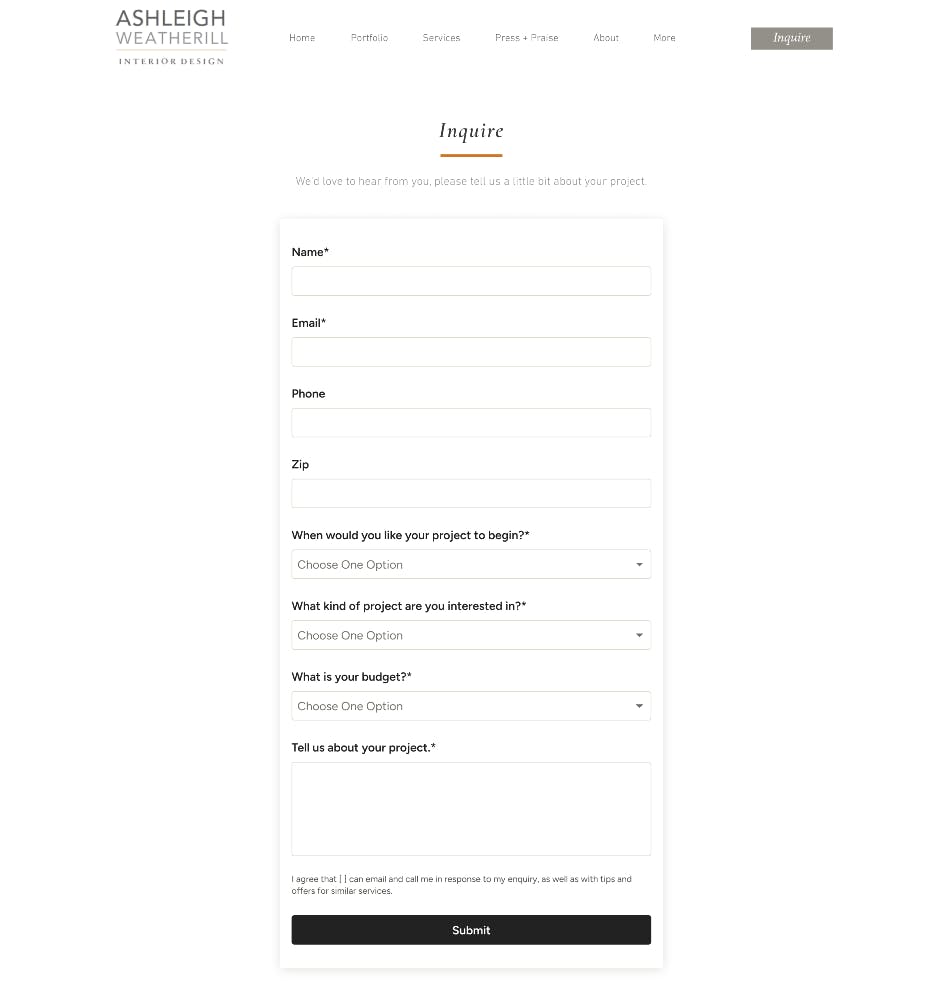
Finding new clients is a key part of running a successful business. With the lead contact form, Houzz Pro makes it easy for potential clients to contact you directly from your website so you never miss a lead.
When you use the contact form, the process is simple:
- You customize the questions and format of the form so it is more tailored toward your business needs.
- Once finalized, add the contact form using your Houzz website editor (for Houzz-powered websites), or copy and paste the embed code (for 3rd party websites). For iOS devices, you can also add it in a text message.
- Homeowners can then reach out on your website or via text message to provide more details about their project and request a quote.
- You will receive the request directly within the Houzz Pro leads section. Here, you can reach out to the homeowner, as well as track lead progression and project details.
Access Contact Form
You can access the contact form from the left navigation, as well as from the All Leads list.
From Left Navigation
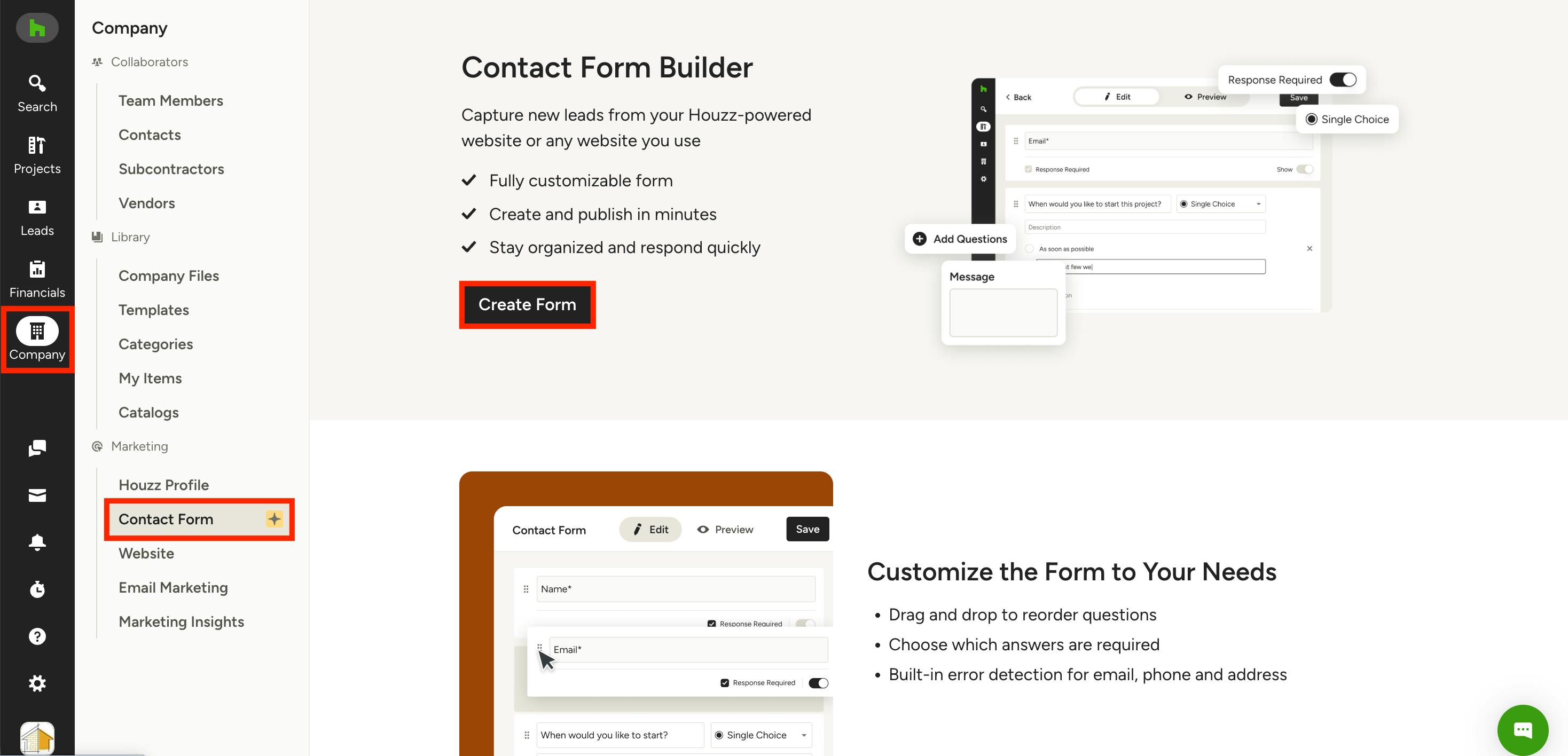
Click on the Company icon in the left navigation, then select Contact Form from the left menu.
If you are accessing for the first time, this will lead you to the Contact Form Builder, where you can customize and publish to your website. To get started, click Create Form.
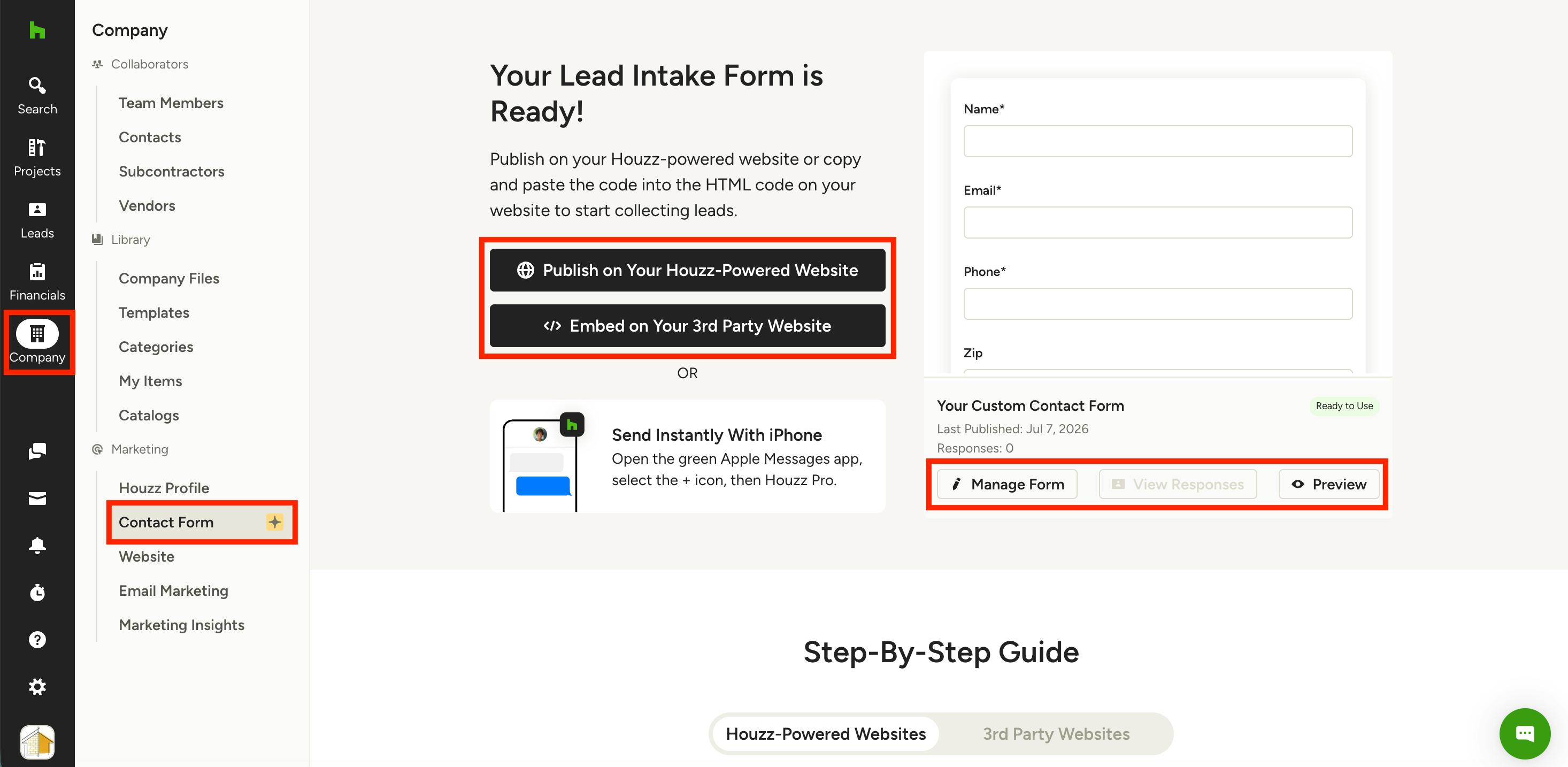
If you have already created a contact form, you will instead see steps on how to add it to either your Houzz-powered website or your 3rd party website. The steps slightly vary depending on the type of website you have (more details below).
From here, you can also select Manage Form to make changes to your form, View Responses to see submitted responses, or Preview to see the completed form as it would appear to homeowners.
From All Leads Page
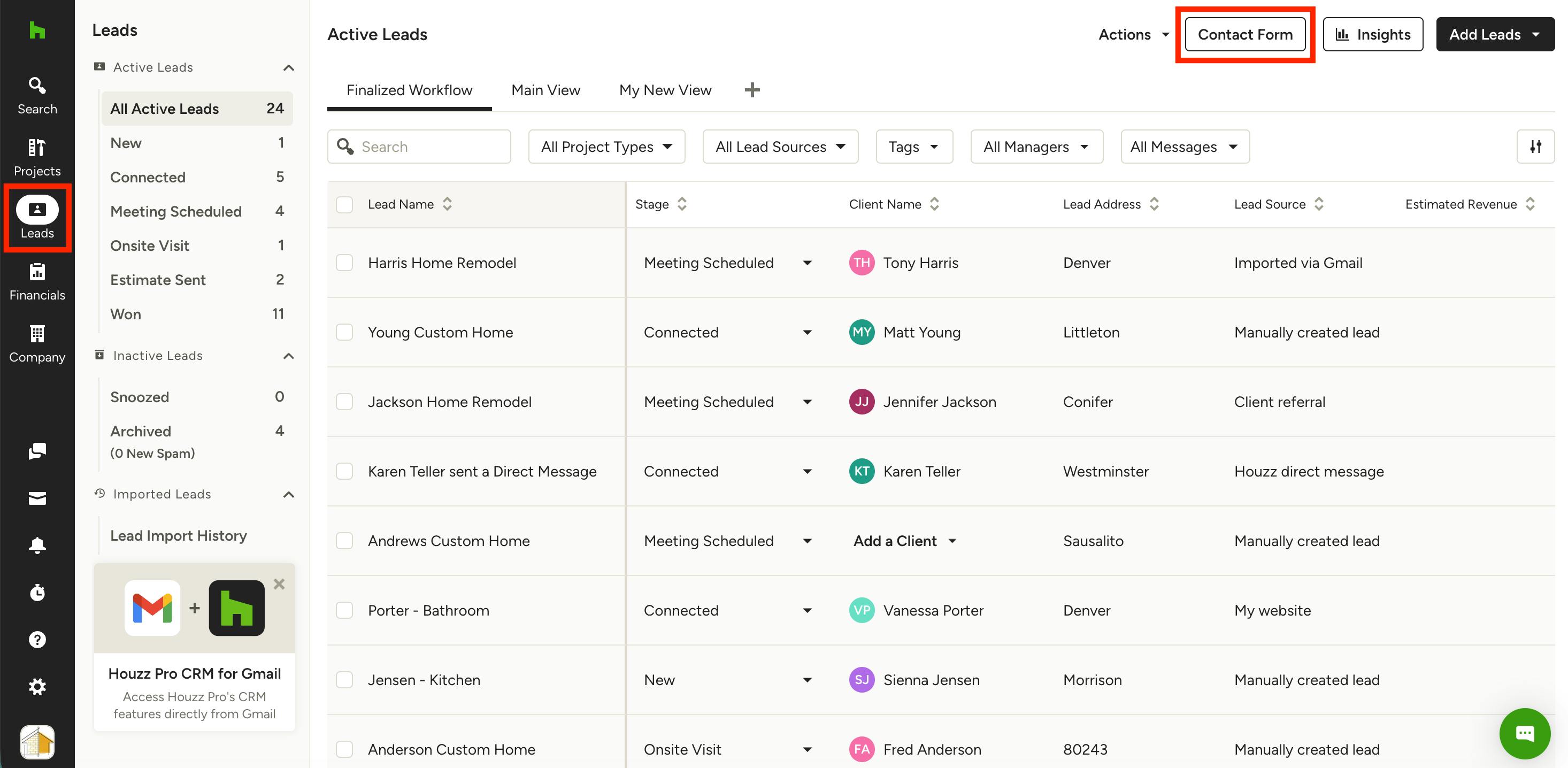
To access from the All Leads page, click the Leads icon in the left navigation. Select the Contact Form button at the top of the All Leads page — this will take you to the Contact Form page, where you can create your form for the first time, edit an existing form, or access the embed code.
How to Edit the Contact Form
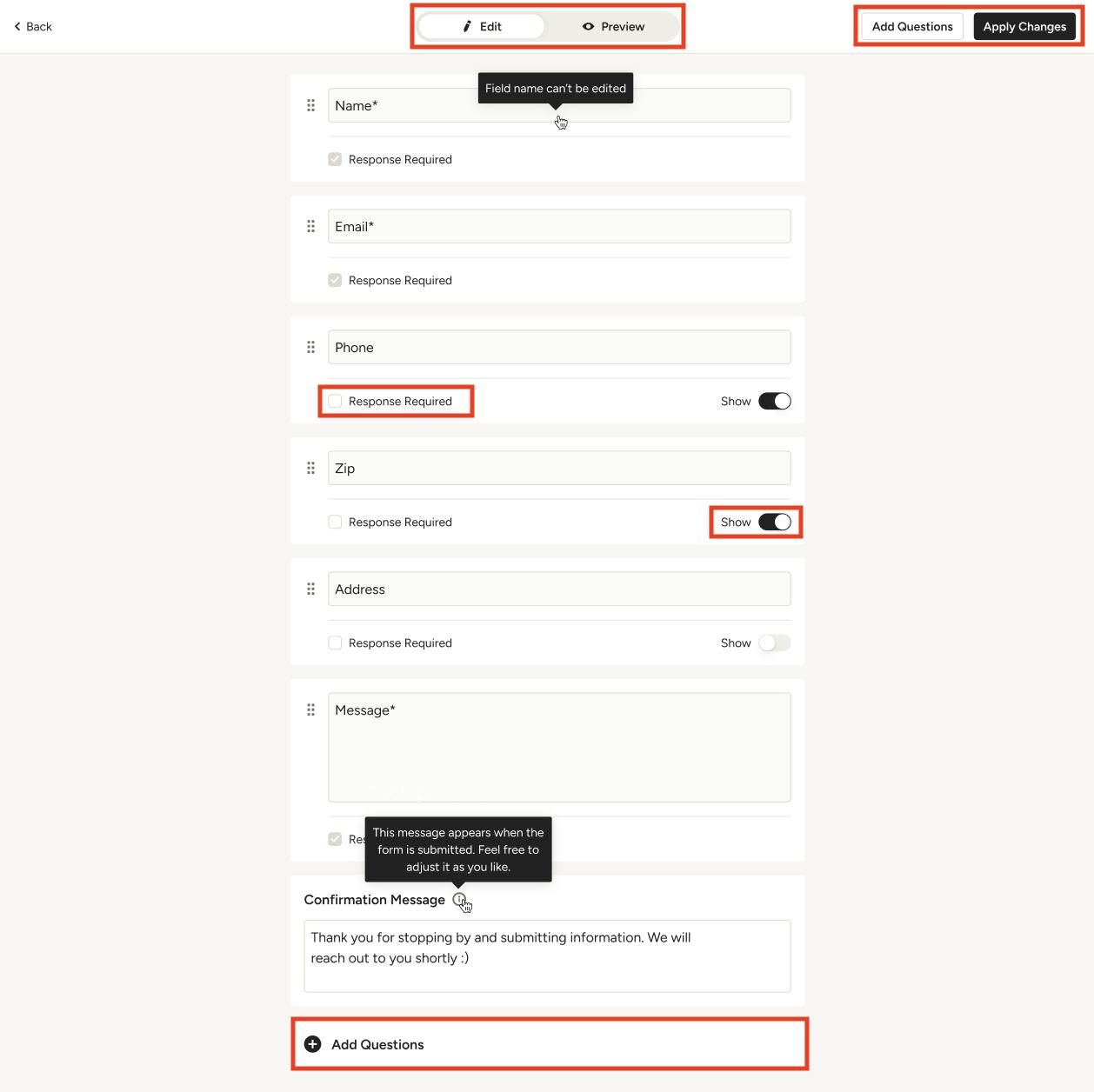
If you are using the contact form for the first time, it's very easy to customize the questions and adjust the format to only include relevant information you need. You will only need to set it up once to continue to receive quality leads from your website, though you can edit it at any time from the Contact Form page.
To start, click the Create Form button on the Contact Form page. Edit Mode will appear.
There are a few basic default fields included — Name, Email, Phone, Zip Code, Address, Message, and Confirmation Message (the message homeowners see after submission).
If you would like to require a response from a homeowner to a particular question, check the box next to Response Required. Turn on the Show toggle if you would like to include the question in the form. Turn off the Show toggle if you would like to hide a question on the form.
Click Add Questions at the top or bottom of the form to include custom questions.
Add Questions
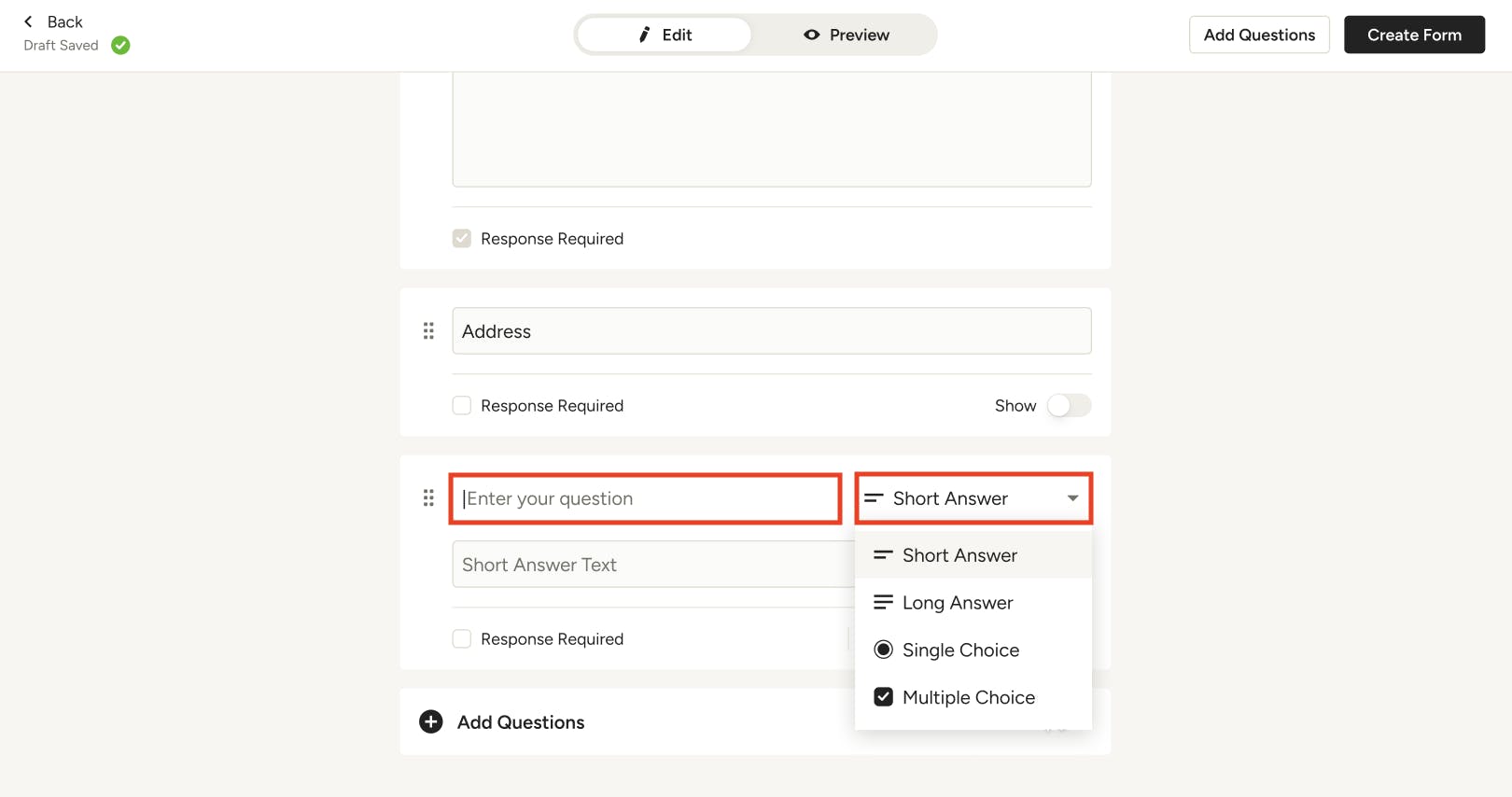
When you select Add Questions from Edit Mode, a new customizable field will appear. Type in the question you would like to add.
For each new question, you can select from four different formats:
- Short Answer: Homeowners can type a short text response to the question.
- Long Answer: Homeowners can type a longer text response to the question.
- Single Choice: Homeowners can select one option from a list of pre-selected responses to the question.
- Multiple Choice: Homeowners can select multiple options from a list of pre-selected responses to the question.
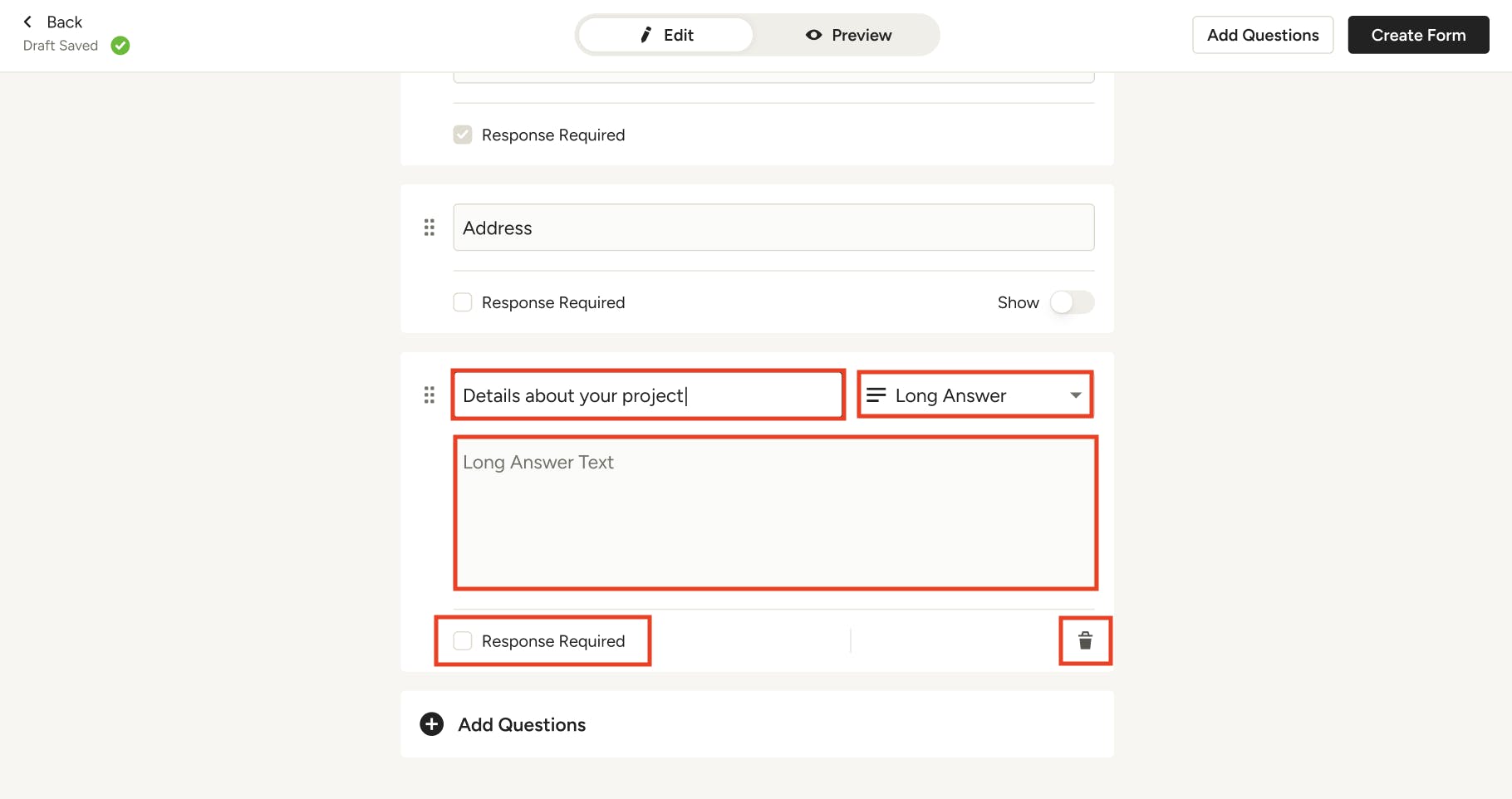
When you select a short or long answer question, a text box will appear where the homeowner can type in their response, as shown below.
If you would like to require a response from a homeowner to a particular question, check the box next to Response Required. If you would like to delete the entire question, select the Trash icon.
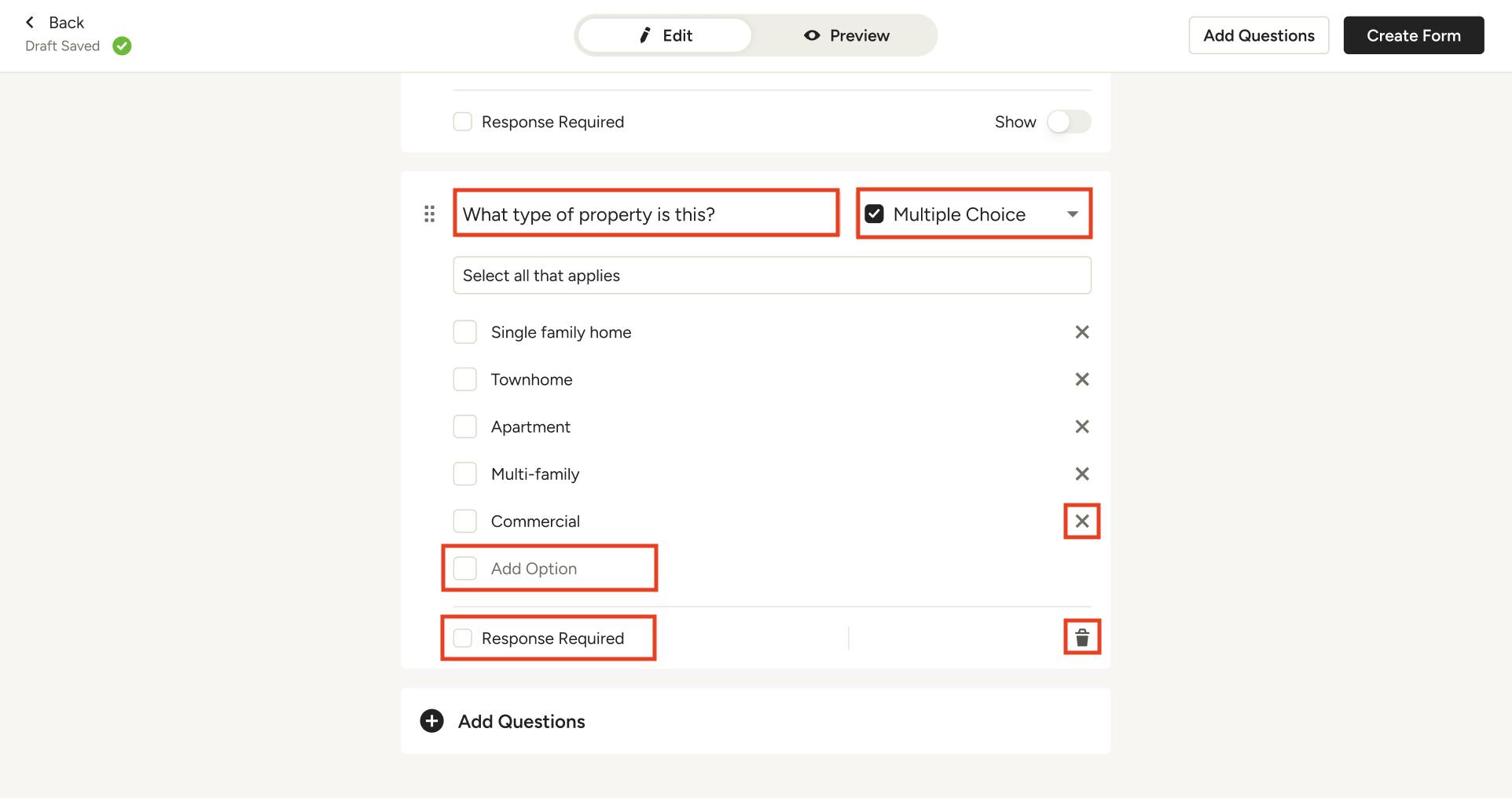
If you select a single or multiple choice question, you can type in the options you would like to include for the question. Single choice will only allow one option to be selected, whereas multiple choice will allow homeowners to select all options that apply, as shown below.
To remove an option, click the X next to that response. If you would like to require a response from a homeowner to a particular question, check the box next to Response Required. If you would like to delete the entire question, select the Trash icon.
Move Questions
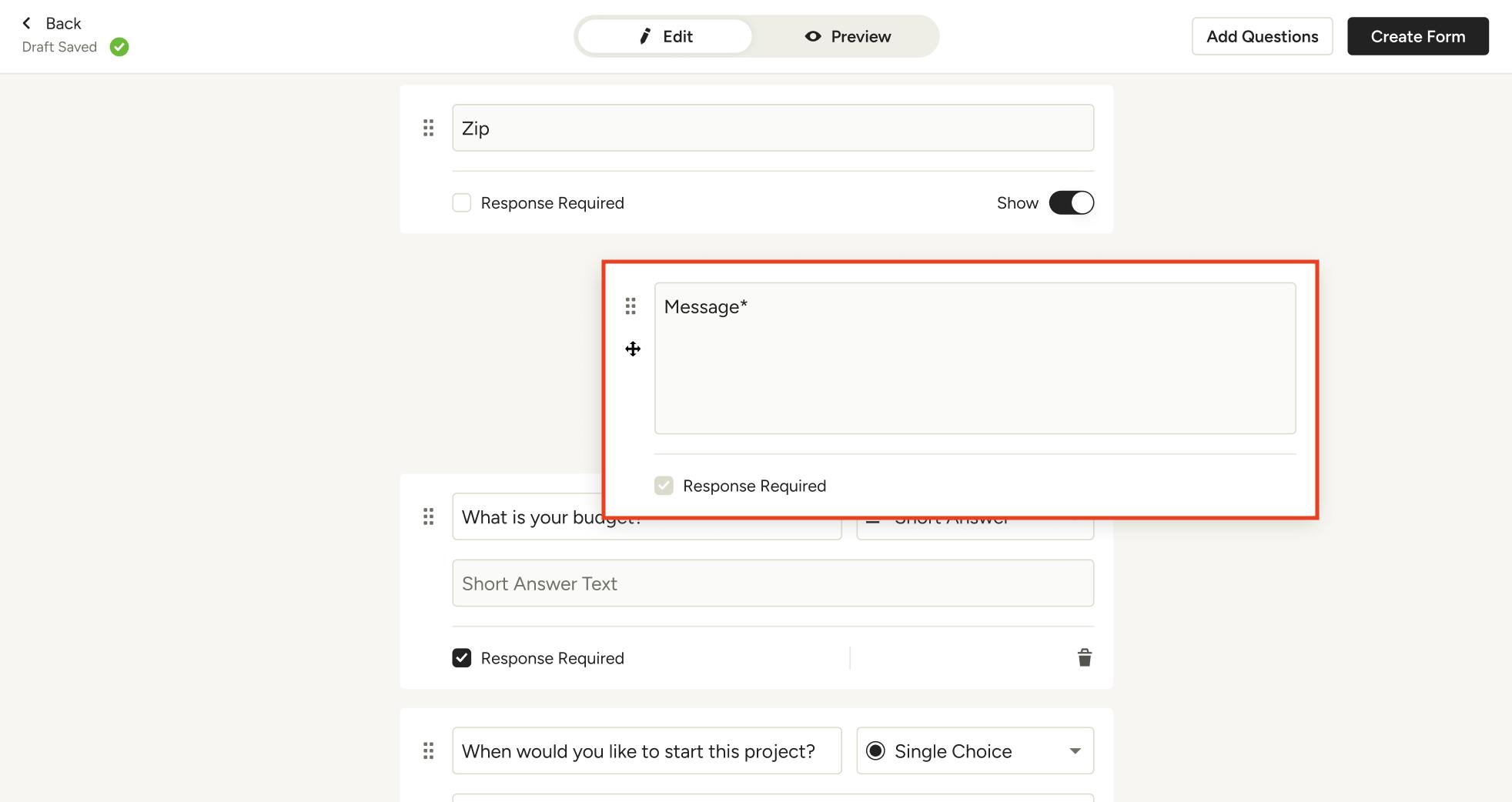
As you add questions, you can easily change the order of the questions in Edit Mode. To do this, just click the relevant question and drag it to where you want it to appear within the form.
Preview Contact Form
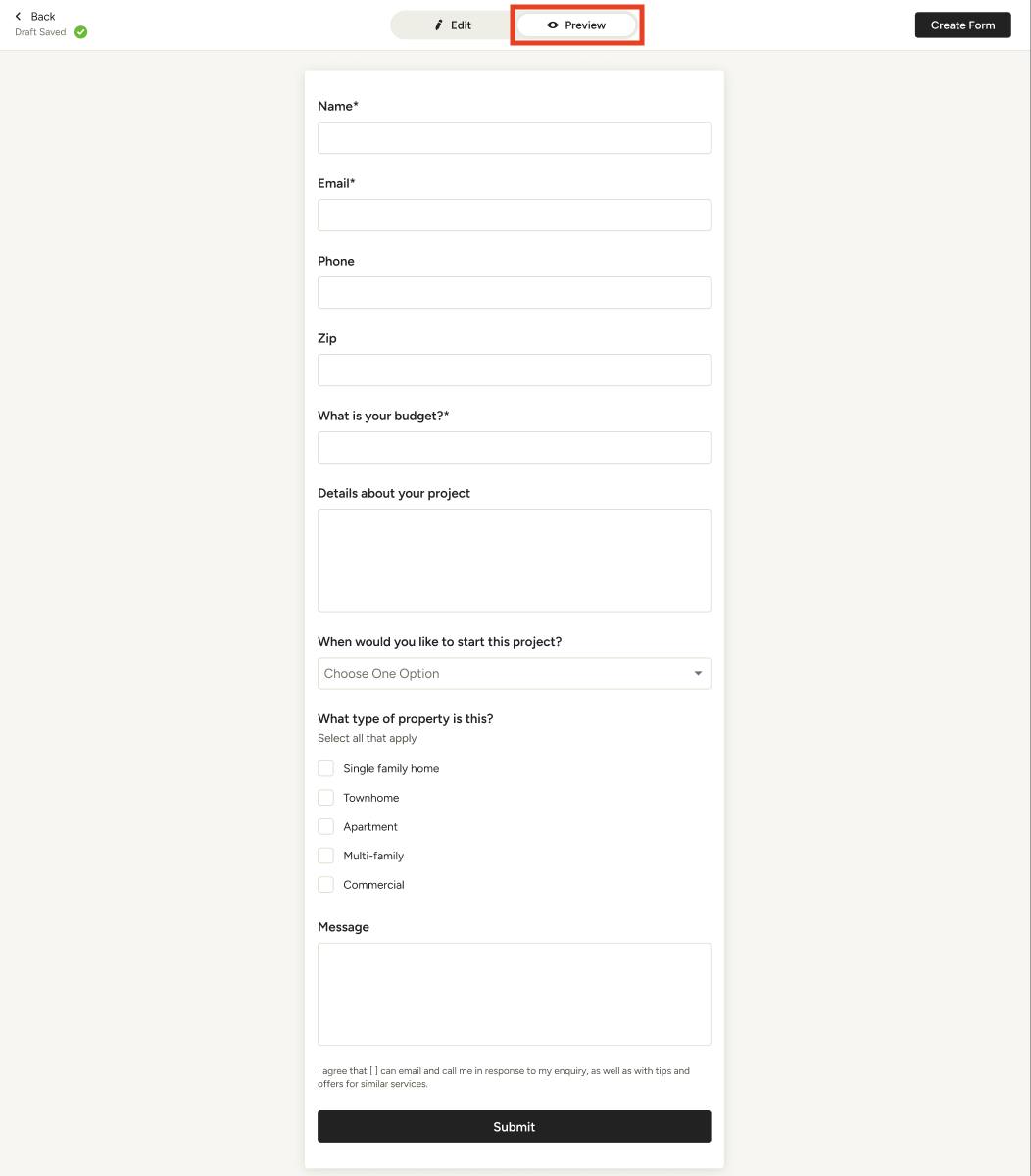
As you make changes to your contact form, click the Preview tab at the top to see the completed form as it would appear to homeowners.
Add Contact Form to Website
When you are done customizing, click Create Form (when creating new form) or Apply Changes (when editing existing form) at the top of the form to finalize the draft and publish.
Once you create the form, the process to add it to your website will slightly vary depending on the website type — Houzz-powered or 3rd party.
Houzz-Powered Website
For a website built through Houzz, you will need to access your Houzz website editor, edit your website's contact section, and then select from either the custom form or the basic form. To see a step-by-step guide on this process, read How to Edit the Contact Form on Your Houzz Website.
3rd Party Website
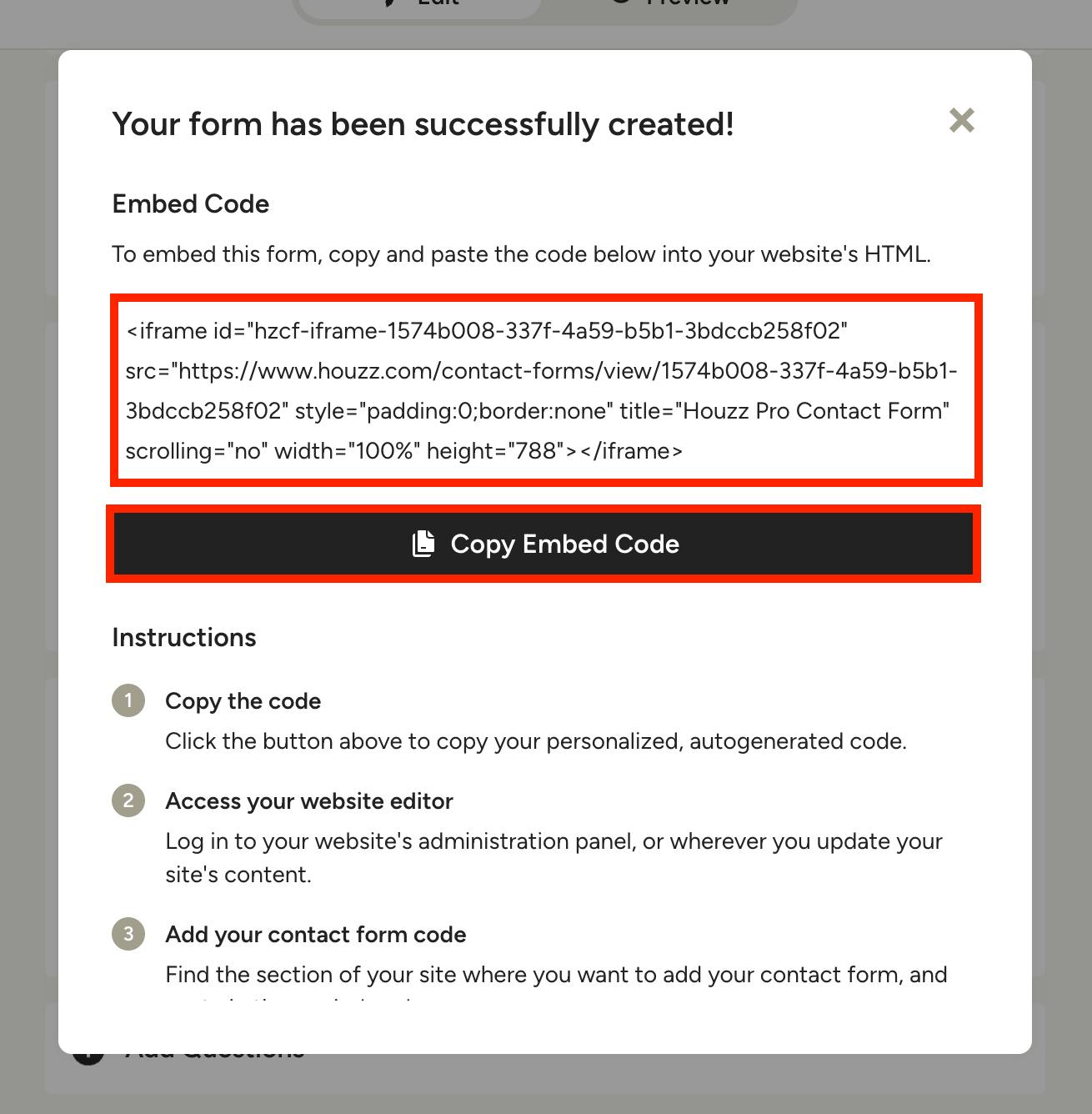
For a 3rd party website, you will need to copy the custom embed code that appears after you edit or save your contact form (as shown below). You can either copy the text in the text box, or select Copy Embed Code.
Log in to your website's administration panel to access back-end editing capabilities for your website. The log-in process will vary depending on the site builder you use for your website.
Find the section of your website where you would like to add your contact form, then paste in the copied code. Be sure to Save, then Publish your changes on your website to make it visible for your potential clients.
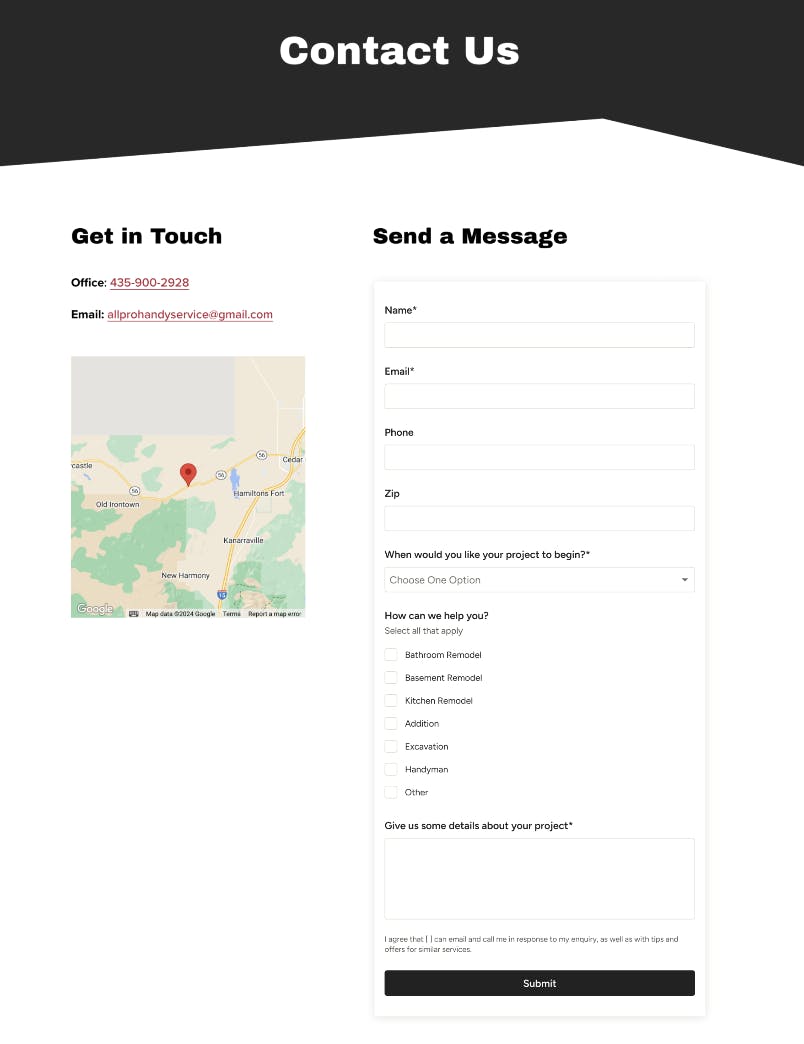
Homeowners will now be able to view and complete the form on your website, as shown in the example below.
Adjust Contact Form Measurements
Depending on your website layout and the form length, you might need to change the form measurements for the entire form to be shown. To do this, you can adjust the width and height pixel measurements in the embed code until you find the right custom setting.
By default, the form will not include a scrollbar, so the whole form will appear at once. If you would prefer to shorten it and have the homeowner scroll down to complete, you can remove scrolling="no" from the embed code.
For Example: In the embed code below, you can adjust the width and height measurements in bold to change the form size. To make the form scrollable, remove scrolling="no" from the embed code.
<iframe id="hzcf-iframe-850a2535-5c18-448a-8a62-239322c93808" src="https://www.houzz.com/contact-forms/view/850a2535-5c18-448a-8a62-239322c93808" style="padding:0;border:none" title="Houzz Pro Contact Form" scrolling="no" width="568" height="800"></iframe>
Add Contact Form to Text Message
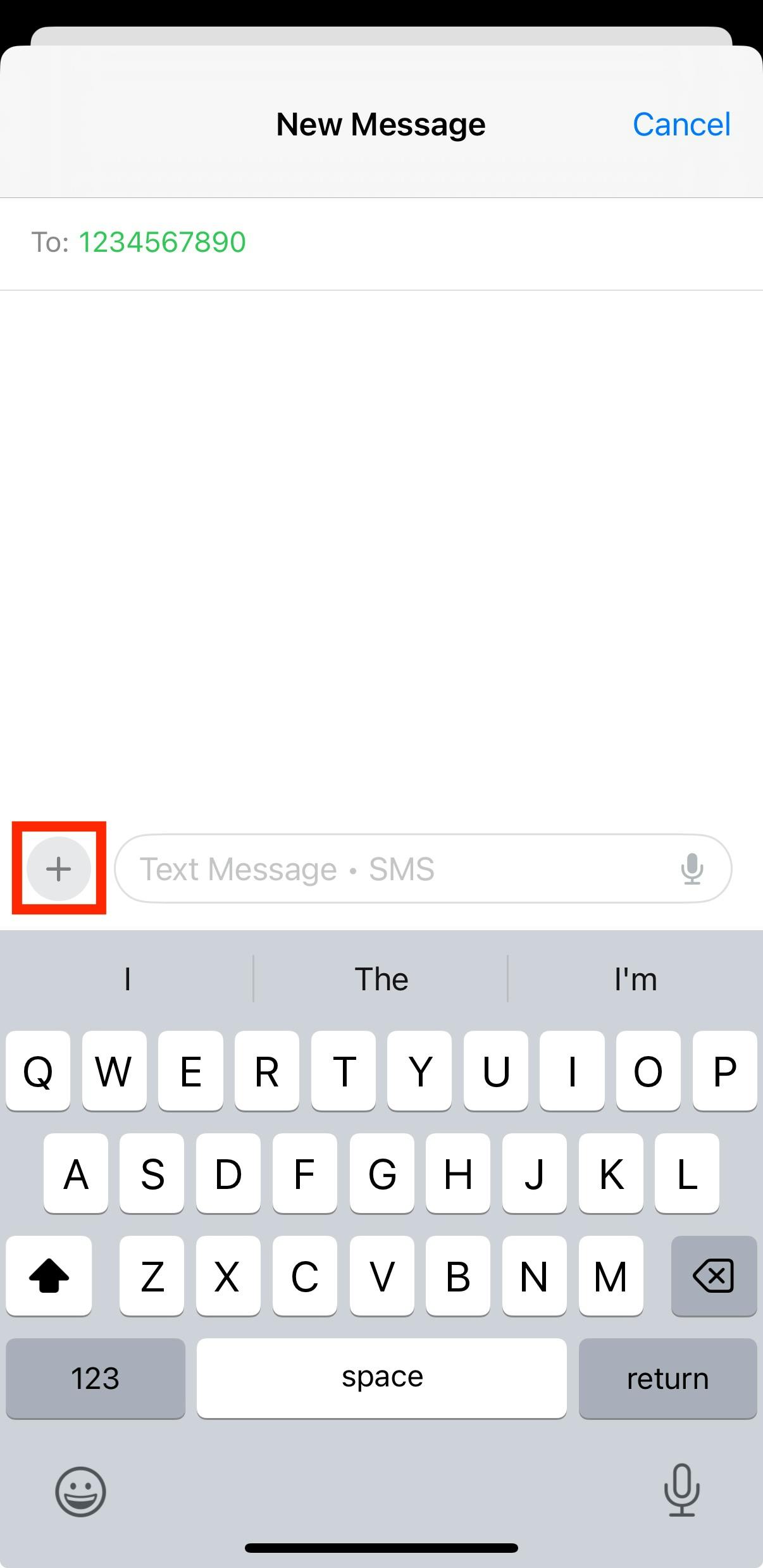
In addition to adding the contact form to your website, you can also send it to new leads via text message (iOS devices only).
To do this, go to the Messages section on your iOS device, then open up the relevant text thread. Click the + sign next to the text box.
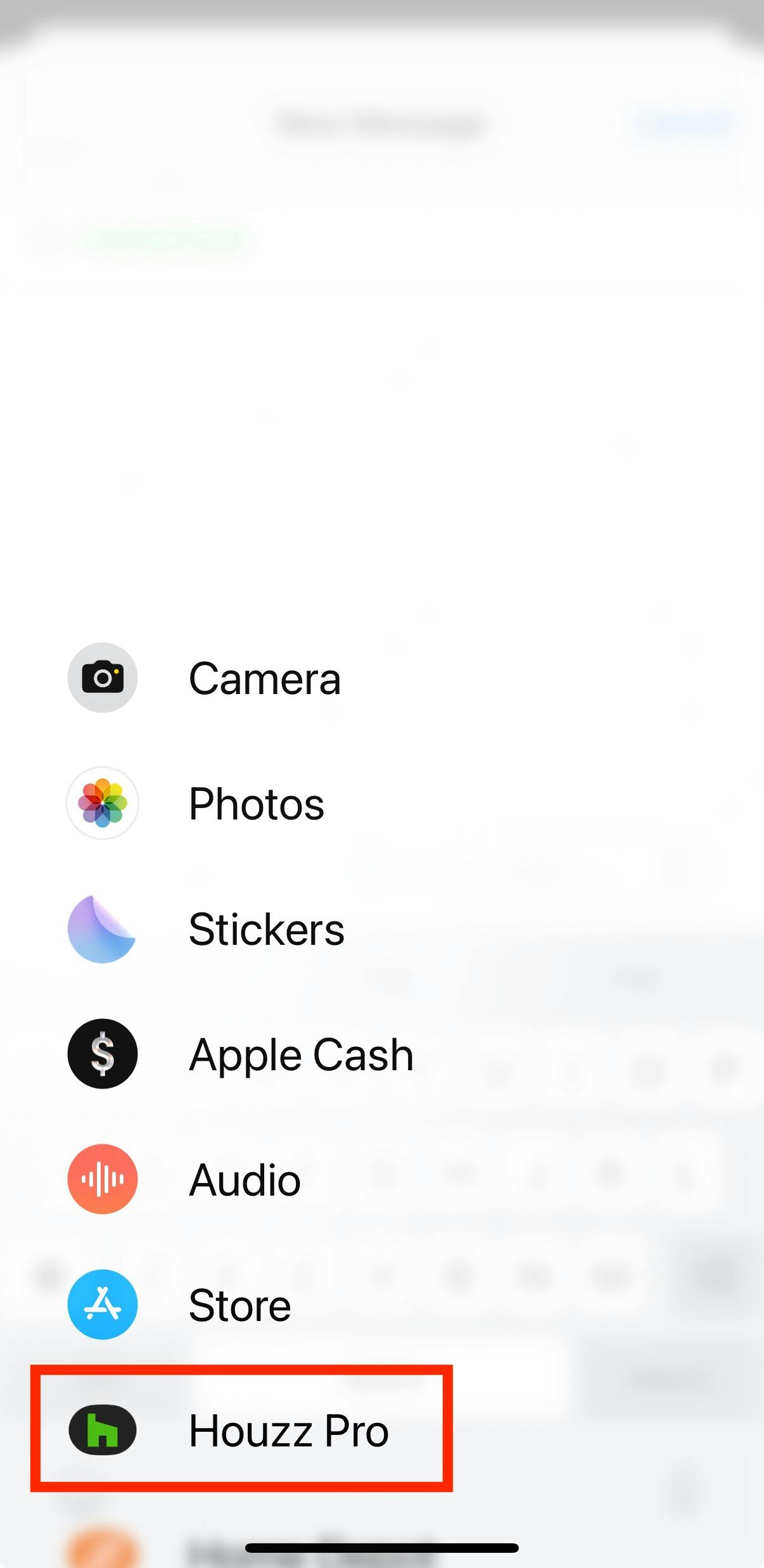
Select Houzz Pro from the menu.
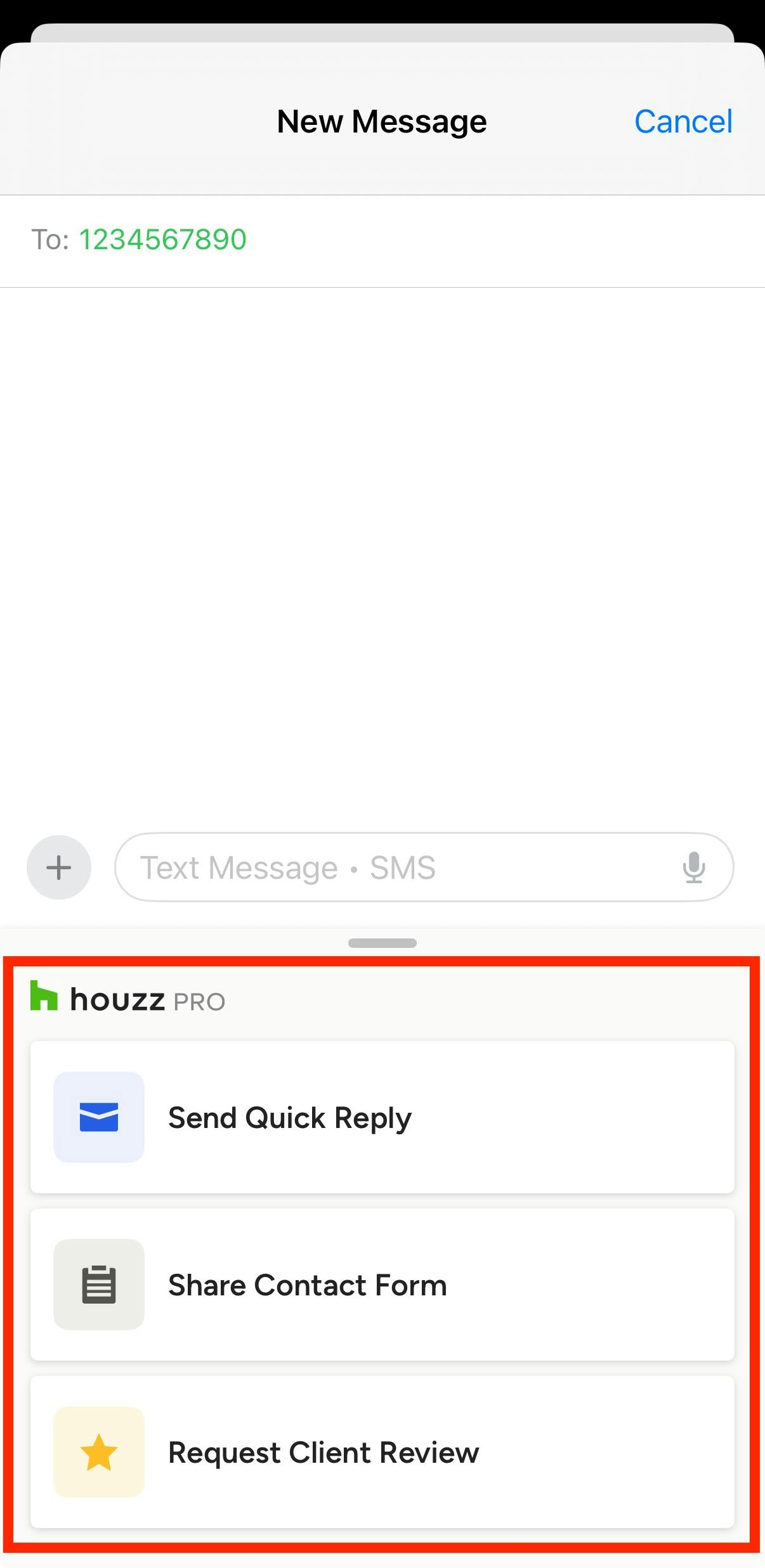
From the Houzz Pro extension, select Share Contact Form.
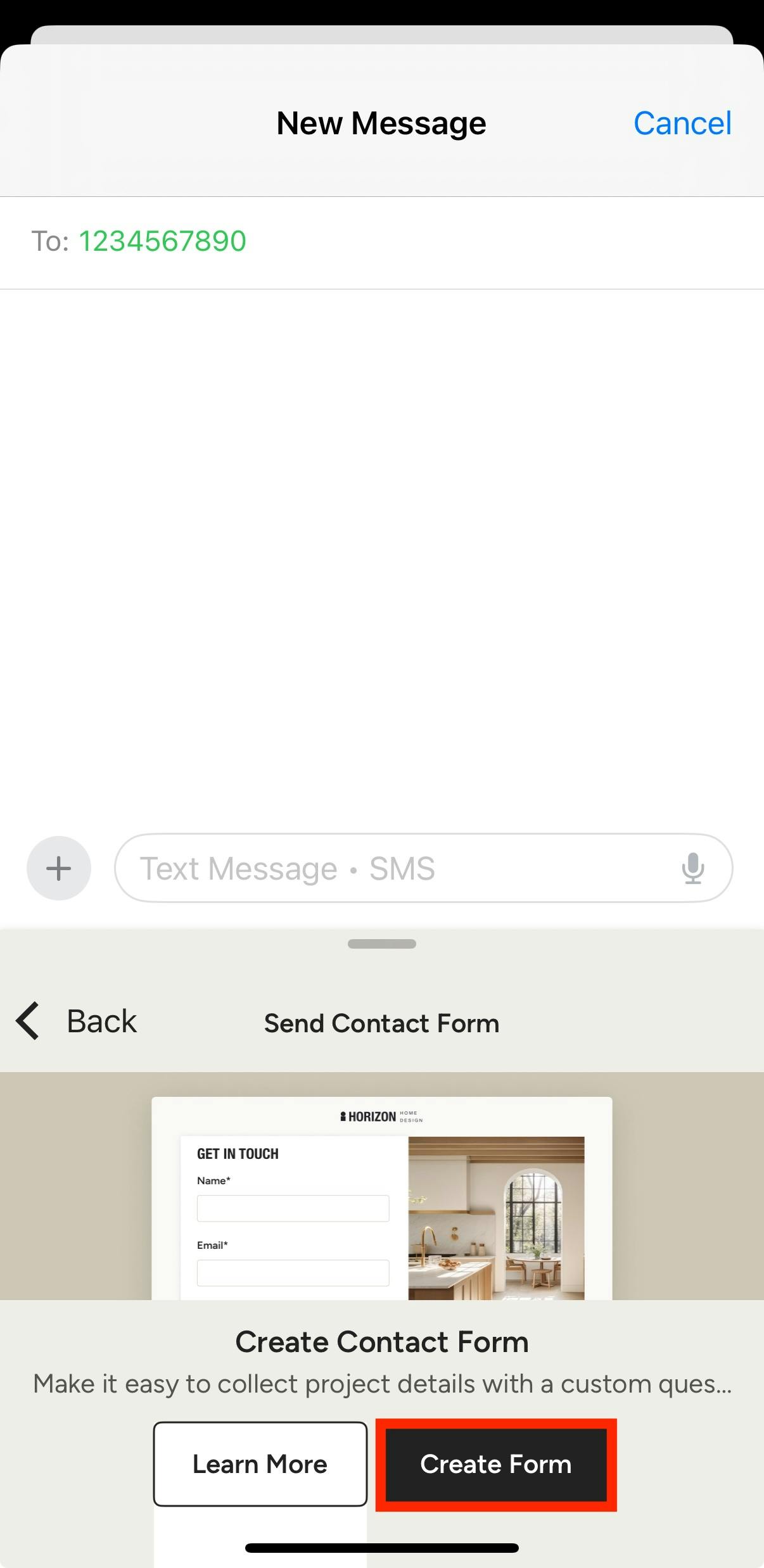
If you select Share Contact Form, you can attach an already created contact form to receive more information about a potential project. If you haven't created a contact form, you will be prompted to create one (as shown below).
Read How to Use Texting (SMS) for Leads to learn more about texting leads and the Houzz Pro iMessage extension.
View Lead in Houzz Pro
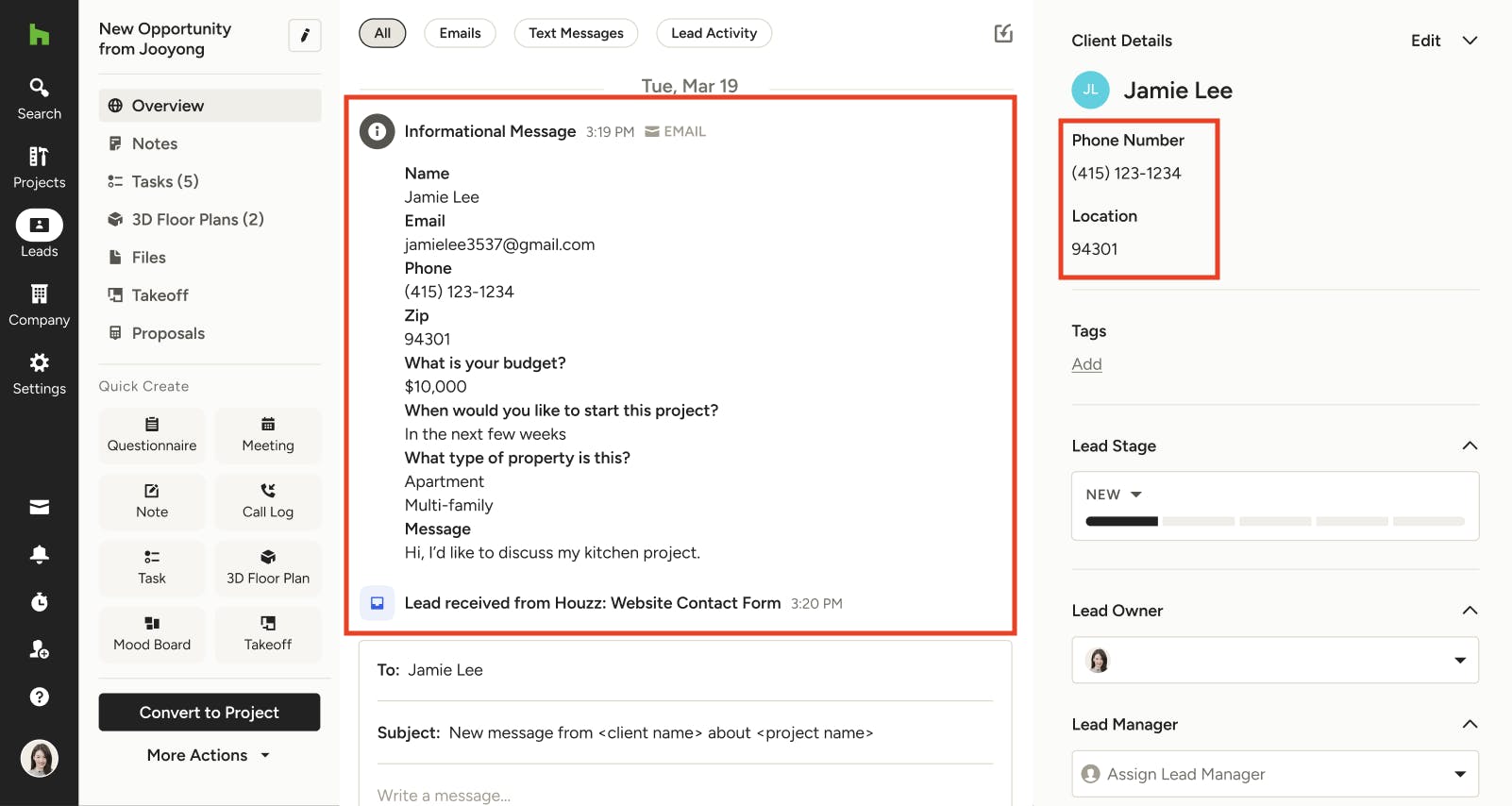
Once you create and publish your contact form, all new submissions from your website or text message will automatically create a new lead within Houzz Pro. The lead will include all the information from the form, including general name, location and contact information, as well as question responses and any messages included.
From here, you can contact this lead to learn more about the project, add details, schedule meetings, advance to a project, and more. Read How to Manage Leads to learn more about overseeing your leads within Houzz Pro.