How to Import Emails From Clients and Leads
Staying on top of client and lead communication is a key part of running a successful business. While you can always message clients and leads within Houzz Pro directly, you can also import messages from your email and add them into the software.
With this email import feature, all your email messages — and important project details — are easily stored alongside the rest of your project documentation. This keeps everything in one place, so you never have to dig through your inbox to find an important conversation.
You can import messages for both a lead and a project — read below to learn more.
Import Messages in Leads
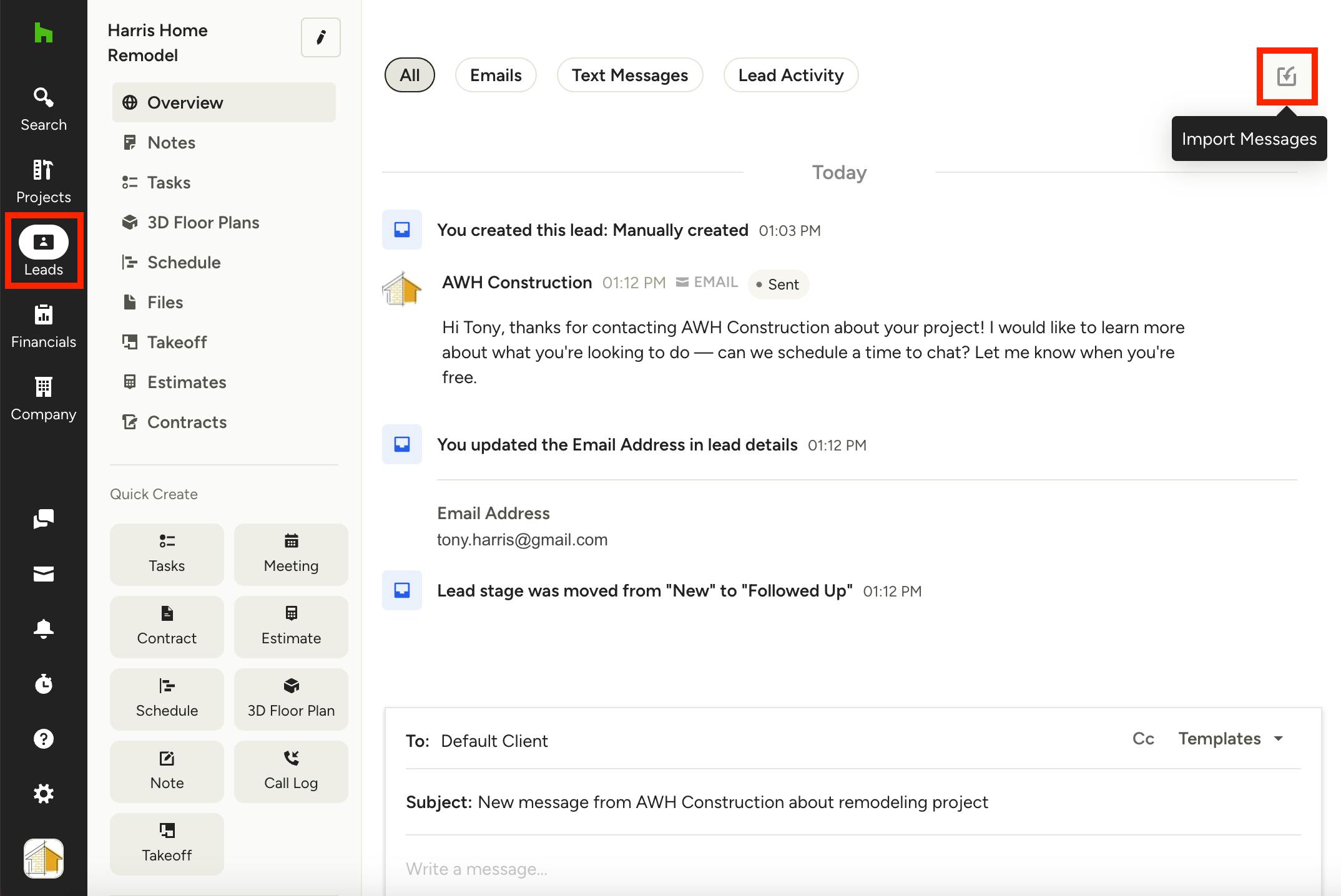
To import messages for a lead, find the Leads icon in the left navigation, then select the relevant lead from the dropdown menu.
Once you open the lead overview page, select the Import Messages icon at the top of the page.
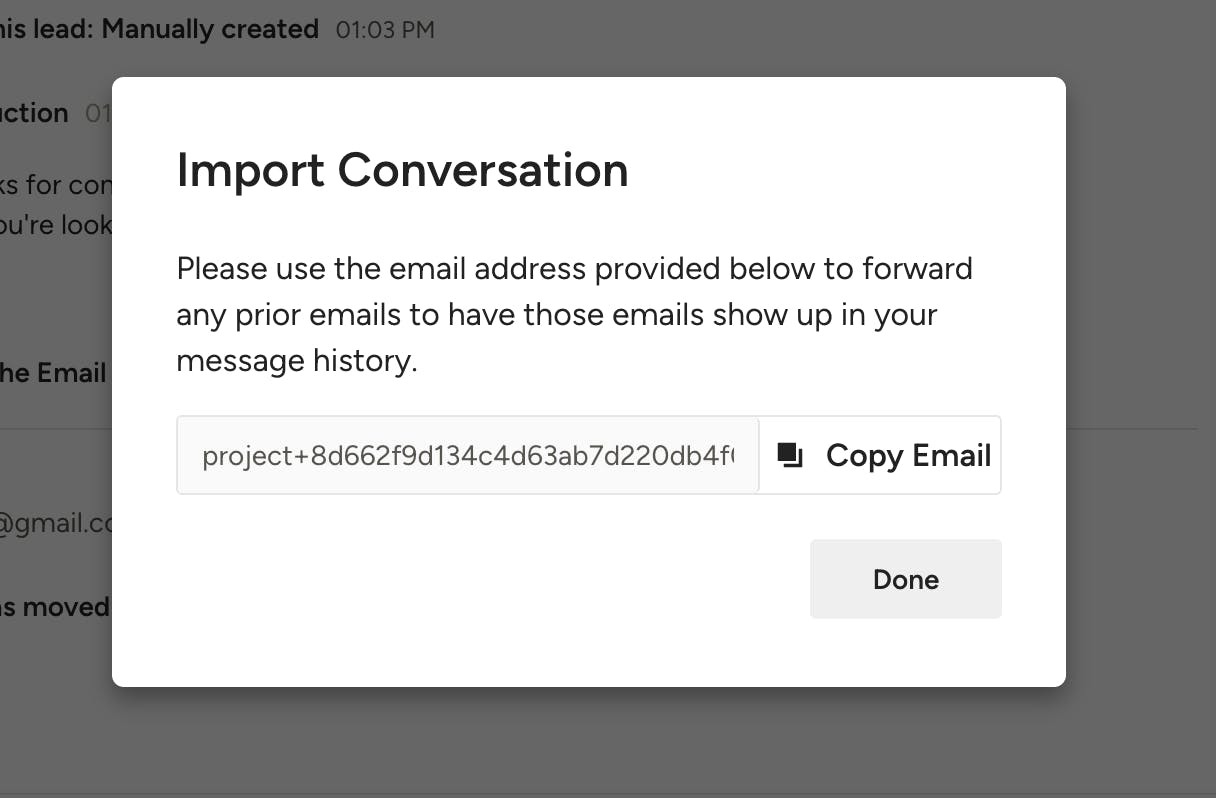
A new screen will appear. The email address listed is where you will forward email threads that you would like to add to this Houzz Pro lead.
To do this, copy the email address in the text box, then open up the relevant email thread in your email provider. Paste the email address in the Forward To section of your email, and click Send.
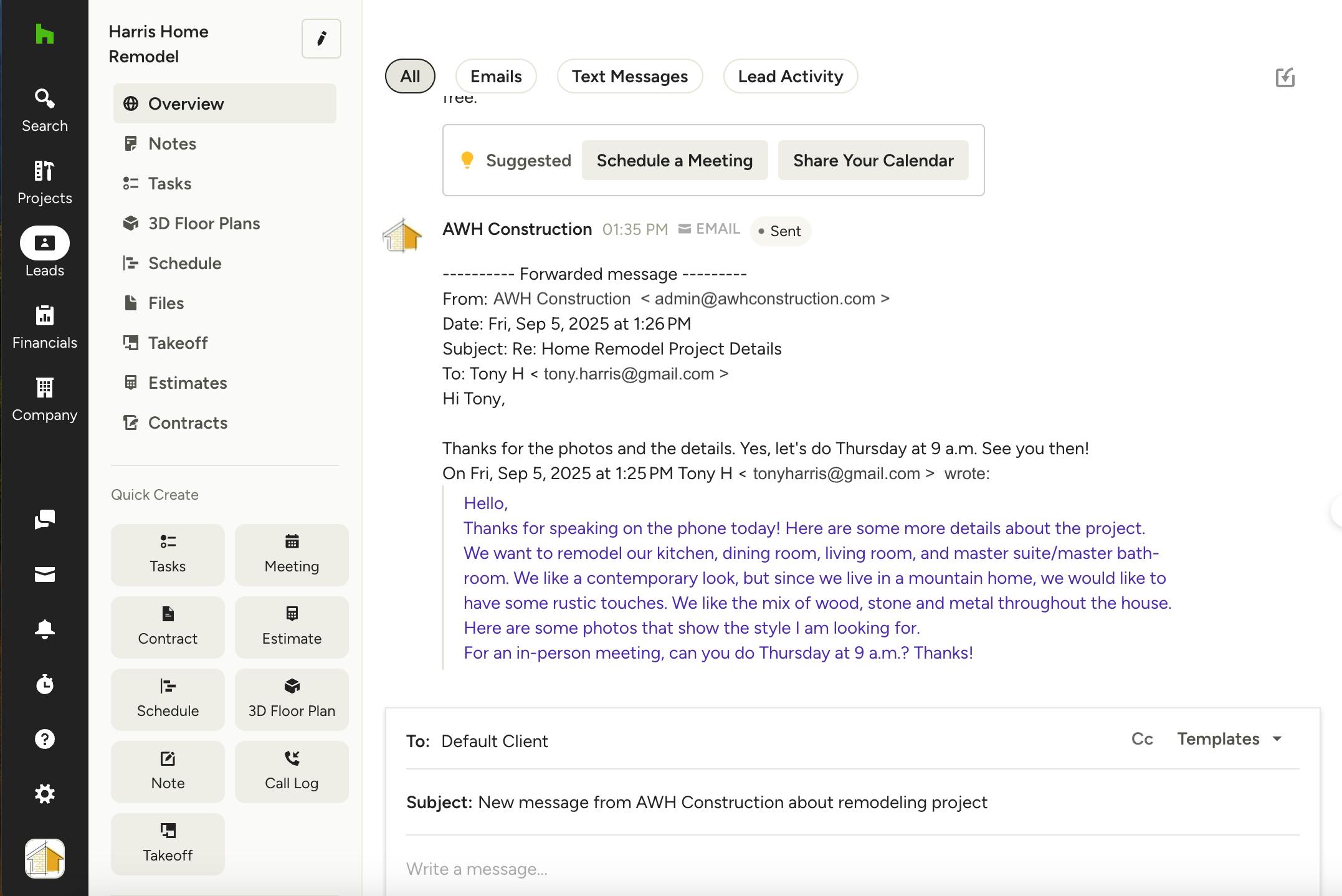
Once sent, the email thread will automatically appear on the lead overview page. Now, you can easily reference the details in that email and move forward with next steps, such as scheduling meetings, creating tasks, and more.
Please Note: Only messages, not images, will transfer over during this process.
Import Messages in Projects
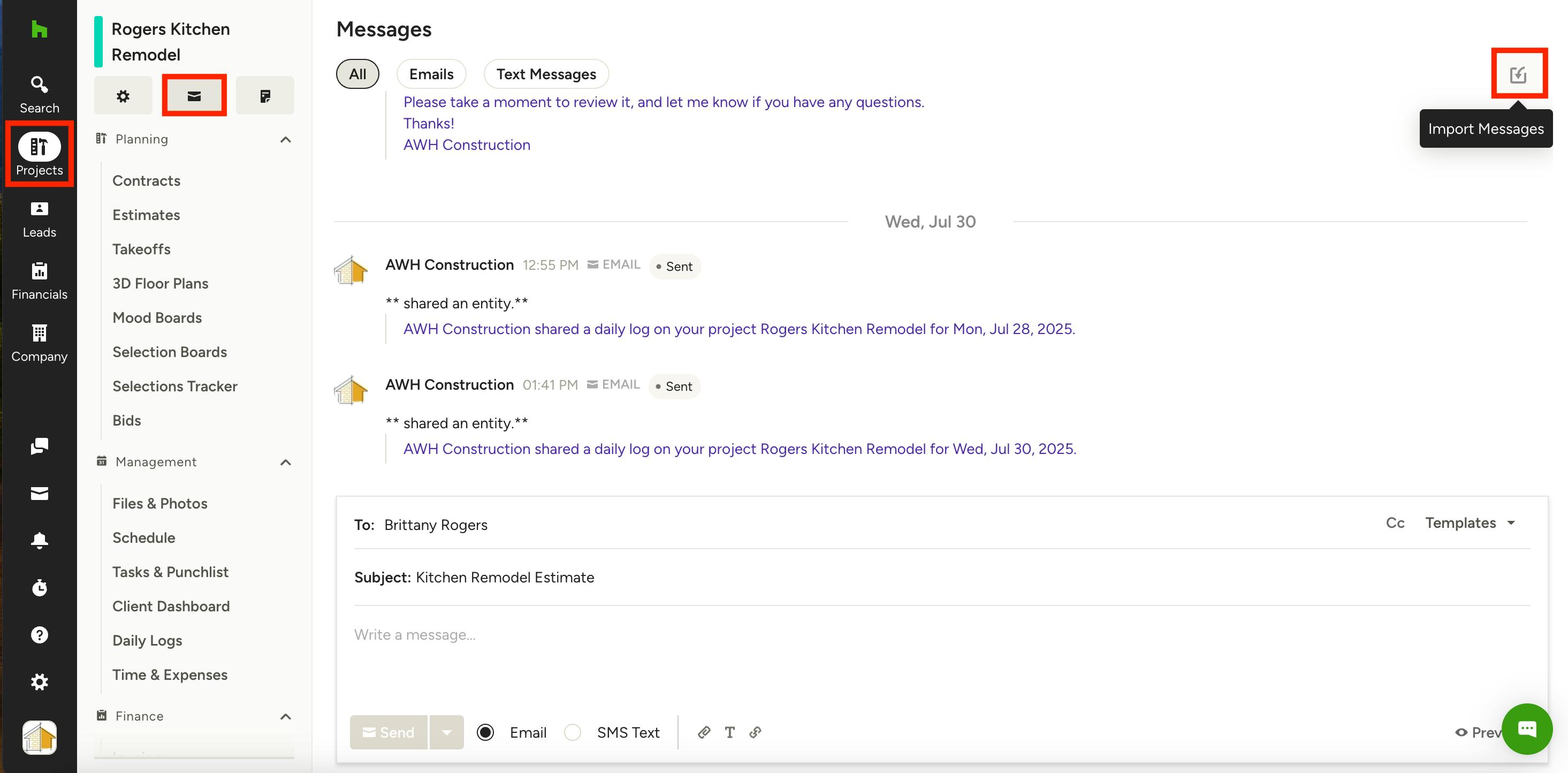
To import messages for a project, find the Projects icon in the left navigation, then select the relevant project from the dropdown menu. Once you open the project overview page, select the Messages icon under the project name.
This will lead you to the message center for your project. Select the Import Messages icon at the top of the page.
A new screen will appear. The email address listed is where you will forward email threads that you would like to add to this Houzz Pro project.
To do this, copy the email address in the text box, then open up the relevant email thread in your email provider. Paste the email address in the Forward To section of your email, and click Send.
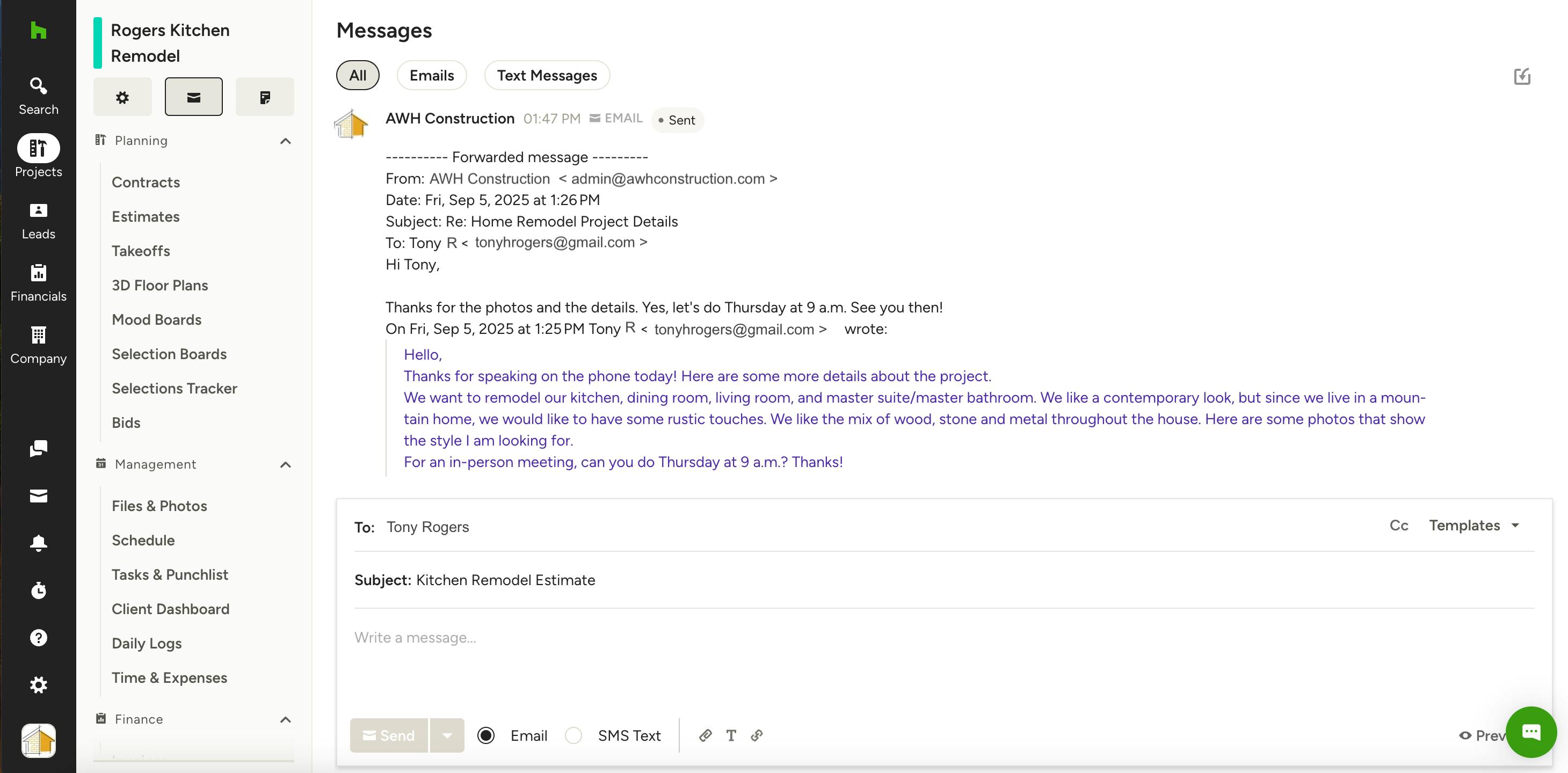
Once sent, the email thread will automatically appear in the project's message center. Now, you can easily reference the details in that email and move forward with next steps, such as scheduling meetings, creating tasks, and more.
Please Note: Only messages, not images, will transfer over during this process.