How to Use Team Chat on the Mobile App
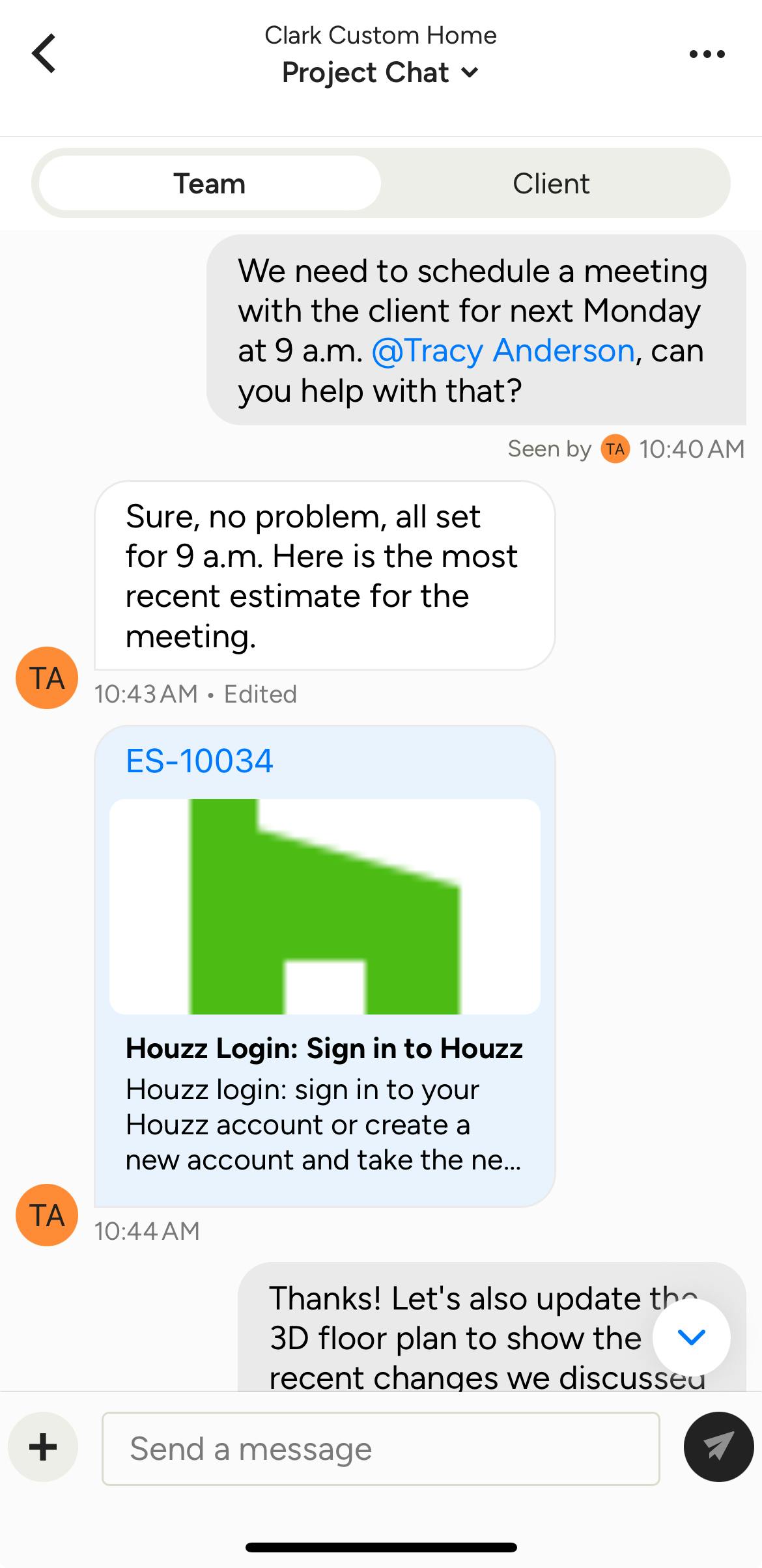
When you use Team Chat on the Houzz Pro mobile app, you can easily communicate with all your team members and subcontractors wherever you are — in the office, onsite, or on-the-go.
You can use team chat as both a project chat and a general chat.
Project chat messages will only go out to team members and subcontractors associated with that project.
General chat messages can be one-on-one or group conversations — they can be about anything and aren't connected to a specific project.
Within team chat on the mobile app, you can tag specific team members, upload files, take photos and more. When you receive a new chat message or are mentioned in the chat, you will receive a notification within the Houzz Pro mobile app.
Please Note: Subcontractors can only be added to a specific project chat thread — they can't be added to a general chat. Only pros with select packages can include subcontractors in a project chat.
Access Team Chat
Team chat is accessible on both a company level in the bottom navigation and on a project level from the project overview page.
Team Chat in Navigation
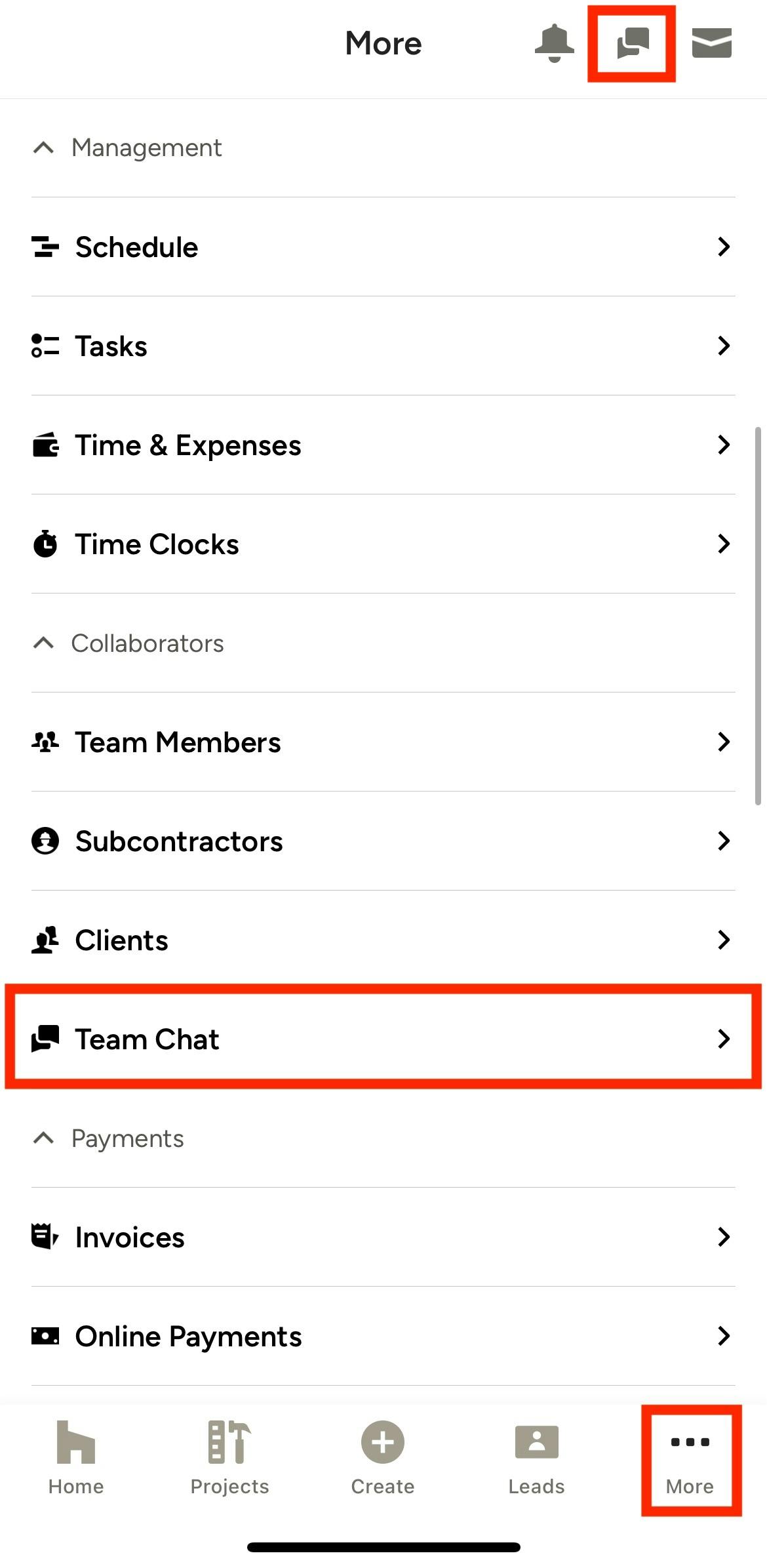
For quick access to all your chats in the mobile app, click the Comment icon at the top right of your screen. You can also click the three dots (More) icon in your bottom navigation, then select Team Chat in the menu.
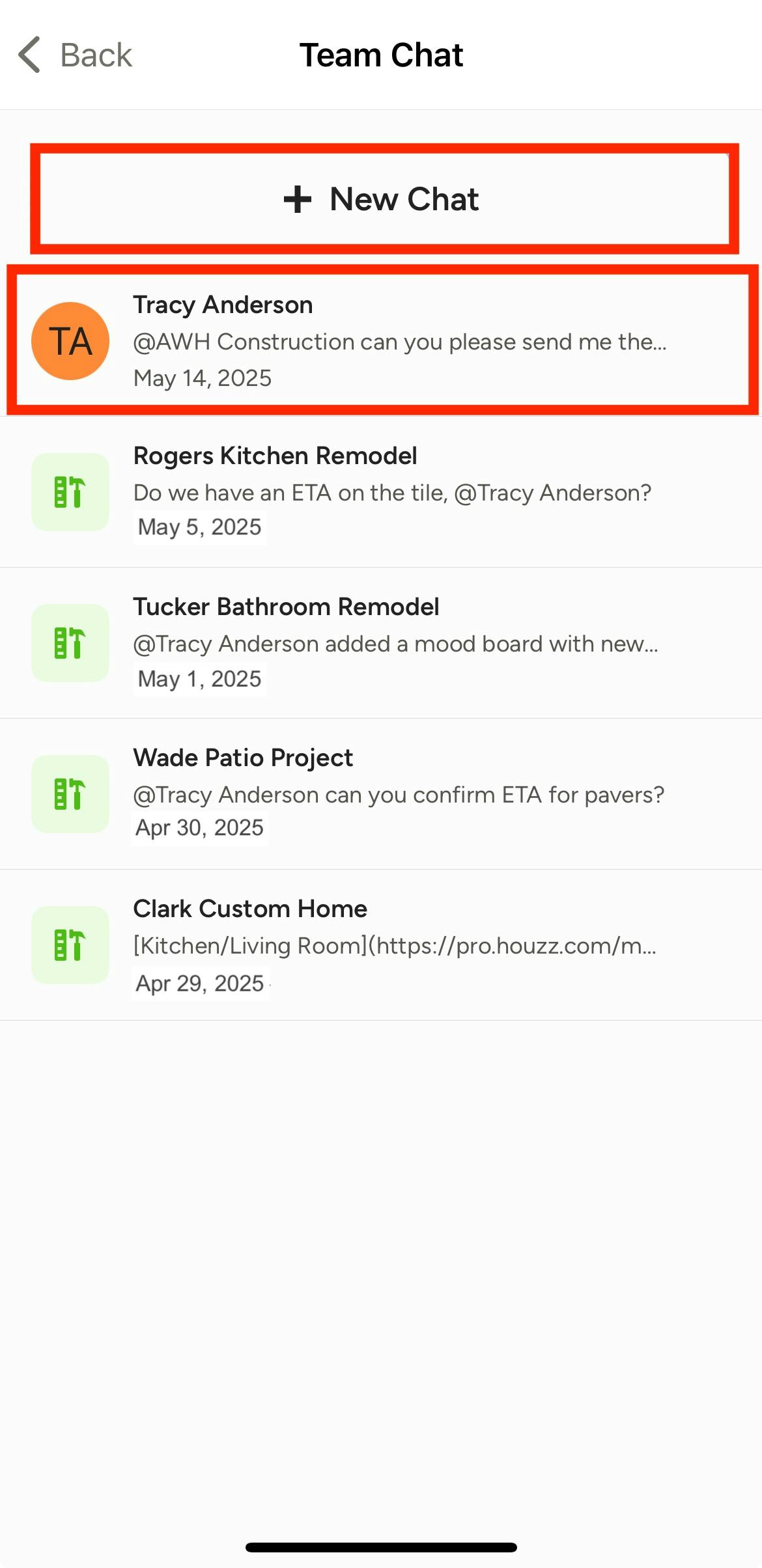
Here, you can see an overview of all your existing project chats, as well as general chats with individual team members or groups of team members. Click on a specific chat to view previous messages, send a new message, delete/edit a message, or manage chat settings (for general chats only).
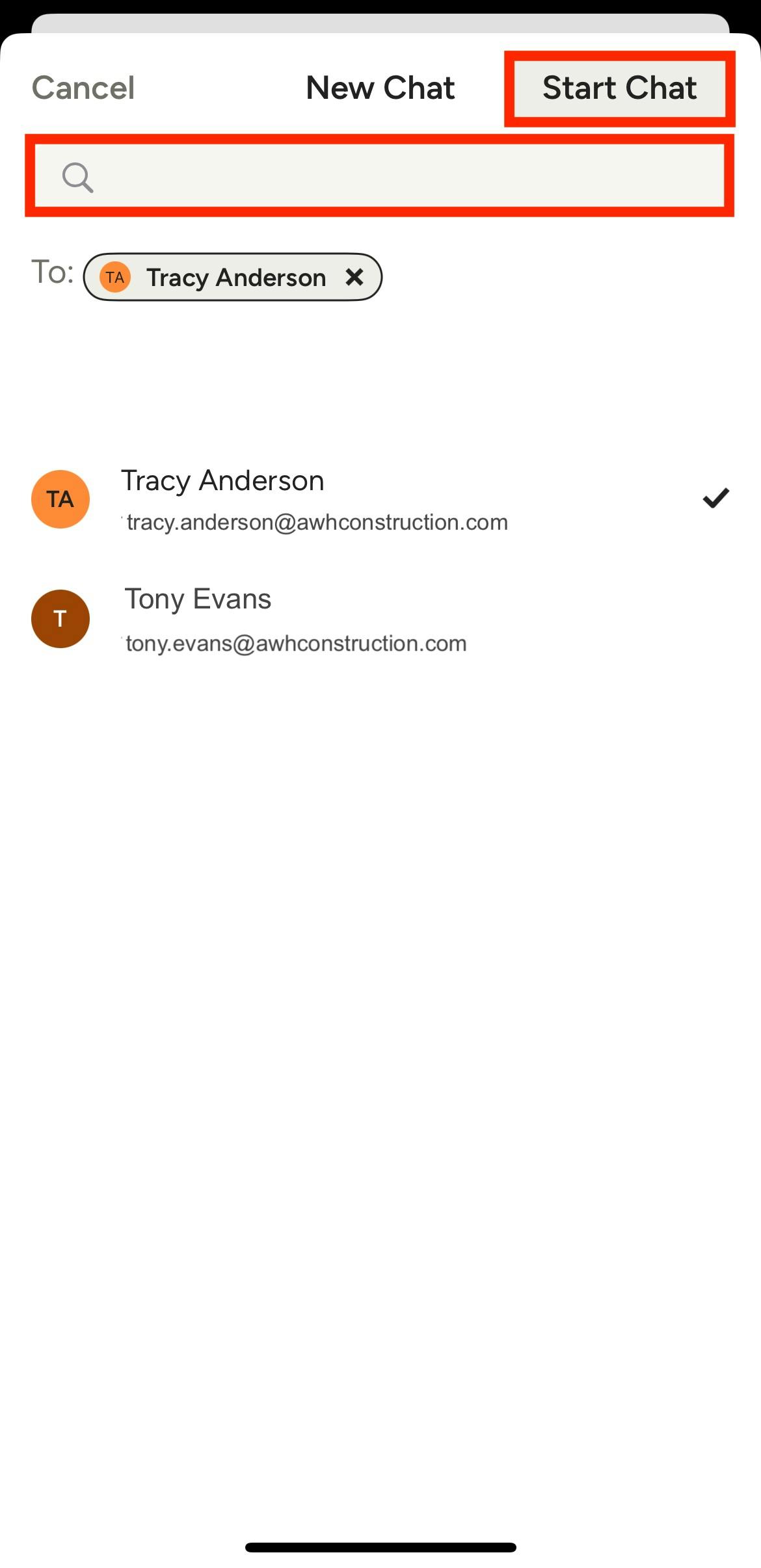
To create a new general chat, click the New Chat button at the top of your chat screen. Enter the name of the team member(s) you would like to add to the chat in the search bar, then click Start Chat. A new chat will appear — use the text box at the bottom of your chat screen to type your message for the individual or group.
Team Chat in Projects
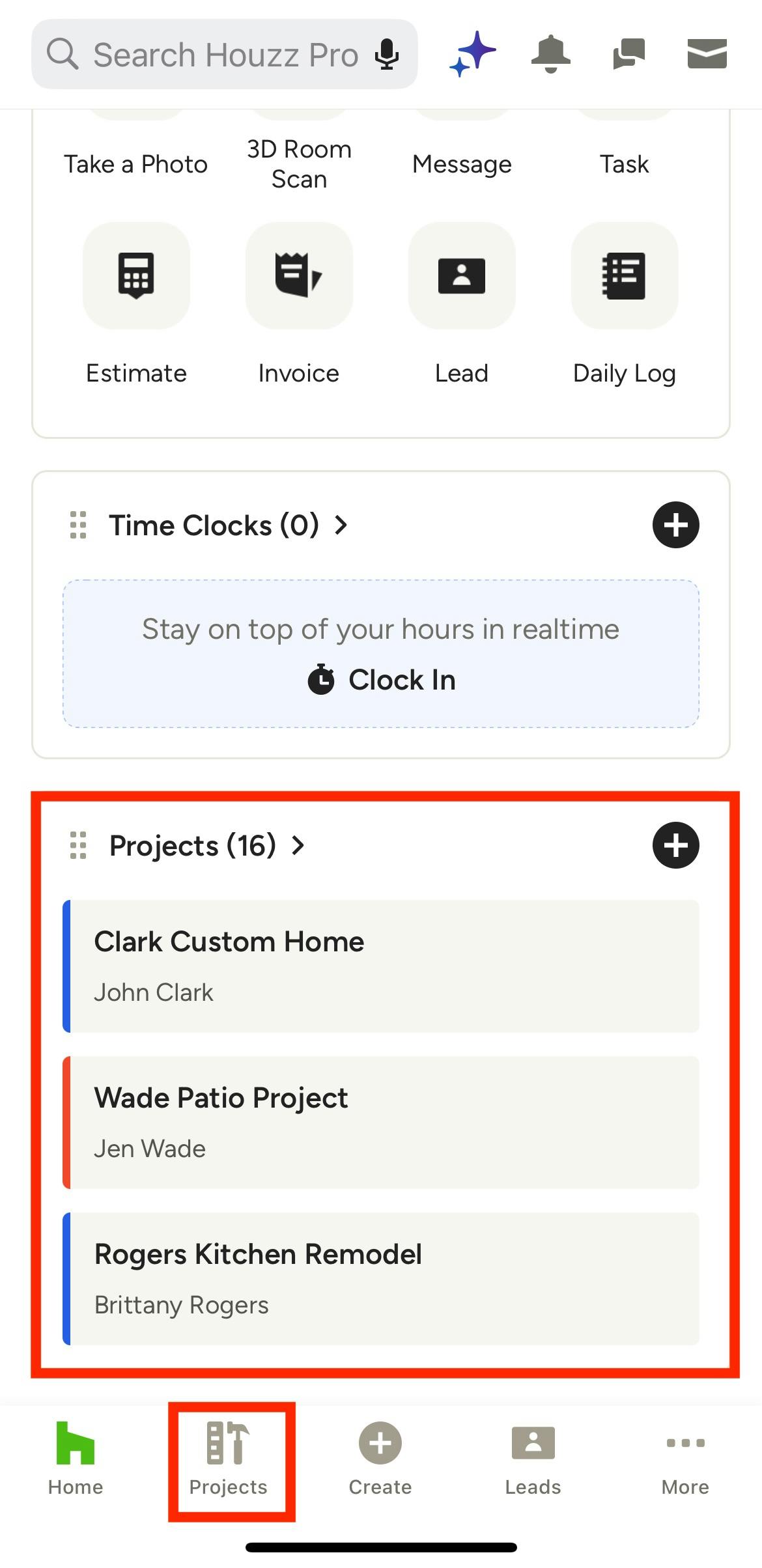
If you would like to view or start a project-specific chat, you can also access on the project overview page. A project chat will include all team members assigned to the project (not subcontractors by default). You can also create additional threads with specific team members or subcontractors (subcontractors for select packages only).
To start, select the relevant project from the mobile app homepage. Or, click the Projects icon in your bottom navigation, then select the project from the list.
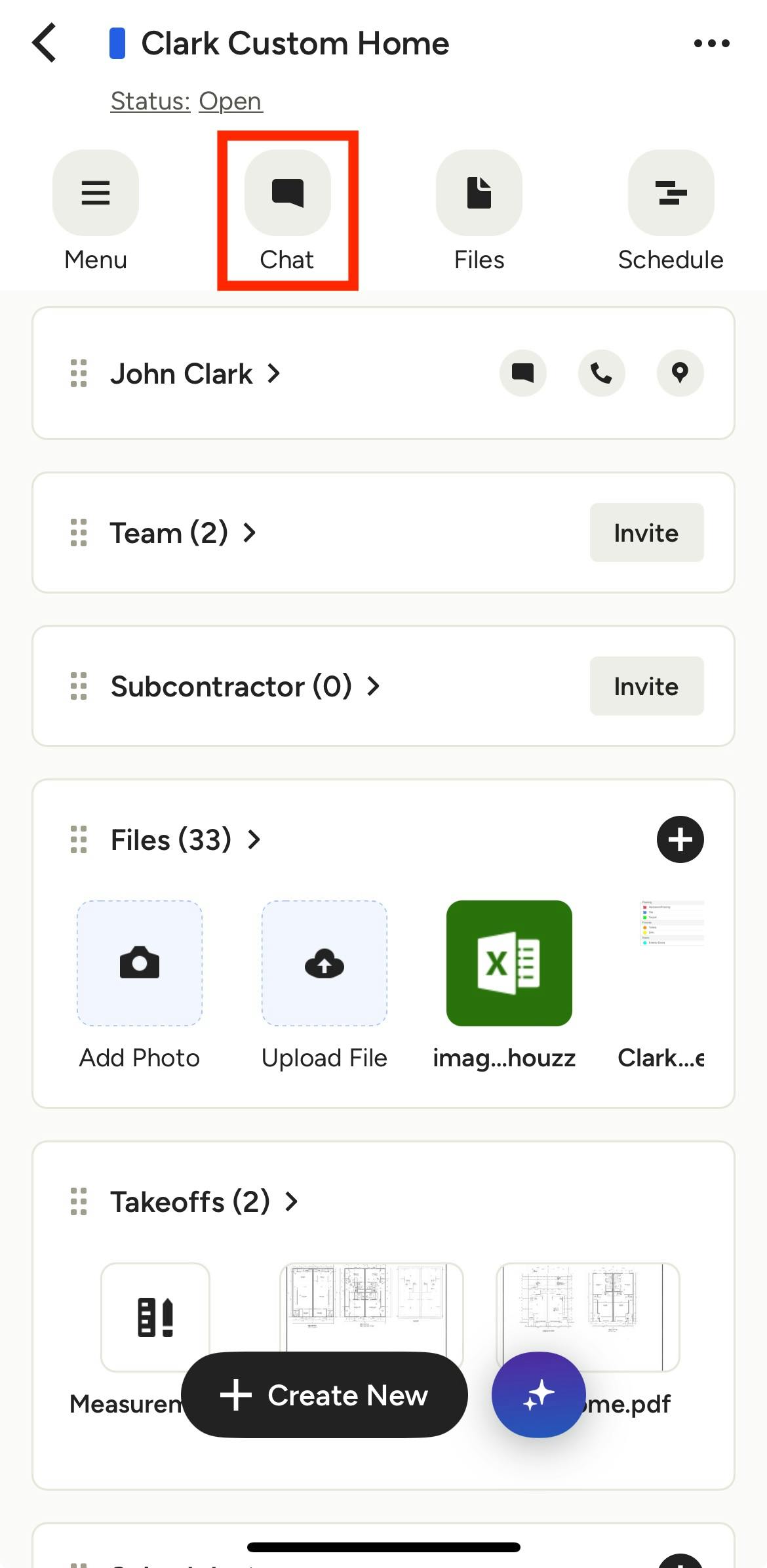
Click the Chat icon at the top of the project overview page to view existing chat messages or create a new chat.
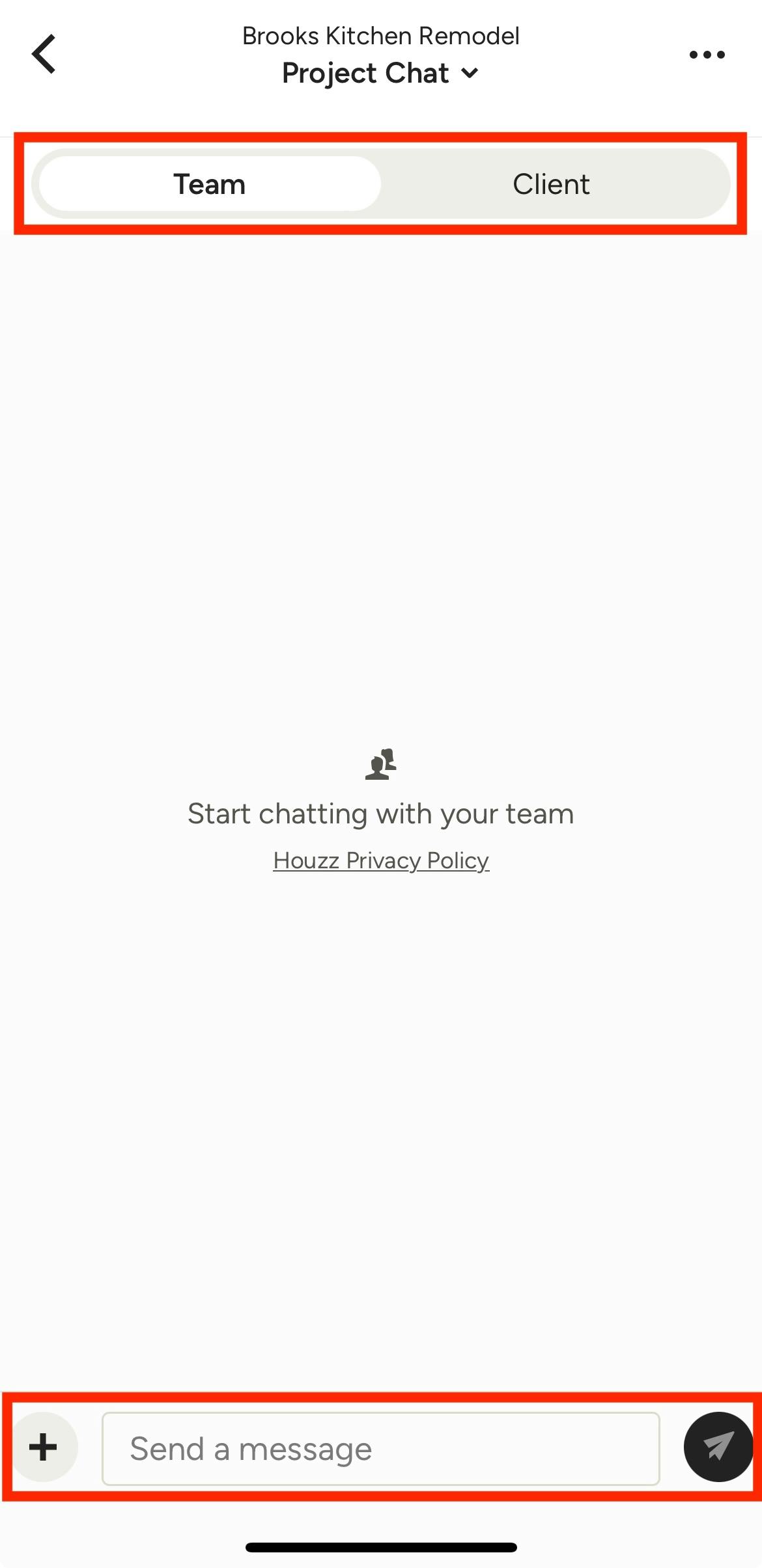
If this is your first chat, the chat history will be empty. Be sure to select the Team tab (not the Client tab) at the top to start a chat. Please Note: Only added team members and subcontractors will have access to team chat in projects — clients will not be able to see your messages.
Use the text box at the bottom of your screen for your message.
Send Chat Message
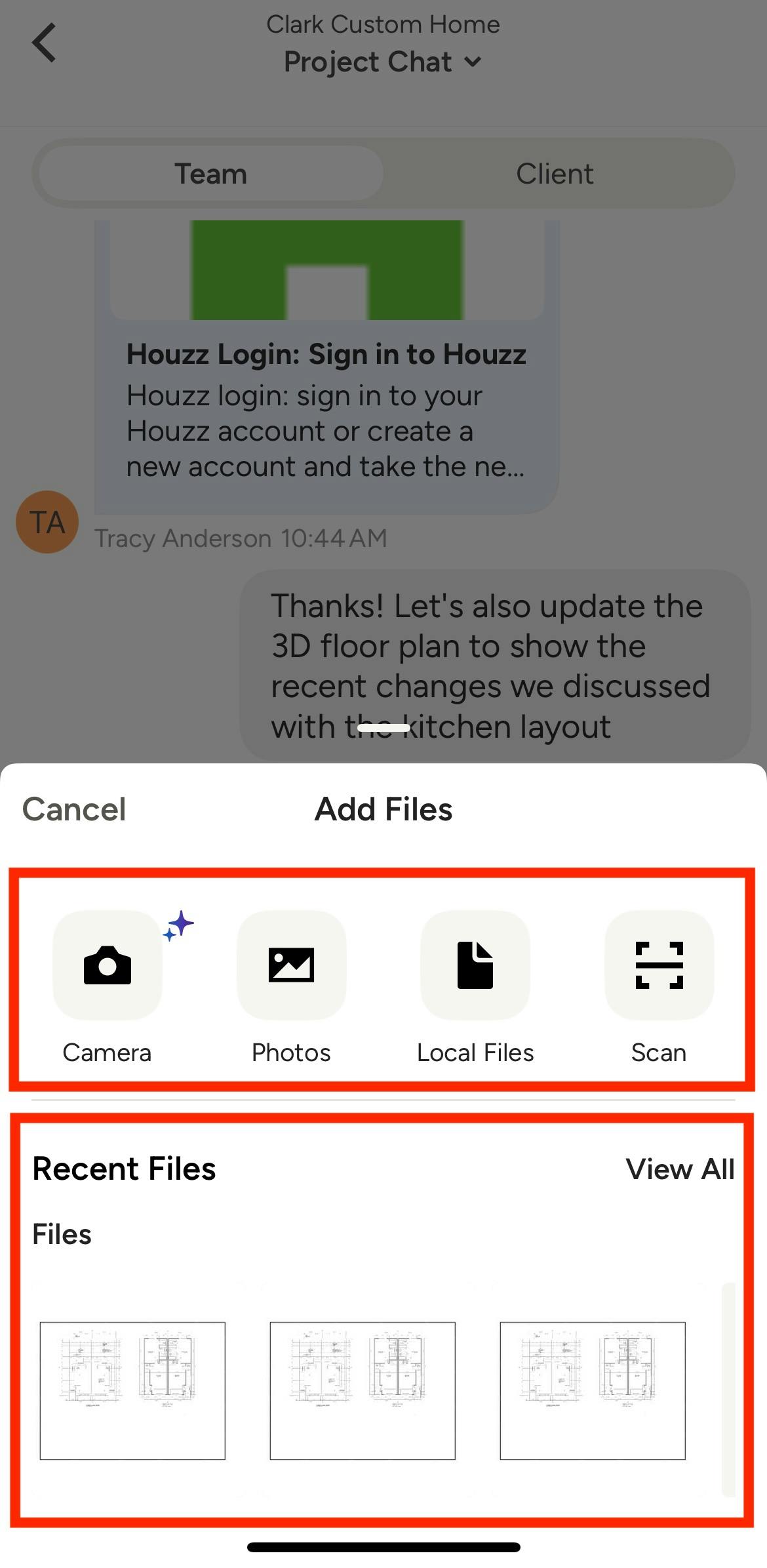
It is easy to add a message to a new or existing chat — just use the text box at the bottom of your chat screen to type your message for the individual or group. When you send a message through chat, you can link documents, photos and files by clicking the + icon. On the mobile app, you can:
- Access your camera to take a photo
- Access your existing photo library
- Upload local files from your phone
- Scan a document or photo to share
- Link recent photos and files from within Houzz Pro
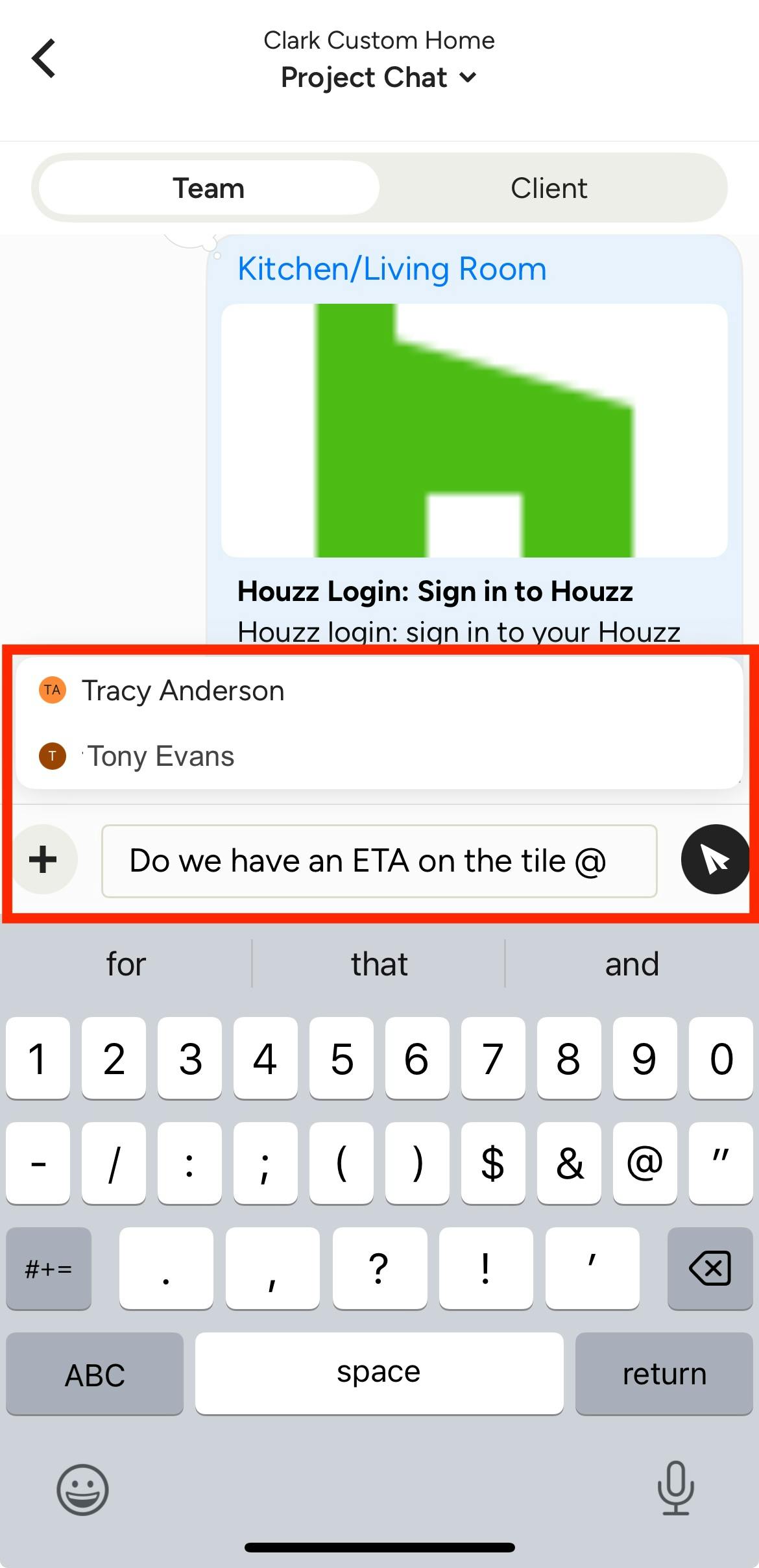
As you write your message, use the @ symbol and select their name when it appears to tag relevant team members or subcontractors.
Be sure to click the Send icon once your message is complete.
Once sent, your chat will appear along with the rest of your chat history, including responses from your team members or subcontractors. You will be able to see who has viewed your messages.
Edit or Delete Chat Message
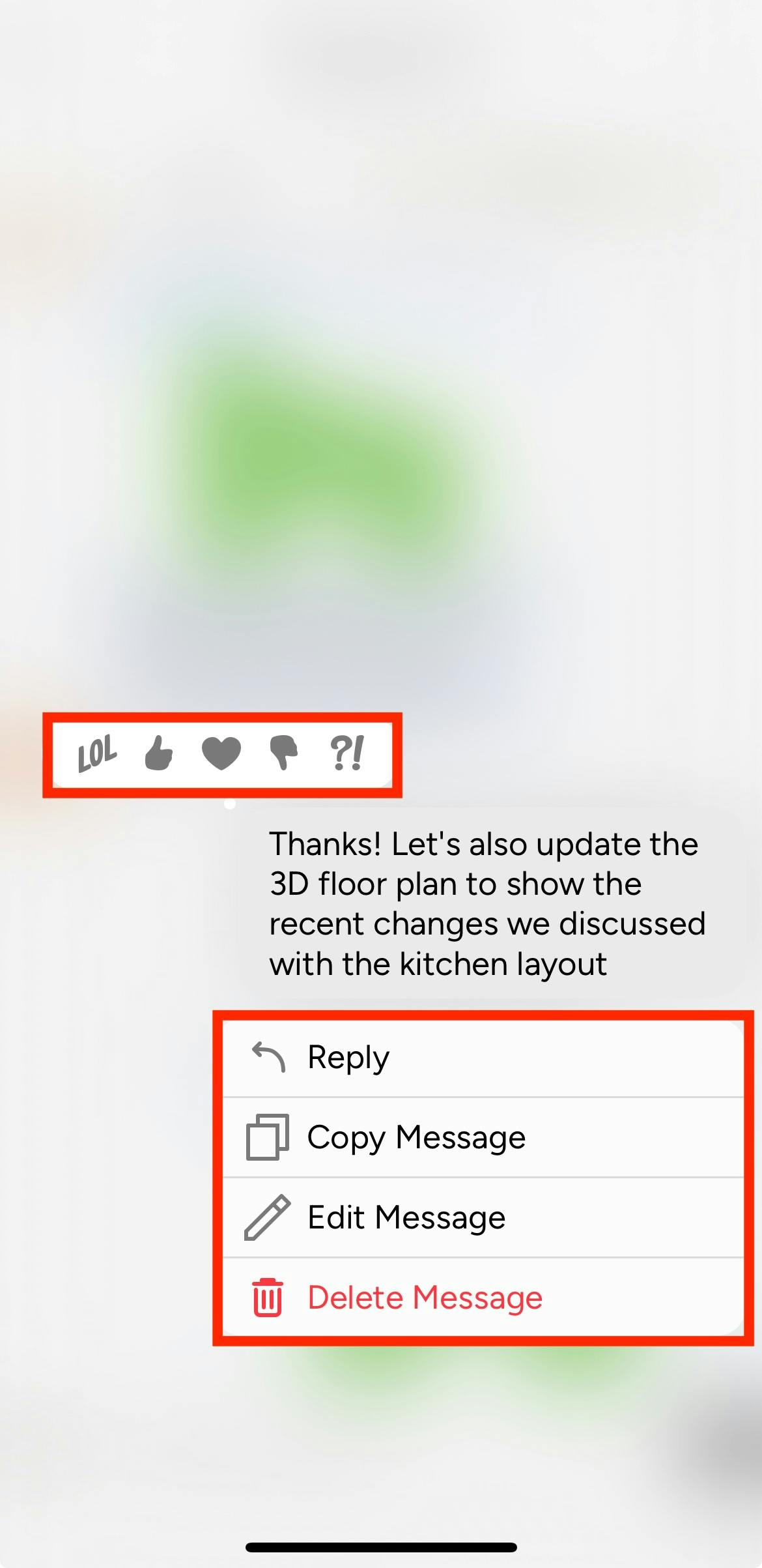
To edit, delete, copy or reply to a message, tap and hold a specific message until a menu appears. You can reply to or copy any message, but you can only edit or delete your own message. Here, you can also click the images at the top of the message to add an emoji response.
Manage General Chats
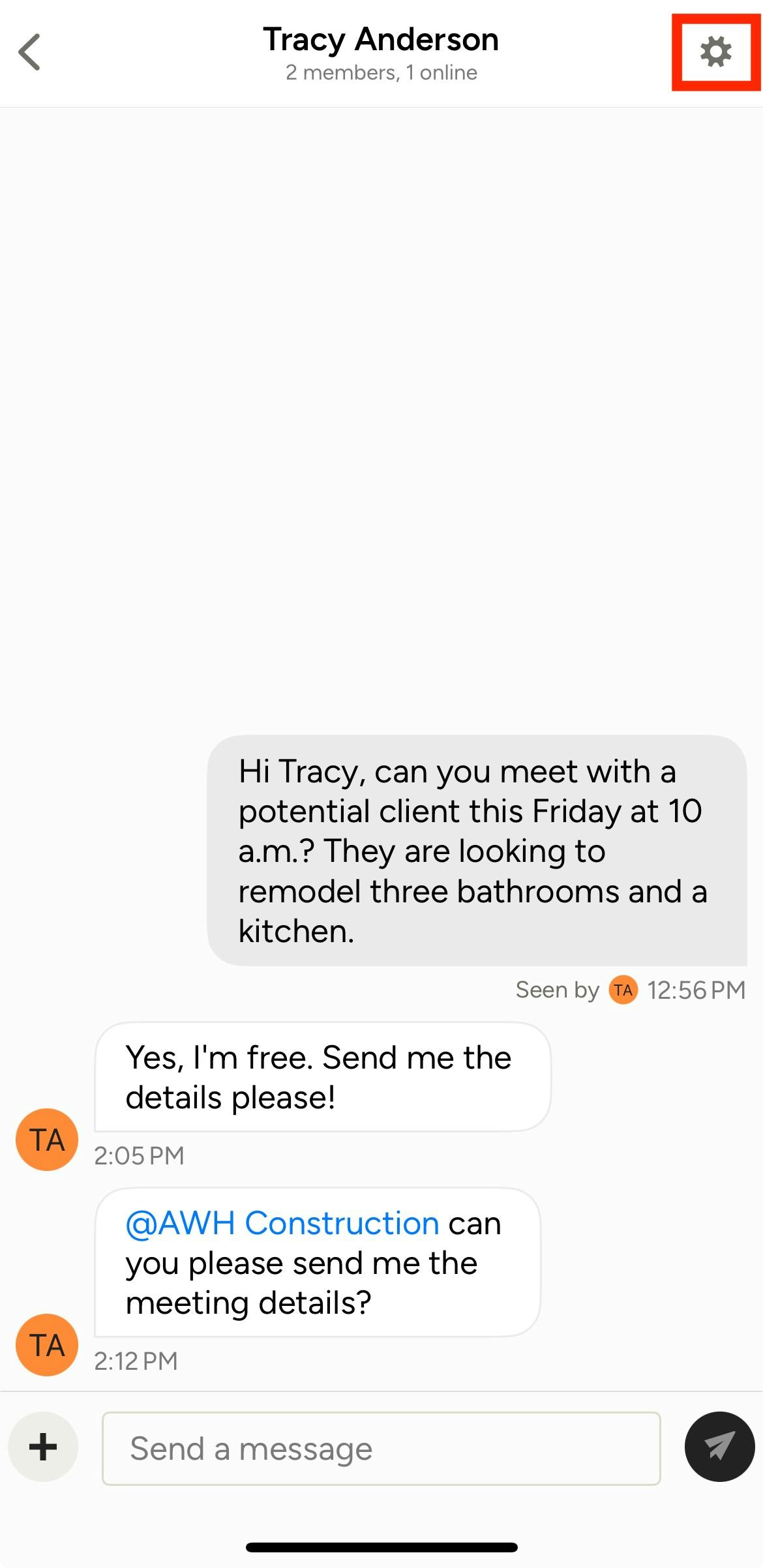
You can edit, delete, copy or reply to a general chat message in the same way. If it is a general chat message that isn't connected to a project, you will also see a Gear icon at the top of your chat screen. This is where you can manage chat settings.
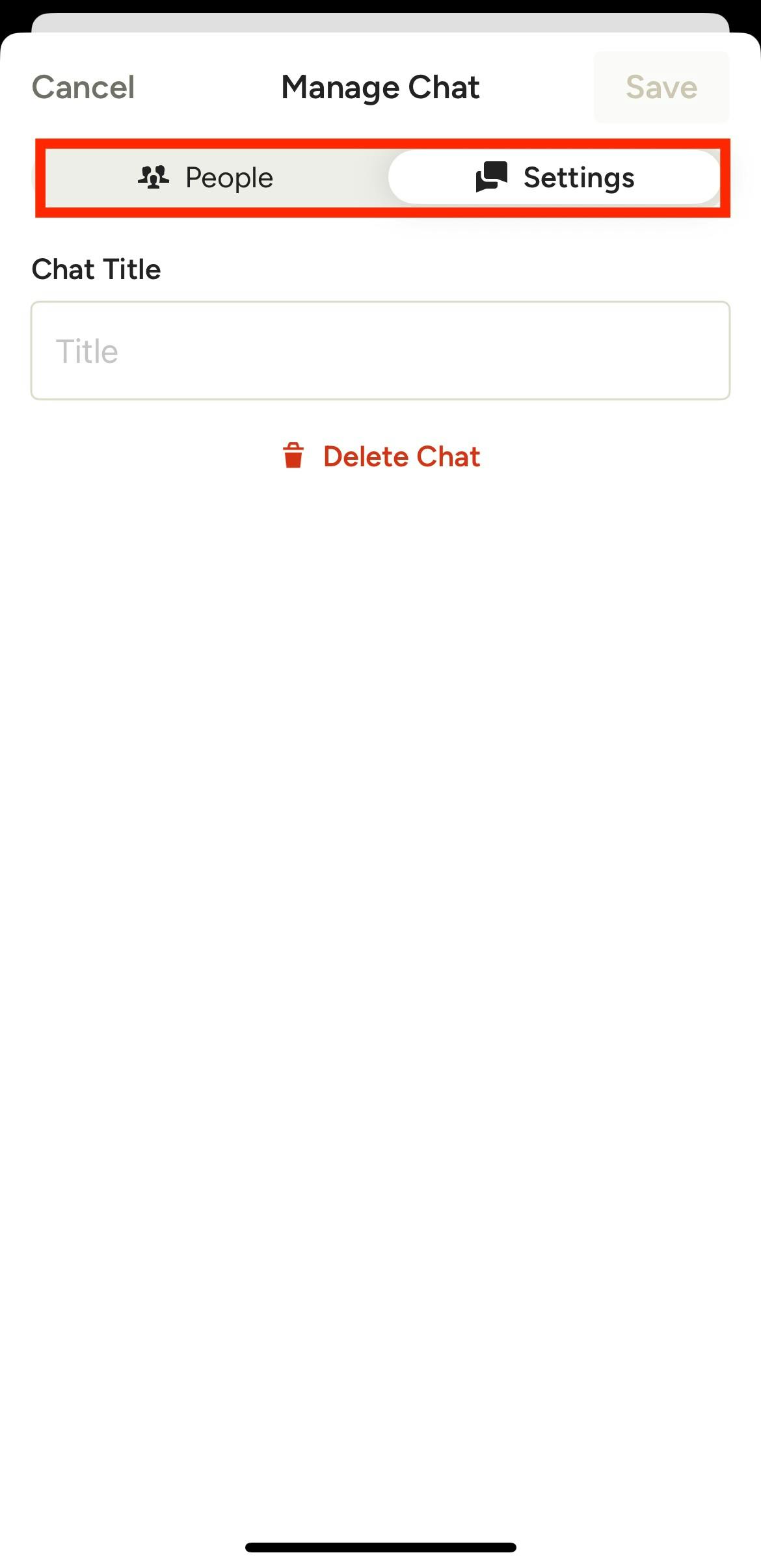
On this screen, you can make adjustments to the general chat thread — under the People tab, you can remove or add team members. Under the Settings tab, you can rename or completely delete the entire chat. Once changes are made, be sure to click Save at the top.
Team Chat Notifications
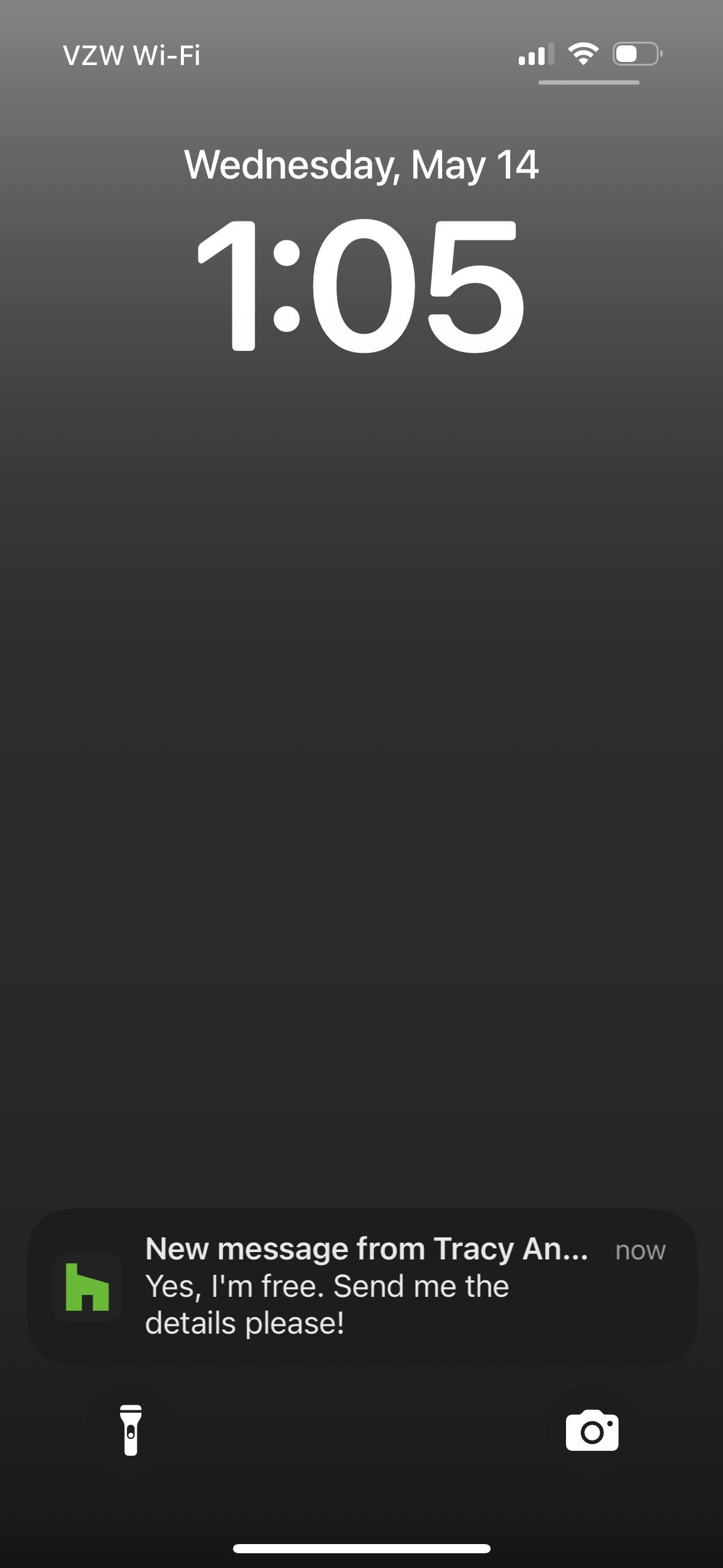
There are several ways you will receive notifications for team chat messages. On the Houzz Pro mobile app, you will receive a notification for all new messages, including messages where you are specifically mentioned. On Houzz Pro desktop, you will only receive a notification for messages where you are specifically mentioned. Email notifications are not currently available for team chat messages.
To learn more about using the team chat feature on desktop, read How to Use Team Chat on Houzz Pro.