How to Use Team Chat on Houzz Pro
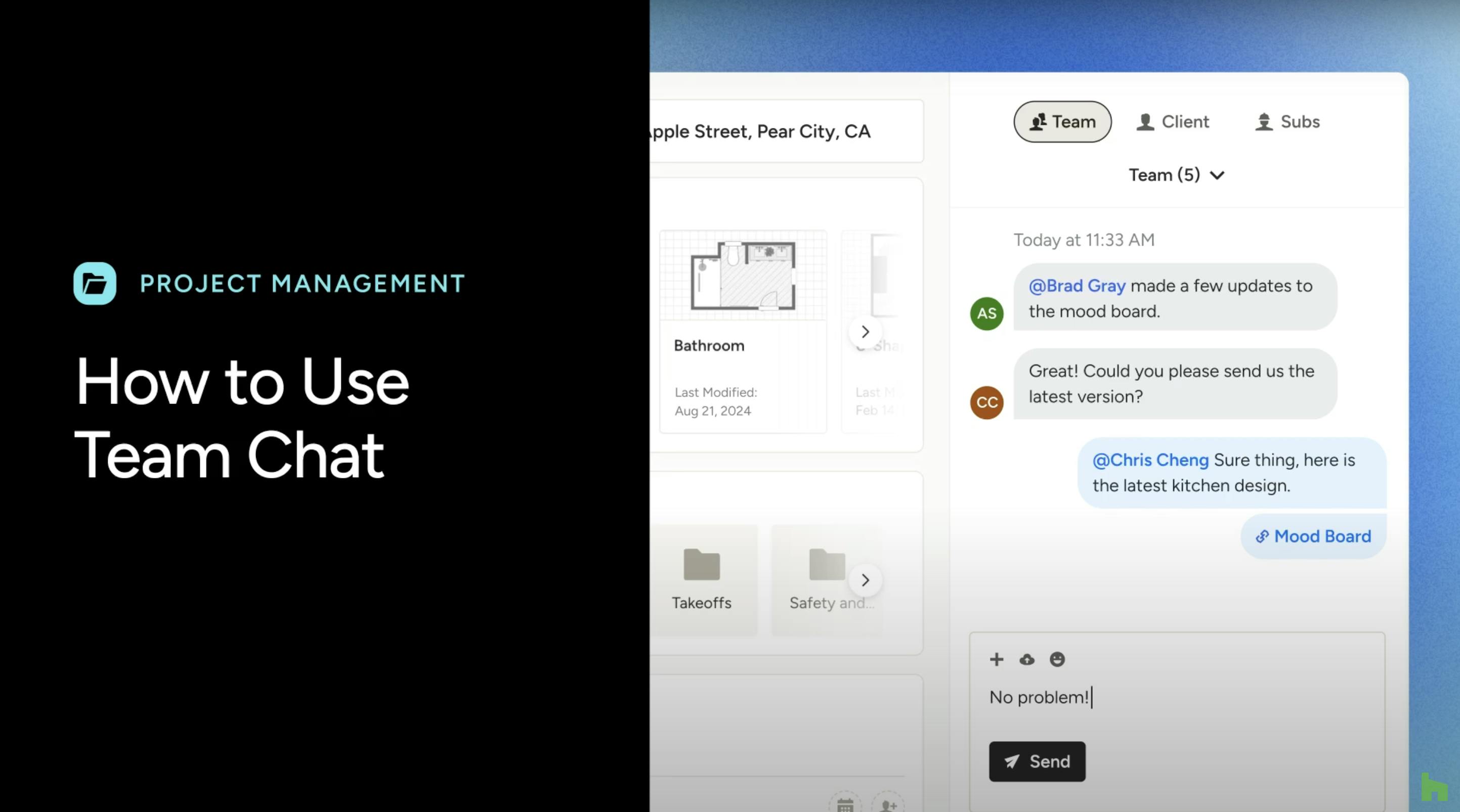
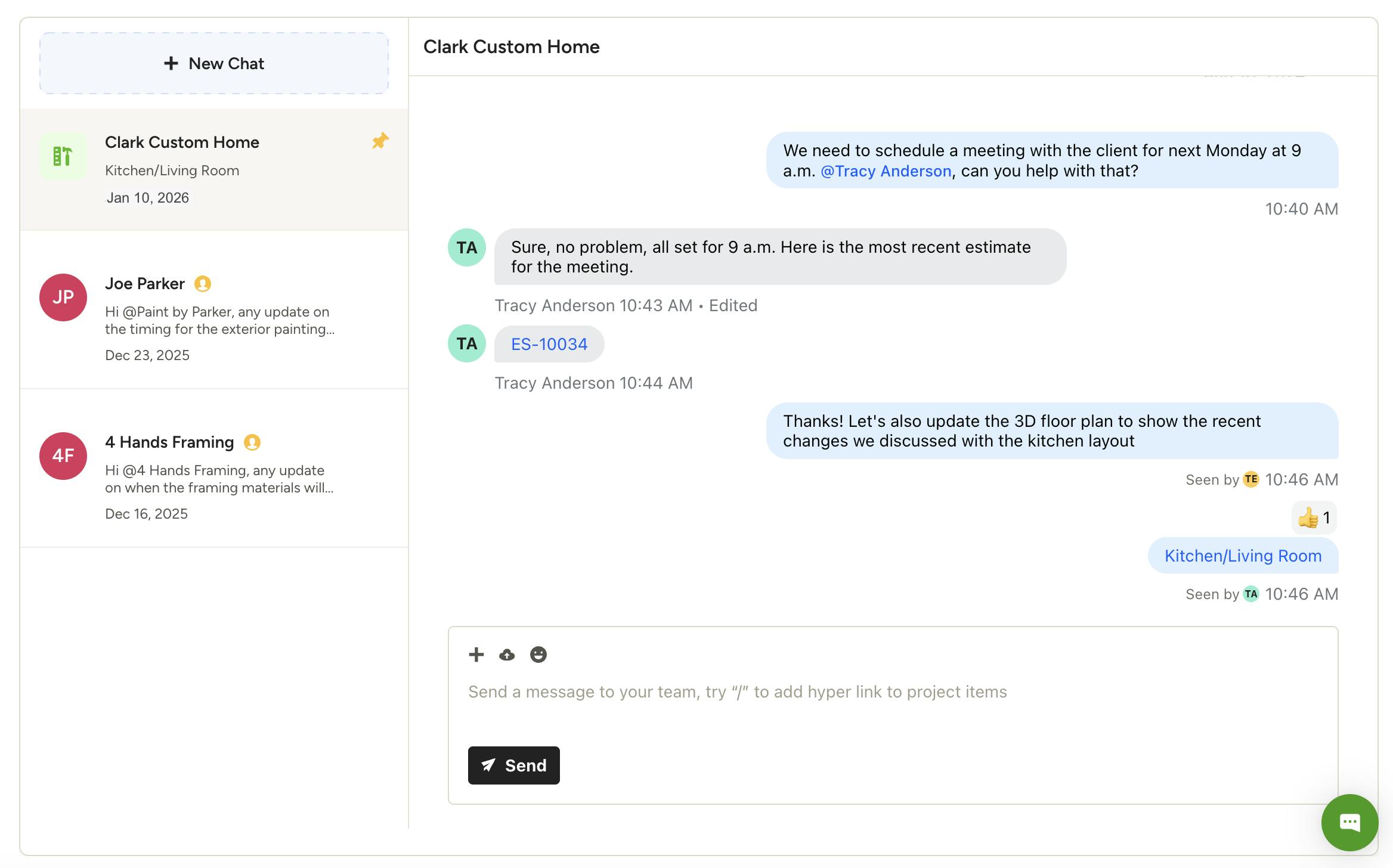
Team Chat on Houzz Pro allows you to efficiently collaborate with all your team members and subcontractors in one place so everyone is on the same page for every project and discussion. You can use team chat as both a project chat and a general chat.
For project chat, you can update all the team members associated with that project at once so everyone is aware of timeline or project progression. You can have multiple chat threads per project, so you can also have another chat thread for specific team members and/or subcontractors associated with that project.
For general chat, you can add any team member to a chat thread — you can start one-on-one conversations, include all team members or a specific group of team members. General chats can be about anything and aren't connected to a specific project.
Regardless of how you use team chat, it offers flexibility to ensure it works for how internal communication happens in your business.
Note: Subcontractors can only be added to a specific project chat thread — they can't be added to a general chat. Only pros with select packages can include subcontractors in a project chat.
Access Team Chat
Team chat is accessible on both a company level in the left navigation and on a project level from the project overview page.
Team Chat in Left Navigation
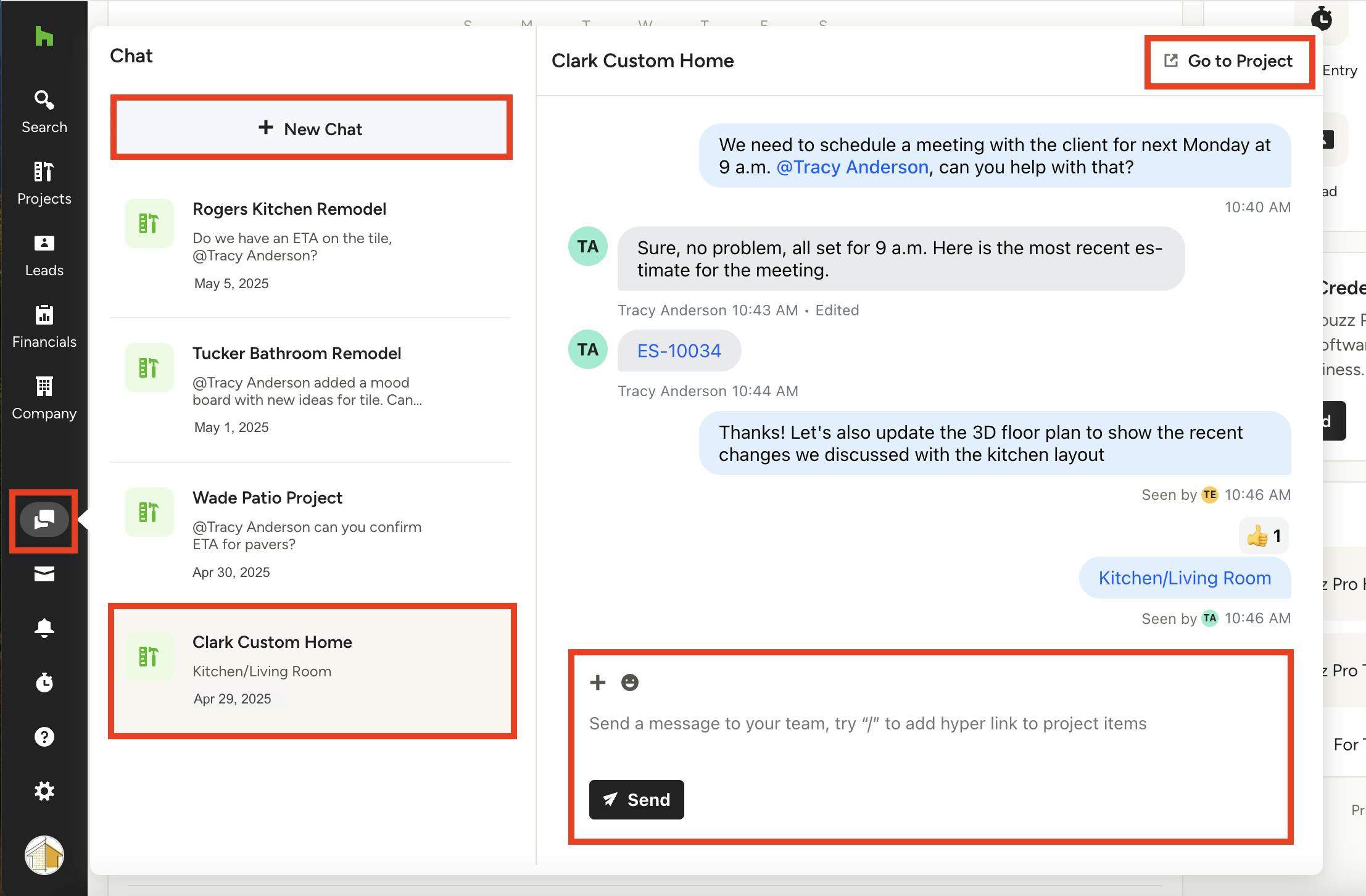
For quick access to team chat, use the Chat icon in your left navigation. Here, you will see all your existing project chats, as well as general chats with individual team members or groups of team members.
Click on a specific chat to open. A new screen will appear where you be able to view previous messages, send a new message, delete/edit a message, go to project (for project chats), and/or manage chat settings (for general chats).
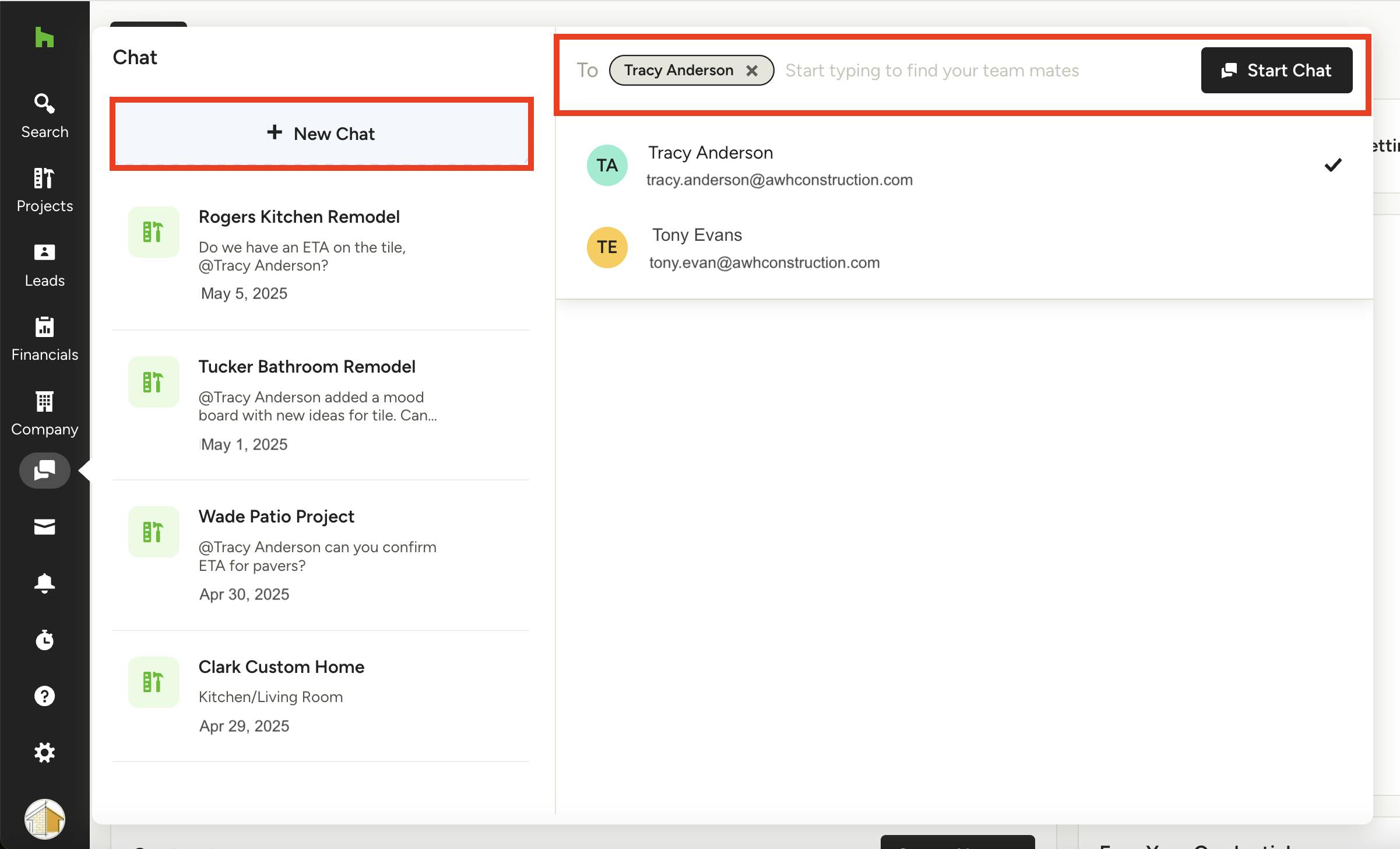
To create a new general chat, click the New Chat button at the top of your chat screen. Enter the name of the team member(s) you would like to add to the chat, then click Start Chat. A new chat will appear — use the text box at the bottom of your chat screen to type your message for the individual or group.
Team Chat in Projects
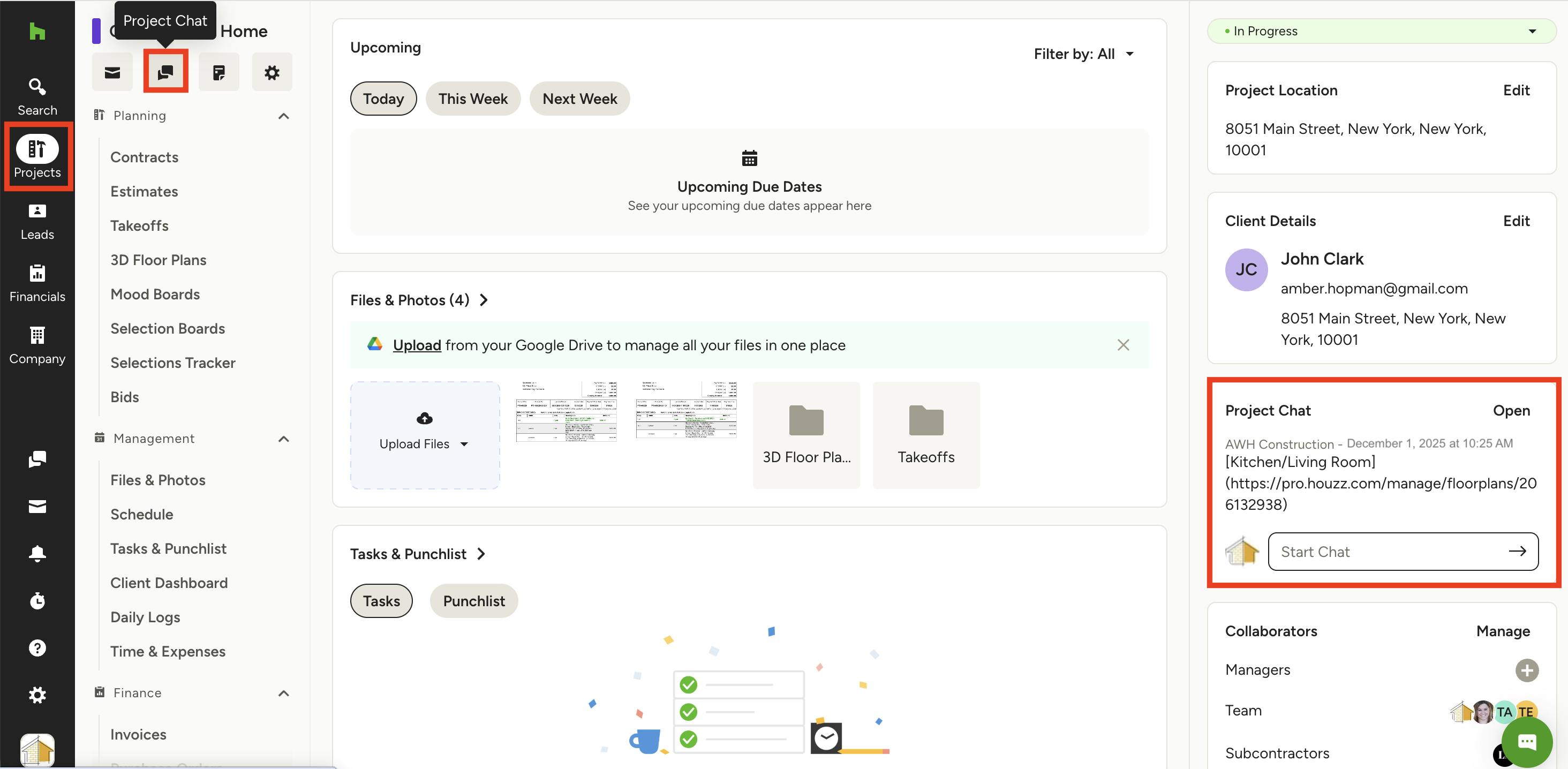
If you would like to view or start a project-specific chat, you can also access on the project overview page. A project chat will include all team members (not subcontractors) assigned to the project, but you can also create additional threads with specific team members or subcontractors (subcontractors for select packages only).
To start, find the Projects icon in the left navigation, then select the relevant project from the dropdown menu.
You can access your project chat in two places. Underneath the project name, you can click the Project Chat button on the left to access existing chats or start a new chat. You can also access on the right side of your project overview page — Select Open or Start Chat under the Project Chat section.
Please Note: Only added team members and subcontractors will have access to team chat in projects — clients will not be able to see your messages.
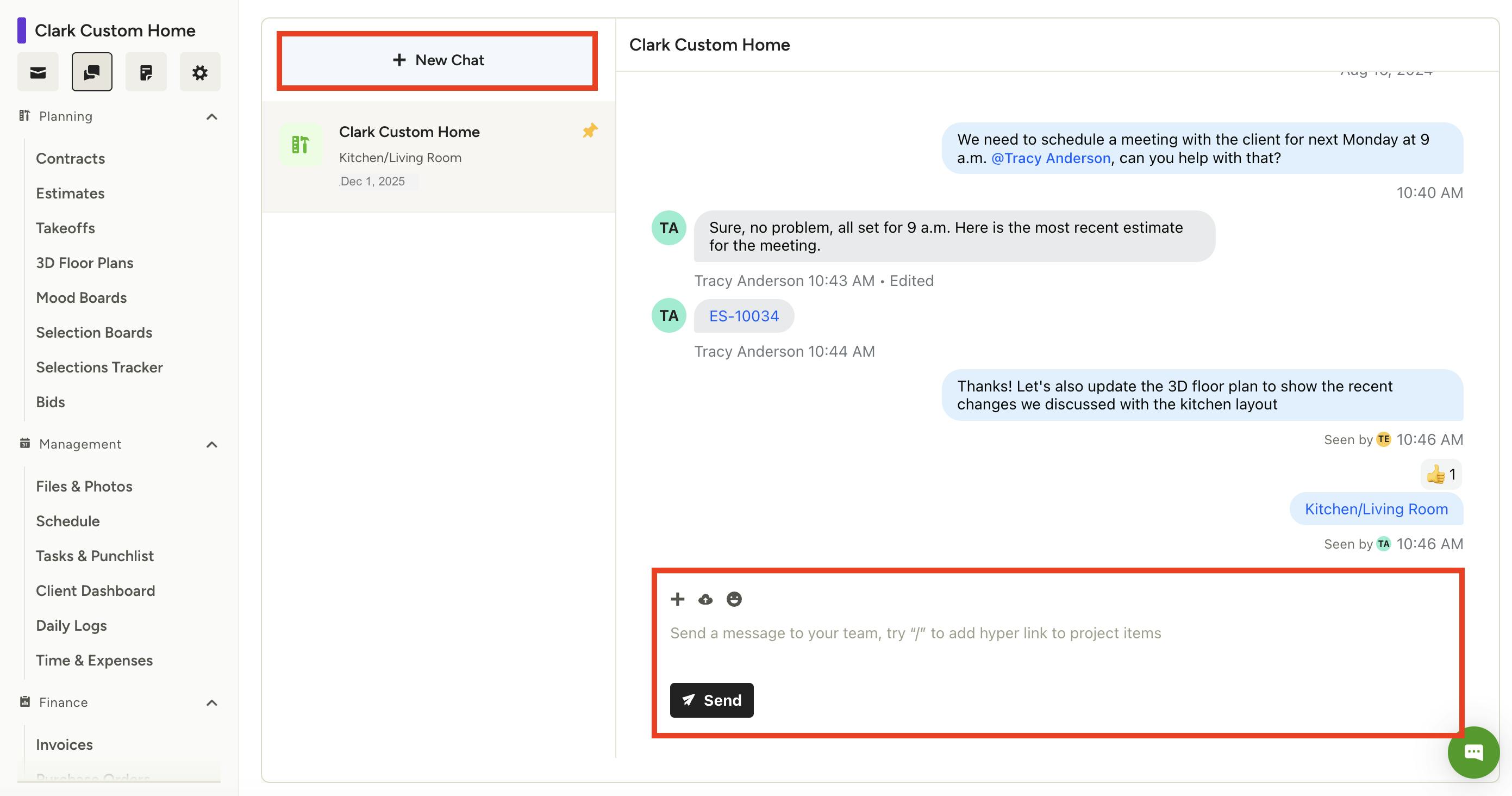
If you have existing chats, the project chat will show previous messages, as shown below. To add a new message to this chat, use the text box at the bottom of your screen to type your message for the group.
Within each project, you can create several different chat threads as needed. To create a new chat thread, select New Chat at the top of your screen. You can then add the individual team members and/or subcontractors you would like to include in that specific chat.
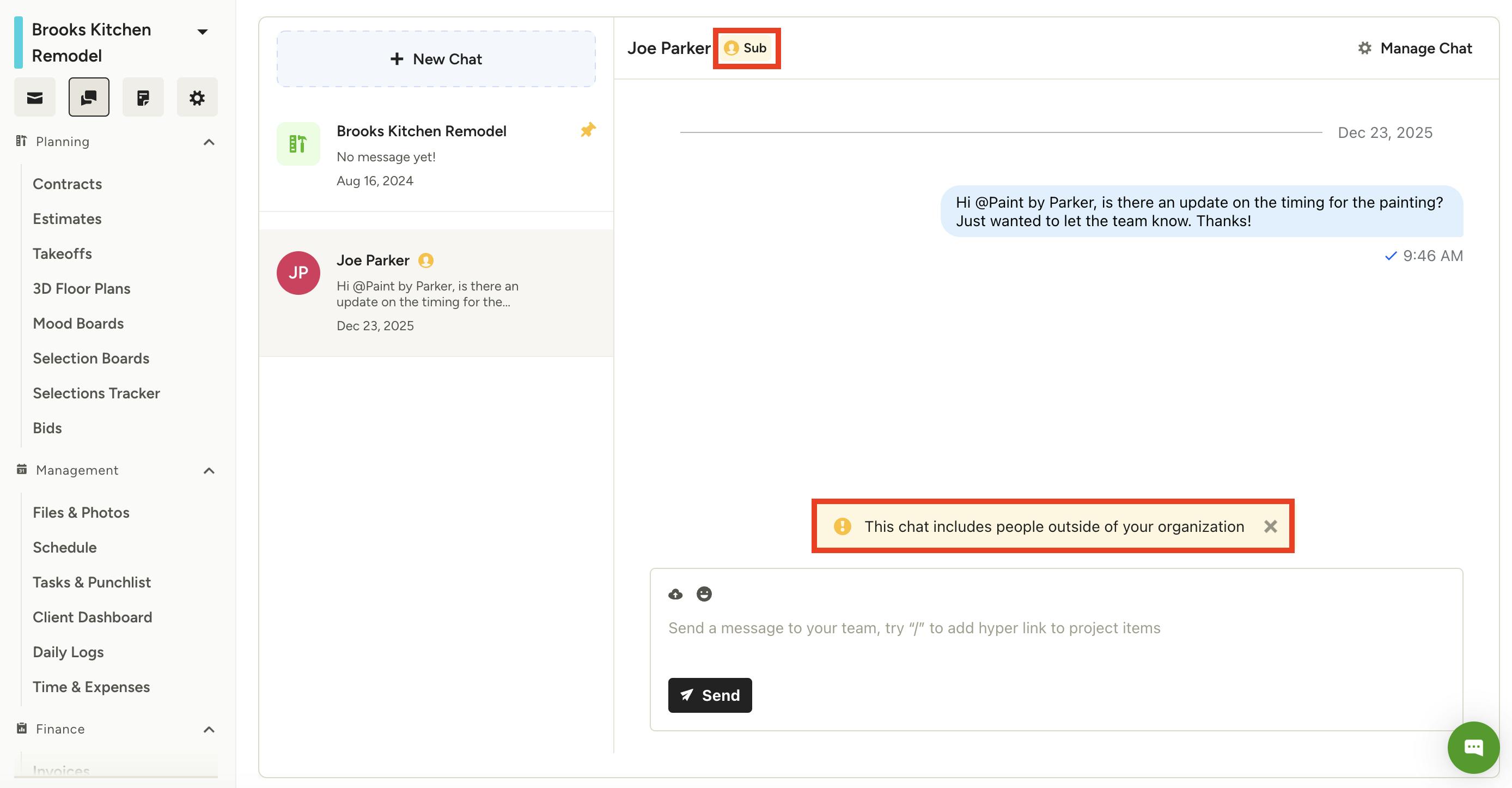
If you add a subcontractor to your project chat, there will be a special Sub icon at the top of the chat. There will also be a notification reminding you that people outside of the organization are included in the chat, as shown below.
Pro Tip: Before leaving a comment, be sure to check if there are external subcontractors in the chat so you don't accidentally share internal information.
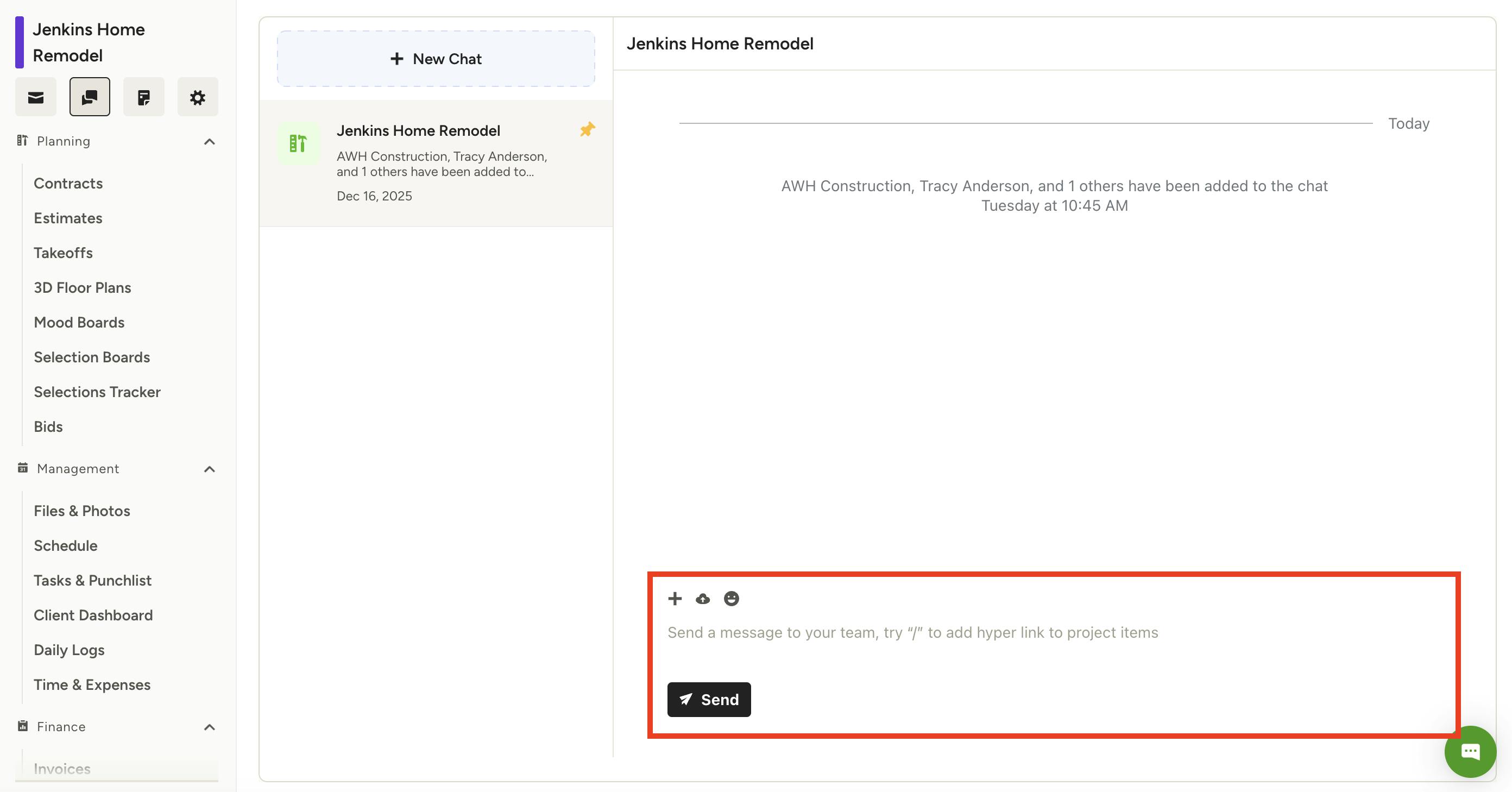
If this is your first chat, the project chat will be empty. To start a new chat, use the text box at the bottom of your screen to type your message for the group.
Send Chat Message
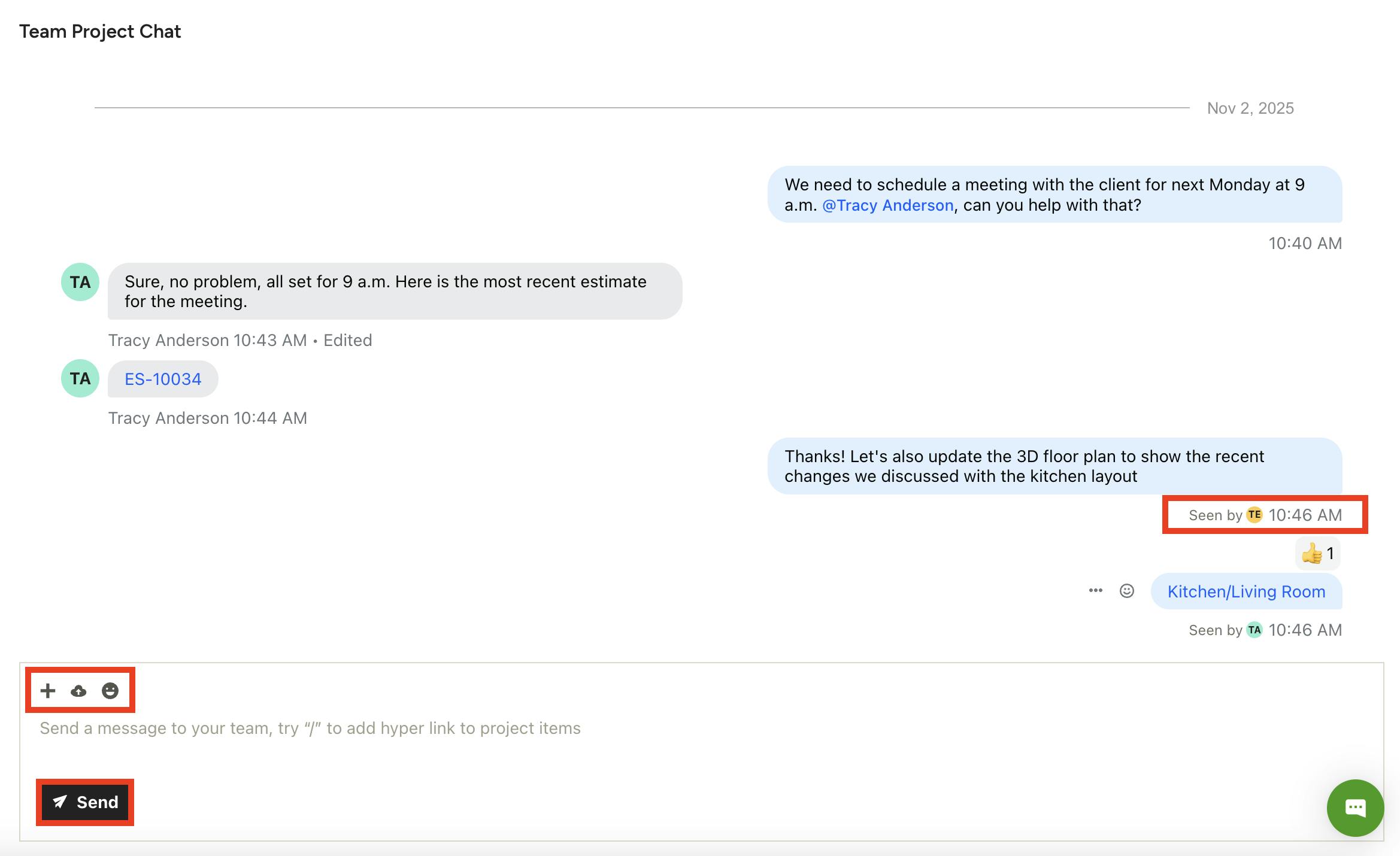
It is easy to add a message to a new or existing chat — just use the text box at the bottom of your chat screen to type your message for the individual or group.
When you send a message through chat, you can:
- Link Documents: Click the + icon to link relevant documents and files within Houzz Pro. You can link to estimates/proposals, invoices, purchase orders, change orders, retainers, takeoffs, mood boards, selection boards, 3D floor plans, and tasks.
- Upload Files: Click the cloud icon to upload files from your desktop or from your integrated Google Drive account (this is only available in project chat).
- Add Emojis: Click the smiley face icon to add emojis to your message.
- Tag Team Members or Subcontractors: Use the @ symbol in your message to tag and notify relevant team members or subcontractors.
Be sure to click Send once your message is complete. Once sent, your chat will appear along with the rest of your chat history, including responses from your team members or subcontractors. You will be able to see who has viewed your messages.
Edit or Delete Chat Message
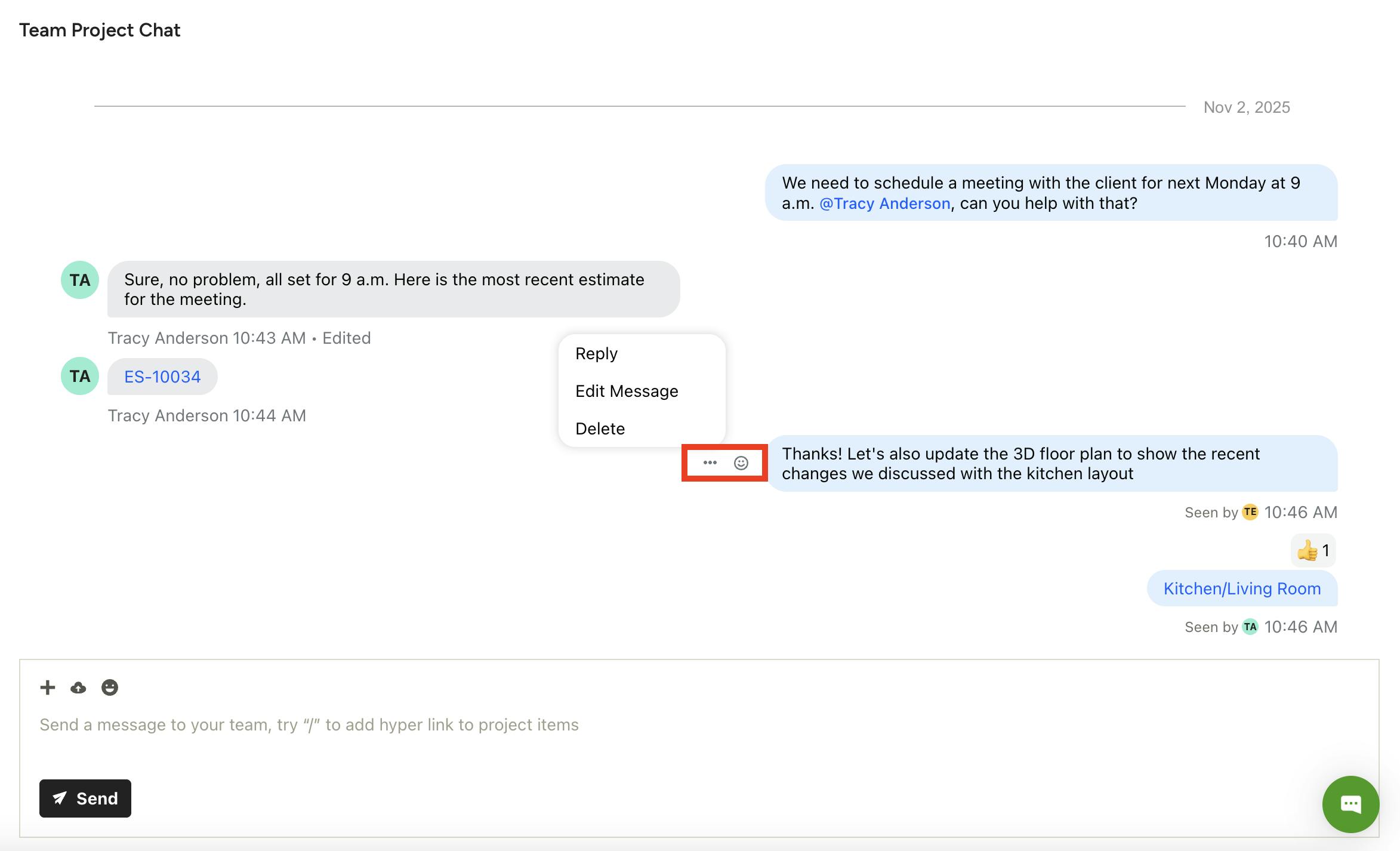
To edit, delete or reply to a message, hover over a specific message and click the three dots icon. You can reply to any message, but you can only edit or delete your own message. Here, you can also click the smiley face icon to add an emoji response to a message.
Manage General Chats
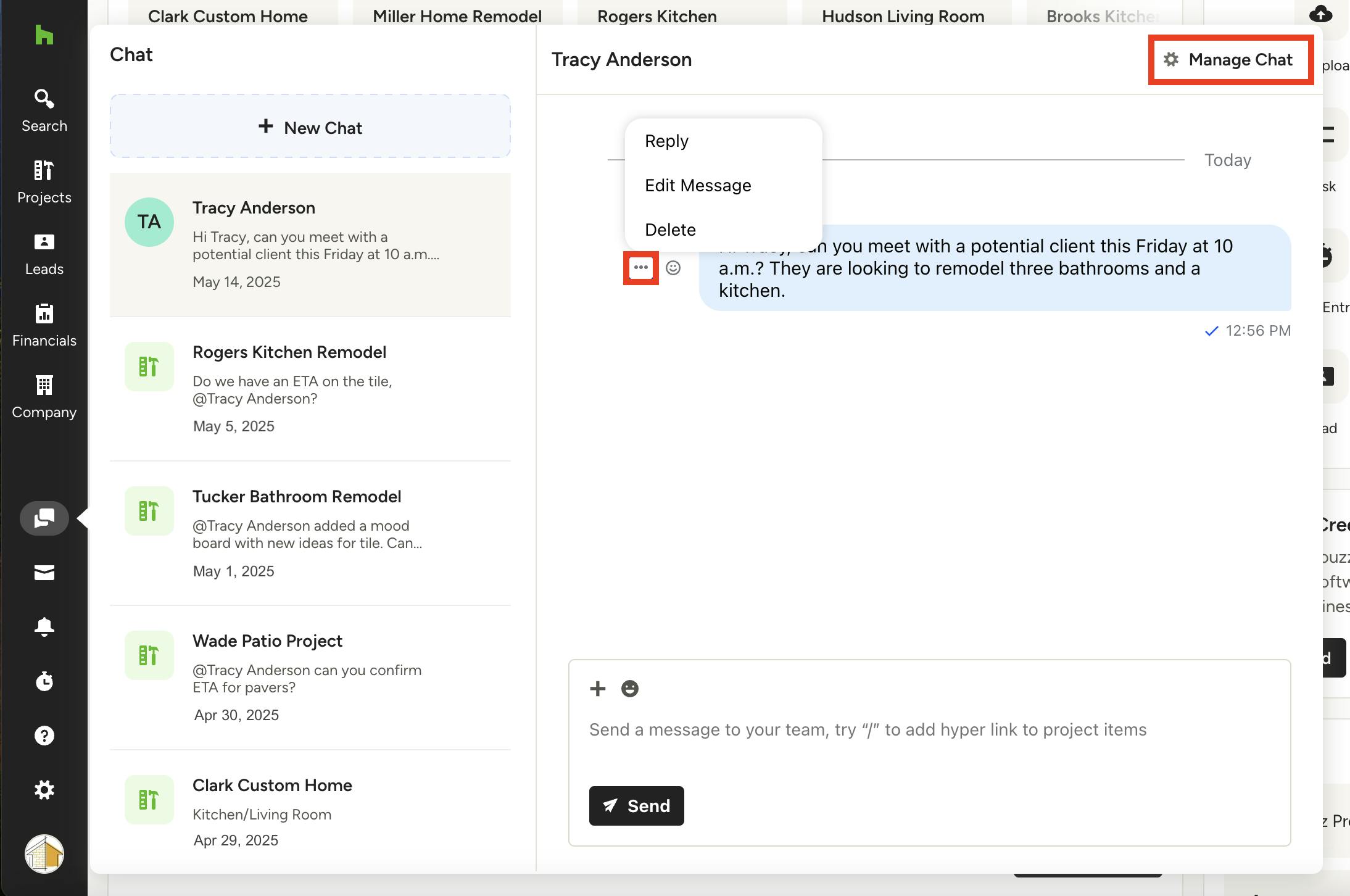
You can also edit, delete or reply to a general chat message in the same way from the Chat icon in your left navigation.
If it is a general chat message that isn't connected to a project, you will also see Manage Chat at the top of your chat screen.
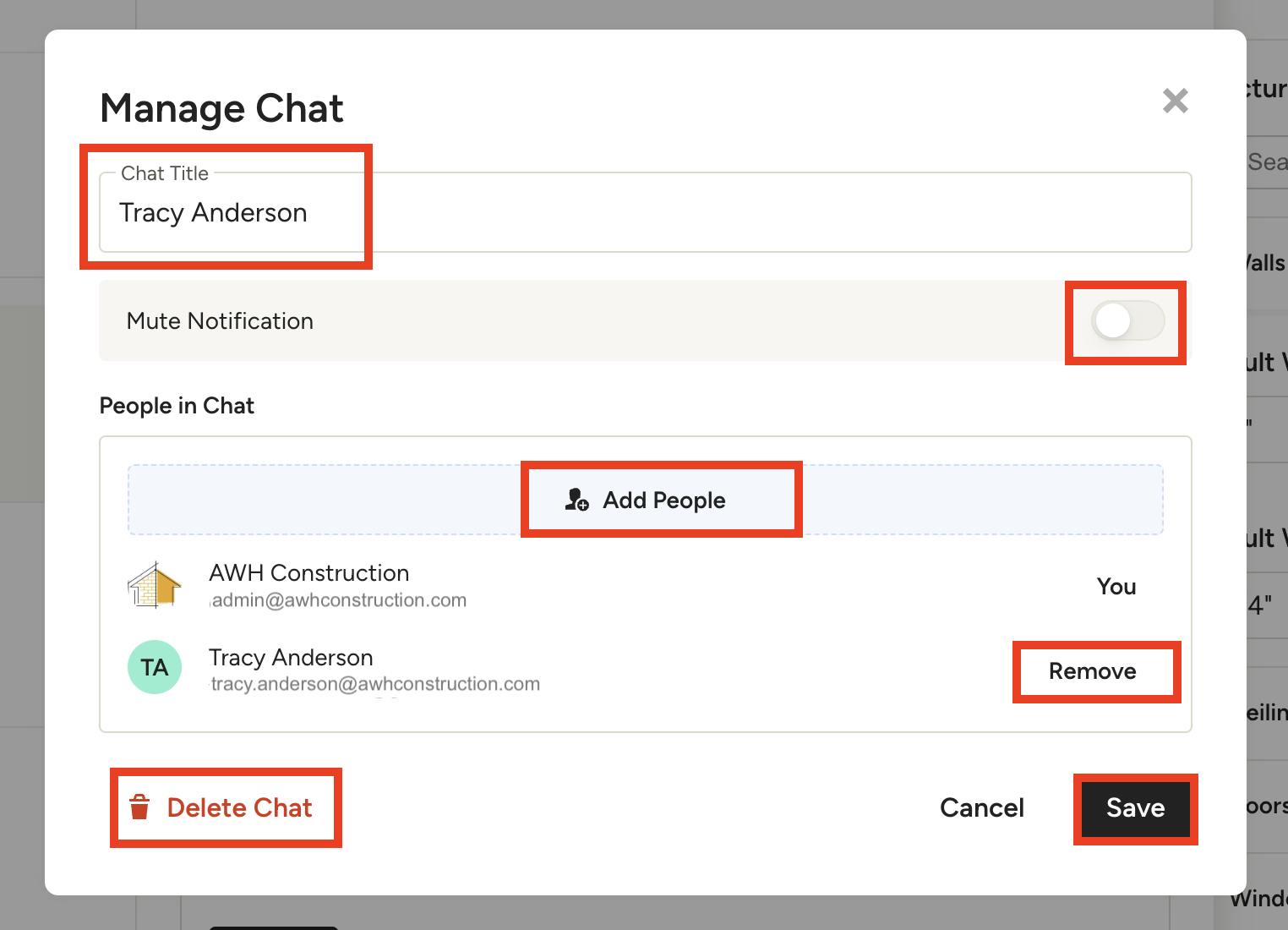
Here, you can make adjustments to the general chat thread — you can rename, remove or add team members, and completely delete the entire chat. You can also toggle on Mute Notifications if you don't want receive notifications for that specific channel.
Once changes are made, be sure to click Save to apply changes.
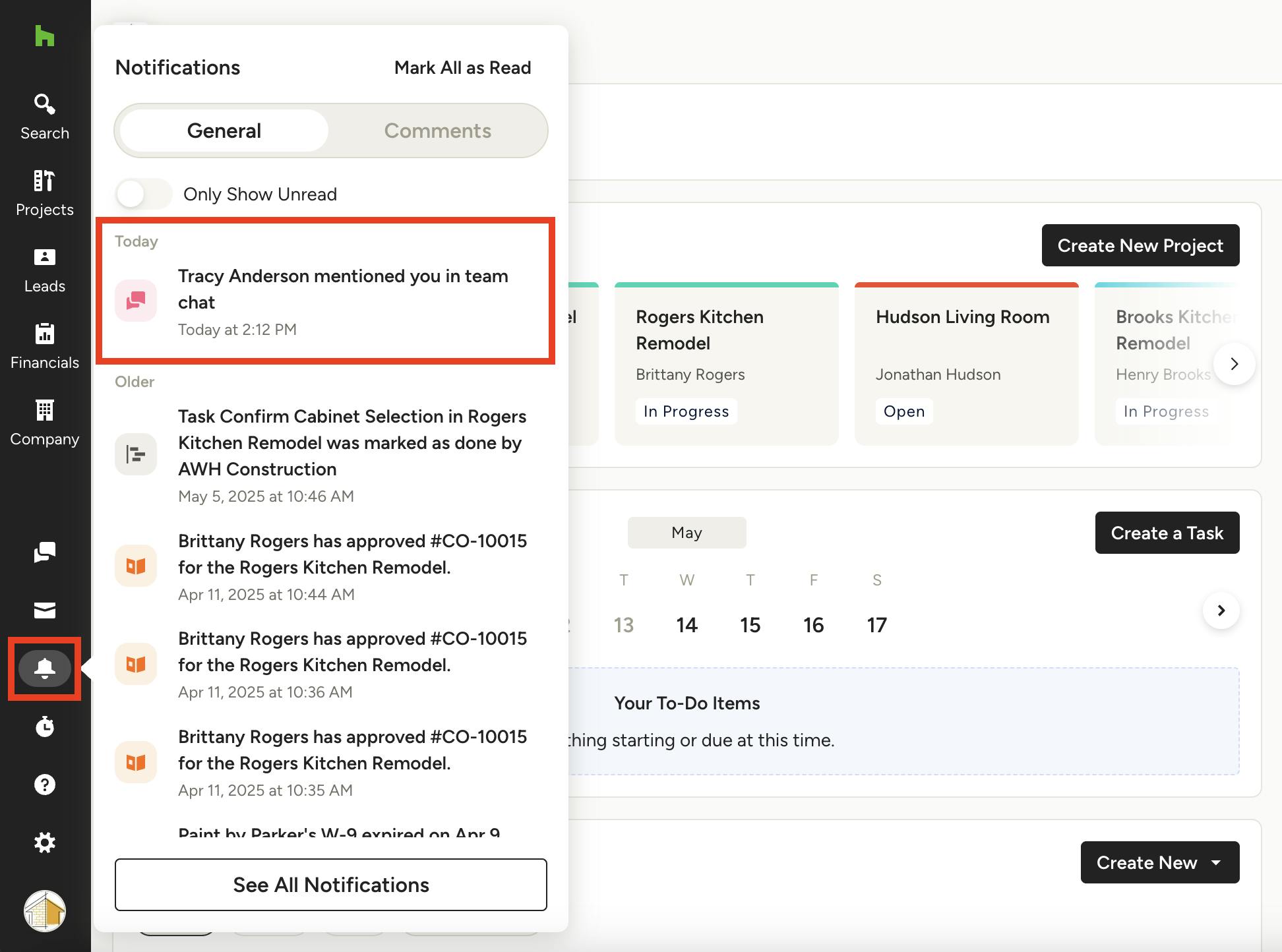
Team Chat Notifications
There are several ways you will receive notifications for team chat messages. On the Houzz Pro mobile app, you will receive a notification for all new messages, including messages where you are specifically mentioned. On Houzz Pro desktop, you will only receive a notification for messages where you are specifically mentioned. You will also receive an email notification.