How to Send Branded Emails
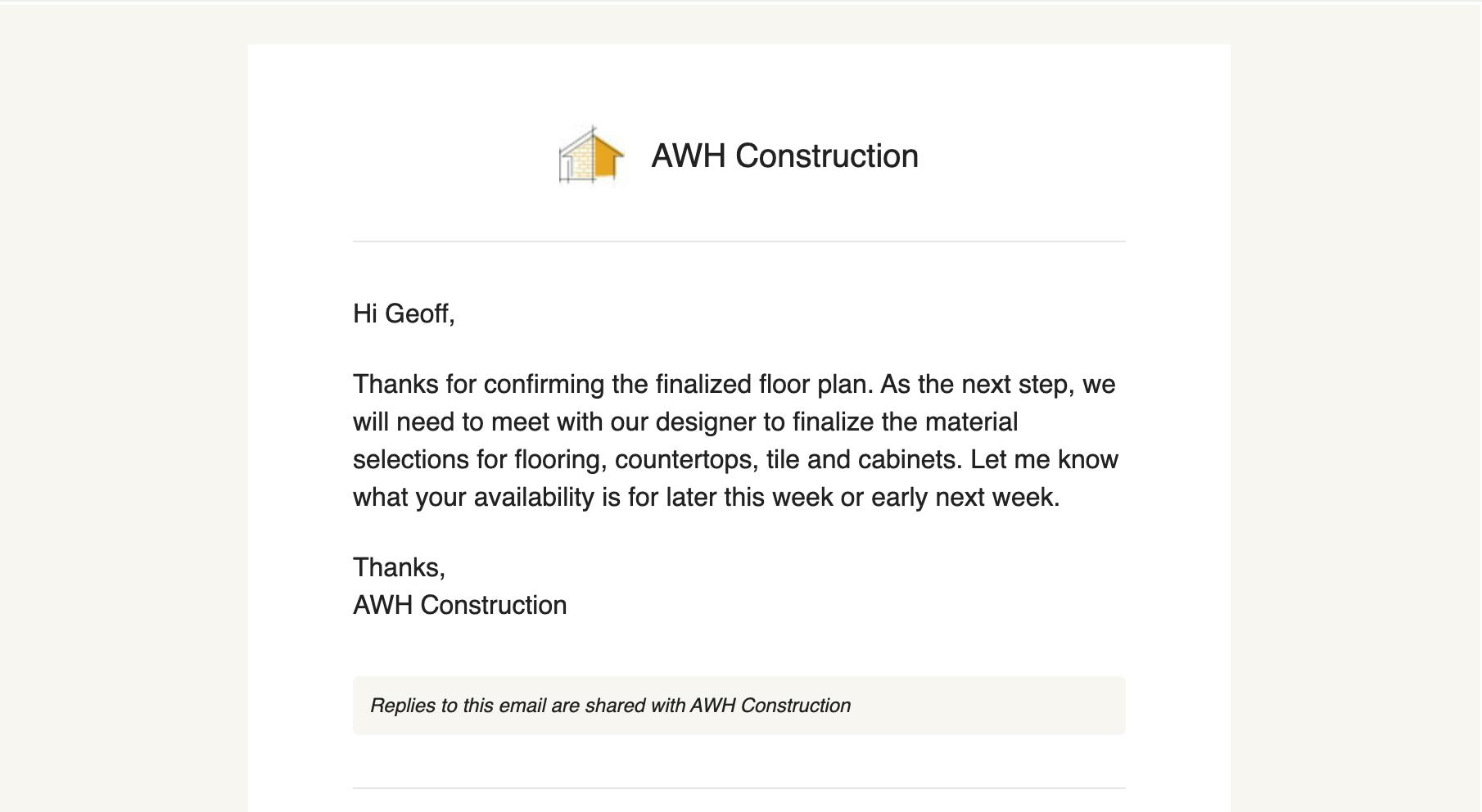
When you email a client or potential client on Houzz Pro, you can ensure every communication from you looks professional and clear by using our email formats. There are three options to choose from — Simple, Standard, or Branded. Each format has a different look and feel, which ensures that you can properly represent your business the way you want.
Set Up Branded Email
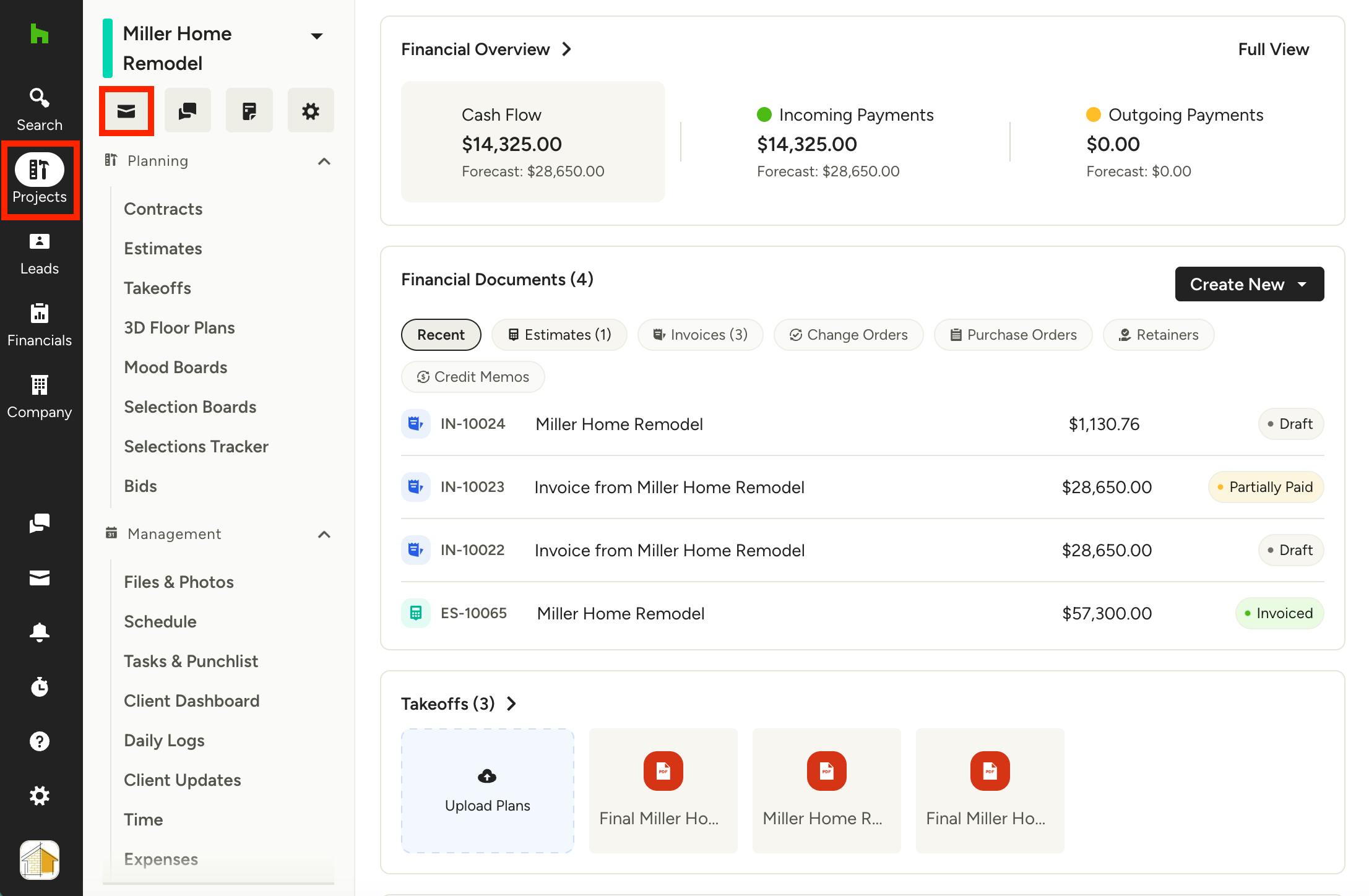
If you would like to email a client, select the Projects icon from the left navigation, then click on the relevant project. From within the project, select the Messages icon.
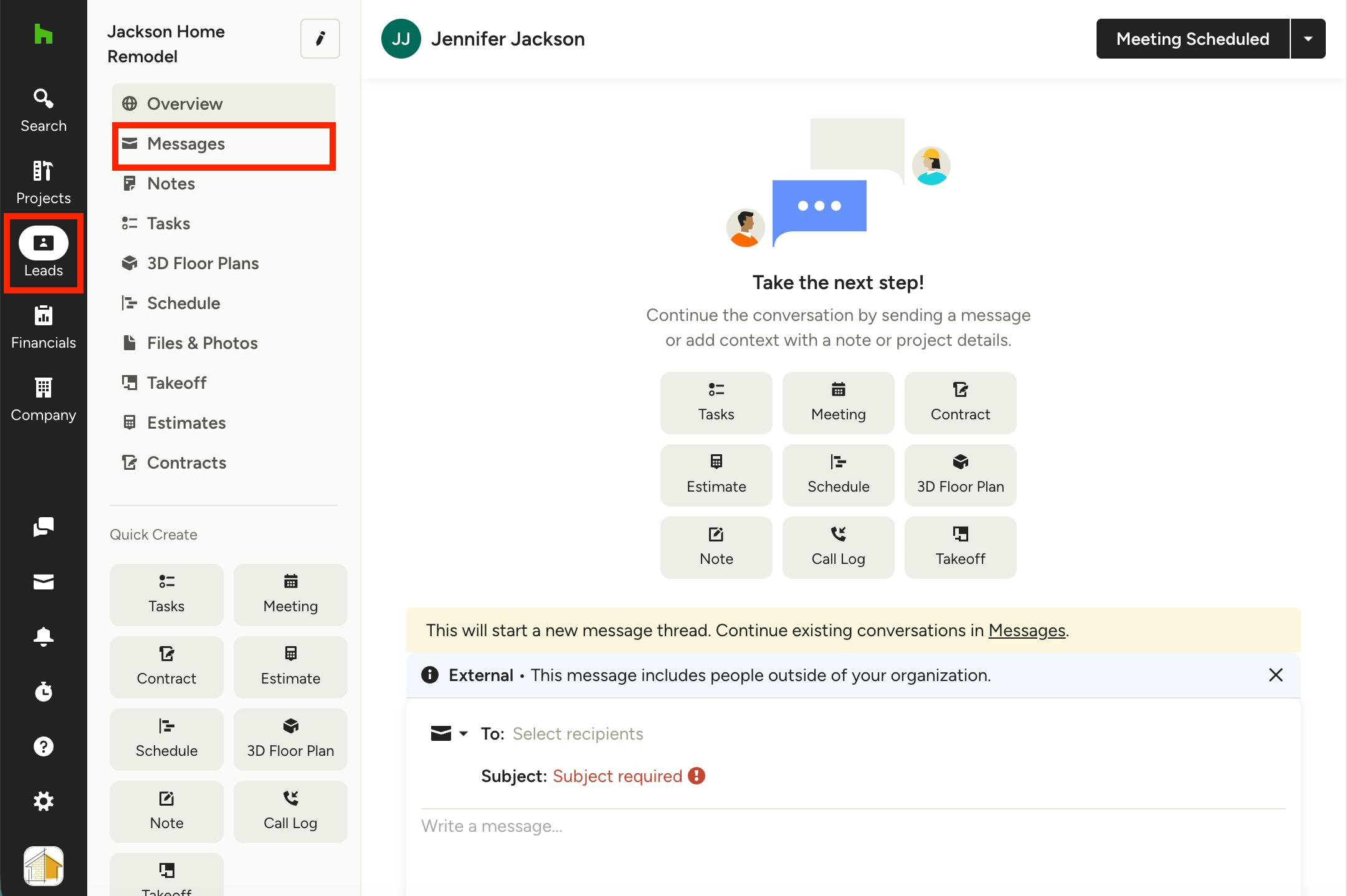
If you would like to email a lead, select the Leads icon from the left navigation, then click on the relevant lead. From within the lead, select Messages.
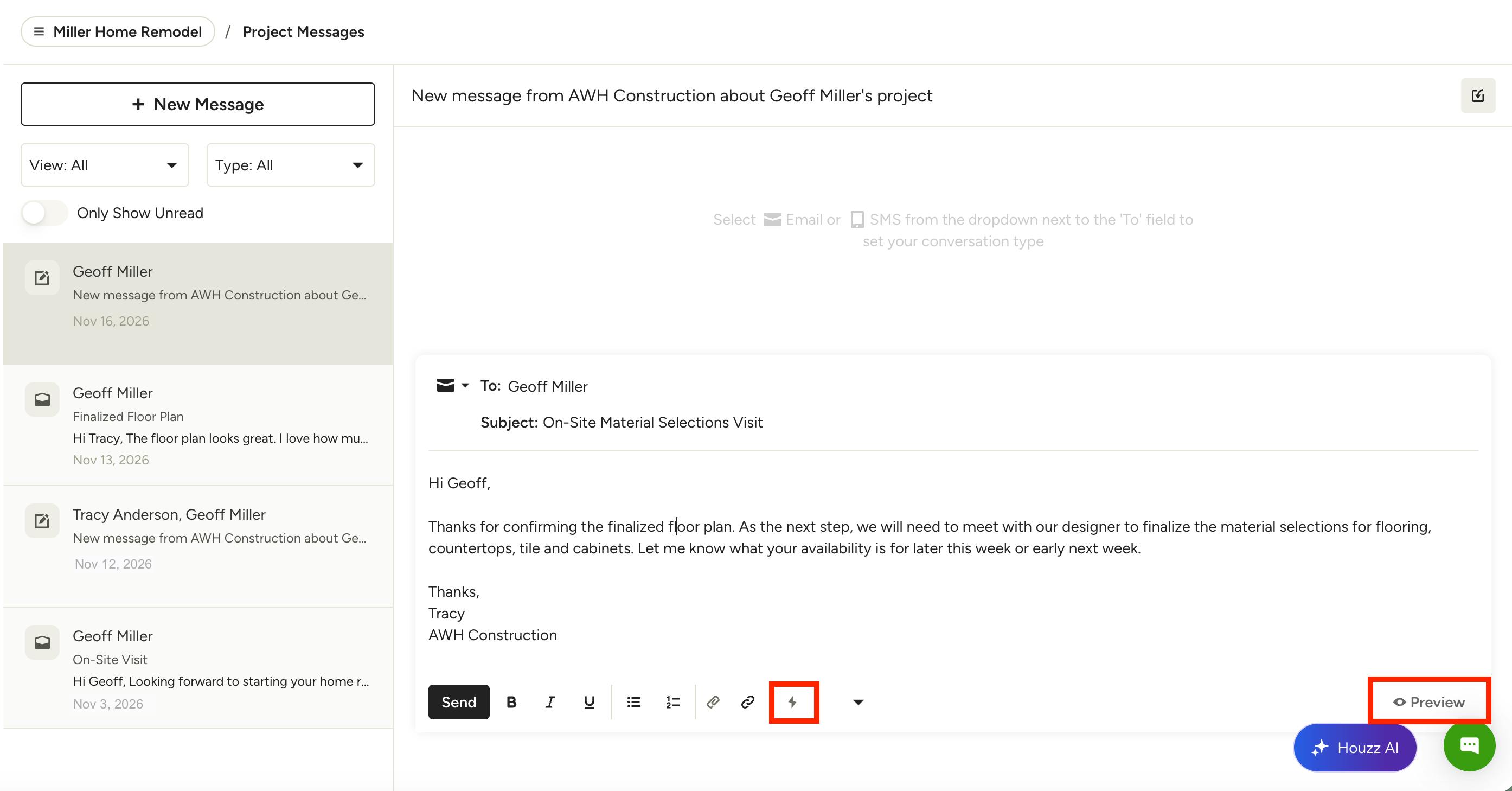
Scroll down to the open text box to write a new email. Type in your email subject line and message, and add in necessary links or attach files.
Pro Tip: To save time on writing your email, you can use a pre-written email template (the Lightning icon) or use AI to write your message (the purple AI icon). Learn more here.
Once your message is ready to send, click the Preview button on the bottom right to select the email format.
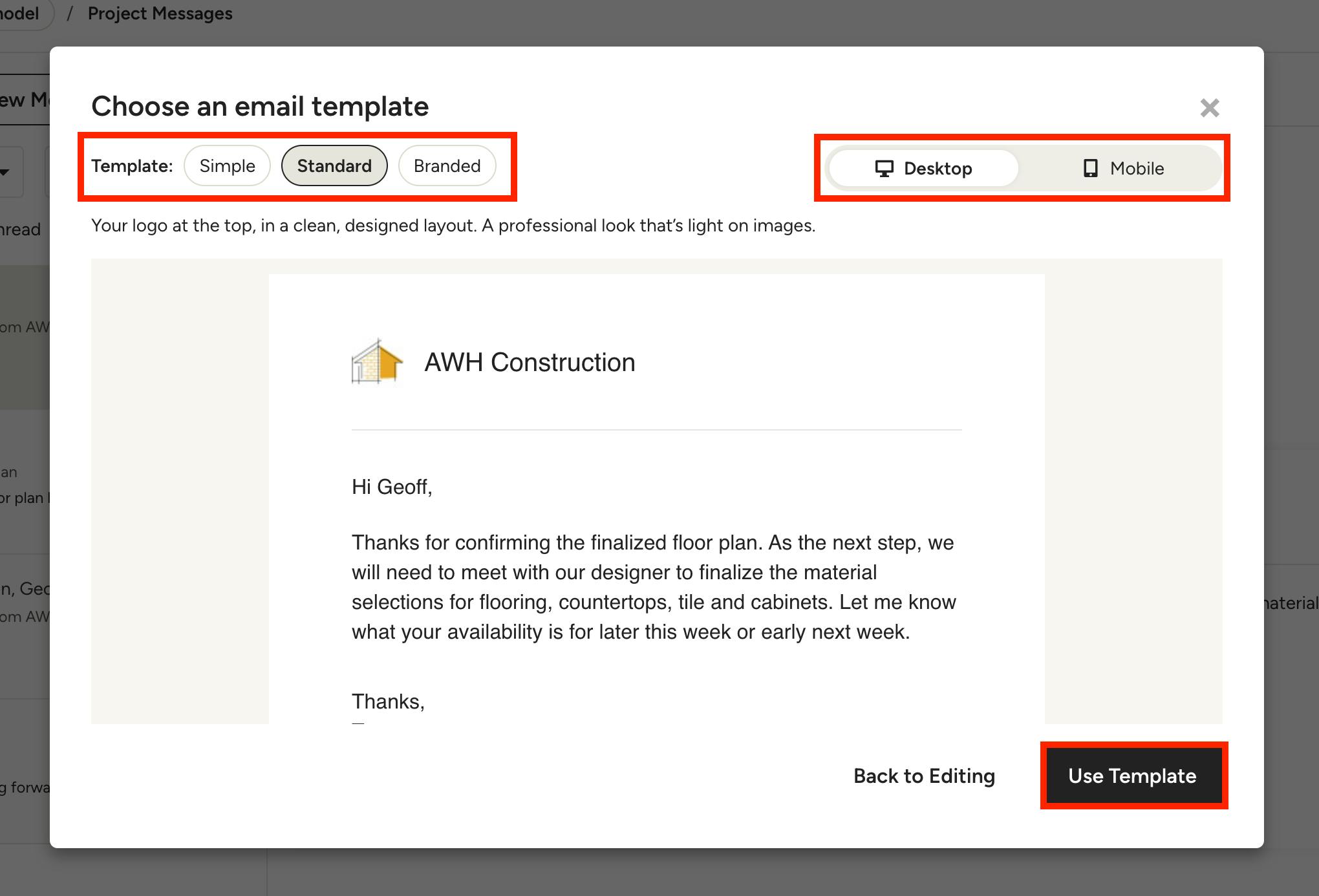
A screen will appear where you can select from the three format options.
- The Simple format is the typical format — it looks like a traditional email.
- The Standard format is a professional, clean layout with your company logo at the top, but it is otherwise light on images (as shown below).
- The Branded format is a more visual, customized version that includes relevant content, including logo, cover photo, and links to your website, profile and reviews. Please Note: More image-heavy email formats are more likely to land in the Promotions tab of an email inbox.
Once the format is selected, you can see the preview down below. Click Mobile or Desktop to view how the format changes depending on the device.
Click Use Template once complete. Please Note: Once you select an email format, it becomes your default template and will automatically apply to all future emails and new threads until you change it.
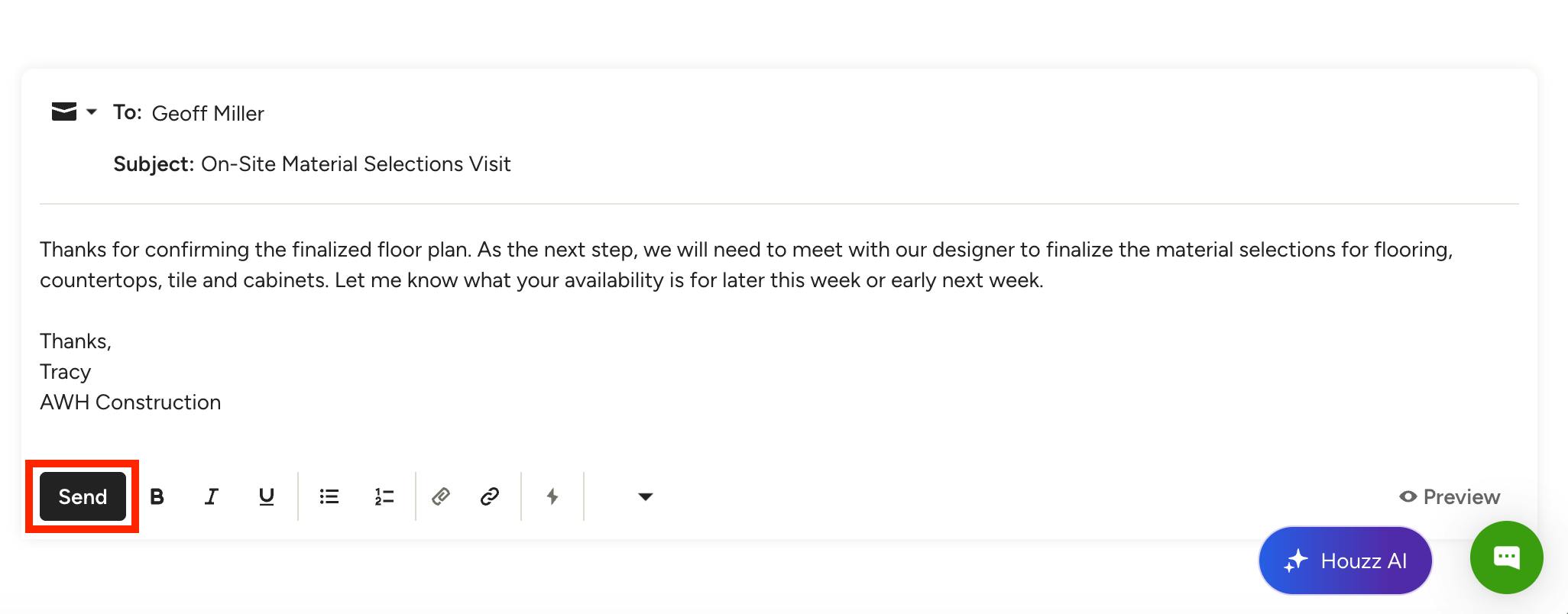
Once you've selected the format, you are ready to send. Be sure to click Send to complete the process.
Your email will now appear in your client or lead’s inbox, where they can reply to it directly from their email account. Their reply will arrive to you in the Messages inbox, as well as in an email notification.