How to Share Mood Boards

Once you're ready to share a mood board with your client, you have multiple options to do so. You can print a physical copy, download a PDF or JPEG file, present directly in Houzz Pro, publish to the client dashboard, or send a link. Let's take a look at each option.
Print a Mood Board
You can print your mood board directly from Houzz Pro by clicking the print icon at the top right of the page. The print dialog on your computer will open, where you can adjust the print settings to your desired format.

Download a Mood Board as PDF or JPEG
You can download your mood board as a PDF or a JPEG by clicking the download icon in the top right of the page, then selecting the option you want from the menu. Once you've selected PDF or JPEG, the file will instantly download to your device.

Present a Mood Board Directly in Houzz Pro
Presentation mode allows you to present a clean, full-screen view of a mood board to clients, directly within Houzz Pro. This is perfect for presenting mood boards during on-site visits, or in-office for more formal pitches. To enter presentation mode, click Present at the top right of the page.
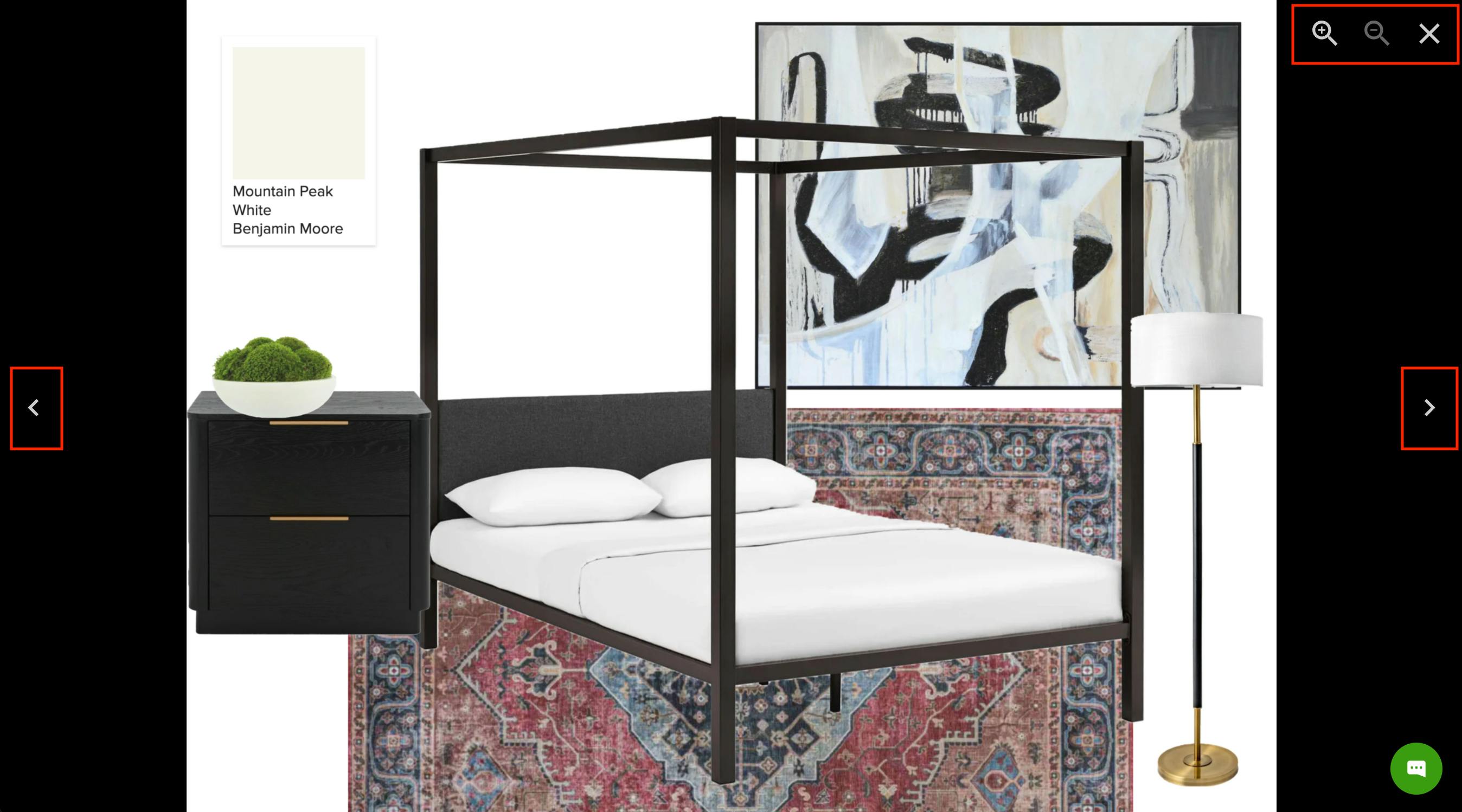
Your mood board will enter full screen mode, and you can use your keyboard arrows to move through multiple pages, or click the arrows on the edge of each page. Use the magnifying glass icons to zoom in or out. Click the X at the top right to exit presentation mode, or press ESC on your keyboard.

Publish a Mood Board to the Client Dashboard
To make your mood board visible on the client's dashboard, click the Share button in the top right.
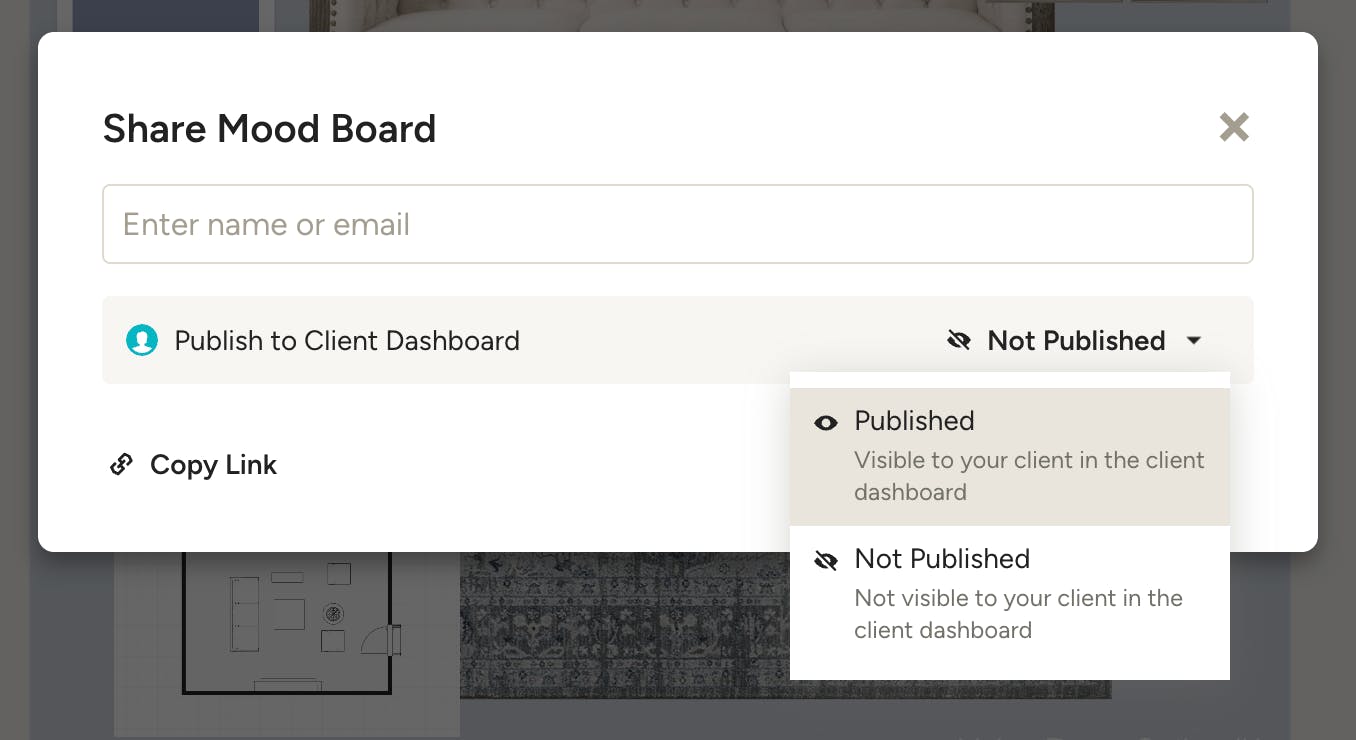
In the share modal, select Published in the client dashboard options. You can unpublish the mood board from the client dashboard here too.
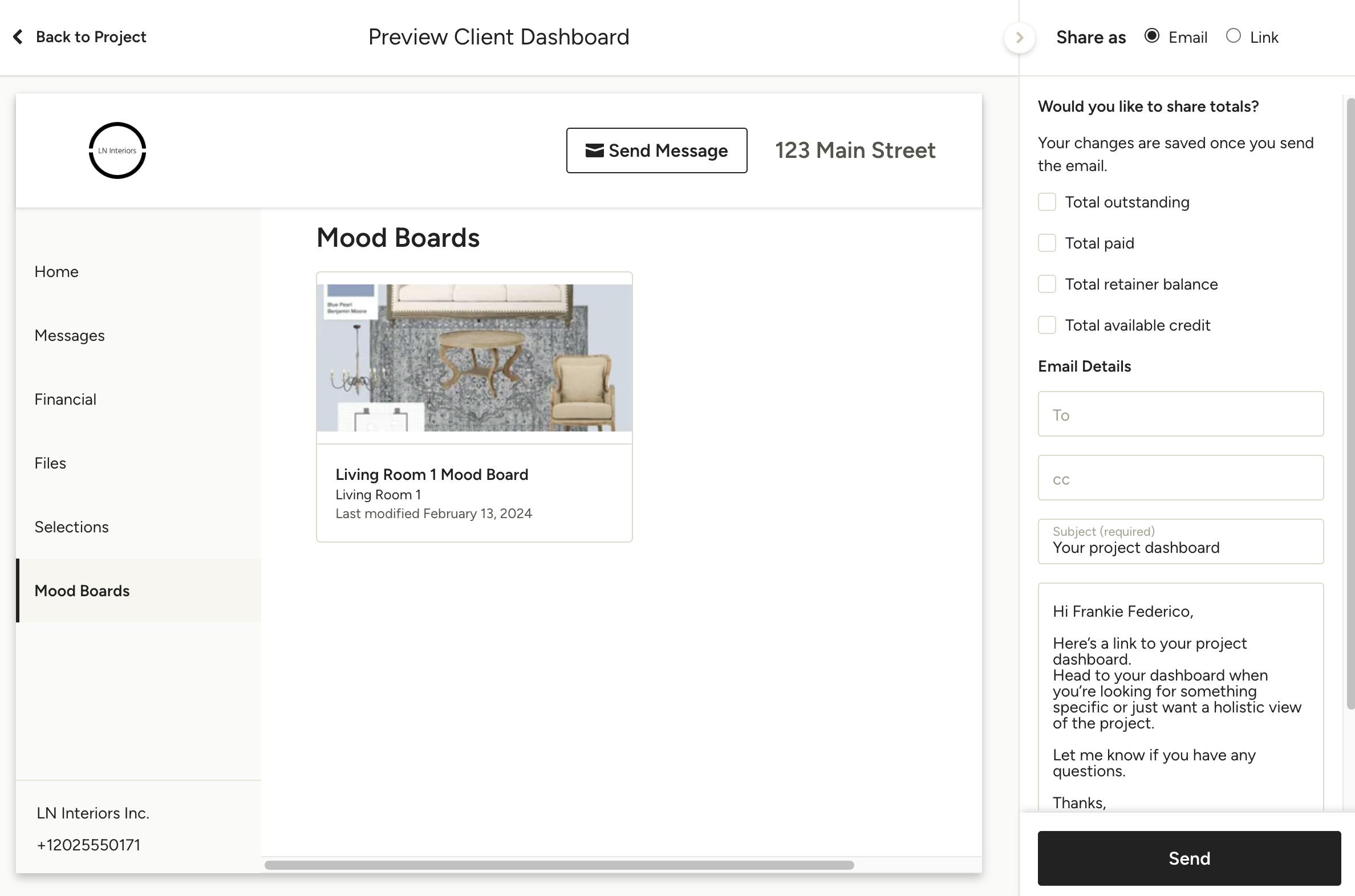
Once published to the client dashboard, your client will have access to a view-only version of the mood board.
Share Link from Houzz Pro
To share a view-only link to your mood board, you can either send an email directly from Houzz Pro, or copy a link to send separately.
Note that mood boards shared through Houzz Pro email or copied link will not automatically publish to the the client's dashboard.
Send Mood Board from Houzz Pro
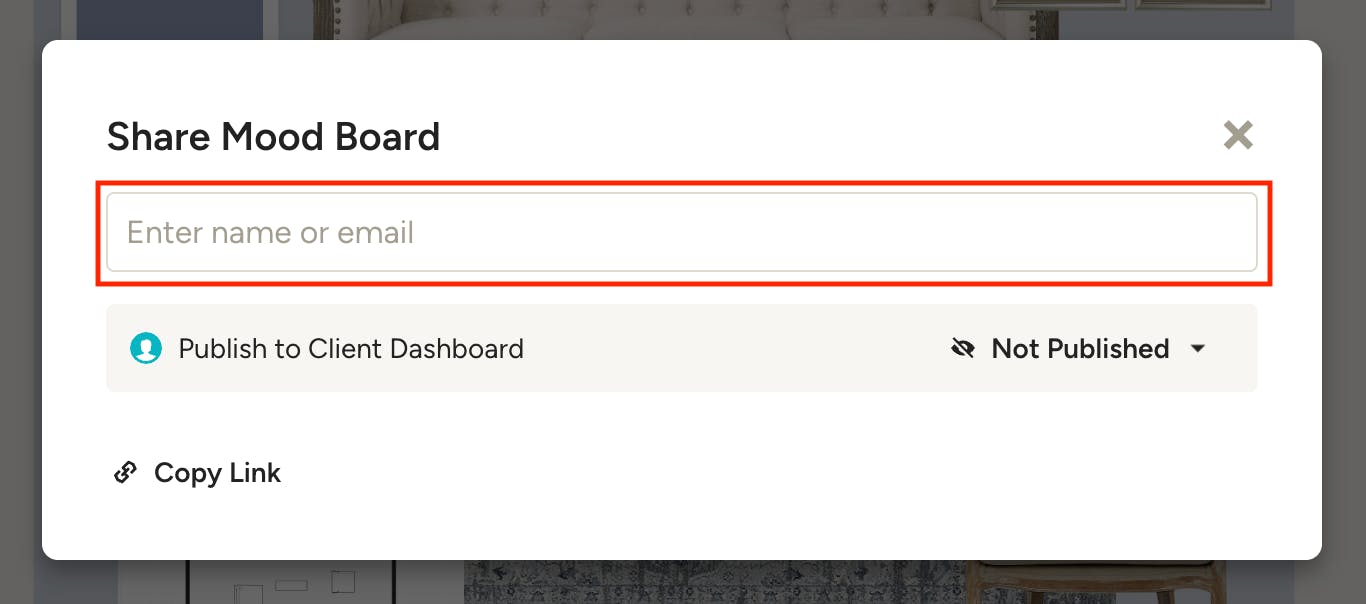
To send an email from Houzz Pro that contains a link to the mood board, click Share in the top right of the page. Click into the "Enter Name or Email" field to select the client or a team member.
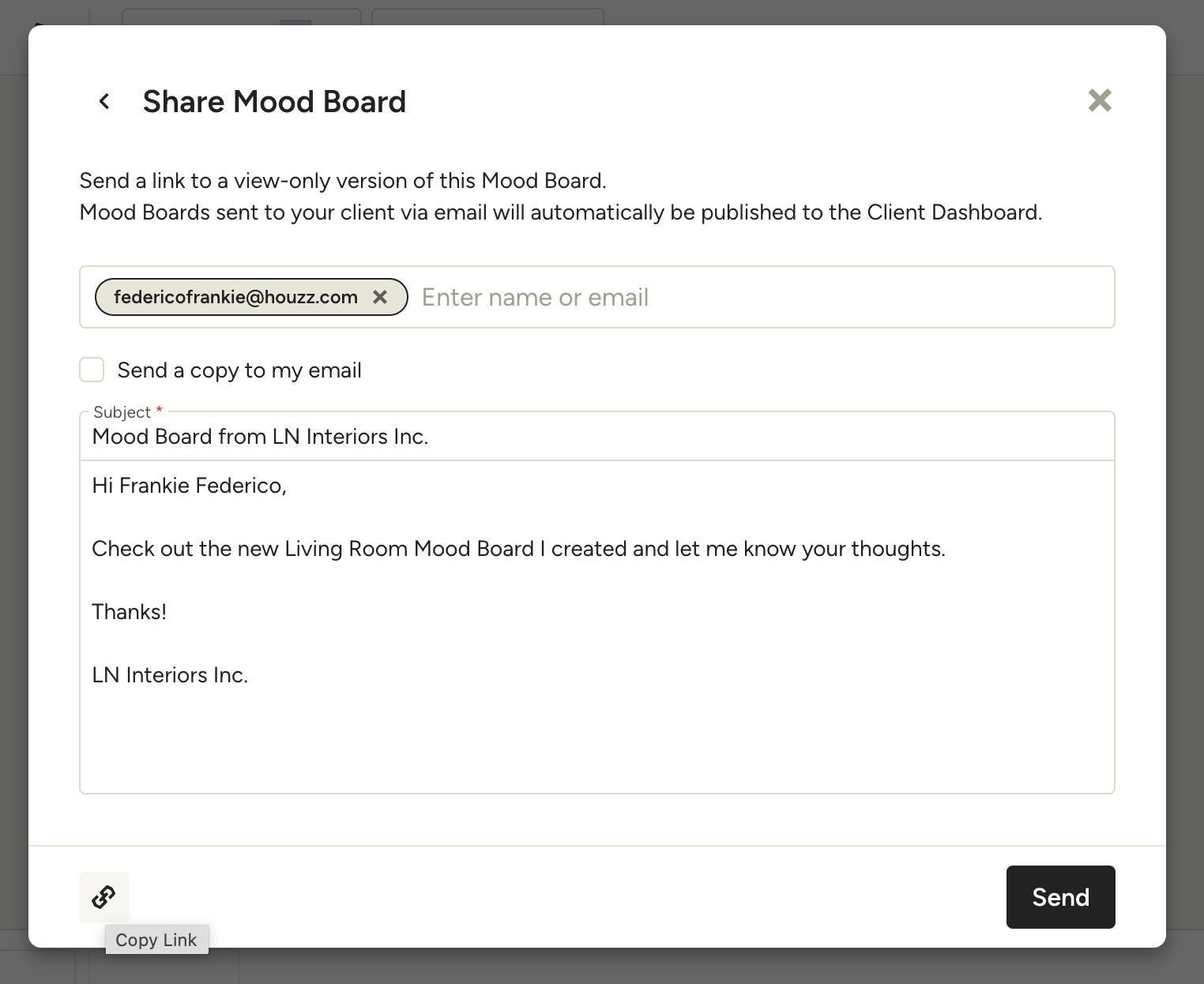
On the next screen, you can add email addresses and customize the message you want to send. Press Send and your recipient will receive your message along with a link to view the mood board (they will not be able to make any edits).
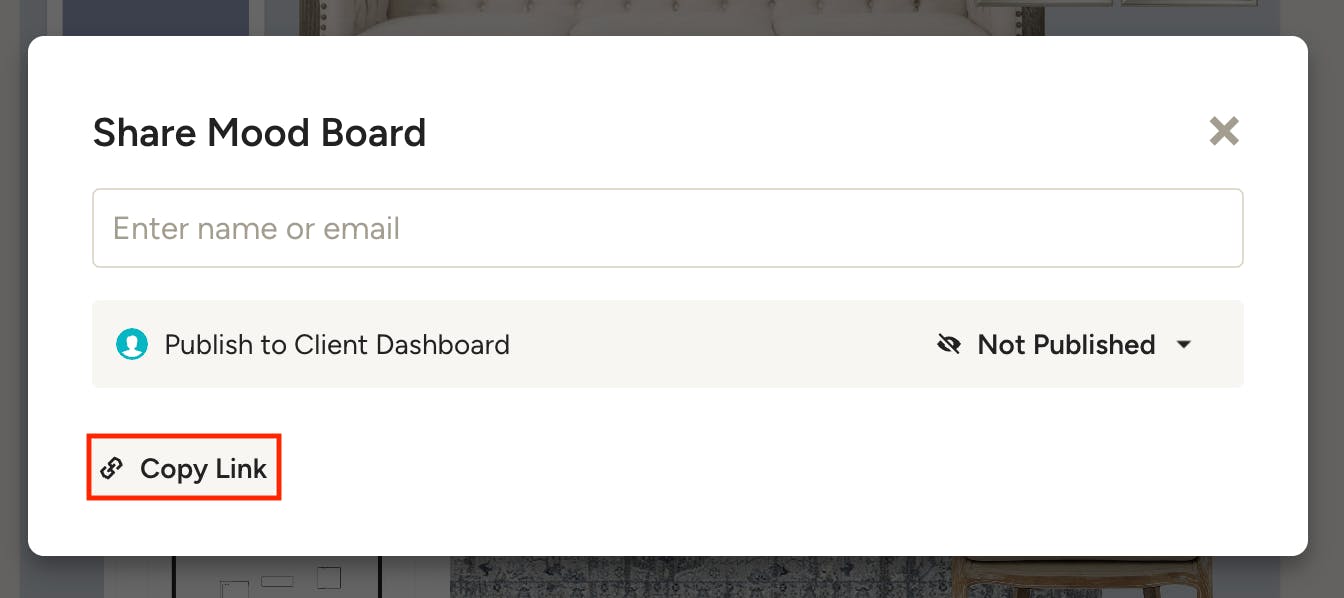
Copy Link to Share
To copy a link to send to your client outside of Houzz Pro, like email or text, click Share in the top right of the mood board. You can then click Copy Link in the share modal to copy the link to a view-only version of the mood board.
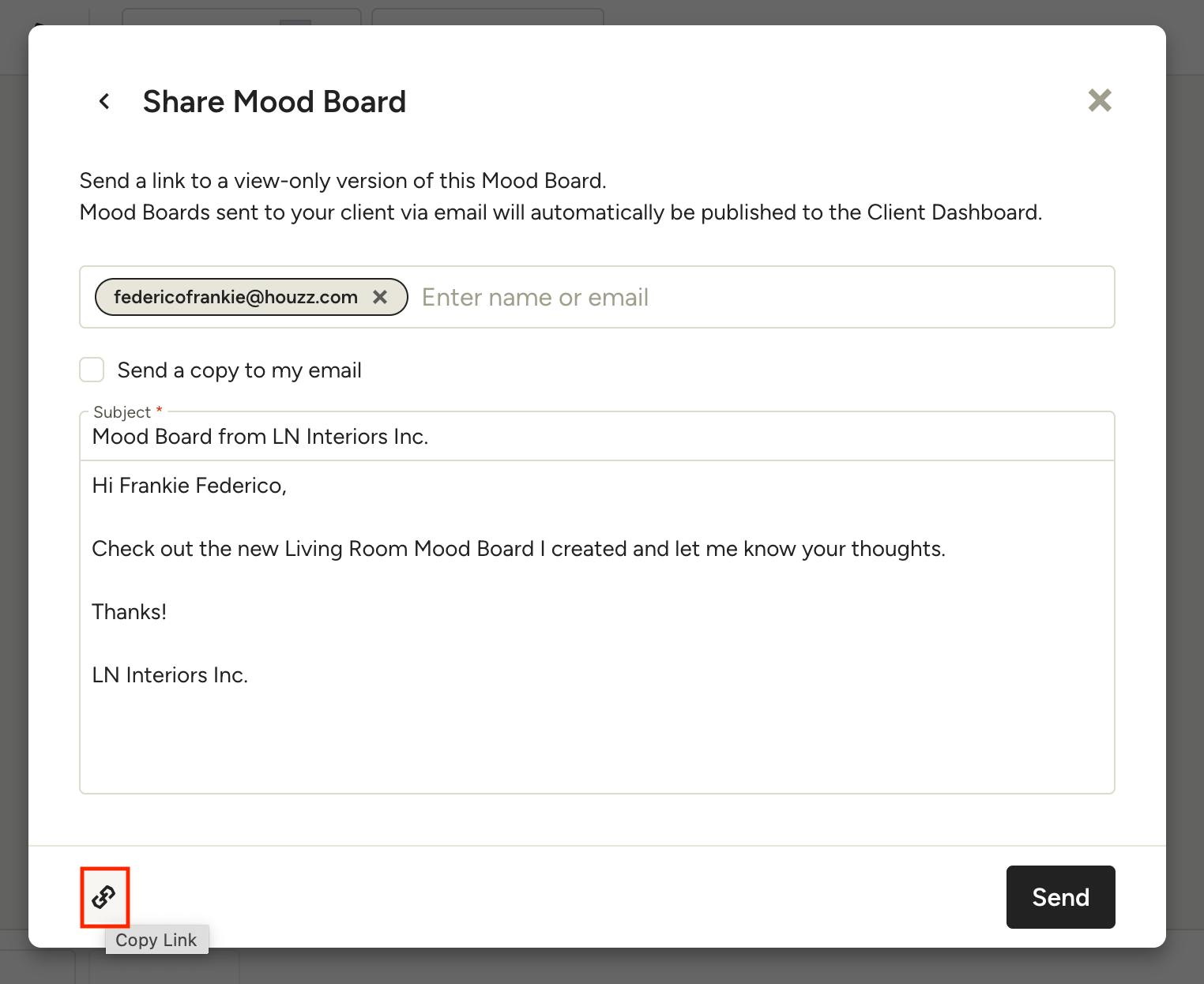
You can also copy a link in the Houzz Pro email screen mentioned above.
Share Multiple Mood Boards at Once
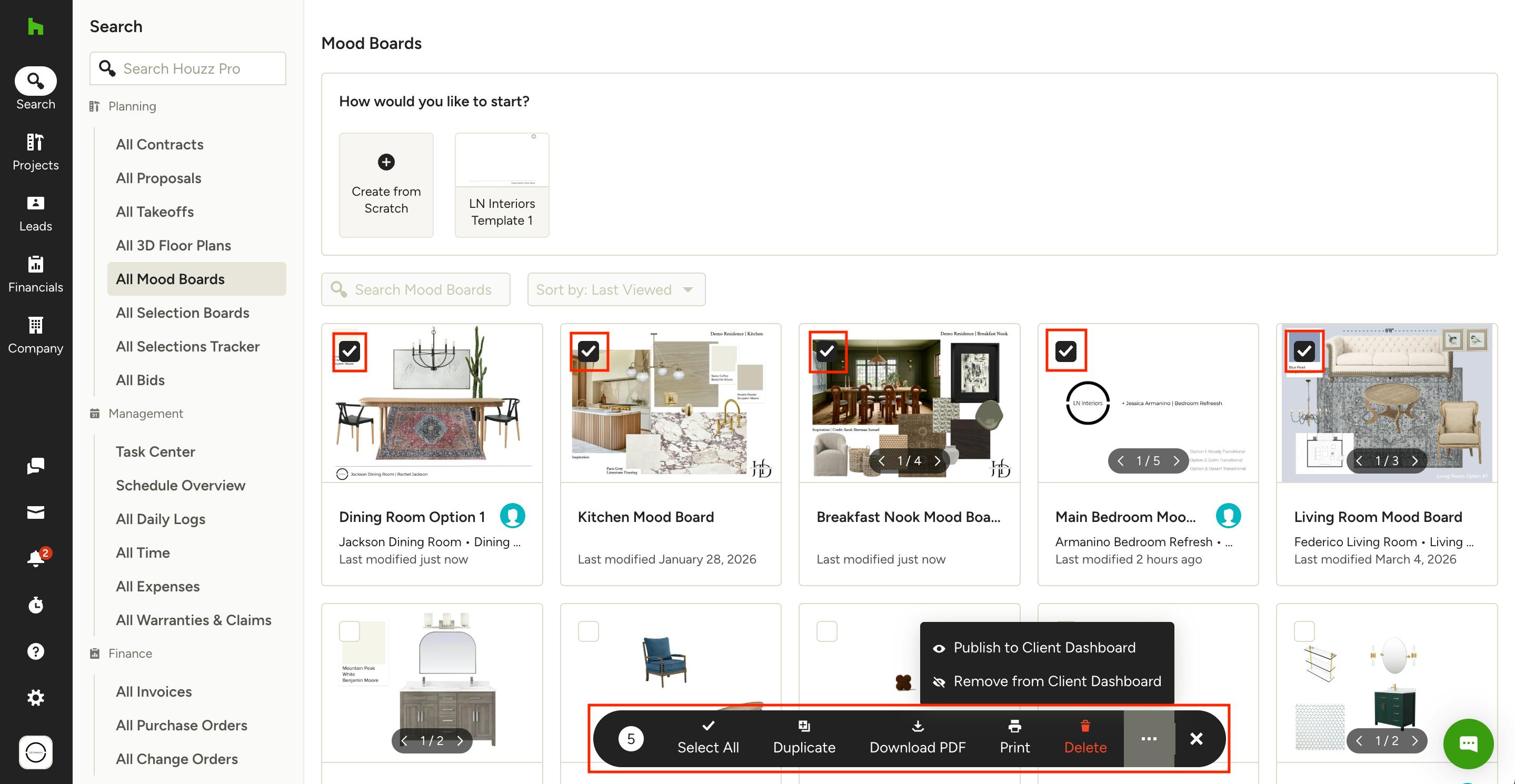
You can bulk share multiple mood boards at once from the All Mood Boards page or the mood board overview page within any project. Simply select the checkboxes on the top left of each mood board you wish to include in the action, then select from the following bulk actions at the bottom of the page:
- Publish to Dashboard
- Remove from Dashboard
- Duplicate
- Download PDF
- Delete
Note: If you don't see all of these actions, click the three dots to the right of the menu or expand your screen to reveal them.