How to Duplicate a Mood Board
Mood boards can be duplicated to any existing project, or a new project, in a few quick steps. You can choose to duplicate one at a time, directly from within a mood board, or duplicate multiple mood boards at once. Here's how:
Duplicate Individual Mood Board
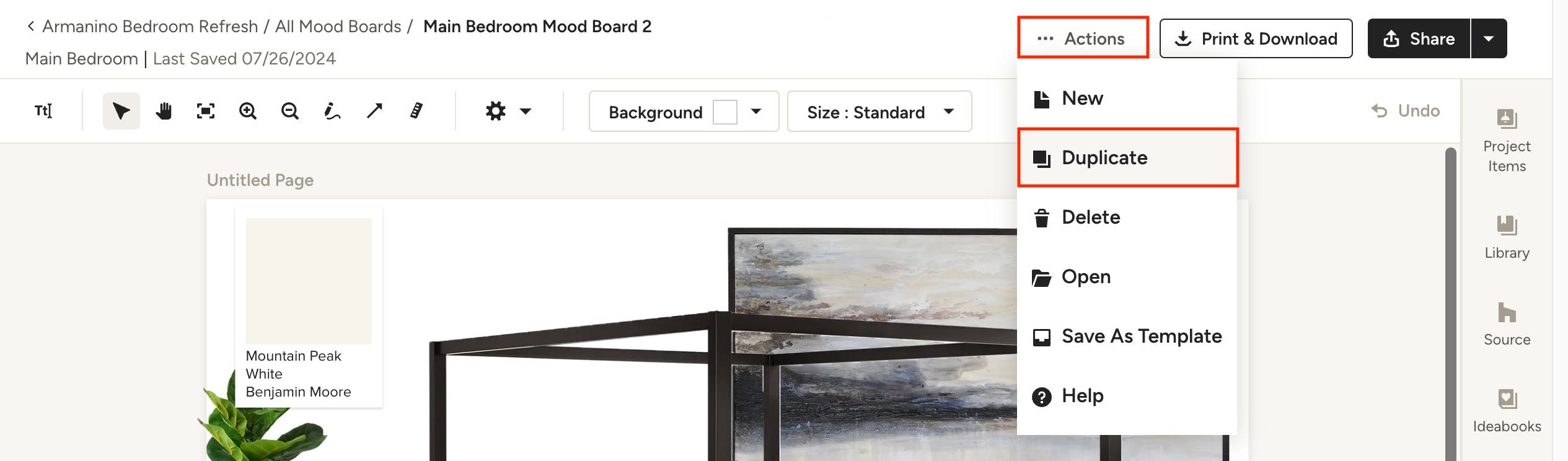
1. Open the mood board you want to duplicate and select Duplicate from the Actions menu at the top right of the page.
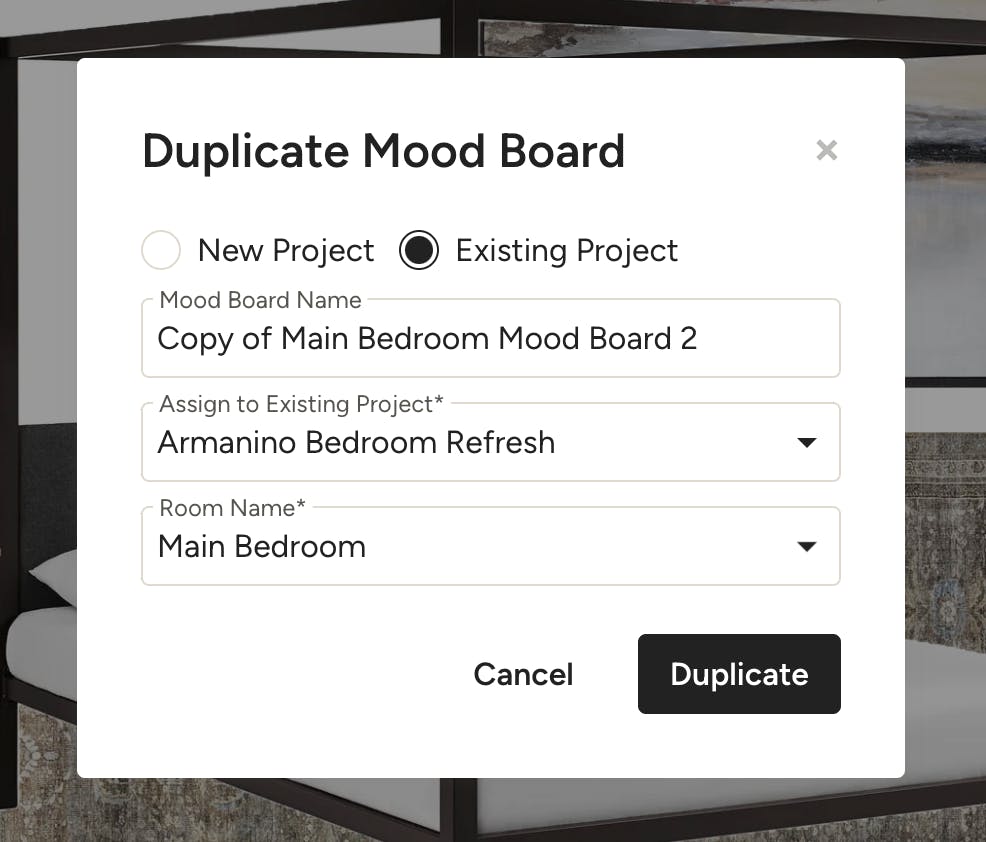
2. In the modal that opens, choose whether you want to duplicate to a new project or existing project, and select an existing room or create a new room. You can rename the mood board if desired. Once done, click Duplicate.
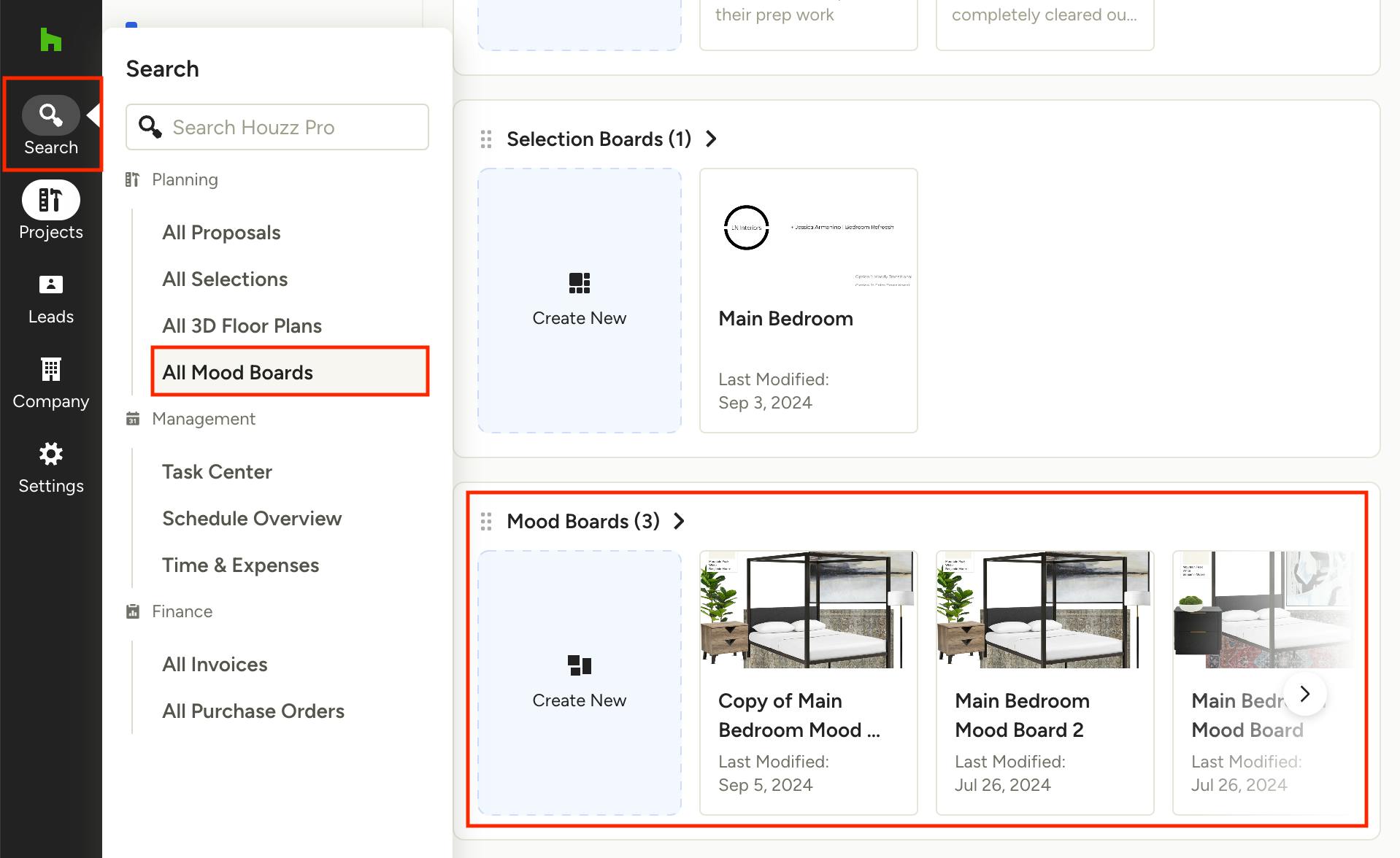
3. You will be taken directly to the duplicate mood board you just created. Your duplicate can also be found in the project overview page of the project you duplicated it to, under the Mood Boards section, or in All Mood Boards, which is accessible under the search icon in the left navigation.
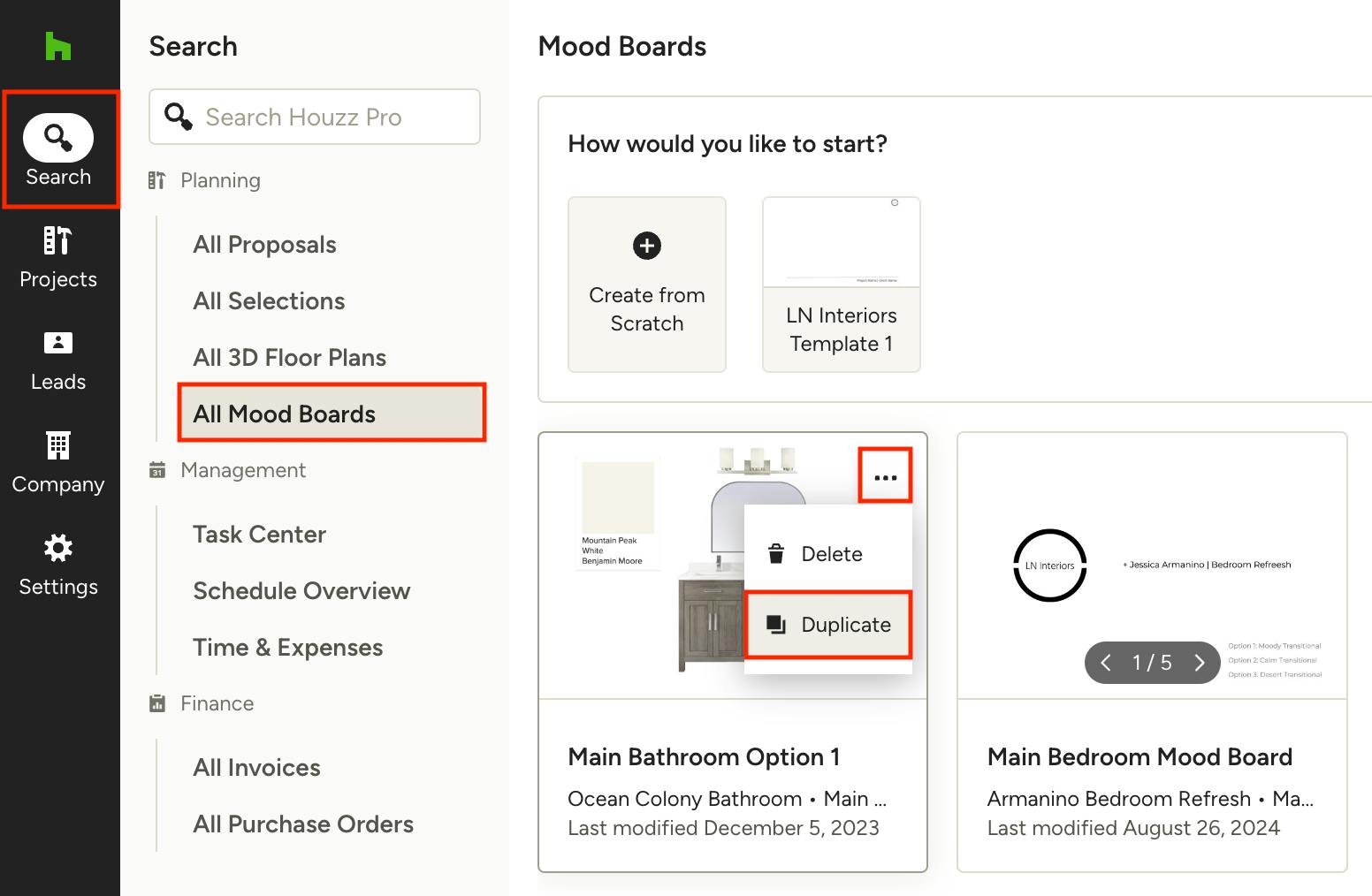
Alternatively, you can also duplicate a mood board directly from the All Mood Boards page by clicking the three dots on a board and selecting Duplicate from the options.
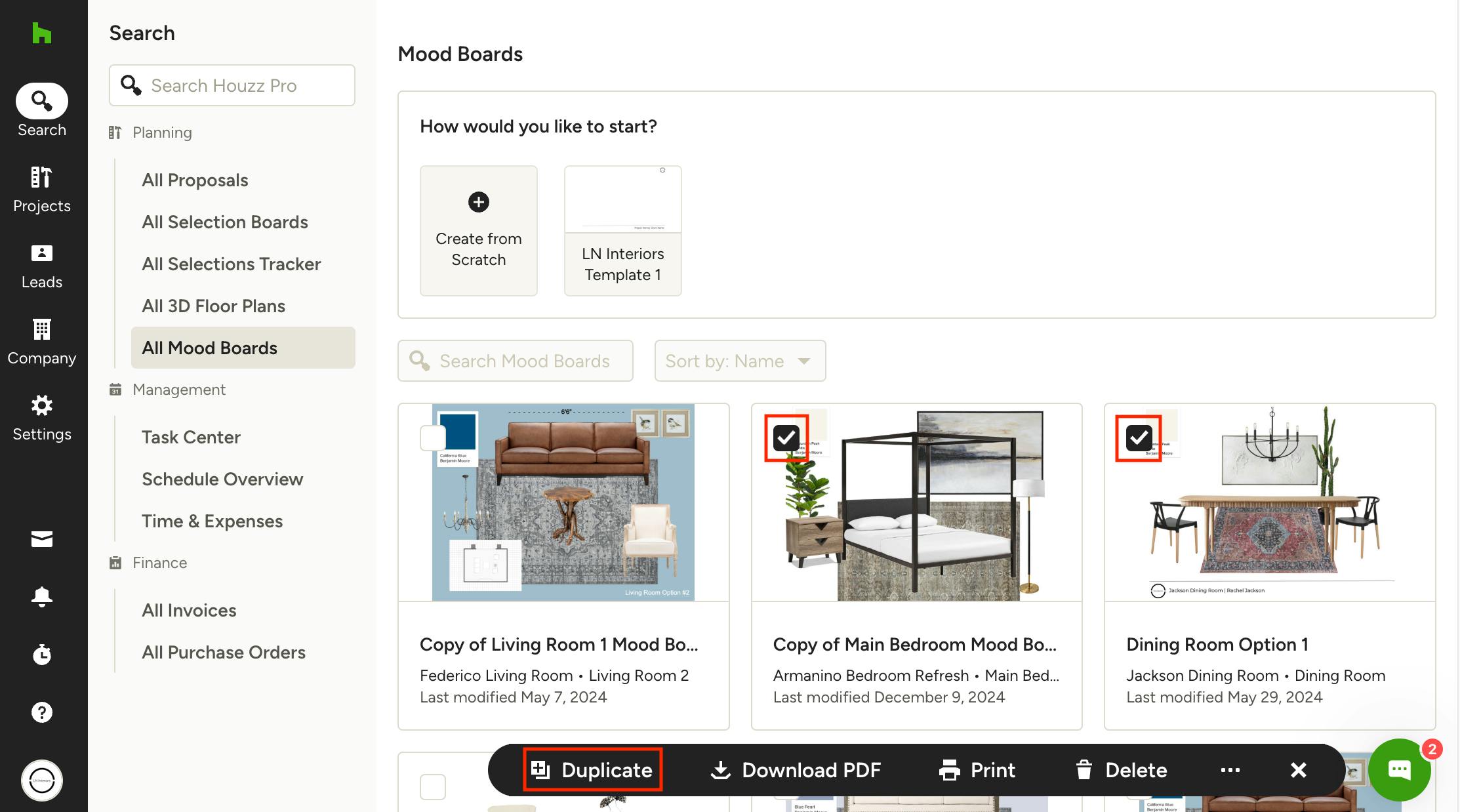
Duplicate Multiple Mood Boards
You can duplicate multiple mood boards at once from the All Mood Boards page or the mood boards overview page within any project.
1. Select the checkboxes on the top left of the mood boards you want to duplicate, then click Duplicate from the menu that appears at the bottom of the page.
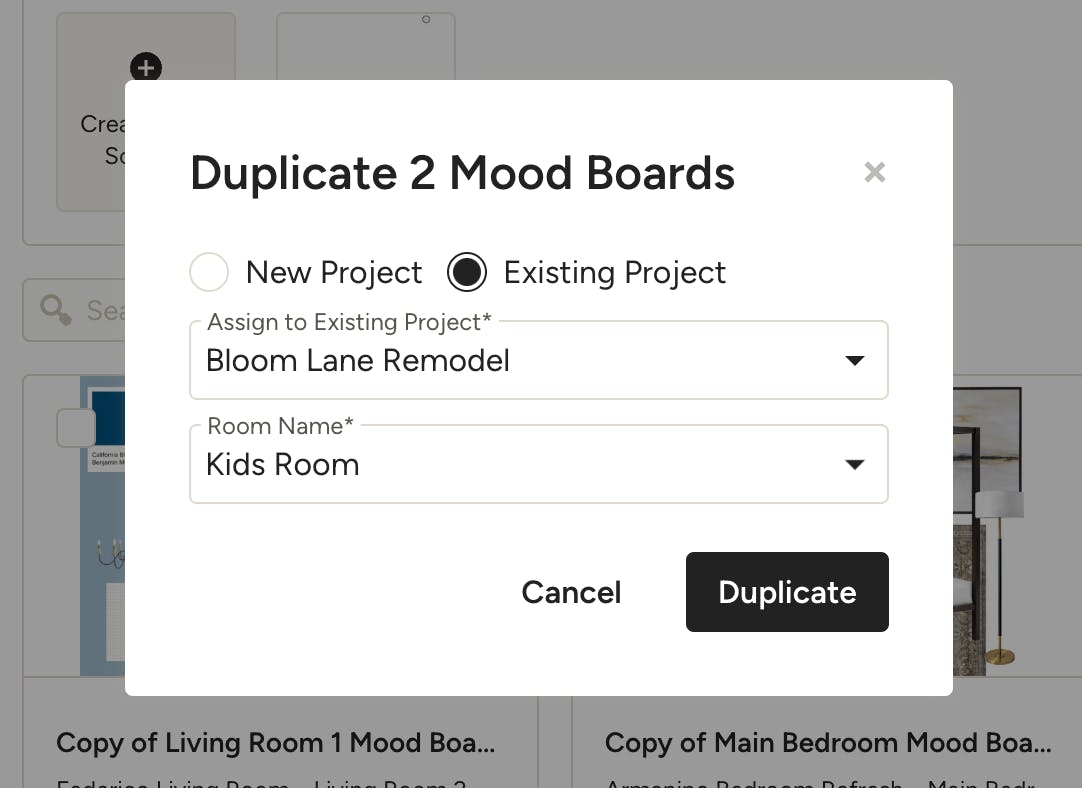
2. In the modal that opens, choose whether you want to duplicate the boards to a new project or existing project, and select or create a new room name. All selected mood boards will be duplicated to the project and room indicated in this step. Click Duplicate.
3. Your duplicates can be found in the mood board overview page of the project you duplicated them to, or in All Mood Boards, which is accessible under the search icon in the left navigation.