How to Use Multi-Page Mood Boards in Houzz Pro
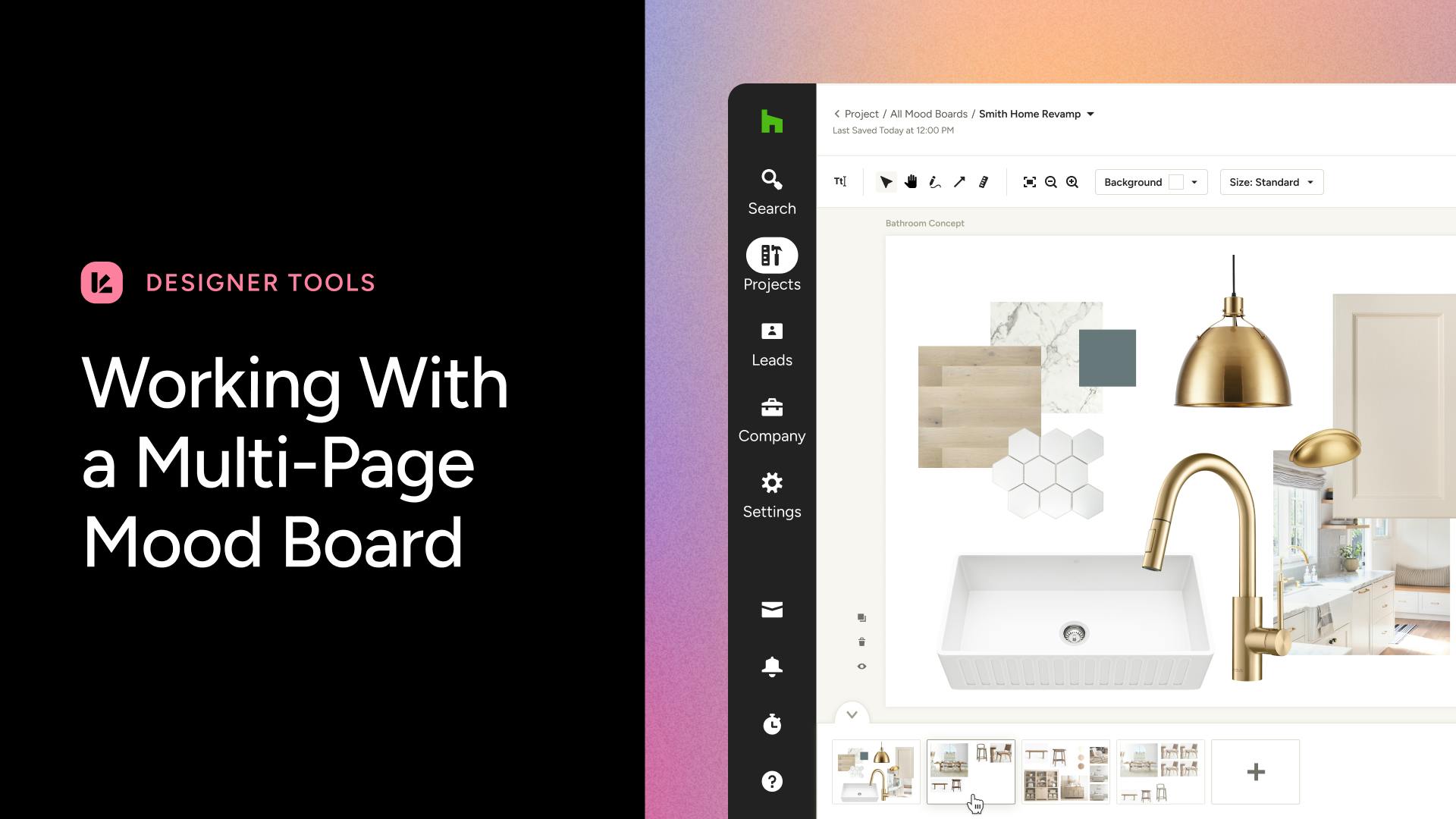
With multi-page mood boards in Houzz Pro, you can create professional presentations to share with your client and tailor them to the exact needs of each project. Use the multi-page feature to offer multiple design options, highlight specific project details or even just to create internal drafts for team collaboration — the options are endless.
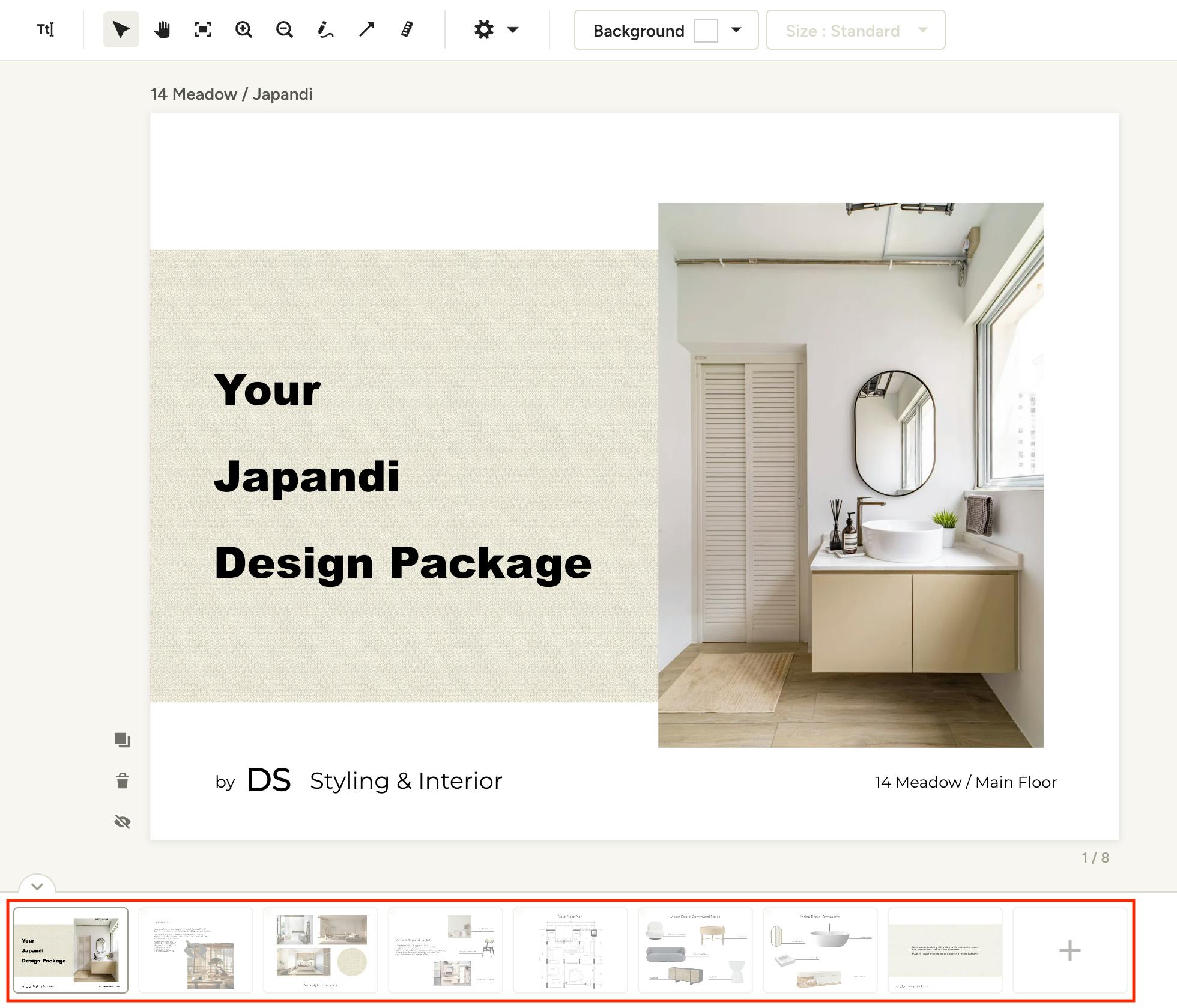
The page management section can be found at the bottom of each mood board. Use the arrow in the top left of this section to expand or collapse the page manager. Let's take a look at all the capabilities available with the multi-page mood boards feature.
Add Multiple Mood Board Pages
Within a mood board it's easy to add new pages to the end of the page sequence or in a specific location within the page order. Pages can also be reordered for full control over their viewing order.
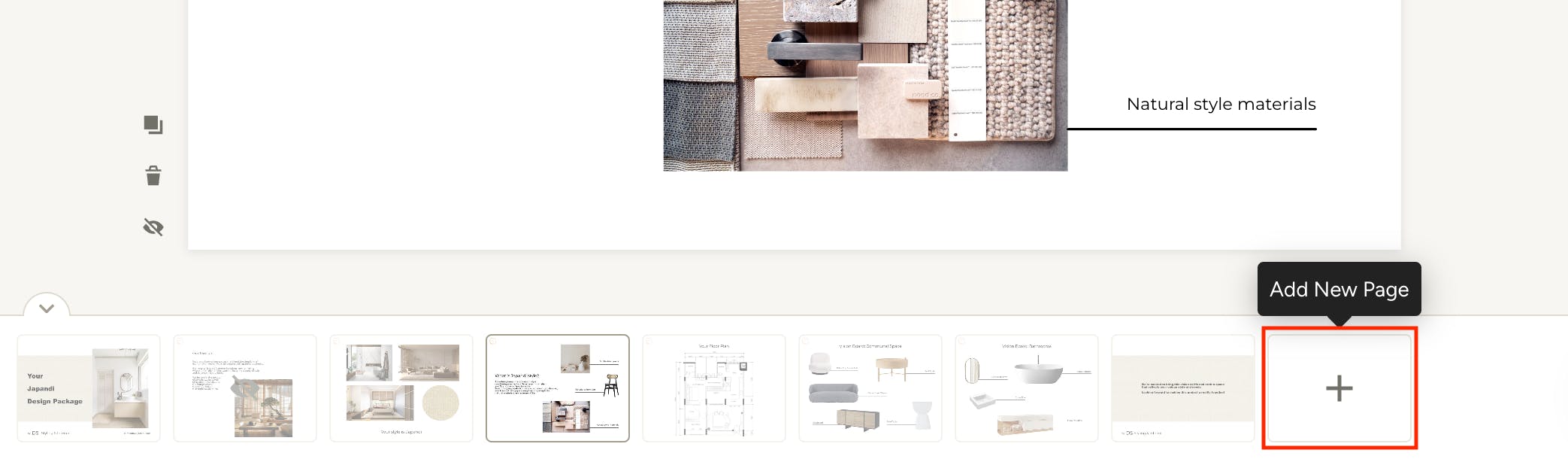
Add New Page at End
Click the + tile to add a new page at the end of the current page sequence.
Add New Page in Specific Location
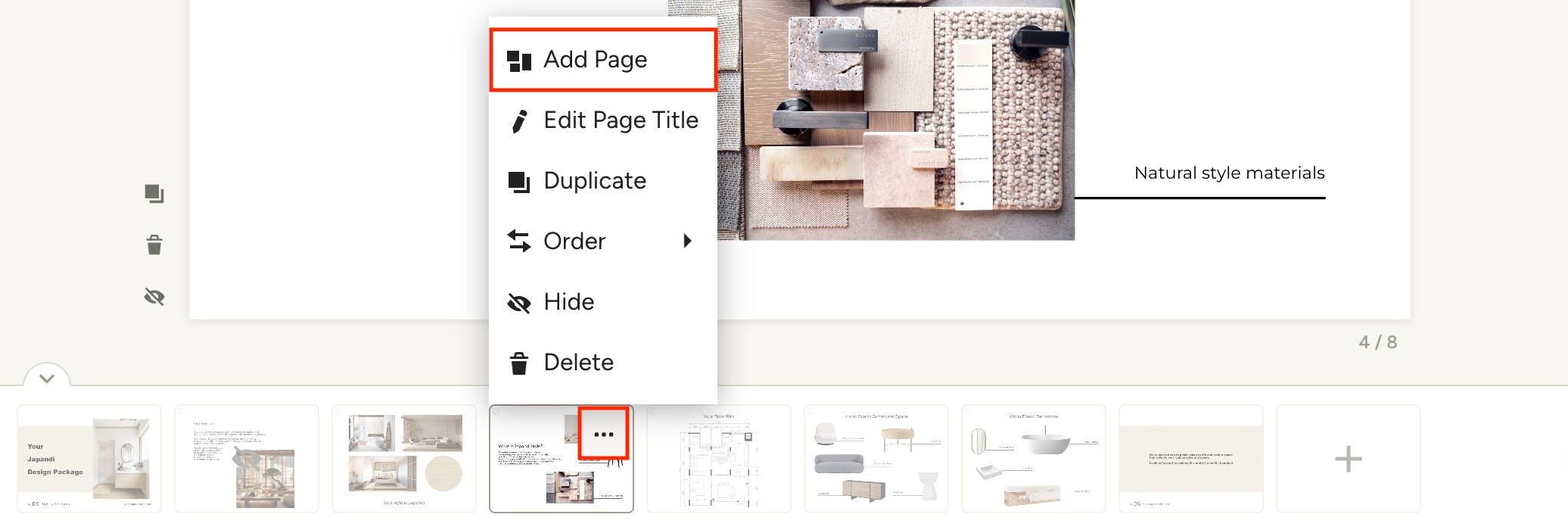
To add a new page in a certain location within your current page sequence, hover over the page tile that you want to add a new page after, click the three dots (or right-click) then click Add Page from the menu. Your new page will be added directly after the tile you clicked on.
Edit Page Title
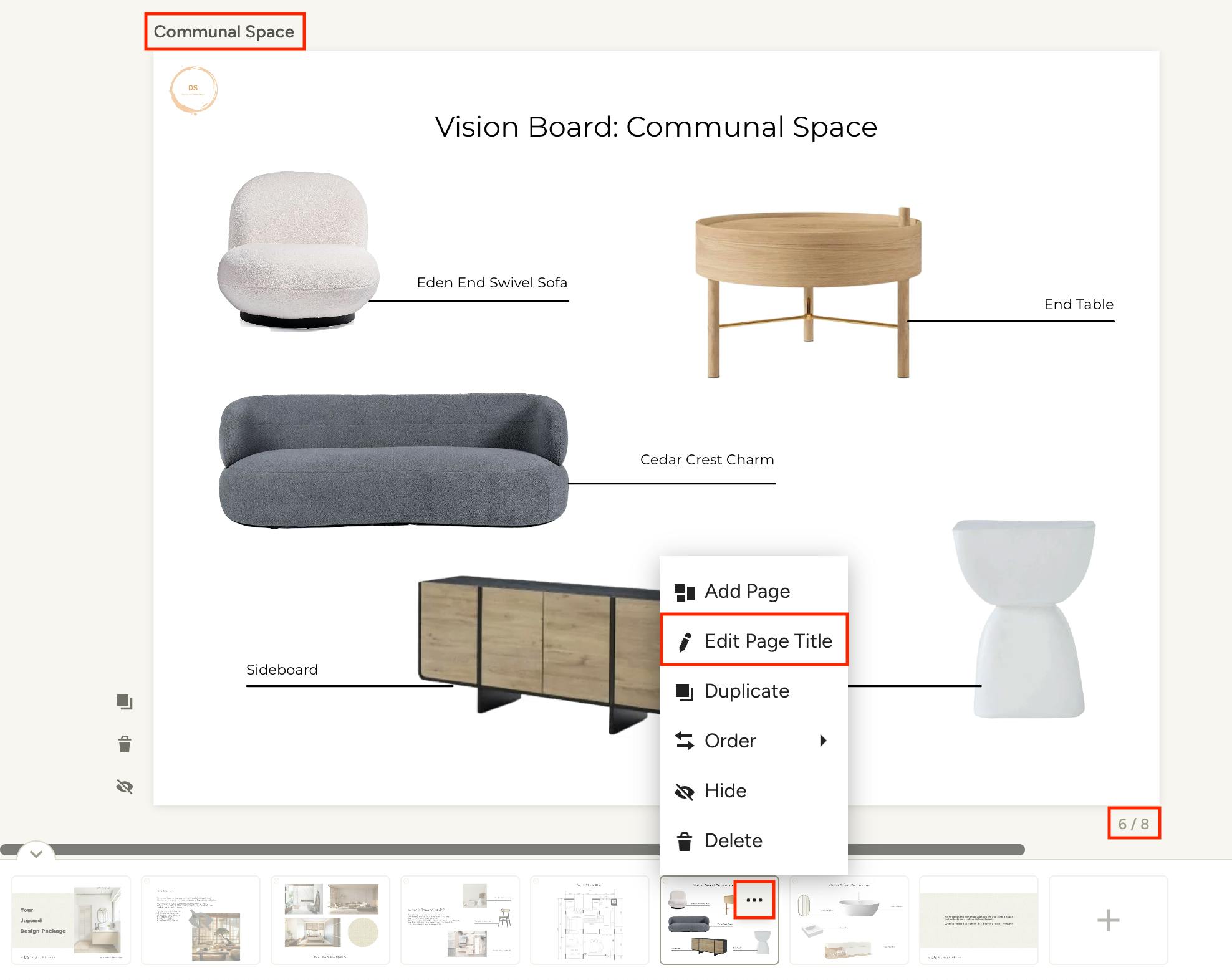
Give each page a unique name to help you, your team and your client keep track of what's being presented. You will see each page title at the top left of the board, along with the page number indicator at the bottom right of the board.
To edit a page name, right-click or click the three dots on the page tile you wish to rename and select Edit Page Title from the menu. Type in the page name in the modal and click save. You can also click on the title at the top of the page to make edits directly.
Duplicate Pages
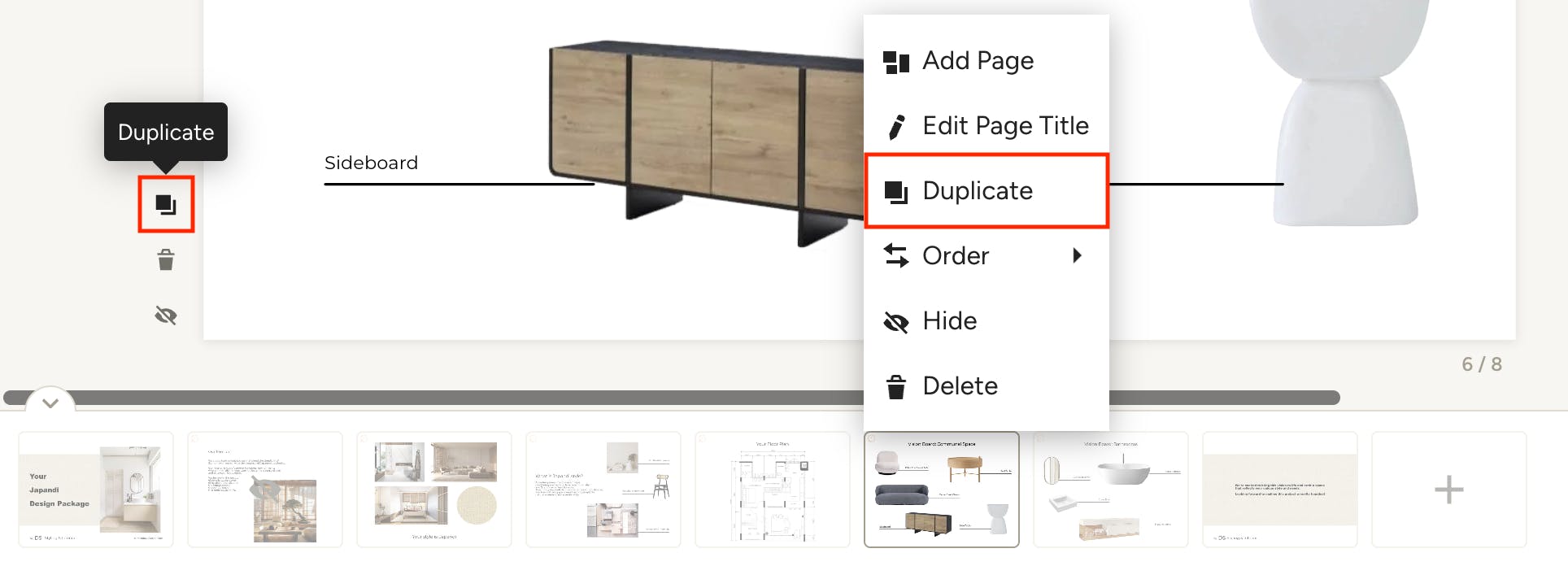
Duplicating mood board pages is a great way to quickly create multiple design options while maintaining certain elements and positioning.
To do so, click the duplicate icon to the left of the page you wish to reproduce. You can also right-click on the page tile and select Duplicate from the menu. Make sure you rename the duplicate to keep your pages organized.
Order Pages
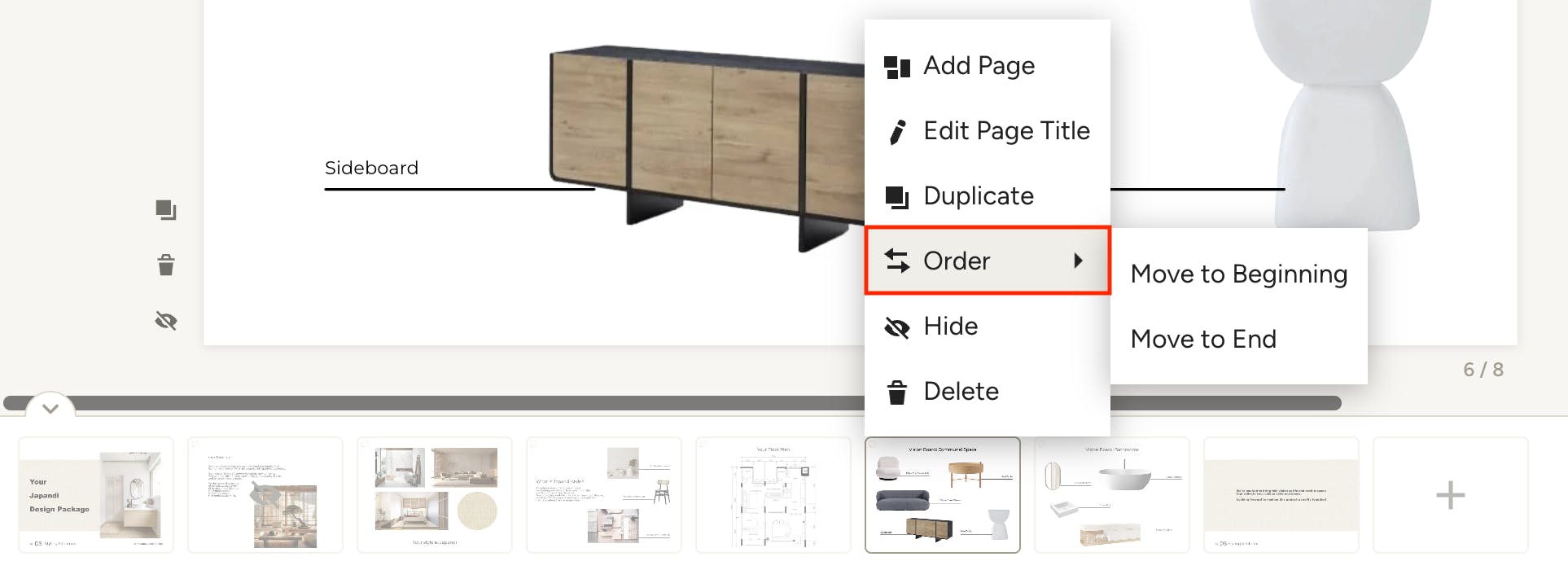
To reorder the pages within a mood board, right-click or use the three dots on a page tile, hover over Order and click Move to Beginning or Move to End.
You can also move a page tile to a precise location by dragging and dropping it exactly where you want it.
Hide Pages
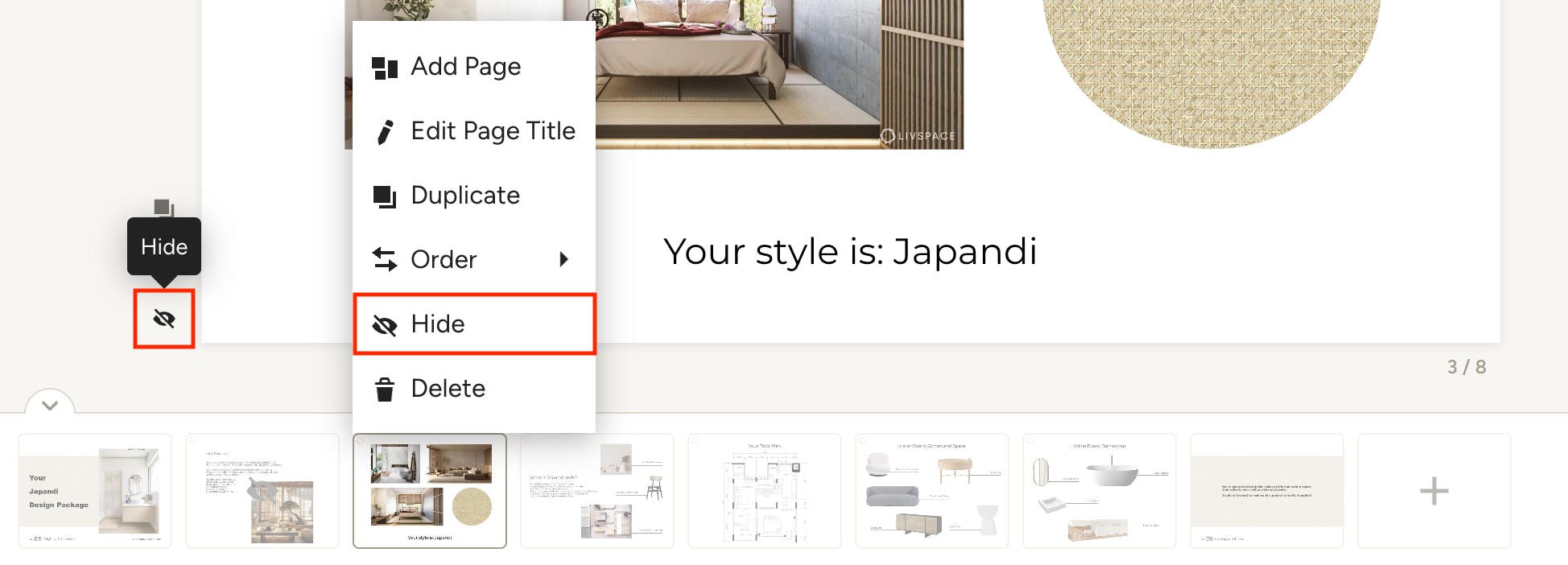
You can hide certain pages from client view, like internal notes or draft designs, allowing you and your team to keep all of your work in one place without revealing your process to the client. The hide feature is also useful to hide rejected designs from the mood board without having to delete any work.
To do so, click the eye icon to the left of the page you wish to hide. You can also click the three dots on the page tile and select Hide from the menu. To unhide, or show, a page to the client, use the same steps and select Show.
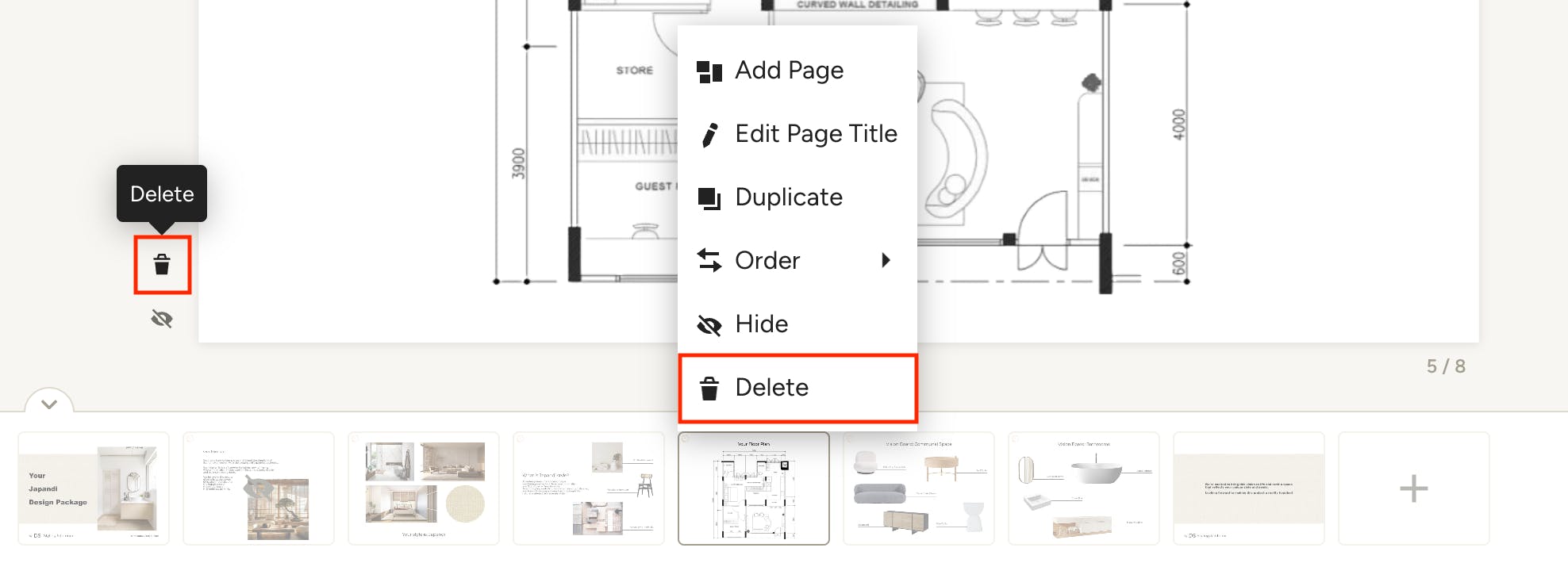
Delete Pages
To delete a page from your mood board, click the trash icon to the left of the page you wish to remove. You can also right-click on the page tile and select Delete from the menu. Confirm that you wish to delete the page in the pop-up — this action cannot be undone.
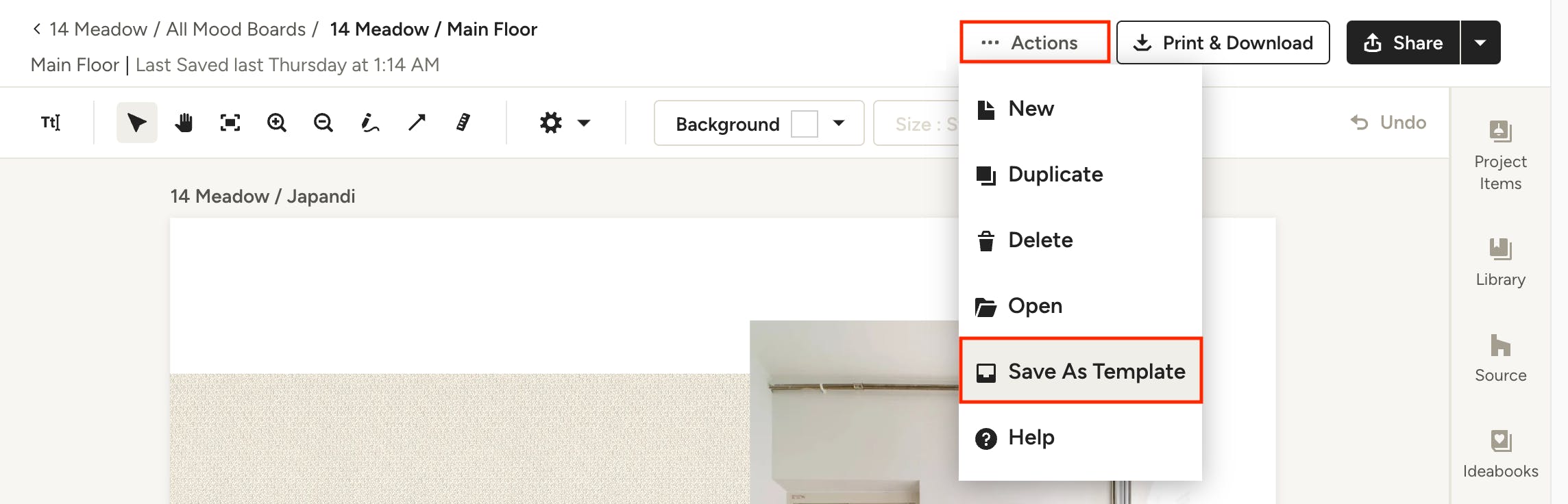
Save Multi-Page Template
If you tend to use a certain structure when presenting designs to your clients (cover page, intro, project scope, option 1, option 2 etc) saving a multi-page mood board template is a must. To do this, we recommend setting up the common structure of your presentations, including cover page, placeholder text, page titles etc, then selecting Save as Template from the Actions menu at the top of the page. This way you can focus on creating outstanding designs for your client instead of recreating each element for every project.
Learn more about templates in Creating, Editing and Using Templates in Your Mood Boards.
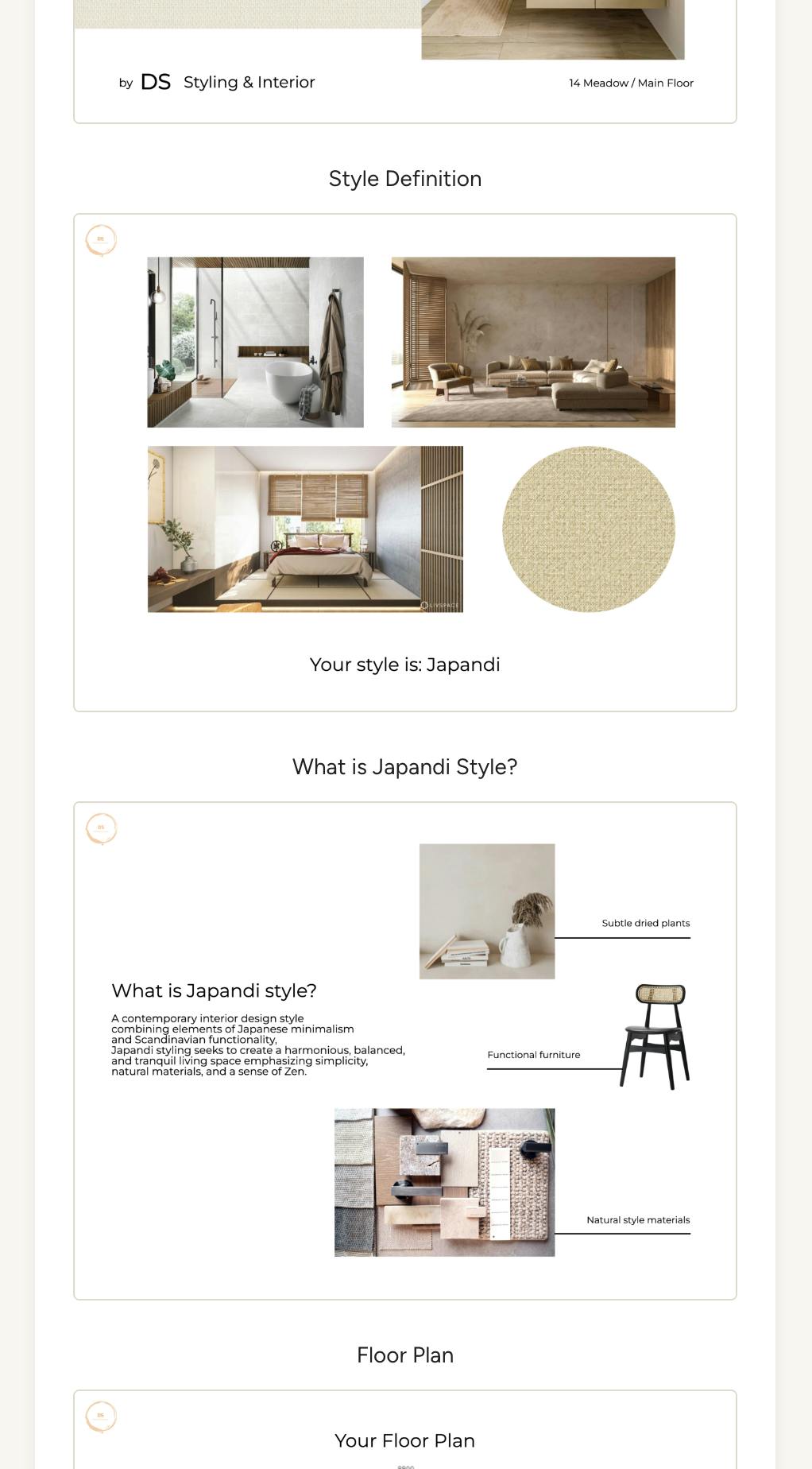
Client Mood Board View
When you share a multi-page mood board with your client, whether via their client dashboard, by copying and sharing the link or in a selections board, they will have view-only access to all of the pages in one presentation (with the exception of any pages you chose to hide). They will see any page names you added above each one for easy reference.
Shared Mood Board:
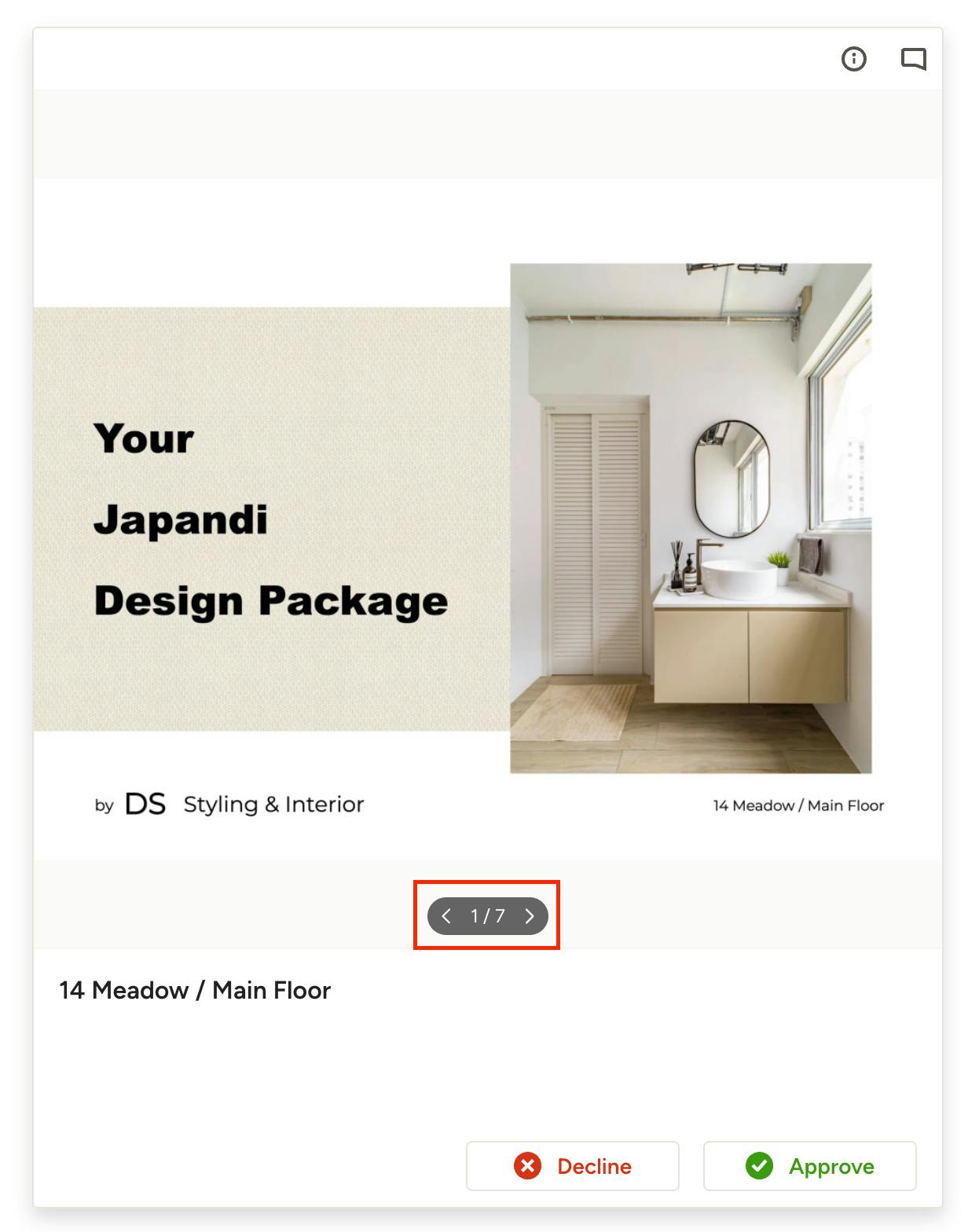
Mood Board in Selections Board:

Export Multi-Page Mood Boards
You can export your entire multi-page mood board presentation as a PDF or JPEG, as well as print it directly from Houzz Pro.
Download PDF or JPEG
To save your multi-page mood board to your desktop, click on the Print & Download button in the top right of the page and select Download PDF or Download JPEG. Download PDF will download all pages of the mood board that are marked as "Show" to the client — any hidden pages will not be included in your download. Download JPEG will only download the page that is currently selected.
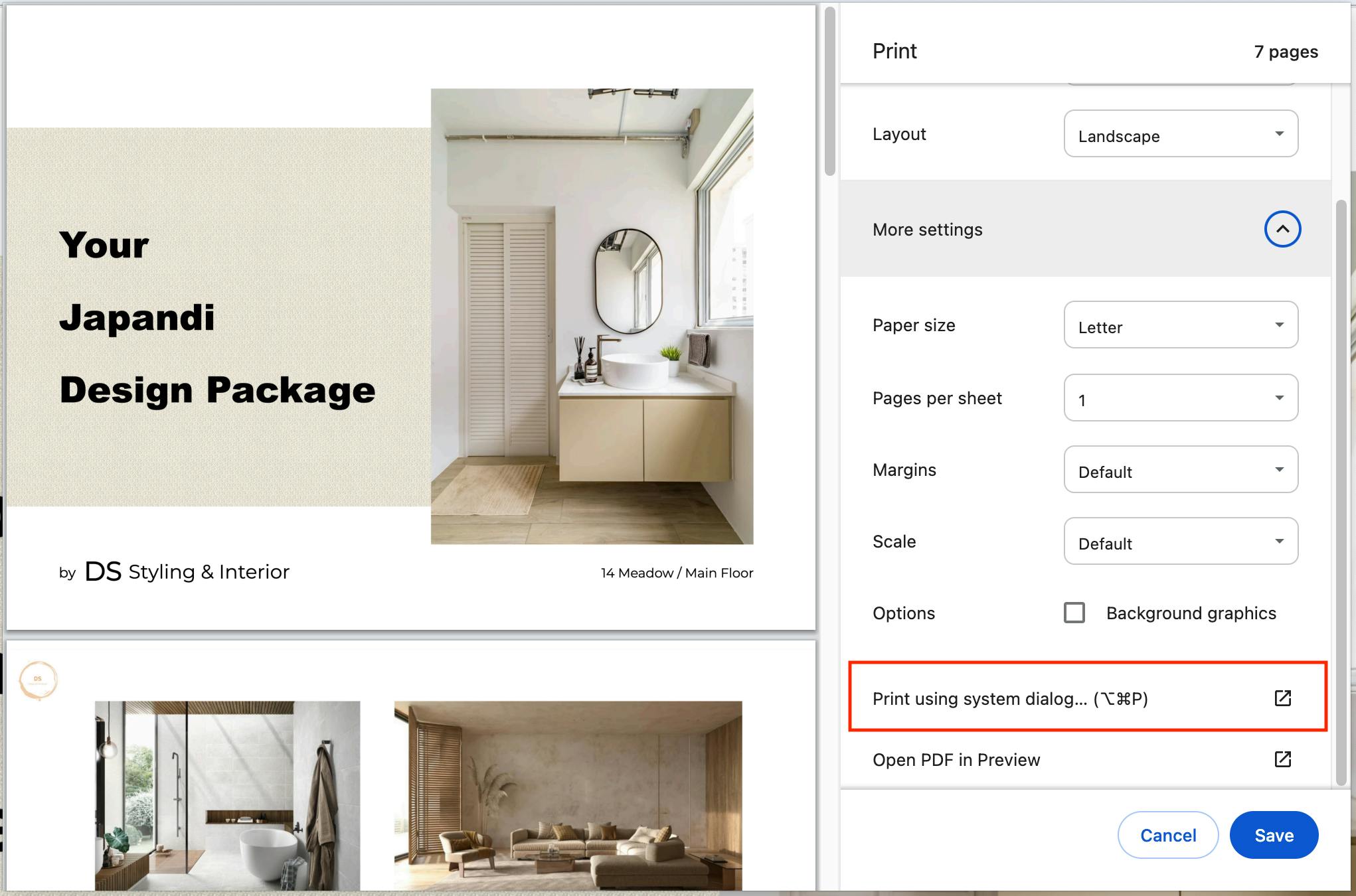
To print your multi-page mood board, click on the Print & Download button in the top right of the page and select Print. All pages of the mood board that are marked as "Show" to the client will print — any hidden pages will not be included.
You may need to select "Print using system dialog" if your system defaults to the PDF download screen. Make sure to select whether you want a portrait or landscape layout before sending your mood board to print!