How to Comment on Mood Boards
The commenting feature on mood boards is designed to make collaboration between you, your team and clients faster and more in context. With multiple levels of commenting available, you can tie feedback to an entire board or pin input directly to specific elements. A main comments panel brings every thread into one filterable view for quick access so you can see and respond to feedback instantly. Let's learn about the commenting options for mood boards:
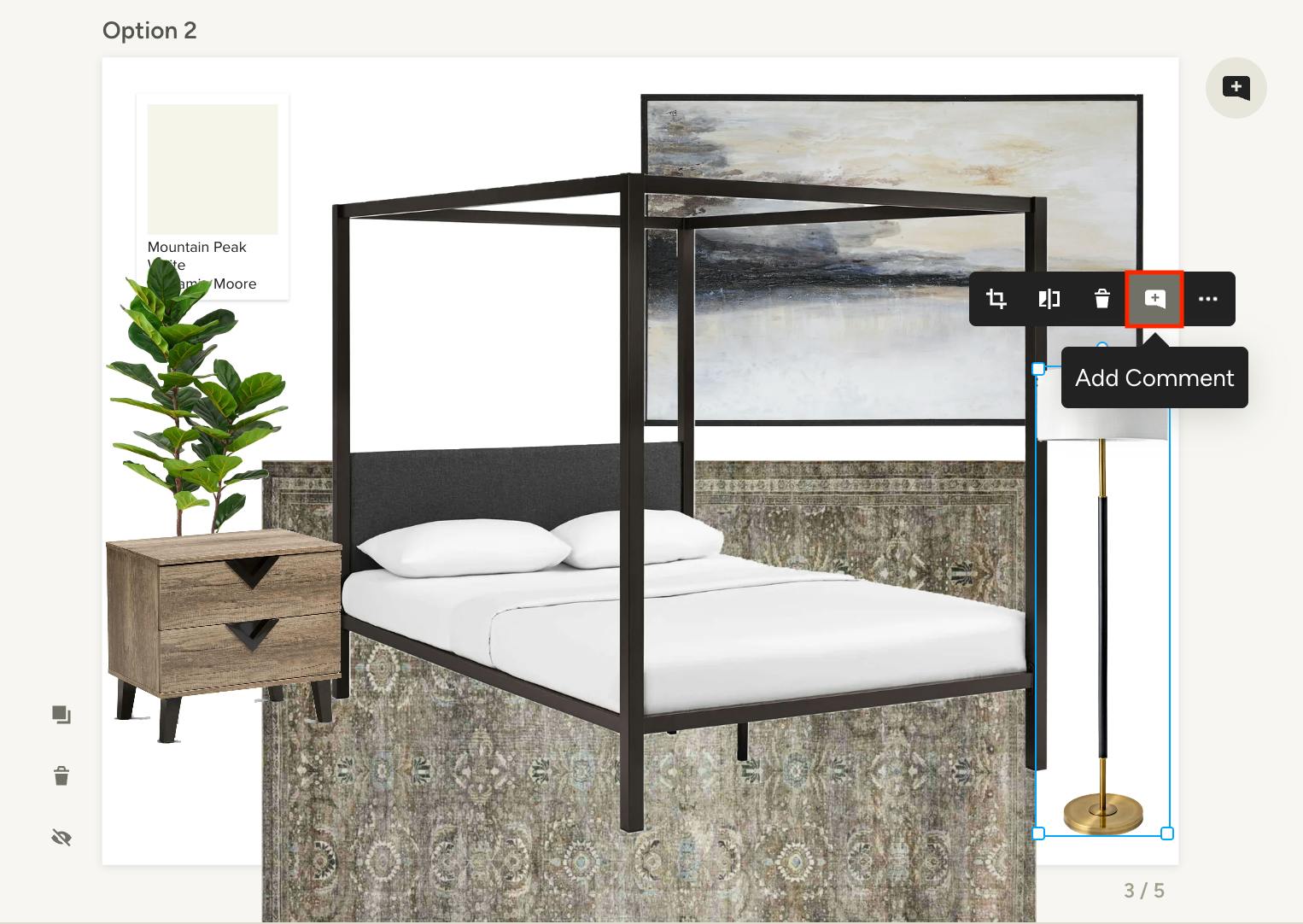
Item-level Comments
With item-level comments, you can leave feedback or ask questions directly tied to a specific item on a page. To do so, click on the item, then click the comment icon from the menu that appears.
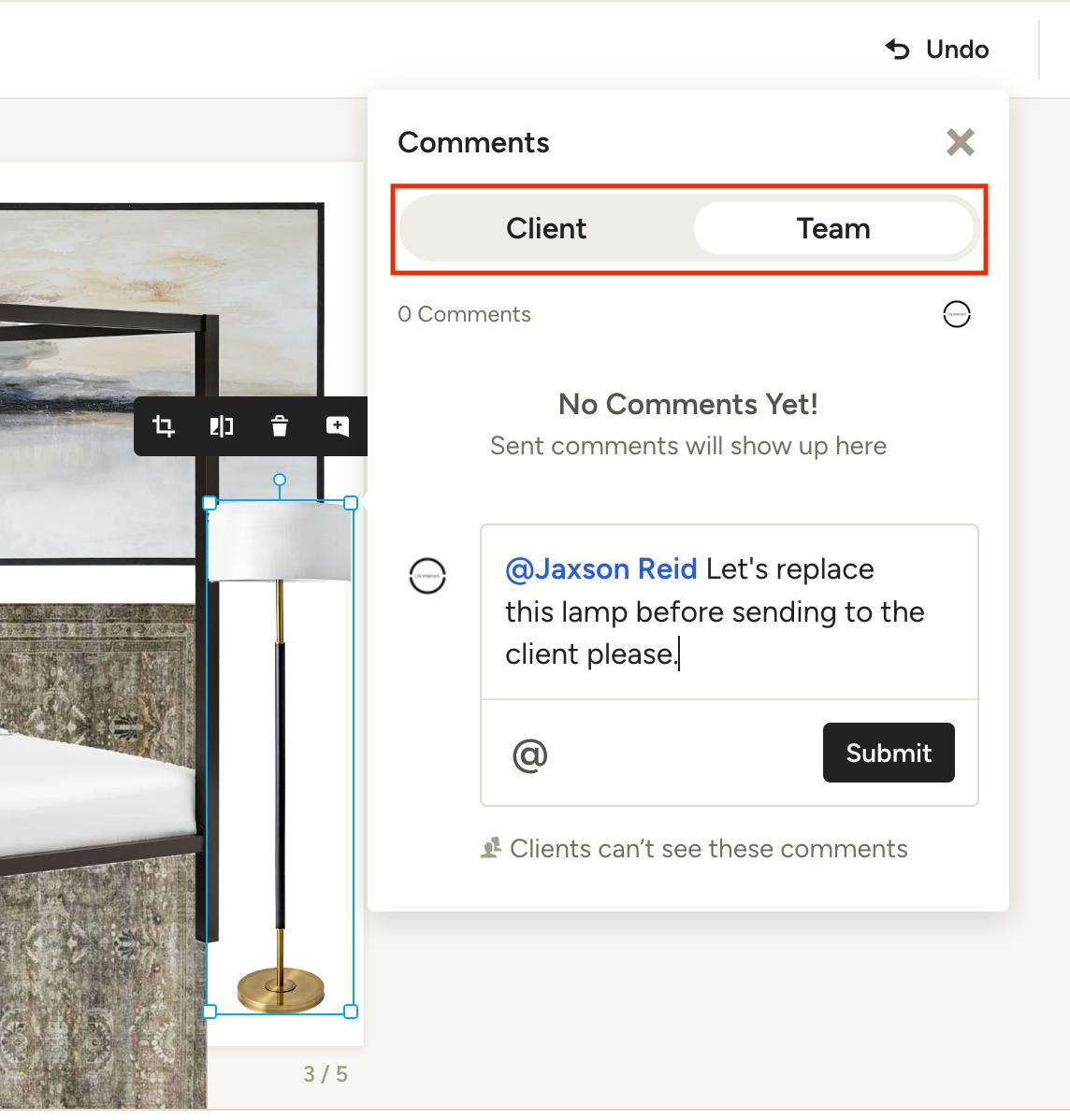
From here you can leave a comment in the Client or Team tab. Clients cannot see comments in the Team tab. Once you click Submit, the client and/or team member(s) will receive a notification about the comment.
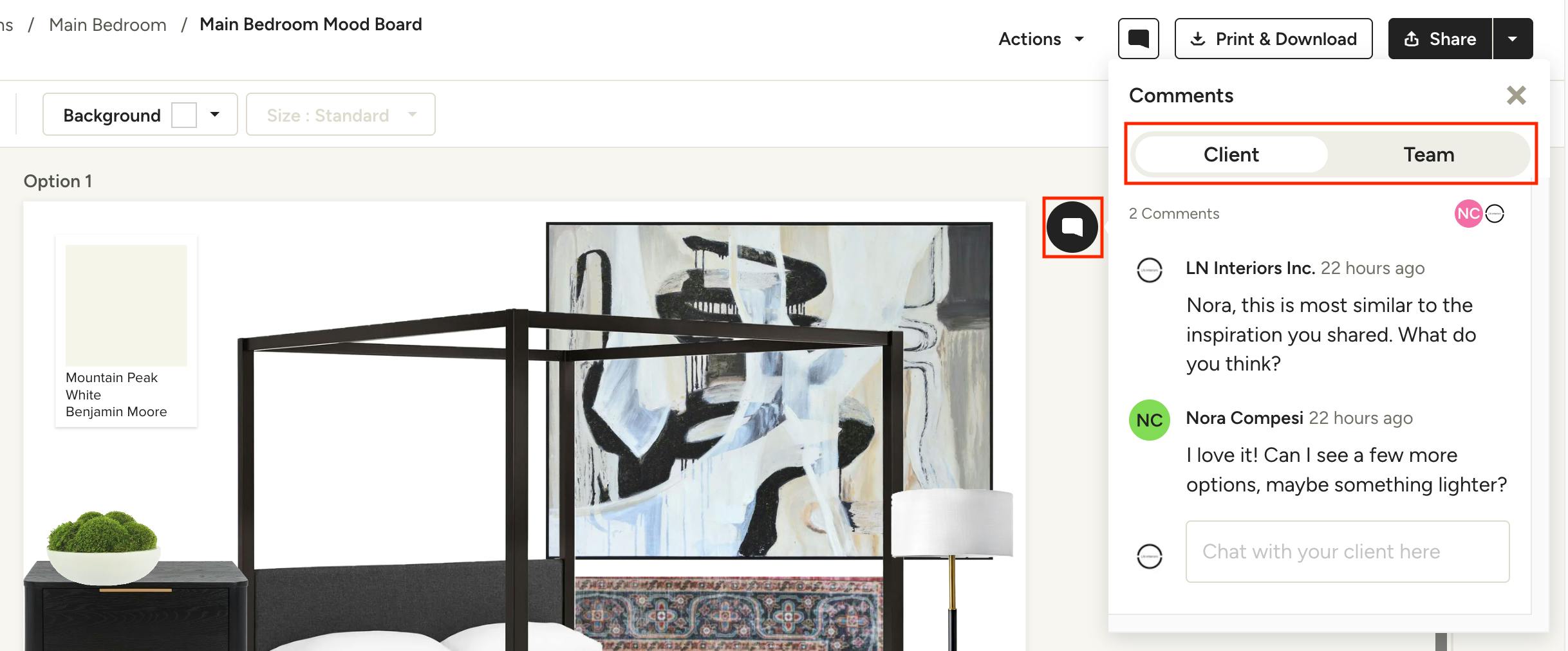
Page-level Comments
Page-level comments allow you to leave feedback tied to an entire mood board page. To do so, click the comment icon in the top right of the page canvas. From here you can leave a comment in the Client or Team tab. Clients cannot see comments in the Team tab. Once you click Submit, the client and/or team member(s) will receive a notification about the comment.
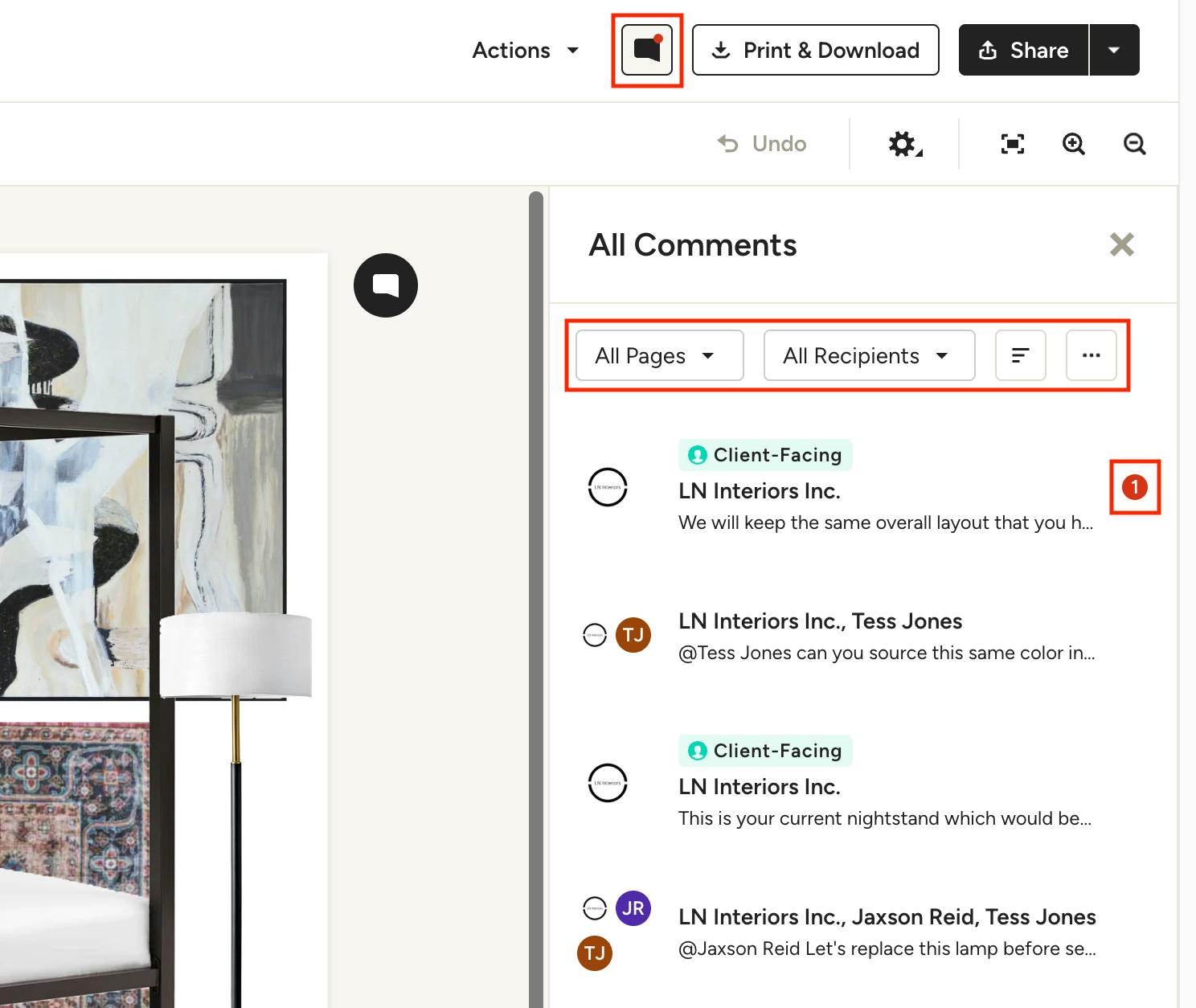
View All Comments
To see every comment thread in one place, click the comment icon in the toolbar at the top of the page. Here you will see a preview of each thread, with the ability to filter by all pages or current page, and recipient type, as well as sort by date or unread, and mark all as read. You will see an indicator on threads with unread comments, and client-facing threads are clearly marked.
Client View
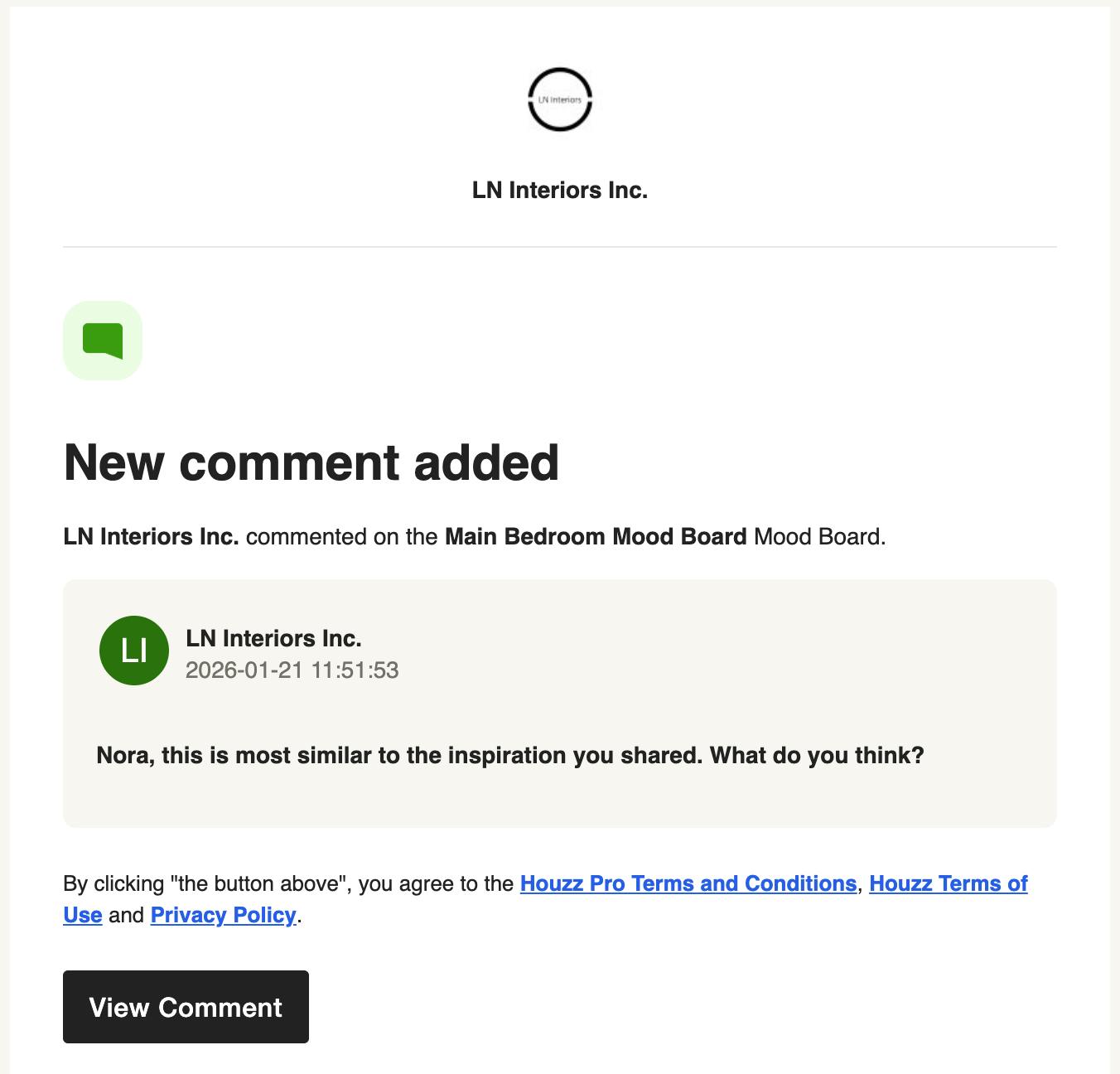
When you or your team comment in the client-facing tab, your client will receive an email, similar to the one below, notifying them of the comment.
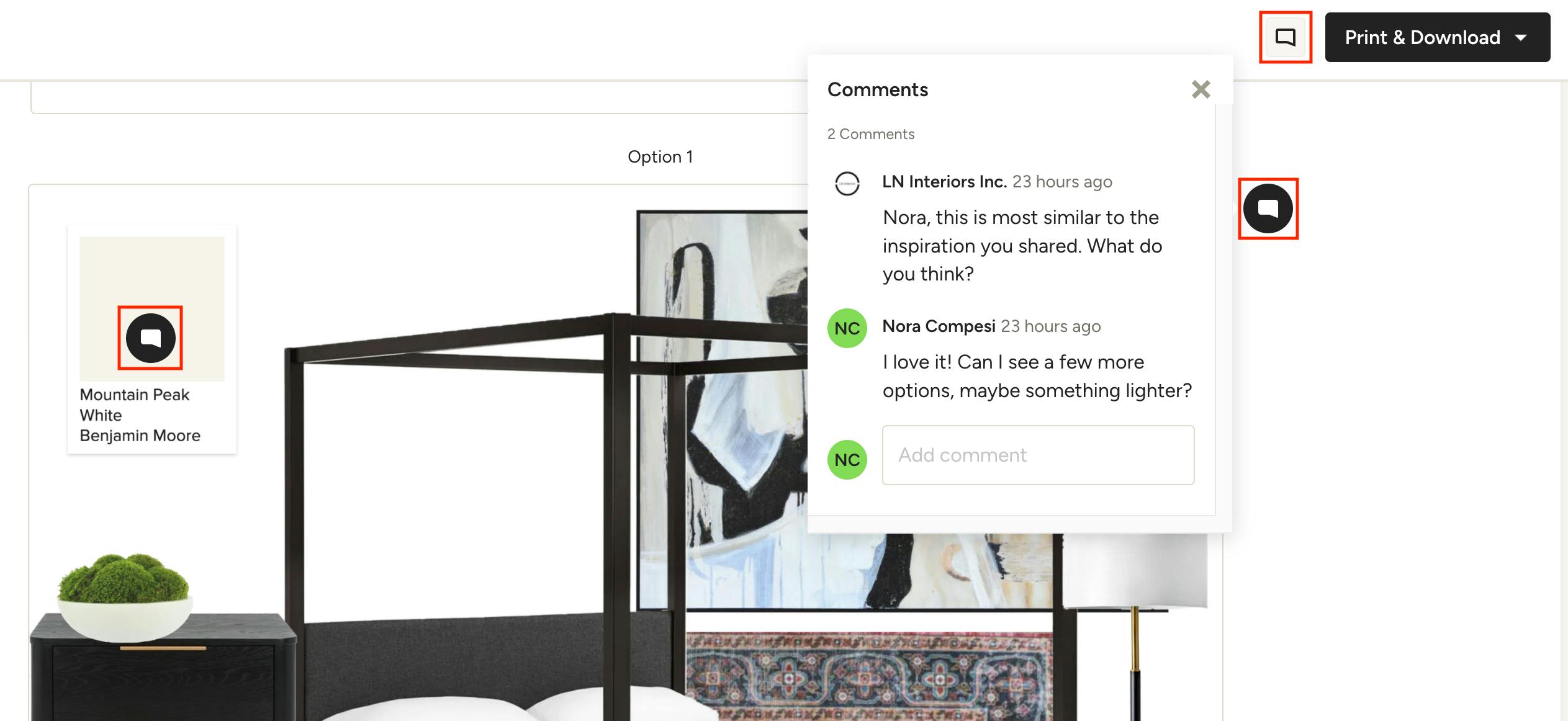
Clicking on View Comment will open the mood board and display the comment, where they can choose to respond or view any other client-facing comments. Item-level and page-level comments will appear in the same positions as they do for you and your team.
Clients can click the comment icon at the top of the page to show or hide comments.
Note that clients can only respond to item-level comments started by you or your team. They cannot start their own comment threads at the item level, but they can comment at the page level at any time.
Commenting on Mood Boards in the Mobile App
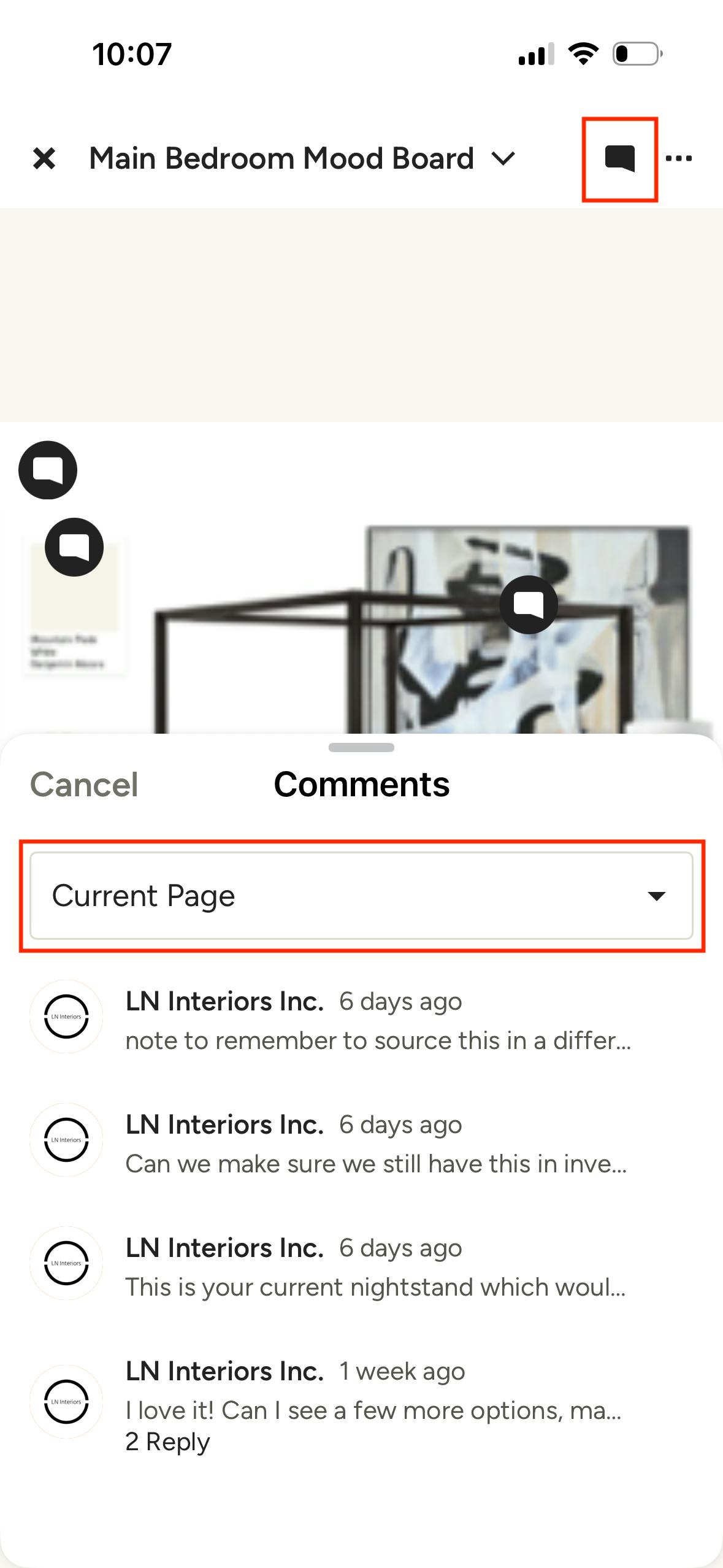
Mood board comments are also available in the Houzz Pro mobile app. To access them, open the desired mood board and tap the comment icon at the top of the page. This opens a comment panel that is filtered to show current page comments by default. Use the dropdown to select All Pages to view all comment threads. Tap on any thread to open it.
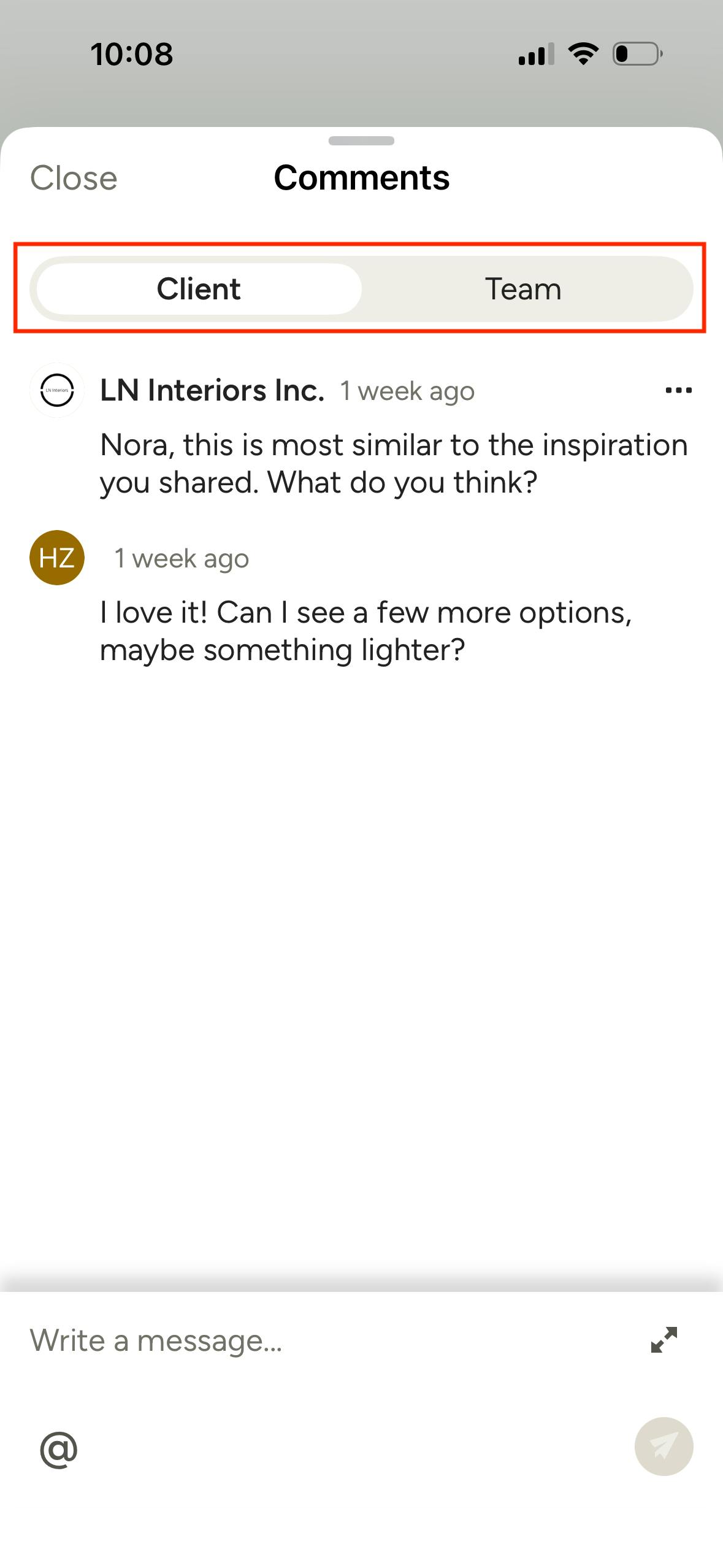
Within a comment thread, use the tabs at the top to switch between Client and Team comments. You can add to existing threads or start a new page-level thread on either tab.