How to Use Construction Calculators in Estimates
Houzz Pro construction calculators help you determine material quantities, job costs, and profit markups directly within your estimates — no spreadsheets or manual re-entry required.
The tool uses AI to automatically suggest the right template for your line item, whether you're calculating flooring dimensions, concrete volume, labor hours, or target margins. If a pre-built calculator doesn't fit your exact need, you can use the built-in AI Assistant to ask custom calculation questions in plain language and apply the answers instantly.
Below, we'll cover how to use construction calculators on both desktop and the Houzz Pro mobile app.
Construction Calculators on Desktop
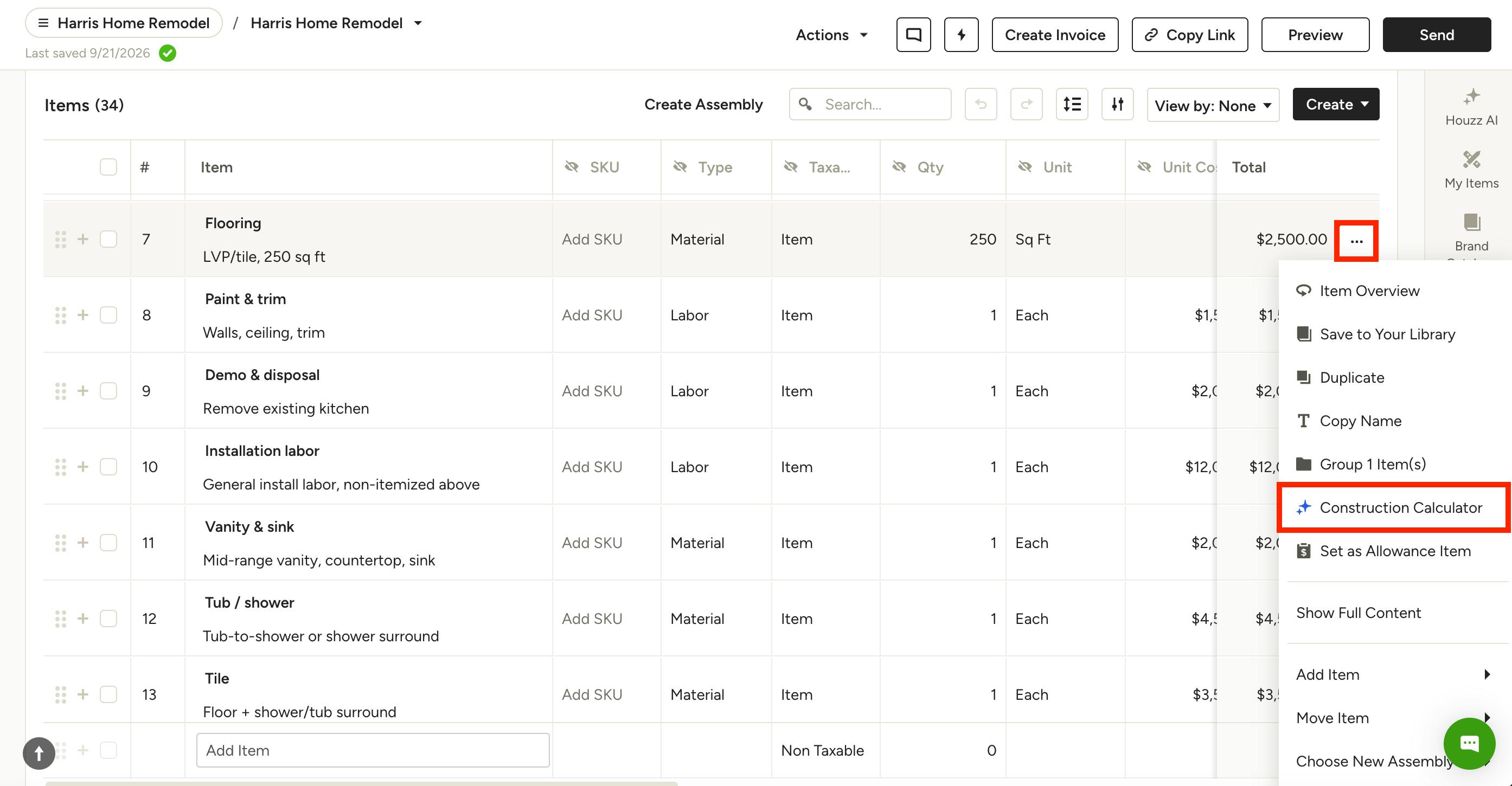
To get started, open up the relevant estimate you want to work on. Hover over the line item you need to calculate, then select the three dots icon that appears. Click Construction Calculator from the dropdown menu.
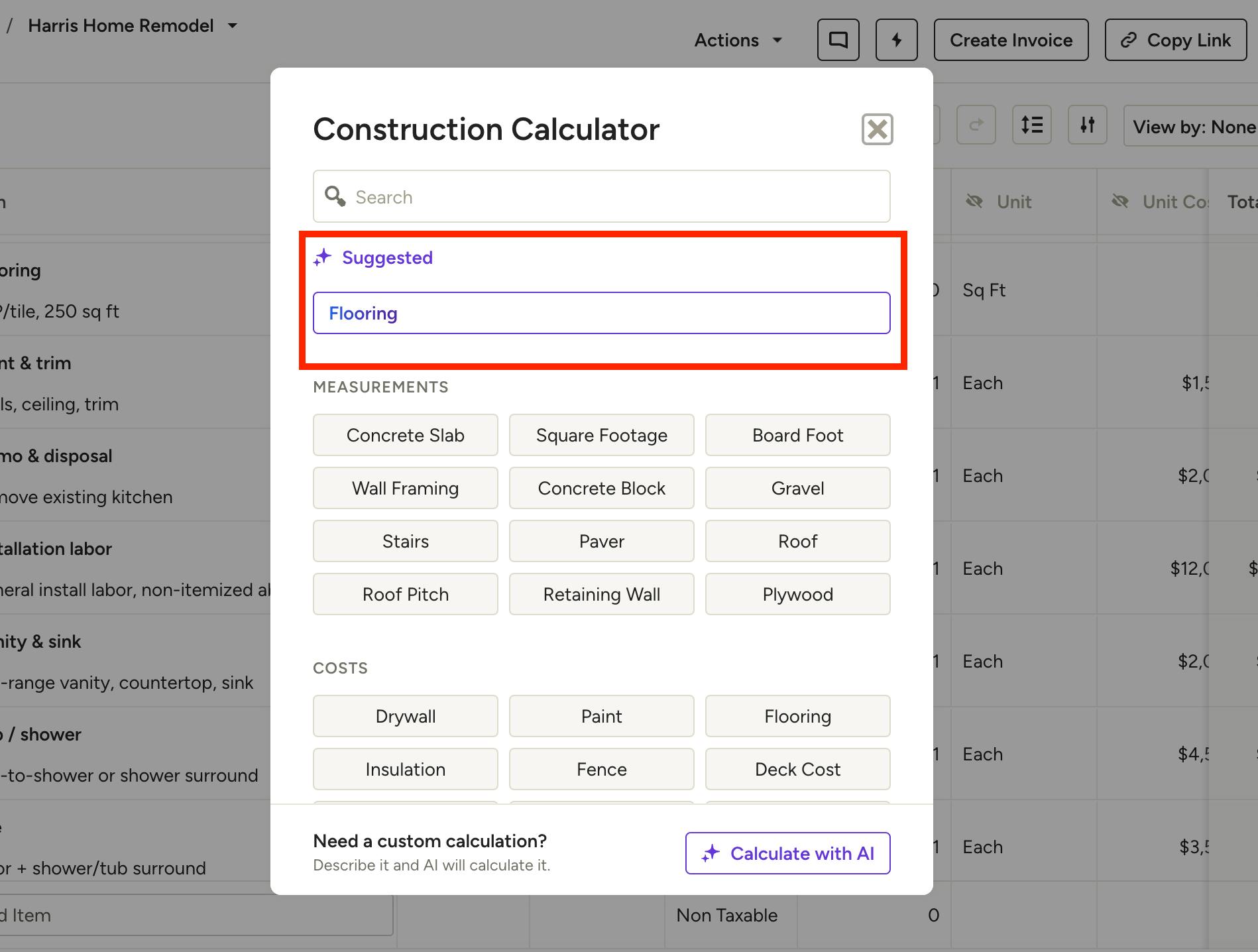
A new screen will show all the different types of construction calculators available (as shown below). Here, you can use the search bar to find the relevant calculator by keyword, select a suggested calculator, choose from pre-built calculators, or use Calculate with AI.
Suggested Calculator
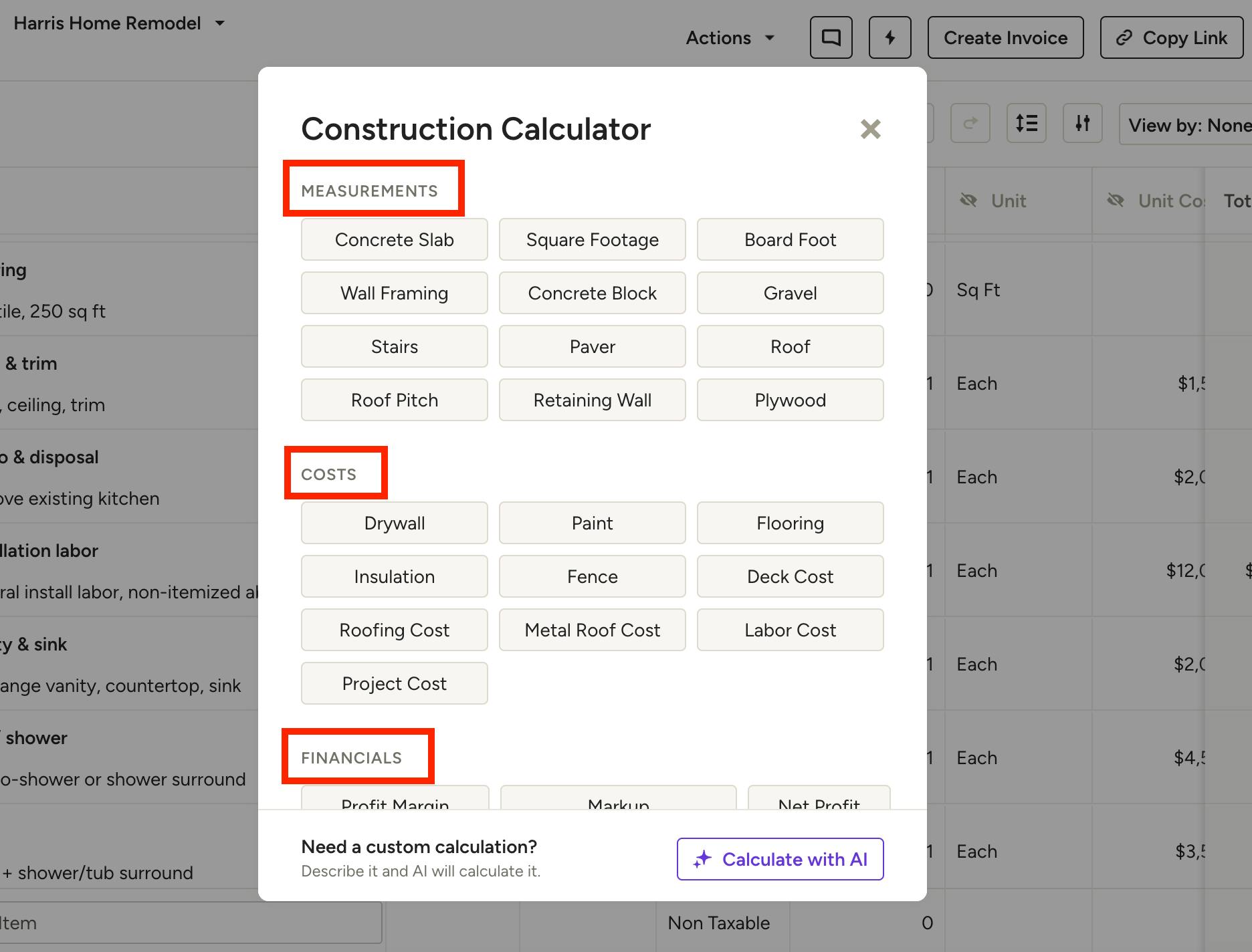
Near the top, you will see the suggested calculator. For this, Houzz Pro uses AI to read the line item's name and description, then picks the calculator that fits best. In the example below, a Flooring line item opens the Flooring calculator.
Pro Tip: Create clear, specific names for line items in estimates (ex: Asphalt shingle roof – 2,400 sq ft) to help AI suggest the right calculator on the first try.
Pre-Built Calculators
If the suggested calculator doesn't fit, you can select a different pre-built calculator from the menu. For each line item, you can select relevant calculators for Measurements, Costs and Financials.
- Measurements: Input dimensions to calculate total quantity for that line item.
- Costs: Input dimensions, quantity, type and base price to calculate total price for that line item.
- Financials: Calculate key business metrics like profit margin, markup, net profit, hourly rate, estimate ROI and more.
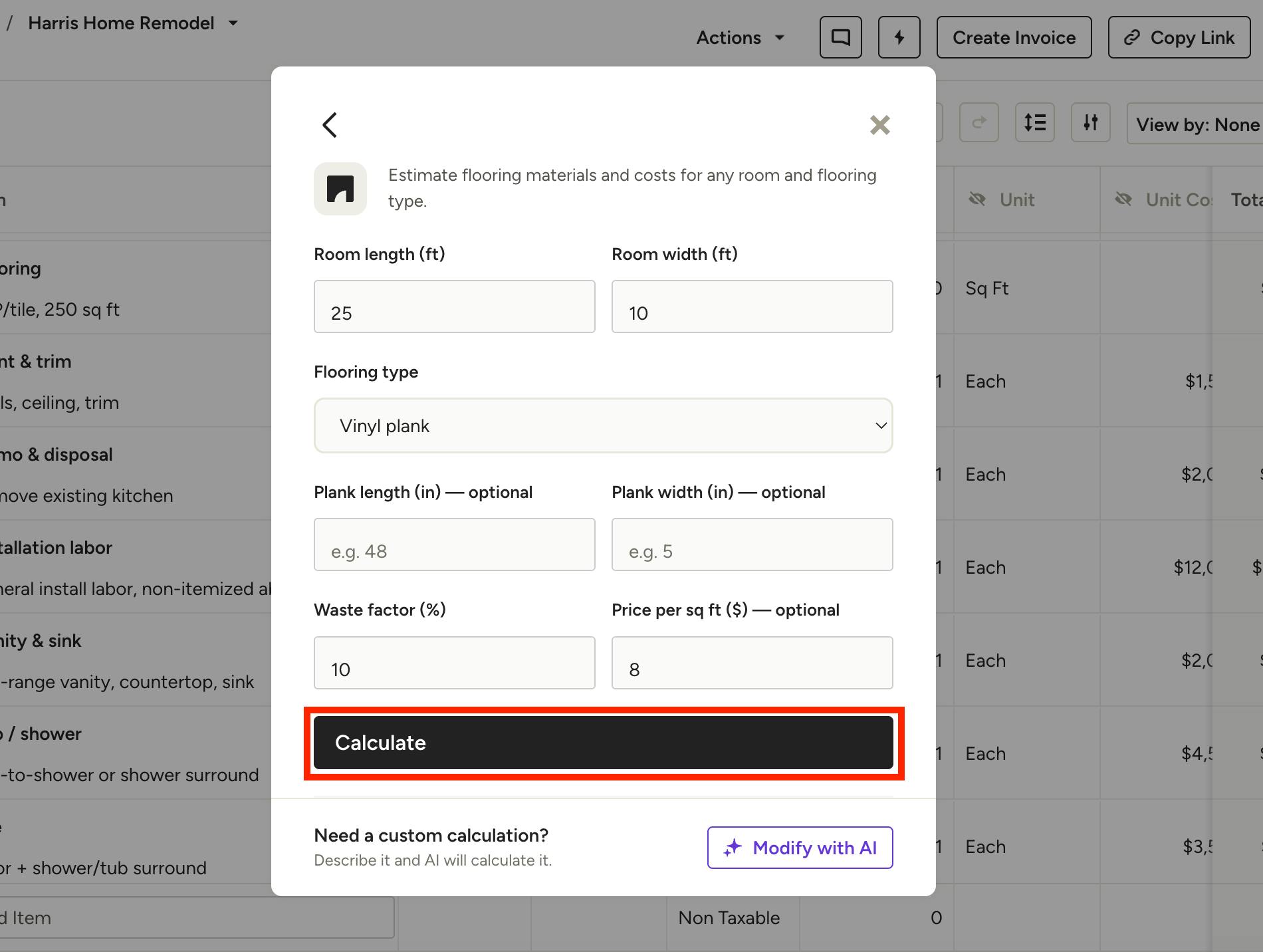
Once you select a suggested or pre-built calculator, you can input the details needed. For the Flooring example, input room dimensions, flooring type, plank dimensions (optional), waste percentage, and price per square foot (optional). The more information you add in, the more accurate your results.
Click Calculate to complete.
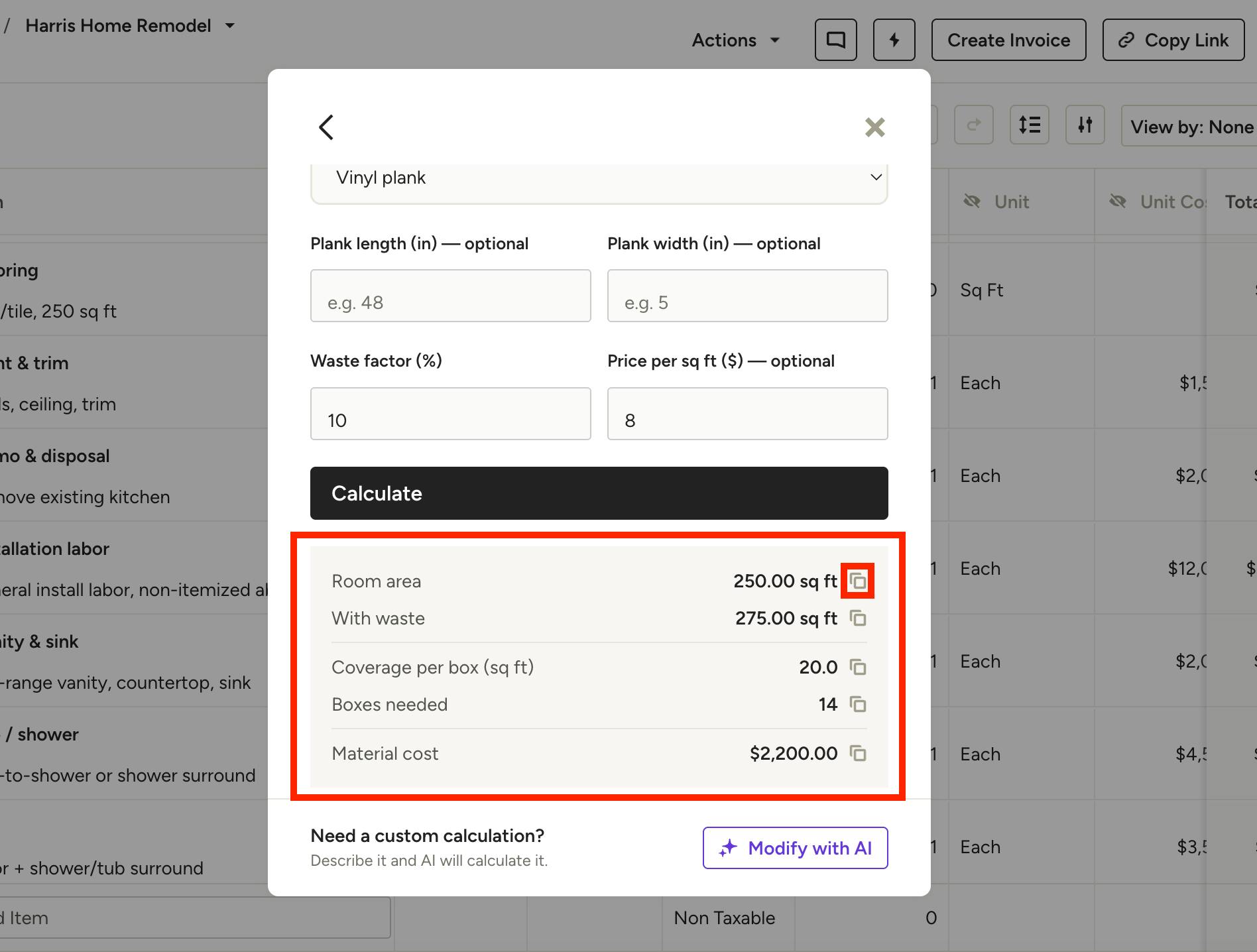
Review the calculation results at the bottom of your screen. Click the Copy icon to copy and paste the information into your estimate.
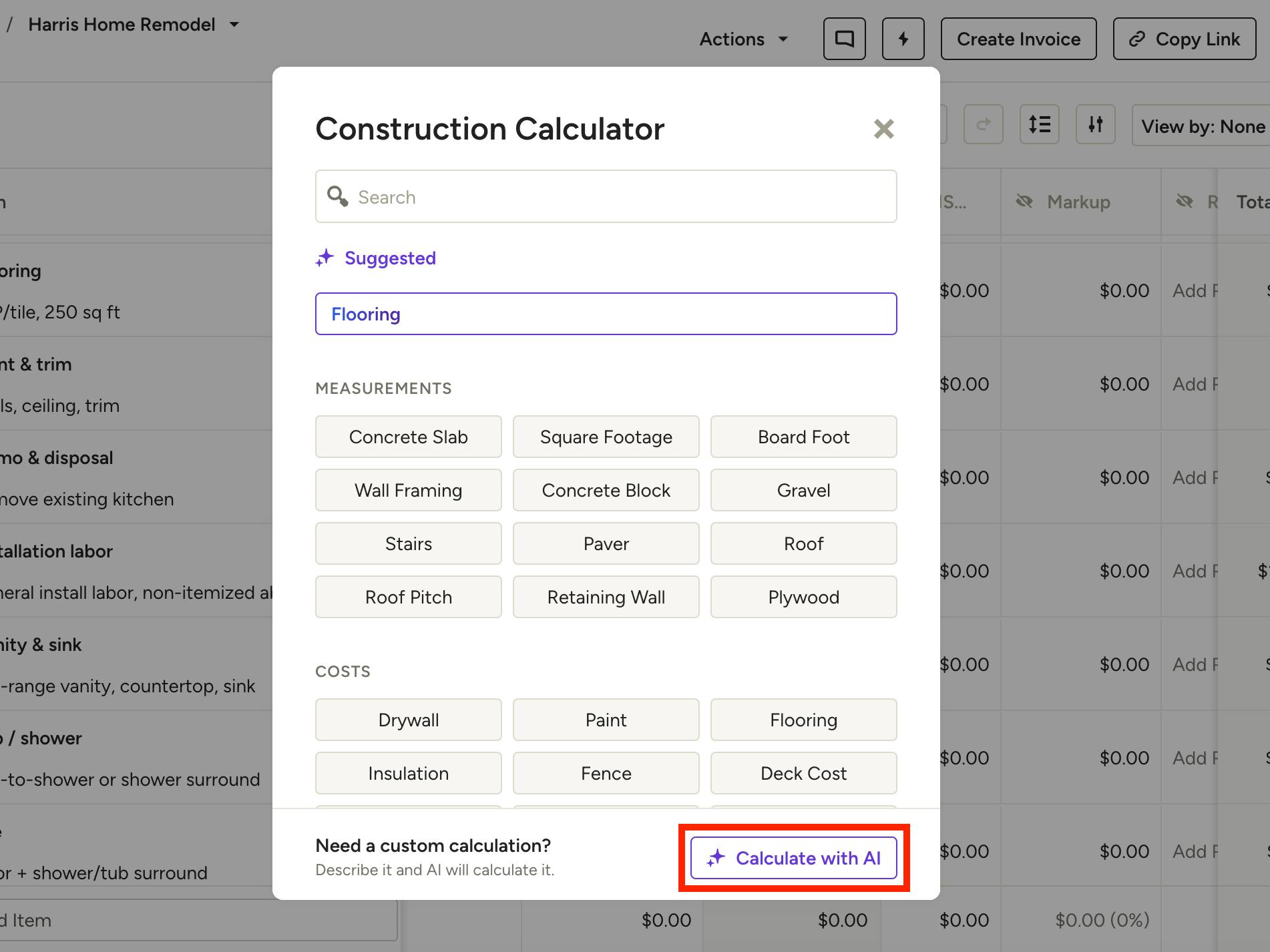
Calculate with AI
If none of the suggested or existing calculators work for you, you can select the Calculate with AI button. This allows you to type in your prompt or question in plain language and create a custom calculation.
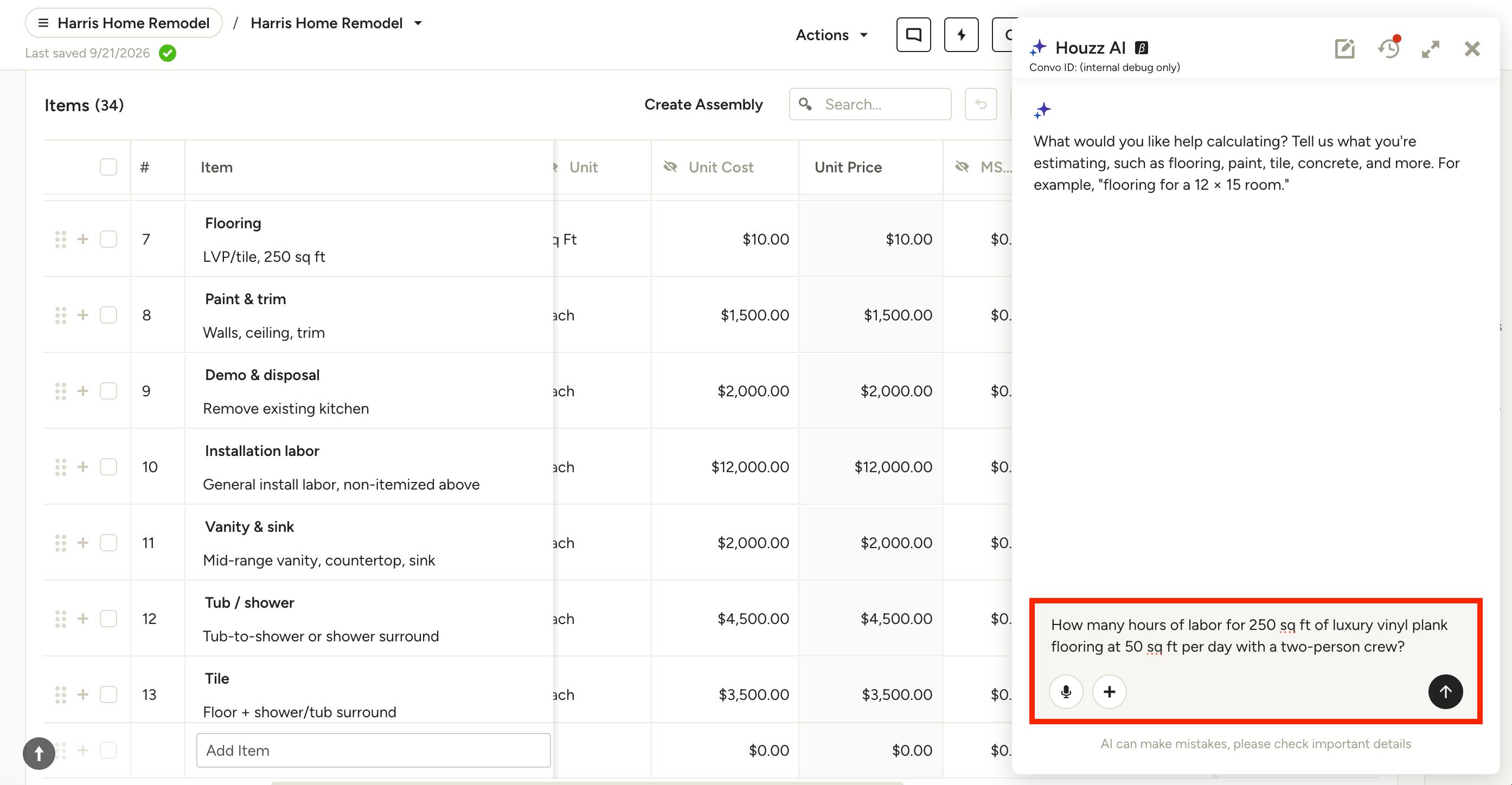
Once selected, the AI Assistant will appear. Type your question or prompt directly into the text box. Some examples:
- How many 4x8 drywall sheets do I need for a 12x14 room with 9-foot ceilings?
- What's my price if materials cost $3,200 and I want a 35% markup?
- How many hours of labor for 600 sq ft of tile at 50 sq ft per day with a two-person crew?
Press the Send (arrow) icon once complete.
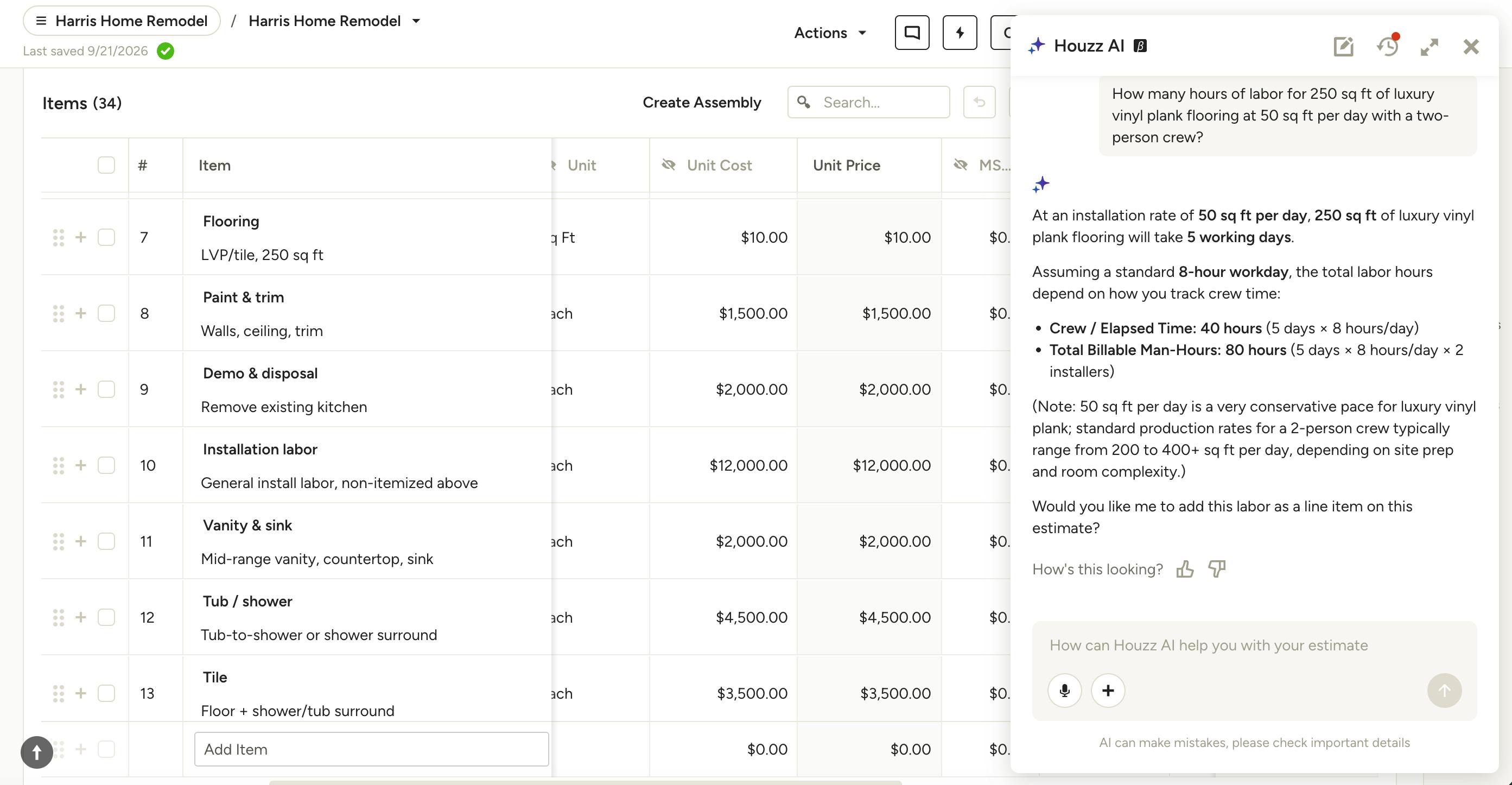
The AI Assistant will respond and ask follow up questions, including whether or not you would like to add this information to your estimate.
Construction Calculators on Mobile App
Need fast numbers while on a job site? Construction calculators are also available in the Houzz Pro mobile app as a standalone reference tool (US English only).
Unlike on desktop, mobile calculators operate independently of specific estimates and do not include AI suggestions or custom prompts. Instead, you can quickly choose from standard calculation templates to figure out quantities on the fly, then copy your results or save them directly to a note or daily log.
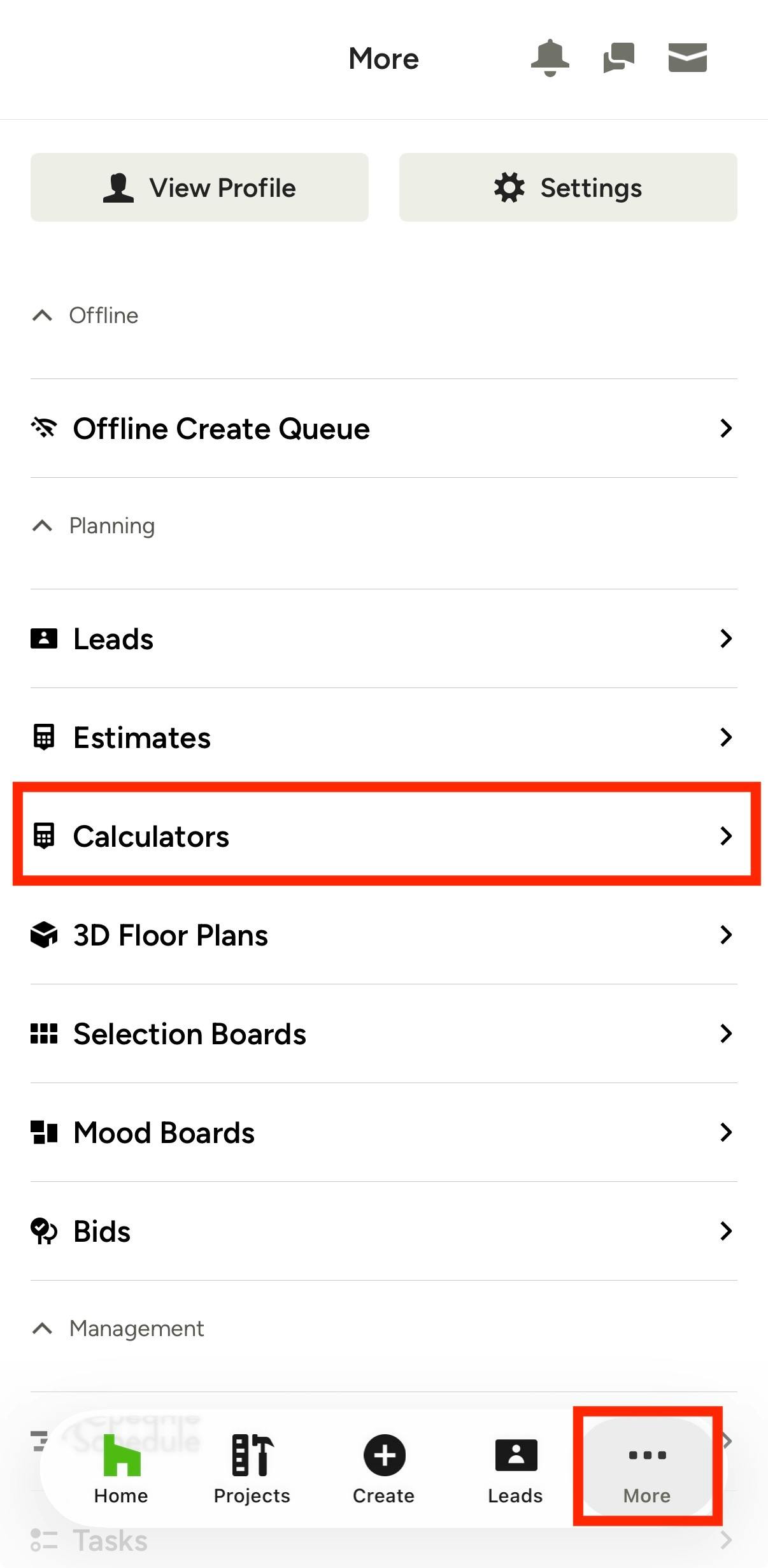
To get started, open the Houzz Pro mobile app, then tap the More three dots icon from the bottom menu. Tap Calculators in the menu that appears.
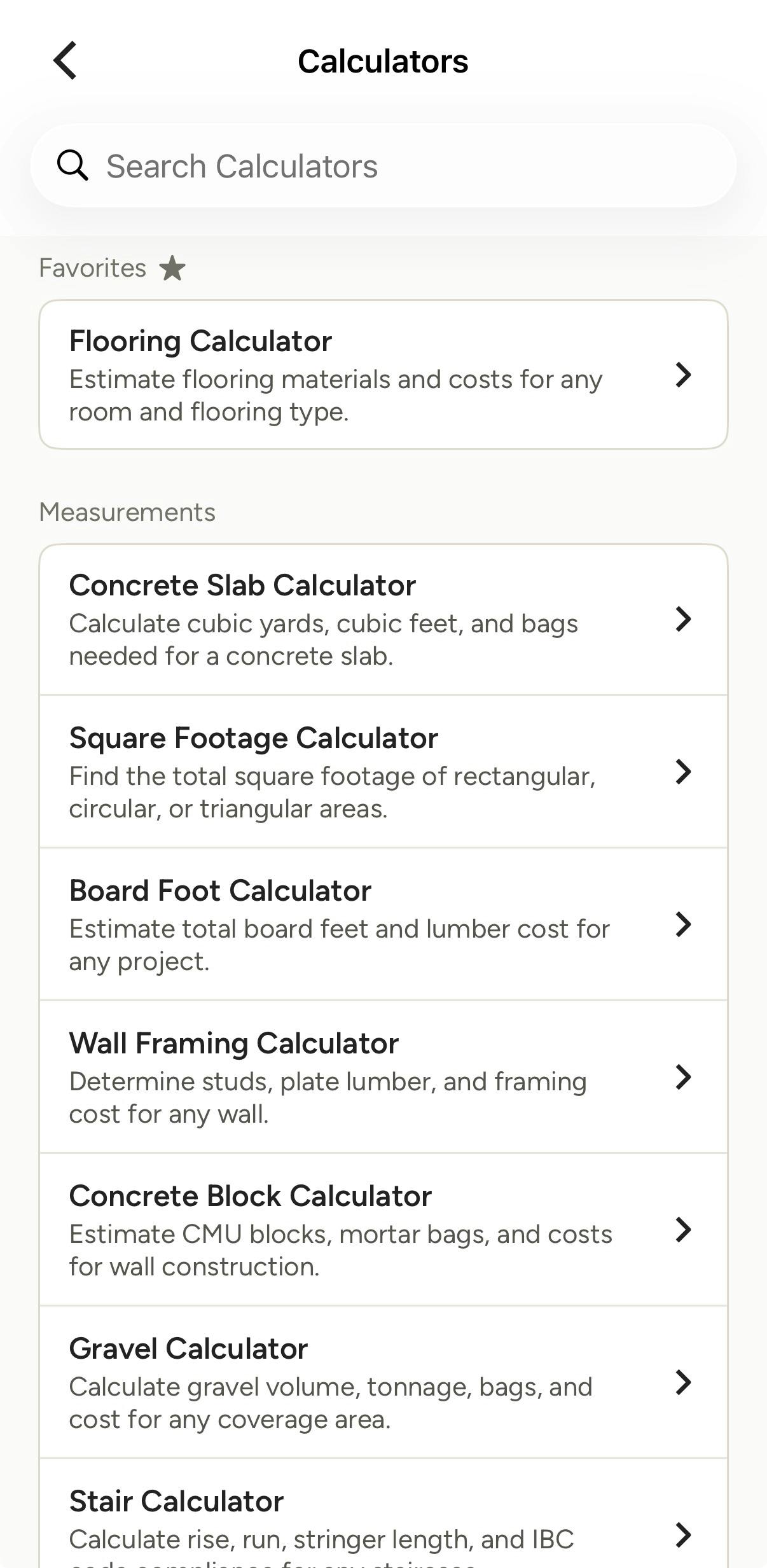
A list of pre-built calculators will appear. If you select any calculators as Favorites, they will be listed at the top. The rest of the calculators will be grouped under Measurements, Costs and Financials.
- Measurements: Input dimensions to calculate total quantity for items like concrete, wall framing, stairs, roof, plywood and more.
- Costs: Input dimensions, quantity, type and base price to calculate total price for items like drywall, paint, flooring, roofing, decking and more.
- Financials: Calculate key business metrics like profit margin, markup, net profit, hourly rate, estimate ROI, business valuation and more.
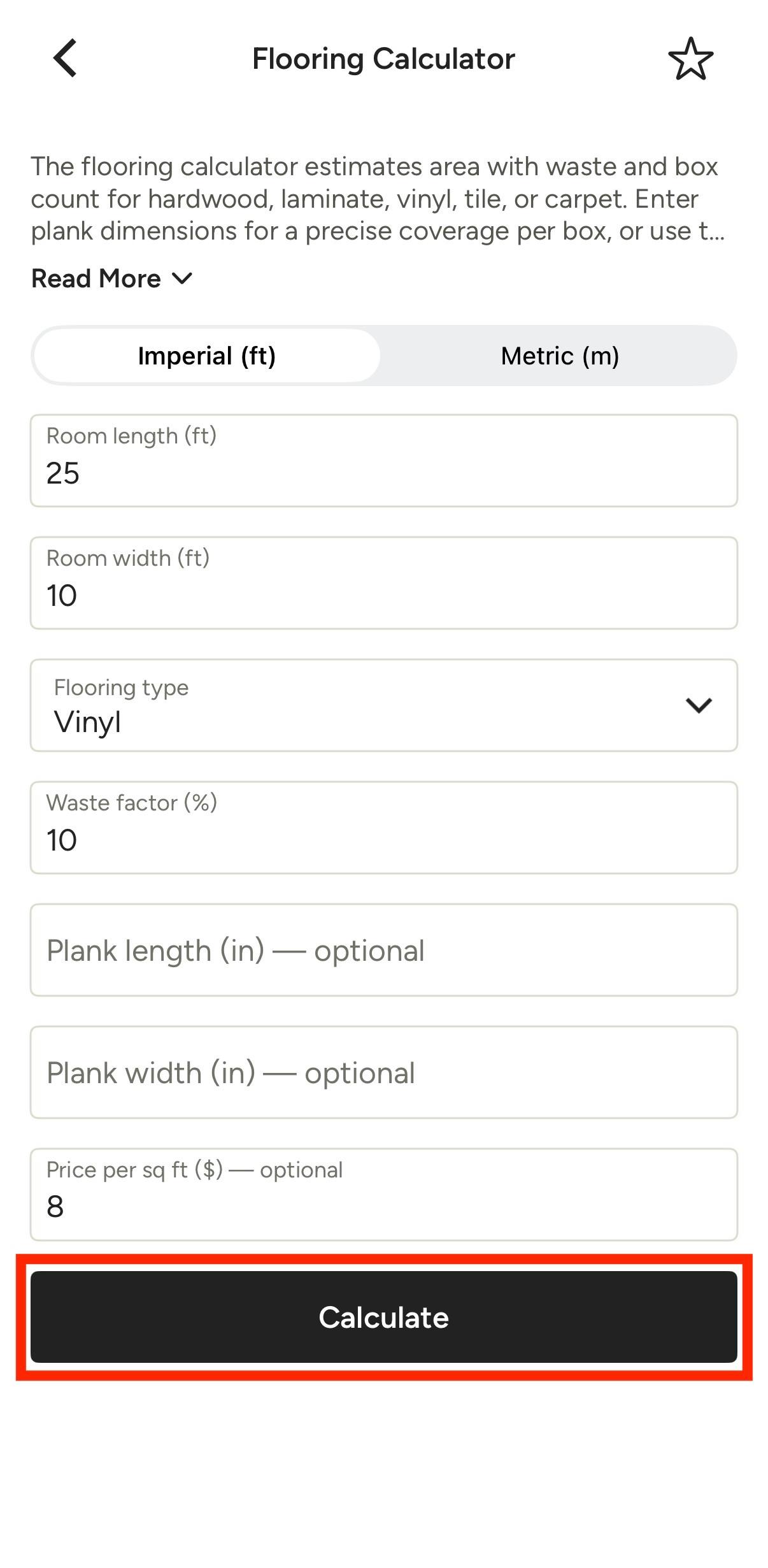
Once you select a calculator, a new screen will appear where you can input the details needed. You can tap the Star icon at the top to favorite this calculator for easy access in the future.
For the Flooring example, input room dimensions, flooring type, plank dimensions (optional), waste percentage, and price per square foot (optional). The more information you add in, the more accurate your results.
Click Calculate to complete.
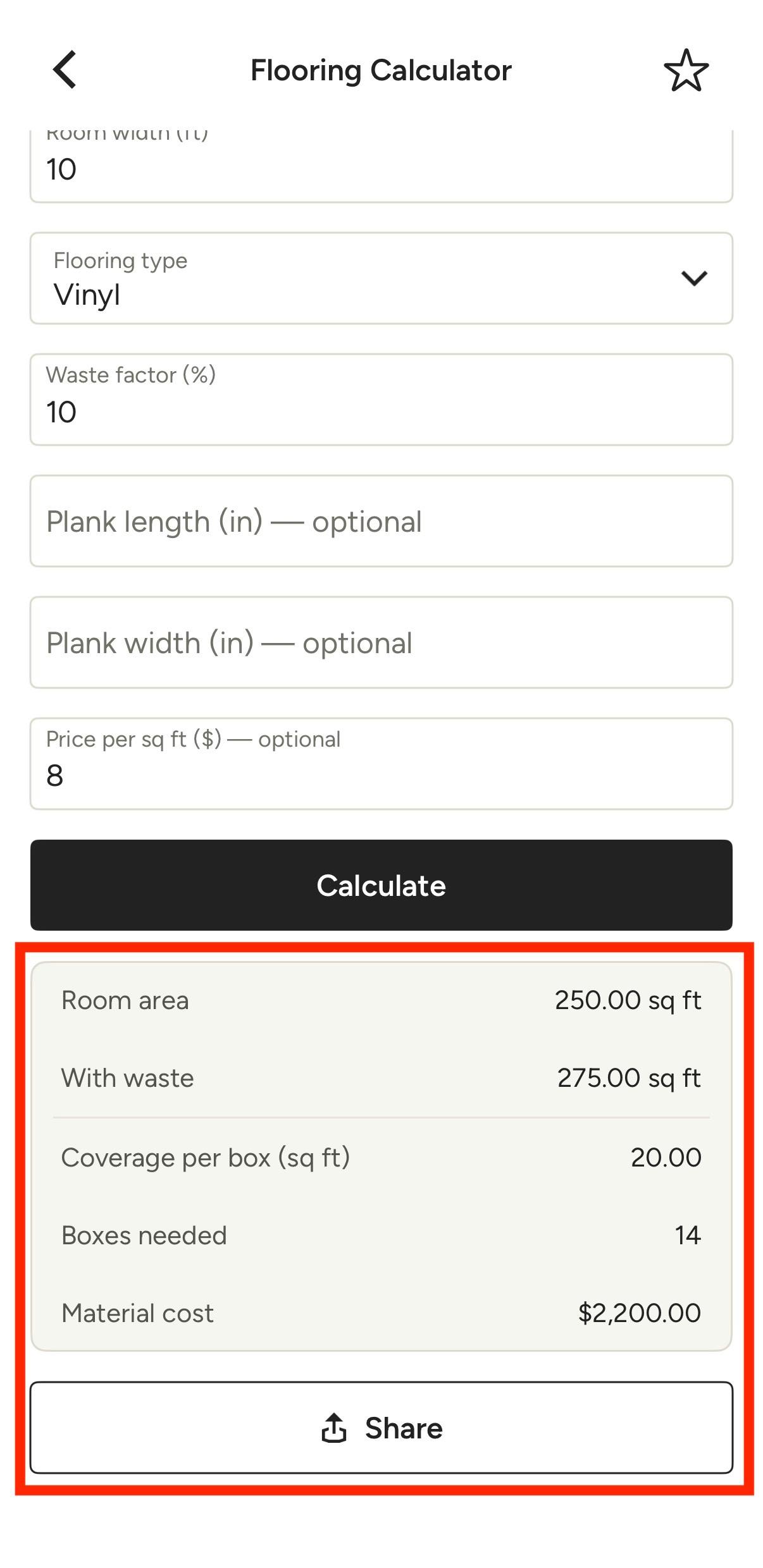
Review the calculation results at the bottom of your screen. Tap the Share button to copy and paste the information — you can also add to a note or a daily log.