How to Use Takeoffs on Houzz Pro
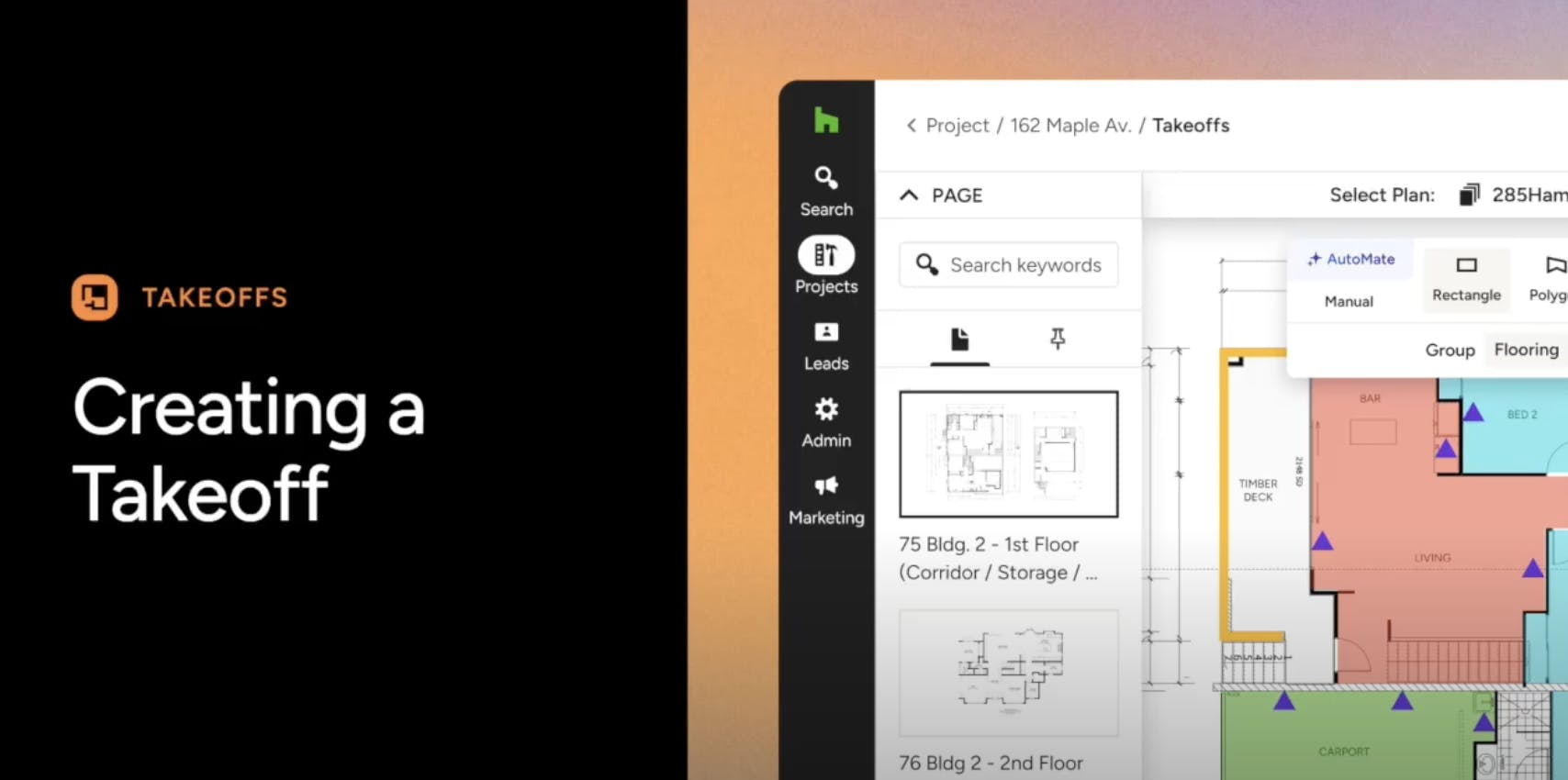
With Takeoffs on Houzz Pro, you can easily create an estimate directly from your construction plans in only a few minutes. Takeoffs are your tool for saving time.
Takeoffs help you get the numbers you need to create your estimate, including measurements for walls and flooring, the quantity of doors and windows, the amount of raw materials needed, and more.
Watch this tutorial to learn more about takeoffs.
Create a Takeoff
To create a takeoff, you will need to upload project plans or use an existing project file — you are not able to create a new takeoff from scratch. At this time, we only accept PDF format for files.
You can access takeoffs from within a project or lead — you can also access from the homepage or from the All Takeoffs page, and then assign it to a project or lead.
Create Takeoff from Lead
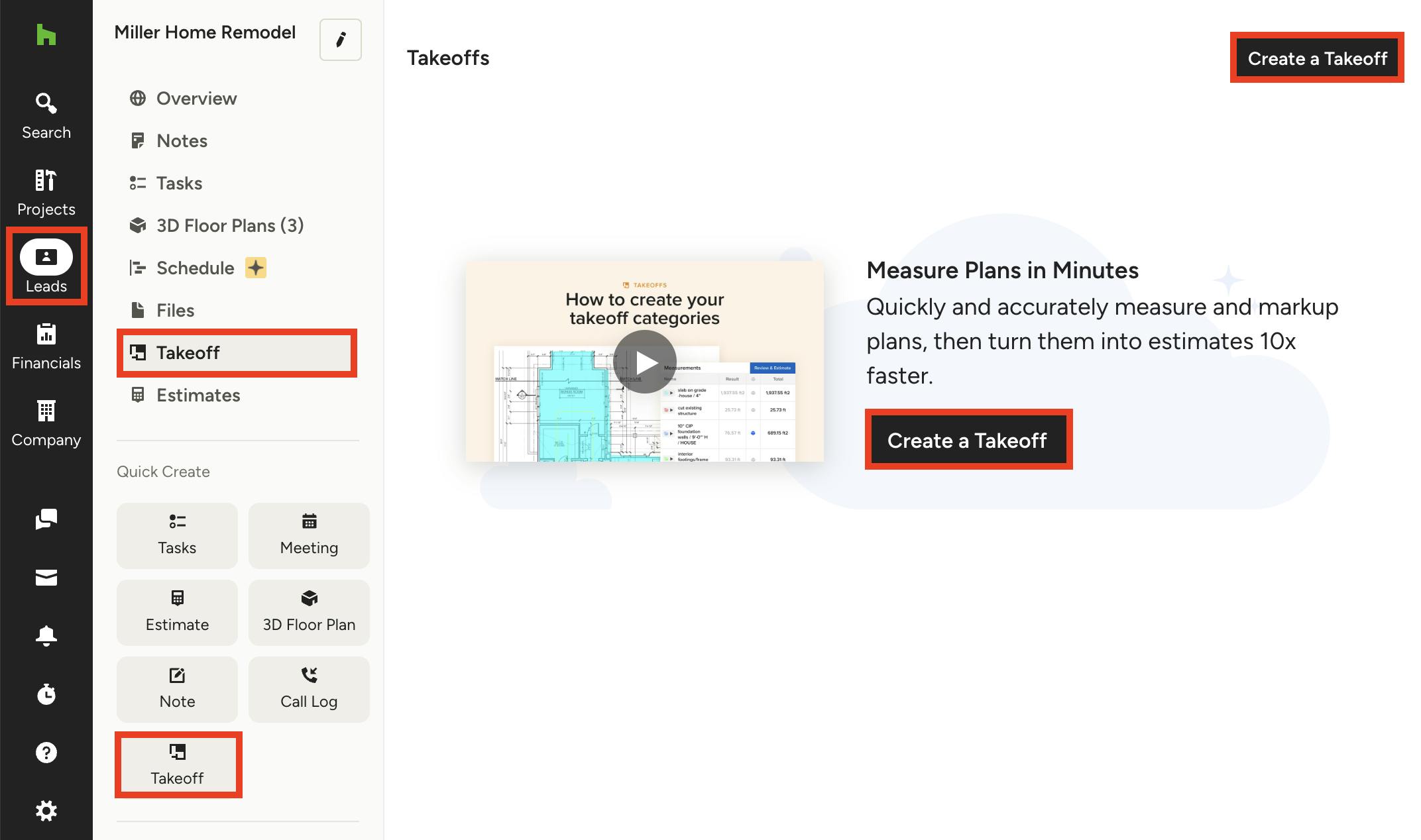
Click on the Leads icon in your left navigation. From there, select the relevant lead. You can either select Takeoff in the left menu, or select Takeoff under the Quick Create menu. Once on the Takeoff page for that lead, select Create Takeoff at the top right or middle of your screen.
You can then upload your floor plan and set the scale from the Page Settings in the lower left corner.
Create Takeoff from Project
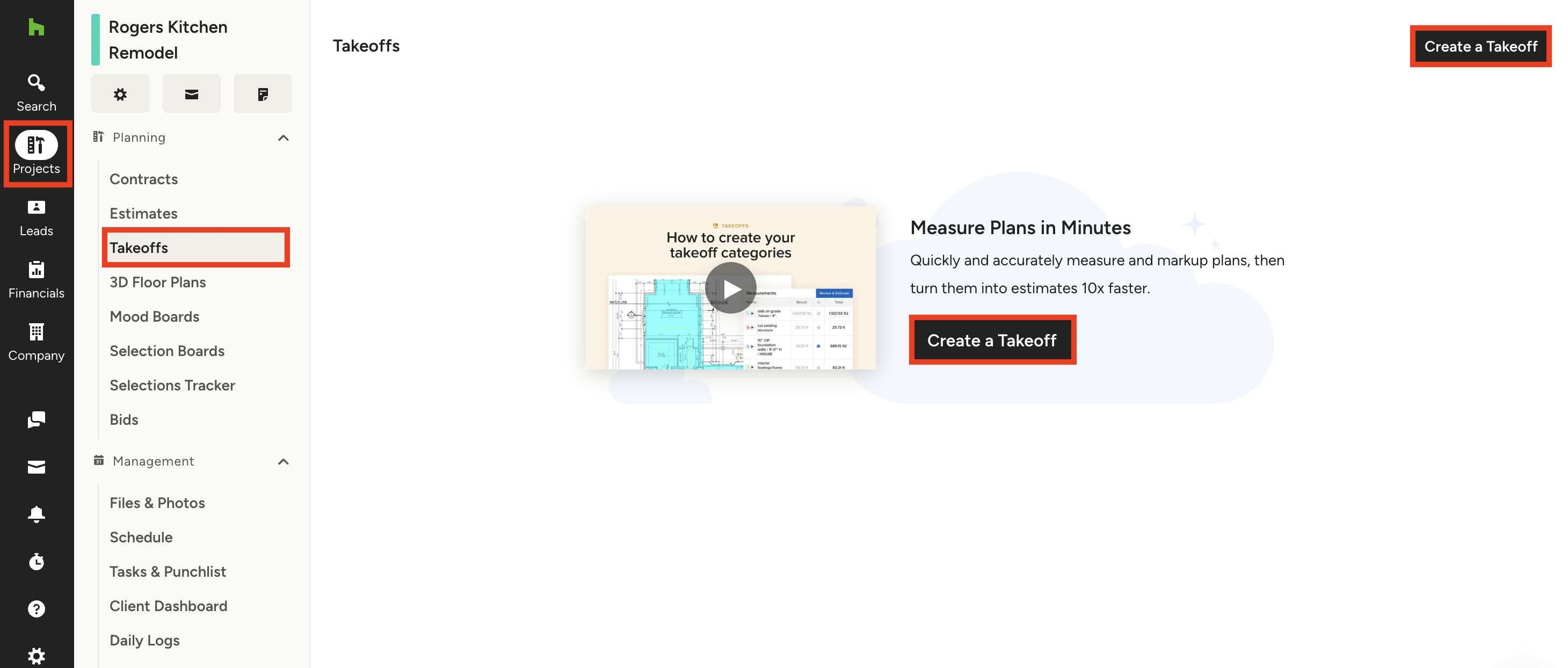
Click on the Projects icon in your left navigation. From there, select the relevant project. Select Takeoffs from the left menu. Once on the Takeoffs page for that project, select Create a Takeoff at the top right or middle of your screen.
You can then upload your floor plan and set the scale from the Page Settings in the lower left corner.
Create Takeoff From Homepage
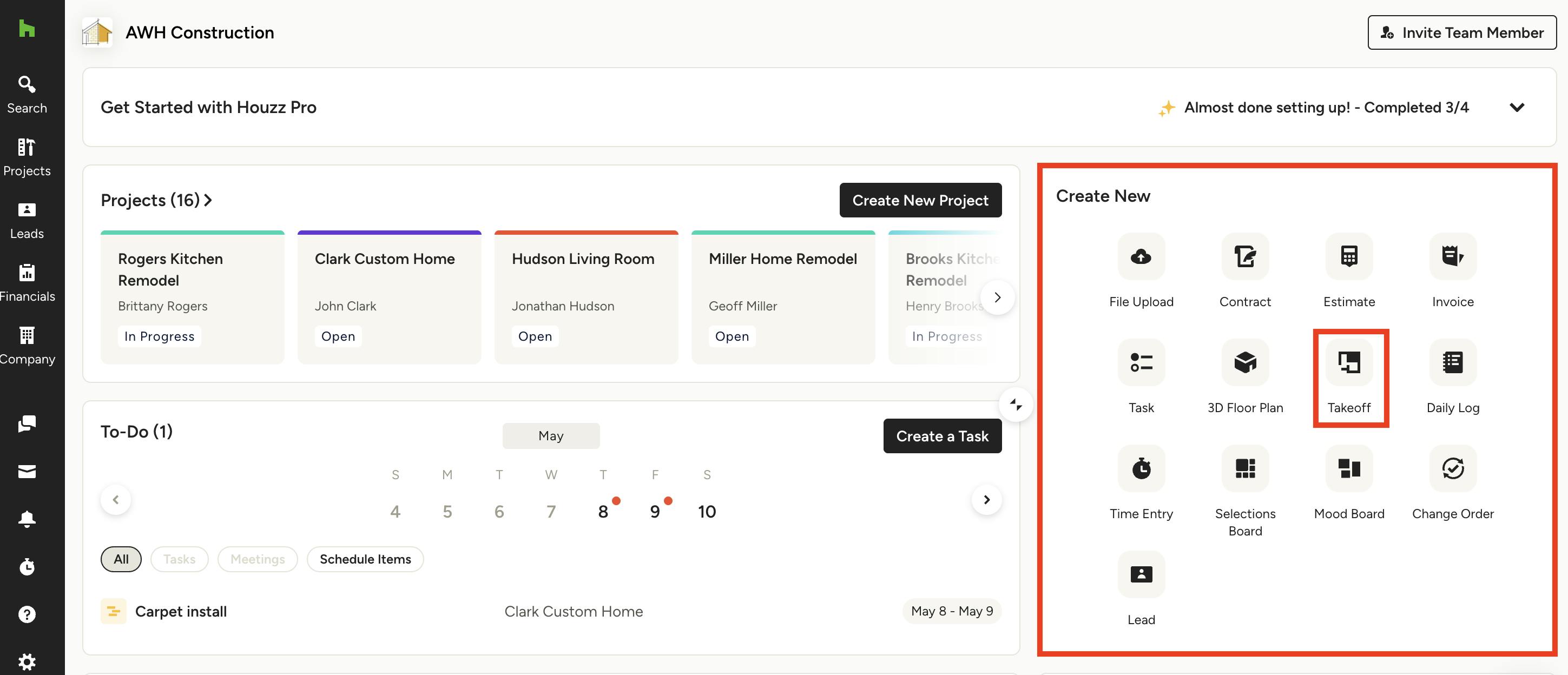
For quick takeoff creation, you can click the Takeoff icon on the homepage under Create New. You can then add it to a new project, a new lead, or an existing project or lead.
From there, upload your floor plan and set the scale from the Page Settings in the lower left corner.
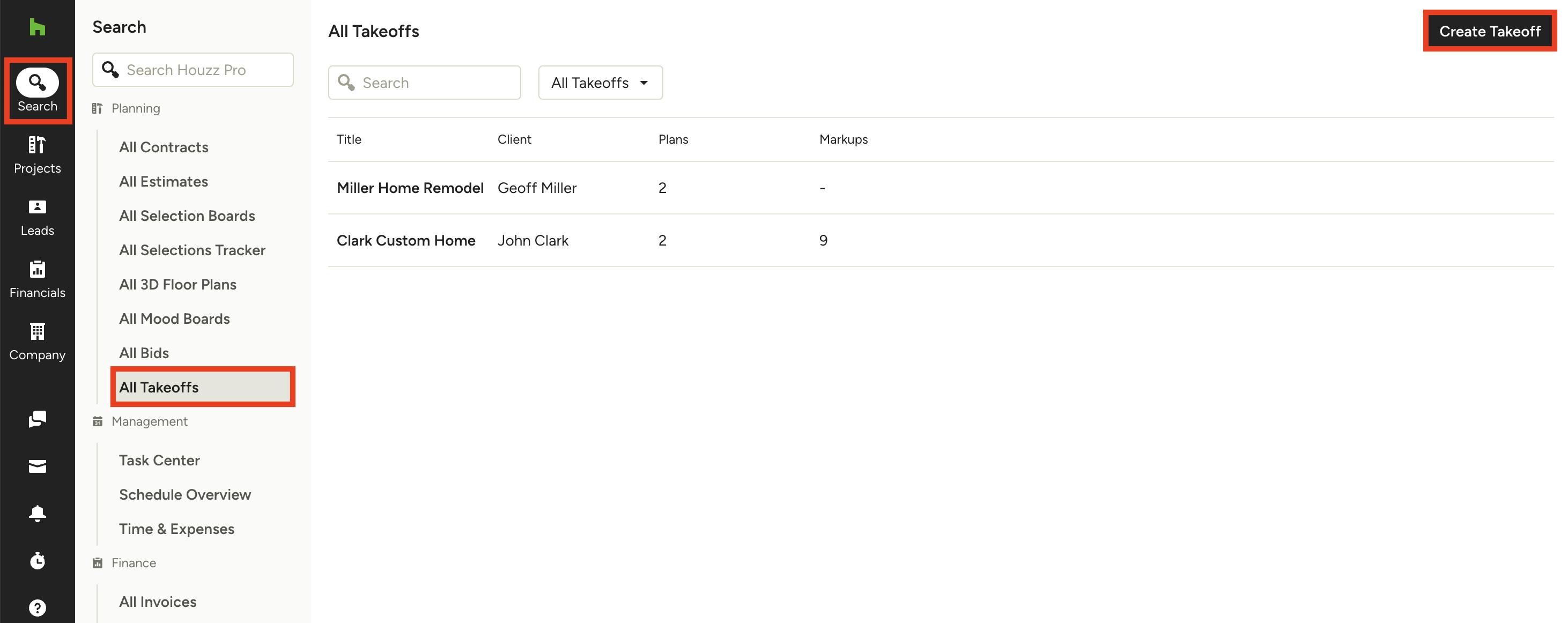
Create Takeoff from All Takeoffs Page
Finally, you can create a new takeoff from the All Takeoffs page. Click on the Search icon in your left navigation, then select All Takeoffs in the left menu. Once on the All Takeoffs page, select Create Takeoff at the top right of your screen. You can then add it to a new project, a new lead, or an existing project or lead.
From there, upload your floor plan and set the scale from the Page Settings in the lower left corner.
View a Takeoff
If you have already created a takeoff, you can quickly access it in several locations throughout Houzz Pro — from a lead, from a project, or from the All Takeoffs page.
Takeoffs in Leads
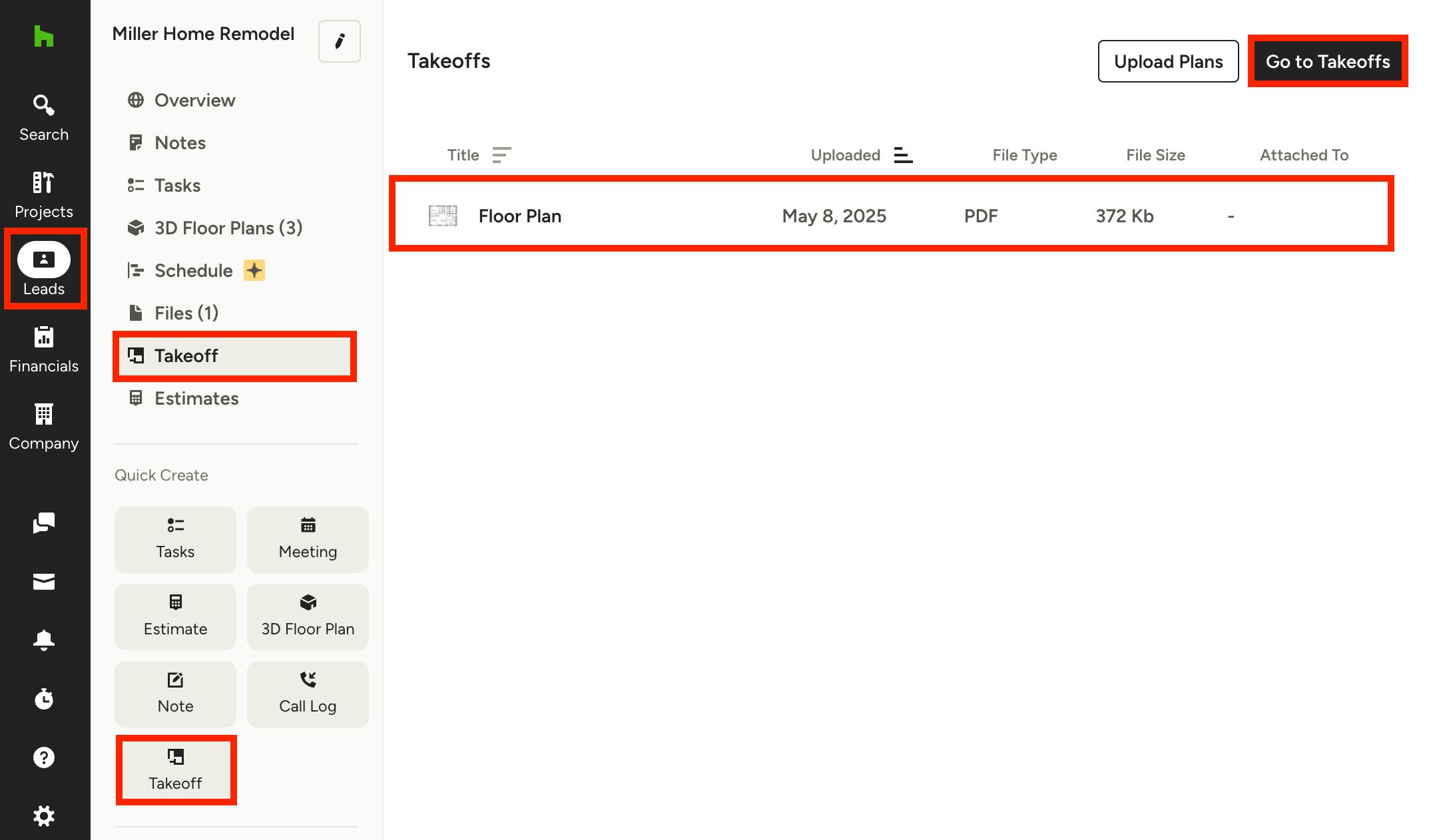
To find a takeoff for a specific lead, click on the Leads icon in your left navigation, then select the relevant lead. You can either select Takeoff in the left menu, or select Takeoff under the Quick Create menu. Once on the Takeoff page for that lead, you can either click the takeoff file, or you can click Go to Takeoffs to view and edit.
Takeoffs in Projects
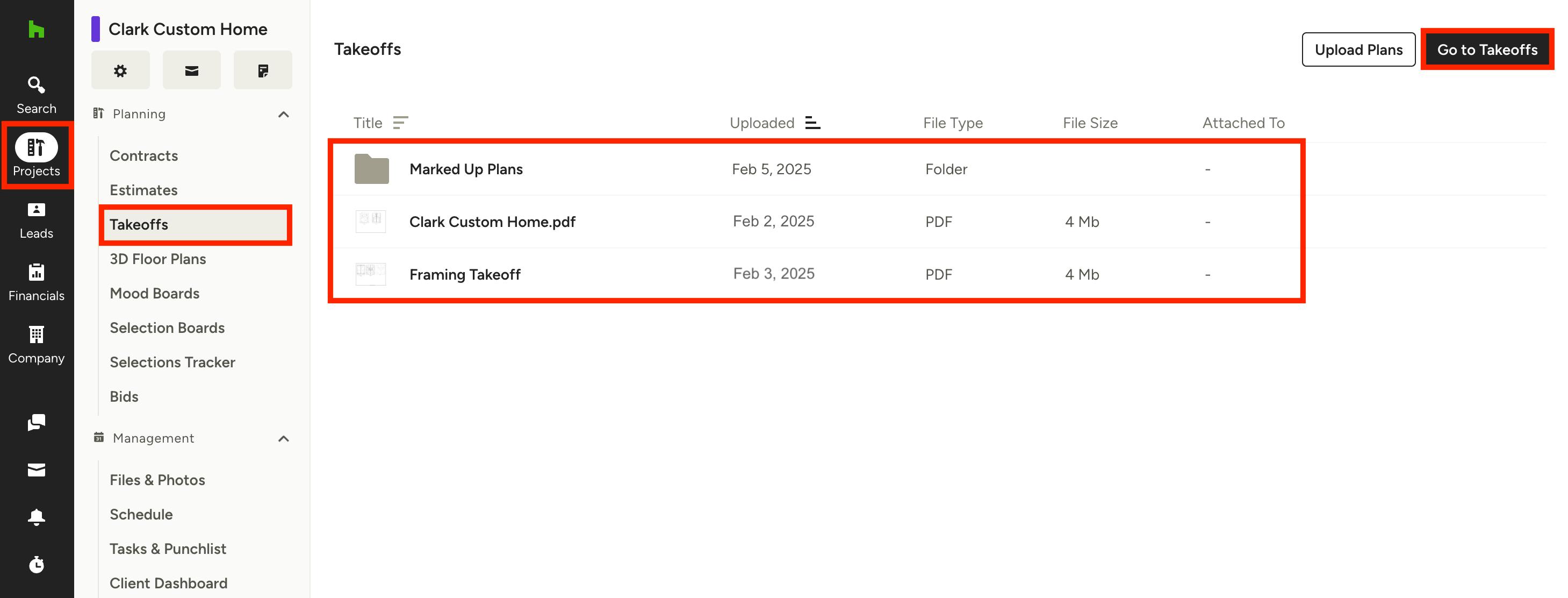
To find a takeoff for a specific project, click on the Projects icon in your left navigation, then select the relevant project. Select Takeoffs from the left menu. Once on the Takeoff page for that project, you can either click the takeoff file, or you can click Go to Takeoffs to view and edit.
All Takeoffs Page
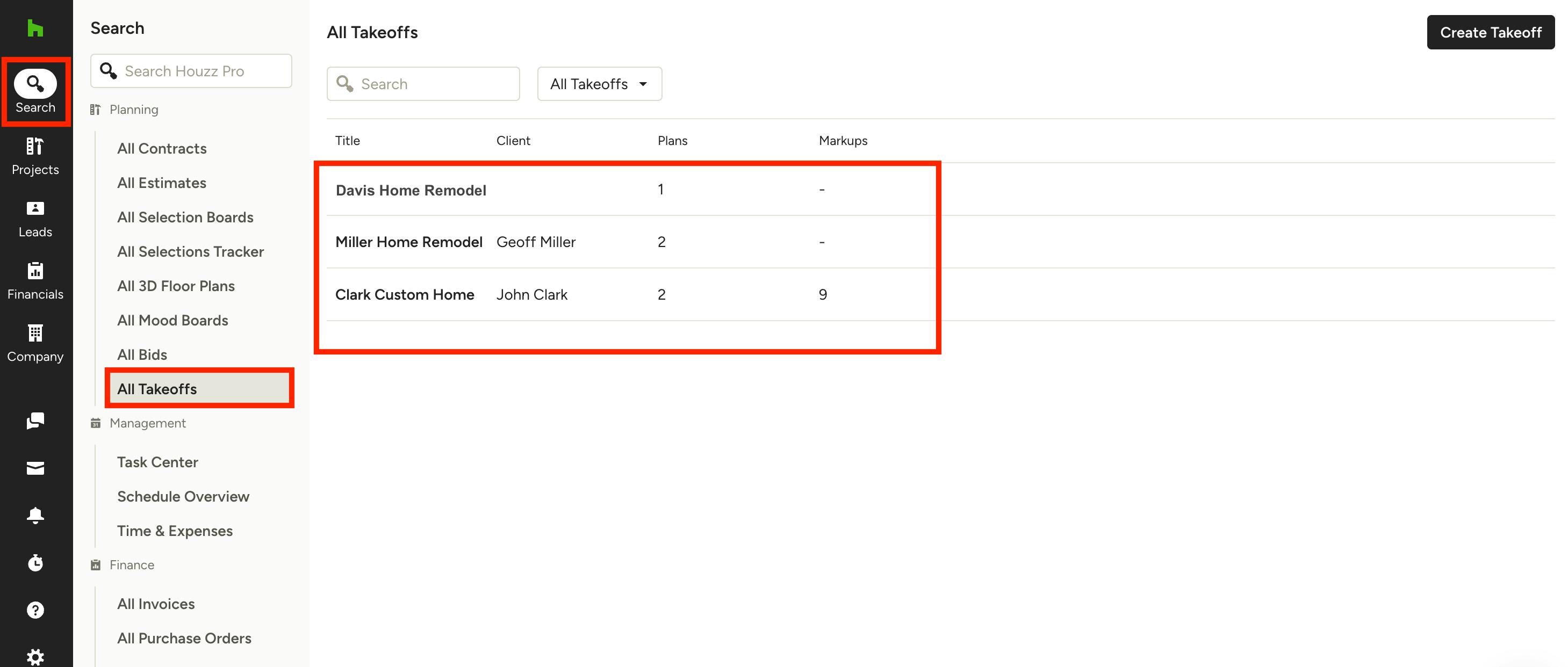
To view your takeoffs across all your projects and leads, click the Search icon in your left navigation, then select All Takeoffs in the left menu. Once on the All Takeoffs page, you can just select the relevant takeoff file to view and edit.
Complete Takeoff Measurements
There are many helpful takeoff features that allow you to quickly and easily calculate measurements and quantities. Review the video above or read these helpful resources to learn more.
How to Use the Basic Takeoffs Tool
How to Set the Correct Scale on Takeoffs
Adjusting Takeoff Measurements
How to Use the Takeoffs Toolbar
More resources on Takeoffs here
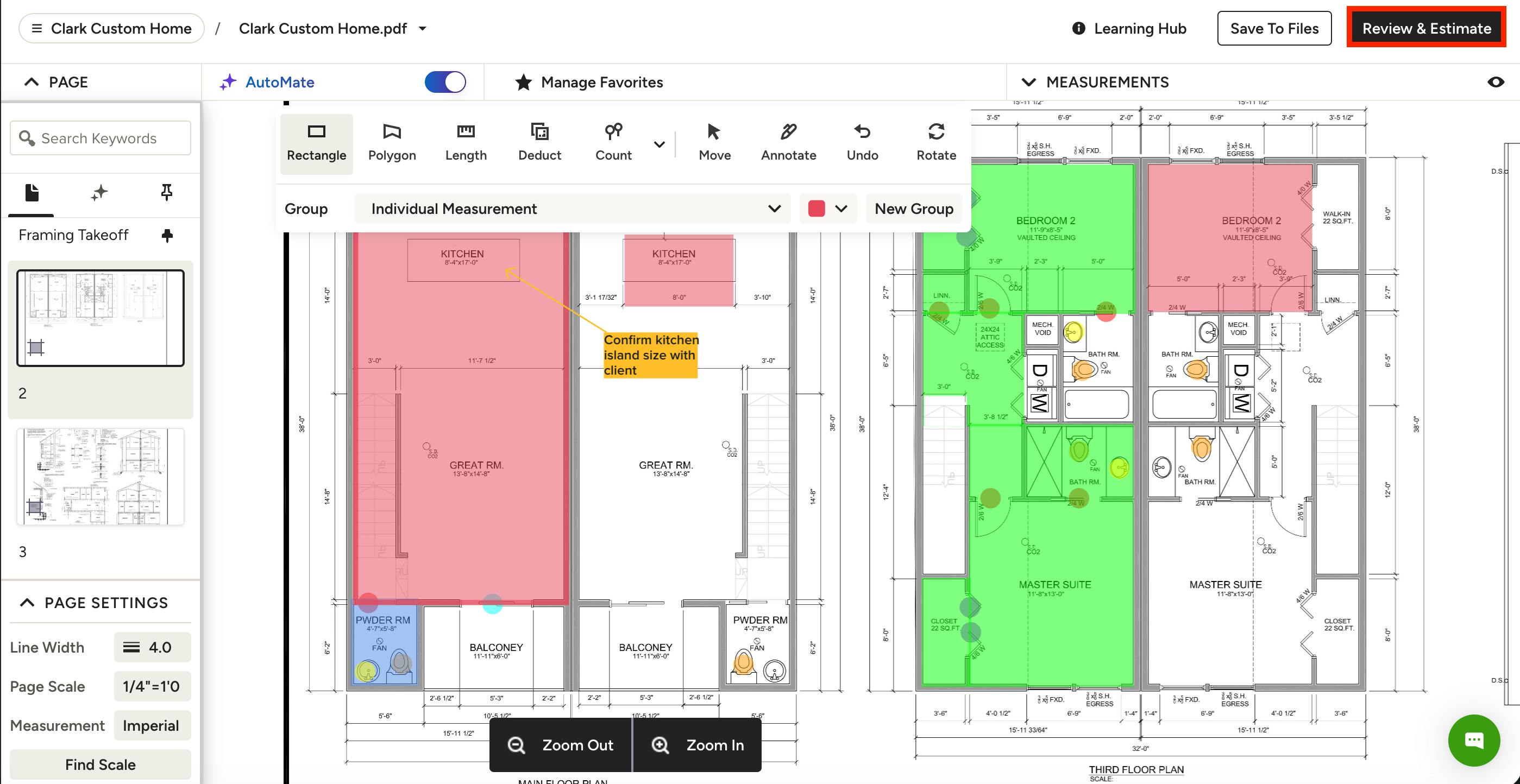
Convert Takeoff to Estimate
Once you're finished measuring, you can quickly transfer your takeoff measurements into an estimate. To start, click the Review & Estimate button at the top right of your screen.
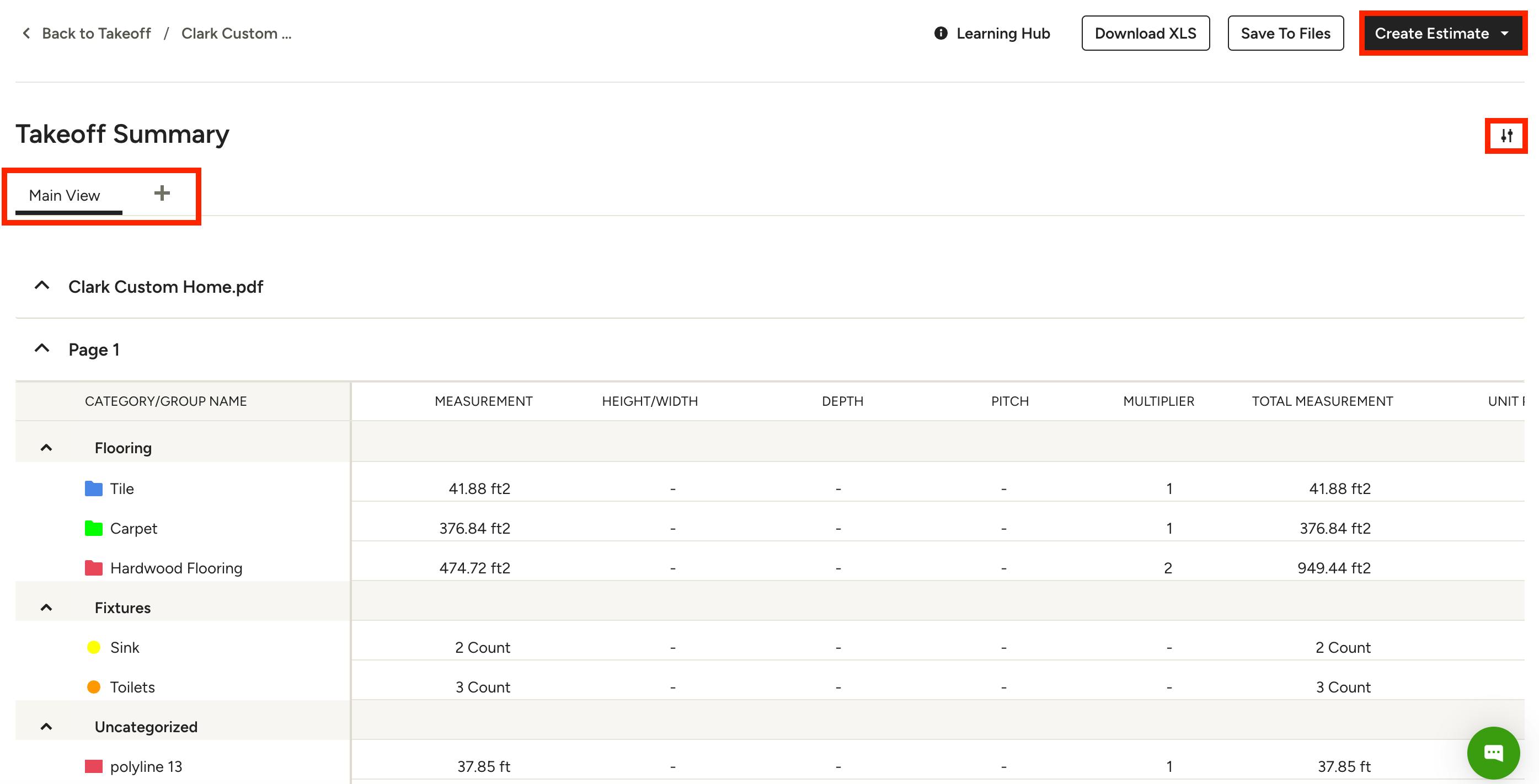
Next, you can review the Takeoff Summary and add your own customizations.
Within the summary, you can create new Takeoff Views by selecting the + sign. Views allow you to customize which specific plans and pages you want to include in both the summary and any exports or new estimates you create. These saved Views are shared at the project level, so other team members with access to the project can all see the same Views.
You can also customize your summary by hiding or showing columns. These preferences are tied to your account only, and they will save and carry over across every takeoff you use — not just the current View.
To learn more about customization options for this page, read How to Customize the Takeoff Summary.
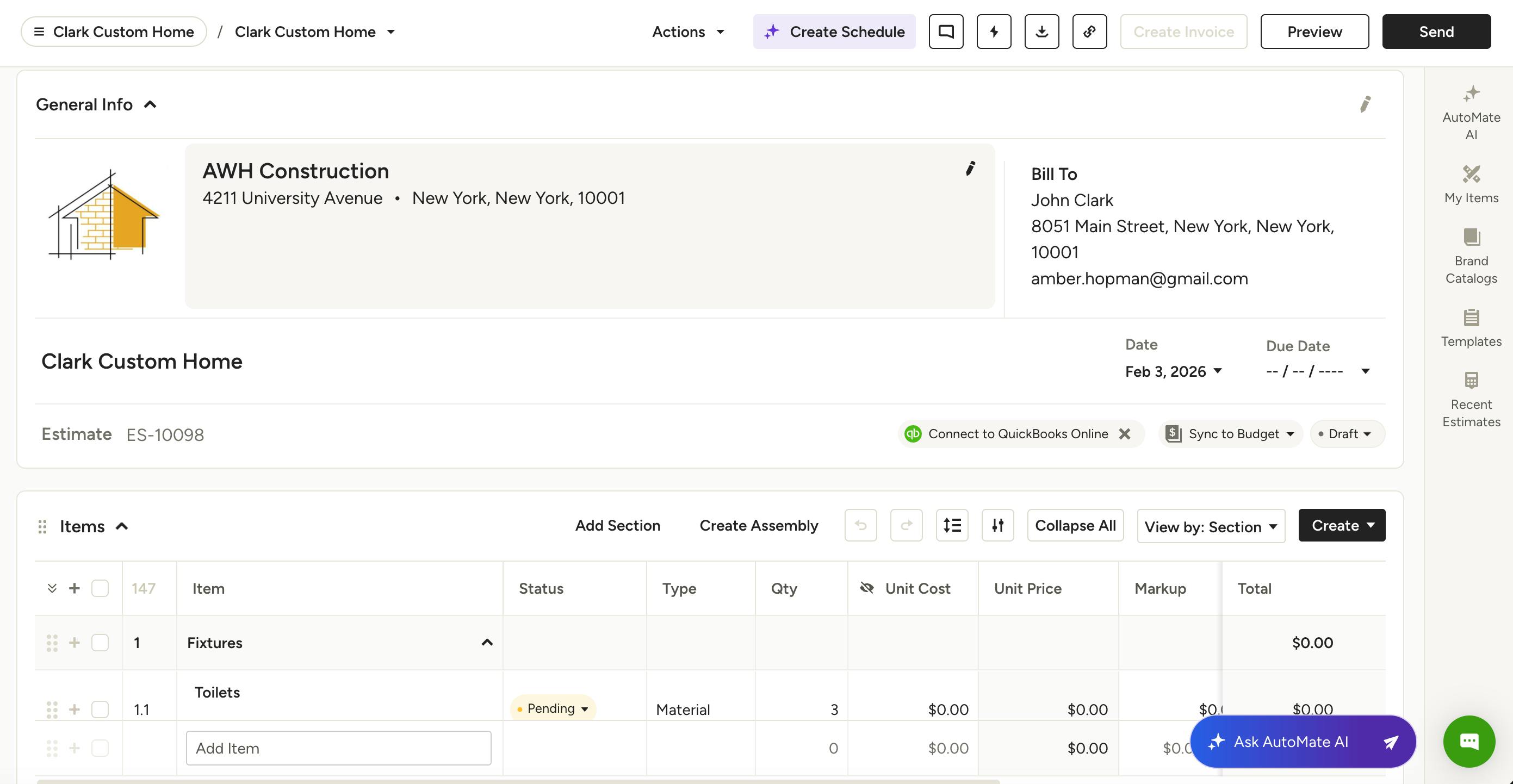
If you are ready to turn your Takeoff Summary into an estimate, select Create Estimate at the top right of your screen. You can either create a new estimate, or duplicate and edit the estimate.
You will then have a detailed, accurate estimate to use in your project, as shown below. You can continue to edit and make changes as needed. Read How to Create an Estimate to learn more.
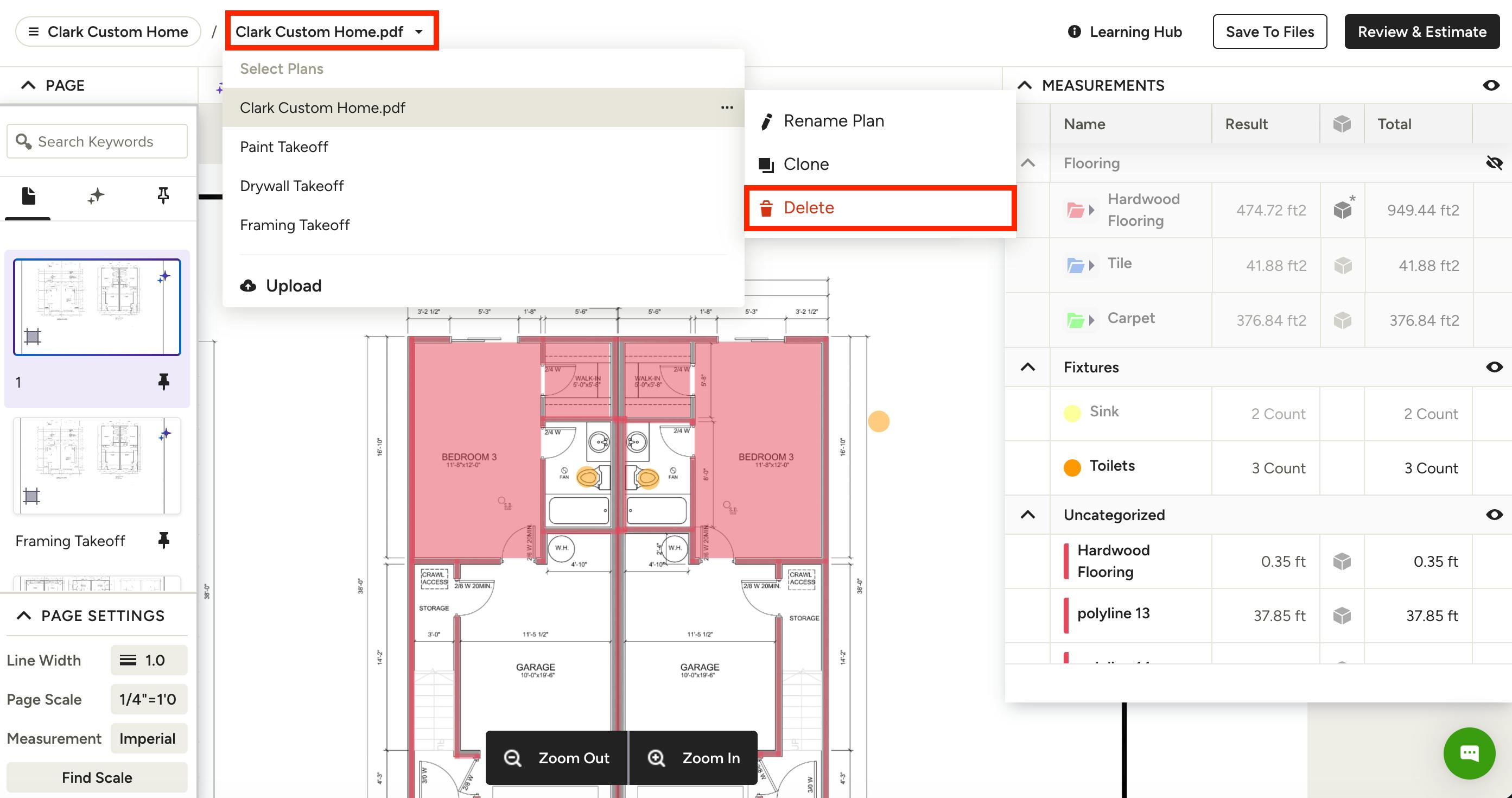
Delete a Takeoff
If you need to delete a takeoff you created, you can do this on the takeoff plan itself, as well as on the takeoff overview page within your project.
From Takeoff Plan
Open up your takeoff, then select the relevant plan from the dropdown at the top. Click the three dots icon next to the plan, then click Delete.
From Takeoff Overview Page
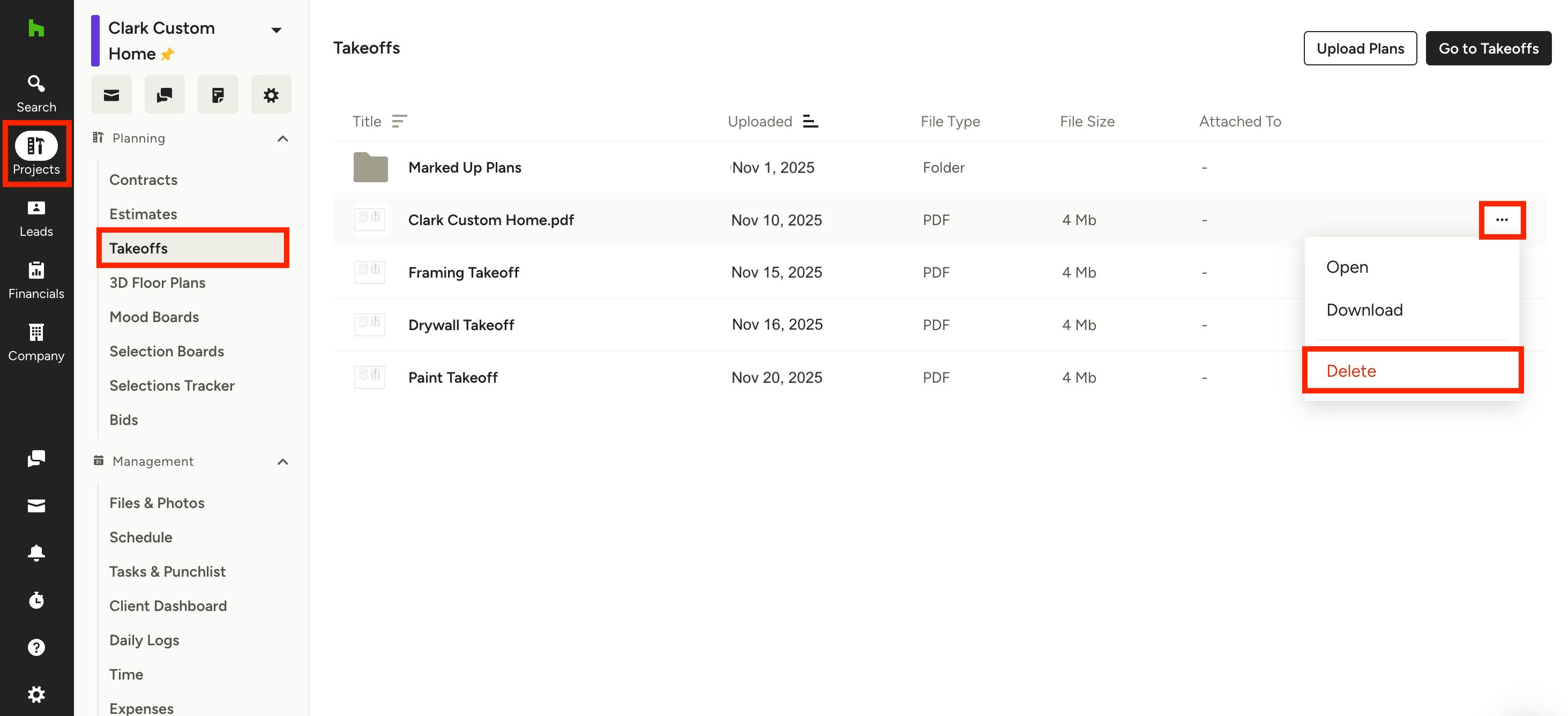
Click on the Projects icon in your left navigation. From there, select the relevant project. Select Takeoffs from the left menu. Once on the Takeoffs page for that project, select the three dots icon to the right of the relevant takeoff, then click Delete.
Please Note: Deleting a takeoff will permanently remove the plan and all of its measurements from your project. This action cannot be undone.