How to Organize Leads with Tags
Keeping on top of your leads is a key part of running an efficient and successful business. With Houzz Pro, you can use tags to organize your leads. Tags allow you to customize how leads are grouped so they best support your company's workflow and internal process. They help you organize your leads in an easy-to-understand way so you can win jobs and convert more leads to projects.
Here's how it works: You create custom tags (e.g. custom stages or statuses) that match the way your team works. Once created, you can quickly apply these tags to relevant leads, then easily filter and sort by tags to find leads more efficiently.
Let's take a look at how to create and manage lead tags.
Create and Add Lead Tags
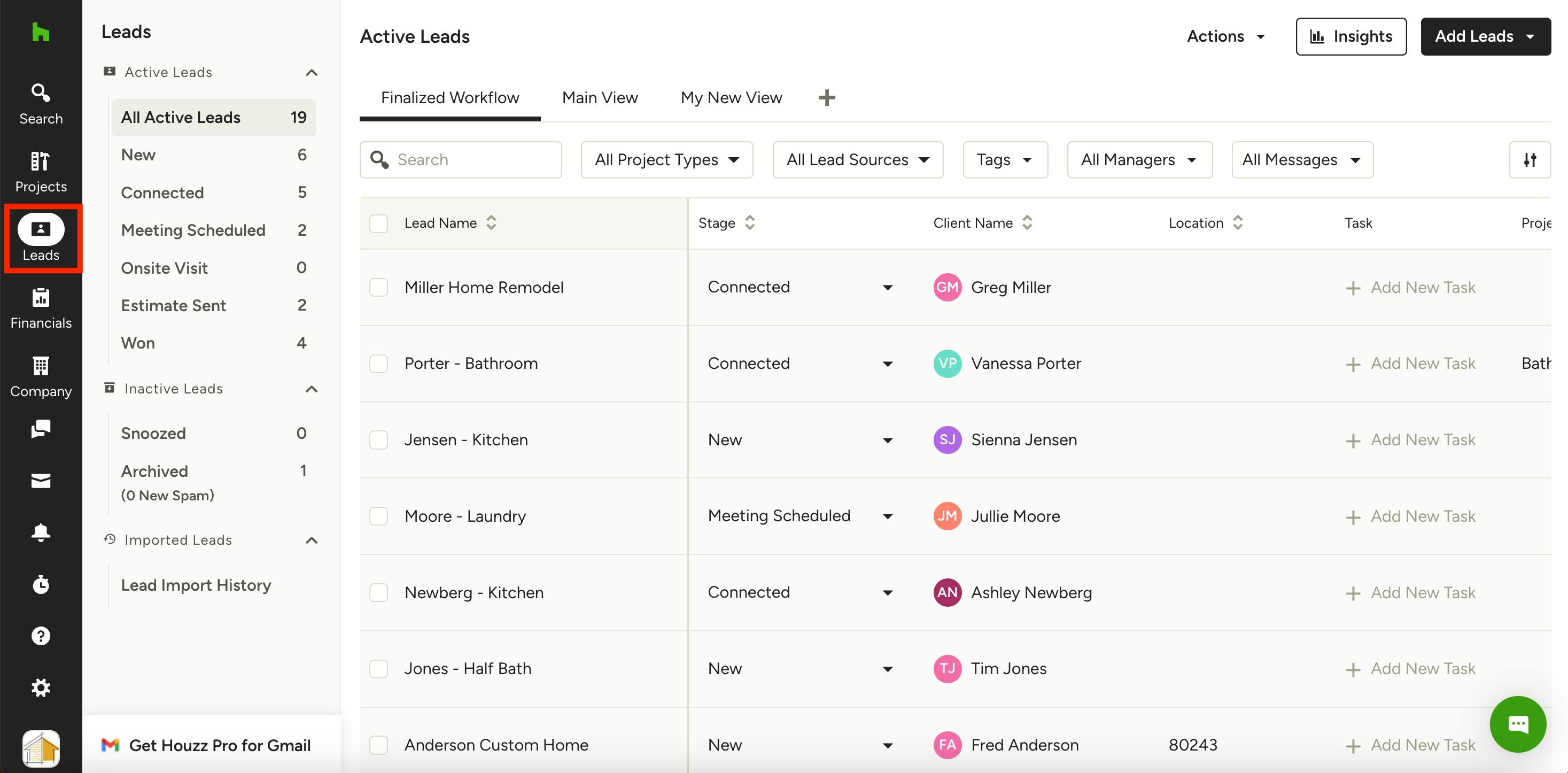
To create new tags or add existing tags to a lead, you first need to open up the All Leads page by clicking the Leads icon in your left navigation.
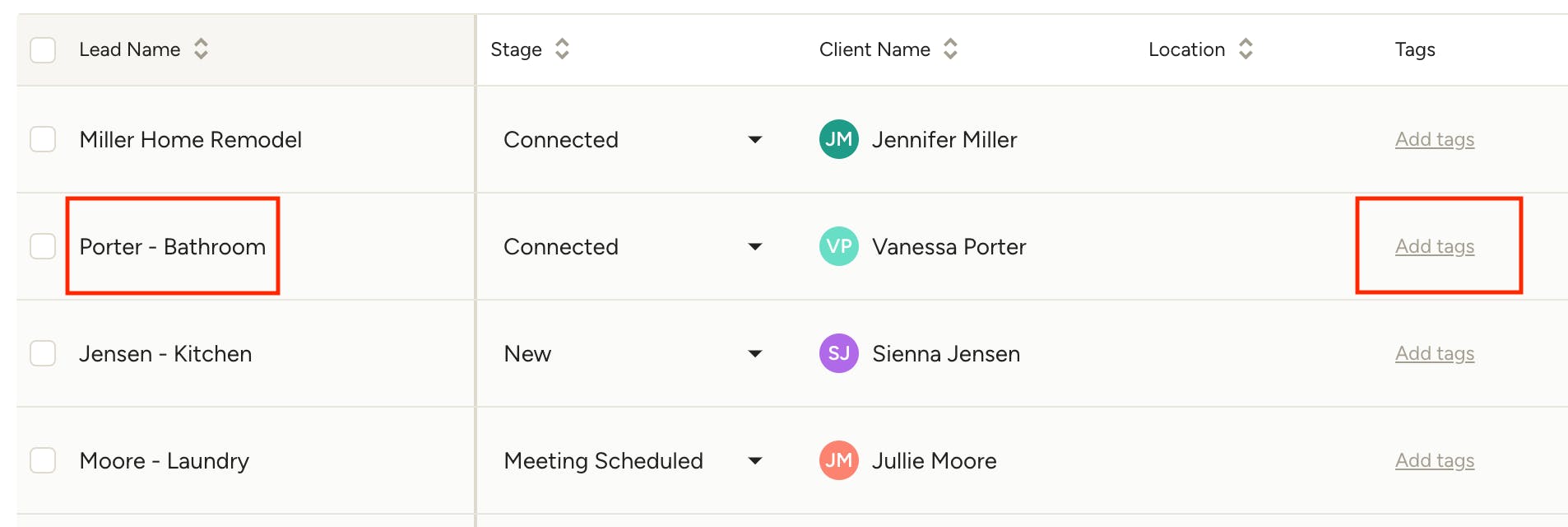
Once on the All Leads list, click on Add Tags in the Tags column on the desired lead, or open the lead details by clicking on the lead name.
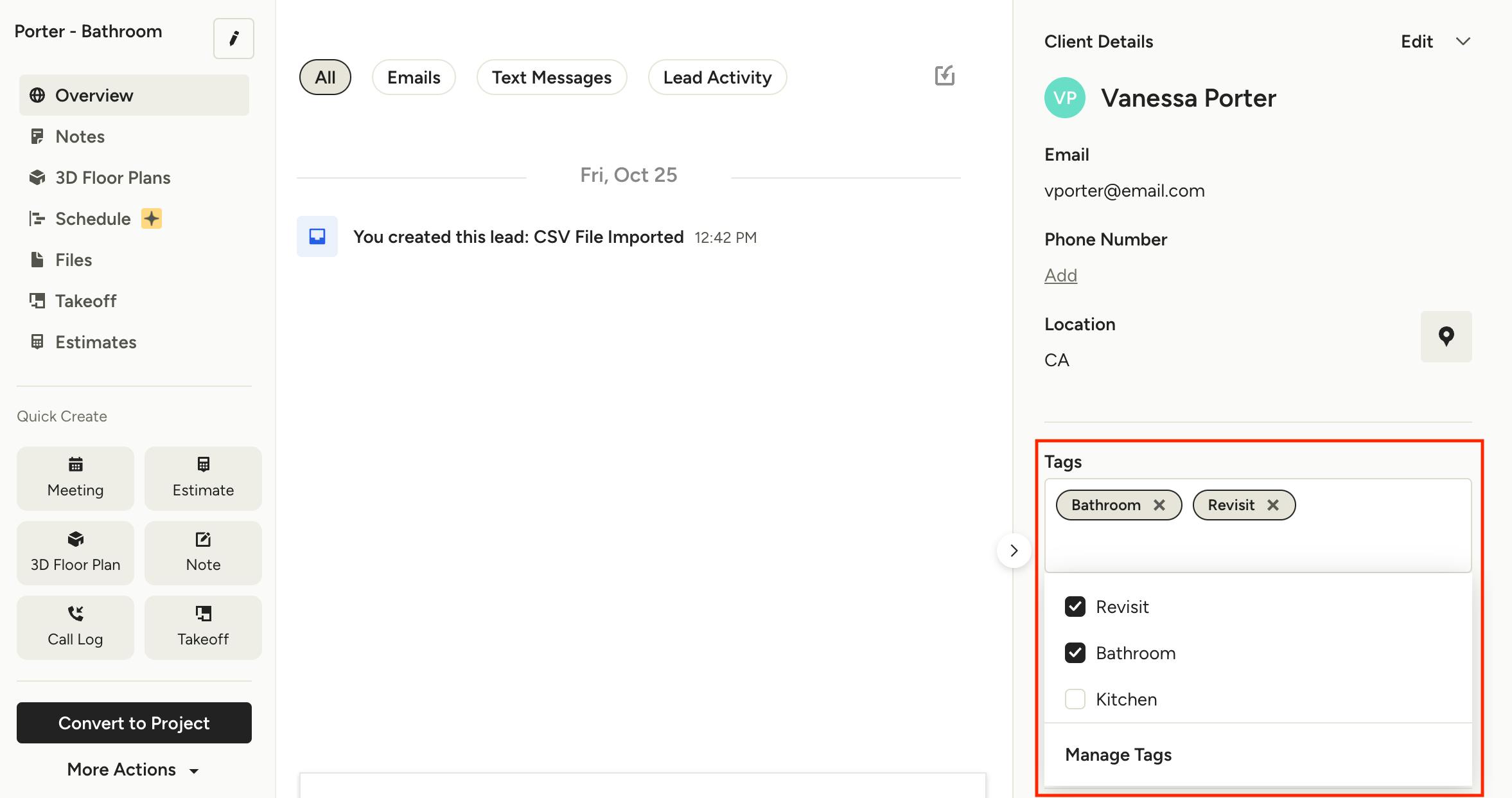
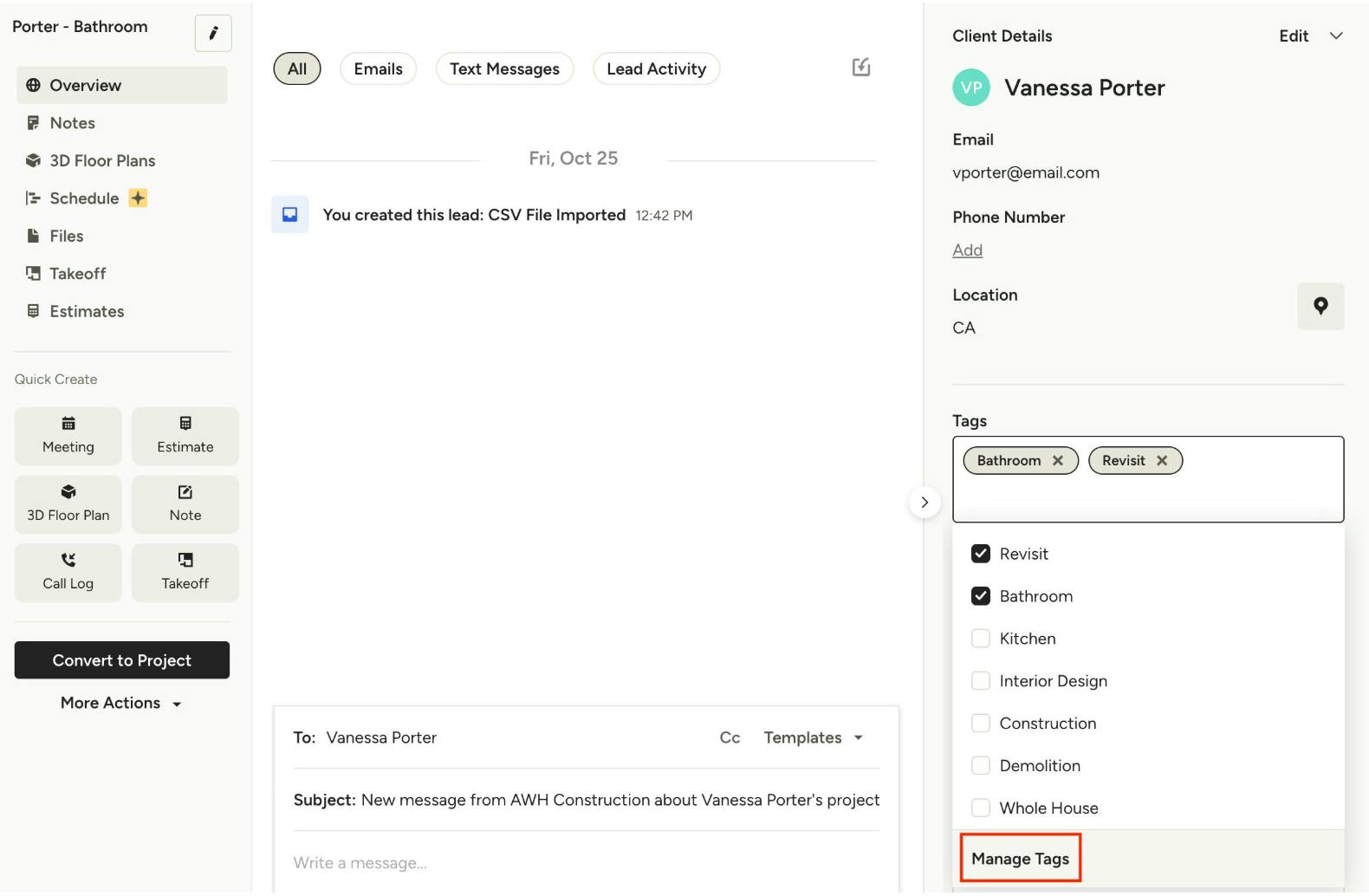
Next, locate the Tags section in the right panel on the lead details page. Here you can click on existing tags to add them to the lead. You may apply multiple tags to a single lead. Use the input field to search for tags or create a new one.
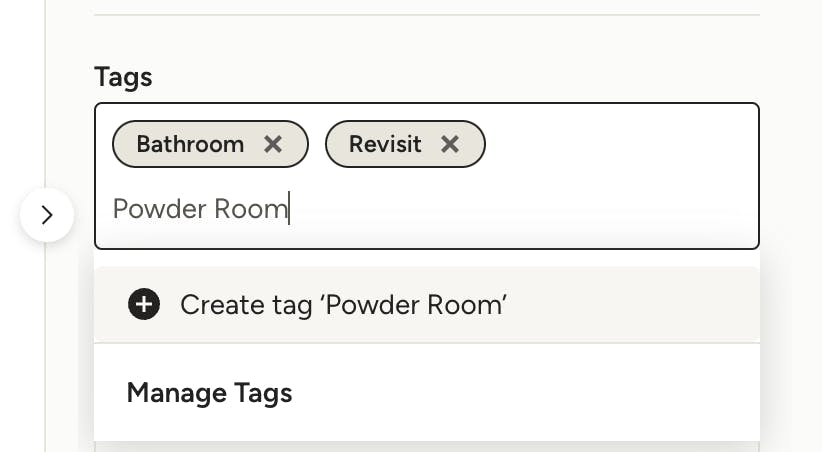
To create a new tag, type the desired tag name into the input field and hit Enter/Return or click "Create Tag [name]" to add it to your tag list.
Manage Lead Tags
To edit or delete a lead tag, you will need to access the Manage Tags modal. You can open this in the Tags section on the lead details page in the right panel — click into the tags field, then select Manage Tags at the bottom of the list.
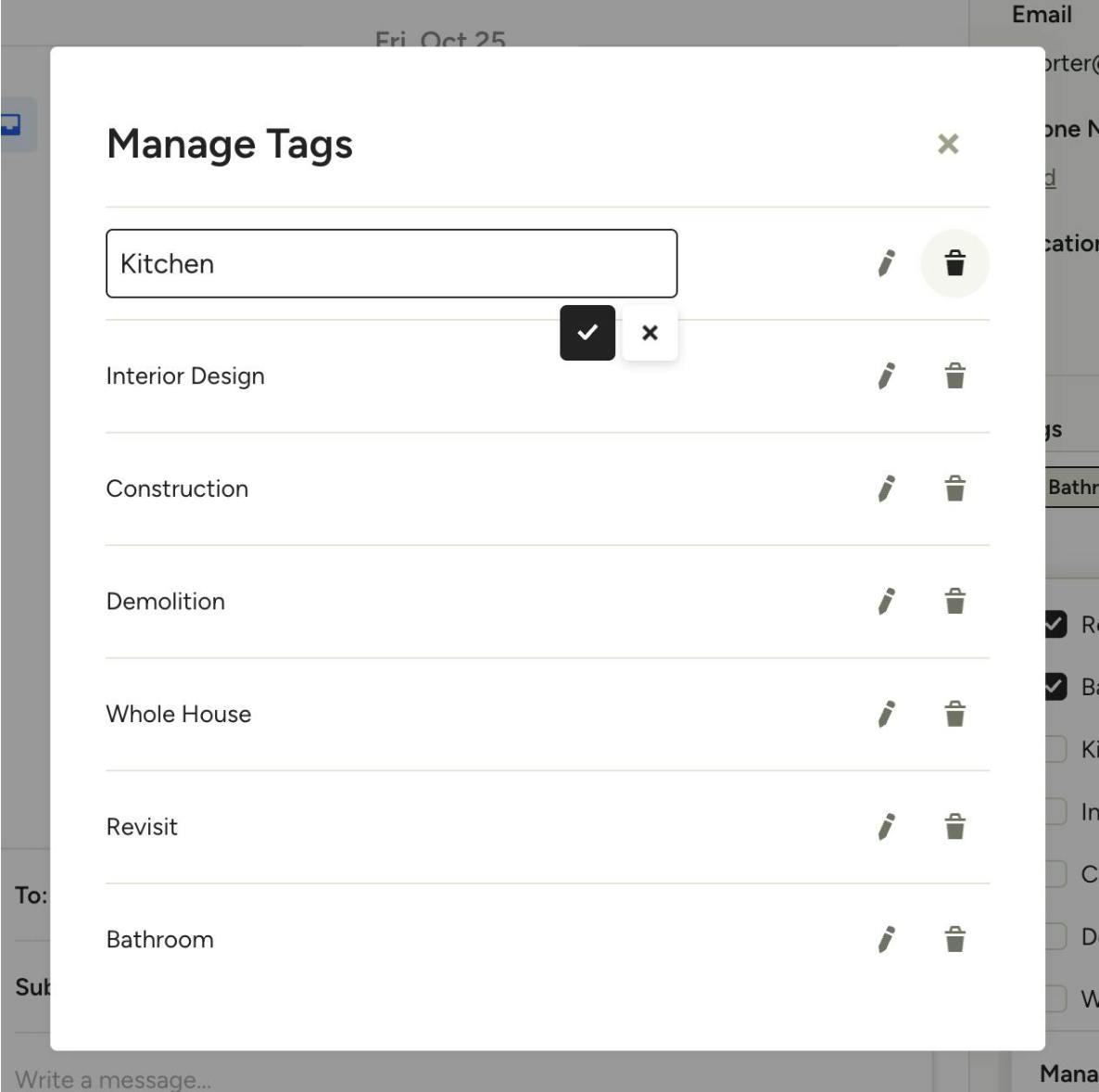
In the Manage Tags modal, you can click the edit icon to change a tag name, or click the trash icon to delete a tag. Deleting a tag will remove it from leads it is currently applied to and cannot be undone.
Filter Leads by Tags
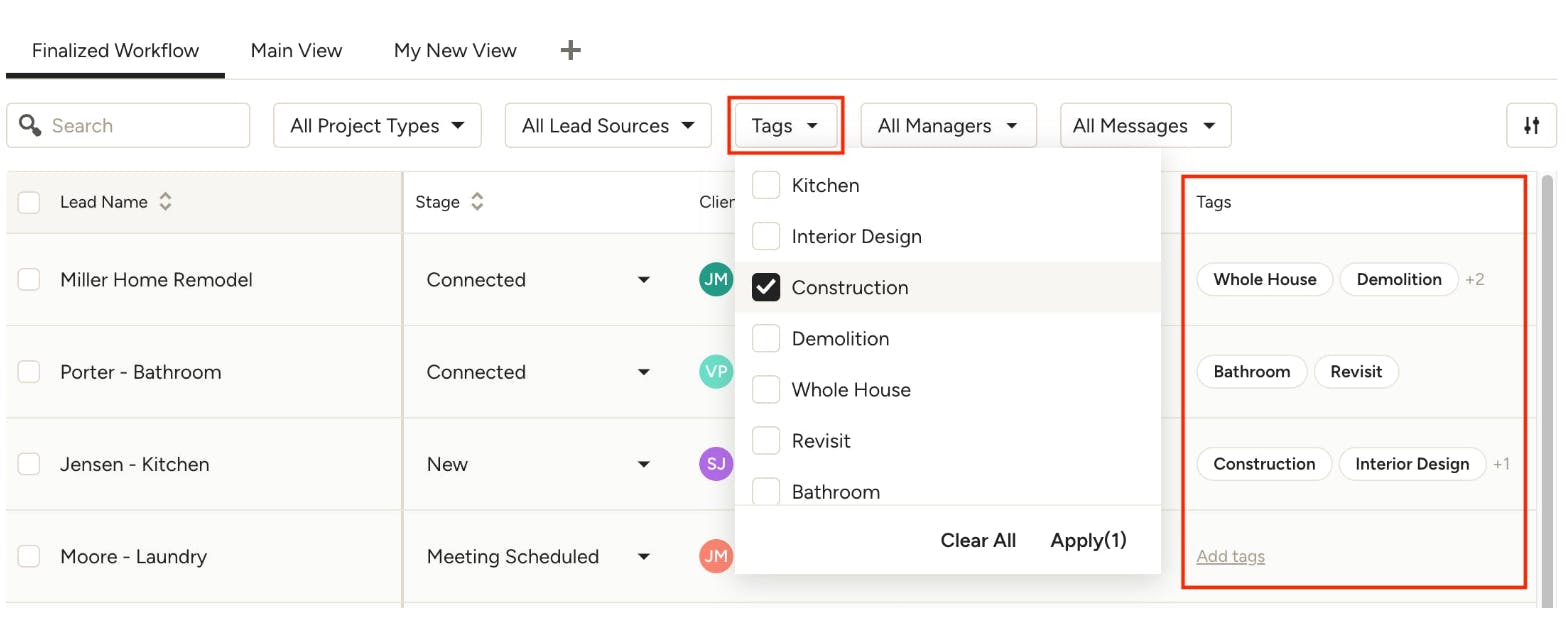
Once you apply one or more tags to a lead, you will see them in the Tags column in the main leads list. To quickly filter your leads by a single tag, click directly on the desired tag and your results will be automatically filtered. You can also use the Tags filter at the top of the list to apply one or more tag filters.