How to Manage Projects and Leads on the Mobile App
With the Houzz Pro mobile app, there are many ways to manage your projects and leads while in the office, on-site, or on-the-go. You can view and edit existing projects and leads, create new projects and leads, archive projects, archive or delete leads, message clients or leads, edit client details, upload files and more.
To start using the app, you will first need to download the Houzz Pro app from the App Store or Google Play.
Create New Projects and Leads
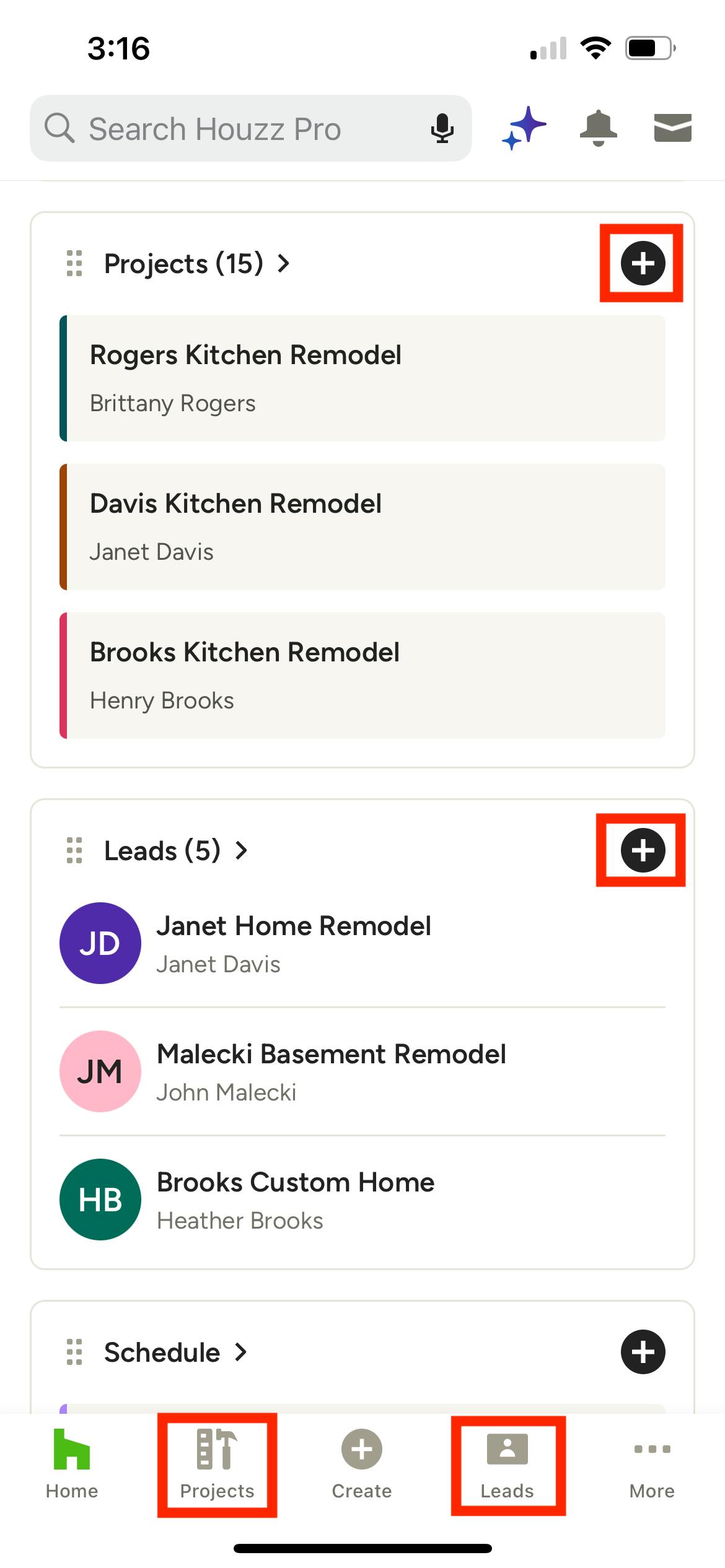
Within the Houzz Pro app, there are several different ways that you can create a new project or lead. You can:
- Scroll down to the Projects or Leads section on your homepage screen, then select the + icon next to the section title.
- Select the Projects or Leads icon from the bottom navigation menu, then the black Create New button.
For a New Project
When you create a new project, all you need to do is input the project name, then click Create. The project details page will now appear — you can then input additional project information and start creating content for the project.
This new project will now also appear in your existing project list.
For a New Lead
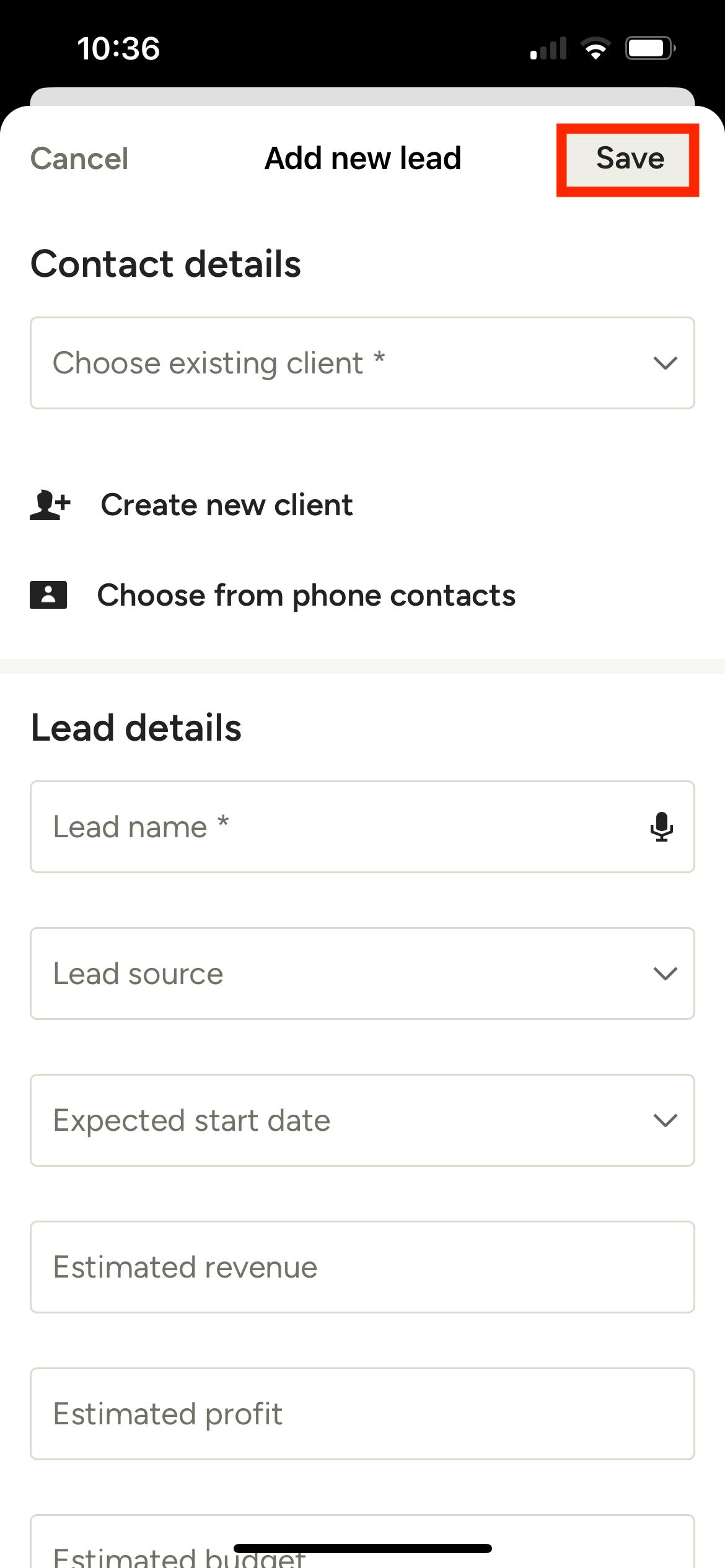
When you create a new lead, you will need to input more details about the contact and the potential project.
For contact details, you can choose from existing clients, create a new client, or select a client from your phone. For lead details, you can input all relevant information about the project, including lead name, source, start date, project type, and estimated revenue, profit and budget.
Once complete, be sure to click Save. Your new lead will now appear in your existing lead list.
Edit Existing Projects and Leads
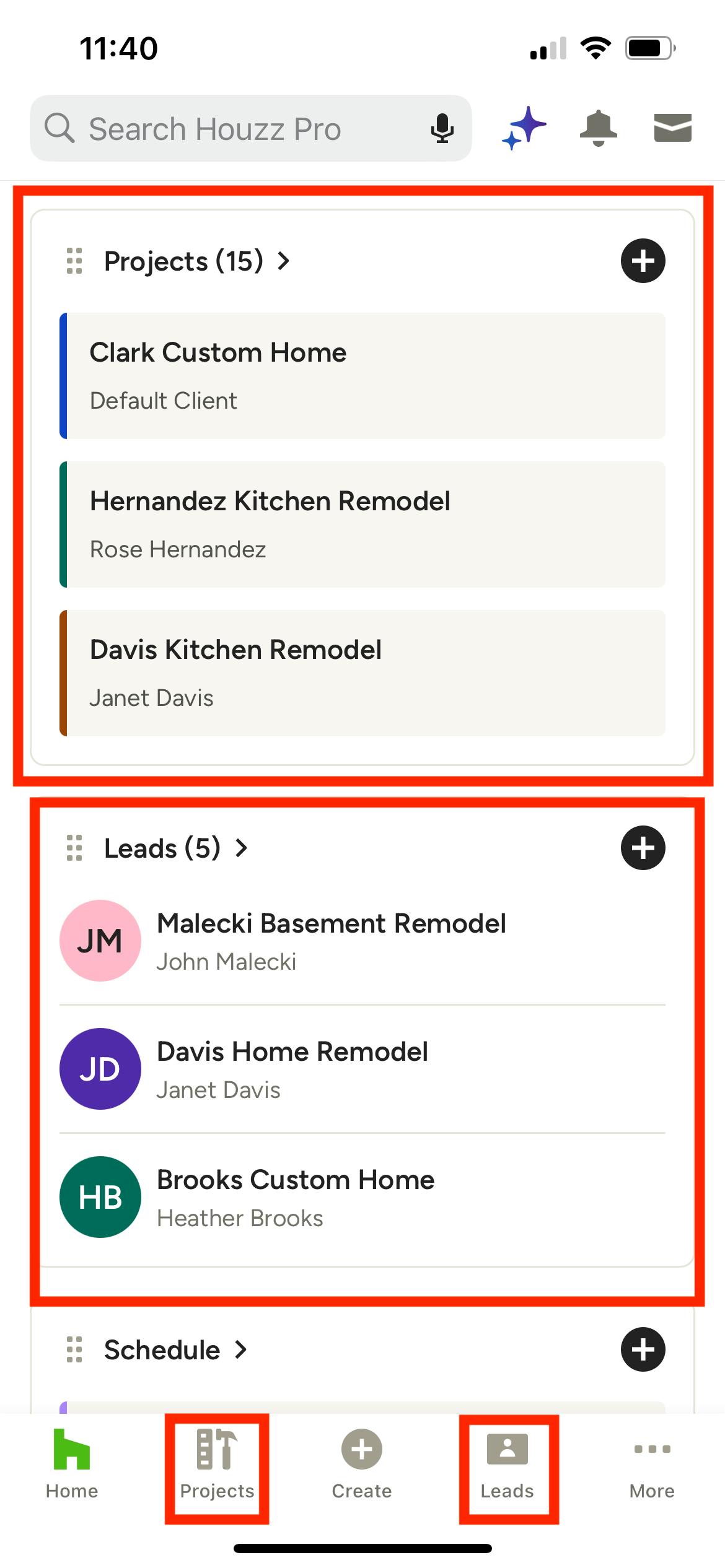
If you would like to view and edit an existing project or lead instead, they are all easily accessible in several locations on the Houzz Pro mobile app.
For projects, you can either select the Projects icon at the bottom of your screen, or view a list of projects by scrolling down on your app homepage.
For leads, you can either select the Leads icon at the bottom of your screen, or view a list of leads by scrolling down on your app homepage.
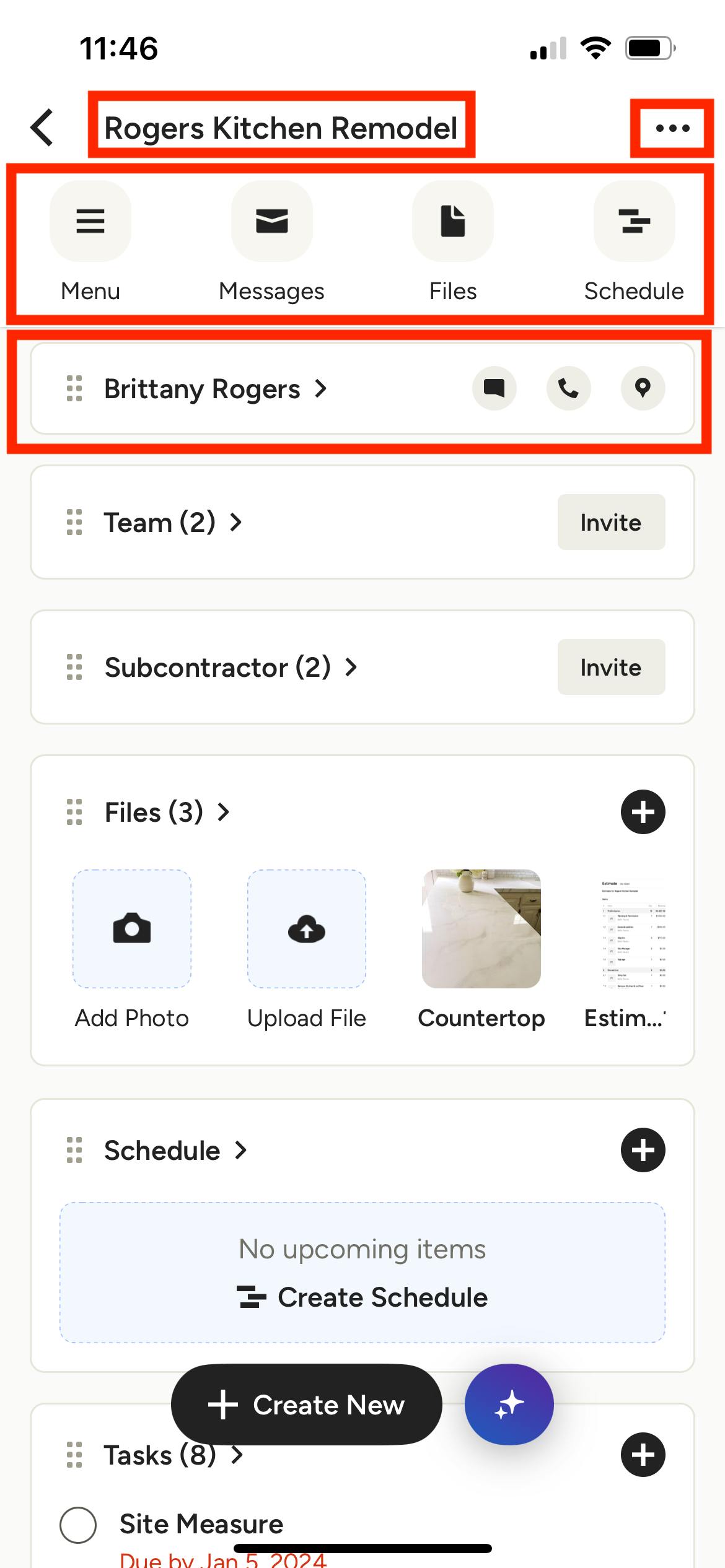
For an Existing Project
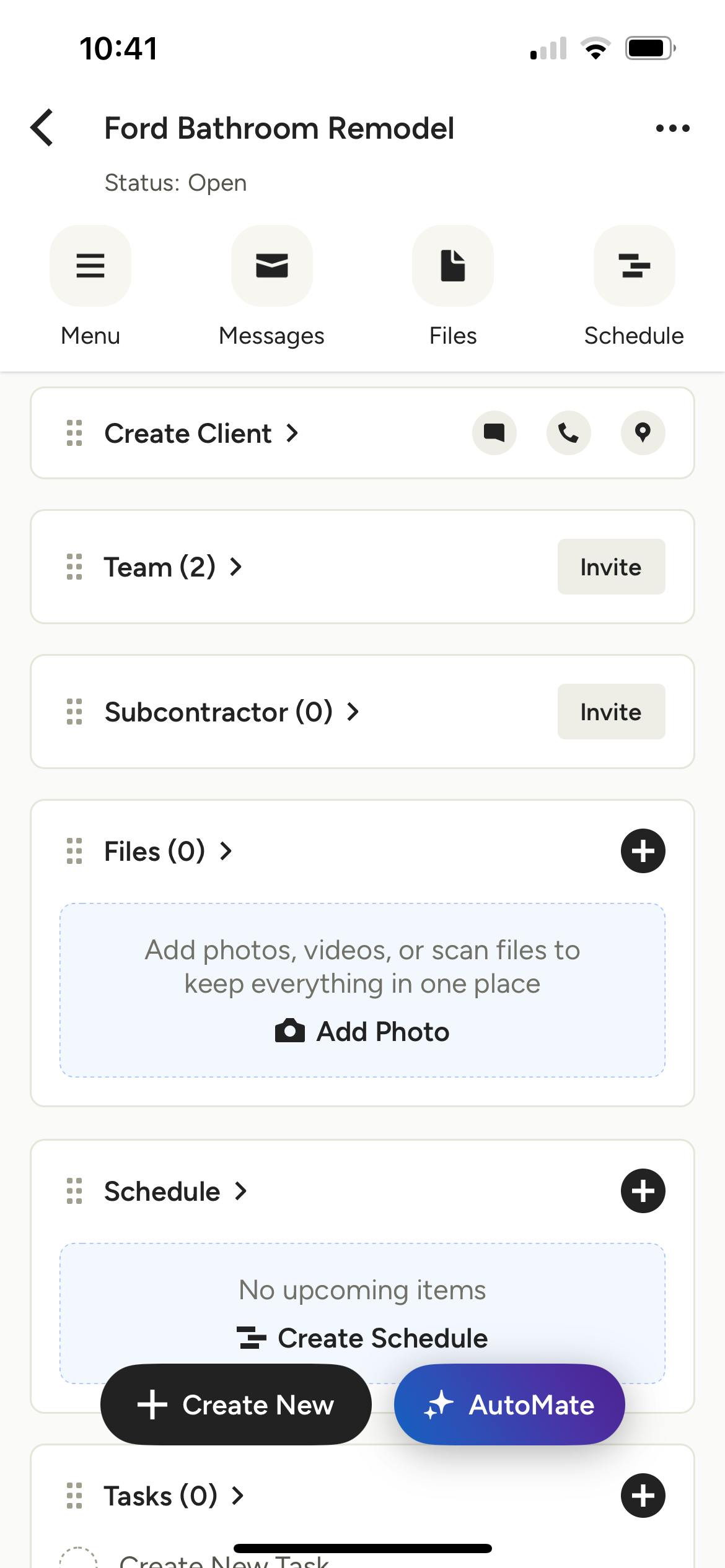
To view and edit an existing project, select it from the list. The project details page will provide an overview of client details, team/subcontractor details, files, schedule, tasks and more.
From the project details page, you can select the:
- Project title at the top to edit the project status, name and project type.
- Three dots icon at the top to edit project details, archive a project, or share the client dashboard.
- Menu icon to create new project content — this includes new estimates/proposals, floor plans, daily logs, tasks, internal notes and more.
- Message icon to email or text your client or view previous messages.
- Files icon to view existing files or add a new file.
- Schedule icon to view the current schedule or add new items.
- Client name to edit client details, such as name, contact information and address.
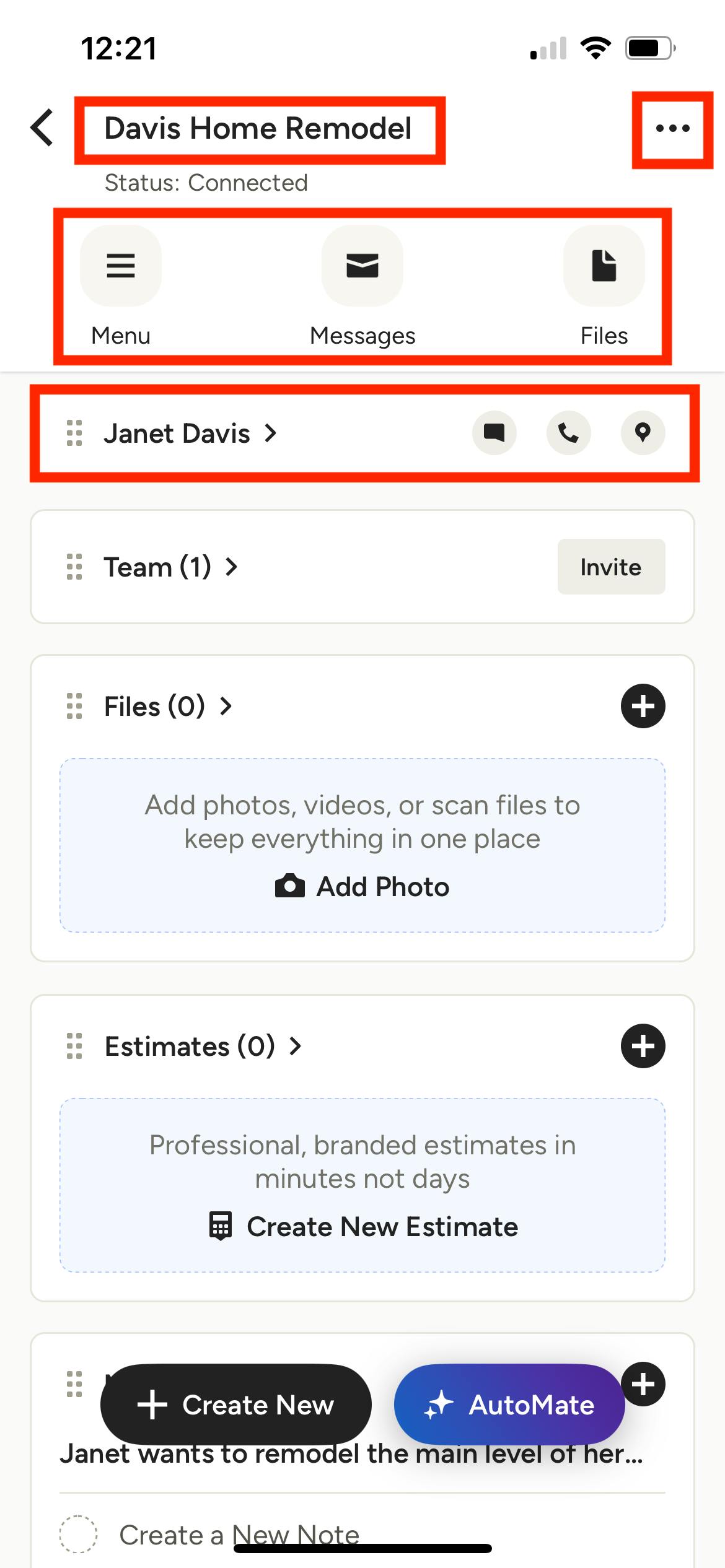
For an Existing Lead
To view and edit an existing lead, select it from the list. The lead details page will provide an overview of contact details, team details, files, estimates/proposals, internal notes and more.
From the lead details page, you can select the:
- Lead title at the top to edit the lead stage and provide more details about the potential project, including start date, estimated revenue, profit, budget and project type.
- Three dots icon at the top to edit lead details, archive or delete a lead, or convert the lead to a project.
- Menu icon to create new project content — this includes new estimates/proposals or add internal notes.
- Message icon to email or text your lead or view previous messages.
- Files icon to view existing files or add a new file.
- Contact name to edit lead details, such as name, contact information and address.