How to Use Texting (SMS) for Leads
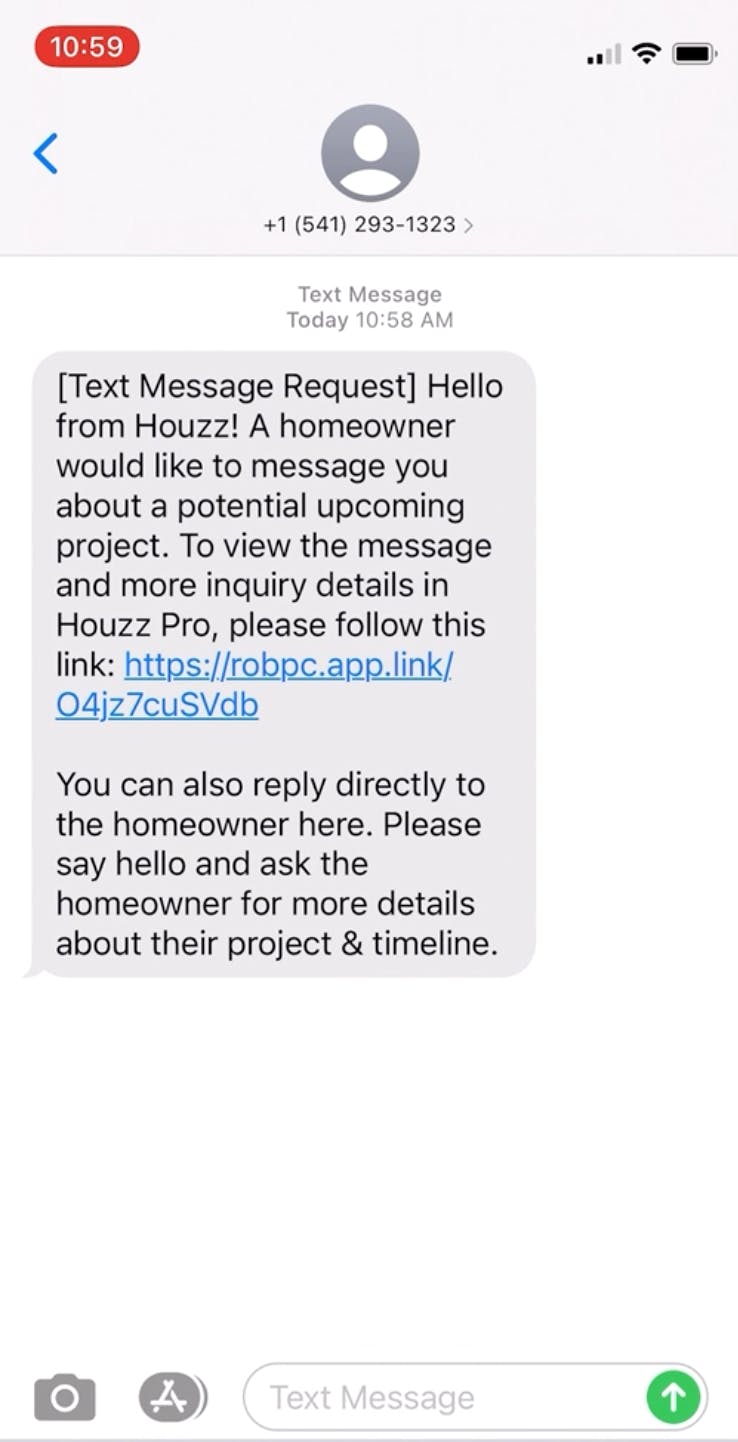
Houzz Pro Texting (SMS) for Leads allows you to communicate directly with your prospective client by text. You can use this feature for both Houzz leads and non-Houzz leads that you manually add in yourself (available only in US and Canada).
When you receive a lead from Houzz on a mobile device, the link sent to you will take you to the Houzz Pro app (or to download it if you haven’t already), where you’ll be automatically signed in. Once in the Houzz Pro app, you’ll be able to correspond with your client in the Messages or Leads section.
Texting on Houzz Pro Mobile App
There are two ways to text prospective clients on the Houzz Pro app.
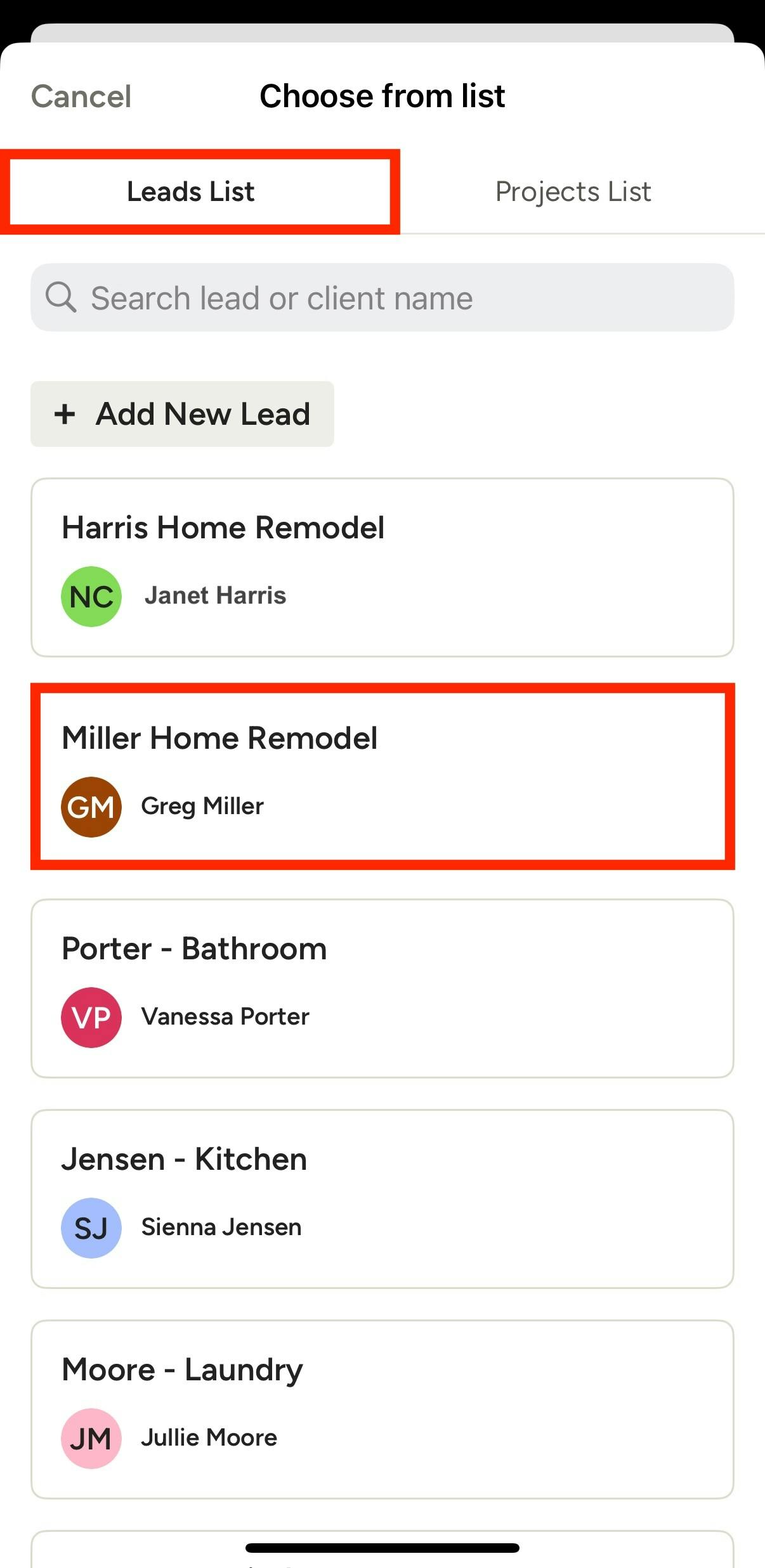
1. Select Message from the Create New module on the home page. Tap the Leads List tab, and then tap on the lead you would like to message.
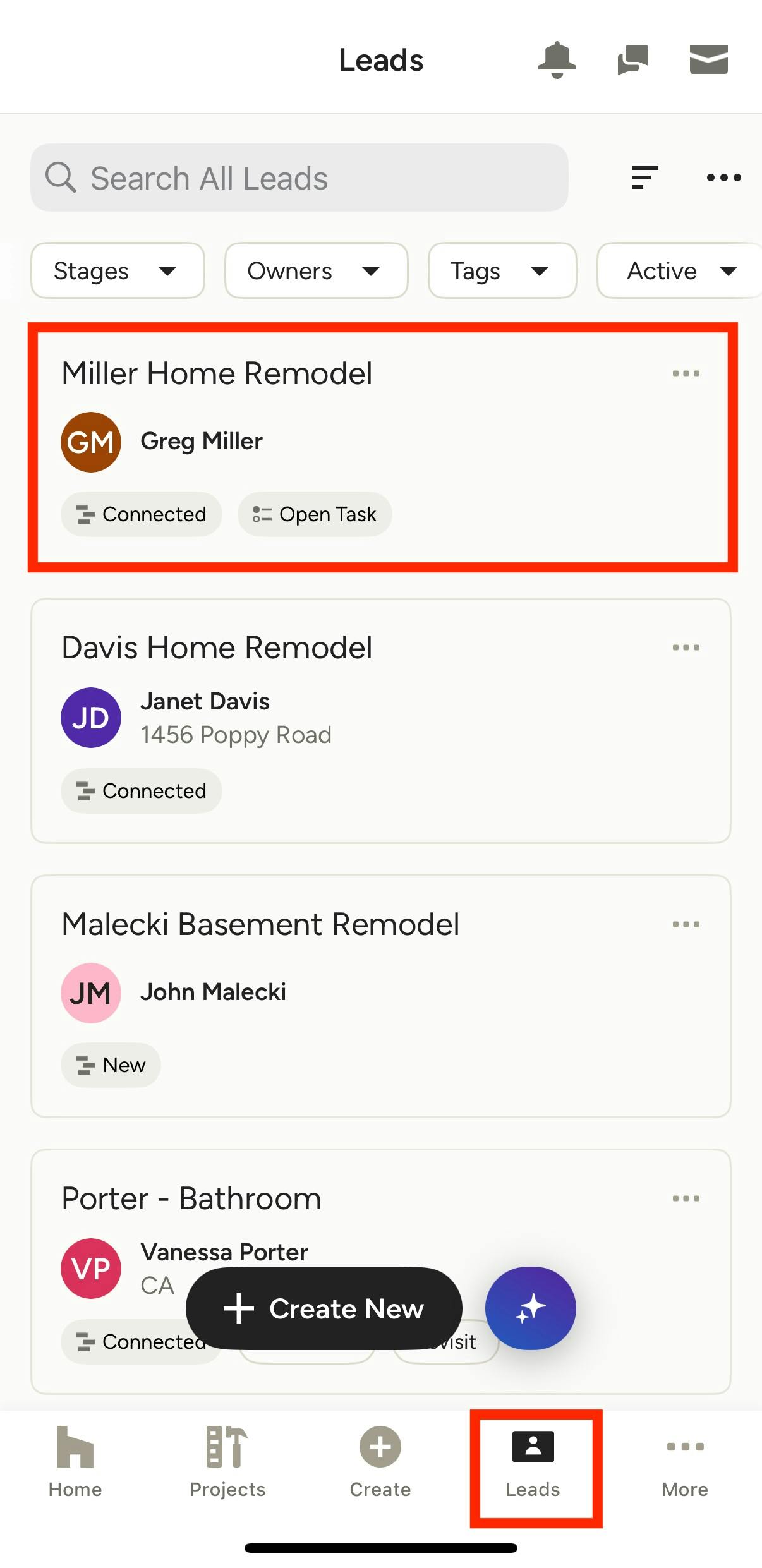
2. Or, select the Leads tab from the bottom menu. Tap on the relevant lead, then tap the Messages icon from the top menu.
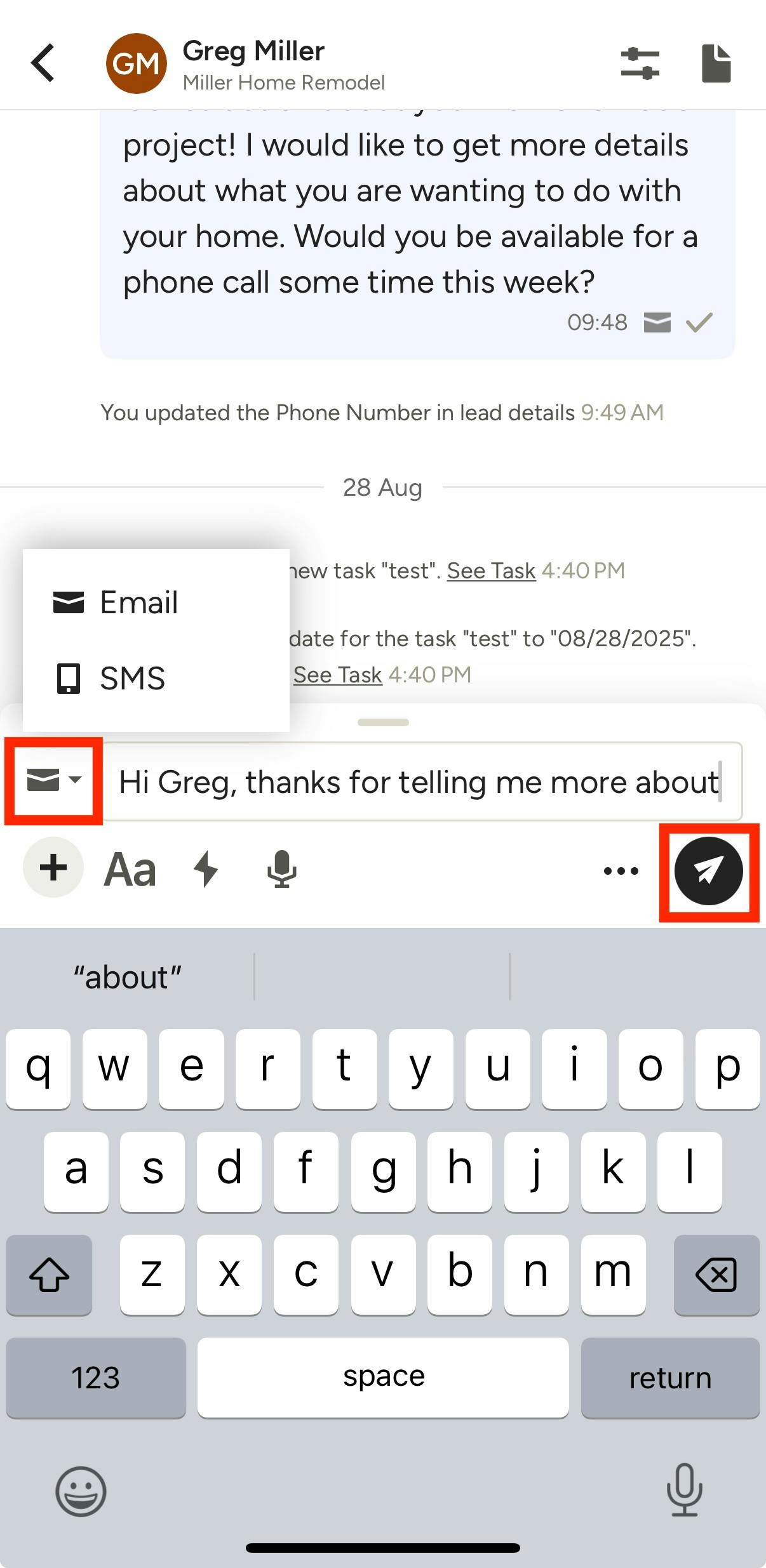
Once in the Messages section, you will see all the relevant actions and previous messages for that potential client. To start a new message, start typing your message in the text box at the bottom of your screen. Tap the Mail icon on the left side of your screen, then select SMS to send a text message. Once it's ready to go, select the Send icon.
Texting on Desktop
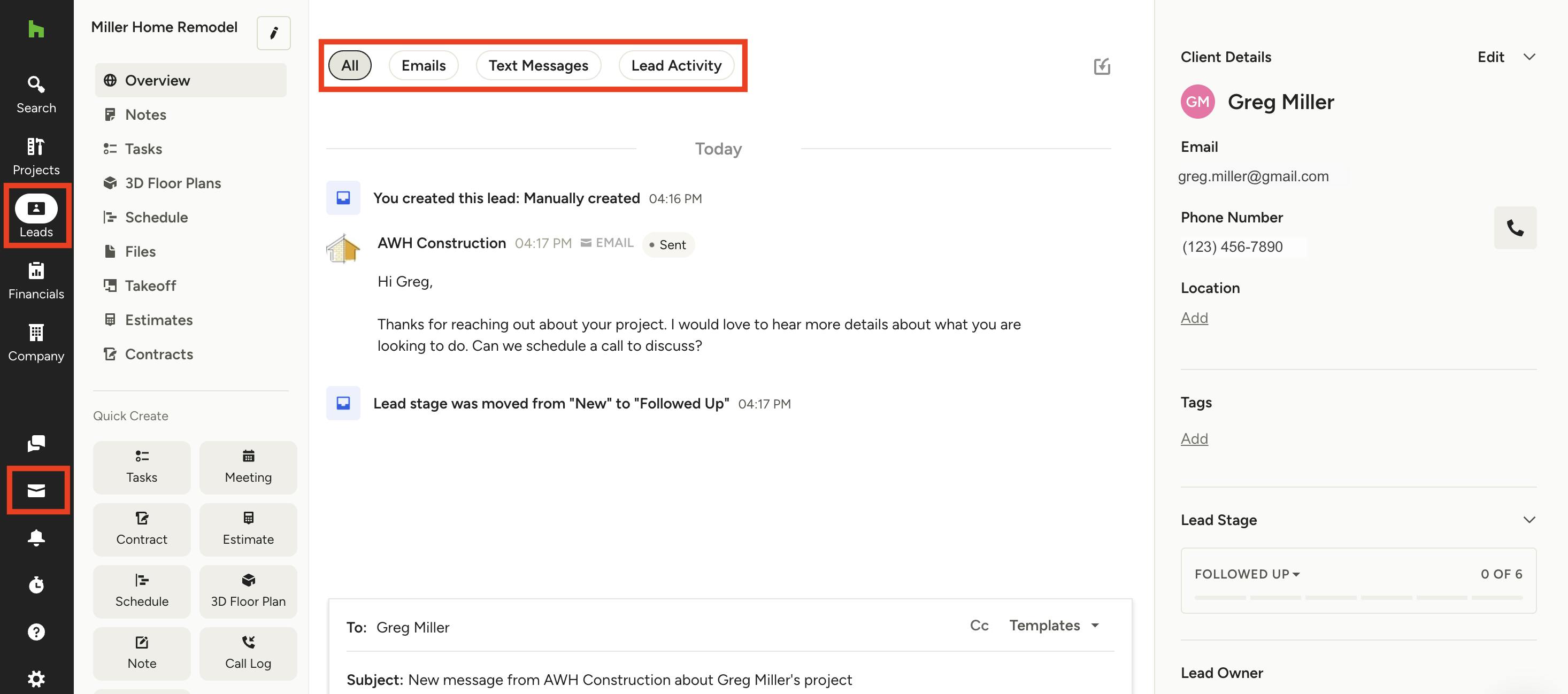
You can also text or email prospective clients from the desktop version of Houzz Pro. There are two ways to access:
1. Select the Leads icon from your left navigation. Select one of your existing leads from the left menu. The Overview tab will show all activities and messages, including both emails and text messages.
2. Or, select the Message icon near the bottom of your left navigation. Click on the relevant message.
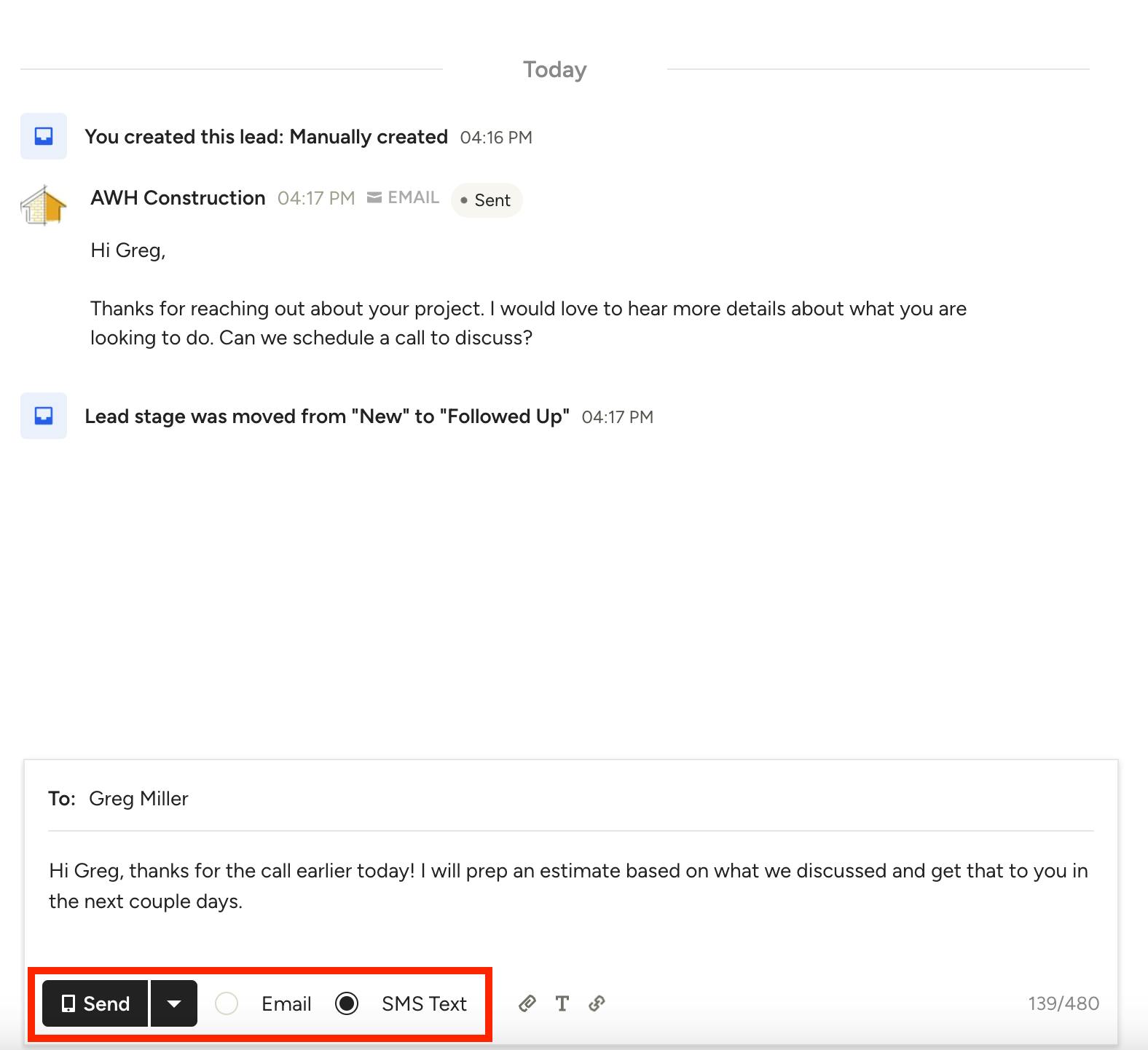
Once you are viewing your lead, scroll down to the bottom of your screen to compose and send a message. Type your message into the text box, and select the circle next to SMS Text to send as a text message. Once it's ready to go, select the Send button to send immediately. If you would like to schedule the message to send at a later time, you can select the arrow next to the Send button to adjust the send time.
Using the iMessage Text Extension
When you are texting a new lead or an existing client, you can save time by using our iMessage extension directly in your text message thread (iOS devices only). This extension allows you to:
- Send quick, professional replies
- Capture new inquiries via a built-in contact form
- Request client reviews
All activity syncs back to Houzz Pro — it helps you stay organized, reduce manual data entry, and provides a fast, polished communication experience.
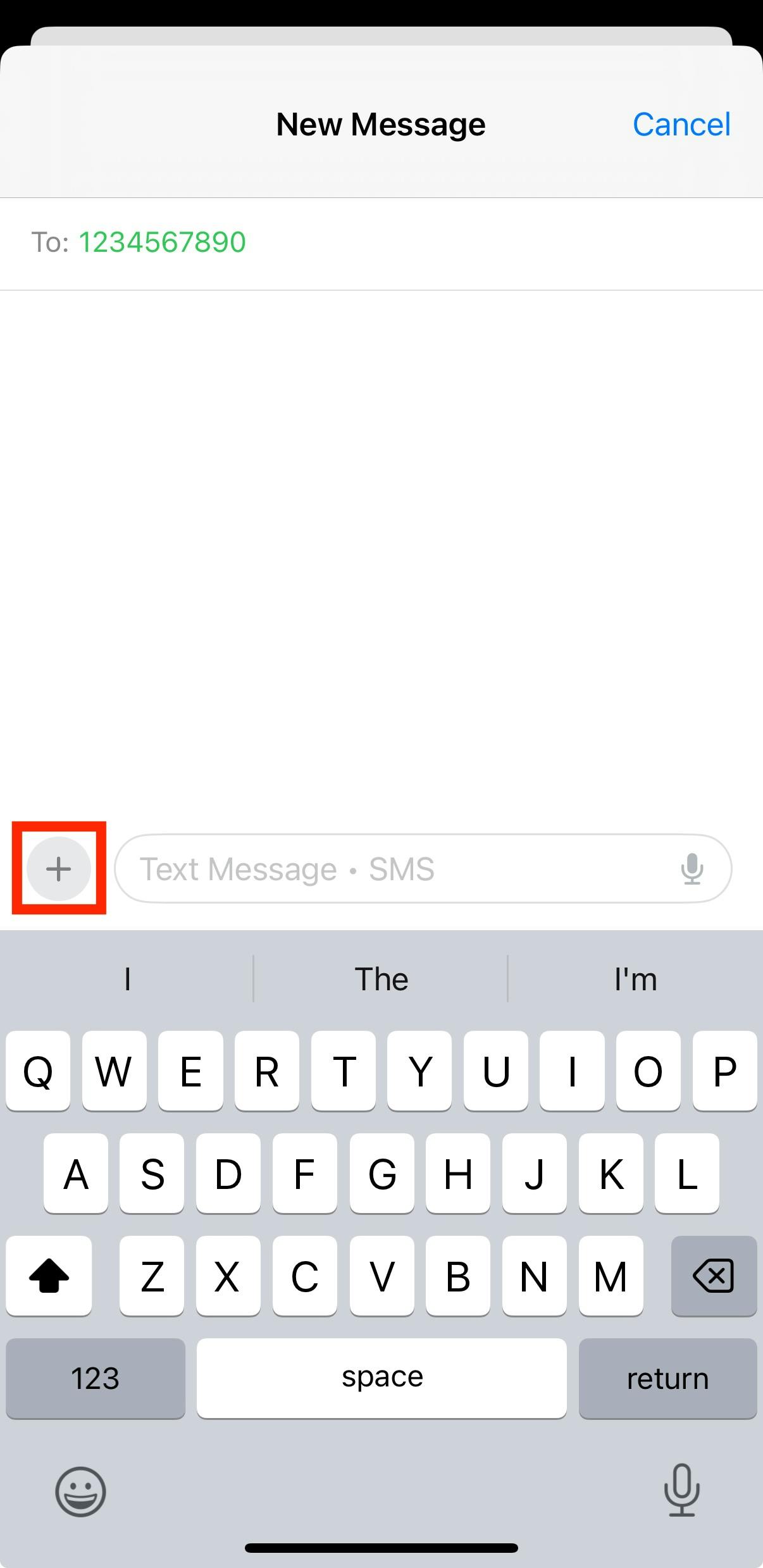
To access, go to the Messages section on your iOS device, then open up the relevant text thread. Click the + sign next to the text box.
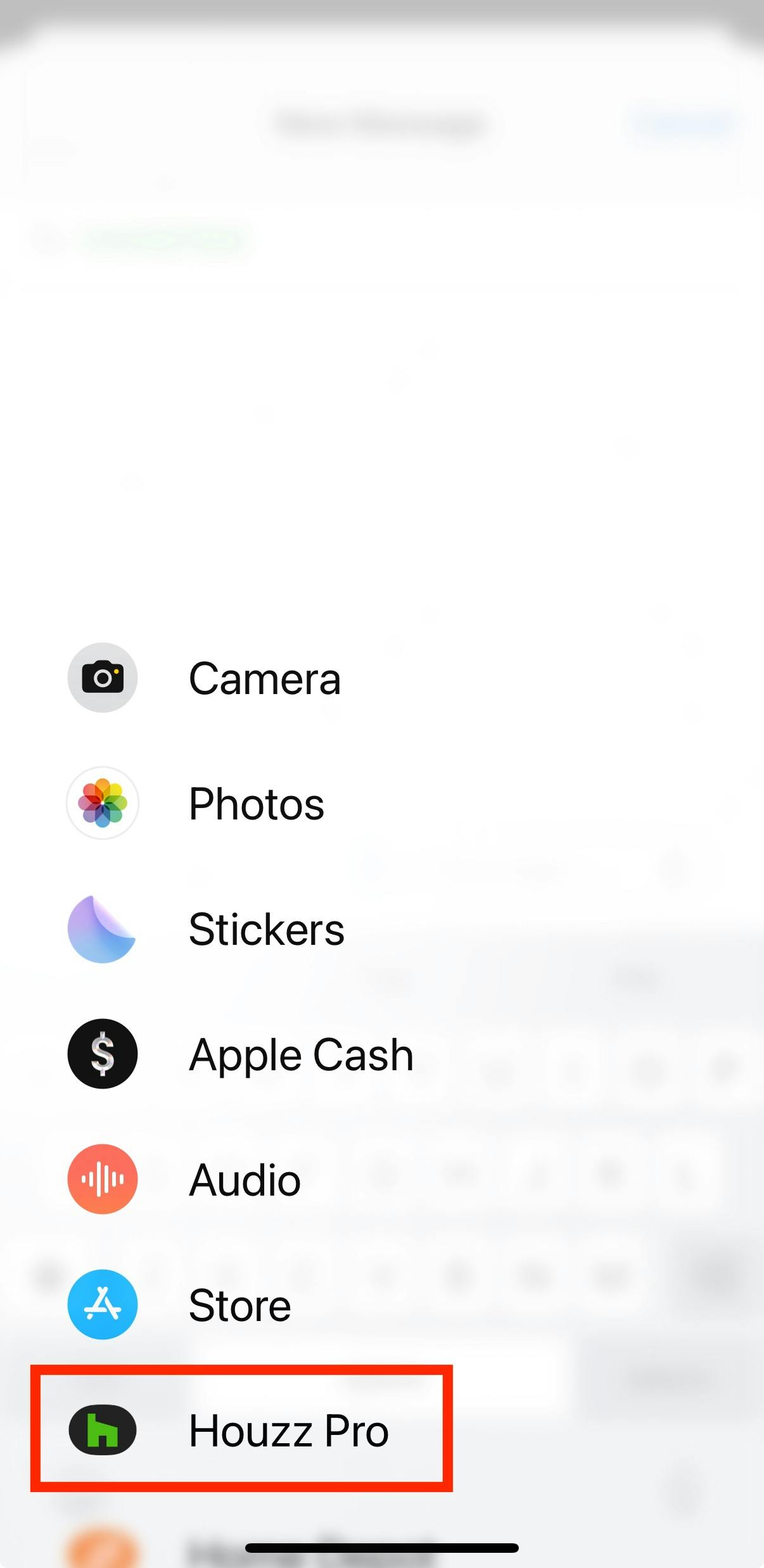
Select Houzz Pro from the menu.
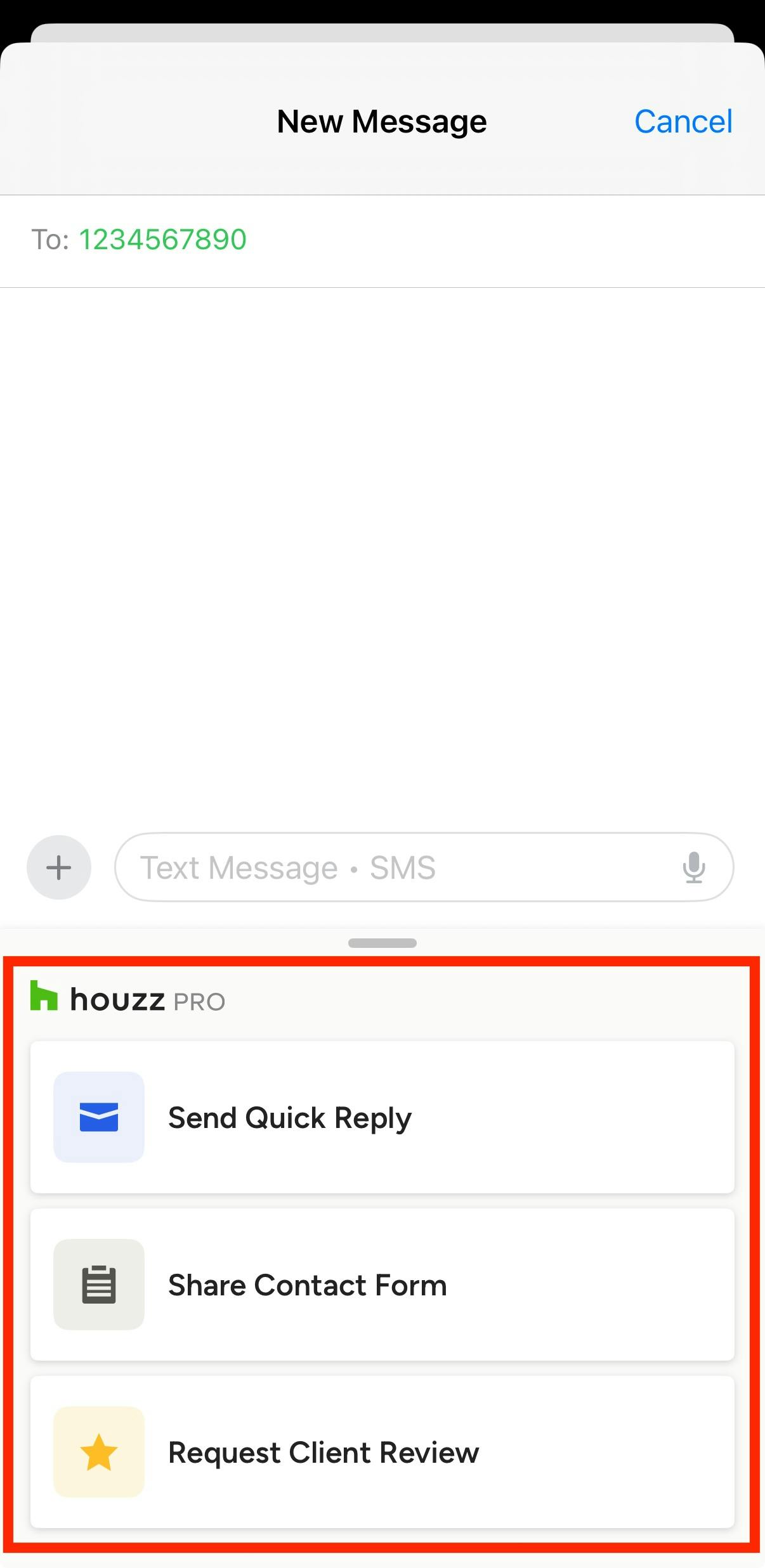
From the Houzz Pro extension, select the relevant option.
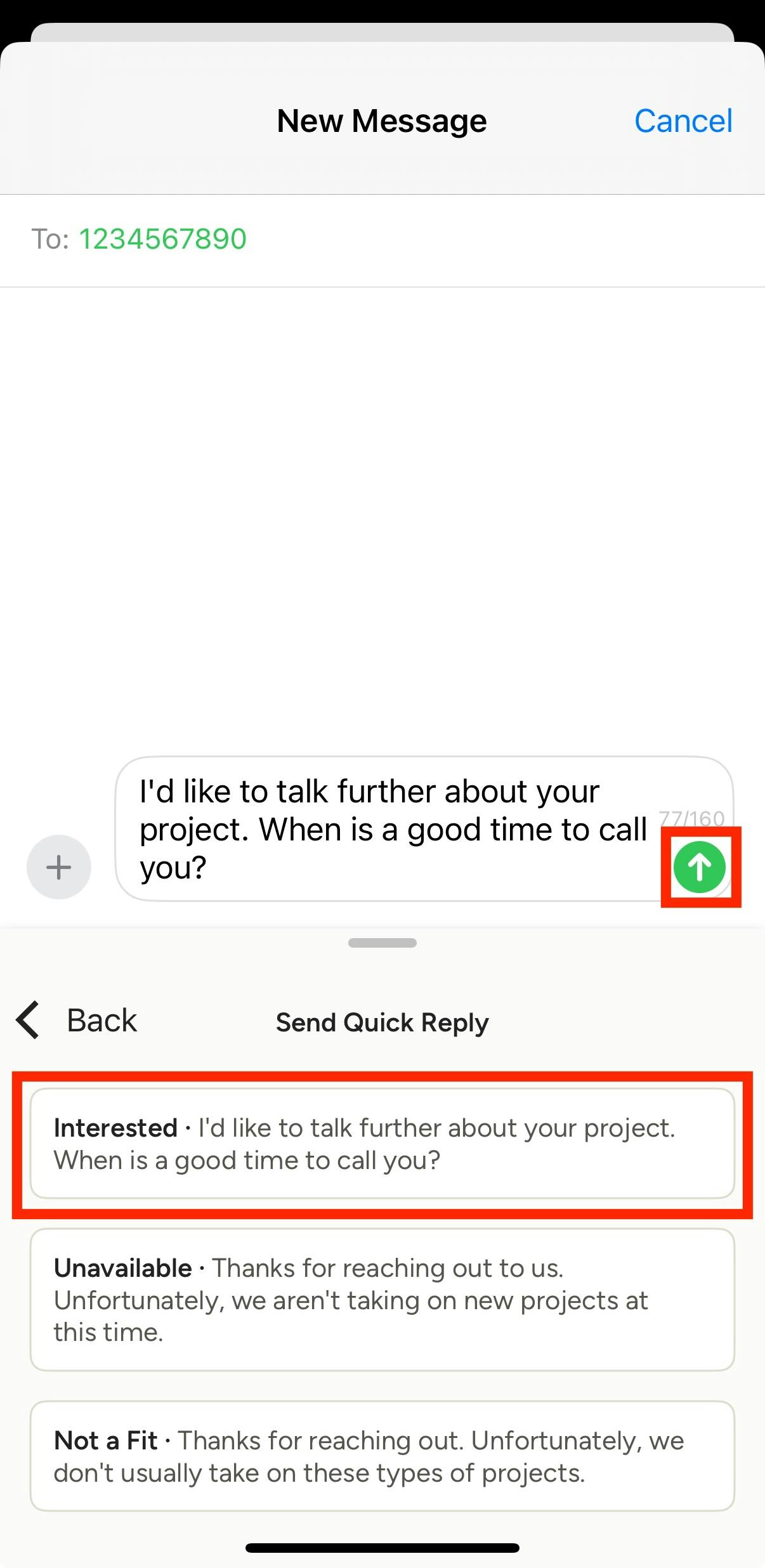
If you select Send Quick Reply, several templated responses will appear so you can respond to a lead. When you select the response, the message will auto-populate in the text box. Here, you can make custom changes to the message if needed, then click the Send button once complete.
Read How to Create Custom Message Templates to learn more about creating templated responses.
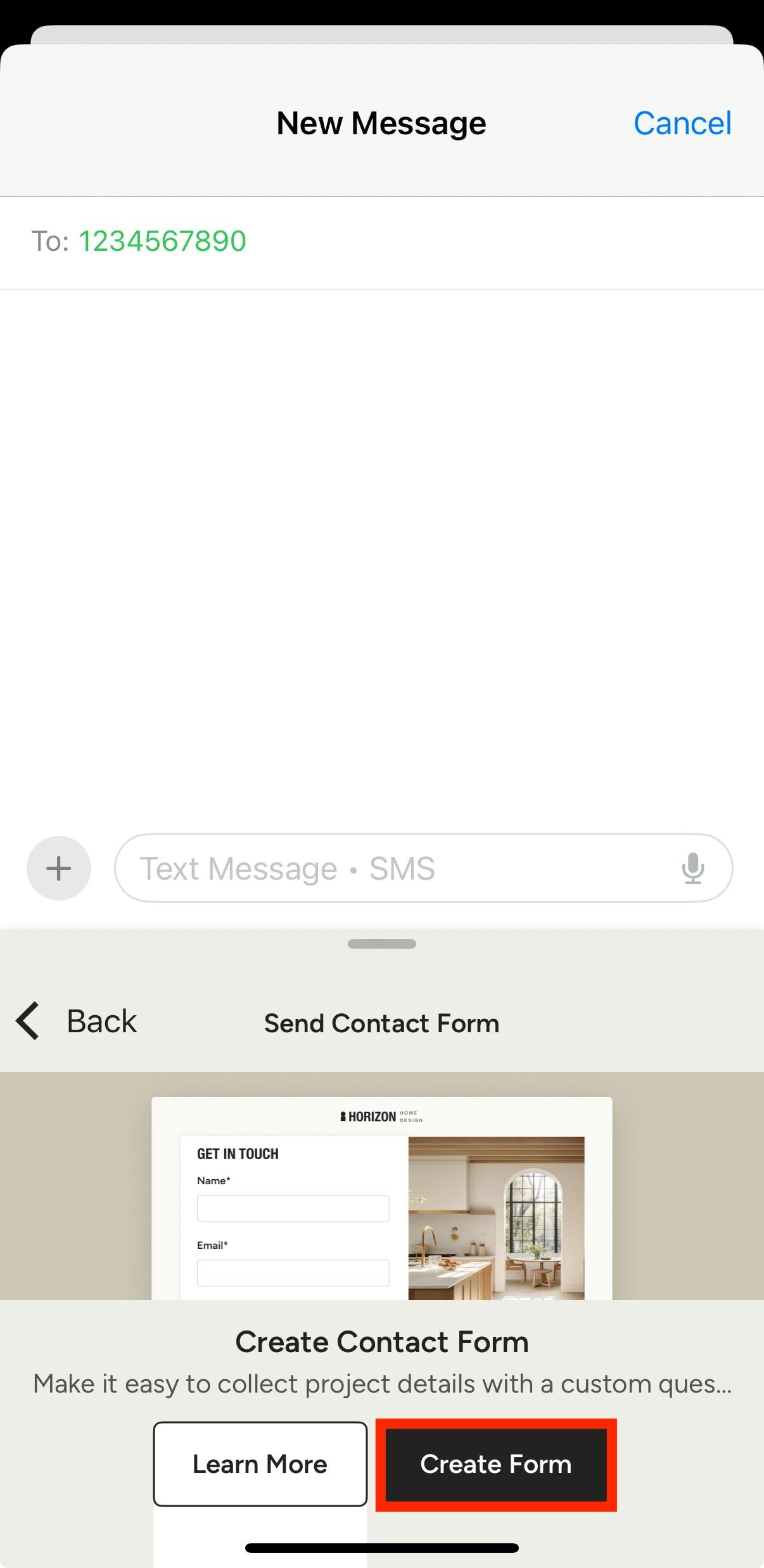
If you select Share Contact Form, you can attach an already created contact form to receive more information about a potential project. If you haven't created a contact form, you will be prompted to create one (as shown below).
Read How to Use the Lead Contact Form to learn about creating a new form.
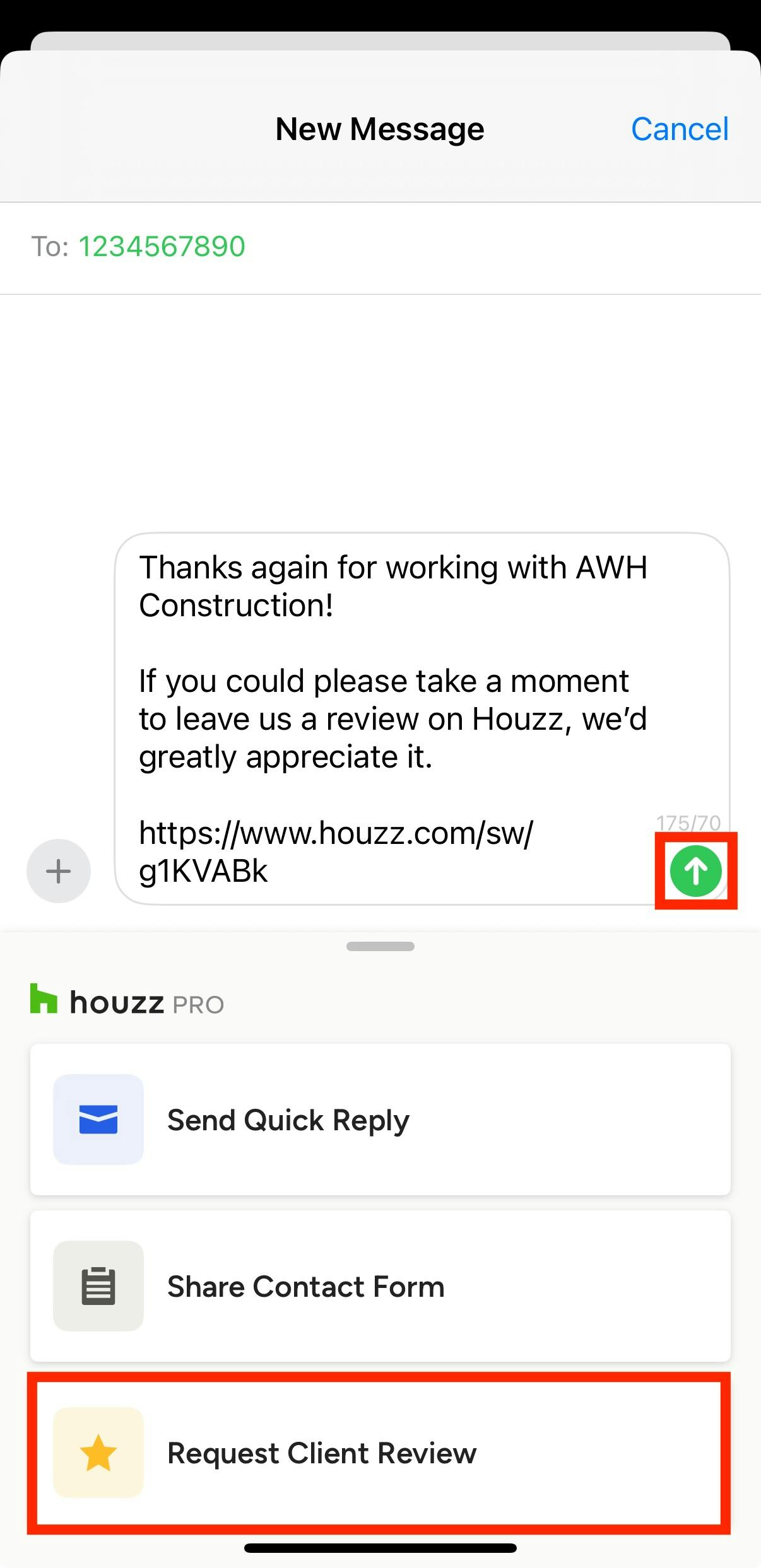
If you select Request Client Review, the review request message will auto-populate in the text box. Here, you can make custom changes to the message if needed, then click the Send button once complete.
Read How to Get Reviews on Your Houzz Profile to learn about the review process.
To learn more about communicating with clients and leads on both the mobile app and desktop, read Sending Messages to Clients and Leads.