How to View and Analyze Your Lead Insights
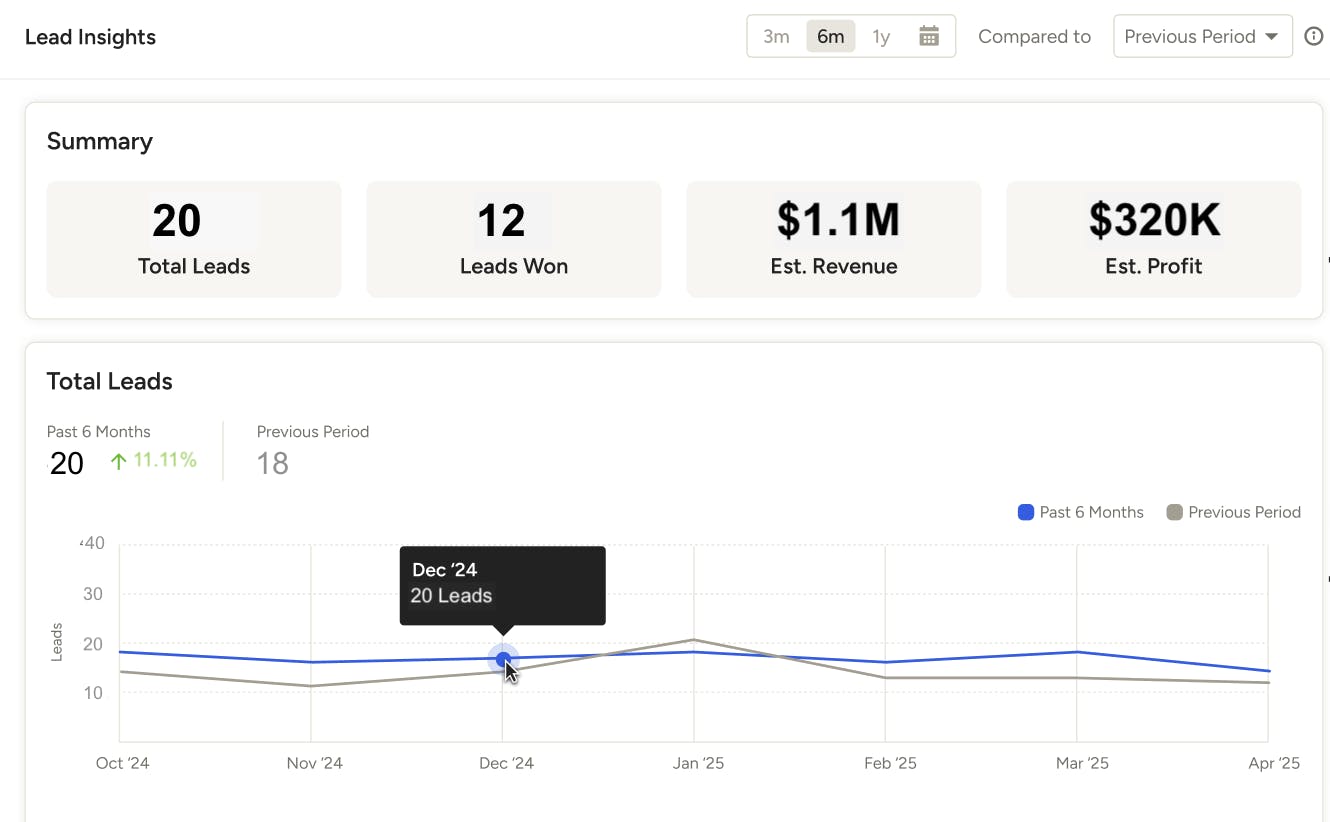
In the Lead Insights section of Houzz Pro, you can view and analyze the data on how your leads are performing so you gain holistic insights across all of your lead sources.
Since these metrics show both Houzz and non-Houzz sources, you will know which efforts are paying off and where there's room to improve, which will help you more efficiently run your business.
How to Access Lead Insights
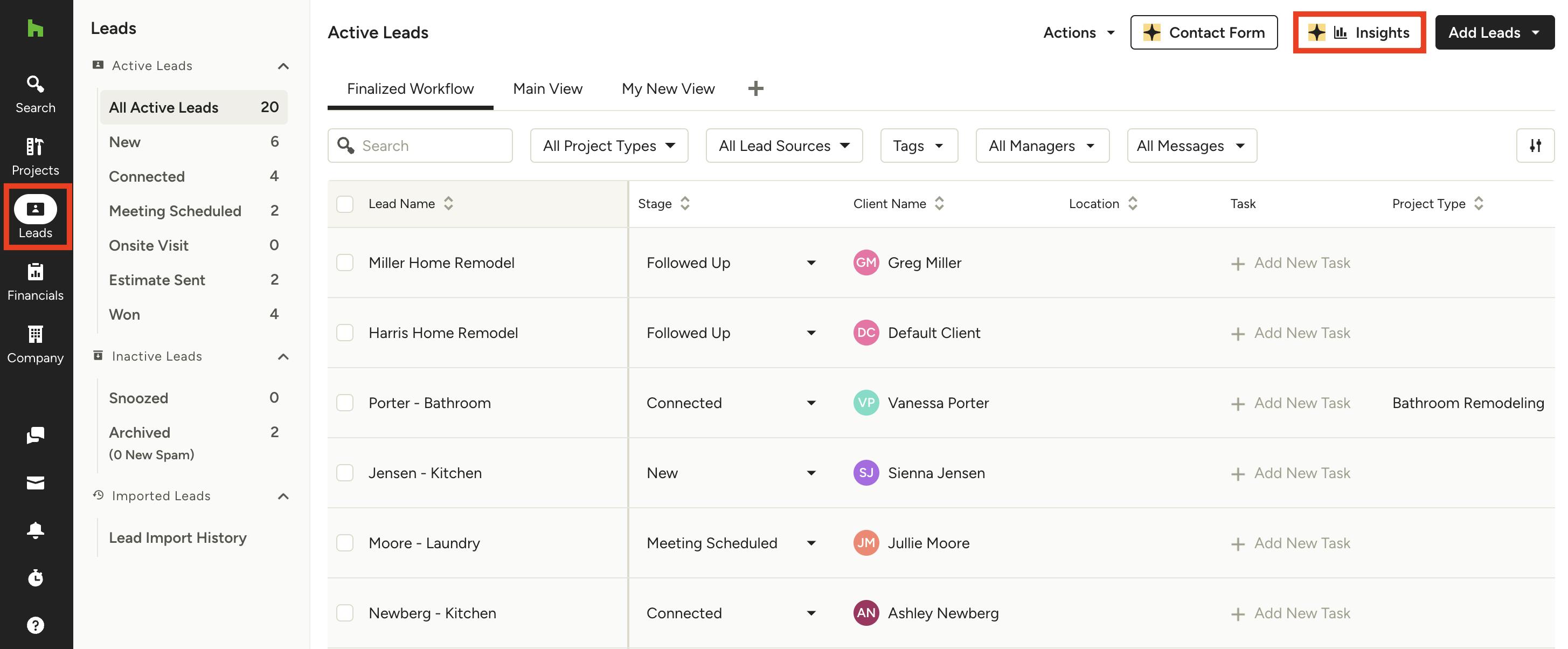
There are two ways to access your Lead Insights — from your All Leads page, or from your Marketing Insights page.
To access from your All Leads page: Click the Leads icon in your left navigation. A list of all your leads will appear — select the Insights button at the top right of your screen. This will send you directly to the Lead Insights page.
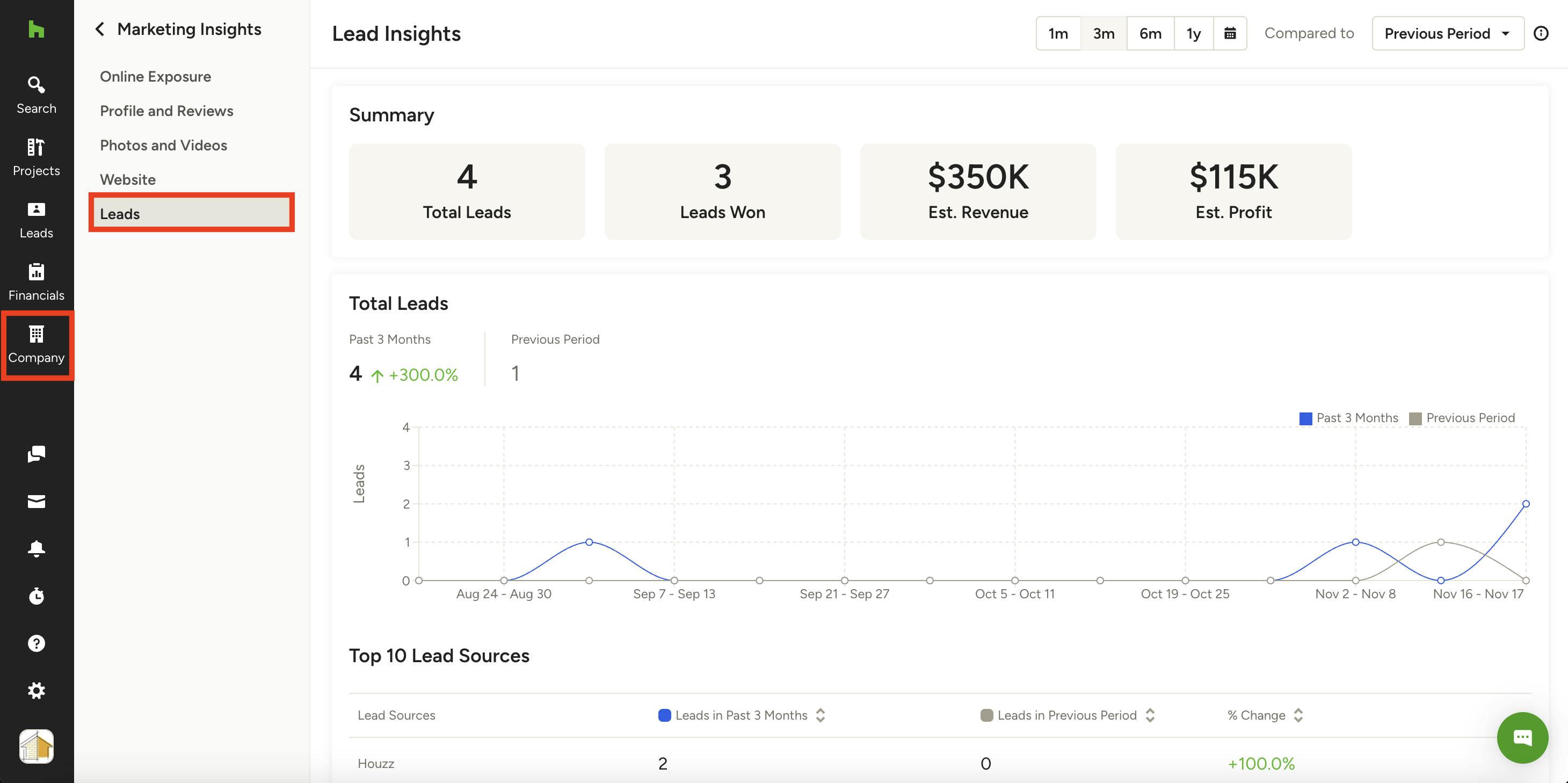
To access from your Marketing Insights page: Click the Company icon in the left navigation. Select Marketing Insights from the left menu, then Leads. This will open the Lead Insights page.
Lead Insights Overview
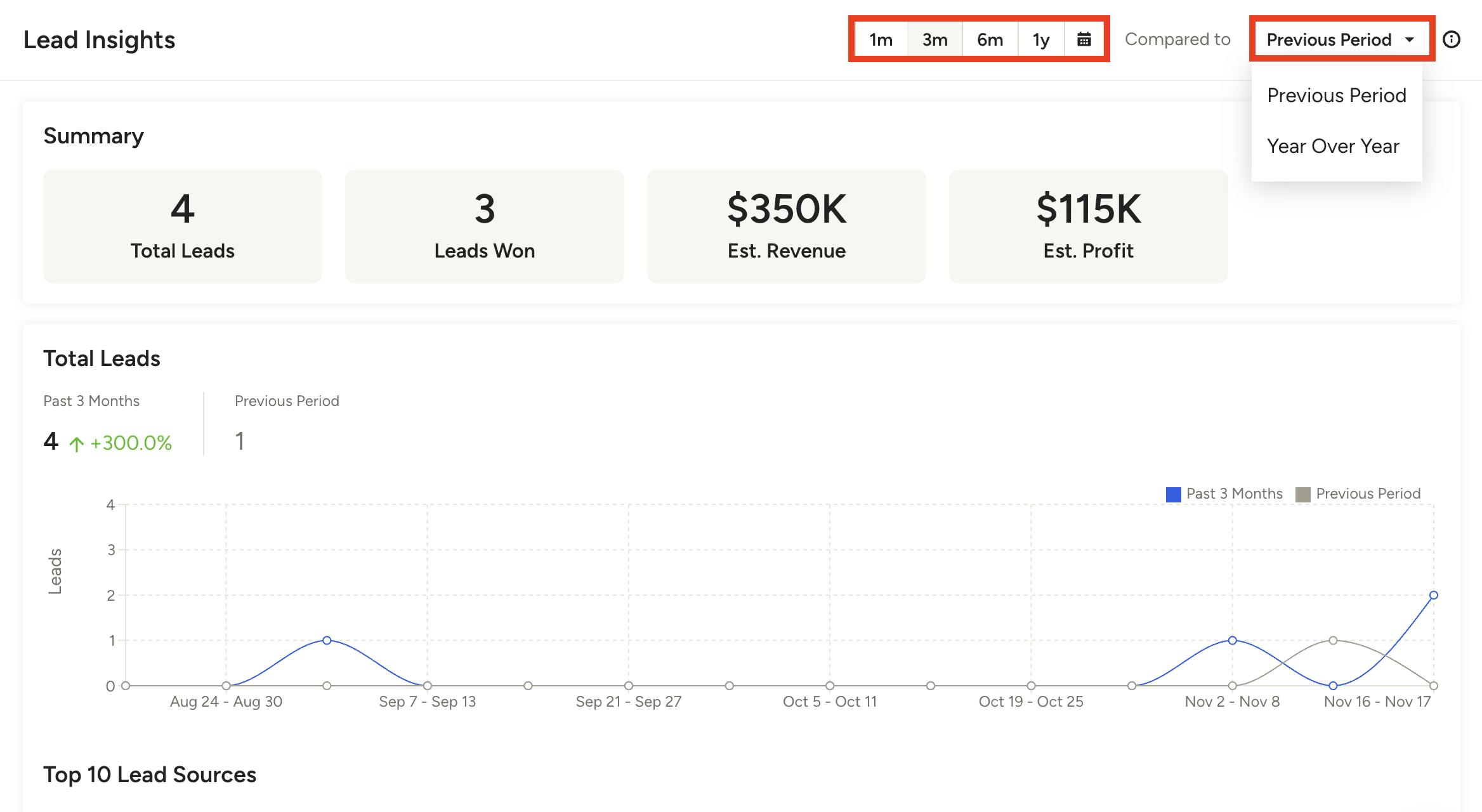
Lead Insights will provide a detailed overview of all your Houzz and non-Houzz leads. To view an accurate lead summary, you can use the filters at the top to customize the data you see.
The default timeline is set for the last 6 months, but you can adjust to 1 month, 3 months, or 1 year as needed. You can also select the calendar icon to set a specific time frame you would like to view.
In the dropdown menu next to timeline, you can compare your current leads to either the previous period, or year over year (if data is available).
Once the filters are set, you can see details about your leads in the graphs and tables below. Let's go over each one.
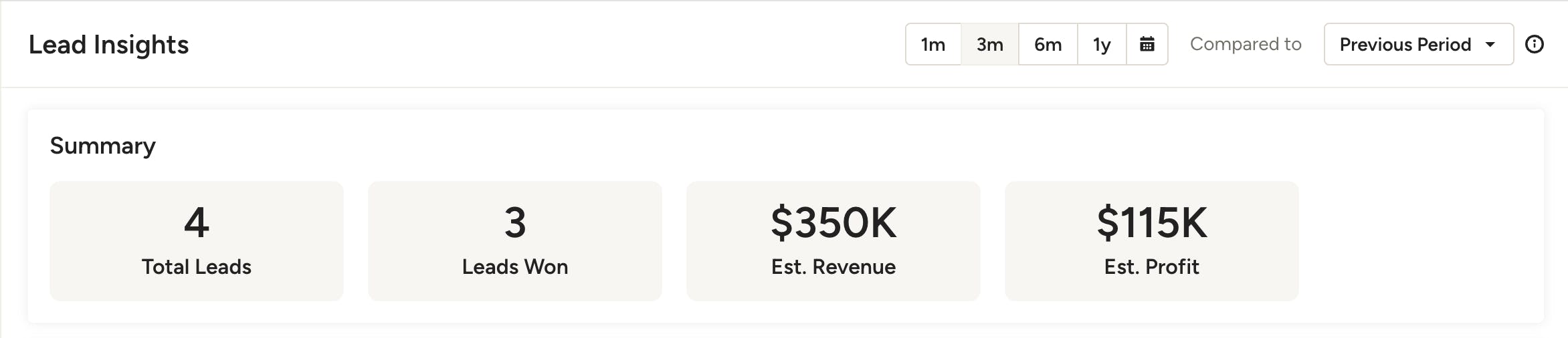
Lead Summary
The summary at the top is a good overview of your lead details, including:
- Total Leads: This is where you’ll see a breakdown of all the leads you’ve received.
- Leads Won: This is where you’ll see a breakdown of the leads you’ve received that you converted into customers.
- Estimated Revenue: This is where you’ll see a breakdown of the estimated revenue generated from leads you won.
- Estimated Profit: This is where you’ll see a breakdown of the estimated profit generated from leads you won.
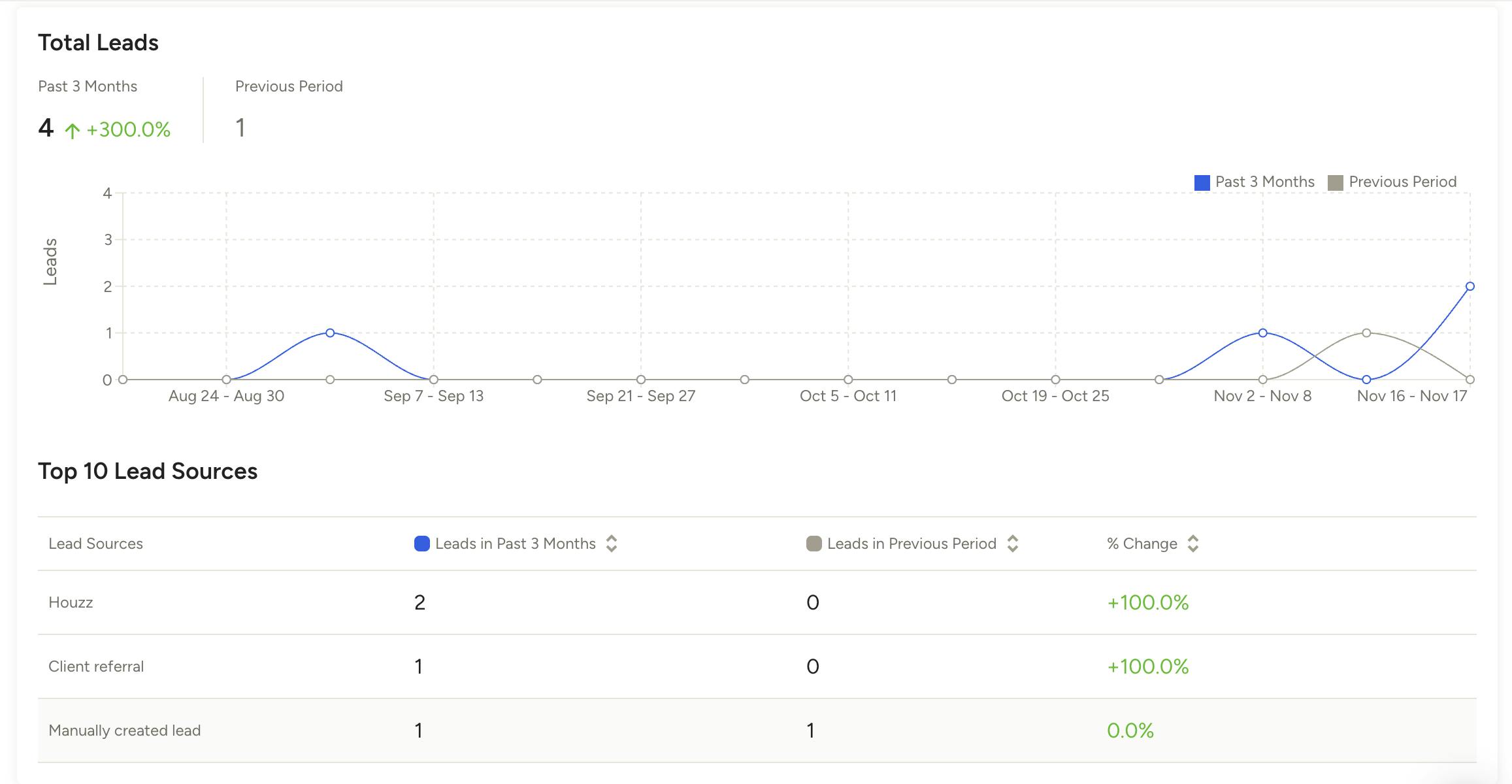
Total Leads
In this section, you will see a graph that shows the number of leads by month and compares it to the previous period/year. Underneath the graph, there will be a table that breaks down your top 10 lead sources so you can see which sources work best for your business over time.
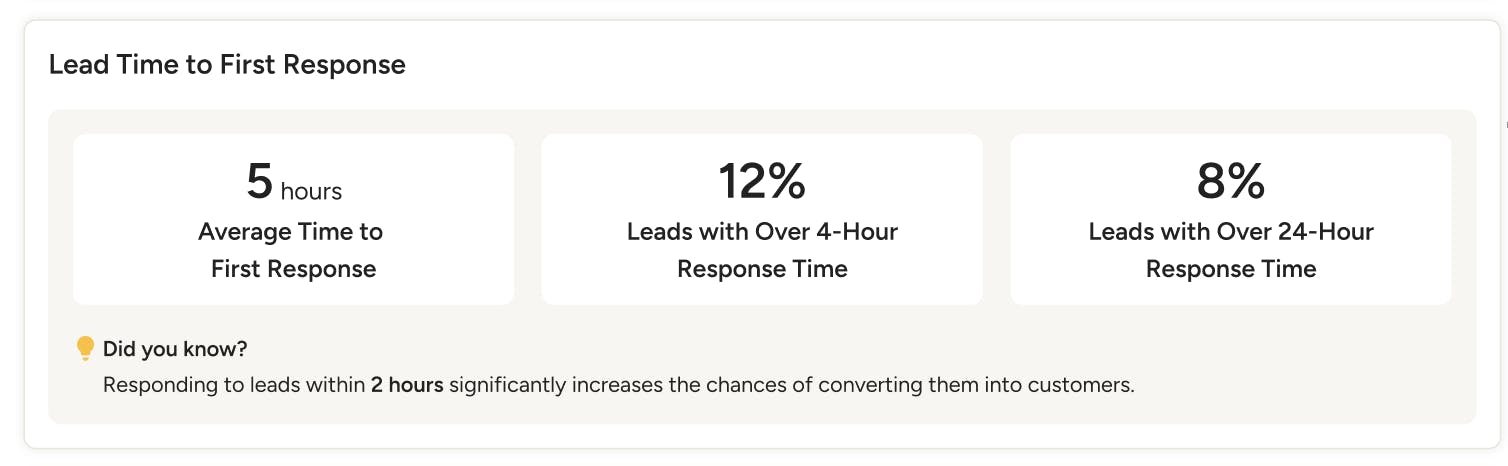
Lead Time to First Response
In this section, you will see how long it typically takes you and your team to respond to requests, as well as how that response time impacts conversion.
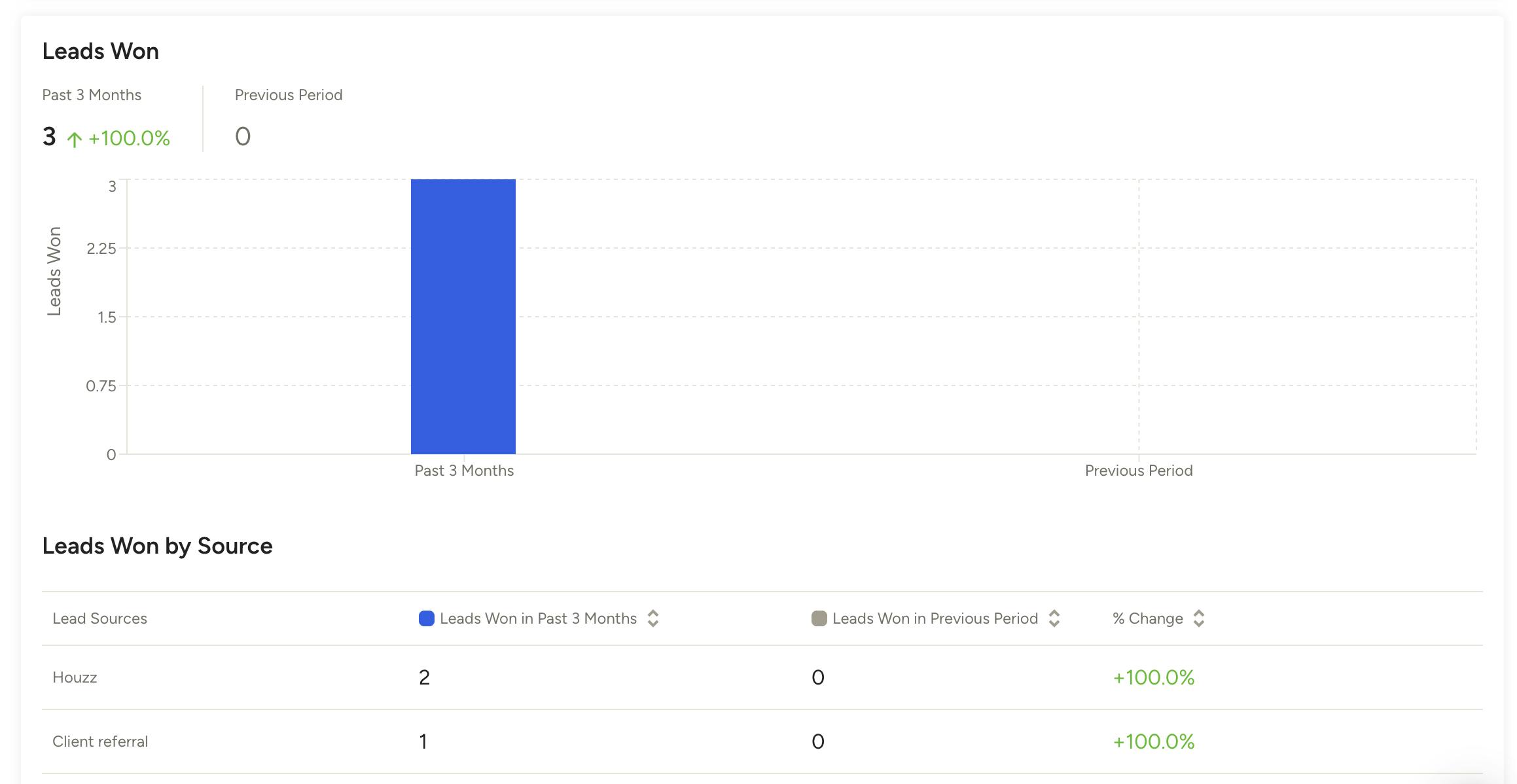
Leads Won
In this section, you can see how many leads you won, or converted to a project, during this time frame. It will also compare it to the previous year, if data is available.
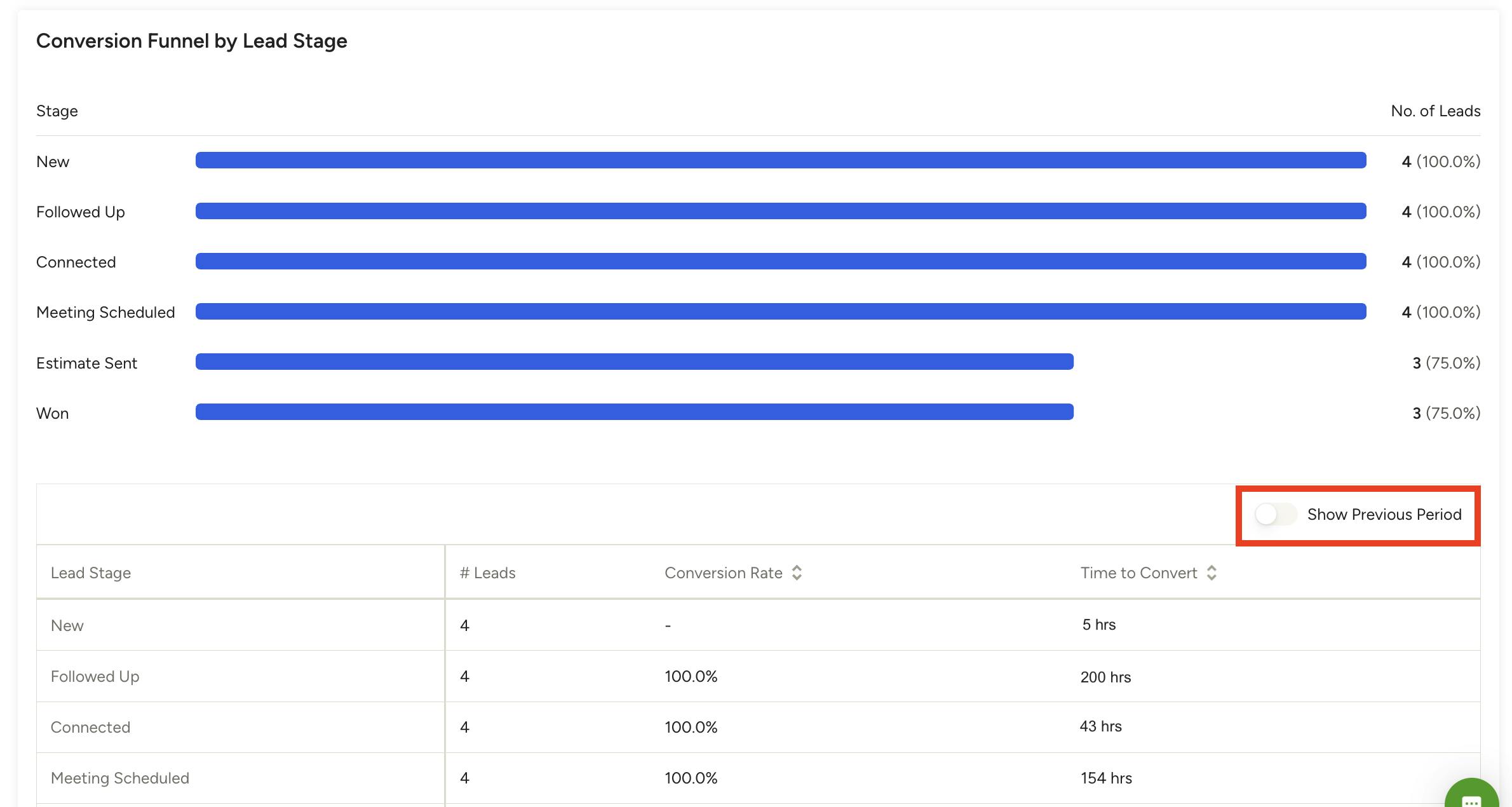
Conversion Funnel by Lead Stage
In this section, you can see how many of your leads made it to a specific lead stage during this time frame. The table below provides more details on the conversion rate and how long it took to convert to that stage.
In the example below, 4 of the new leads made it to a scheduled meeting, but you only sent an estimate to 3 of the leads.
If you would like to compare your current data with the previous period data, you can turn the toggle on next to Show Previous Period. The table will repopulate with new columns to show the previous data as well.
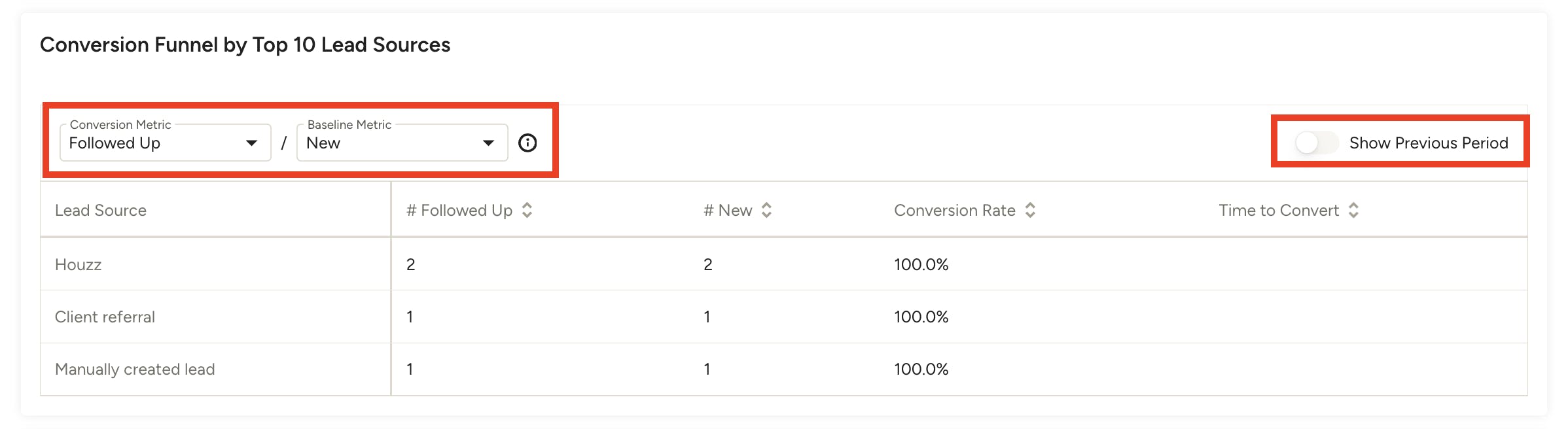
Conversion Funnel by Top 10 Lead Sources
In this section, you can see the conversion rate details by specific lead source. Use the filters at the top of the table to adjust the conversion metrics and baseline metrics that you would like to compare.
For Example: If you would like to see how many leads you won after sending an estimate, select Won in the conversion metrics dropdown, then select Estimate Sent in the baseline metric. This will help you understand how many times you convert a lead to a project after sending an estimate. It can also help you identify when you might need to follow up with a lead after sending an estimate.
To compare your current data with the previous period data, turn the toggle on next to Show Previous Period. The table will repopulate with new columns to show the previous data as well.
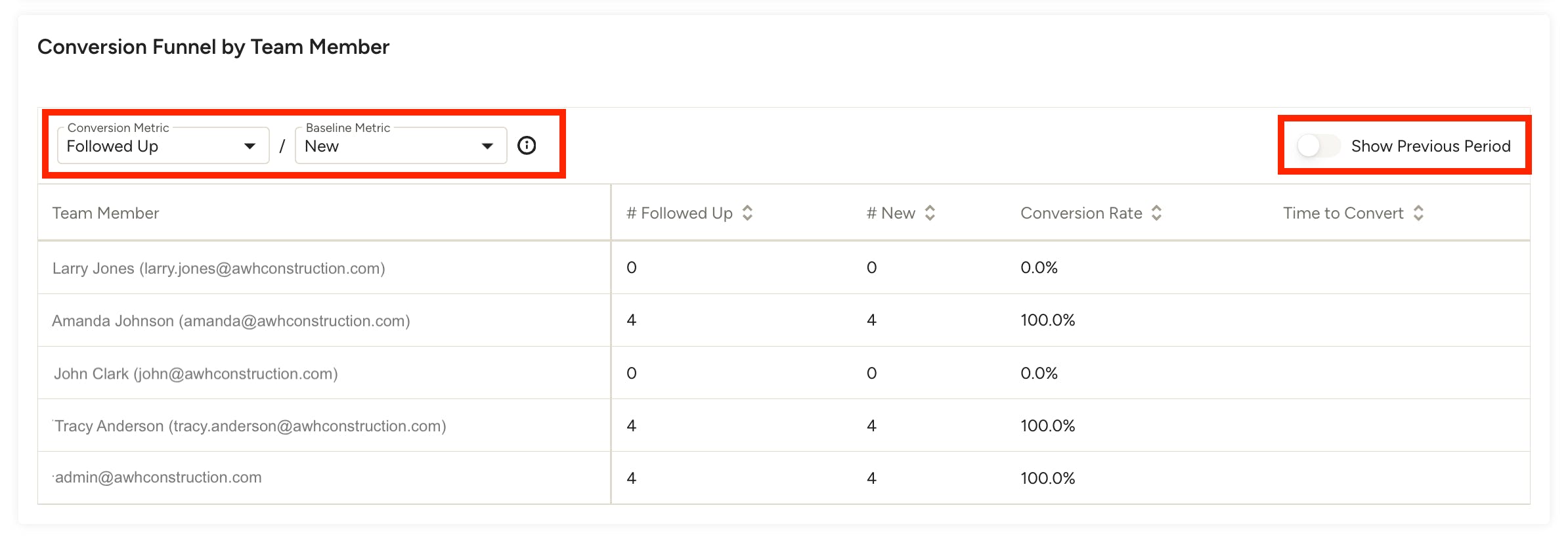
Conversion Funnel by Team Member
In this section, you can select specific lead stages that will show conversions based on team member actions in Houzz Pro.
For Example: If you would like to see how many leads converted to projects after a team member followed up, select Won in the conversion metrics dropdown, then select Followed Up in the baseline metrics dropdown. This will help you see which specific team members have followed up on leads that have then turned into a paying project.
To compare your current data with the previous period data, turn the toggle on next to Show Previous Period. The table will repopulate with new columns to show the previous data as well.
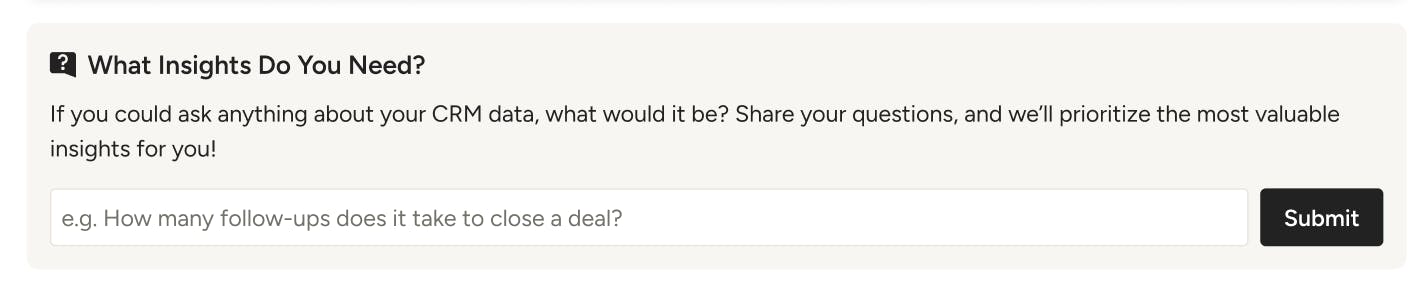
Submit Feedback on Lead Insights
In this section at the bottom of the page, you can submit feedback on any improvements or changes you would like to see within Lead Insights.
Issues with Lead Insights Data
If you notice issues with your data, it's likely that there is a problem with your lead details. If you have incomplete or inaccurate information listed under lead source, estimated revenue, or estimated profit, this can impact the quality of the data you see on your overview page. Whether or not you manually convert a lead to a project also makes a difference. Let's go over how to fix these issues.
Edit Lead Details
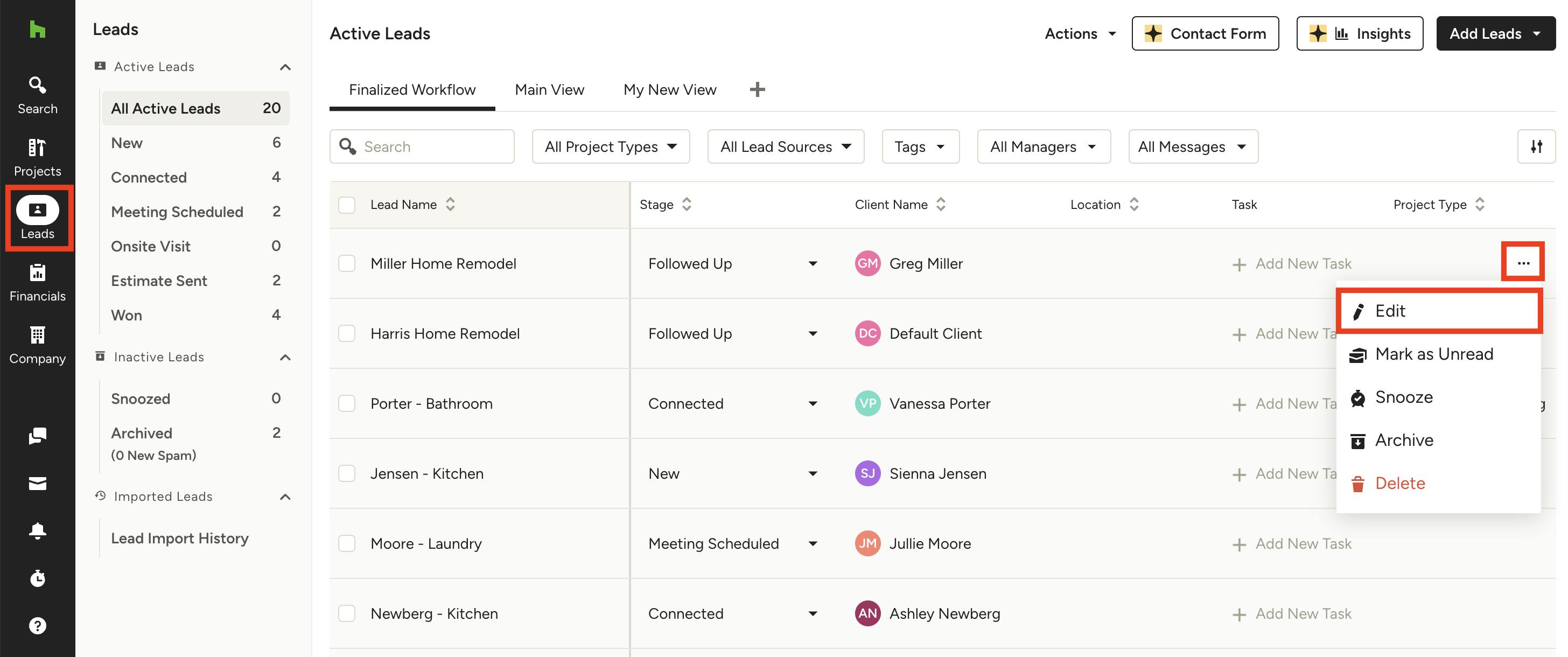
To make adjustments to lead source, estimated revenue or estimated profit, go to your All Leads list. Click the three dots icon to the right of the lead you want to review, then select Edit.
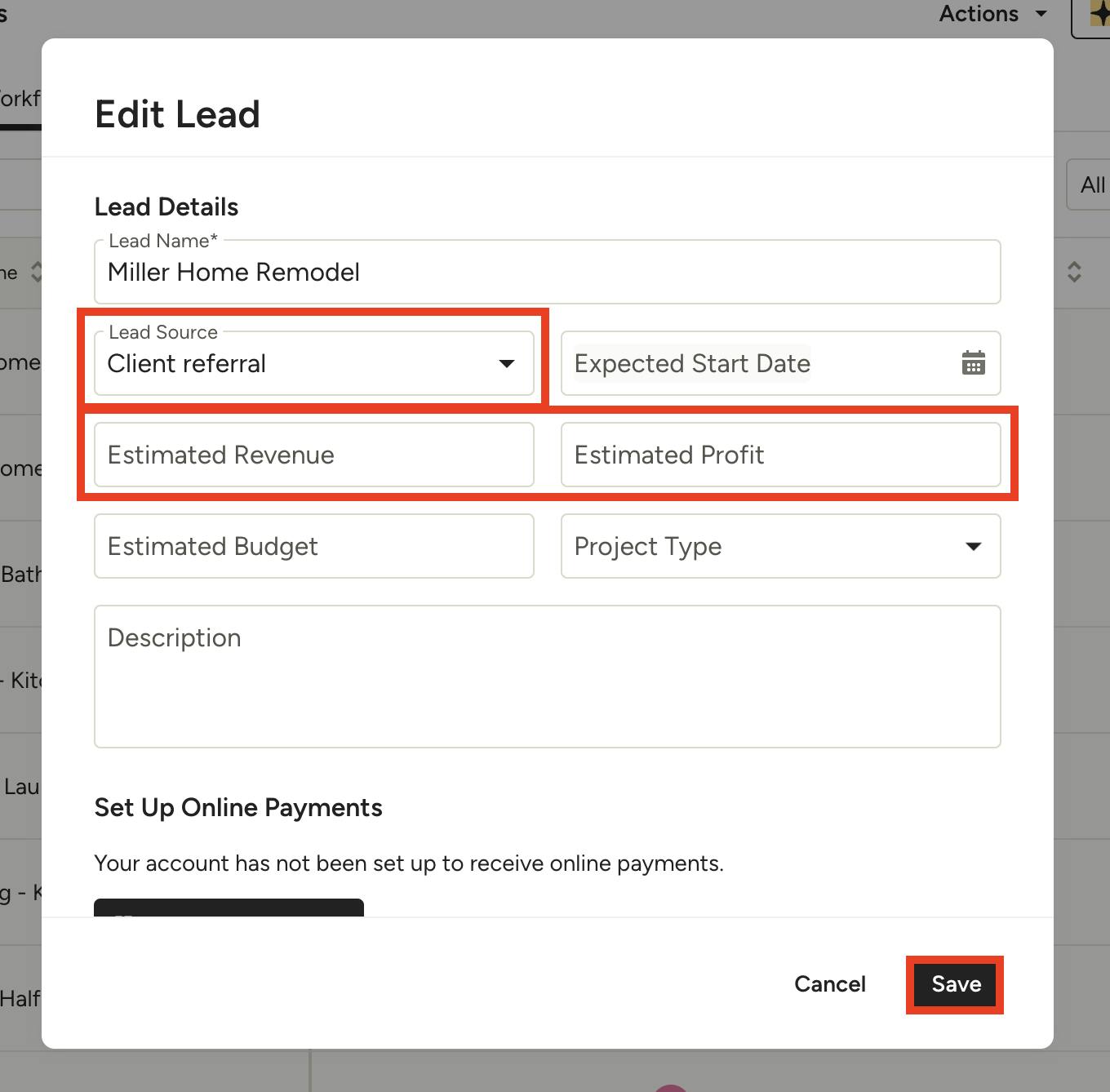
From here, you will be able to add more details about the lead source, estimated revenue and estimated profit.
Be sure to click Save once complete. These updates will now properly reflect in the profit, revenue, and lead source data found on your Lead Insights page.
Convert a Lead to a Project
Converting a lead to a project is also key for accurate Lead Insights data. This will ensure your Leads Won section shows correct information.
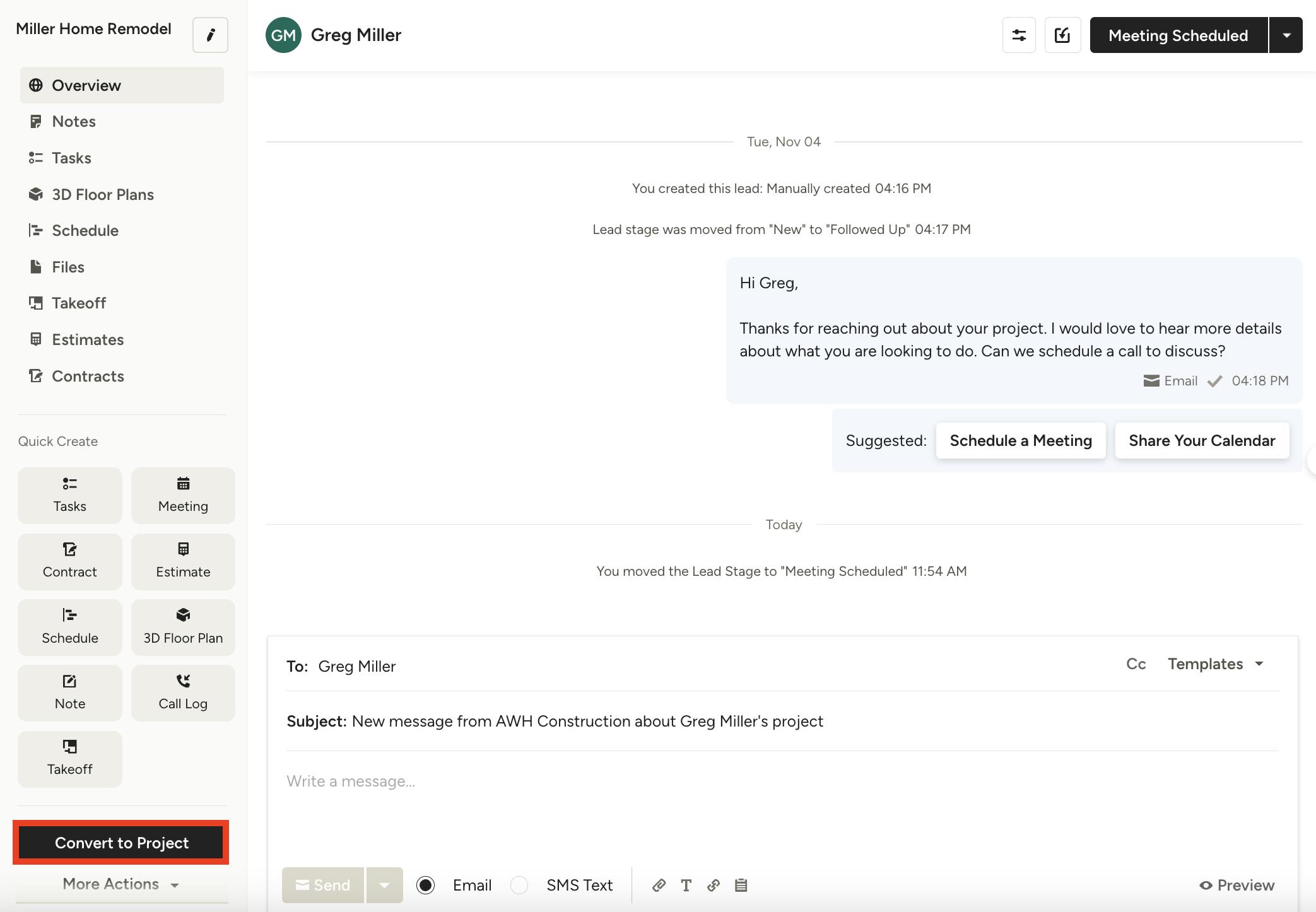
To make adjustments, click on the relevant lead in your All Leads list, then select the Convert to Project button on the left side of your screen.
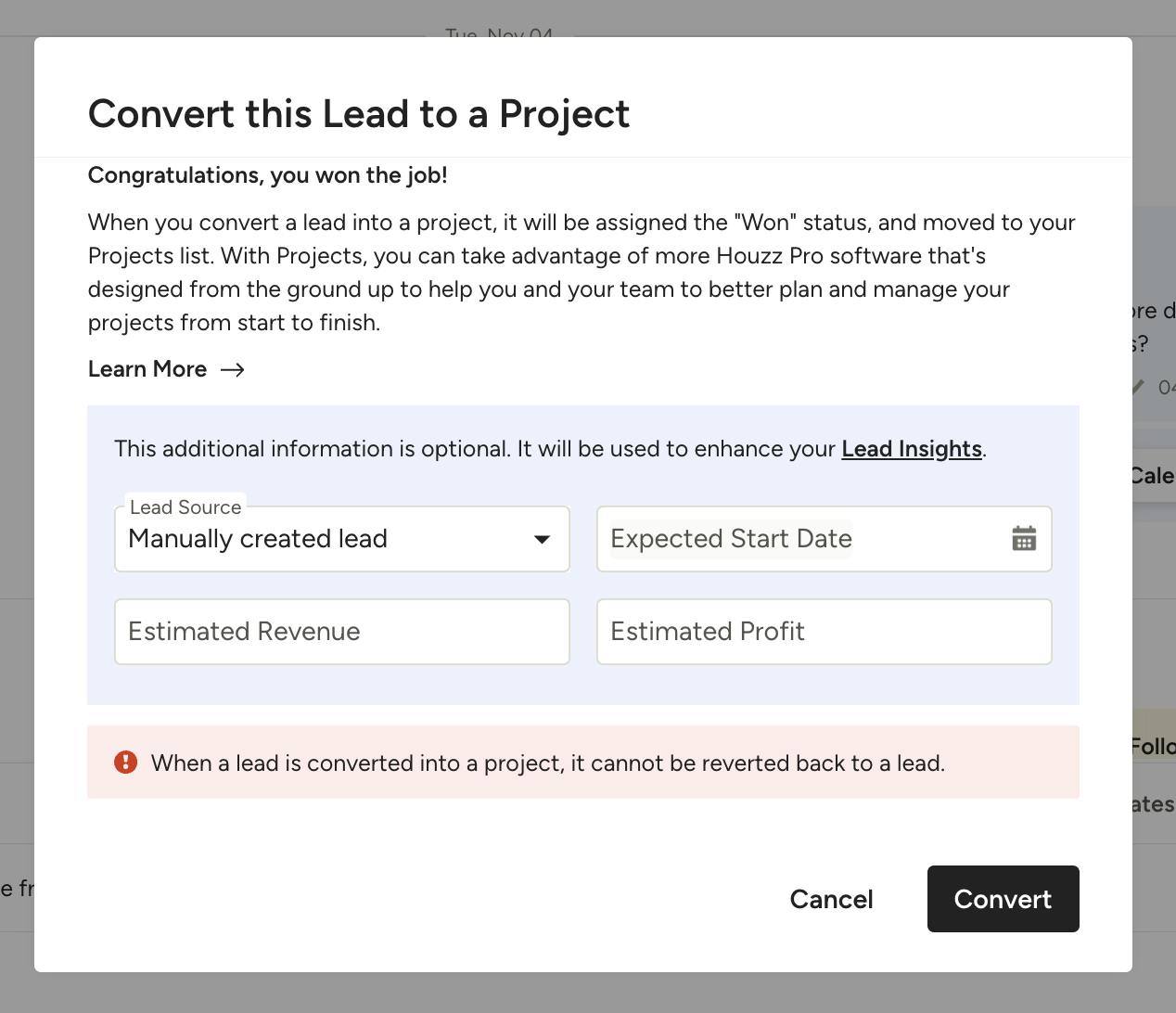
You will be able to input lead source, start date, estimated revenue and estimated profit as you convert to a project (if you haven't added this information already).
Be sure to click Convert once complete. This lead to project conversion will now properly reflect in the leads won data found on your Lead Insights page.