How to Customize Your Lead Stages
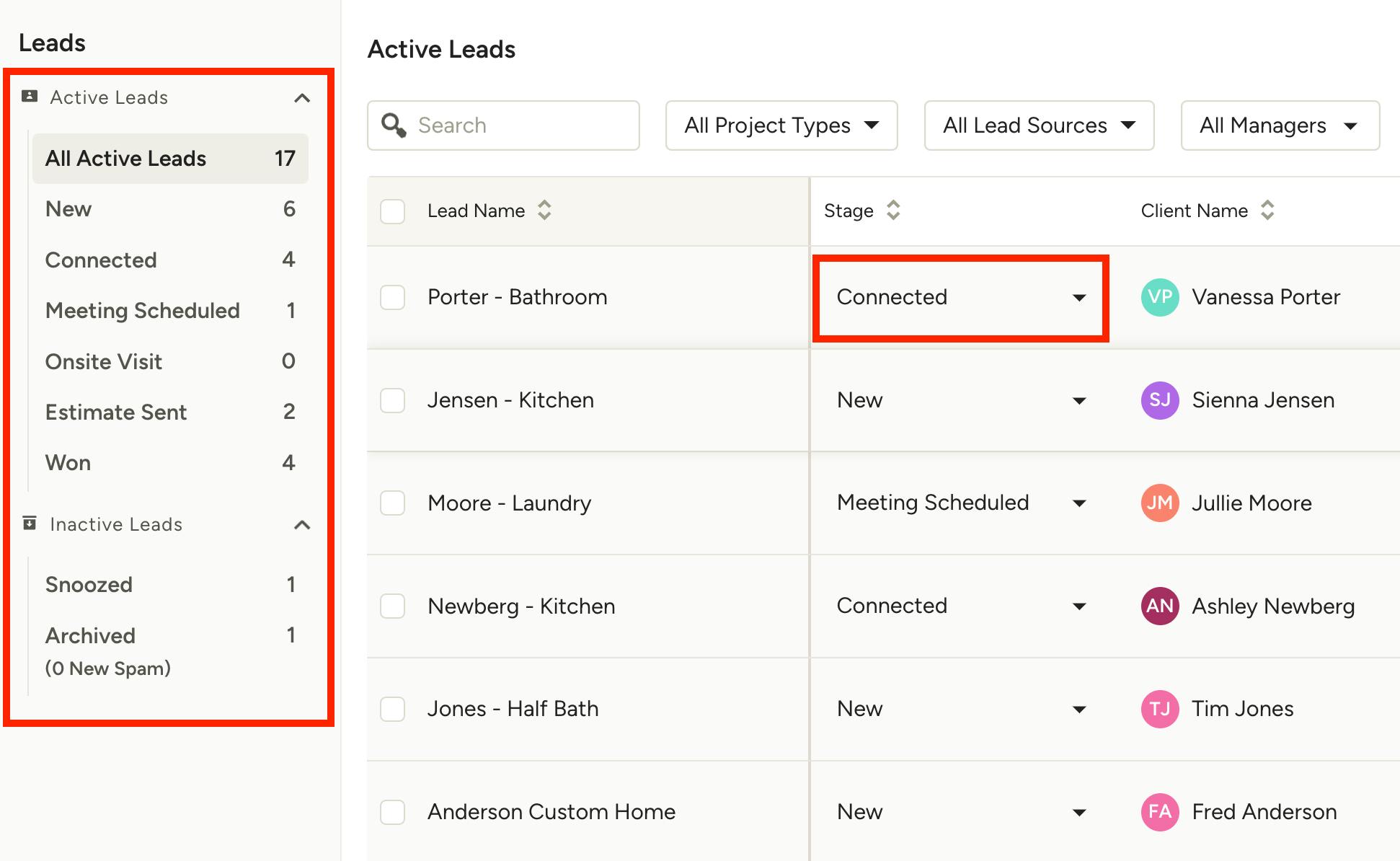
As you are working with leads in Houzz Pro, lead stages are a helpful way to update the status of your lead. They help you keep track of where you stand and what's needed to close the job.
Your lead stage appears on both the Individual Lead page, as well as on the View All Leads page. Within the View All Leads page, you can see how many leads are in each stage and adjust a lead's stage using the dropdown menu.
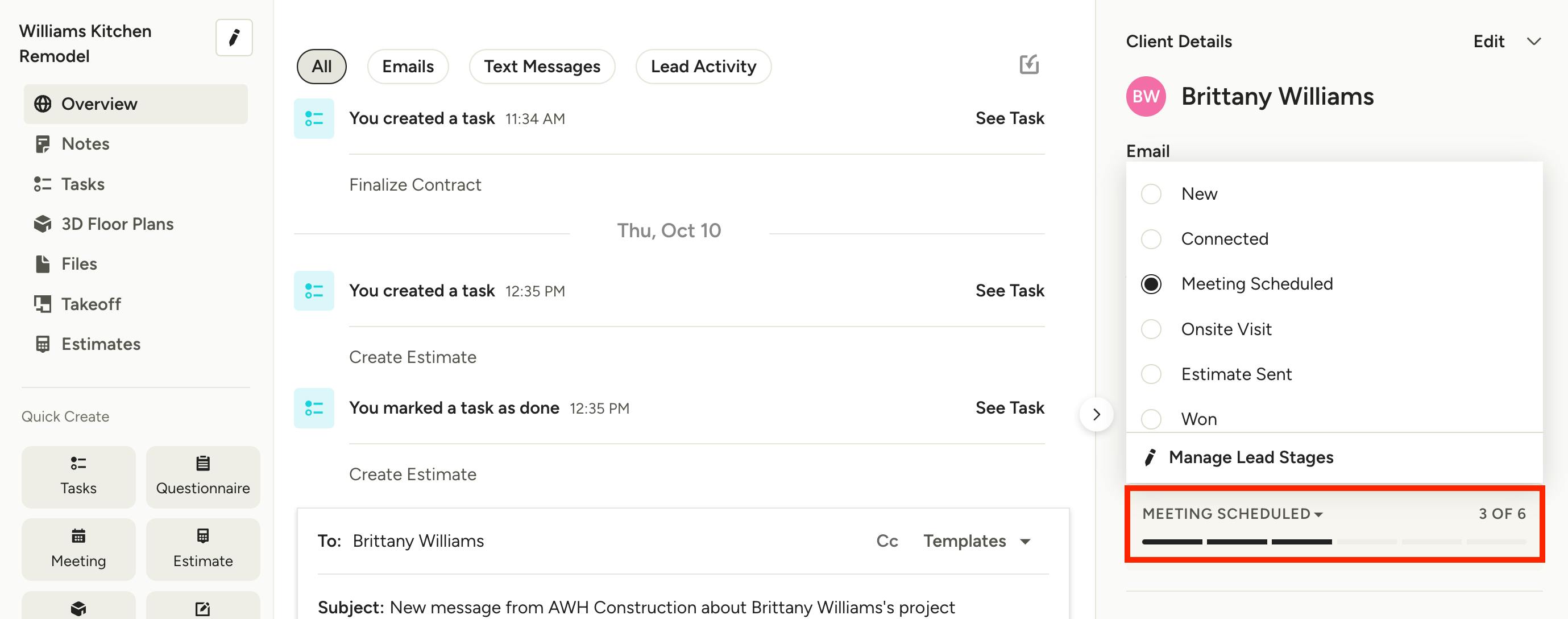
Within the Individual Lead overview page, you can view the current stage of the lead and adjust the stage using the dropdown menu on the right side.
As your lead progresses within the system, the stages will automatically update to reflect your progress. If you’ve made progress outside of the system, you can always update the stage manually in the lead list dropdown or from within the lead itself.
Please Note: Once you update the lead stage manually, it will no longer automatically update. Custom lead stages will not automatically update.
These are the existing lead stages that you can select from:
- New: Any lead that you have not yet responded to will fall under the New stage.
- Followed Up: Once you’ve responded to the original message, it will be moved to the Follow Up stage.
- Connected: Once the lead corresponds with you, it will be moved to this stage.
- Meeting Scheduled: If you’ve set up a meeting with your client, it will automatically move to the Meeting stage, and your meeting details will appear in the Upcoming Meetings section of the leads list.
- Proposal/Estimate Sent: Once you’ve shared a proposal/estimate with your client, it will be moved to this stage.
- Won: Leads that have been converted to projects will appear in this stage.
If some of these lead stages aren't relevant for your business, you can hide them (except for the New and Won stages). While you are not able to move, delete or rename existing lead stages, you can create new lead stages. These custom lead stages can be reordered, deleted, renamed and hidden as needed.
Hide Lead Stages
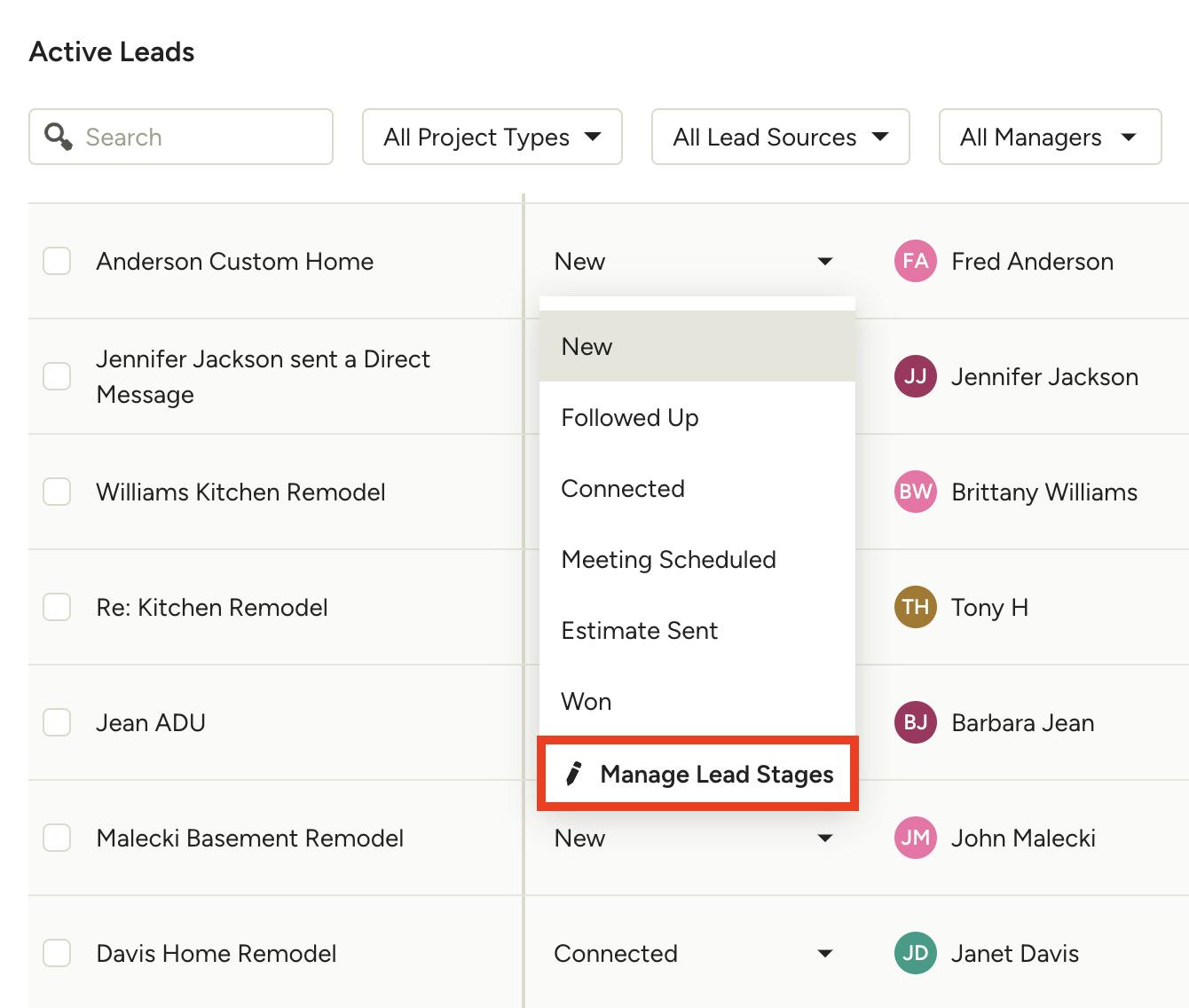
To hide existing or custom lead stages that aren't relevant, open up the stages dropdown for the relevant lead, and select Manage Lead Stages. You can access this from both the View All Leads page and the Individual Lead page.
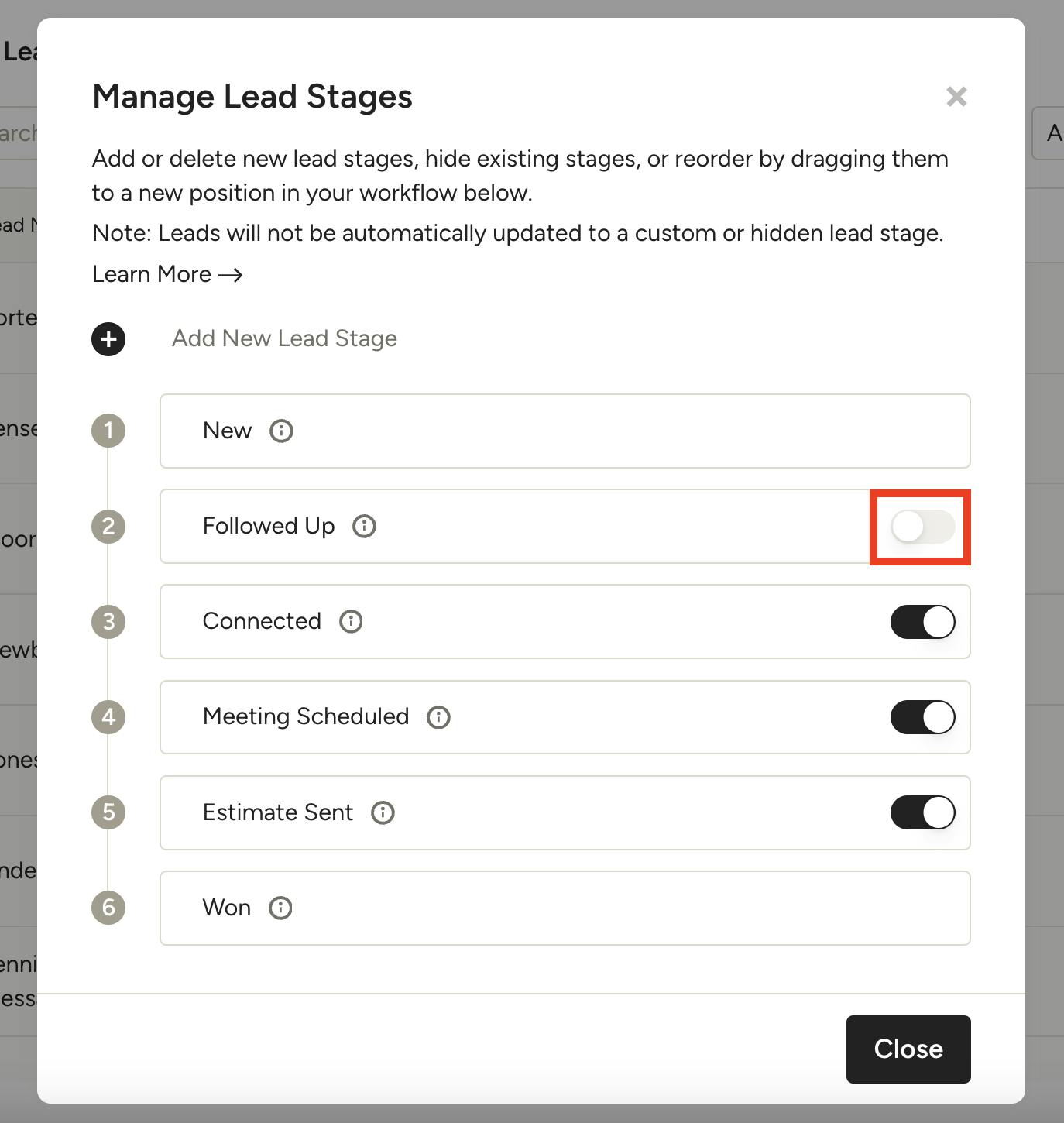
To hide an existing lead stage on this screen, turn the toggle off next to the relevant stage.
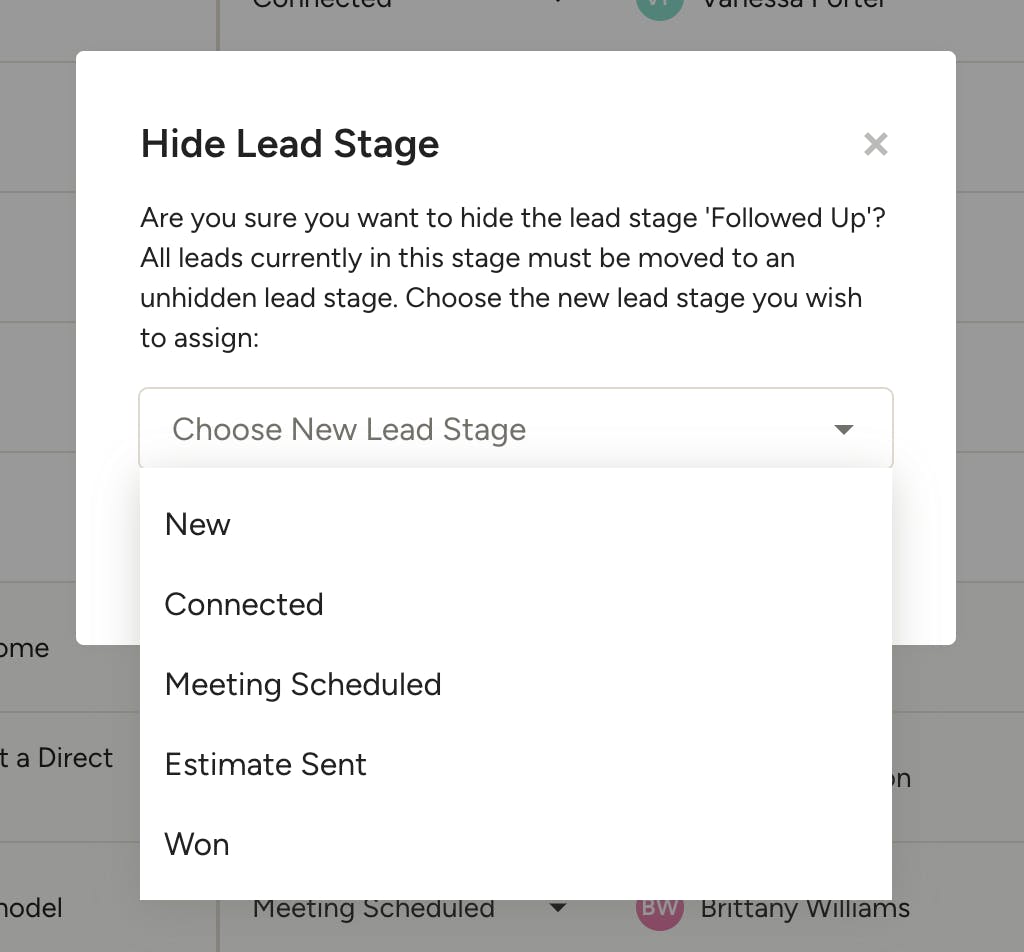
When you hide an existing or custom lead stage with assigned leads, you will need to reassign all those existing leads to a new active lead stage. Select the desired new lead stage from the dropdown menu, then select Hide and Reassign to complete.
Add Lead Stage
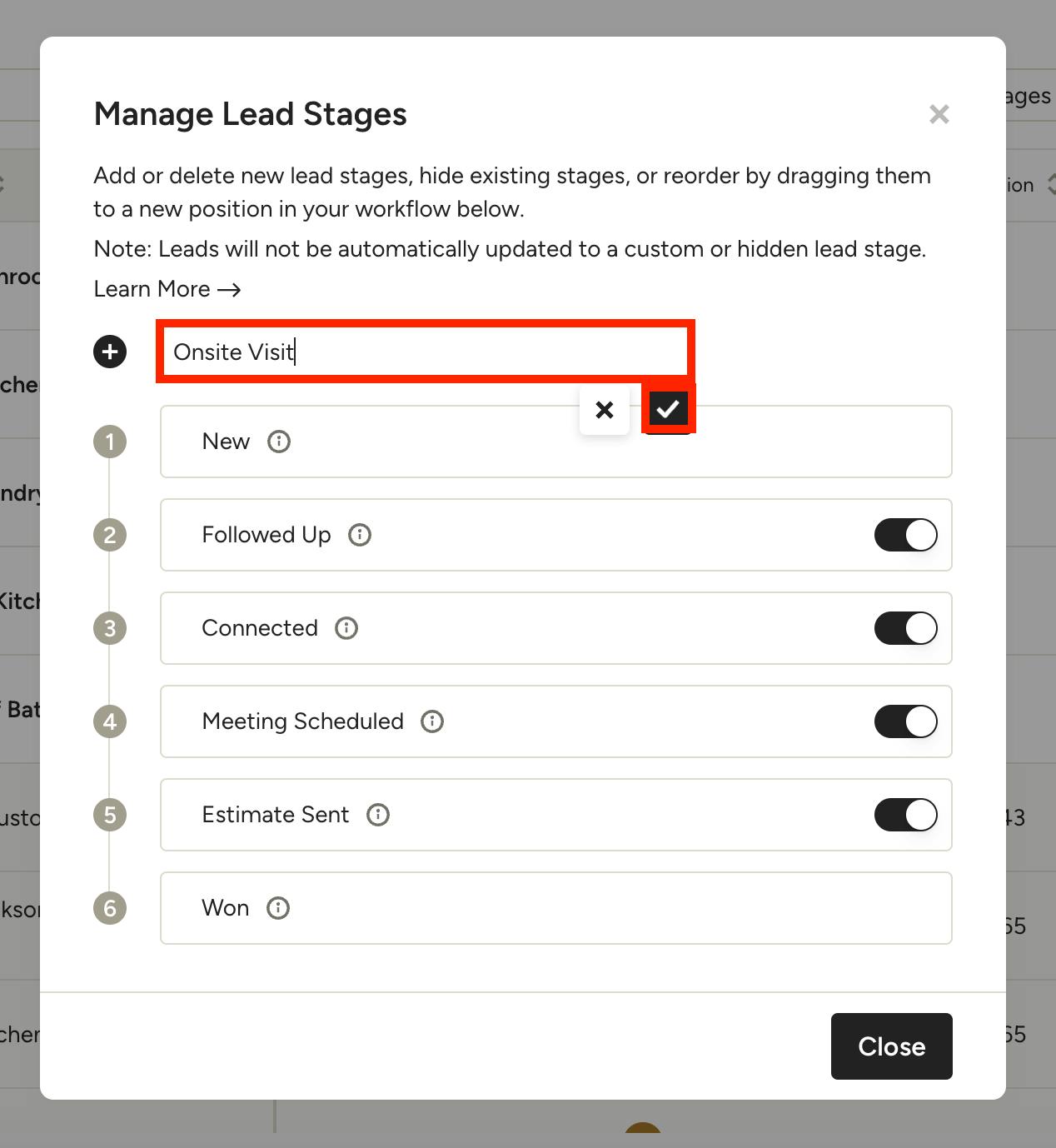
Within the Manage Lead Stages screen, you can also add a new lead stage. You can add up to 12 custom stages. Just type in the stage name you want to add — the name can be up to 25 characters, with the exclusion of some special characters.
Once complete, click the check mark to save.

Once the new lead stage is added, you will be able to use it for other leads within Houzz Pro. It will appear in the Manage Lead Stages screen, where you can rename, delete, or hide it.
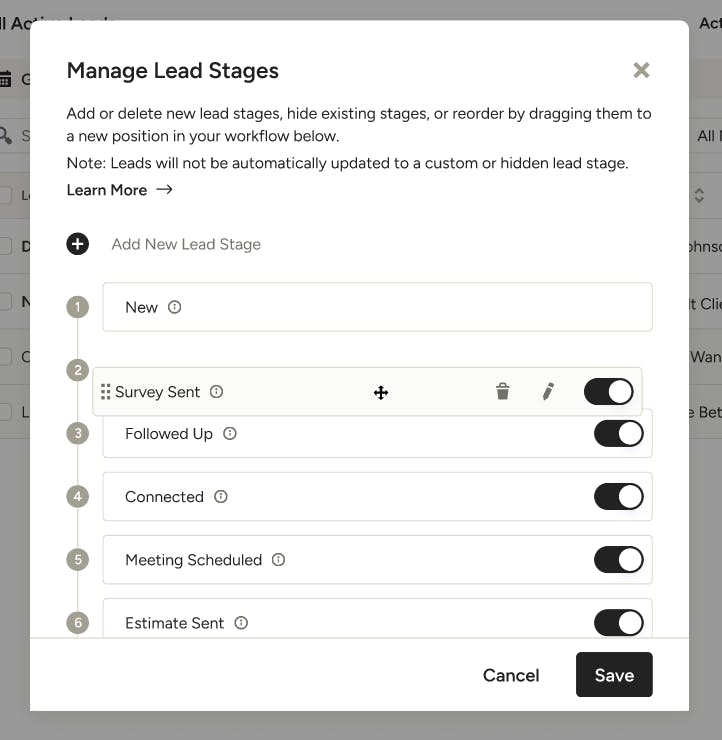
You can even drag and drop custom lead stages to change the order so it properly follows your business pipeline. Your selected order will update the lead status order shown on your View All Leads page.
Please Note: You can only rename, delete or reorder custom lead stages.