How to Create a Credit Memo
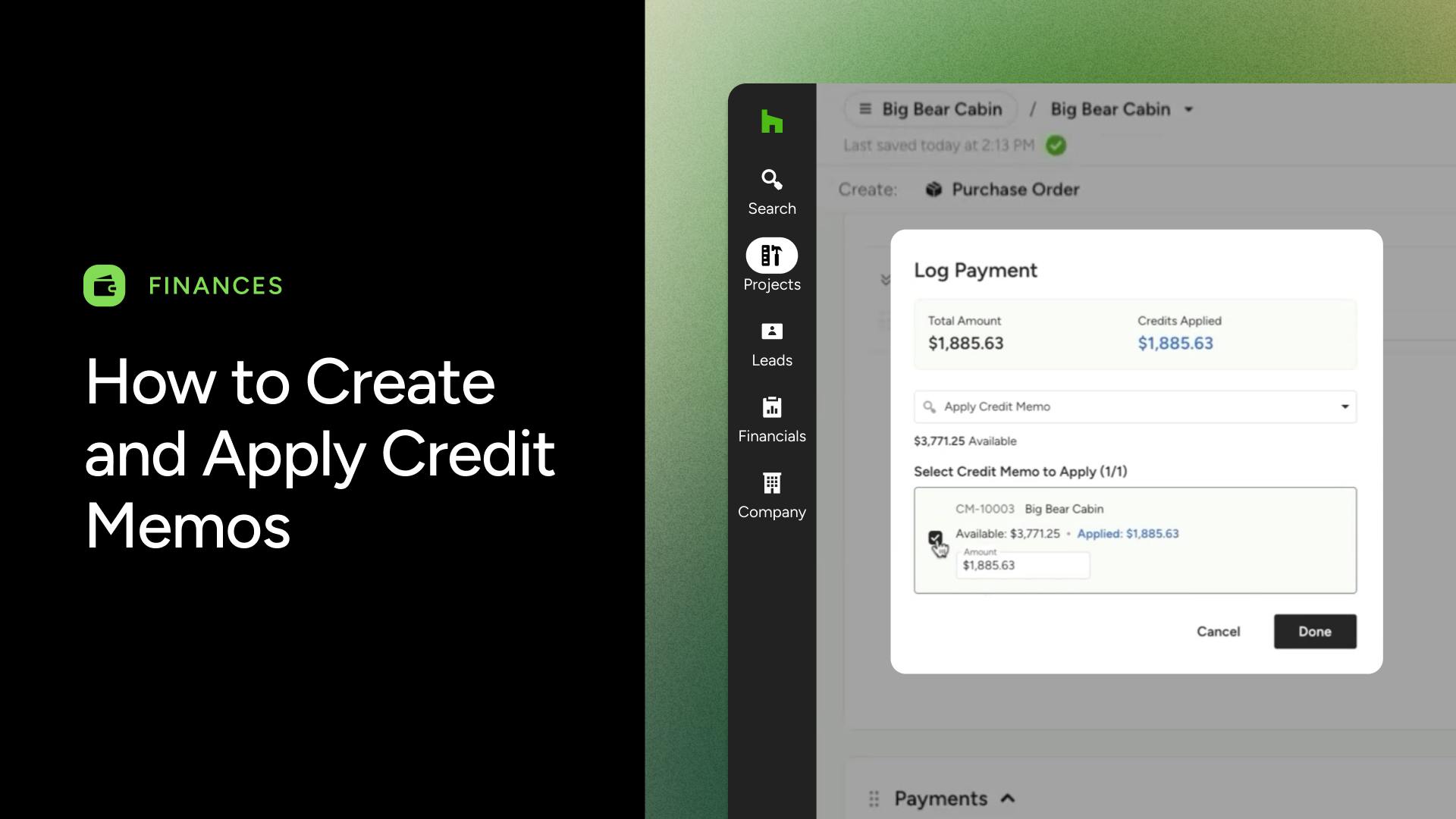
A Credit Memo is a formal document that records a debt owed to the client. It's created independently of editing an invoice, which makes it the right method any time you need to adjust a client's balance without touching the original — including invoices from a previous, legally closed tax year.
Instead of editing a paid invoice or relying on negative line items (which can throw off your sales tax reporting and cause sync errors with QuickBooks Online), you can create a credit memo that reduces the balance while leaving the original invoice exactly as it was. You can then apply that balance to an open invoice or issue a refund.
Credit memos keep your records audit-ready, keep adjustments in the correct tax year, and give your client a clear, professional explanation of the credit rather than a quietly changed number.
You can create a standalone credit memo from scratch, or directly from line items on an invoice. Here are a few common use cases for creating a credit memo:
- A client downgrades a material after already being invoiced for the higher-cost option
- A damaged or defective item is returned after the client was billed for it
- A trade discount is secured and passed along to the client after invoicing
- You want to issue a standalone credit, like a client referral credit, that isn't tied to reducing a specific invoice
Note: Team members must have the Credit Memos permission enabled in their team member settings to access this feature.
Credit memos are available for select packages only, on both the desktop and mobile app versions of Houzz Pro.
Credit Memos vs Overpayments
It's worth knowing the difference between a credit memo and an overpayment (formerly called "Credits"), since they can look similar but come from different actions:
- Credit Memo: A manual document you create to adjust scope or record a debt owed to the client. Credit memos can include taxable items, which credits the associated sales tax to the client and reduces the amount reported on your current sales tax return.
- Overpayment: An automatic excess balance, created when a payment exceeds the balance due on an invoice, estimate or proposal, or when you edit a paid invoice down to a lower amount. For example, you invoice your client for $800, but they pay $1,000. This automatically leaves $200 as an unapplied balance
Both credit memos and overpayments can be applied to invoices as payment to reduce the balance of the document.
Learn more about overpayments in How to Create Overpayments.
Convert Line Items to Credit Memos
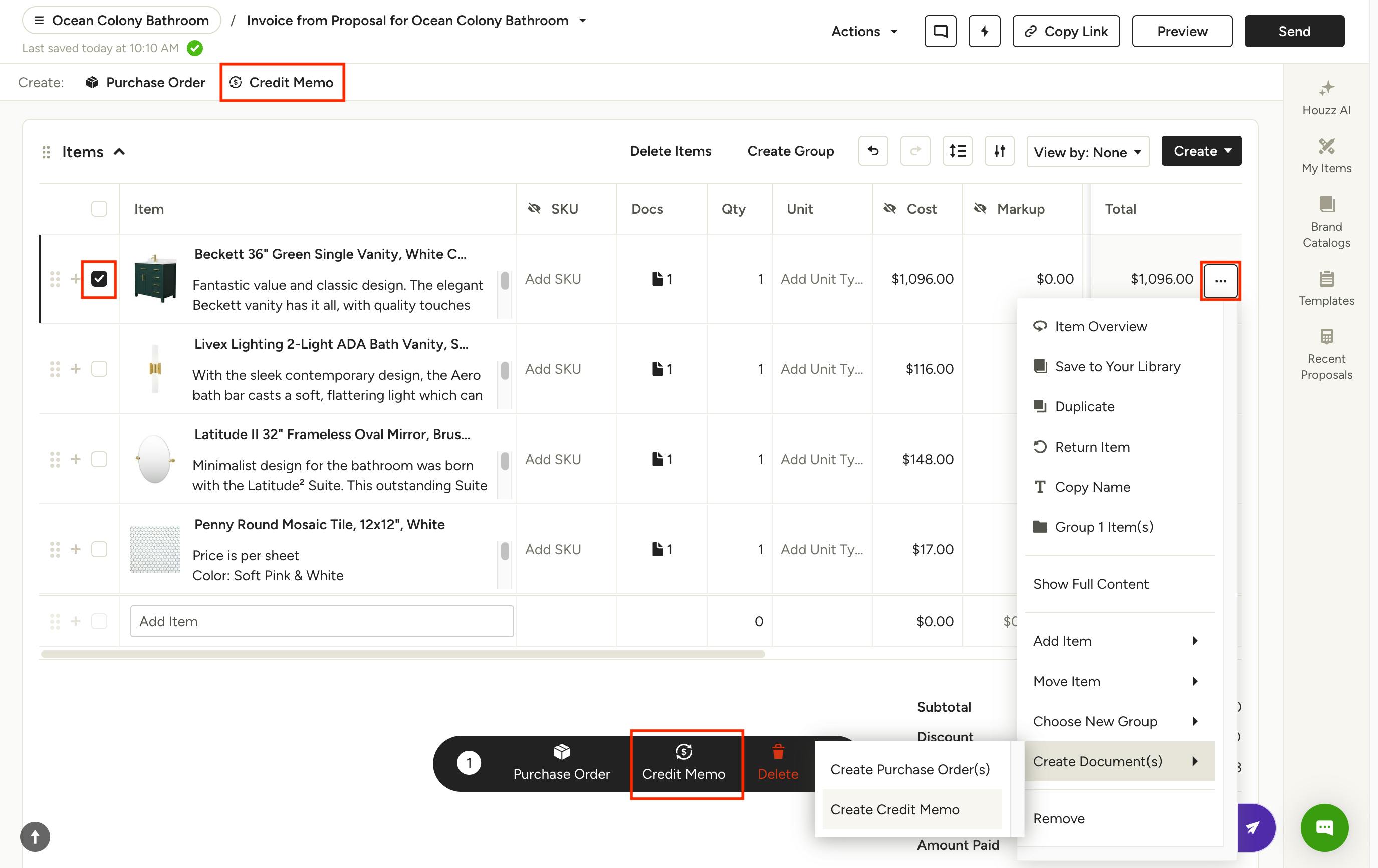
To convert existing line items from an invoice to a credit memo, open the relevant invoice then select one or more items using the checkbox on the left. Next, click Credit Memo from the menu that appears at the bottom, or from the Create links at the top of the page.
You can also click the three dots menu to the right of any item and select Create Document(s) > Create Credit Memo.
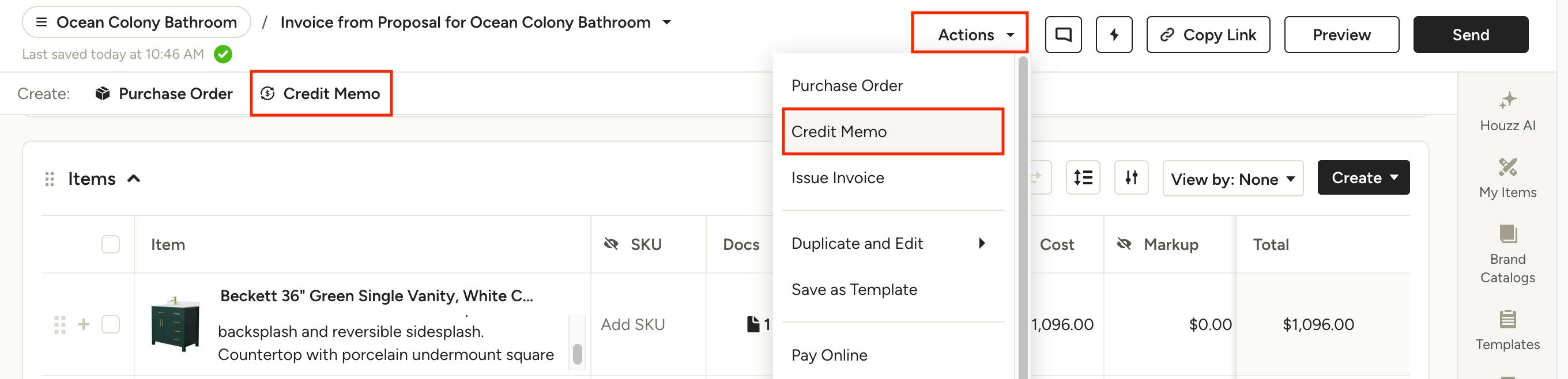
You can also select Credit Memo from the Create links at the top of an invoice, or from the Actions menu.
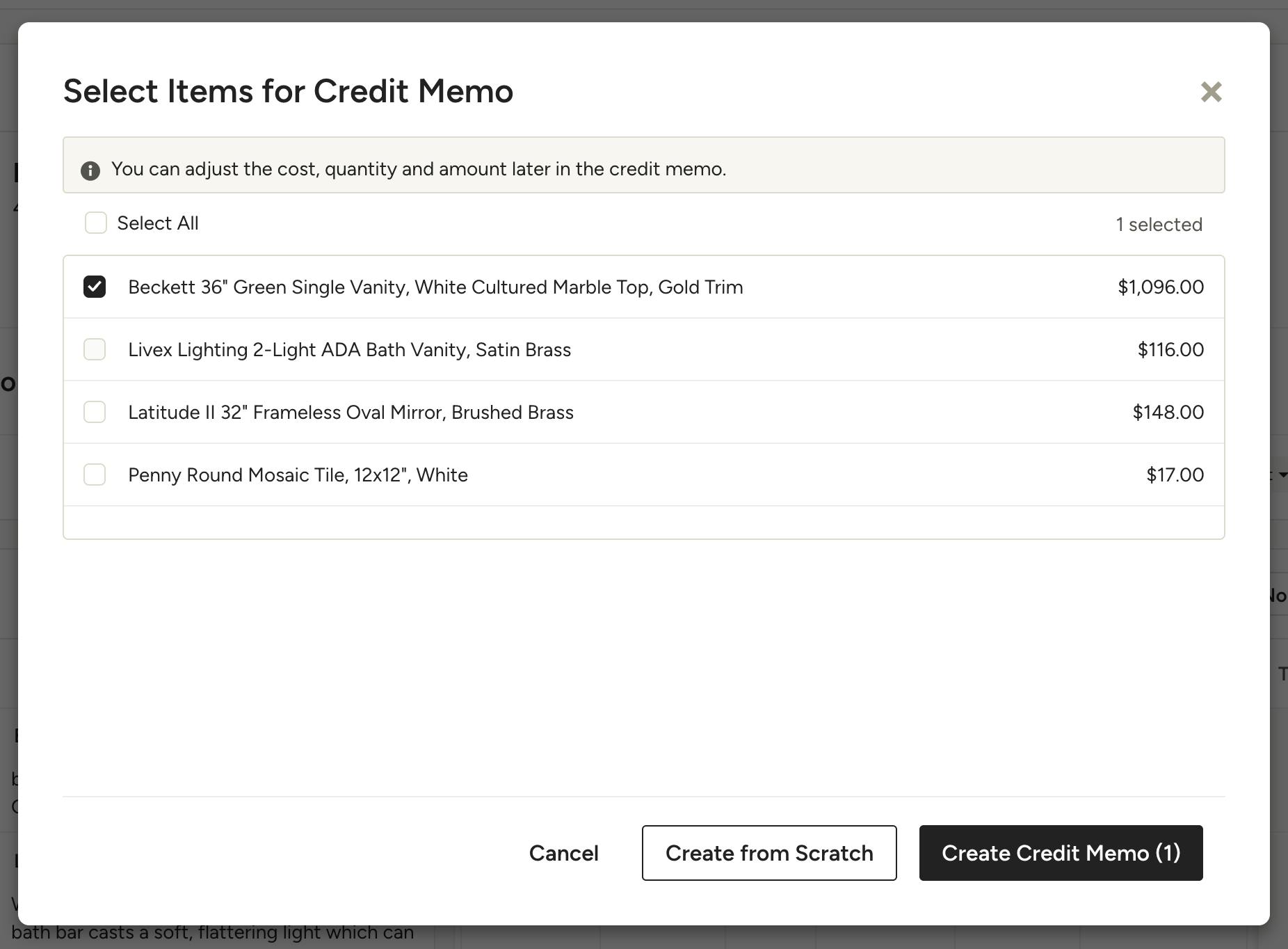
This will open a modal where you can view all line items and select the ones you want to include in the credit memo.
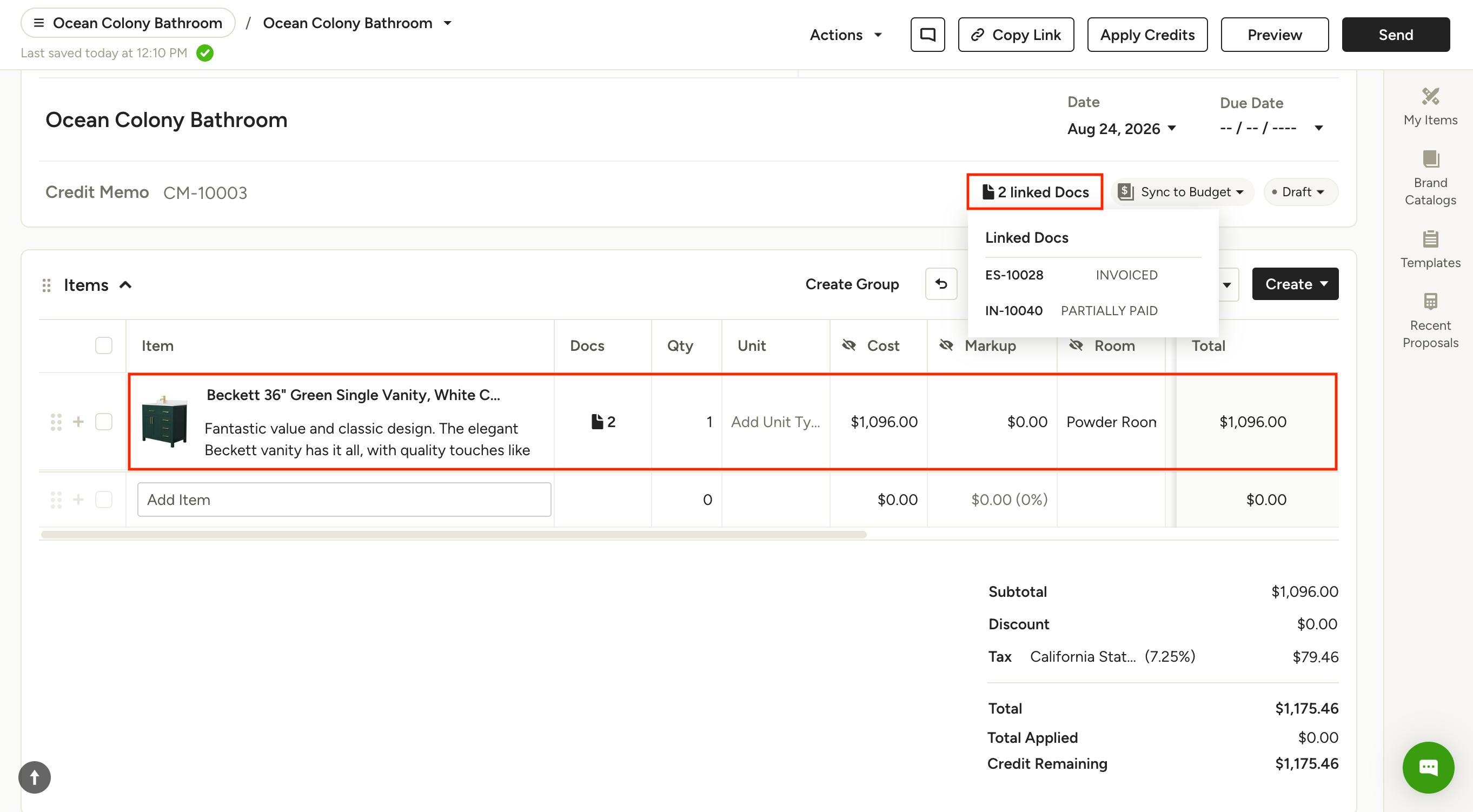
Once created, the credit memo will include any line items you converted, along with the original financial information from the invoice. You can adjust the prices on the credit memo to reflect the actual credit amount — for example, entering a lower price for a partial return.
You'll find the original invoice, and any other linked documents, under the Linked Docs section in the header of the credit memo.
You can add Terms & Conditions, a Memo and attach Files in the sections below.
Create Credit Memos From Scratch
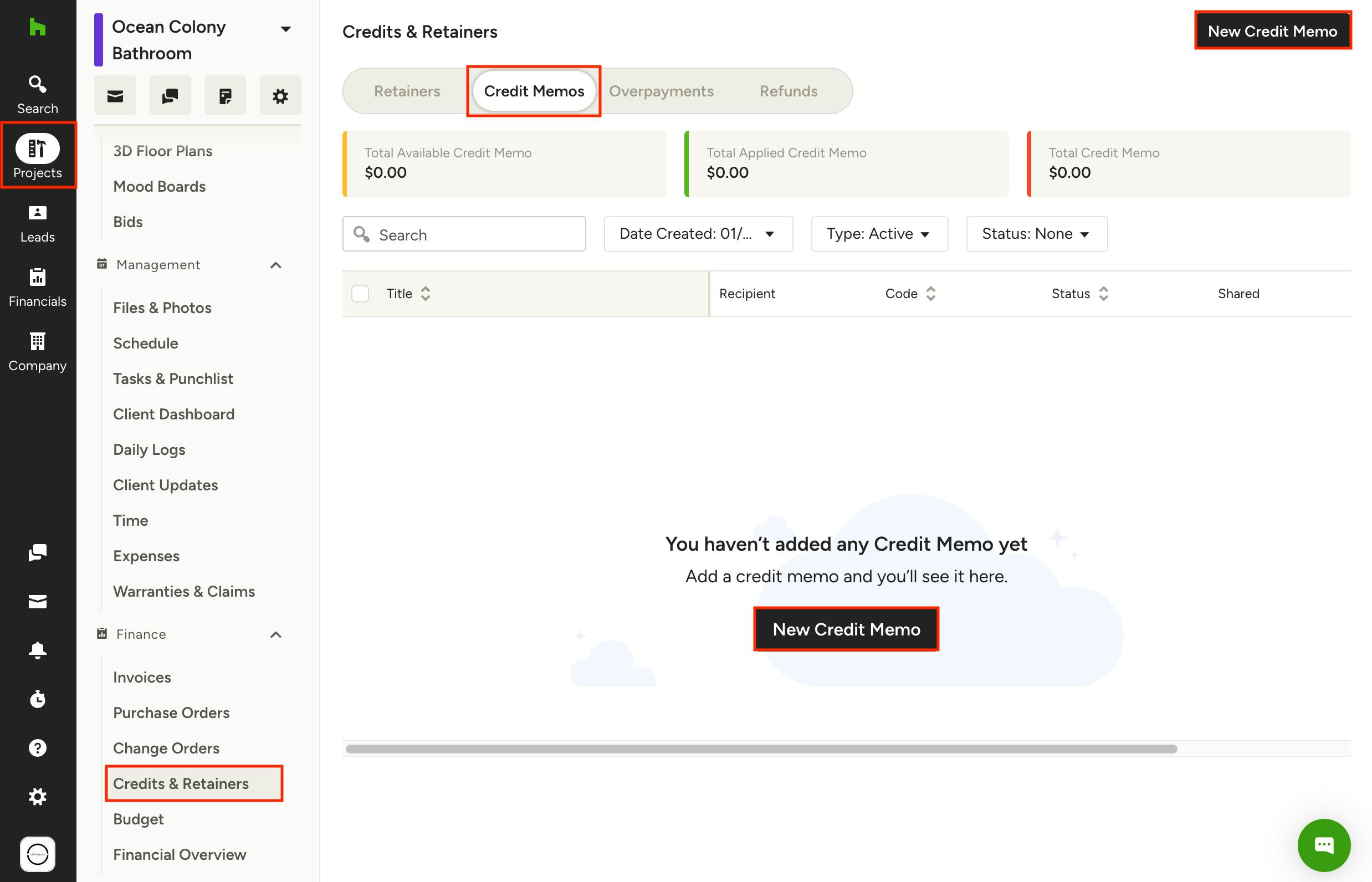
To create a standalone credit memo, navigate to the Credits & Retainers section within the relevant project, select the Credit Memos tab at the top, then click New Credit Memo.
You can also access this by navigating to the All Credits & Retainers page, found under the Search icon in the left navigation. From here, you will be prompted to choose the project (or create a new one) that the credit memo is assigned to.
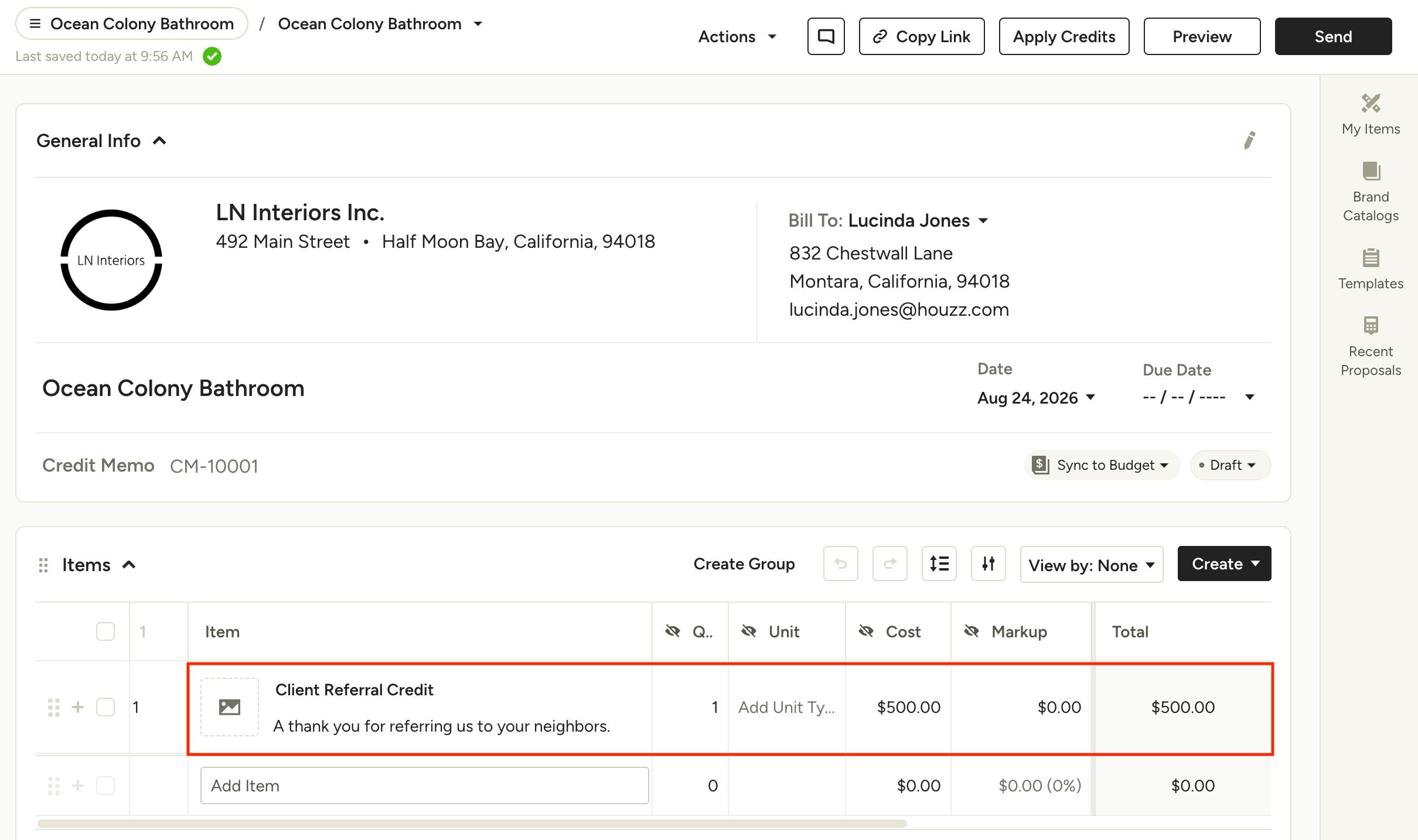
In the new credit memo, add a line item(s) to denote what the credit is for, along with the amount and any other relevant information. Line items on credit memos already reflect negative values — there's no need to type a minus sign ("-").
You can add Terms & Conditions, a Memo and attach Files in the sections below.
Share Credit Memos with Clients
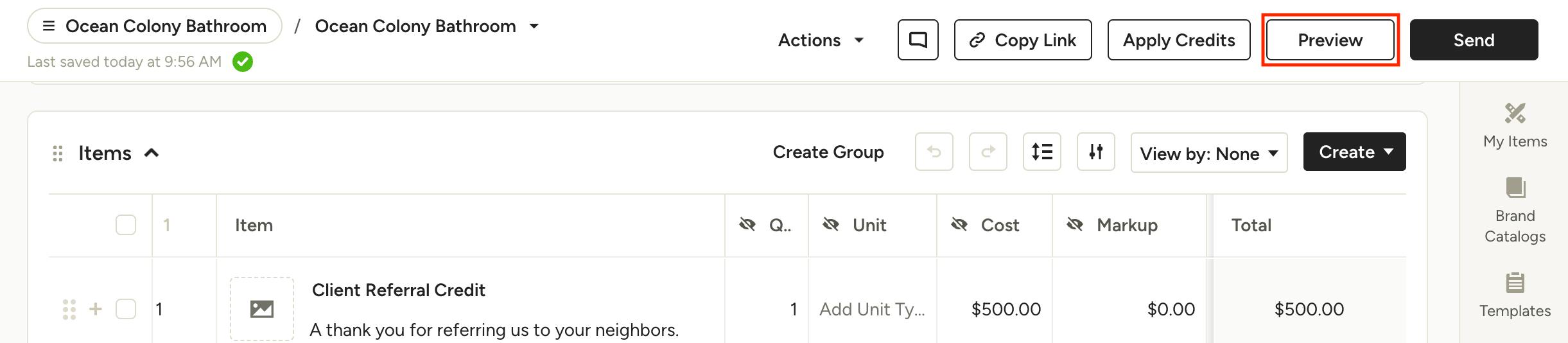
Once your credit memo is ready to share, click Preview at the top of the document to adjust exactly what the client can see.
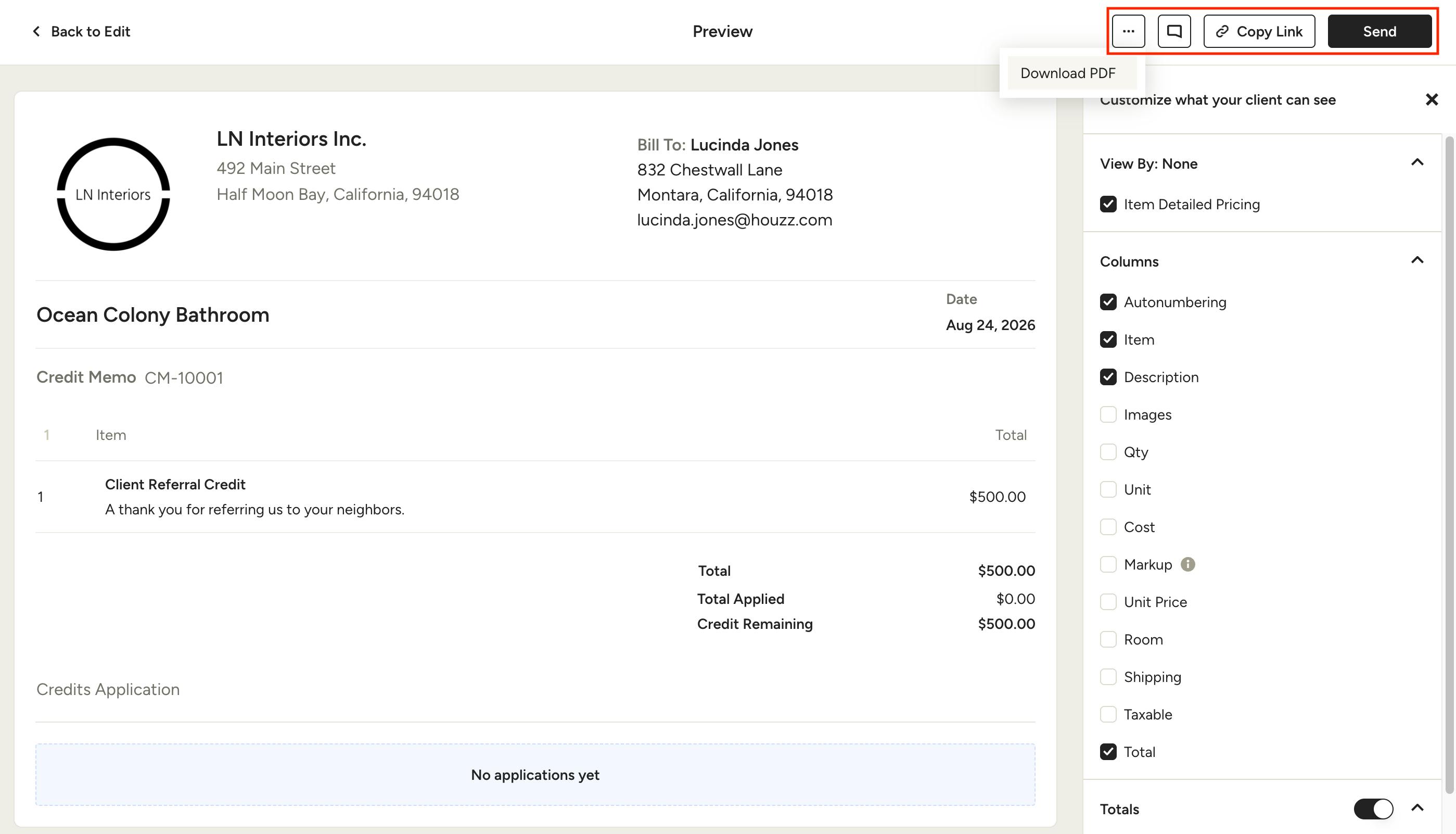
In the preview, use the settings on the right to show or hide different elements to your client.
Once it's ready, click Send to email the credit memo to the client via Houzz Pro, or click the link icon to copy the link and send separately. You can also download the document as a PDF or print a physical copy.
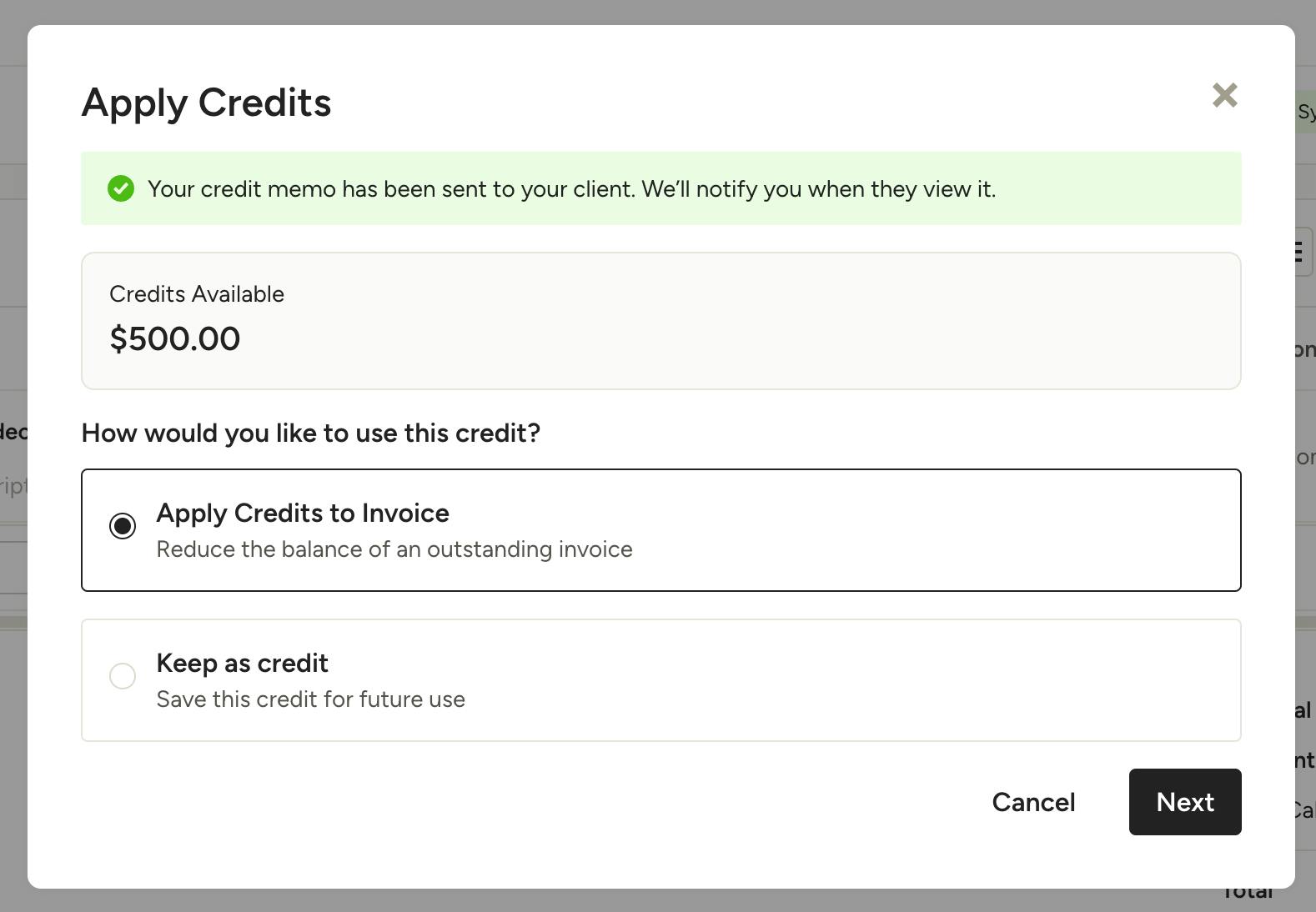
If you have open invoices on the project, you will be prompted to either apply the credit to those invoices or keep the credit for future use.
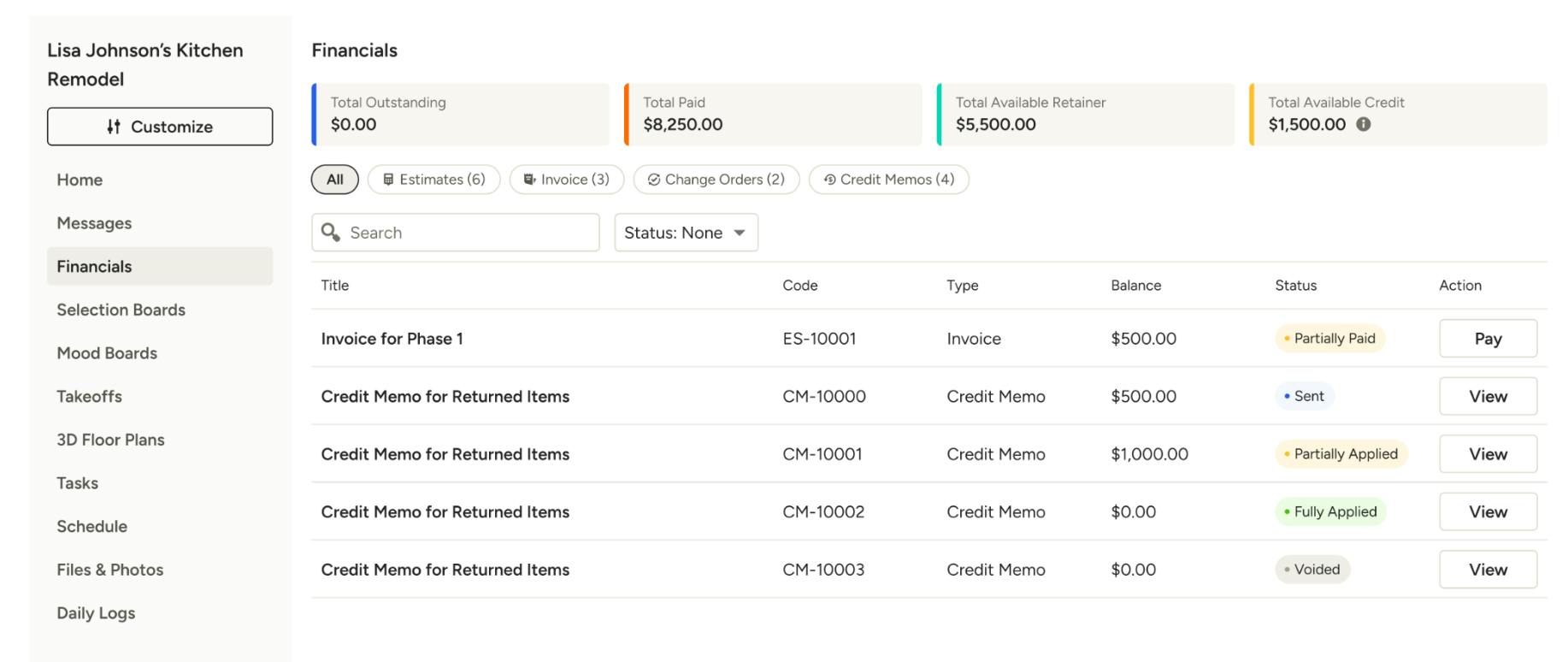
Once shared, your client will be able to see the credit memo in their Financials section of their Client Dashboard, as well as the Total Available Credit at the top of the page.
Apply Credit Memos to Invoices
You can apply a credit memo as payment on an invoice to reduce the balance. This can either be done directly from the invoice or directly from the credit memo.
From Invoice
To apply a credit memo as payment directly on an open invoice with a remaining balance, open the relevant invoice and select Log Payment next to the scheduled payment you wish to pay.
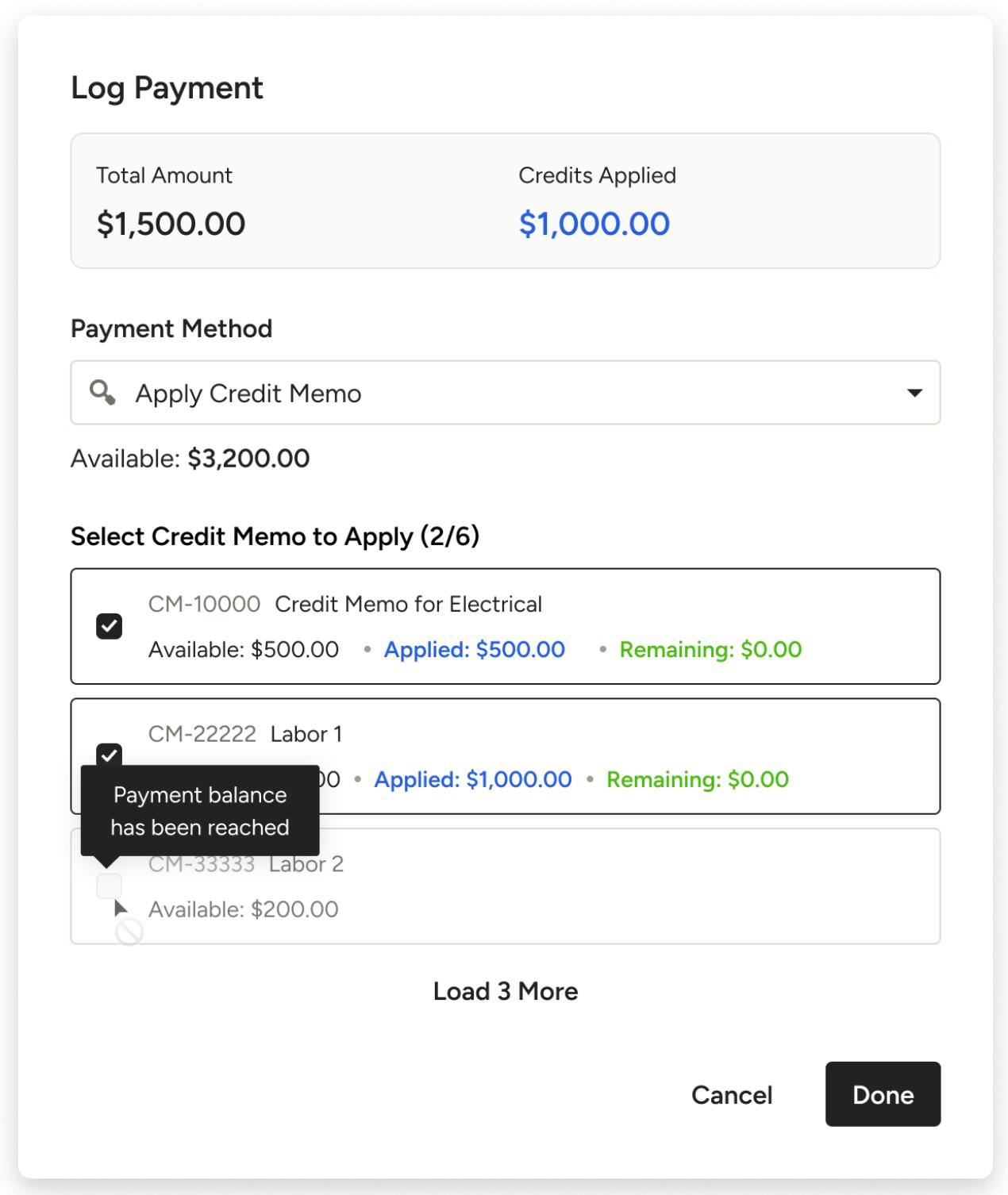
In the Log Payment modal, select Apply Credit Memo from the Payment Method dropdown. Your available credit memos will appear below, where you can select one or more to apply towards the payment.
If the payment balance is reached, any additional credit memos will be grayed out to prevent overpayment.
From Credit Memo
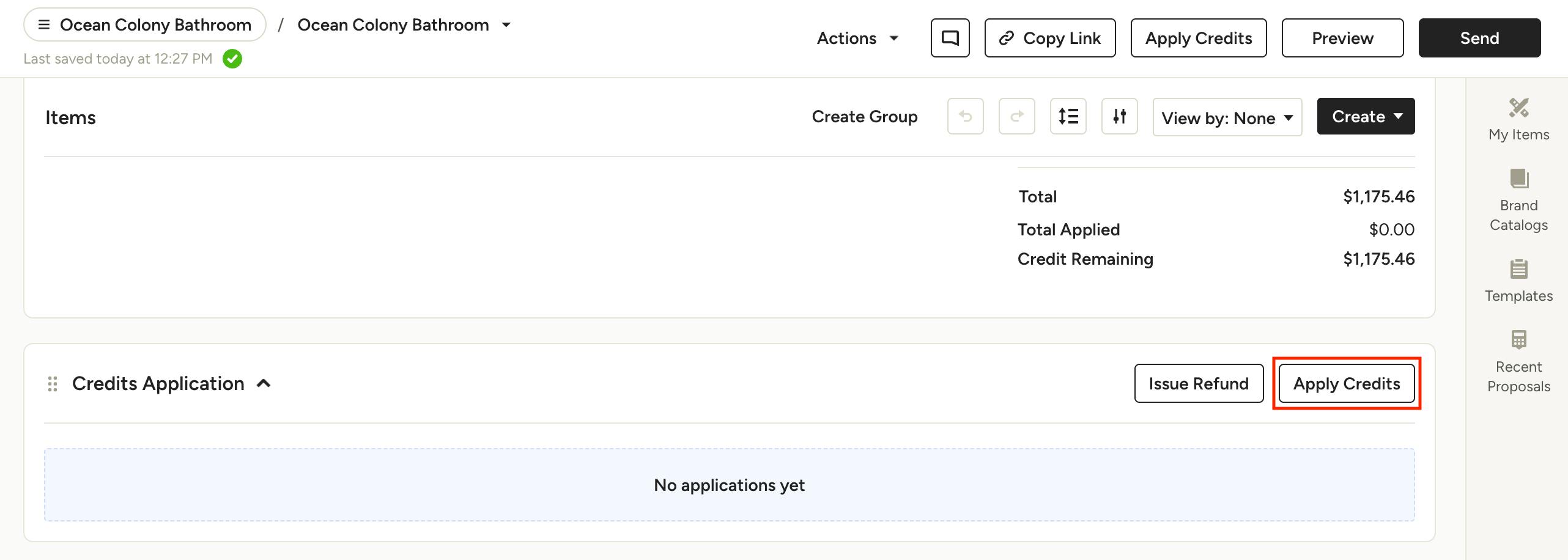
To apply a credit memo as payment directly from the credit memo, open the document and click Apply Credits from the Credits Application section.
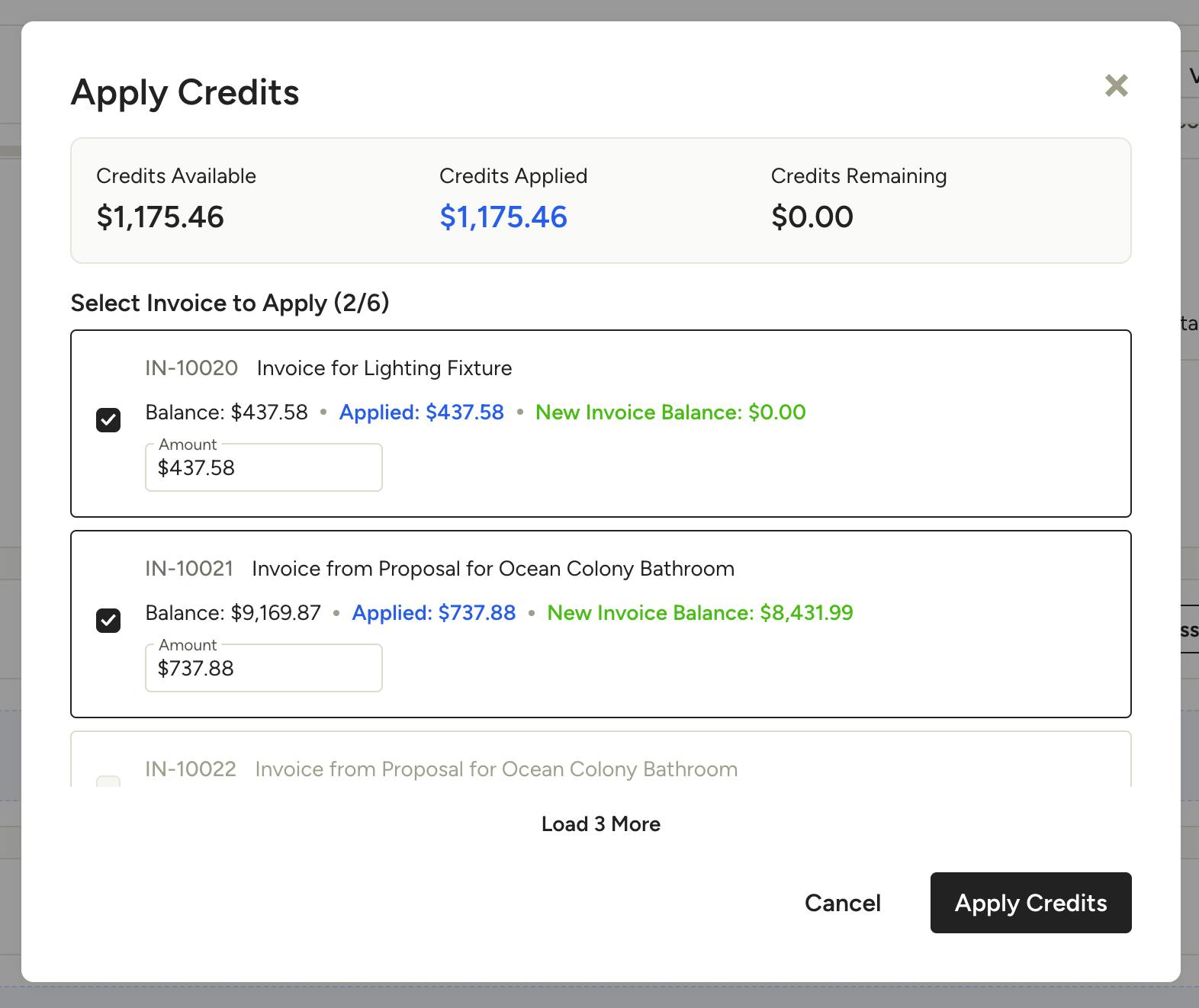
In the modal that appears, you can select one or more invoices to apply the available credit to. On each selected invoice, you can set the exact amount that you wish to apply as payment.
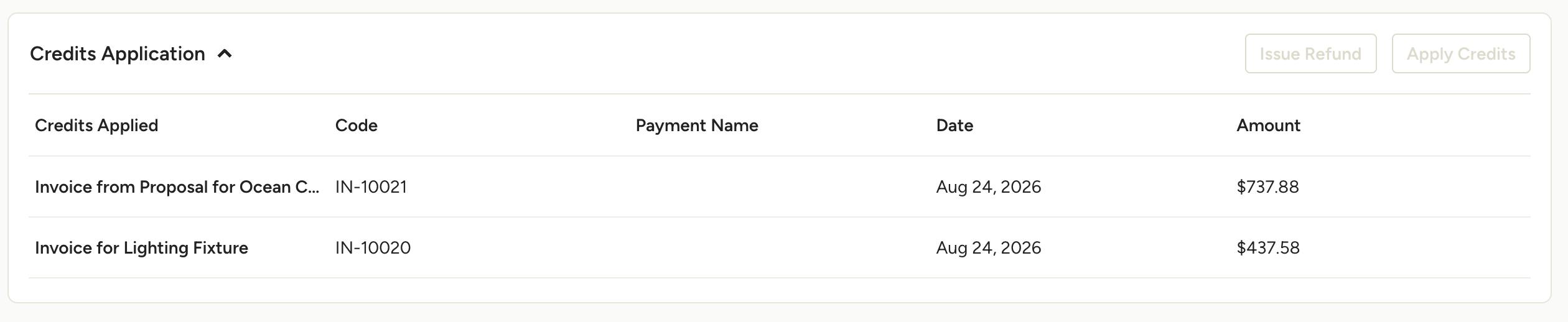
Once a credit memo is applied as payment, you will see the invoice(s) linked in the Credits Application section of the credit memo document.
View Credit Memos
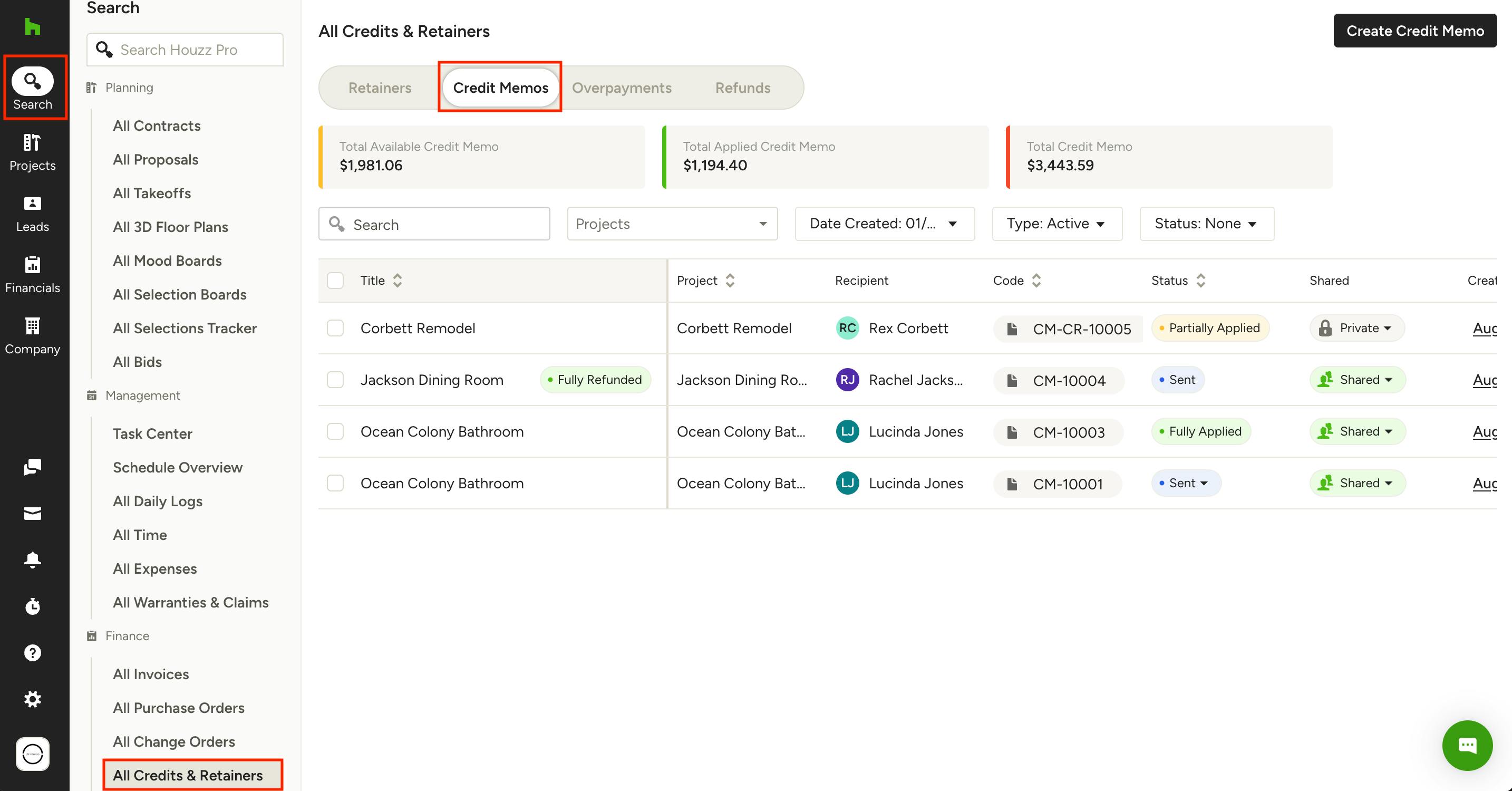
You can view a list of credit memos across projects by clicking on All Credits & Retainers, found under the Search icon in the left navigation. Select the Credit Memos tab at the top of the page.
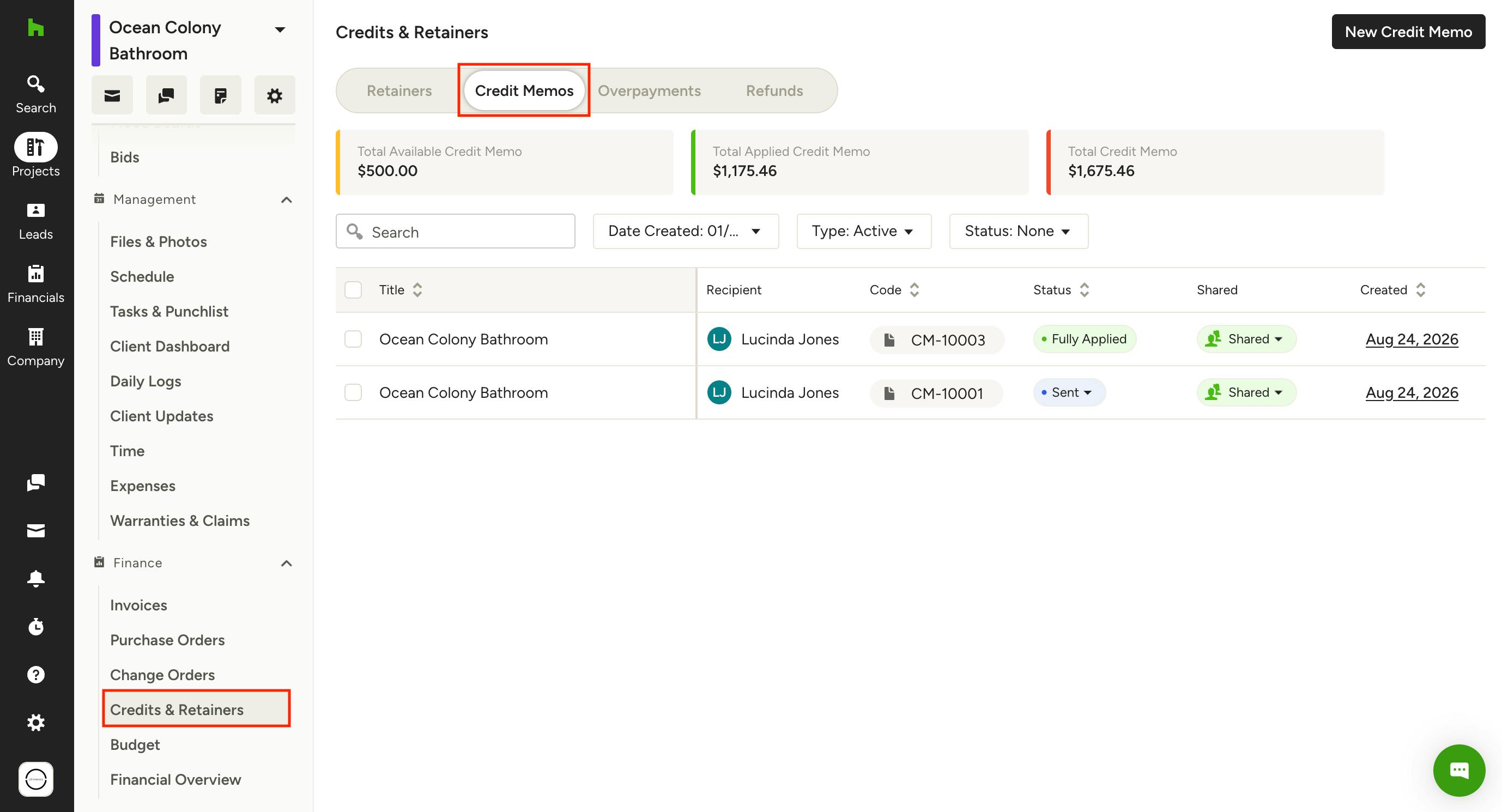
To see all credit memos specific to one project, click Credits & Retainers in the left menu from the project overview page. Select the Credit Memos tab at the top of the page.
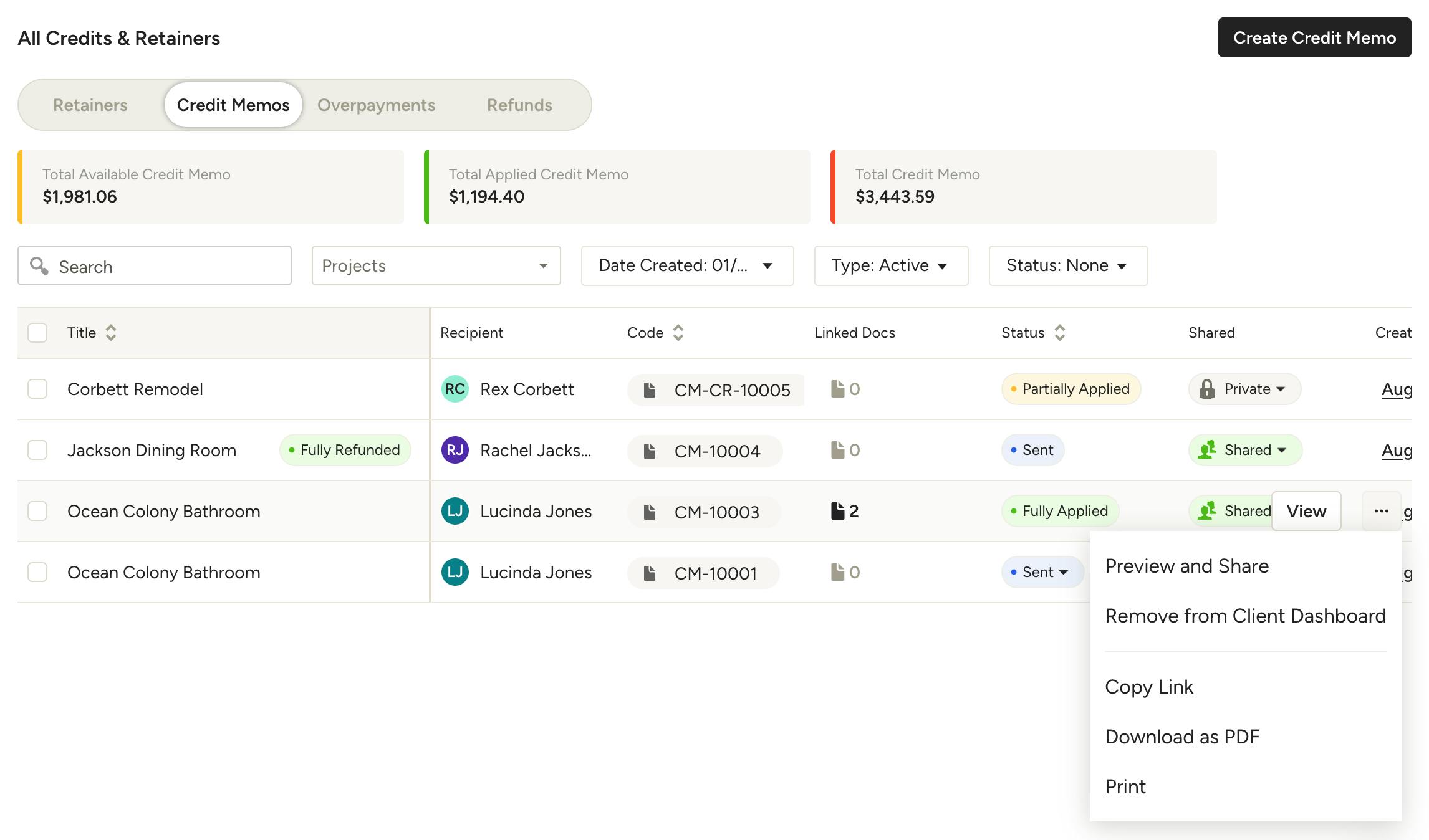
In your credit memos list you will see an overview of the client's credits at the top, including:
- Total Available Credit Memos: Amount available to apply as payment on invoices.
- Total Applied Credit Memos: Amount applied as payment on invoices.
- Total Credit Memos: Amount of credits available and applied.
In the list view you can quickly see the state of each credit memo, including whether it's been sent, applied or partially applied and where, as well as which documents it's linked to and the refund status.
Click the three dots icon to the right of a credit memo to access an options menu where you can share, download or print.
Credit Memos in Invoice Lists
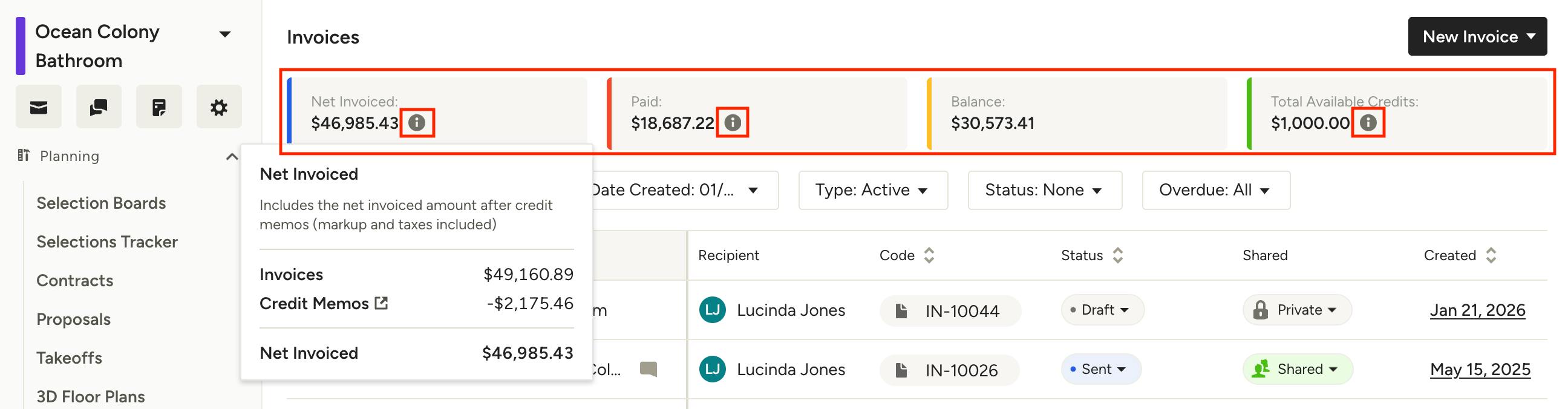
Credit memos are factored into the totals at the top of your project invoice lists and All Invoices page. Hover over the information icon to see a breakdown and explanation of each one.
Net Invoiced, for example, includes the net invoiced amount after credit memos (markup and taxes included).
Refund Credit Memos
If a project has ended and you have a remaining balance on a credit memo, it can be refunded to the client. Note that this is for record keeping purposes only — you will need to return the funds to the client outside of the platform in the method that works best for you.
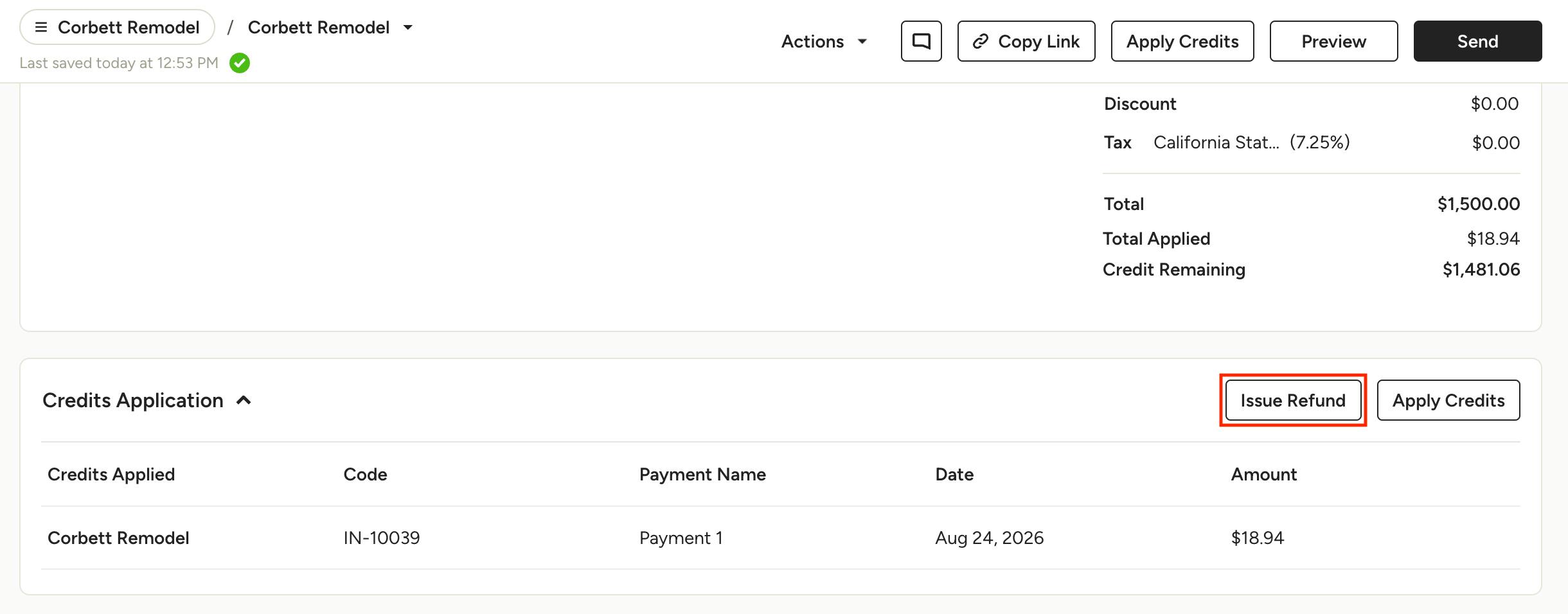
From within the relevant credit memo document, click Issue Refund in the Credit Application section. This will refund the unapplied amount on the credit memo, meaning any funds that were not applied as payment on invoices.
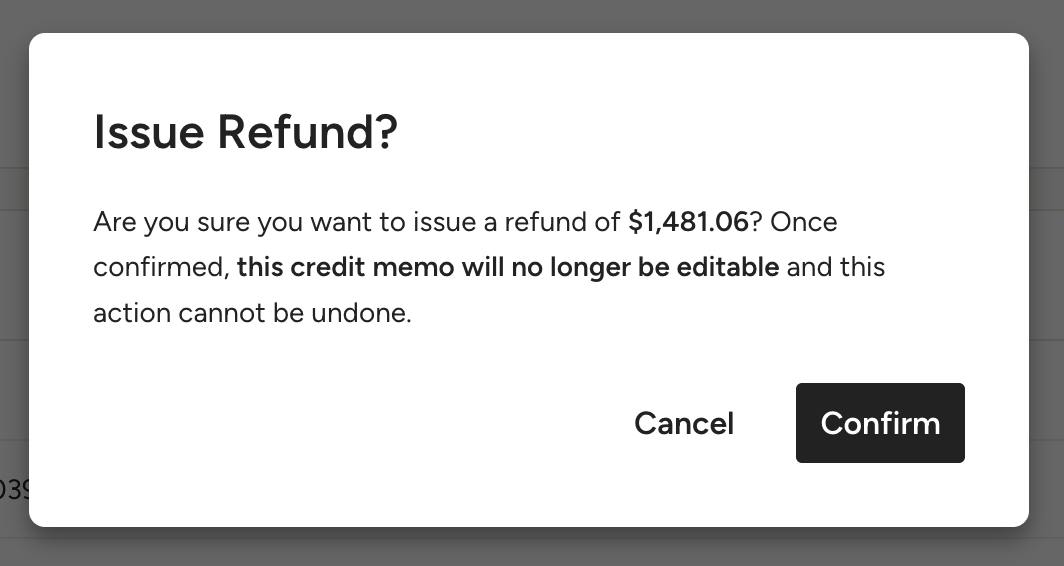
Confirm you want to issue the refund. Once confirmed, the credit memo will no longer be editable and this action cannot be undone.
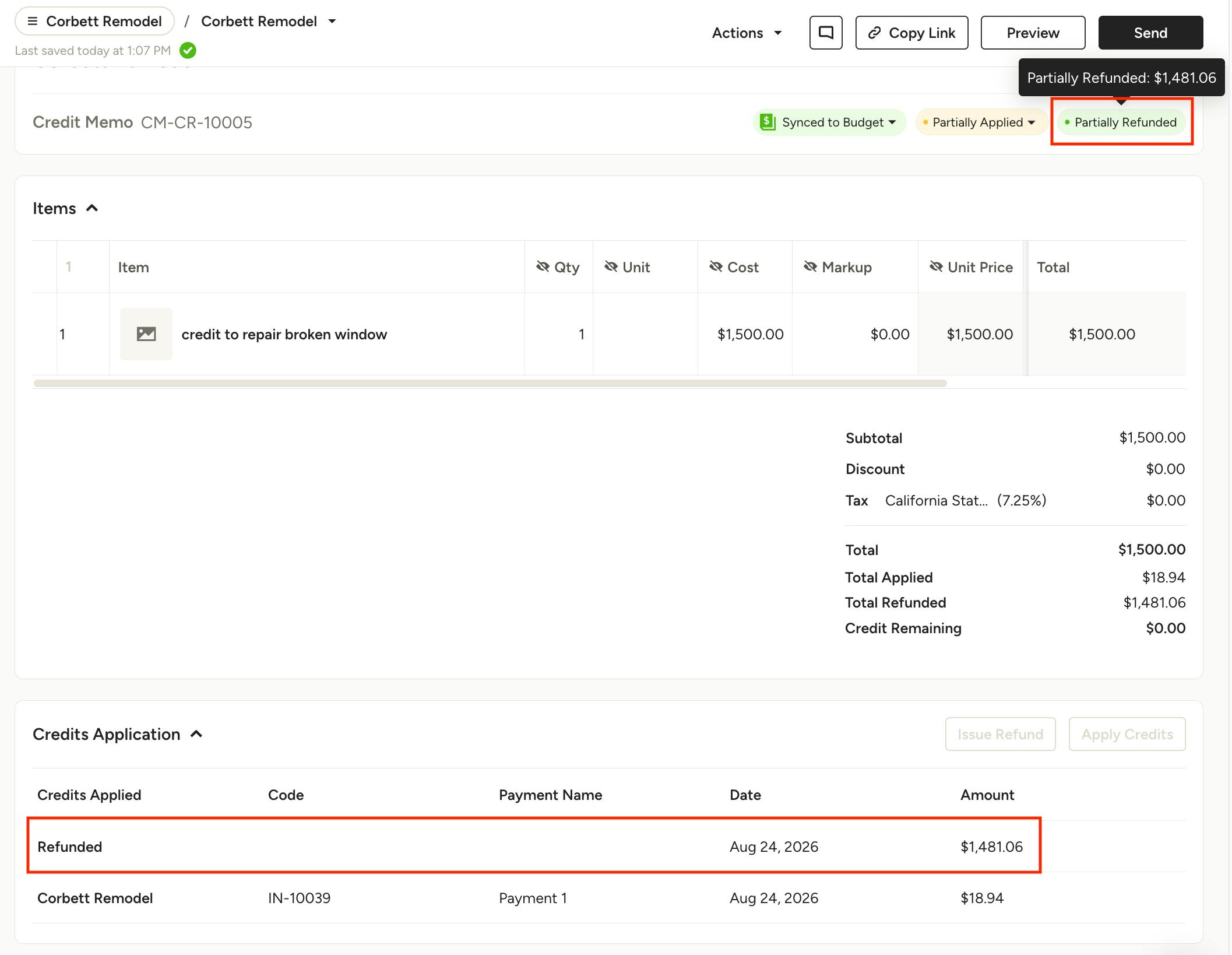
Once complete, you will see Fully Refunded or Partially Refunded at the top of the document, and the refund recorded in the Credits Application section.

Issue Credit Memos
Issuing a credit memo is an accounting best practice to lock the document from further edits. Once issued, the credit memo is final and will automatically sync to QuickBooks Online if your account is connected.
We recommend reviewing the credit memo with your client and making any necessary edits before issuing it. Once issued, a credit memo becomes part of your accounting records and can no longer be edited.
Note: You can still issue refunds and apply credits from an issued credit memo.
To issue a credit memo, open the relevant document and select Issue Credit memo from the Actions dropdown at the top.
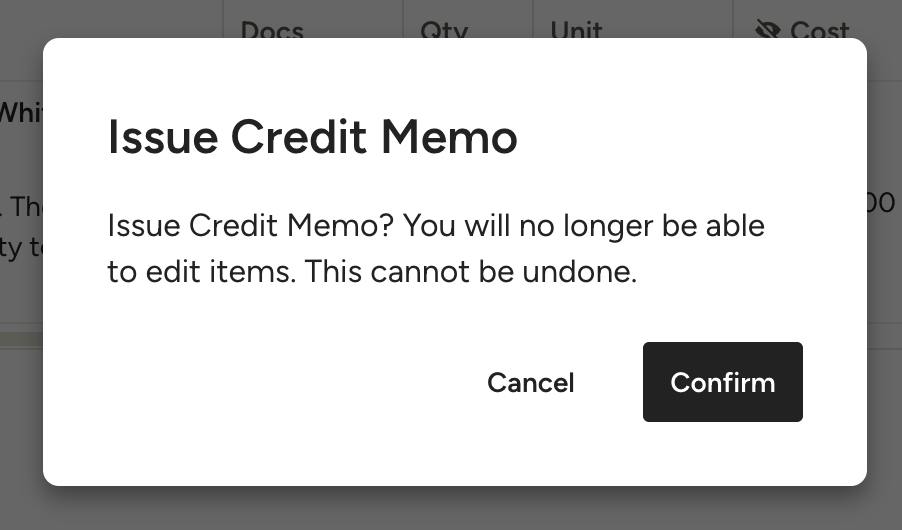
Confirm that you want to issue the document — you will no longer be able to edit items and this cannot be undone.
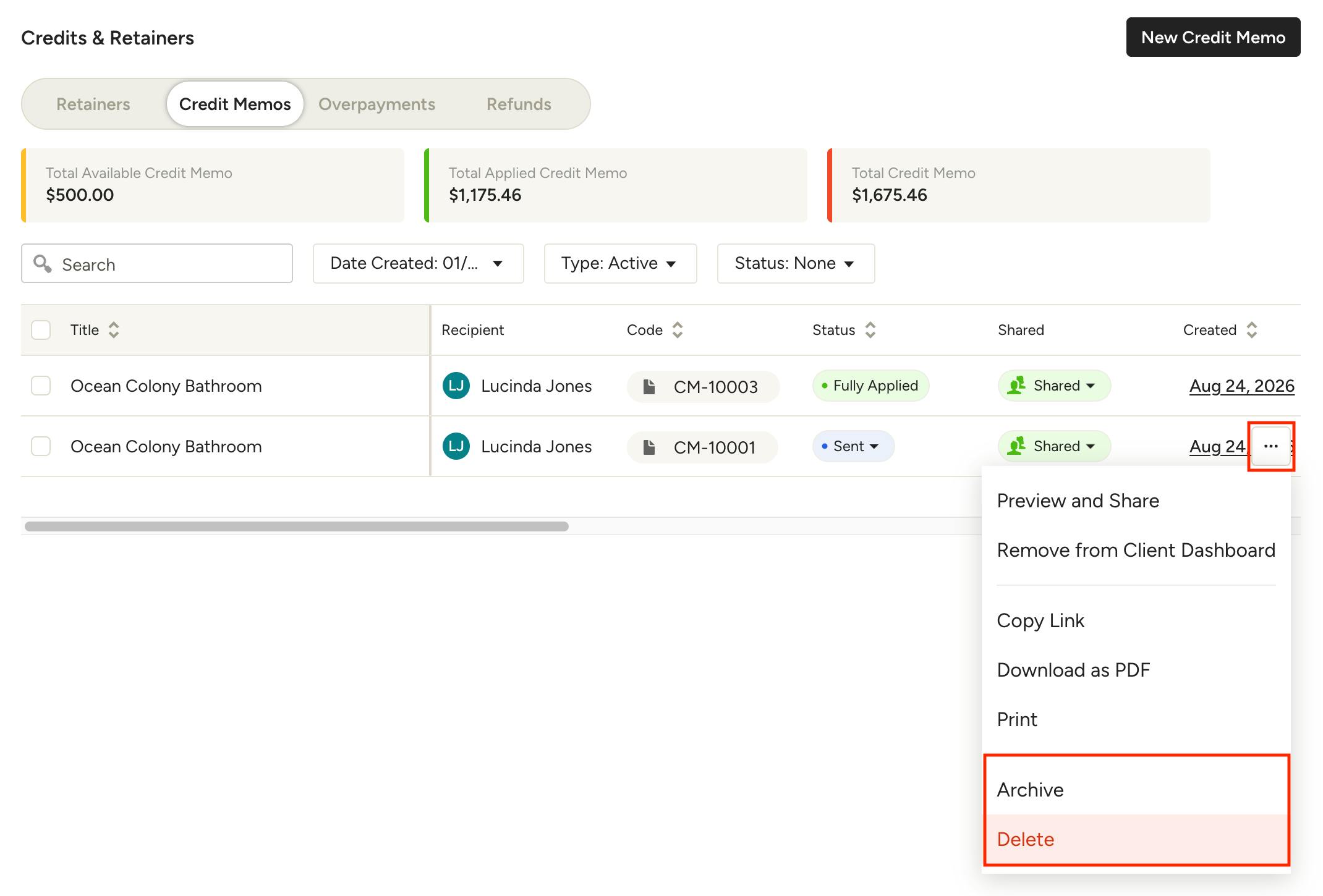
Delete/Archive/Void Credit Memos
Credit memos can be deleted, archived or voided depending on their status.
- Delete/Archive: Available for unapplied or draft credit memos.
- Void: Available for issued credit memos to preserve the audit trail and any Quickbooks Online or accounting history.
Please note: To prevent accounting inconsistencies, a credit memo can only be deleted/archived/voided if:
- It has not been refunded.
- It has not been applied to any document.
To delete, archive or void a credit memo, navigate to the Credit Memo tab in the Retainers & Credits section of a project, click the three dots to the right of the credit memo and select the relevant action.
Confirm the action, and the credit memo will be deleted, archived or voided as selected.
If the credit memo was created from line items in an invoice, those line items will be available for editing in the original invoice once again.
QuickBooks Online Syncing
If you have QuickBooks Online integrated with your Houzz Pro account, you can sync credit memos. When a credit memo is issued in Houzz Pro or applied to an invoice, it will automatically sync to QuickBooks Online. In QuickBooks Online, the credit memo will be applied to the same invoice, ensuring the invoice balance is updated consistently in both Houzz Pro and QuickBooks Online.
Note: Using a credit memo (rather than editing an old invoice) is the approved way to avoid changing previously filed sales tax periods and to maintain an accurate audit trail.
Credit Memo Sync Overview:
- Sync Triggers: When you send, issue, or apply a credit memo.
- Sync Errors: If a sync fails, the system provides an error message regarding mapping. Check your QuickBooks Online mapping if a sync fails.
Budget Tool
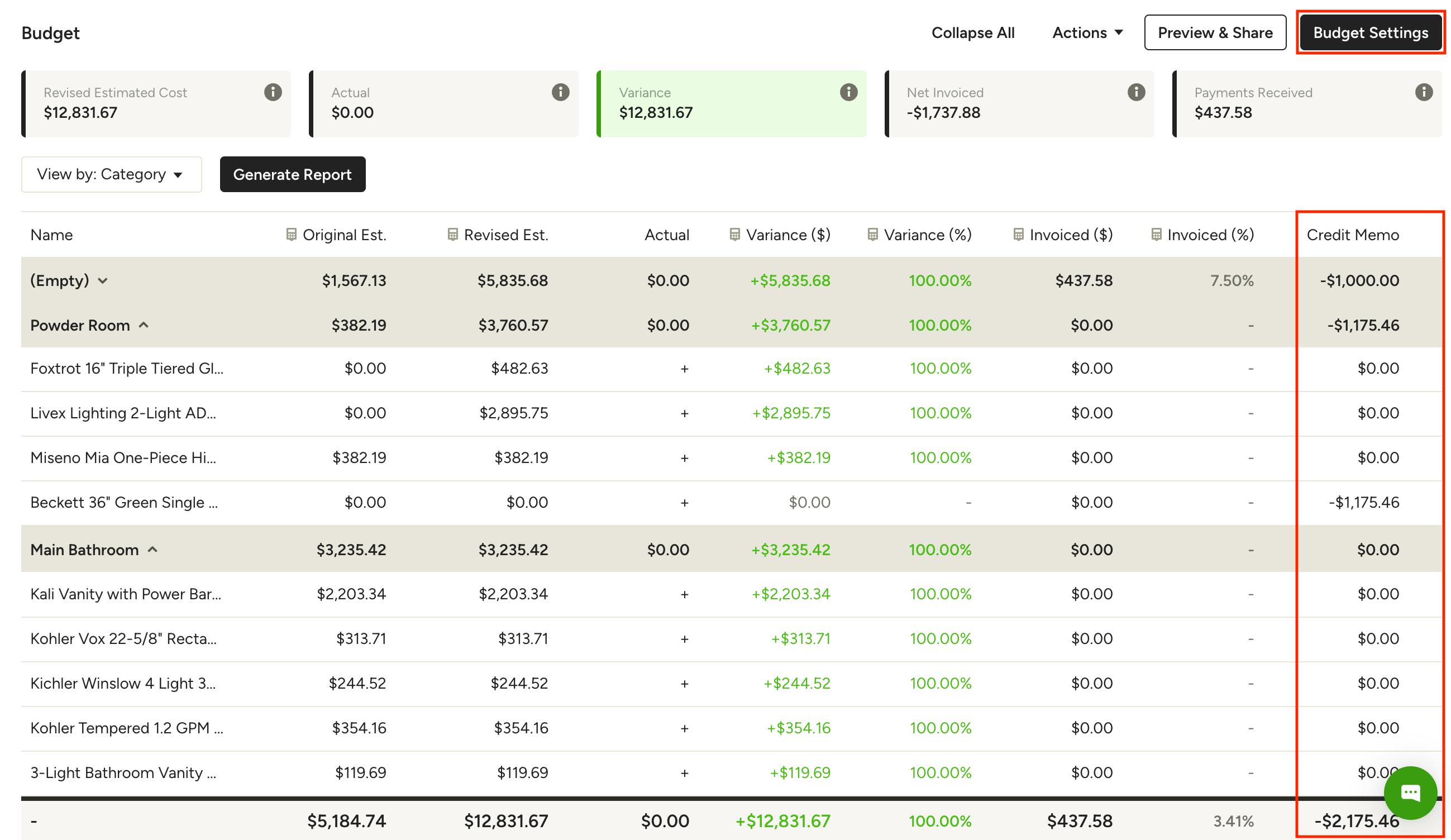
Credit memos are displayed in a separate Credit Memos column in the project Budget. This allows you to easily see the total amount credited for each line item alongside the amount invoiced.
Note: If you don’t see the Credit Memos column, you can enable it by clicking Budget Settings in the top right, then Customize Columns.
Financial Reports
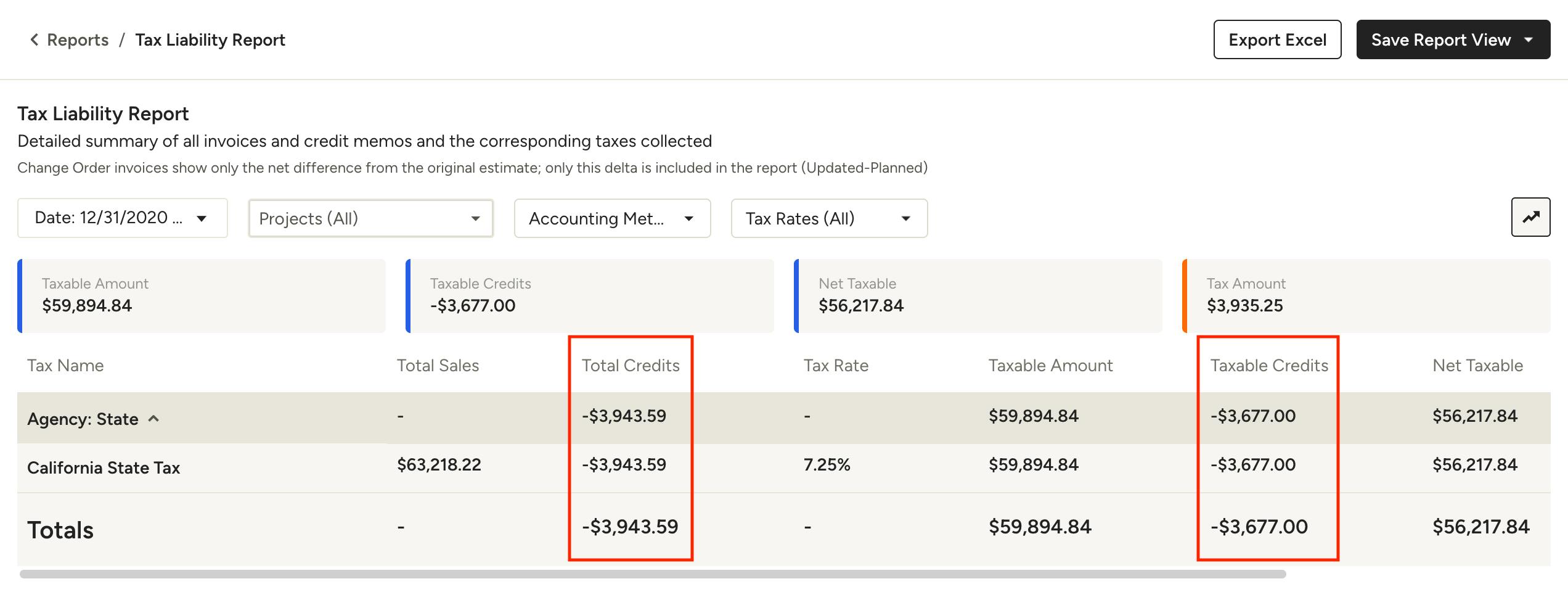
Credit memos are reflected in the Sales Tax Report as separate transactions with negative amounts. The credited sale amount and associated sales tax are deducted from your totals, helping ensure your sales tax reporting reflects the adjusted transaction.