How to Generate the Sales Tax Liability Report
The Sales Tax Liability Report provides you with the data needed to know how much you owe the government in sales tax, making it a very useful tool for your bookkeeping and accounting needs.
Note: If you have questions beyond the information presented in this article, we advise that you talk to your accountant or CPA, or contact your state sales tax agency.
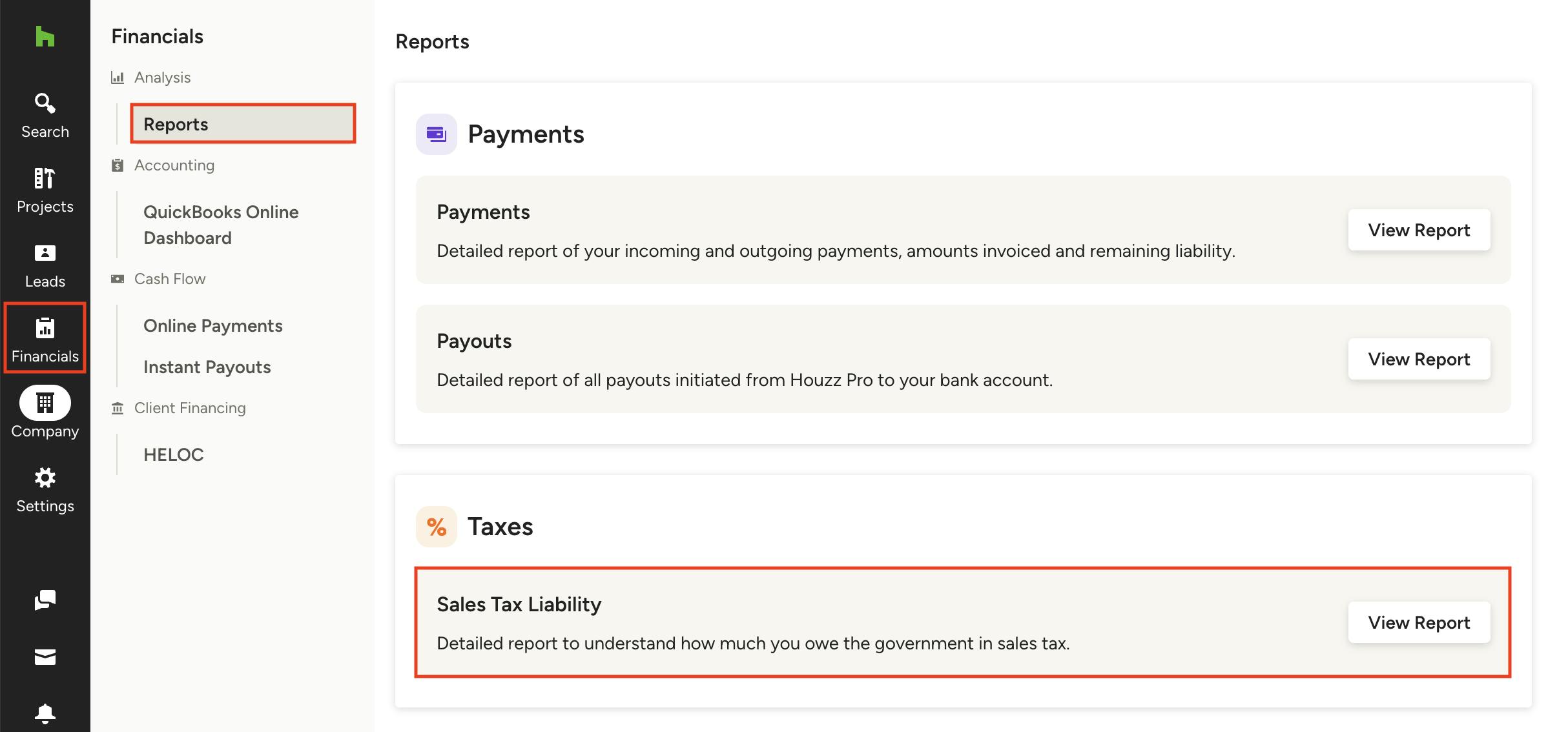
Access Your Report
To access the sales tax liability report, select the Financials icon from the left navigation, then select Reports from the left menu. Click the View Report button next to the Sales Tax Liability report.
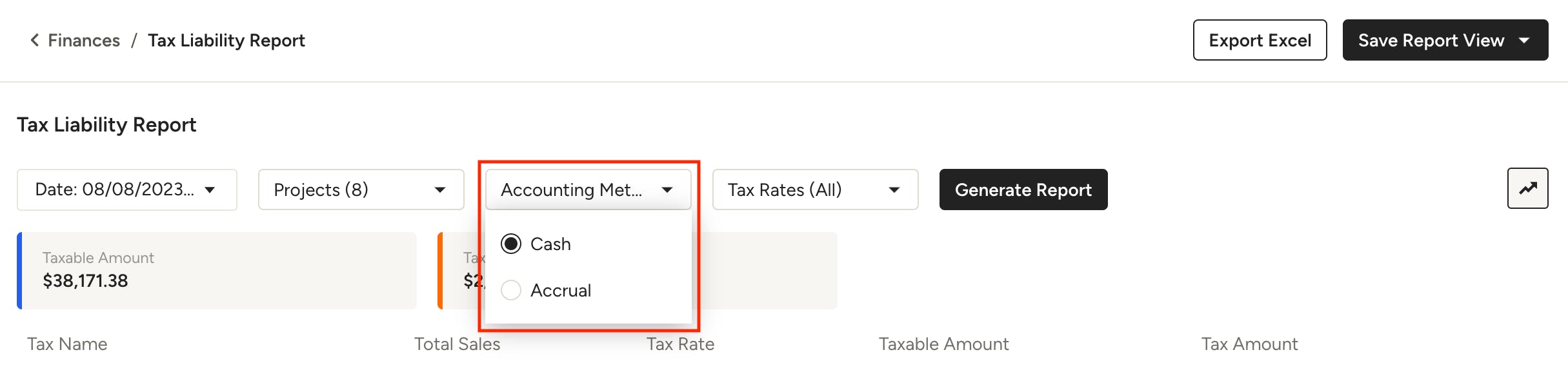
Generating Reports for Accrual or Cash Accounting
You can generate a report using either cash or accrual accounting methods.
- When using accrual accounting, the report is based on the total sales tax amount of your invoices, paid, partially paid, and unpaid. This includes invoices that have been issued, marked as paid, and have been sent to clients. However, draft invoices, deleted invoices, or invoices that have been voided are not included in this report. The reference document date in the report is based on the created date.
- When using cash accounting, the report is based on invoices that have been paid or partially paid. The reference date in the report is based on the payment date.
To switch accounting methods, use the dropdown at the top of the report and select the desired method. Make sure to click Generate Report to apply the changes and update the report.
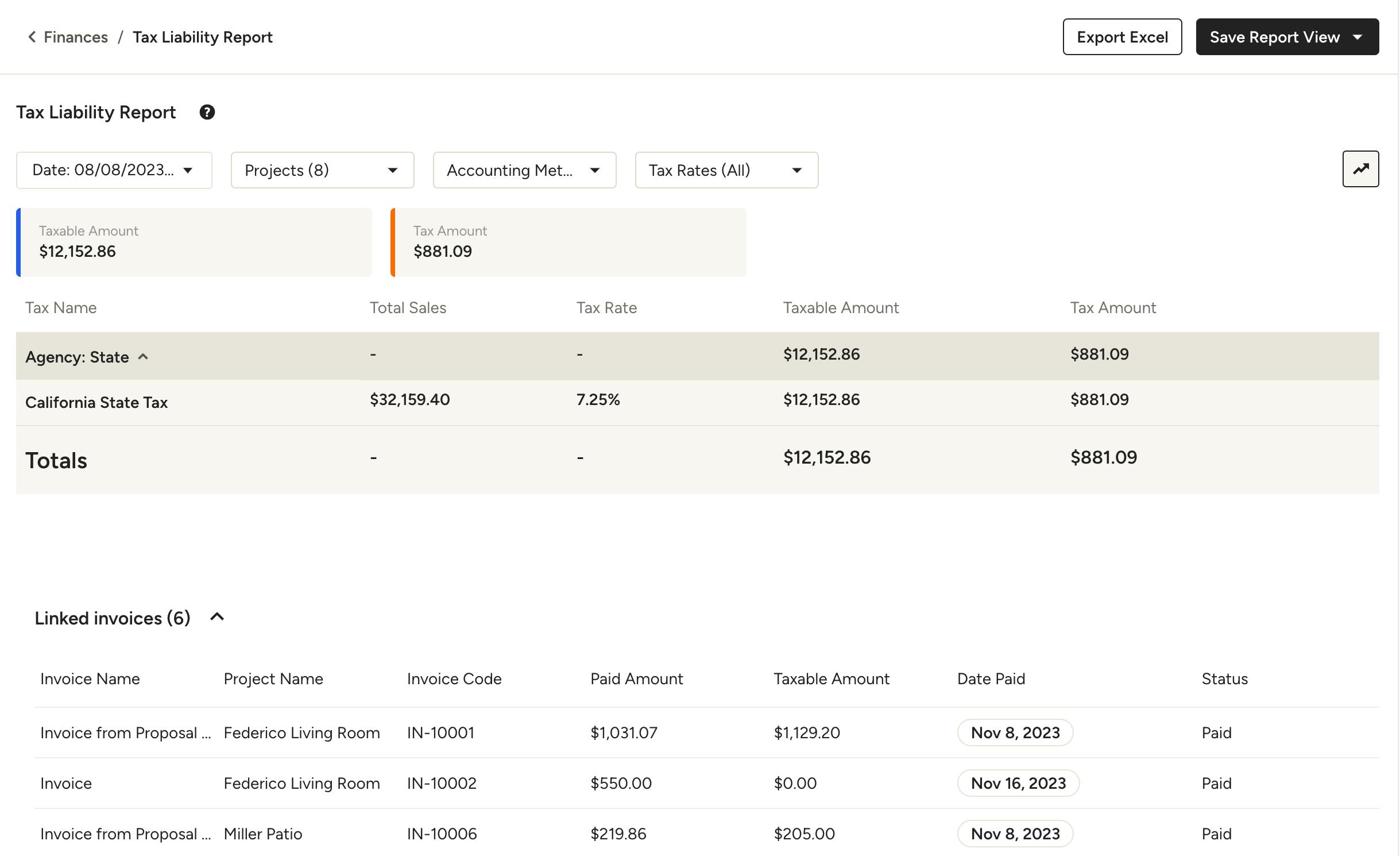
The report will display the total taxes that you owe to the government for the time period you've selected, along with a breakdown of the taxes for each tax rate that you have set up. You can also filter the report based on dates, tax rates, and projects.
Scroll down to the Linked invoices section to see detailed invoice information so you know exactly which documents are included in the report. Click on an invoice code to be taken directly to the document.
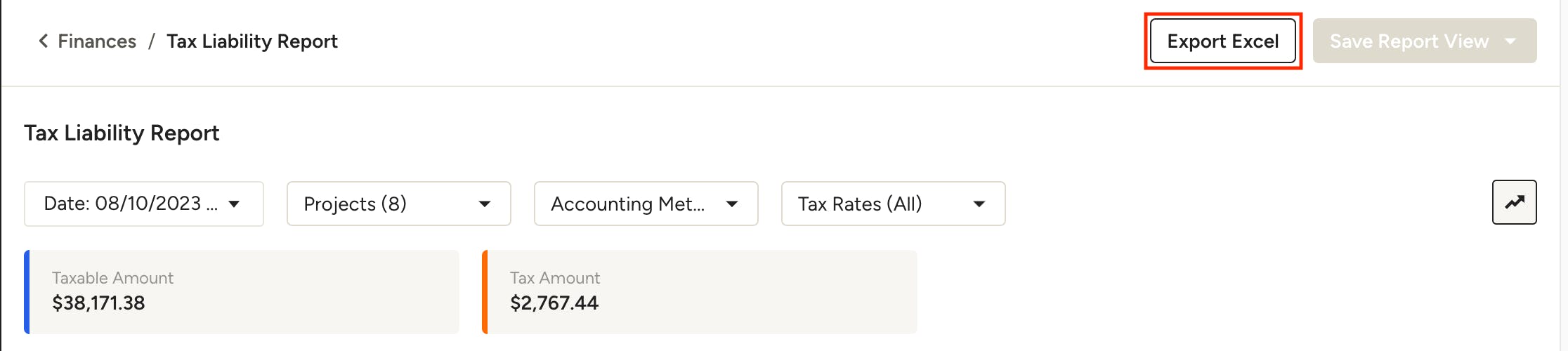
Export to Excel
You can export the report as a spreadsheet by clicking the Export Excel button on the top right.
To learn more about financial reports on Houzz Pro, see this article.
Frequently Asked Questions
1) I pay taxes to vendors, should I deduct the prepaid tax from the total I pay the state?
Our sales tax liability report does not include prepaid sales tax deductions. Most states require you to report sales tax on the full selling price to the customer, regardless of whether tax was paid to the vendor or not. Since tax laws vary from state to state, we recommend you find out if you are in a state that allows the prepaid sales tax deduction. If you are, track that tax paid on your purchase orders in Houzz Pro. Then you can use the data to calculate your deduction when filing your sales tax. However, we always advise that you talk to your accountant, CPA, or contact your state sales tax agency to see how to handle prepaid sales tax and ensure you are properly reporting sales tax to your state.
2) How do I calculate the total tax amount I have already paid to vendors?
Run an Outgoing Transactions by Project report for the time frame you're wanting to account for, then scroll to the far right of the report where you'll find the Tax Amount column. At the bottom of the Tax Amount column you will see the total tax amount you've paid directly to vendors.