How to Sync Houzz Pro With QuickBooks Online
To help with your QuickBooks Online integration, Houzz Pro provides a 1-time complimentary call — you can use this at any point. Our expert support team is here to help.
Read about the QuickBooks Online Support Add-On from Houzz Pro here, and contact your Client Success Manager to begin.
Syncing Houzz Pro to QuickBooks Online is an easy way to ensure the financials for your business are as accurate as possible. By connecting your accounts, your documents (and any adjustments made in Houzz Pro) will automatically sync and seamlessly reflect within your QuickBooks Online, typically within seconds.
As you set up the sync for the first time, here are some important things to know:
- The configuration is a one-way process. This means that data is sent from Houzz Pro to QuickBooks Online, but not in the opposite direction. Changes made in QuickBooks Online will not be reflected in Houzz Pro and may be overridden by future syncs.
- Houzz Pro does not integrate with QuickBooks Desktop. Because QuickBooks Desktop stores data locally rather than in the cloud, it does not support the direct, cloud-based connection required to sync with Houzz Pro.
If you are ready to start your Houzz Pro to QuickBooks Online integration and sync, review this helpful video, or follow the step-by-step instructions in this article to learn more about the process.
How to Set Up the Sync
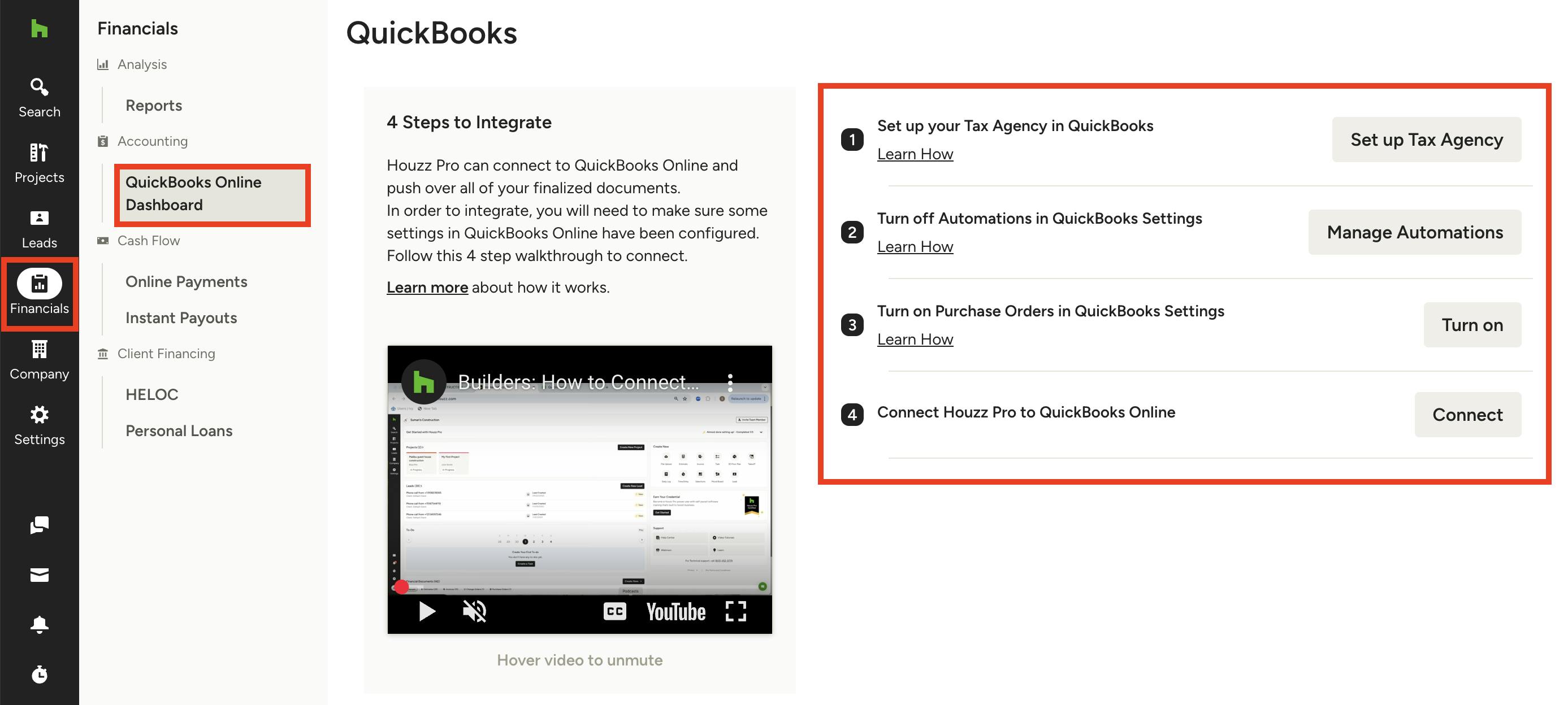
To configure the one-way sync between Houzz Pro and QuickBooks Online, select the Financials icon in your left navigation, then select QuickBooks Online Dashboard in the menu. Proceed with the four steps outlined on the page.
1. Set up your Tax Agency in QuickBooks Online.
Turn on and set up sales tax in QuickBooks Online. The start date for taxes must be prior to your first Houzz Pro transaction date that you’ll sync over. Click here for detailed instructions.
2. Turn off Automations in QuickBooks Online Settings.
- Disable everything in the Automation section in the Advanced category of your QuickBooks Online account settings. Click here for detailed instructions.
- Turn off “warn if duplicate check number used” and “warn if duplicate bill number used” in the Other Preferences category of your QuickBooks Online Account settings.
- Enter your bank account and credit card information in the Chart of Accounts on QuickBooks Online.
3. Turn on Purchase Orders in QuickBooks Online Settings.
If you have a QuickBooks Online Plus account or above, you can also sync over your purchase orders from Houzz Pro to QuickBooks Online. By default, purchase orders in QuickBooks Online might be set to Off. In order to make the data sync possible, you need to turn on purchase orders. Learn more here.
4. Click Connect.
Finally, to connect Houzz Pro to QuickBooks Online, simply click on the Connect button. This will establish the connection between the two platforms. Your accounts should now be synced and ready to use!
How to Set Up Account Mapping
Once you have successfully set up the integration, you will need to review and map your accounts in Houzz Pro to QuickBooks Online. This is an important part of the setup process and should be done shortly after integration. To learn about account mapping, read How to Map Houzz Pro to QuickBooks Online Chart of Accounts.
What Syncs Over to QuickBooks Online
As you start to use the Houzz Pro to QuickBooks Online integration, it is important to have an understanding of what syncs over from Houzz Pro.
Houzz Pro automatically syncs your documents with QuickBooks Online — no manual work required. Proposals, estimates, invoices, retainers, change orders, and payments recorded on documents are instantly synced to QuickBooks Online as soon as they’re approved, sent, or marked as paid.
If a synced document is later edited in Houzz Pro, you may see Updates Pending Sync or Ready to Sync. These edits will automatically resync with QuickBooks Online — typically within seconds.
Draft documents will not sync until they are finalized.
Below are the details of the automatic sync logic.
- Estimates/Proposals are automatically synced when they are approved by the client, using the Created Date as the Document Date in QuickBooks Online.
- Invoices are automatically synced upon being sent to a client or when a payment is recorded, using the Created Date as the Document Date in QuickBooks Online. Invoices in draft mode won't sync automatically.
- Issuing an invoice also triggers the sync and allows you to lock the invoice, an accounting best practice to block further edits.
- Purchase Orders are automatically synced immediately after being sent to a vendor, approved or marked as paid. You can disable the sync if desired from the QuickBooks Online Settings page, by selecting "Purchase Orders" in the "Document Sync Exceptions" section.
- Payments are automatically synced when they are logged through the system or paid online.
- Change Orders will automatically sync to QuickBooks Online as an invoice after being sent and paid. Please note, Change Orders are only available on the Build package.
- Retainers will sync over after being marked as paid.
Here is other important syncing information to note:
- One-Way Sync: The Houzz Pro-QuickBooks Online sync is a one-way sync. Documents sync from Houzz Pro to QuickBooks Online, and not the other way around, so it's important to make all document, vendor, transaction, and other creations, edits, and deletions in Houzz Pro instead of in QuickBooks Online.
- Image Import Document Sync: Proposals, estimates and invoices that are created through image import will not sync over as they do not contain any line items. If you want these documents shown in QuickBooks Online, it’s highly recommended you enter the line item details in Houzz Pro rather than create a double entry in QuickBooks Online.
- Item Category Sync: If you make changes to an item’s category in a Houzz Pro document, it will sync over to QuickBooks Online with the updated category. This is a new update to categories and will apply to all projects created after January 1, 2025. Projects that already have synced documents will continue to use the original categories found in your catalog, even if the category was changed on a document.
How to Manually Sync Documents
While many documents will automatically sync using the logic above, you also have the option to manually sync any document, whether it is in the draft status or any other status.
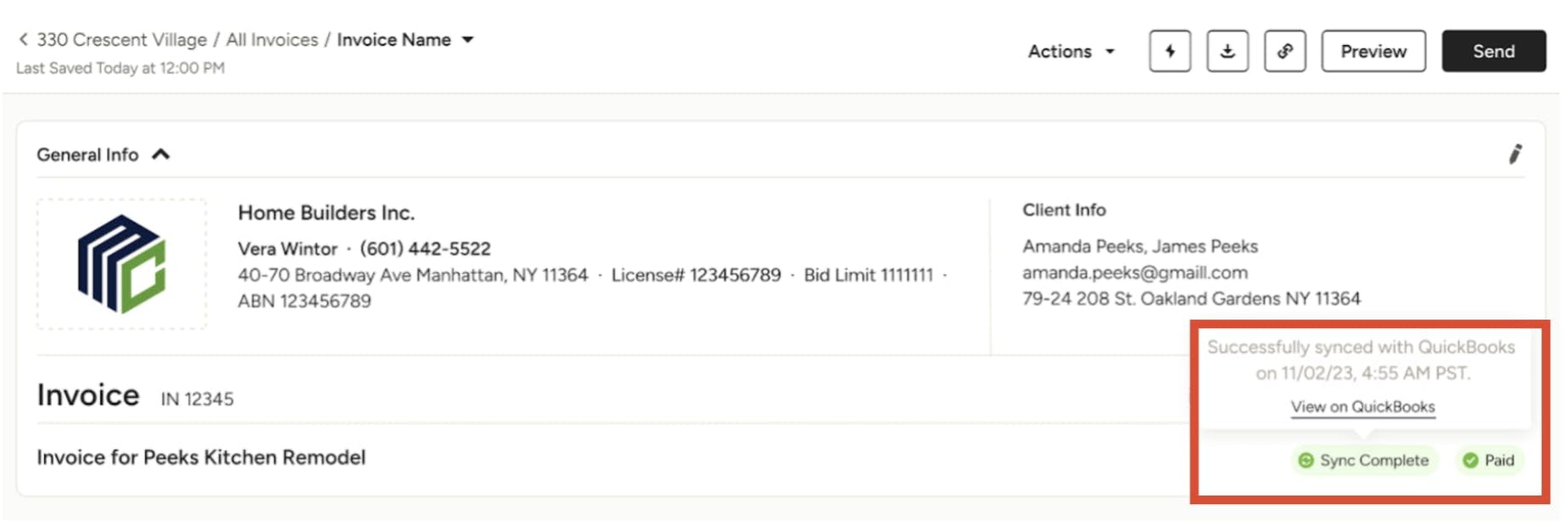
The Sync Indicator Status near the top right of each document will tell you whether or not a document has been synced. Depending on the status, you can manually sync some documents here.
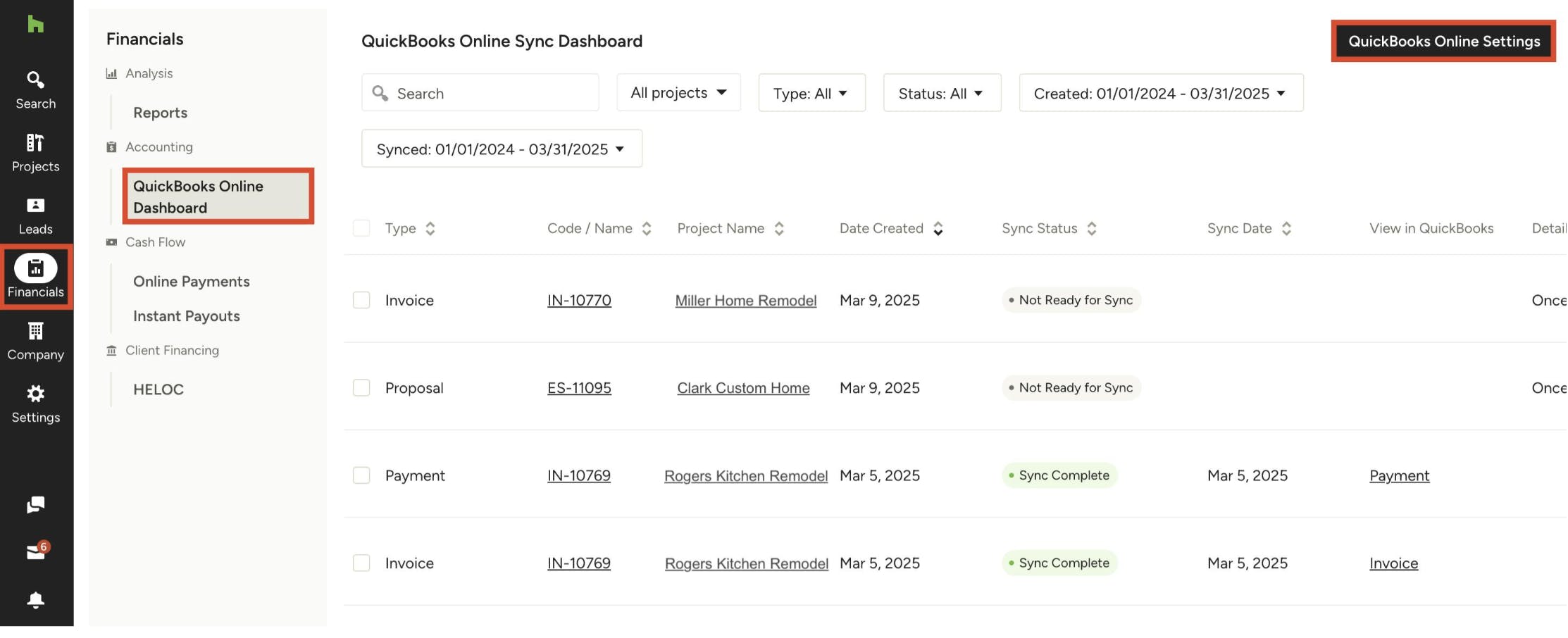
You can also use the QuickBooks Online Dashboard to manually sync documents and see a high-level overview of the sync status for all documents. To learn more about sync indicators, manual syncing, and the dashboard, read How to Check QuickBooks Online Sync Status on Documents.
How to Disconnect QuickBooks Online
If you would like to disconnect the sync from QuickBooks Online to Houzz Pro, you can do this in your QuickBooks Online Settings. To access, click the Financials icon in the left navigation, then QuickBooks Online Dashboard from the menu. Select the QuickBooks Online Settings button at the top of the dashboard.
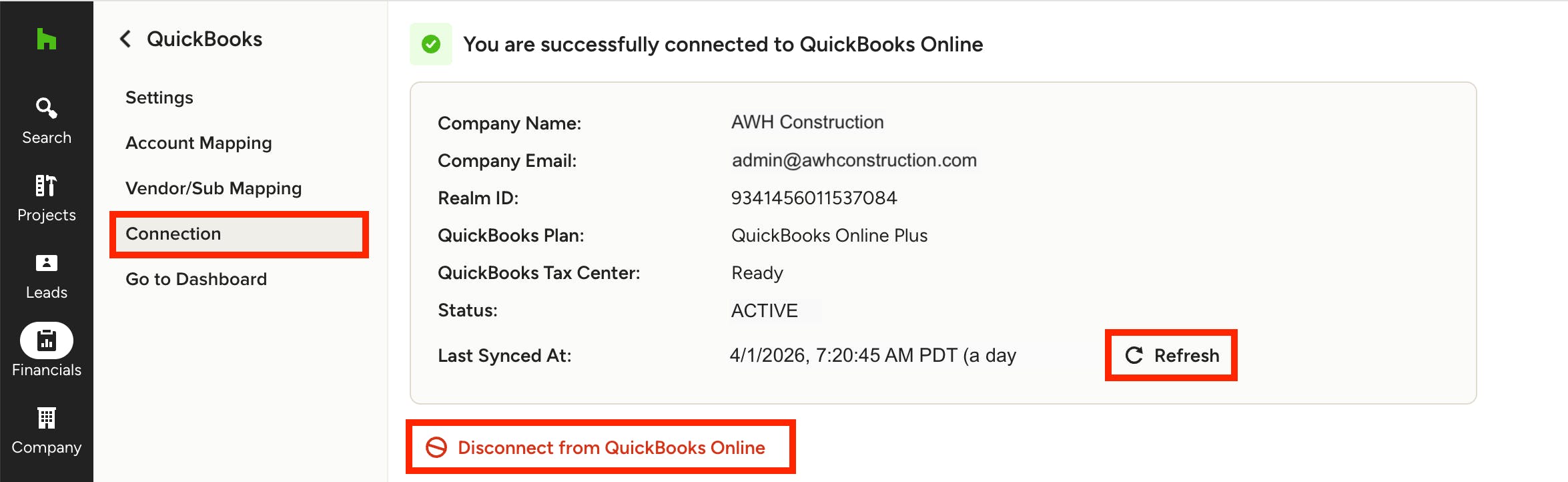
Once on your QuickBooks Online Settings page, select Connection from the left menu. Here, you will see details about your QuickBooks Online account connection. To disconnect, select Disconnect from QuickBooks.
Please Note: If you disconnect from QuickBooks Online but later decide to reconnect your account, we will not delete your settings — you will be able to recover the latest version when reconnecting.
Click Refresh if you want to manually update your QuickBooks Online connection. This will quickly pull the latest accounts and settings without disconnecting and reconnecting the integration.
Other QuickBooks Online Resources
How to Check QuickBooks Online Sync Status on Documents
How to Map Houzz Pro to QuickBooks Online Chart of Accounts
How to Adjust QuickBooks Online Settings
How to Map Vendors in Houzz Pro to QuickBooks Online
How To Set Up Your Tax Agency And Filing Frequency In QuickBooks Online
QuickBooks Online Support Add-On
How to Turn on Purchase Orders in Your QuickBooks Online Settings
How to Turn Off Automations In Your QuickBooks Online Settings