How to Map Houzz Pro to QuickBooks Online Chart of Accounts
Please note that Houzz is not an accounting professional. If you want to change the accounting software’s default settings or have any accounting-related questions, please consult with your advisor.
Set up Account Mapping
Making sure that the account mapping from Houzz Pro to your QuickBooks Online account is one of the most important first steps in setting up the integration.
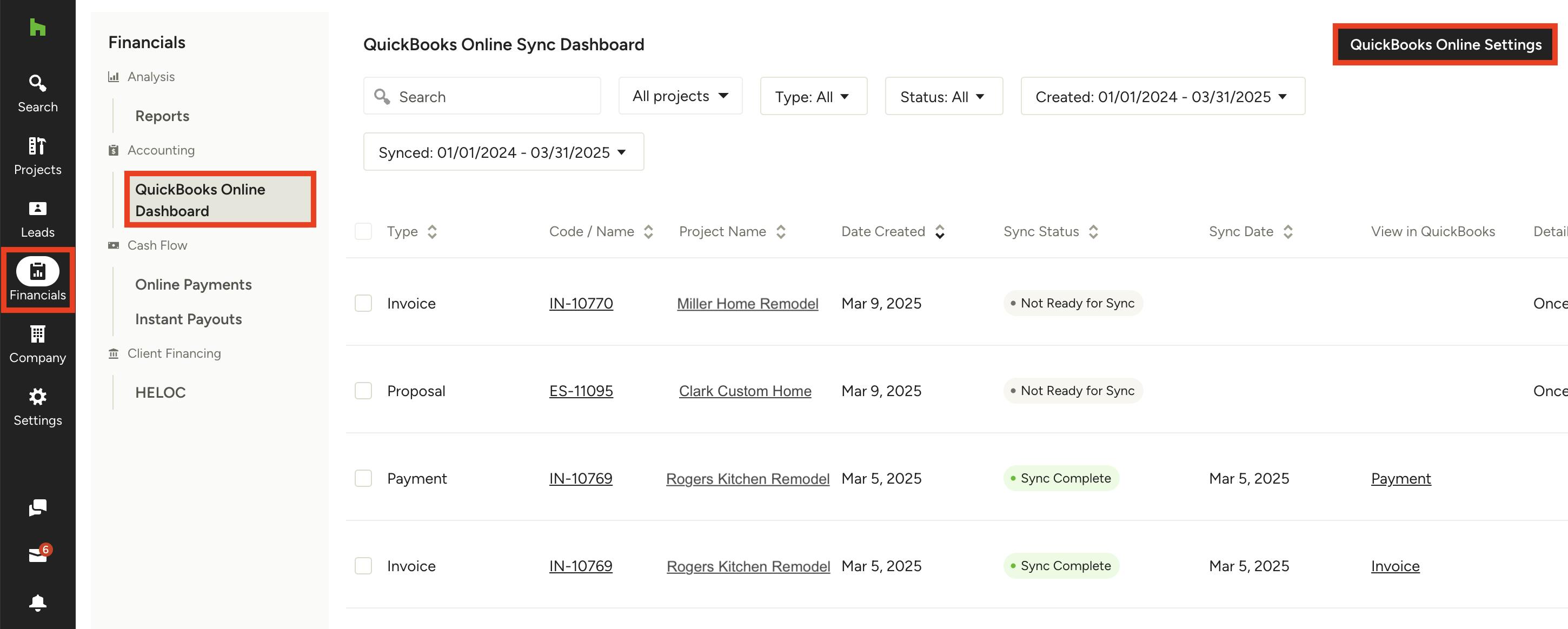
After you sync with QuickBooks Online, you will need to map your accounts in Houzz Pro to QuickBooks Online. To access within Houzz Pro, click the Financials icon in the menu, then QuickBooks Online Dashboard from the left menu. Select the QuickBooks Online Settings button at the top of the dashboard.
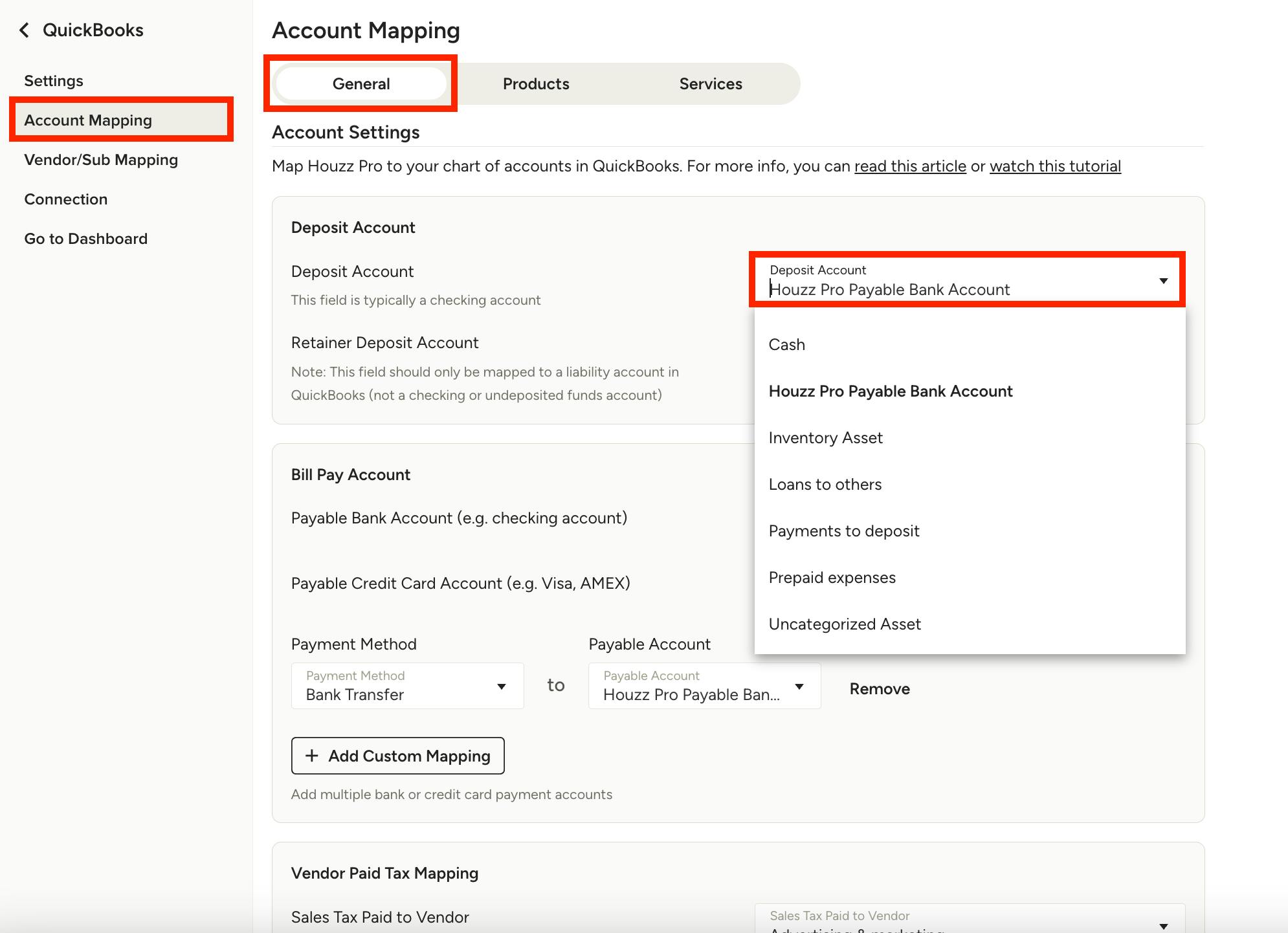
The left menu includes options for Settings, as well as all the mapping changes. To learn more about general settings changes such as sync date, payment settings and document sync exceptions, read How to Adjust QuickBooks Online Settings.
If you would like to adjust your mappings, select Account Mapping. Here under the General tab, you can map Houzz Pro to your chart of accounts in QuickBooks Online. This includes your Deposit Account, Bill Pay Account, Vendor Paid Tax Mapping, and Payable Account.
To make adjustments, select the correct account from the dropdown menu. Be sure to select the checkbox at the bottom of the page, then click Save, to complete the change.
Set up Products Mapping
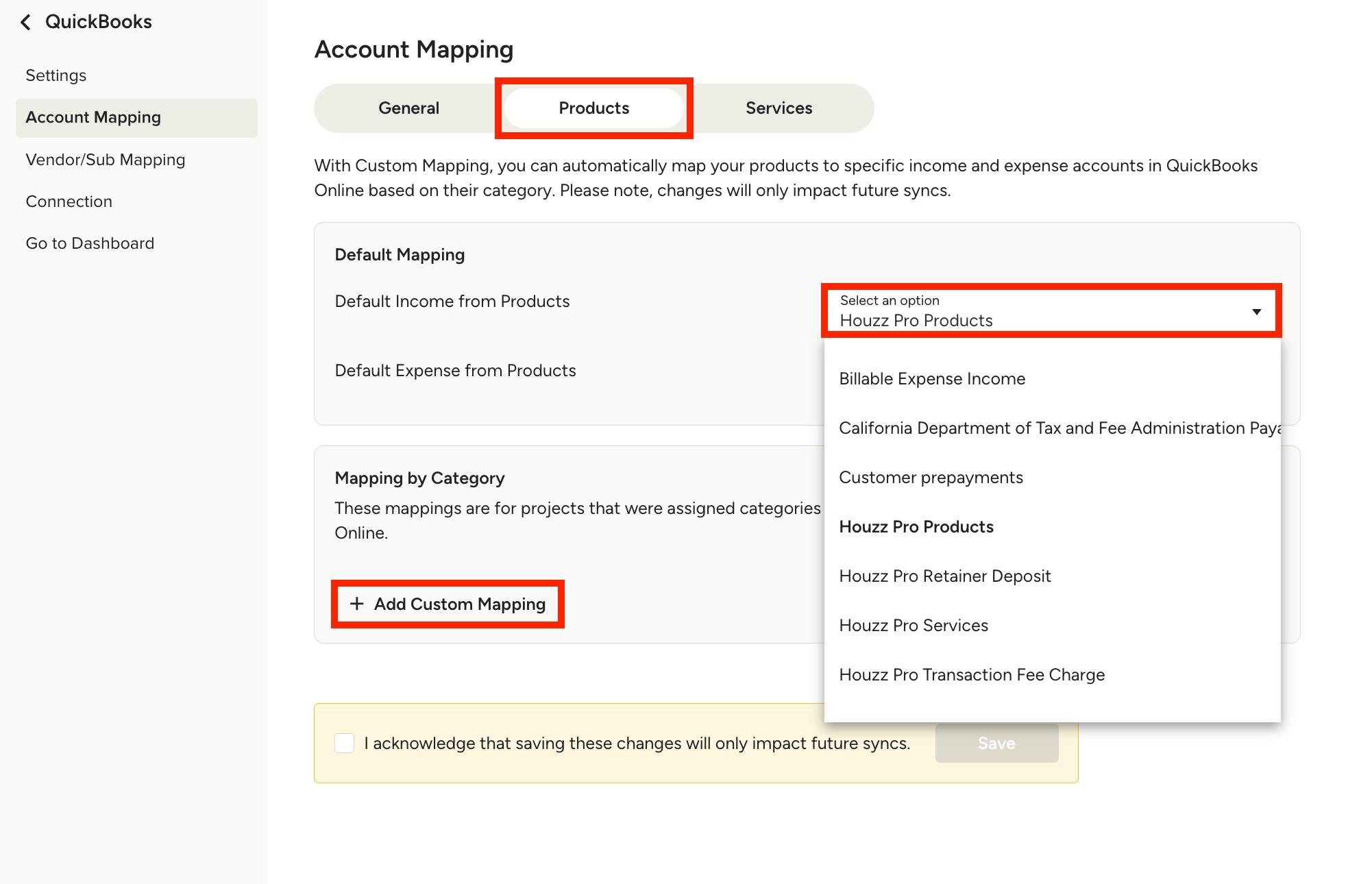
To adjust products mapping, select the Products tab at the top of Account Mapping page. Here, you can keep your products mapped to the default account, or you can use custom mapping, which will override the default mapping.
To make changes to your default mapping, select the correct account from the dropdown menu. Be sure to select the checkbox at the bottom of the page, then click Save.
To set up custom mapping, select the Add Custom Mapping button. Custom mapping allows you to map products based on their category to distinct income and expense accounts in QuickBooks Online. Once a new custom mapping is added, be sure to select the checkbox at the bottom of the page, then click Save.
Set up Services and Shipping Mapping
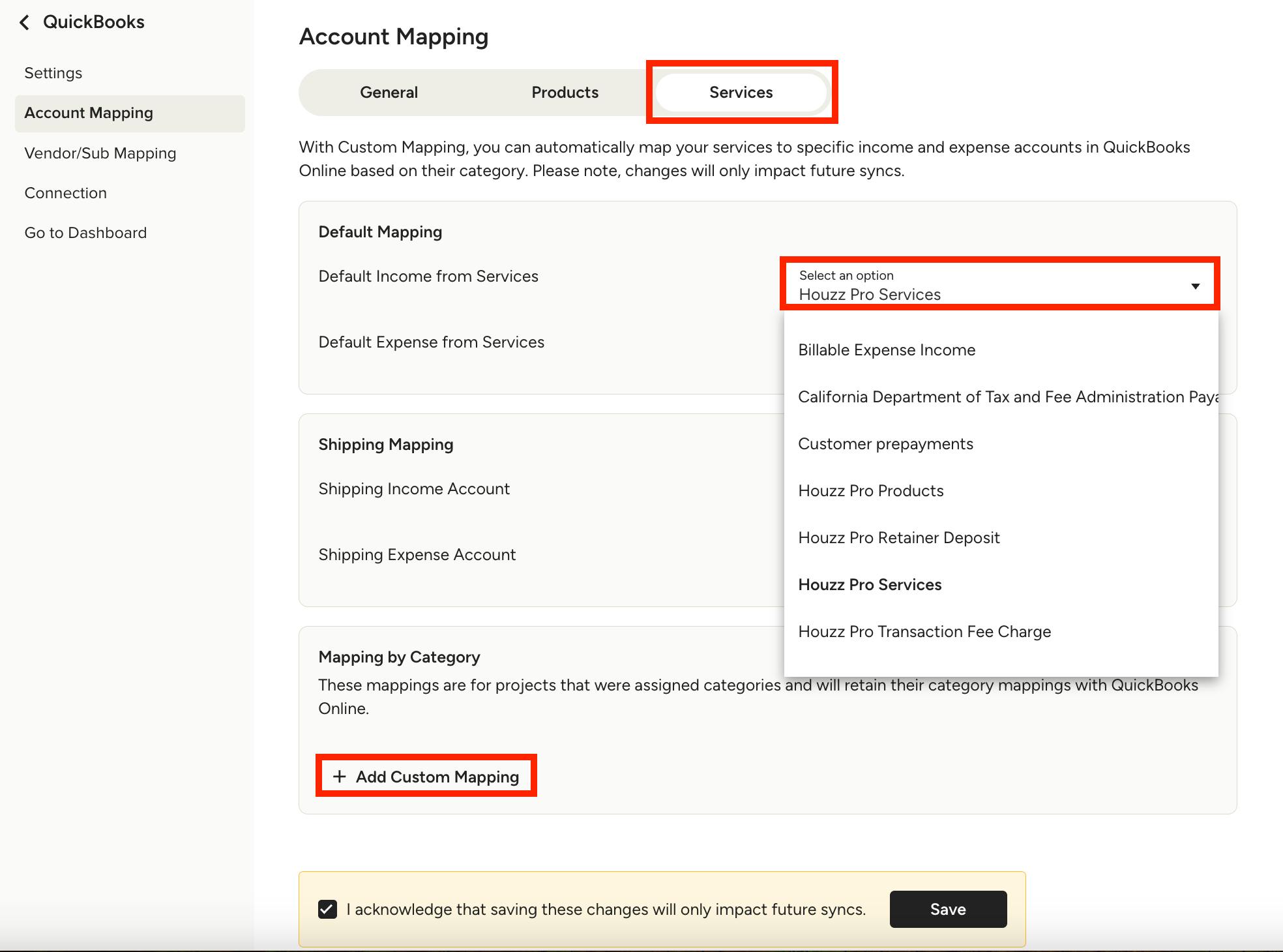
To adjust services and shipping mapping, select the Services tab at the top of Account Mapping page. Here, you can keep your services mapped to the default accounts, or you can use custom mapping, which will override the default mapping.
To make changes to your default mapping, select the correct account from the dropdown menu. Be sure to select the checkbox at the bottom of the page, then click Save.
To set up custom mapping, select the Add Custom Mapping button. Custom mapping allows you to map services based on their category to distinct income and expense accounts in QuickBooks Online. Once a new custom mapping is added, be sure to select the checkbox at the bottom of the page, then click Save.
Shipping Mapping
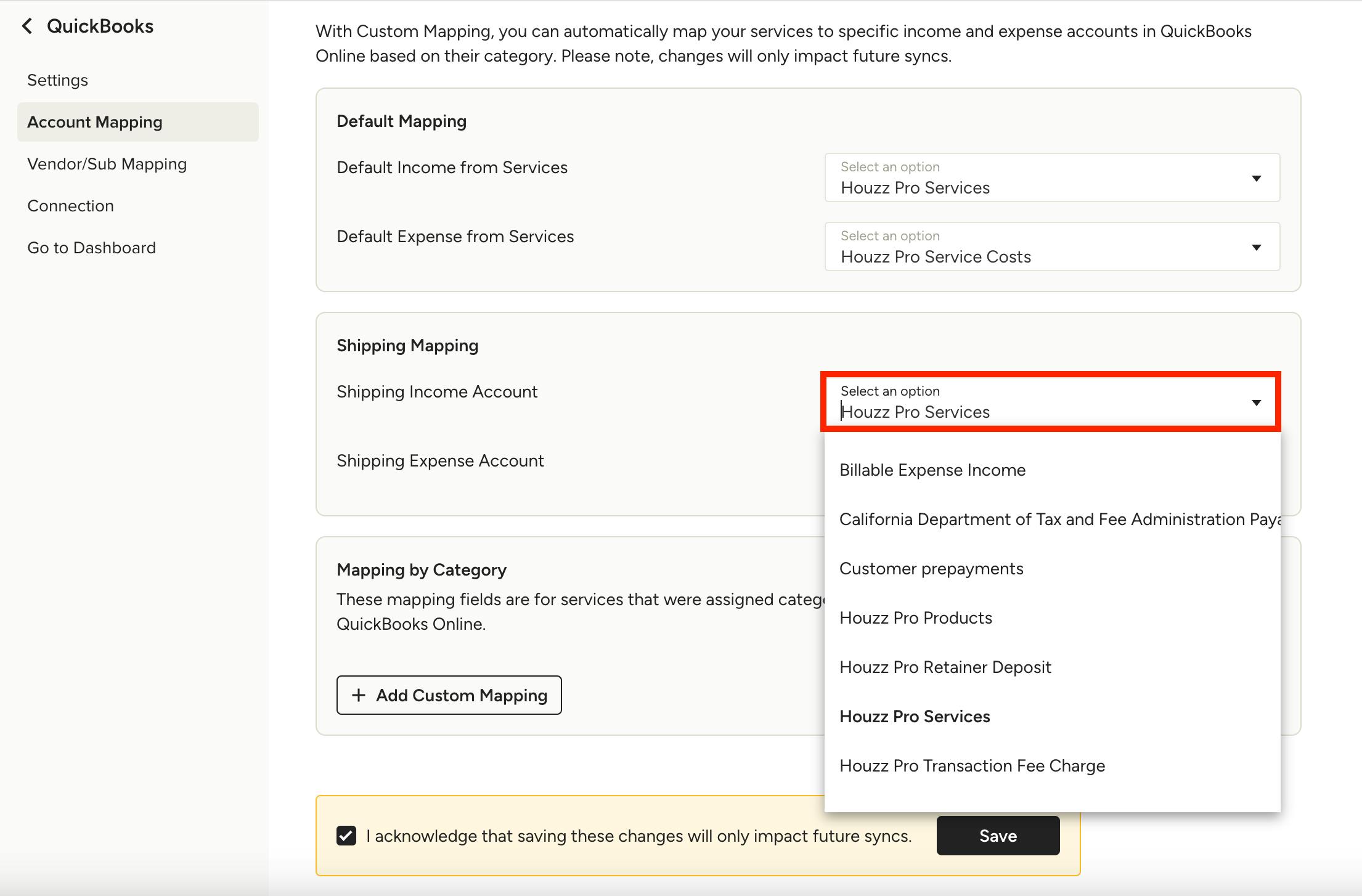
You can also make adjustments to your shipping mapping on this page. Your shipping income and expenses can be mapped to specific accounts in QuickBooks Online for better financials and sales tax reporting.
To make adjustments, select the correct account from the dropdown menu. Be sure to select the checkbox at the bottom of the page, then click Save.