AI Note-Taking and Meeting Recording on the Houzz Pro App
The Houzz Pro mobile app lets you record unlimited phone calls and in-person meetings directly from your phone — no extra device, no manual note-taking, and no storage limits. Using Houzz AI, every detail is captured automatically so you can stay present and engaged, then access the full audio, transcript, and AI-generated summary inside your project or lead when you're ready.
After the meeting, the audio file will be stored under Files for that project or lead. The transcript and AI-generated summary will be stored under Notes.
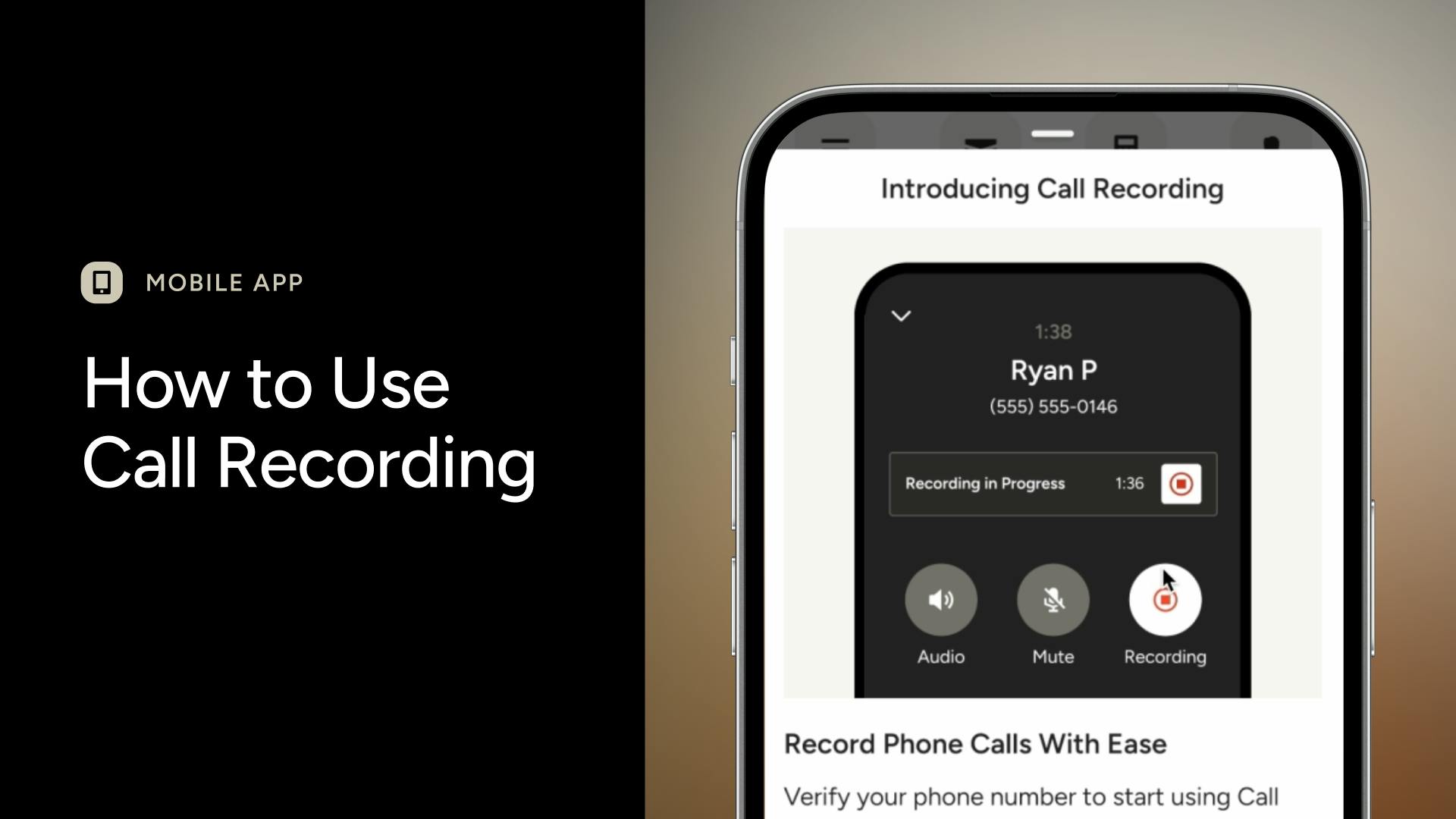
Recording a Phone Call
You can record calls made through the Houzz Pro app and receive an AI-generated summary, full transcript, and audio file.
Watch this video to learn how to use Call Recording on the mobile app, or follow the detailed steps below.
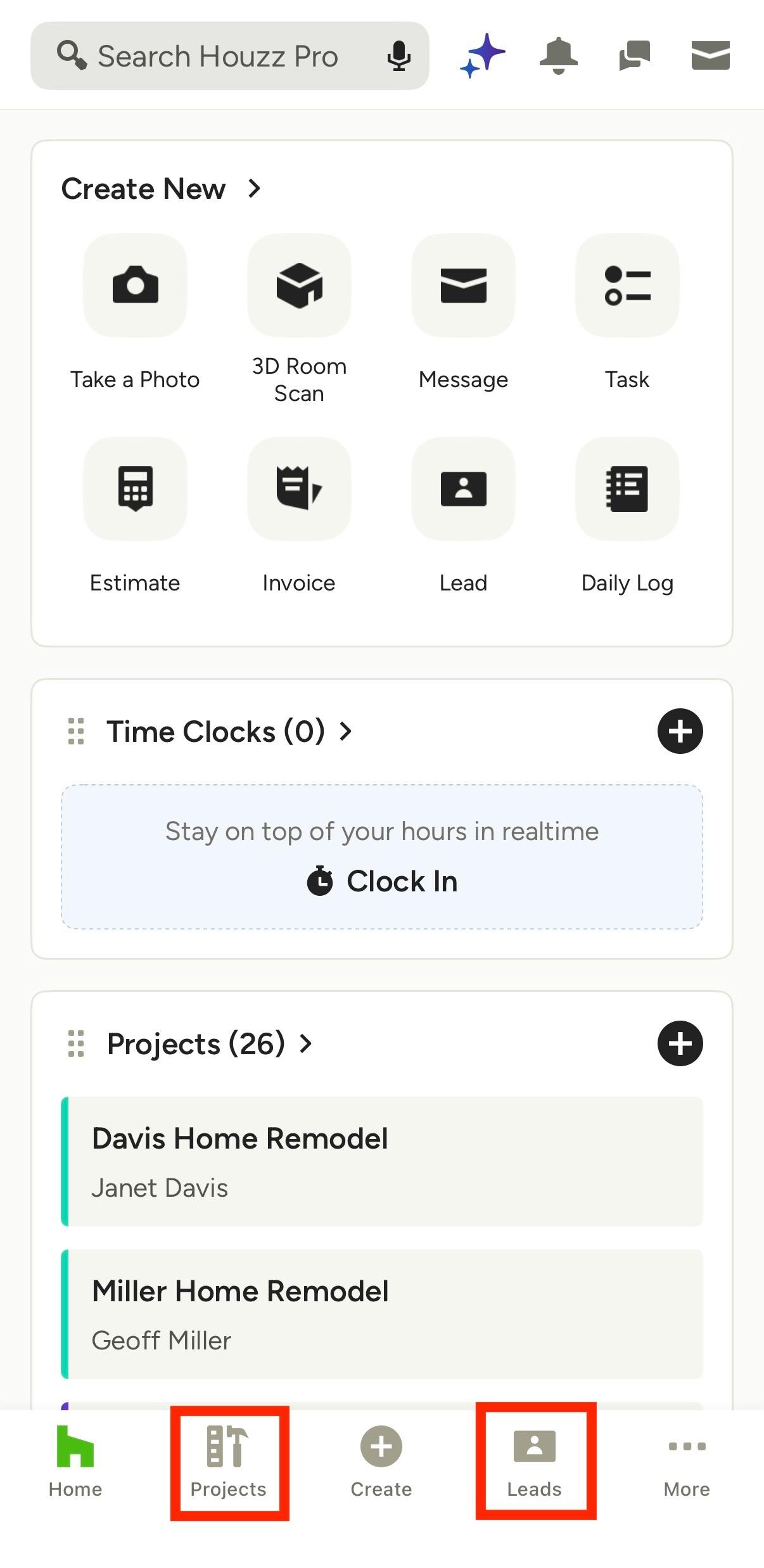
Set Up Call Recording
Before you can record your first call, you must verify your phone number to ensure your caller ID appears correctly to your clients.
To do this, open the Houzz Pro app, then select an individual client or lead using the Projects or Leads tab at the bottom of your screen.
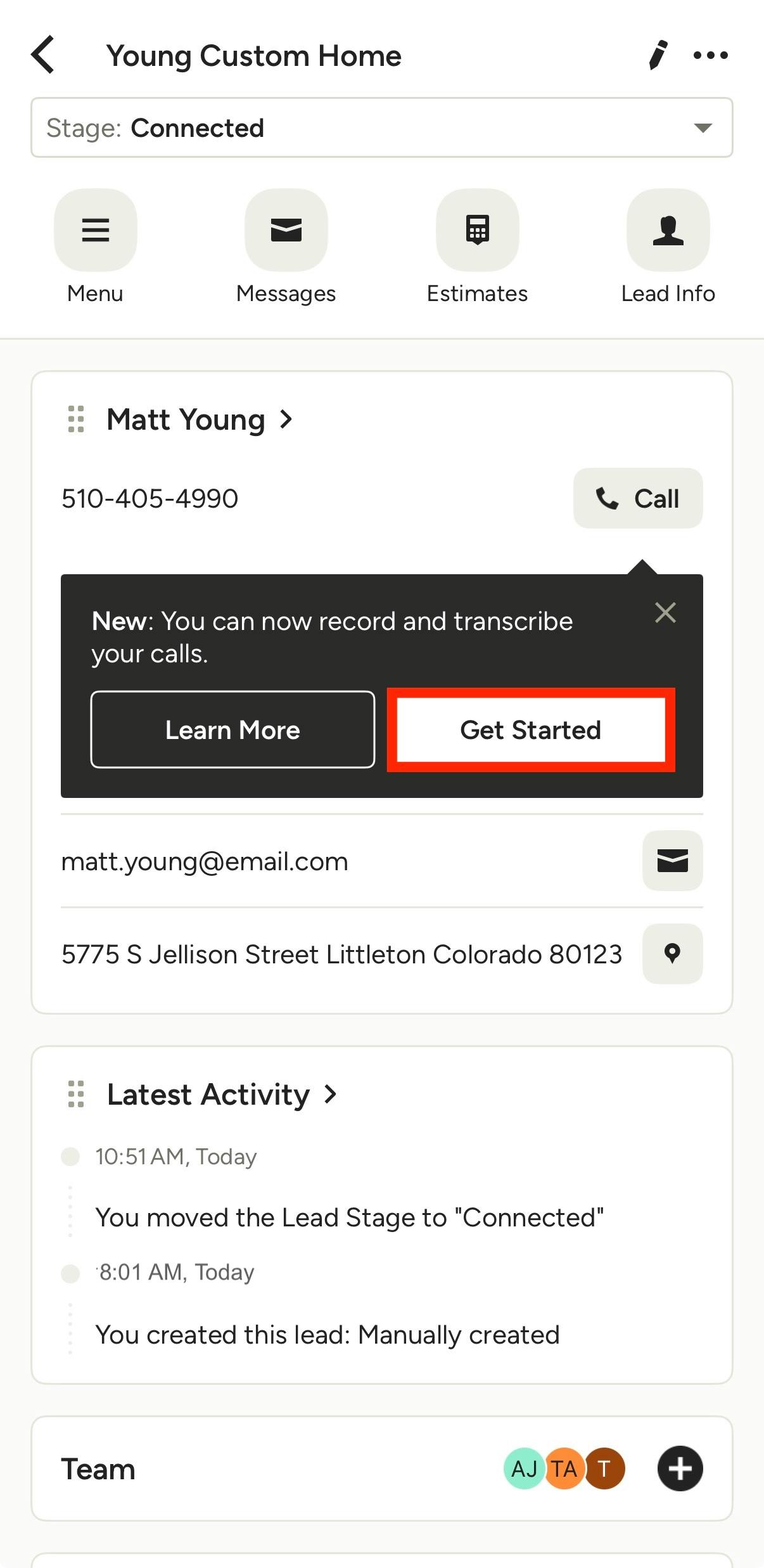
Within the client or lead's contact information, a popup will appear underneath the Call button. Tap Get Started to verify your phone number.
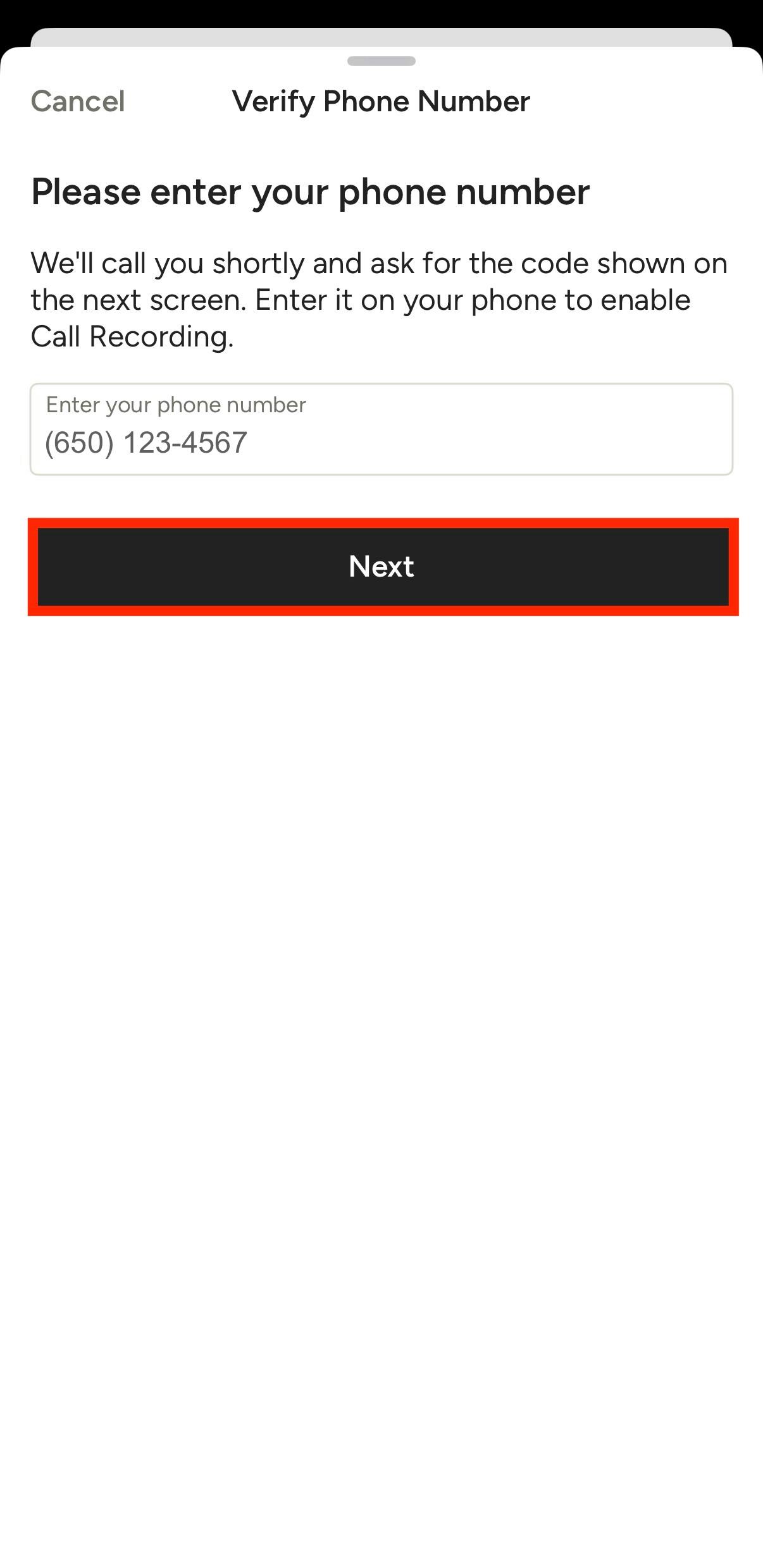
Enter your mobile phone number, then tap Next.
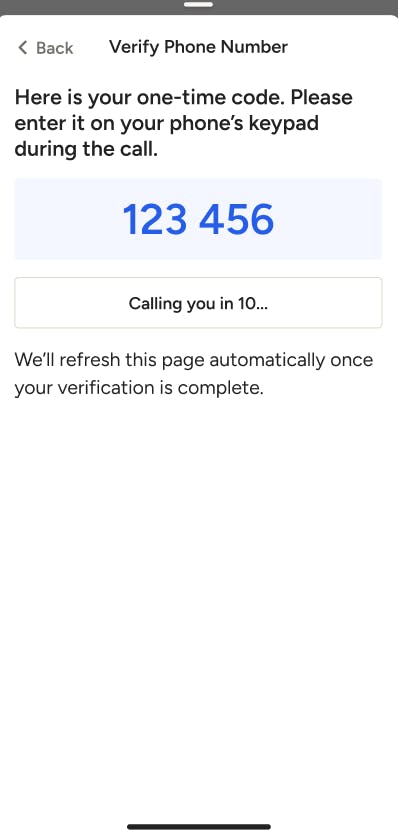
You will see a one-time verification code — keep this screen open. Houzz will call you in a moment to verify your number. When prompted, enter the code shown. Once verified, this page will refresh automatically, and you'll be ready to start recording.
Record a Call
Once your phone number is verified, you can start recording a call with either a client or a lead.
Please Note: It's important that you have the client's verbal consent before proceeding. You are responsible for obtaining all required consents according to your local laws. If a client does not wish to be recorded, please stop the recording and continue the conversation normally. Houzz plays an automated disclosure at the start of every call recording to notify participants.
To start, find the relevant client or lead using the Projects or Leads tab at the bottom of your screen.
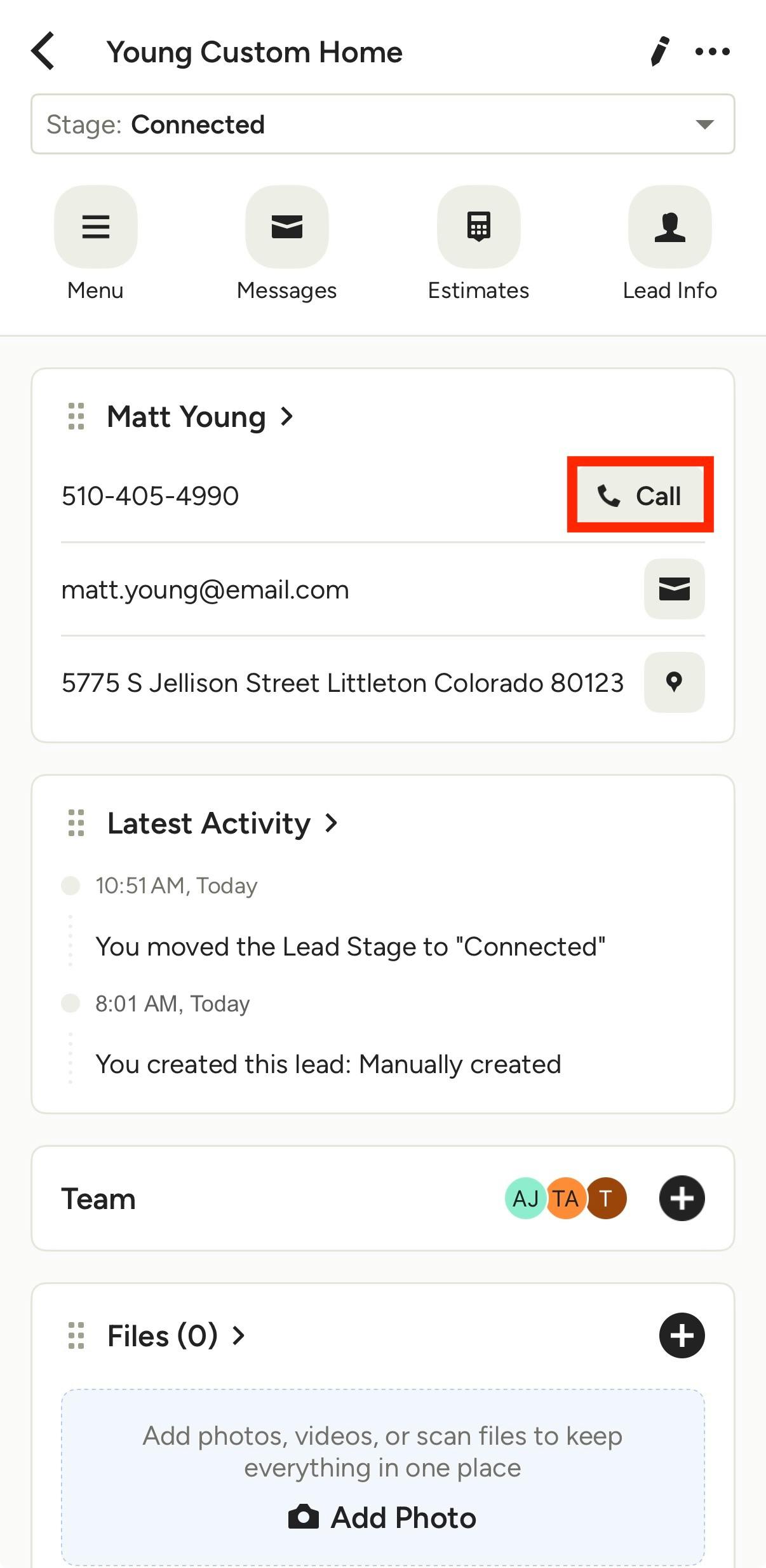
Within the contact information, tap the Call icon to start a call through the Houzz Pro app.
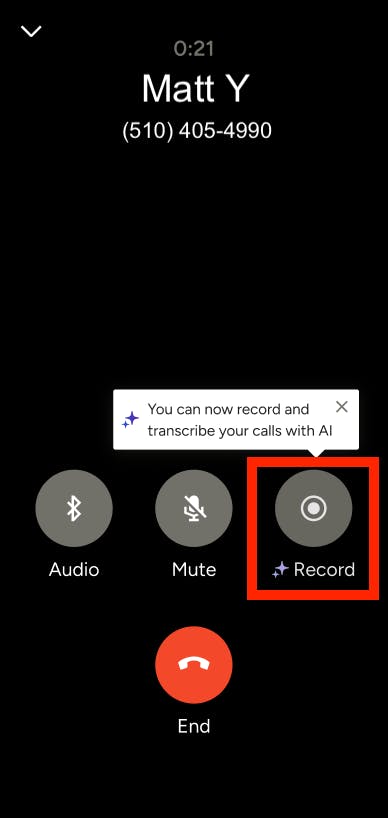
As your phone call begins, select the Record option.
When you start recording, an automated disclosure will play stating, "Recording in progress."
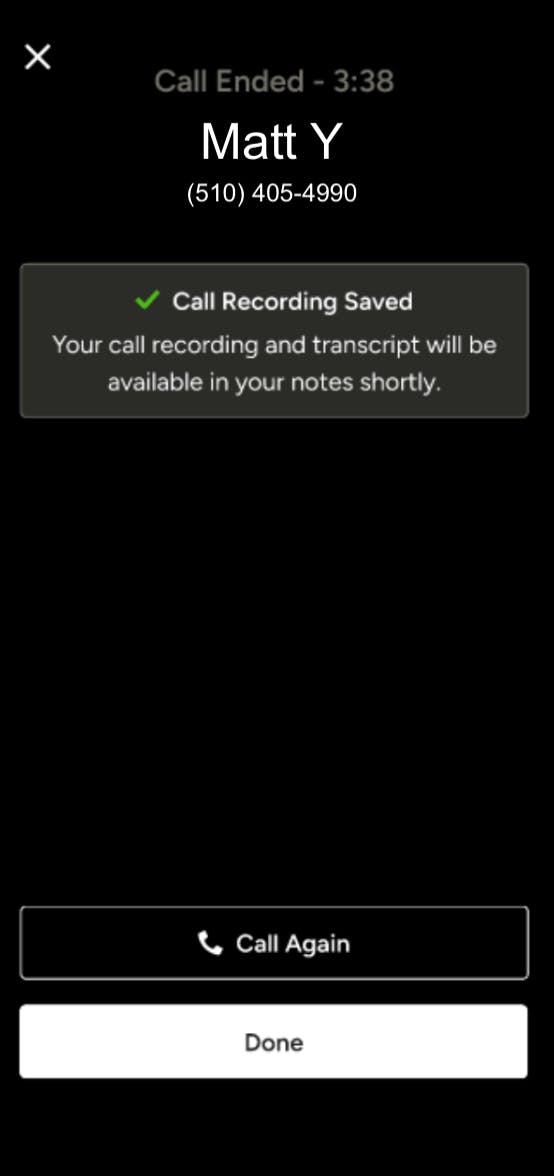
Once your phone call ends, you will receive a notification that your call recording saved.
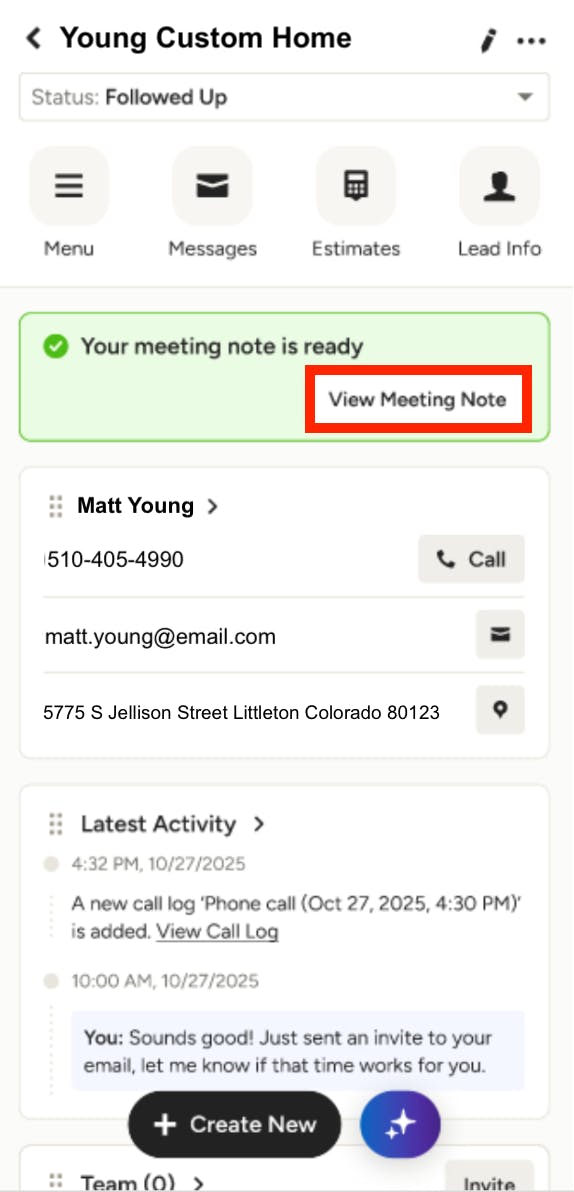
You will see a banner notifying you that the meeting notes from your phone call are ready to view. Tap View Meeting Note to access.
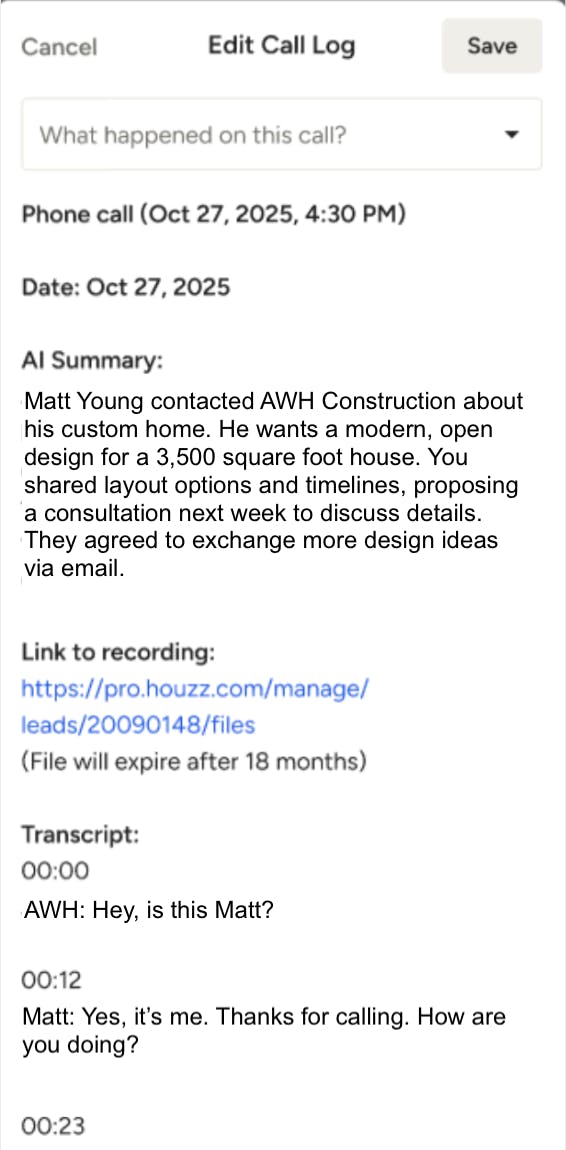
The call log will appear in the Latest Activity section of your project/lead, as well as in Messages. You can tap to view the full transcript — here, you can edit the note and also view the link to the original audio recording.
Recording an In-Person Meeting
You can also record an in-person meeting from your phone — no extra device needed.
There are two ways to start a meeting recording — from the mobile app homepage, or from the specific project or lead.
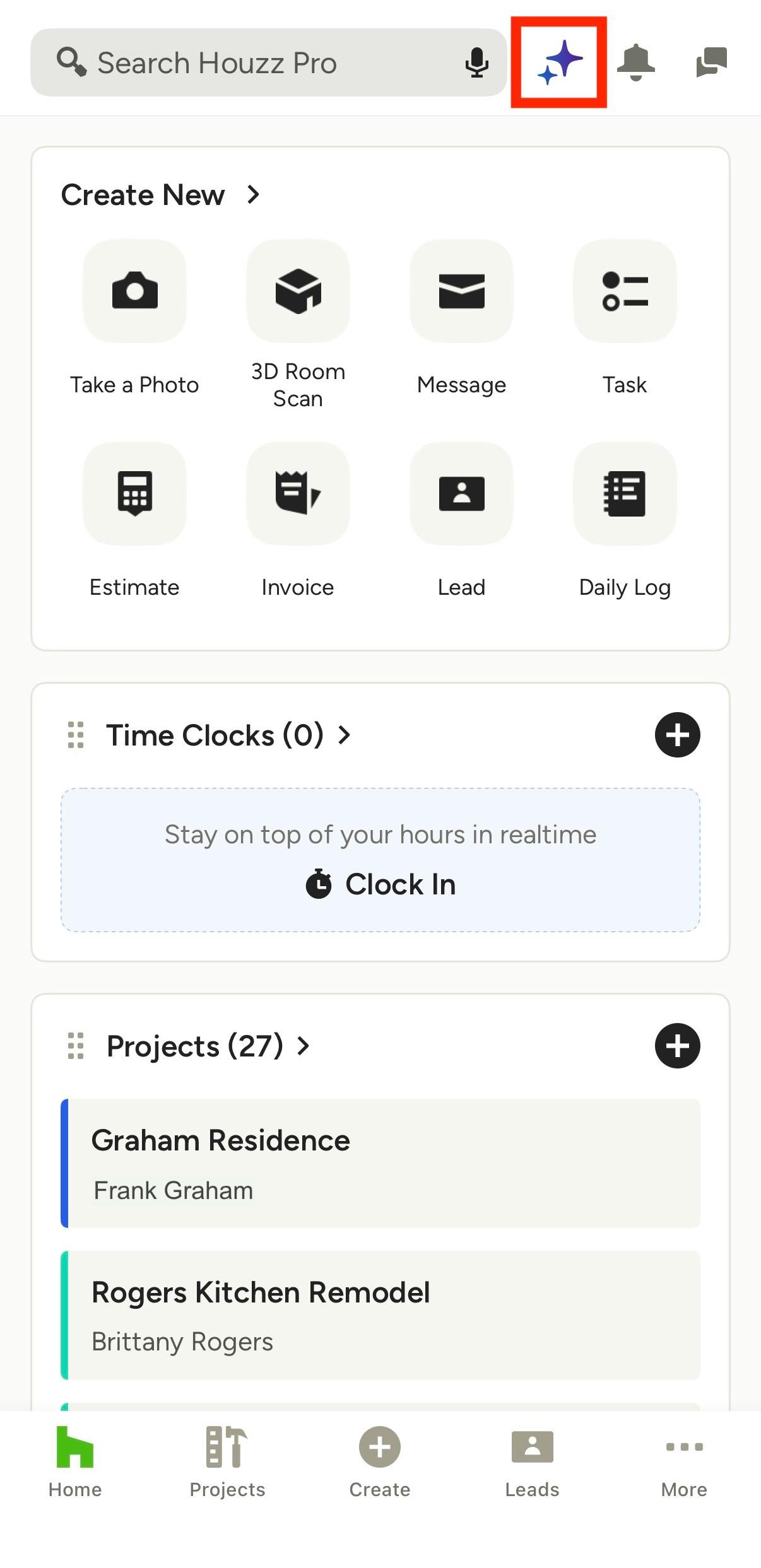
From Homepage: Tap the Houzz AI purple icon from the top menu of the Houzz Pro app.
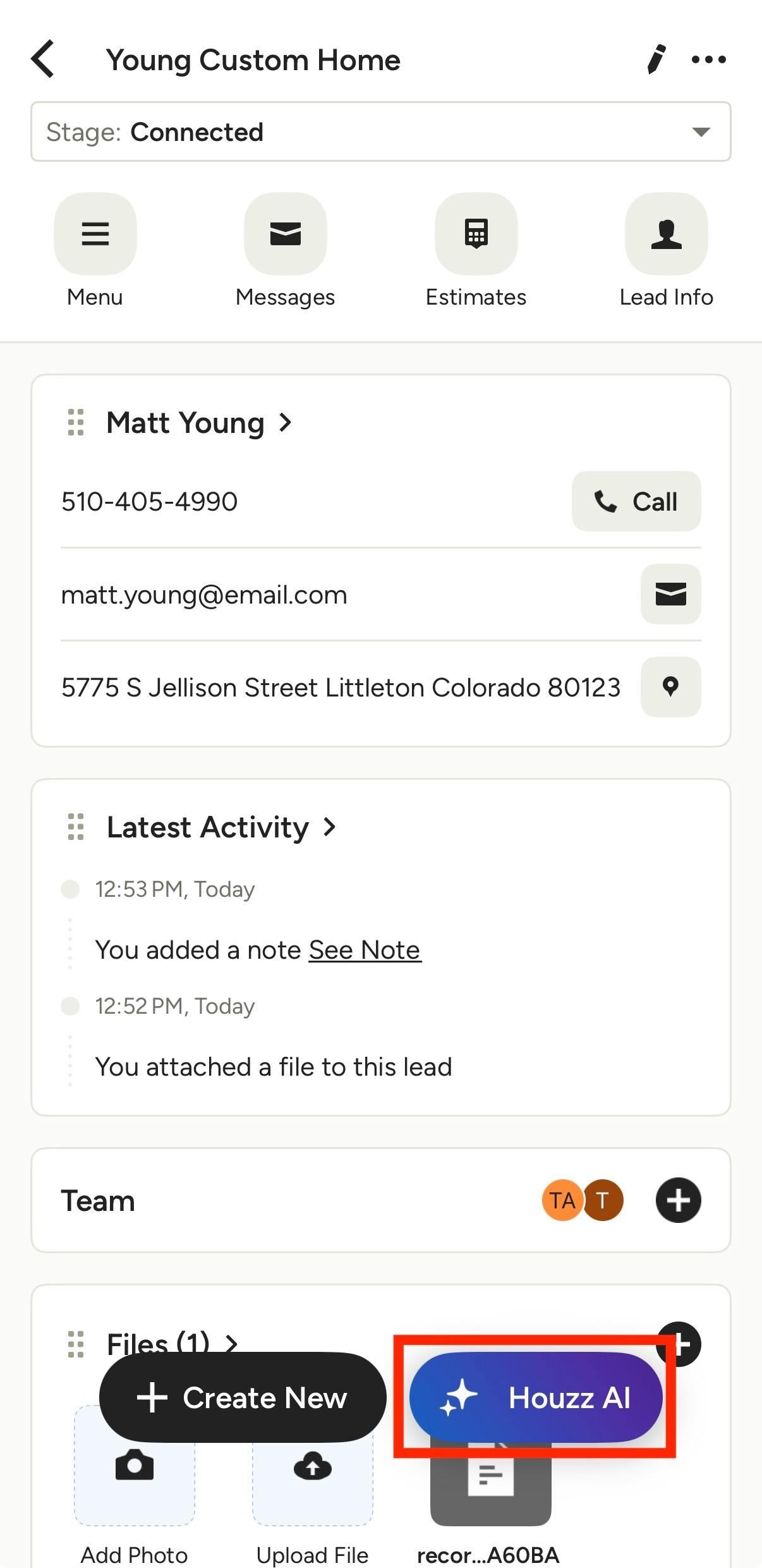
From Project or Lead: Tap the Projects or Leads icon from the bottom menu of the Houzz Pro app, then select the relevant project or lead from the list. Tap the Houzz AI purple icon at the bottom of the overview page.
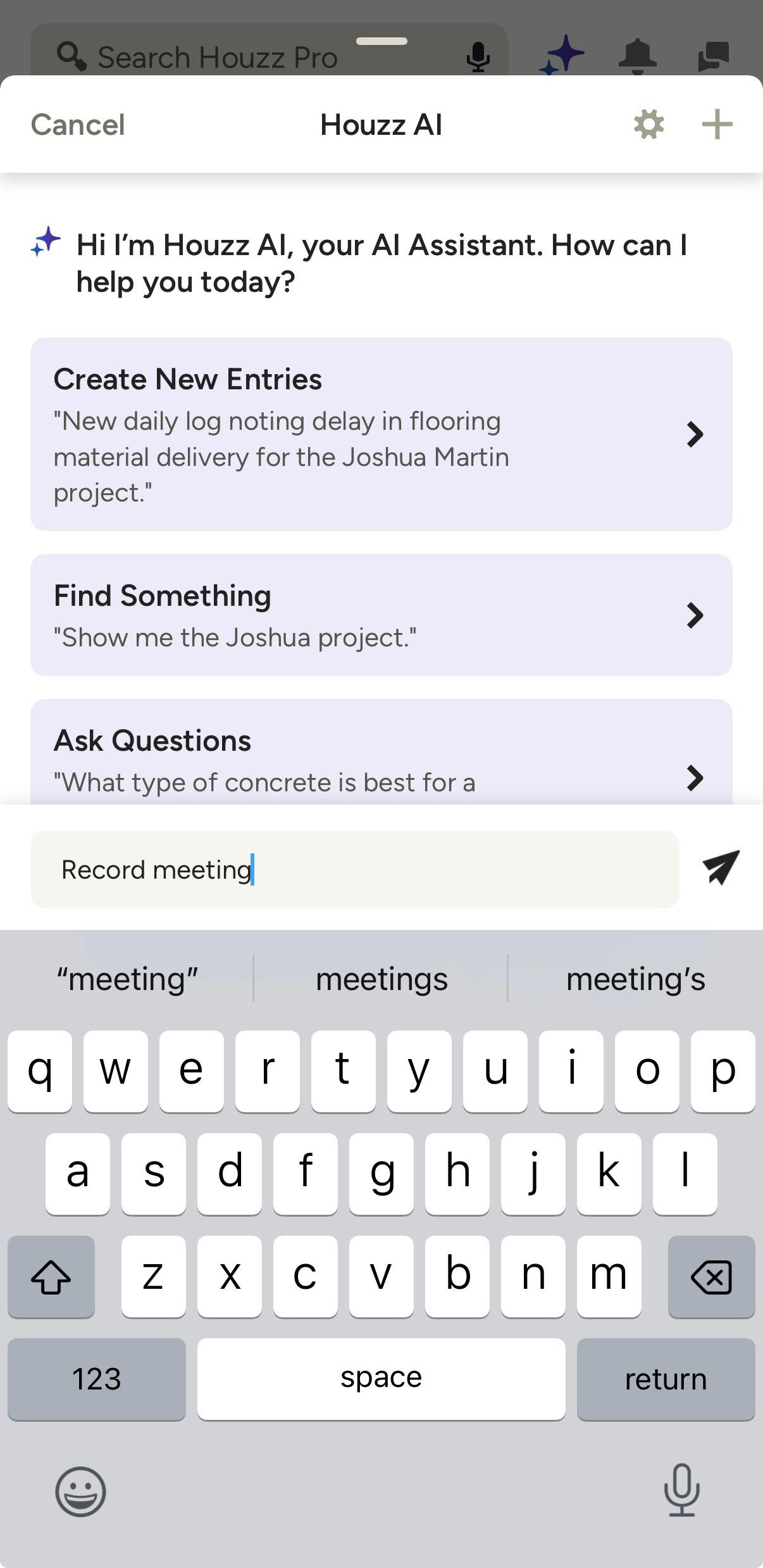
The Houzz AI Assistant will appear. Type "Record Meeting" into the text box.
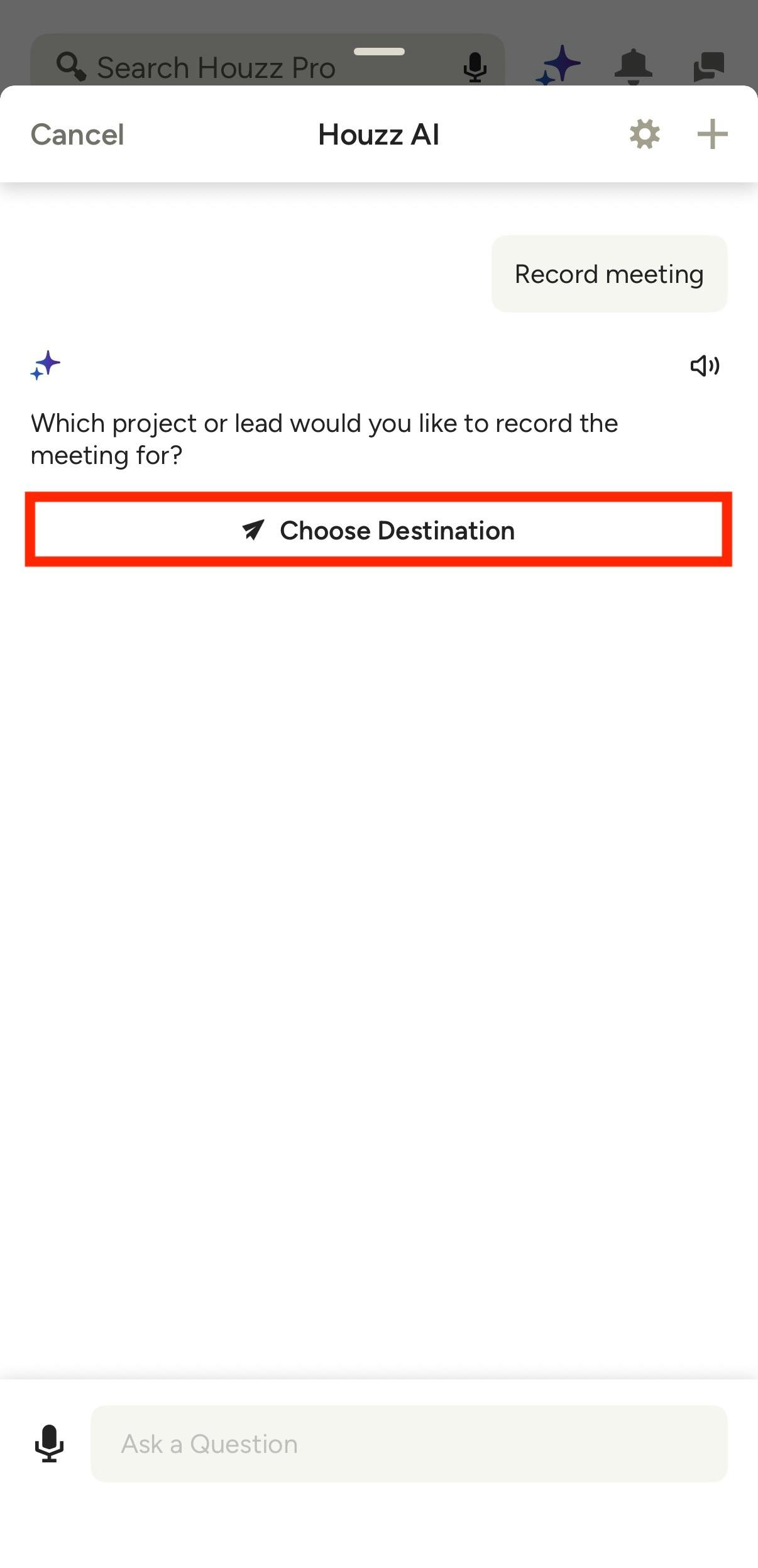
If you started from the homepage, you will need to tap Choose Destination to select the project or lead you'd like to associate this recording with. You can choose an existing project or lead, or create a new one on the spot.
You will skip this step if you are already in a project or lead.
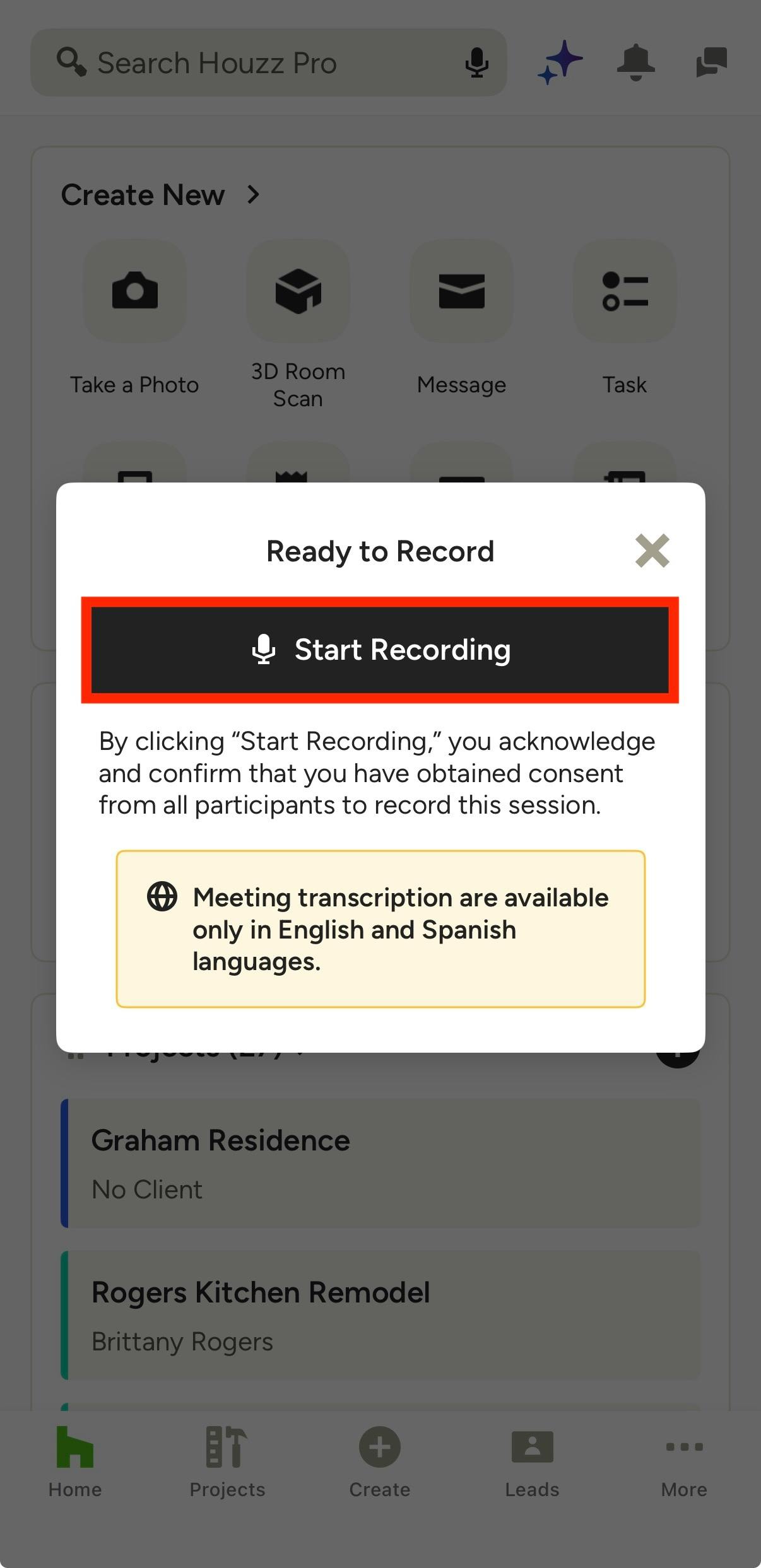
Tap Start Recording.
Please Note: It's important that you have the client's verbal consent before proceeding. You are responsible for obtaining all required consents according to your local laws. If a client does not wish to be recorded, please stop the recording and continue the conversation normally.
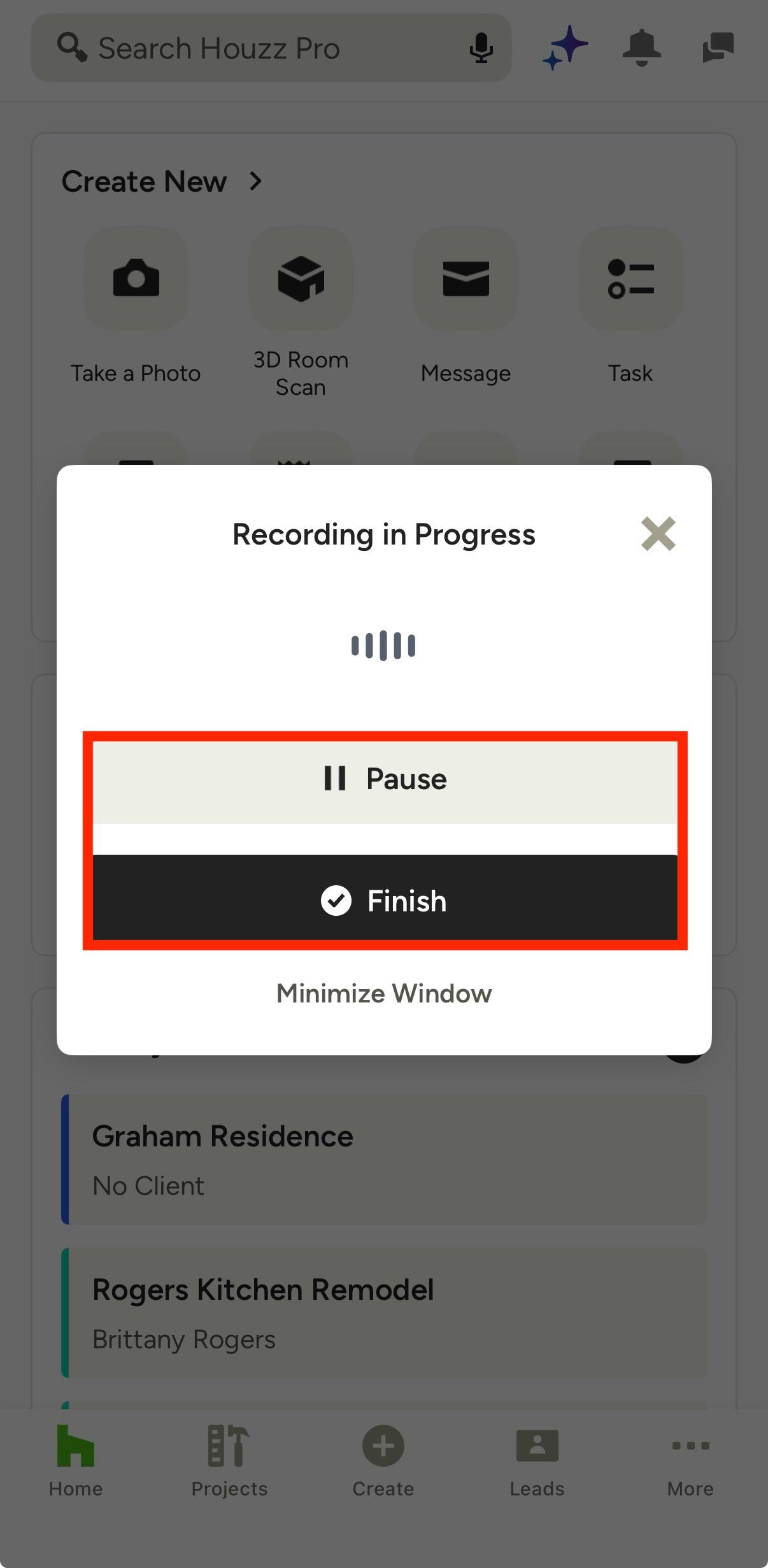
Once you tap Start Recording, a new screen will appear confirming the session is live.
From here, you can Pause the recording, or tap Finish when the meeting is over to complete and save the recording.
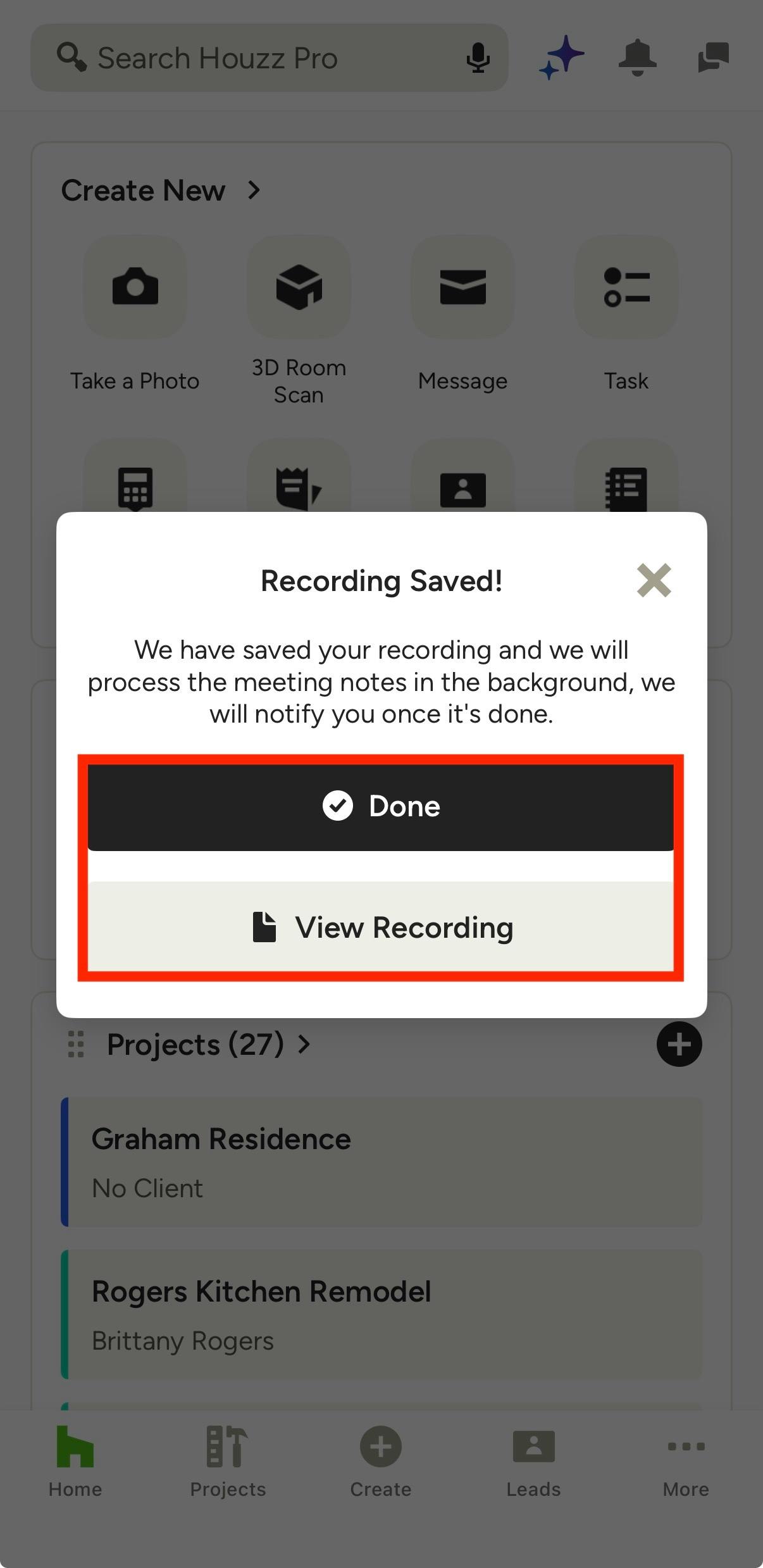
After tapping Finish, you can immediately tap View Recording to access your file. Your meeting transcript will be processed shortly.
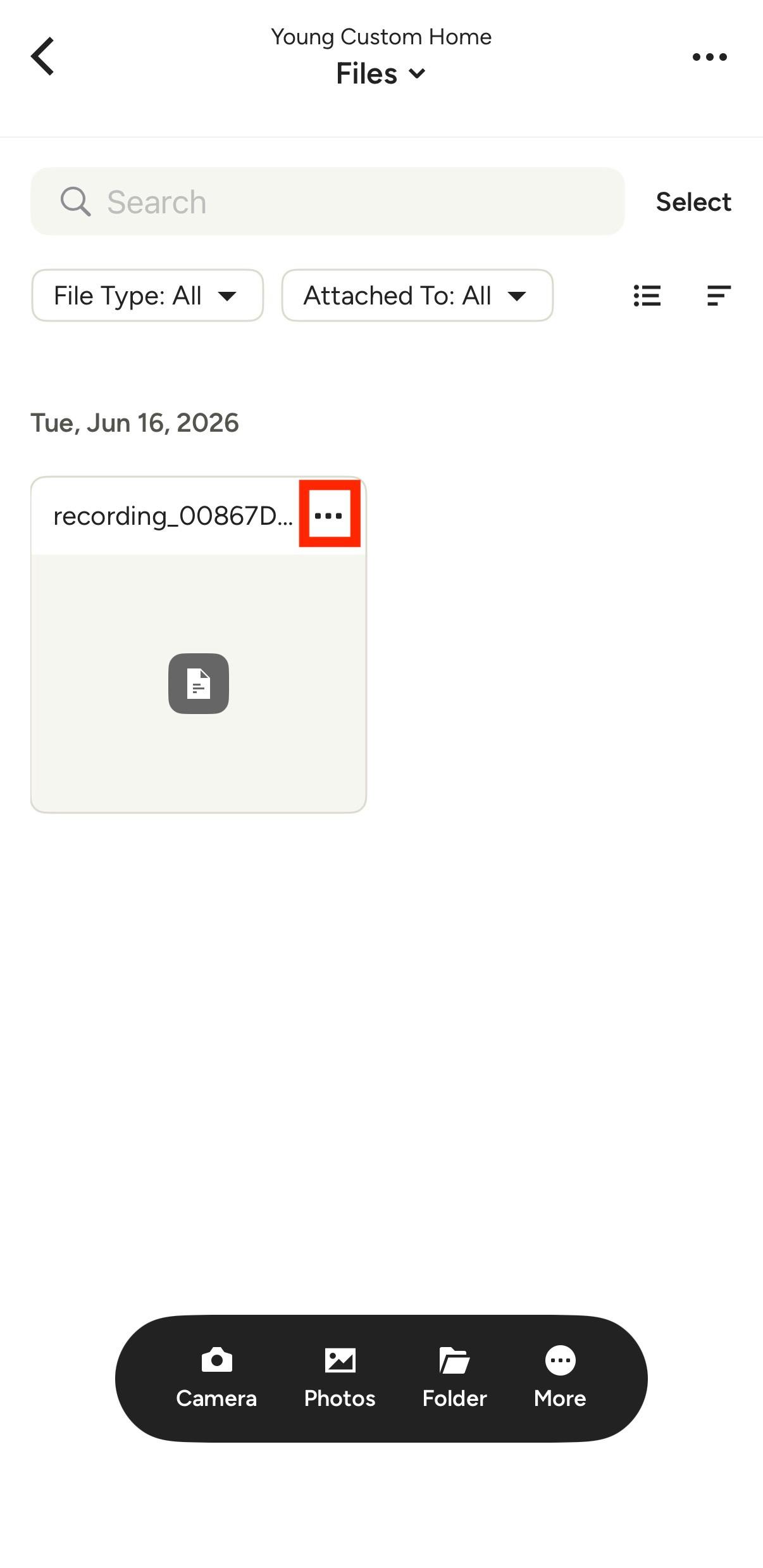
Access Meeting Recording
Your meeting recording is saved to the Files section of the associated project or lead. Tap the three dots icon on the recording file to:
- View file details
- Move it to a new location
- Rename the file
- Duplicate or delete the file
- Add comments
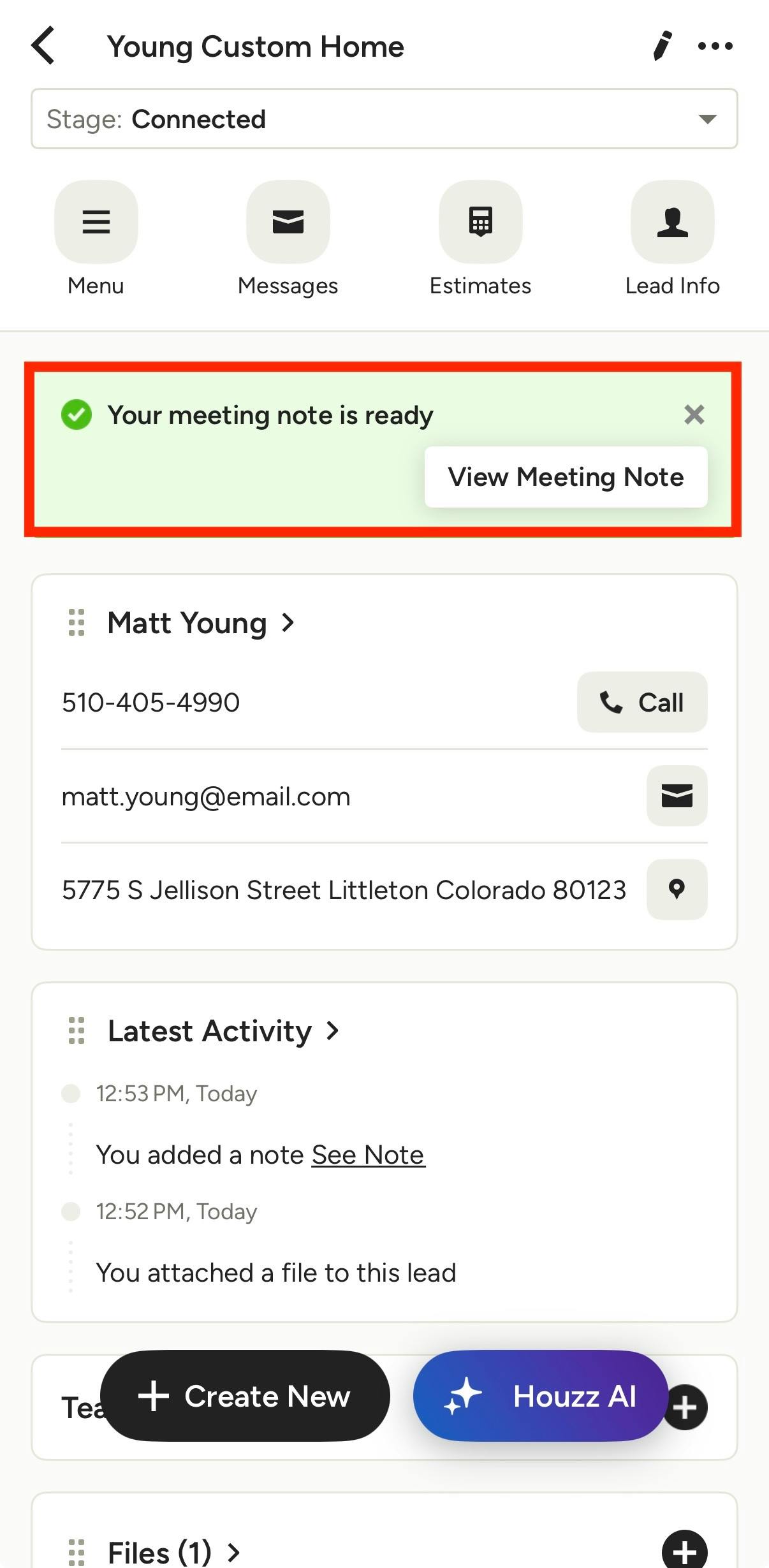
Access Meeting Transcript
Your meeting transcript will be ready shortly after the audio recording. Once ready, you'll be notified with a mobile push notification and a notification banner within your project or lead (as shown below).
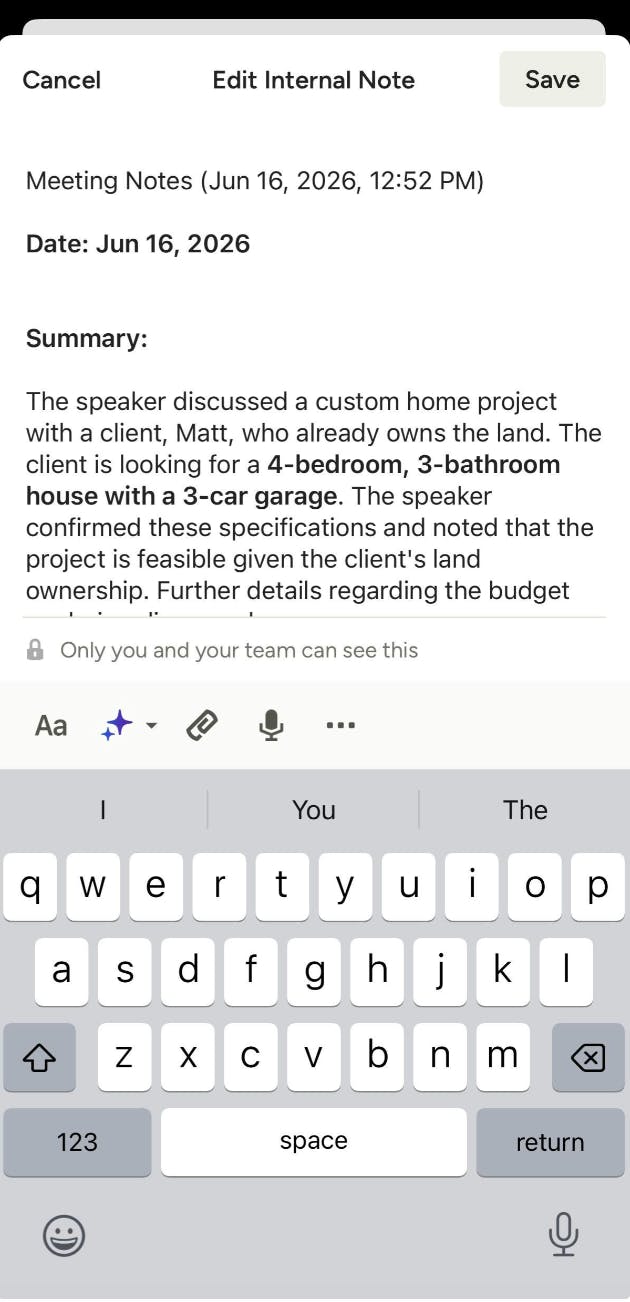
The transcript is saved to the Notes section of the associated project or lead. From here, you can:
- Edit the note to add additional context, action items, or follow-up details (as shown below)
- Delete the note if it's no longer needed
Please Note: Meeting transcriptions are currently available in English and Spanish only.
Recording FAQ
1. How long is the audio stored?
Audio recordings are stored for up to 18 months, after which they will be automatically deleted. You can also delete recordings at any time from your Files & Photos.
Transcripts are saved in Notes under the associated lead or project and will remain available unless you choose to delete them.
2. Do I need to do anything before I can start a call recording?
Yes, to start a call recording, you must:
- Verify your phone number first. This one-time verification links your real number to the proxy number so that your caller ID appears correctly to clients.
- Ensure that the client has been informed that the call will be recorded and has consented before recording begins.
3. Can I share the recordings with my team?
If a team member has access to the same lead or project, they will be able to view and listen to the recording. Please ensure that any sharing or use of recordings complies with applicable laws and your client agreements.
4. Can I download my recordings?
Go to the note created under the lead or project, select the audio file, and you can download it.
5. How accurate is the AI-generated transcript and summary?
The AI transcript and summary are generated automatically and may not be fully accurate. We recommend reviewing them before relying on them for important decisions or records.
6. How are recordings and transcripts used by Houzz?
Houzz does not review recordings except as necessary to operate, maintain, or improve the service, or as required by law. You are responsible for ensuring that your use of this feature complies with applicable laws and your agreements with clients.