How to Change the Language on the Mobile App
Houzz Pro makes it easy to personalize your experience by changing your preferred language in the mobile app on both iOS and Android. In addition to switching the app’s interface language, you can also use on-device translations to instantly convert user-written content — like Daily Logs, Notes, Tasks, Chats, Comments, and Messages — into your language of choice.
Switch Languages in the Houzz Pro App
If you want to change your preferred language in the mobile app, the change will only impact your individual account, not your team members or subcontractors. Language settings are synced across both your desktop and mobile app. If you update one, the other will update automatically. You can learn more about multi-language settings here.
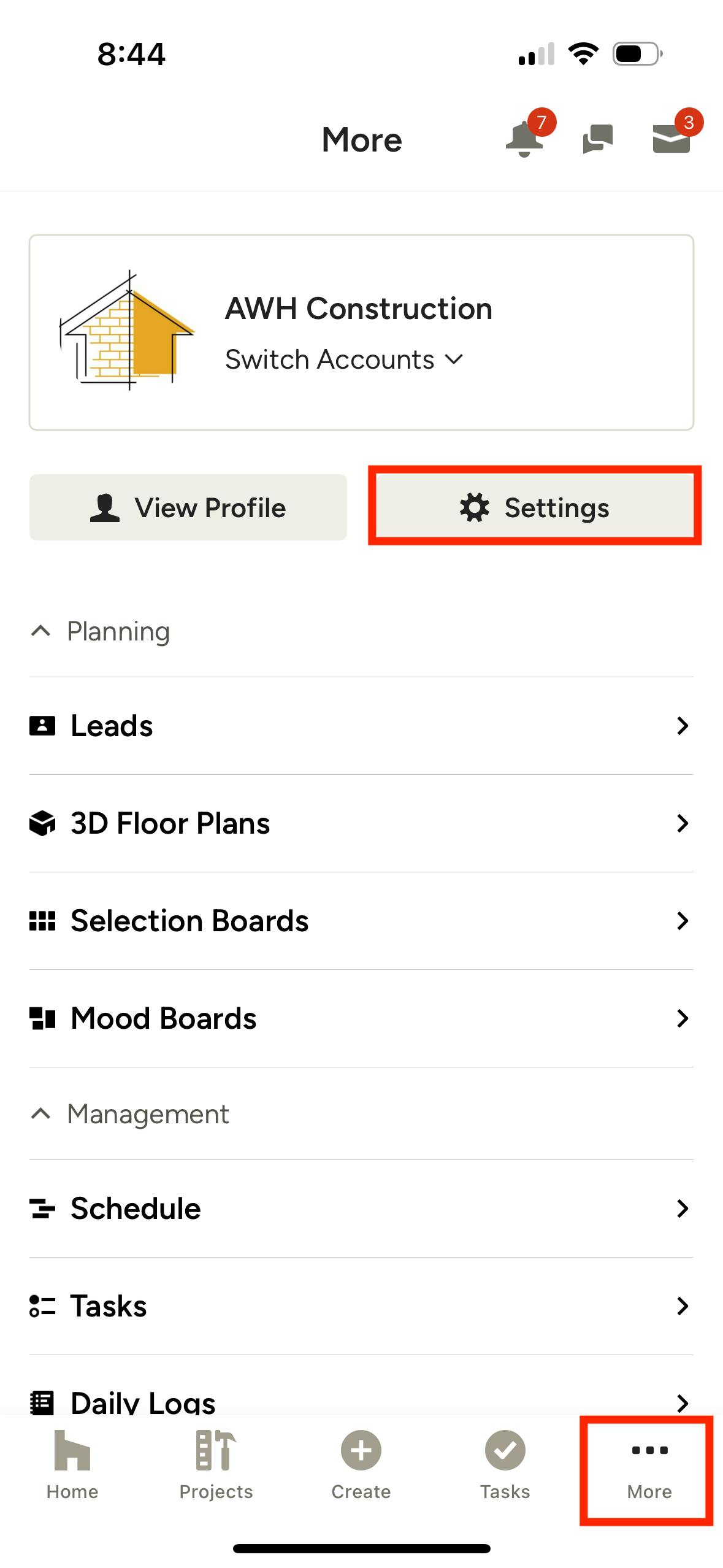
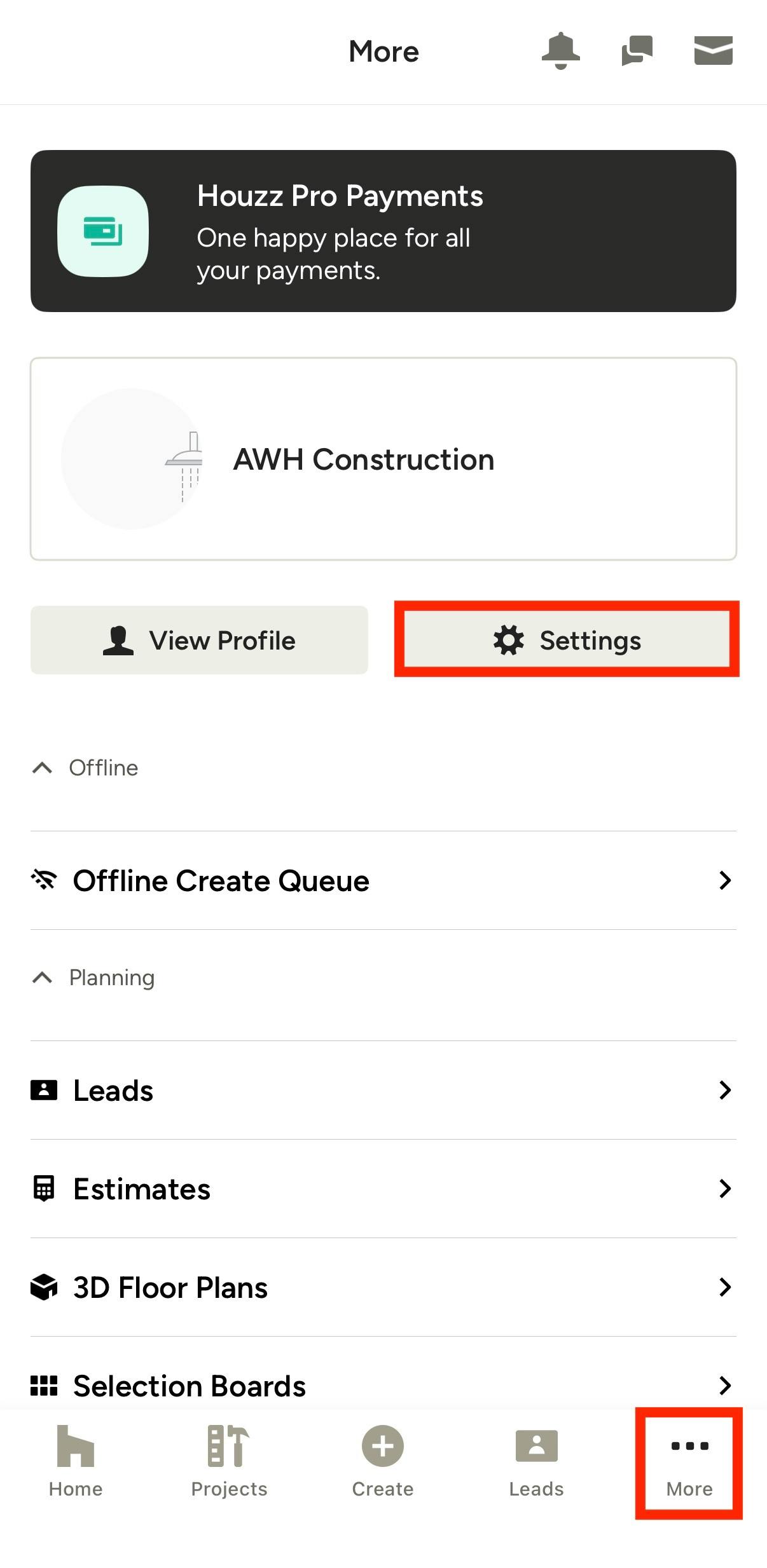
To get started, open up your Houzz Pro app, and tap on the three dots More icon on the bottom right of your screen. In the More menu, tap Settings.
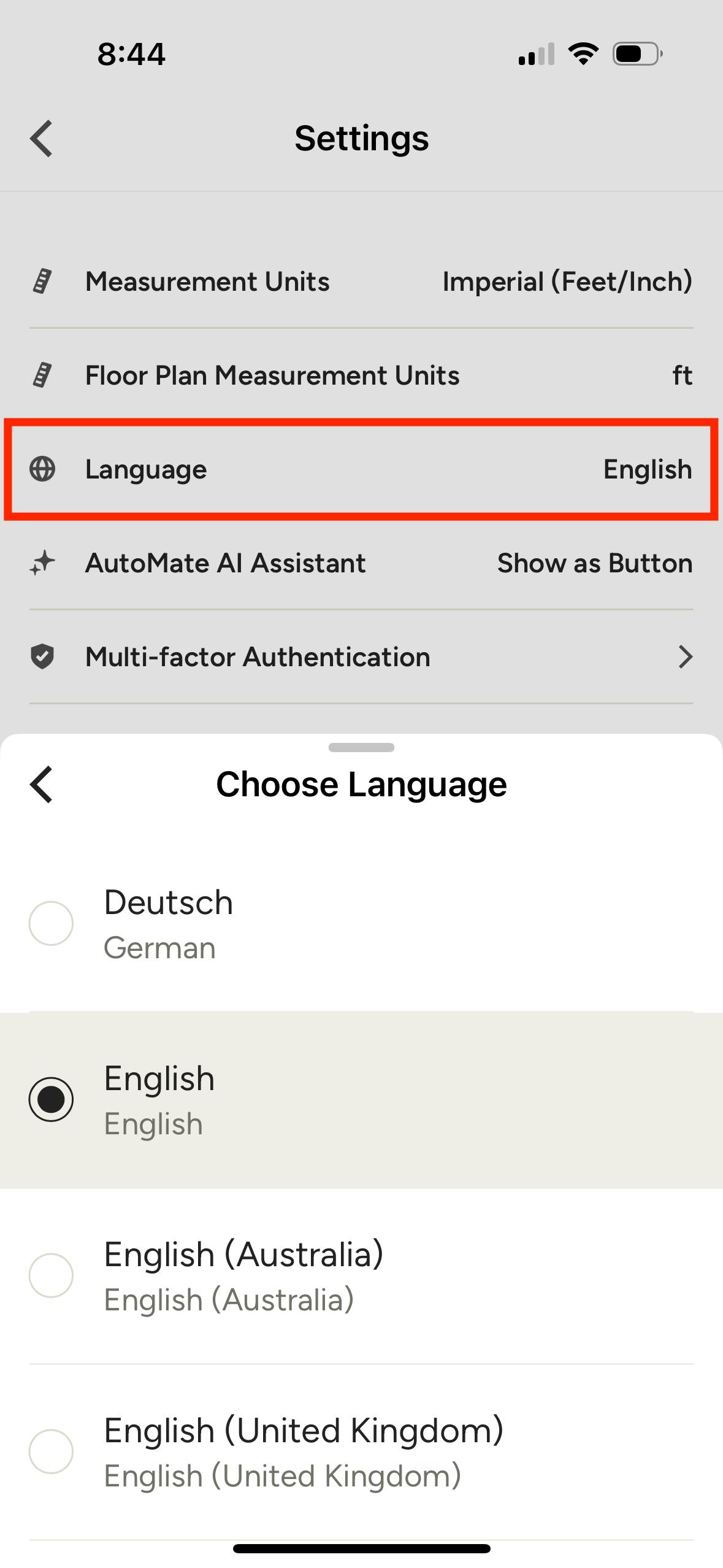
In your settings, tap Language, and a popup will appear where you can select another language option.
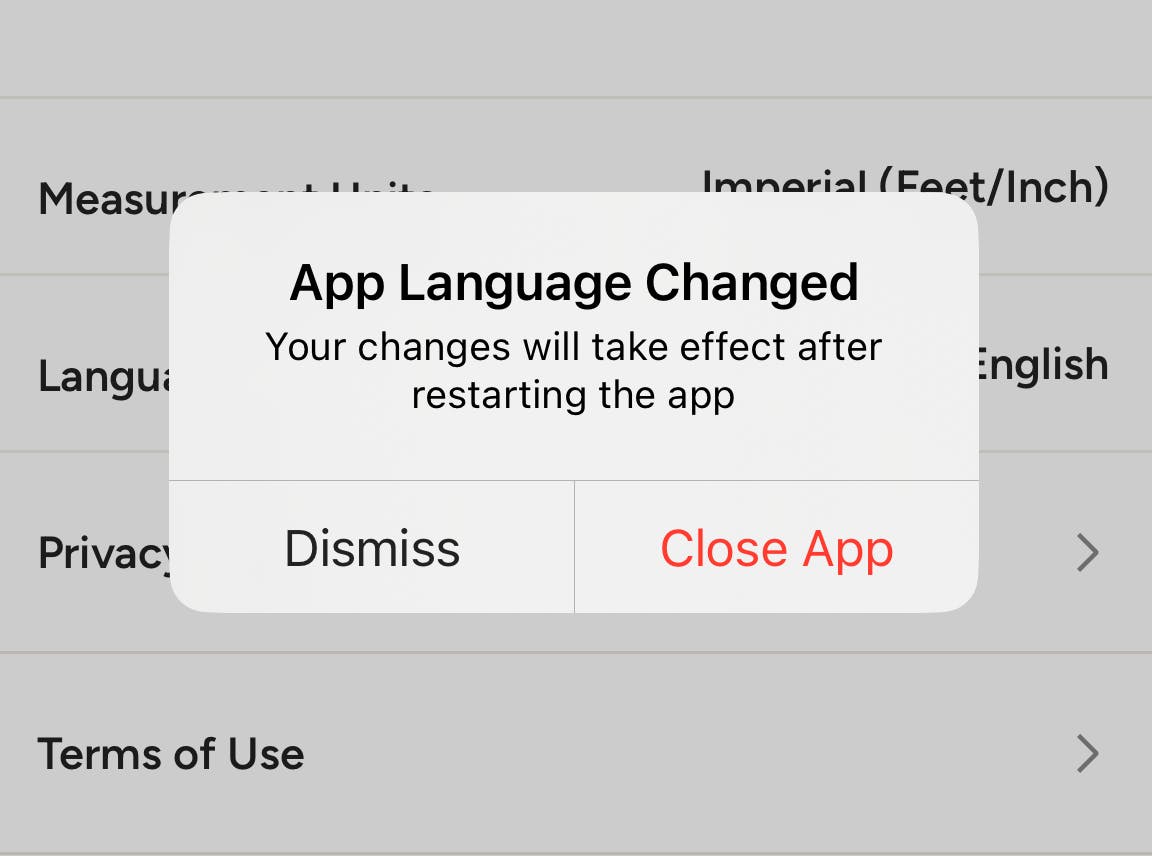
After you change your selection, a popup will notify you that the language has changed, and you will be asked to Close the App.
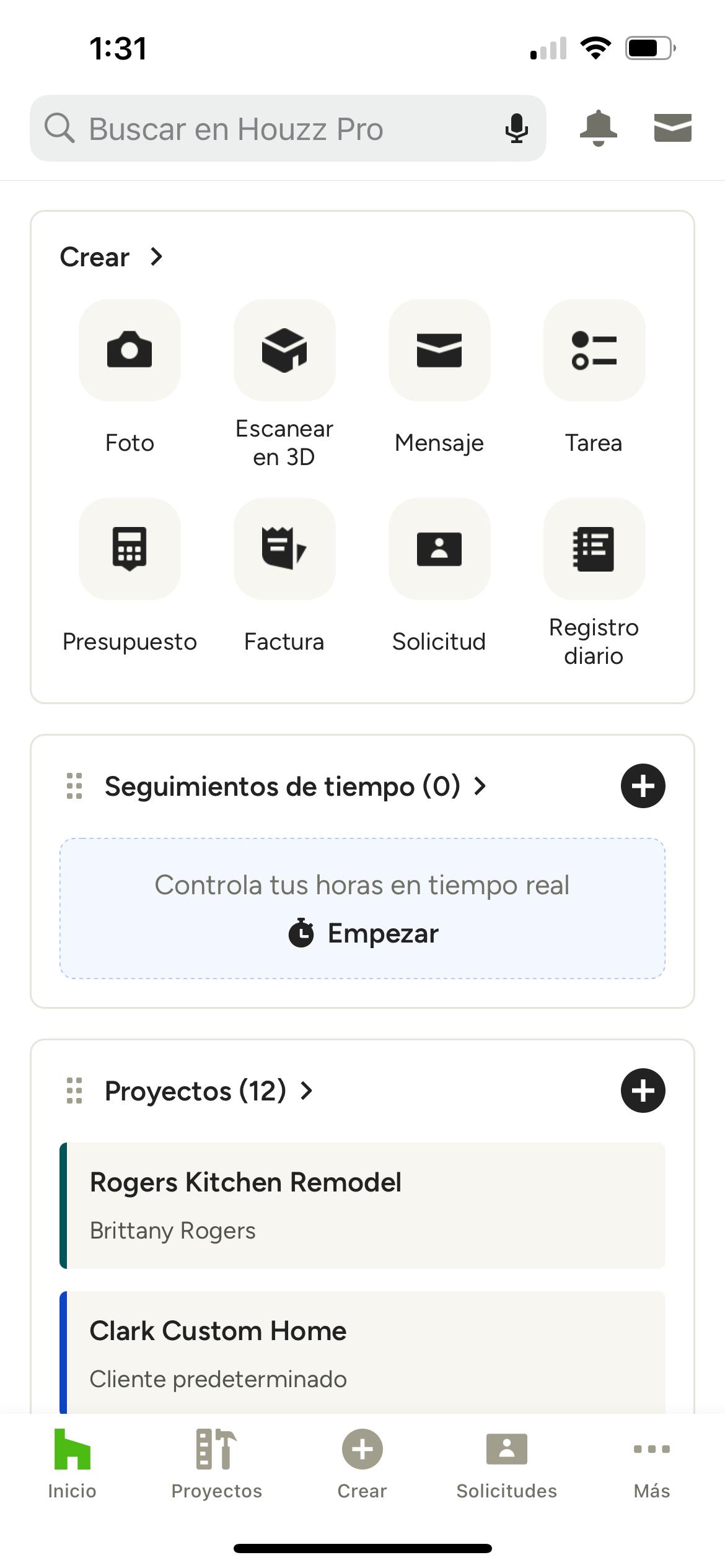
After closing, restart the mobile app to work with Houzz Pro in your preferred language. If you would like to change back, just follow the steps above to adjust.
You can also set your preferred language from the Houzz Pro desktop experience. Remember, language settings are synced, so if you set the language in your desktop version, it will automatically change the language in your app. Learn more in How to Change the Language on Houzz Pro Desktop.
Translate Content in Mobile App
You can also use the on-device translation tool to bridge the language gap between team members. Currently supporting Daily Logs, Messages, Tasks, Notes, Chats and Comments, on-device translations allow you to translate content from your preferred language into another language instantly. Choose between Manual or Automatic triggers, and customize your view by either replacing the original text or displaying both languages side-by-side.
To access, tap on the three dots More icon on the bottom right of your screen. In the More menu, tap Settings.
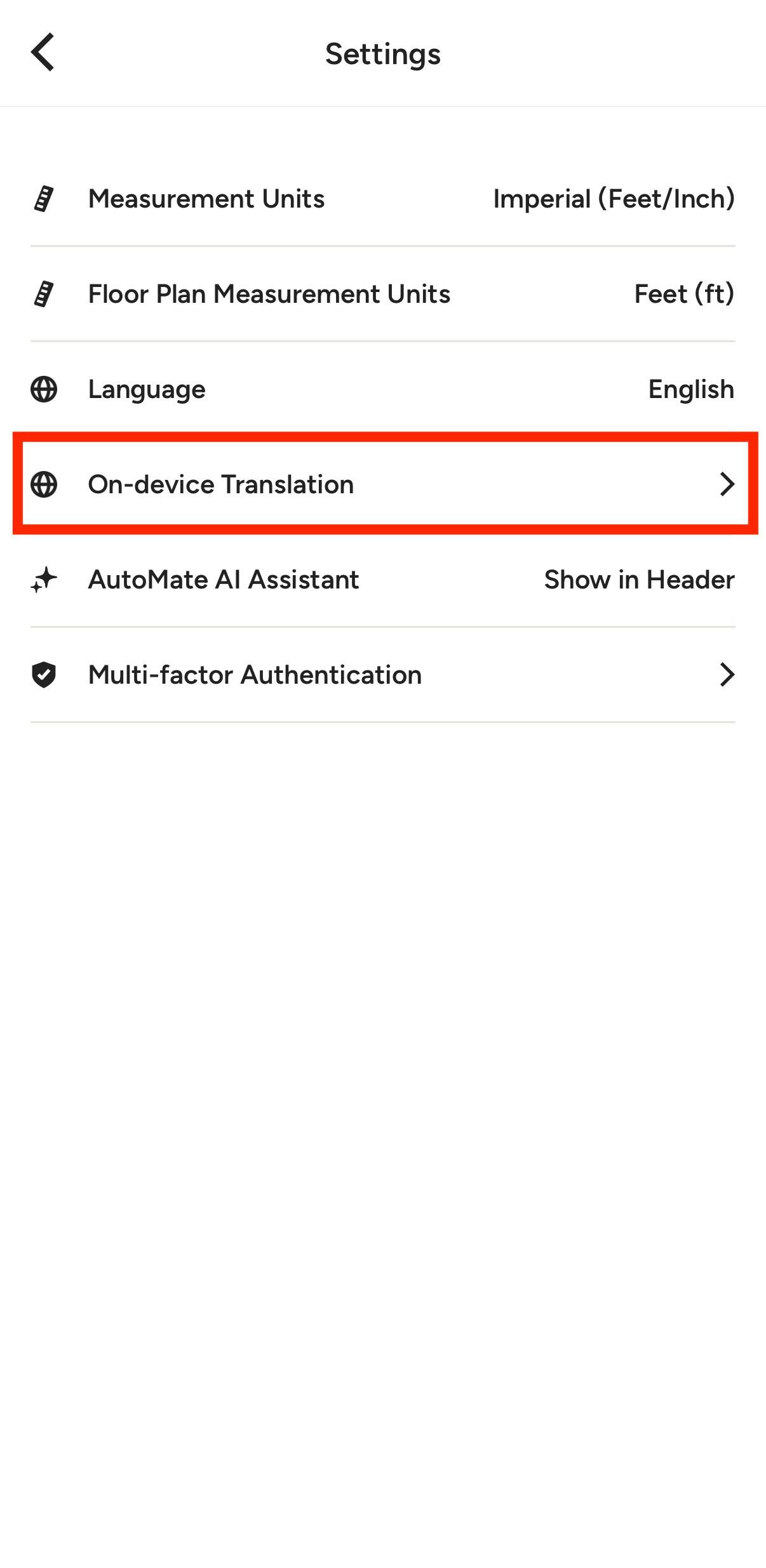
Tap On-device Translation from the Settings menu.
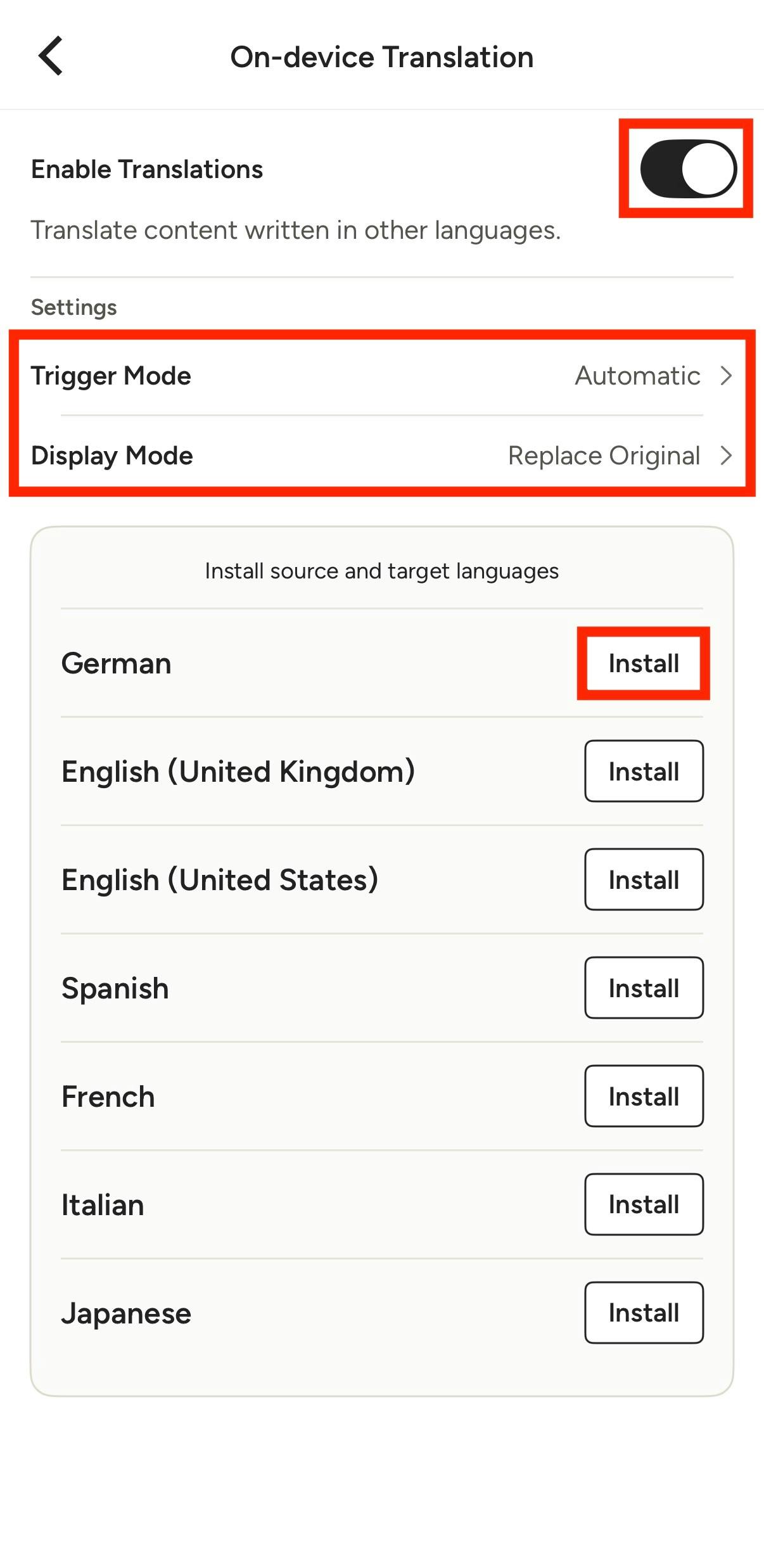
Turn on the toggle at the top to enable the content translations. New settings will appear.
Trigger Mode allows you to create automatic translations, which will translate instantly as soon as the page loads. You can also choose a manual translation — the content will remain in the original language until you tap the Translate button.
Display Mode allows you to replace the original text entirely with the translation for a clean look. You can also choose to show both the original text and the translated text side-by-side for more clarity.
Our supported languages will appear at the bottom of this page. Click Install to download the language you would like to use (you can select more than one).
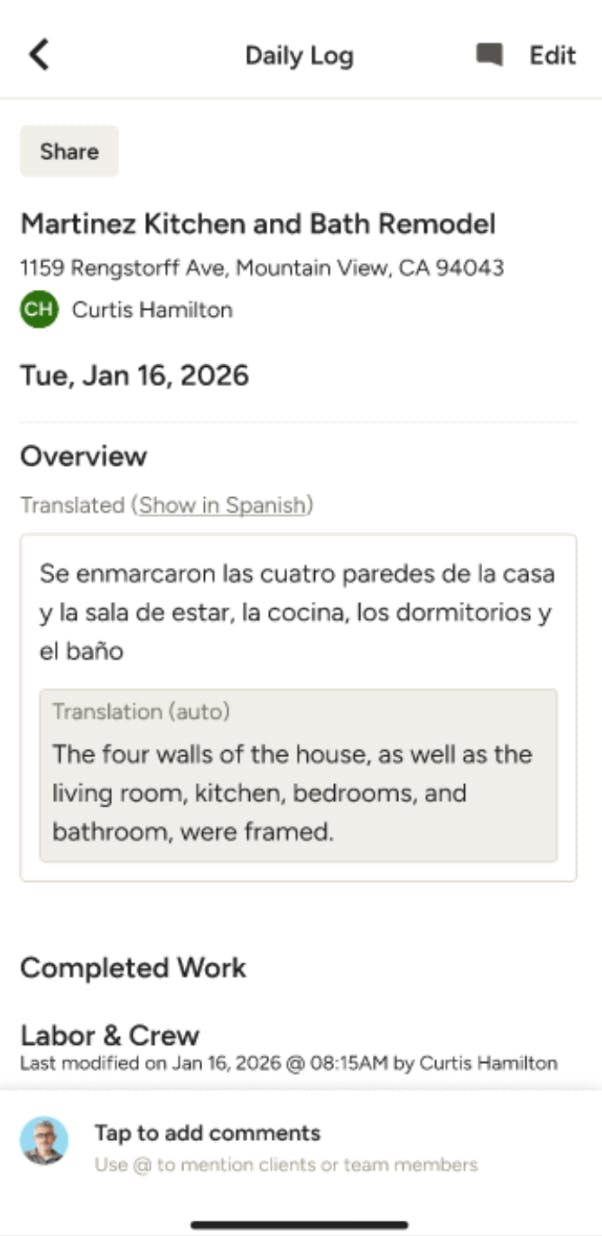
Once enabled, you will see the translation within your mobile app content (as shown in the Daily Logs example below).