How to Map Vendors and Subs in Houzz Pro to QuickBooks Online
To help purchase orders and expenses from Houzz Pro sync over to QuickBooks Online, you can map vendors and subcontractors to their corresponding matches.
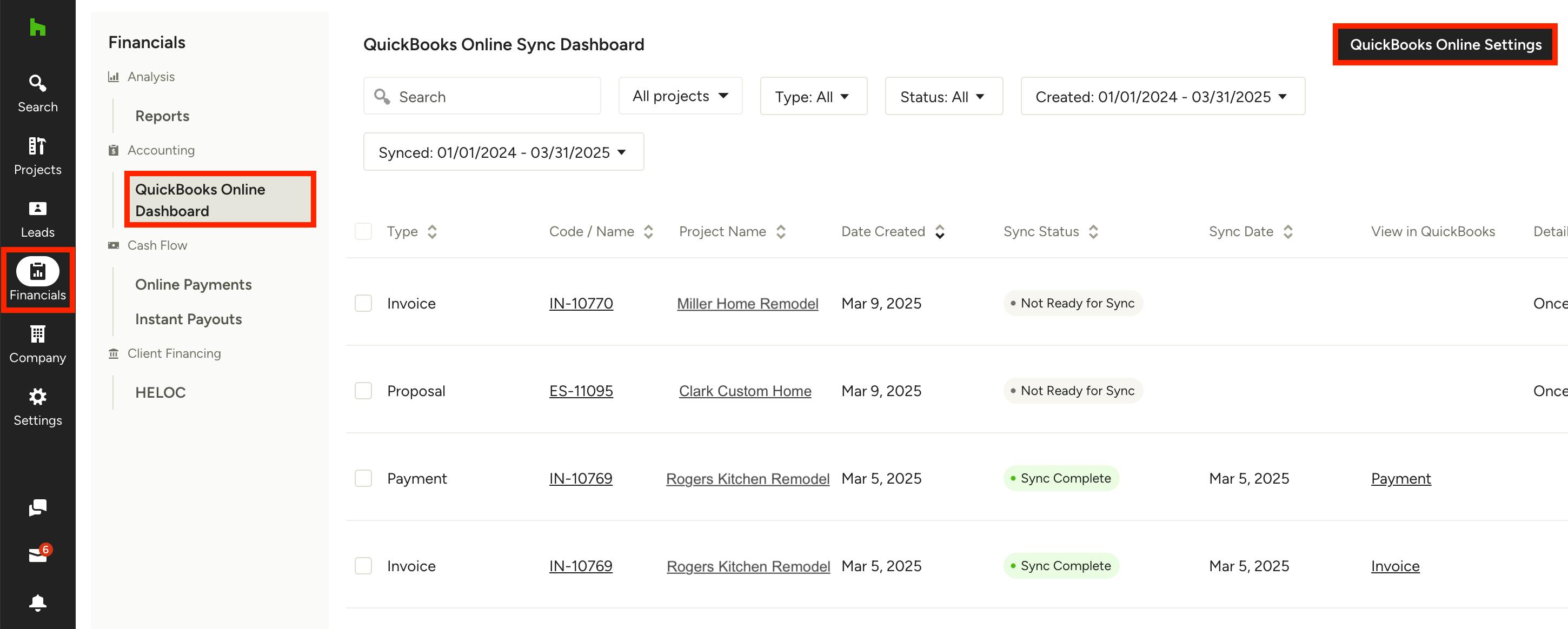
To set up vendor/subcontractor mapping, select the Financials icon from your left navigation, then click QuickBooks Online Dashboard from the menu. At the top of the dashboard page, click the QuickBooks Online Settings button.
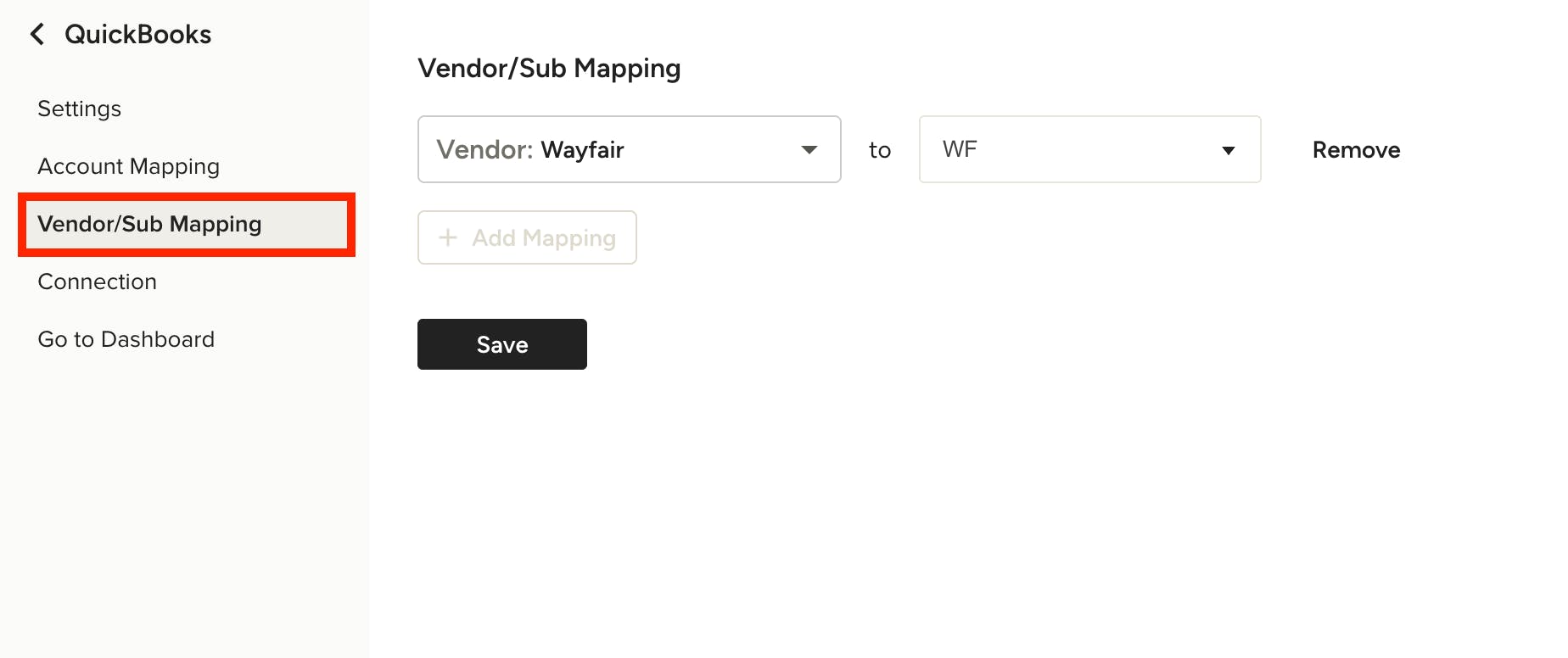
On the Settings page, select Vendor/Sub Mapping from the left menu. Here, you can set up the mapping from Houzz Pro to QuickBooks Online.
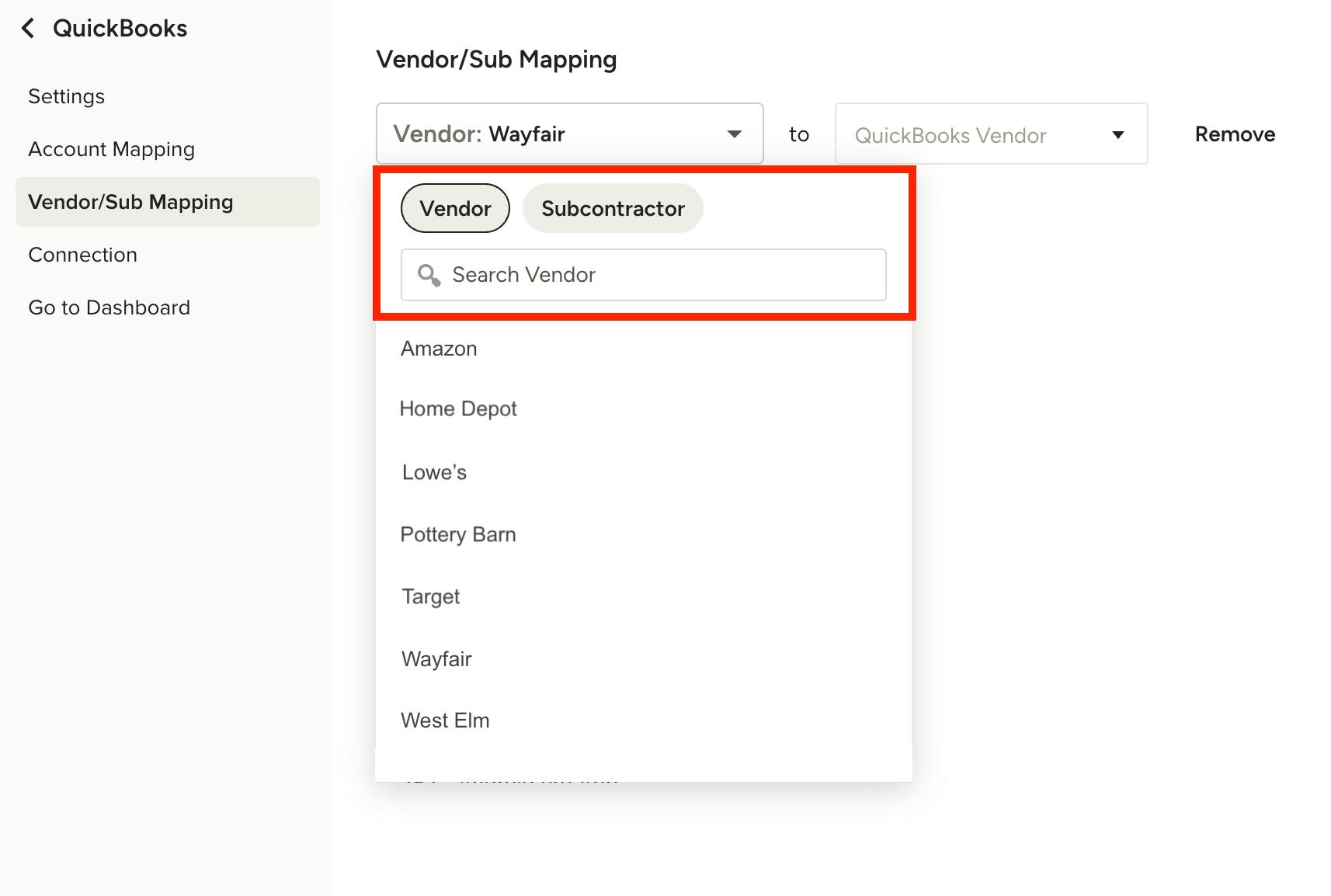
When adding a new vendor/sub mapping, you can use the tabs at the top to filter by vendor or subcontractor. You can also find an exact match using the search bar, or select from the dropdown list, which will be in alphabetical order.
As a default, if the vendor/sub you choose doesn’t exist in QuickBooks Online, Houzz Pro will automatically create it for you so the mapping runs smoothly. If the vendor/sub does exist in QuickBooks Online by the same exact name, Houzz Pro will map the vendor/sub the same way. Deleting the mappings will revert them back to the defaults.
You can also manually map your vendors/subs or make any changes to existing mappings. You're able to map multiple Houzz Pro vendors/subs to the same QuickBooks Online vendor/sub.