How to Use the Houzz Pro Gmail Extension
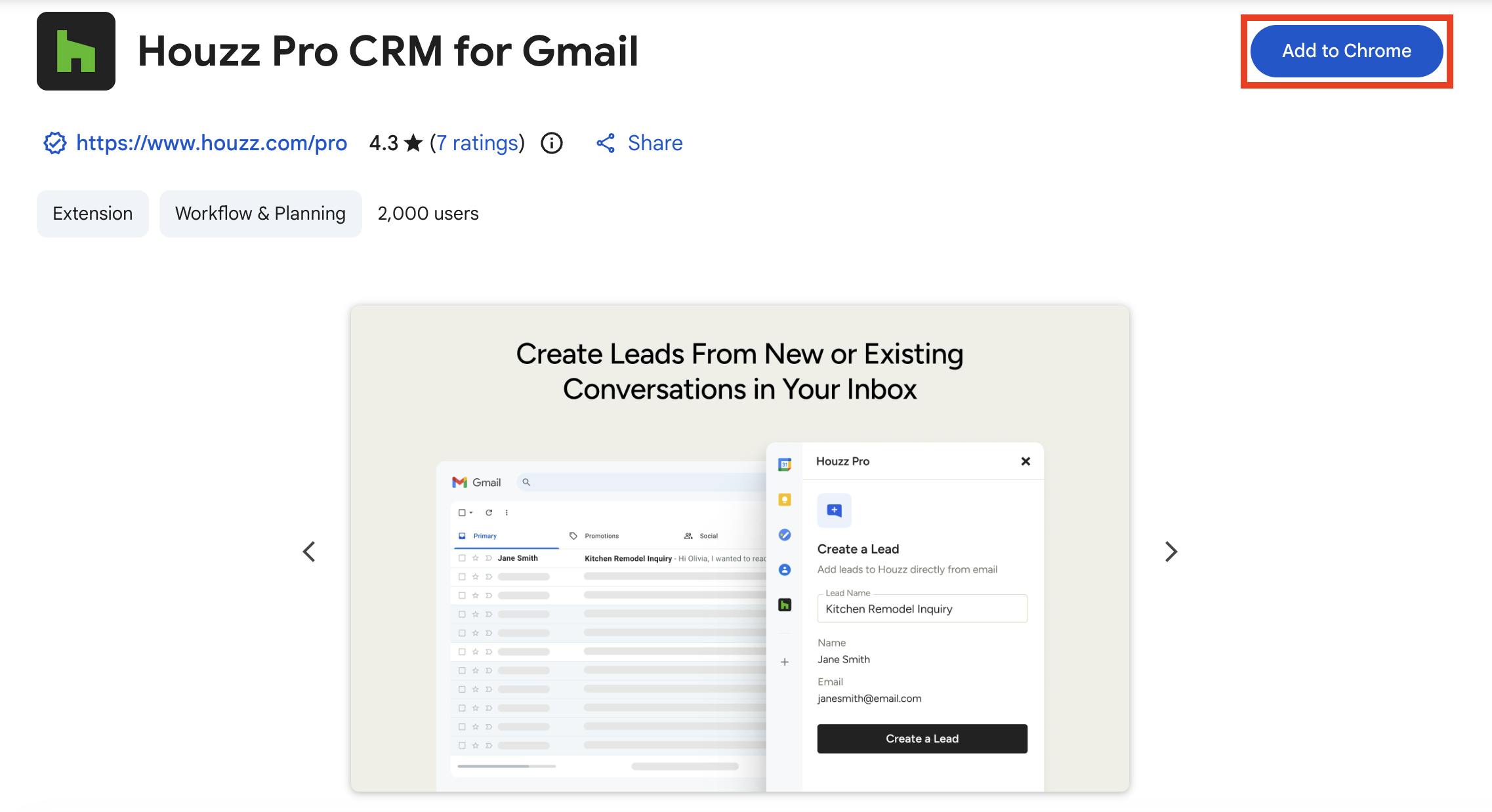
The free Houzz Pro Gmail extension helps you manage your leads quickly and easily. With just a few clicks, you can add leads who contact you via email directly to the Houzz Pro CRM. This will save the contact details and email conversation so you can view and edit within the Houzz Pro software.
To start using this feature, click this link to access the Houzz Pro Gmail extension from the Chrome Web Store (Chrome is the recommended web browser for Houzz Pro).
Select the Add to Chrome button, then select Add Extension from the pop-up screen. The extension icon should now appear in your Chrome toolbar.
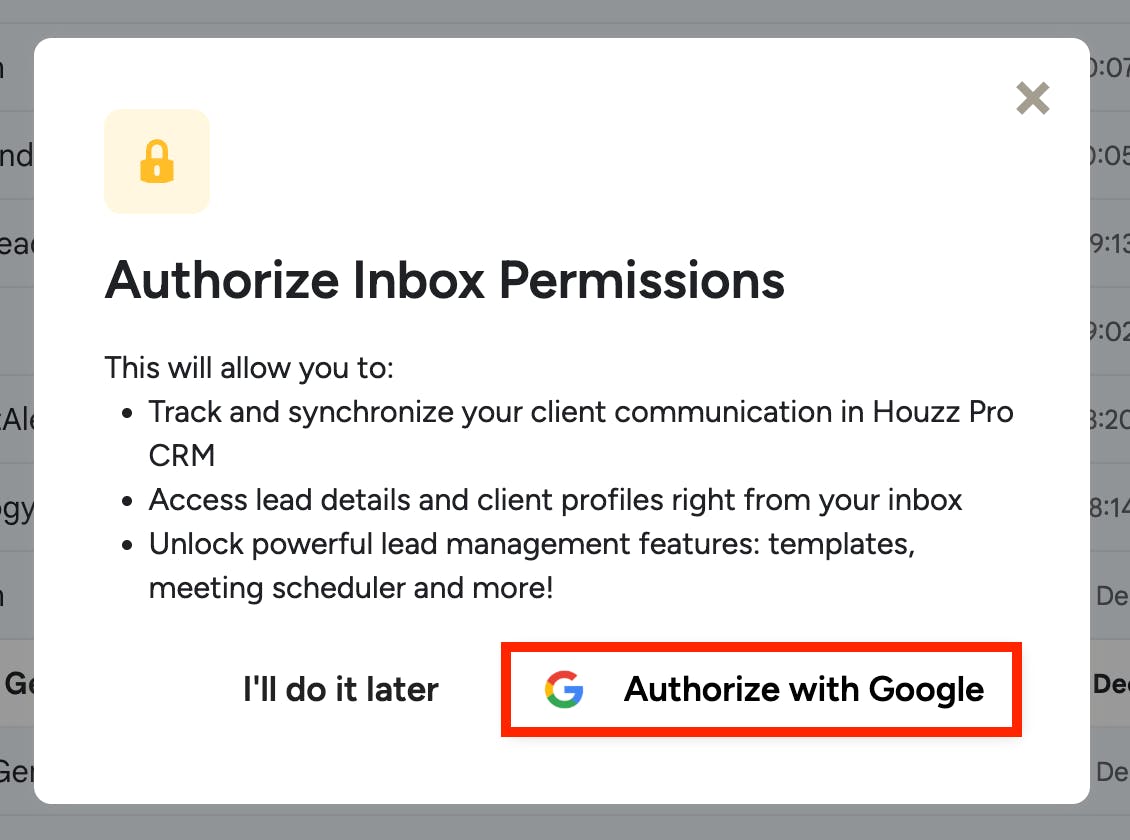
Once installed, go into your Gmail inbox. If this is your first time accessing since installing your extension, a pop-up will appear asking if you would like to authorize inbox permissions. You will need to give permission in order to use the extension.
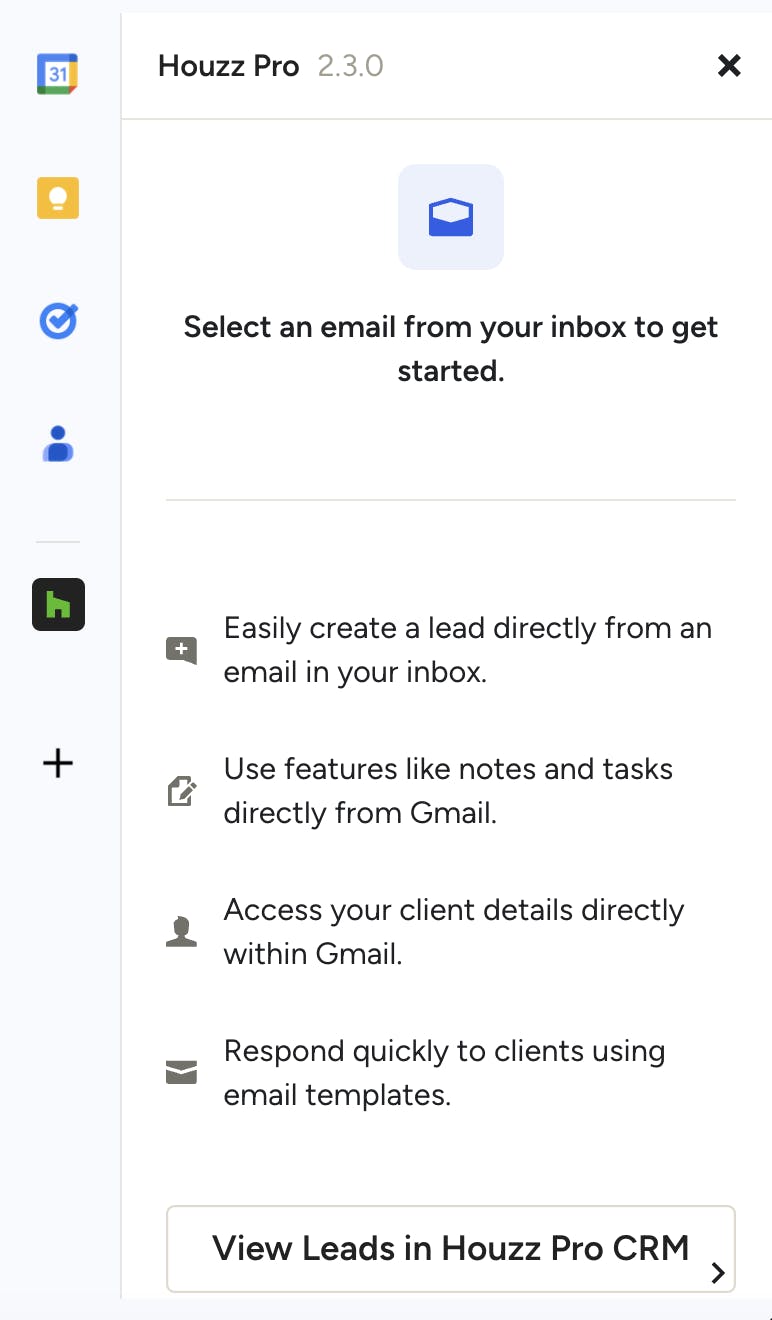
When you select Authorize with Google, the extension will appear on the right side of your inbox (as shown below). You can then move forward with turning email leads in Gmail into Houzz Pro leads, as well as directly viewing and editing information about your existing leads in Gmail.
Add New Email Lead to Houzz Pro
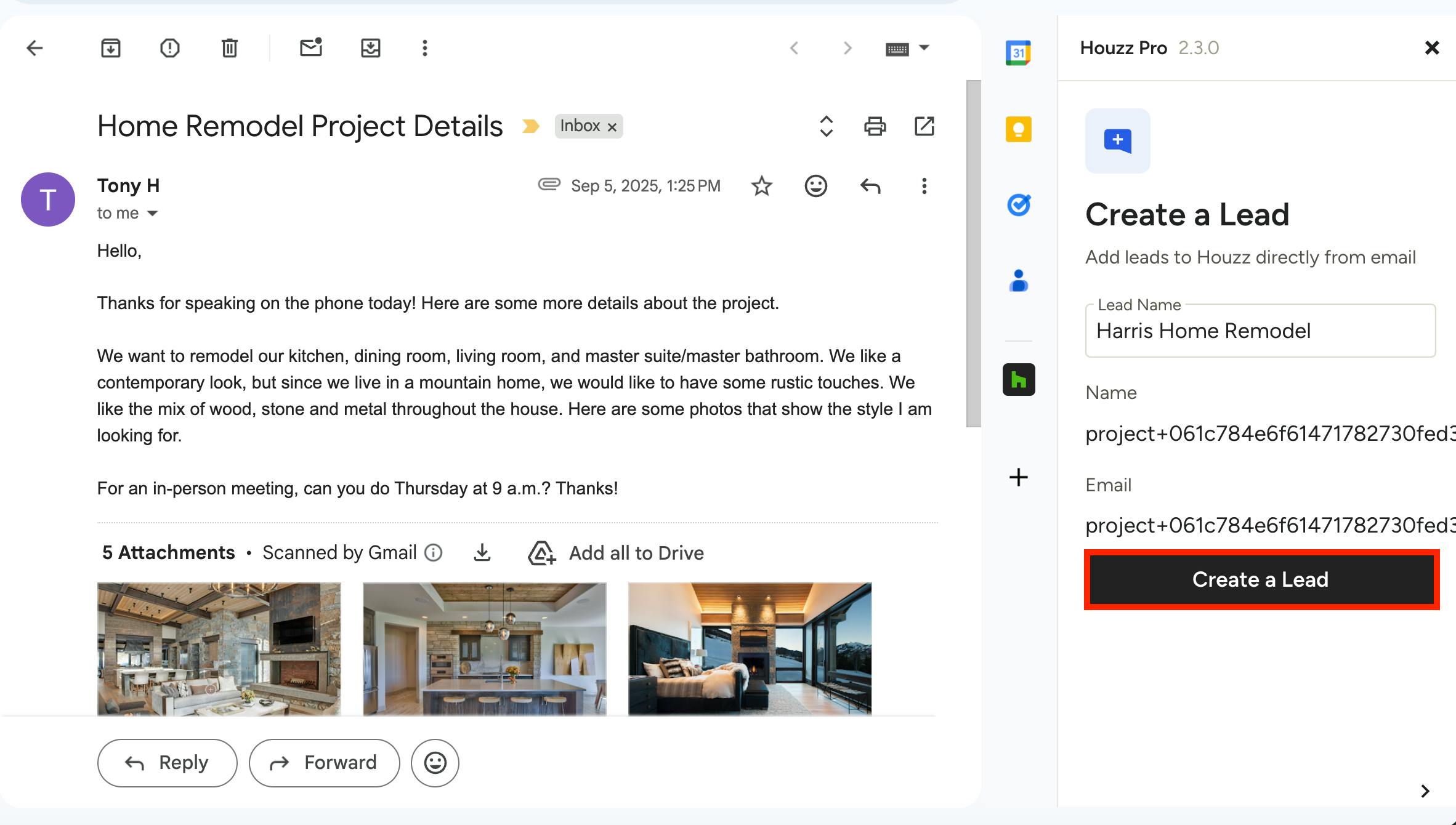
There are several ways you can add a new email lead into the Houzz Pro CRM. To start, open up an email from a lead. In this email example below, a homeowner called and then emailed with more details. The homeowner has design ideas and seems eager to move forward, so it looks like an interesting project.
On the right side of your email in the Houzz Pro extension, you can edit the lead name, then select Create a Lead to add it to Houzz Pro. This will automatically create a new lead in the Houzz Pro CRM.
Add Lead in Email Reply
In addition to using the extension on the right side of your screen, you can also add a lead to the Houzz Pro CRM by replying to the email you received.
To do this, open up the relevant email, then click Reply to respond to the email and trigger the extension.
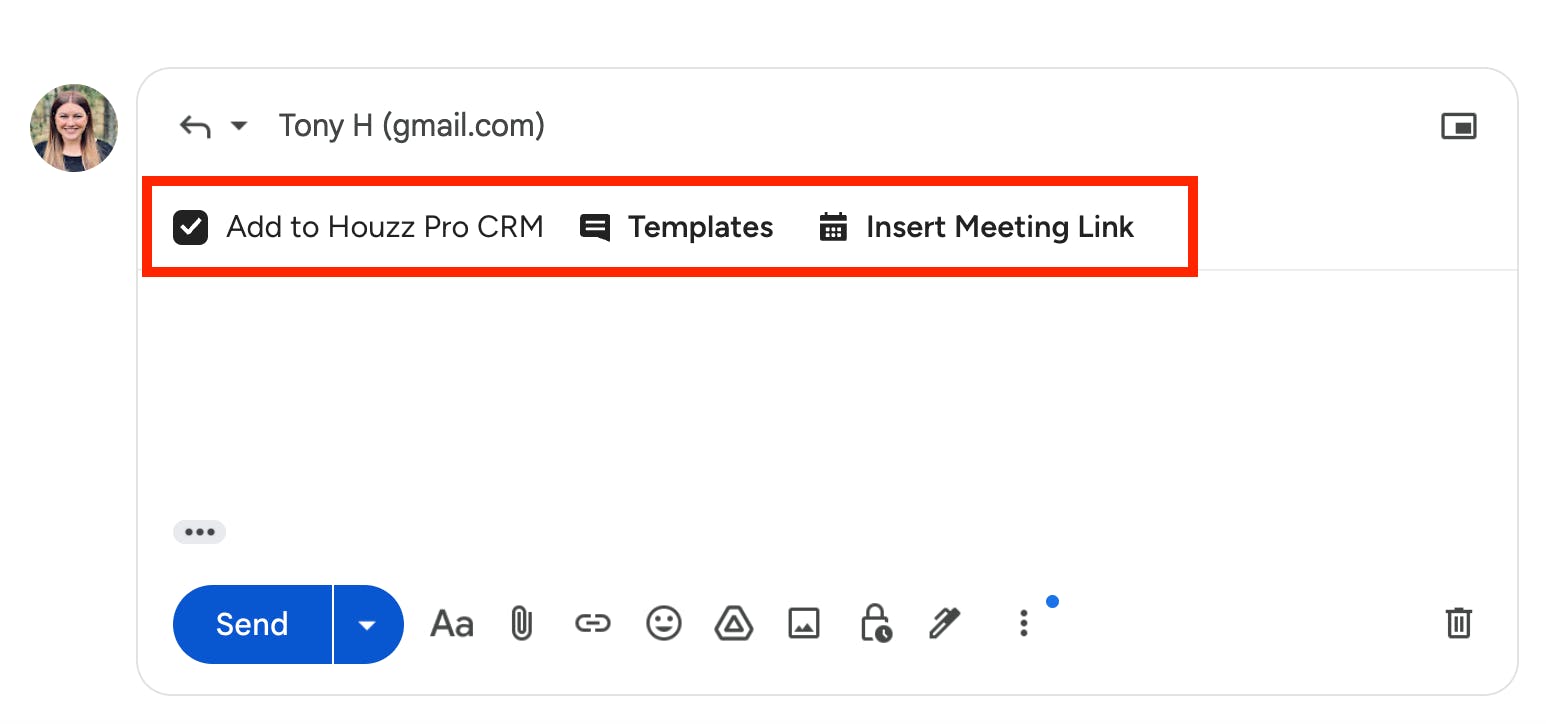
In the Reply screen, there will be three options available. Select the Add to Houzz Pro CRM checkbox to add the new email lead into the Houzz Pro CRM after you send the message.
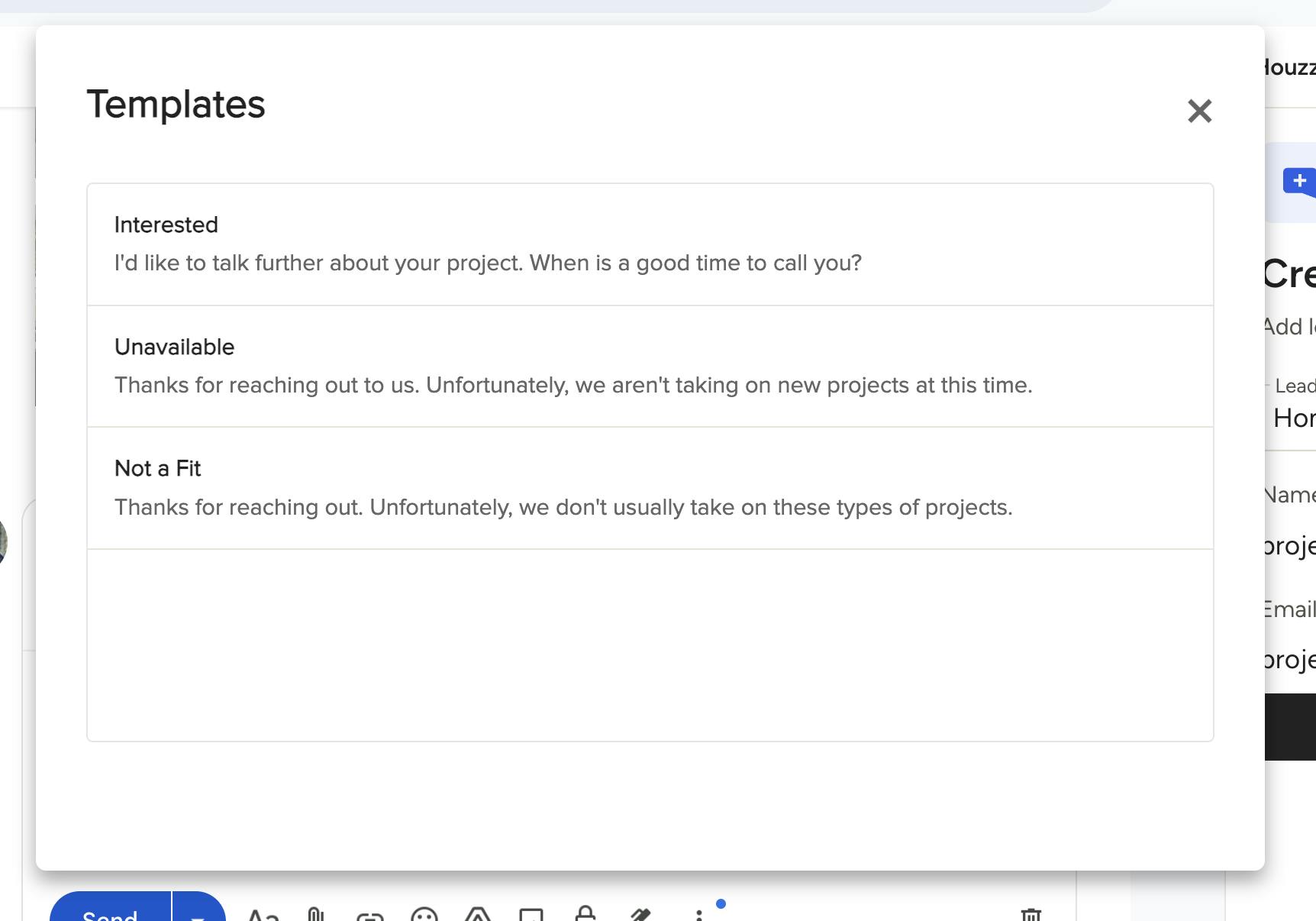
Select the Template option if you would like to use a templated response to reply to the lead. A new popup will appear (as shown below) — select the relevant response to populate your email text box with the message, then click Send.
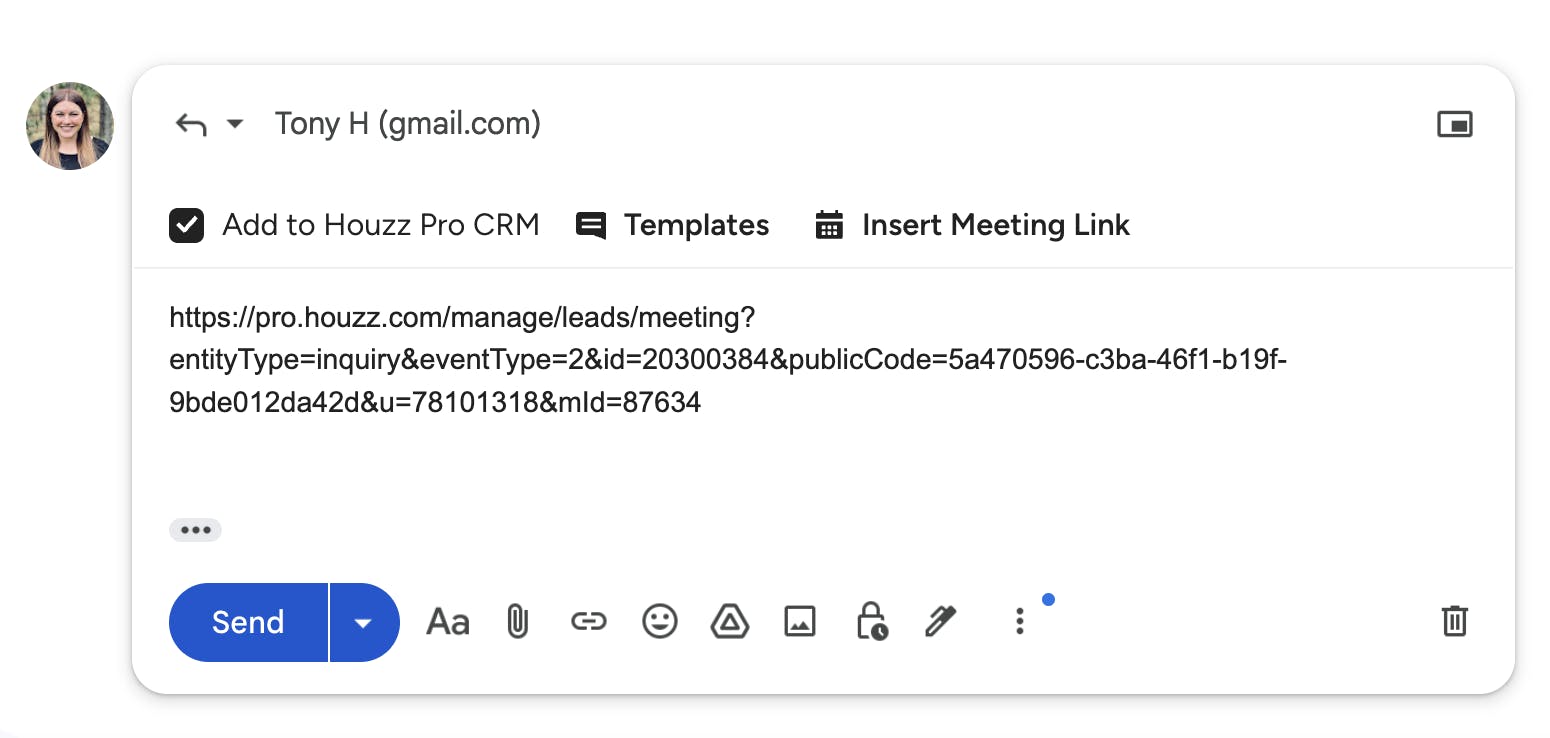
You can also insert a meeting link if your calendar is connected (read more about connecting your calendar here). The email text box will automatically populate with the meeting link. You can then add a message, then click Send.
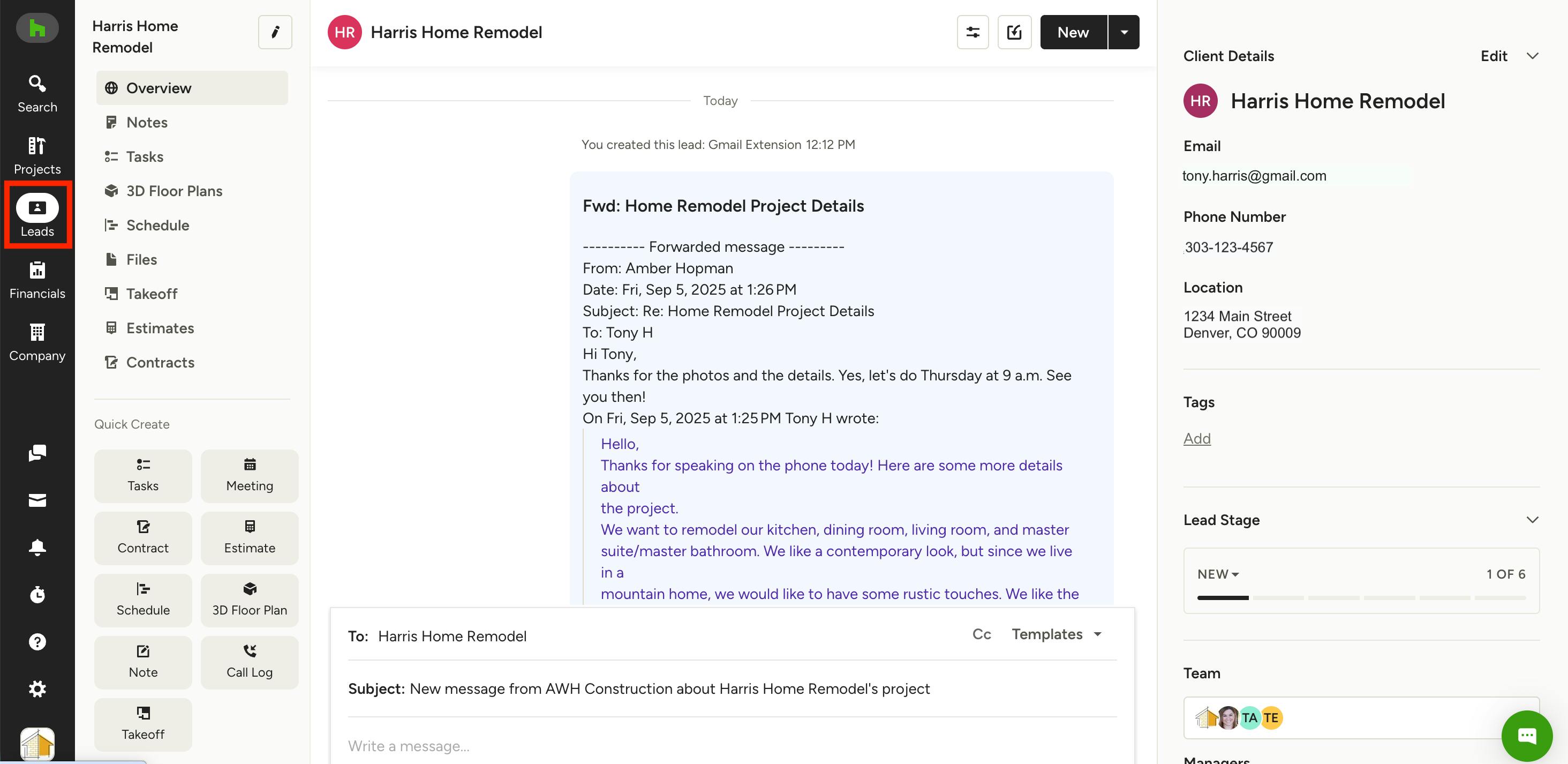
View Lead in Houzz Pro
Once you have created the new lead from Gmail, it will automatically appear within Houzz Pro in the Leads tab. You can then open up that specific lead and add more details, as well as access all the software tools, including Estimates/Proposals, Tasks, Schedule, 3D Floor Plan, Contracts, and more.
View Lead in Gmail
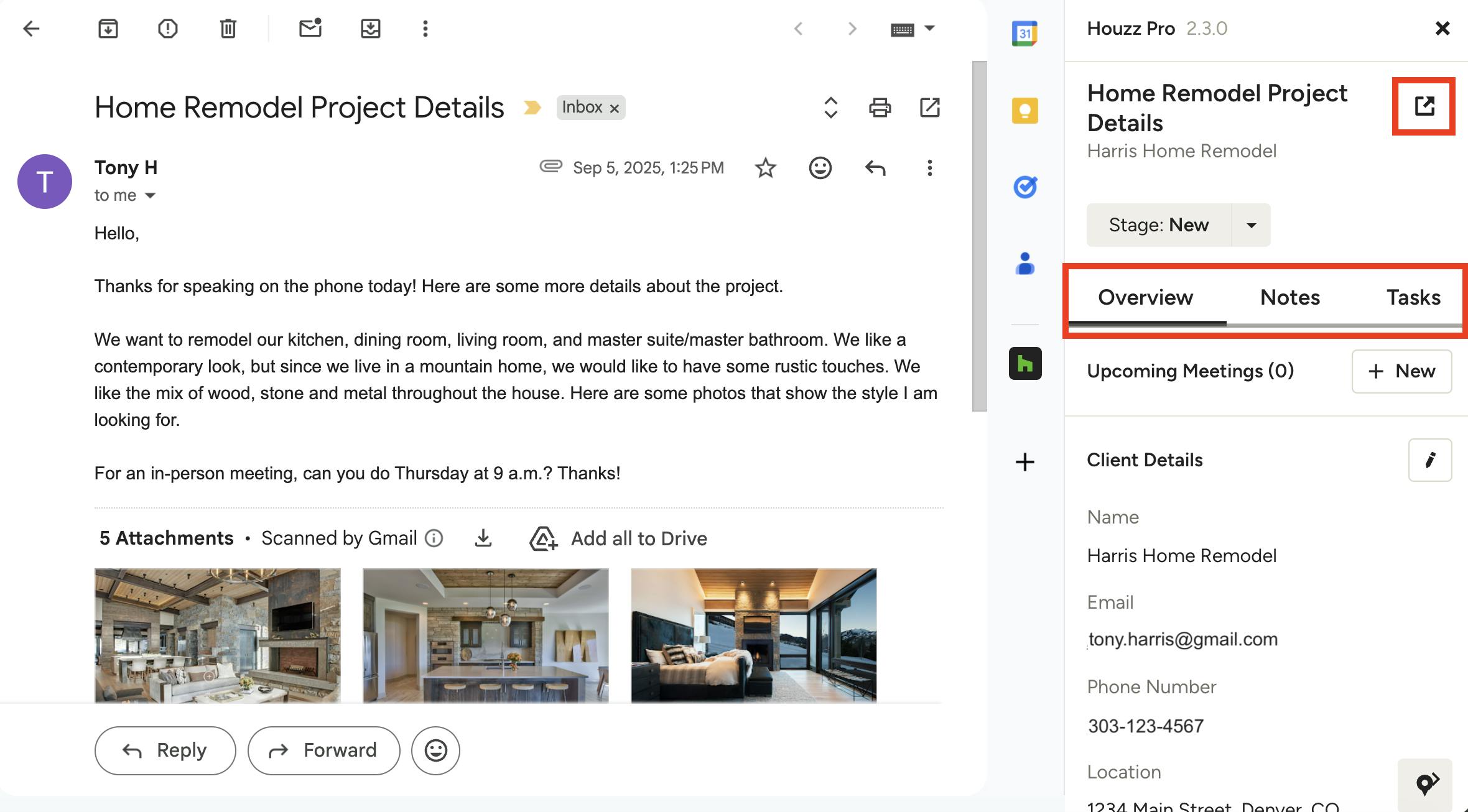
After a lead has been added to Houzz Pro, you will be able to see all the lead details in the Houzz Pro Gmail extension whenever you open up an email from that lead. This includes client details, lead details, upcoming meetings, and current lead stage. You can both view and edit the information — any changes you make here will also save in the Houzz Pro CRM.
To go directly to this lead's page in Houzz Pro, select the icon next to the lead name. You also have the ability to view Notes and Tasks related to the lead — selecting one of these options will open up a new tab that goes directly to that specific section within Houzz Pro.