How to Create Scheduled Payments on Estimates
Payment schedules are a key part of managing your project finances and ensuring you get paid when you need to. In Houzz Pro Estimates, you can create a custom payment schedule for any project. You can even save time by setting up default schedules or leverage AI to automatically build out a payment schedule.
You can create a payment schedule on any estimate draft, but once an estimate has been approved/declined, invoiced/partially invoiced, or paid, you can no longer add, edit or delete scheduled payments.
To Start:
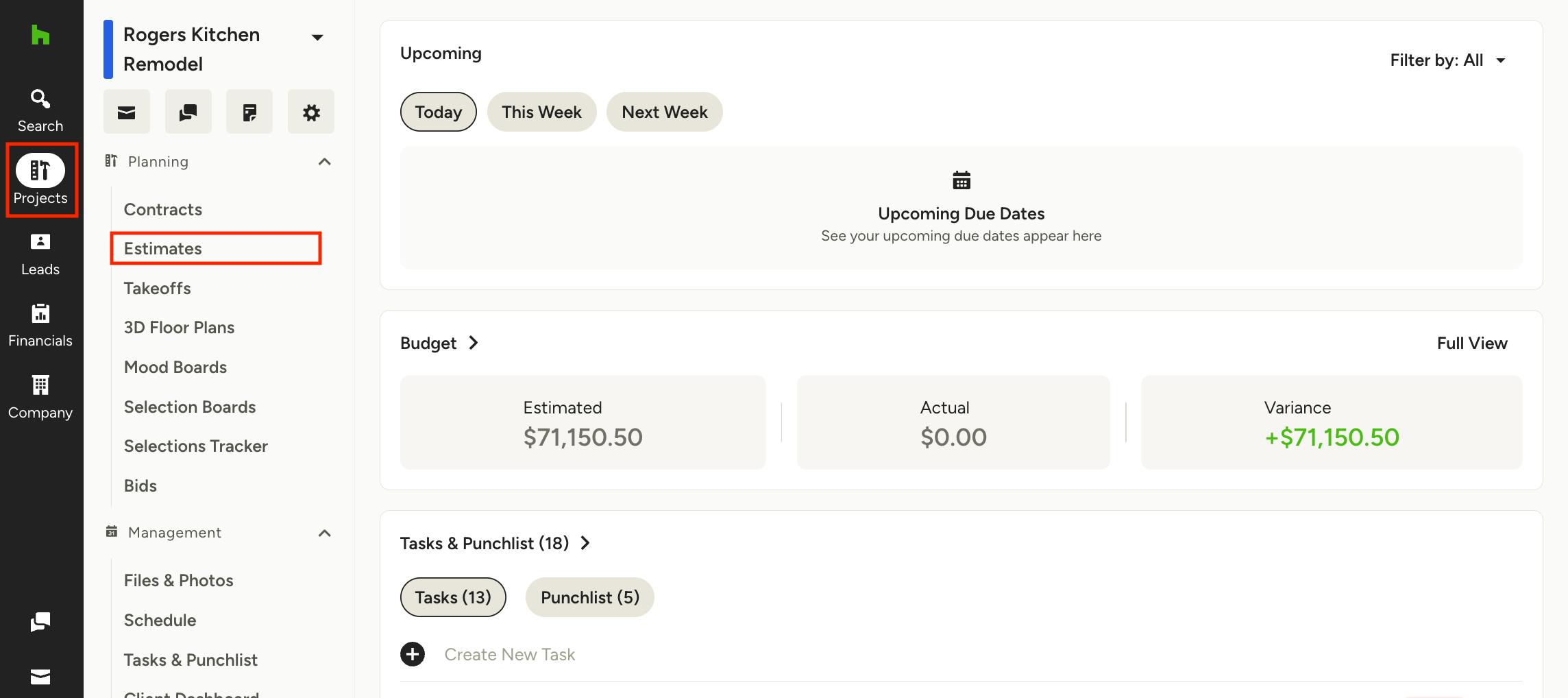
Open up the relevant estimate. You can access all your estimates by selecting the Search icon, then clicking on All Estimates. You can also access your estimate in the project by selecting the Projects icon, clicking the relevant project, and then selecting Estimates from the left menu (as shown below).
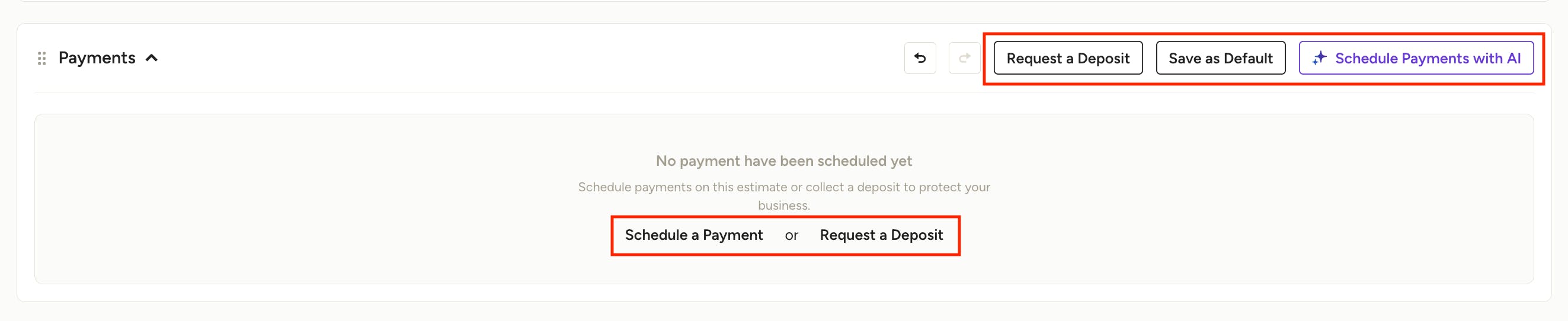
Once in your estimate, scroll down to the Payments section of the document. By default, this will be empty. Here, you can request a deposit, schedule a payment, save as default, or schedule payments with AI. Let's go over each option.
Request a Deposit
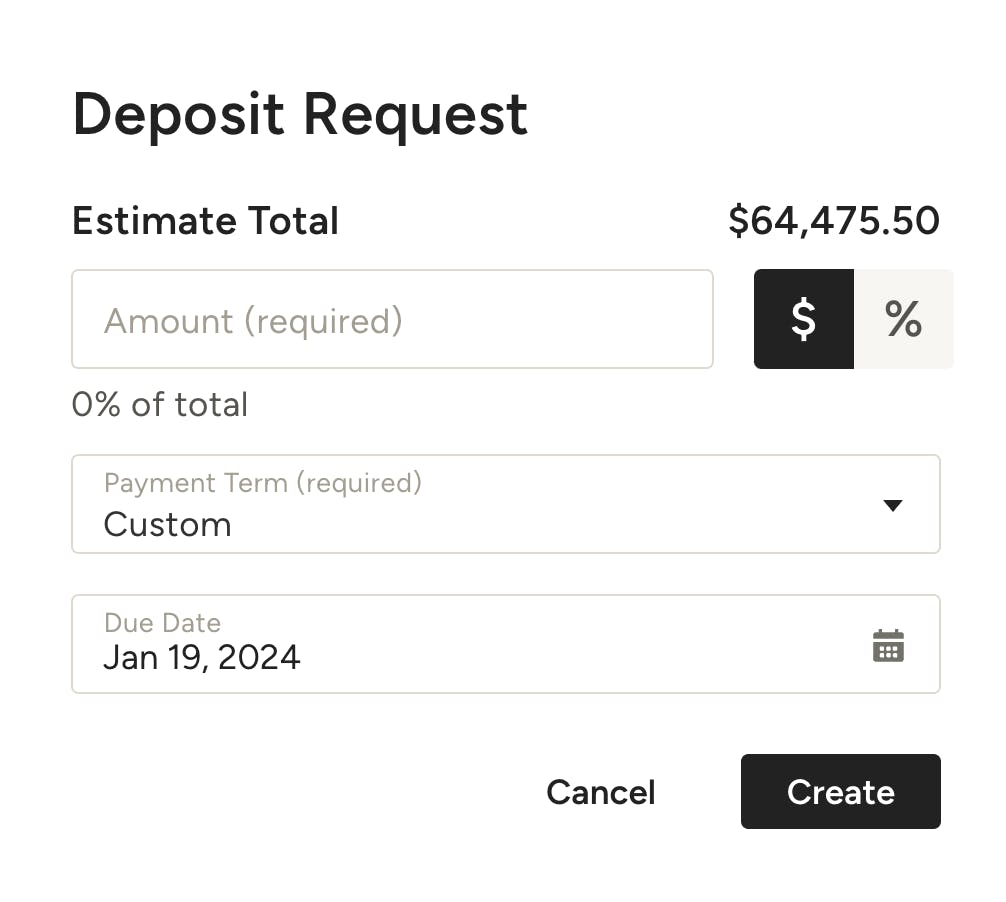
If you would like your client to pay a deposit, click on Request a Deposit. A screen will pop up where you can input the deposit details, including name, amount — either a dollar or percentage amount — payment terms, and payment due date. Once complete, click Create.
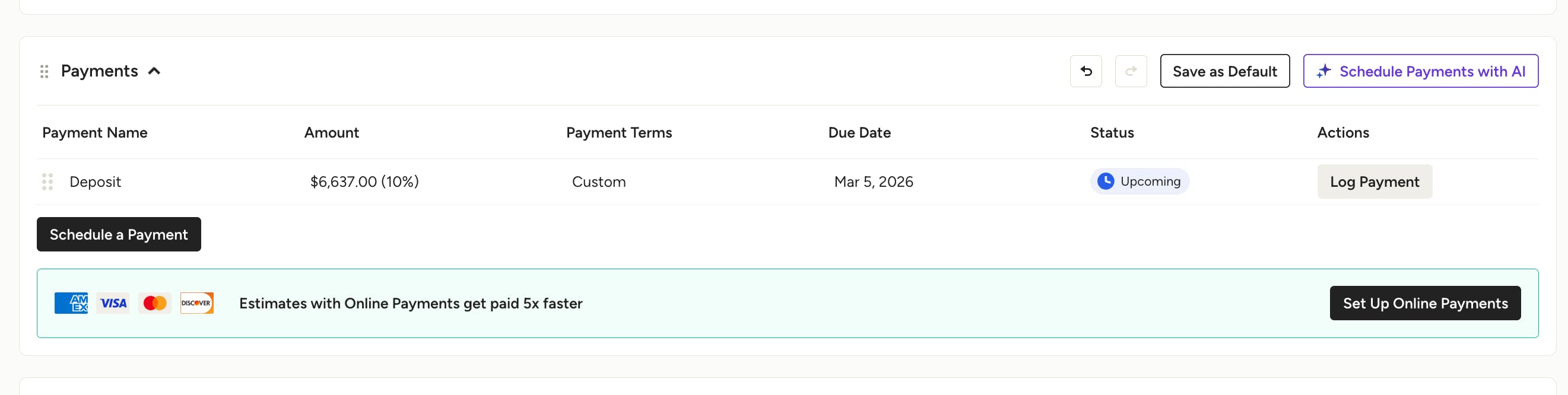
Your scheduled deposit will now show in the Payments section.
Schedule Payment
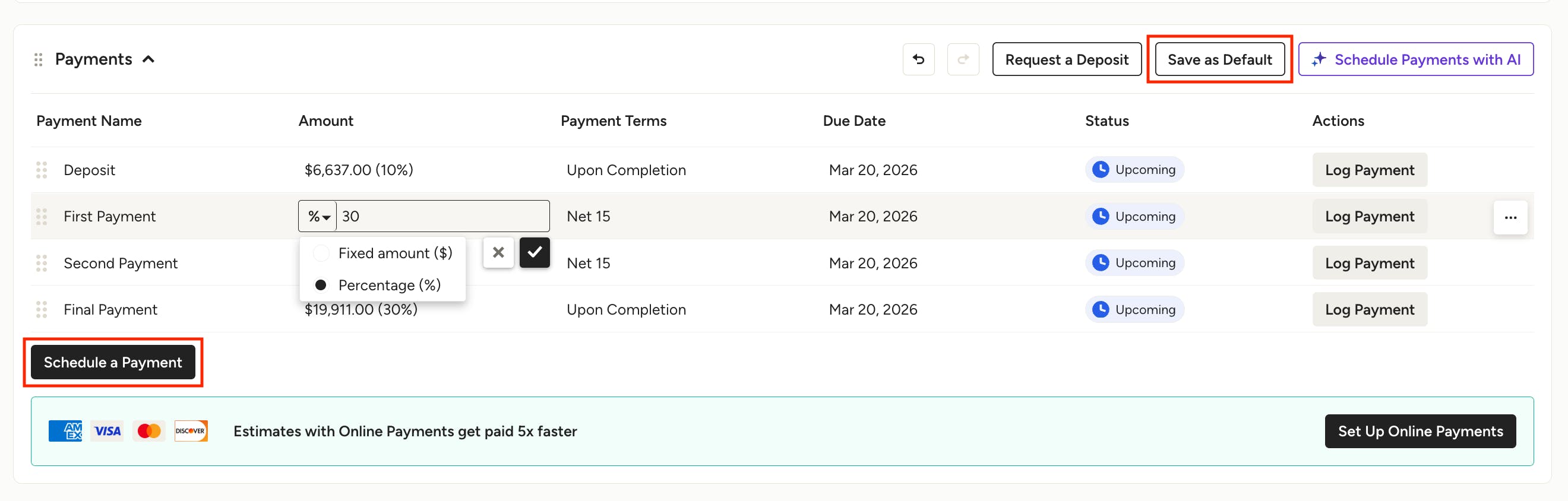
If you would like to schedule a payment instead of a deposit, click on Schedule a Payment. If you would like to schedule multiple payments, simply click Schedule a Payment again to create a new line.
The payment will automatically appear in the Payments section — you can adjust the name, amount, payment terms and due date directly in the document by clicking the relevant line.
If you have multiple payments and would like to reorder them, just click and drag a payment until it's in the order you need.
For the payment amount, you can adjust the dropdown to either select a dollar amount or a percentage. Make your adjustments, and click the check mark to save.
Once your payment schedule is complete, click Save as Default if you would like to have these payment settings automatically prefilled on future estimates.
Schedule Payments With AI
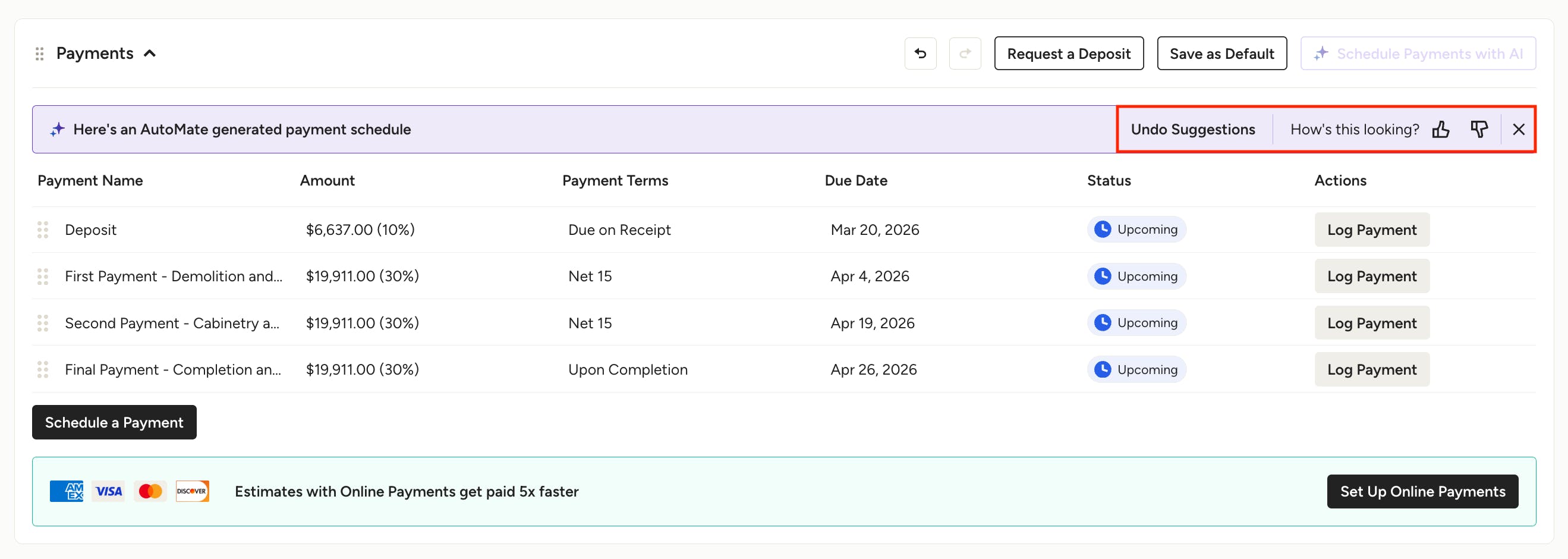
If you would like to schedule a payment using AI, click on Schedule Payments with AI. Our AI will analyze the line items in your estimate and suggest a tailored, accurate payment schedule that aligns with relevant project milestones.
Once added, you can give feedback on the quality of the AI payment schedule, or click Undo Suggestions to go back to your previous payment schedule.
Edit or Delete a Payment
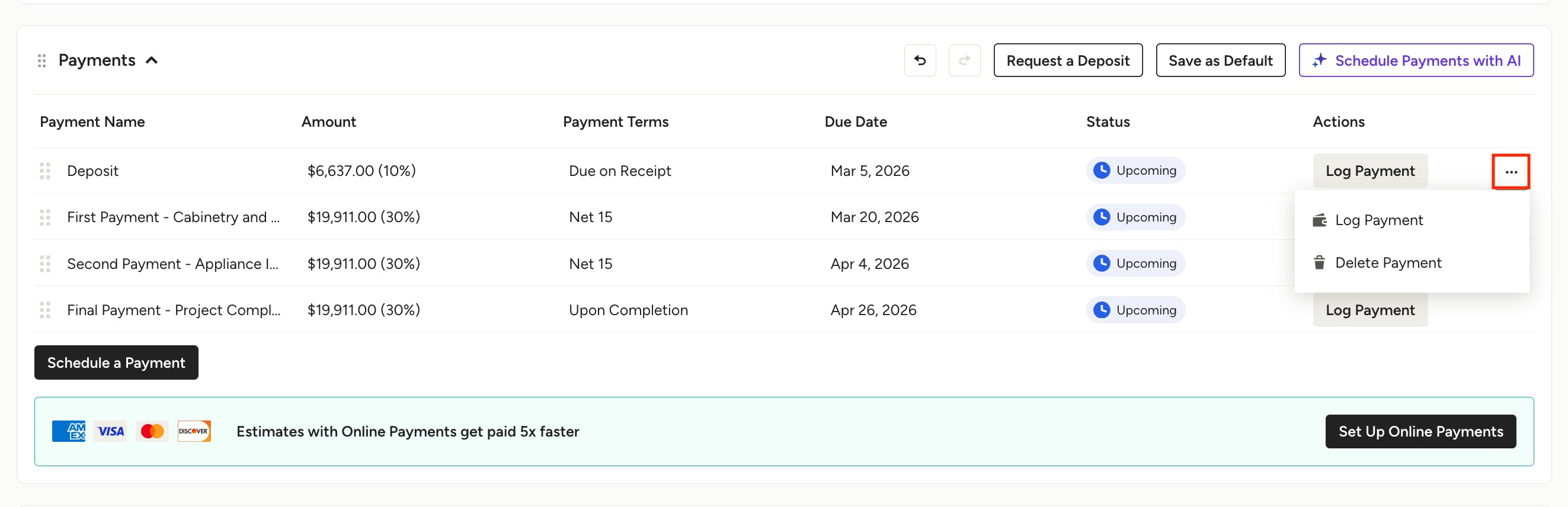
If you need to make a change to a payment or deposit, you can easily adjust the payment details directly in the document by clicking the relevant line and making your changes.
If you need to delete a payment or deposit, hover over the payment and click on the three dots icon on the right. From there, select Delete Payment.
How to Log a Payment
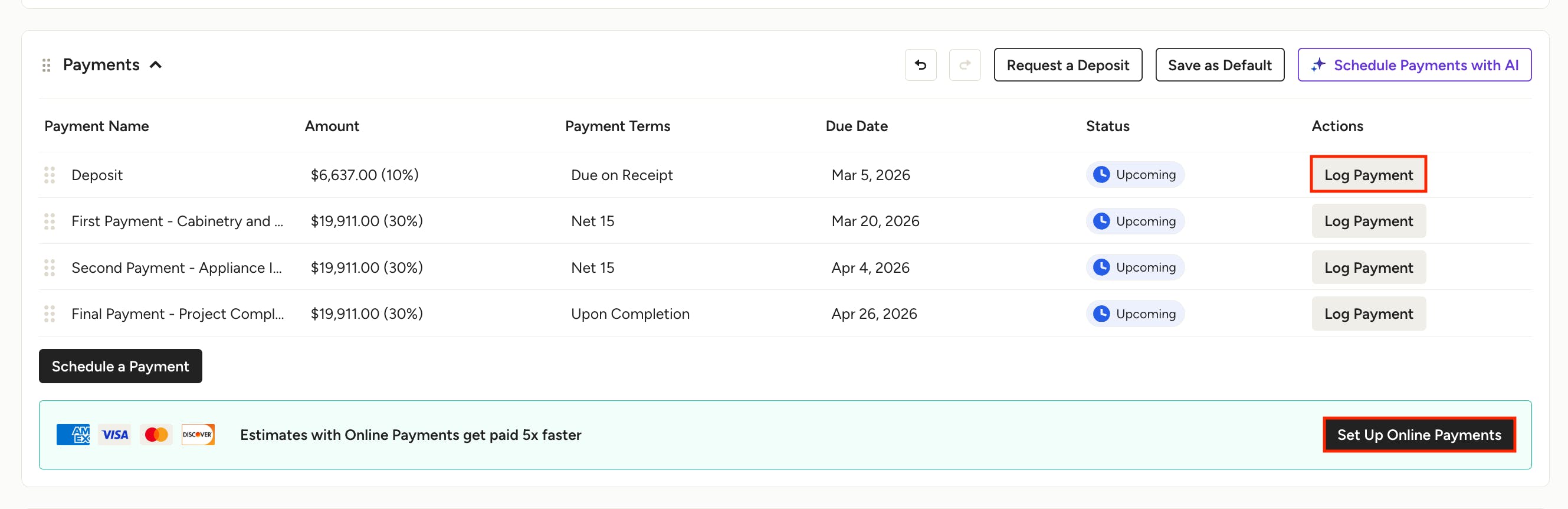
Setting up online payments is the easiest way to ensure all your payments are logged, since they will be logged automatically. Click Set Up Online Payments in the Payments section to get started, or read this article to find out more about online payments: How to Set Up Online Payments
If you don't have online payments set up, you will need to manually log each payment you receive. Click on Log Payment in the Payments section, or read this article to learn more about logging payments: How to Log a Payment
Share Payment Schedule
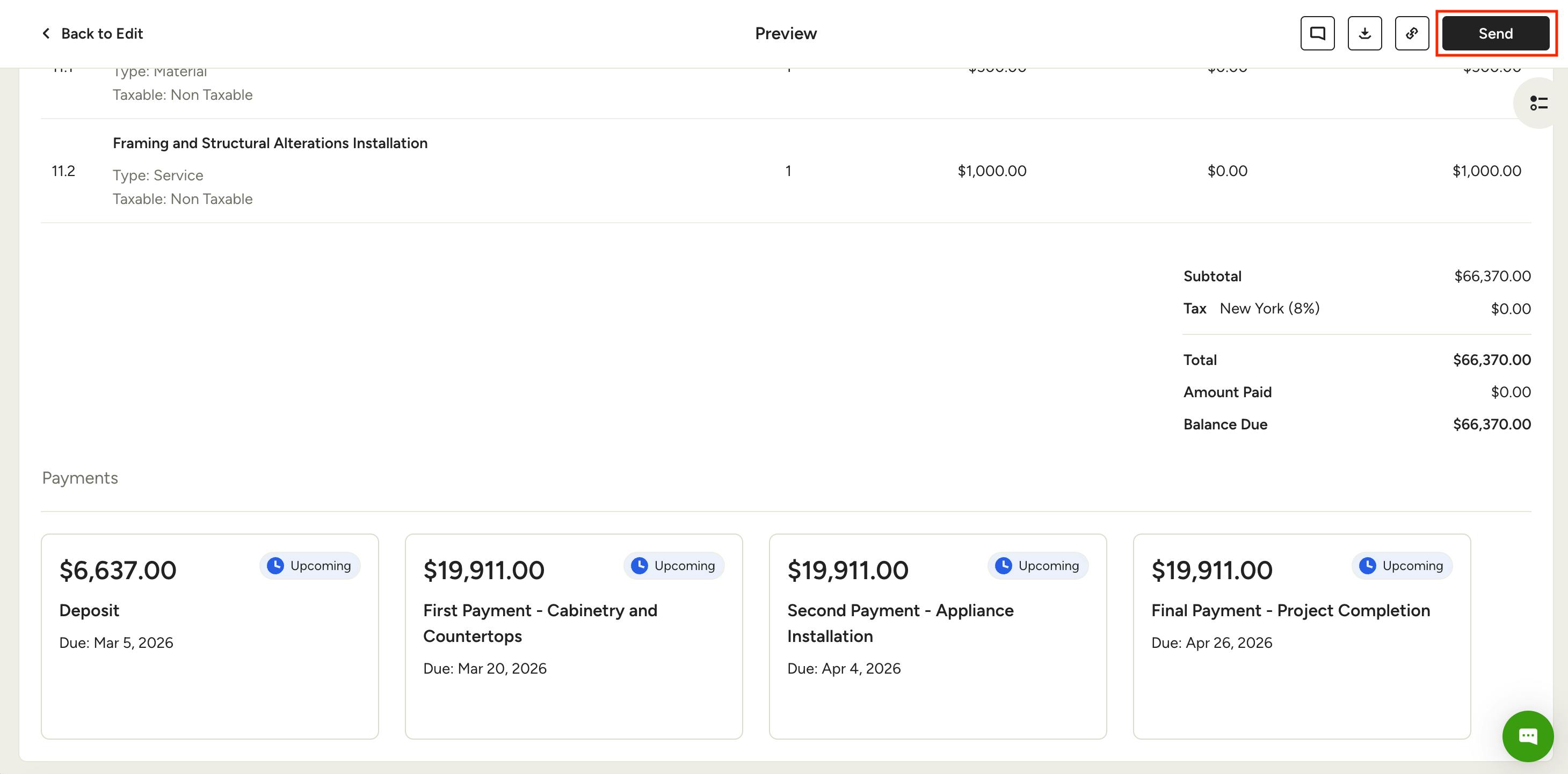
After you enter the details for the scheduled payments, click on Preview to see how your client will view the estimate. If you are happy with the format, click Send to share with your client.
Your client can easily pay each scheduled payment by clicking on the link they receive when the estimate is sent. If online payments are enabled, your client can click Pay and Approve to submit the payments. All scheduled payments can sync to QuickBooks Online upon payment.
Send Payment Reminders
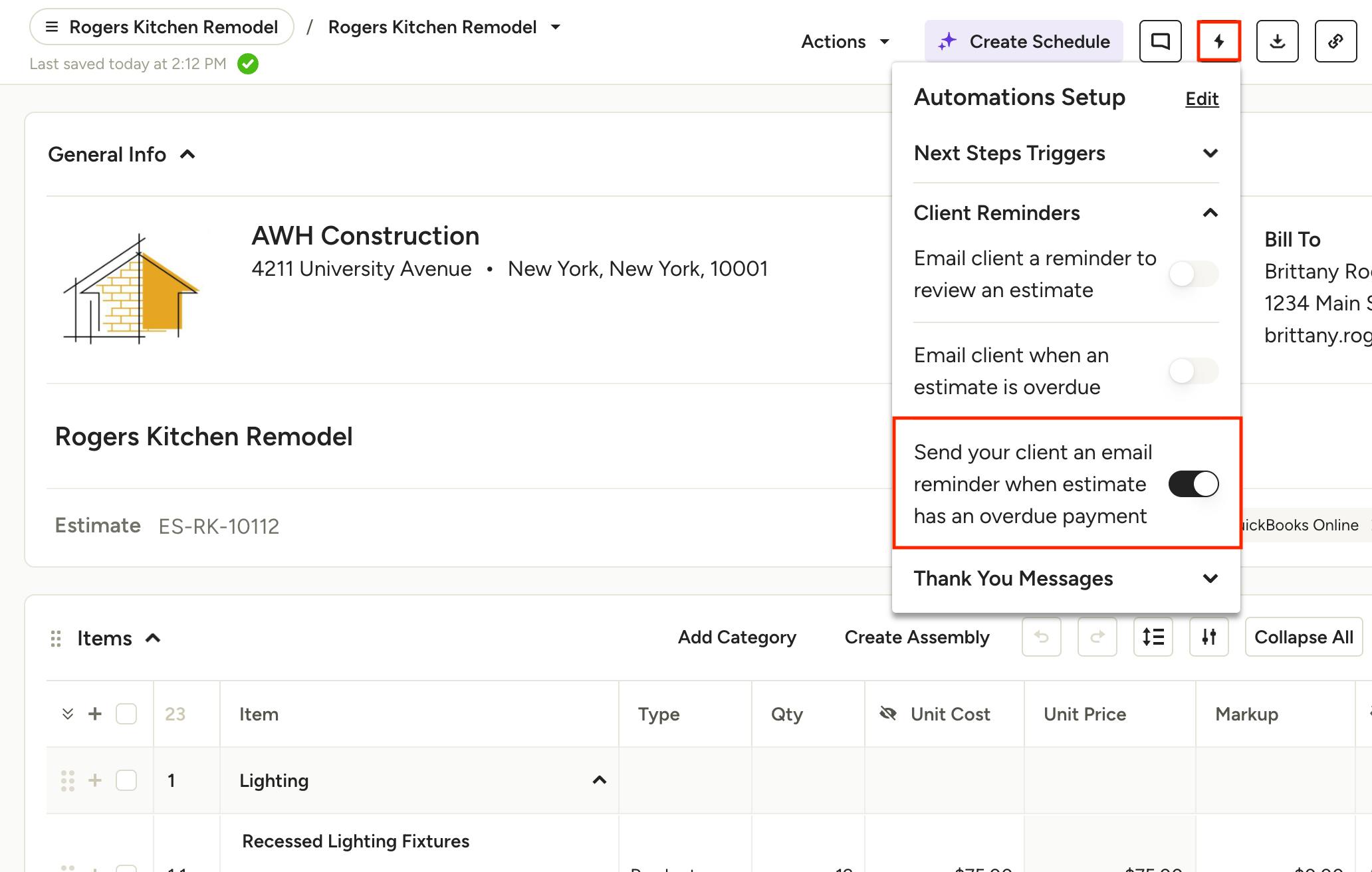
Before an estimate is approved or fully invoiced/paid, you can set up automated reminders to ensure payments are made on time. To send reminders, click the Automations button at the top of the document, then toggle on payment reminders under Client Reminders.
Read How to Use Automations on Documents to learn more about payment reminders and other document automation capabilities.
Apply Estimate Payments to Invoice
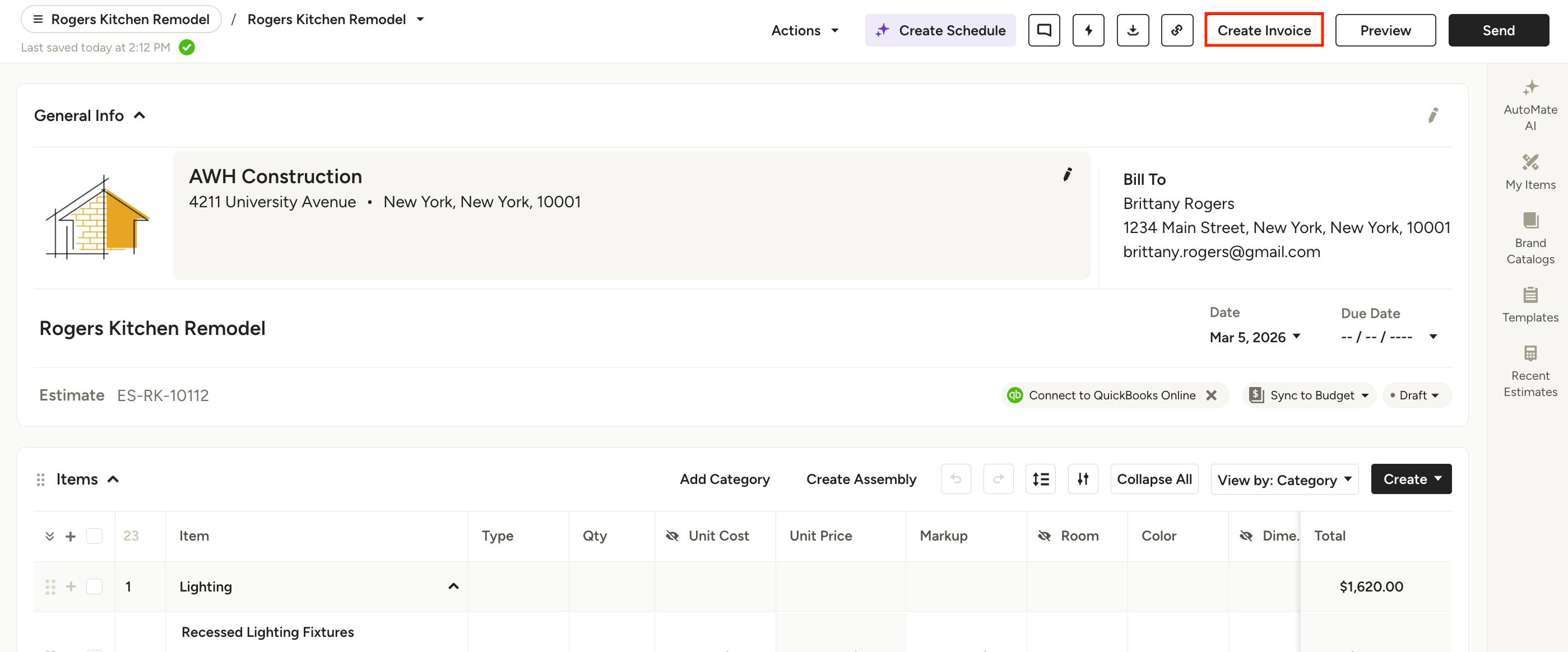
Whether or not you have logged a payment on your estimate, you can easily create an invoice for the remaining balance. To create an invoice, simply click on the Create Invoice button at the top of your estimate.
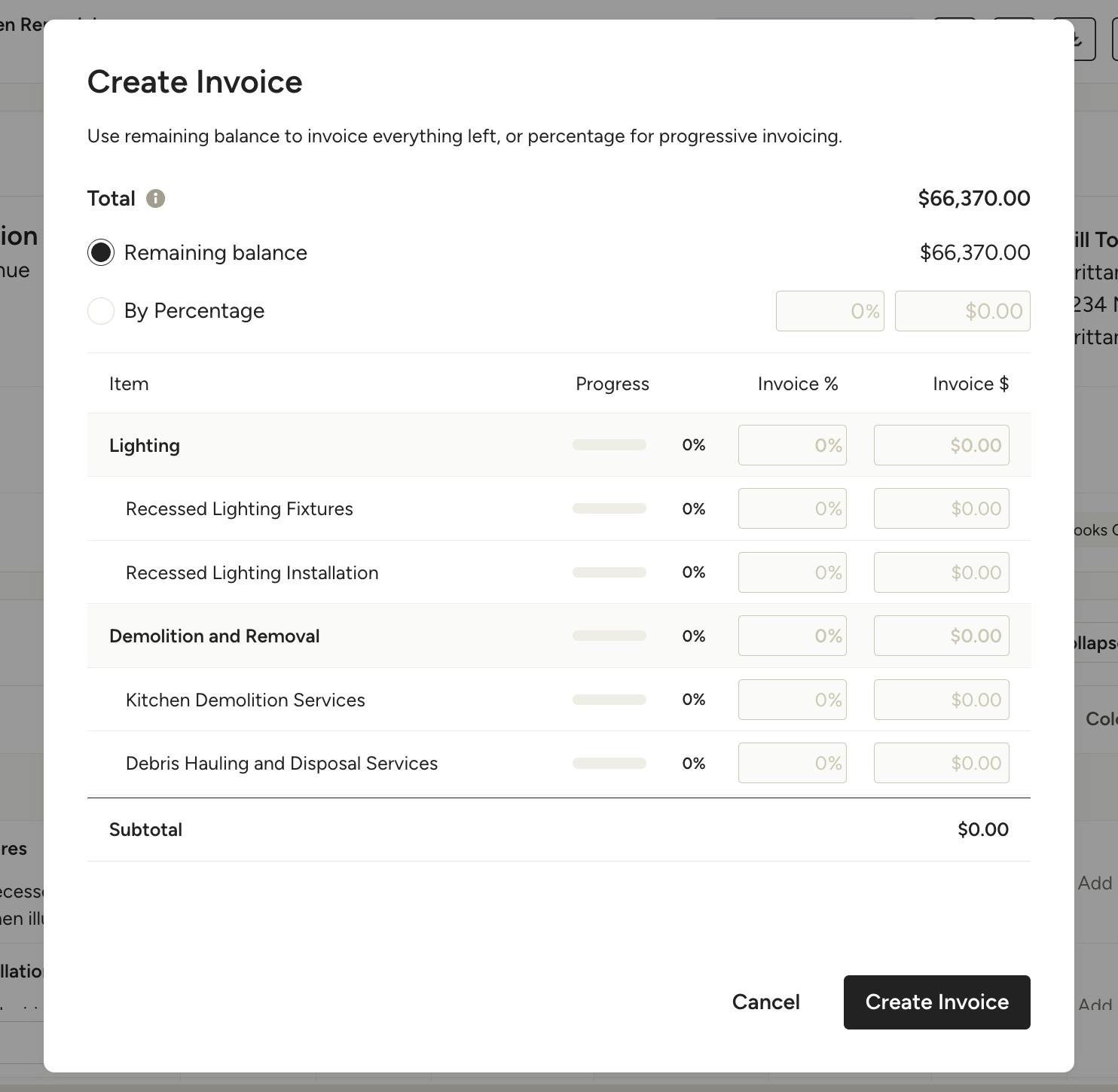
A screen will appear asking how much of the total you would like to invoice. You can then select the total remaining balance or percentage, or you can adjust by line item. Click on Create Invoice to continue.
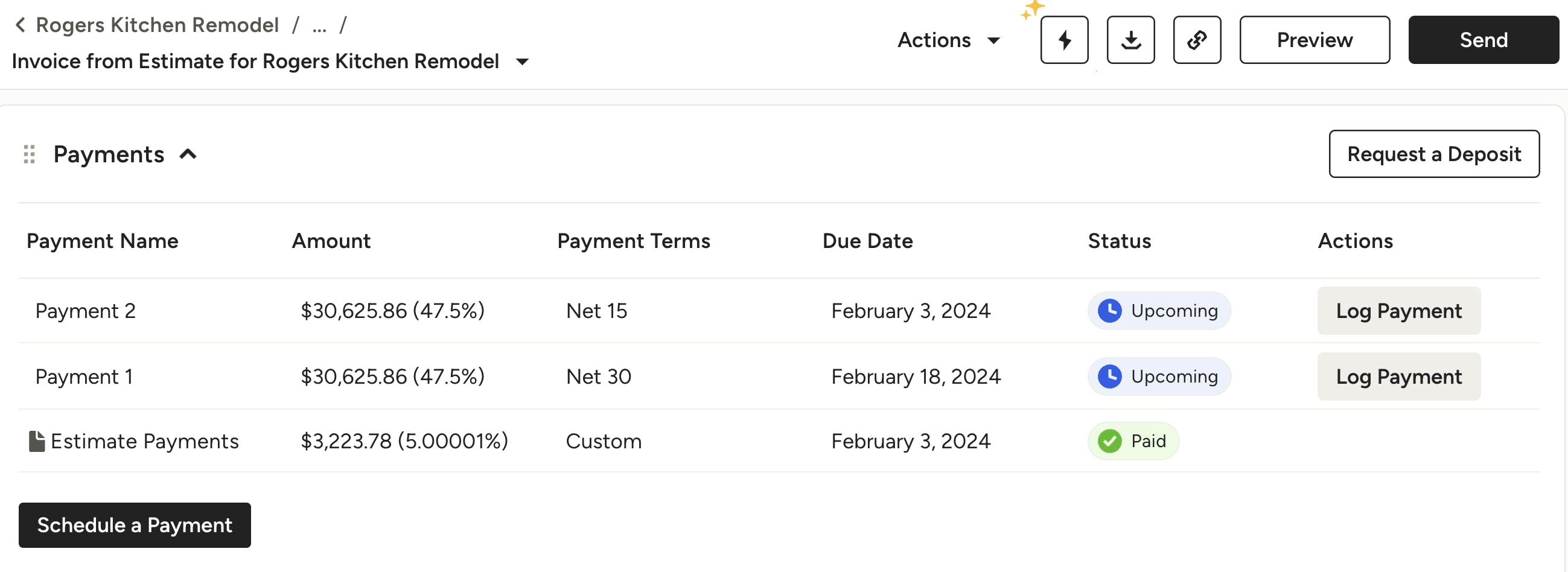
Now you see the created invoice. In the Payments section, you see the already paid estimate payments, if any, as well as the scheduled payments for the remaining amount.