How to Upload Existing Estimates or Proposals
Already have an estimate or proposal built outside of Houzz Pro? Instead of re-entering every line item by hand, use Houzz AI to upload the file and automatically pull in the details. AI does the heavy lifting so you can save time and get your document in front of clients faster.
There are a few ways to import an existing document. You can upload directly through the AI assistant, or you can import a file from within a specific project or lead.
Upload from AI Assistant
The AI assistant is available throughout several Houzz Pro features. With just a few clicks, you can upload your file and extract line items for your estimate or proposal.
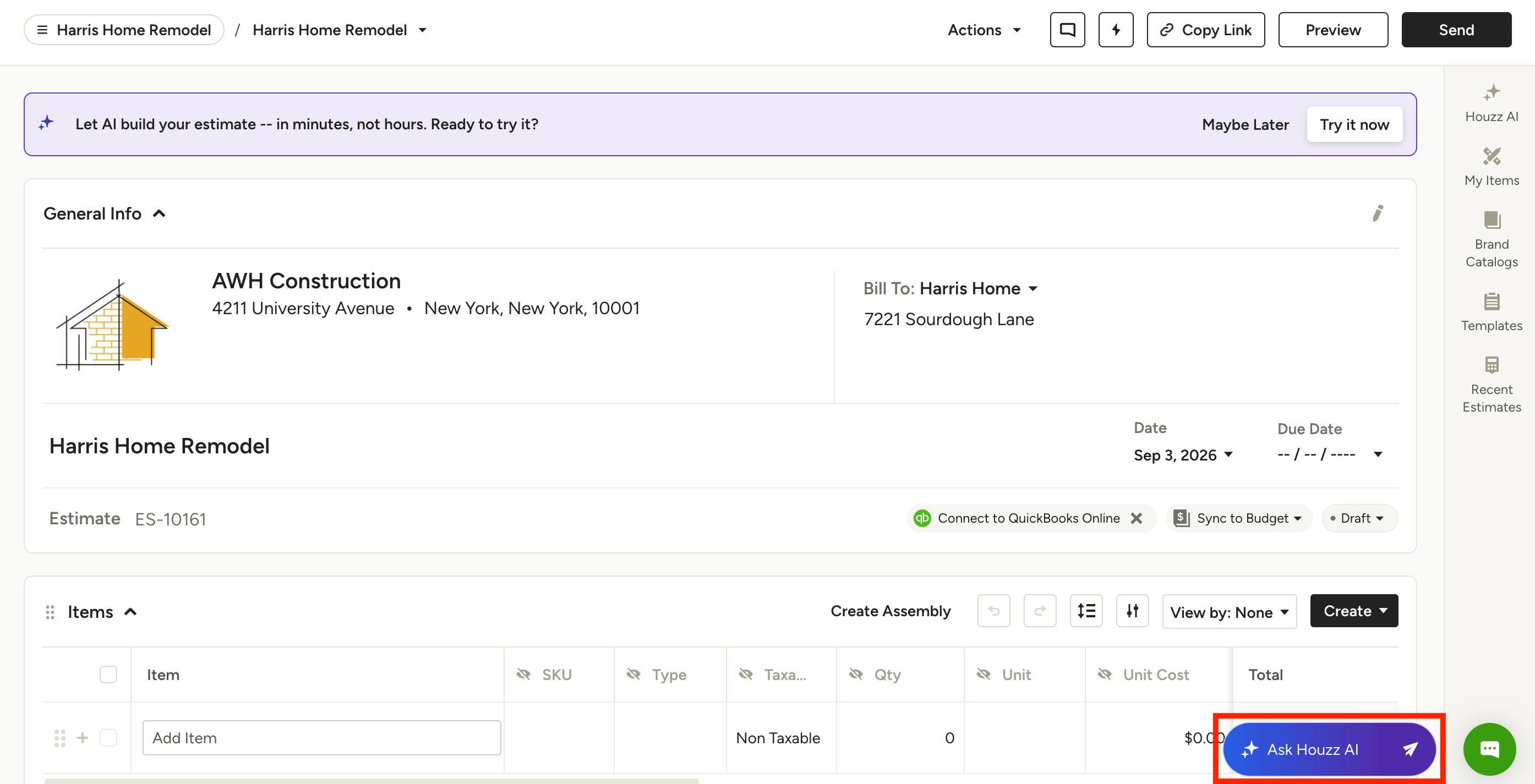
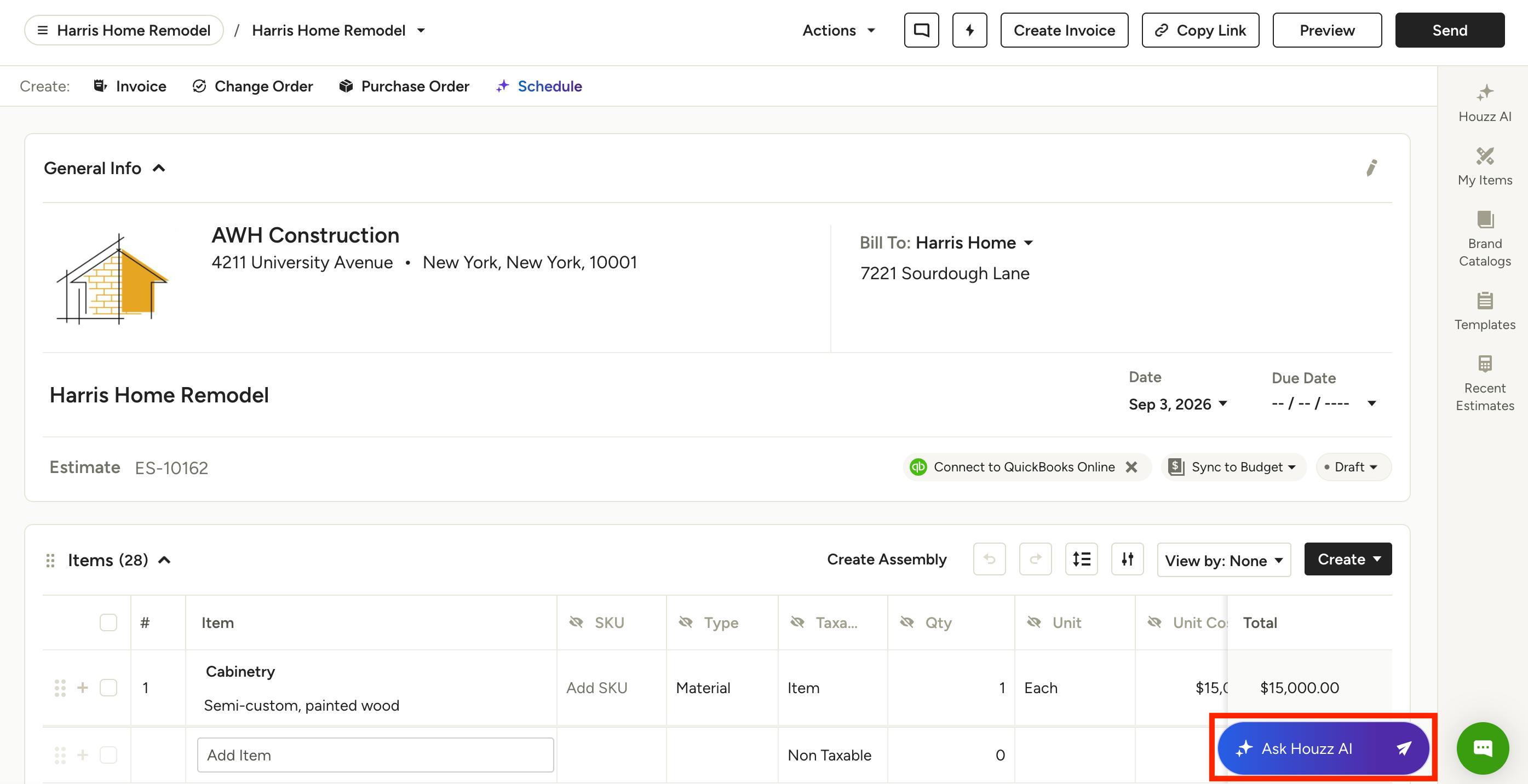
To get started, select the Ask Houzz AI button (as shown below).
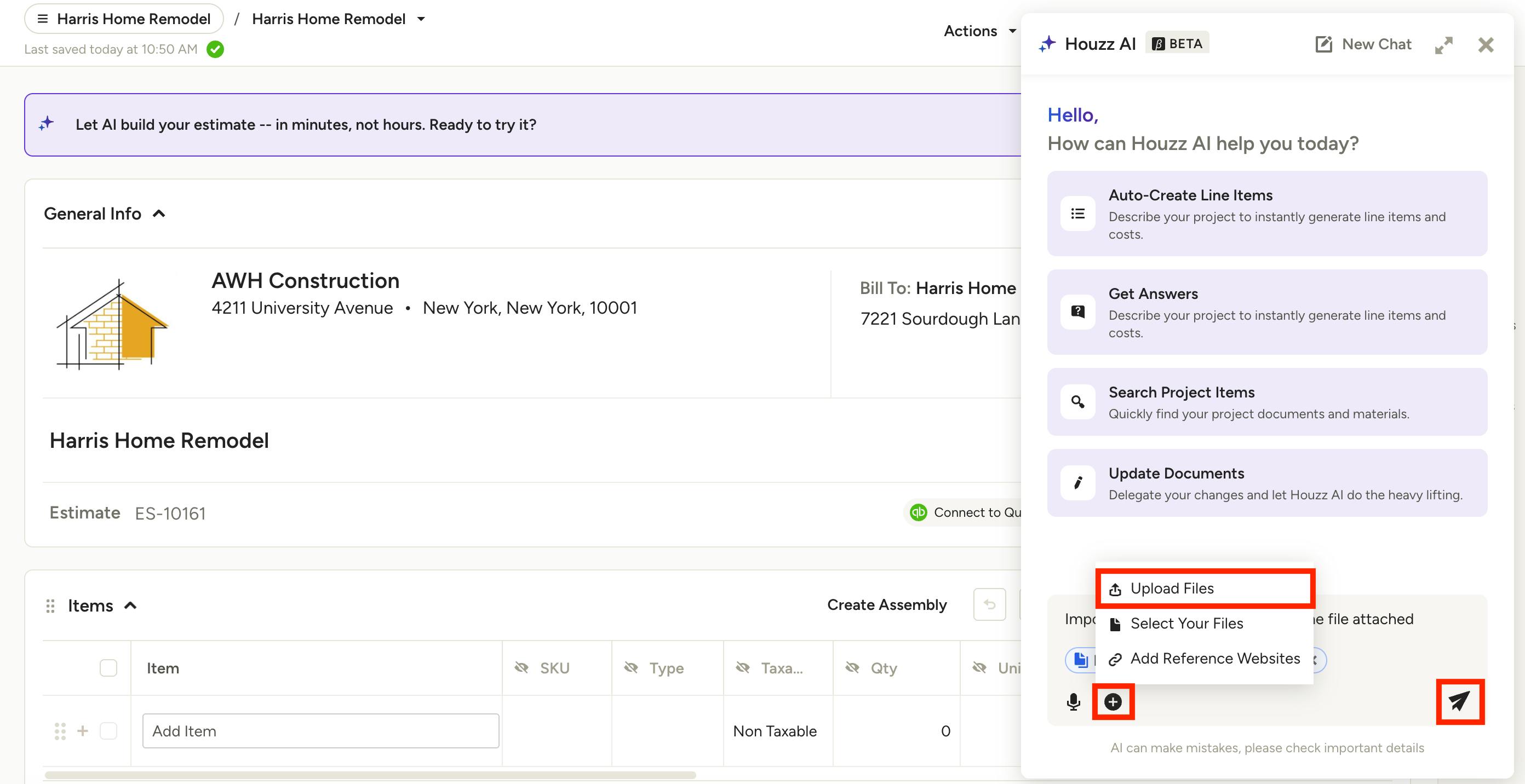
A new screen will appear on the right with prompts on how you can use the AI assistant.
Select the + icon next to the text box, then click Upload Files. We currently support these formats — .jpg, .jpeg, .png, .webp, .heic, .heif, .pdf, .txt, .csv, .xls, and .xlsx.
Once the file is attached, type your prompt in the text box so AI knows what actions to complete. For Example: Import all line items and info from the file attached.
Click the Send button to submit.
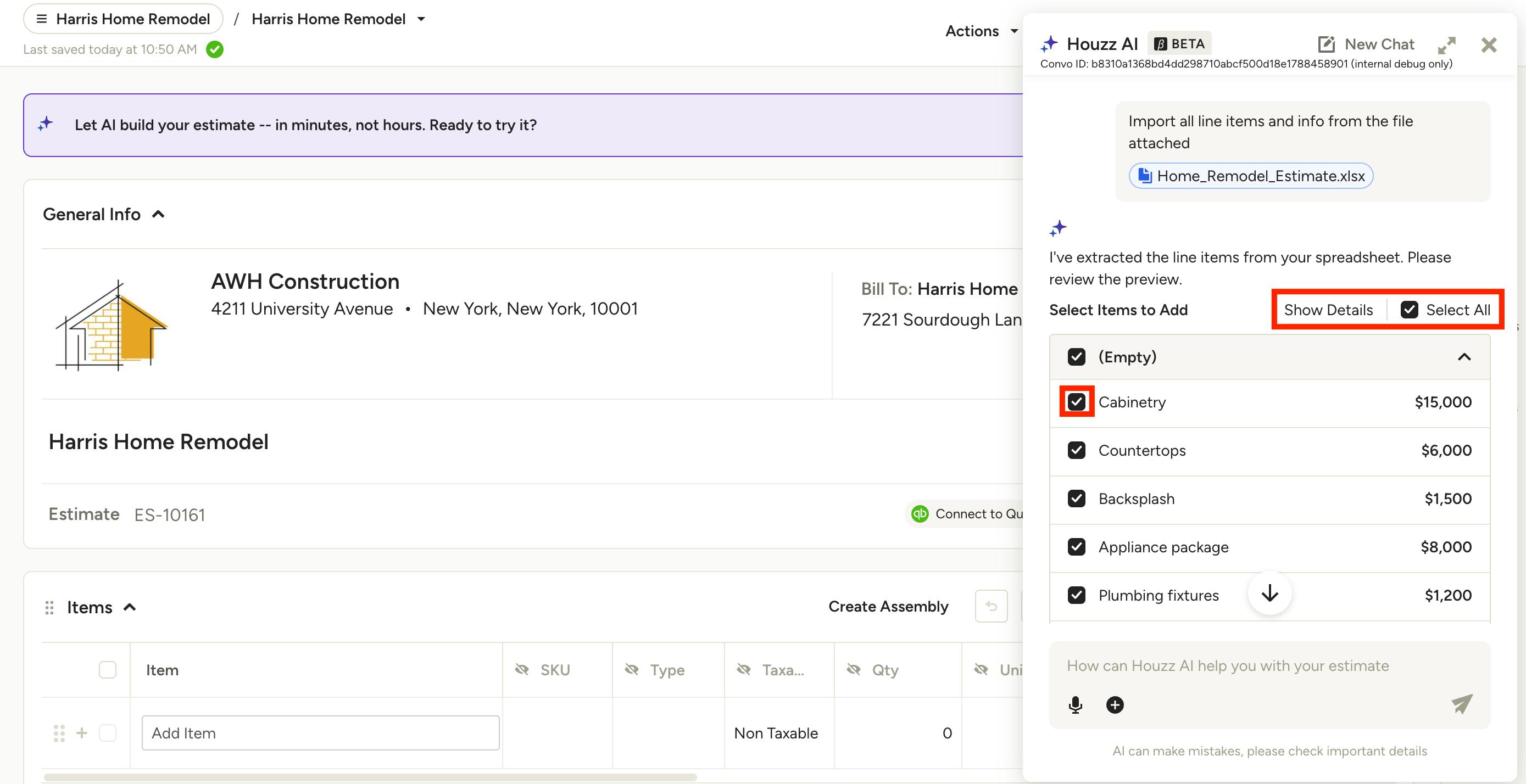
Once submitted, the AI assistant will process the request, extract line items from your file, and preview your requested changes.
In the preview, you can choose to Select All the suggestions, or you can exclude certain line items by de-selecting the checkbox next to that line item. Show Details will expand the line item for more information.
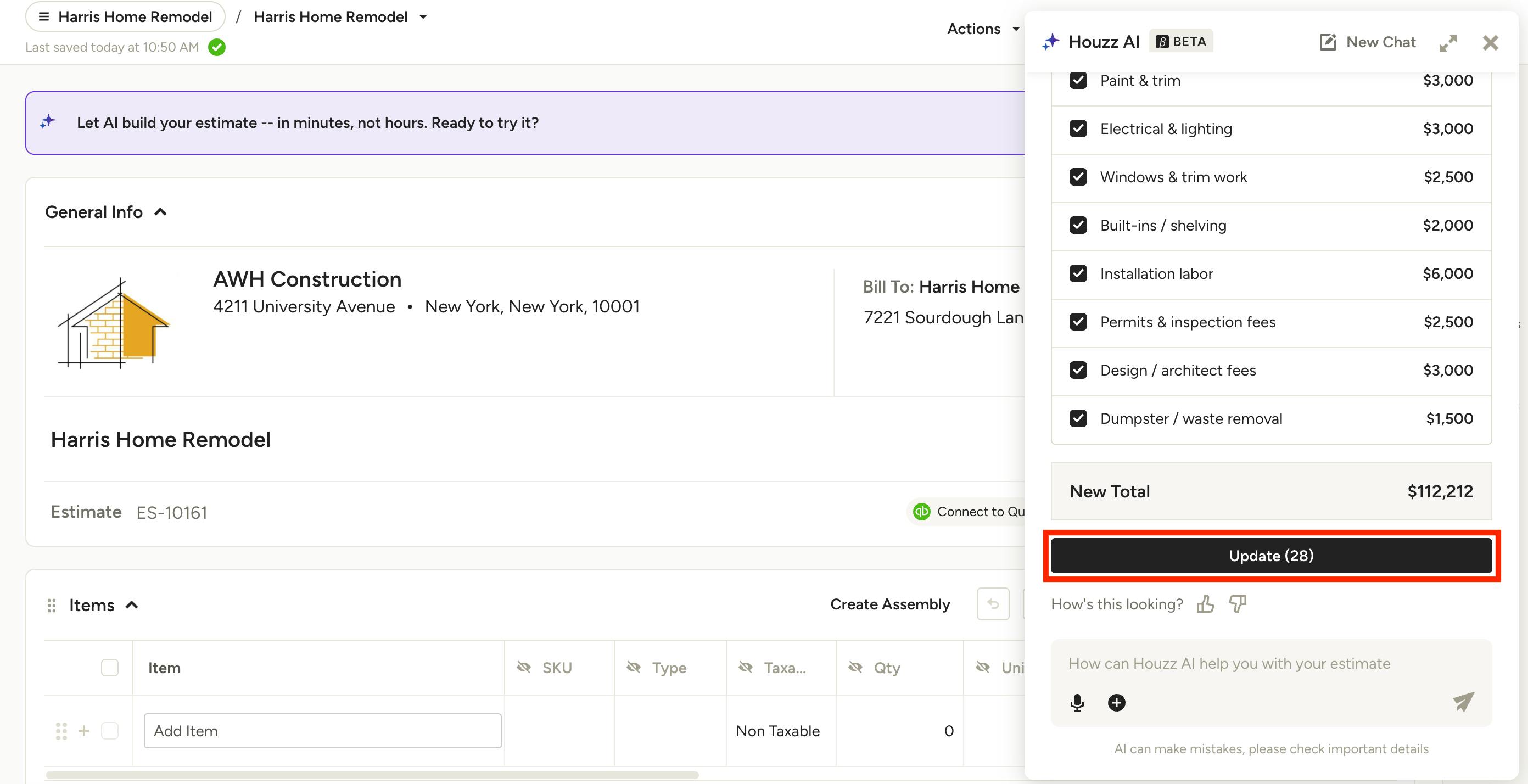
At the bottom of the screen, it will show the updated total of your entire document, as well as the total number of new line items added. Once ready, select Update.
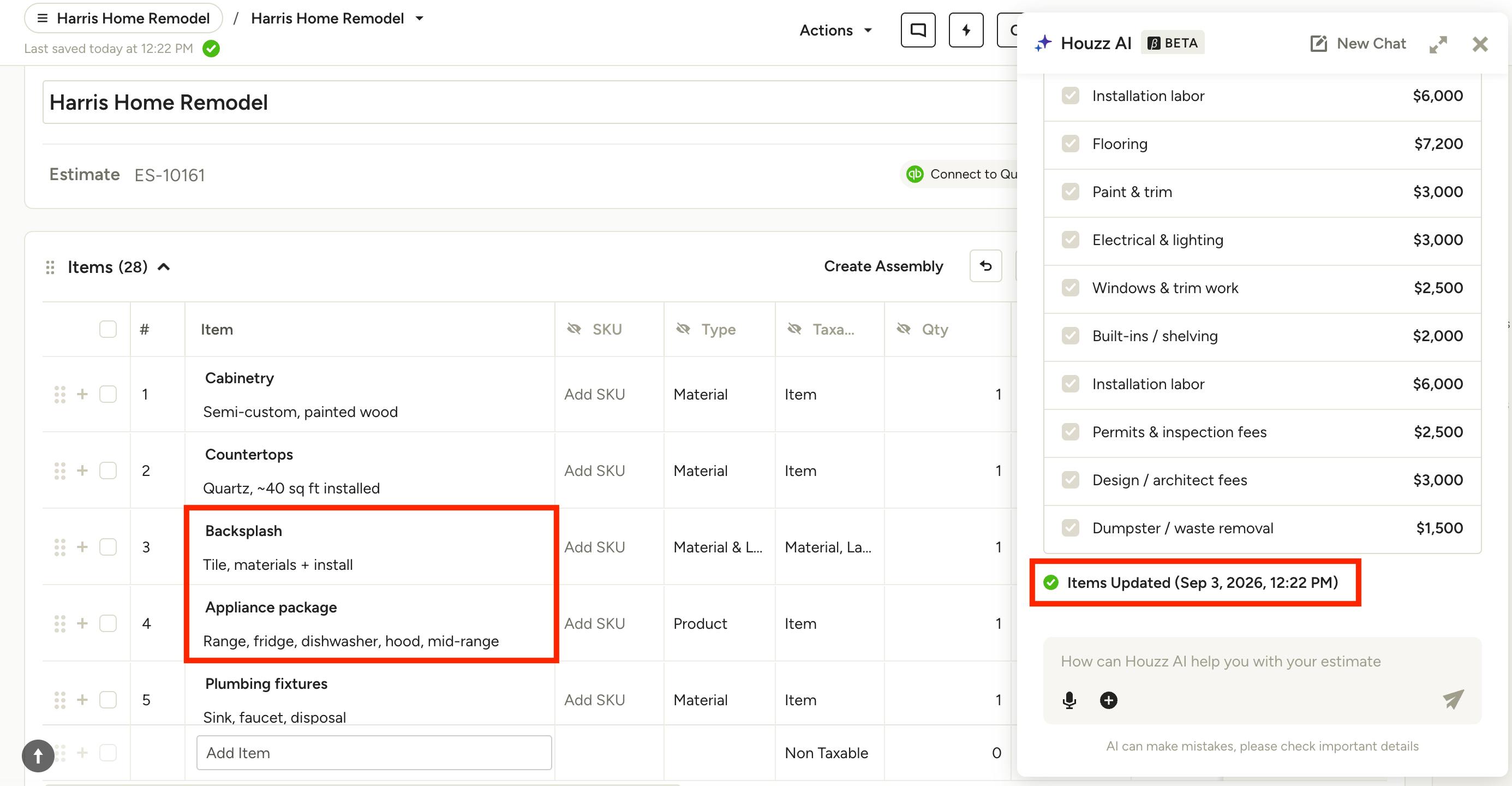
The line items from your file upload will now appear in your document, and the AI assistant will show the date and time of the update. You can then make changes to your document as usual, or continue to use AI to further build it out.
Upload from Project or Lead
Another way to upload an existing estimate or proposal is through the project or lead itself.
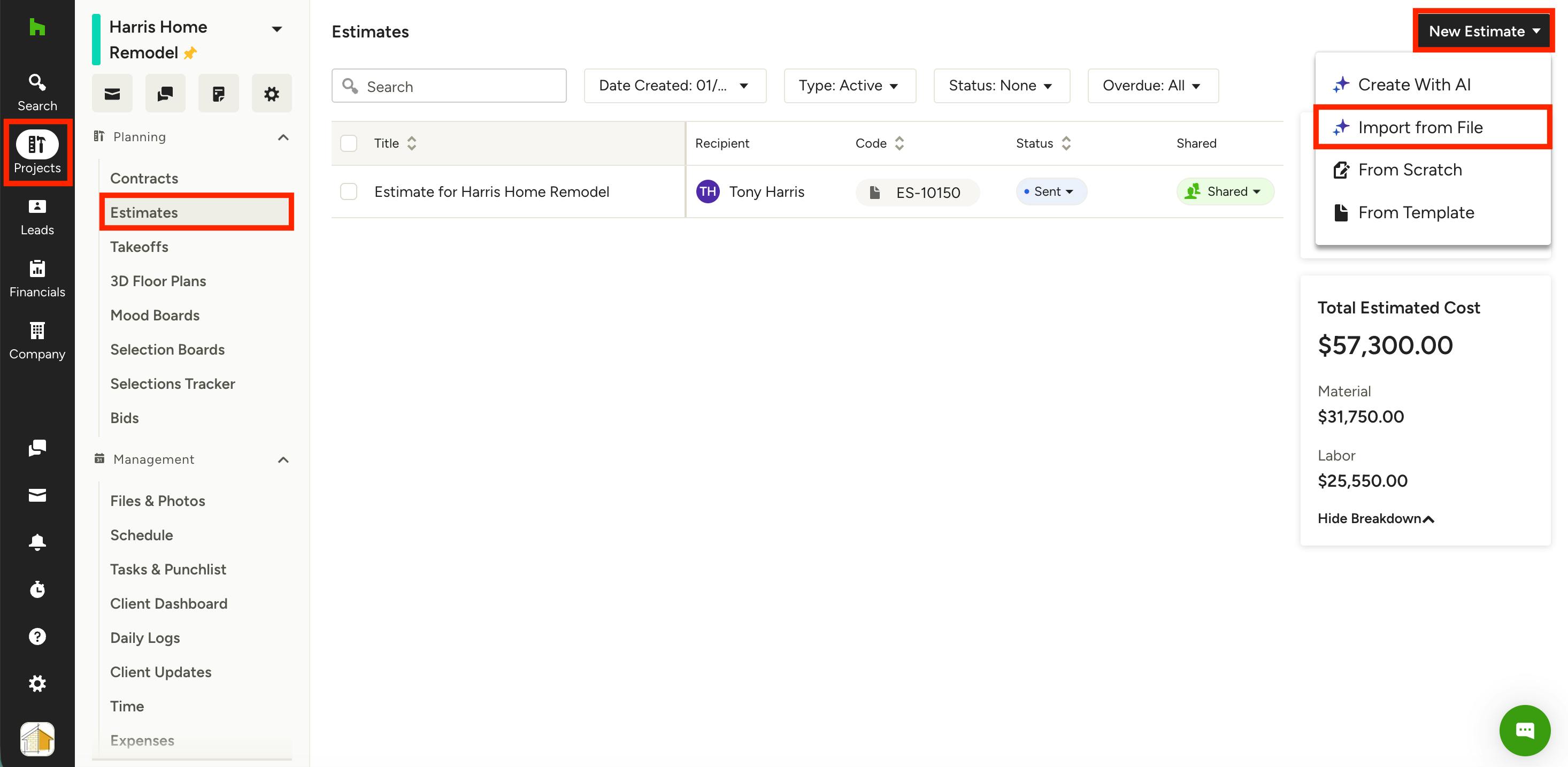
To start, select the Projects or Leads icon in your left navigation, then find the relevant project/lead. Click on Estimates or Proposals in the left menu.
Once on the estimates/proposals page, click the New Estimate or New Proposal button at the top right of your screen. Select Import from File from the dropdown menu.
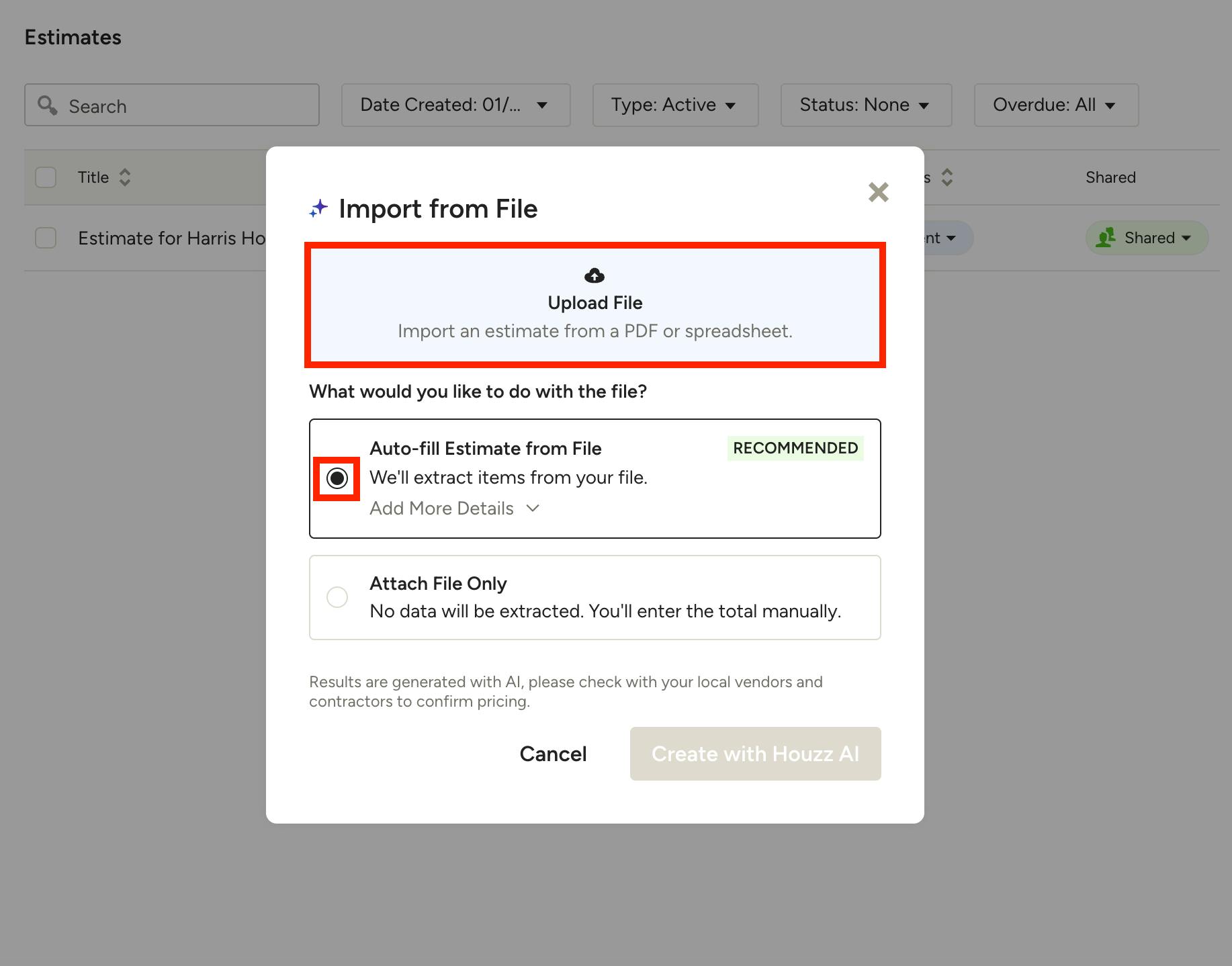
A new screen will appear. Click Upload File at the top to select the relevant file from your computer.
You can then select what you want to do with that file. You can either:
- Auto-Fill Estimate/Proposal — This will extract line items from the file and populate your estimate/proposal. You can select Add More Details to provide more instructions on what you would like to include/exclude. Example: Only extract items from the Materials and Labor tab
- Attach the File Only — This will not extract any data, and you will need to fill out totals manually (PDFs and images only).
Auto-Fill Estimate/Proposal
If you select auto-fill estimate or proposal, AI will process the request and create a new estimate or proposal. You can then make changes to your document as usual, or continue to use AI to further build it out.
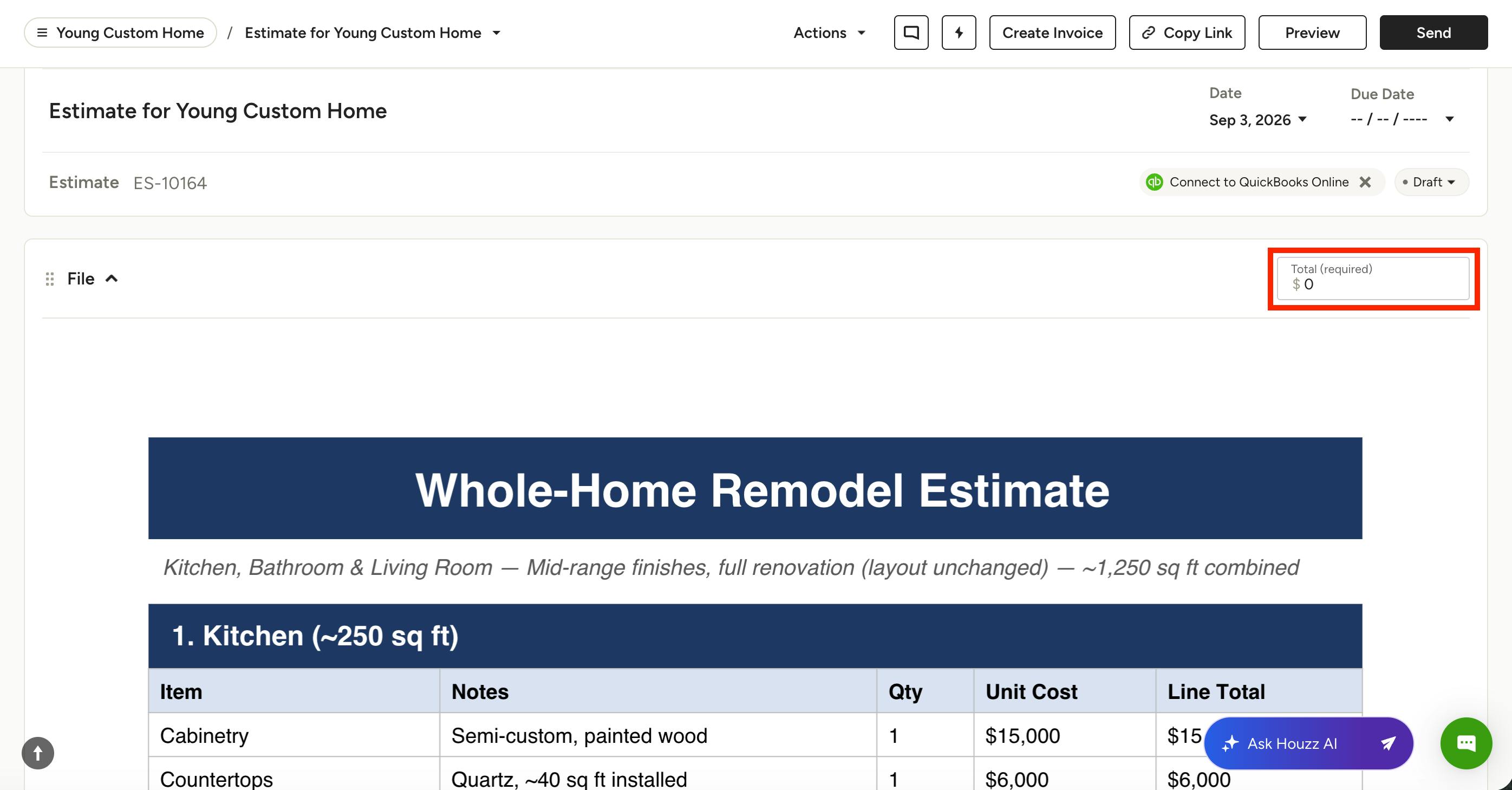
Attach File Only
If you select attach the file only, the document file will load in the exact format as it was uploaded (as shown below). You will need to add in the estimate/proposal total in the text box at the top right of your screen. This ensures that there is a total amount due for the document, which you can use to create a payment schedule, an invoice, and/or receive online payments.
While you are not able to add or edit line items using this format, you can adjust other details, such as document title, due date, scheduled payments, terms and conditions, memos, and more.