How to Upload and Compare Plan Versions in Takeoffs
Plans change, and your takeoff should keep up. When you upload a new version of any plan page, Houzz Pro will automatically align it with the original so you can compare the two and spot exactly what changed.
Your existing measurements carry over automatically. Houzz Pro highlights the ones that fall inside changed areas, so you know exactly where to focus.
Add New Version
To get started, open up an existing takeoff, or upload a new takeoff file (read How to Create a Takeoff for upload details).
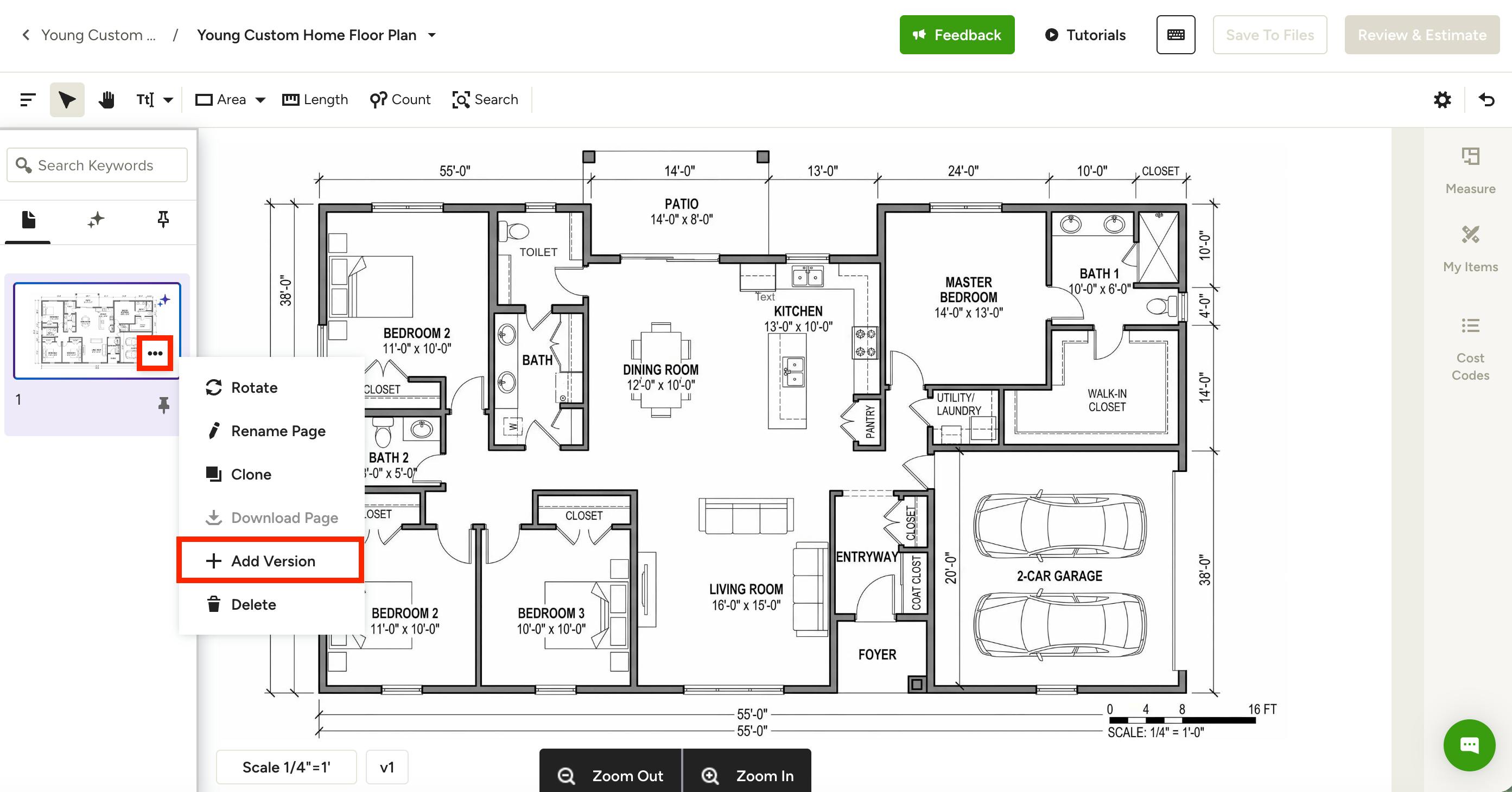
To add a revised version of the same page, find the page in the left menu, then click the three dots icon. Select Add Version from the dropdown menu.
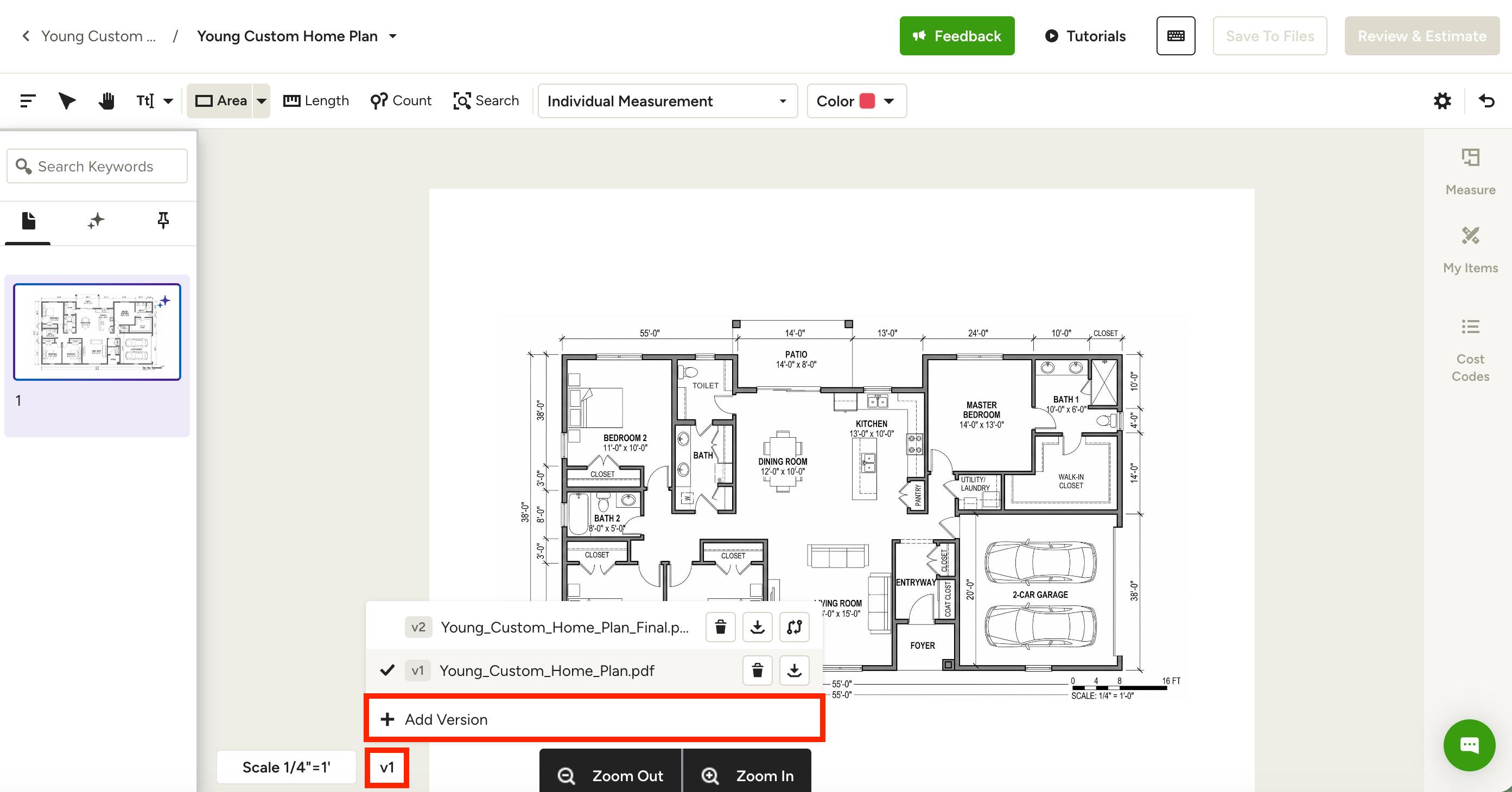
You can also add a new version by selecting the V1 label at the bottom of your takeoff, then selecting Add Version from the dropdown menu.
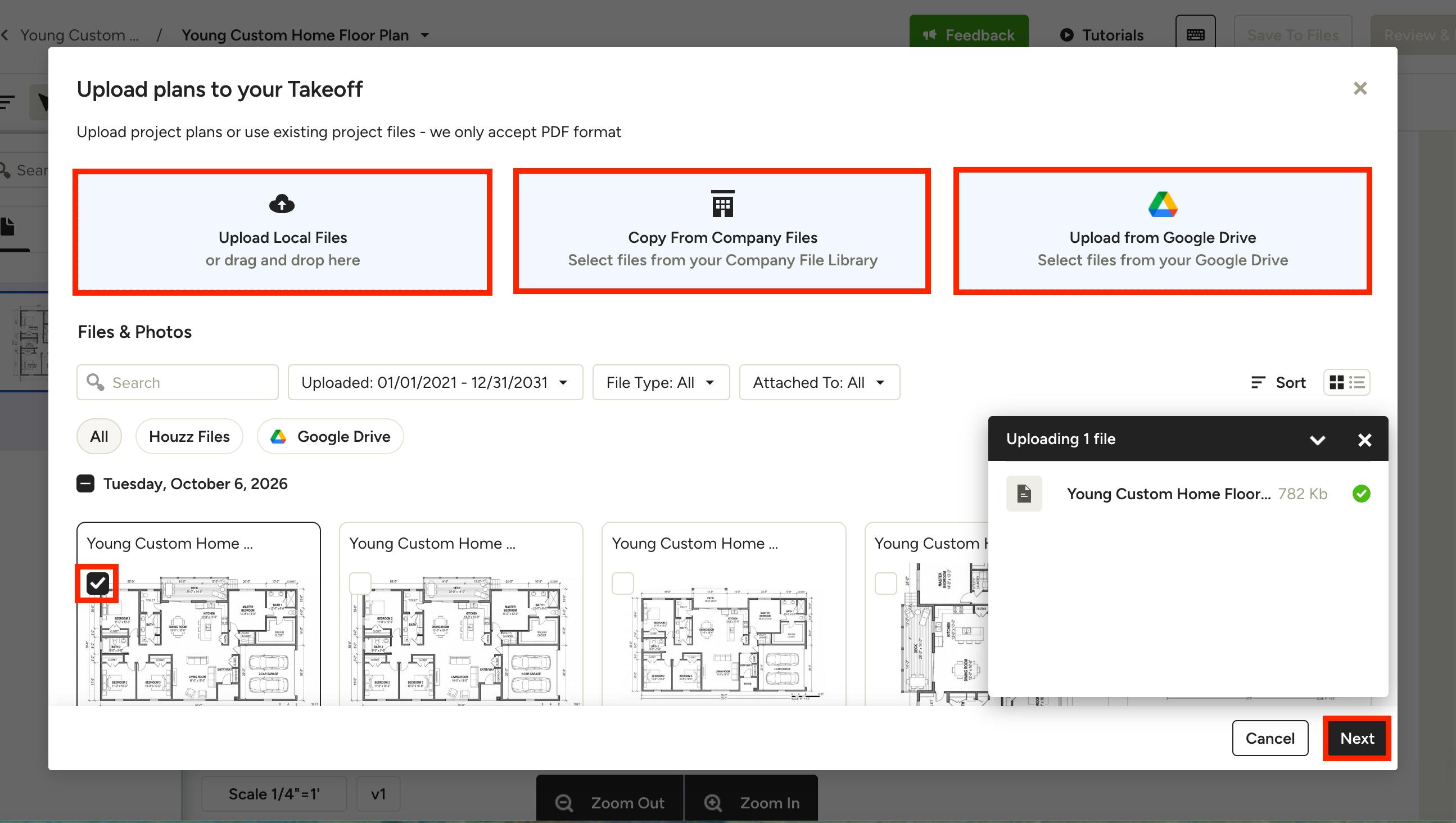
You can upload a file from your computer, copy from your company files, or upload from Google Drive. You can also select the checkbox next to an already uploaded file below.
Once the file loads, click Next.
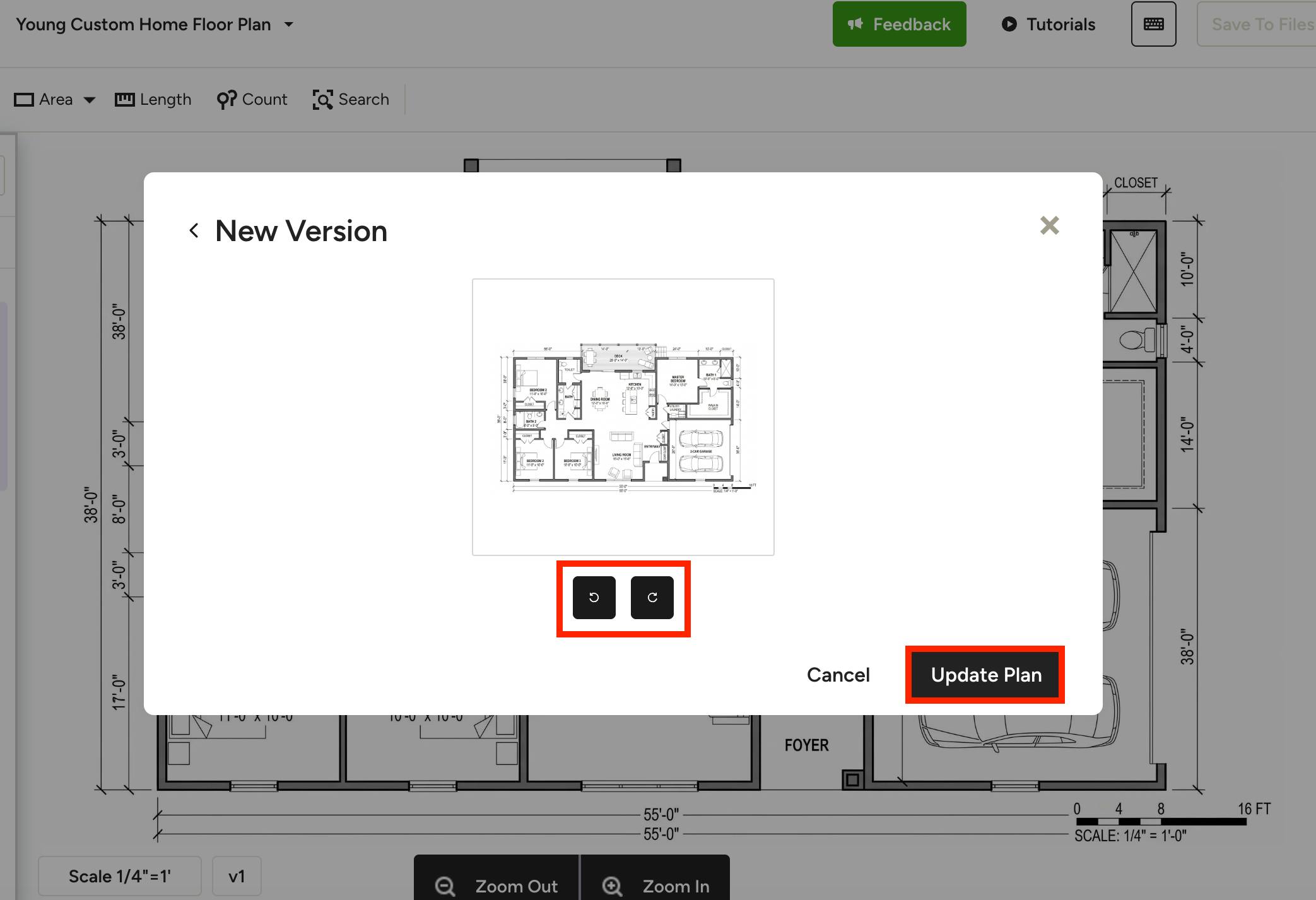
A new screen will appear with the preview of the new plan. If there are multiple plan pages, you will need to select the relevant page to update.
Once selected, you can rotate the plan if needed. Click Update Plan to continue.
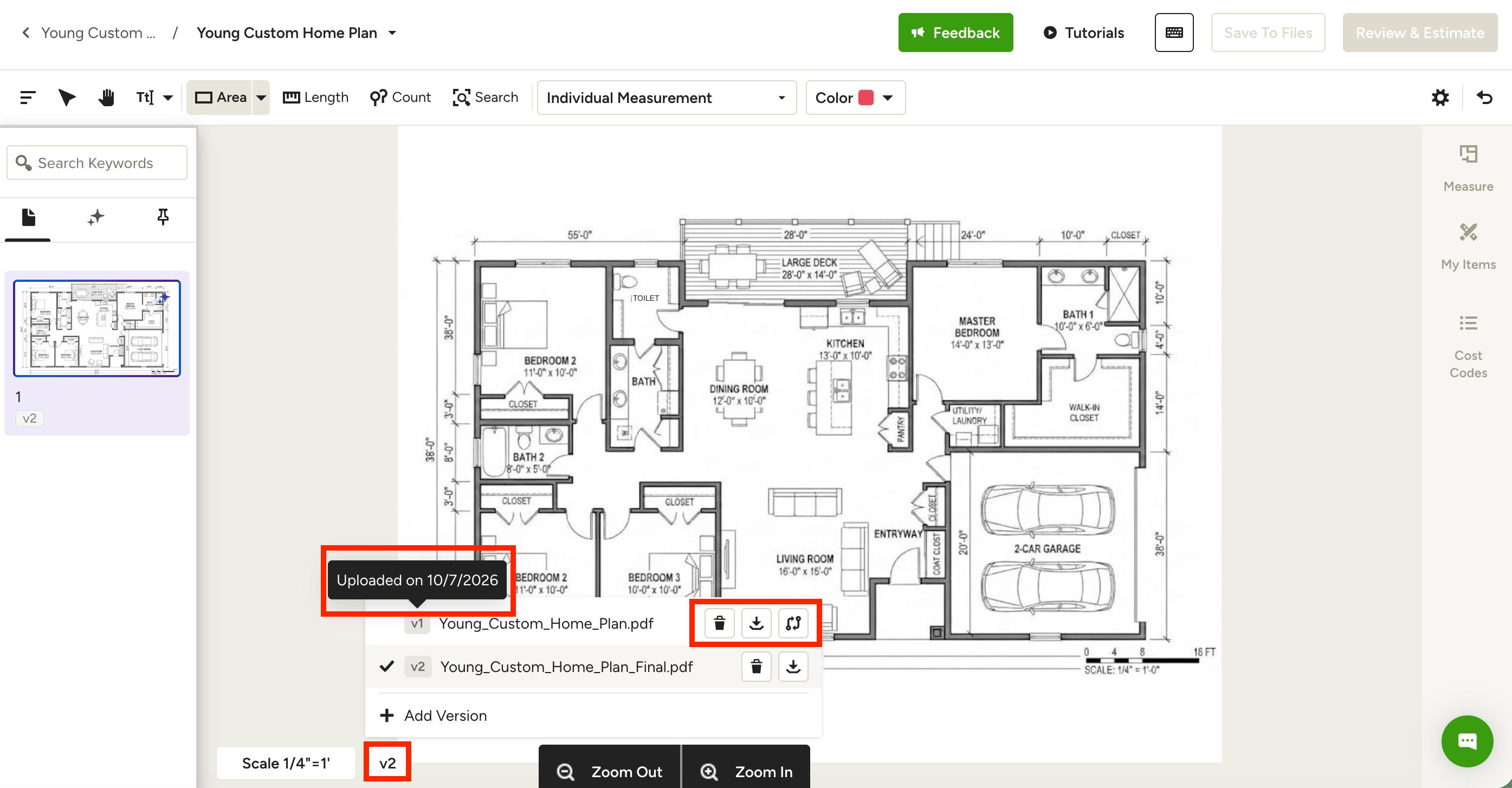
The revised plan will now appear in Takeoffs — you can see the version you are viewing at the bottom of your screen. Select the Versions button to view all the variations.
For each version, you can hover over the name to see the upload date. You can also delete a version, download it, or select the Compare Versions button to view the versions together on the same screen.
Please Note: Version labels stay the same even after you delete a version. For example, if you delete V2, the remaining versions are still labeled V1 and V3. This makes it easier to track which revision is which.
Compare Versions
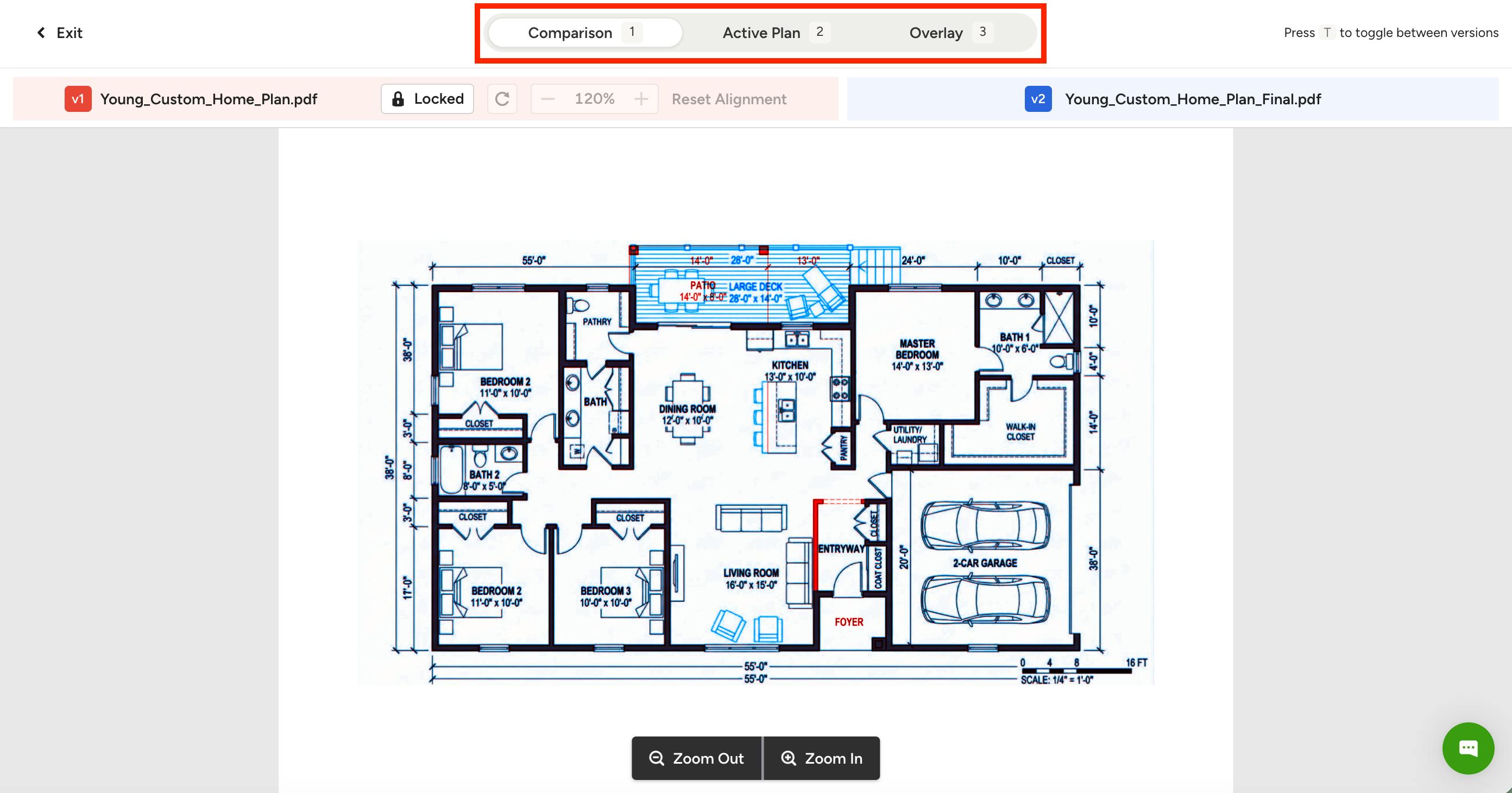
When you select Compare Versions, a new screen will appear. Use the top navigation tabs to switch between views — Comparison, Active Plan and Overlay.
Comparison displays an automatically aligned, color-coded stacked view so you can evaluate overall changes across versions. Colors show you where the two plans match and where they differ.
- Black lines show areas that match in both plans.
- Blue lines highlight differences on the version shown in blue.
- Red lines highlight differences on the version shown in red.
In the example below, the blue version (V2 in this instance) adds a new deck, kitchen counter seating, living room seating, and removes the entryway wall.
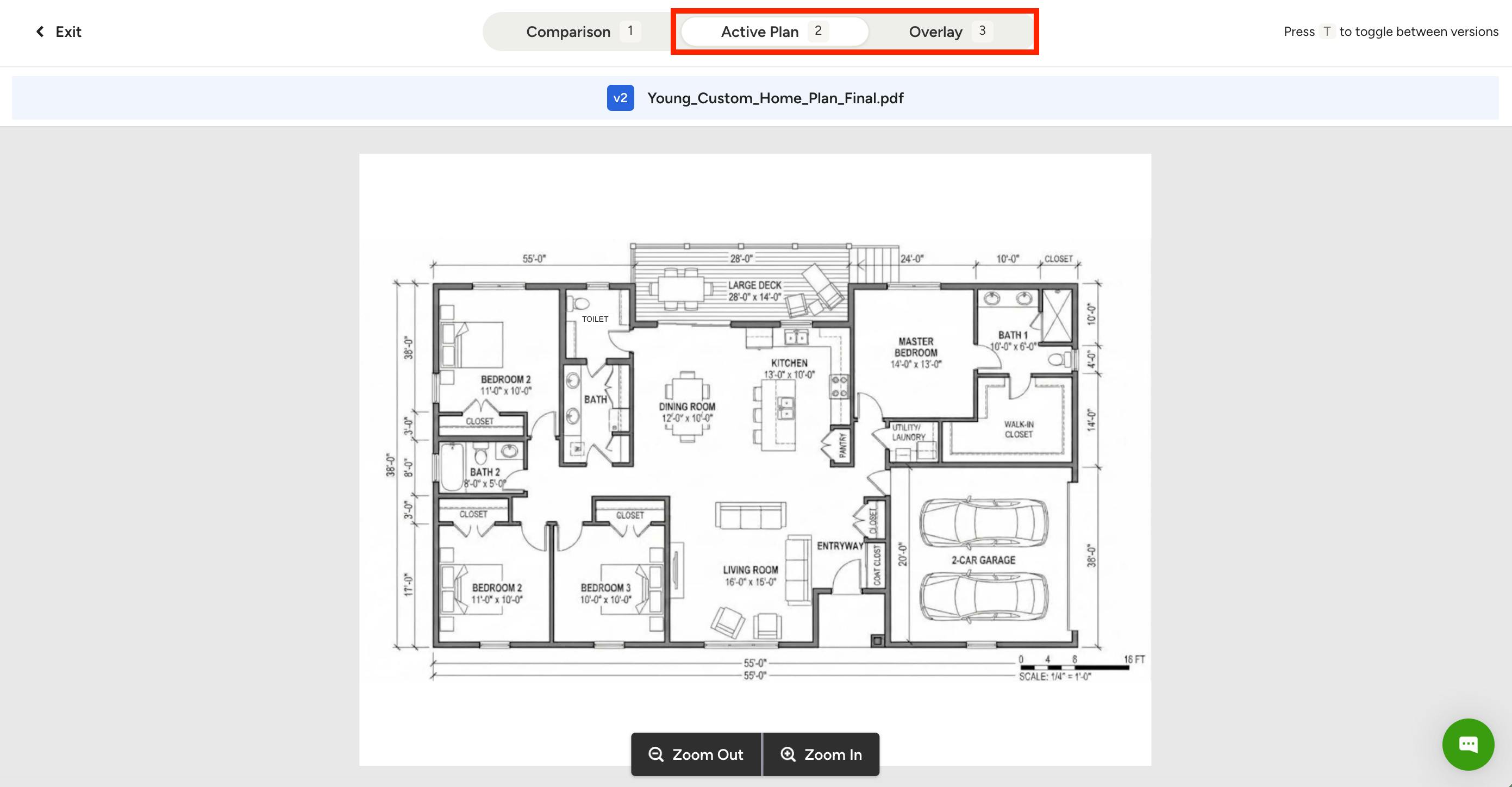
Active Plan displays only the version you're currently viewing (as shown below).
Overlay displays only the version you're comparing it against.
Please Note: The Active Plan and Overlay labels change depending on which version you select. For example, if you're viewing V2, V2 is the Active Plan and V1 is the Overlay. If you switch to V1, those roles reverse.
To switch views faster, Press T to toggle between the Active Plan and the Overlay. Press 1, 2, or 3 to jump between the Comparison, Active Plan, and Overlay views.
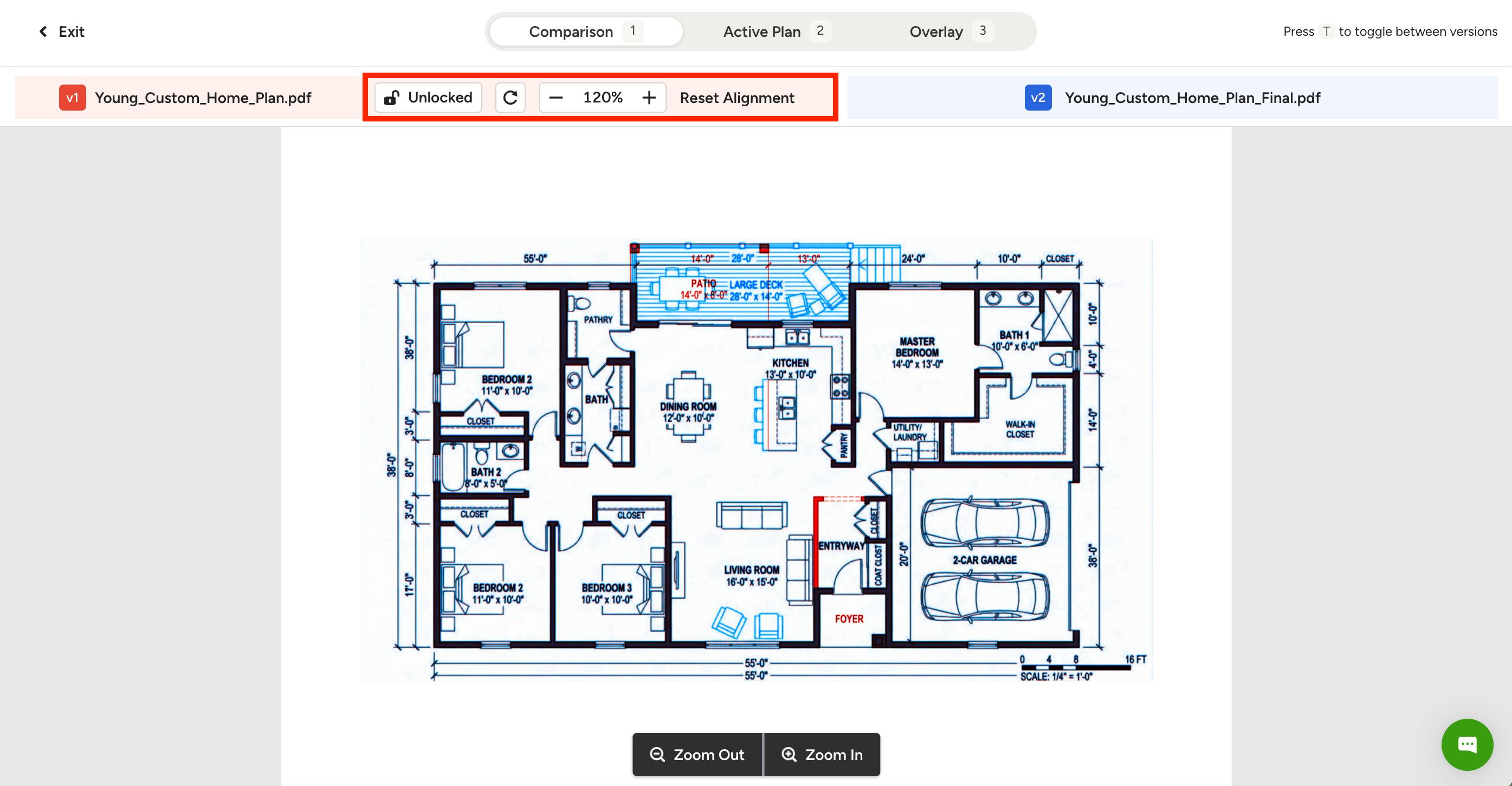
While the tool automatically lines up plans inside your takeoff, manual alignment adjustments can be made if needed.
In the Comparison view, click the Locked button to unlock your plan, then click and drag to adjust its position. From this toolbar, you can also rotate the plan, zoom in or out, or click Reset Alignment to revert to the default placement.