Page Settings in Takeoffs
As you create your takeoff, you can view and adjust your page settings on the left and top side of your canvas. Here, you can rename pages in bulk, edit individual pages, edit your entire plan, pin a page, adjust page scale, and more.
Let's go over each option.
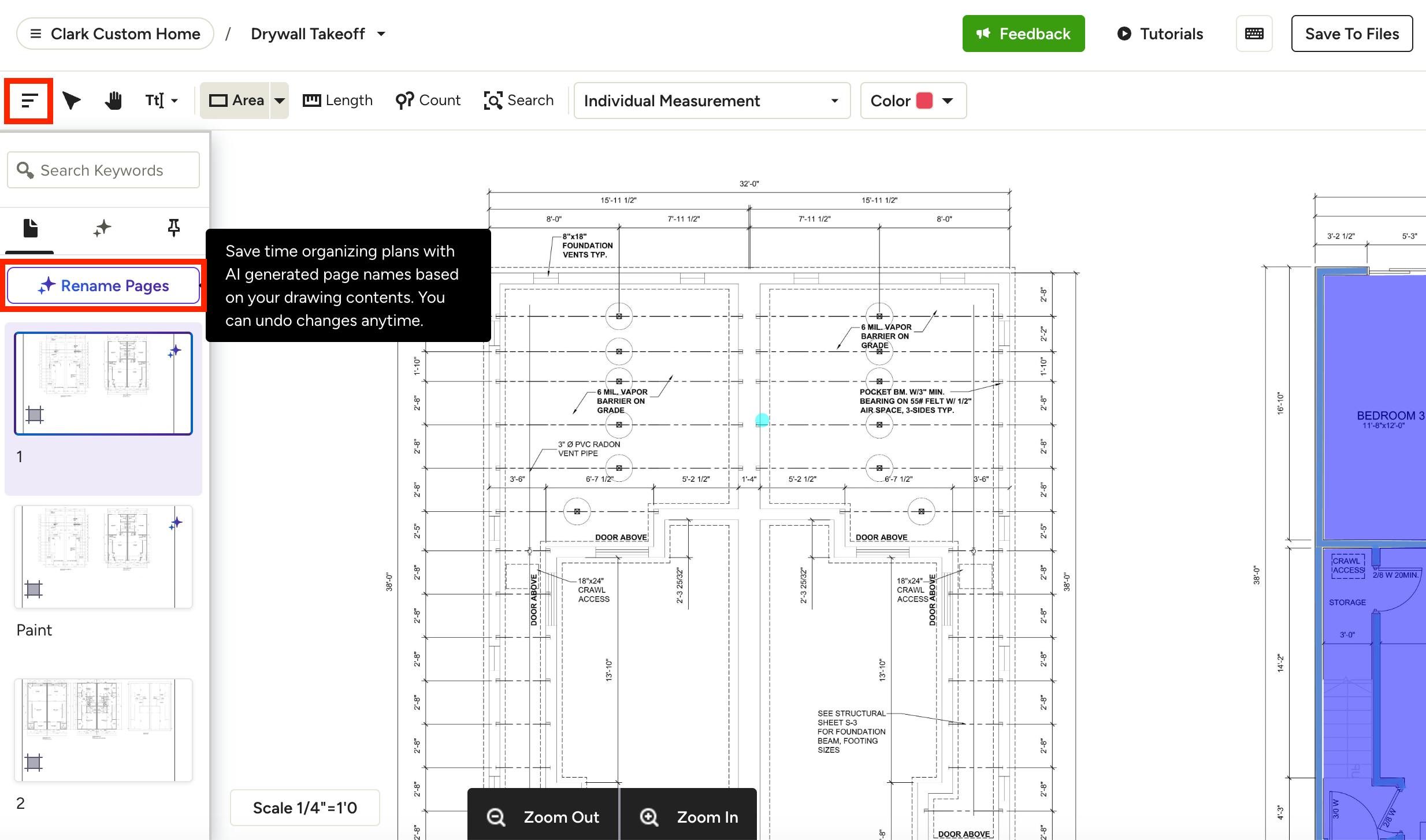
Rename Takeoff Pages with AI
When you upload a completely new plan, Houzz AI automatically scans every page to detect its page name and number, then populates them for you — no manual naming required.
If you're working in a plan that's already been uploaded, AI won't rename pages automatically, since you may have already invested time naming pages manually. Instead, you can trigger a rename yourself. Click on the Page icon at the top left of your screen to open up the page drawer, then select the Rename Pages button. This will rename all takeoff pages at once and overwrite any existing names.
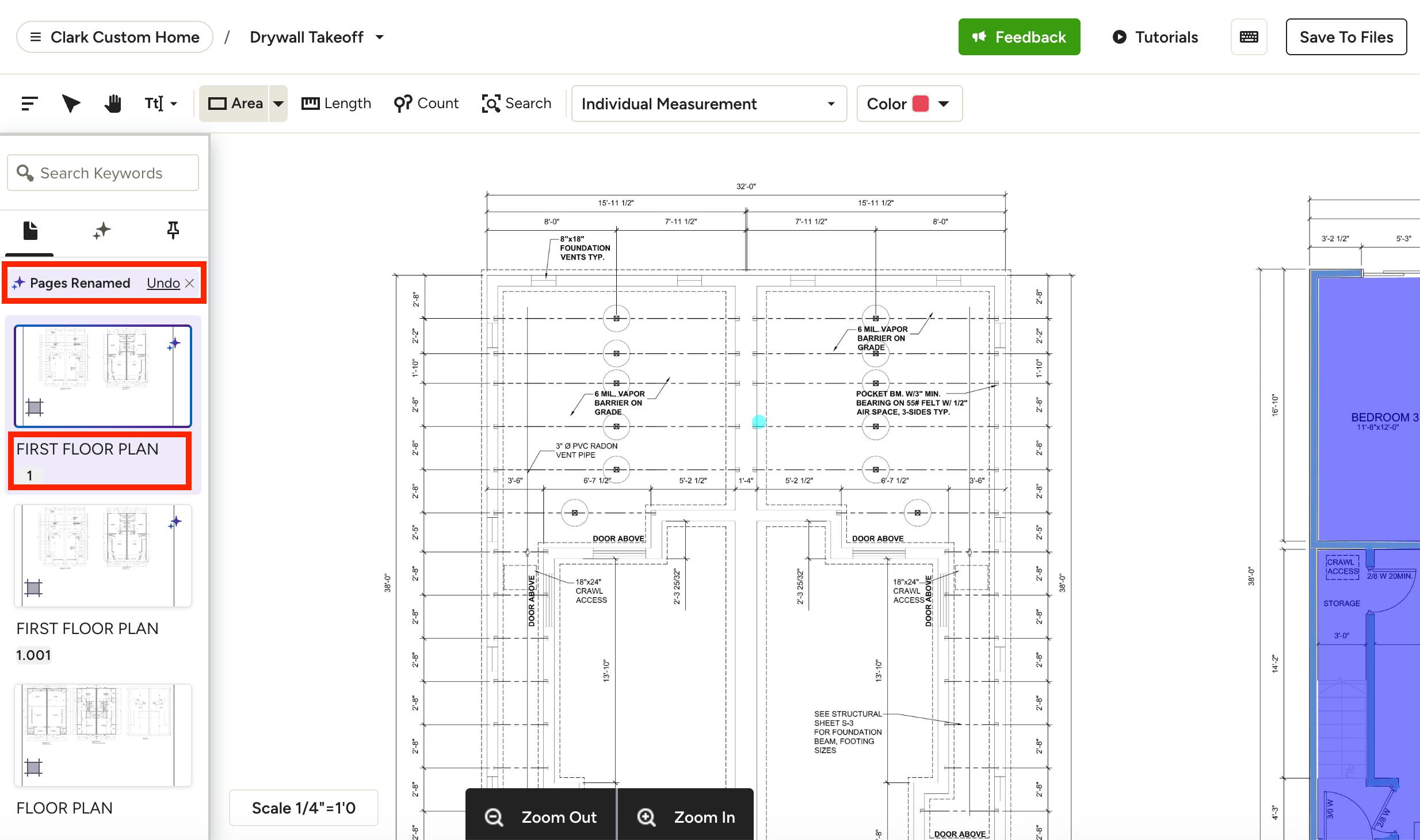
You'll see a confirmation once AI has finished labeling your page name and number. You can click Undo to remove the renames and manually title instead. Please Note: Once you click Undo, you won't be able to use AI to rename that plan again.
If you want to make a change to one page name and/or number, you can quickly edit individual takeoff pages (see more details below).
Edit Individual Takeoff Pages
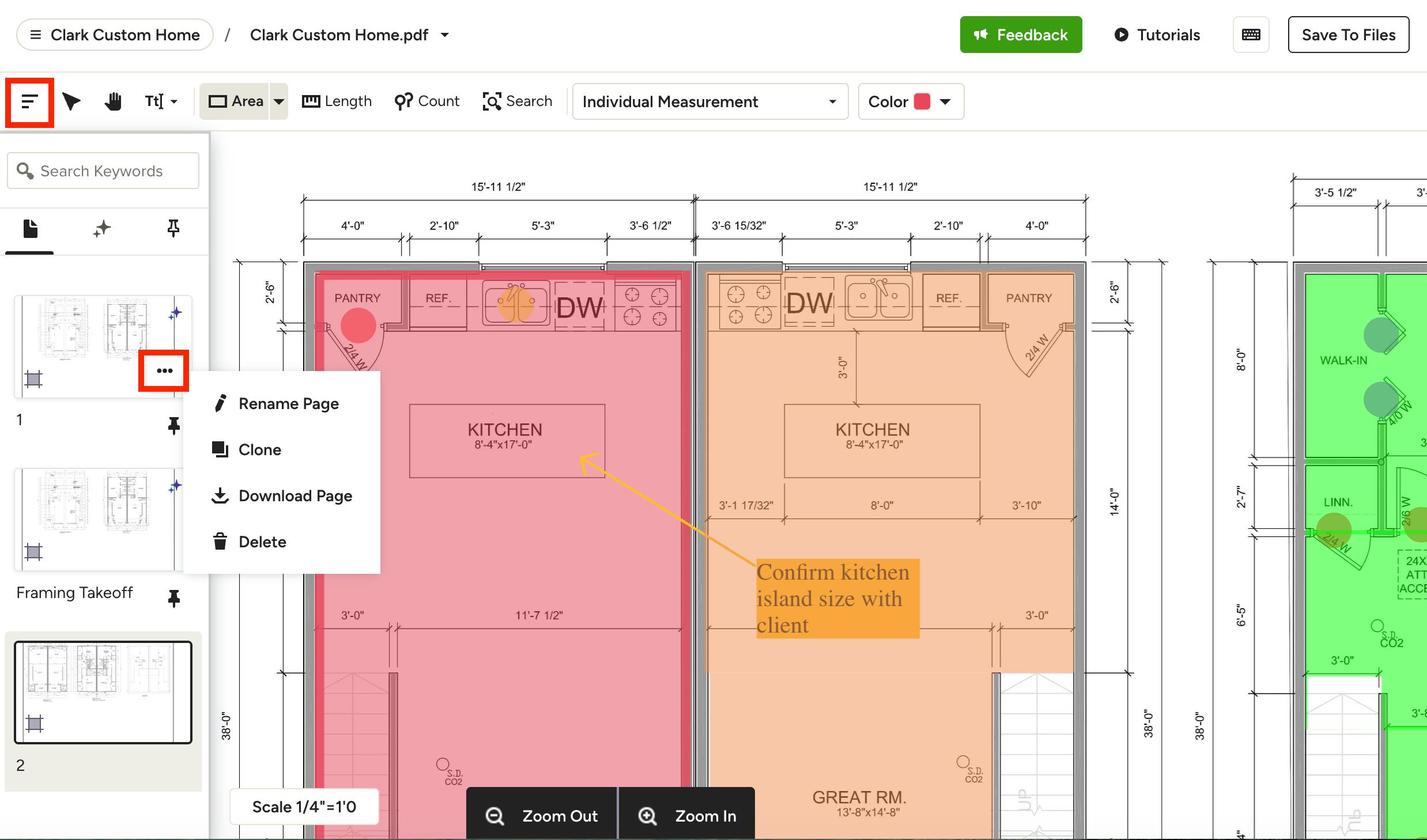
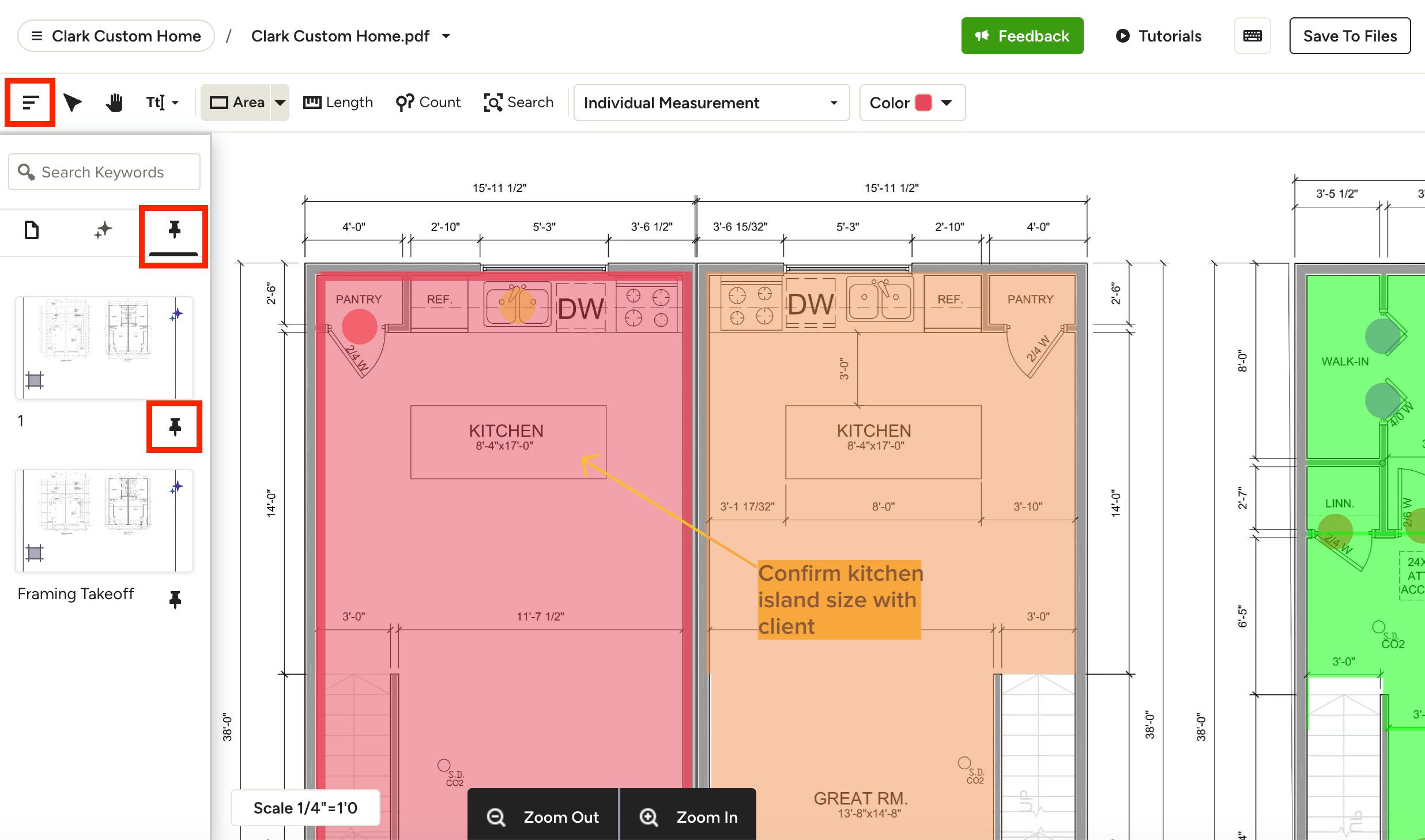
To edit an individual page, click on the Page icon at the top left of your screen to open up the page drawer. You will be able to view all of your takeoff pages in one place.
For each page, click on the three dots icon to make changes, including:
- Rotate Page (can only rotate before adding measurements)
- Rename Page (edit the Page Number and Page Name fields independently)
- Clone Page (all measurements will carry over to your new page)
- Download Page (can only download after adding measurements)
- Delete Page
Edit Entire Takeoff Plan
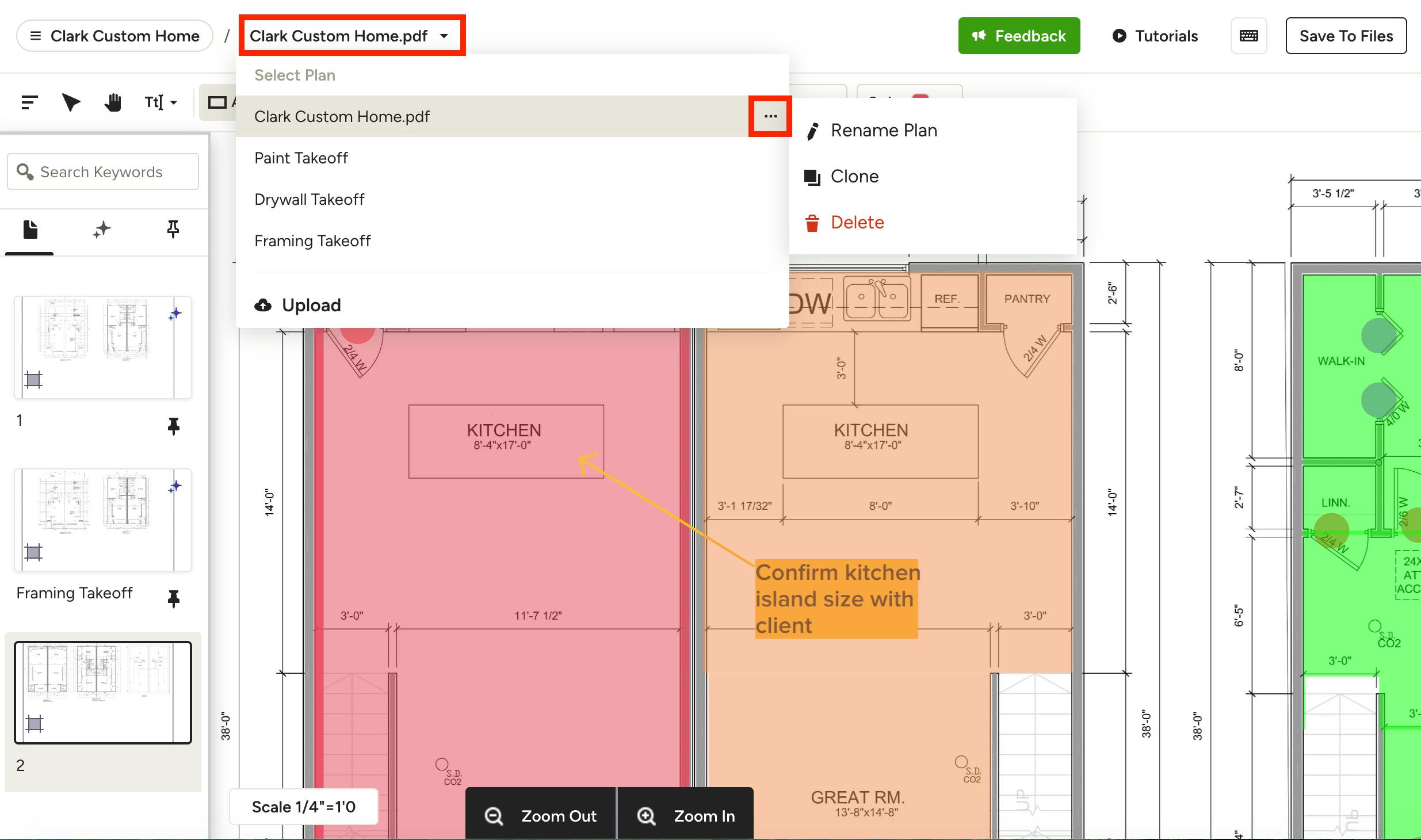
If you want to rename, clone and/or delete your entire takeoff plan instead of an individual page, you can do this as well. Simply select the plan name at the top of your canvas, then click the three dots icon. From here, you can Rename, Clone or Delete.
Pin a Takeoff Page
If you have a large number of takeoff pages and would like to find key pages faster, you can do this by pinning a page.
To pin a page, click on the Page icon at the top left of your screen to open up the page drawer. Click the Pin icon for that specific page. It will then appear in the Pin tab for easy access in the future.
Adjust Page Scale
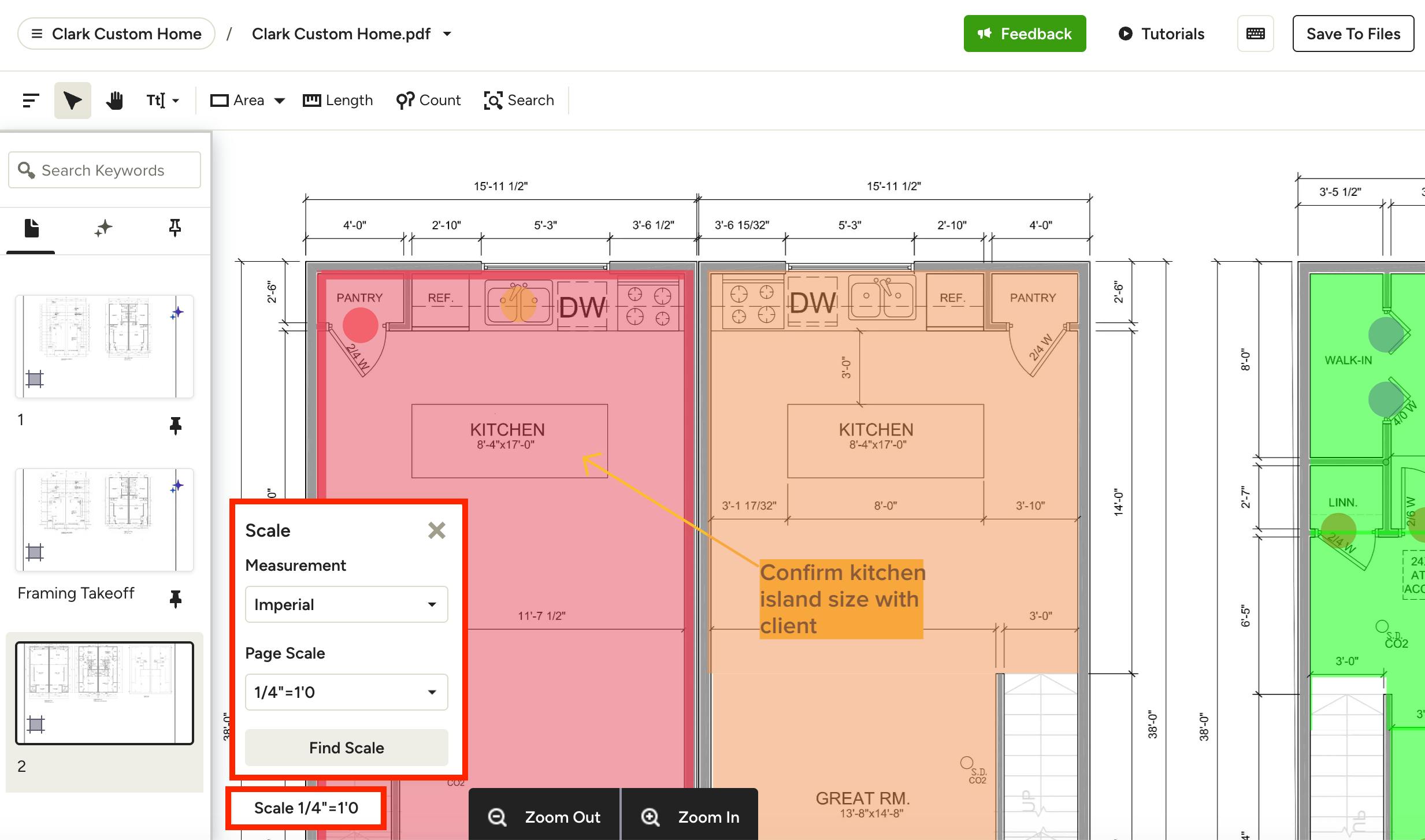
At the bottom of your takeoff, you can adjust the page scale and preferred unit of measurement in the dropdown menus. Setting your page scale is key to a successful takeoff. If your plan includes a pre-defined scale, Houzz Pro will use AI to locate the scale written on the drawings and automatically apply it. You can always manually adjust if needed.
Read this article to learn how to properly set your page scale.