How to Import Your Contacts
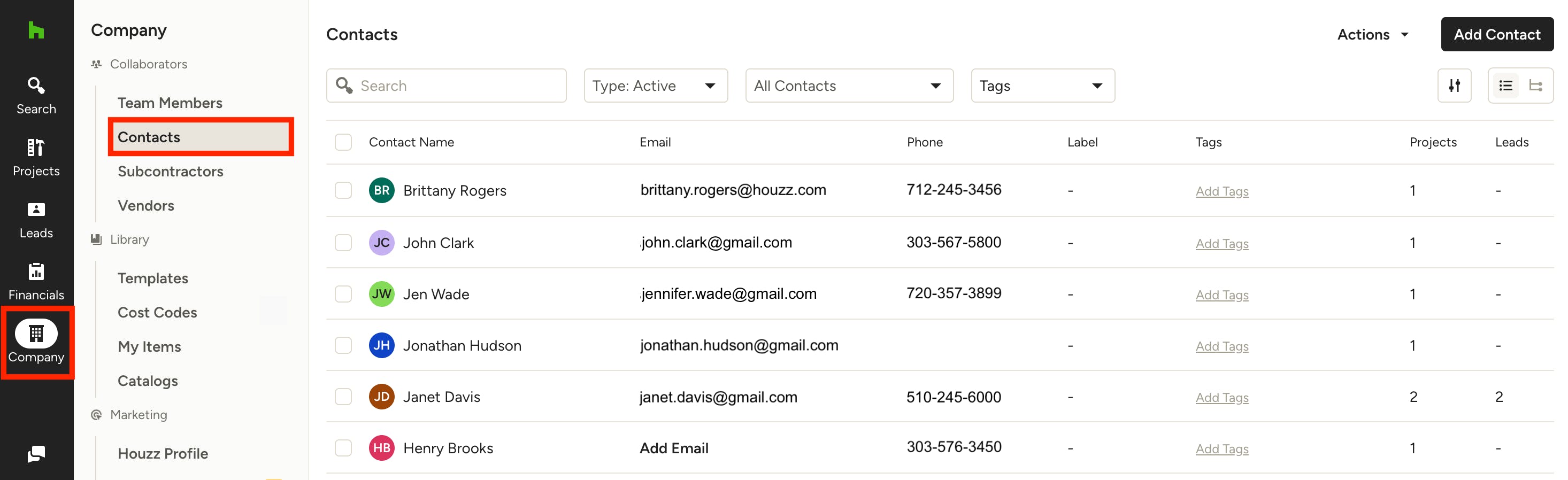
In Houzz Pro, you can store all your contact data in one organized location — your Contacts list. Your contacts can include existing clients, potential leads, or even contacts not associated with an existing project or lead.
One easy way to populate your Contacts list is by importing an existing list. By importing a list, you can instantly sync your contacts to the platform, ensuring every project detail and phone number is indexed and ready to go.
To get started, click the Company icon in the left navigation, then click Contacts from the menu.
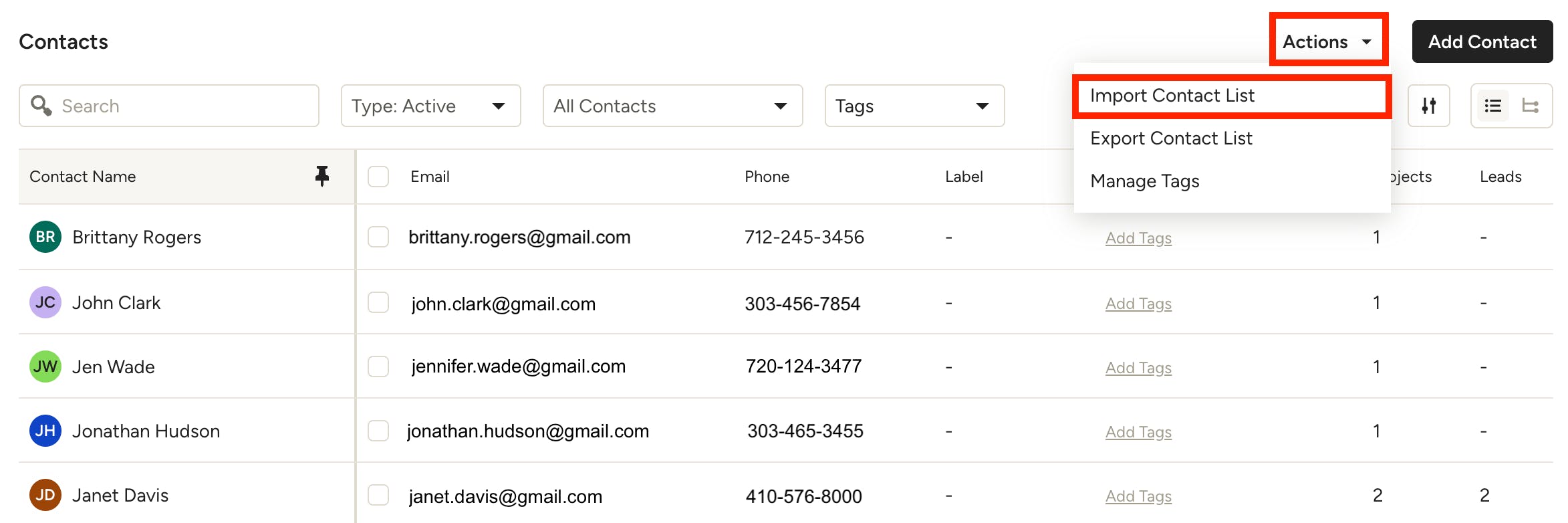
Under the Actions menu in the top right of your screen, click Import Contact List.
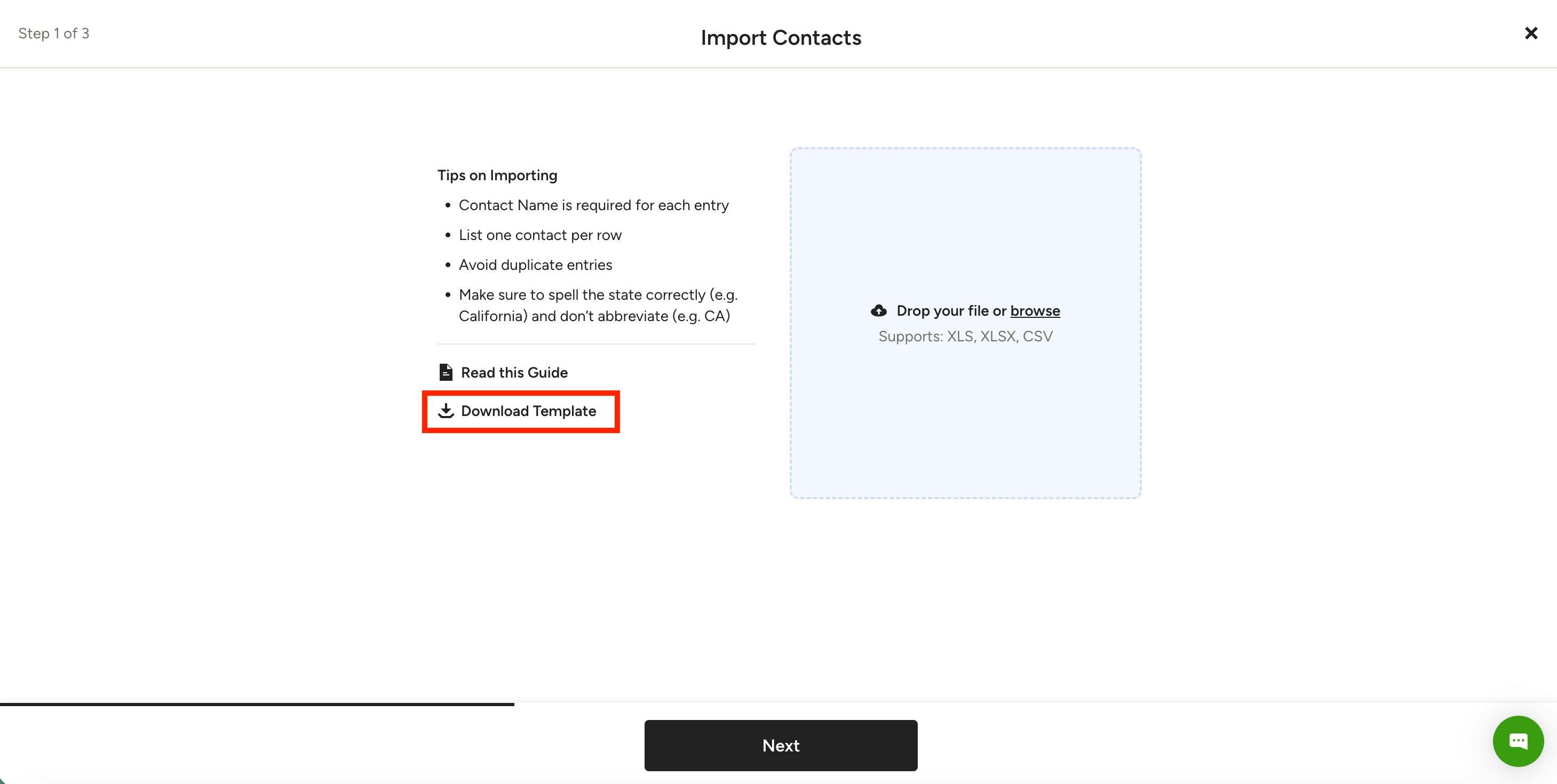
When importing contacts, it's important to use the correct formatting for a successful upload. Click Download Template to download the CSV file template with the exact formatting.
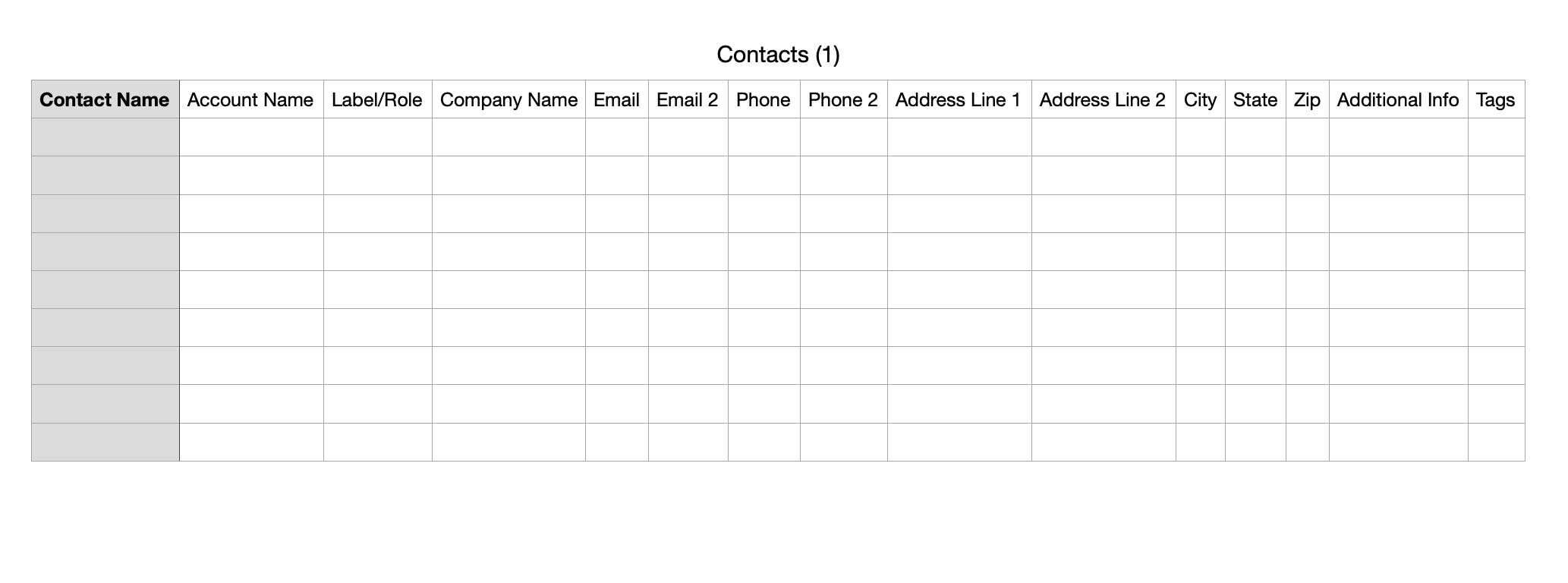
Open the downloaded template and fill in your clients, or copy the template formatting on your own file to match.
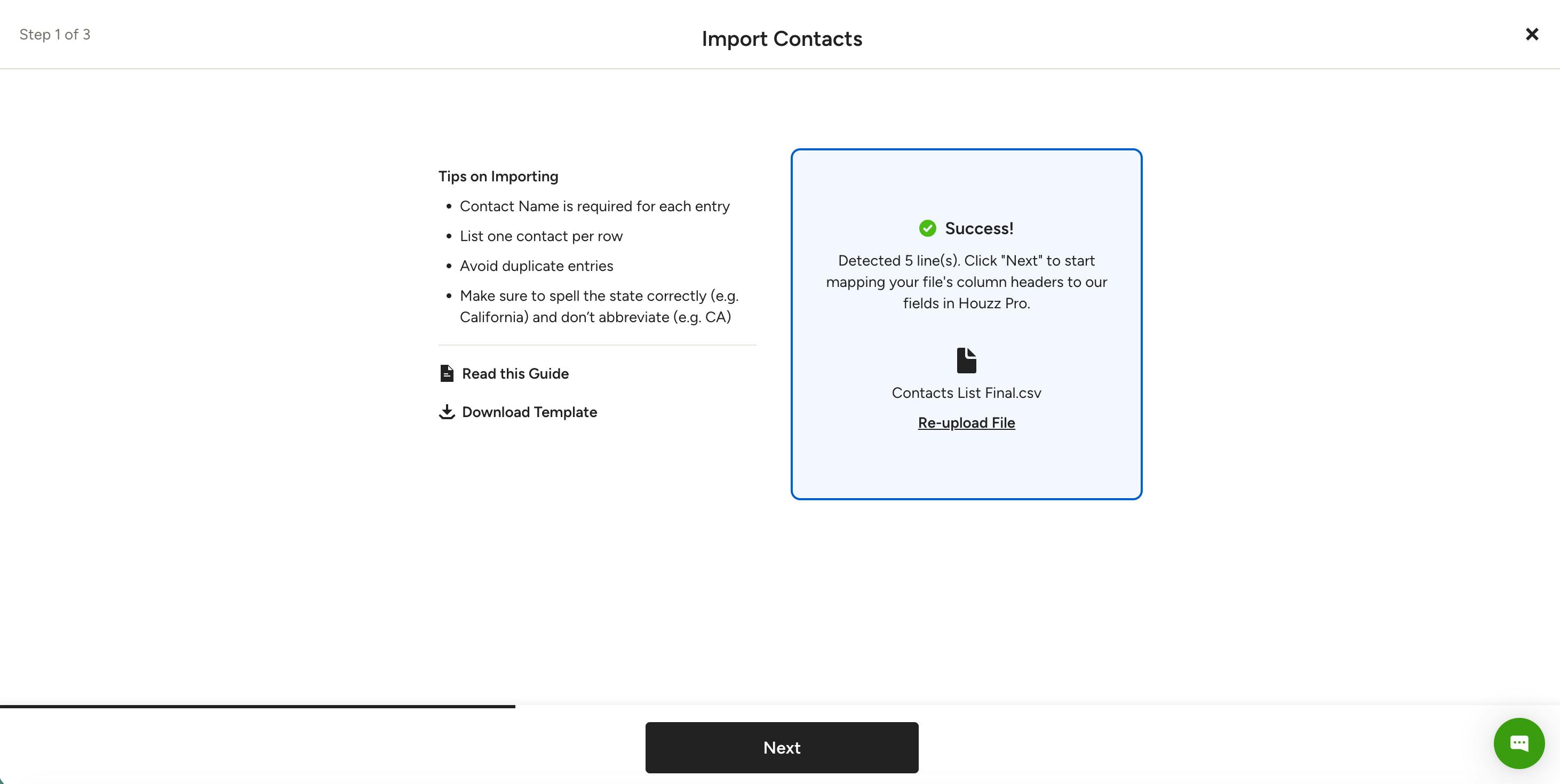
You do not need to fill out every column, but for a successful import, it's important to double check that:
- The Client Name is included for each entry (this is required)
- Each row lists only one client
- You don't have any duplicate entries
- You fully spell out the state correctly (e.g. California) and don’t abbreviate (e.g. CA)
Once complete, save the final CSV or Excel file on your computer.
In the import screen, click Browse and attach the file, or drag and drop the file into the box.
If successful, you will see a message noting how many lines the system detected in your file. Click Next to start mapping your file columns to Houzz Pro fields.
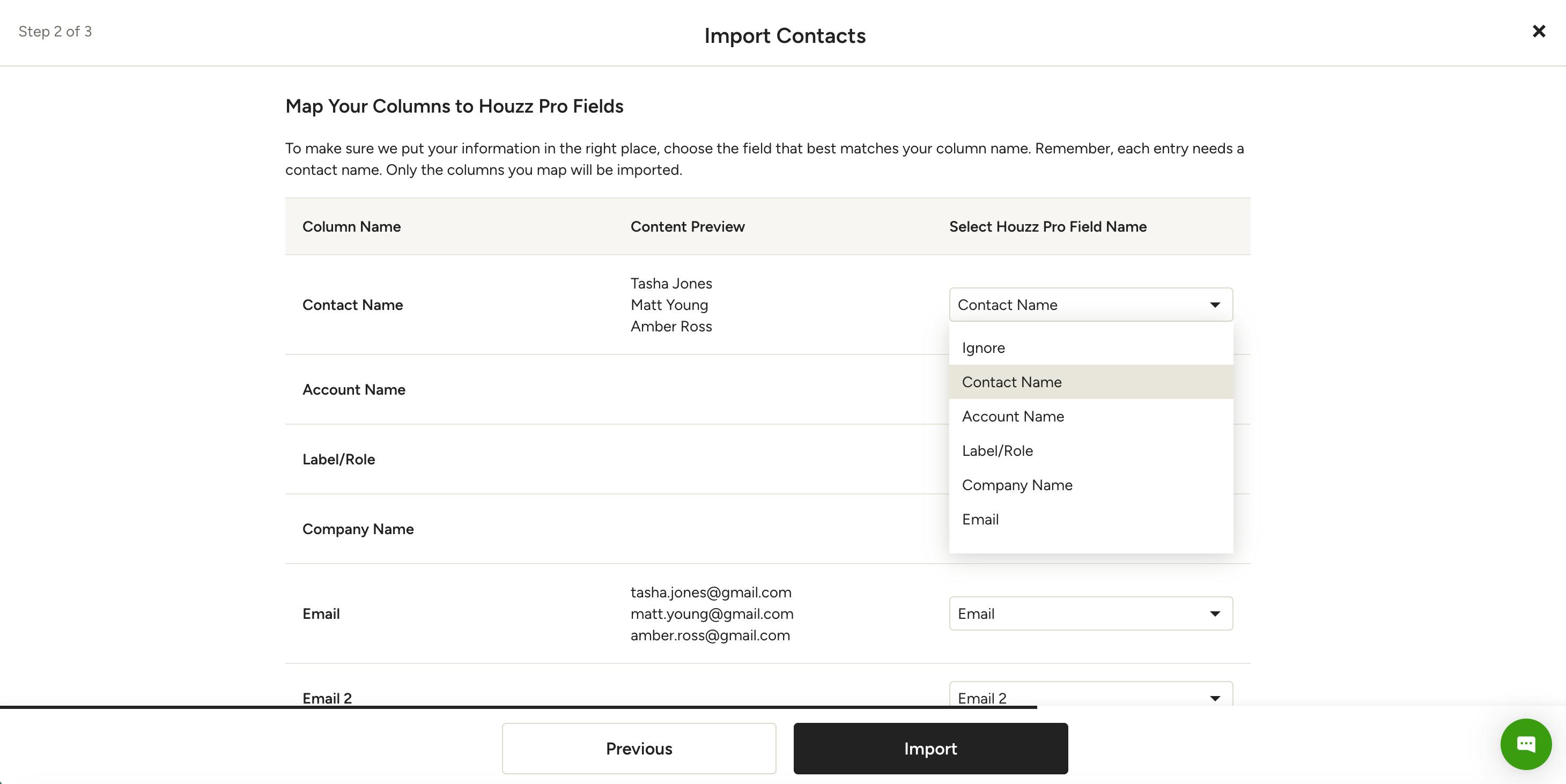
Choose the field that best matches your column name. Only the columns you map will be imported. Click Import when you are finished mapping.
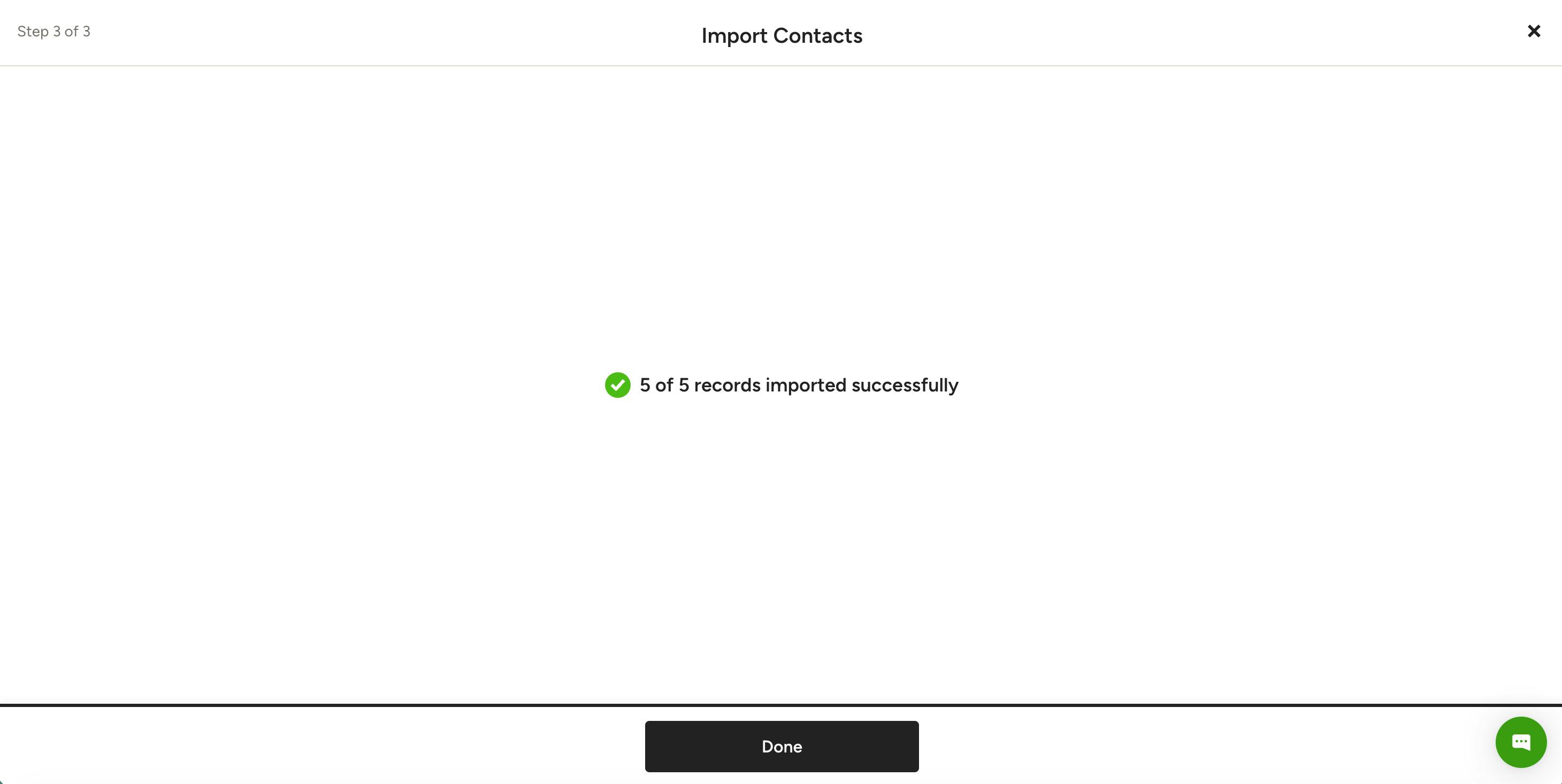
If your file was imported successfully, you will see a confirmation of how many records were successful. Click Done to return to your Contacts page.
Please Note: If some entries fail to upload, the remaining entries will still be successfully uploaded. If there were any errors in the import, you will be notified of the exact errors so you can fix and re-upload them (more details below).
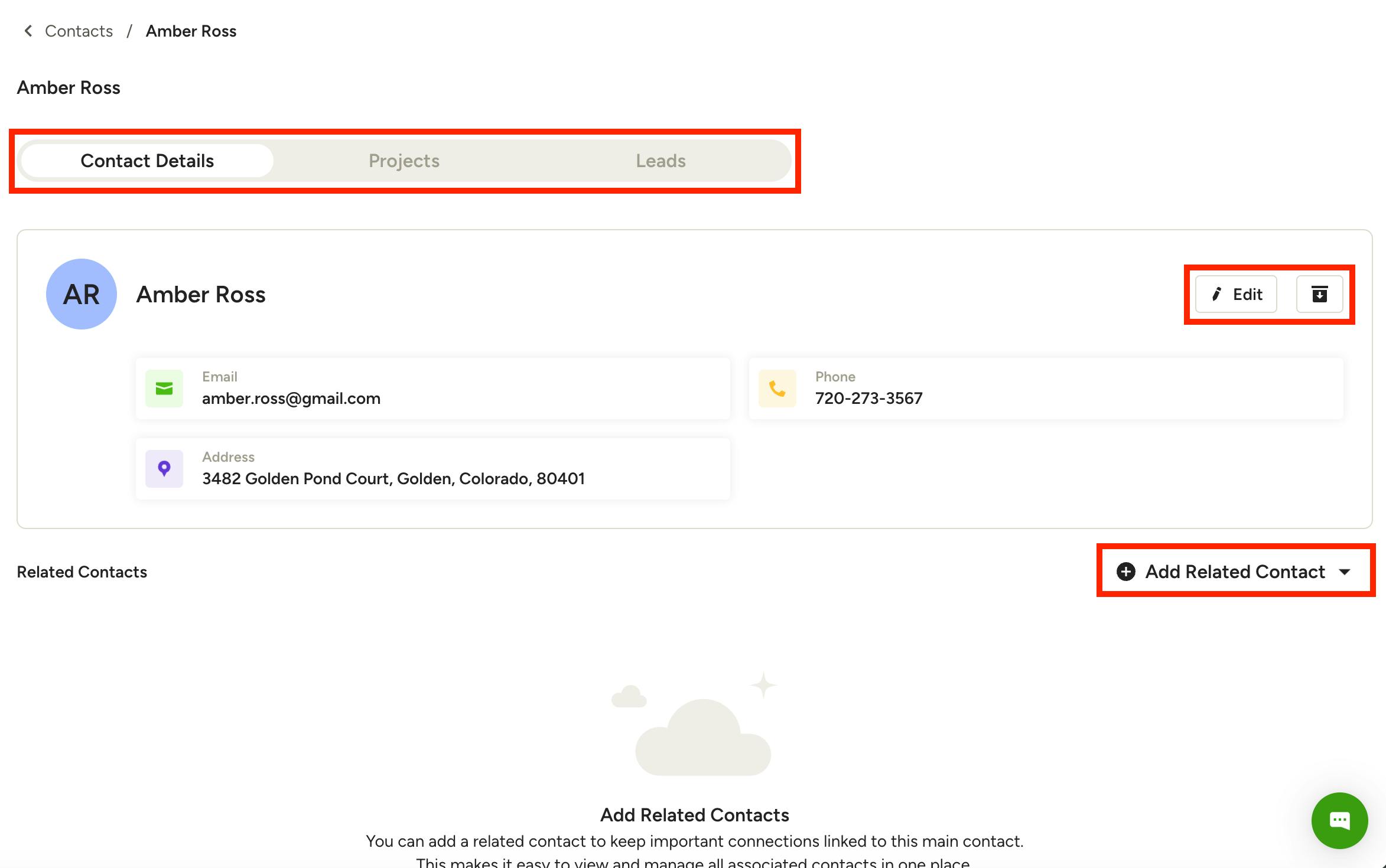
Your newly added contacts will now appear in the Contacts list. Click on the contact name to view details.
Under the Contact Details tab, you can click Edit to add or change any existing contact details, addresses and internal notes. You can also Archive a contact from here and add Related Contacts that are connected to this main contact.
Under the Projects and Leads tab, you can see any projects/leads the contact is assigned to, or you can add a new one. You can also view project status and whether the client dashboard has been shared or not.
To learn more about editing contacts, read How to Manage Your Contacts.
Upload Errors and How to Fix Them
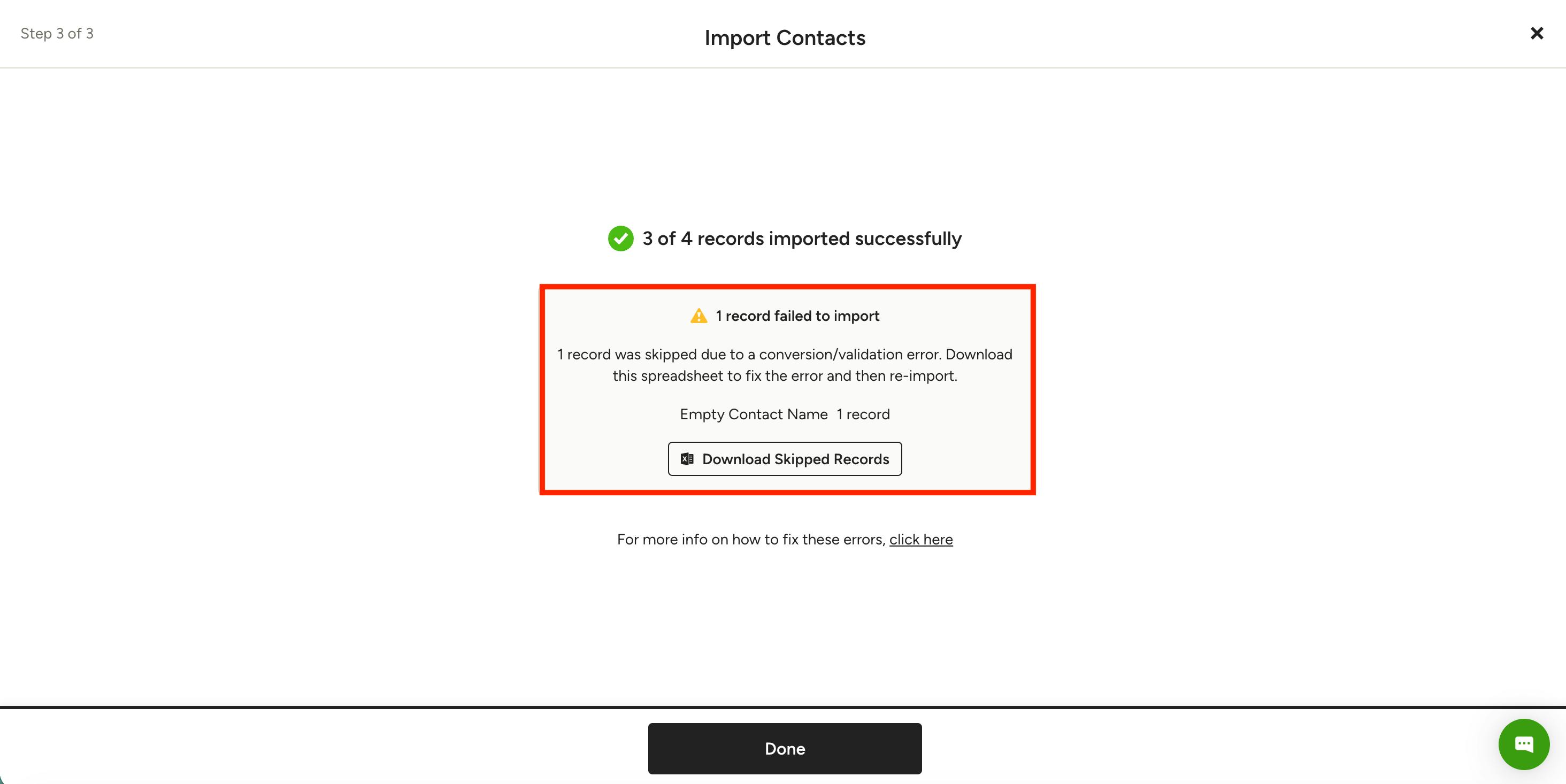
If some entries within your file fail to upload, the remaining entries that succeed will still be successfully uploaded to your Contacts list. In Step 3 of 3, if any errors occur, you will see how many entries/records failed and what the errors are. You then have the ability to download the skipped records, fix them and re-upload again.
Common upload errors include:
- Empty Client Name: Make sure you include a name for each client.
- Duplicate Phone: This means there is an existing client with the same phone number — we don't allow duplicates.
- Duplicate Email: This means there is an existing client with the same email — we don't allow duplicates.
Import Contacts from QuickBooks Online
Another way to import contacts to Houzz Pro is to export them from QuickBooks Online. To do this, you will need to adjust them to fit the Houzz Pro format before you import them.
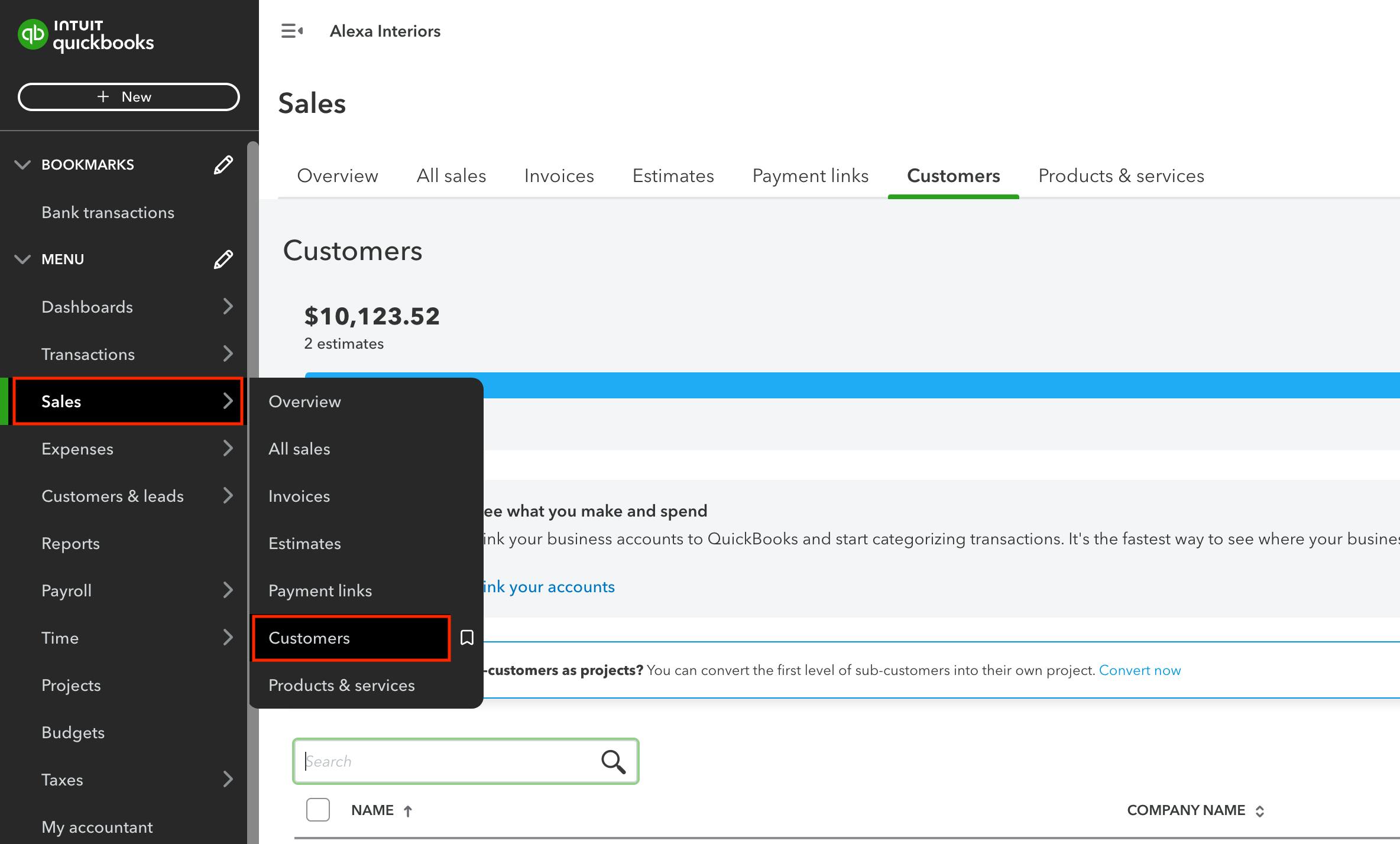
To start, sign in to your QuickBooks Online account. In the left-hand side menu go to Sales, then select Customers.

Click the Export icon (the middle icon) on the right-hand side above the customer list. This will download your QuickBooks Online contacts as an Excel file.
Open the downloaded QuickBooks Online Excel file and adjust the columns to match the Houzz Pro template (more details above). This includes:
- Changing the column titles to match the Houzz Pro template categories.
- Rearranging the order of the columns to fit the exact formatting found in the template.
- Deleting the columns not listed in the Houzz Pro template, such as the Open Balance column.
- Typing “N/A,” “None,” or something similar in all blank cells.
Once complete, download the adjusted QuickBooks Online Excel file as a CSV file. You can then upload the file to the Houzz Pro Contacts import (as shown above).