How to Manage Your Contacts in Houzz Pro
Managing your business means keeping track of everyone, from potential leads to active project clients. Our Contacts page brings both together in one central hub. Whether you need a lead’s email or a client’s job site address, all your essential details are organized in one place — so you can spend less time hunting for info and more time moving projects forward.
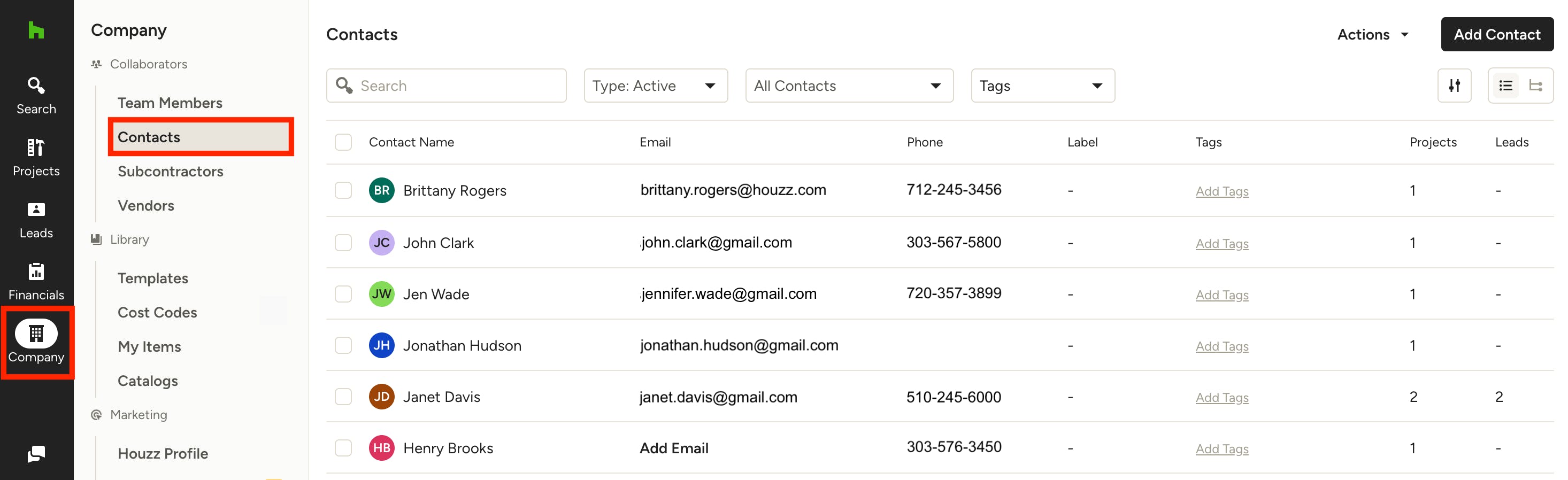
To access all of your contacts, click the Company icon in the left navigation, then click Contacts from the menu.
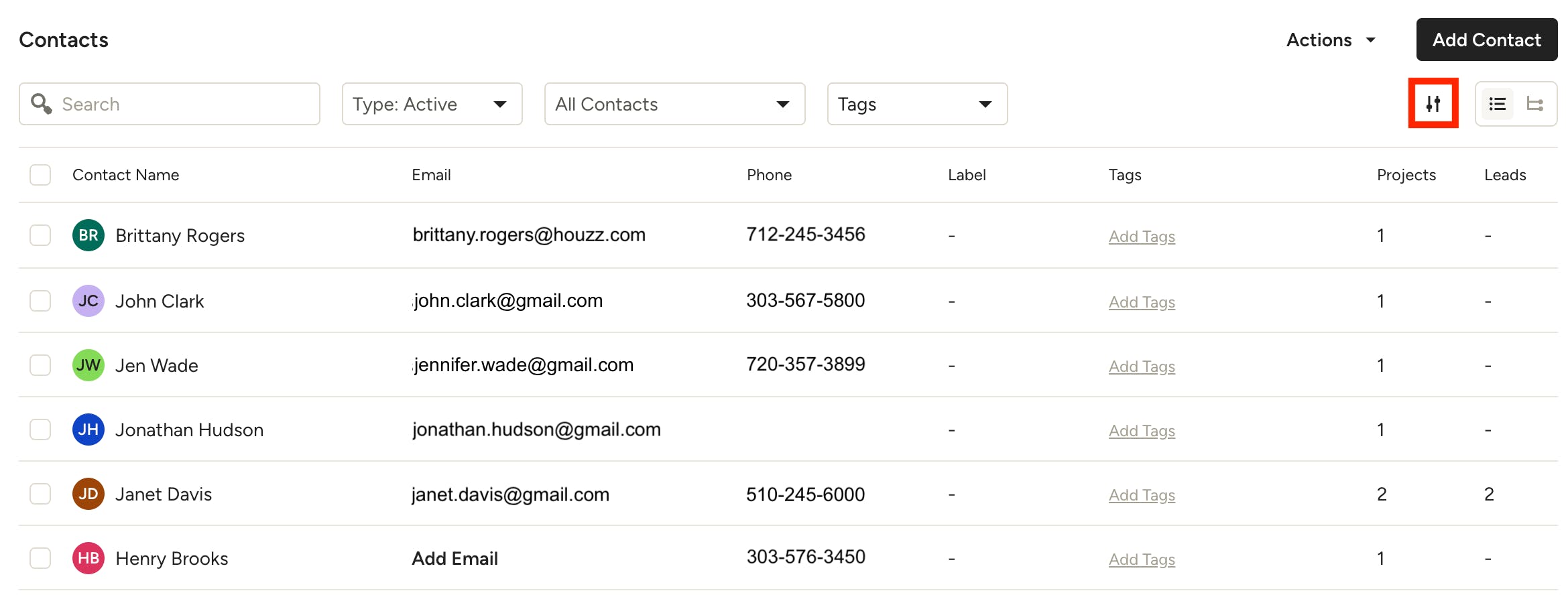
On the Contacts page, you can view all contacts, including those with projects, leads or neither. You'll see an overview of each contact for quick access to most used details, like email and phone number.
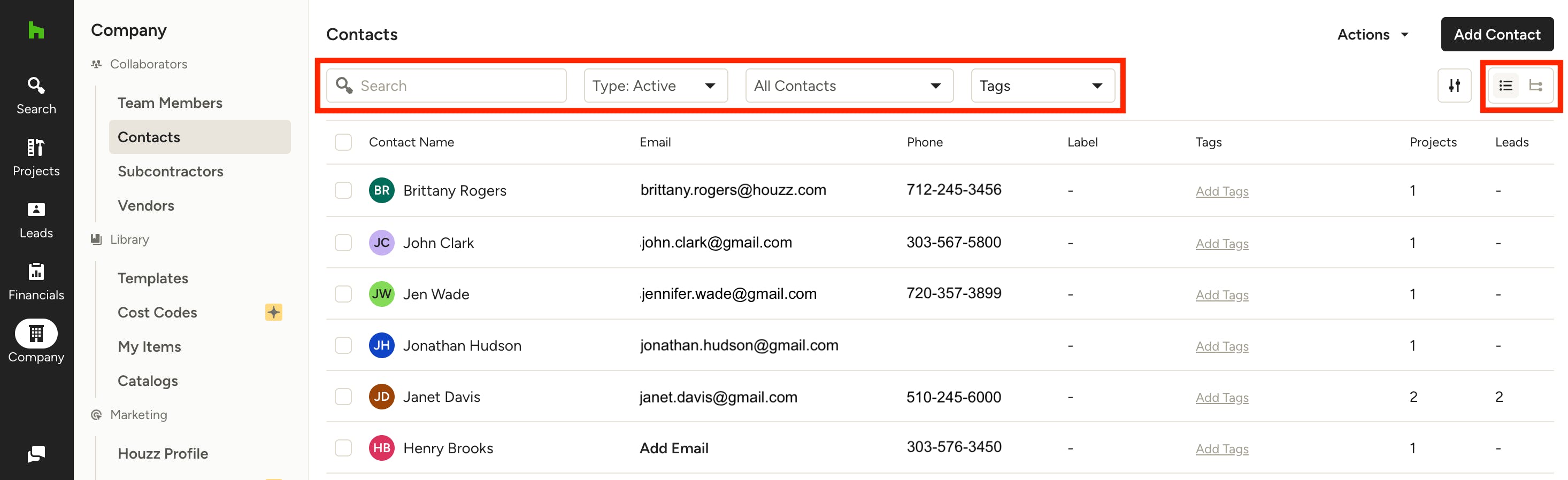
Use the search bar to easily find a contact. You can also use the filters at the top to adjust what you see.
- The Type filter allows you to narrow down by All, Active or Archived contacts.
- The Contacts filter allows you to narrow down by All Contacts, Project Contacts, Lead Contacts, or Contacts with No Activity (manually added or imported contacts that have not yet been assigned to a project or lead).
- The Tags filter allows you to narrow down by custom tags you use to organize your contacts.
These filters will remain selected the next time you visit the Contacts page.
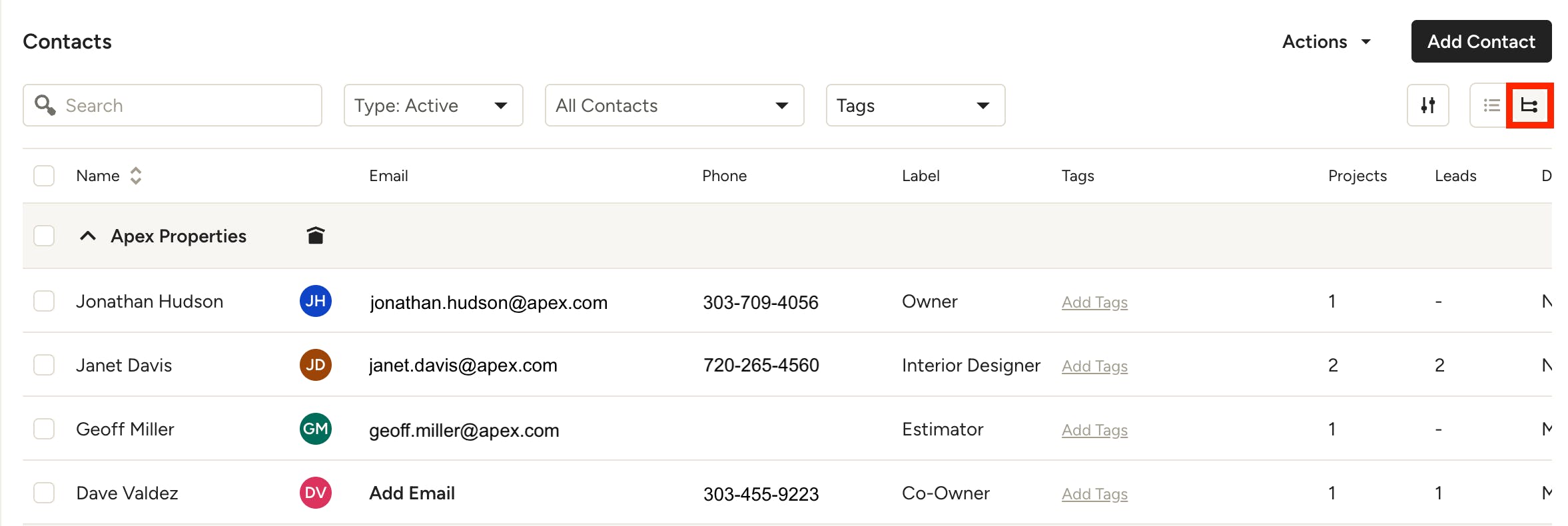
You can also adjust the sorting for your Contacts list using the icons on the right.
The List View (first icon) will show all your contacts together without any grouping, as shown above.
The Group View (second icon) will group all your contacts by Account, as shown below. Accounts are useful if you have several contacts that you want to group together under a shared account, such as a company, household or organization.
Customize Contacts
In just a few simple clicks, you can easily customize your Contacts experience to better showcase the information you need to see. You can resize columns, add and hide columns, reorder columns, and pin columns.
Resize Columns
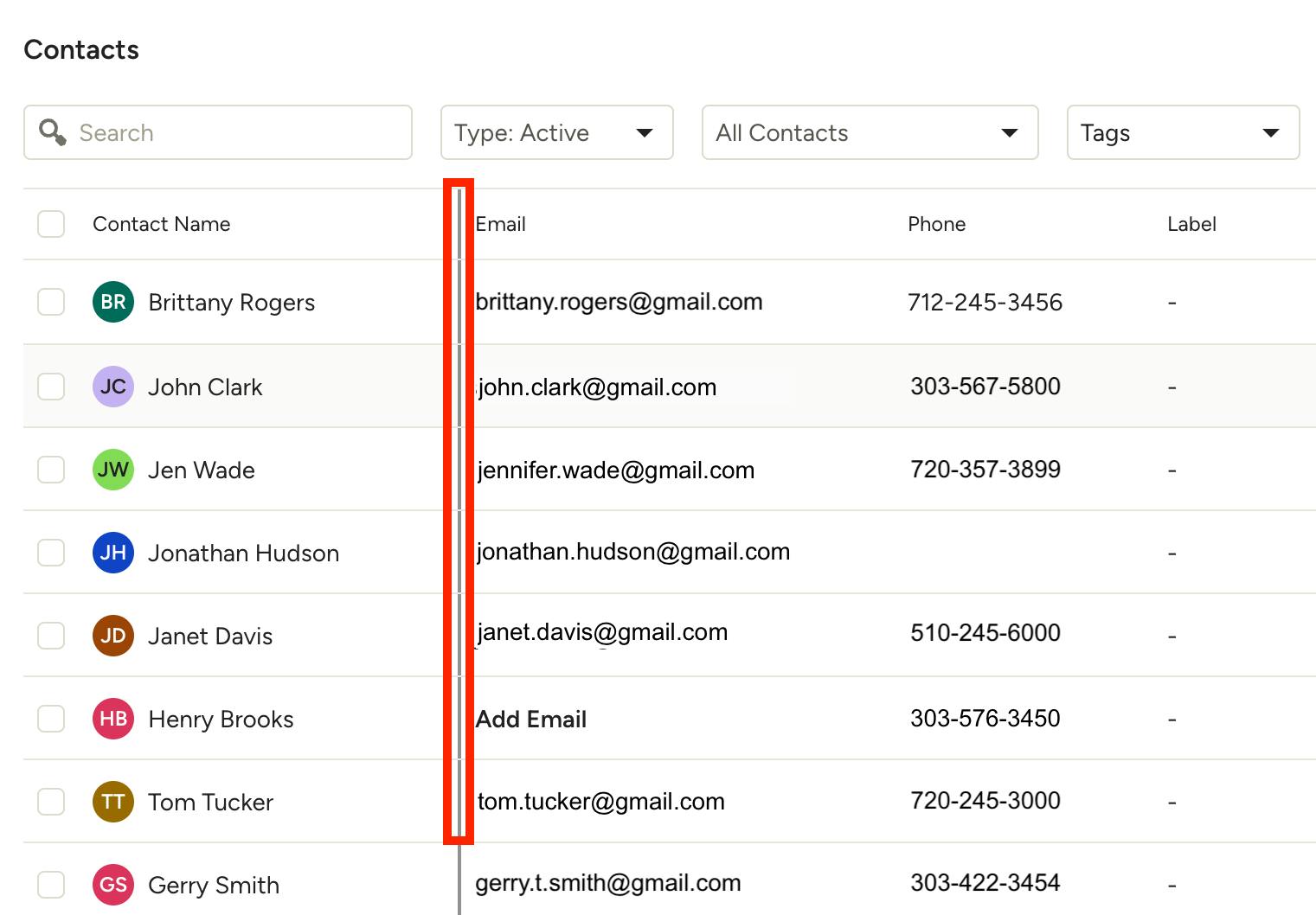
To resize columns, hover over a column until you find the column divider. Click and hold the column divider, then move it left or right to make the column bigger or smaller. This is useful if you have columns that require more text and therefore need more space (or vice versa).
Add, Hide and Reorder Columns
To customize the columns on your Contacts page, click the Customize Your View icon on the right side of your screen.
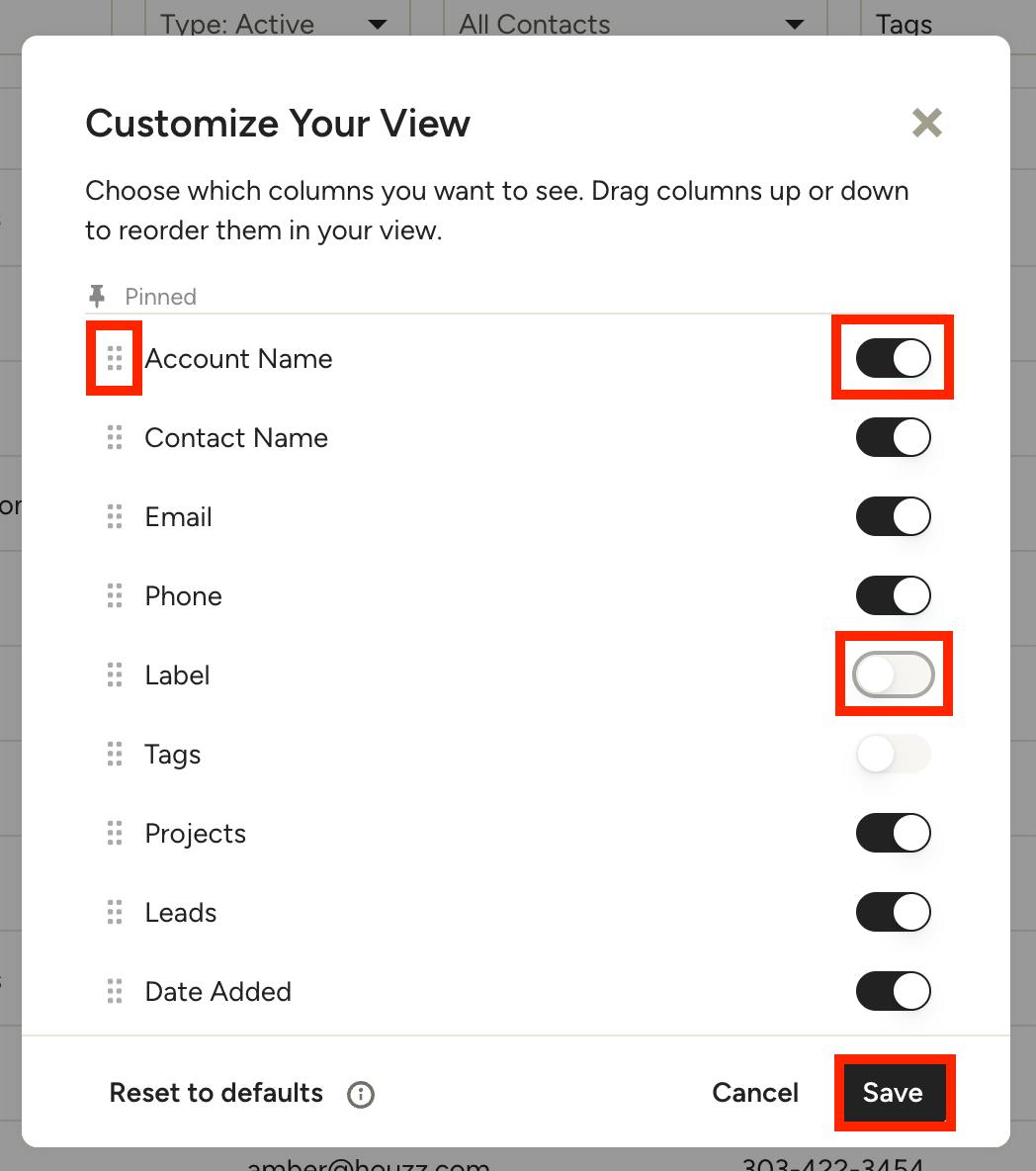
Here, you can toggle on columns you want to include and toggle off columns you want to exclude. By default, all the columns will be turned on.
You can also click and hold the six dots icon on the left side of the list to adjust the order of the columns. Just drag and drop the column to where you would like it placed in the list.
Once all customization is complete, be sure to click Save.
Pro Tip: You can also reorder the columns directly on the Contacts page — just click and hold the column's title, then drag and drop the column where it needs to go.
Pin Columns
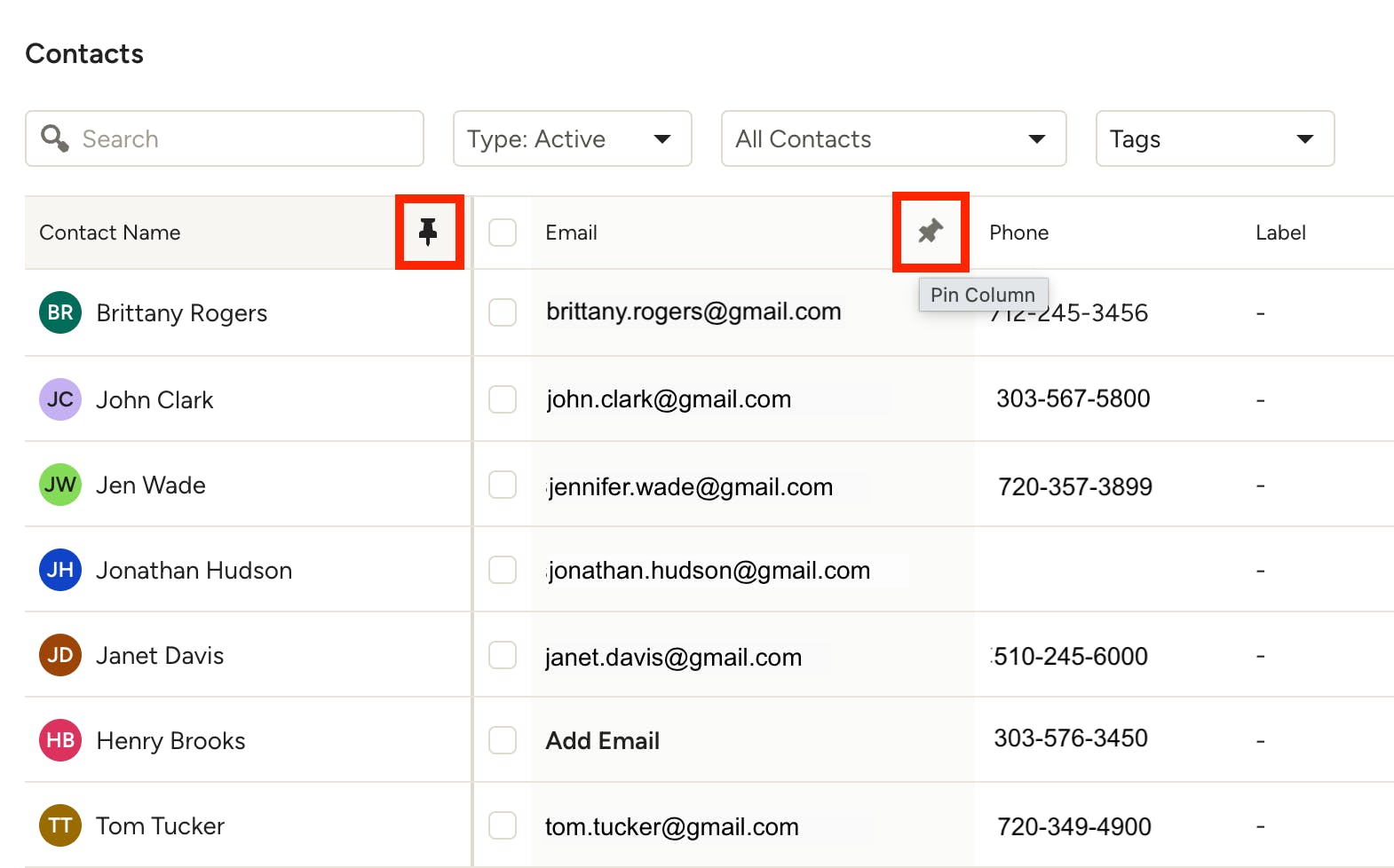
To pin columns, hover over your column title, then click on the Pin icon. Pinning a column is useful if you would like to permanently place that column at the front of your Contacts page — you can then reorder all pinned columns by dragging and dropping columns.
Create New Contacts
To create a new contact, you can either manually enter the contact's details or import an existing file that contains one or more contacts.
Manually Add Contact
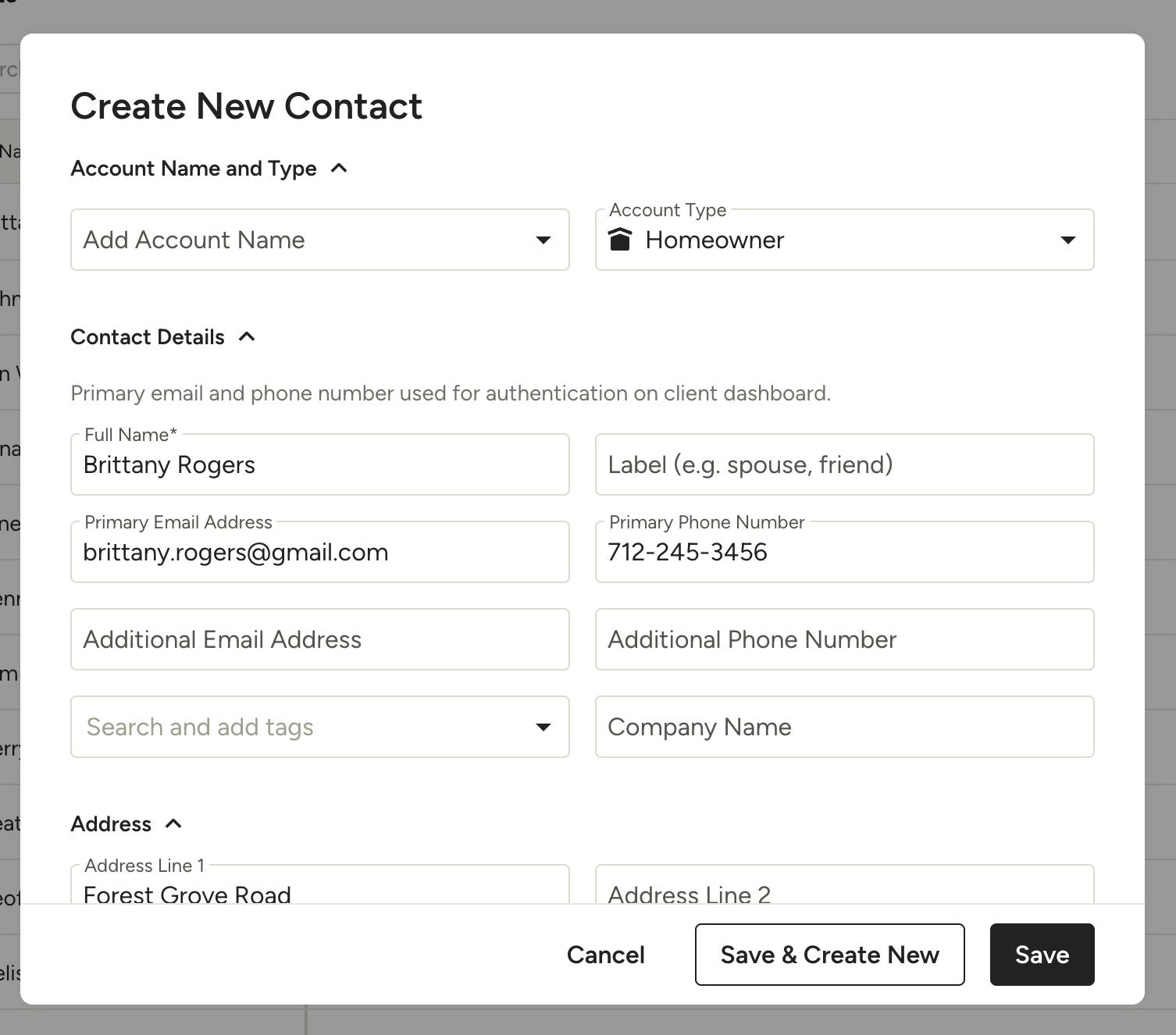
On your Contacts page, click Add Contact in the top right. Fill in all the relevant contact details. Here, you can add:
- Account Name: A shared account name allows you to group several contacts together under a shared account, such as a company, household or organization. You can assign an existing account, or you can create a new one by typing in the account name, then clicking Create Account.
- Account Type: You can designate the contact as a Homeowner or a Business.
- Contact Details: You can add contact name, email address, phone number and company name. You can add existing tags or create new tags (example: Repeat Customer, VIP) to help with contact organization. You can even label the contact with a role/label (example: spouse, estimator, interior designer) for quick context on who each person is within a larger account or team.
- Address: You can add the physical address for the contact.
- Additional Info: You can add internal notes and details relevant for that contact.
Be sure to click Save to complete. Your new contact will now appear in your contact list.
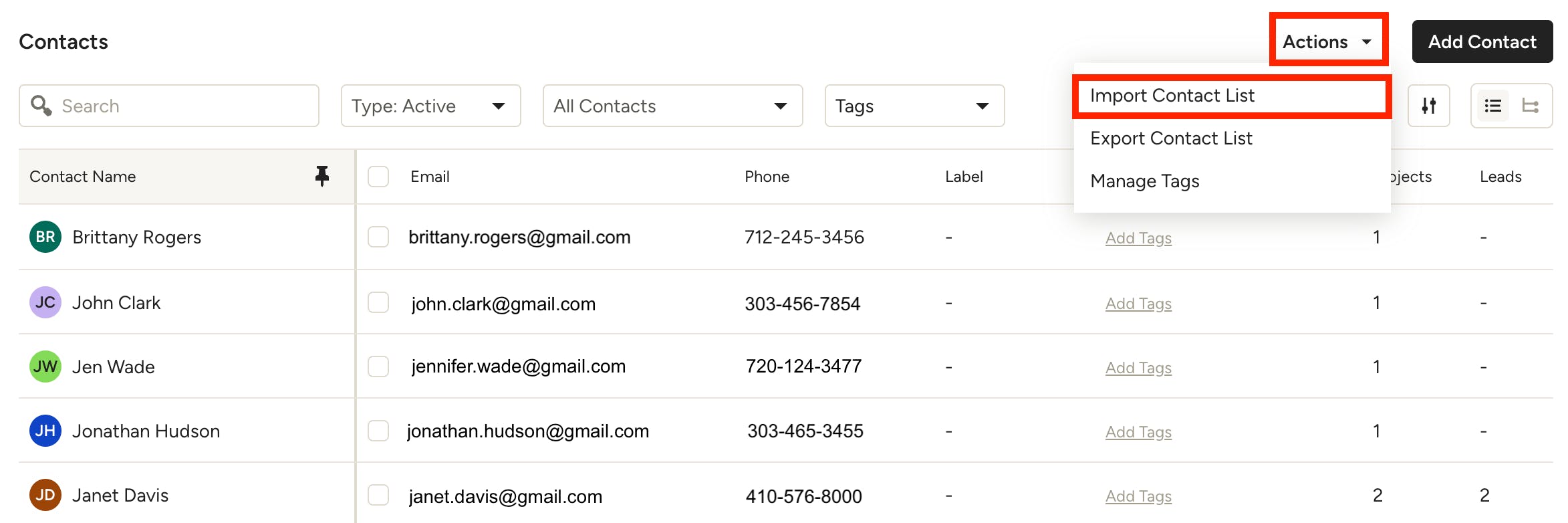
Import Contact List
To import a list of contacts using an XLS, XLSX, or CSV file, click Import Contact List under the Actions menu in the top right. Learn more about the process of uploading a contact list in How to Import Your Contacts.
Tips on Adding New Contacts
When adding new contacts, here are a few key things to keep in mind:
- Each project has one primary contact. This person serves as the main point of communication for project emails and texts. To add a secondary person who will receive project communication (e.g., a spouse or team member), update the primary contact's record and add the additional email and phone number there. Secondary emails are included on some communications automatically, but not all — for certain features, you may need to add them manually when sending. We recommend reviewing the recipients before sending or sharing any features.
- We don't allow duplicate contact emails or phone numbers. You will see an error message if you try to add/import a contact with the same email or phone number as an existing one. If you encounter this error, you need to locate the contact details where the email is currently assigned (be sure to check Archived contacts as well). You should then remove the email address from that contact, then add the email address to the desired contact for the project.
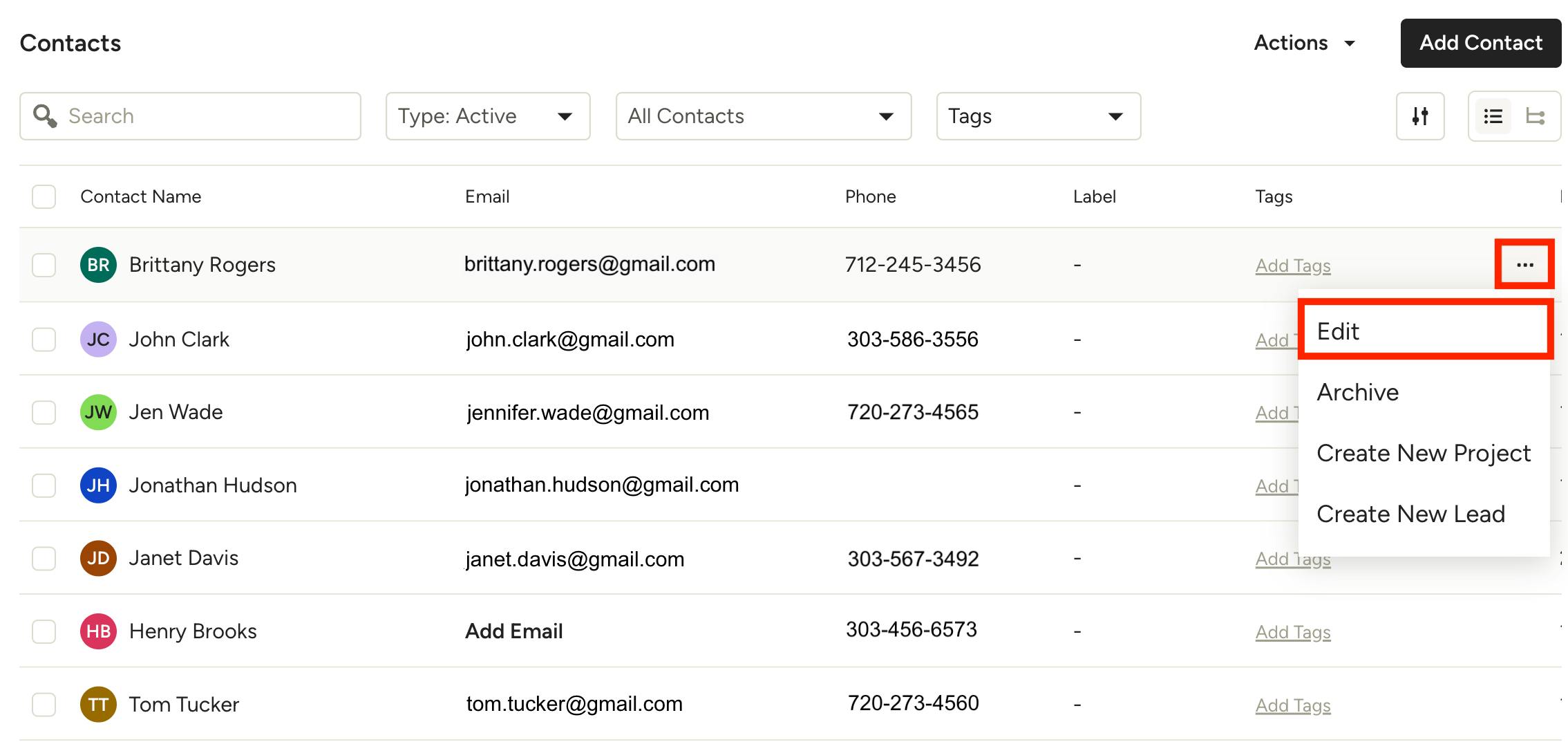
Edit Contact Details
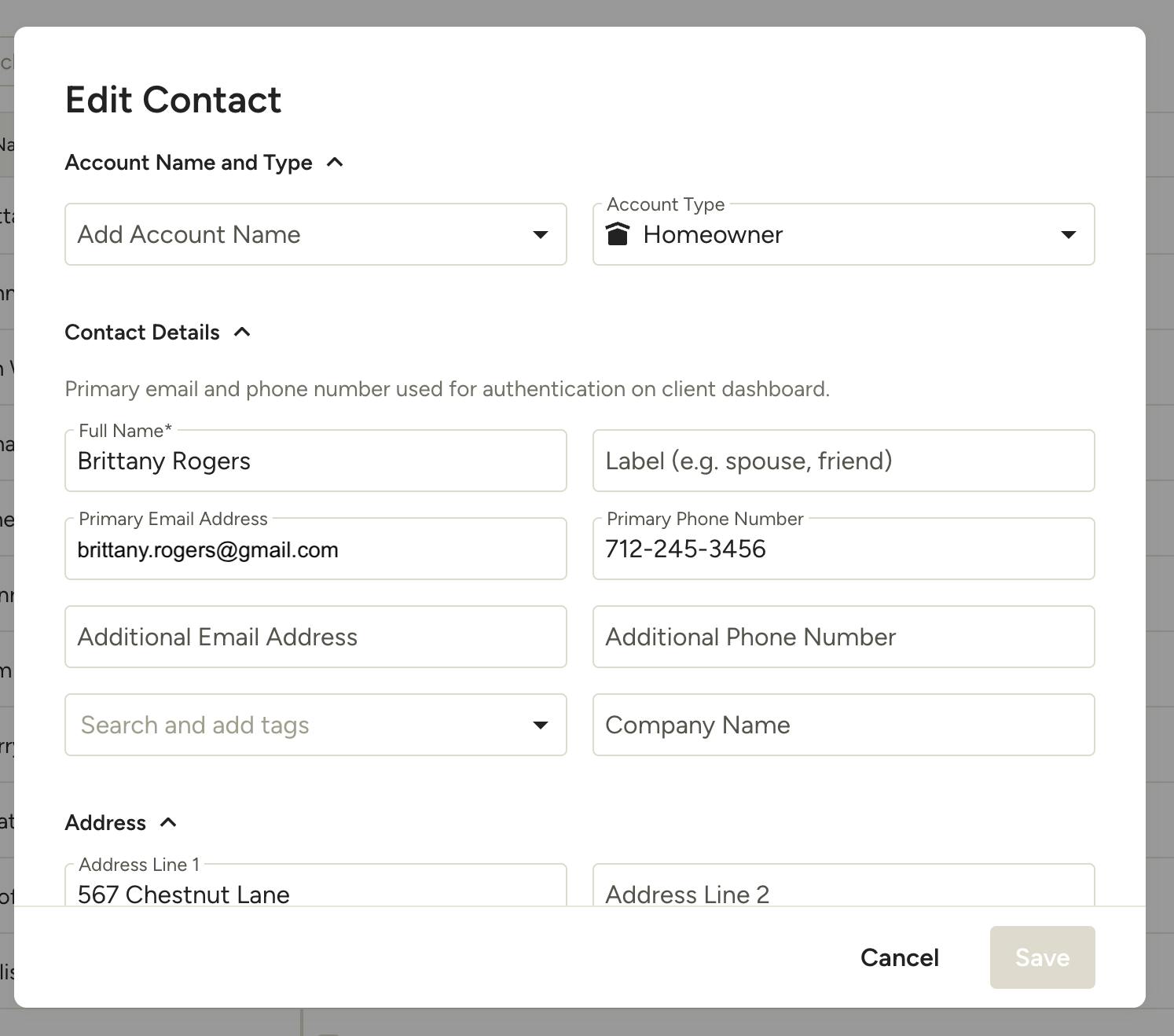
To view and edit a contact's details, either click their name in the list, or use the three dots menu to the right of their info and select Edit.
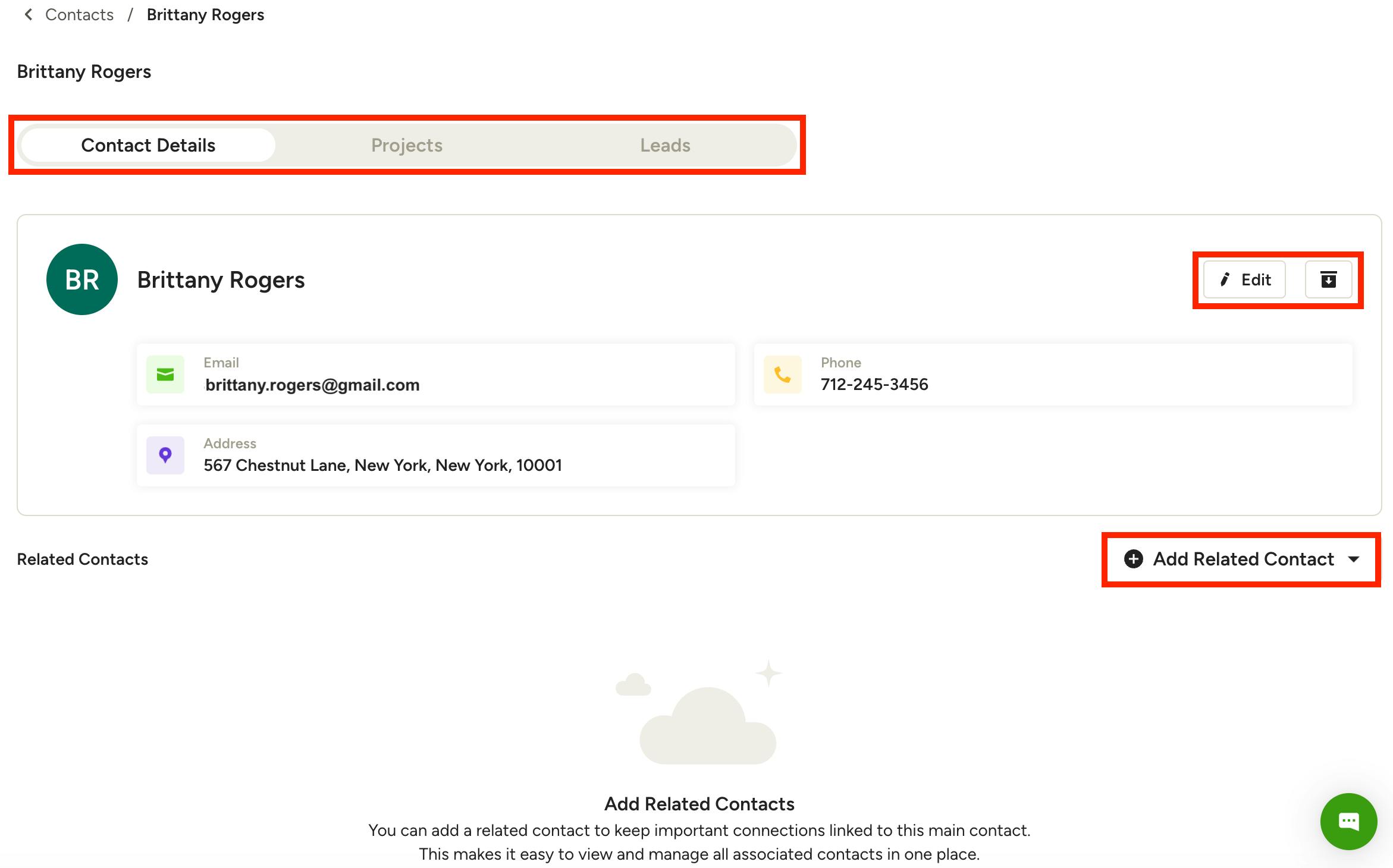
Edit Contact From List
If you click the name in the Contacts list, a new screen will appear with three tabs at the top.
Under the Contact Details tab, you can click Edit to add or change any existing contact details, addresses and internal notes. You can also Archive a contact from here and add Related Contacts that are connected to this main contact.
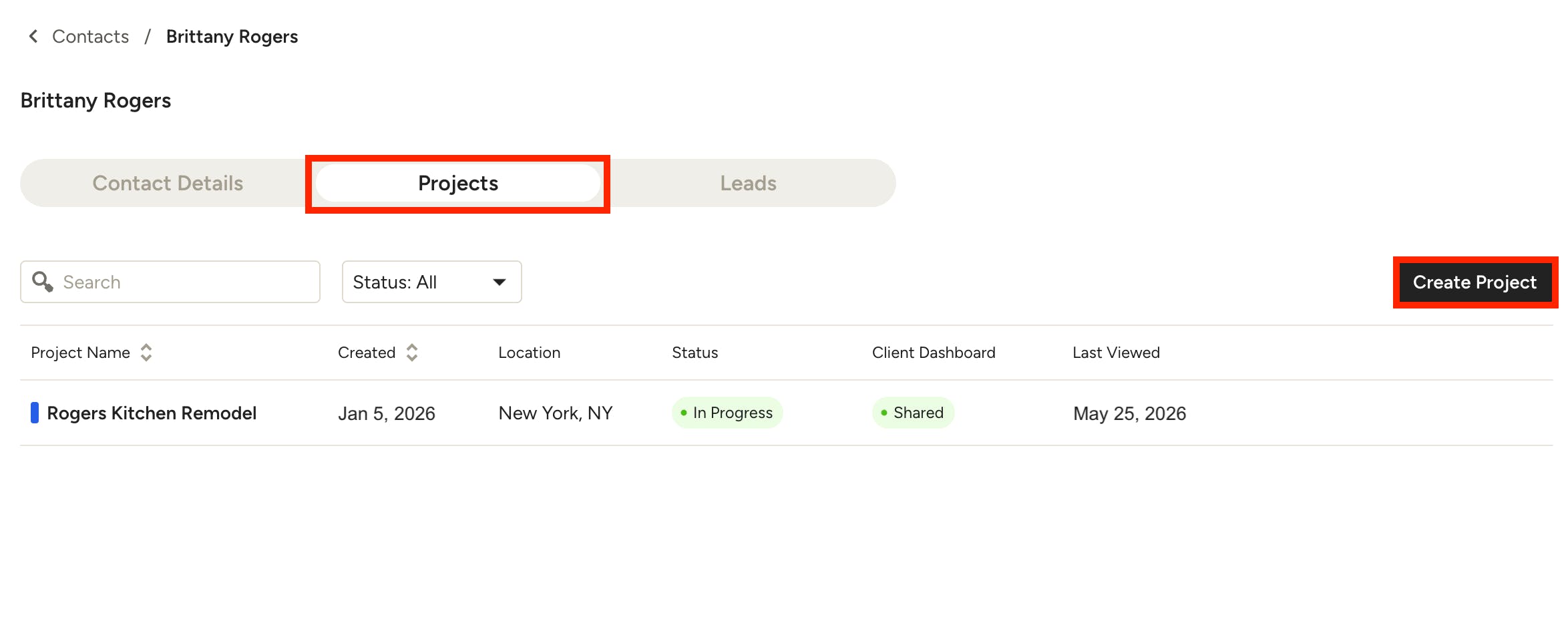
The Projects and Leads tab shows all projects/leads assigned to the contact, including status and client dashboard sharing state. Click a project name to open its overview page, or click Create Project (or Create Lead) to start a new one — client details will auto-fill. To view or change a project's linked contact, open the project, go to Project Details, and use the Client dropdown.
Edit Contact from Edit Menu
If you click the three dots menu, then Edit, a new screen will appear with the contact information. Here, you can create an account name or associate it with an existing account. You can also assign the contact a role, such as Homeowner or Business.
You can add or change any existing contact details, secondary contact details, addresses and internal notes.
Click Save to save any edits you make.
Delete Contacts
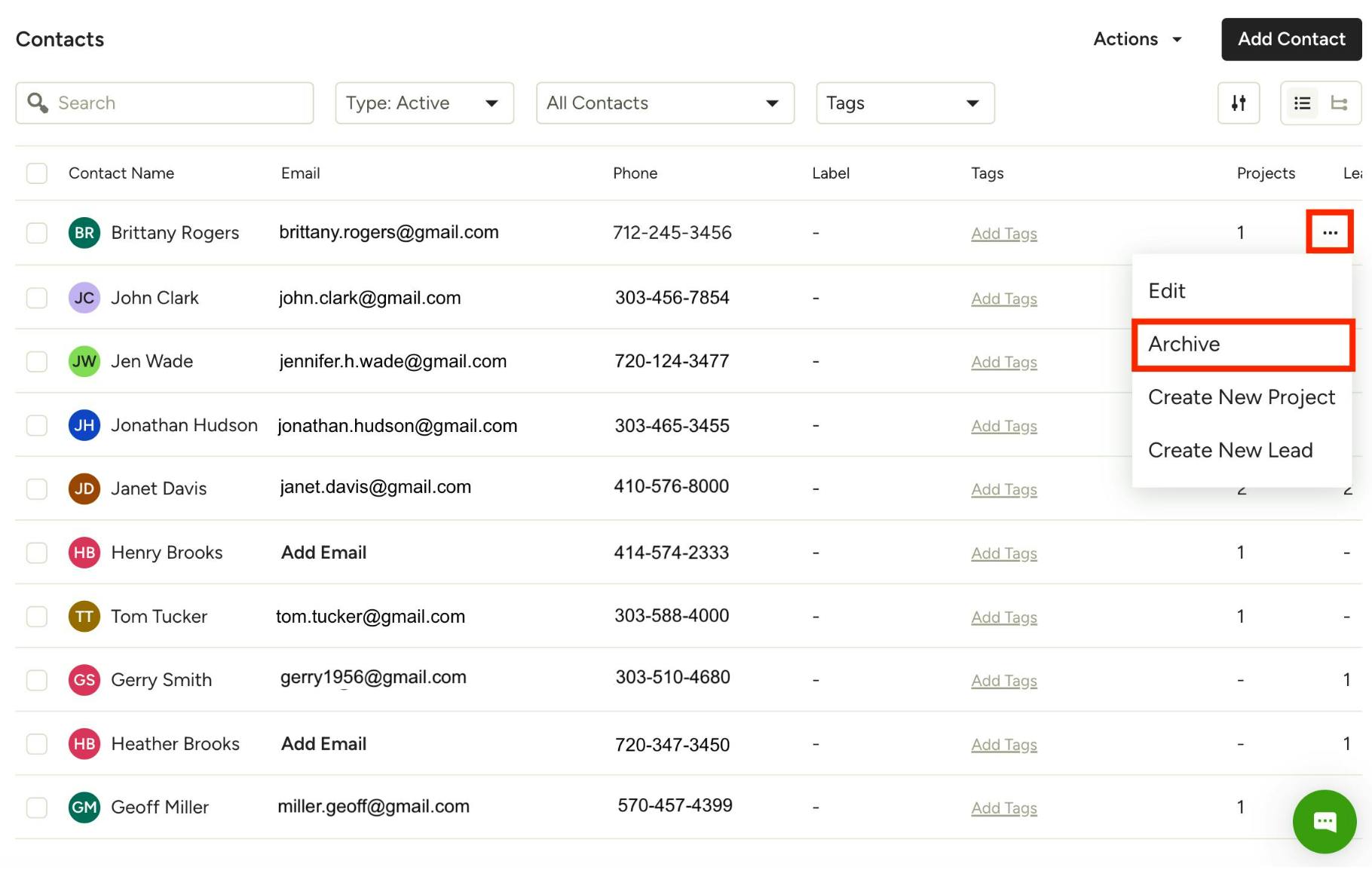
You can delete a contact by archiving them on the Contacts page. Once a contact is archived, their details will be hidden from the contact list, but you can restore them at any time. Learn more in How to Delete a Contact.
If you have duplicate contact entries, you can archive the one that's not assigned to any project or lead — look for the one with - in both the Projects and Leads columns.
Please Note: While you can delete a contact, there is currently no way to delete an account. If you archive or unlink every contact from an account, the account will automatically be deleted.
Export Contact List
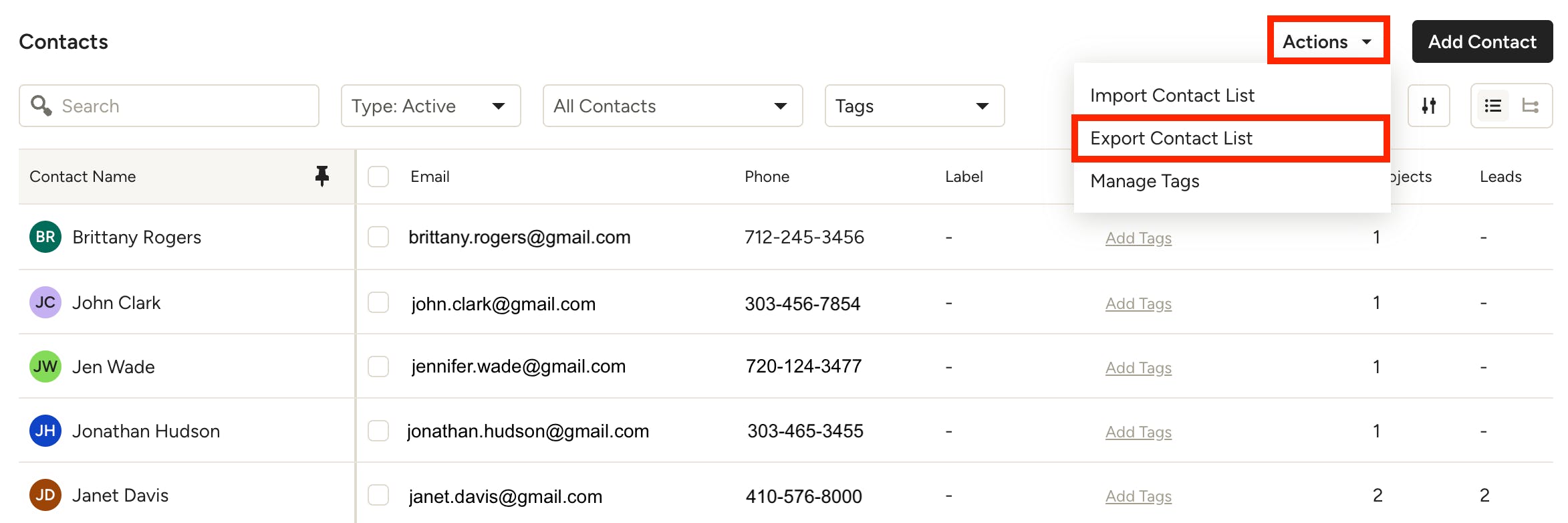
You can easily export your contact list to use in other tools, such as in MailChimp or another marketing platform. To do so, click on Actions in the top right and select Export Contact List. Your list of contacts, along with all of their details, will be exported as a .csv file.
Note: Only your current view will be included in the export. If you need to adjust which contacts are included, use the Type and Contacts filters at the top of the page.