How to Comment on Documents in Houzz Pro
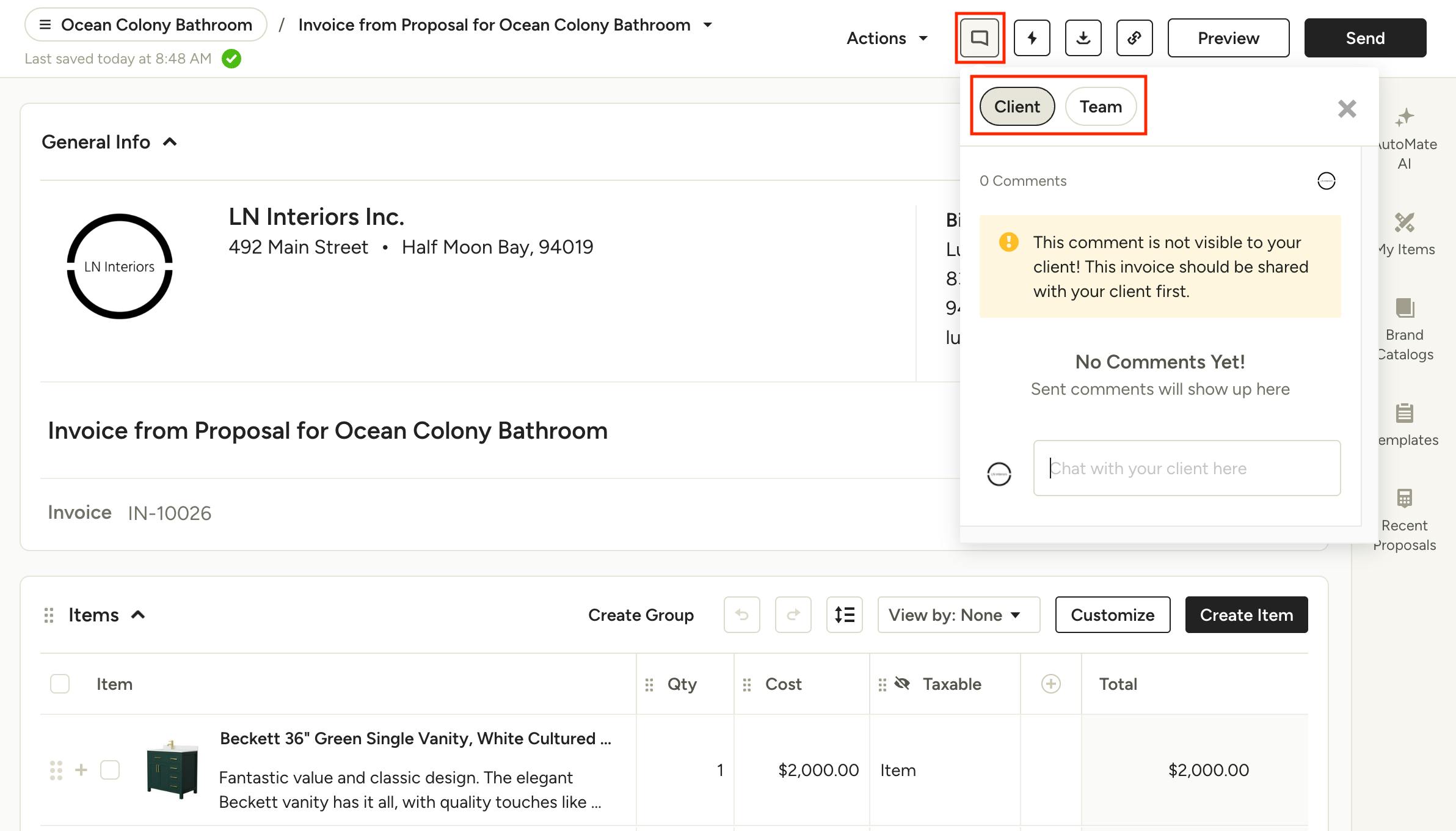
With the ability to comment on documents in Houzz Pro, you can converse with clients and team members directly on the relevant documents, keeping your communication organized and allowing you to easily reference document details. Currently commenting on documents is limited to client-facing documents (estimates, proposals, invoices, change orders, retainers and contracts).
Add & View Comments
To add a new comment, click the comment icon at the top of the document that you wish to comment on. In the comment modal, you’ll see two tabs at the top: Client and Team. Select which tab you want to leave a comment on, depending on who you need to communicate with. Your clients will not see any content within the Teams tab, but team members with access to the document can see content in the Client tab.
Note that your client will only be able to view and make comments on a document that has been shared with them via Houzz Pro email or the client dashboard. Documents viewed via the copy/share link will not have comment functionality enabled for security purposes.
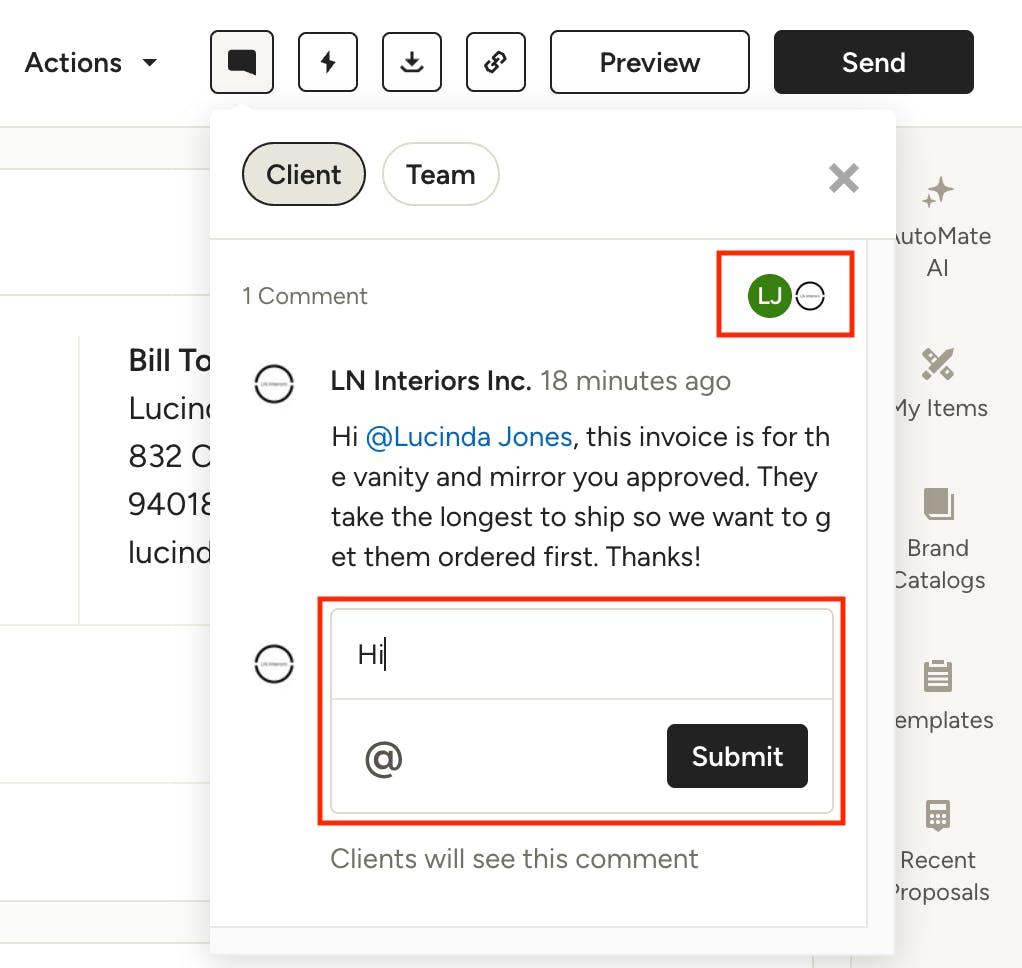
To add a comment, use the text box at the bottom to type your communication, then click Submit. The comment will instantly be sent to the client and/or team member(s) on the conversation. To see who is in the comment thread, check the icons in the top right corner of the tab.
Pro Tip: Type @ or click the @ symbol in the text box to select and tag a client or team member in the comment. If a team member is not currently part of the comment thread, this will automatically add and notify them.
Edit & Delete Comments
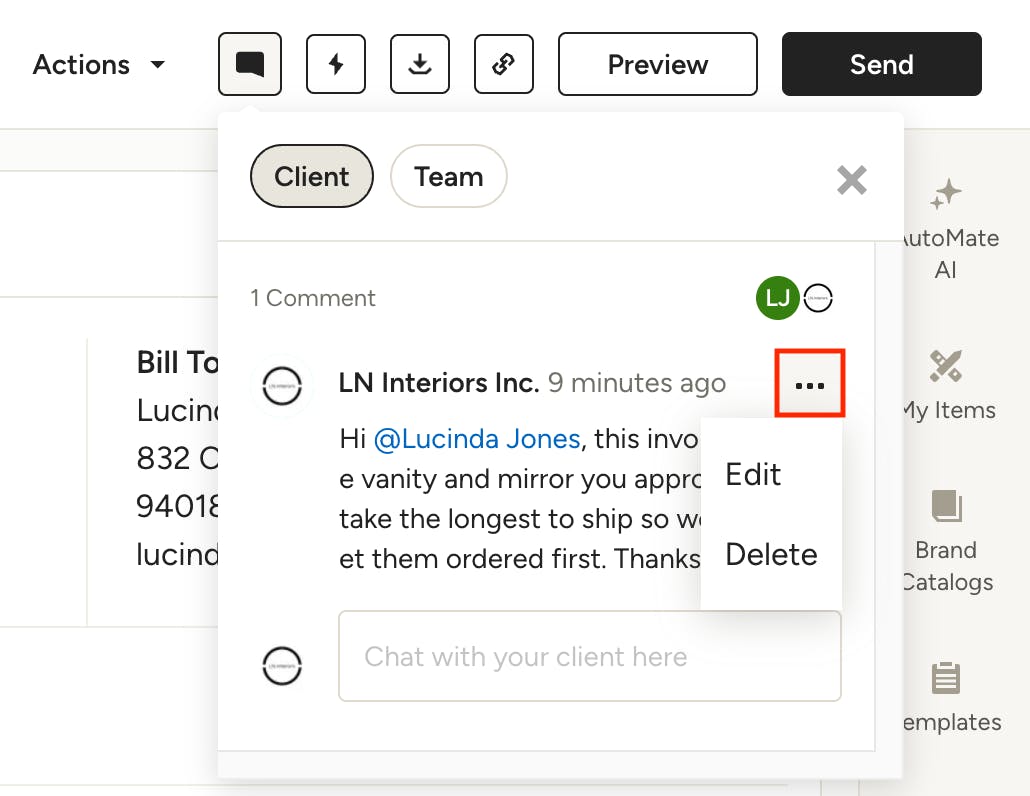
You can edit or delete comments that have been sent by clicking the three dots to the right of a comment and choosing the appropriate action. Note that once a comment has been sent, the client can see it in the content of the email notification they receive, even if you’ve edited or deleted it.

Comment Notifications
As your clients and team members start commenting on documents, you will be notified in multiple ways so that you don’t miss anything. Note that all people on a thread will receive a notification for every comment on said thread, regardless if they are being mentioned directly or not.
In-document Notifications
If there are any unread comments on a document, you will see a red dot on the comment icon in the document itself.
Document Lists
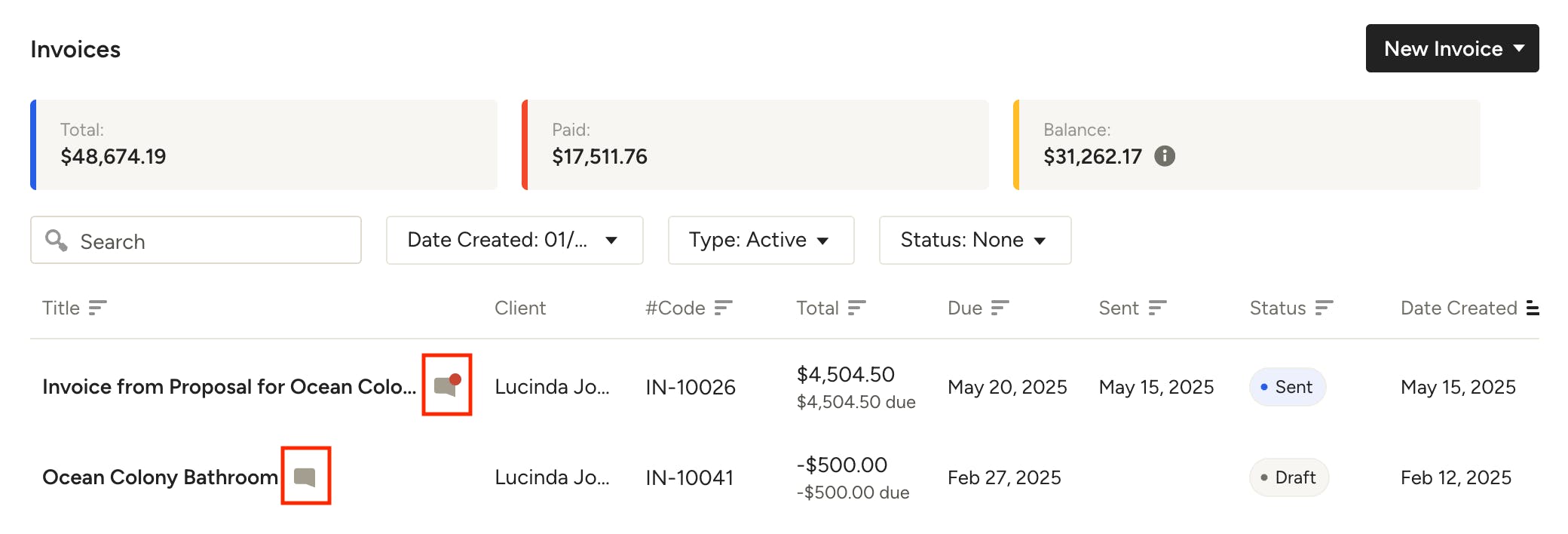
Anywhere you have a list of documents, like the All Invoices page or project-specific Invoices, you will see a comment icon next to any document that has comments. If there is a red dot on the icon, that indicates that there are unread comments.
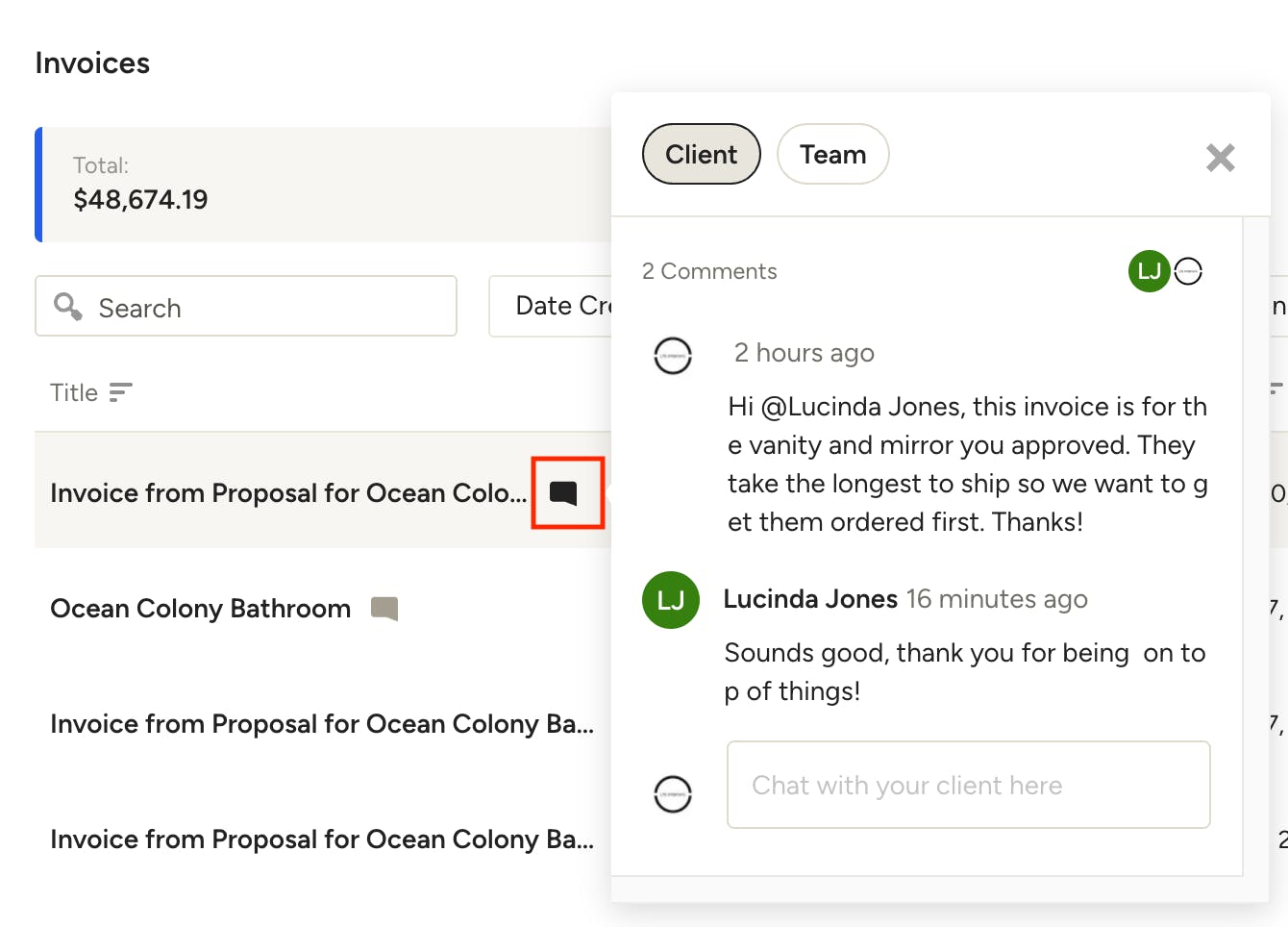
You can click the comment icon to open the thread and reply without leaving the page.
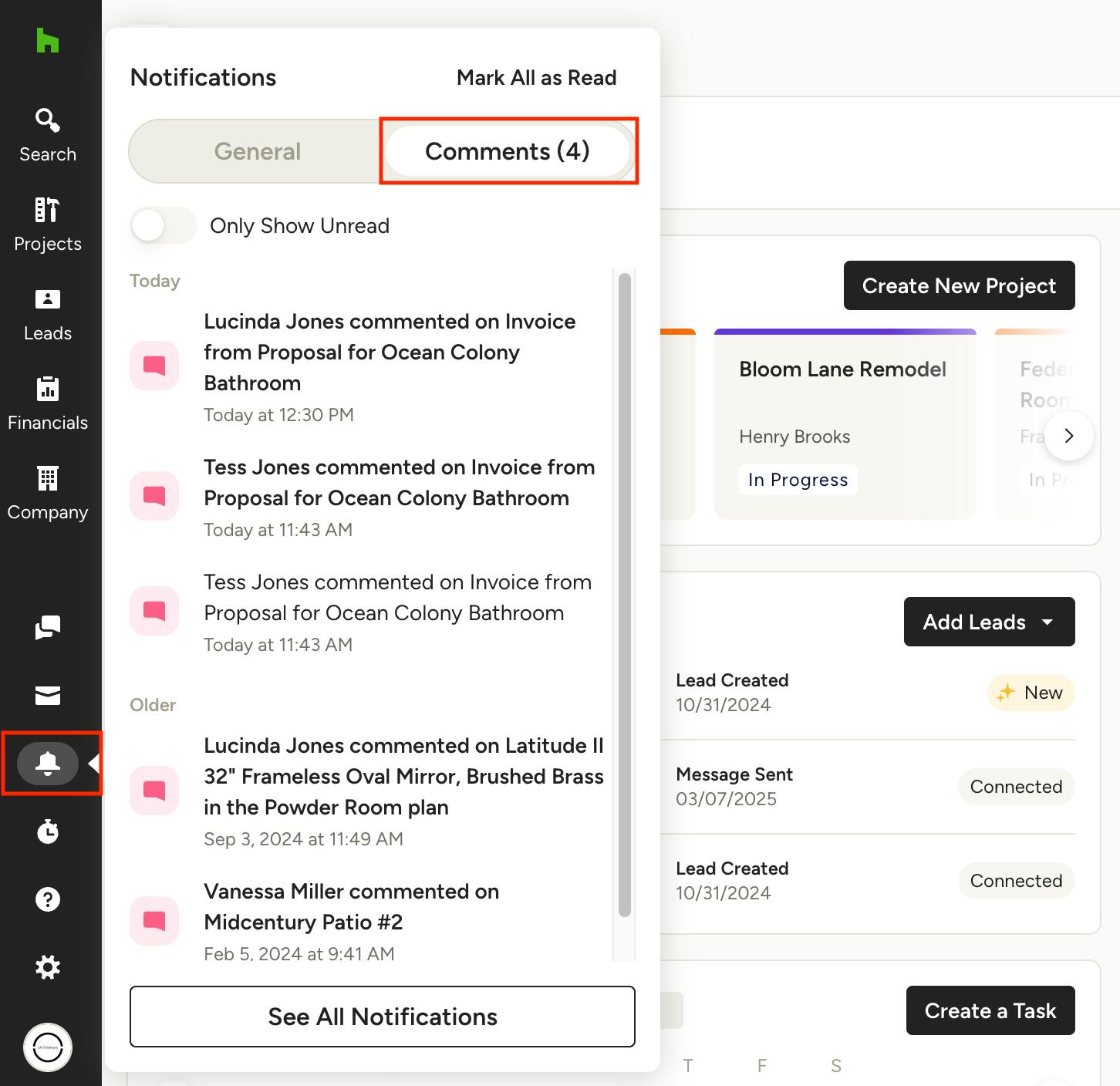
Notifications Center
Comment notifications will appear in your Notifications in the left navigation. Click on the Comments tab at the top to quickly filter to just comments. You can click any comment notification to be taken directly to the thread in the relevant document.
Client View
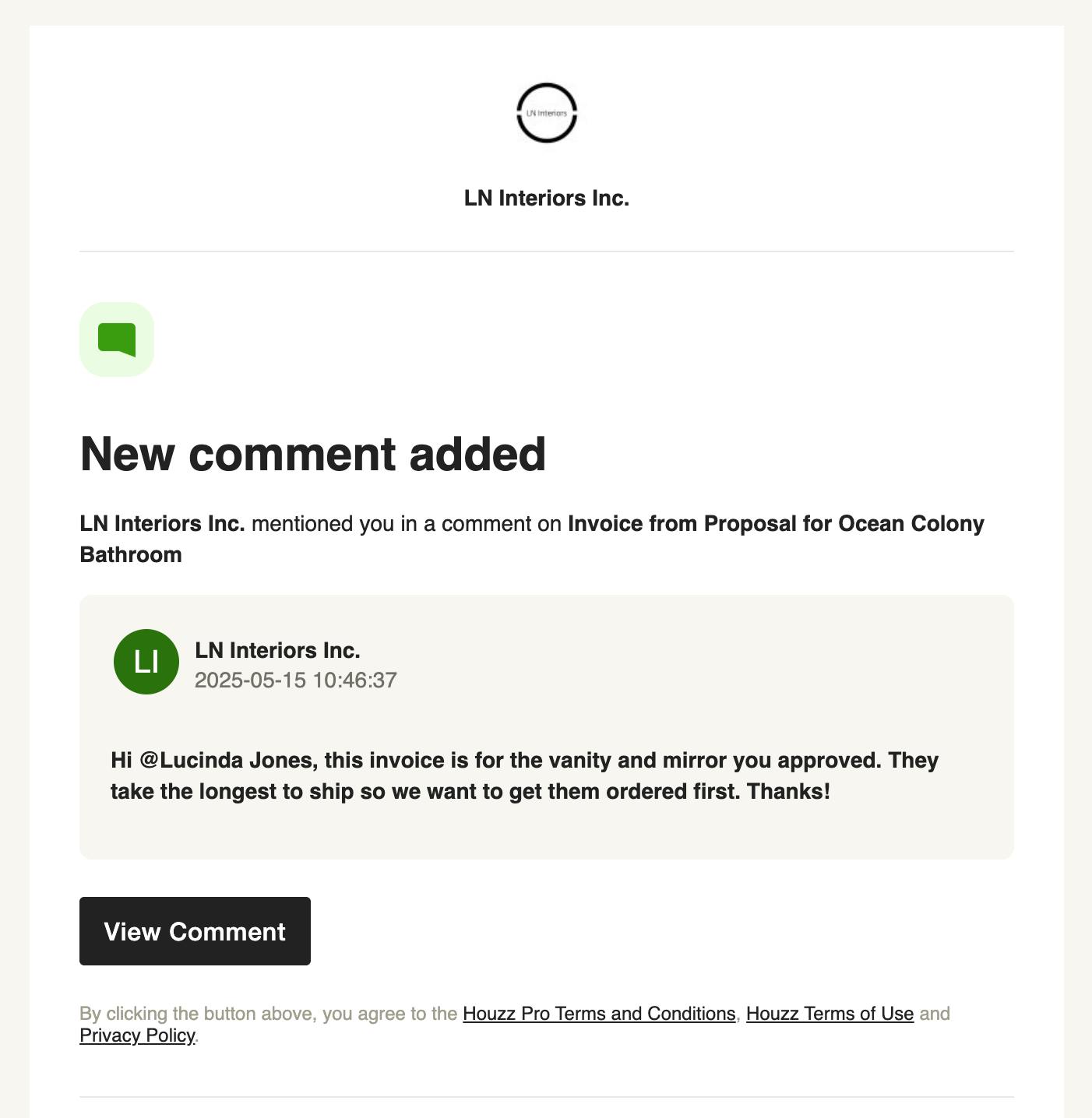
When you add a comment to the client tab on a document, they will receive an email notifying them of the new comment. They can click to view the comment on their client view of the document and add their own comments as needed.
Client Email
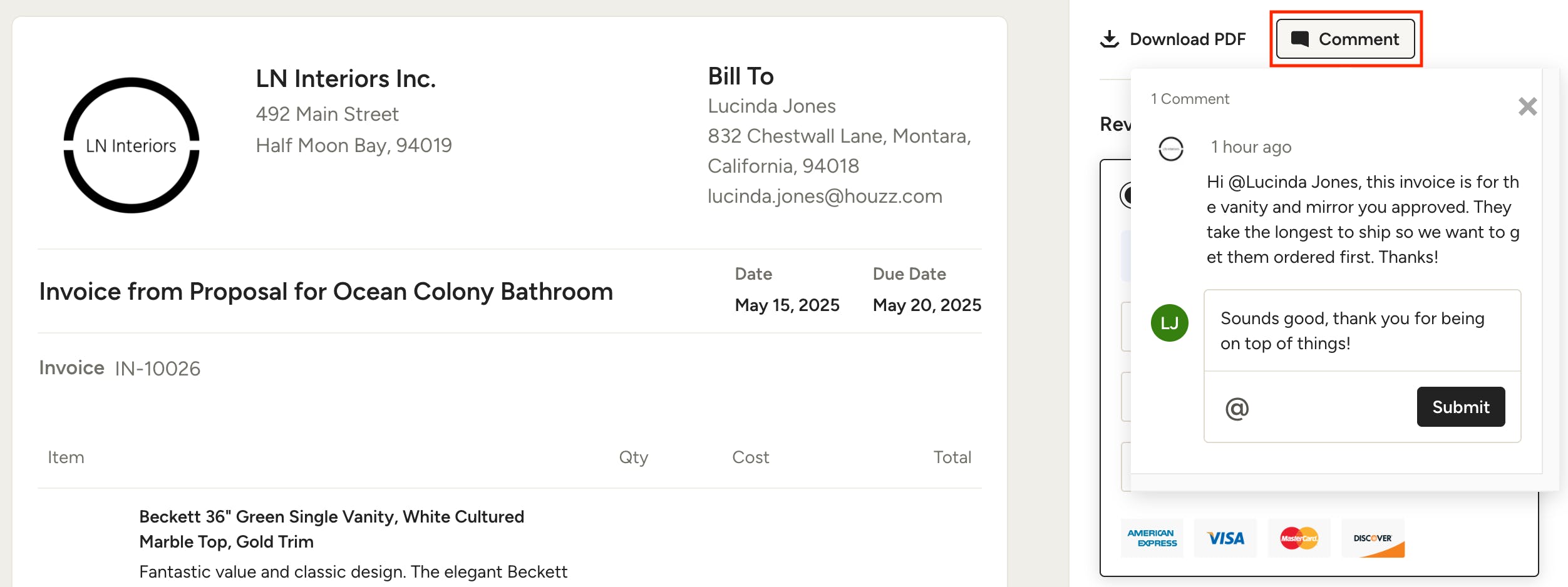
Client Document View