How to Calculate Margin
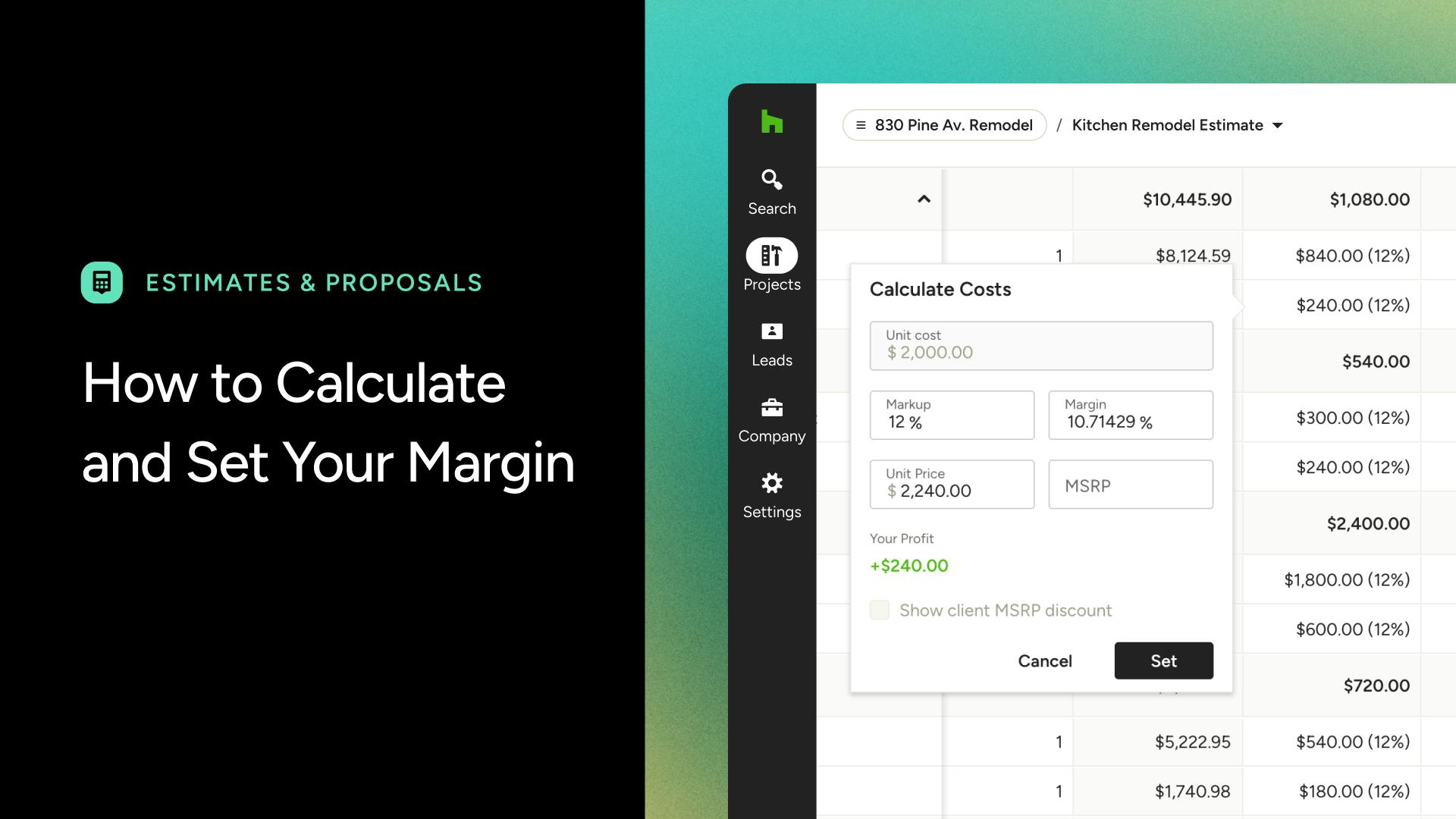
Knowing your margin — not just your markup — is essential to understanding how much of every dollar you collect is actual profit. With Houzz Pro, you can set your target margin directly on each line item in your estimates, proposals, invoices, and change orders. The system will automatically calculate the correct markup and unit price for you based off the existing unit cost.
Our in-document calculator keeps markup and margin values in sync — so however you prefer to think about pricing, you're covered. Let's look at how these numbers are calculated:
Understanding the Calculations
Margin and markup both measure profit, but from different starting points. Margin is profit as a percentage of your selling price; markup is profit as a percentage of your cost.
For example, if something costs you $100 and you sell it for $150, your profit is $50. Your margin is 33% ($50 ÷ $150 sale price), while your markup is 50% ($50 ÷ $100 cost).
Because they answer different questions, they're never the same number for a given item — our calculator handles the conversion automatically so you can enter pricing however you prefer, without doing the math yourself.
Houzz Pro uses the following formulas behind the scenes when you enter a value into any of the three fields:
- Unit Price = Unit Cost / (1 − Margin %)
- Margin % = (Unit Price − Unit Cost) / Unit Price
- Markup % = (Unit Price − Unit Cost) / Unit Cost
Watch this video and follow the tutorial below to learn how to calculate your margin.
View & Set Margin in Documents
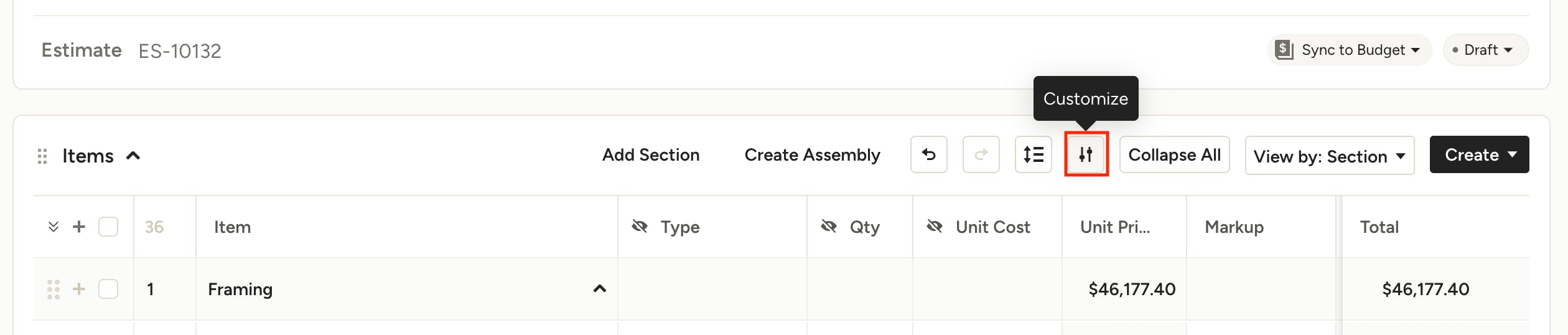
To view margin on line items in your documents, you need to enable the Margin column. Click the Customize button at the top of the items section and toggle on Margin.
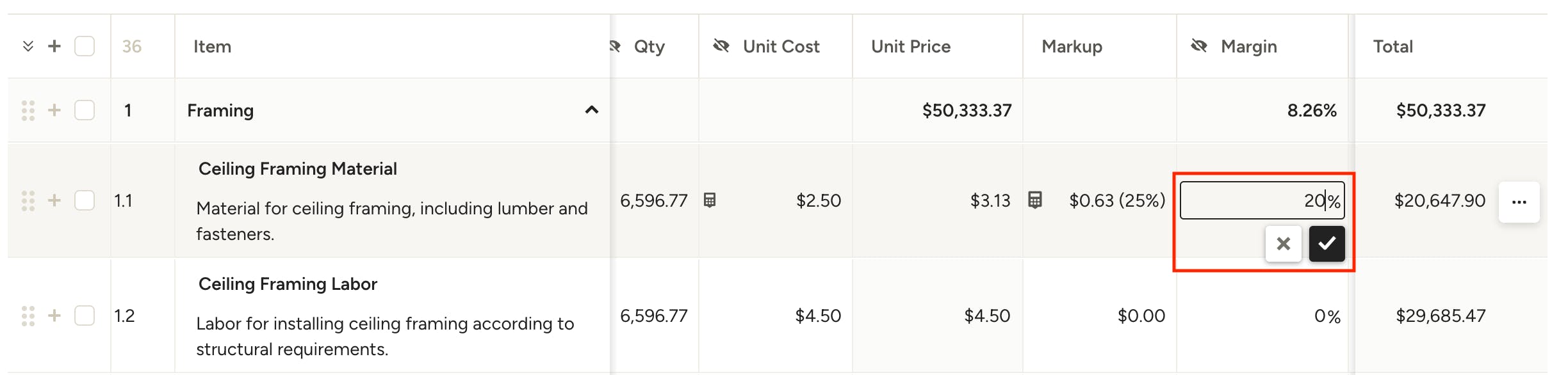
Once enabled, the Margin column will appear in the edit view of your document — margin is hidden from clients by default, but can be shown to clients if desired. Learn more in How to Customize What Your Client Sees on Financial Documents.
To set the margin percentage, simply click in the column for the line item you want to edit and type in your desired margin. Click the checkmark or hit enter/return on your keyboard to save the number.
Note: The Unit Price and Markup will adjust automatically based on the margin amount entered.
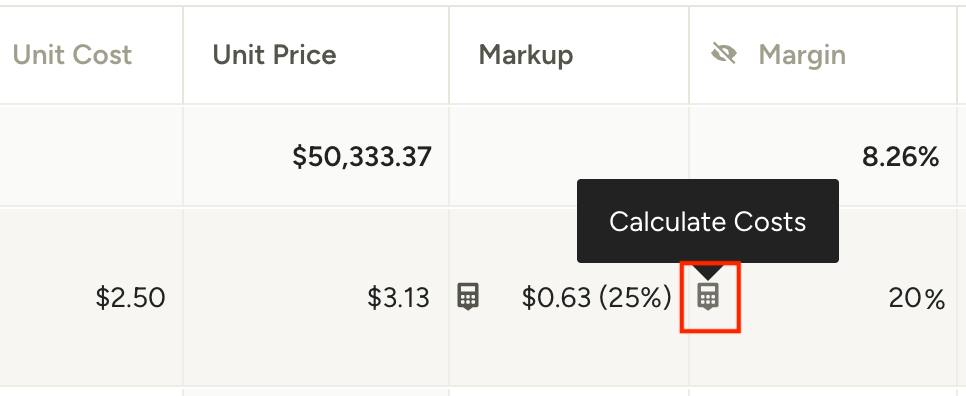
You can also click the calculator icon in the Margin or Markup columns to adjust the Margin, Markup or Unit Price in a single, consolidated view.
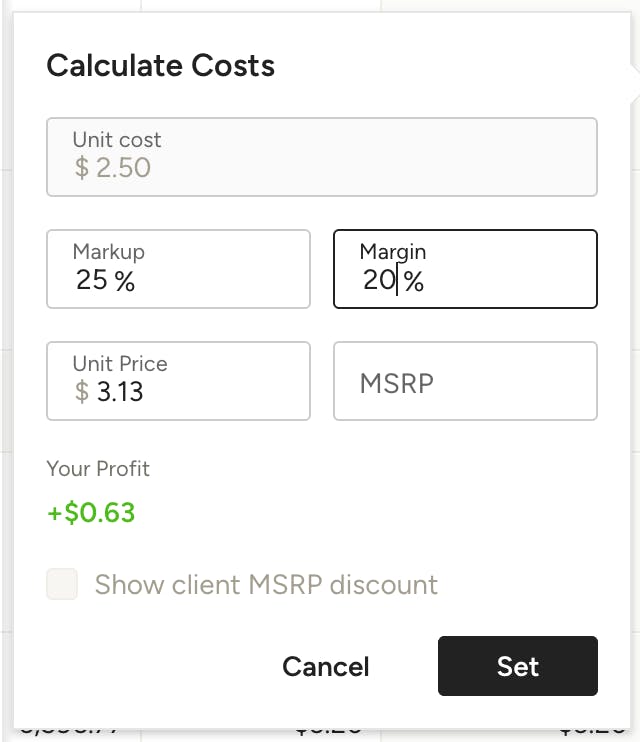
In the calculator, you can enter your desired margin, markup or unit price and the others will adjust accordingly. Click Set and your item will appear with the correctly calculated amounts.
To change the Unit Cost, you need to update it directly in the Unit Cost column.
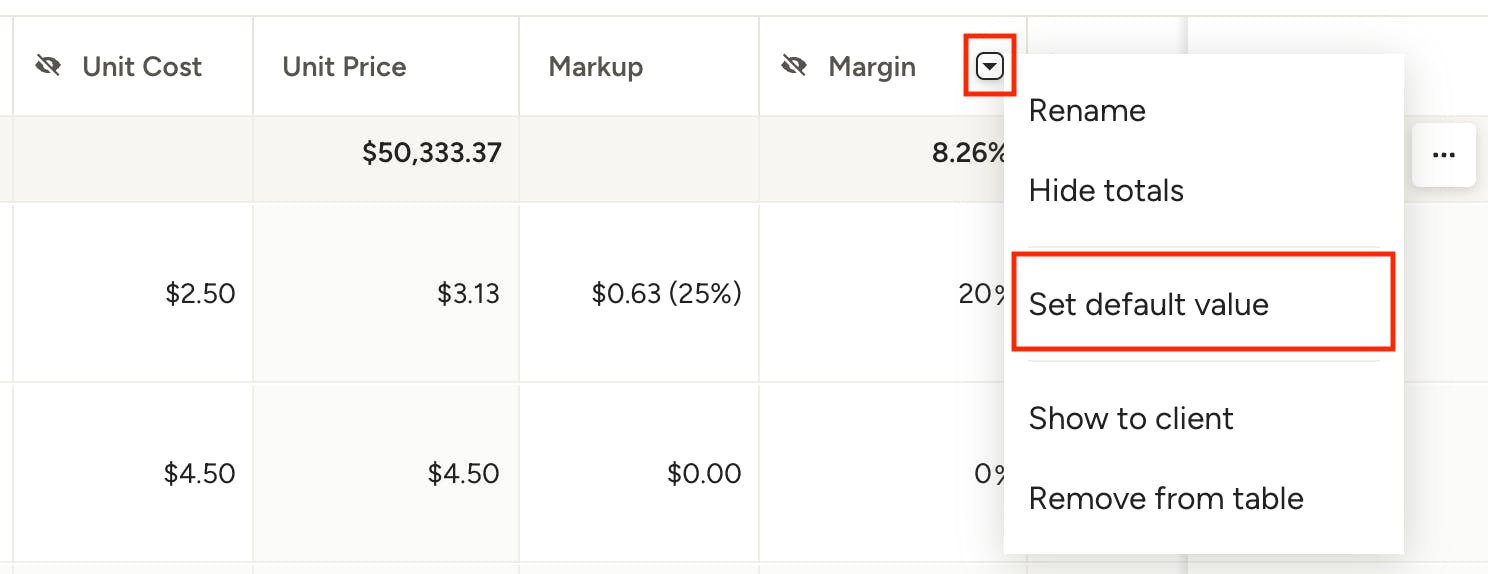
Set Default Margin on All Items
Want to set the same margin on all items in a document? To do so, hover over the Margin column title and click the arrow to open the menu. Select Set Default Value, then enter the value. This will apply to all items in the document — you can change an items margin individually directly on the line item.